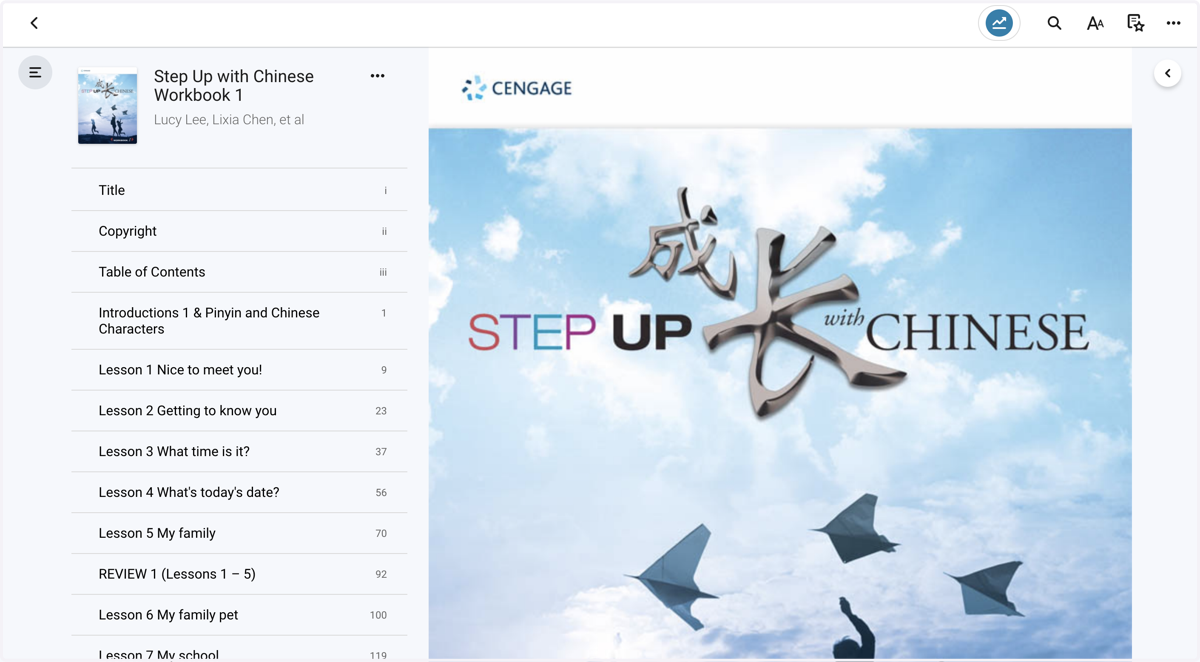
Adding VitalSource Texts to Canvas Modules
Pps
1. Locate and copy the TextBook URL
Before we begin adding a VitalSource text to Canvas, we must locate and copy the textbook URL that we need.
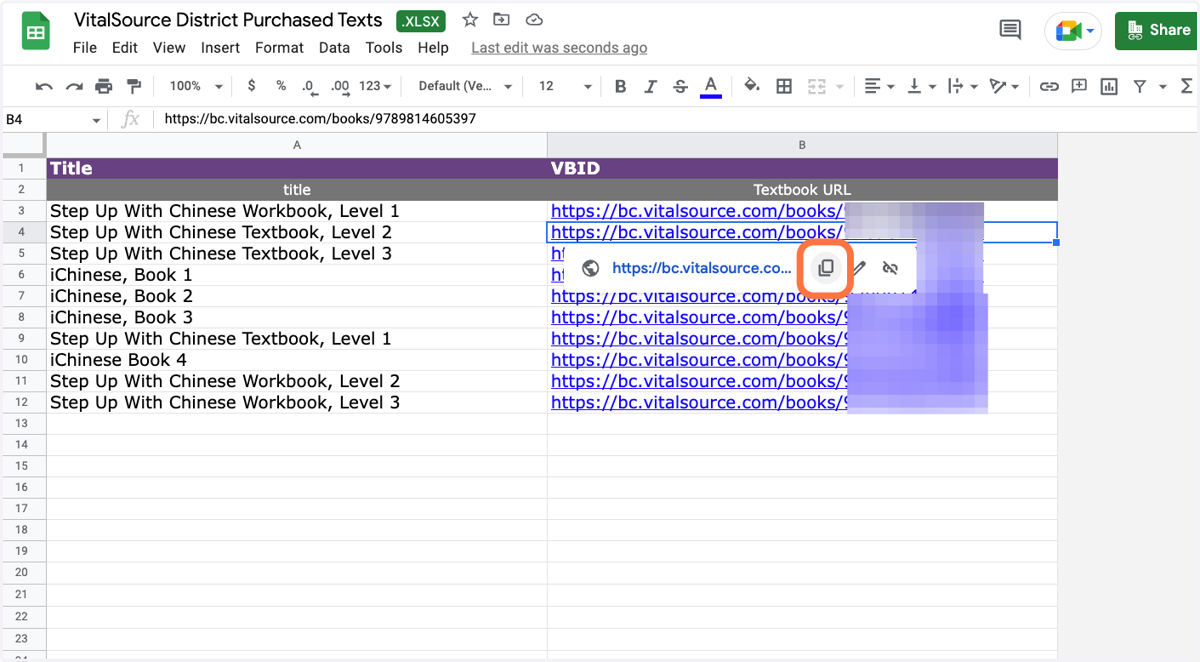
Go to VitalSource District Purchased Texts
Locate the textbook by title and copy the URL in column B
2. Go to Canvas and Modules
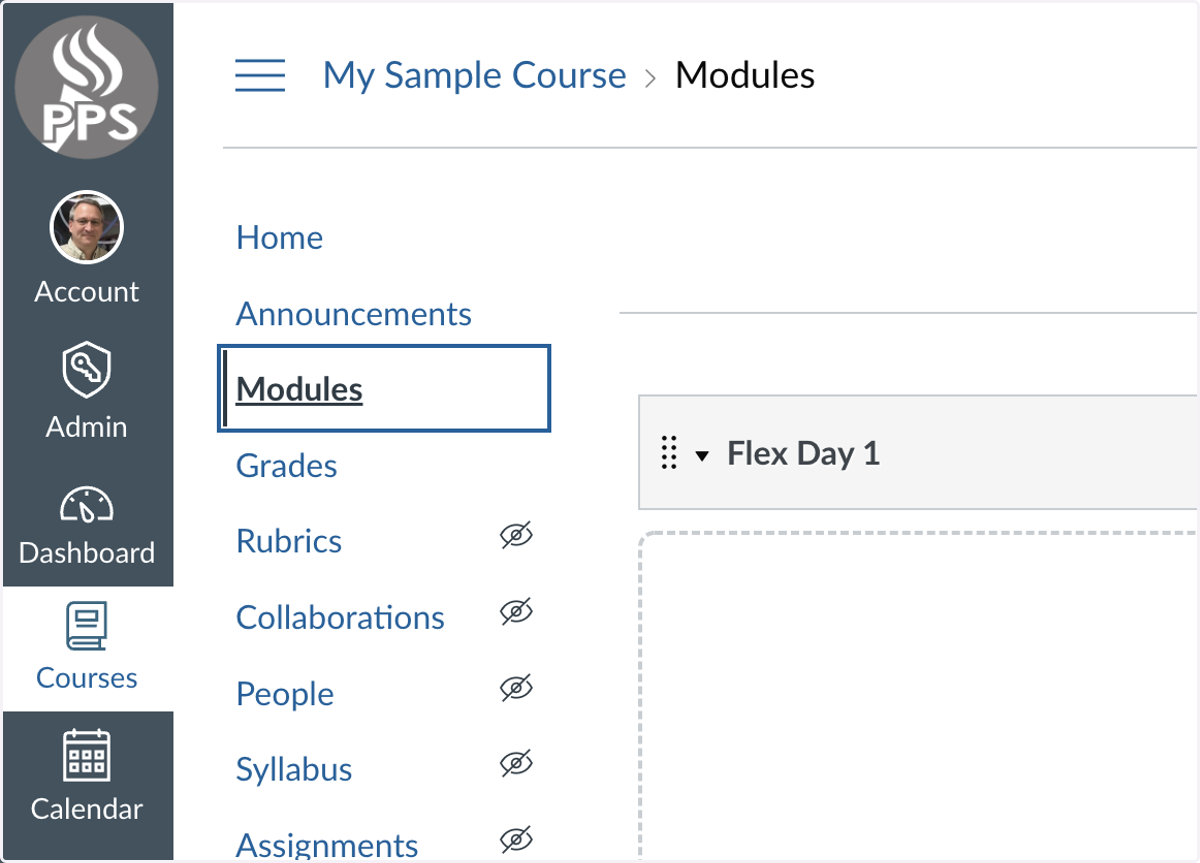
From within Canvas, select the course you want to add the VitalSource text to and navigate to the Modules page by clicking on "Modules" on the left side navigation.
3. Add VitalSource Link
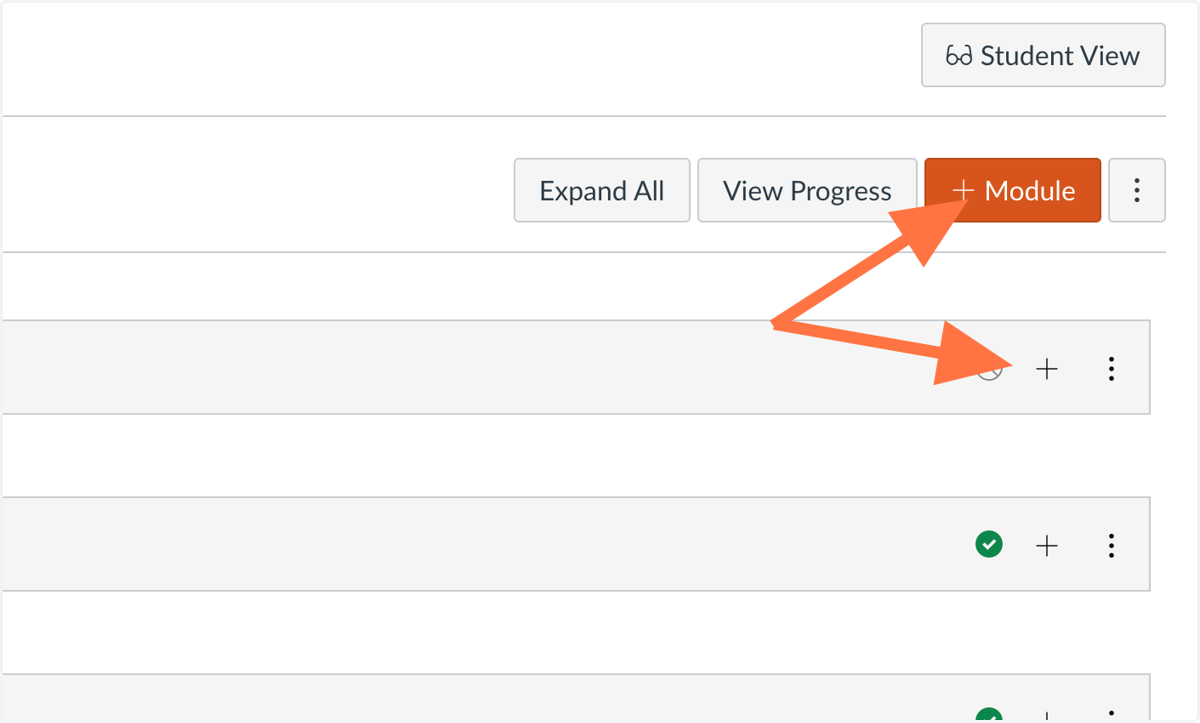
Click "+" on an existing Module or create a new module for your VitalSource text.
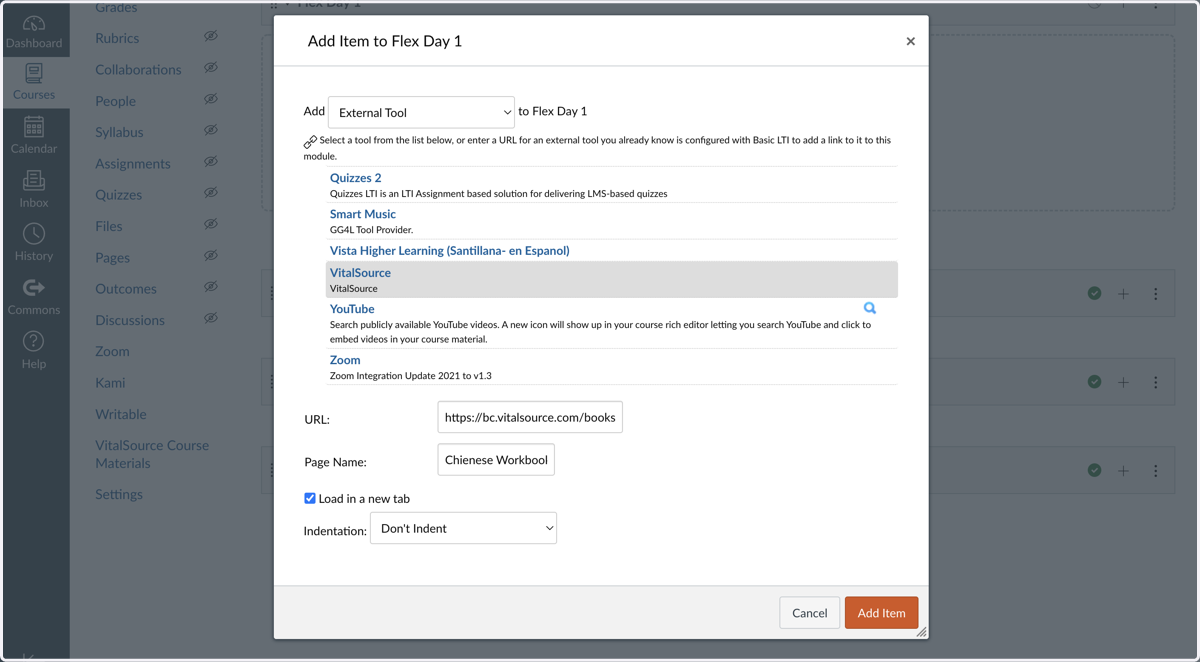
4. Add your VitalSource Text
1) Select "External Tool" in the Add field
2) Scroll down and select "VitalSource" in the external tools list
3) Paste the textbook URL in the URL field
4) Add a title of choice to the Page Name field
5) Click Add Item
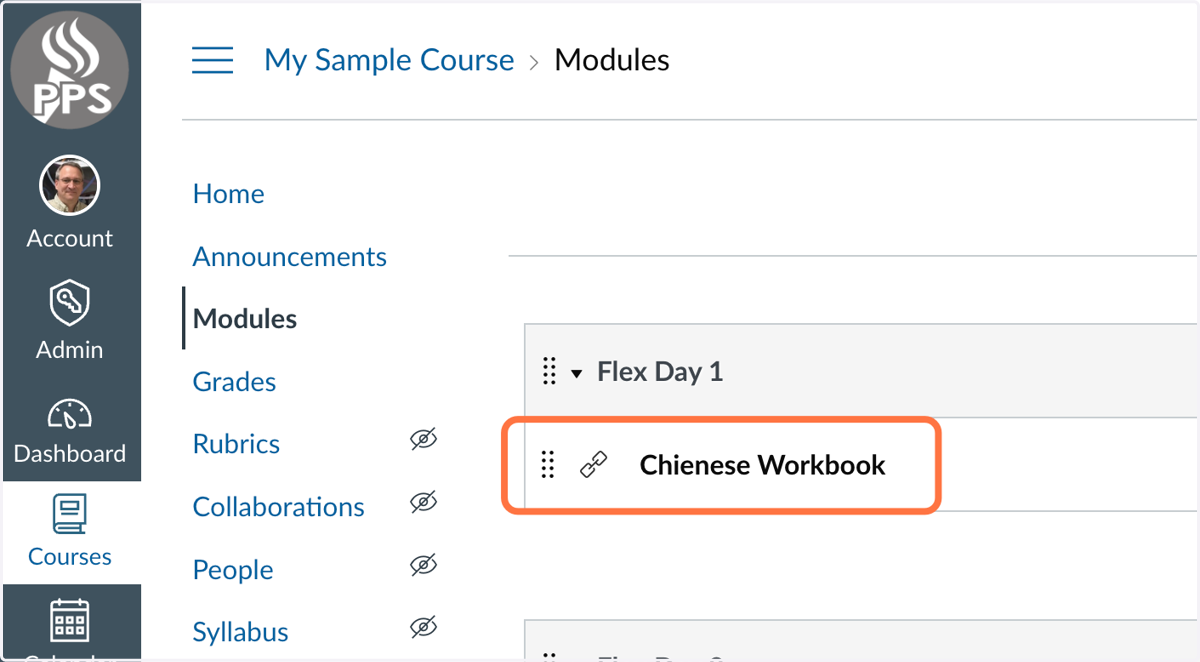
5. Textbook link will be added
A textbook link will be added to your module. Clicking it will open a page to launch the textbook.
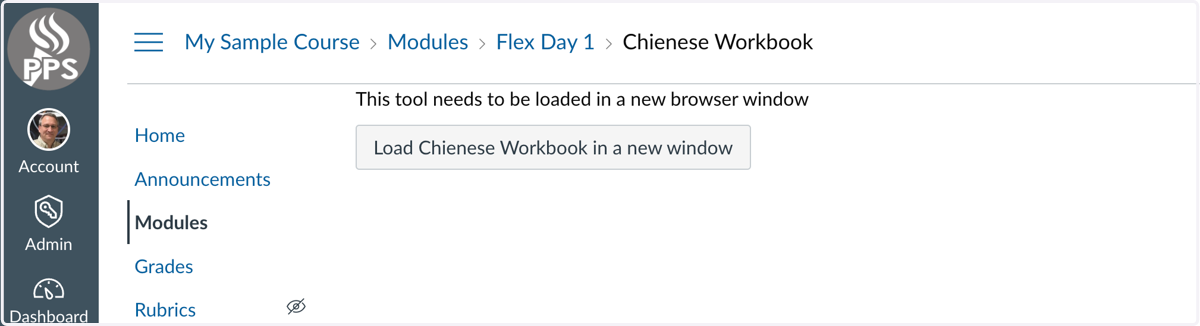
6. Launch the Textbook
Clicking the "Load..." button will launch the VitalSource Textbook in a new tab.
7. Textbook will load in a new tab
The first time a teacher sets up a VitalSource text, they will be asked to create an account and password. A confirmation email will be sent to the teacher's inbox, which must be clicked to activate the account. This is a one-time process and for teachers only. Students will be able to click directly to the text.