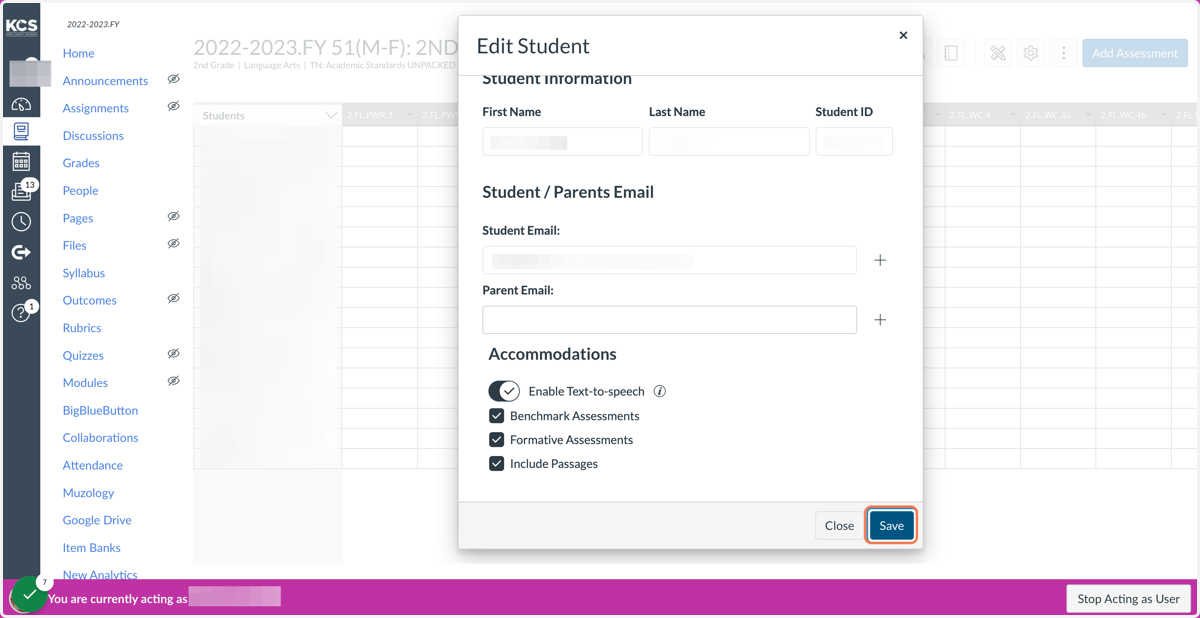
Adding the Text-to-Speech Accommodation to Mastery Connect Assessments
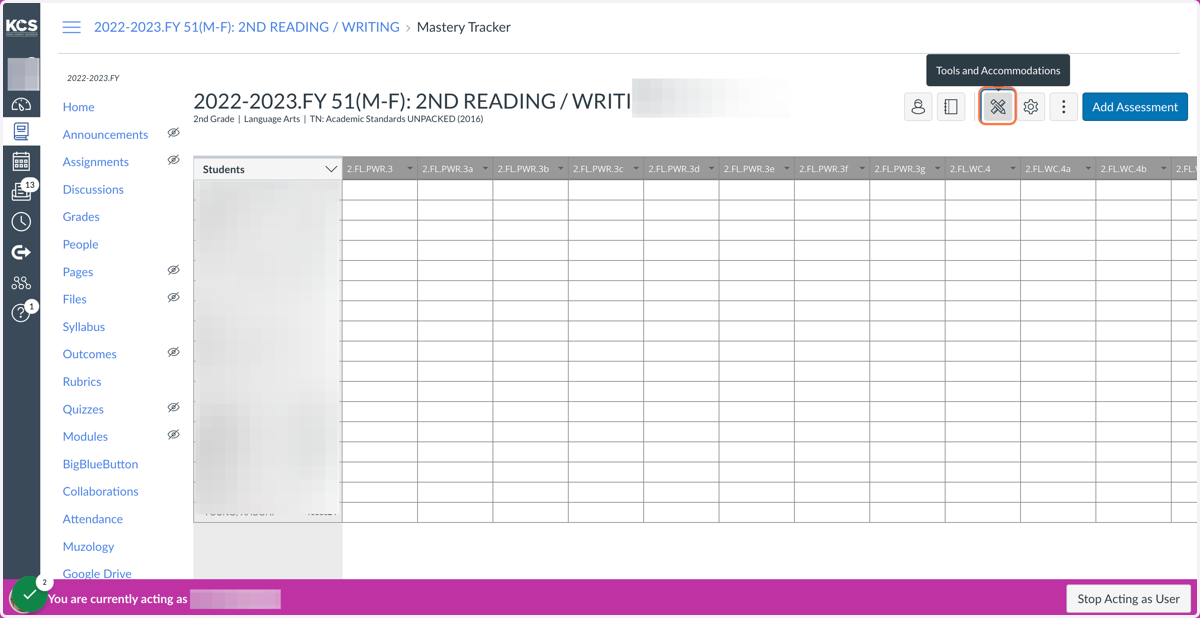
1. Go to Mastery Tracker in your Canvas Course
2. Click on Tools and Accommodations
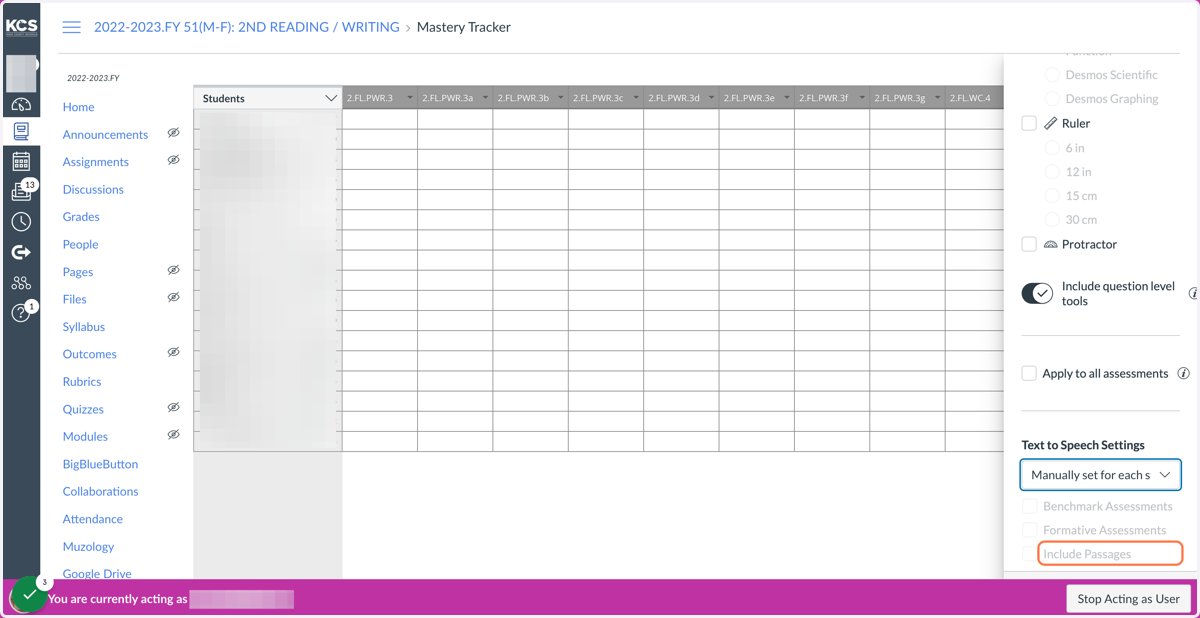
3. Click on Manually Set for each student
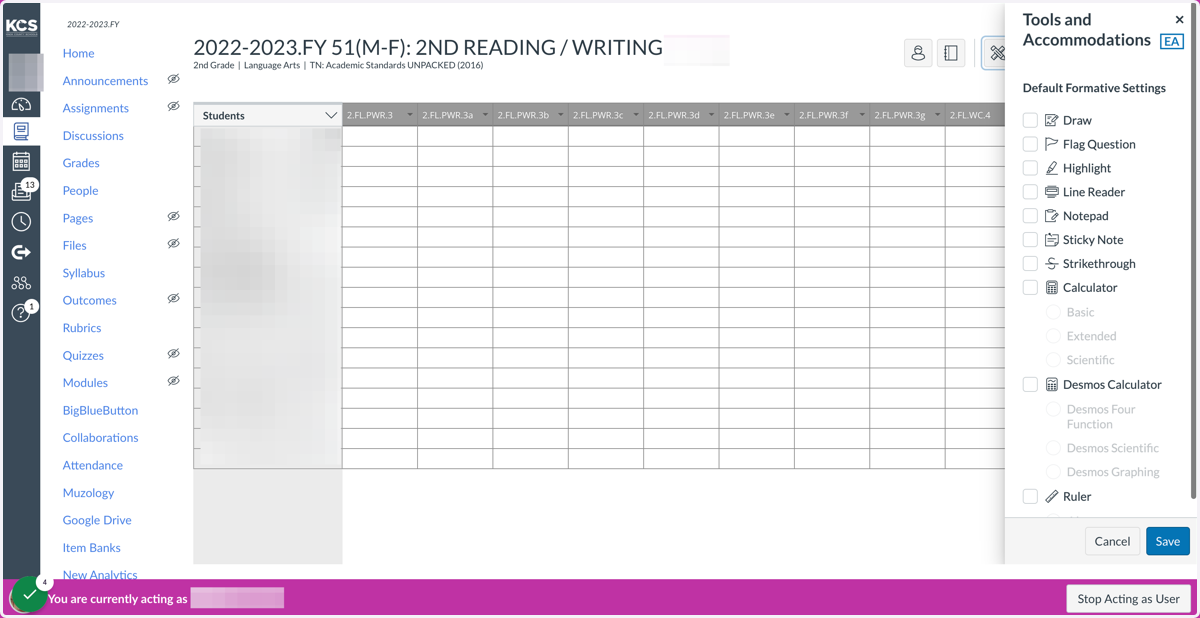
4. Click on Save
5. Click Edit next to the name of the student who needs the accommodation. Check Enable Text-to-speech.
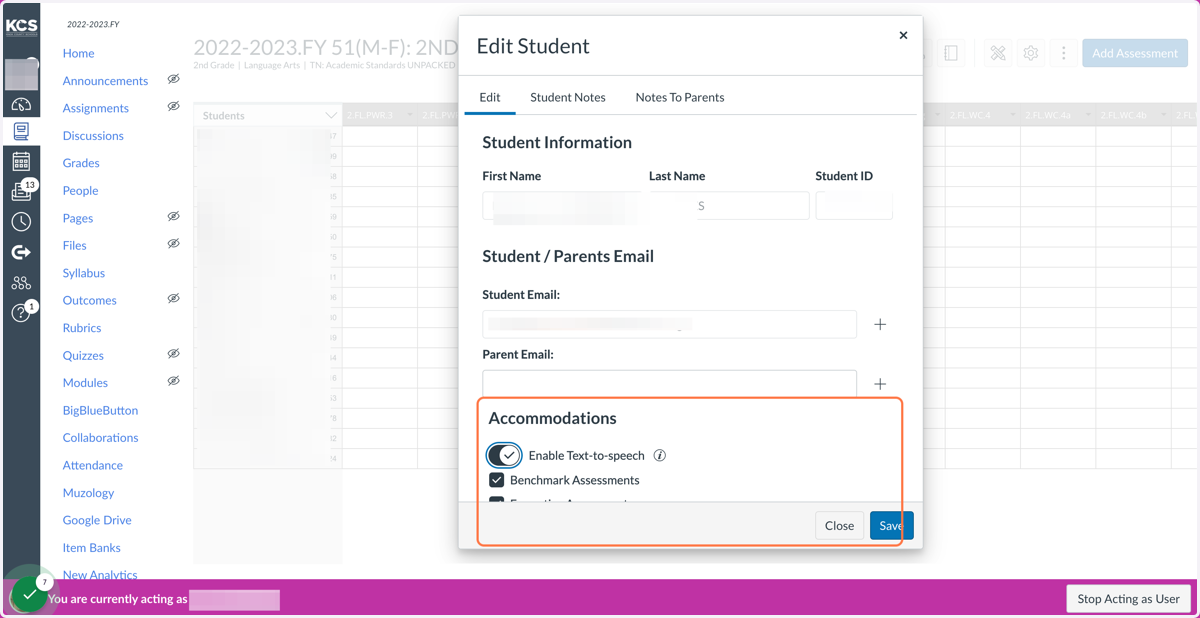
6. Click on Save
This needs to be repeated for each tracker the student in which the student needs the accommodations.