Adding Powershell Script for Magic Login (Azure/Windows Deployment)
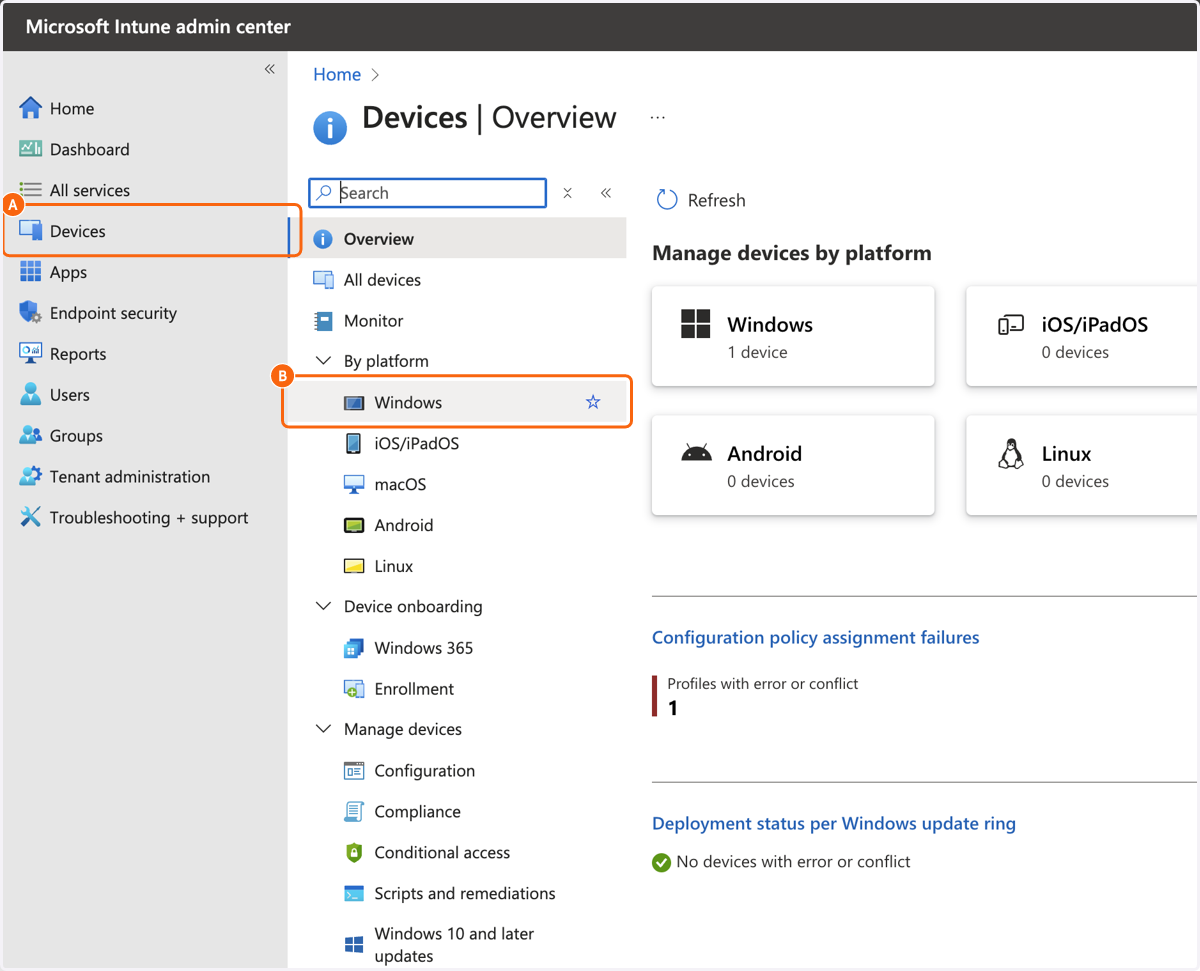
1. A. Click on Devices
1. B. Click on Windows
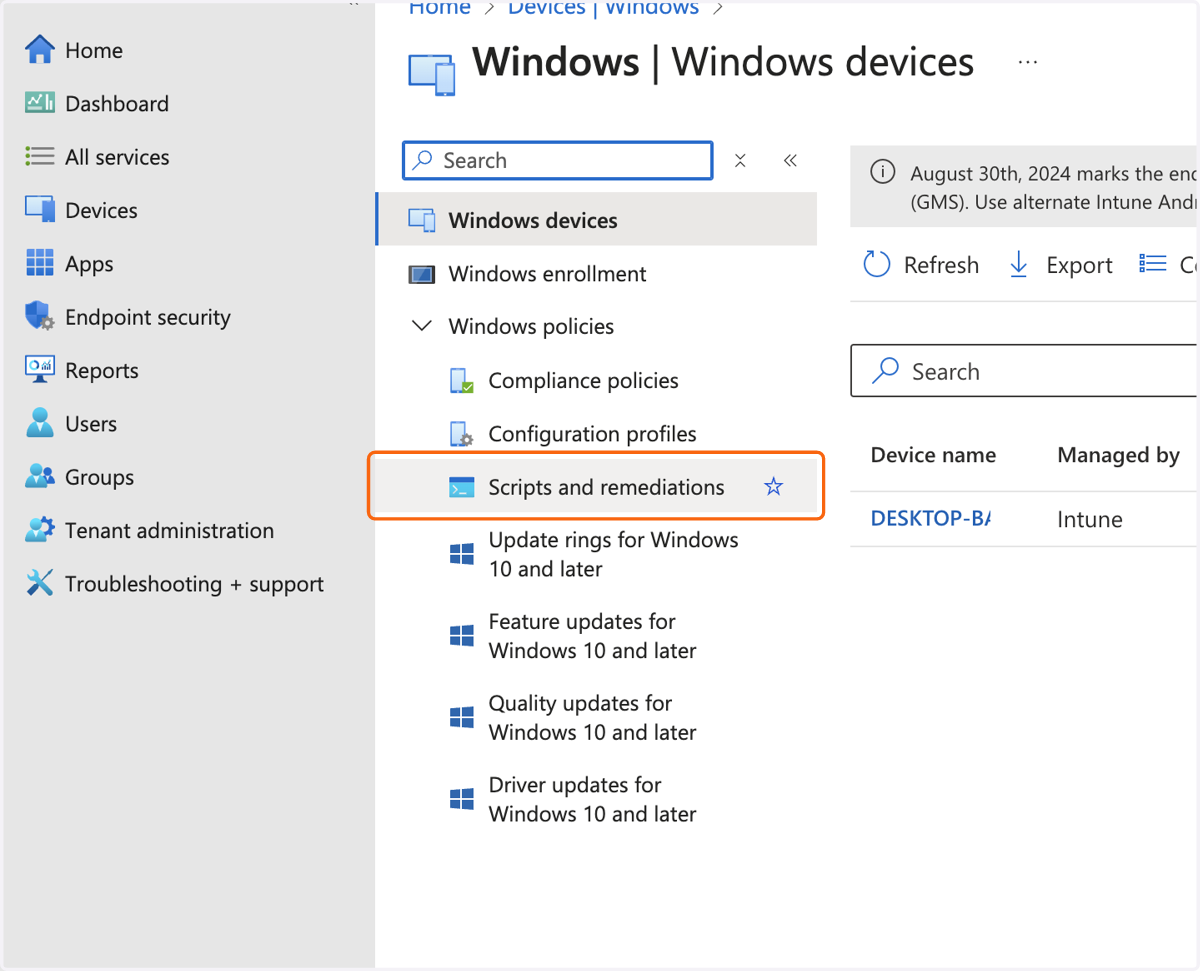
2. Click on Scripts and remediations
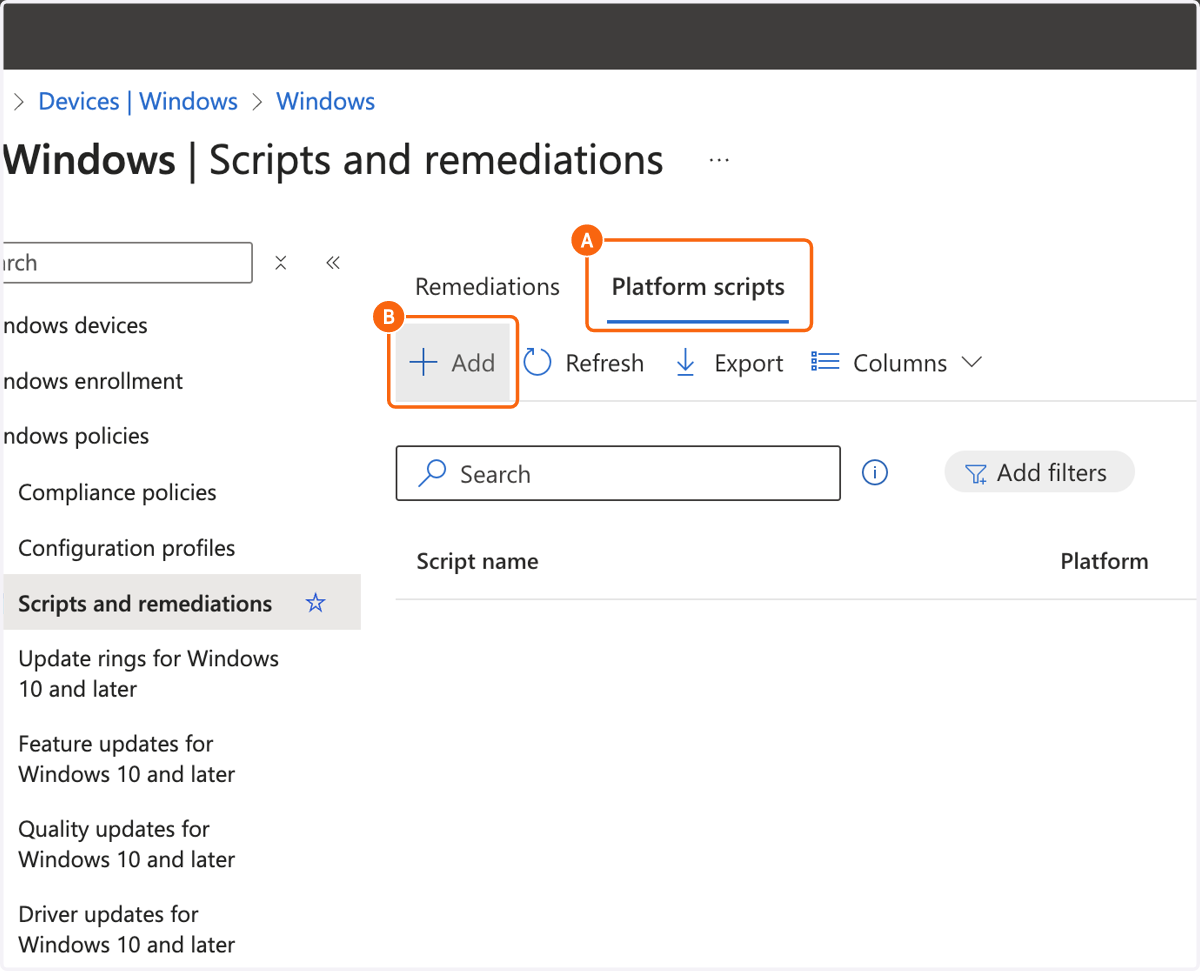
3. A. Click on Platform scripts
3. B. Click on Add
4. Type "Tango Magic Login"
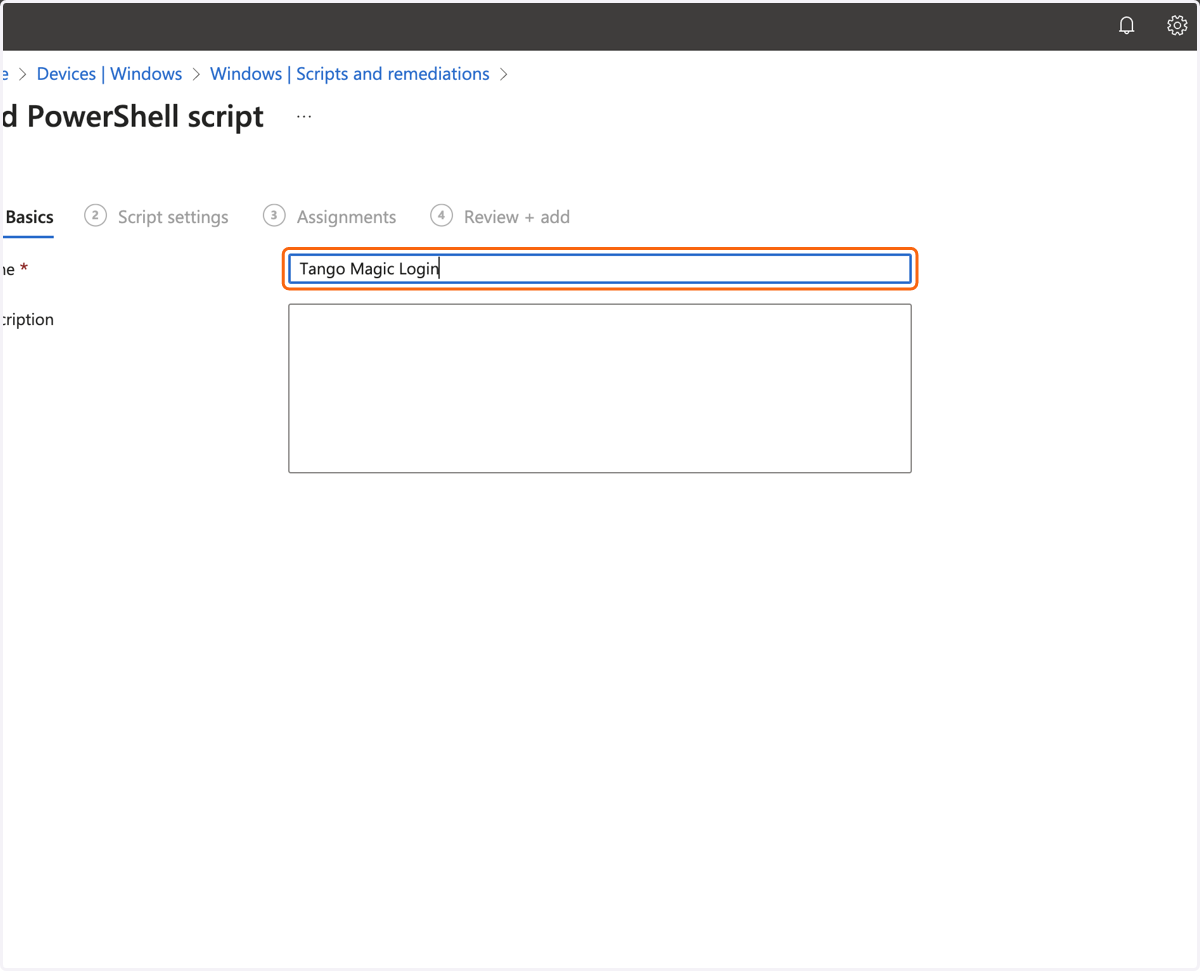
5. Click on Next

6. Create a Powershell Script that will be used to add the Extension Setting properly
You can use these Scripts:
Automagic Login - ChromeIf you aren't sure where to find the login url, navigate to the app directory for Microsoft Azure and right-click to copy the URL.
7. A. Select the file for the script needed from file upload menu
7. B. Click on No
7. C. Click on No
7. D. Click on Yes
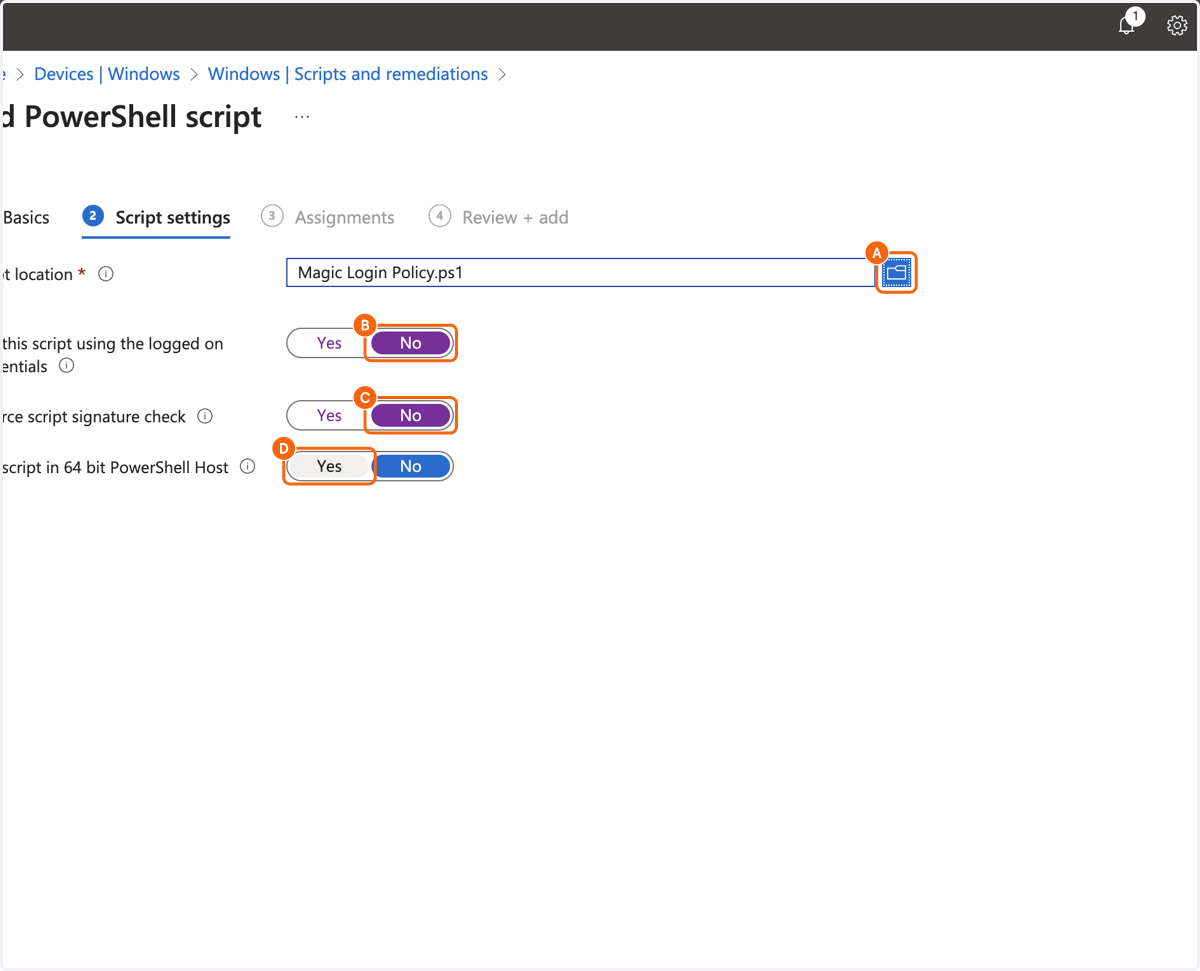
8. Click on Next

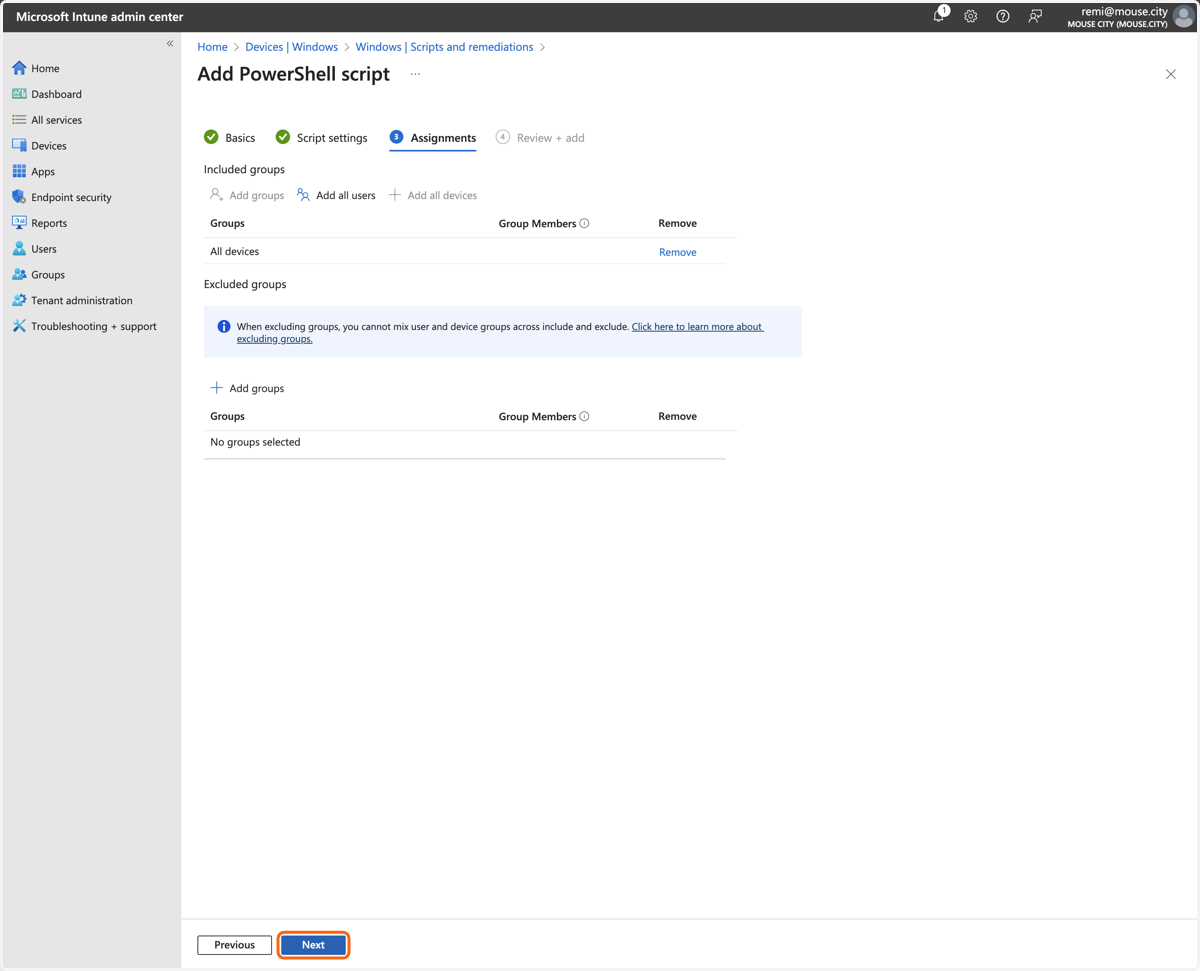
9. Click on Add all devices
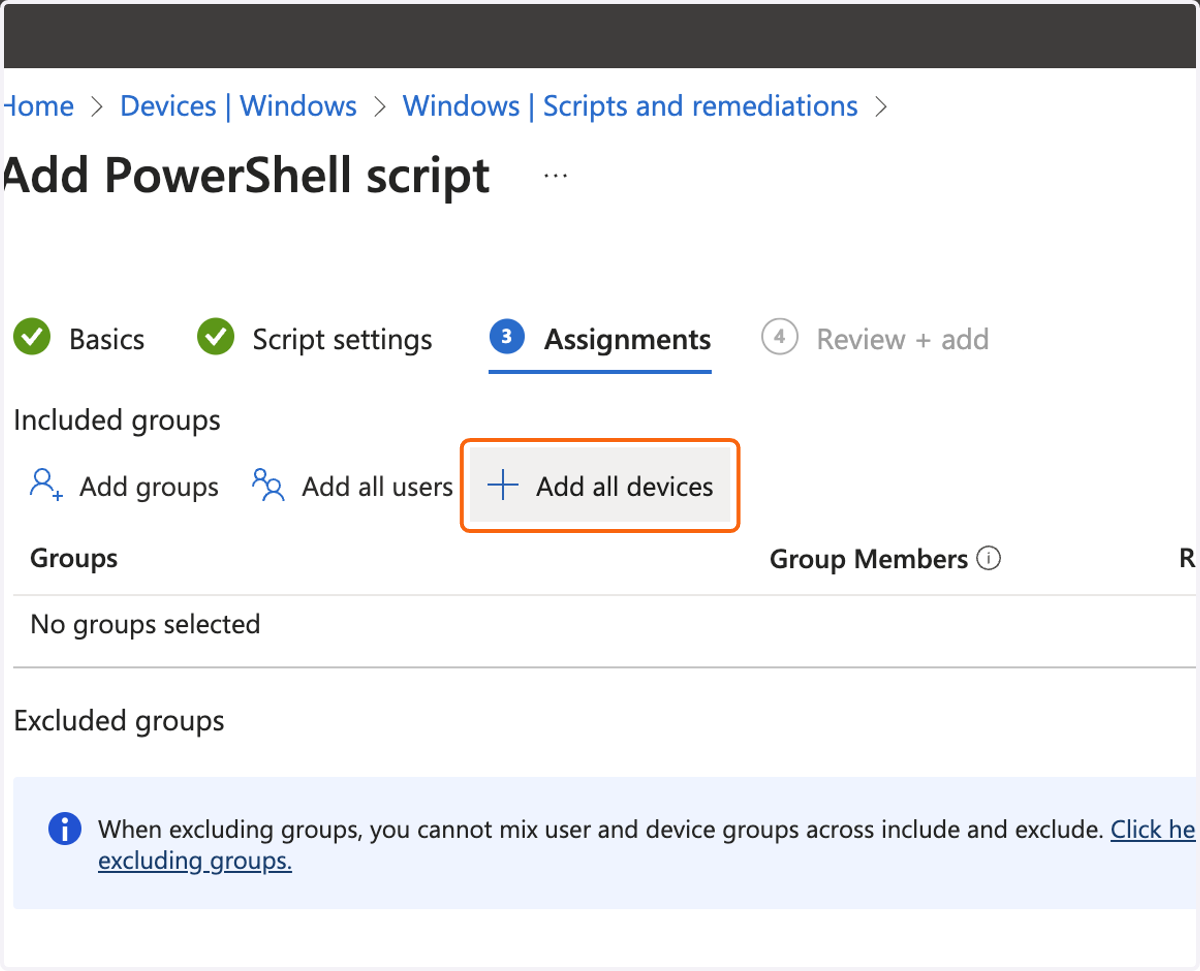
10. Click on Next