Adding Images & Editing Product Images
M3sites
1. Log into the backend of the website.
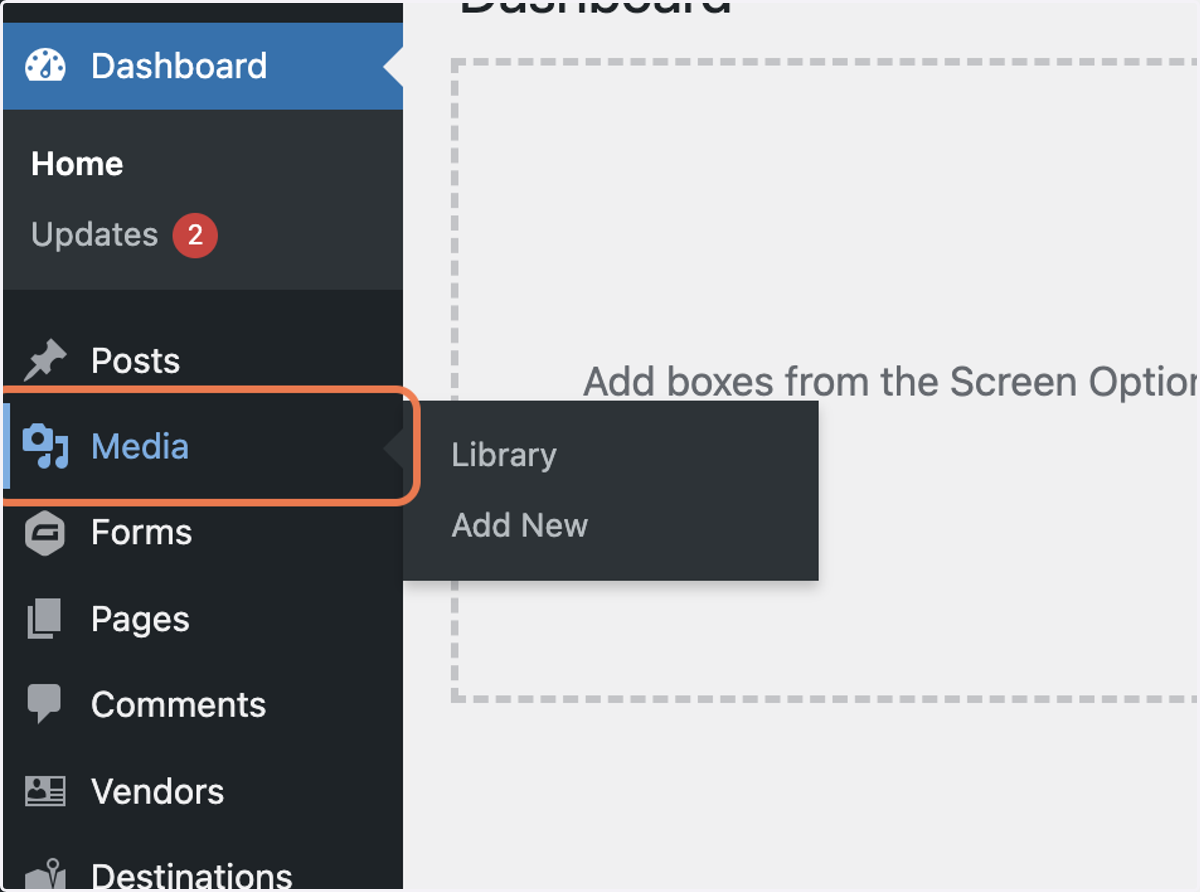
2. To upload new product images to the site, especially if it's in bulk, first click on Media in the left sidebar.
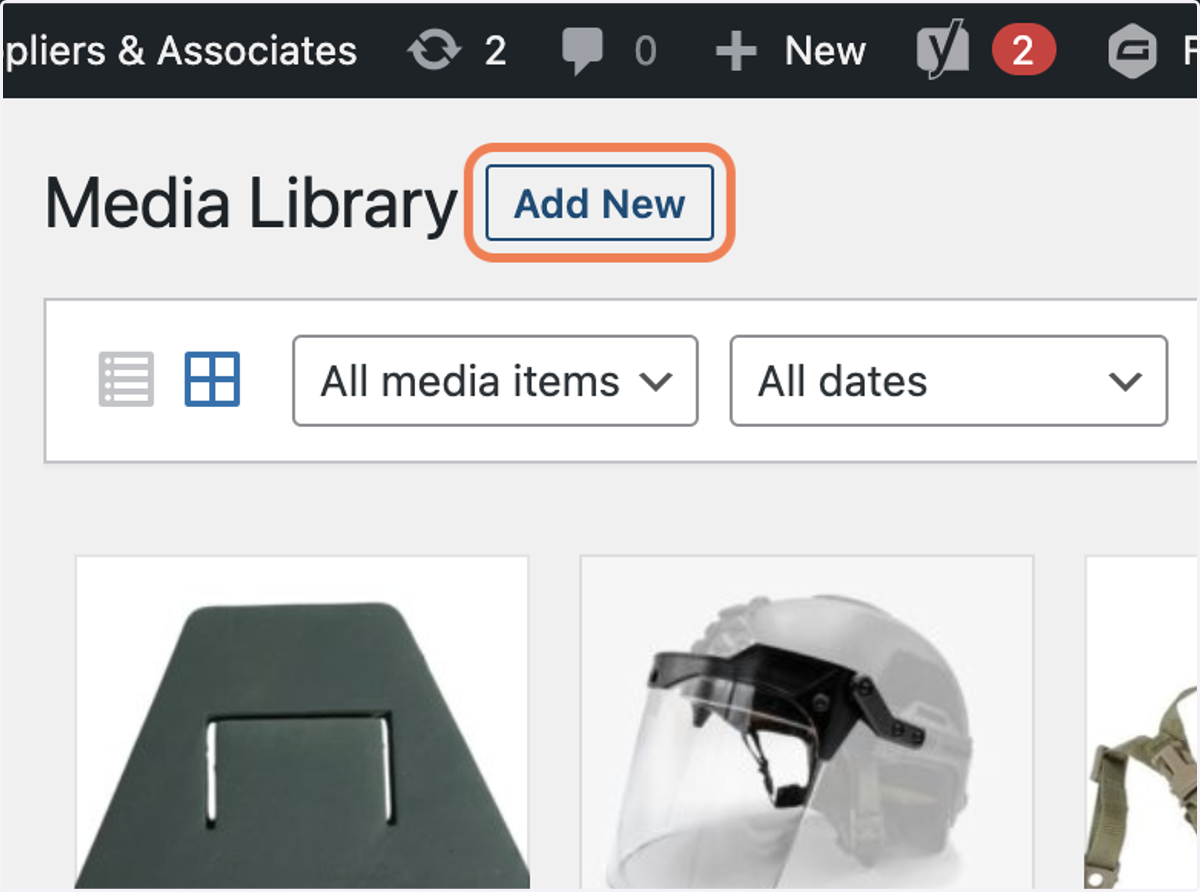
3. Click on Add New
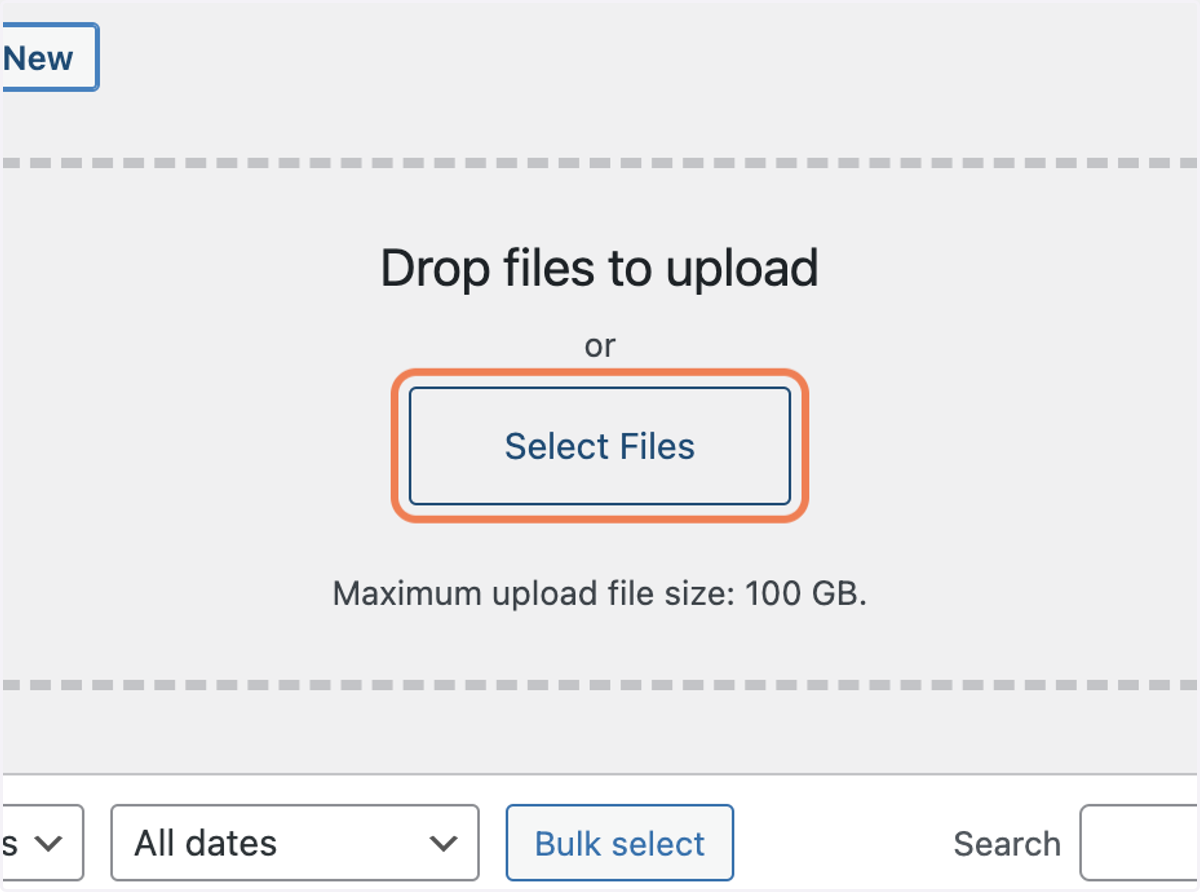
4. Click on Select Files
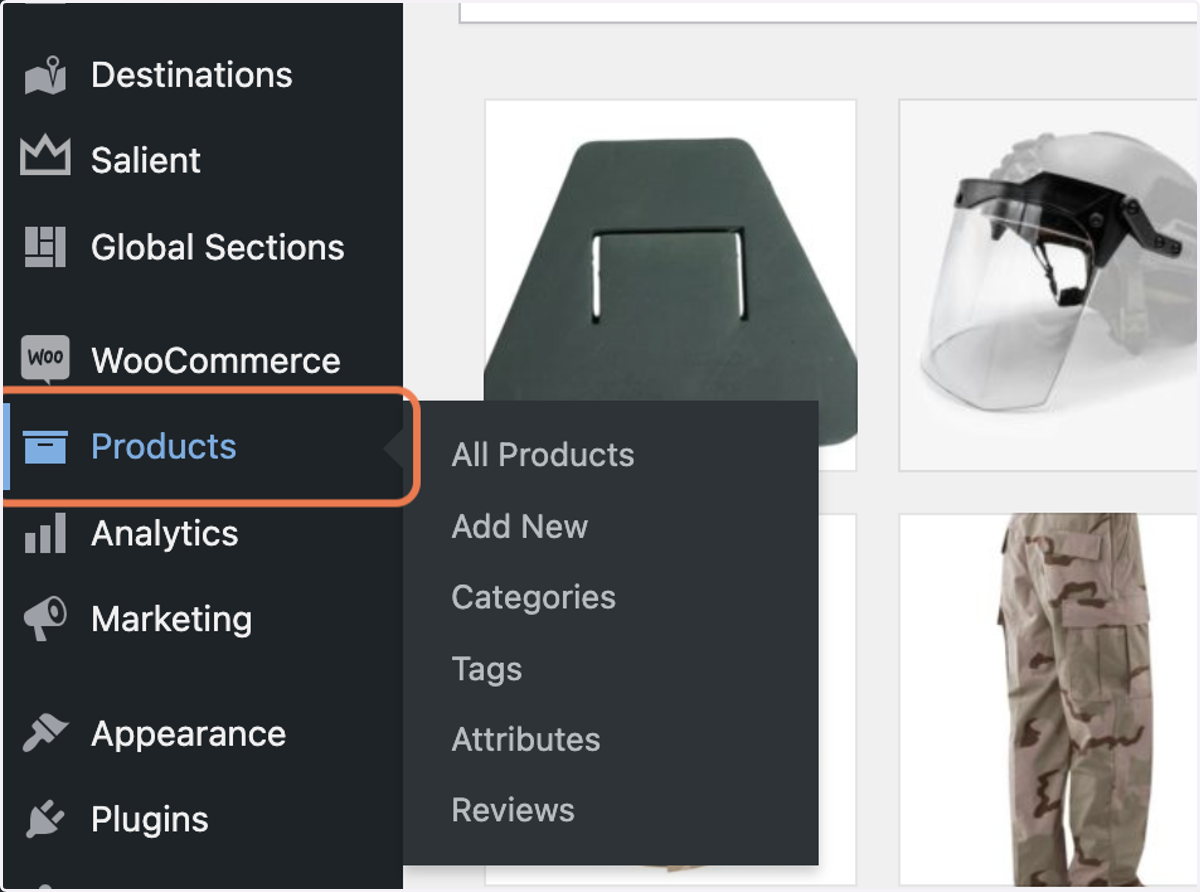
5. Click on Products in the left sidebar.
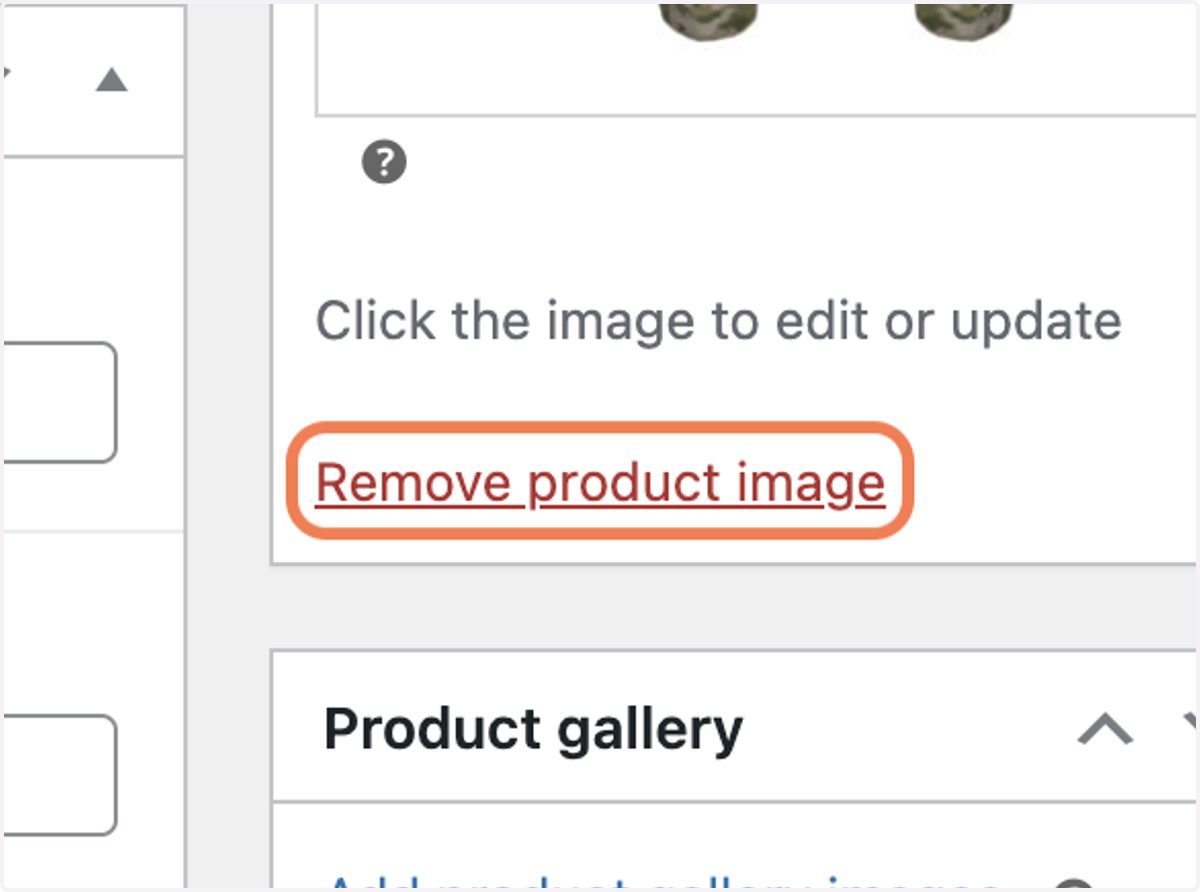
6. Once you are on specific product page, click on 'Remove product image'.
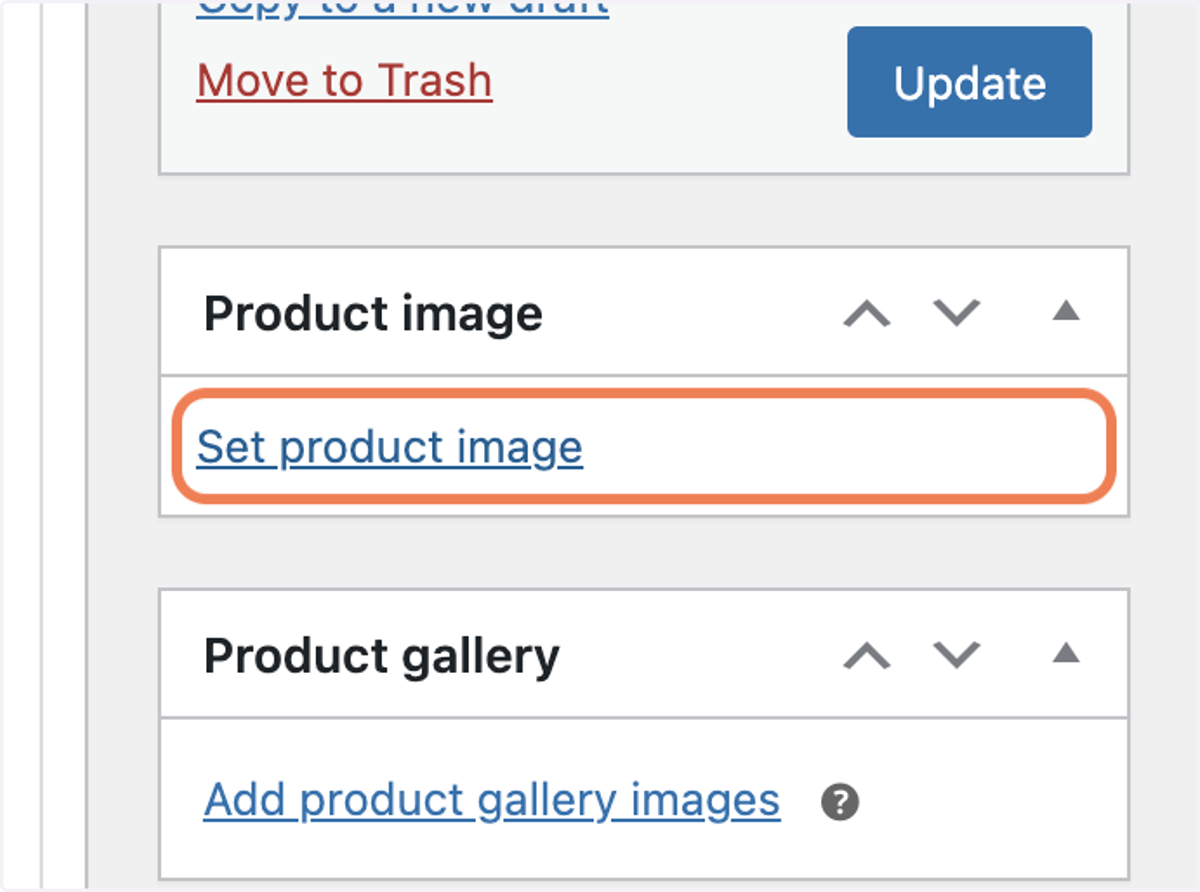
7. Click on Set product image
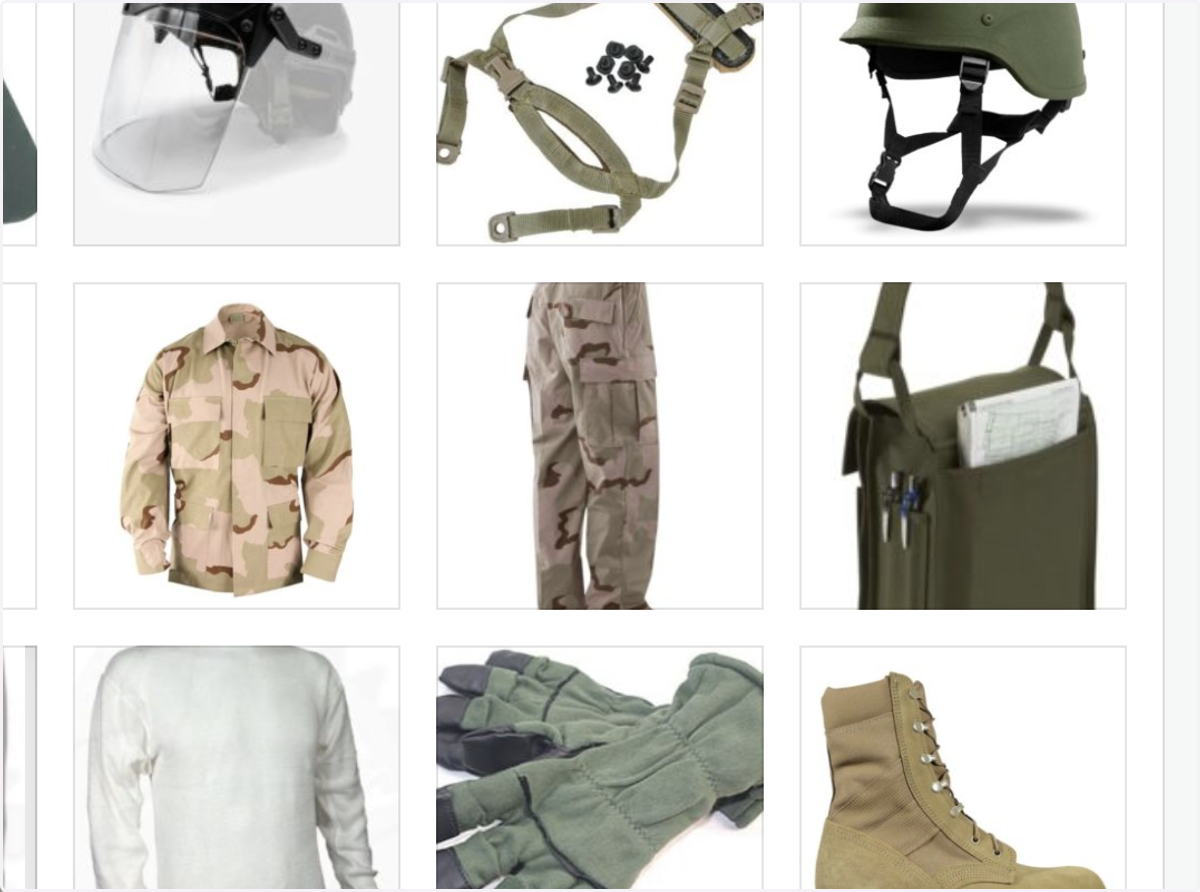
8. Choose the new product image that you would of uploaded earlier in this tutorial.
9. Click on Set product image
10. Click on Publish.