Adding Employees to TMO Turbo: A Quick Tutorial
TMO Turbo
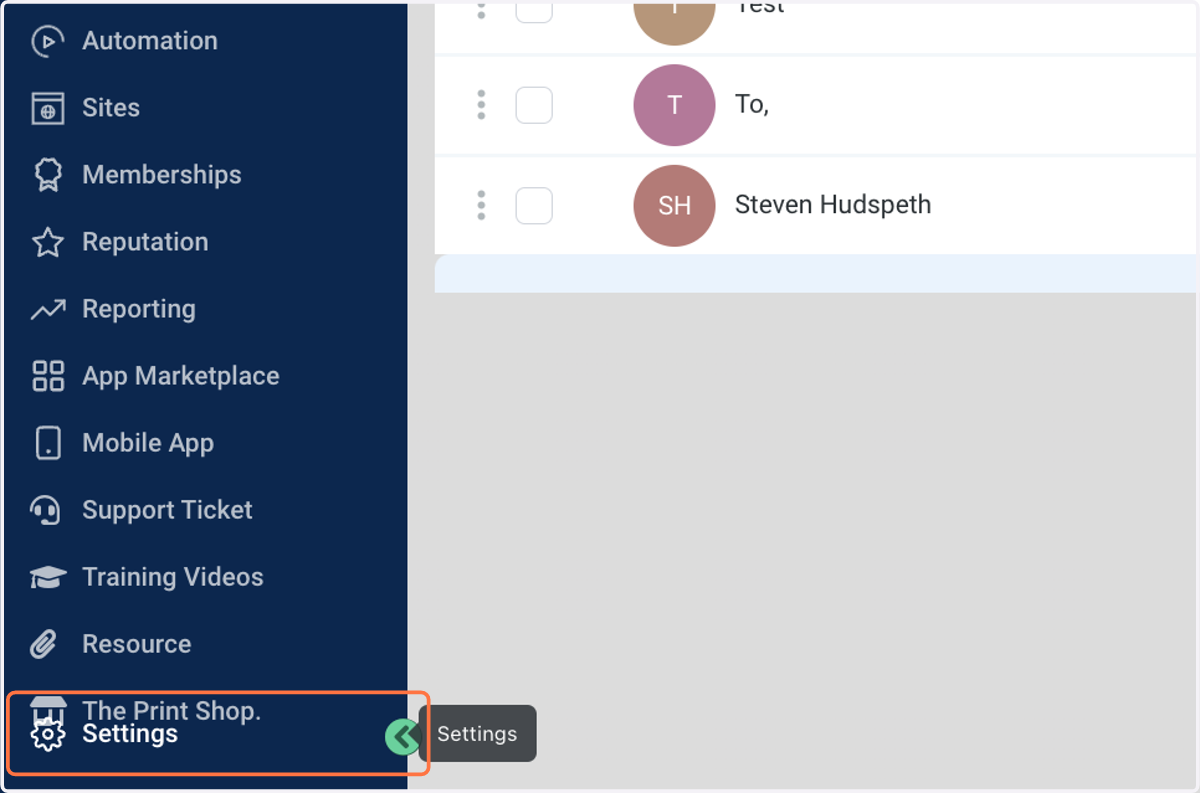
1. Click on Settings
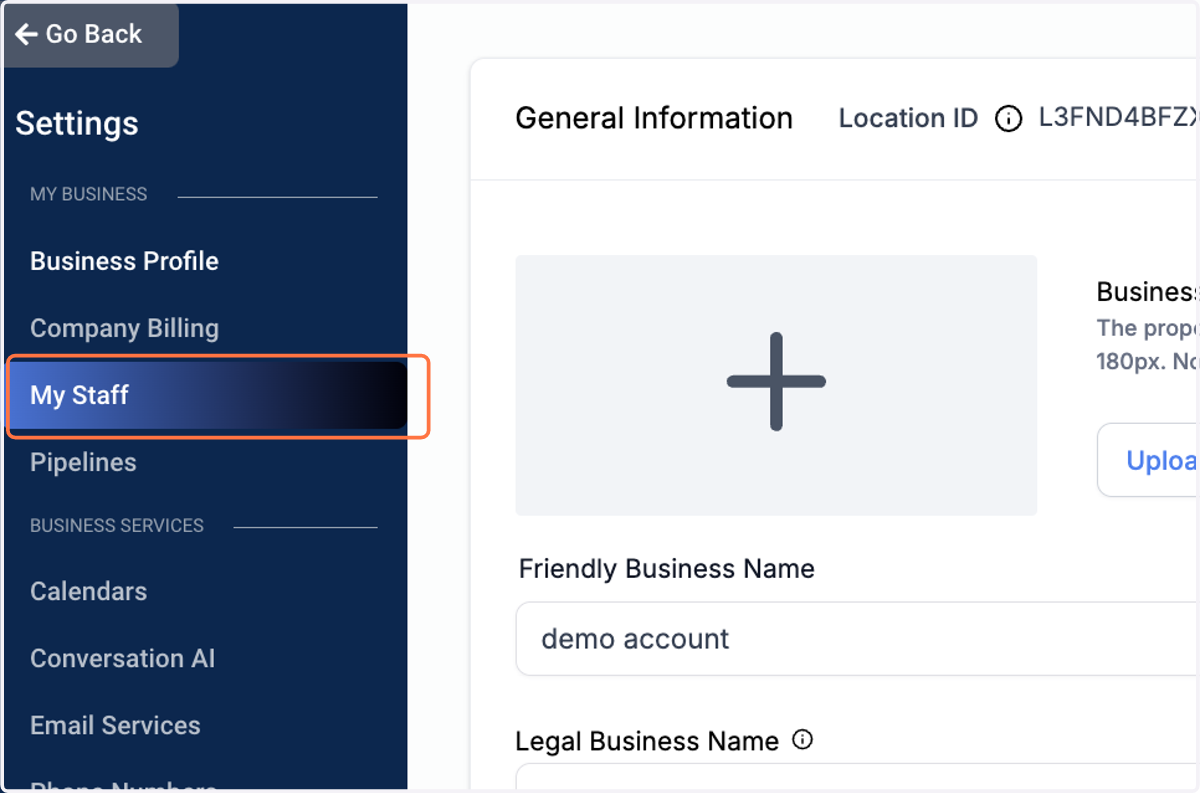
2. Click on My Staff
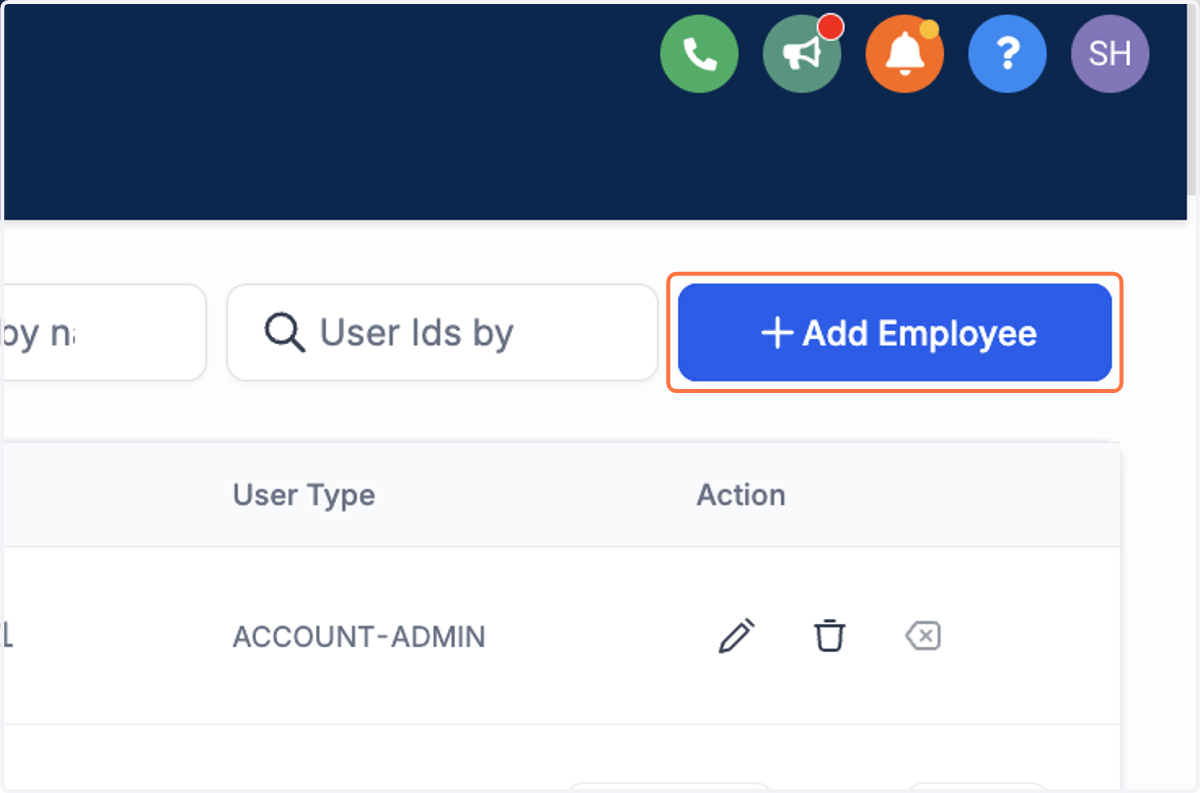
3. Click on Add Employee
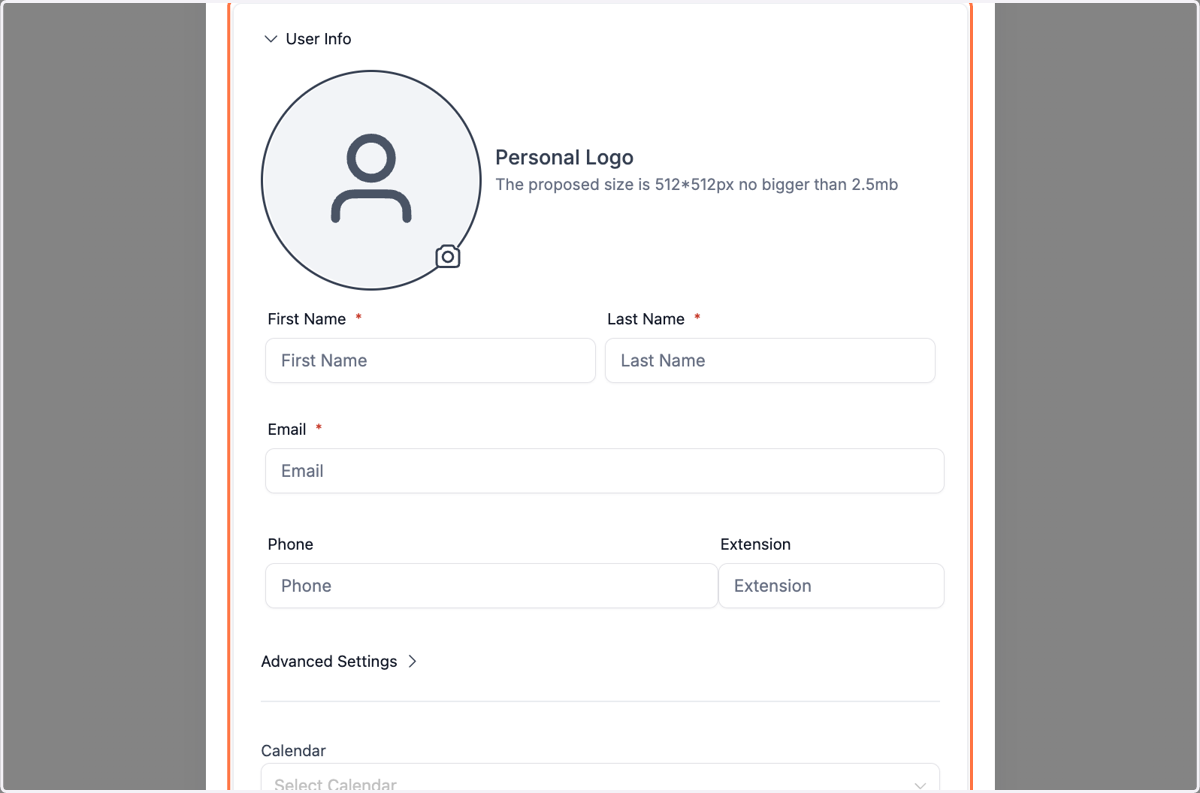
4. Click on User Info…
Fill out there information.
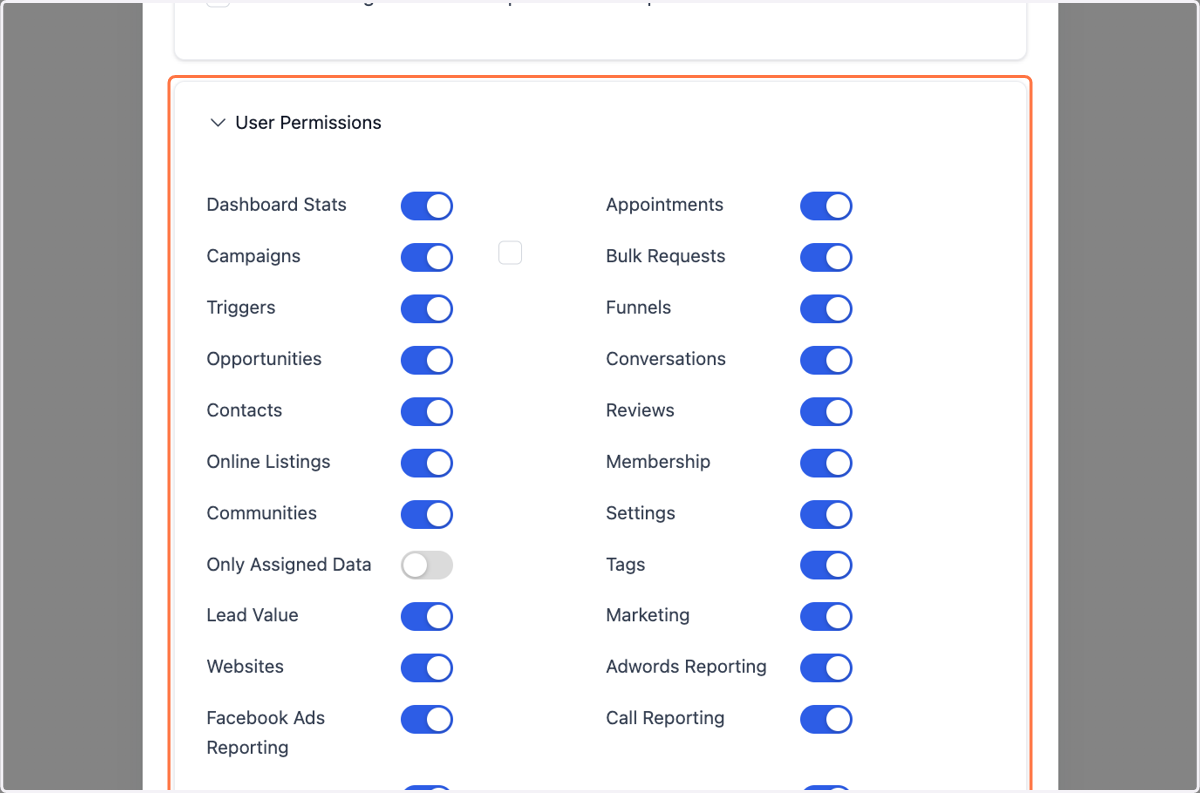
5. Click User Permissions and set what you want them to see or have access to.
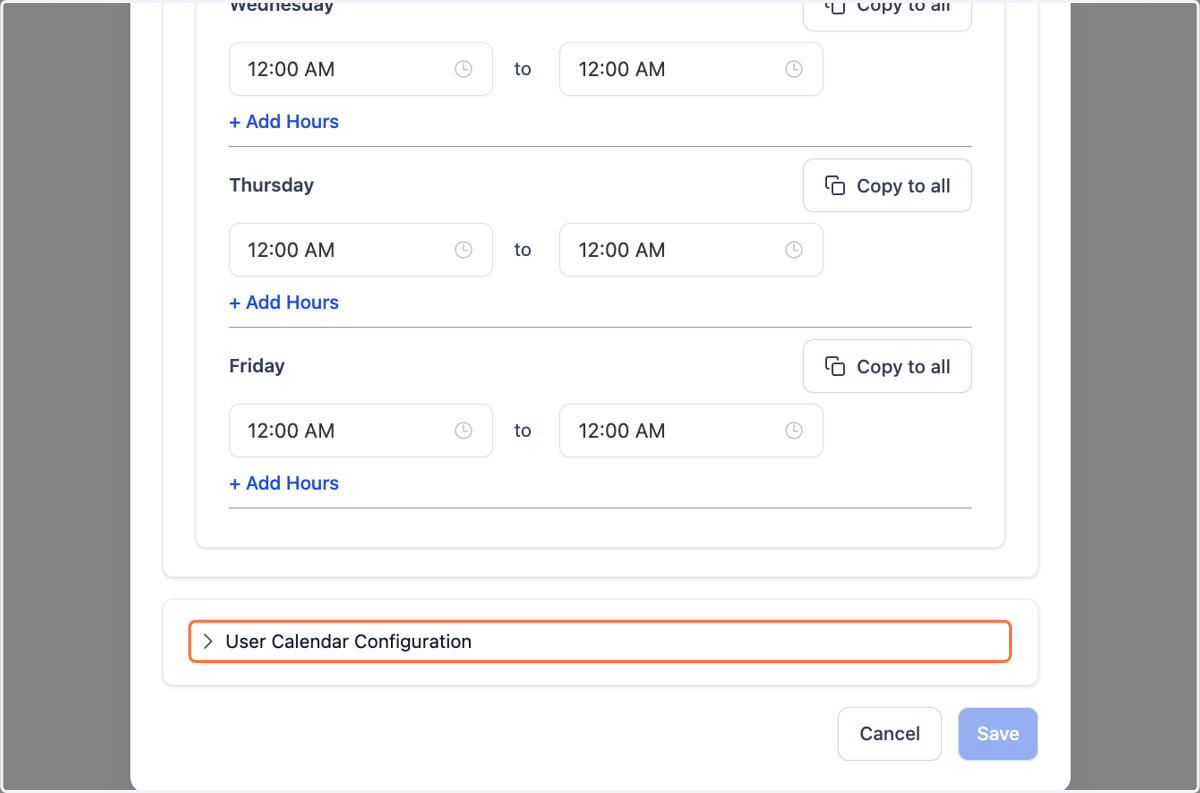
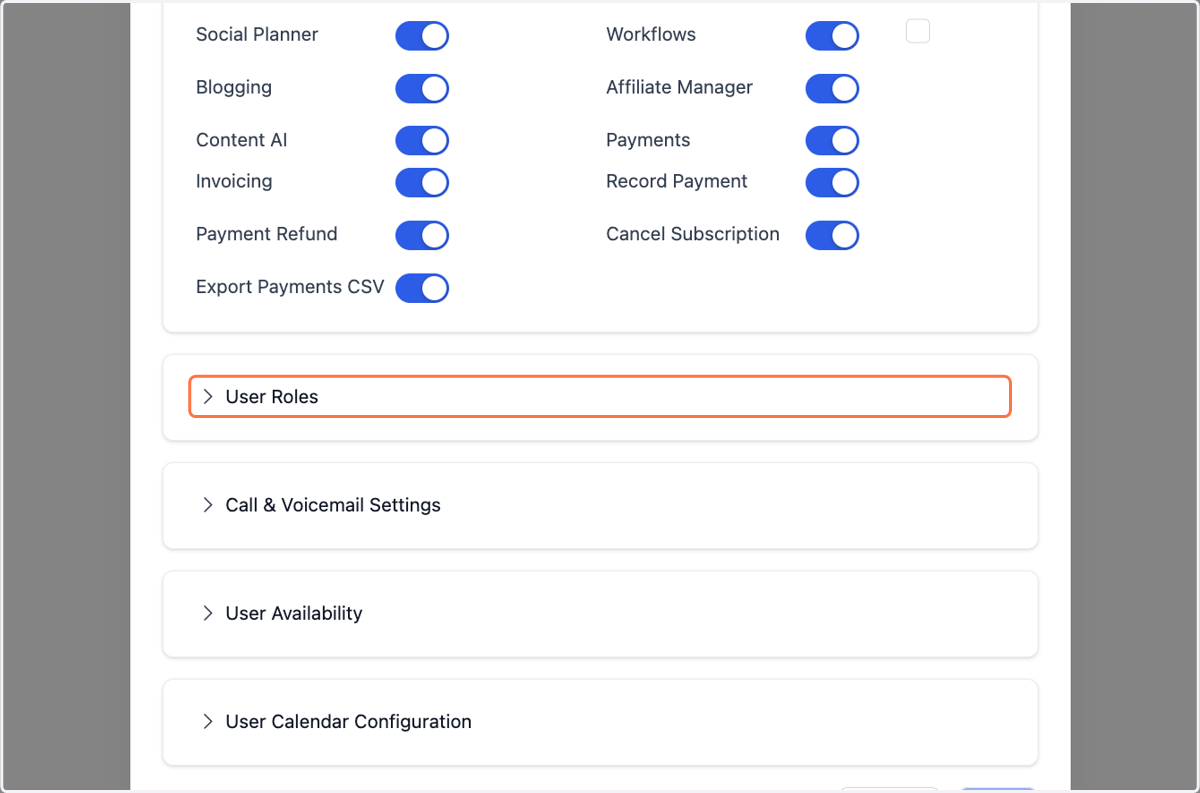
6. Click on User Roles and select from the drop down which role they should have.
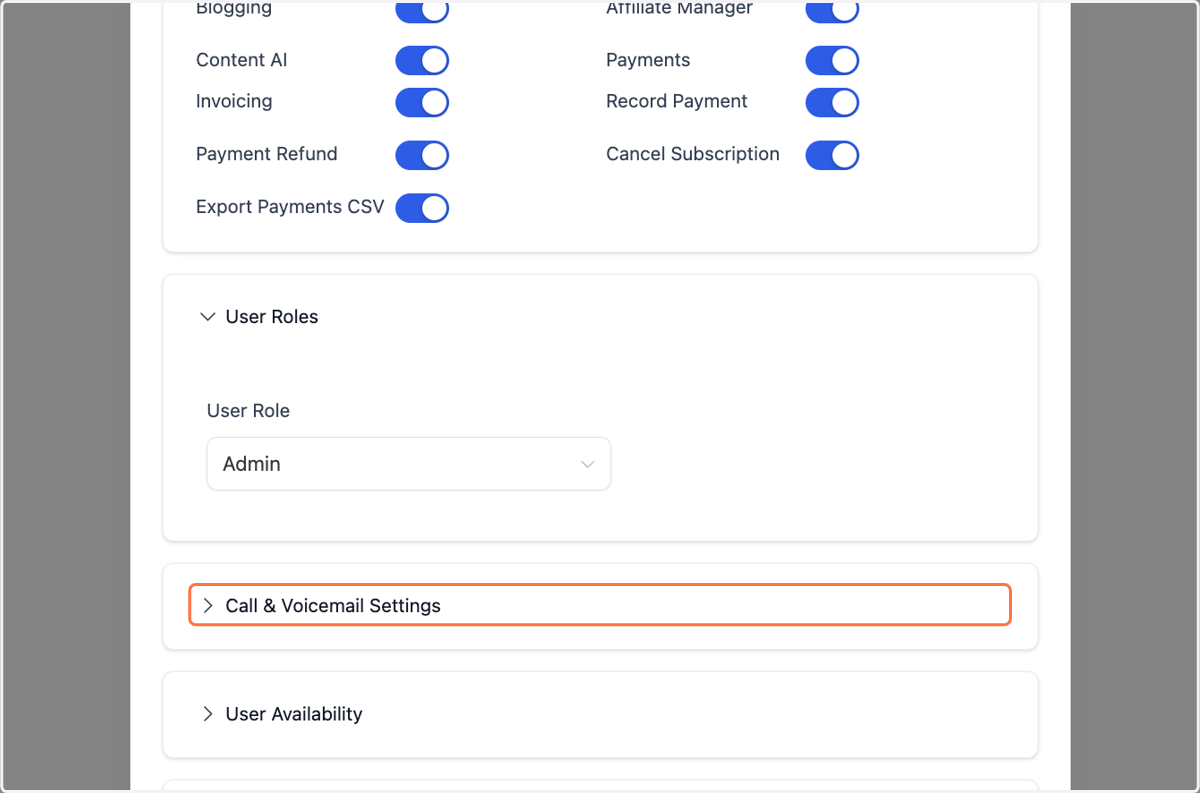
7. Fill out the voice call and voice mail section if need be.
8. Fill out their availability So the system know when they can be booked.
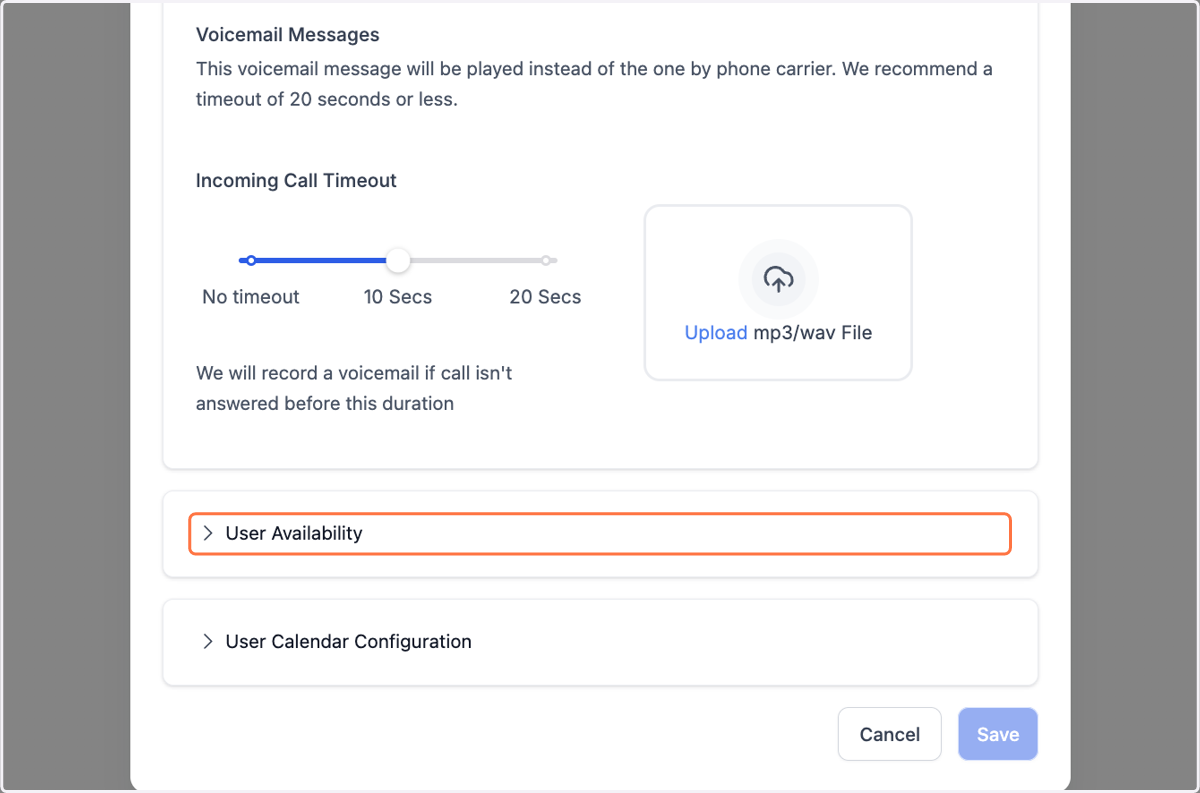
9. Once they connect to a Calendar outside of the system it will show here for you to look at. After every thing is done hit save. Note they should check spam for the email.