Adding, Updating, and Alphabetizing Vendors

Login to the backend of the site.

  1. 1. Click on Vendors on the left dark side menu.
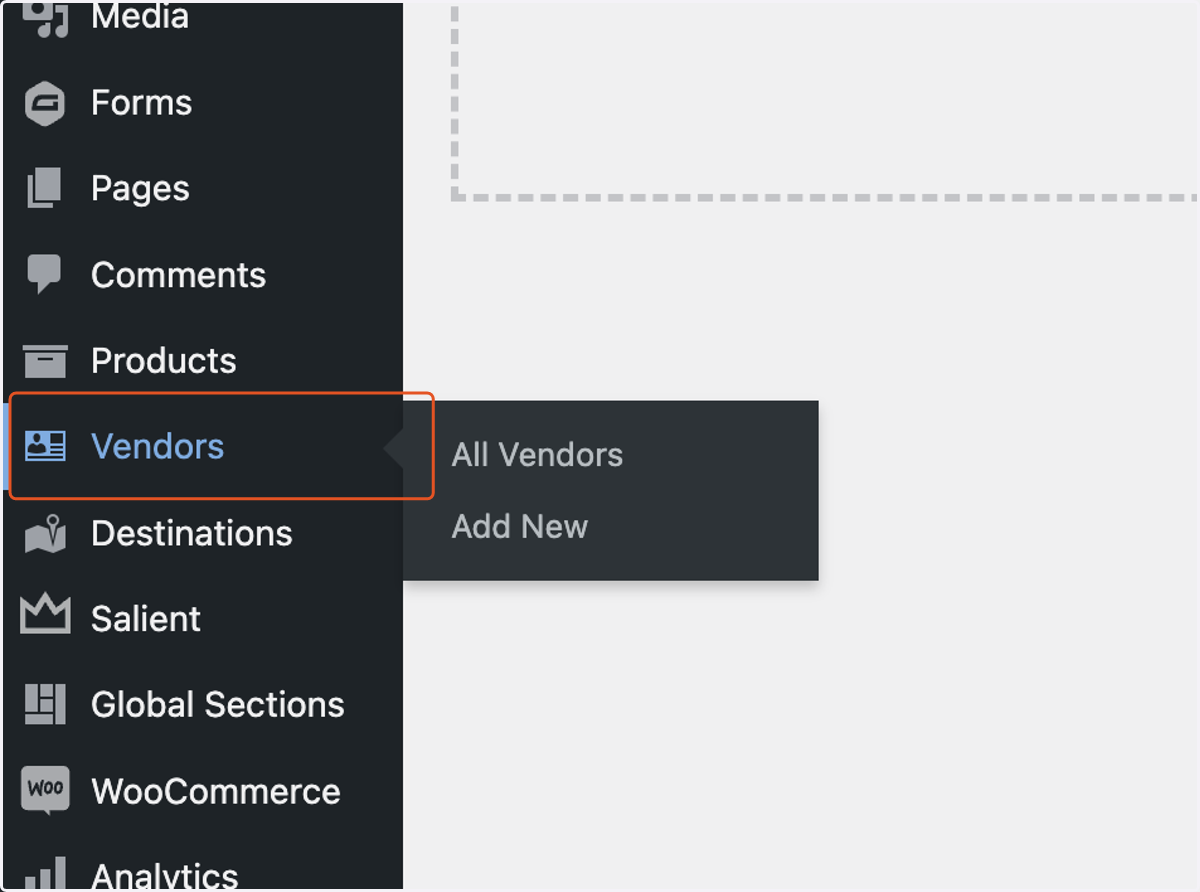
    Click on Vendors on the left dark side menu.
  2. 2. To add a new Vendor, click on Add New.
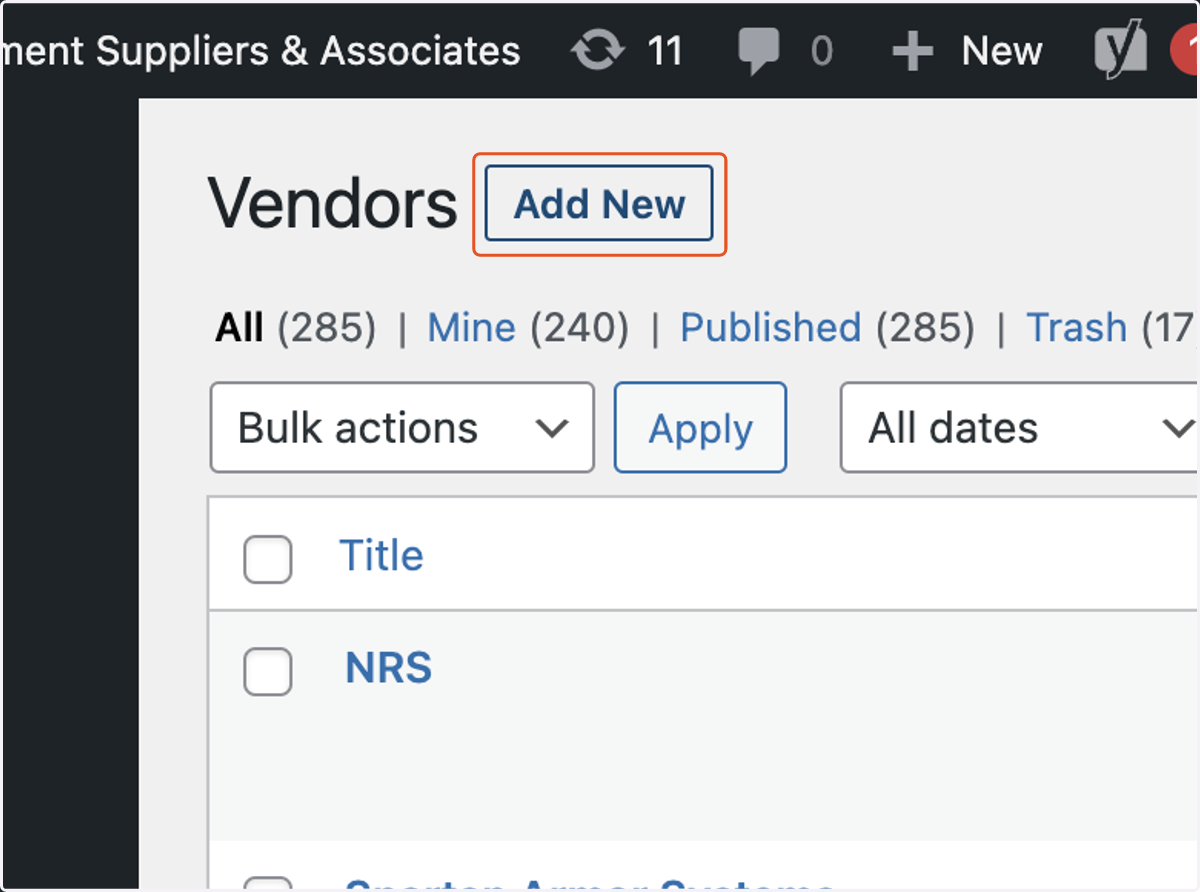
    To add a new Vendor, click on Add New.
  3. 3. Click inside the field labeled Add title and type in the new Vendor.
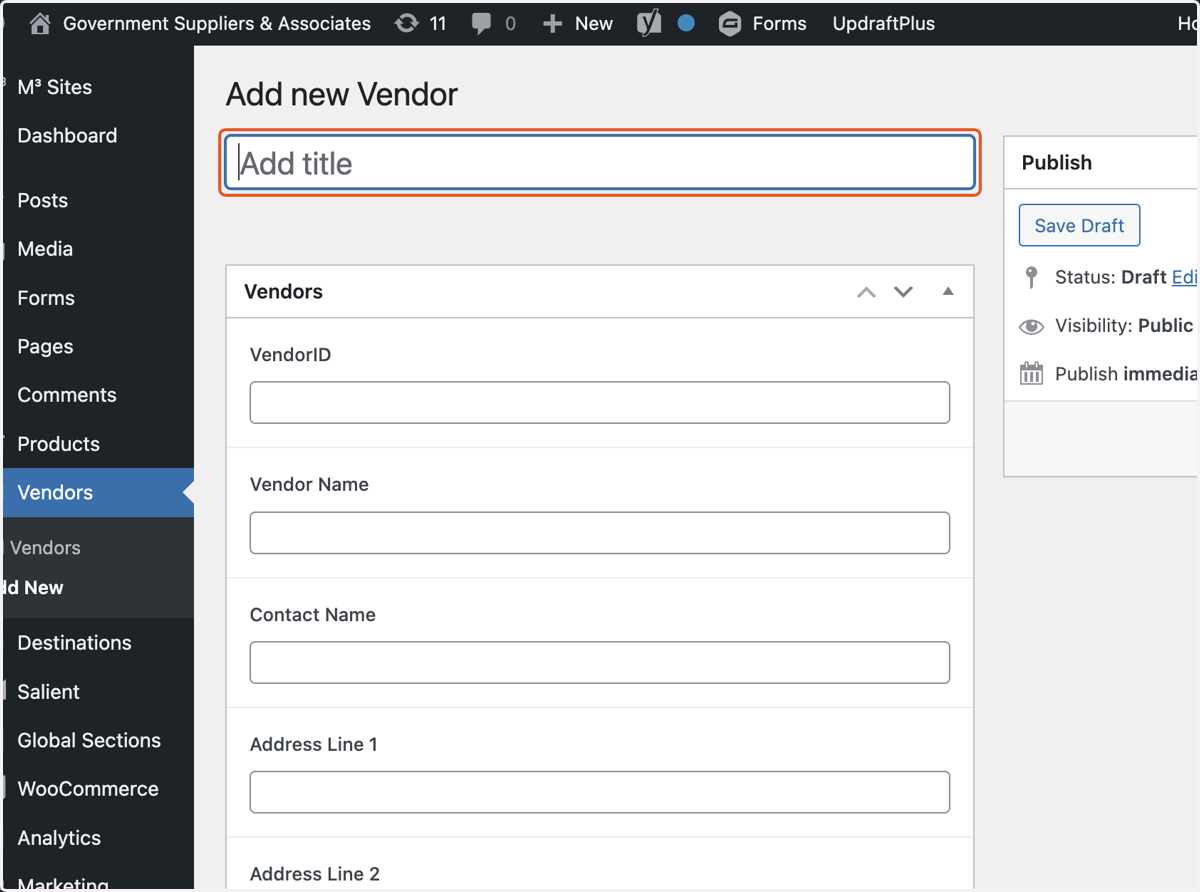
    Click inside the field labeled Add title and type in the new Vendor.
  4. 4. Click the blue Publish button to officially add the new Vendor.
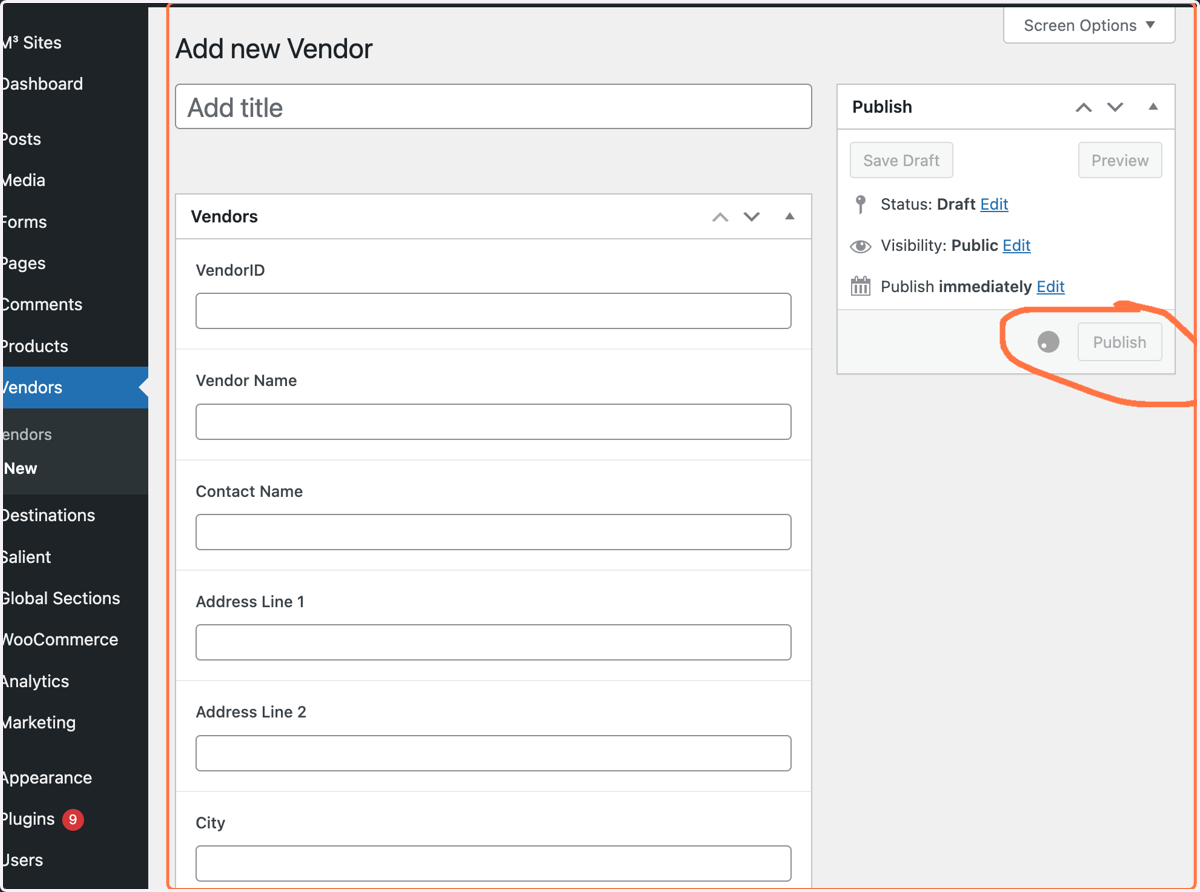
    Click the blue Publish button to officially add the new Vendor.
  5. 5. To edit a current Vendor, find the Vendor you want to edit and click on Quick Edit.
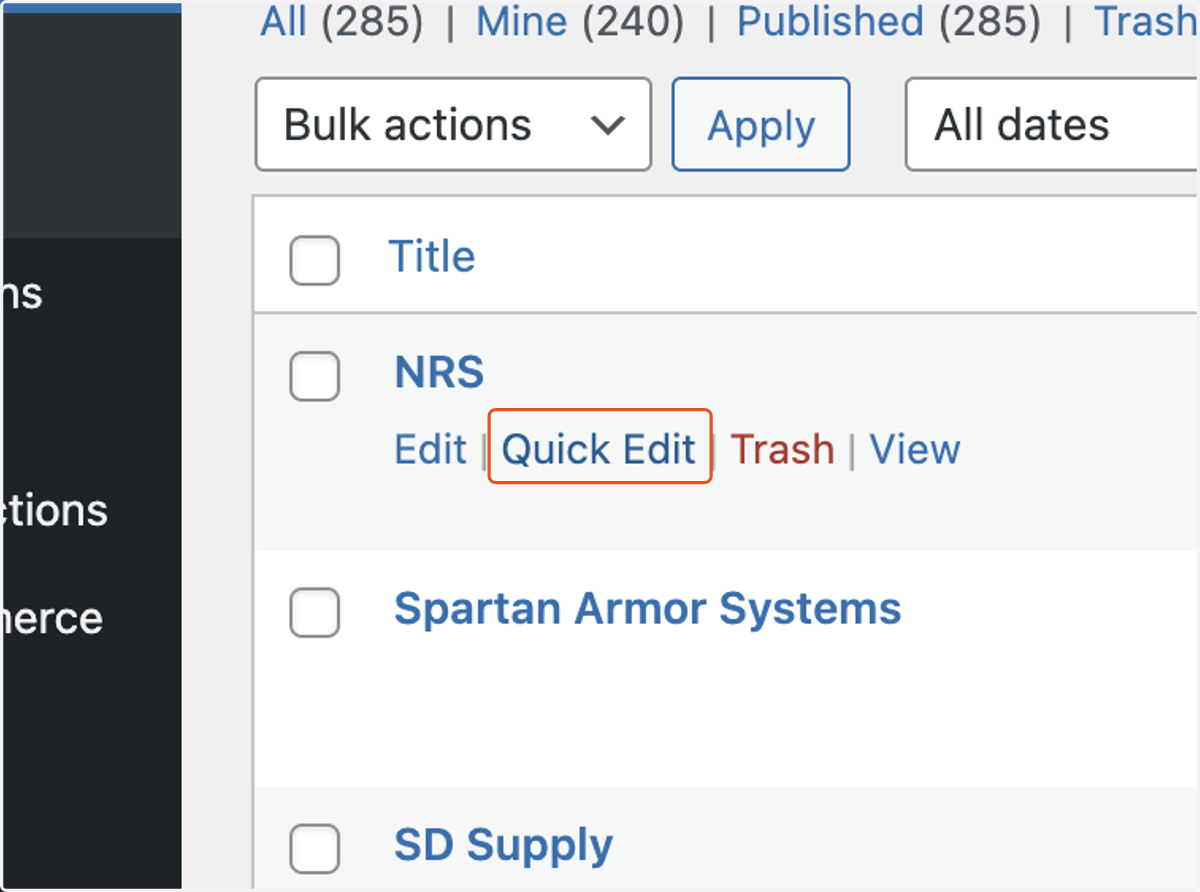
    To edit a current Vendor, find the Vendor you want to edit and click on Quick Edit.
  6. 6. Edit the necessary fields and click on the blue Update button.
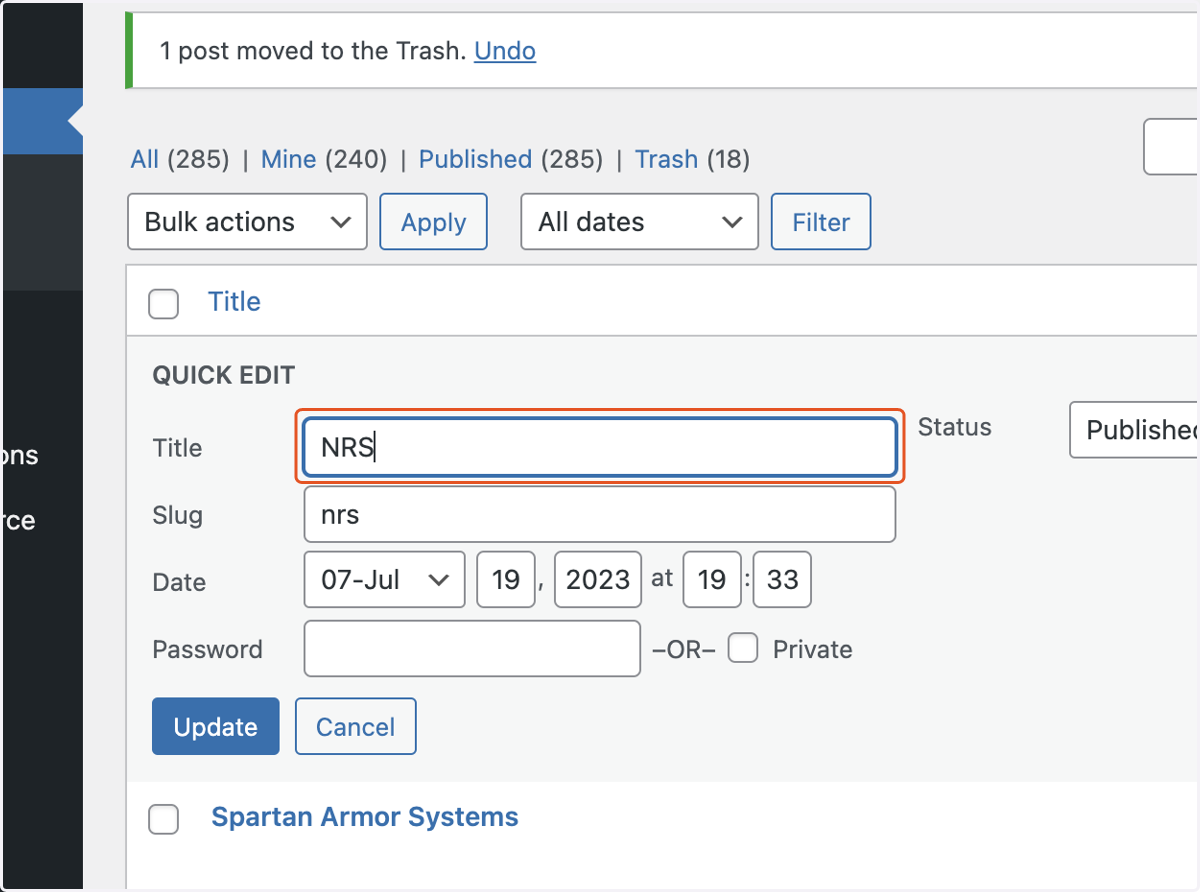
    Edit the necessary fields and click on the blue Update button.
  7. 7. To alphabetize the Vendors, click on Title and it will either alphabetize # - Z or Z- #.
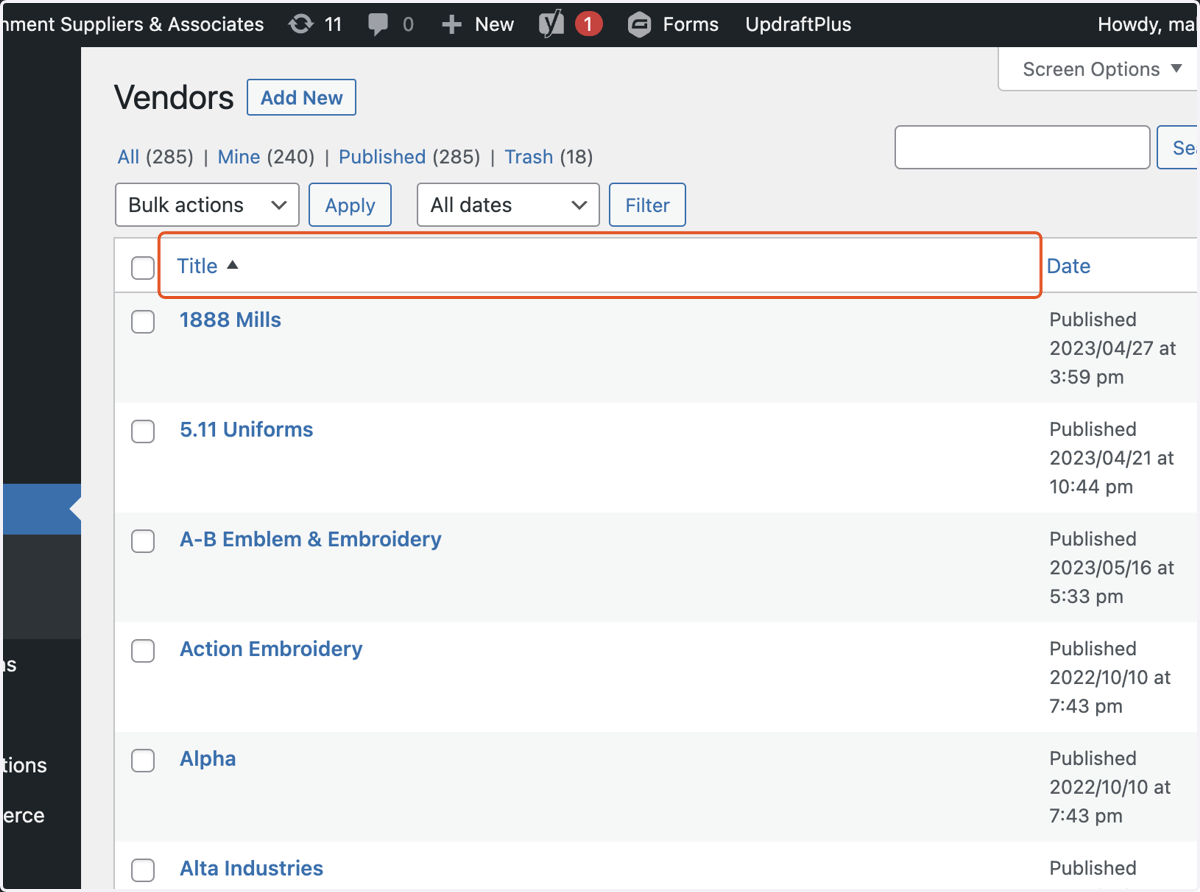
    To alphabetize the Vendors, click on Title and it will either alphabetize # - Z or Z- #.