Add a Staff Member to your Business Facebook Business Page
If you’re looking to share the responsibility of managing your Facebook page—whether it’s for staff, marketing support, or an external partner—you’ll need to know how to add users correctly through your Meta Business settings.
Facebook offers two types of access:
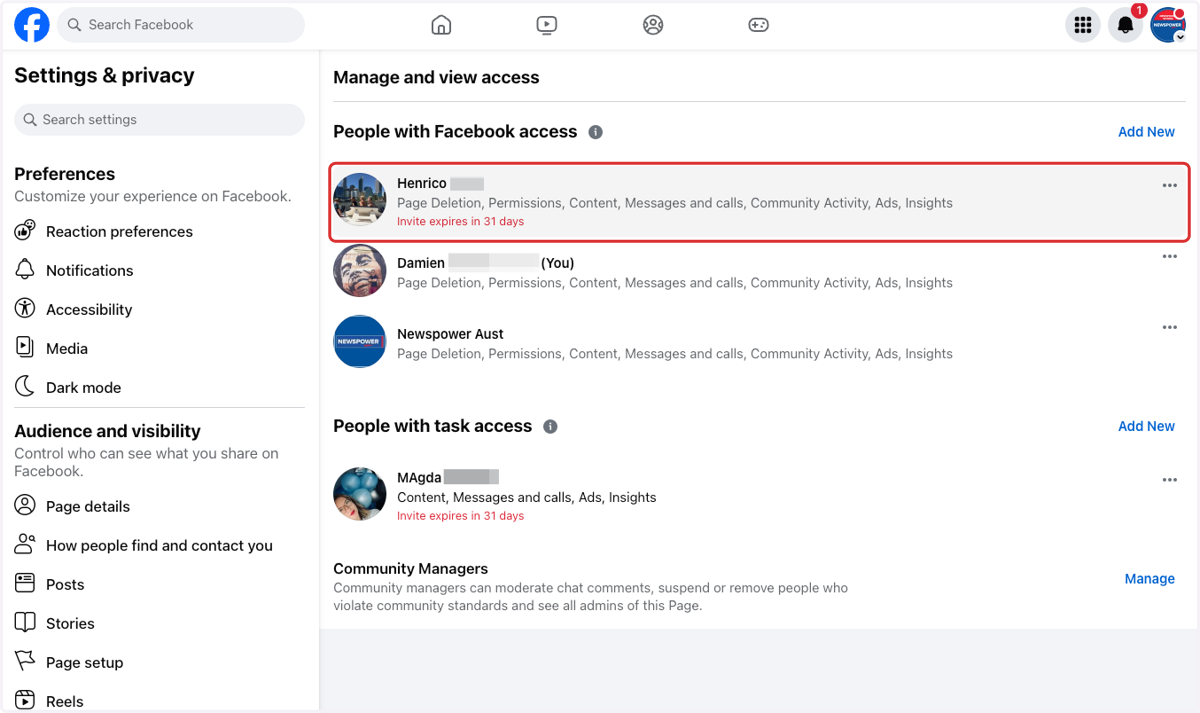
People with Facebook Access: These users can fully manage the page from both Facebook and Meta Business Suite. They can post, comment, view insights, and manage settings—essentially acting as a full page admin.
People with Task Access: These users have limited access through Meta Business Suite only. They can perform specific tasks like creating posts or viewing insights, but they can’t manage page roles or settings.
Understanding the difference ensures each person has the appropriate level of control, helping keep your page secure and professionally managed.
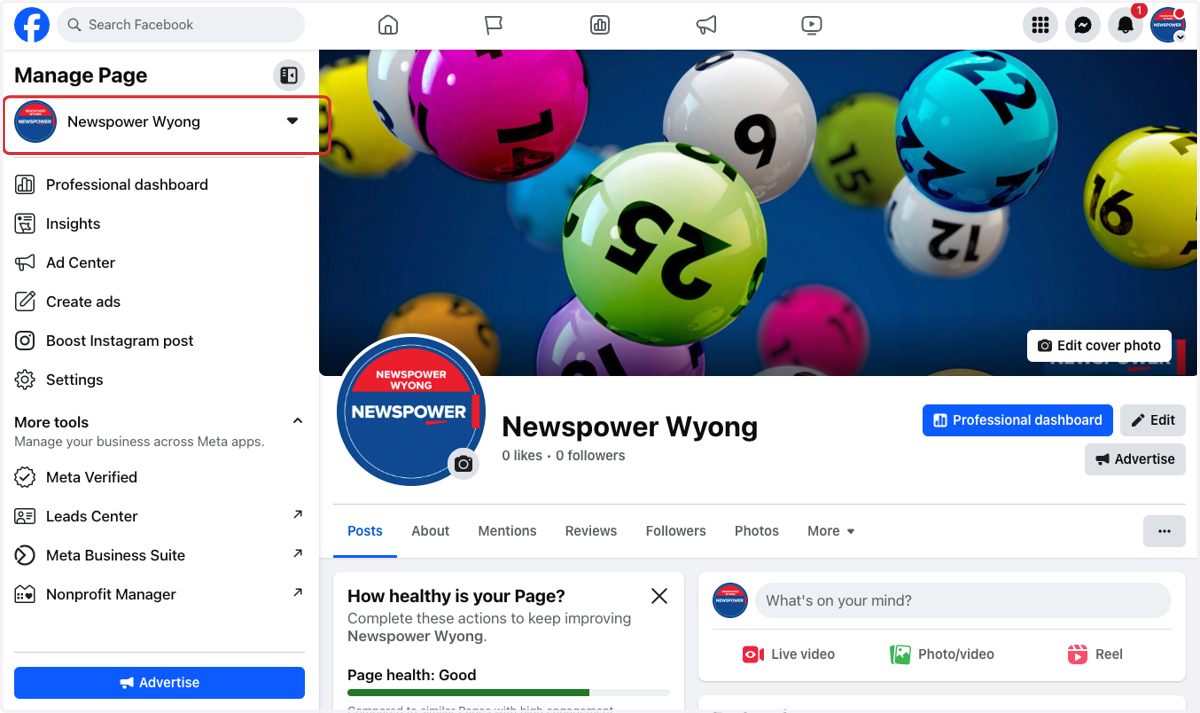
1. Sign into your business Facebook page
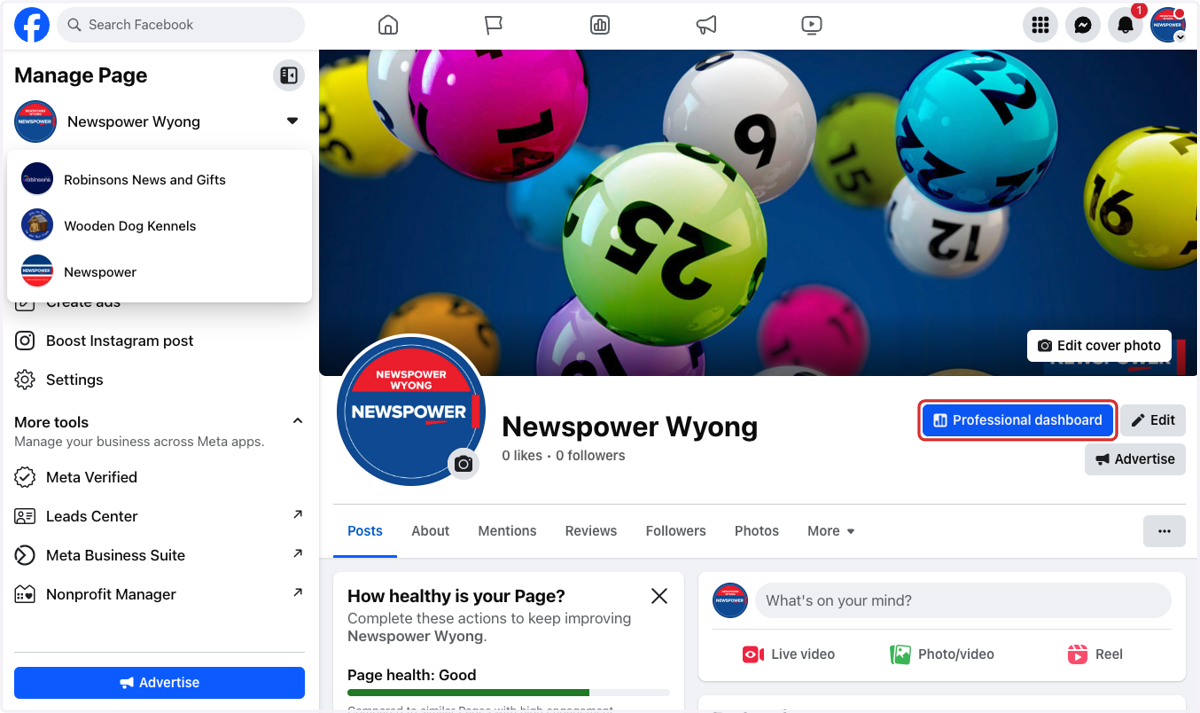
2. Click on Professional dashboard
3. Click on Page access from the lefthand menu
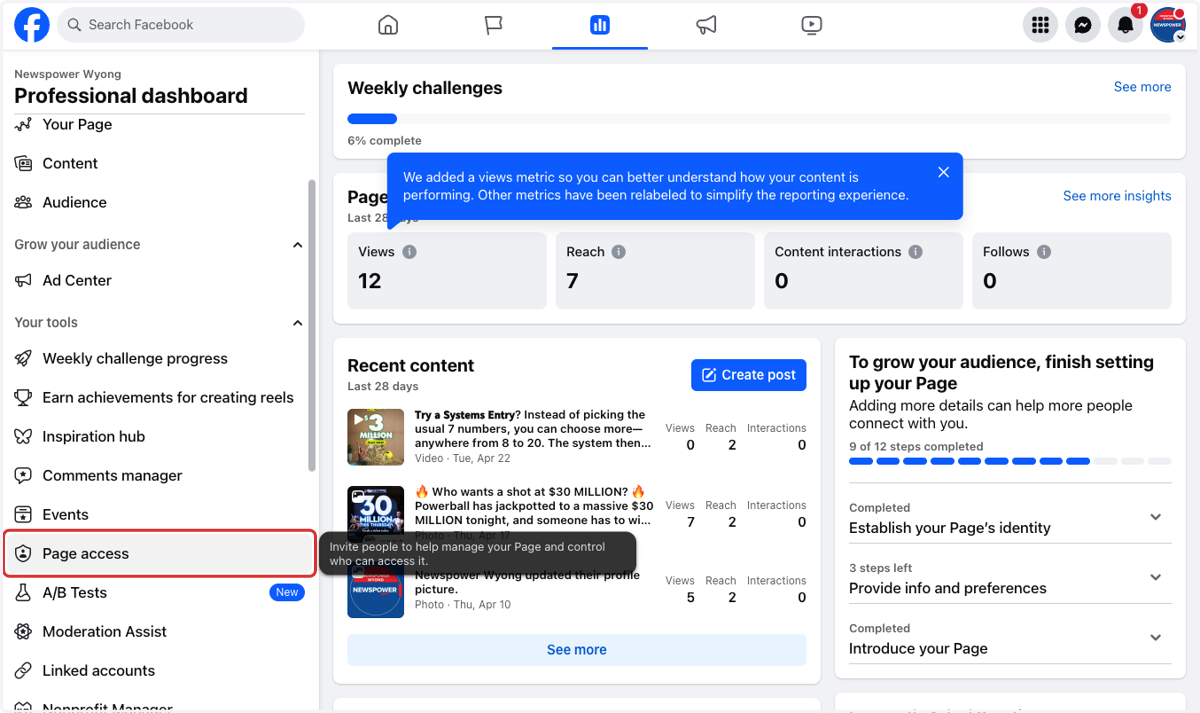
4. Click on Add New next to people with task access.
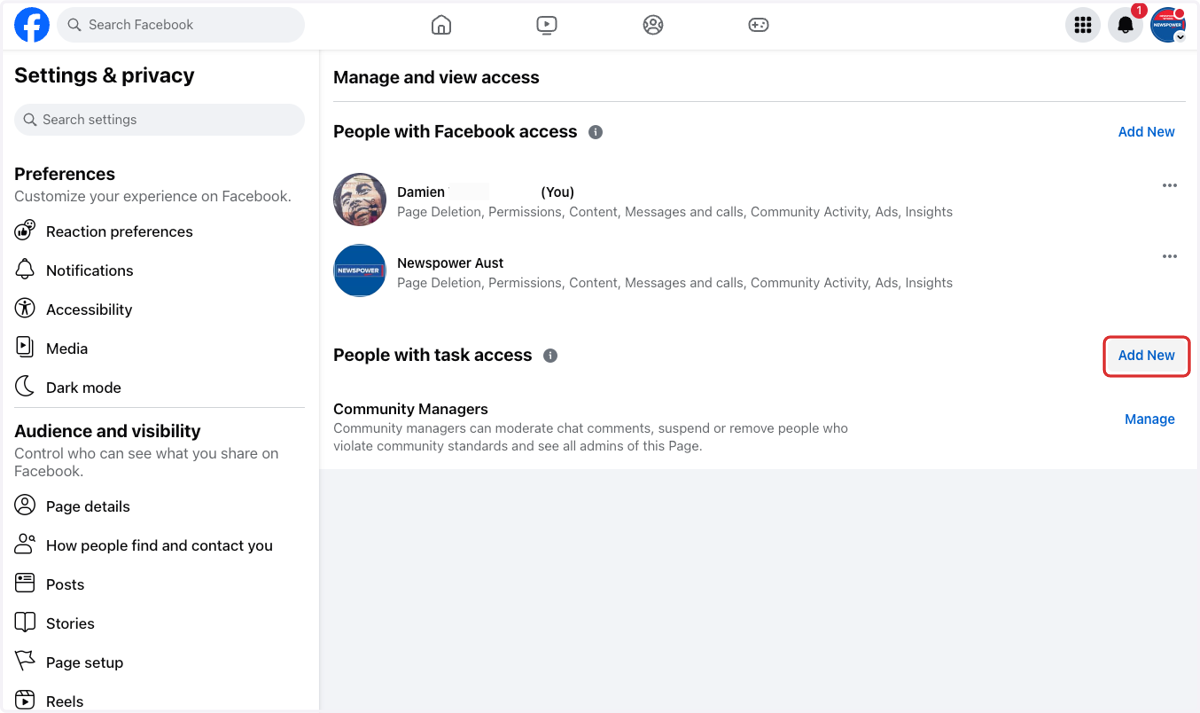
5. Click on Next
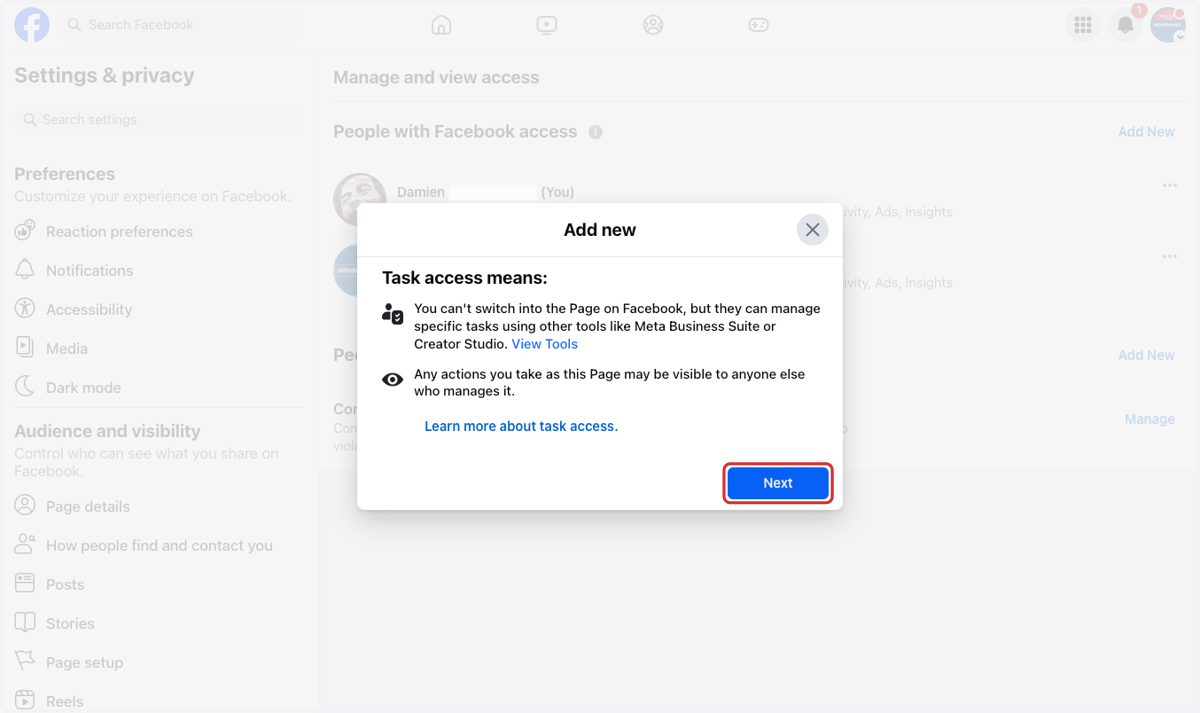
6. Search for the person you want to give access to
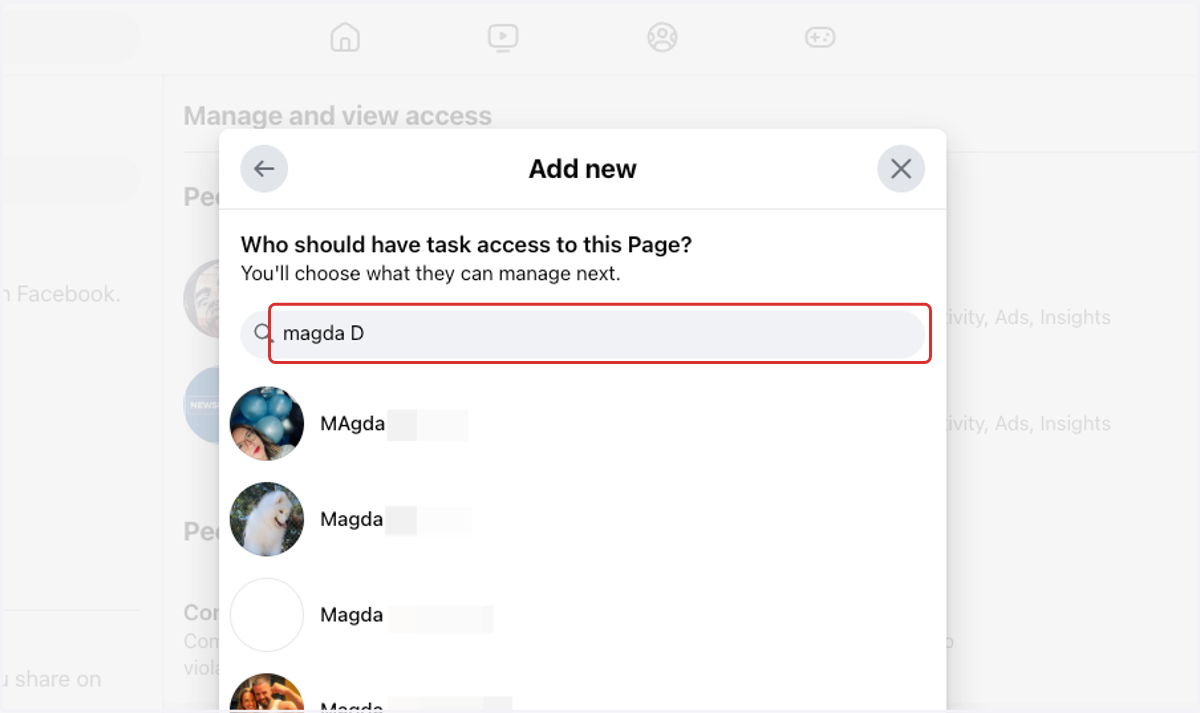
7. Click on their name
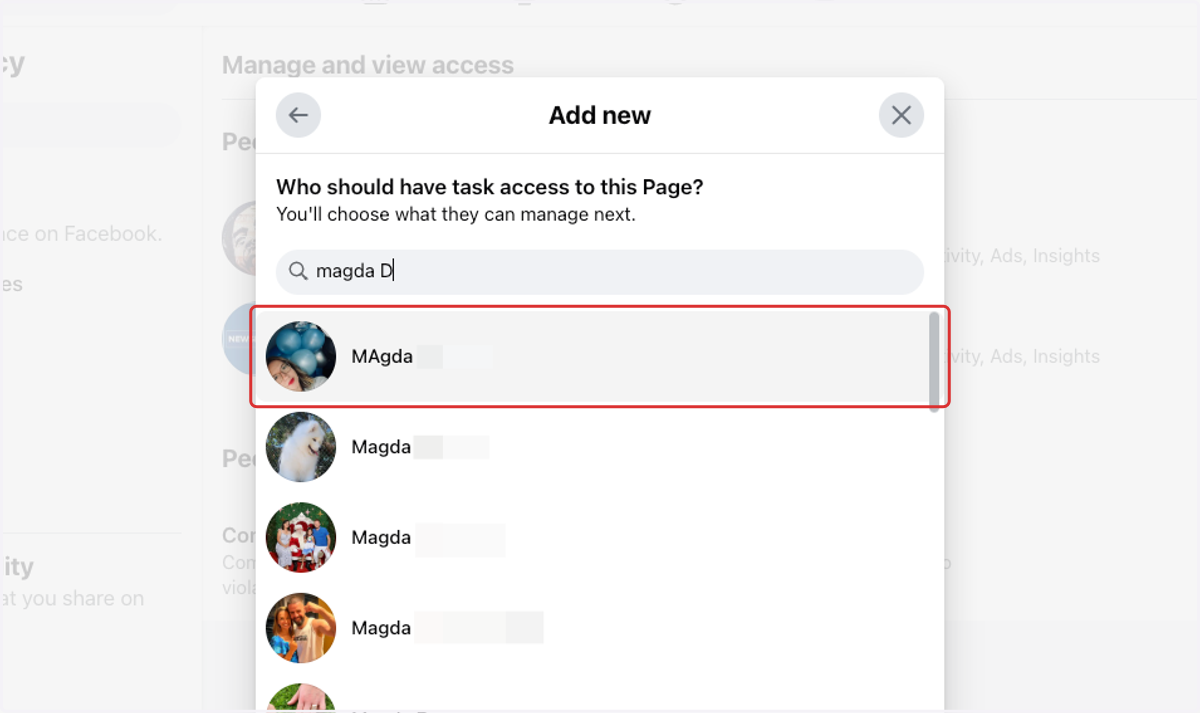
8. Toggle on the permissions you want to give them
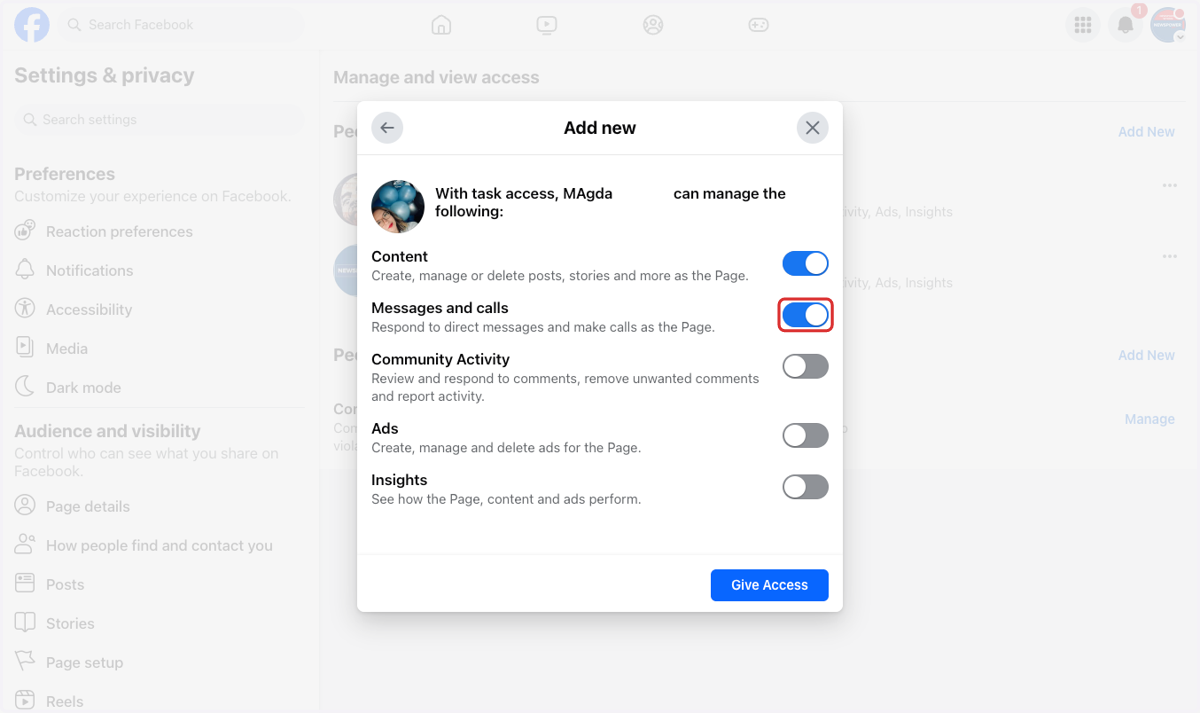
9. Click on Give Access
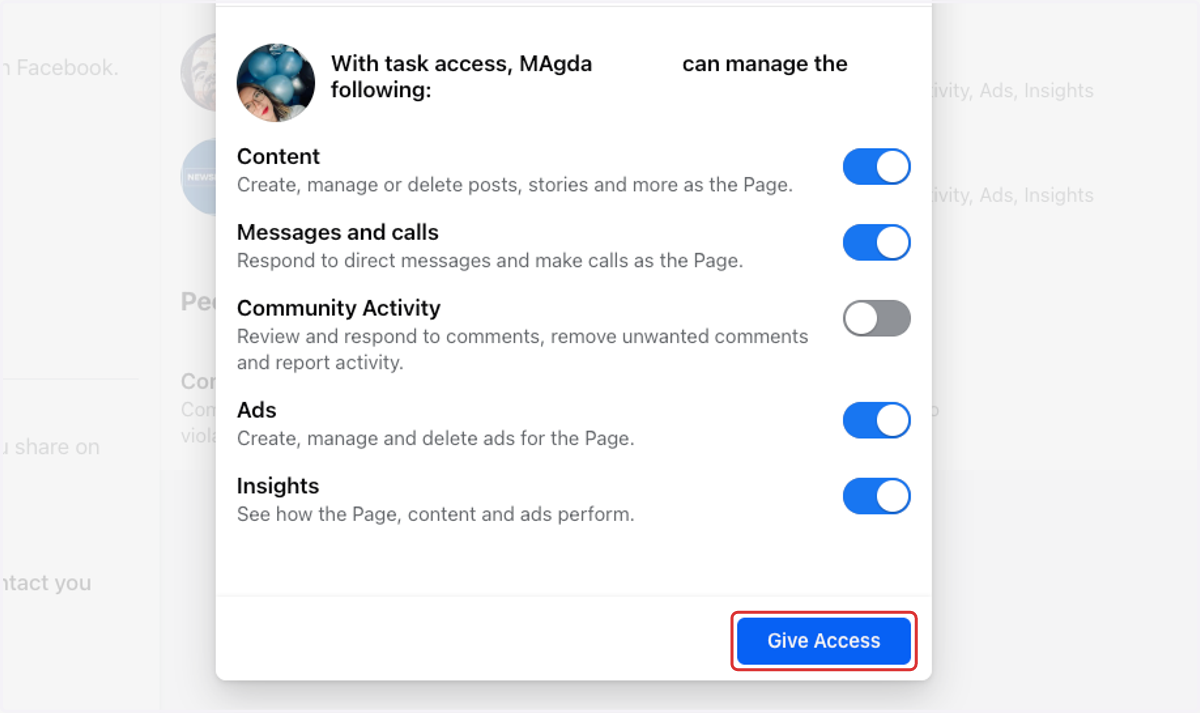
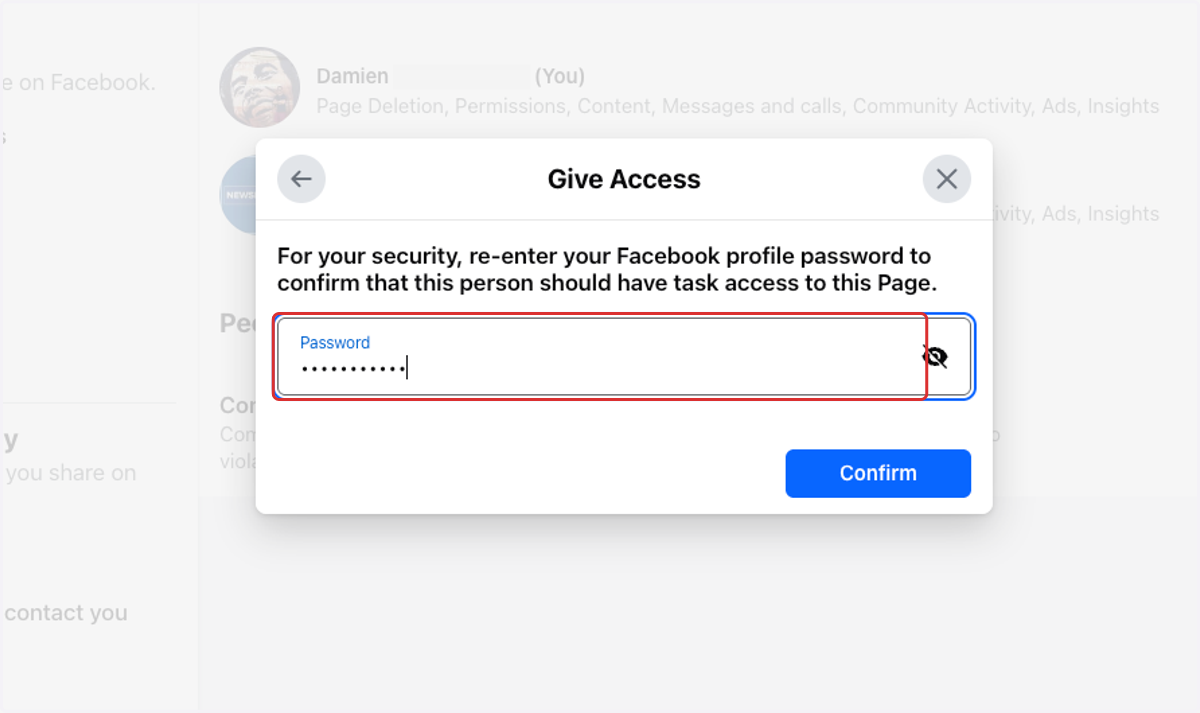
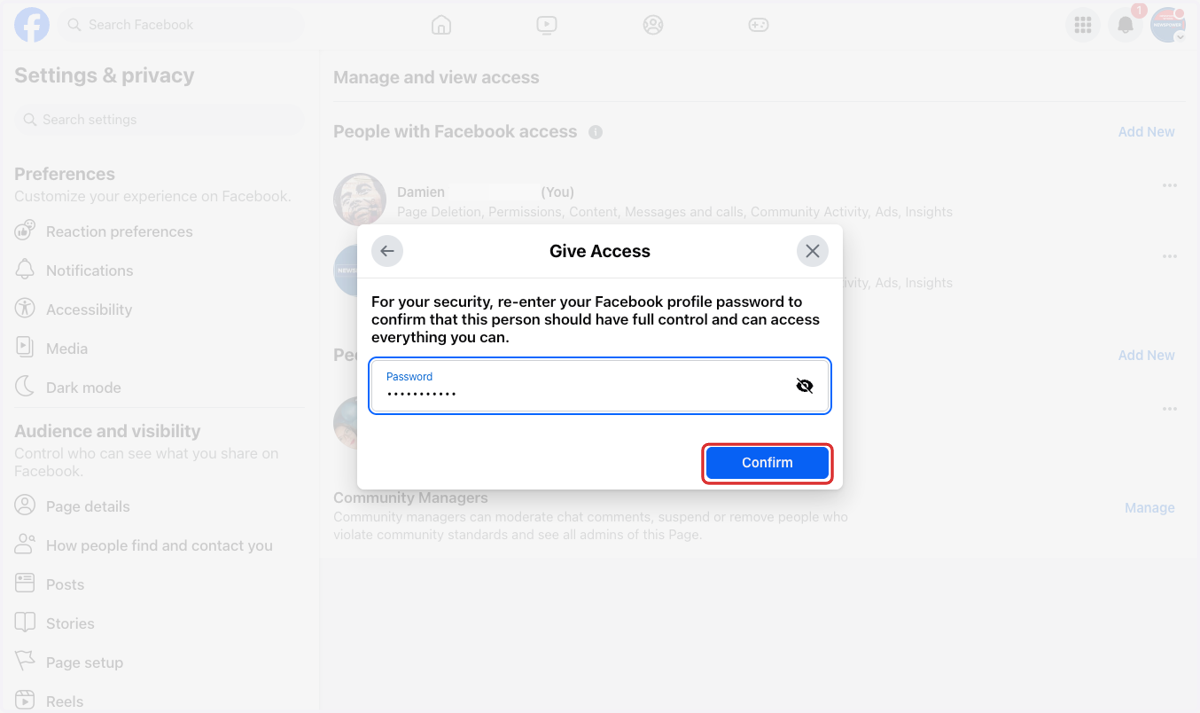
10. Enter your personal Facebook password
11. Click on Confirm
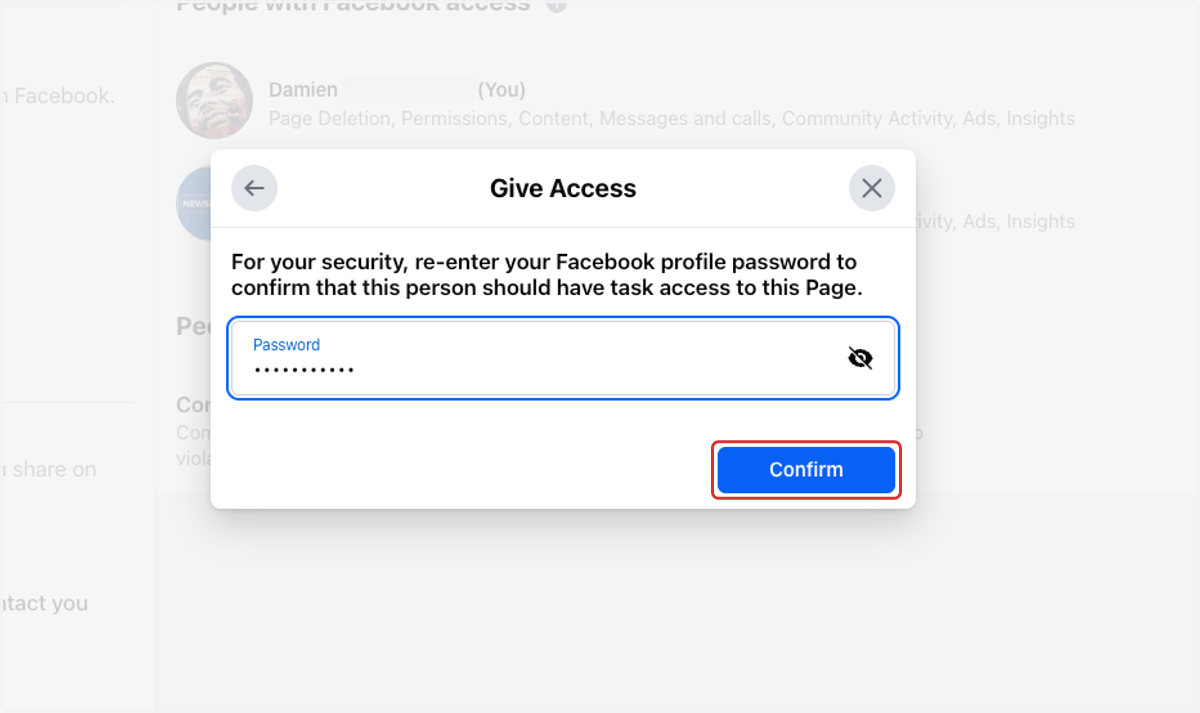
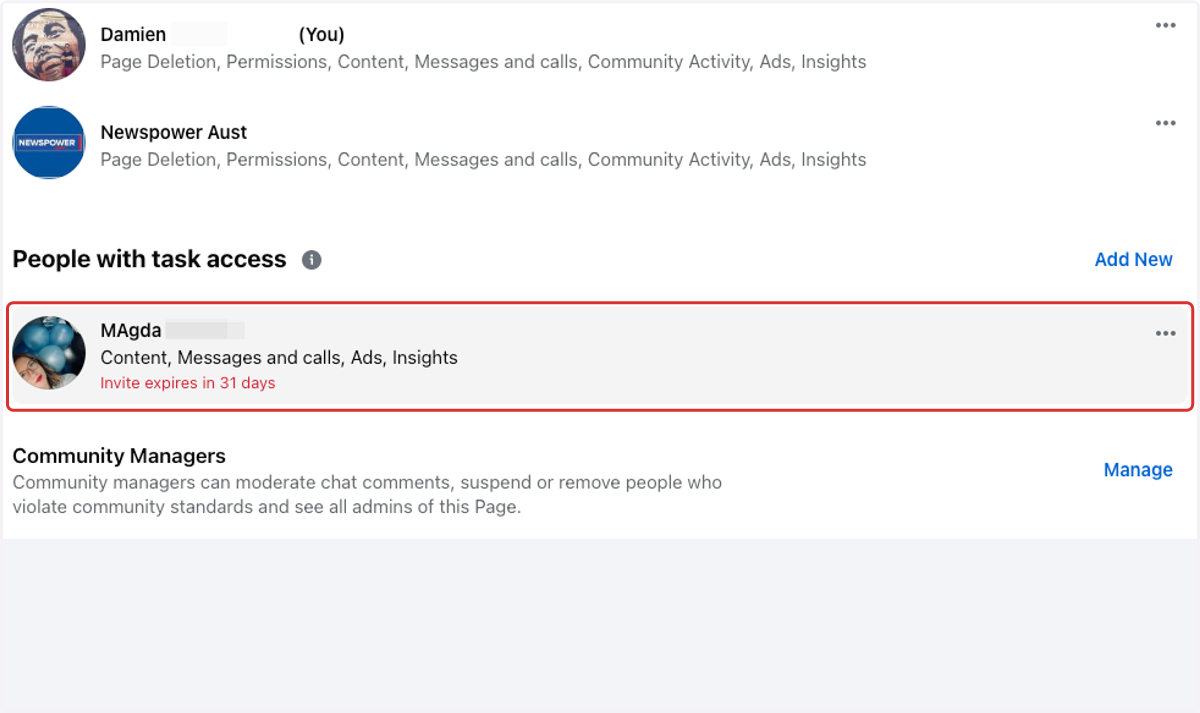
12. Here you can see that an invite has been sent to them to access the page
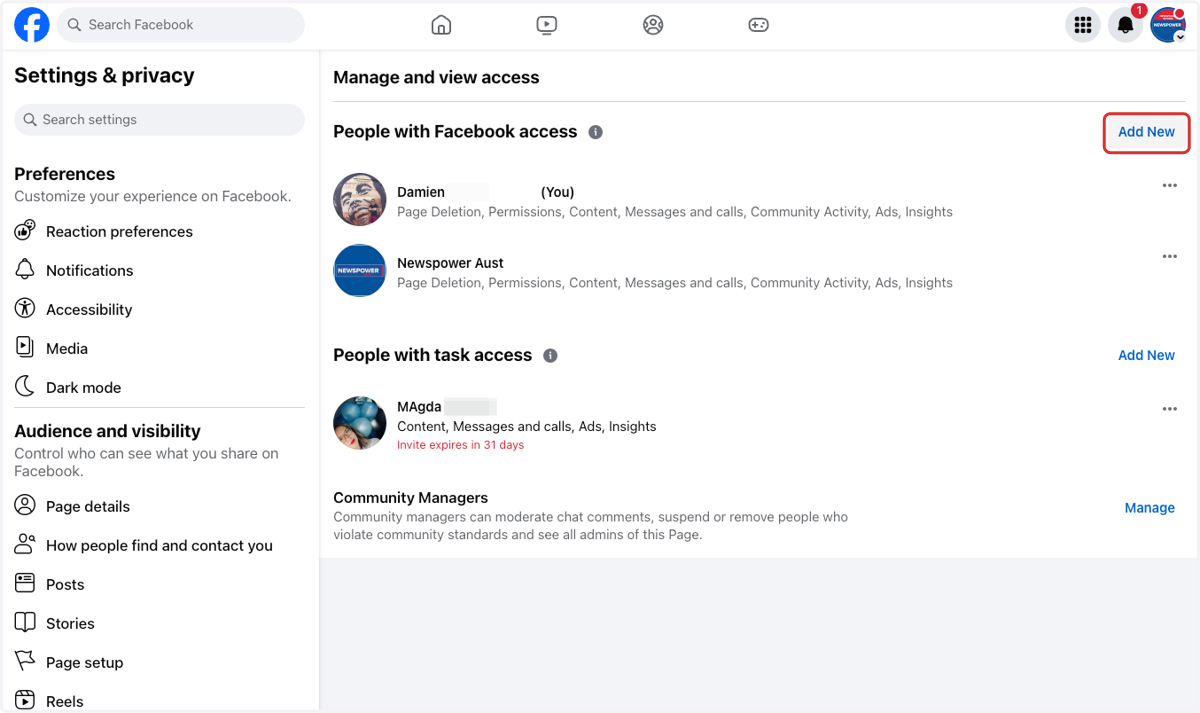
13. To give someone full control of the page click "Add New" next to People with Facebook access
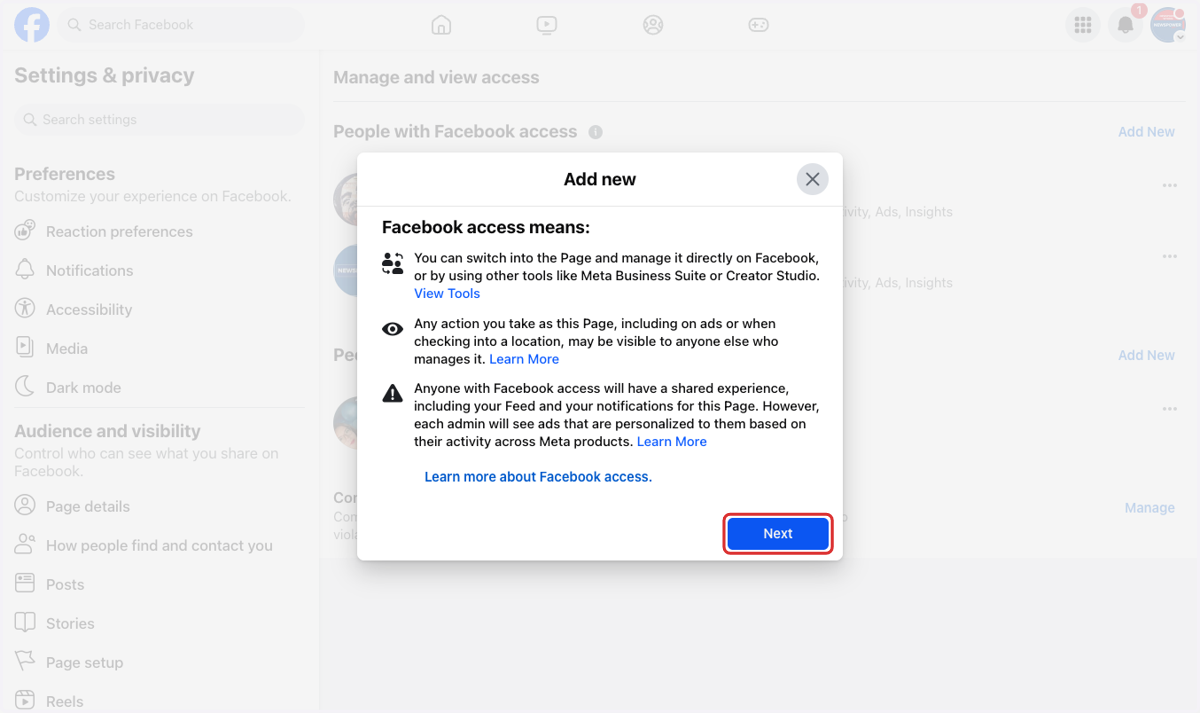
14. Click on Next
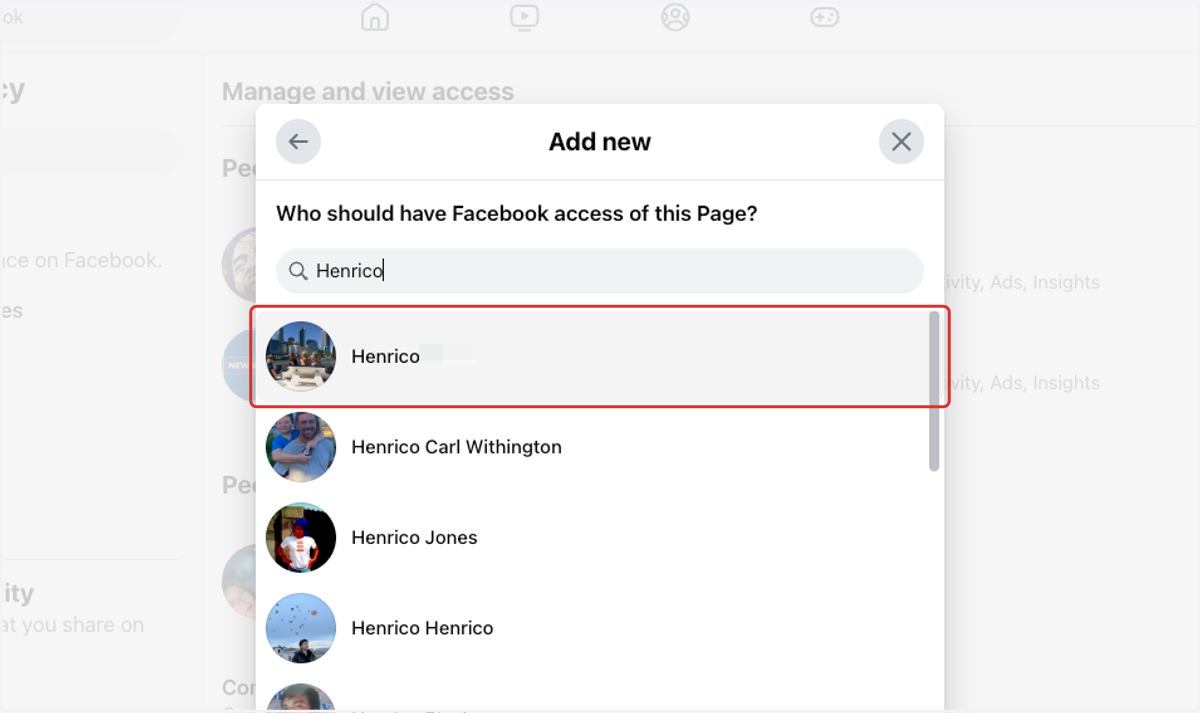
15. Search for the person
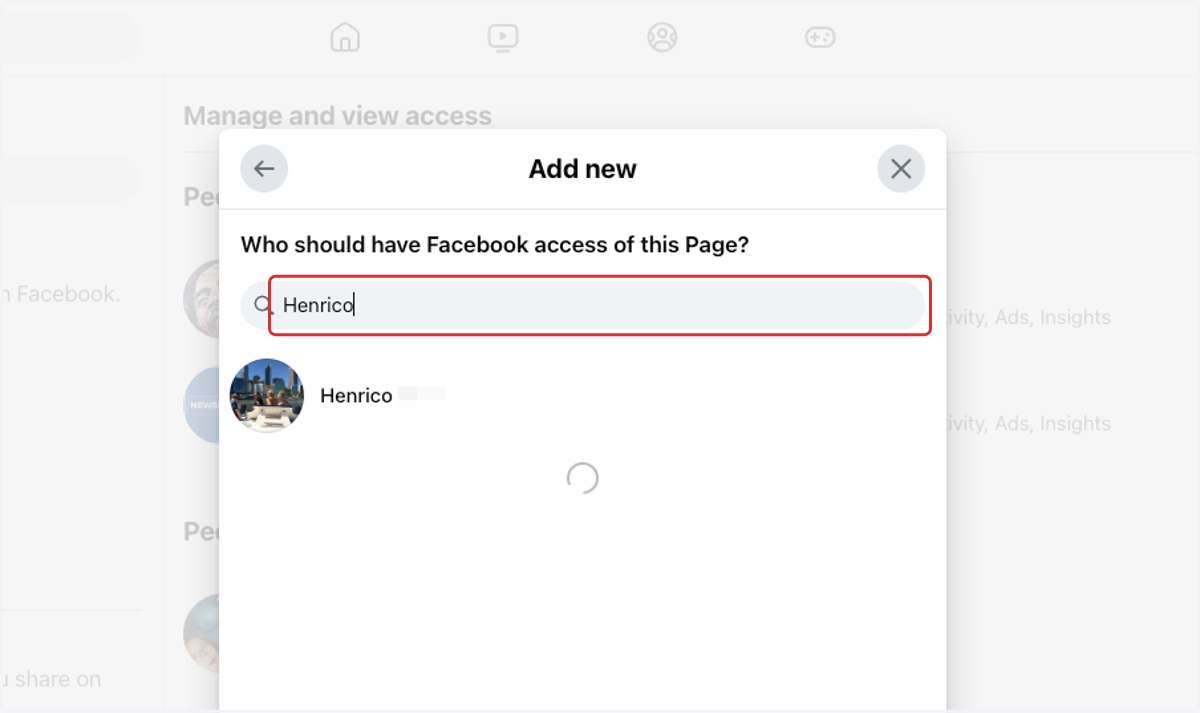
16. Select their name
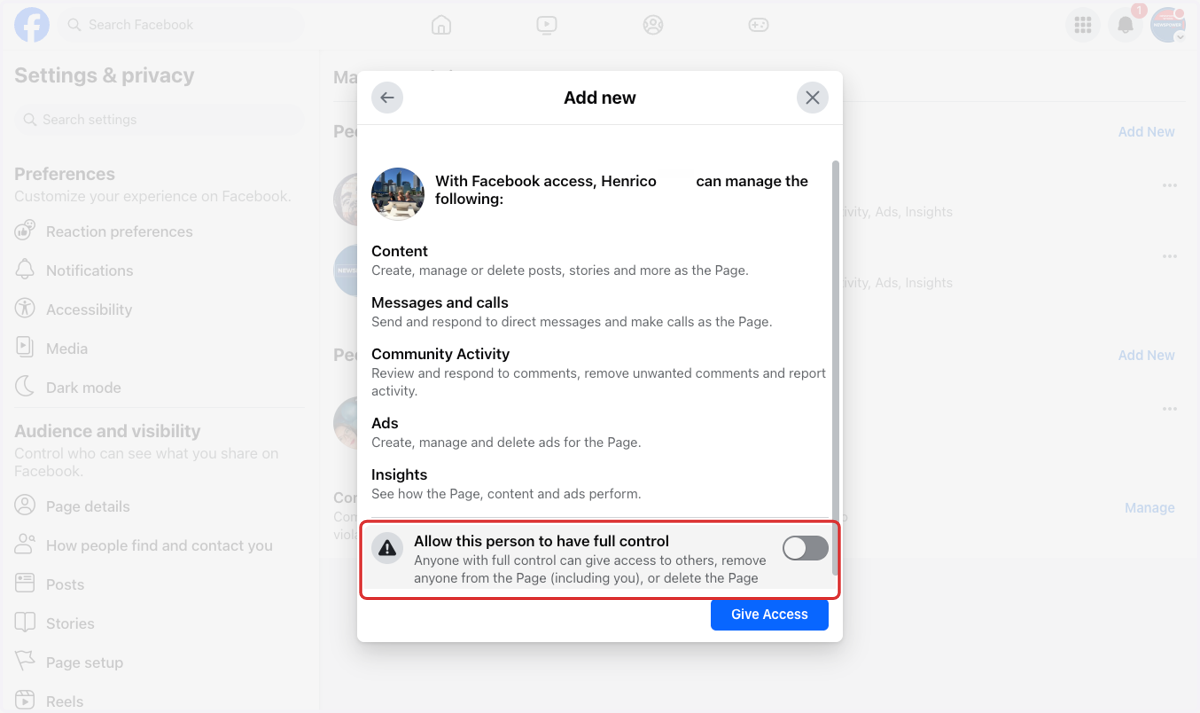
17. Toggle on Allow this person to have full control
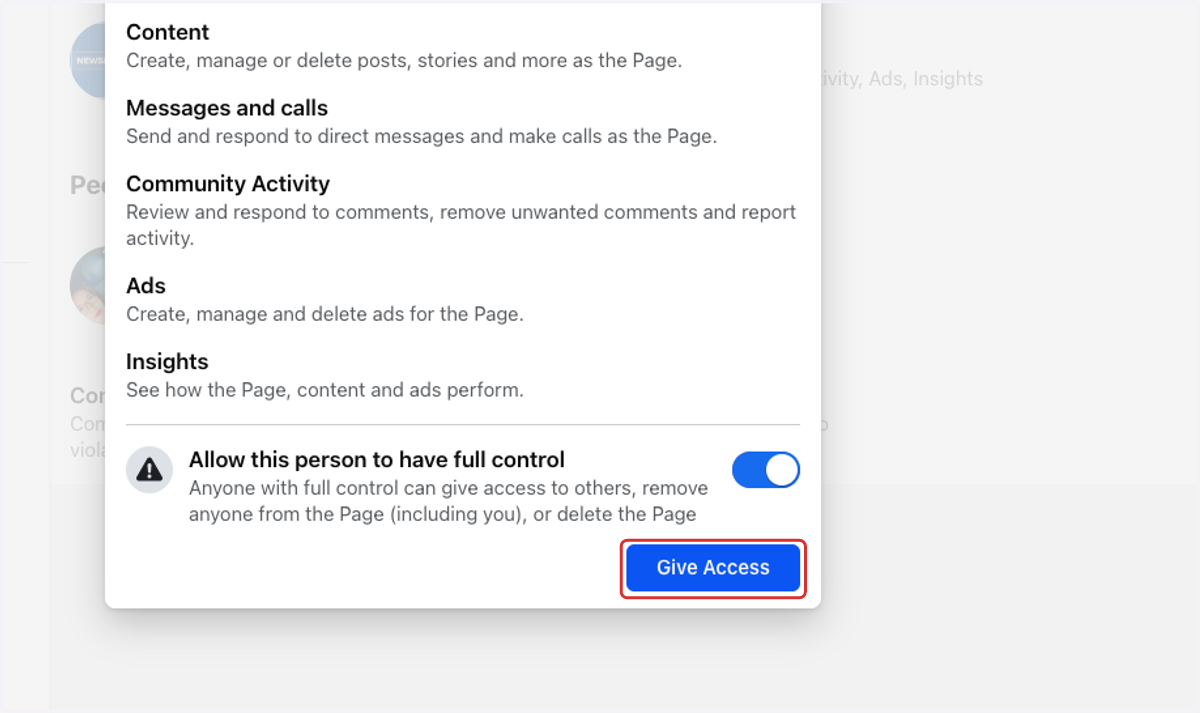
18. Click on Give Access
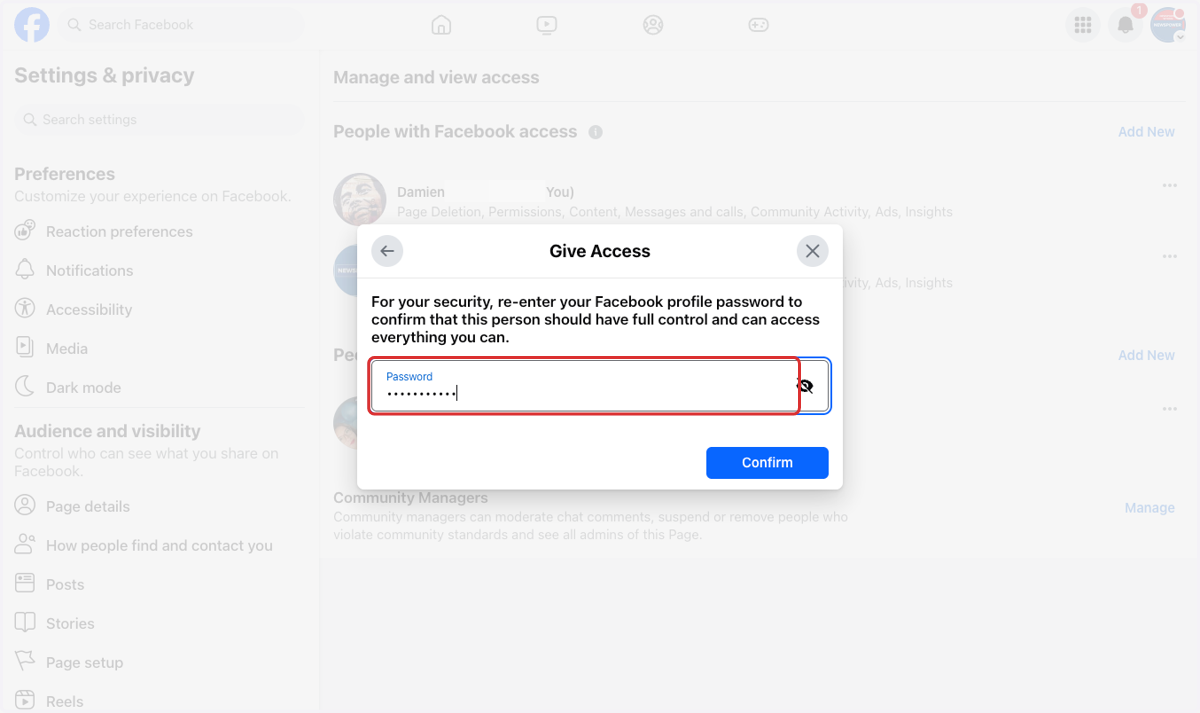
19. Enter your personal Facebook password
20. Click on Confirm
21. You may also be asked to confirm with a second password sent to you
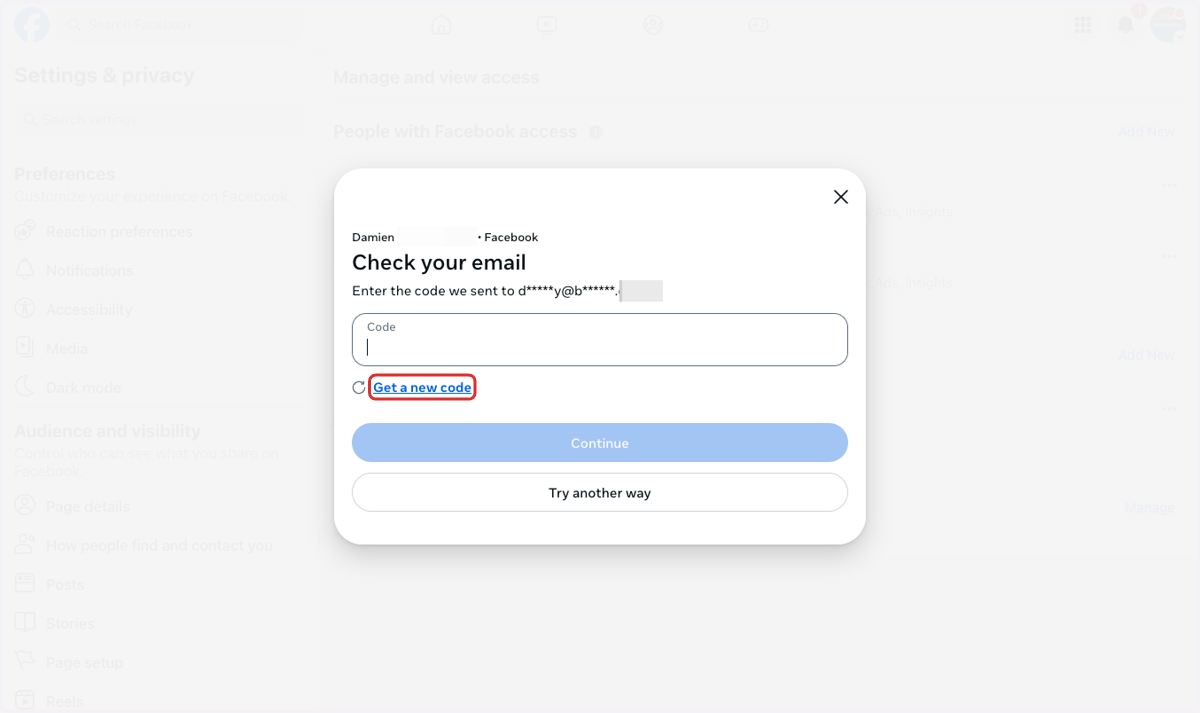
22. Enter code sent to you
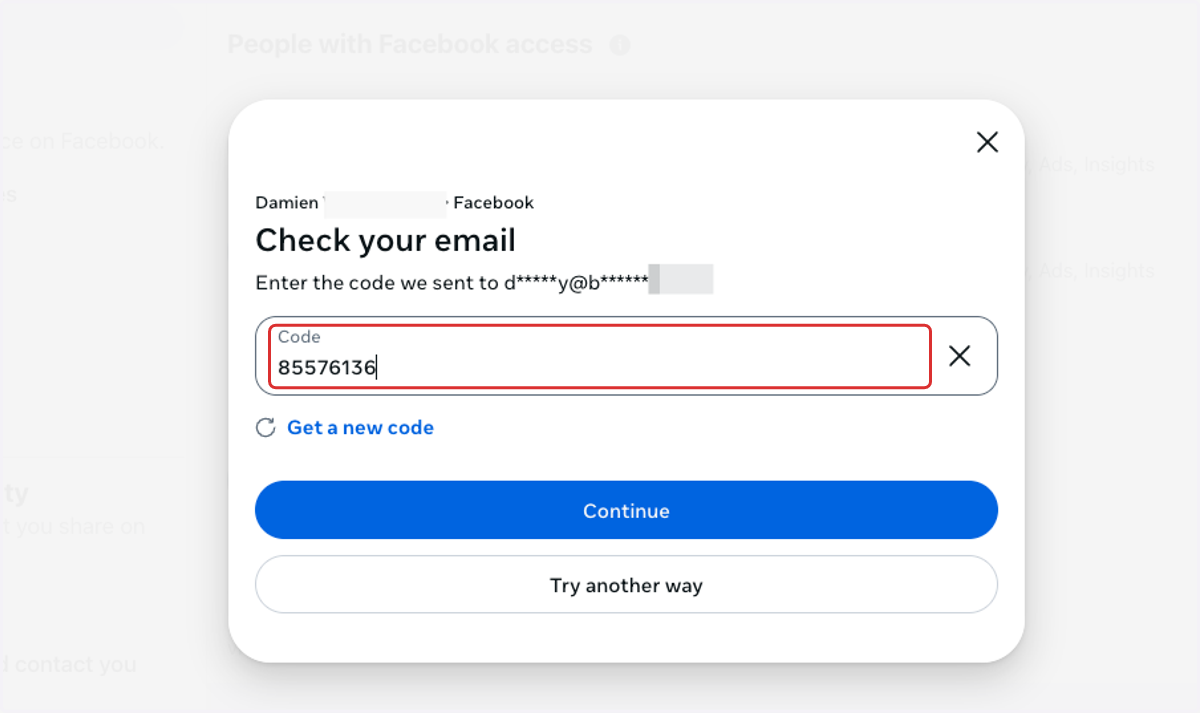
23. Here you can confirm the invite has been sent.