Add a Client Group 365 Email to HubSpot Service Hub
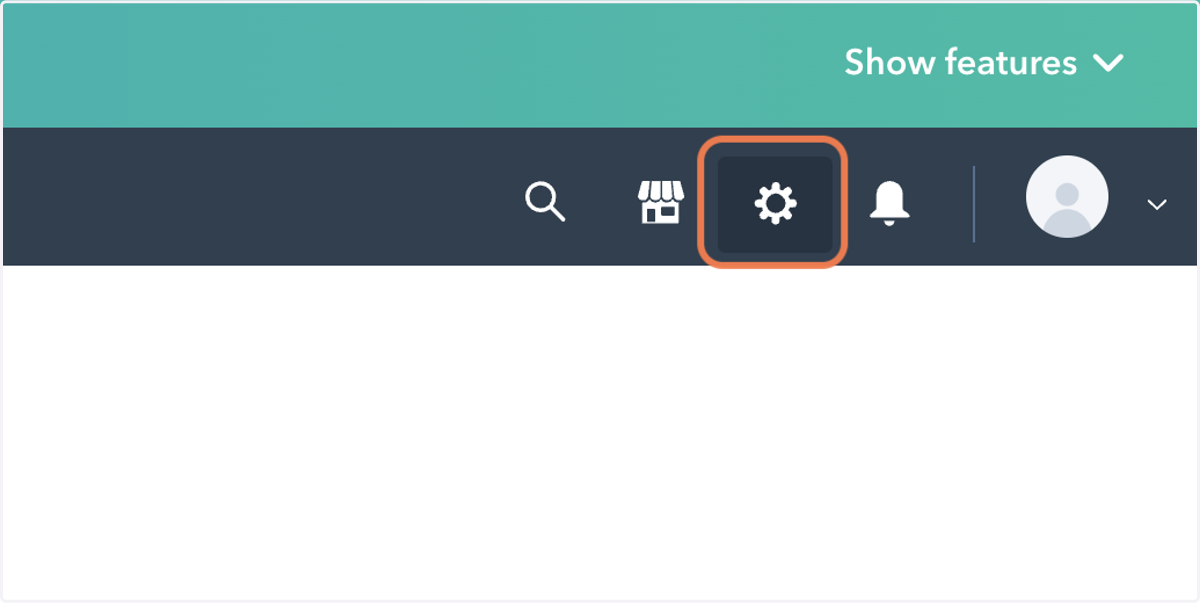
2. Click on ⚙ settings
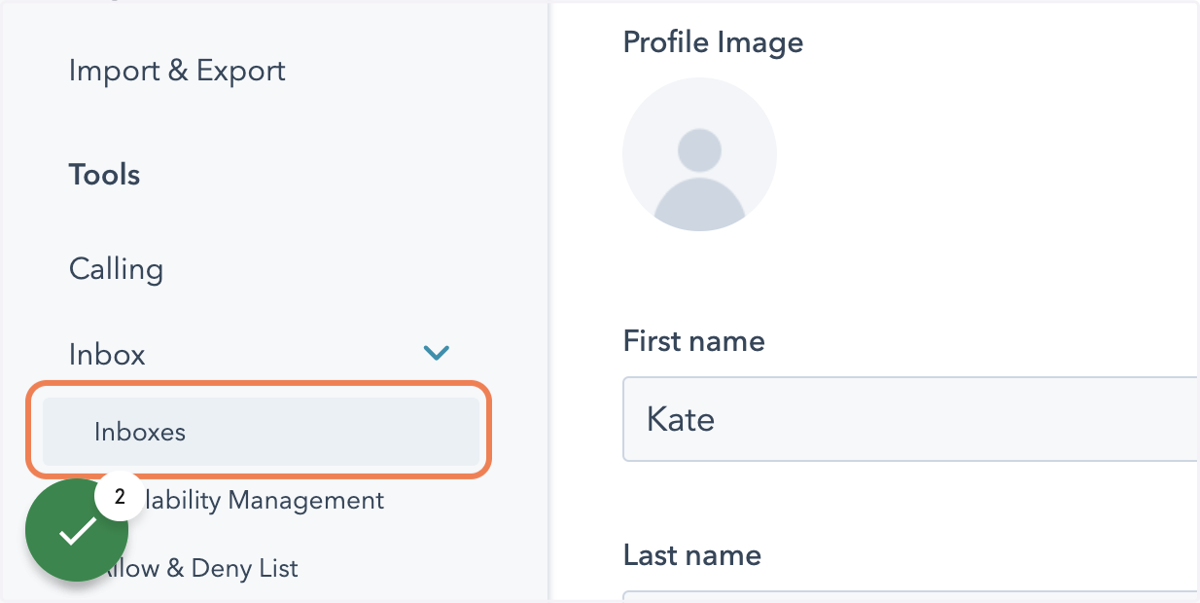
3. Click on Inboxes near the bottom of the left menu bar
4. Click on Connect a channel
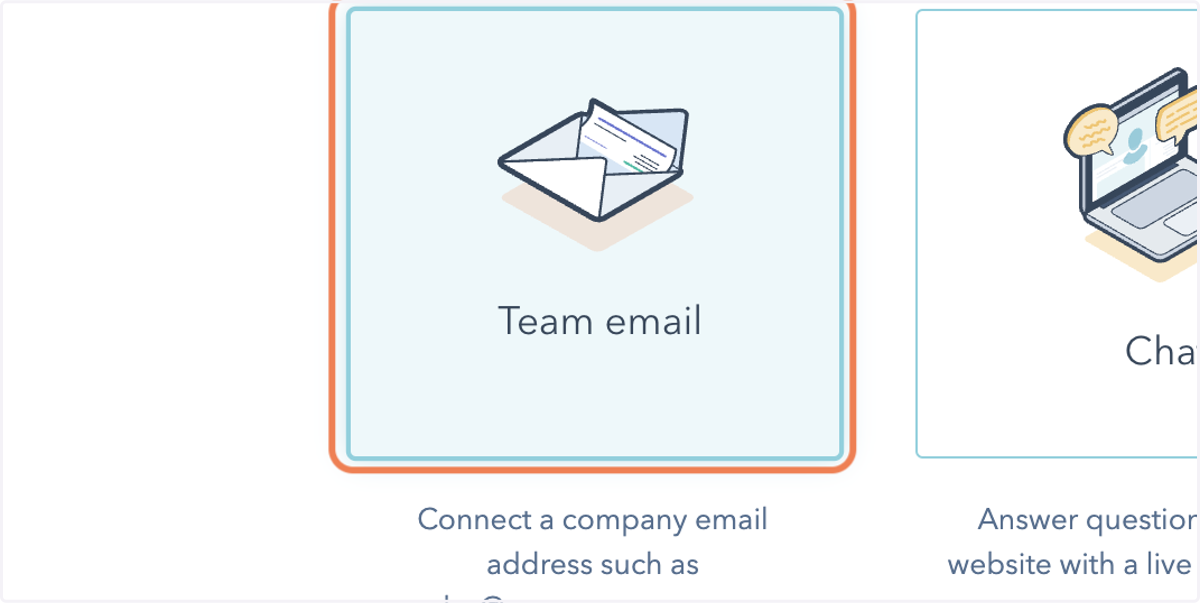
5. Click on Team email
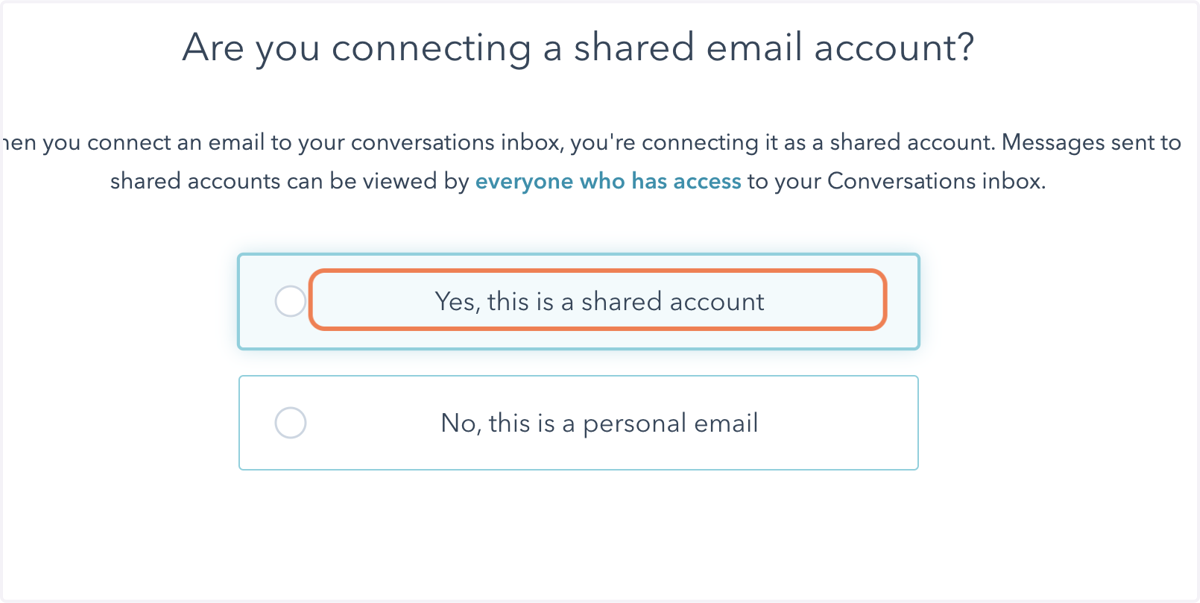
6. Click on Yes, this is a shared account
7. Click on Next
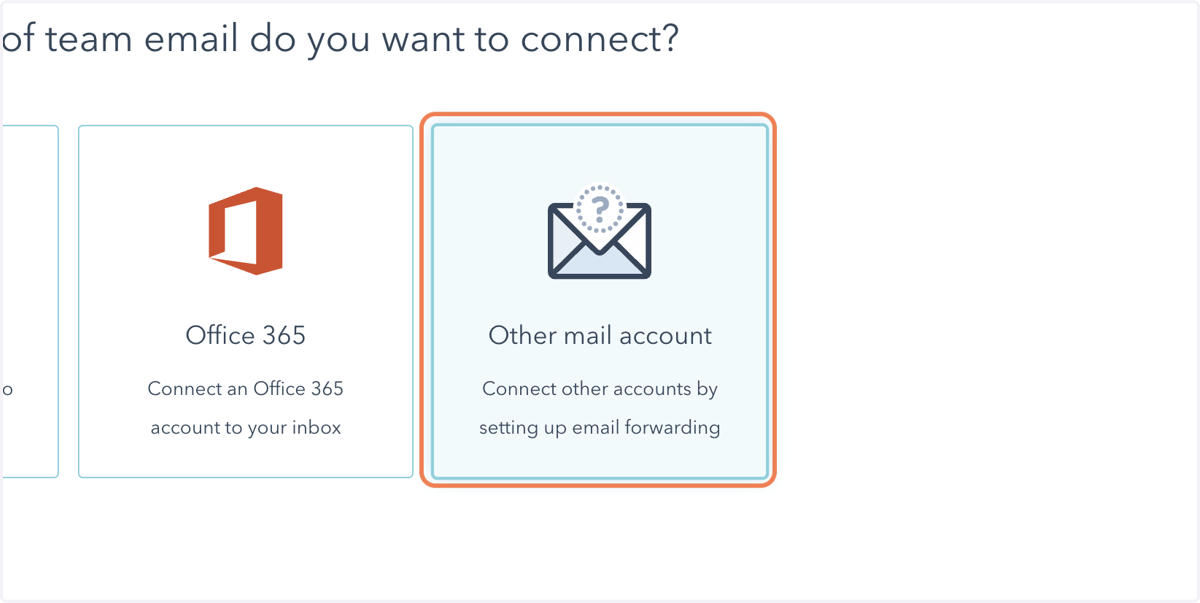
8. Click on Other mail account
9. Click on Customize from
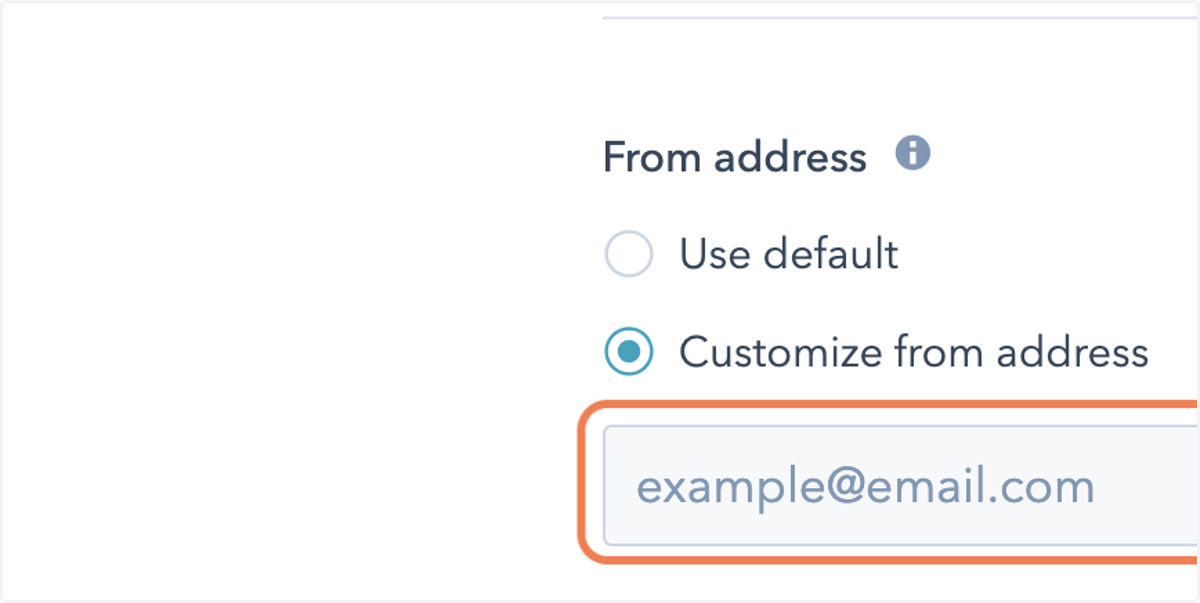
10. Type the Client Group 365 Email Address you'd like to add to HubSpot
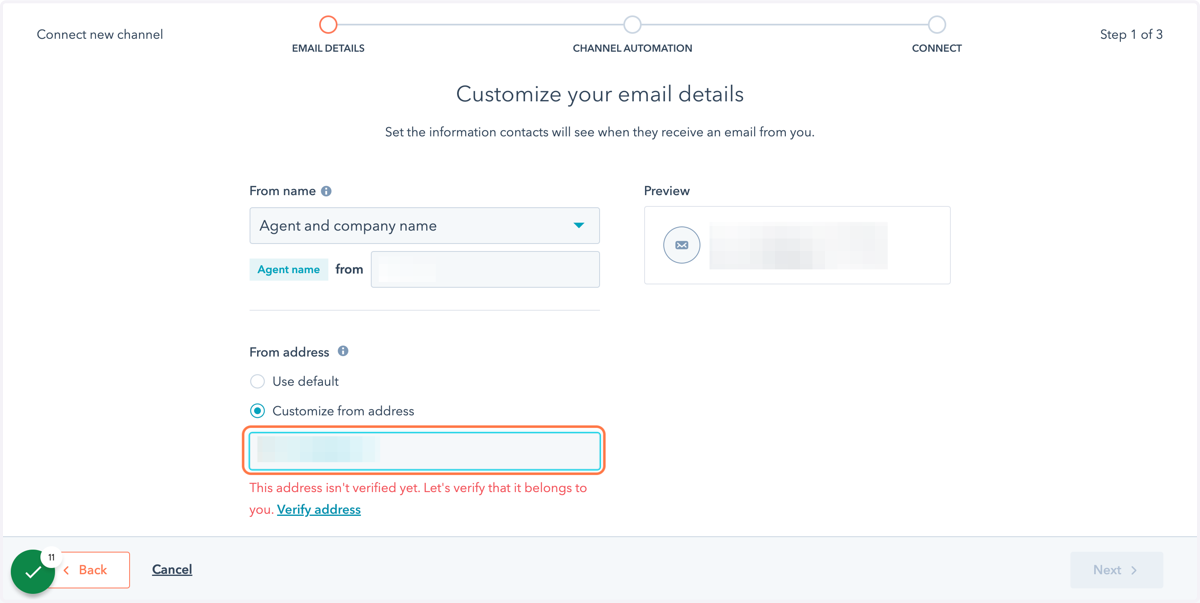
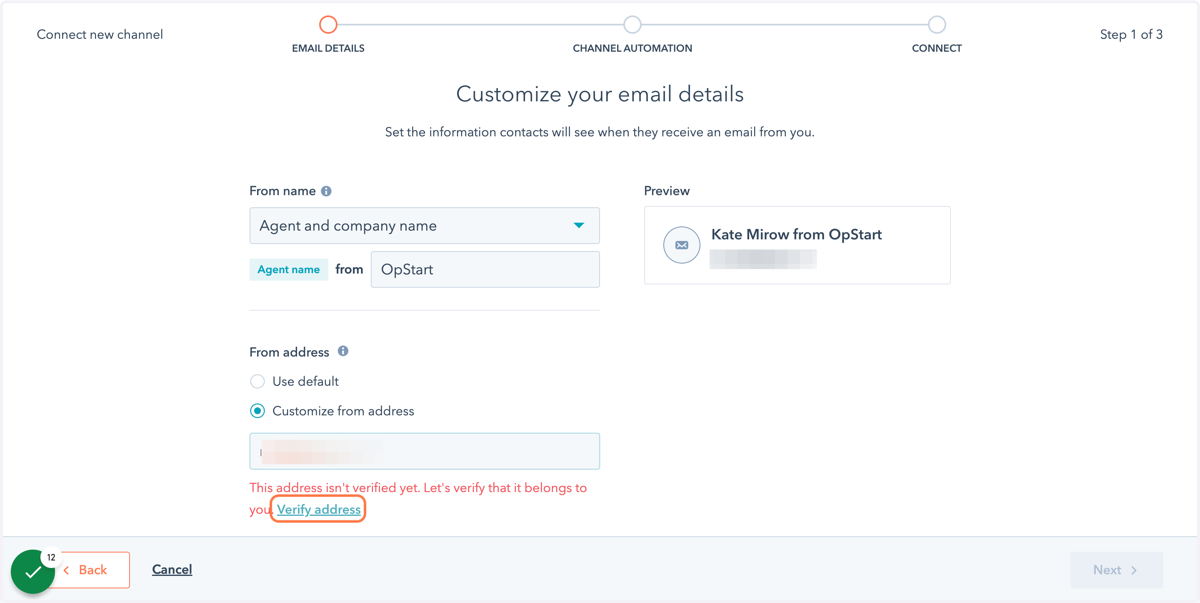
11. You'll see a verification warning, click on Verify address
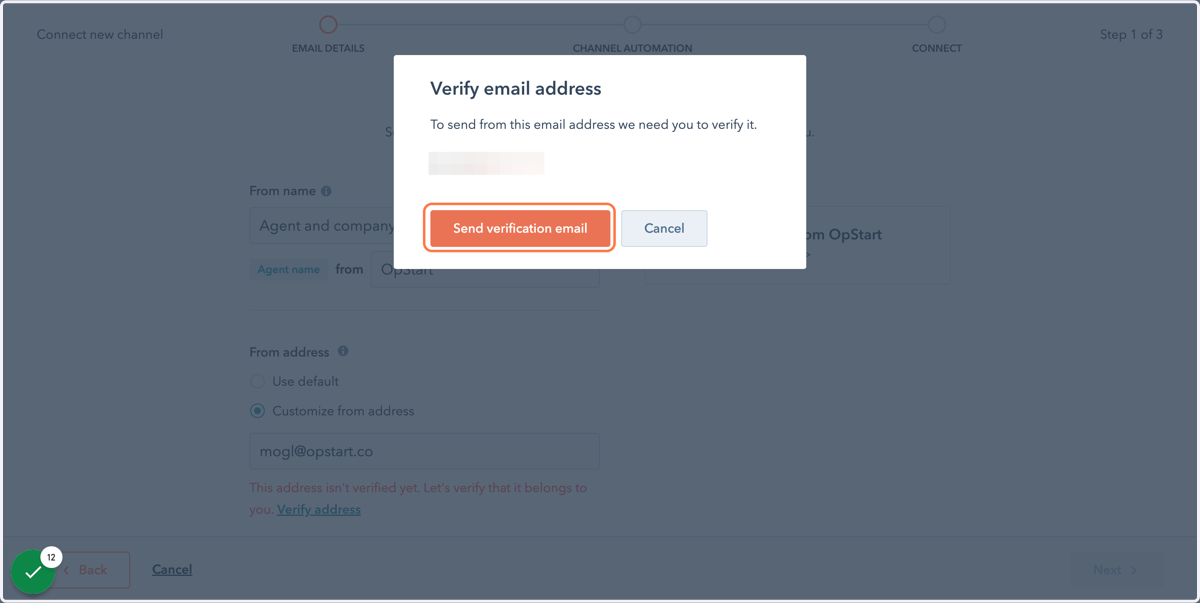
12. Click on Send verification email
14. Click on the Group 365 Email inbox
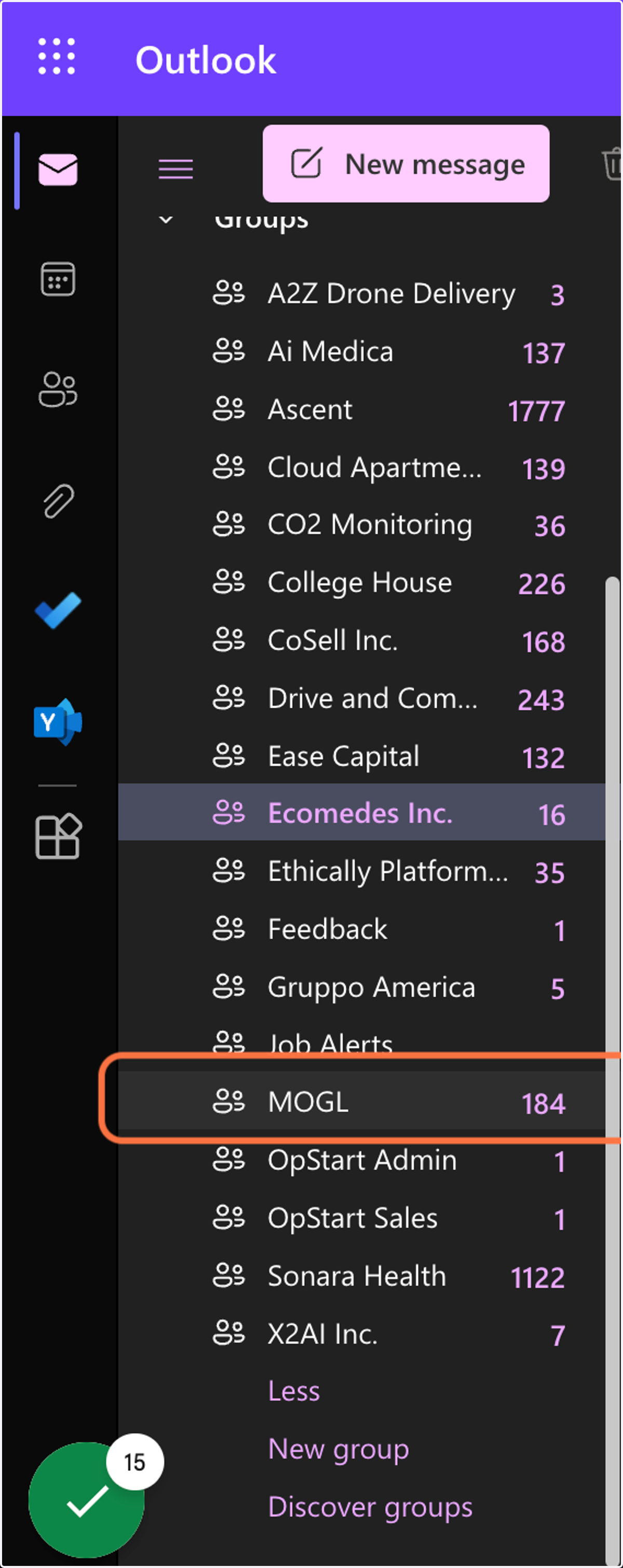
15. Click on the email from HubSpot with the subject line 'Approve use of your email address'
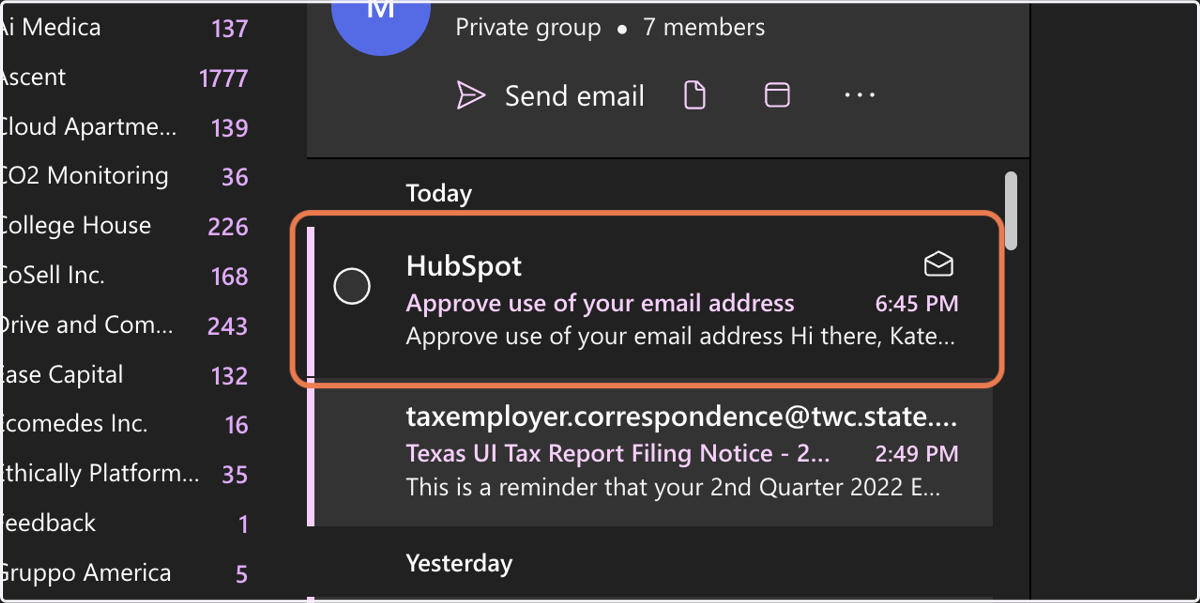
16. Click on Approve
18. Click on Next
19. Click on Connect & finish
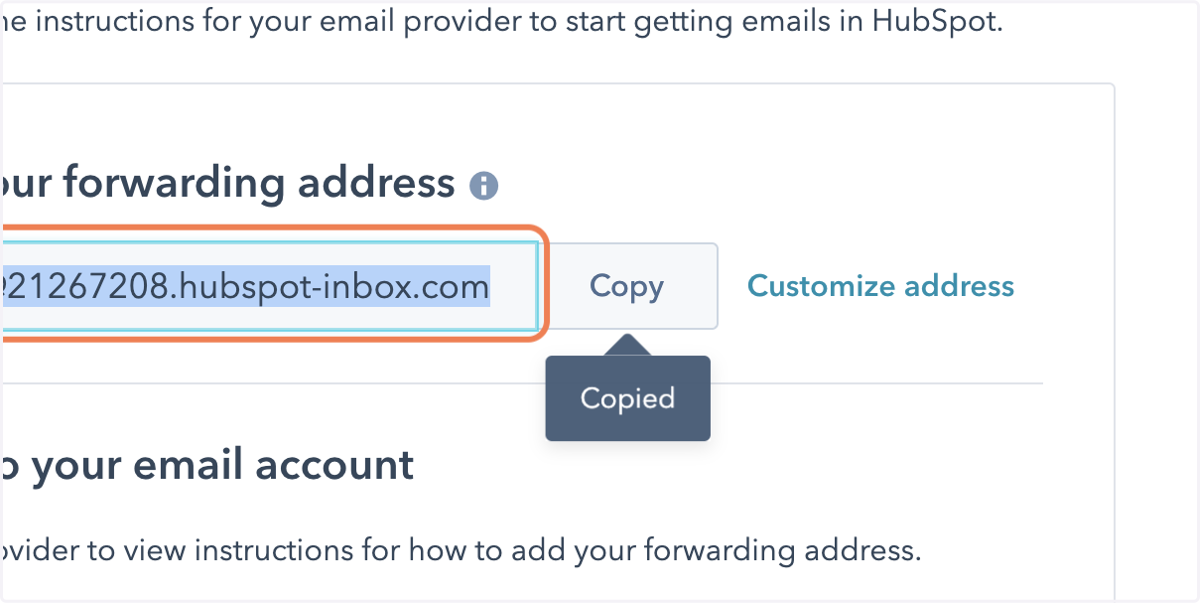
20. Select Copy for the forwarding address
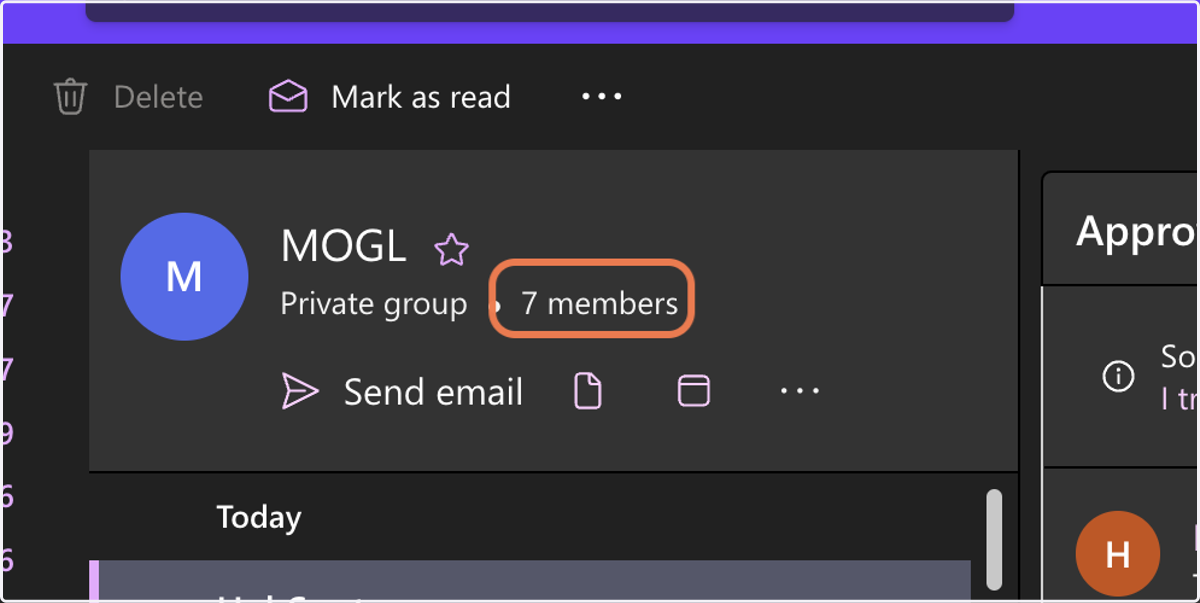
22. Click on the "# members" in this case "7 members"
23. Click on Add members
24. Paste the copied forwarding address into the "Enter a name or email address'
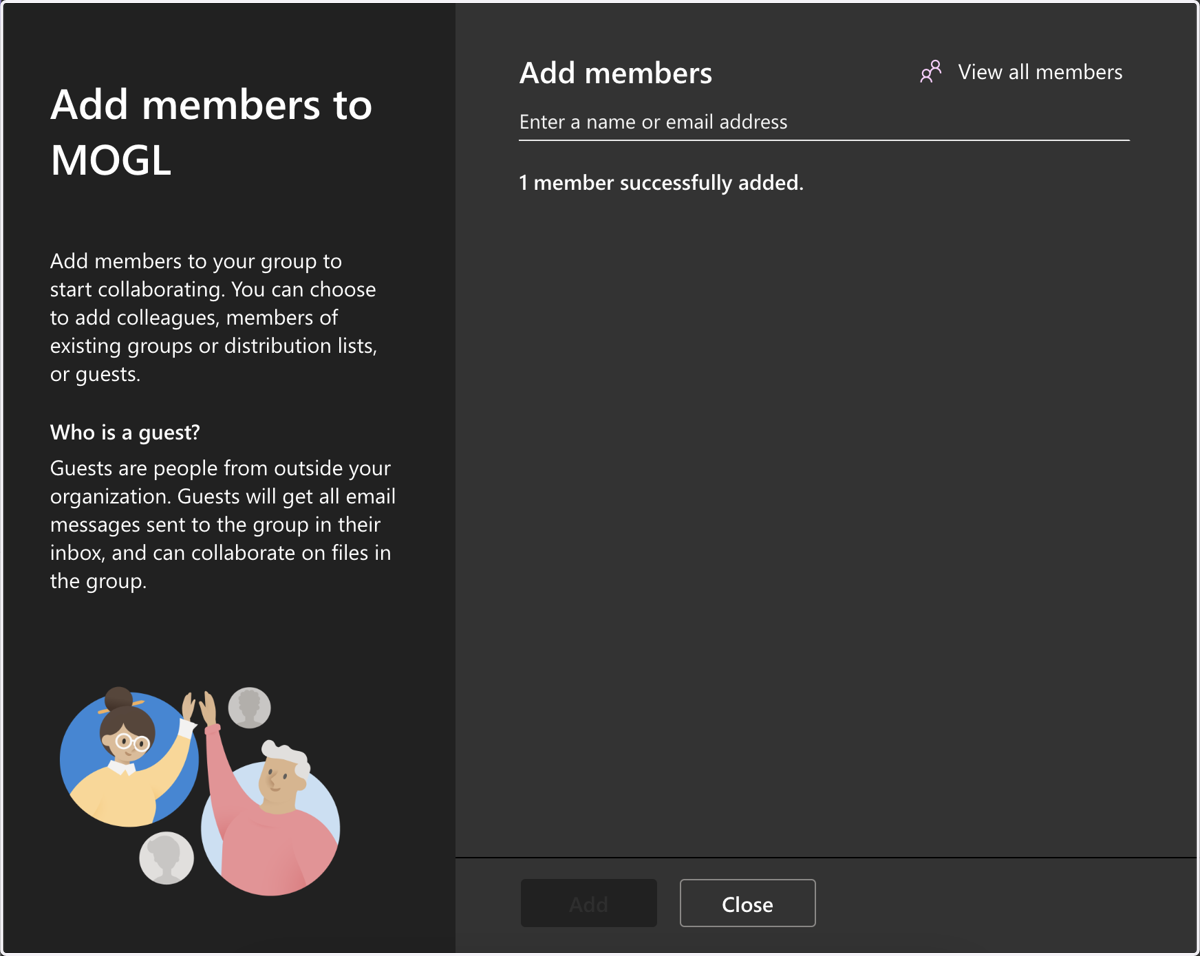
25. Click on Add
27. Click on Connect & finish