Add Your Collaborative Learning Day Schedule to Outlook
Keep track of your selected Collaborative Learning Day sessions by adding them to your Outlook calendar. This guide will walk you through the process in just a few steps.
Collaborative Learning Day: Schedule
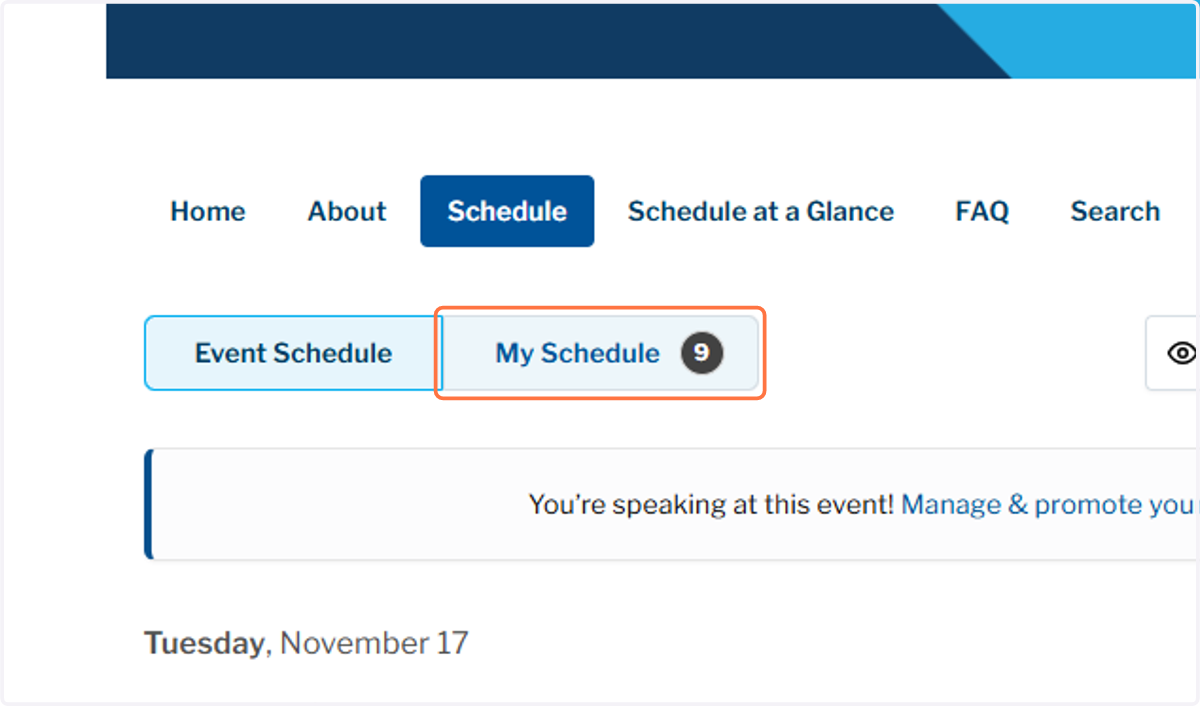
1. Click on My Schedule
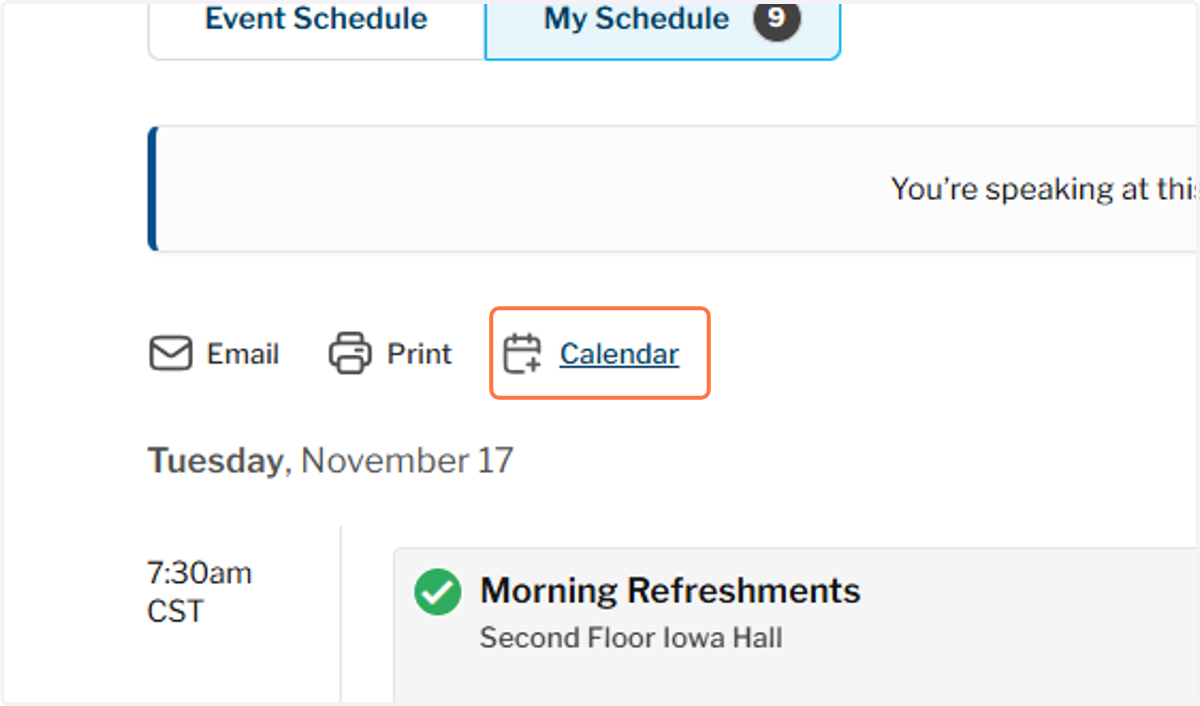
2. Click on Calendar
3. You should see the following page for options on calendar syncing
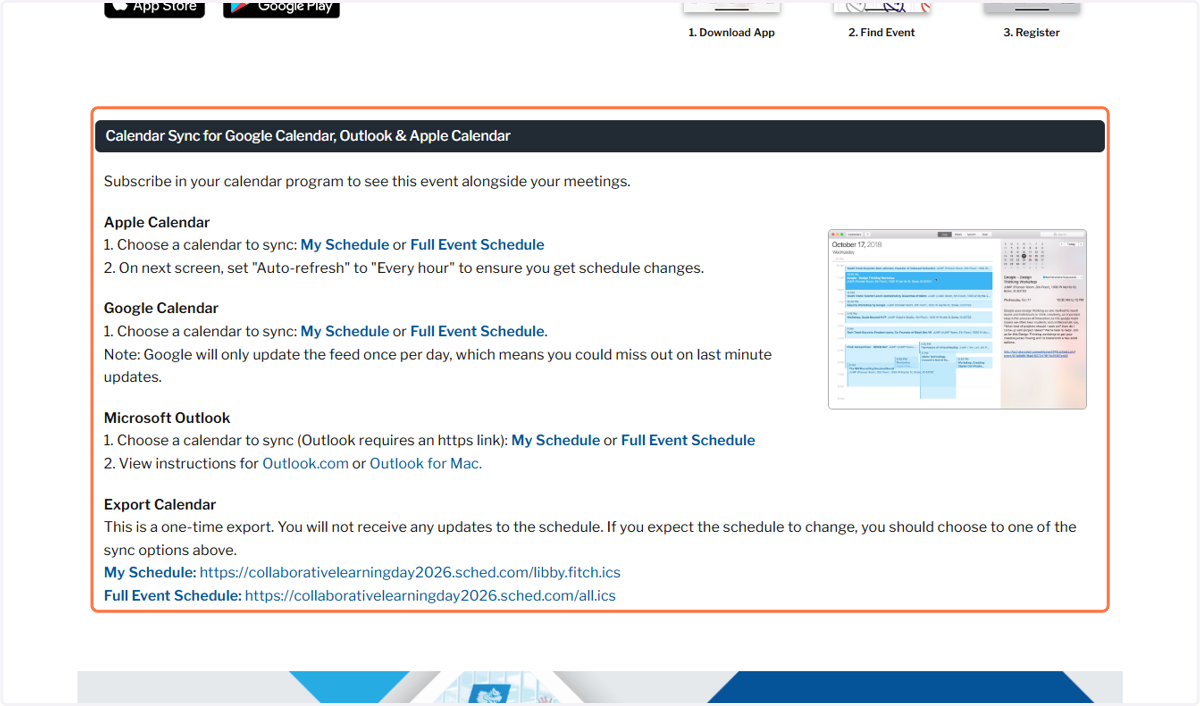
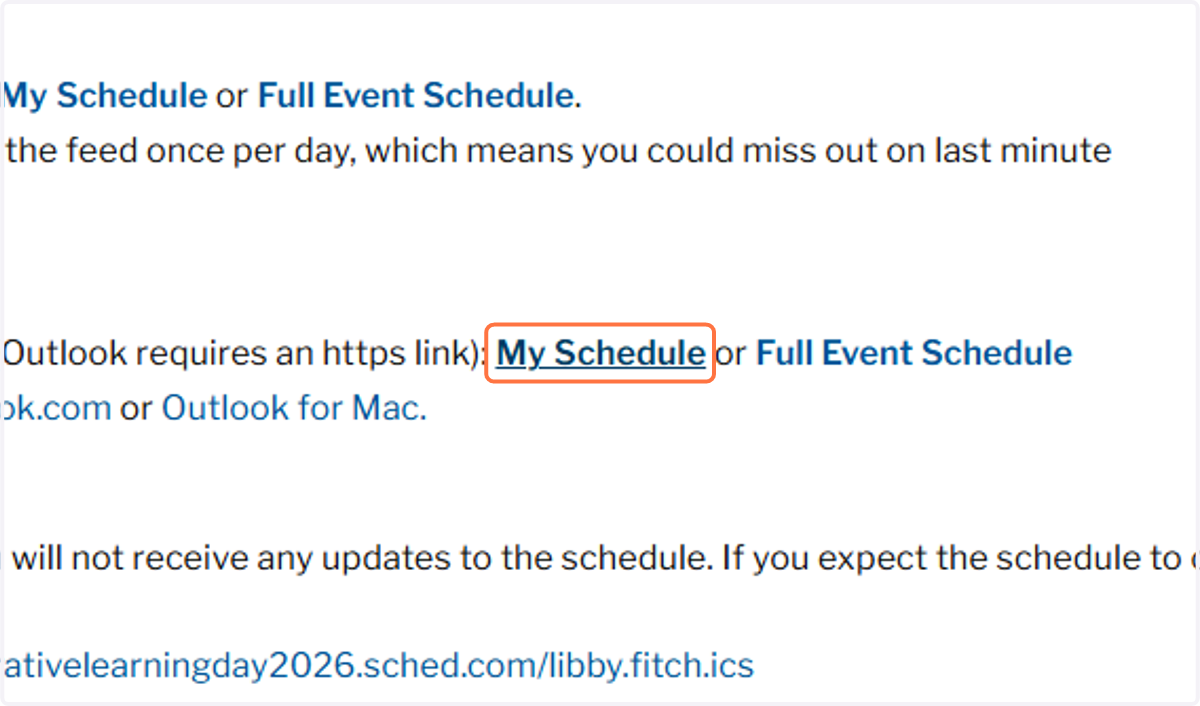
4. Click on My Schedule to download your schedule
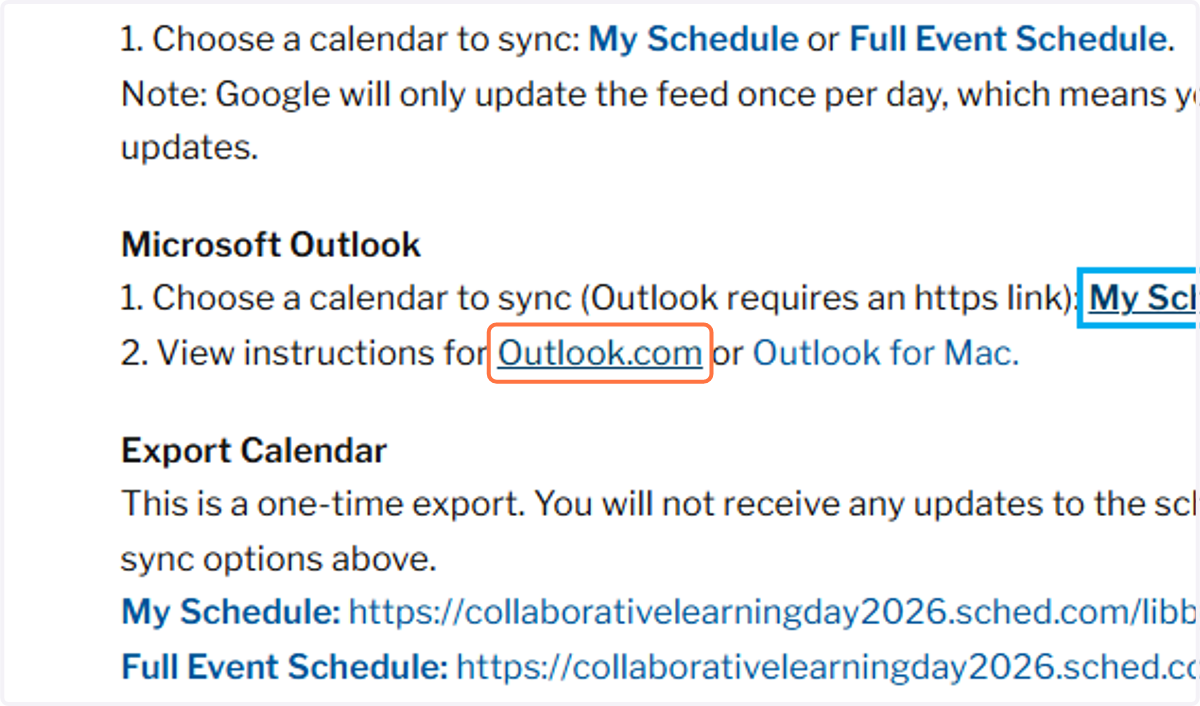
5. Click on Outlook.com to see instructions
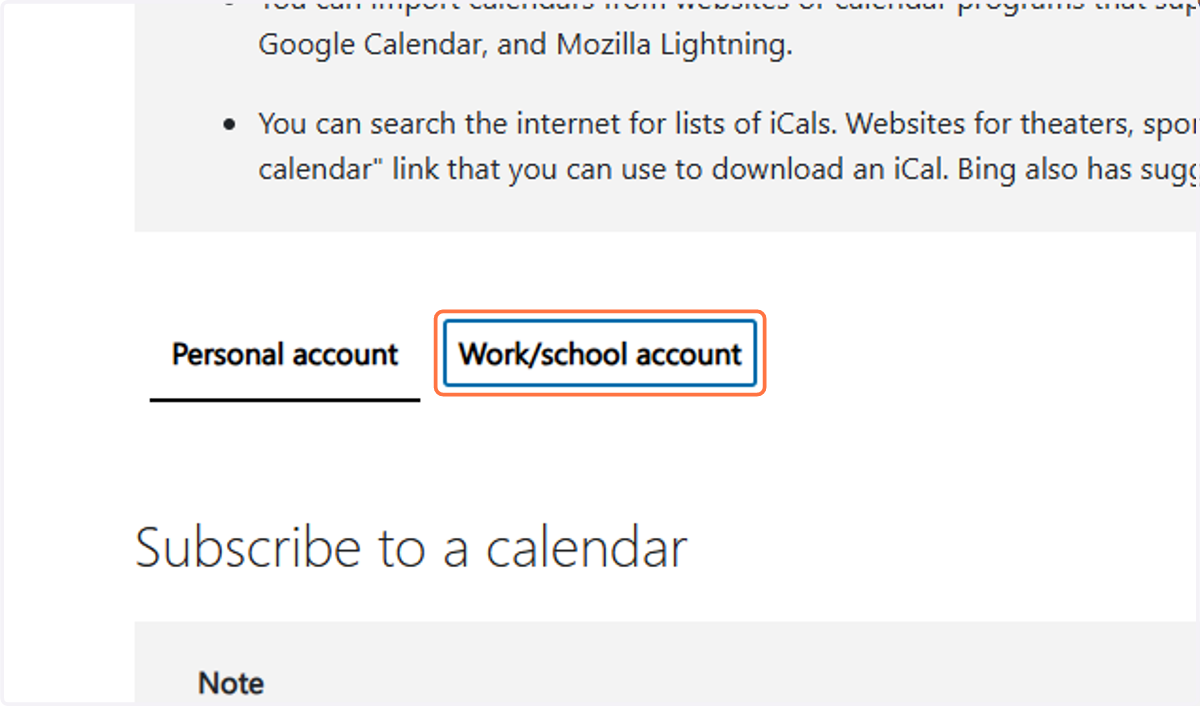
6. Click on Work/school account
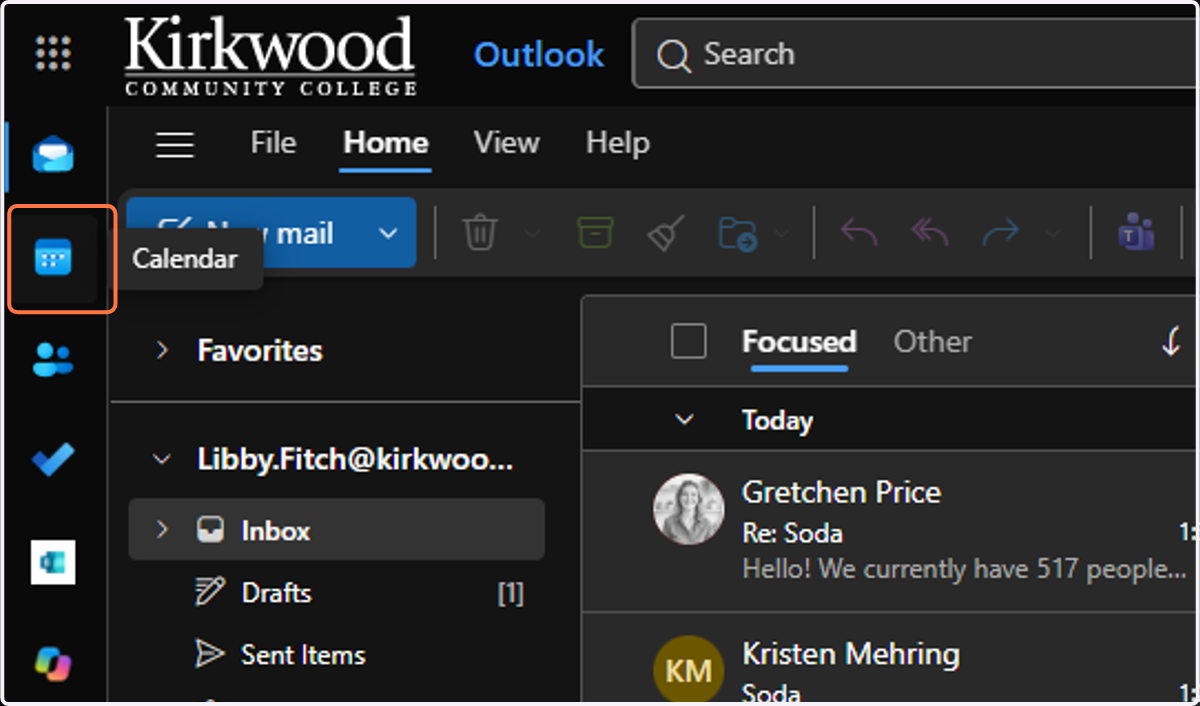
Go to Outlook.com
7. Click on Calendar
8. Click on Add calendar
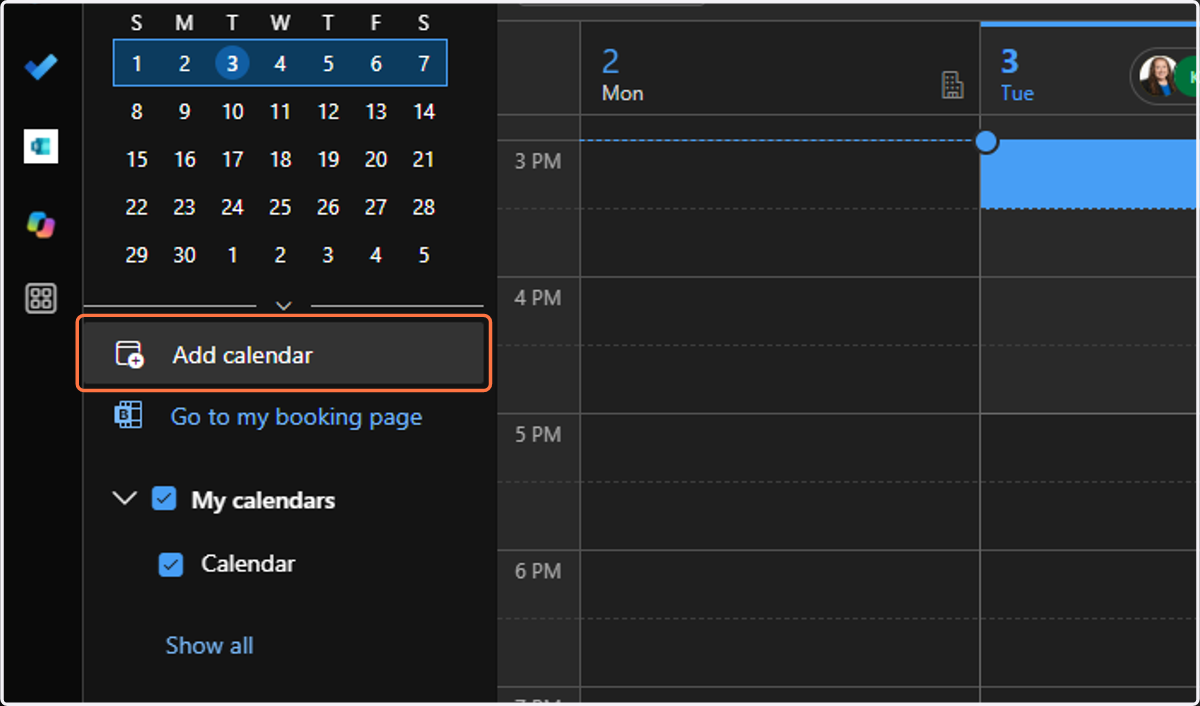
9. Click on Upload from file
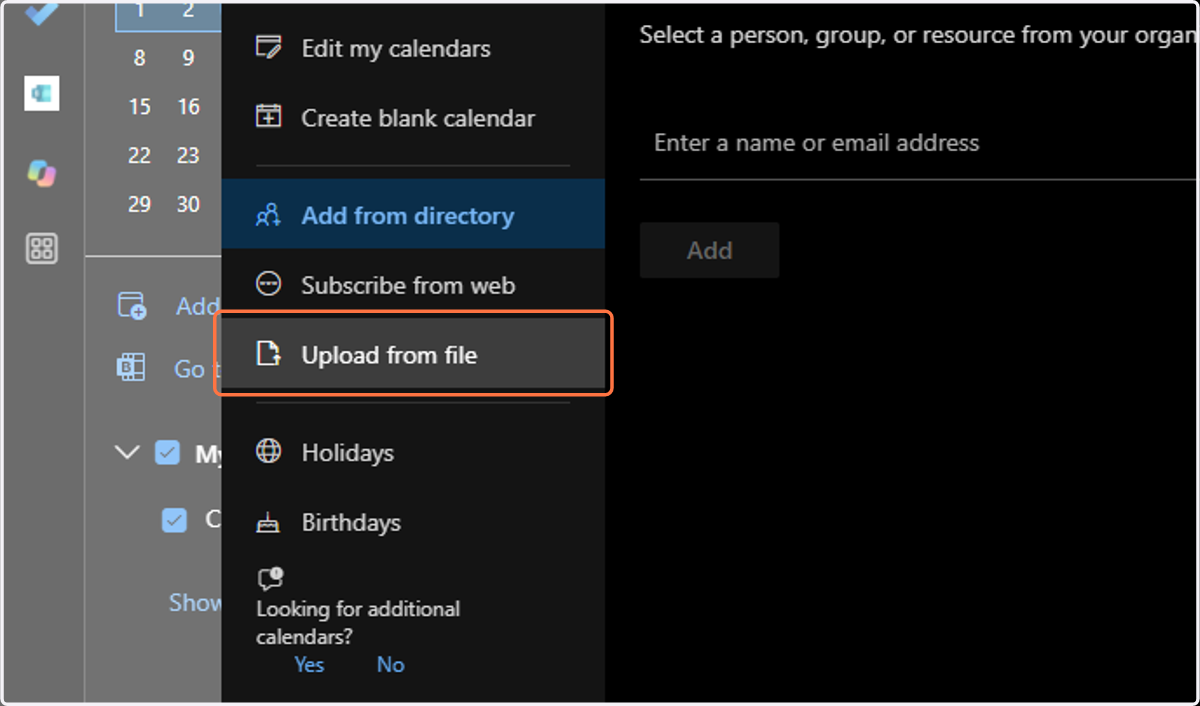
10. Click on Browse
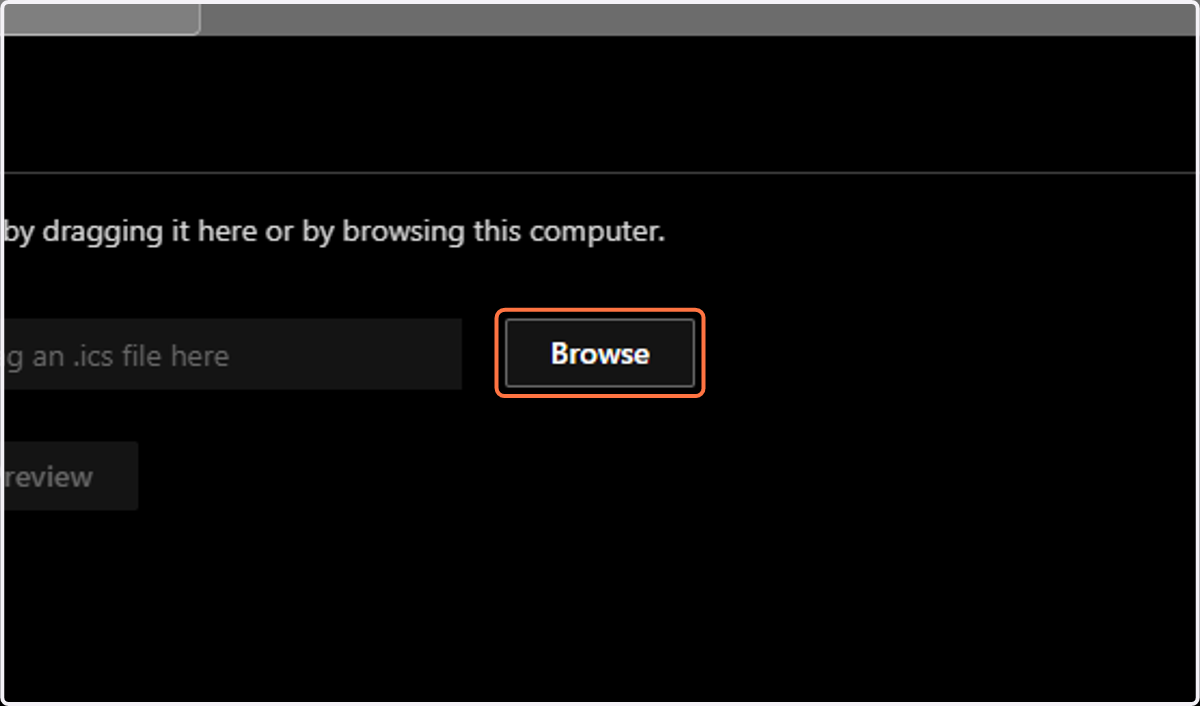
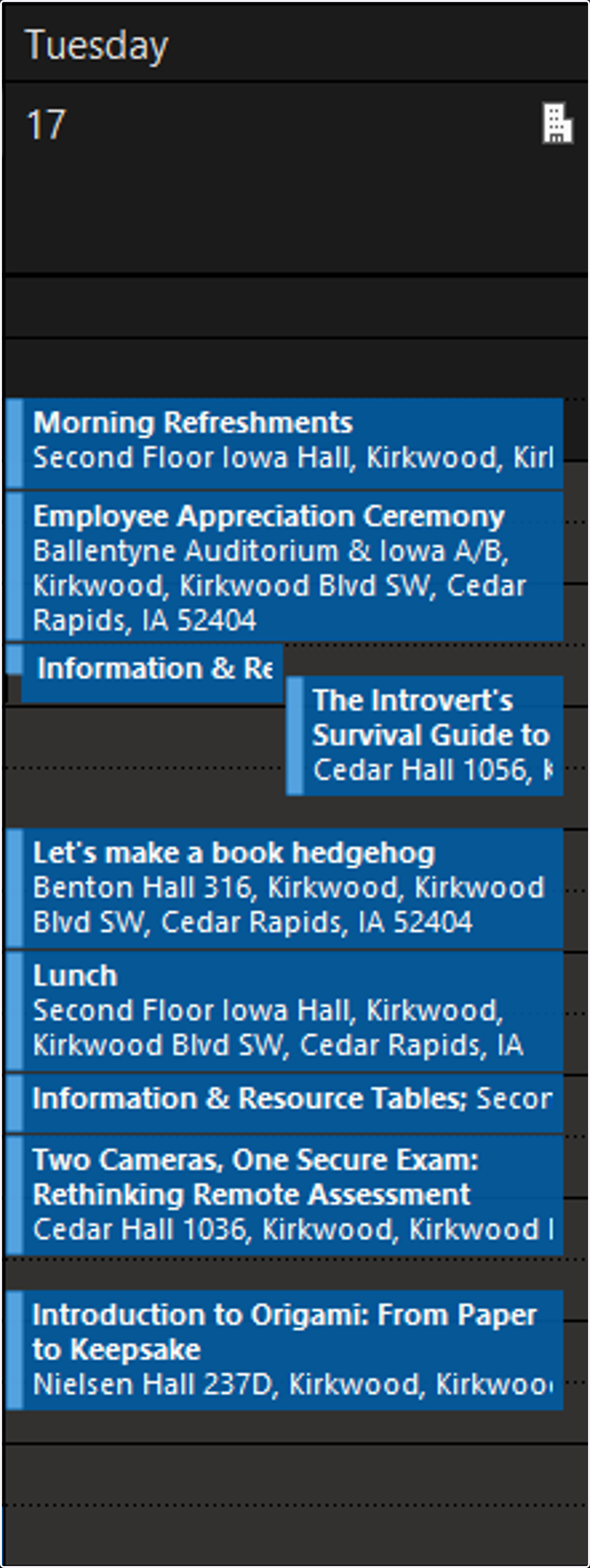
11. Select a file from upload menu
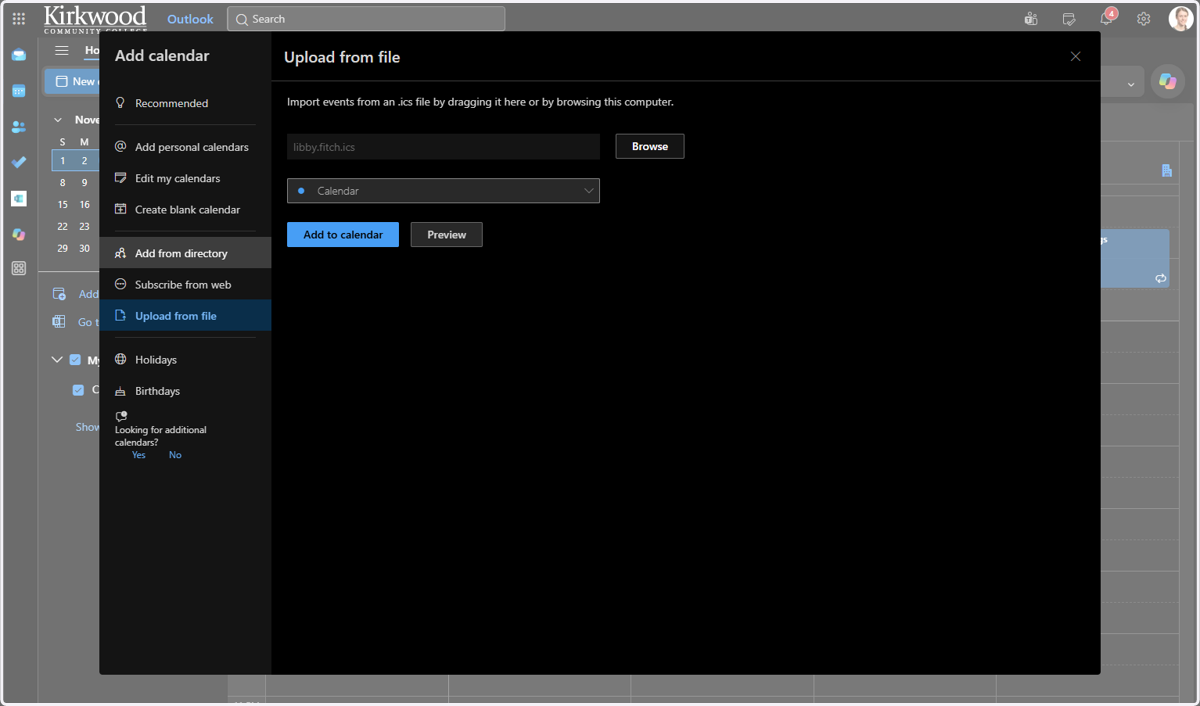
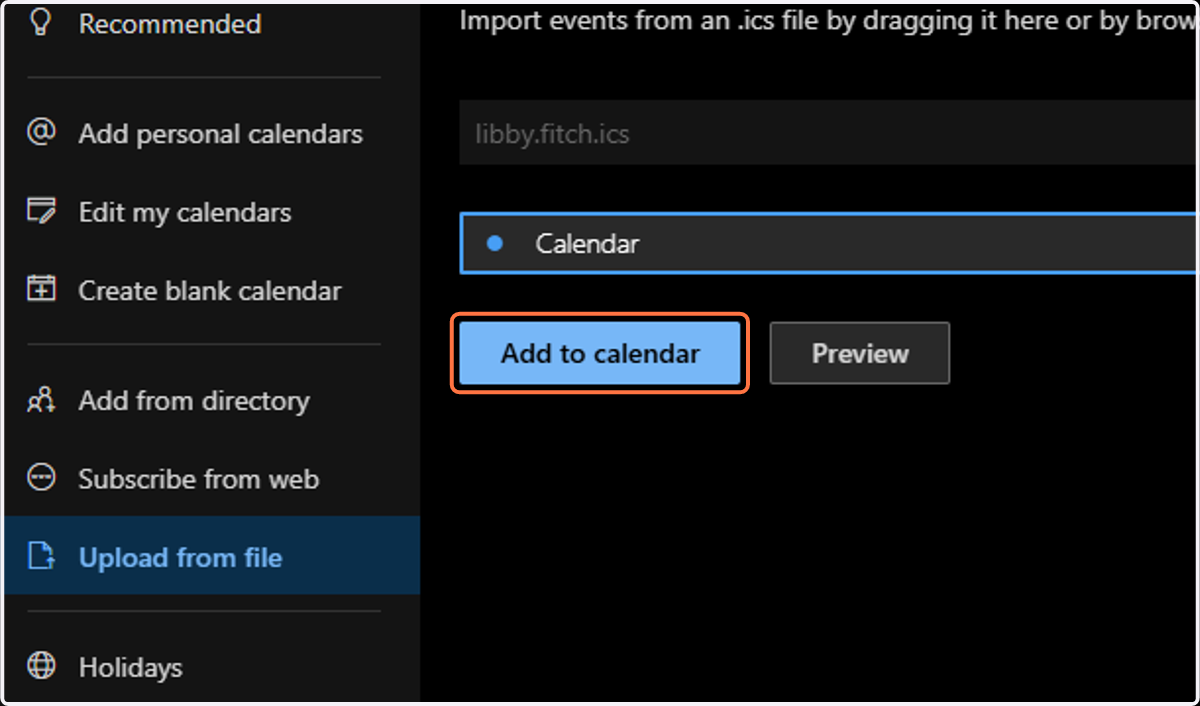
12. Click on Add to calendar
13. Click on X to close the Add Calendar window
14. It may take a few minutes for your calendar to update, but your calendar should look like below, with your sessions listed