Add Respondus LockDown Browser to a Test or Quiz
This tutorial will show you how to add Respondus Lockdown Browser to a test or quiz. If you are using the SSC Testing Center you must add a password. You will give the password ONLY to the testing center.
Start Here - Patti - Practice as Instructor
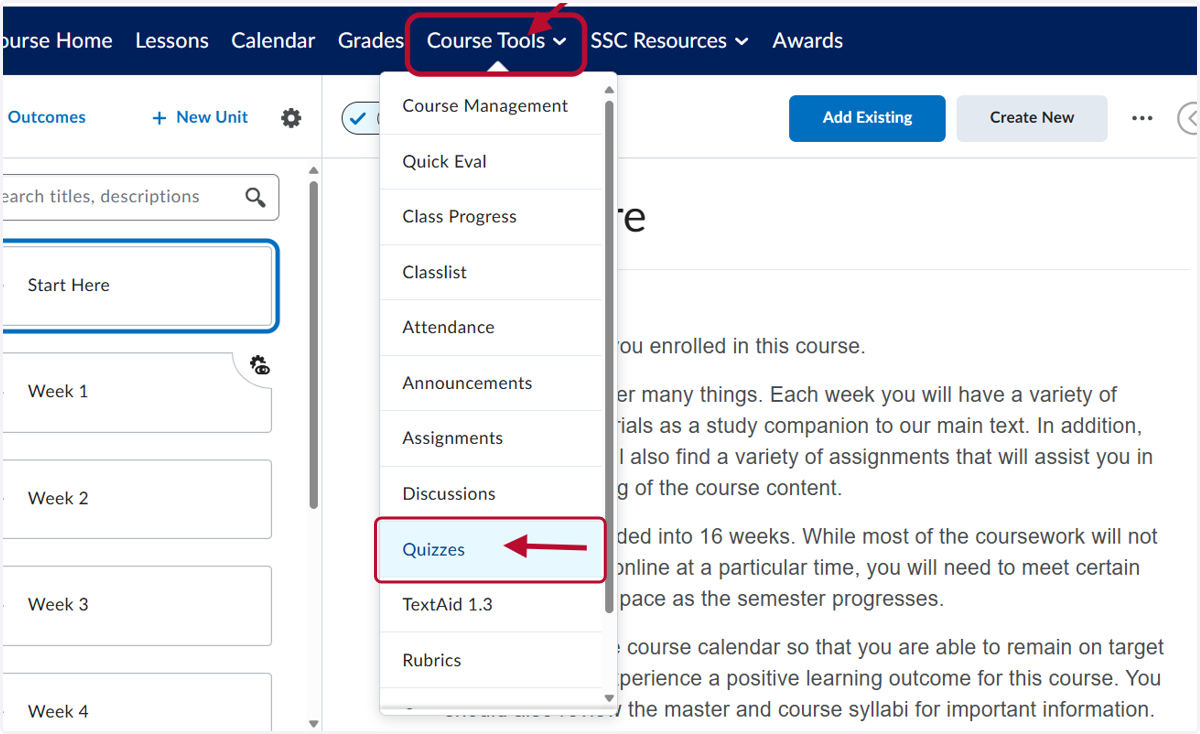
1. Click on Course Tools and then Quizzes
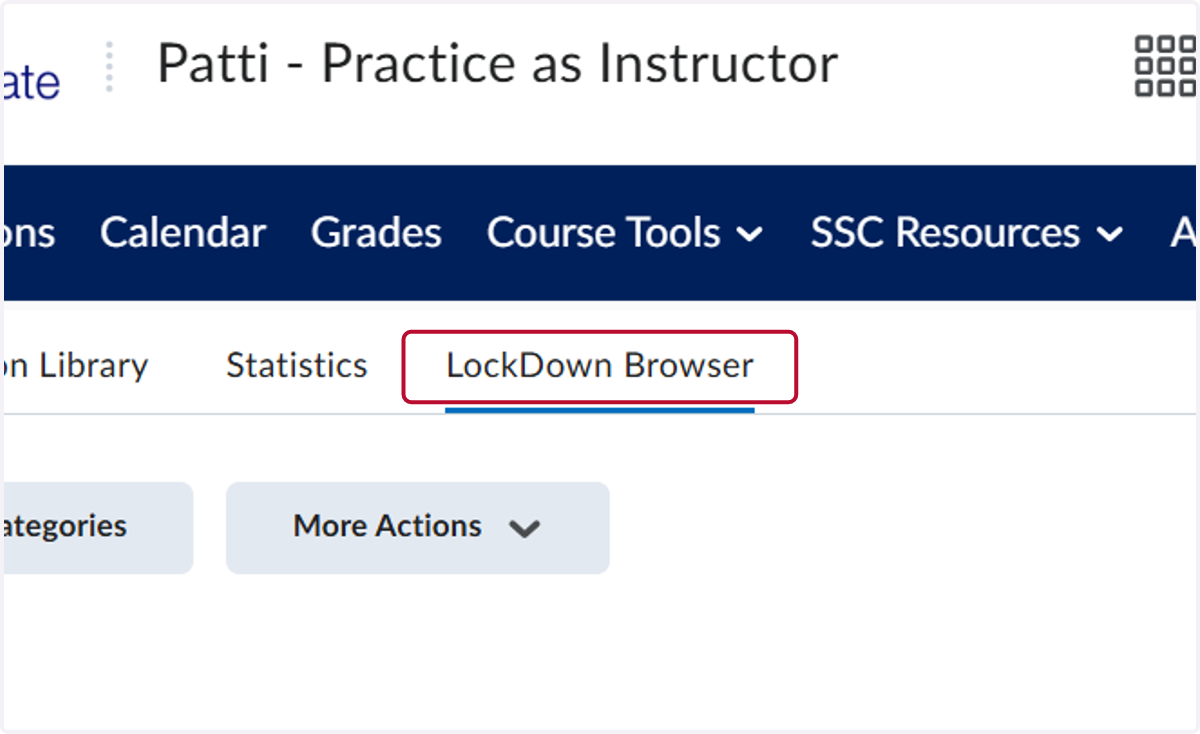
2. Click on LockDown Browser
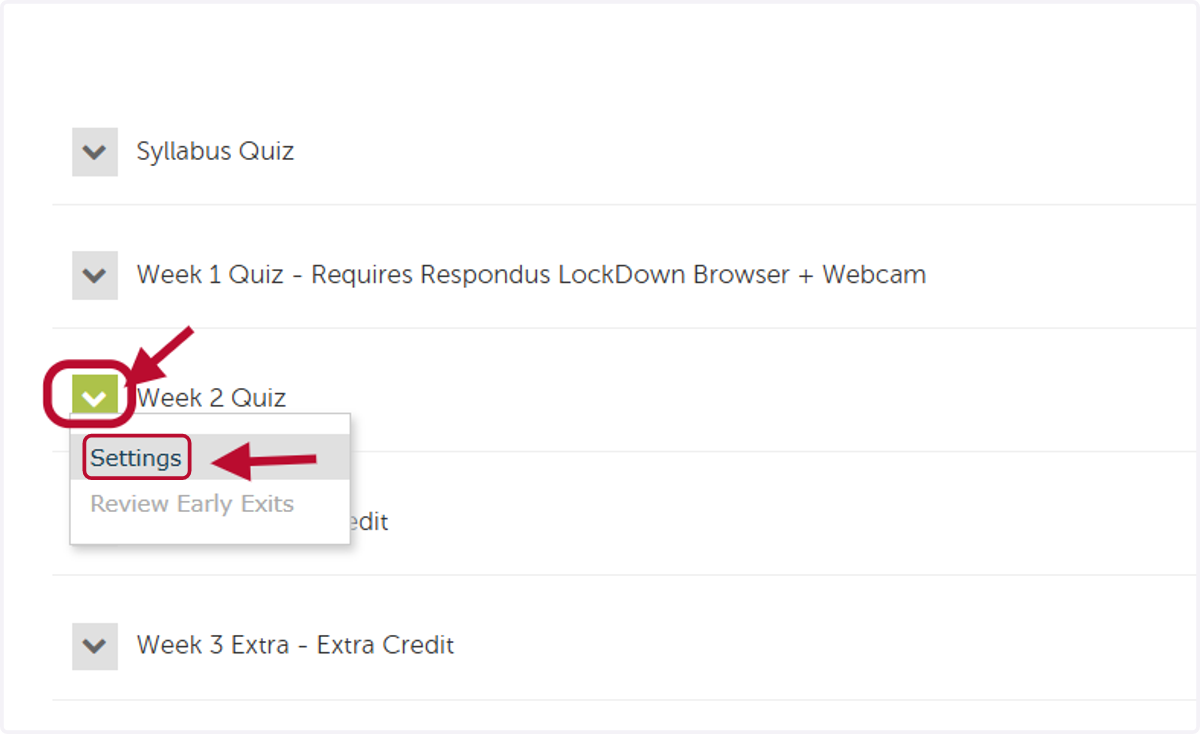
3. Click on the down arrow by the quiz and then Settings
4. Select Require Respondus LockDown Browser for this exam
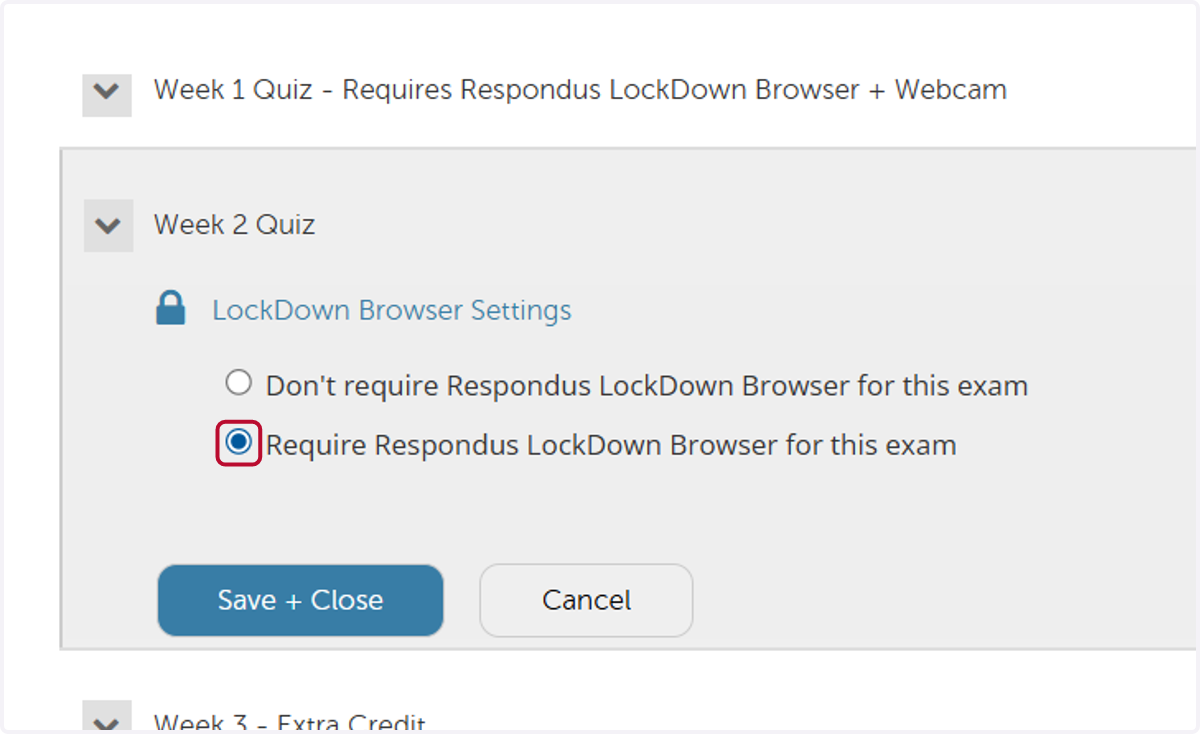
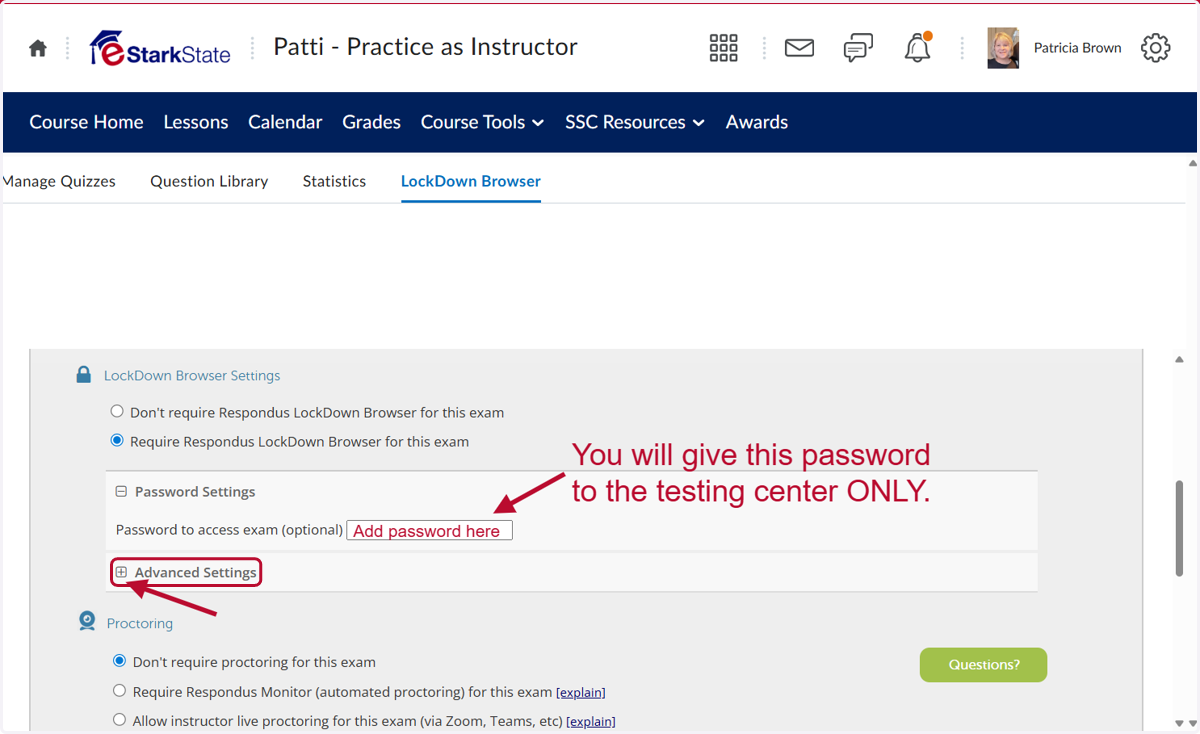
5. Add a password for the testing center and then Click on Advanced Settings
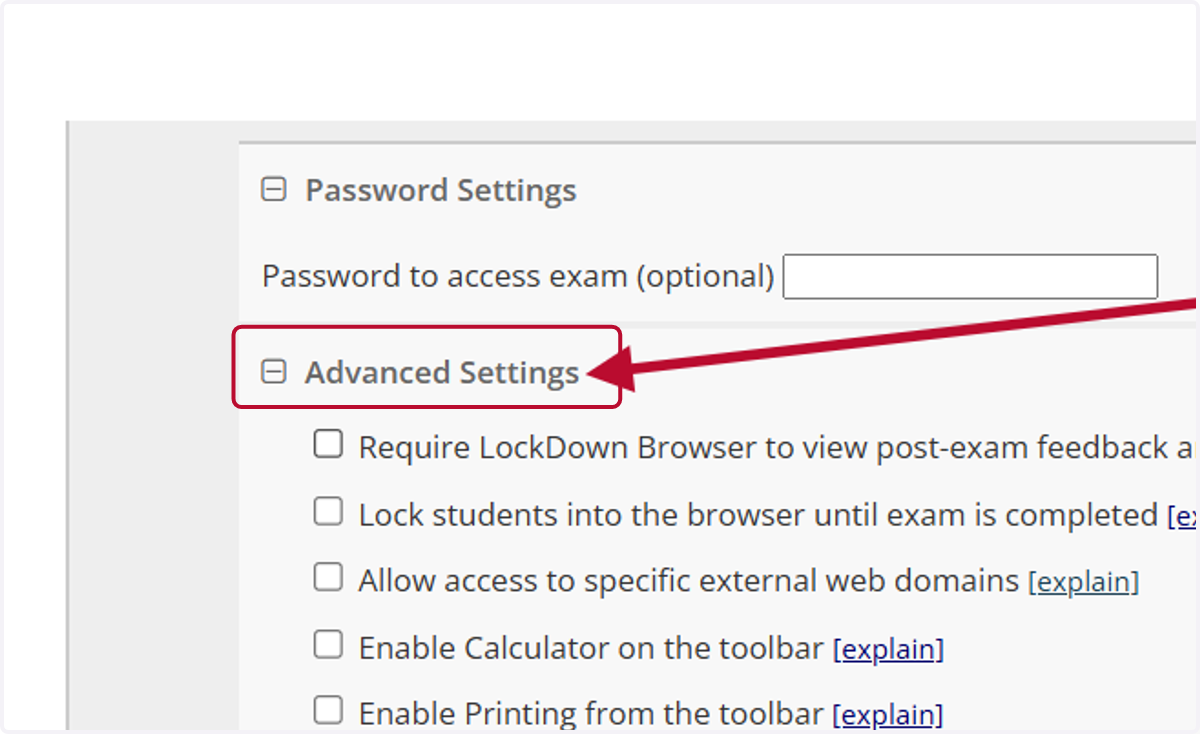
6. Uncheck Require LockDown Browser to view post-exam feedback and results
7. Select Require Respondus Monitor (automated proctoring) for this exam [explain]
![Select Require Respondus Monitor (automated proctoring) for this exam [explain]](https://images.tango.us/workflows/a6012e95-9e58-47f8-9d27-ae5cbe447037/steps/e922adae-acda-4b4d-a854-2f3f2cabc2ba/9c328fef-997b-48ee-8469-accc9b4352d9.png?fp-x=0.2419&fp-y=0.6111&fp-z=2.0399&w=1200&border=F4F2F7&bx=135&by=571&bw=26&bh=26&c=ba0c2f&dpr=1.21)
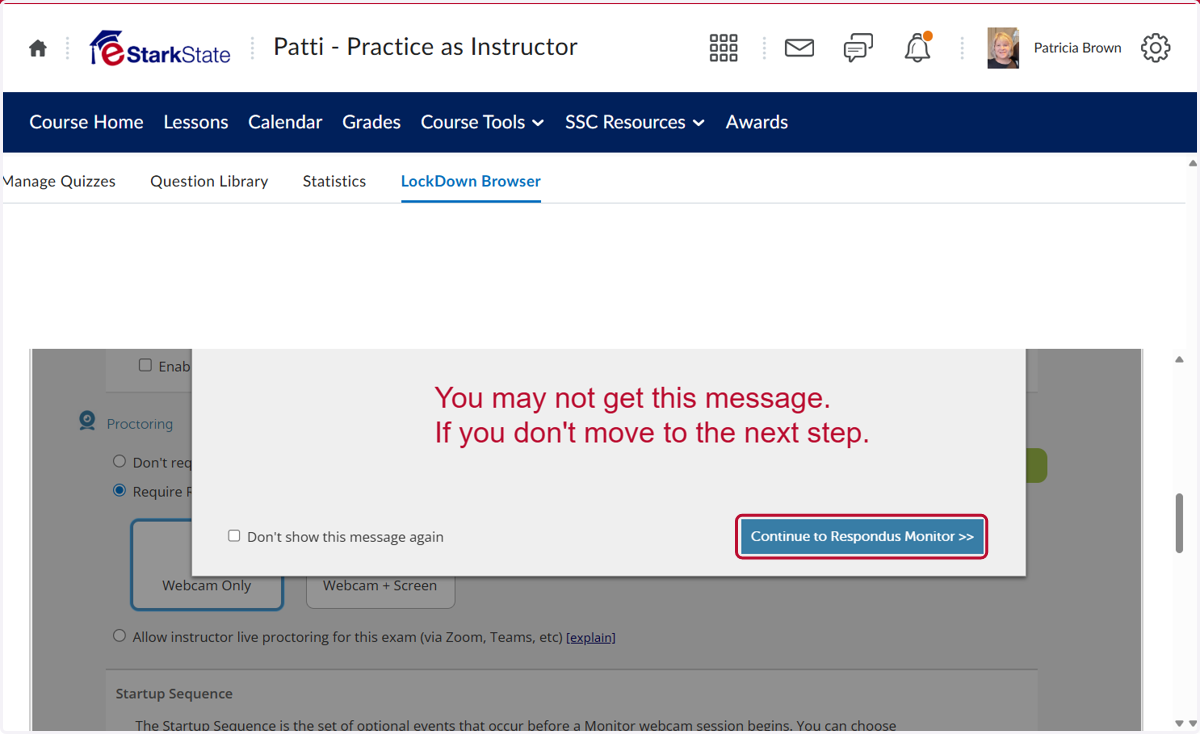
8. IF you get a message, Click on Continue to Respondus Monitor >>
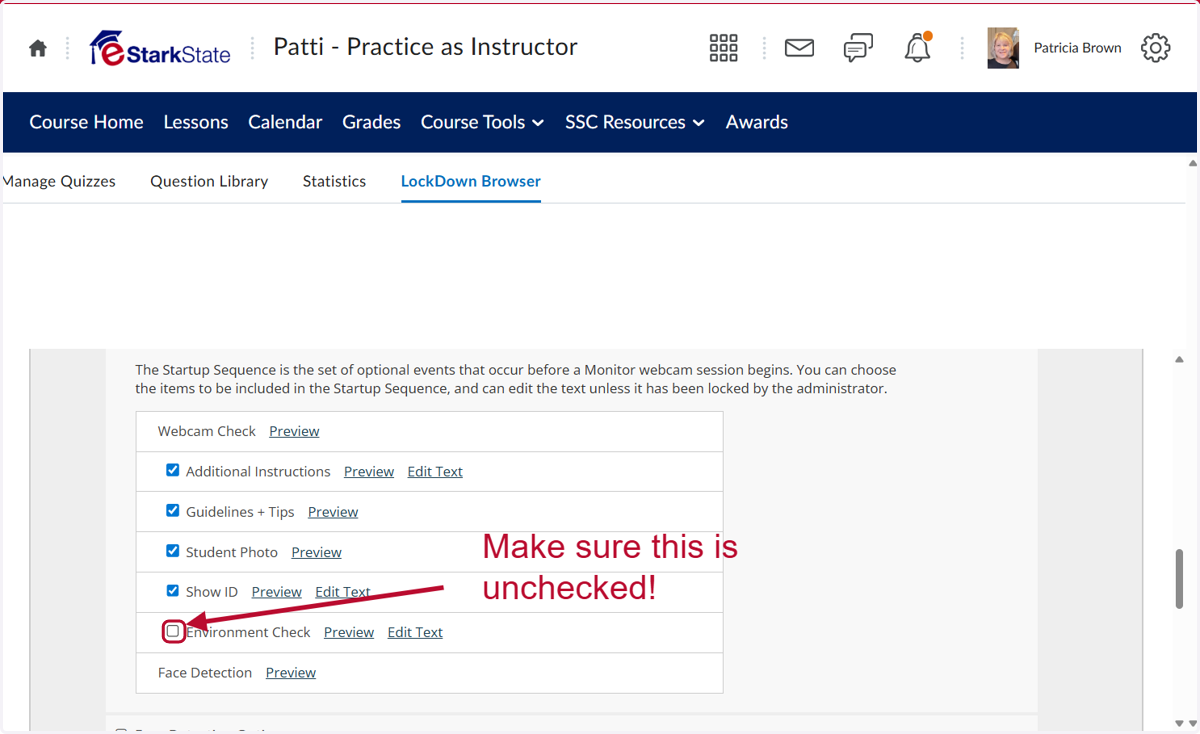
9. Uncheck Environment Check
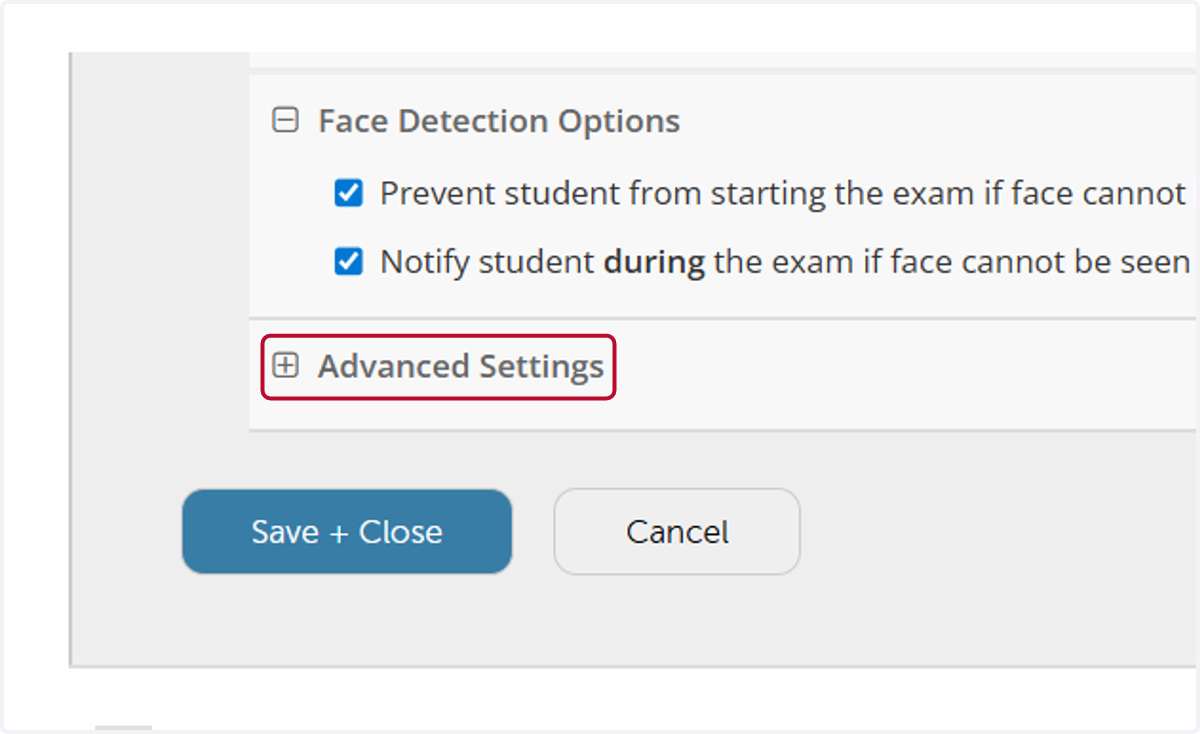
10. Click on Advanced Settings
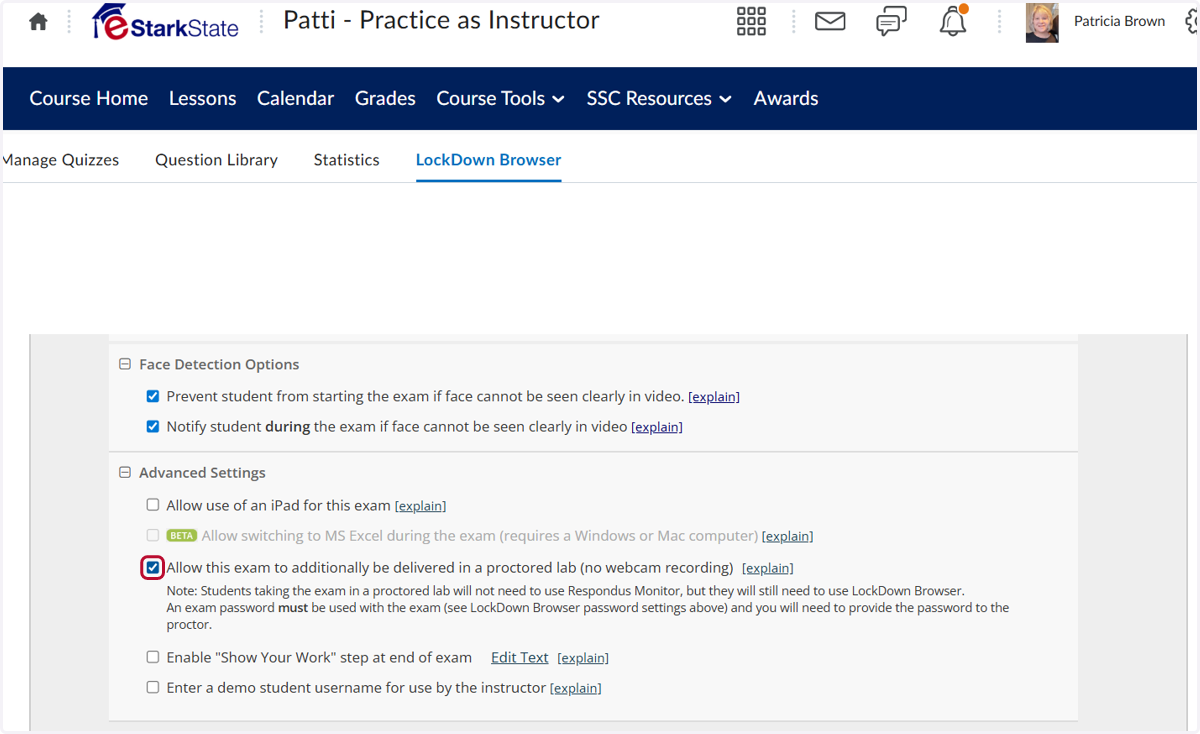
11. Check Allow this exam to additionally be delivered in a proctored lab (no webcam recording)
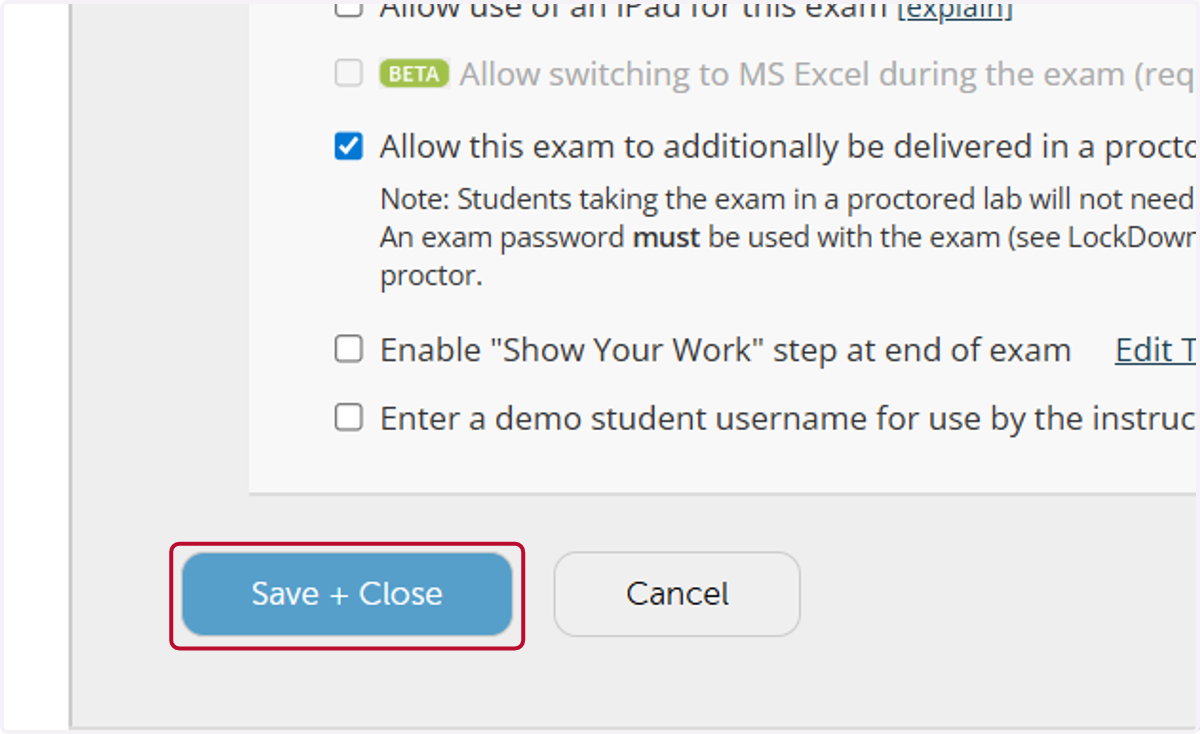
12. Click on Save + Close
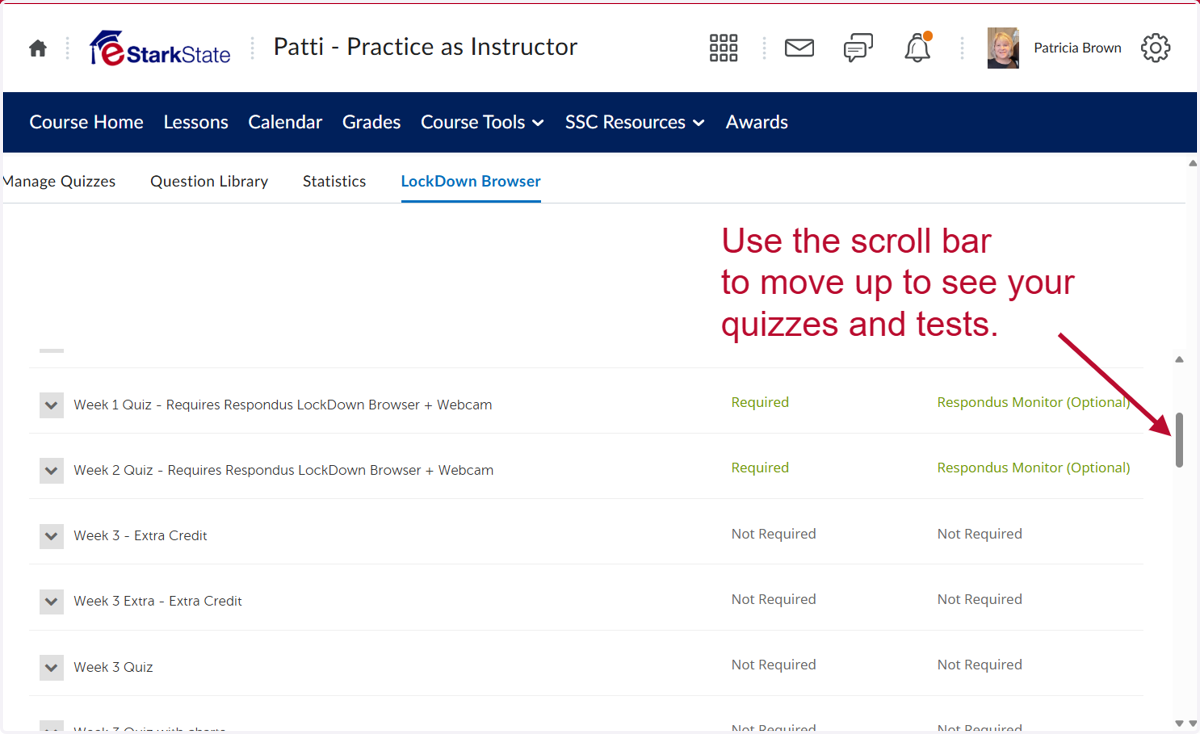
13. Use the scroll bar to move to the top of the screen to see your quizzes and tests.