Add CPS Email Signature in Outlook (Browser)
Use these steps to add the official Columbia Public Schools (CPS) email signature in the browser version of Outlook.
Sign in to Outlook
Sign in to your CPS Outlook Account on your web browser
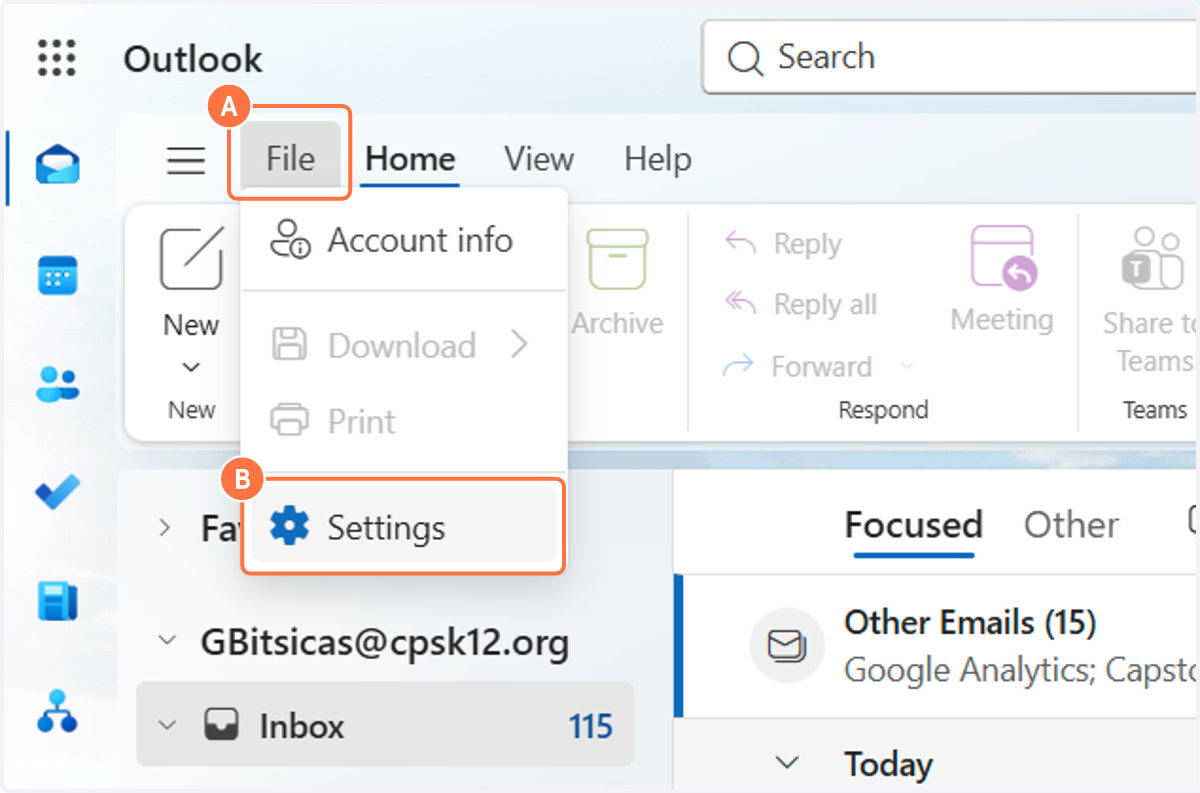
1. A. Select File.
1. B. Select Settings.
This opens the Outlook settings menu.
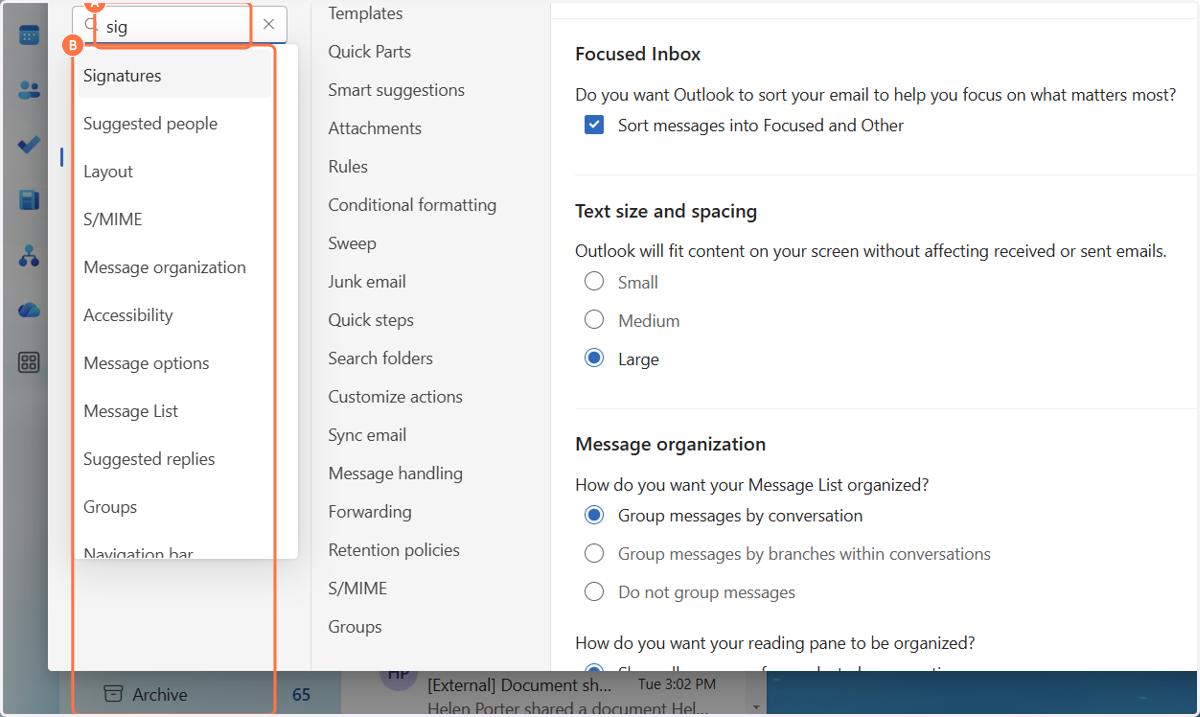
2. A. Type signature.
2. B. Select Signature from the search results.
This opens your email signature settings.
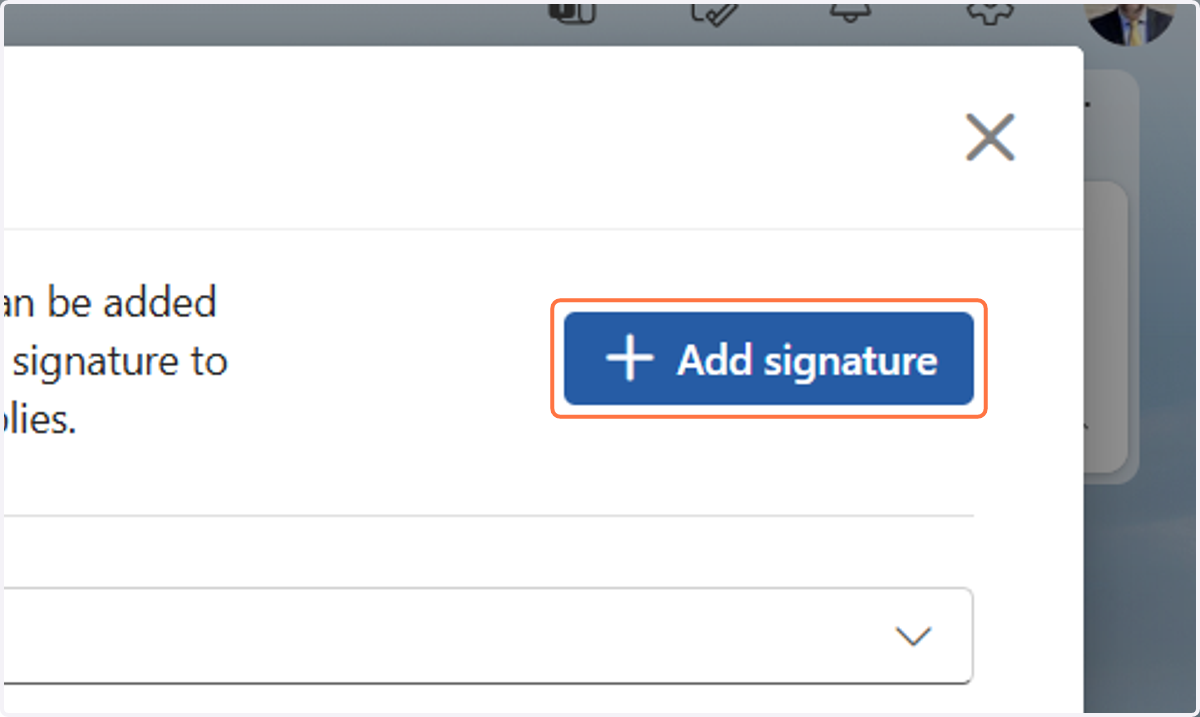
3. Select Add signature.
The popup will give you a list of Signatures you currently have, Select Add signature.
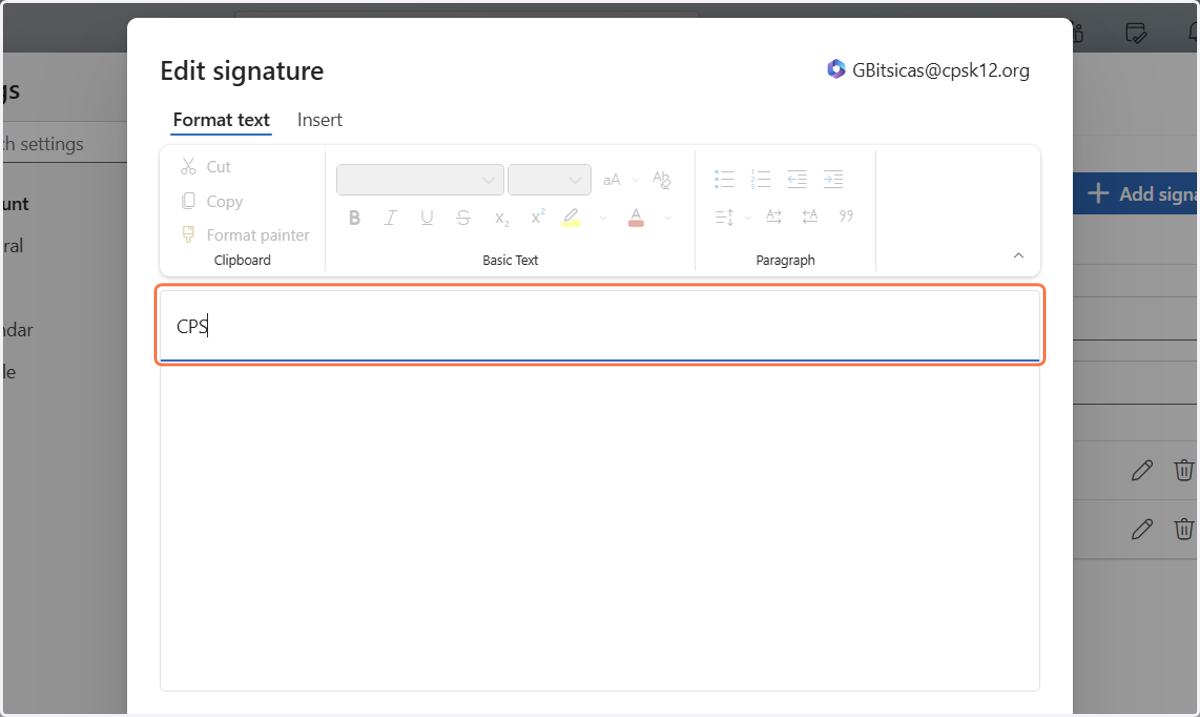
4. Enter a name for the signature. For this example, I named it "CPS"
The signature name is only used to help you identify the signature in Outlook.
Style Guide | Columbia Public Schools Brand Standards
Visit the CPS Style Guide to copy and paste the official CPS email signature template. https://www.cpsk12.org/departments/community-relations/communications/cps-style-guide
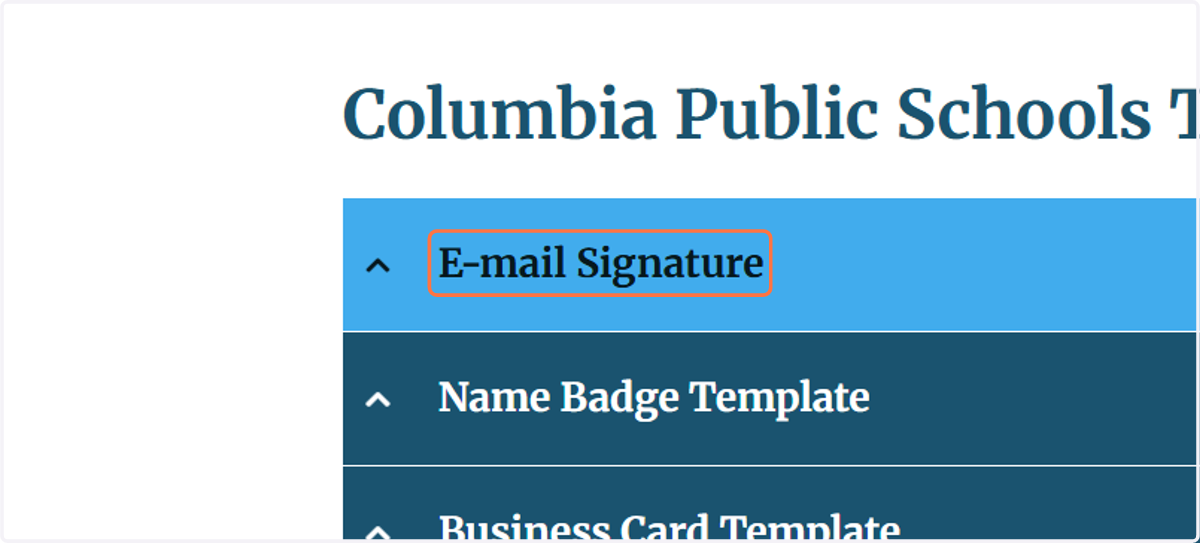
5. Select E-mail Signature
Scroll down the CPS Style Guide and find the E-mail Signature section. Select the section to open it.
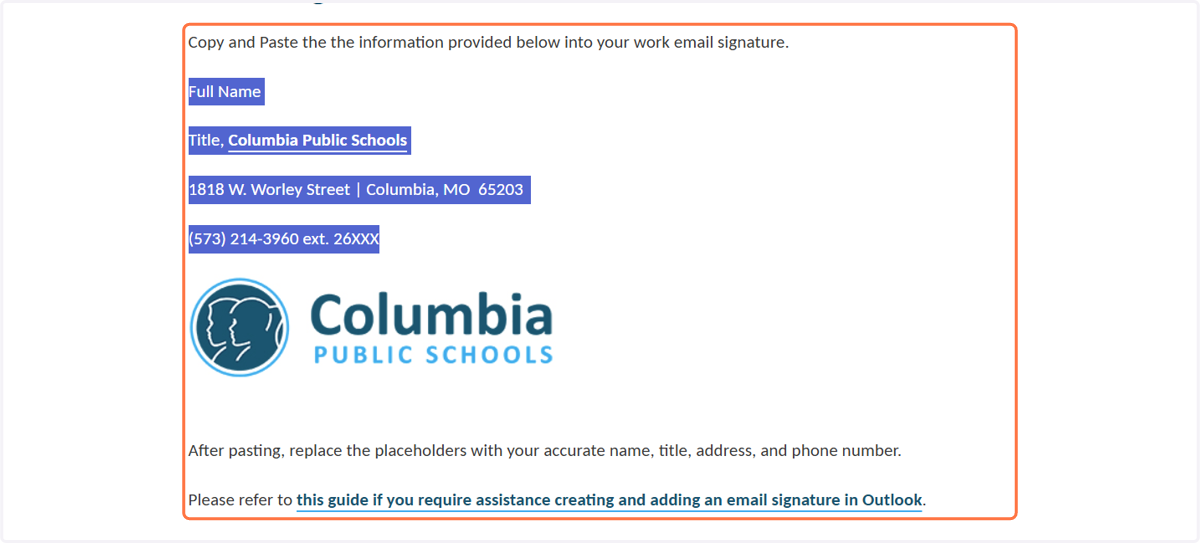
6. Copy the official CPS email signature template.
7. Return to Outlook. Paste the CPS signature into the signature editor.
Paste the CPS signature into the signature editor.
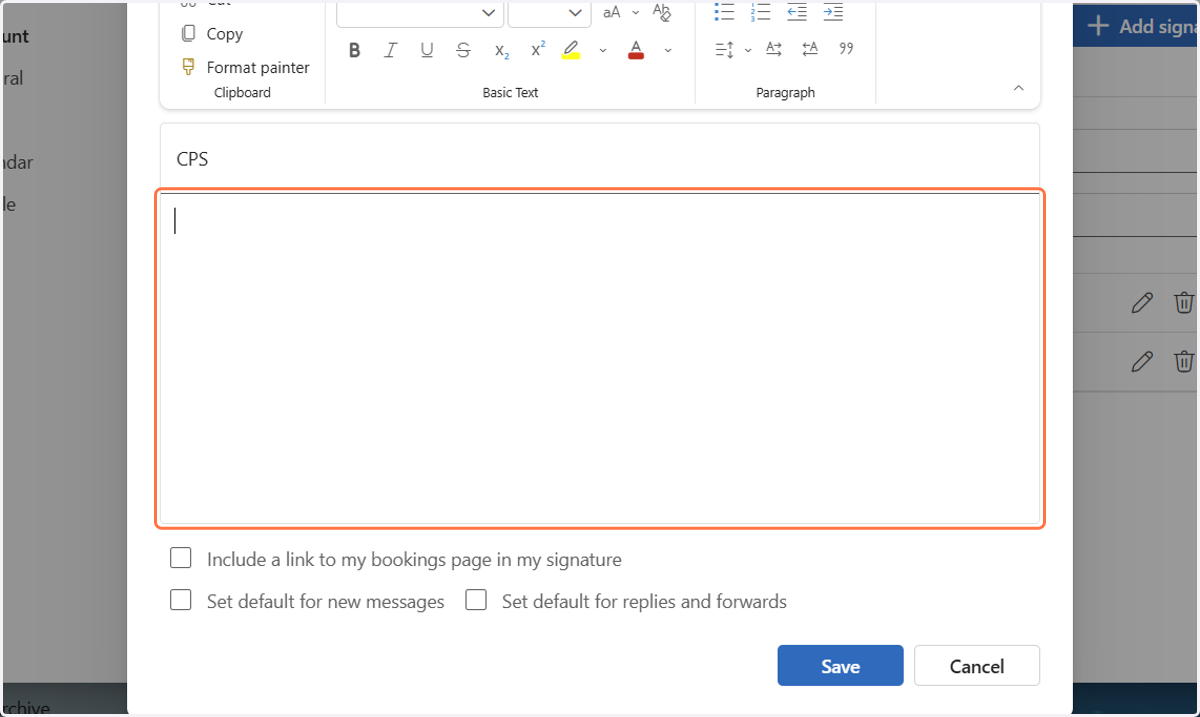
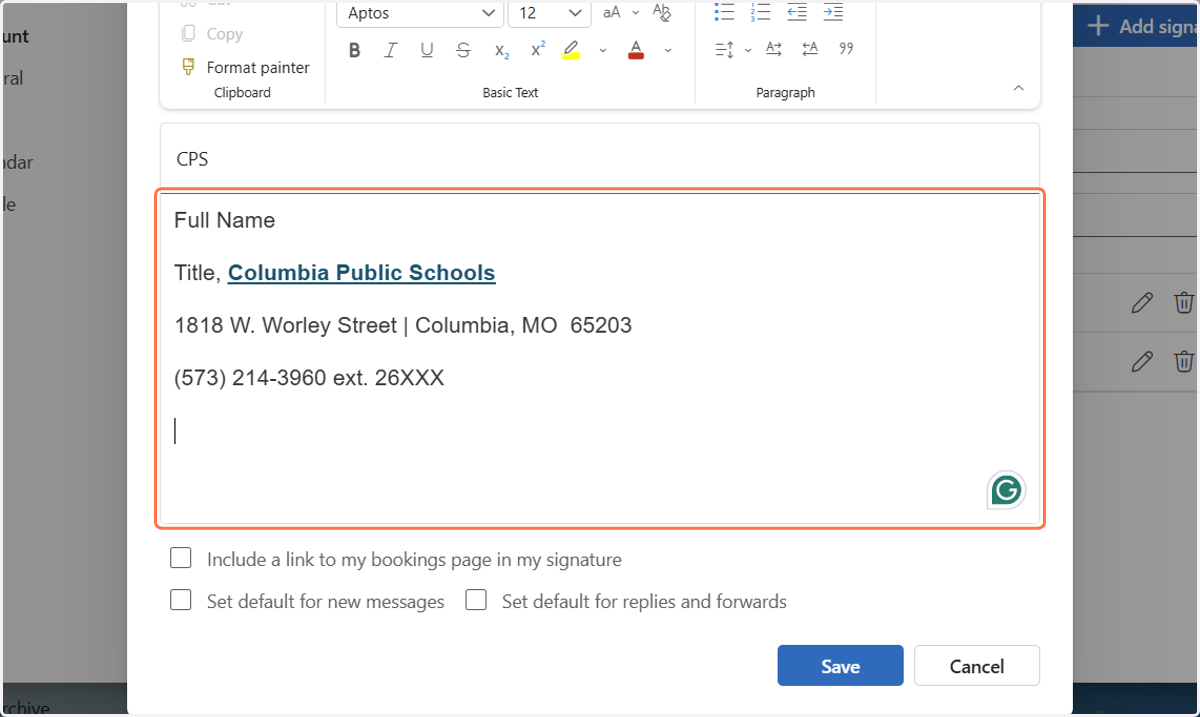
8. Paste text into element
Replace the sample information with your correct:
Name
Job title
Work address
Phone number
Important contact information should always be real text. Do not put your name, title, phone number, or other important information only inside an image.
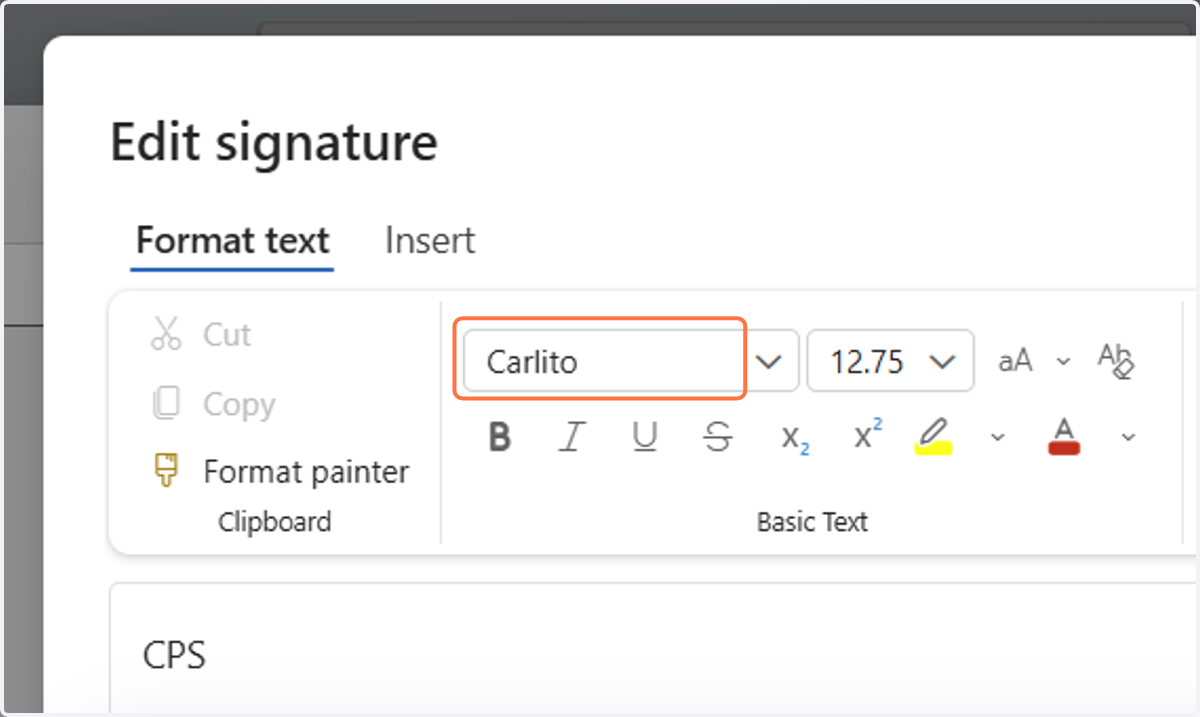
9. Highlight the signature text.
Use Calibri. It is the District’s official font. A simple, readable black and white font and keep the formatting consistent.
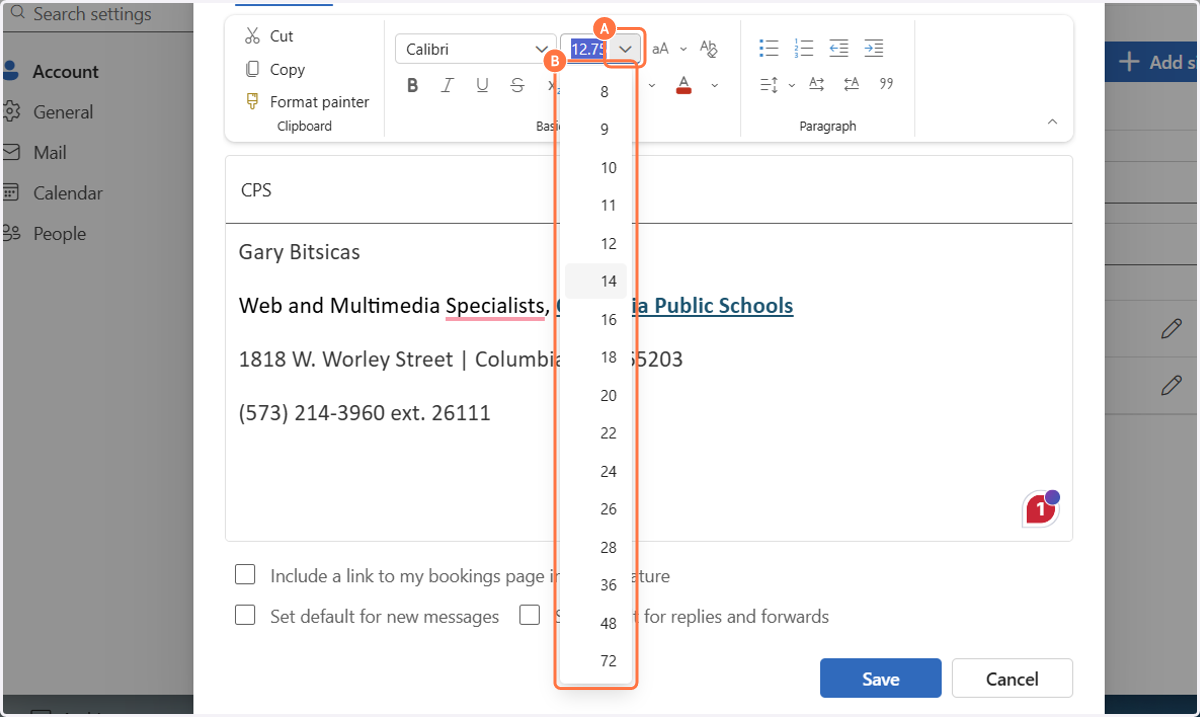
10. A. Click on Open Font size
10. B. Select 12 or higher
Use a simple, readable black and white font and keep the formatting consistent.
Style Guide | Columbia Public Schools Brand Standards
Return to the Style guide if you'd like to add the CPS logo.
11. Right-click the CPS logo and save it to your computer. You will upload this image when creating your email signature.
Make sure the logo includes the TM symbol. This confirms that you are using the correct CPS logo. The light blue words “Public Schools” also now include a dark blue outline to improve color contrast and readability for people with low vision or color vision deficiencies.
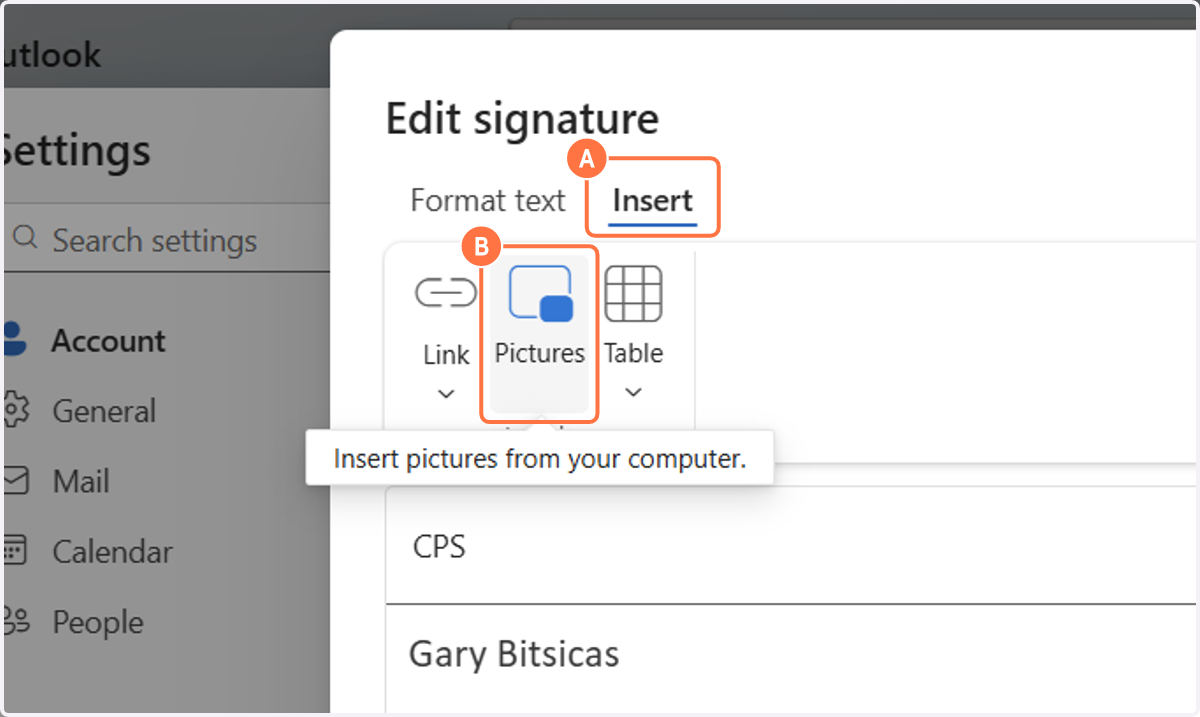
12. A. Place your cursor where you want the CPS logo. Select Insert
12. B. Select Pictures.
Search your Computer for the CPS logo you downloaded. Keep the logo at a reasonable size. The logo should support the signature, not replace the written contact information.
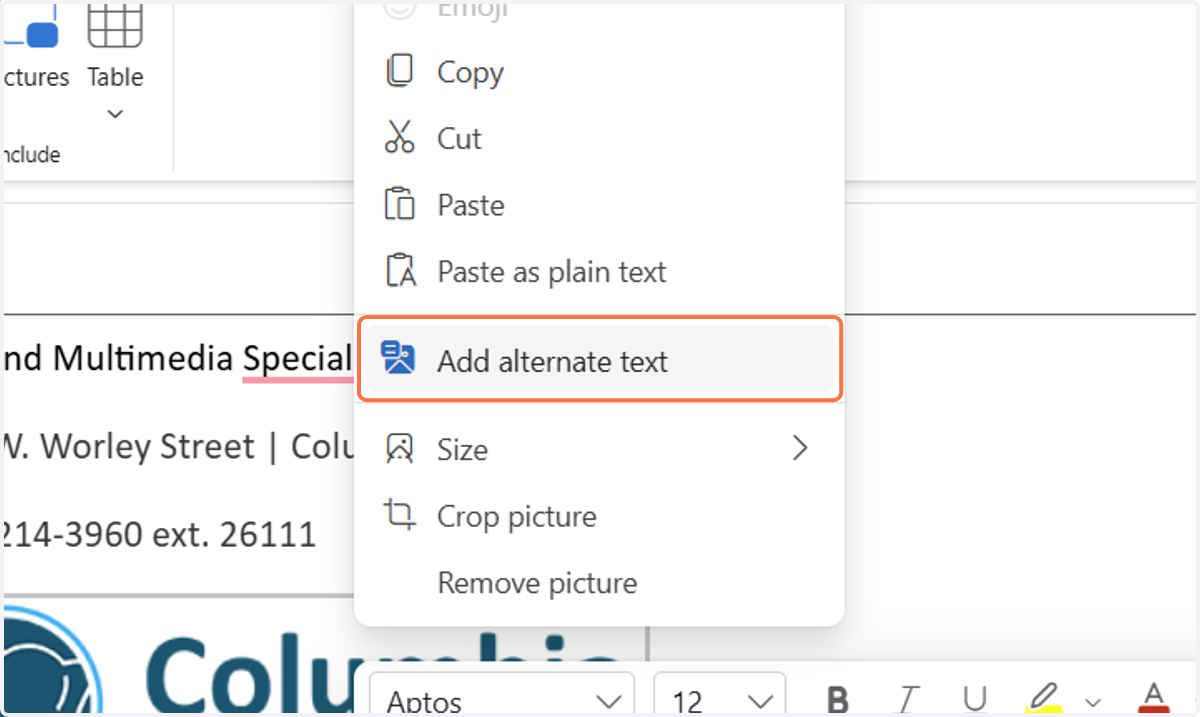
13. Right mouse click on the logo. Select "Add alternate text"
Alt text helps someone using a screen reader understand the purpose of the image.
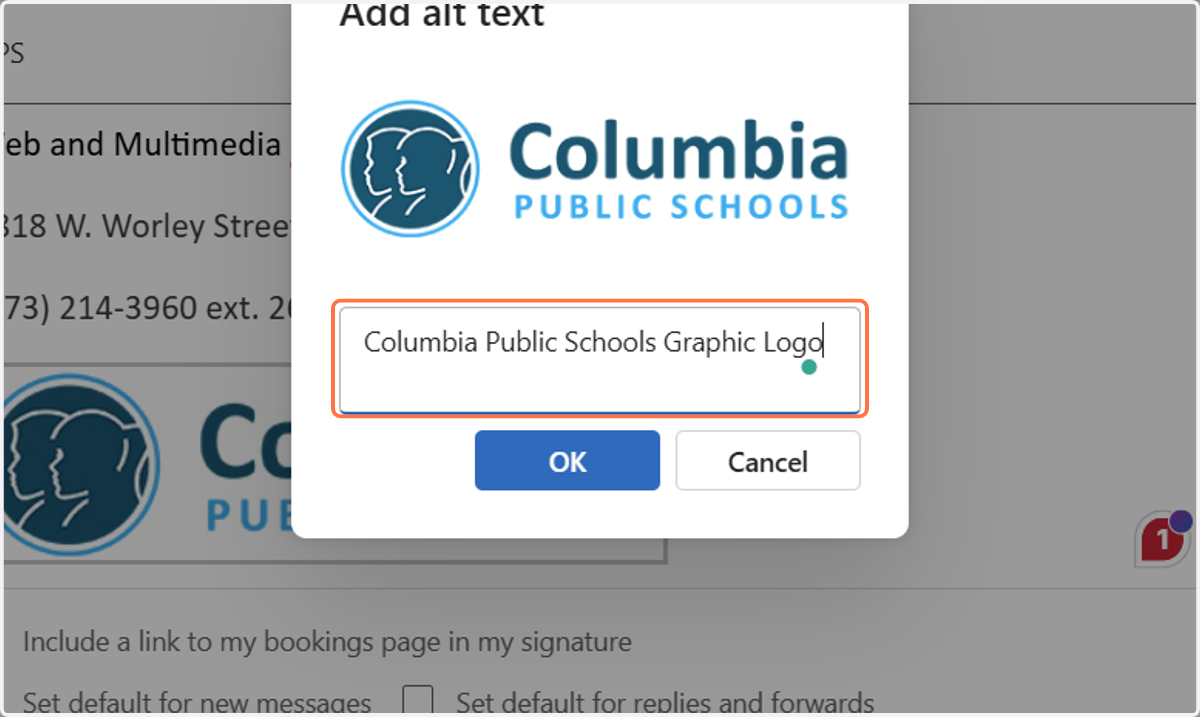
14. For this example I used "Columbia Public Schools Graphic Logo"
For this example I used "Columbia Public Schools Graphic Logo"
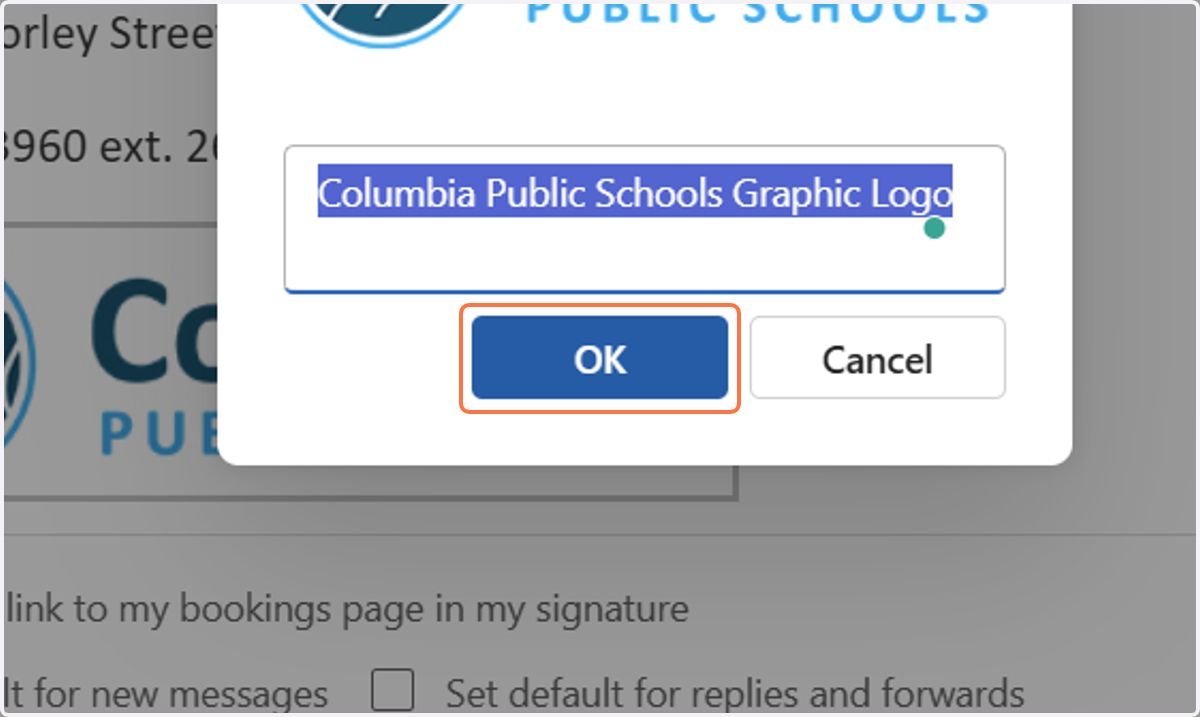
15. Select OK
The alternate text is now attached to the image.
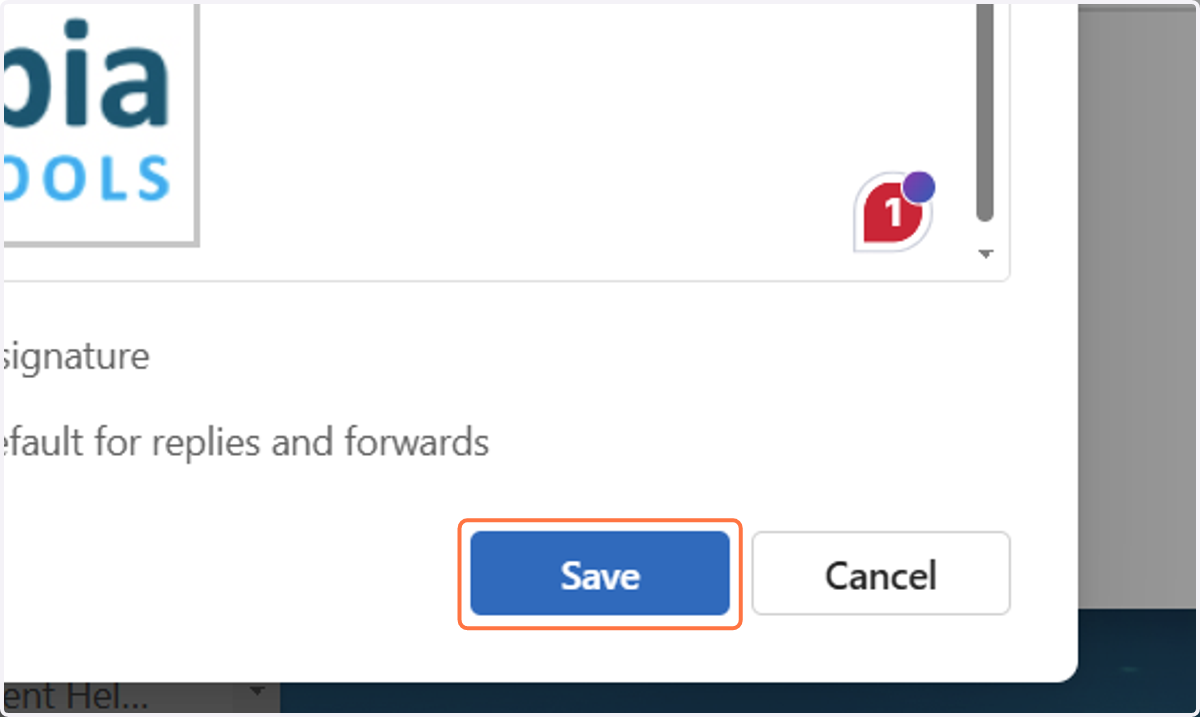
16. Select Save
17. Test the Signature
Return to your inbox.
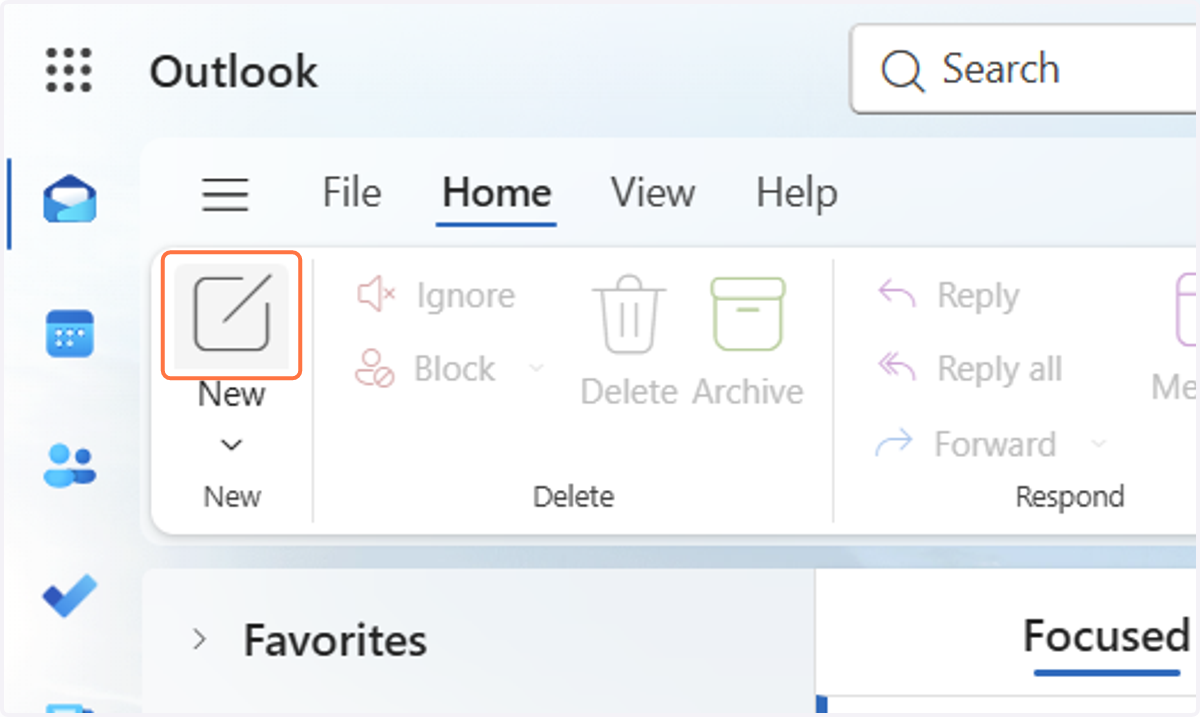
Select New email.
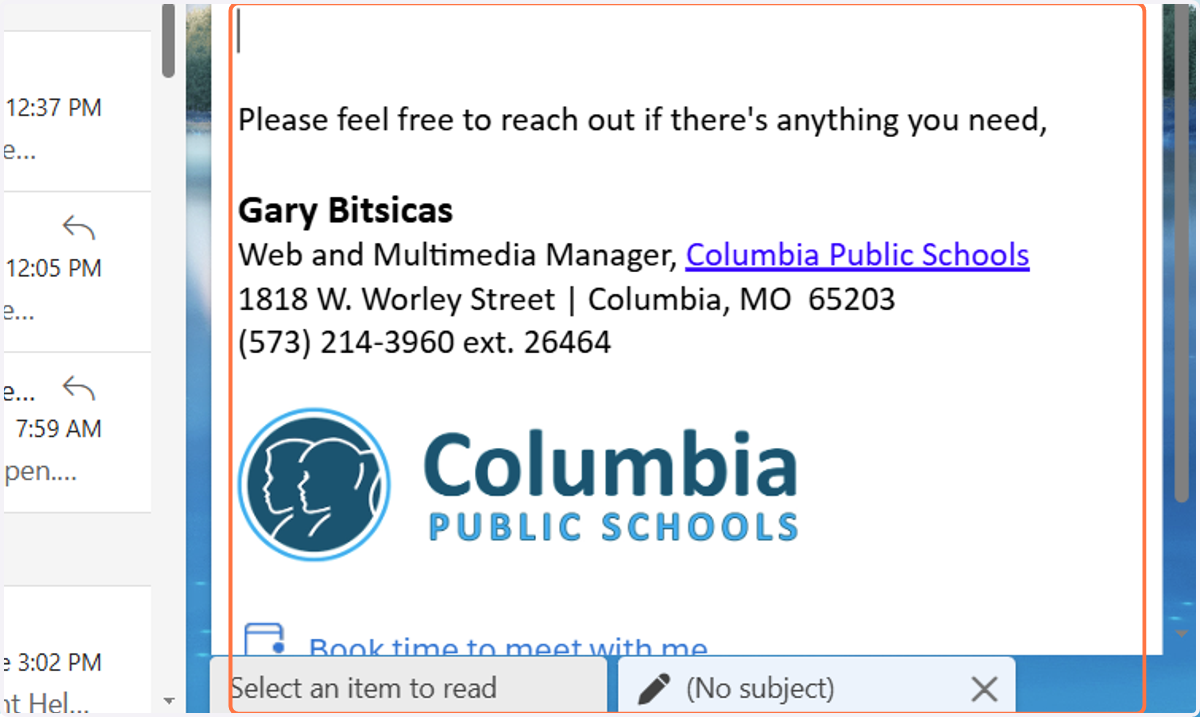
Your CPS signature should appear in the message.
18. Review Your Signature Before Using It
Check that:
Your name is correct.
Your job title is correct.
Your phone number is correct.
Your work address is correct.
The text is easy to read.
The text has enough color contrast.
The CPS logo displays correctly.
The CPS logo has alt text.
Important information is written as real text.
The signature does not rely on an image to communicate important information.
Links use clear, descriptive text when possible.