Accessing and Navigating SCView
For license renewal through the ESC's LPDC
SCSS mySCView - Login
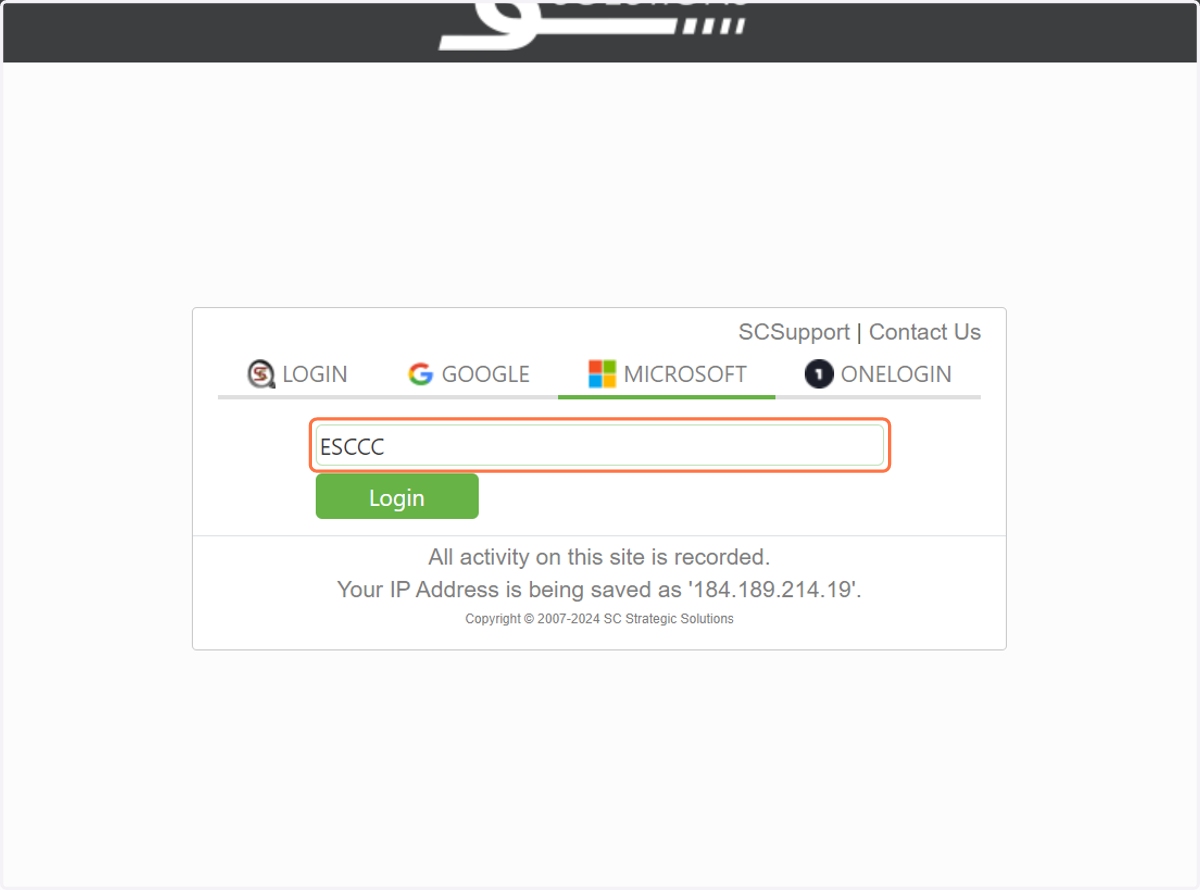
1. Click on Microsoft. Be sure to use ESCCC (case sensitive) as the domain.
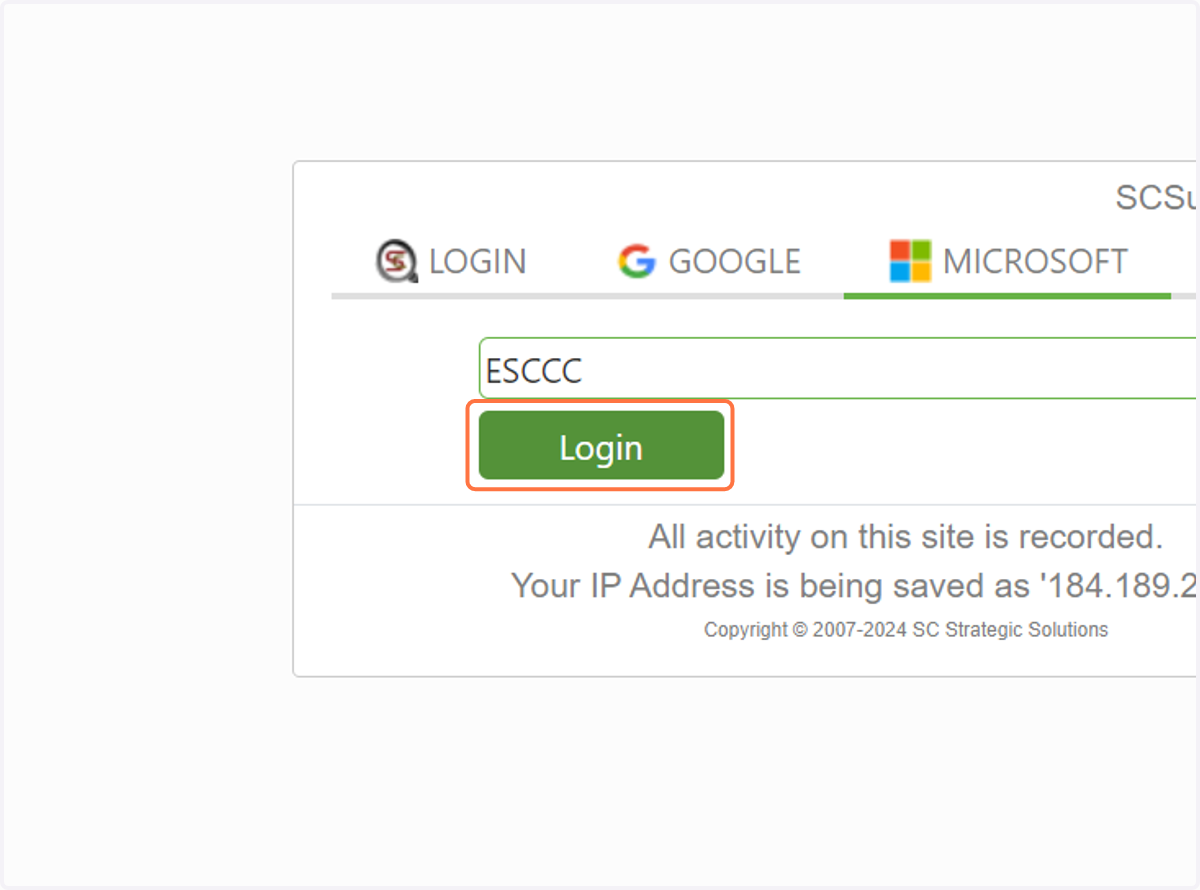
2. Click on Login
You will be logged into your dashboard.
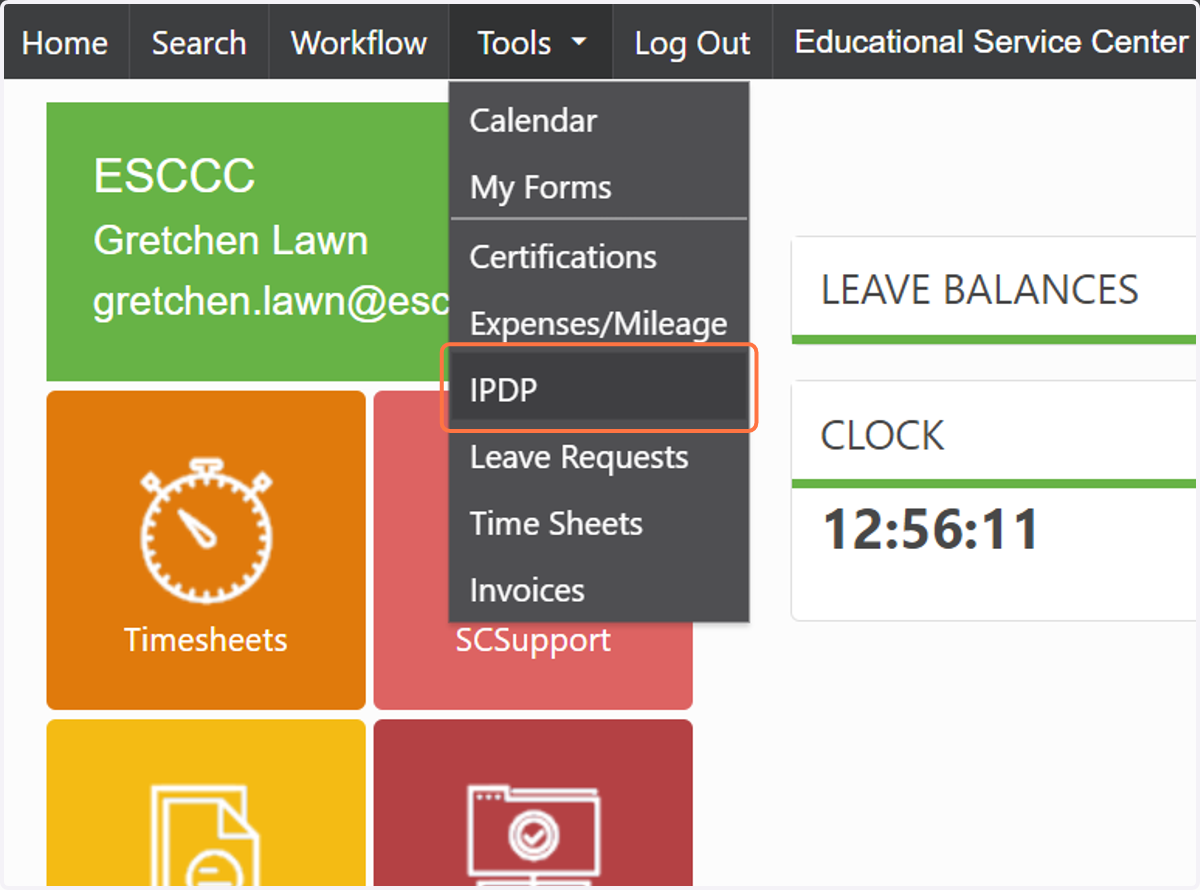
3. Click on Tools
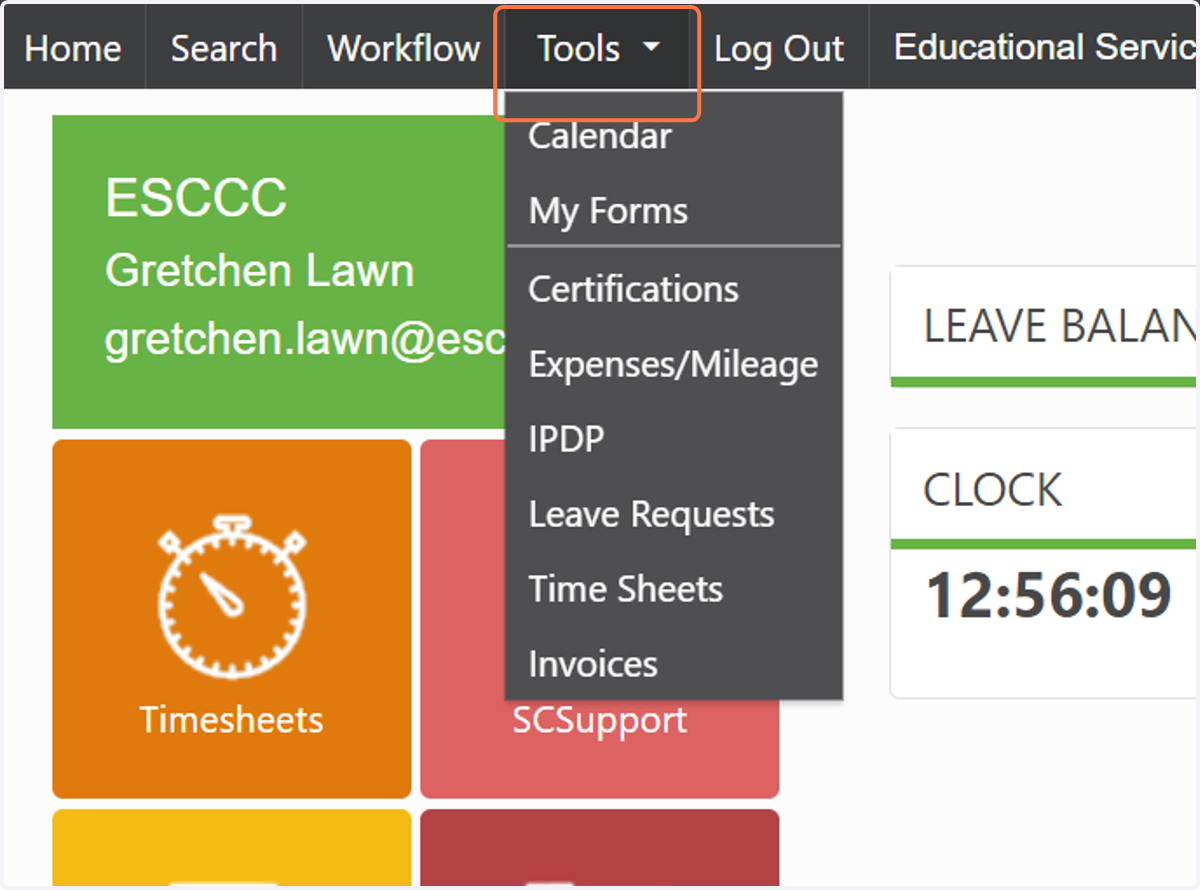
4. Click on IPDP
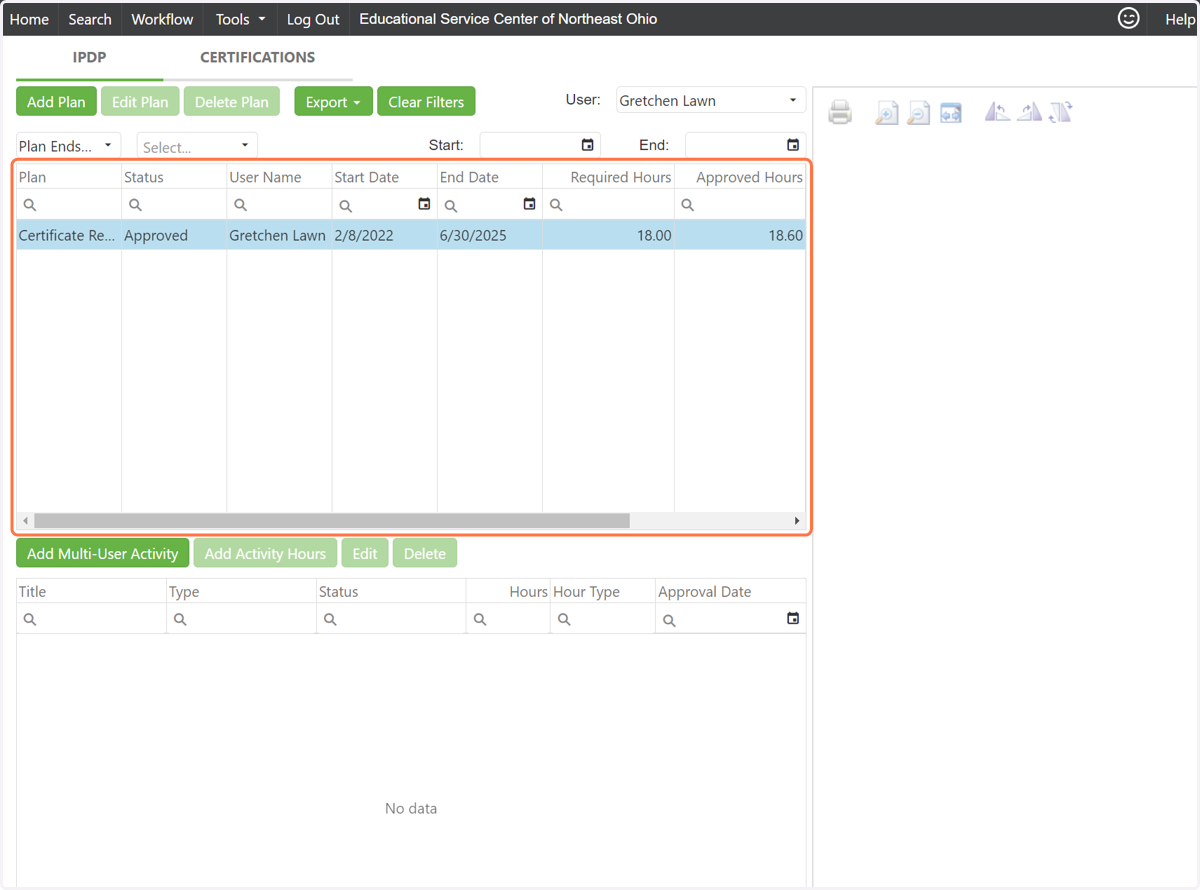
5. If you have an approved IPDP (or an expired IPDP) on file, you can access it on this tab.
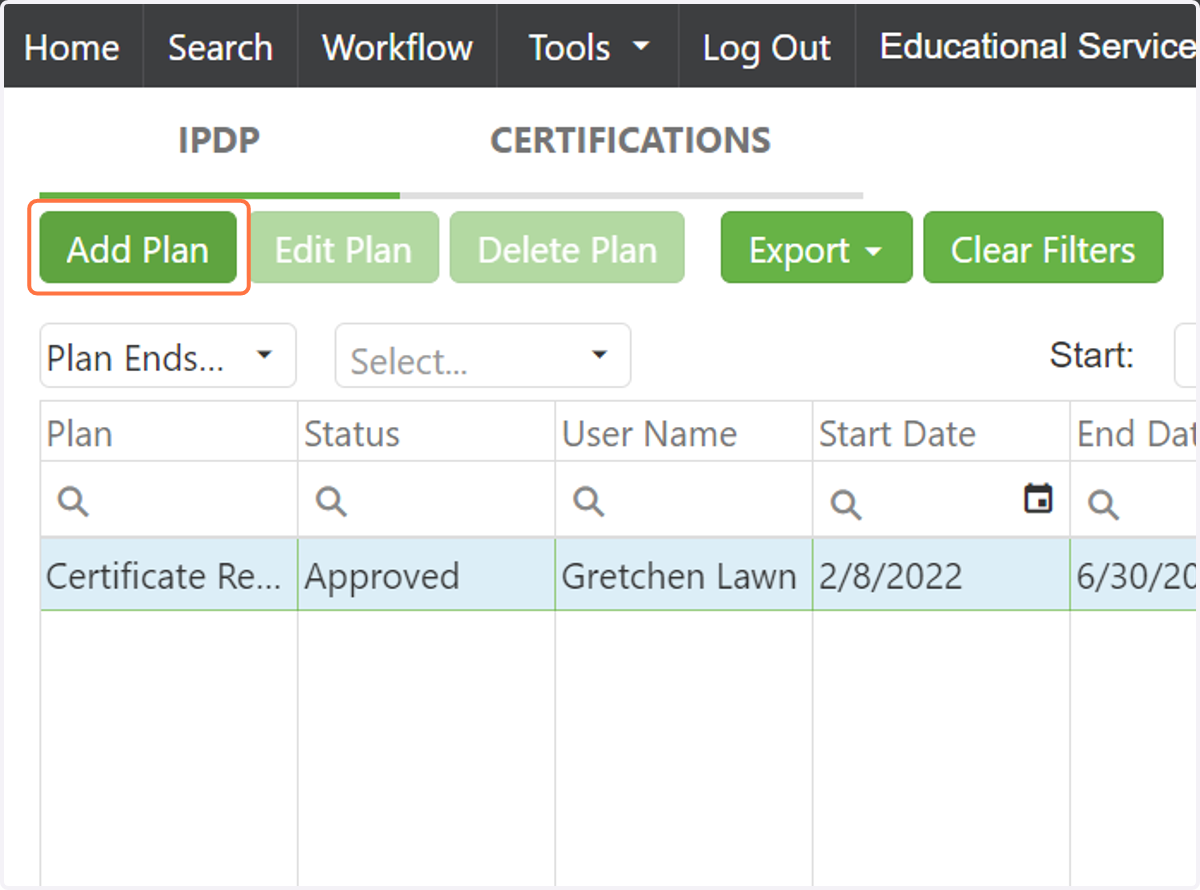
6. To add a plan, click on Add Plan
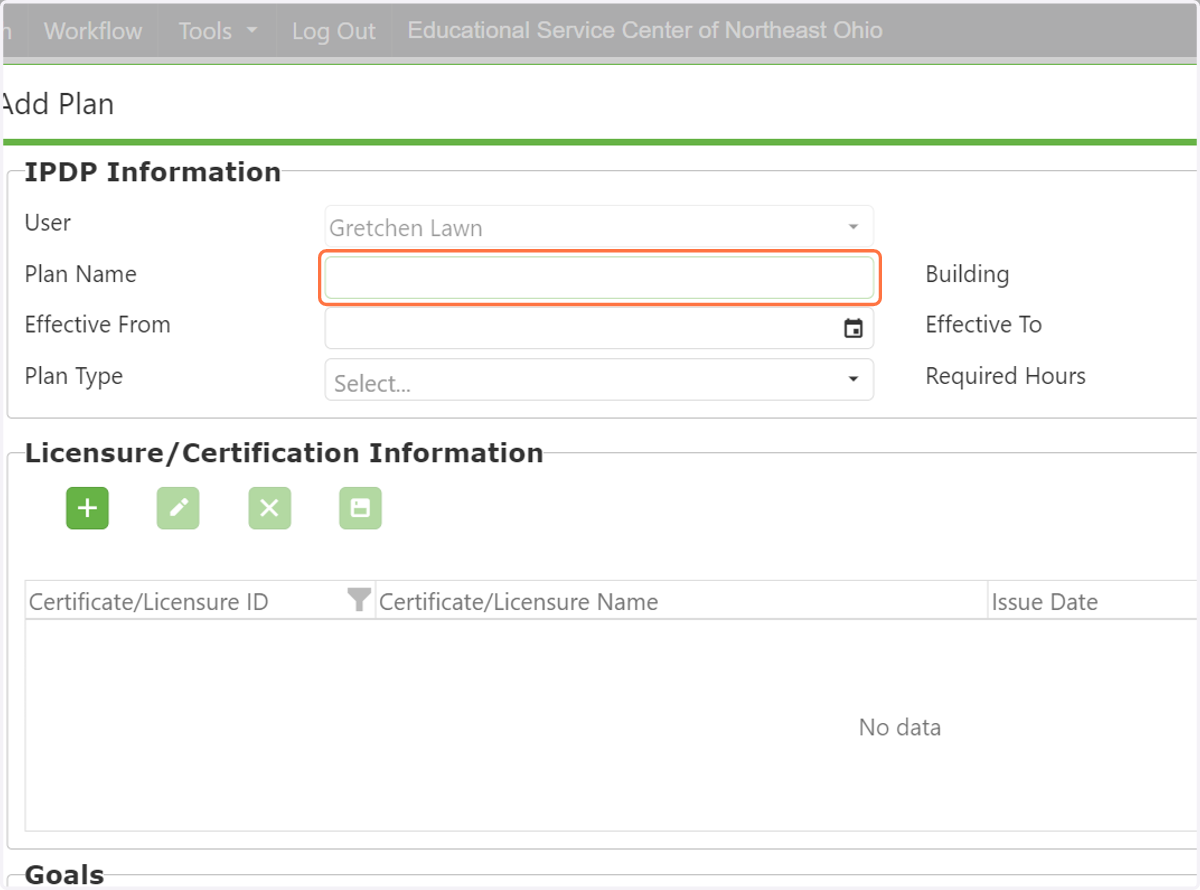
7. Be sure to follow the guidelines for writing an IPDP found on our website
8. Add each of the licenses that you will be renewing with this plan. All of your current licenses should be able to be selected by clicking on the plus button.
If all licenses you currently have do not appear, contact us at lpdc@escneo.org
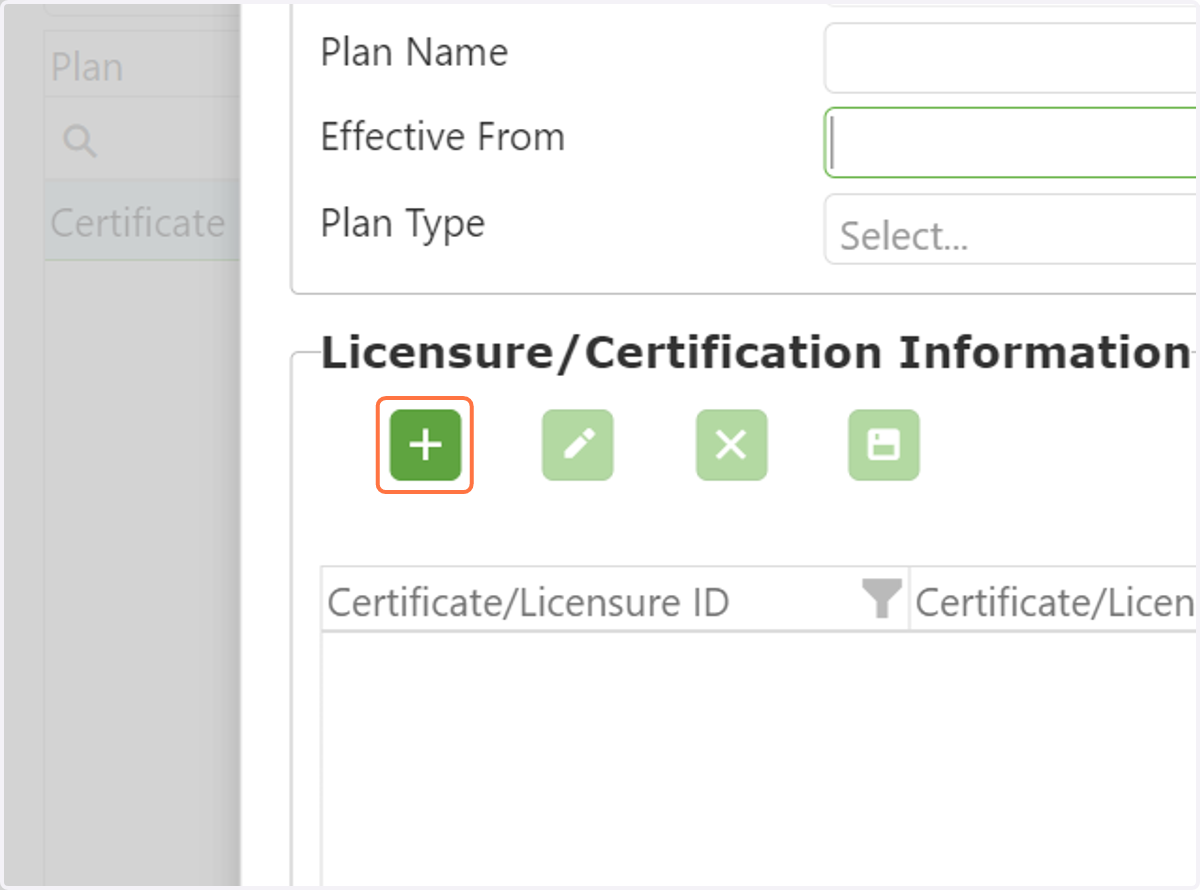
9. Select each license and its renewal cycle.
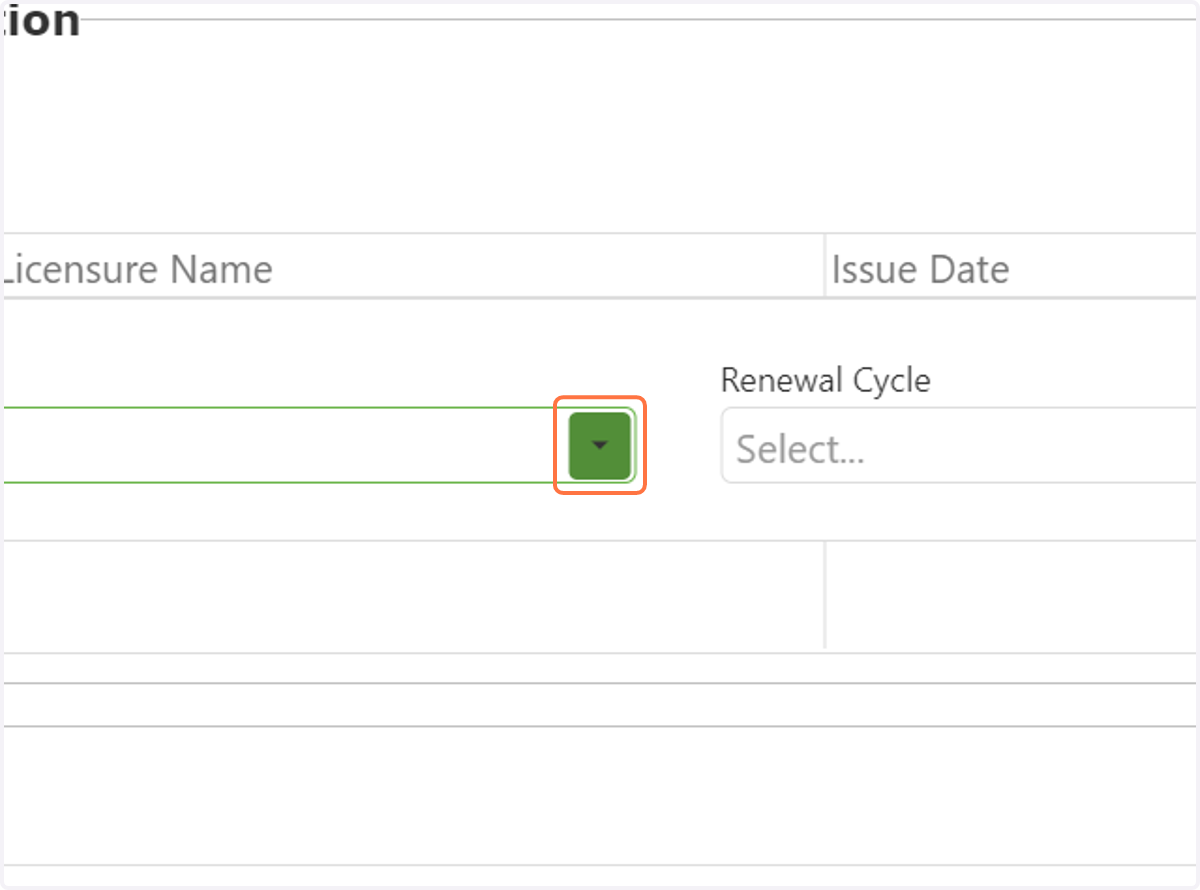
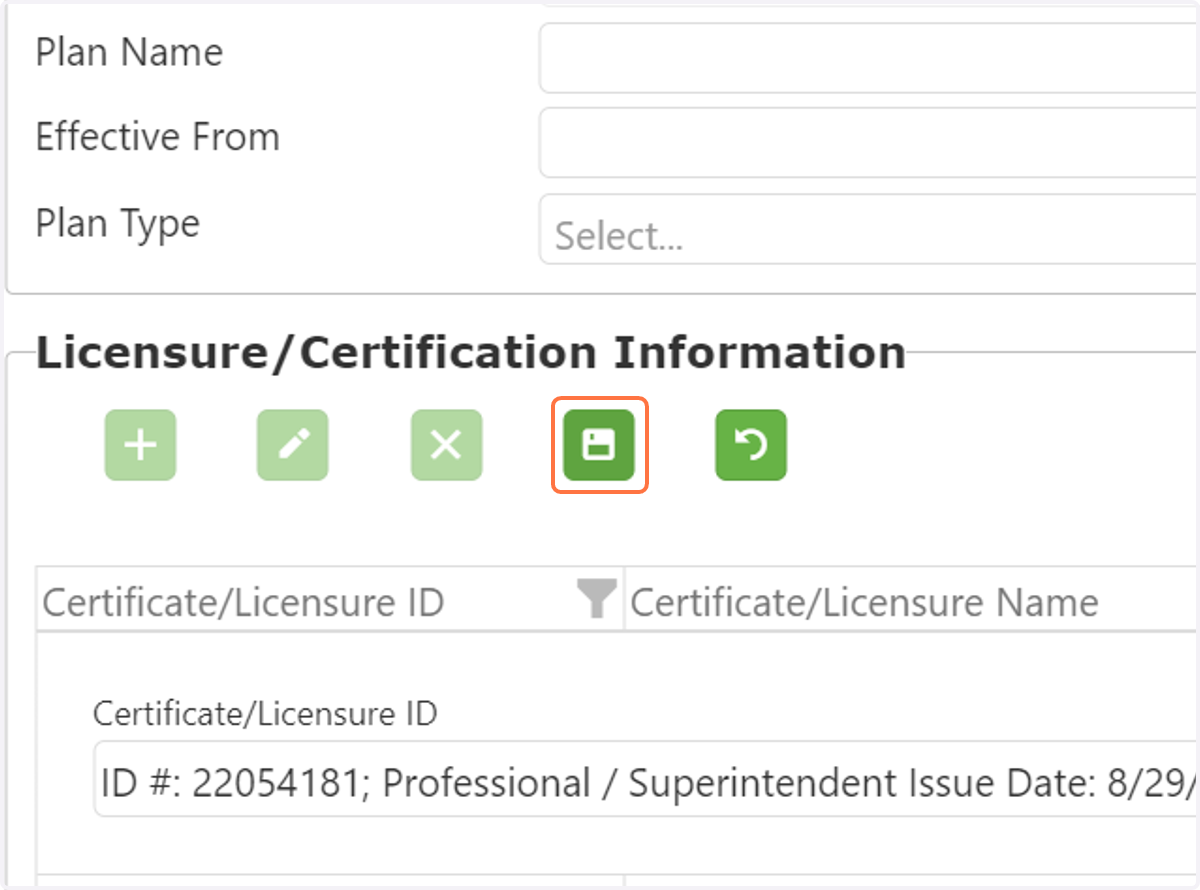
10. Click on the save icon in order for that license to be included.
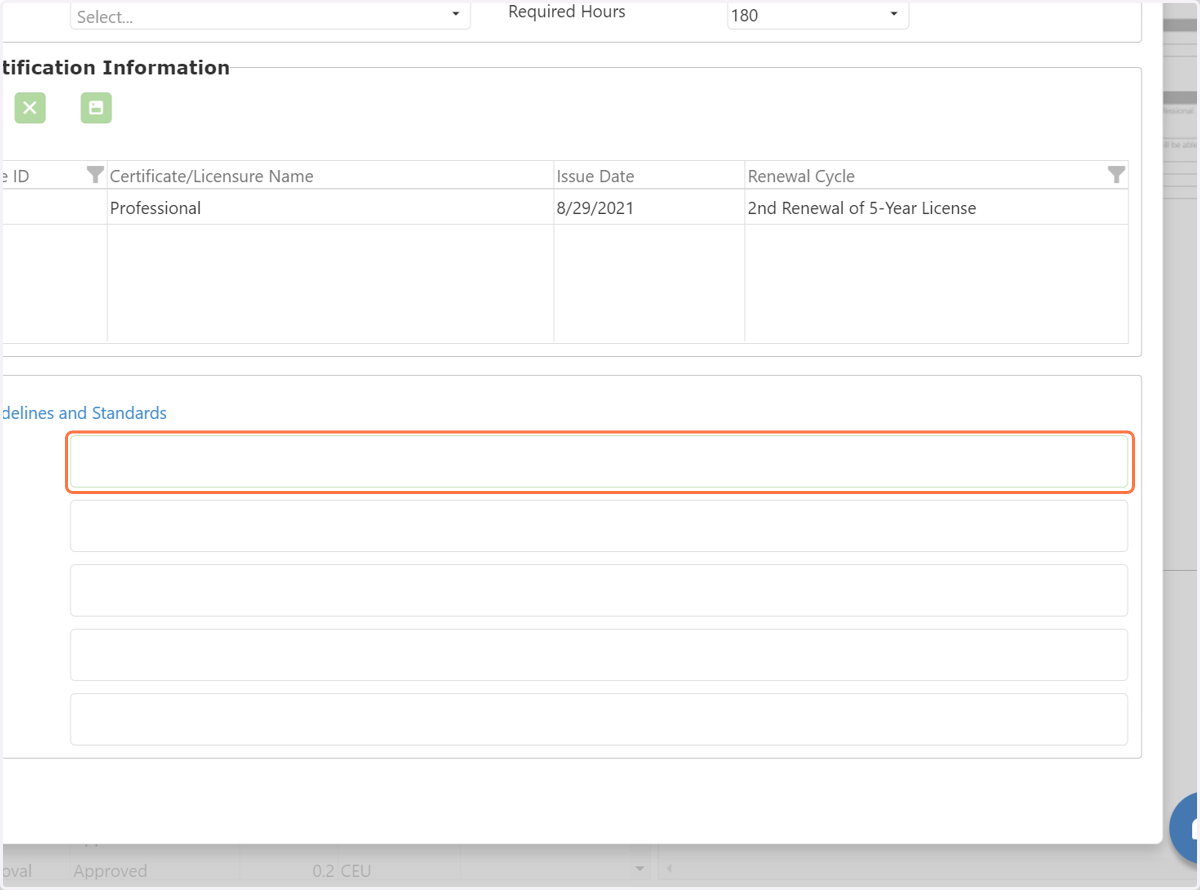
11. Draft goals using the guidelines and exemplars found on our website.
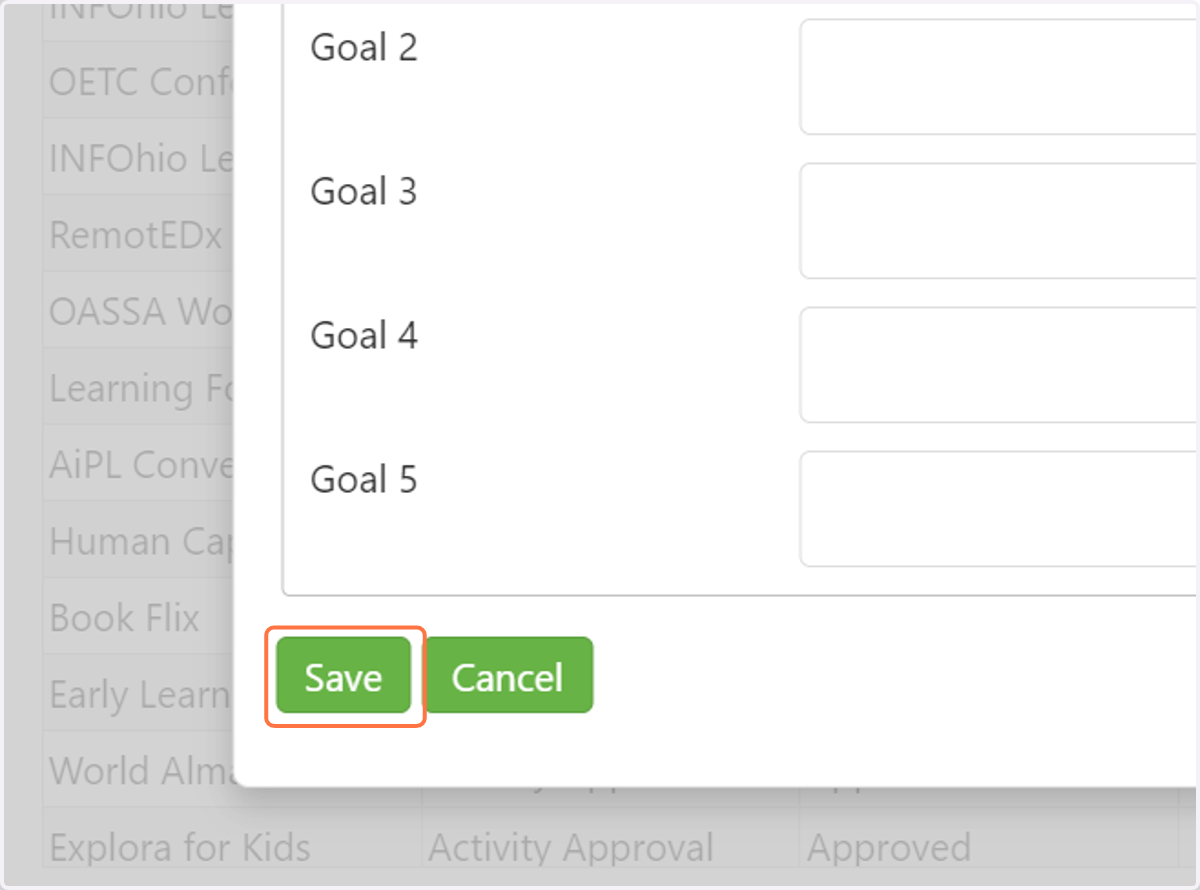
12. Click on Save when you are finished.
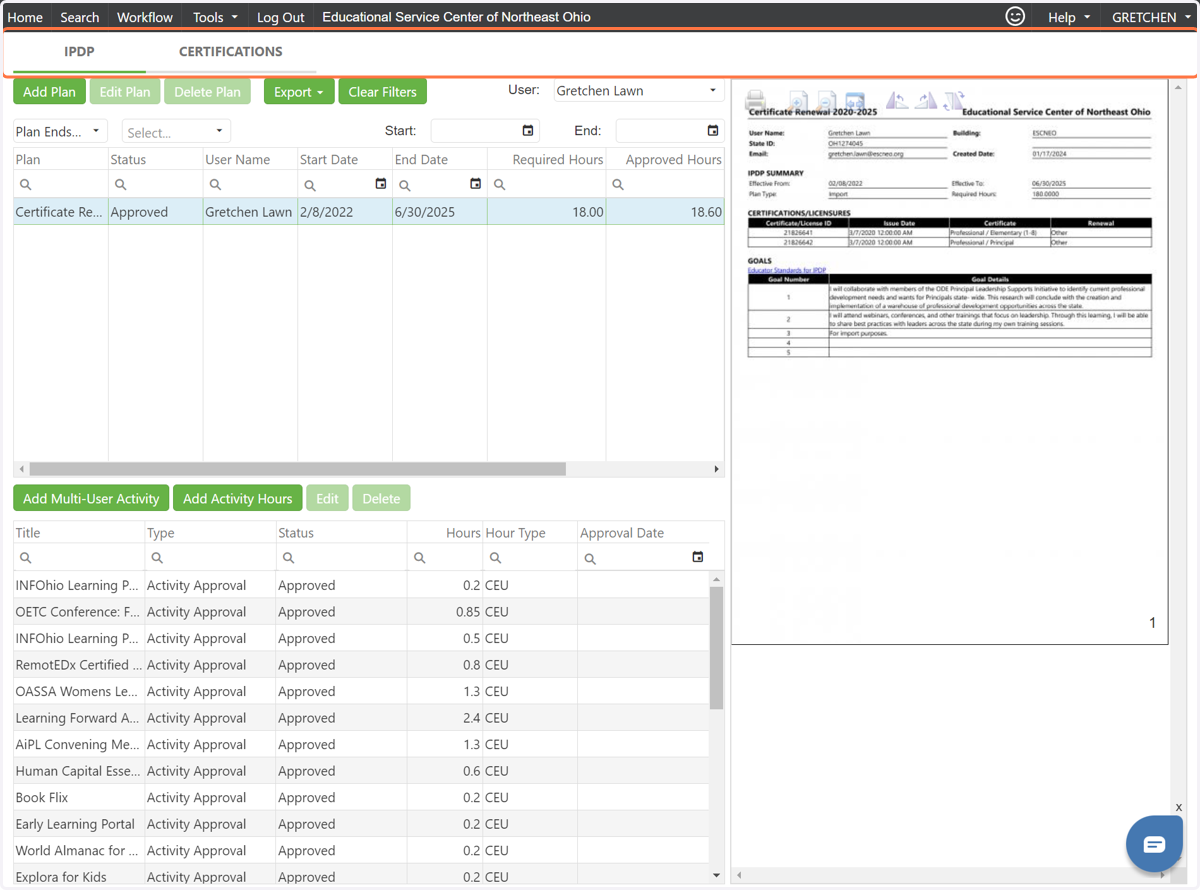
13. To add an activity, be sure to click on your current approved IPDP in order to highlight it.
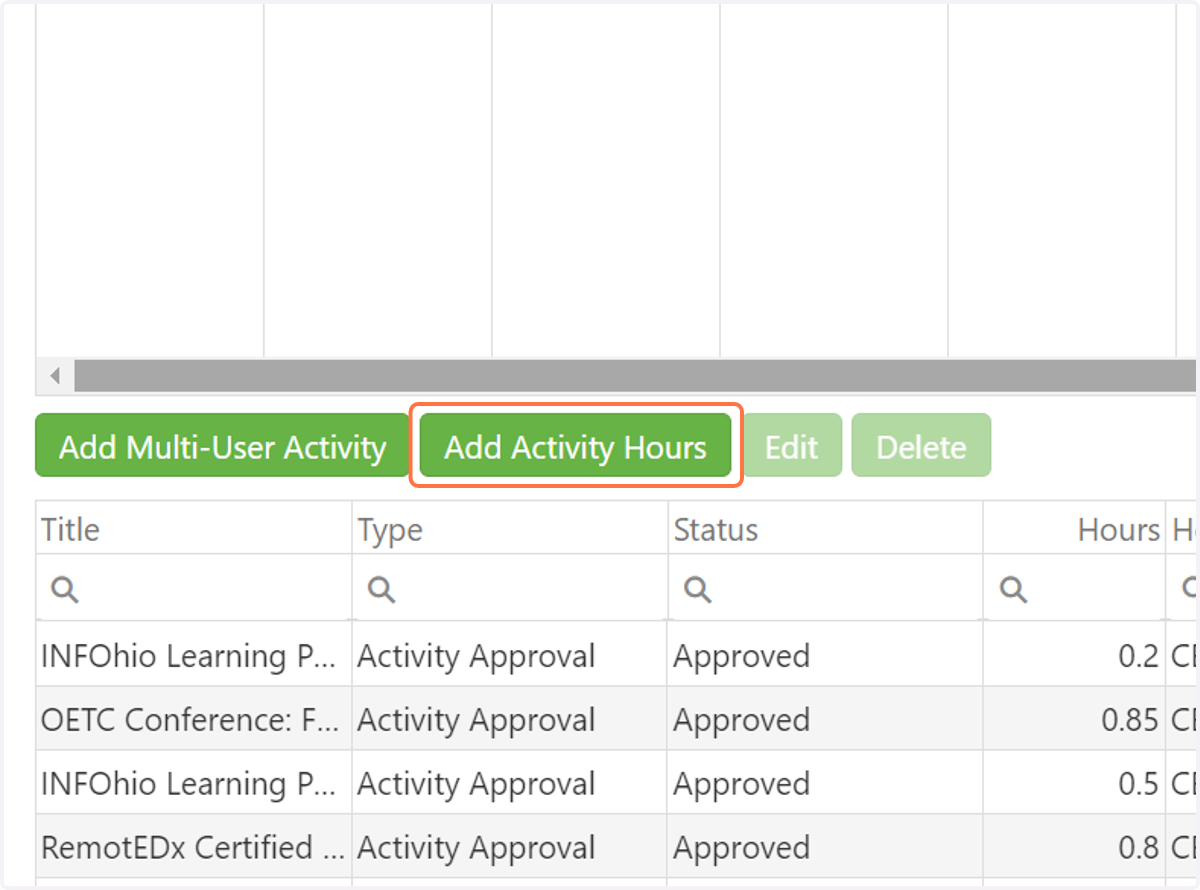
14. Click on Add Activity Hours to upload an activity.
15. Complete the Activity approval form using the guidelines and checklists found on our website.
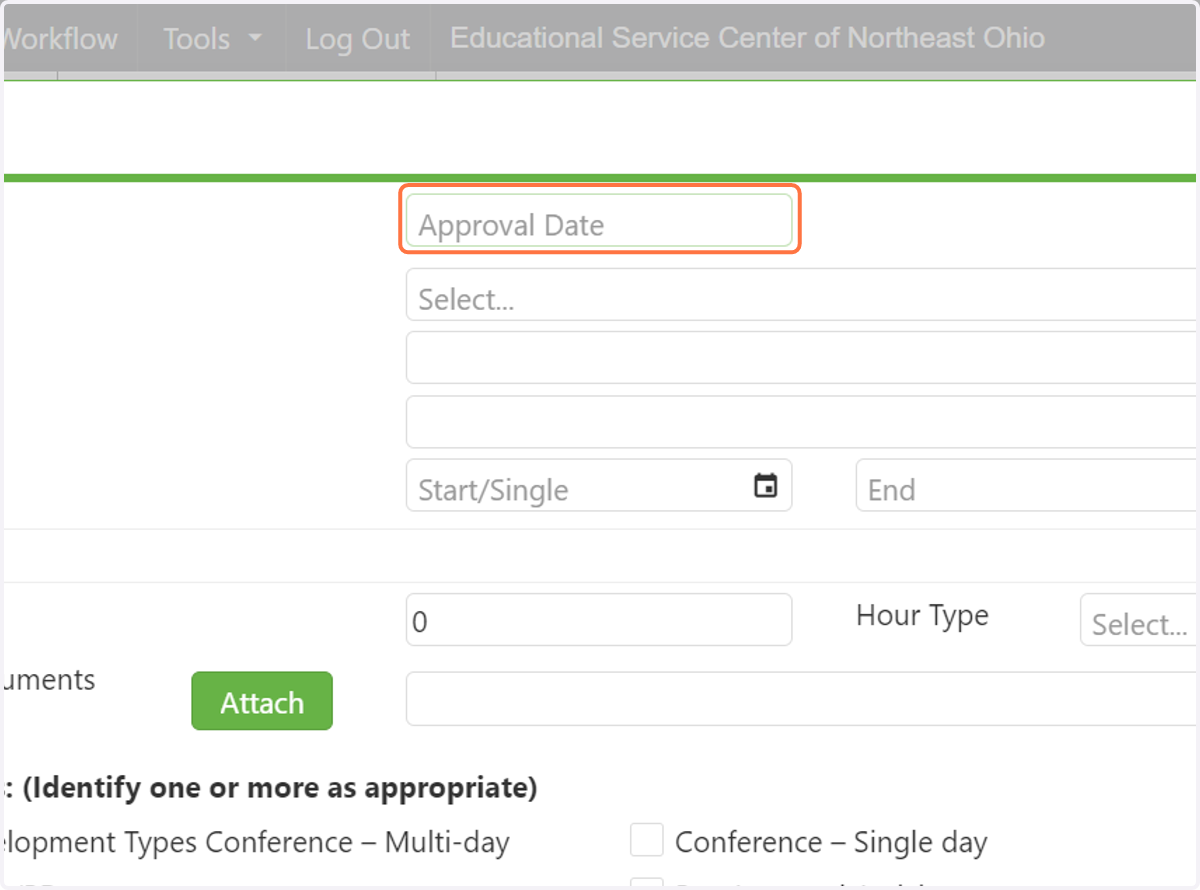
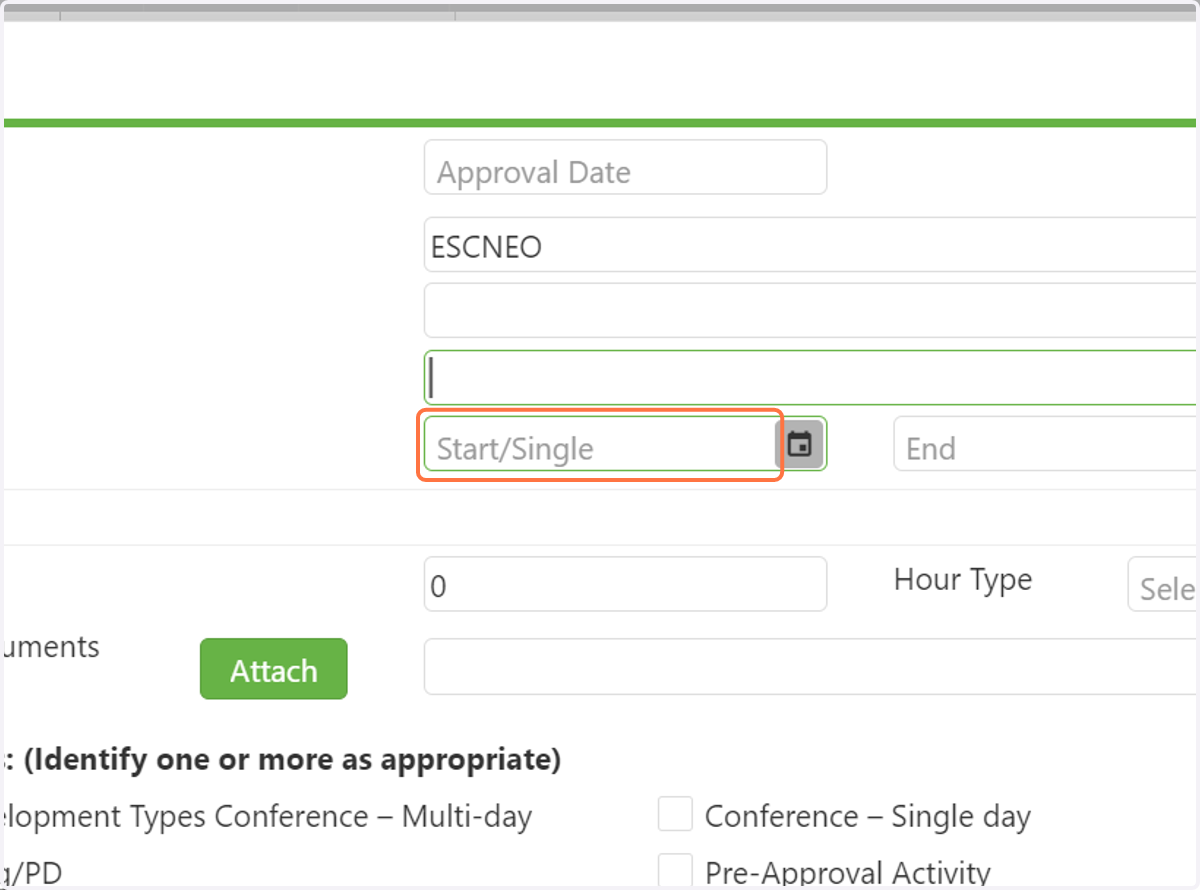
16. Be sure the date the activity occurred is after the date the IPDP was approved.
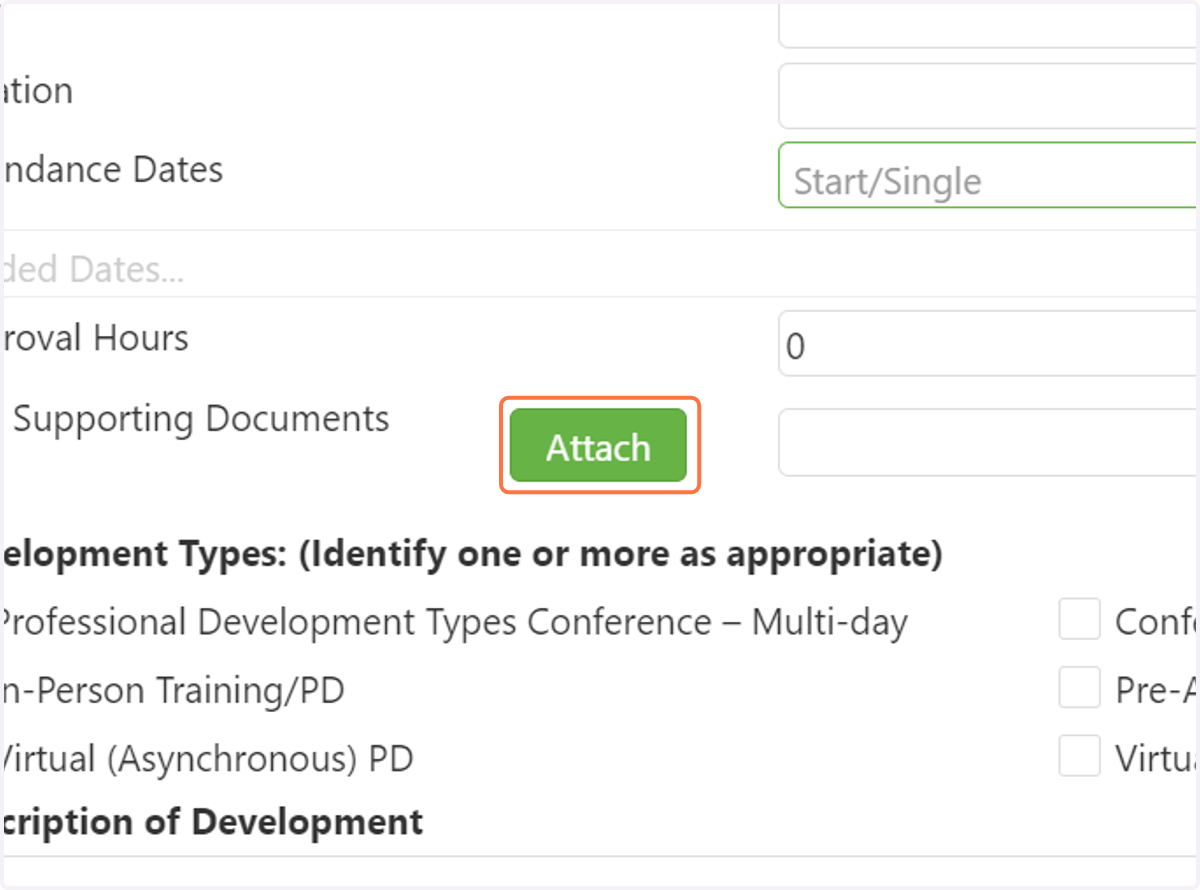
17. Click on Attach to upload a certificate, transcript, or Educator Exiting an LPDC form.
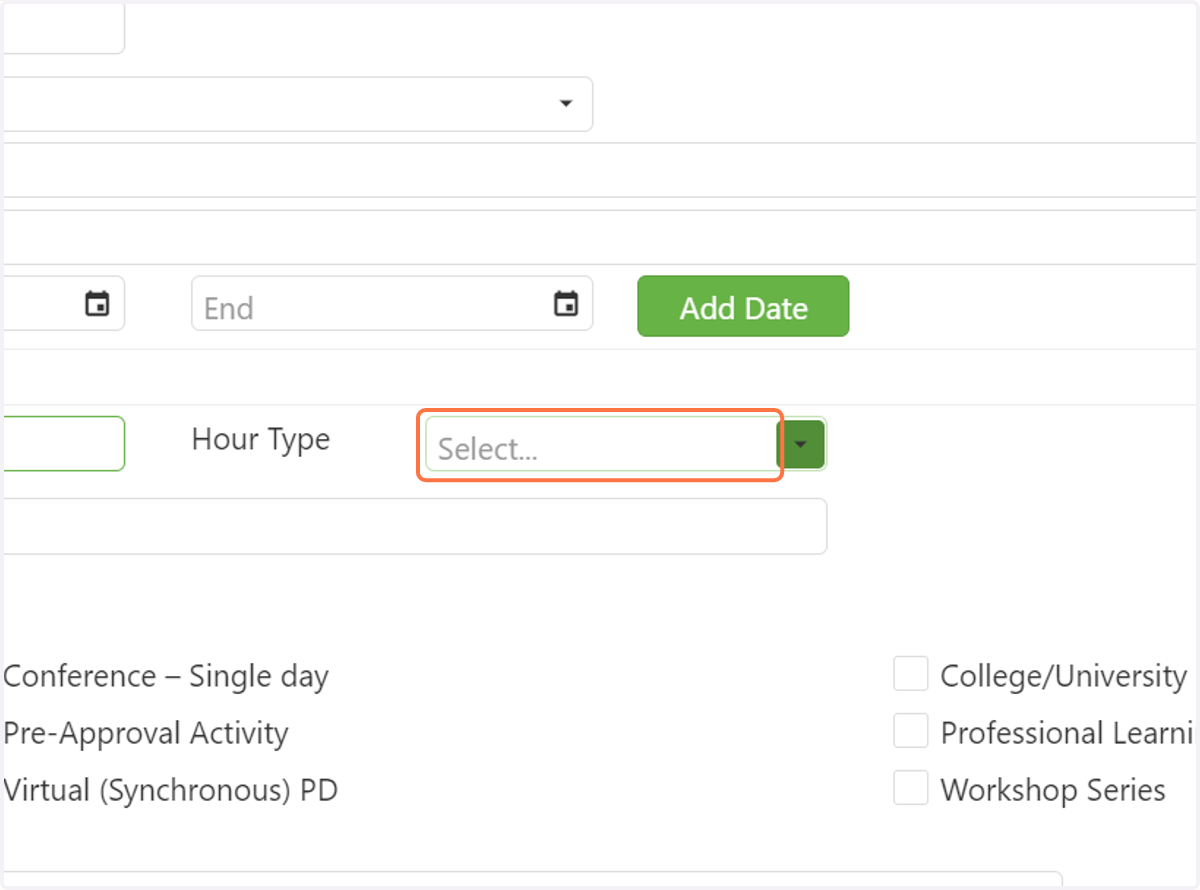
18. When you add hours, be sure to select the hour type.
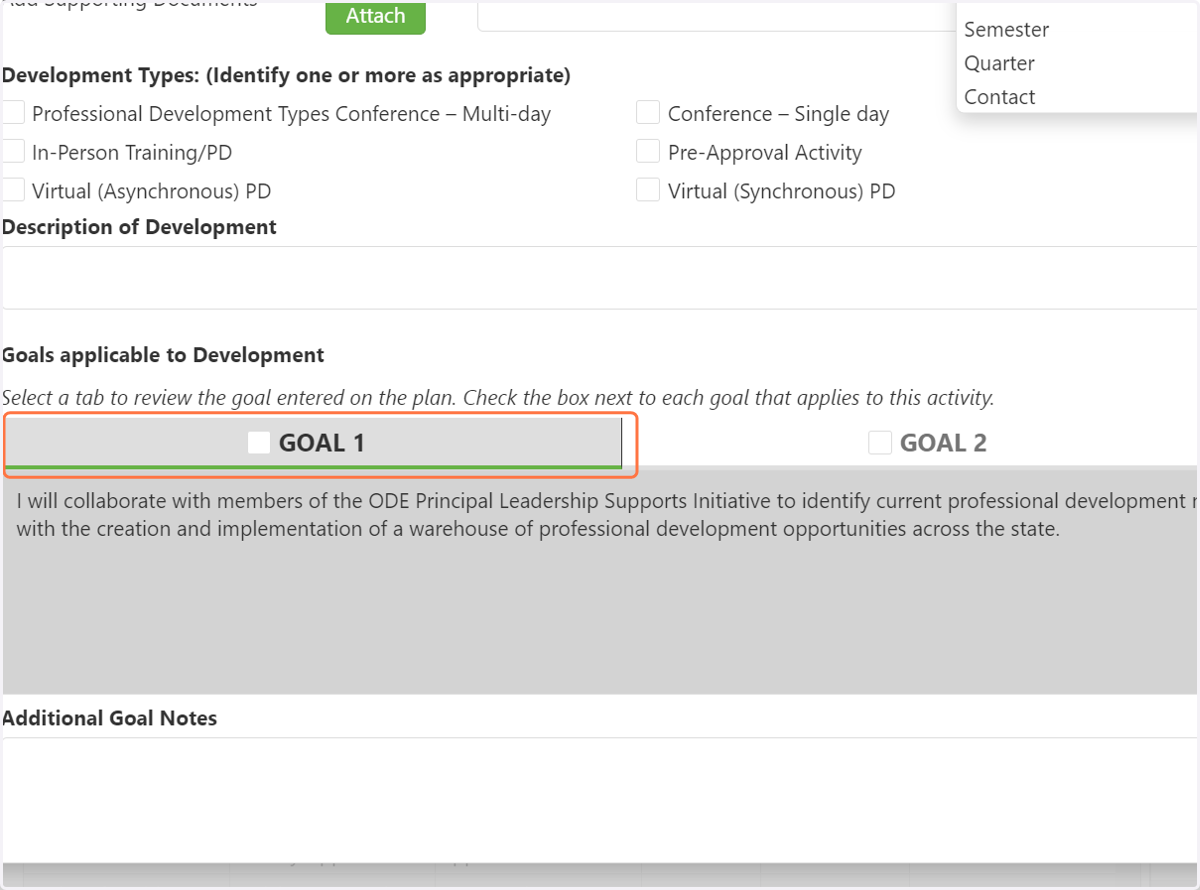
19. Select the goal that most closely applies to the activity.
20. Click on Save once all information has been completed.