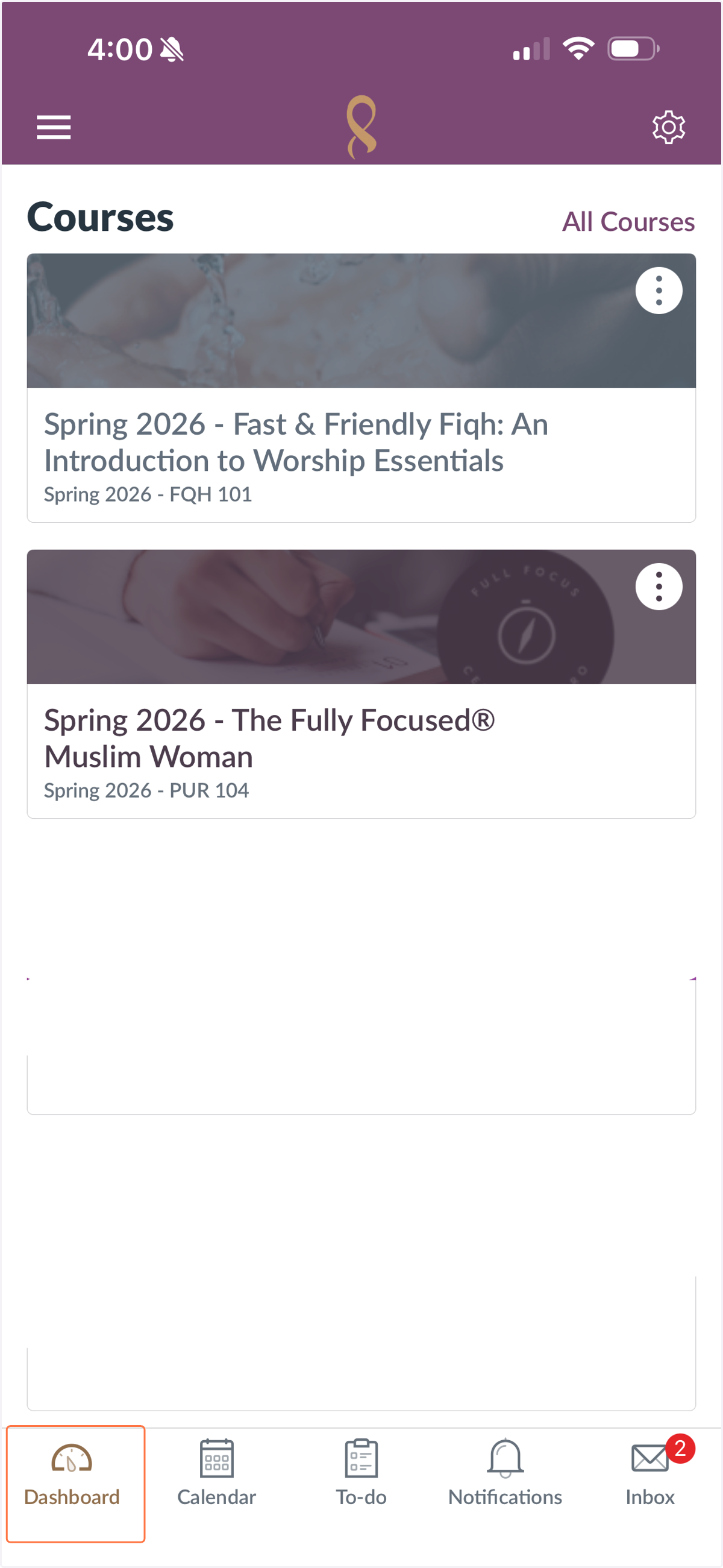
Access Your New Ribaat Account
1. Visit Google.com and click on the account icon on the top right corner.
If you are a returning student, use your @student.rabata.org username and password to log in.
If you are a new student, you will receive your credentials from Classter. Please check your spam if you do not receive them in your inbox within a few hours.
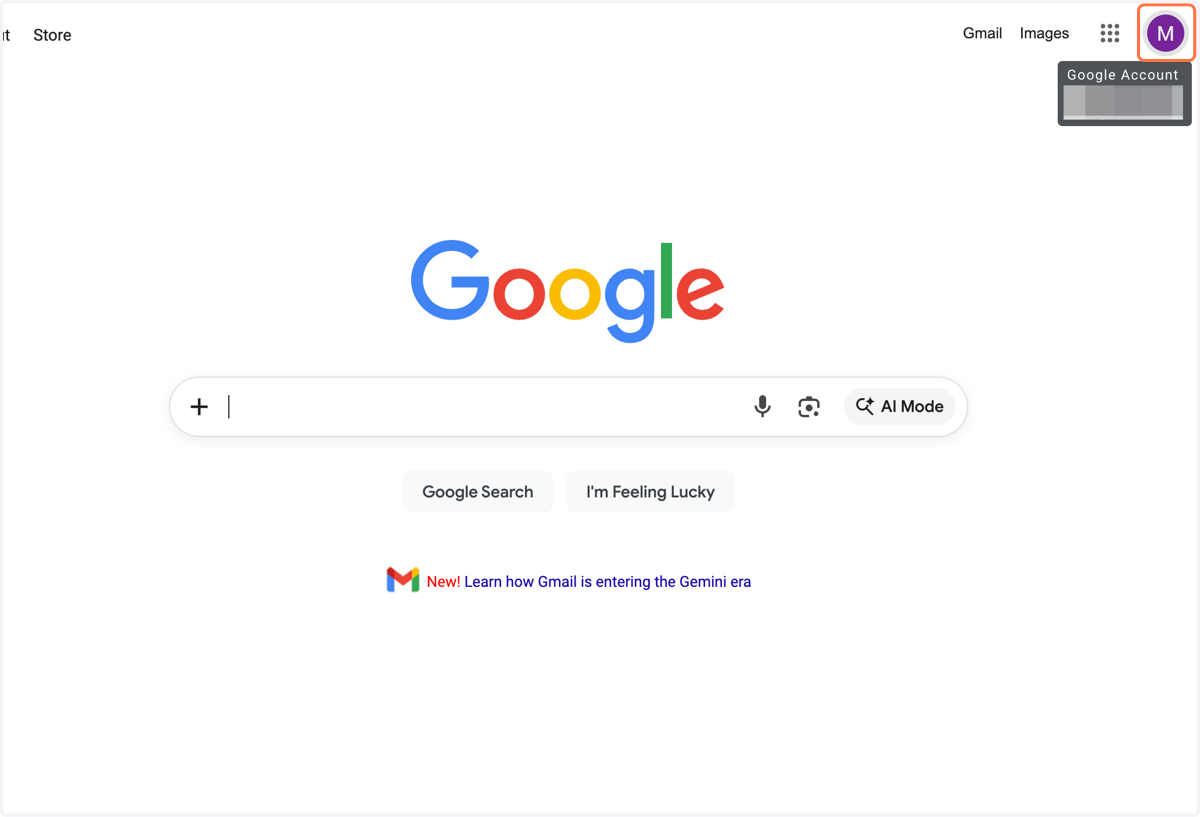
Adding your student account
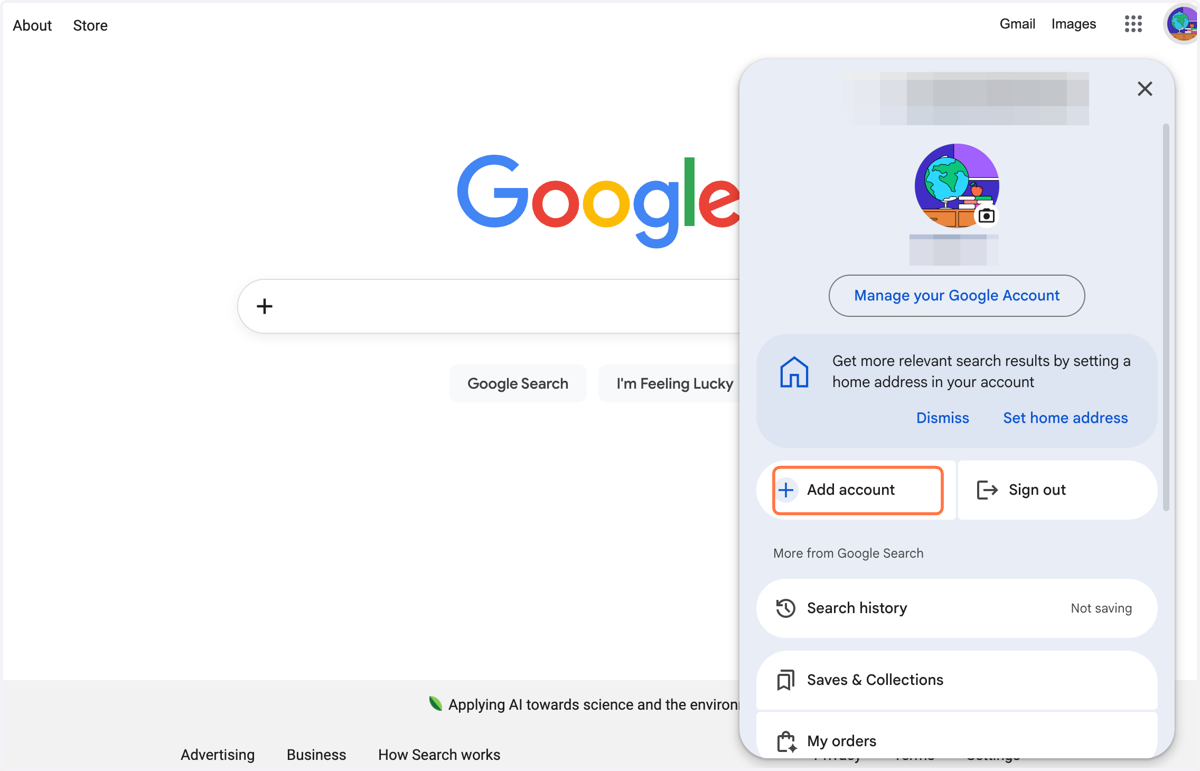
2. Click Add Account
3. Type your username ending in "@student.rabata.org" and click Next
🎓 Student Login Portal
Visit rabata.classter.com
4. Click on Email or Username field
Enter your username ending in @student.rabata.org
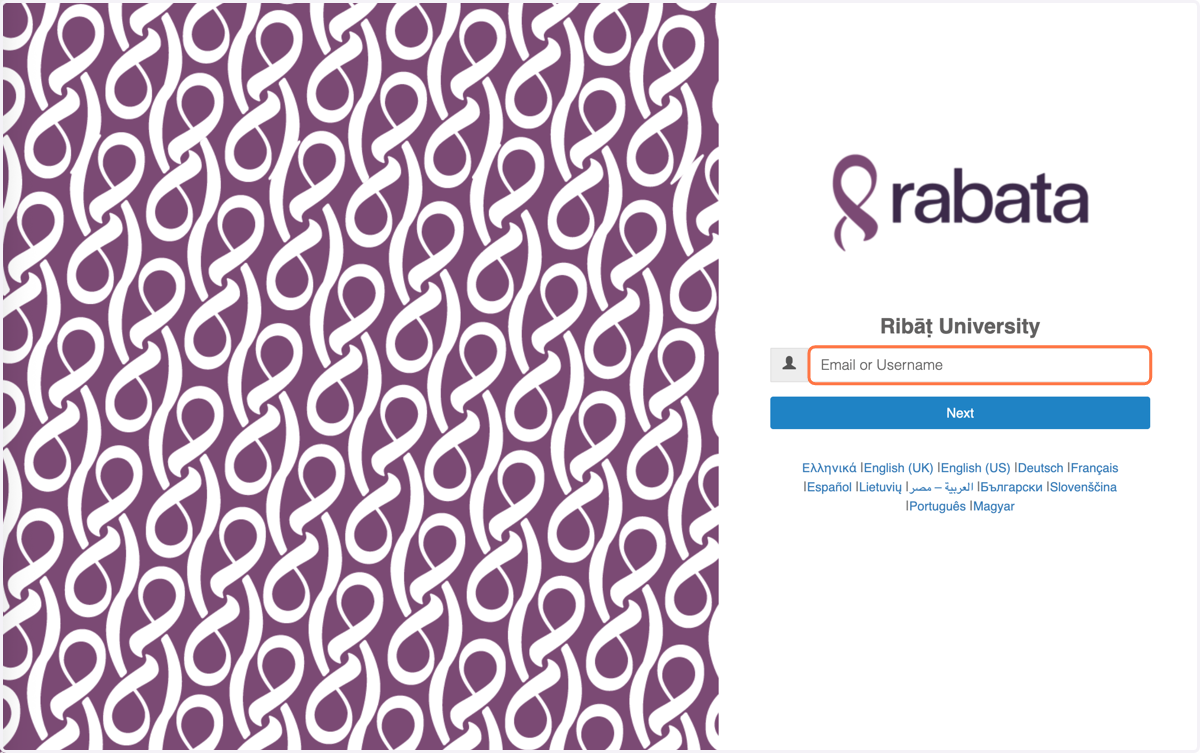
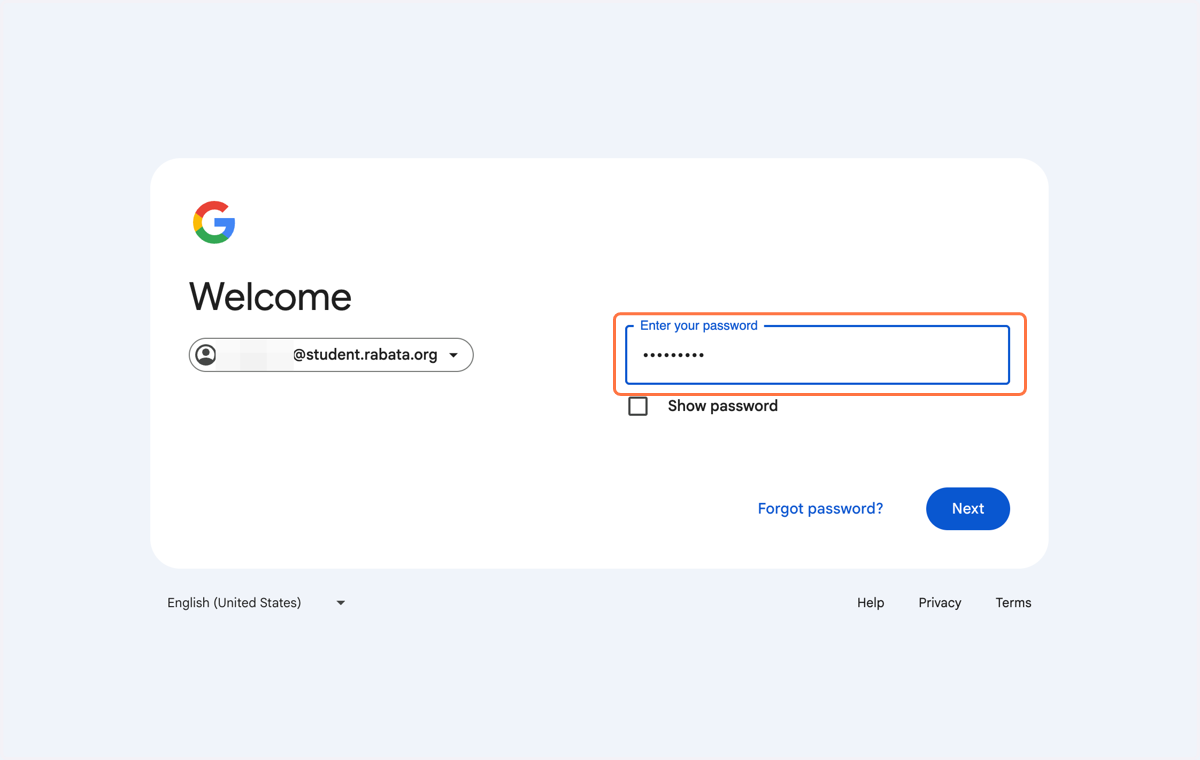
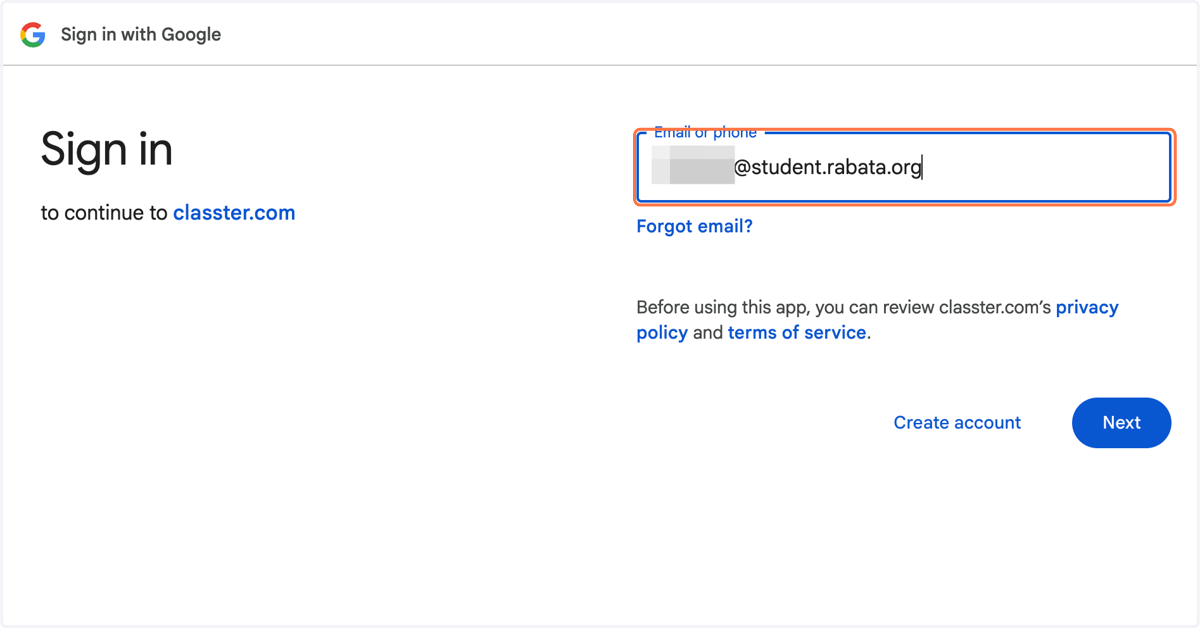
5. Type your username ending in "@student.rabata.org" and click Next
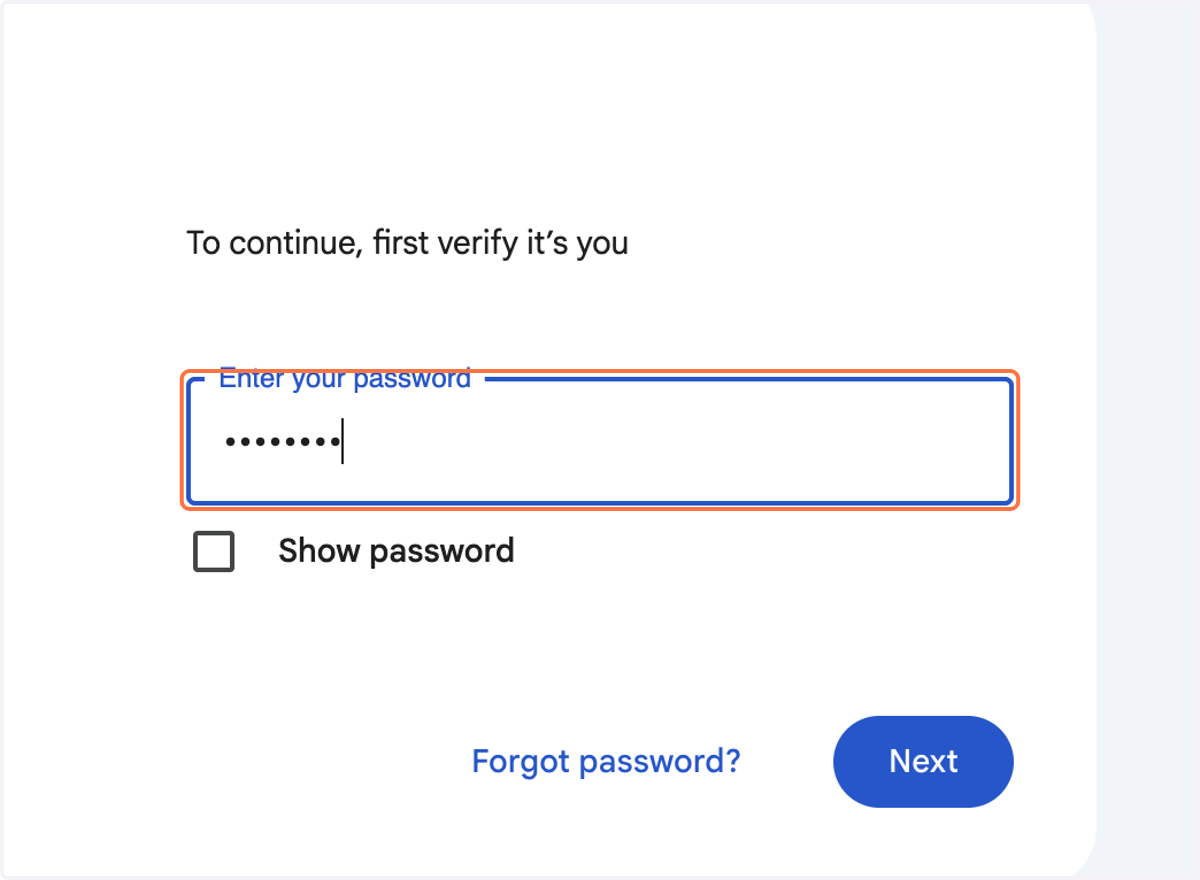
6. Enter your password and click Next
7. At first login, you will need to Accept the terms
8. Accessing Your Course
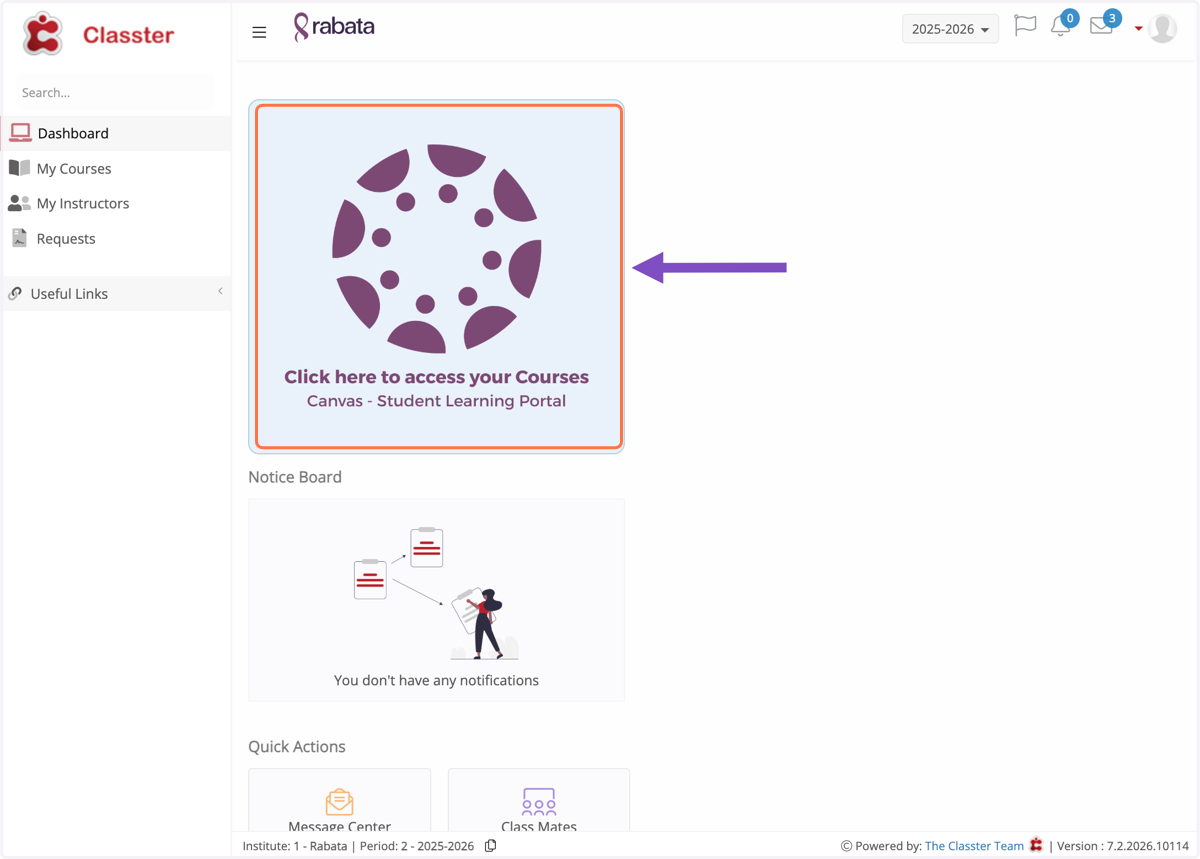
Click on the purple canvas wheel
9. Choose your account ending in @student.rabata.org
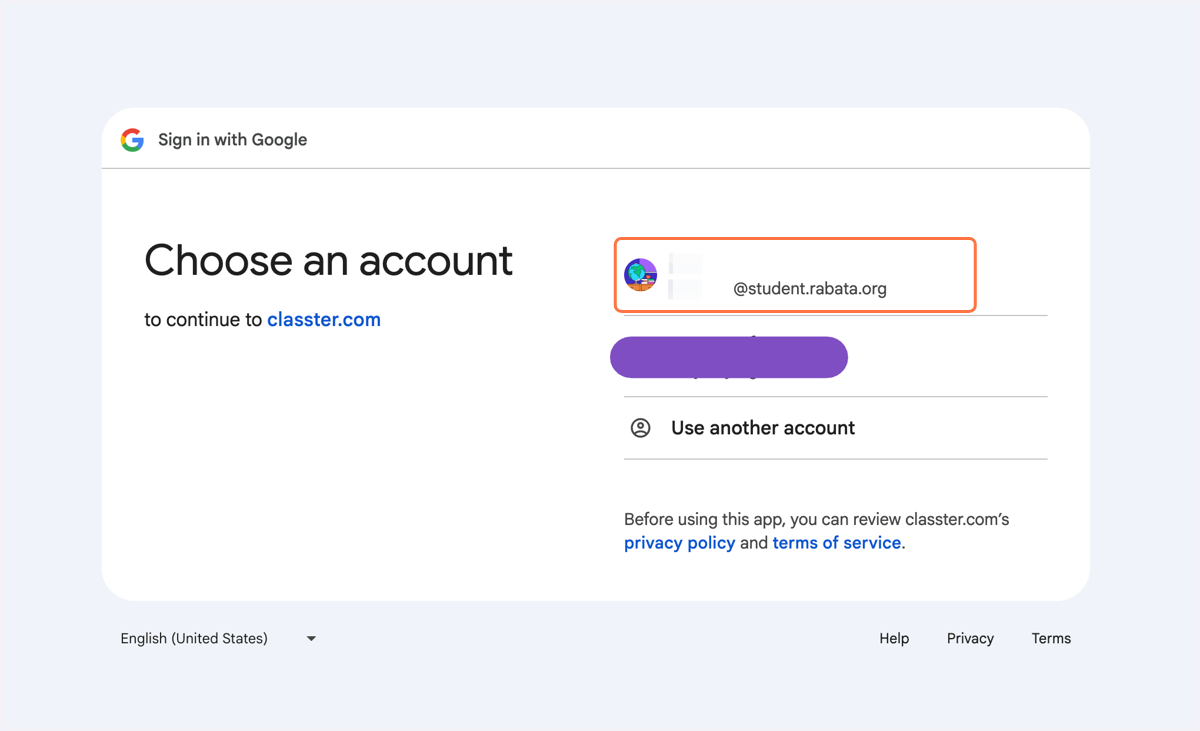
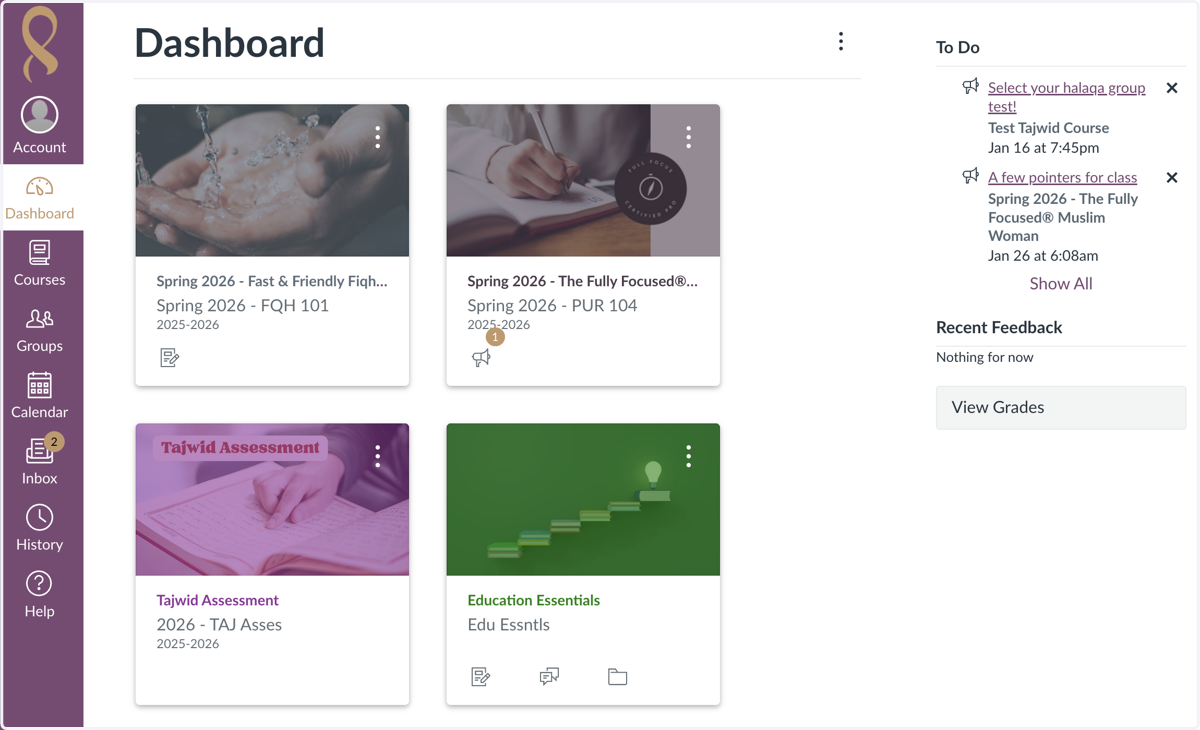
10. Accept the terms. You will then be redirected to your dashboard in Canvas.
Click on a course tile to access your course.
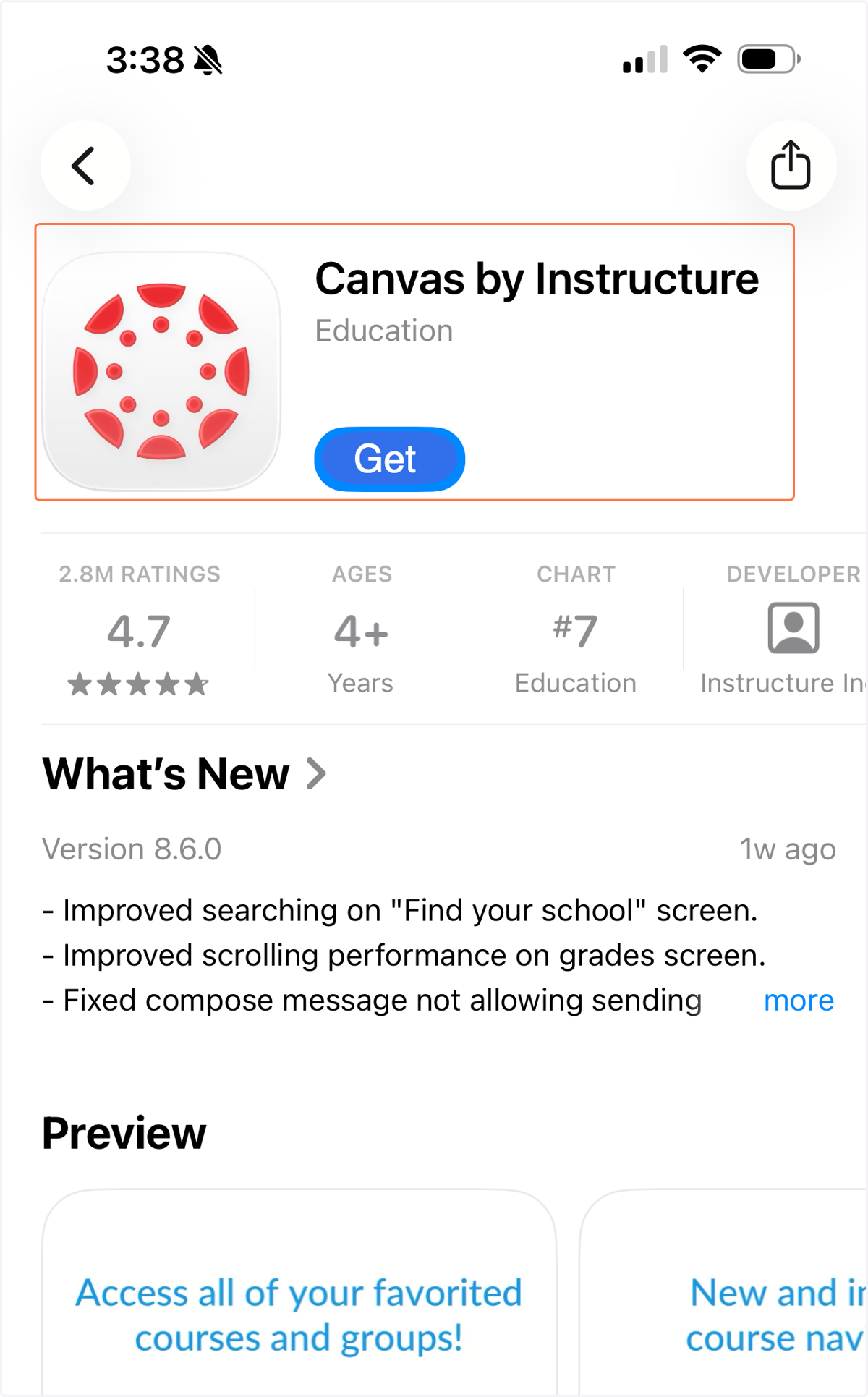
🔴 Canvas App for Mobile & Tablet
11. For iOS devices (iPhone, iPad), download from the Apple App Store
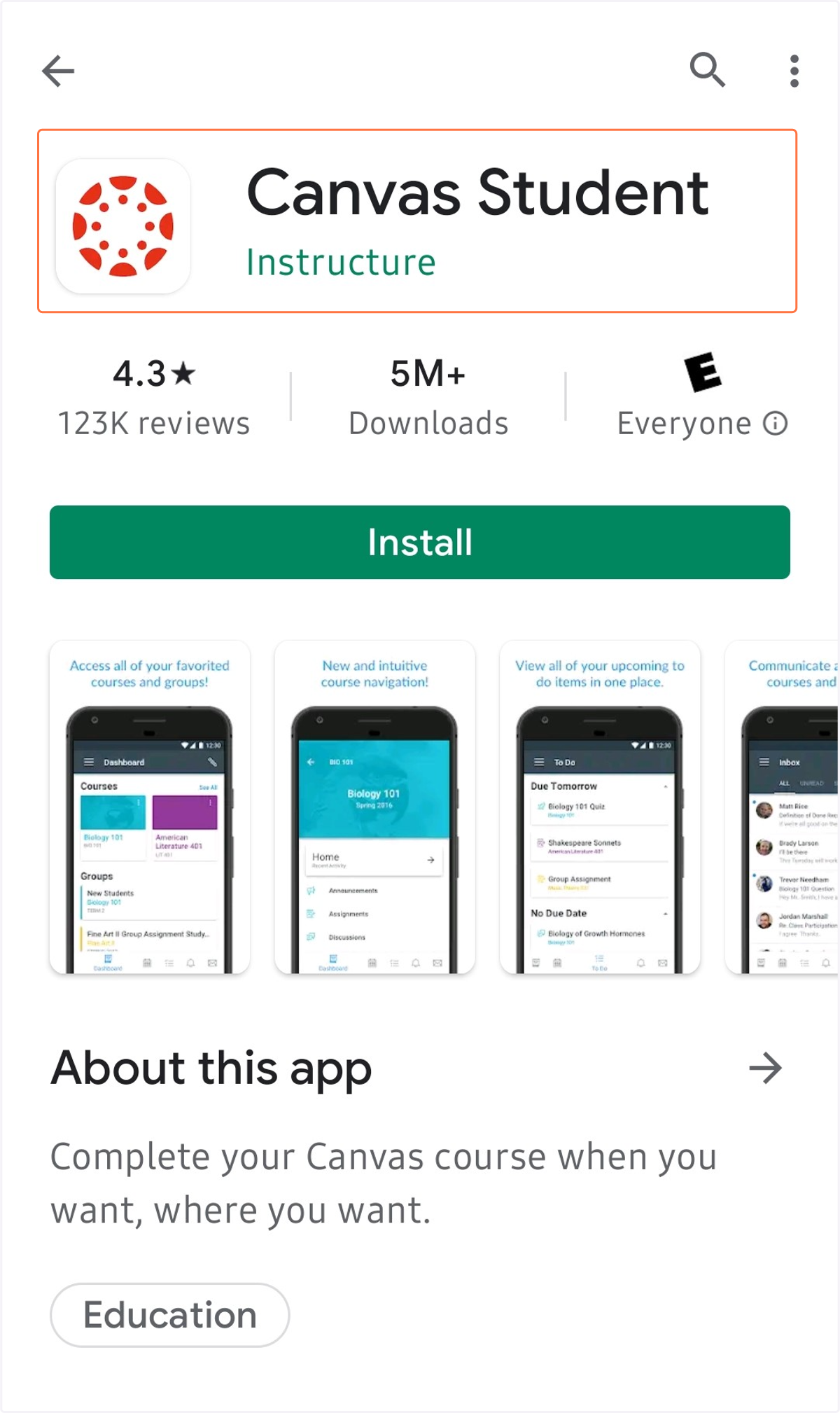
12. For Android devices, download from the Google Playstore
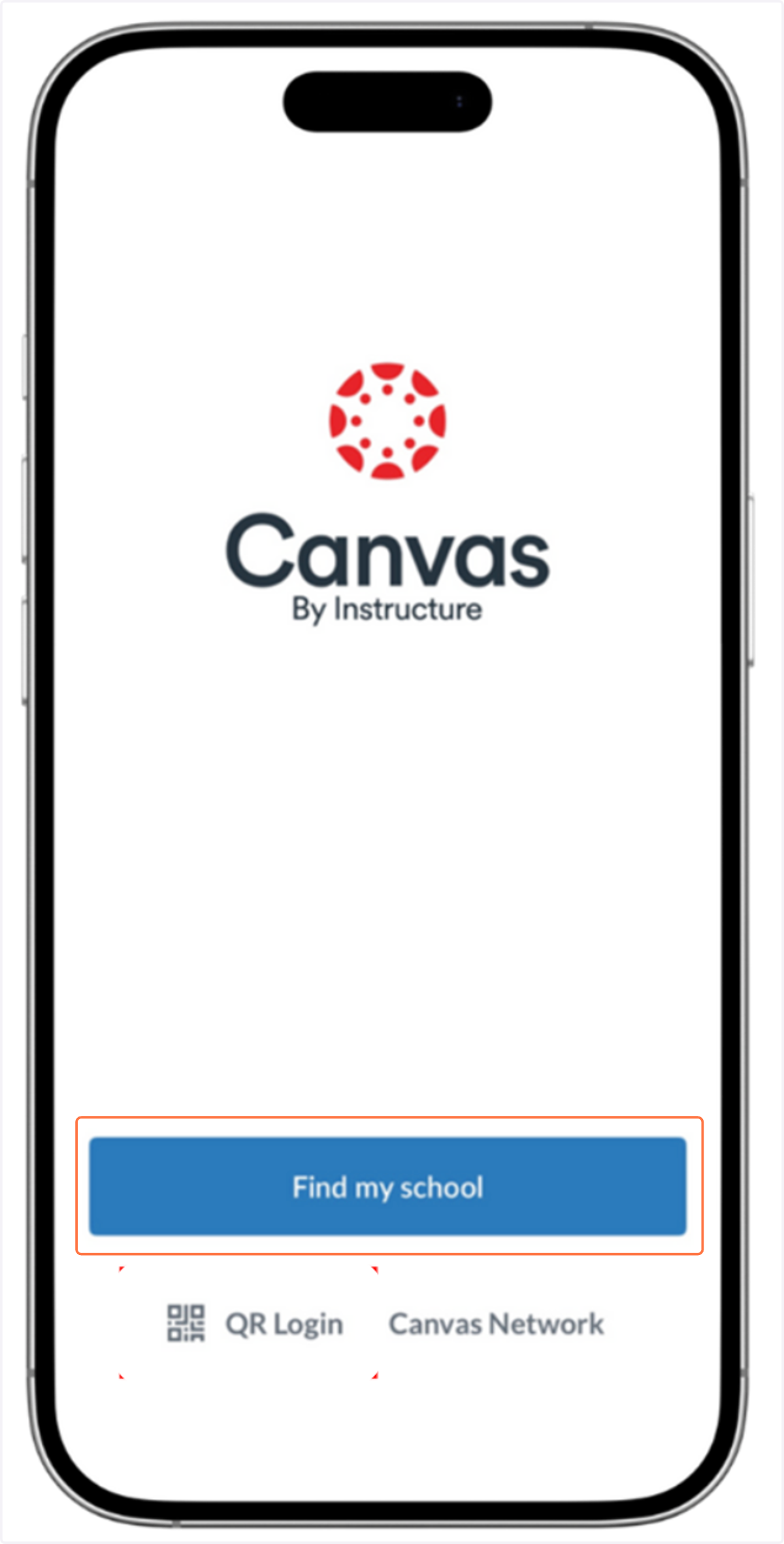
13. Open the App & lick Find My School
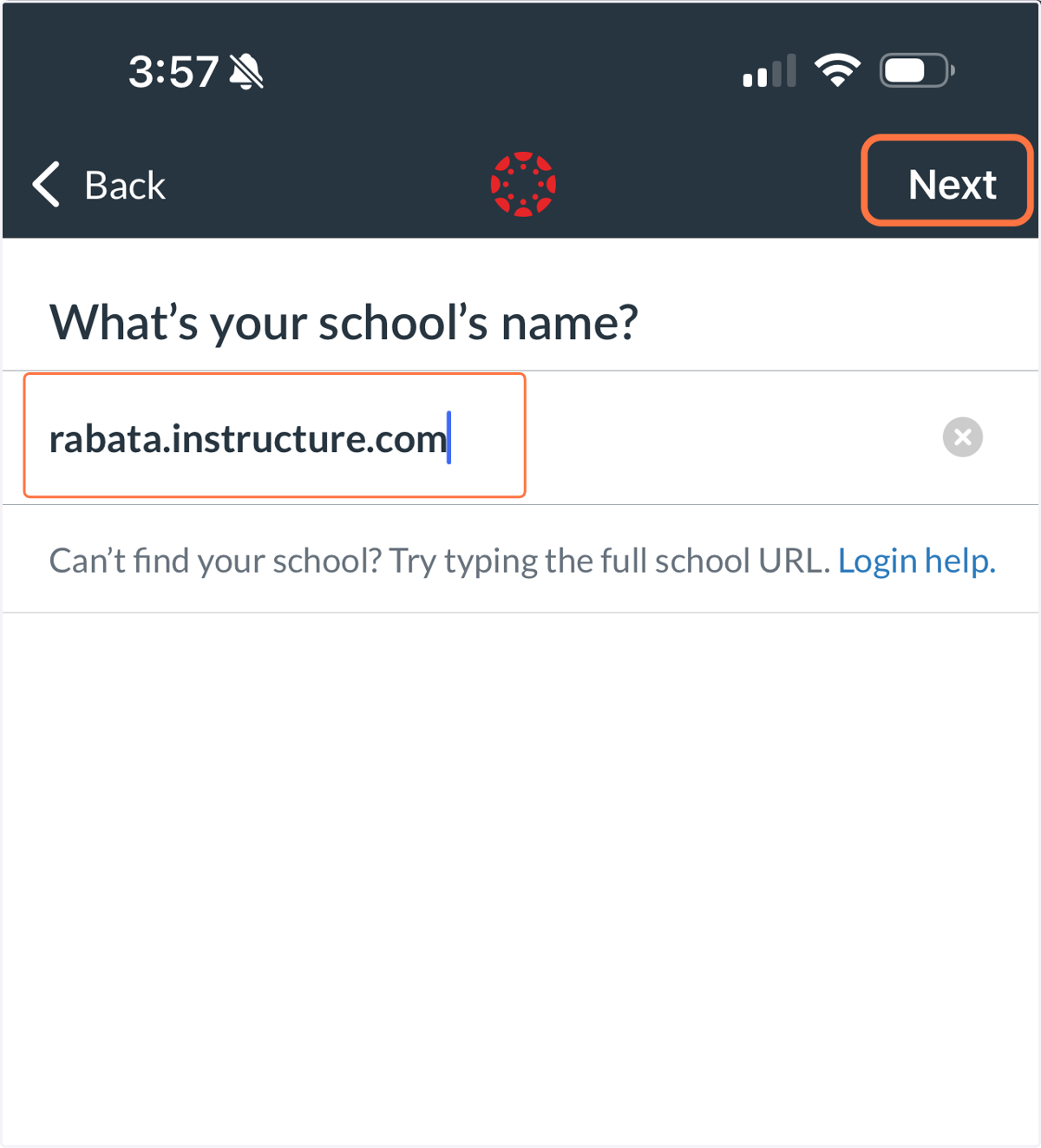
14. Type rabata.instructure.com and click Next
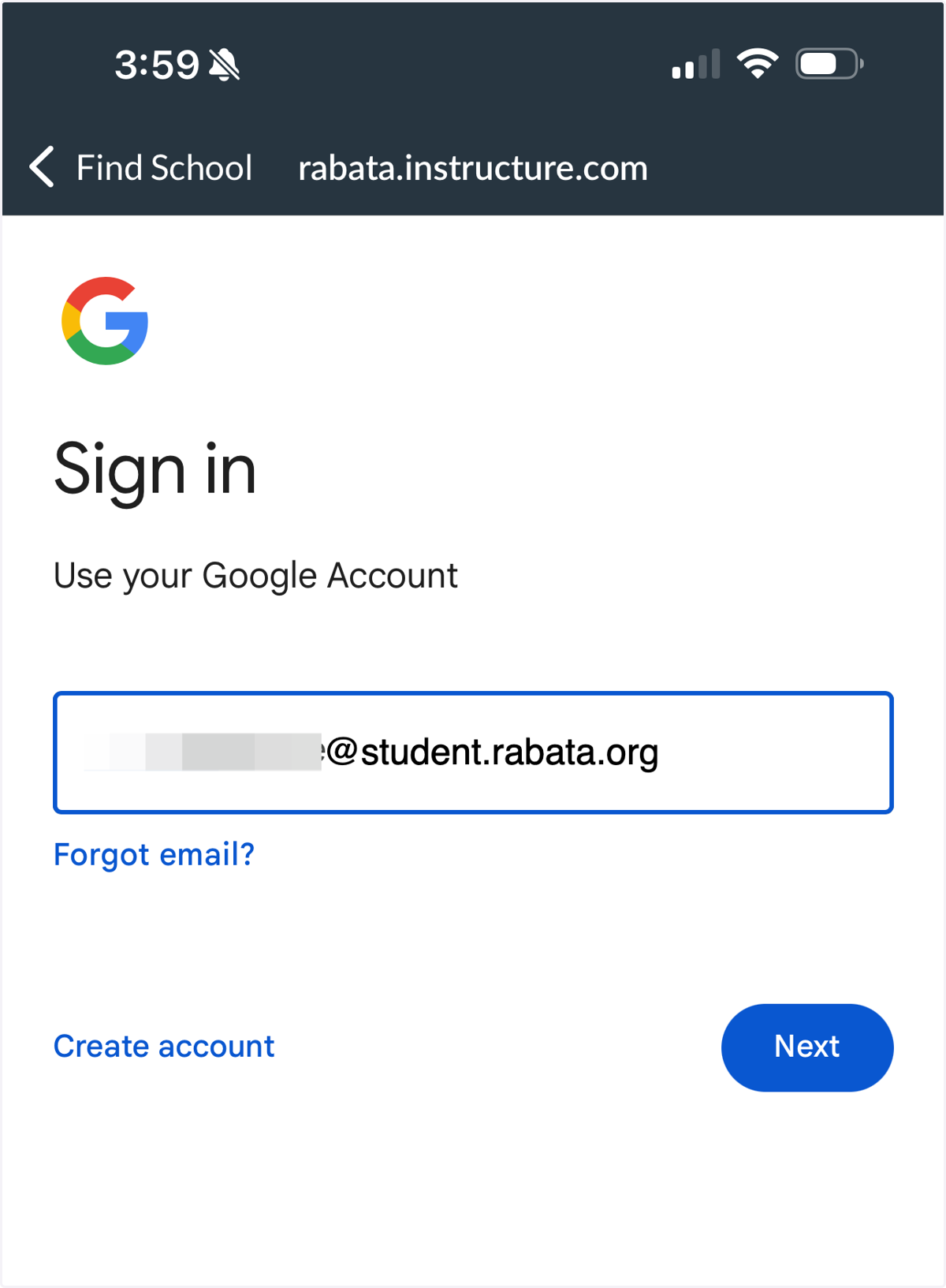
15. Sign into your student account
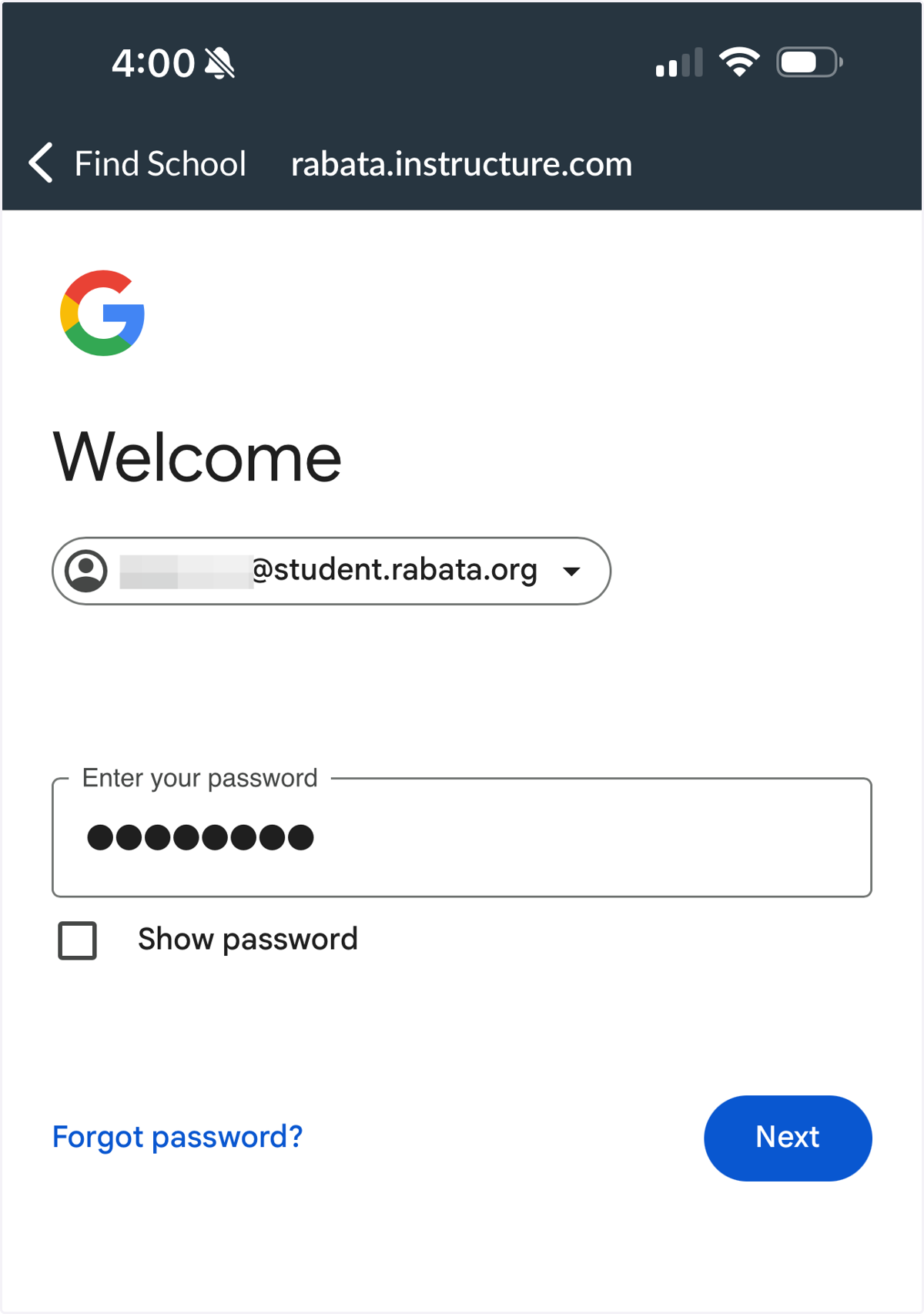
16. Enter your password
17. Access Your Course(s)