Access Math Support Videos in Bluebonnet Portal
Visit Bluebonnet Learning Portal at bluebonnet.tea.texas.gov
1. Scroll until you see the section labeled: "Resources"
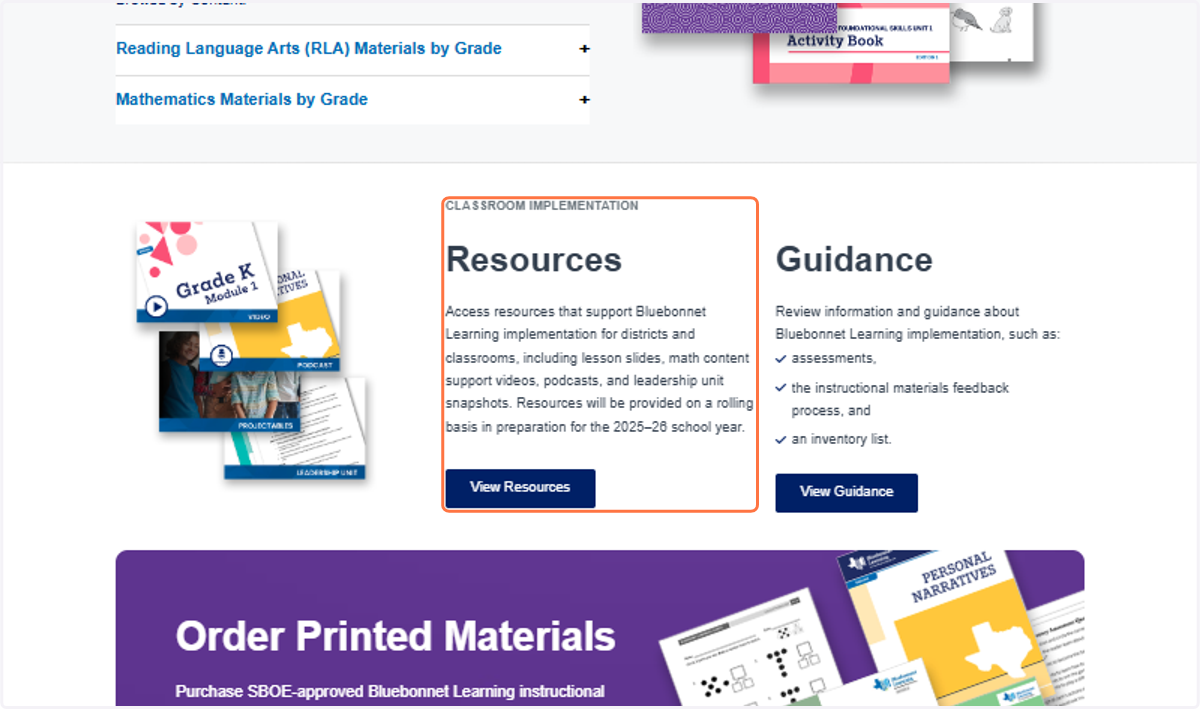
2. Click on View Resources
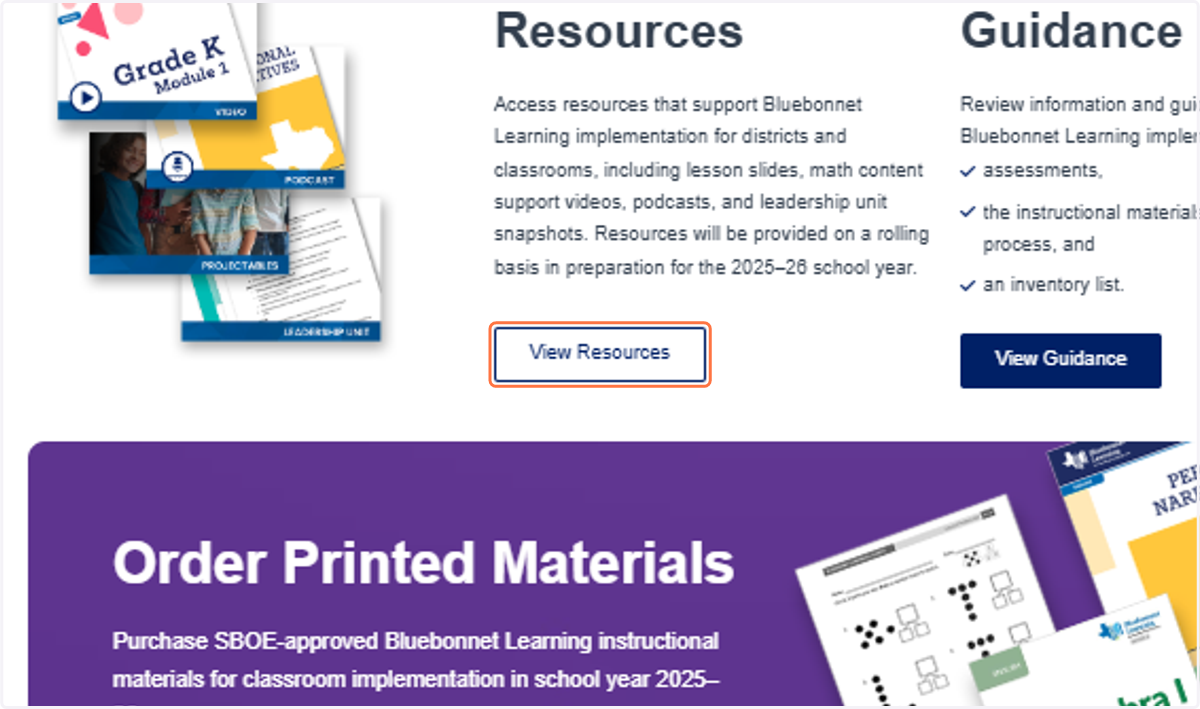
Bluebonnet Learning Implementation Resources | Texas Education Agency Official Digital Assets | Brandfolder
Once you click on resources, this will take you to a different website.
3. On the left hand side, you will see the word "Labels"
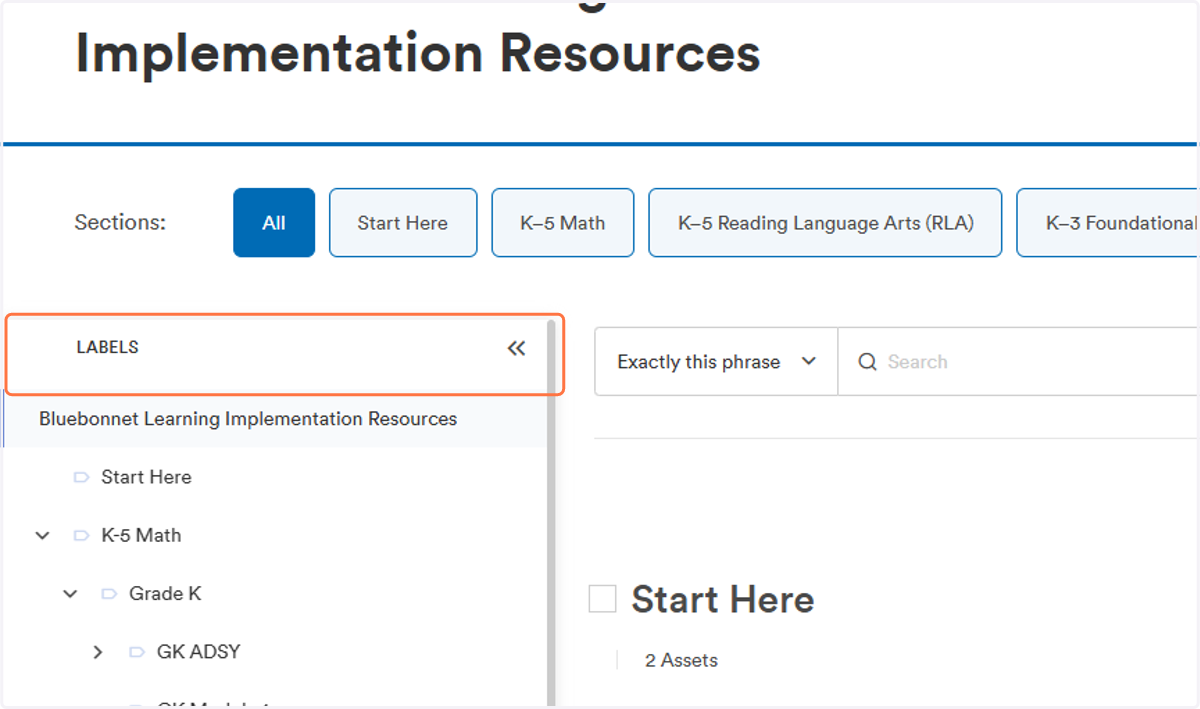
4. Click on K-5 Math
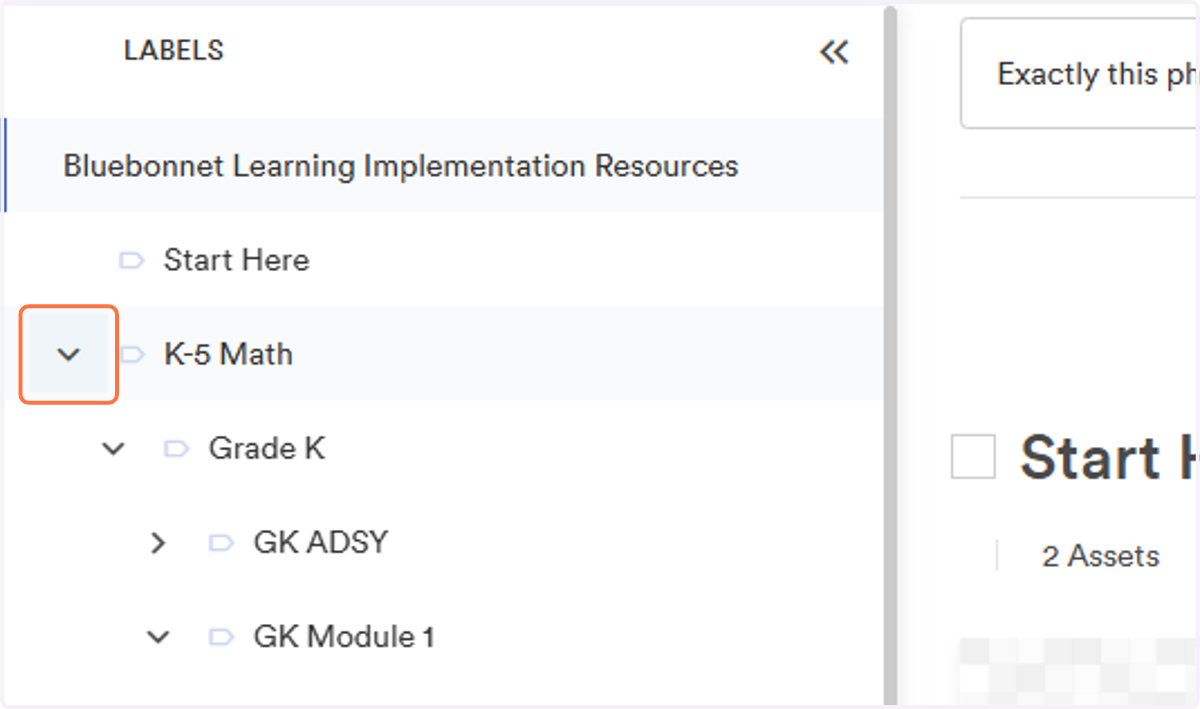
5. Different sections for each grade level will appear. Click on the grade level you are needing. For this example, I will click on Grade 1.
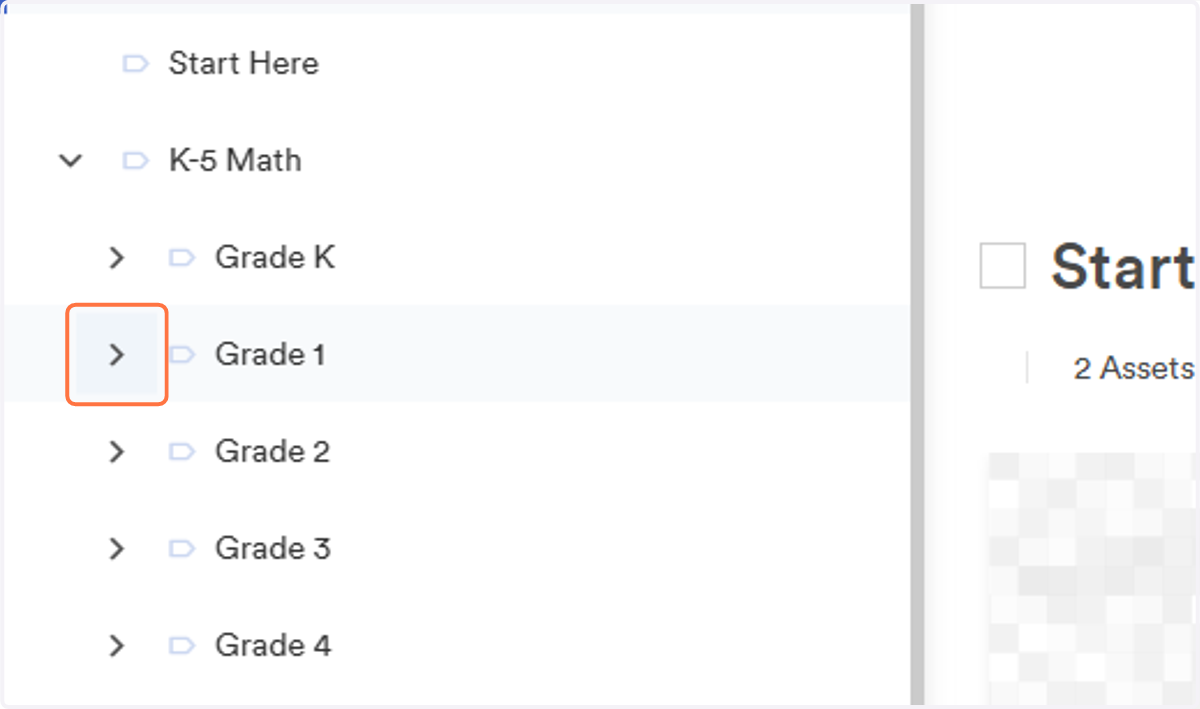
6. All of the modules for that grade level will appear. From there, find the module you currently need. For this example, I will click on Module 1.
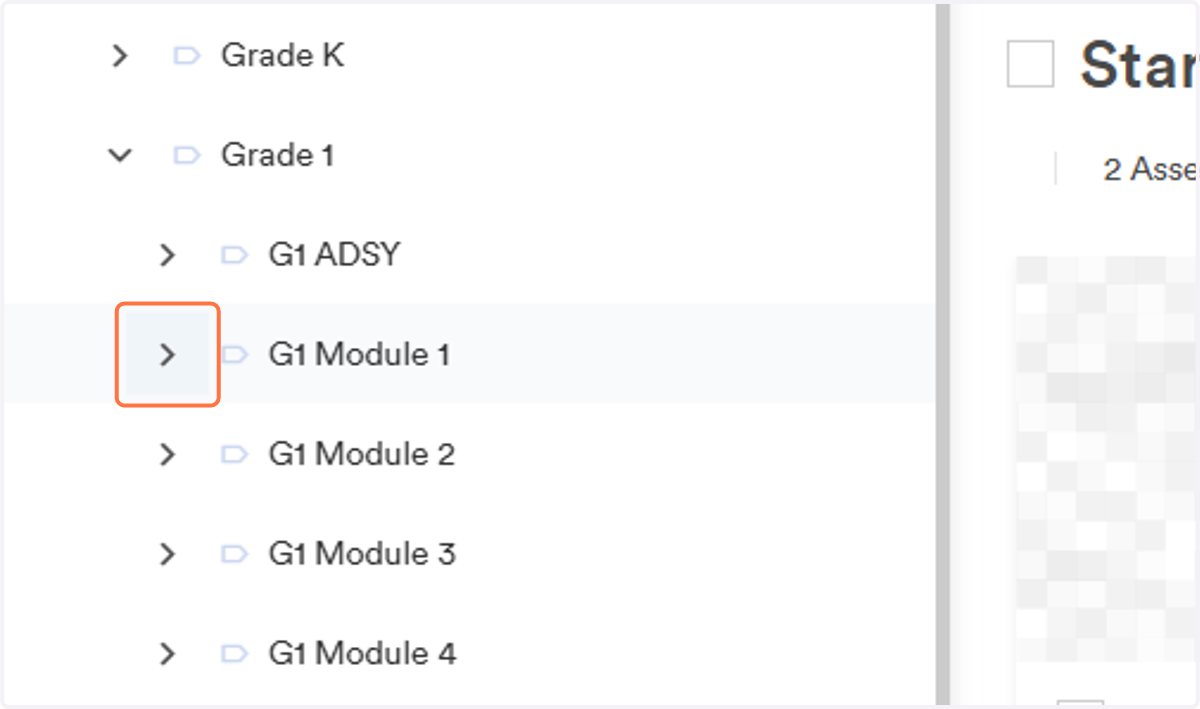
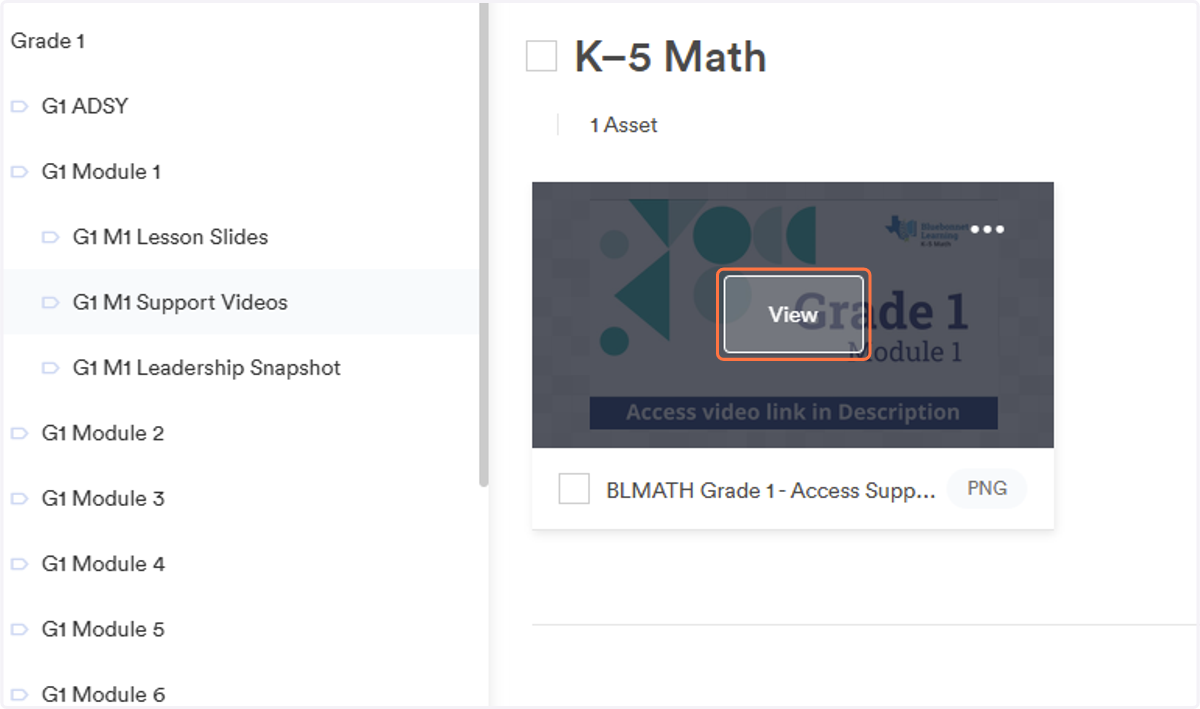
7. Multiple resources will appear. Click on G1 M1 Support Videos
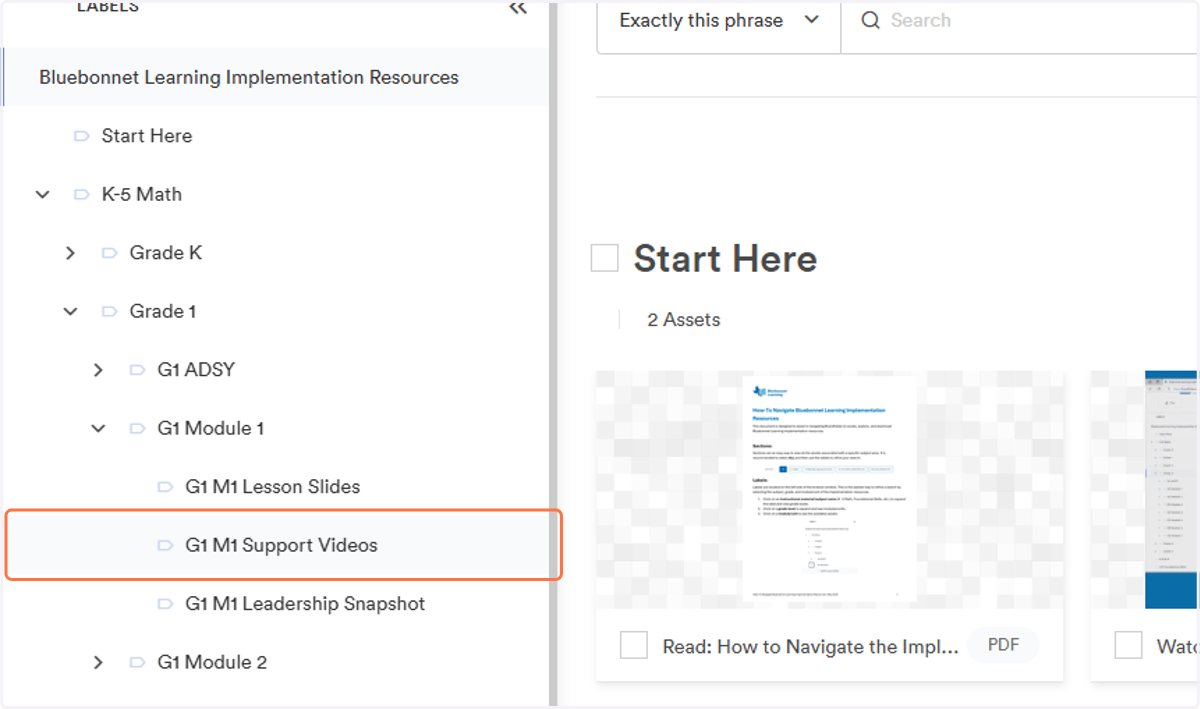
8. A file will pop up to the right. Click on View
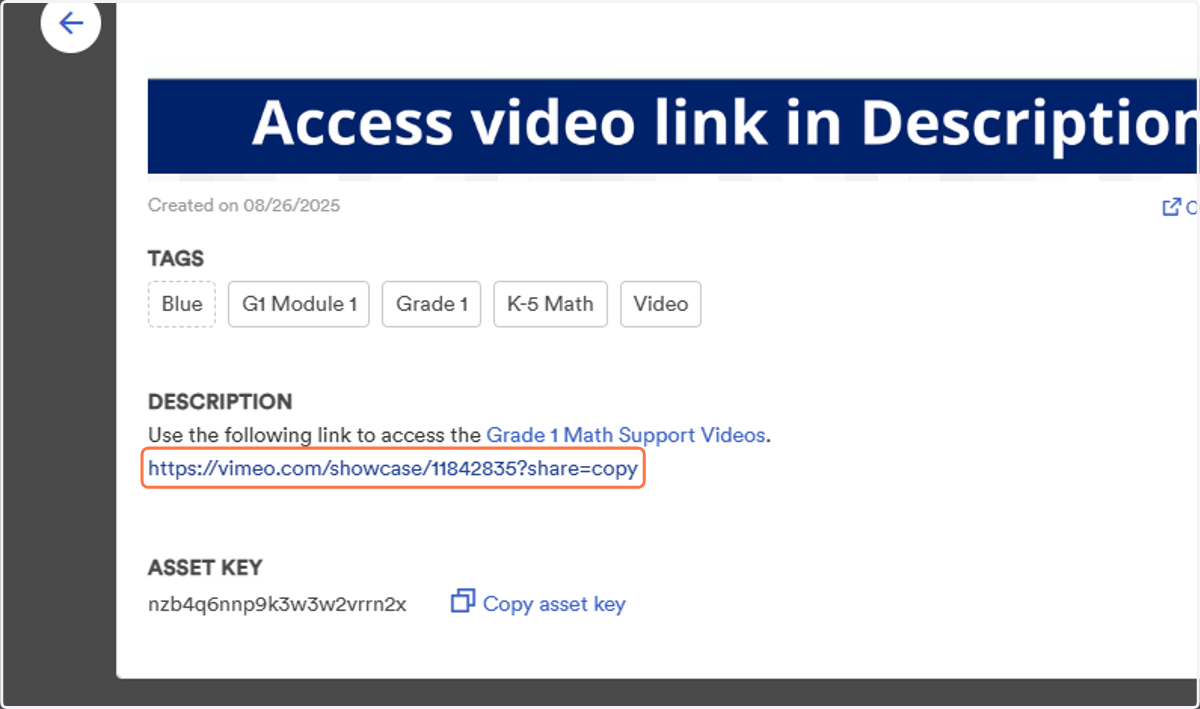
9. Once that file becomes full screen, you will need to find the vimeo link in the description. Click on the vimeo link. Example: https://vimeo.com/showcase/11842835?share=copy
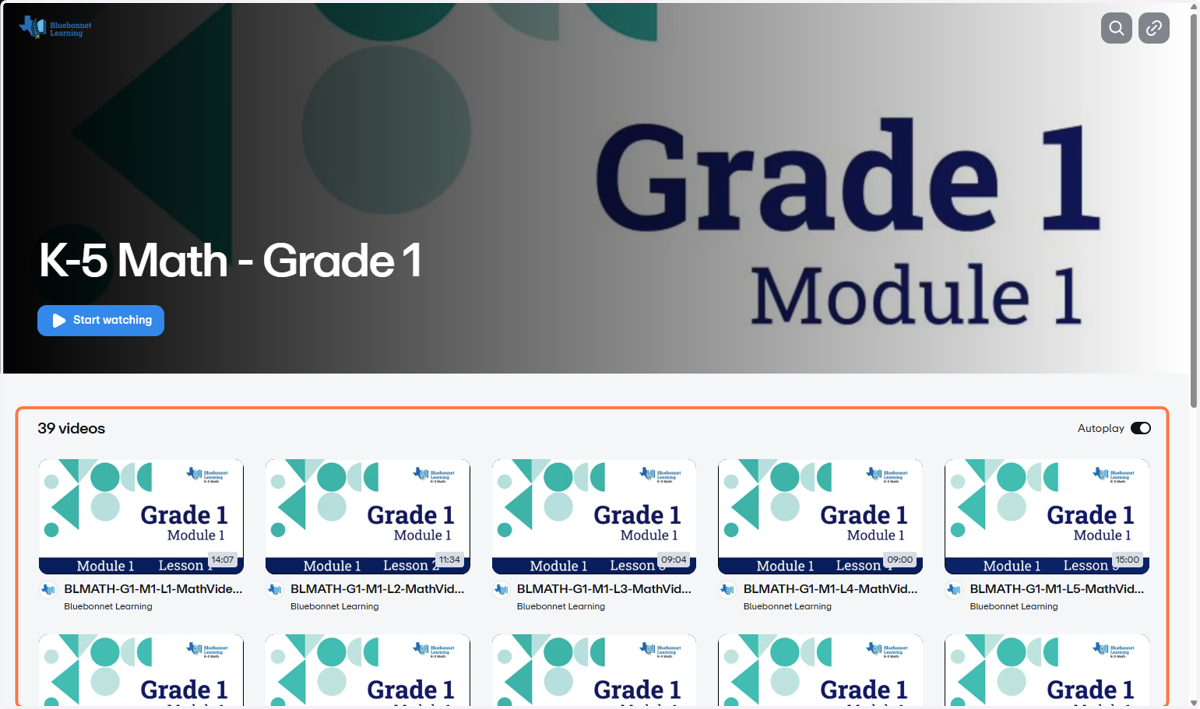
K-5 Math - Grade 1 on Vimeo
You will be directed to a different webpage.
10. Search through the videos until you find the lesson you would like to view.
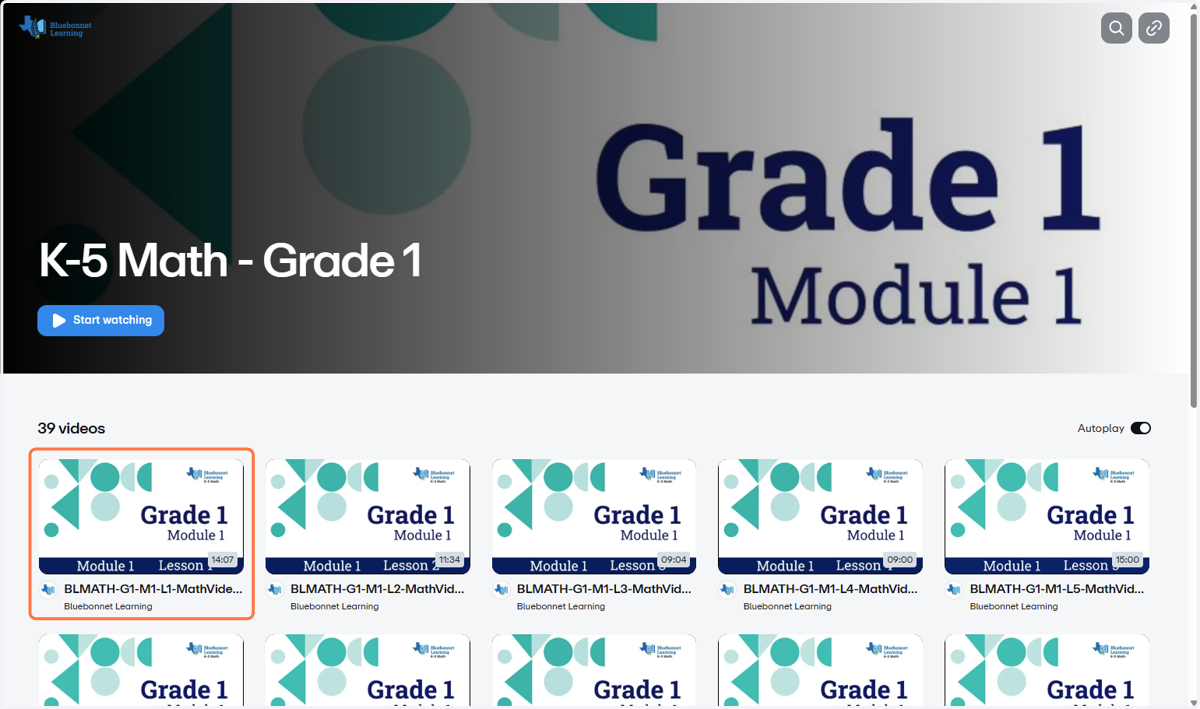
11. Click on the lesson of your choice. For this example, we will be viewing lesson 1. Click on the lesson video.
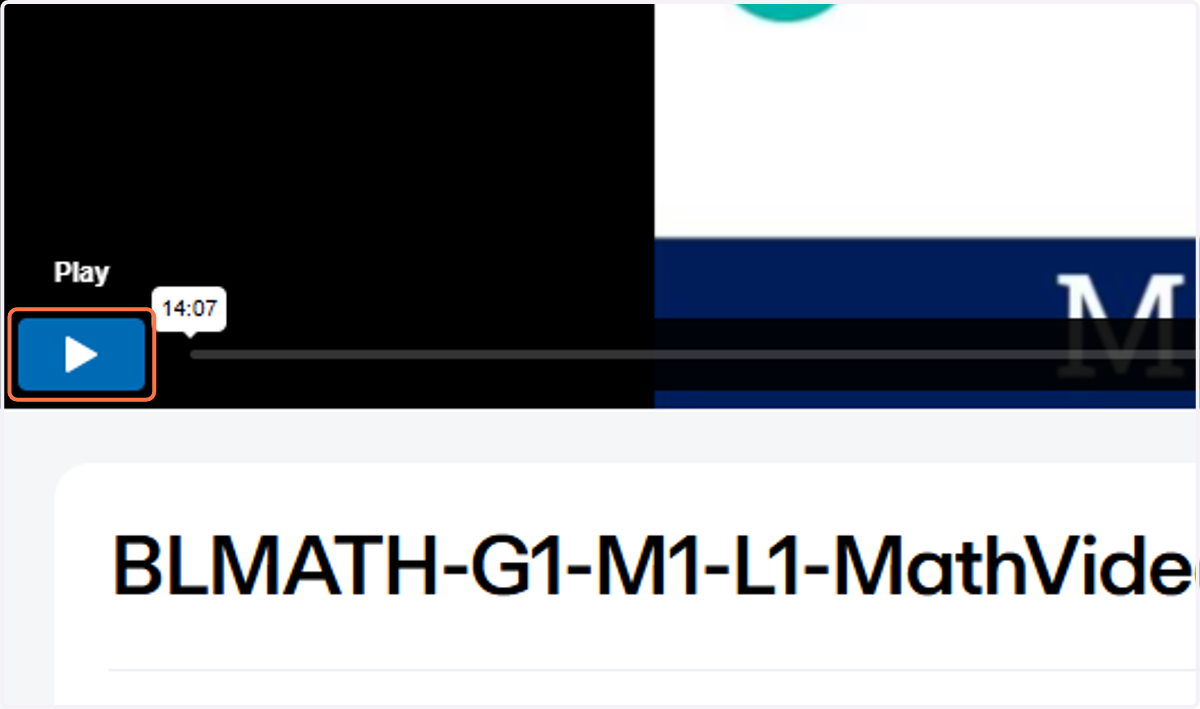
12. The video will pop up. Click on play.
13. To return to the library to select a different video. Click the back arrow on the top left hand corner.