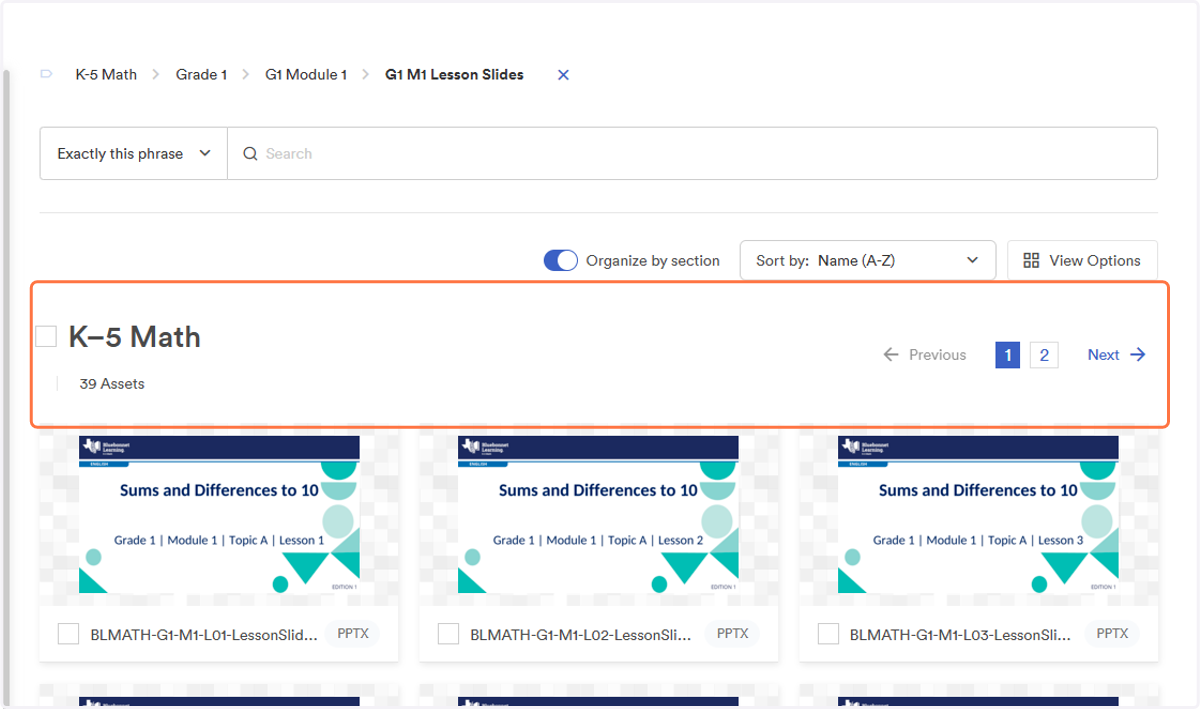
Access Bluebonnnet Learning Math Projectable Slides
Projectable slides for Bluebonnet Learning Math are NOW available on Bluebonnet Portal. Follow instructions below to access.
Visit Bluebonnet Learning Portal
Visit the portal at bluebonnet.tea.texas.gov
1. Bluebonnet Learning Portal
This is the home page for the Bluebonnet Learning Portal. Here is where you can find all of the available resources. In these instructions, we will specifically focus on accessing the digital version of the instructional materials.
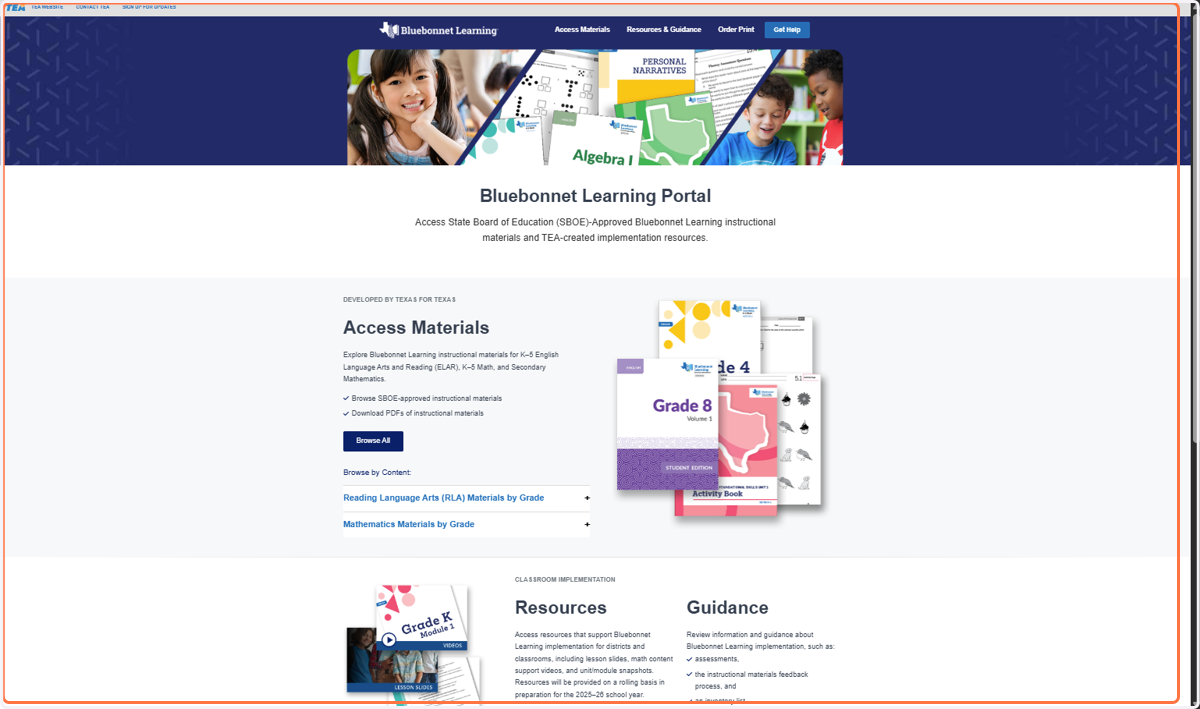
2. Resources
Scroll until you find the section titled "Resources."
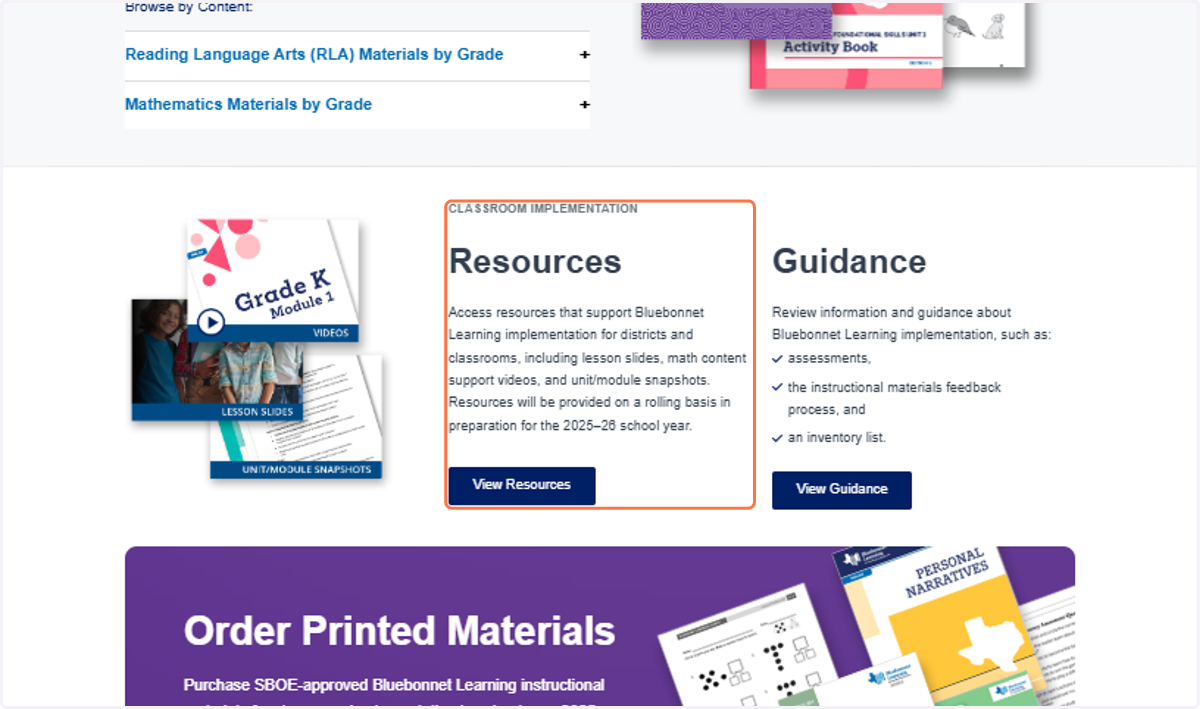
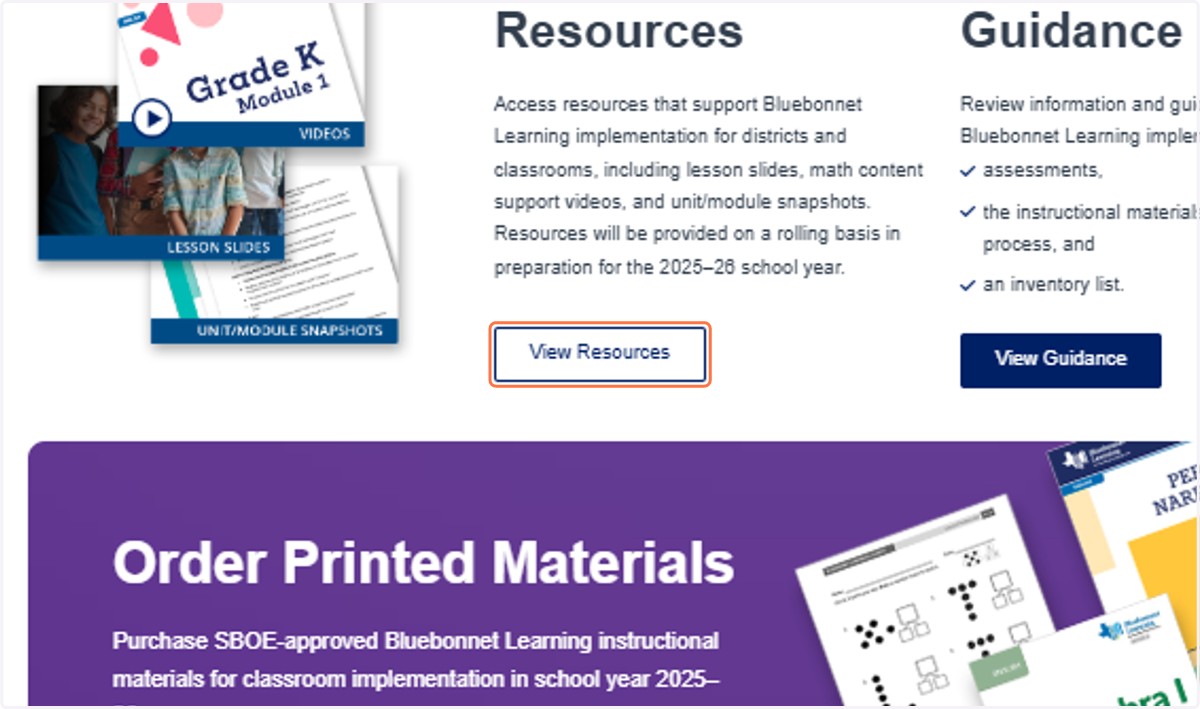
3. View Resources
Click on "View Resources."
Bluebonnet Learning Implementation Resources | Texas Education Agency Official Digital Assets | Brandfolder
You will be brought to another webpage.
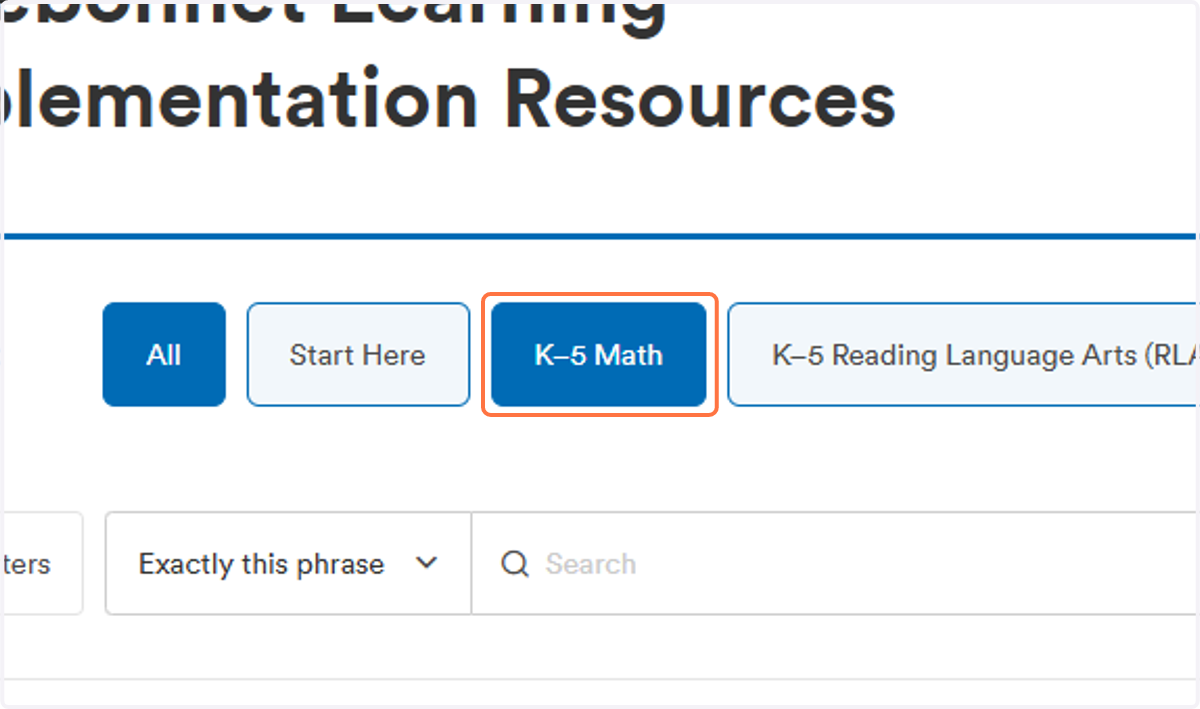
4. Click on K–5 Math
5. Select Materials
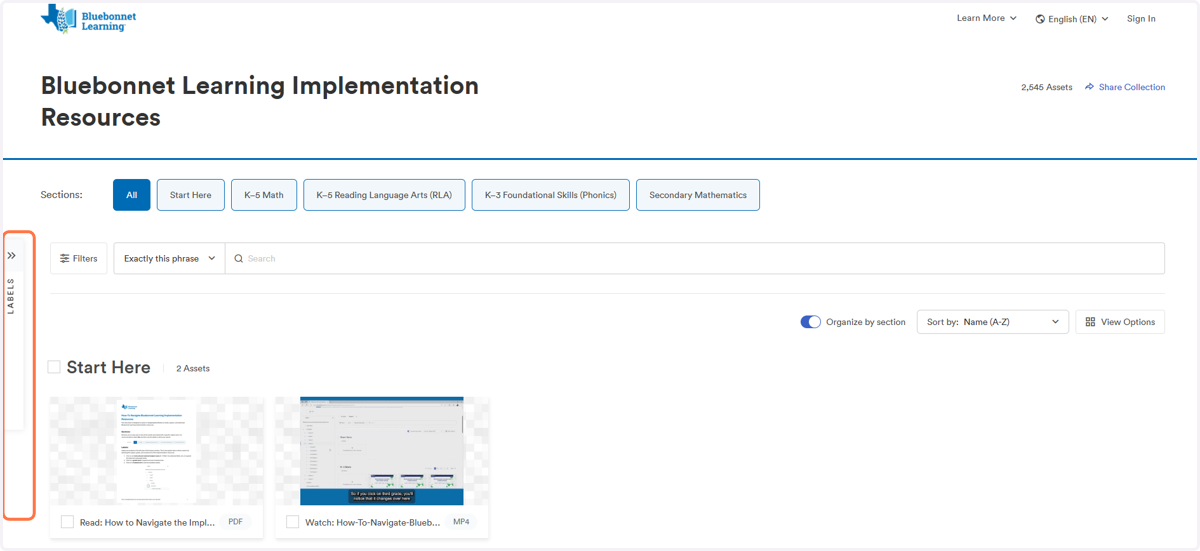
On the left hand side of the page, you will see a bar titled "Labels." Click on that bar.
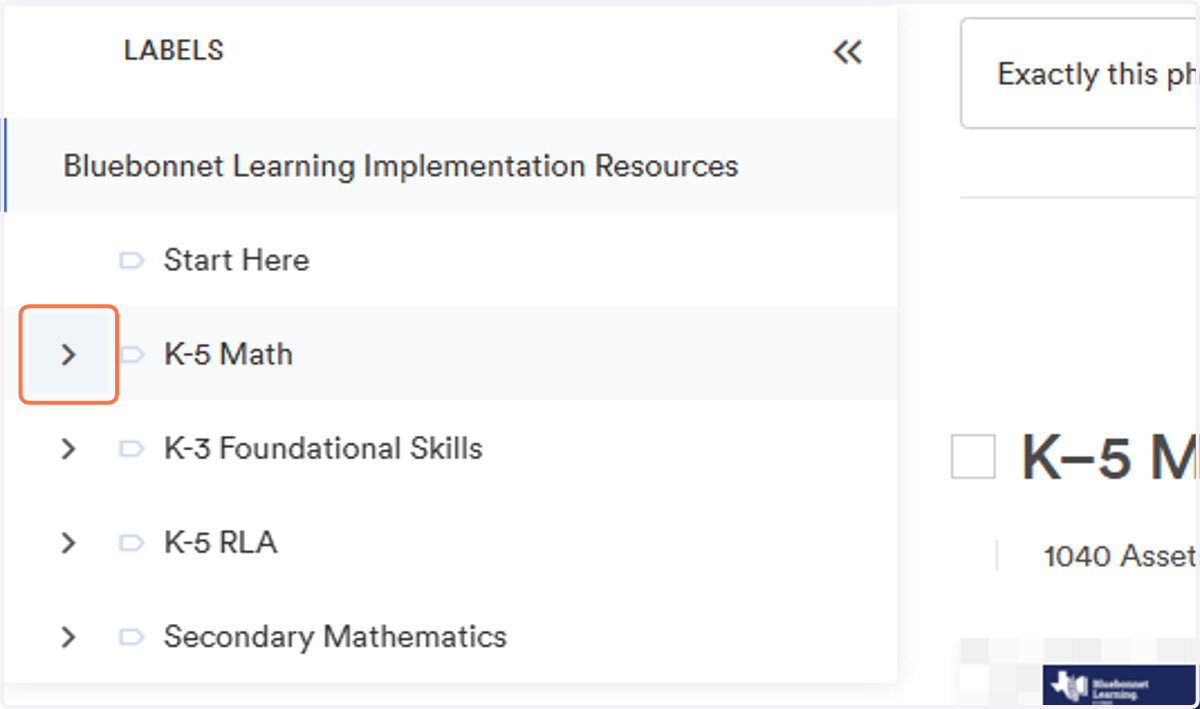
6. Select Content Area and Grade Band
There will be a menu that pops up with the different Bluebonnet Learning content areas and grade bands. Select the content/grade band you need. For this example we will use K-5 Math.
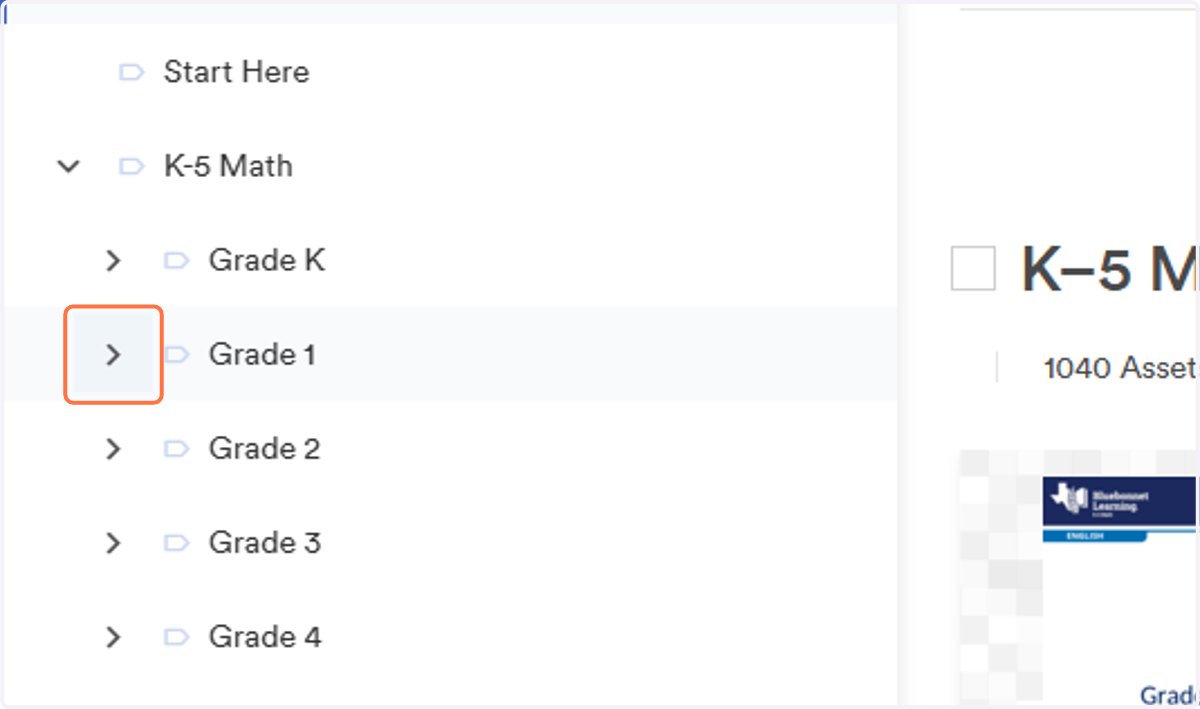
7. Select Grade Level
A drop down menu with all available grade levels will appear. Select the grade level you would like to view. For this example we will view Grade 1.
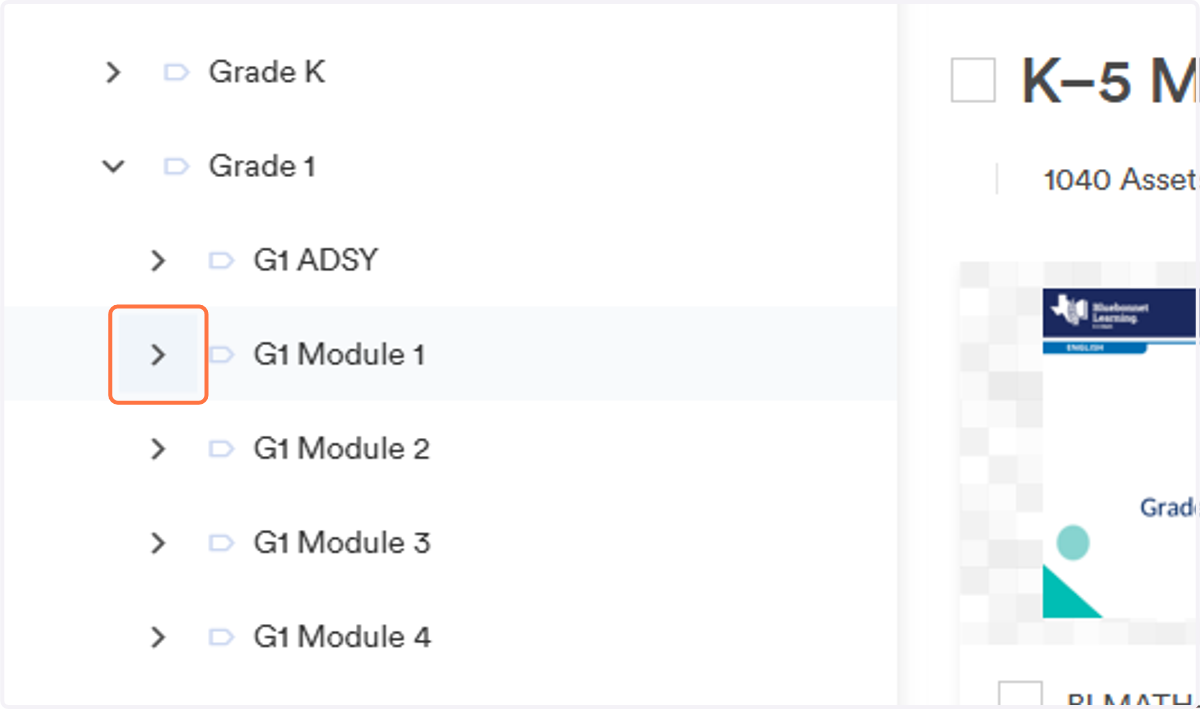
8. Select the Module
Another drop down menu will appear with the different modules available for the selected grade level. Select which module you would like to view. For this example we will view G1 Module 1.
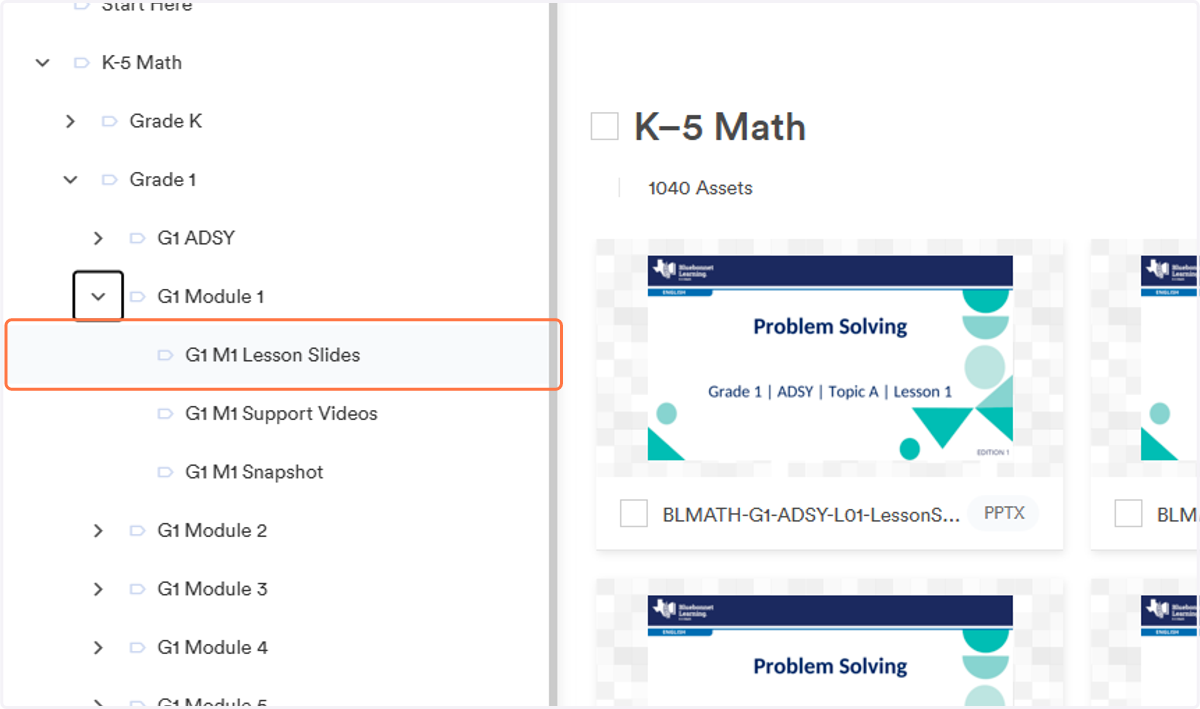
9. Select Slides
Another drop down menu will appear will multiple resources. These instructions are speficially for the Lesson Slides. Click on the Lesson Slides. (NOTE: NOT ALL MODULES ARE AVAILABLE AT THIS TIME FOR SECONDARY COURSES)
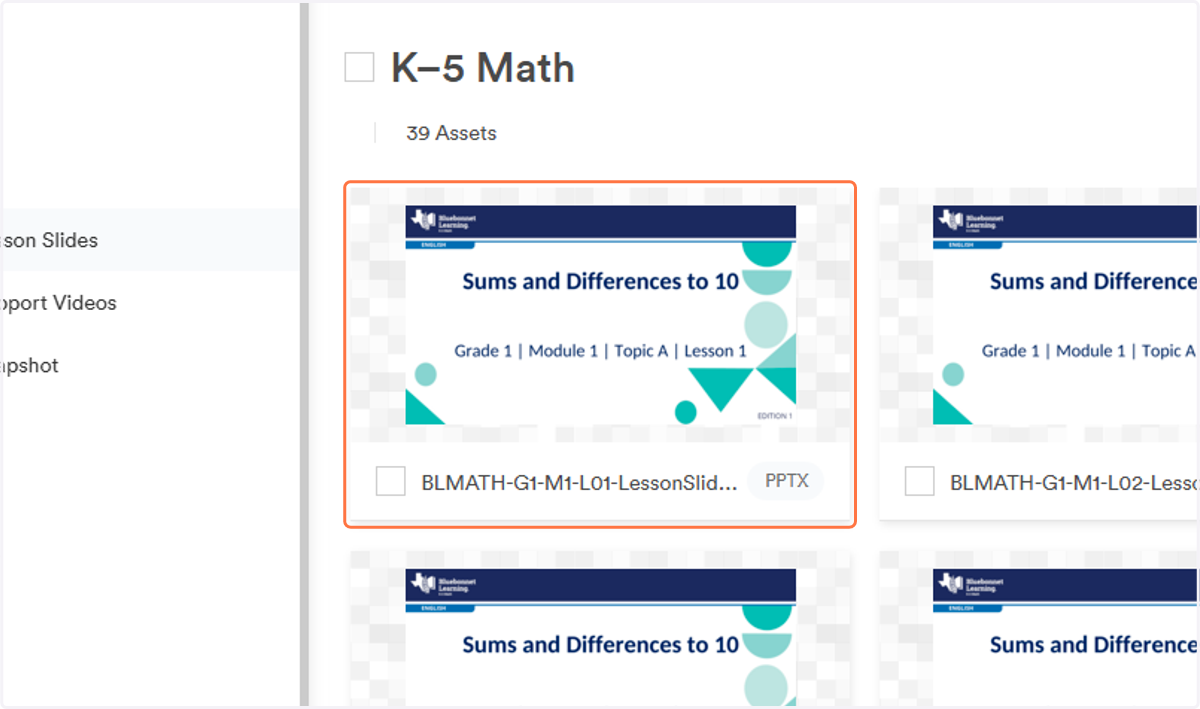
10. Find Correct Slide Deck
Find and select which lesson you would like to view. Each lesson has its own slide deck. Once you find the slide deck you would like to view, click "view."
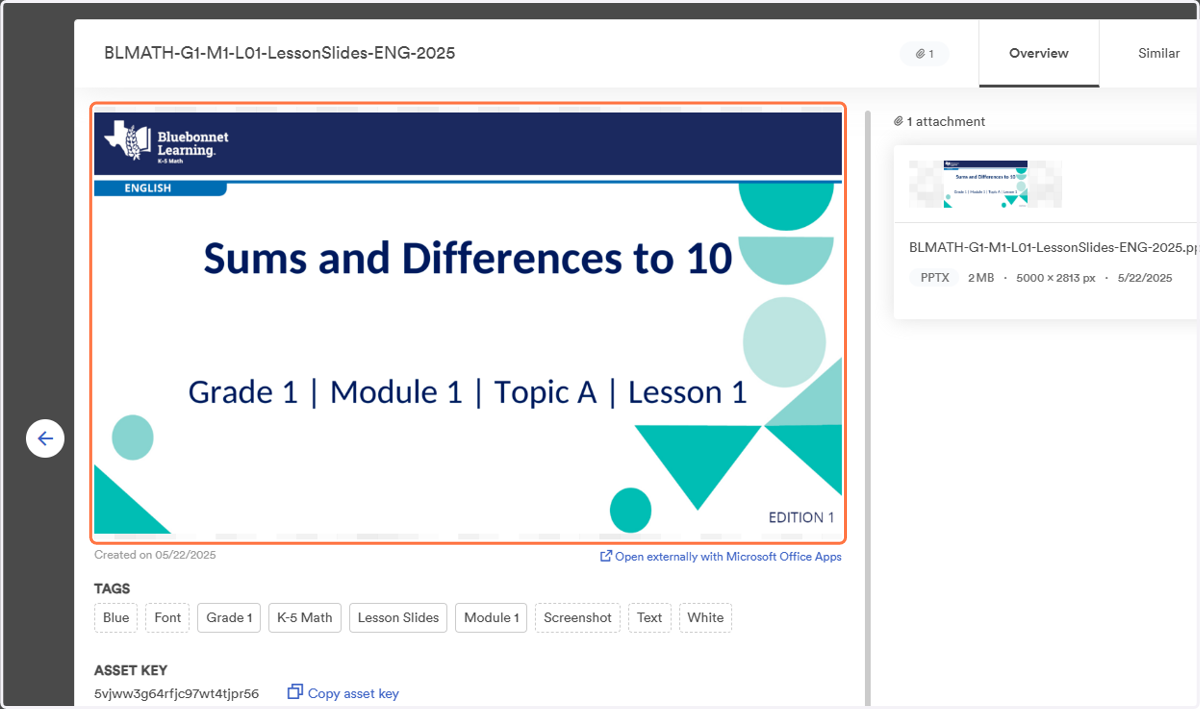
11. Viewing Slide Deck
To view the slide deck prior to downloading, click on the viewing window.
12. Viewing Next Slide
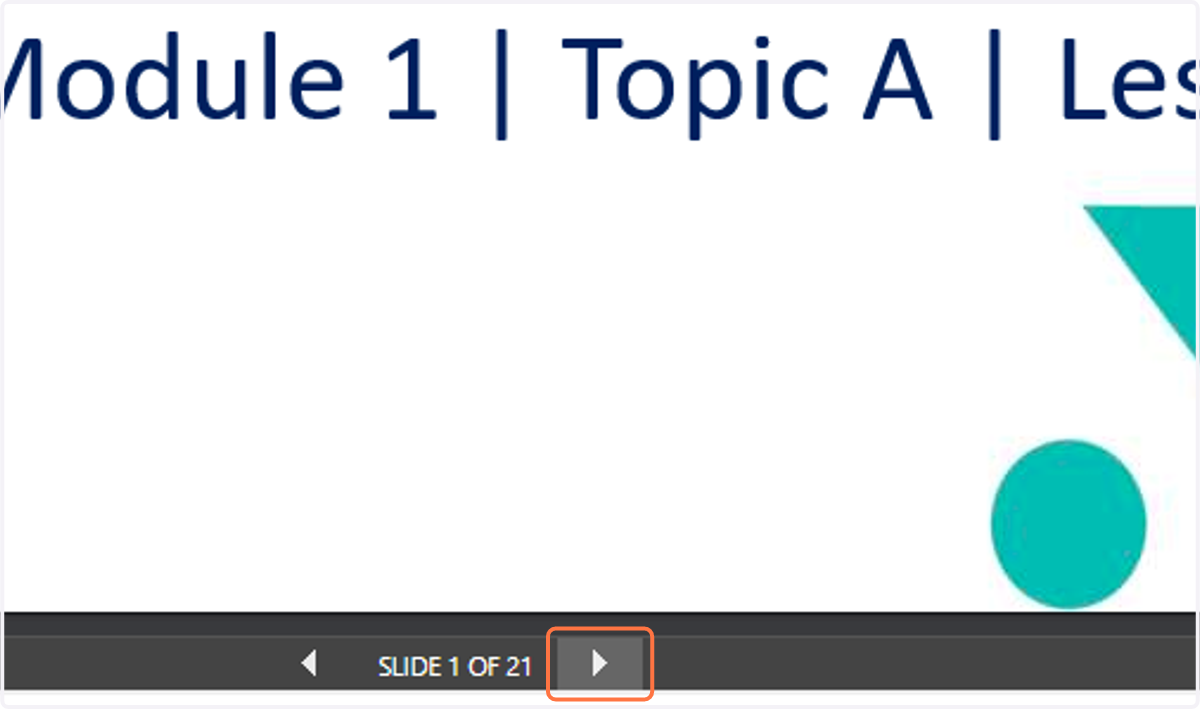
To view all of the slides, click on the arrows at the bottom on the screen. You will not be able to edit in this view. To exit out of this view, you will need to close the tab on your browser.
13. Exit This View
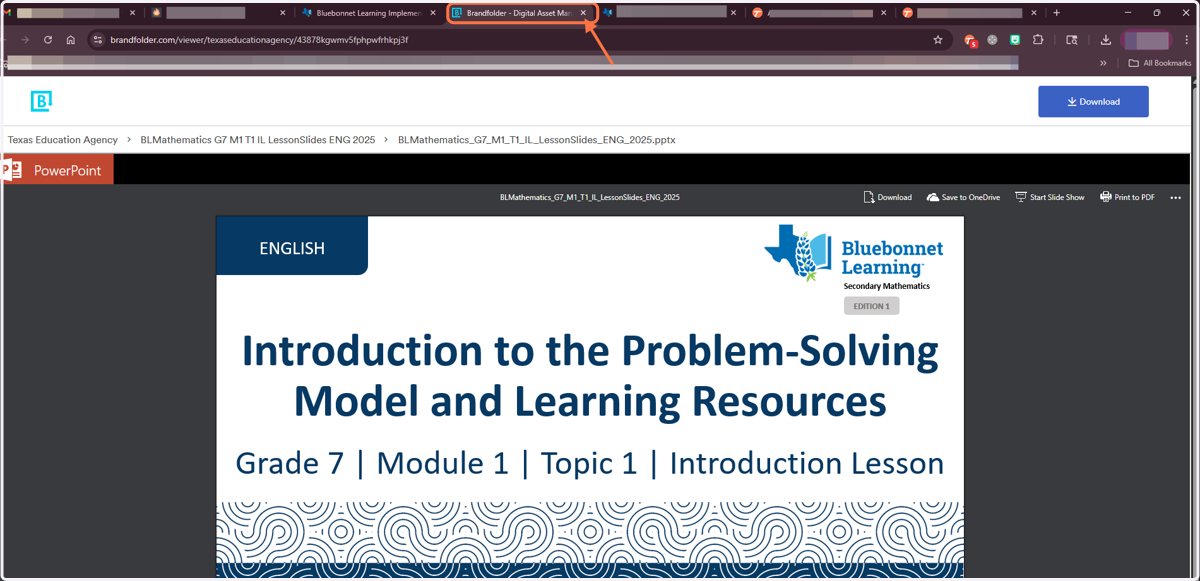
To exit out of this view, you will need to close the tab on your browser titled "Brandfolder."
14. Go Back To This Tab
Make sure you are on the correct browser tab. This is what your screen should resemble. The only different could be the grade level and lesson.
15. Downloading Slides to Edit
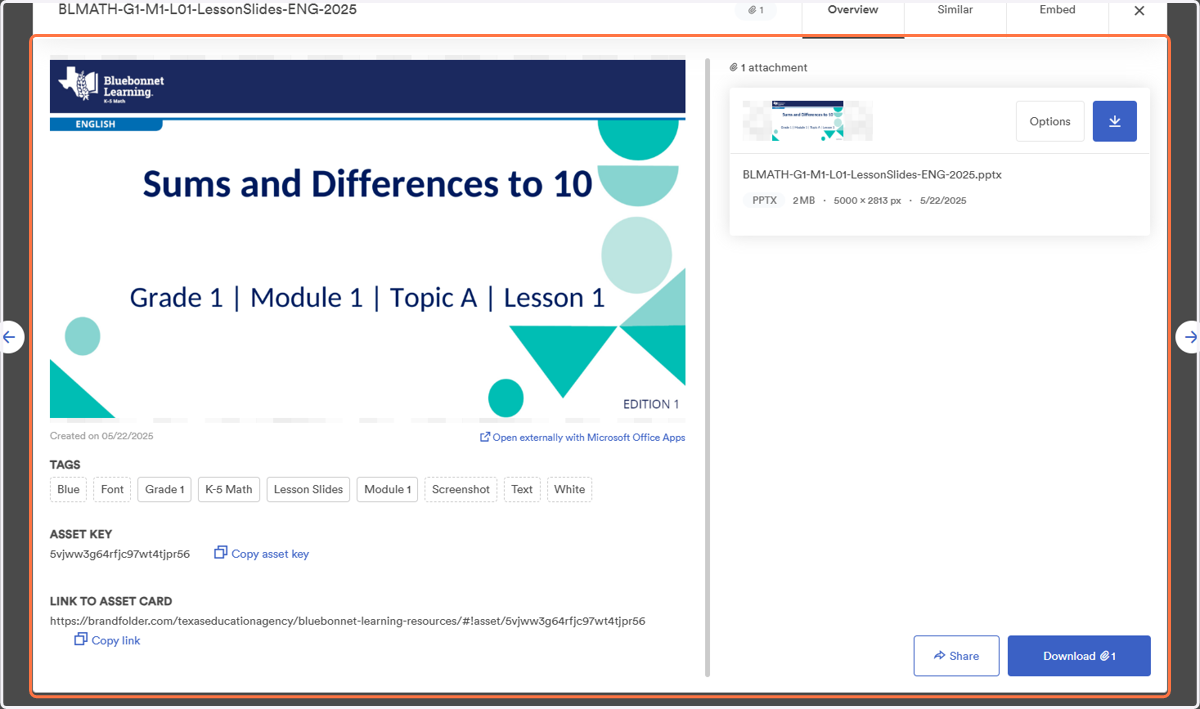
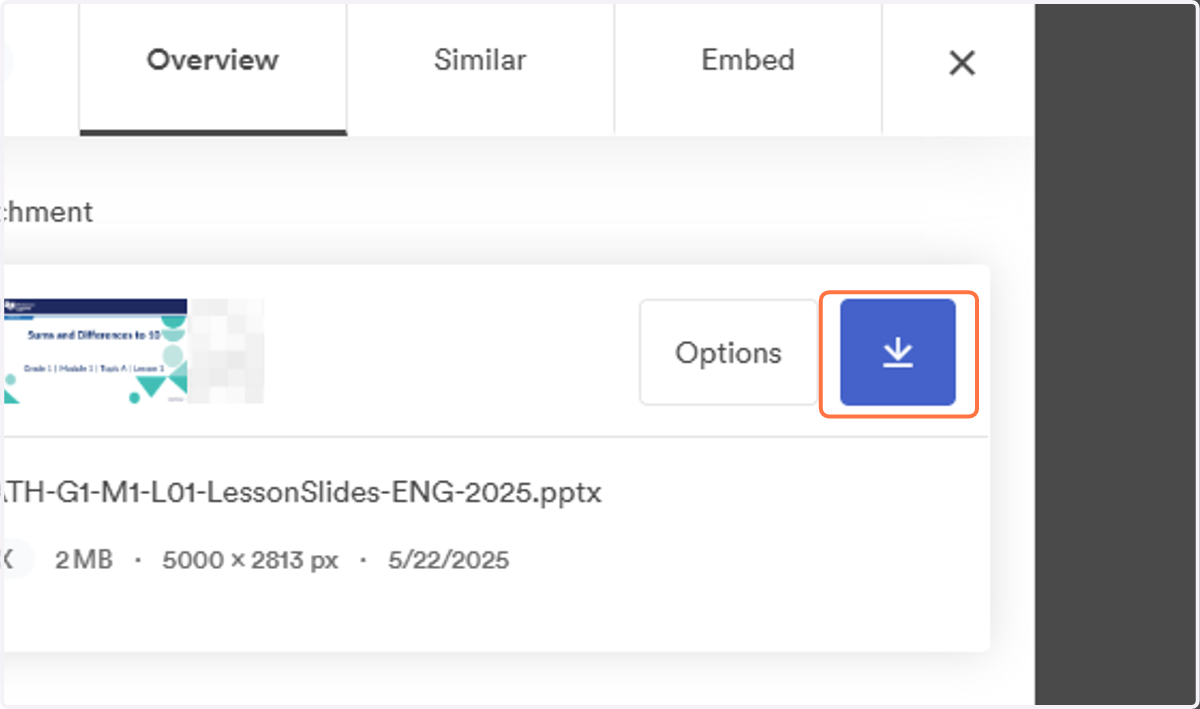
To edit the slides, you will need to download. Select the download button on the right hand side of the screen. Continue with the steps you normally take when you download files to your device. You will need to have Powerpoint Software. You can also upload the slides to your Google Drive.
16. Viewing a Different Slide Deck
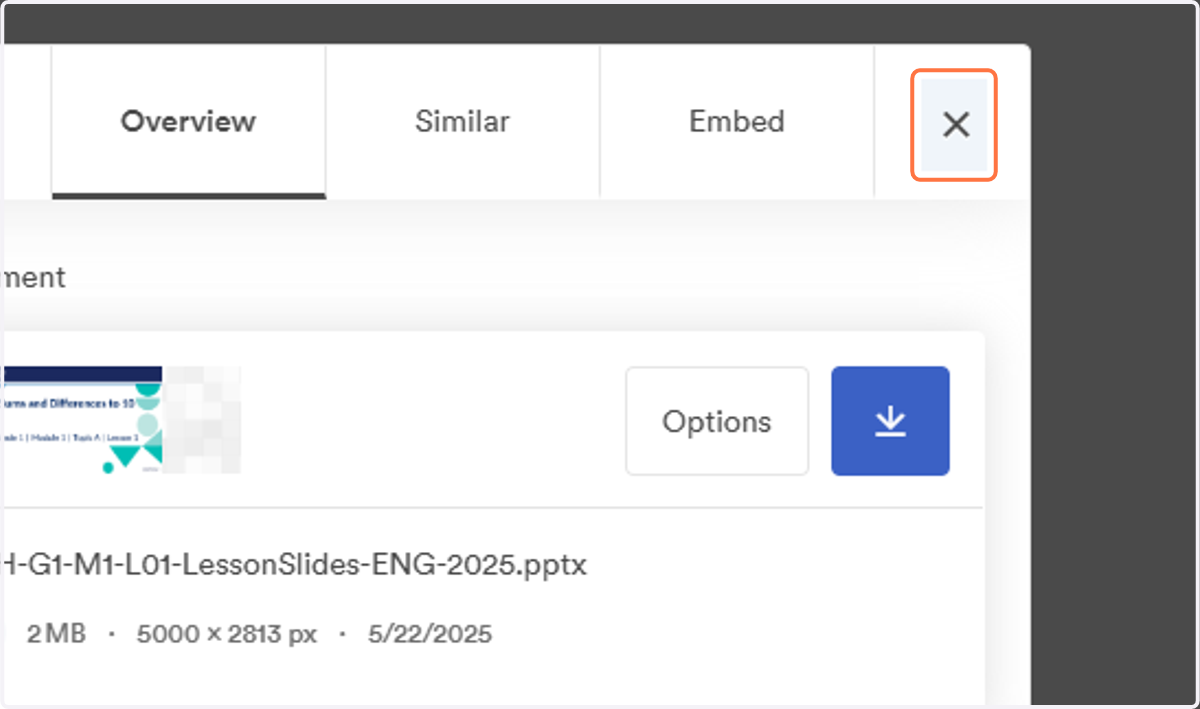
To view a different slide deck, you will need to exit this viewing window. Click the X in the top right hand corner of the screen.
17. Continue Browsing
Continue browsing and selecting different files you would like to view or download.