Duplicating Products and Categories on one Storefront | BG_047
In this quick tutorial, we'll see how to duplicate existing Products and Categories within a single Storefront.
Please note, it is not possible to directly duplicate Products and Categories between different Storefronts. You can, however, utilise the Product Excel import tool, which will allow you to export much of your catalogue's information from one Storefront and then recreate it on another.
This tutorial focuses on duplication on a single Storefront.
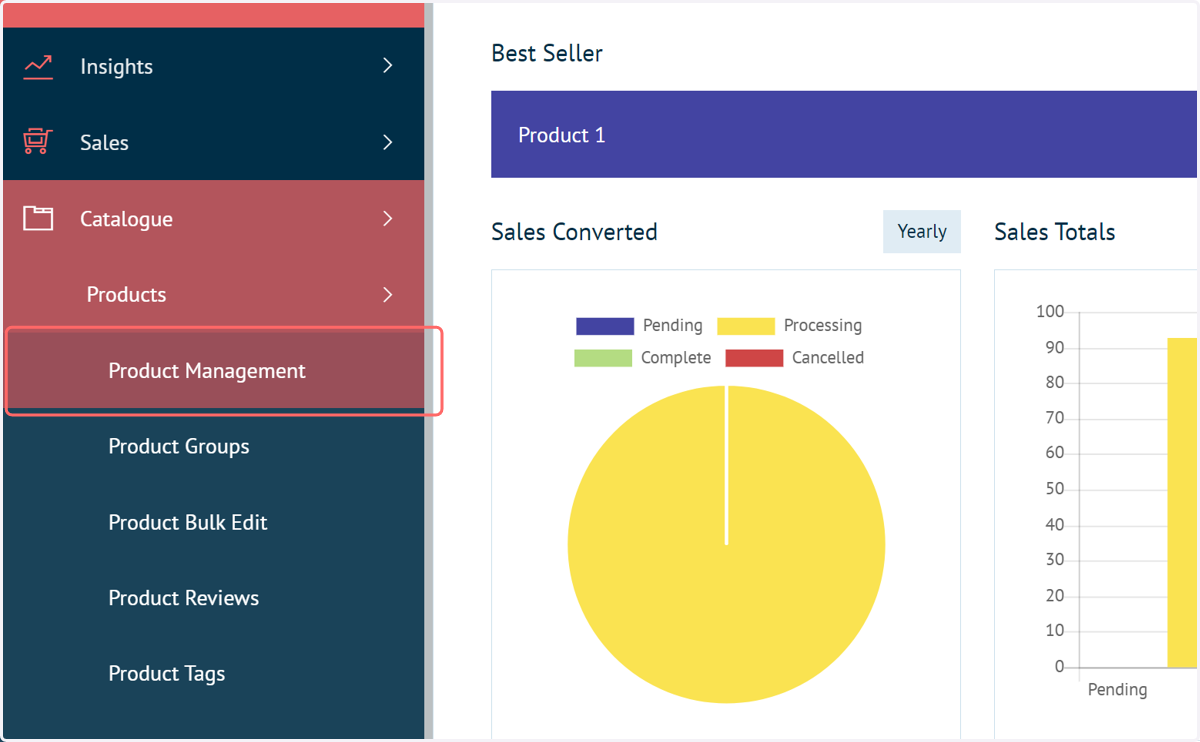
1. Navigate to Product Management
Let's start off looking at Product duplication. First, navigate to your Product Management page.
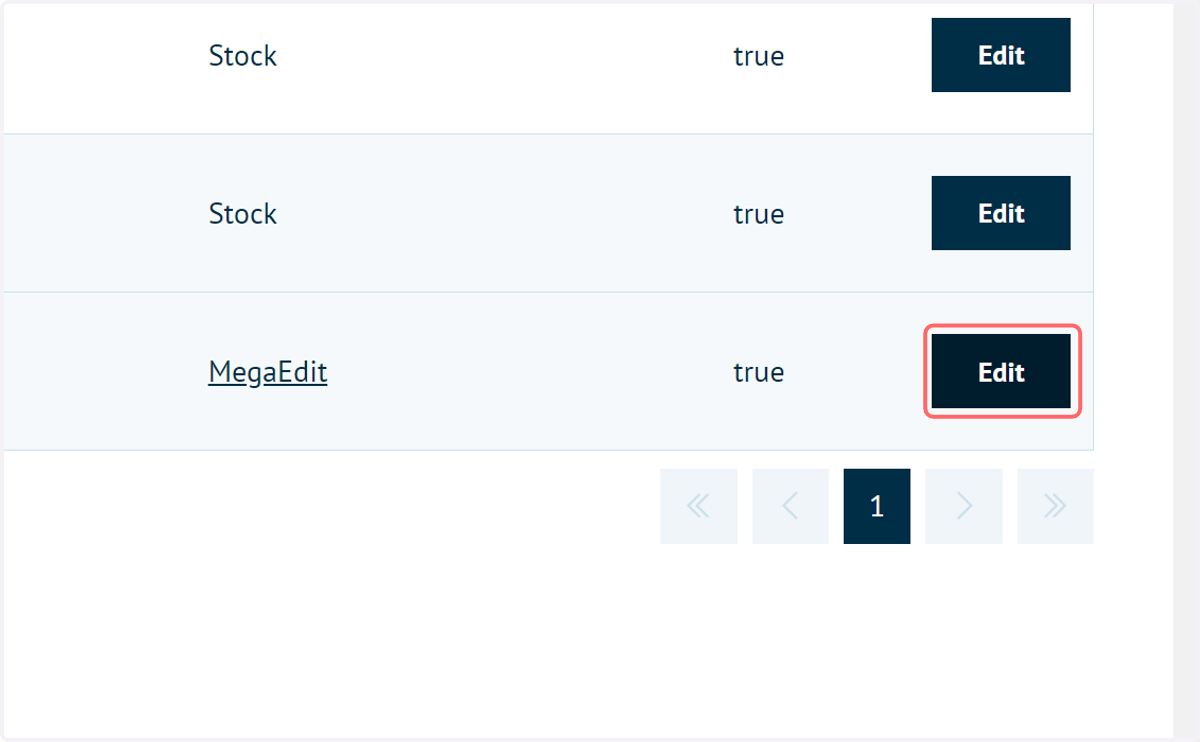
2. Click on Edit next to the Product you wish to duplicate
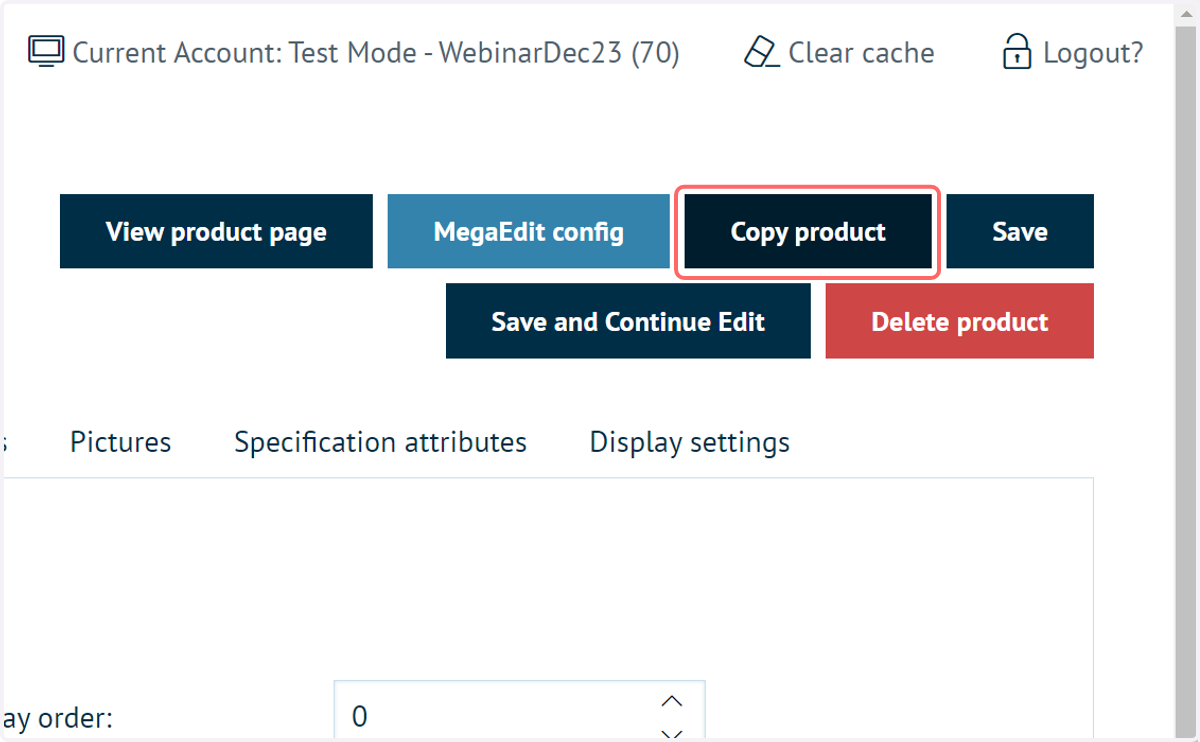
3. Click on Copy product
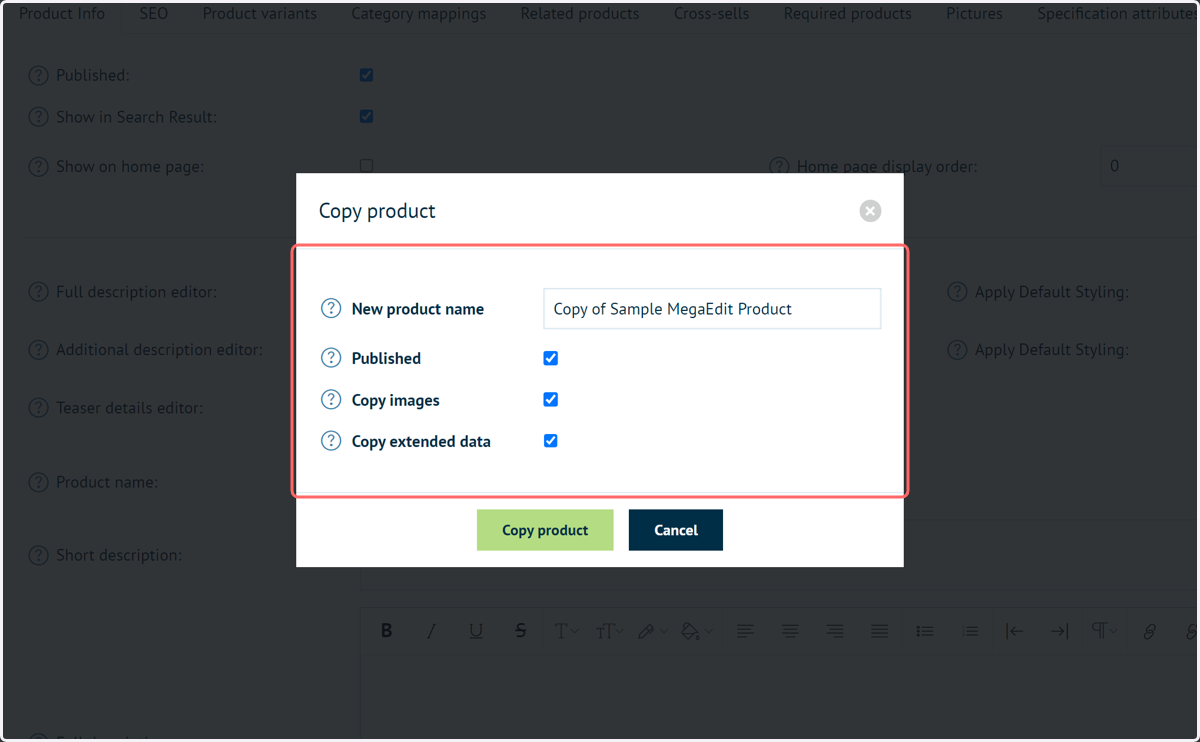
4. Copy Product window
A screen will appear allowing you to determine the level of detail included in the duplicated product.
This screen allows you to:
Apply a new product name
Select whether the new product is automatically published
Copy any product images
Copy extended data, such as defined MegaEdit or Static PDF configuration. If you wish to duplicate complex product configurations, this option should be selected.
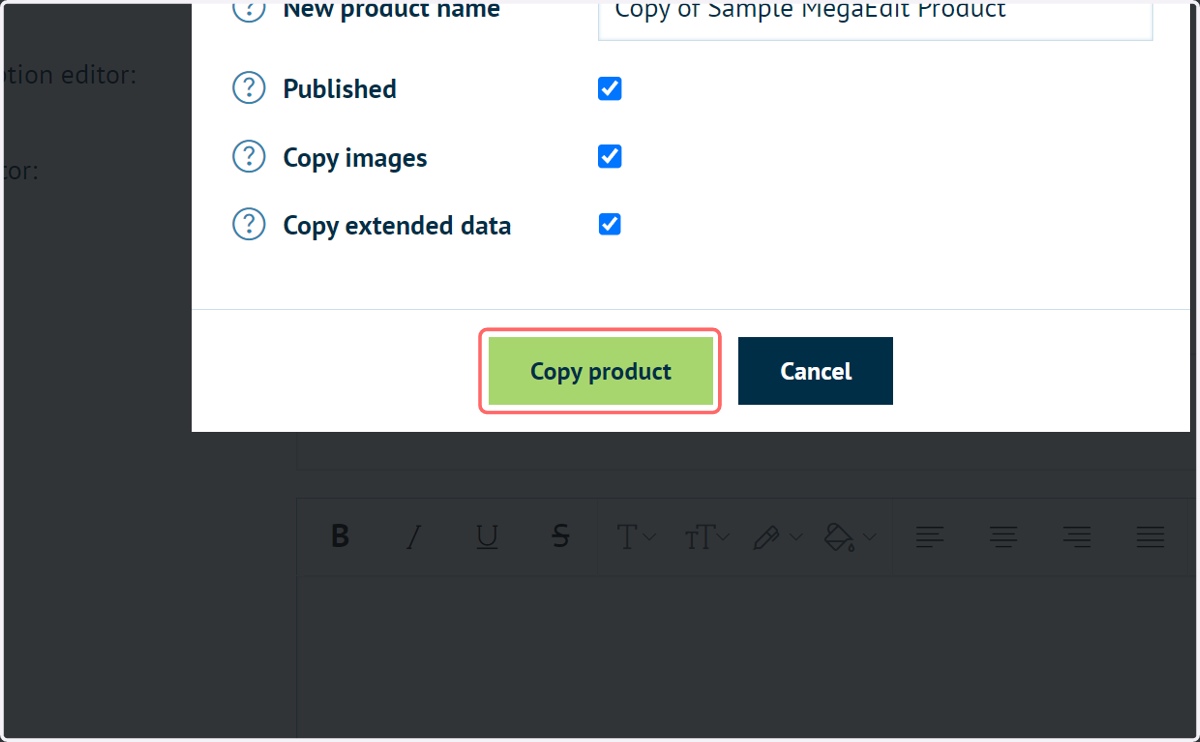
5. Click on Copy product
Next, let's look at duplicating a Category
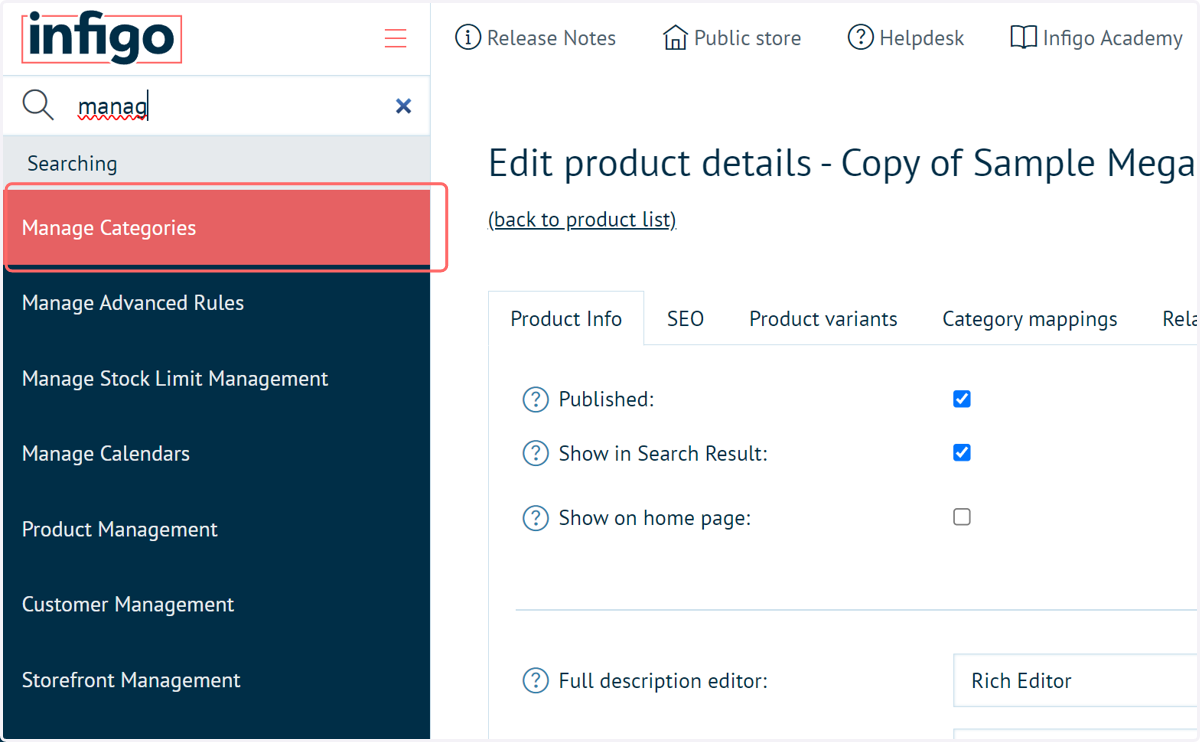
6. Navigate to Manage Categories
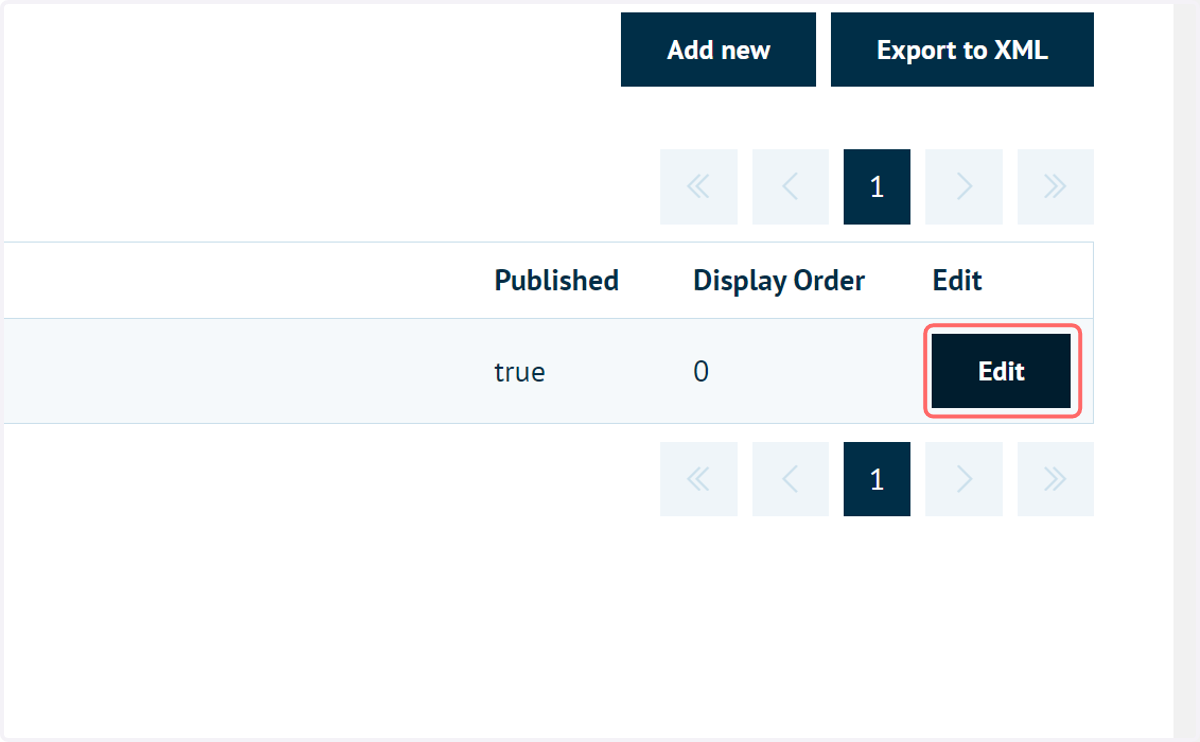
7. Click on Edit next to the Category you wish to duplicate
8. Click on Copy Category
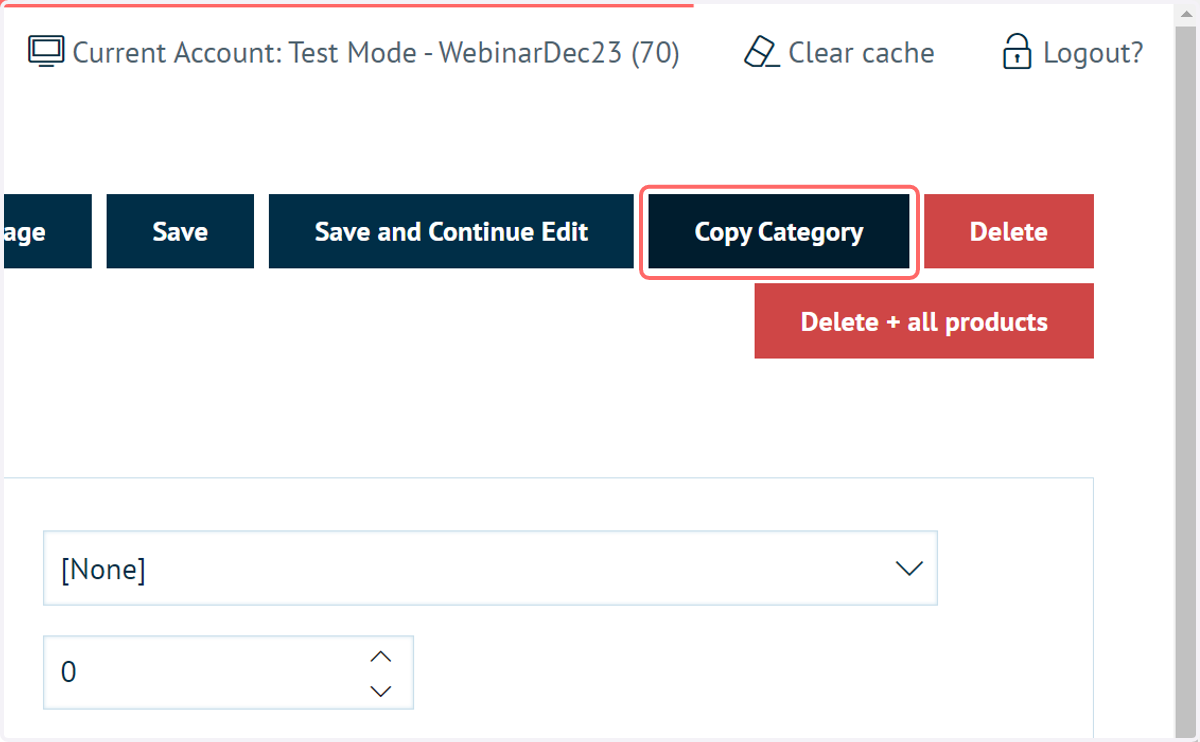
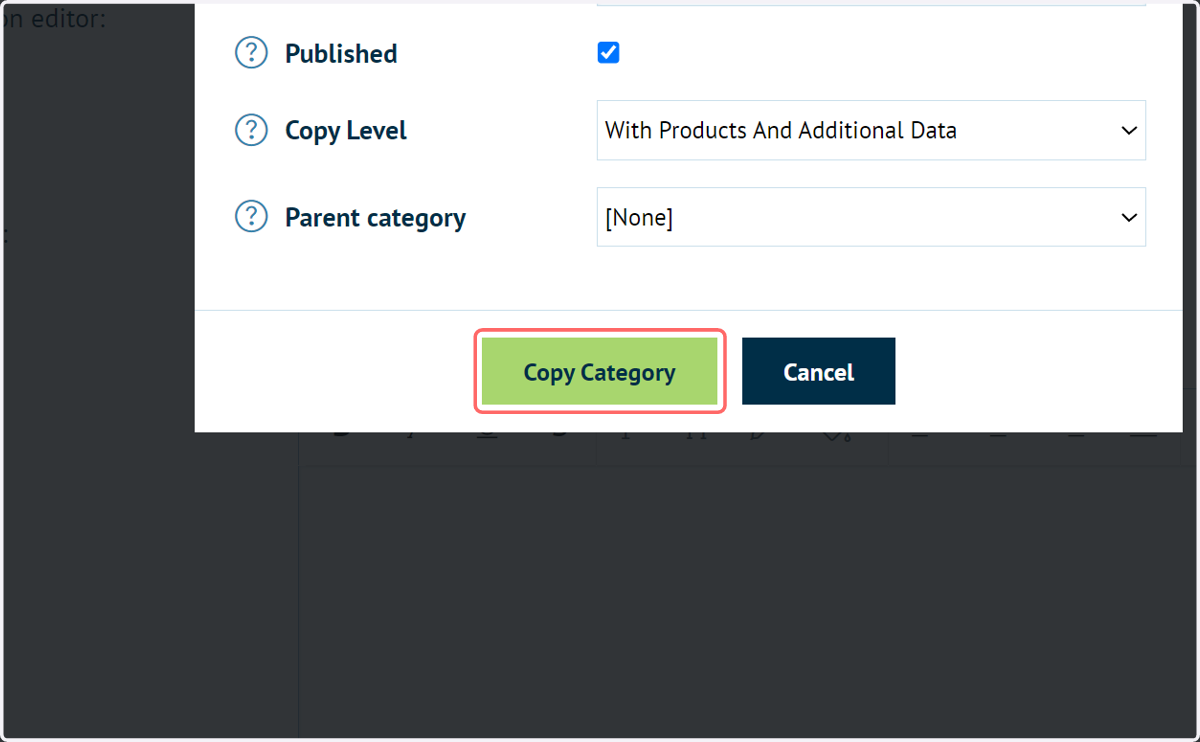
9. Copy Category screen
By default, the details of the Category landing page will be duplicated, including information such as descriptions and display settings.
This screen allows you to define additional detail copied between the two Categories. This includes:
Specify whether the Category is immediately published
Specification of Copy Level, where you can choose to take Category information only (no Products), duplicate Product references or duplicate Product references AND take additional Category data.
Define a parent Category
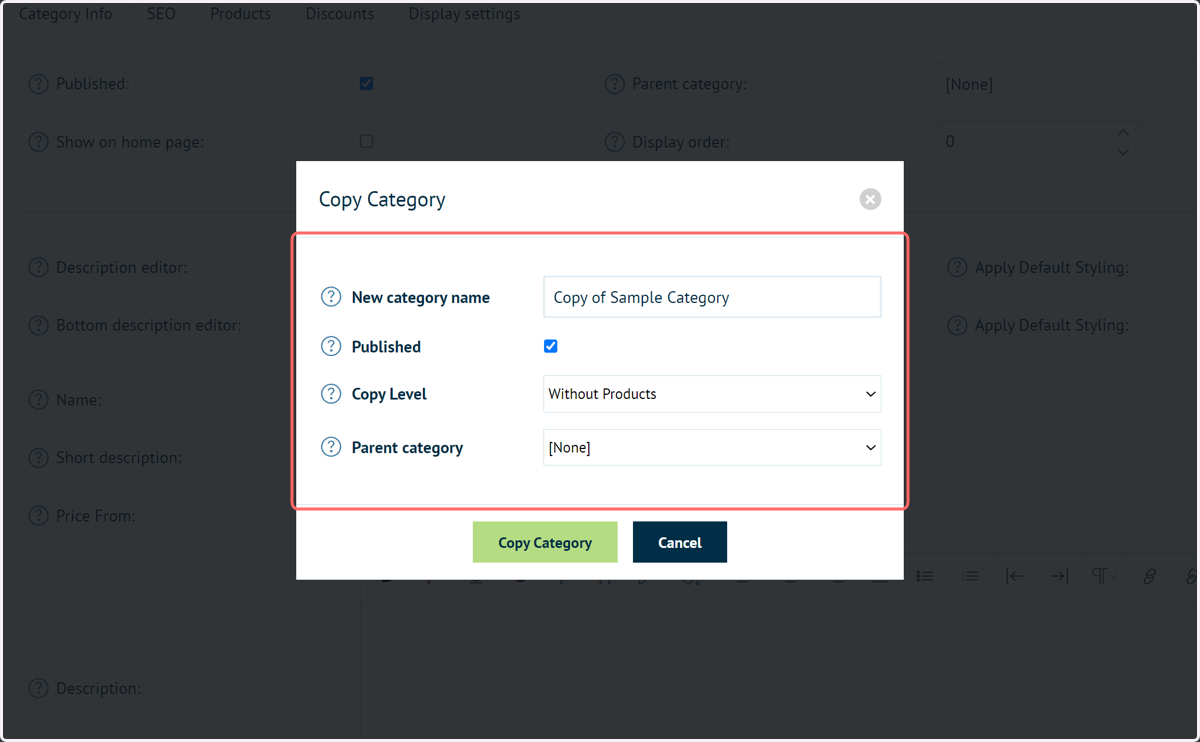
10. Click on Copy Category