Discounts | Example - Creating a £5 Voucher Code BG_DISC_002
In this tutorial, we'll take a look at how to create discounts for use by your customers on your storefronts.
In this specific example, we'll create a voucher code where, if applied by a customer in the basket or during the checkout process, will give them £5 off their order total.
Infigo Admin - Dashboard
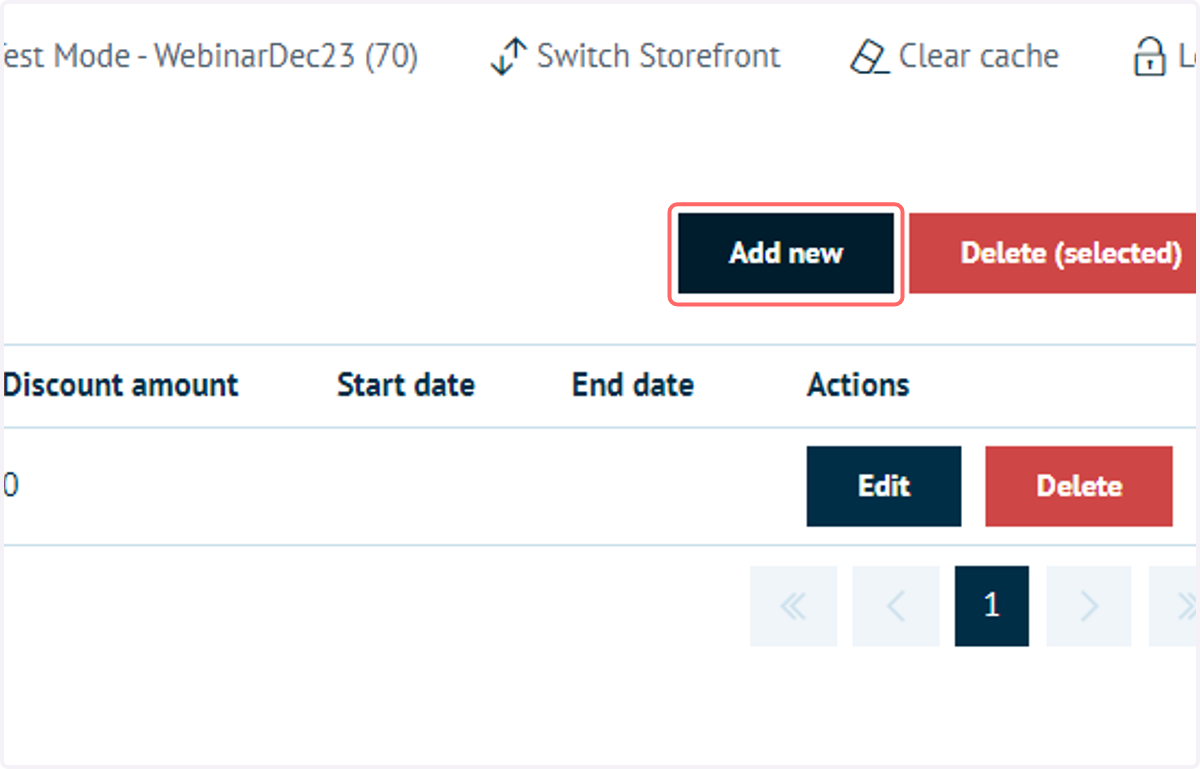
1. Navigate to Discounts and click on Add new
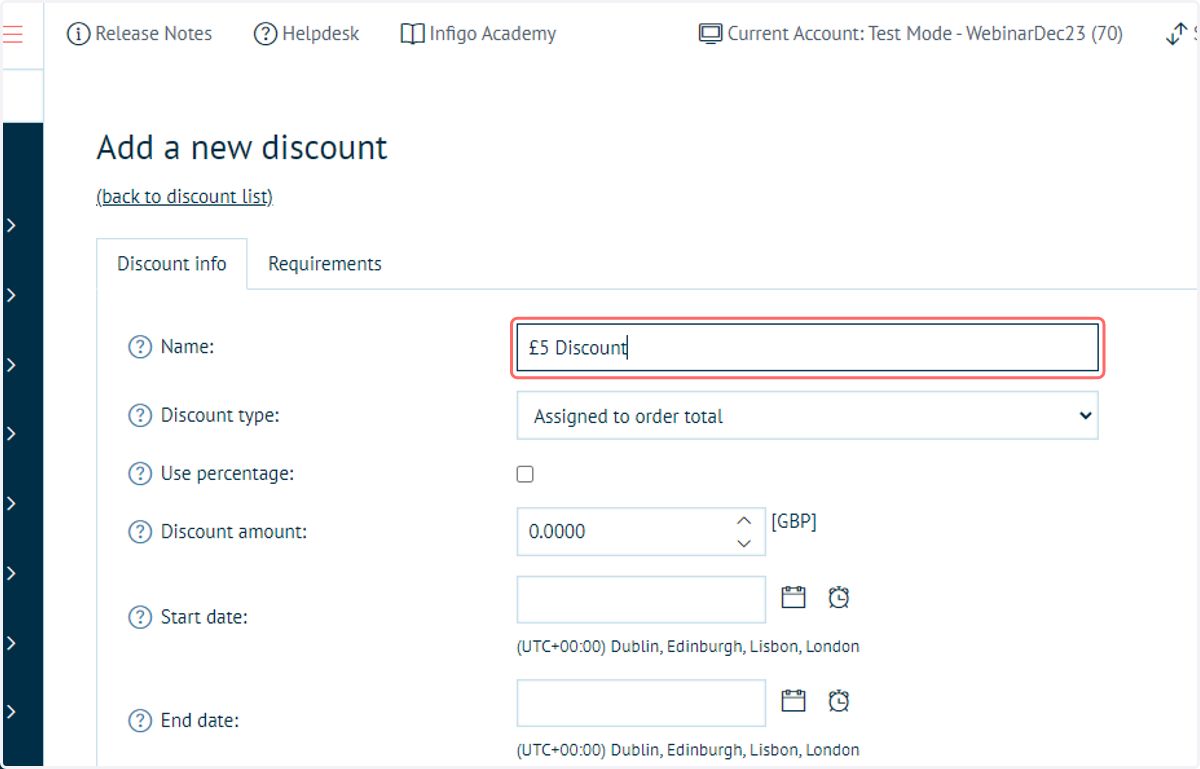
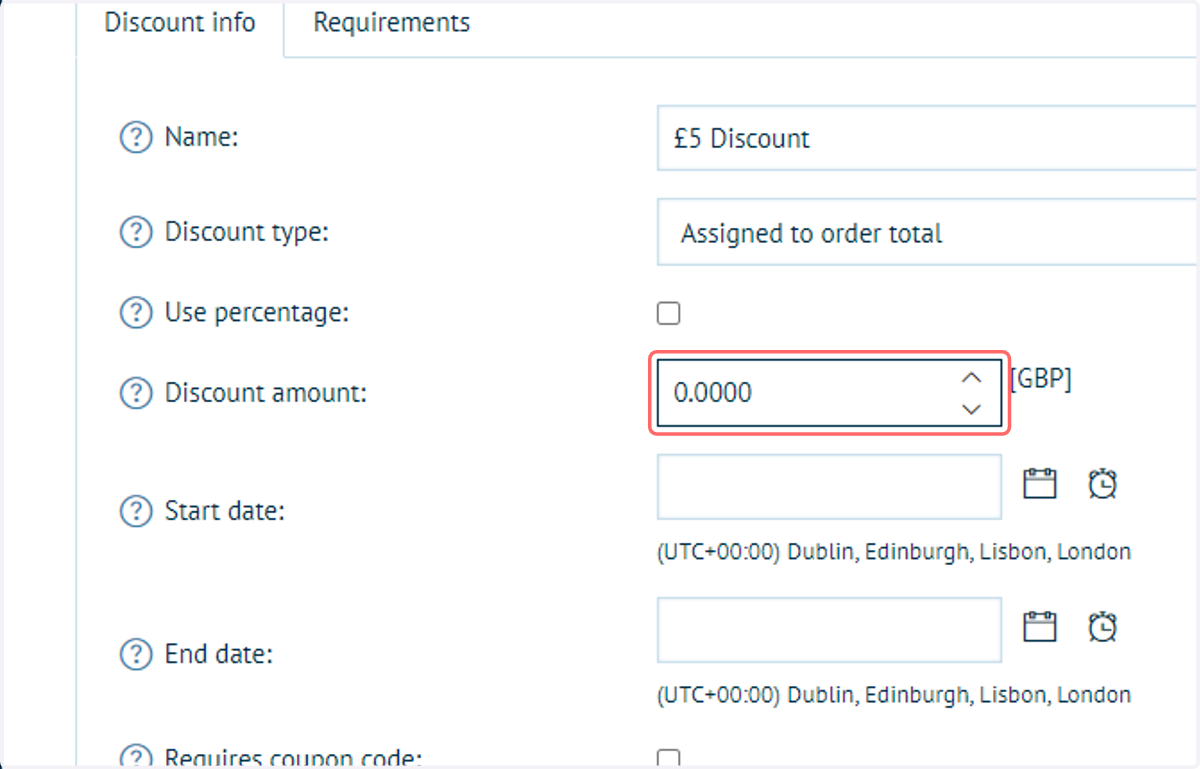
2. Type a name for the discount
This is for reference only and is not shown to the customer.
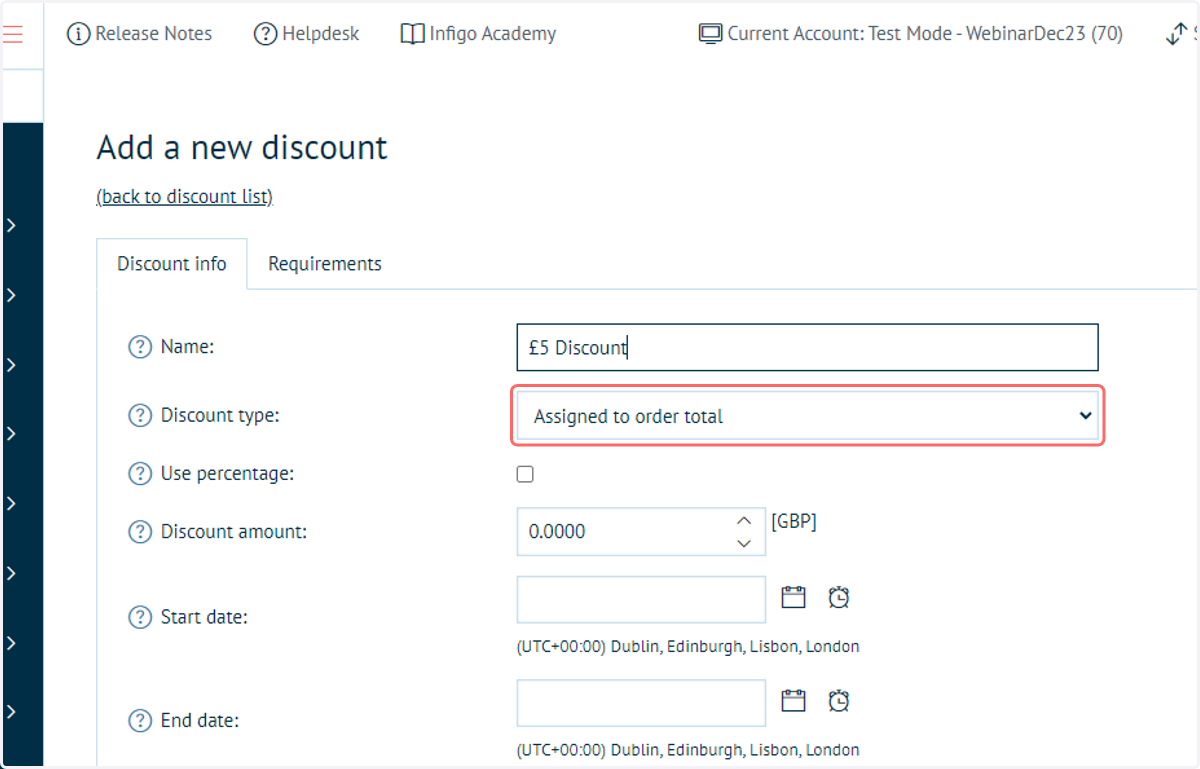
3. Select a Discount type
Discounts can be applied in numerous different ways, which can be selected from the Discount type dropdown.
Some examples include:
Assigning discounts to order totals or subtotals
Assigning discounts directly to product groups or product variants
Assigning discounts on delivery
In this example, we'll choose the option to apply this discount to the order total.
4. Enter a discount amount or percentage
Discounts can be applied either in monetary value, or as a percentage of the price covered by that discount.
In this example, we'll input a £5 discount. Based on our Discount Type selection, this will be applied to the entire order total. This will use your storefront currency.
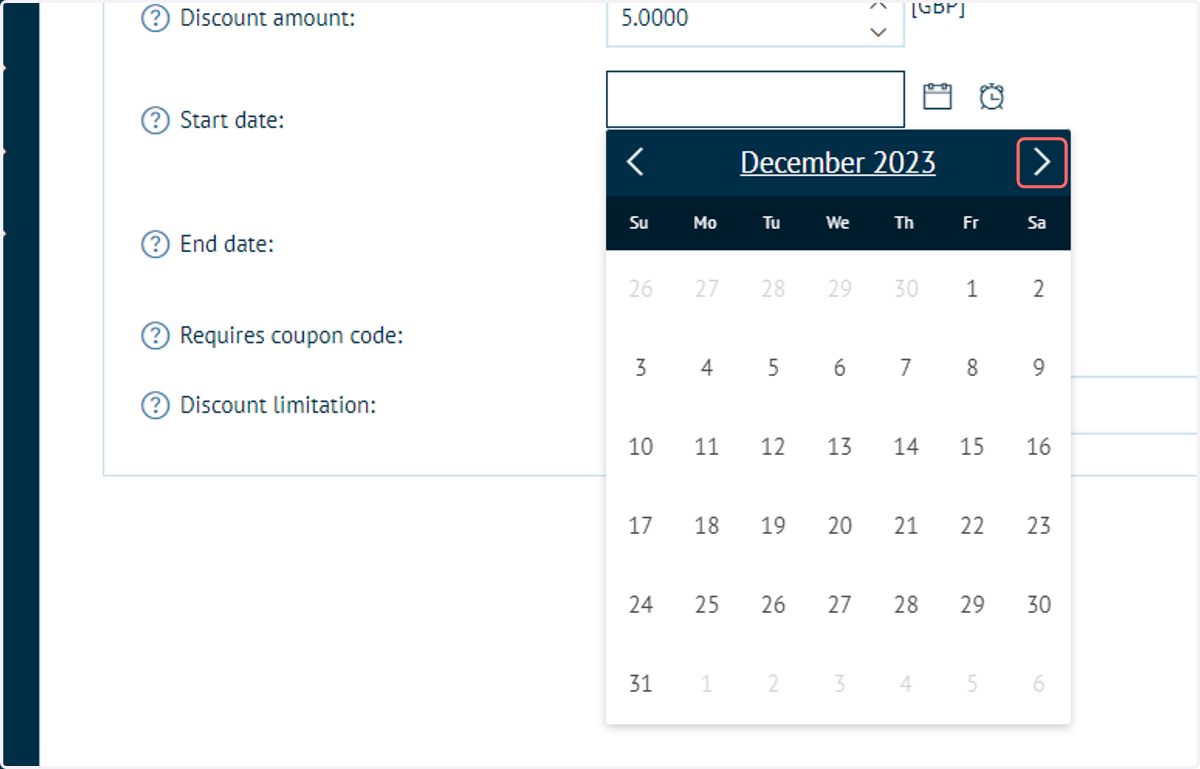
5. Specify dates for this discount
This is an optional step. You can apply a date and time range between which this discount is applicable. If anyone tries to use the discount outside of these dates, it will fail.
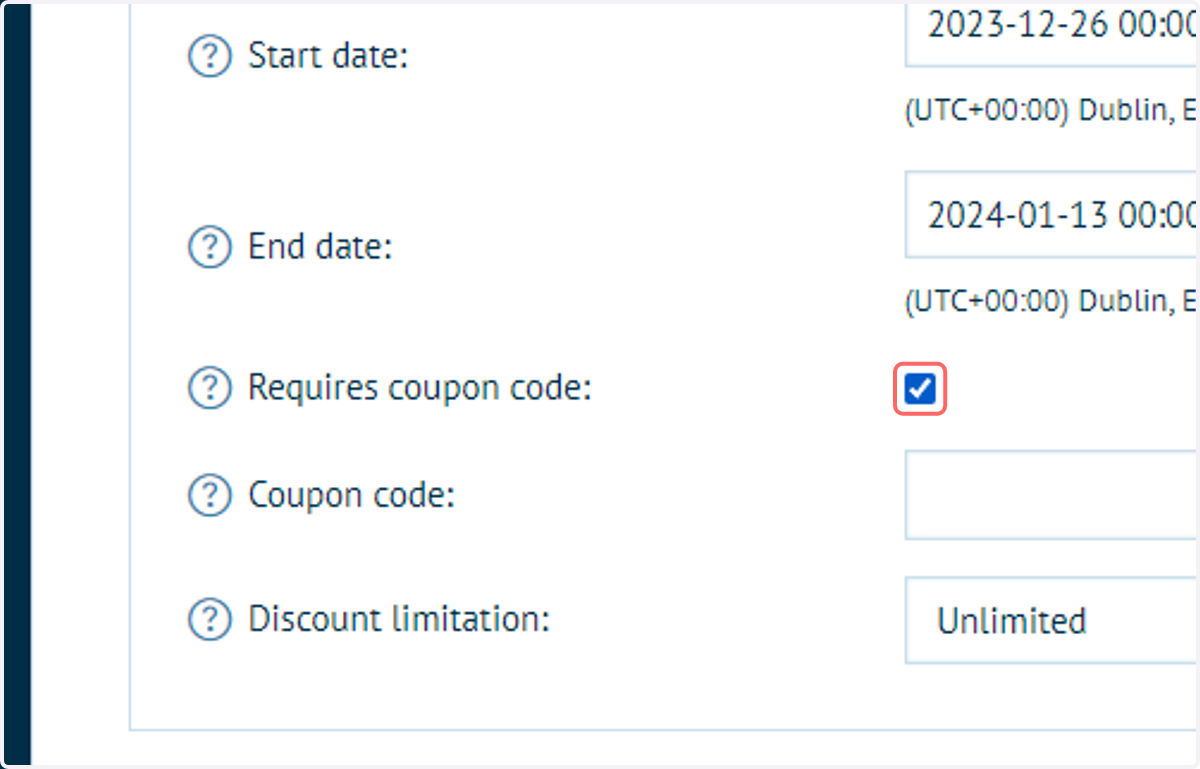
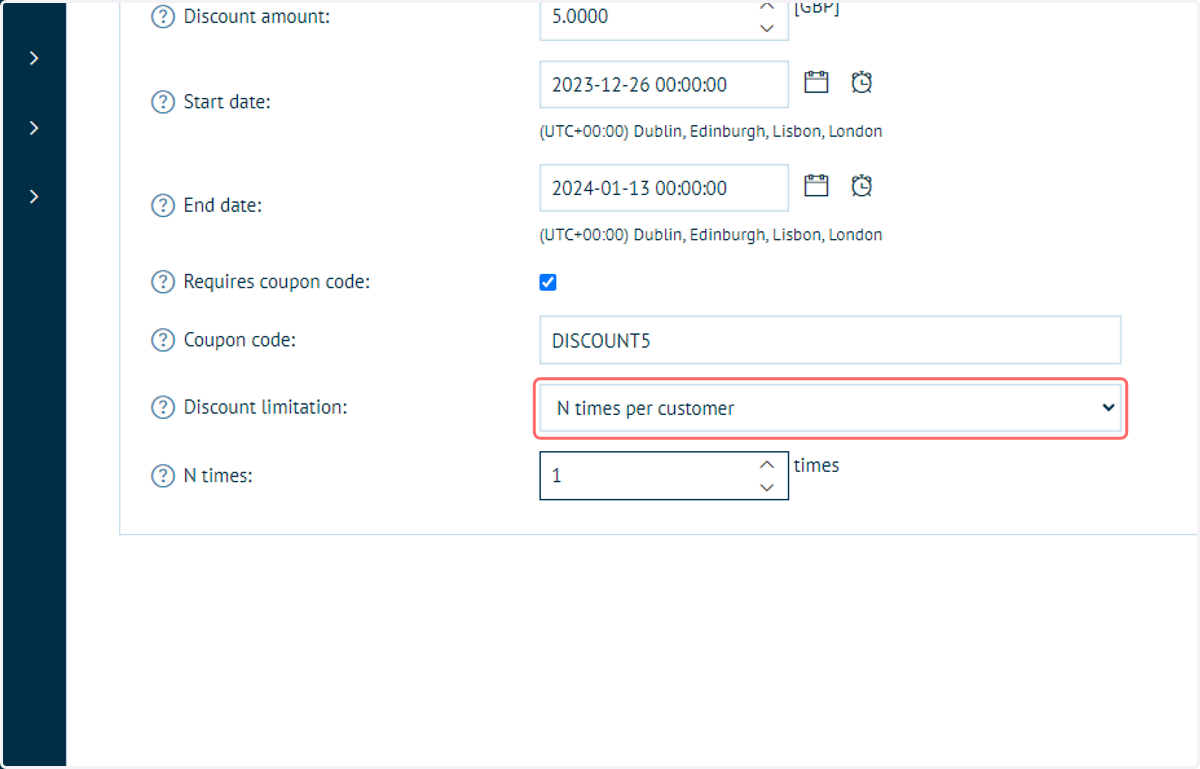
6. Check Requires coupon code
Another optional step, you have the ability to define this discount as requiring a coupon code.
This is a code which the customer enters at either the basket or checkout stages.
7. Enter the coupon code you wish the customer to use
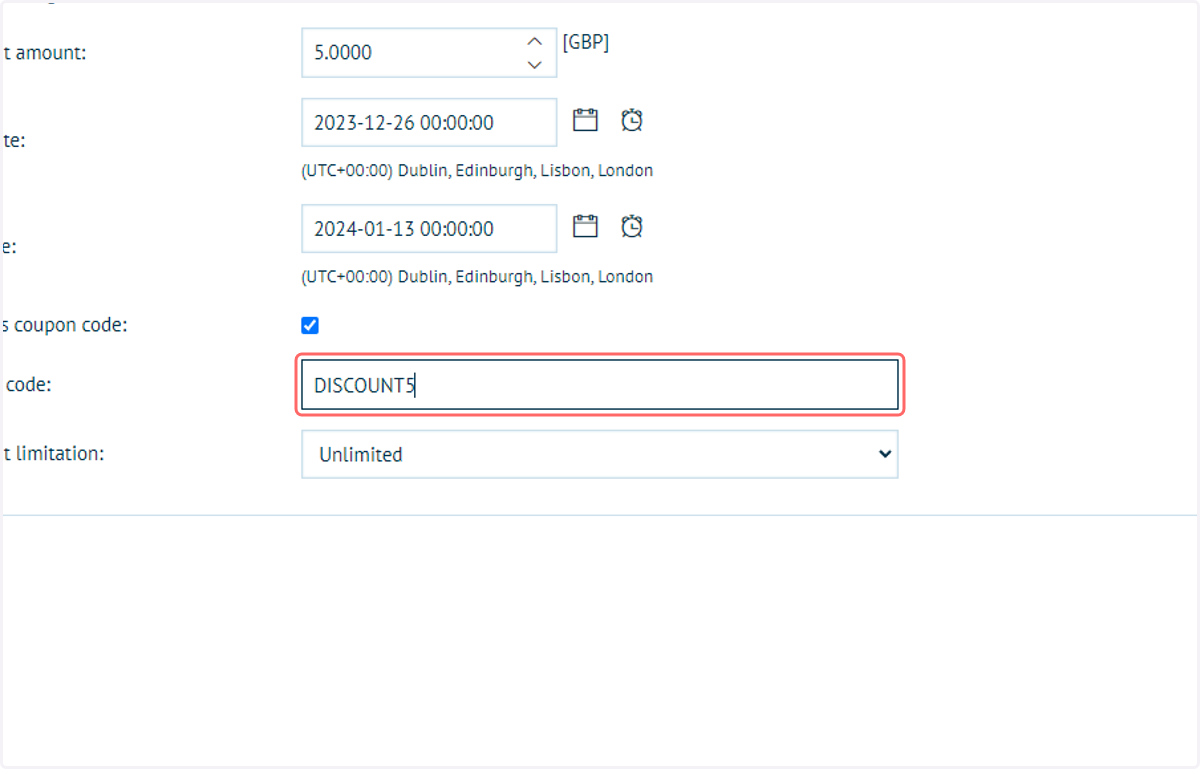
8. Optionally, specify how many times this code can be used, either a total number of uses or a per-user usage
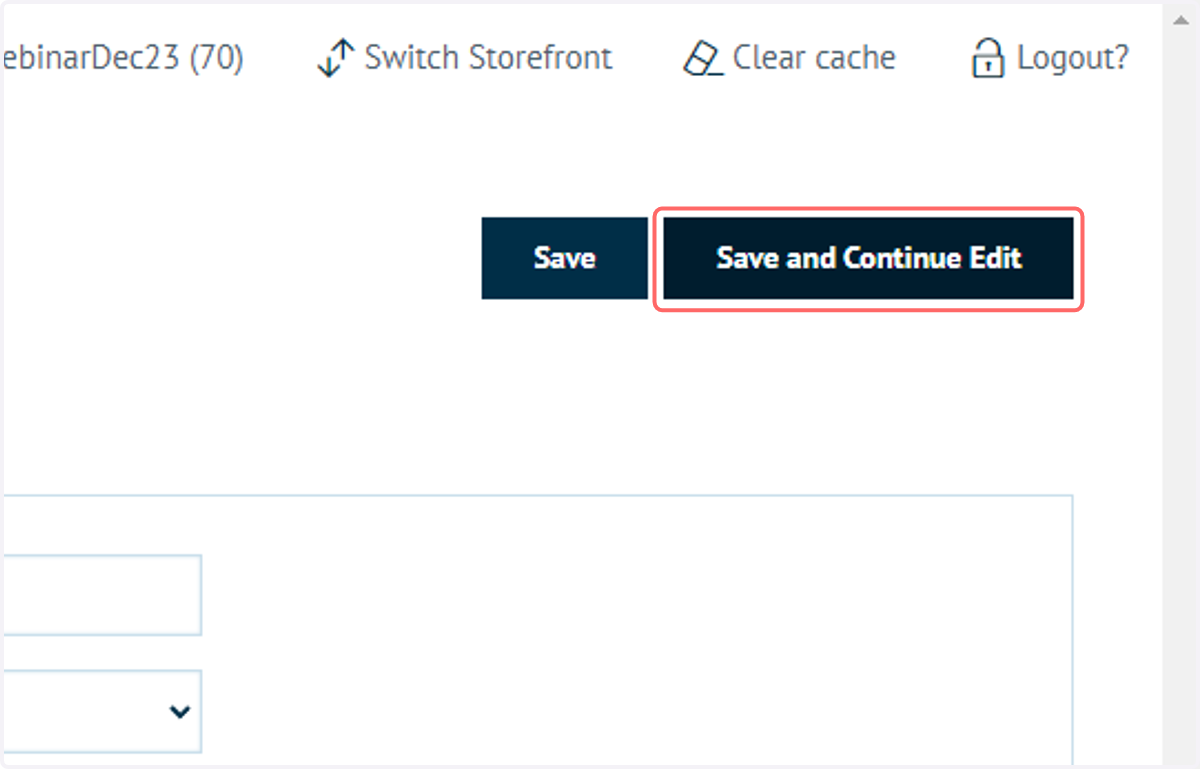
9. Click on Save and Continue Edit
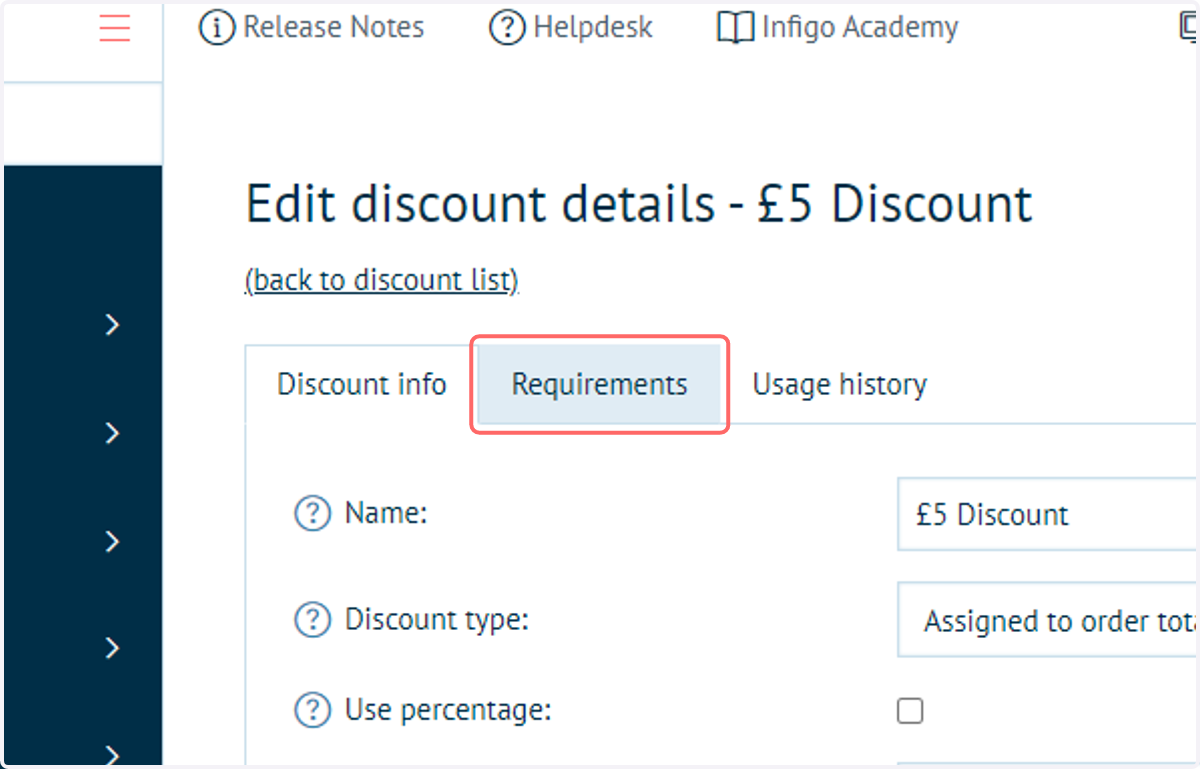
10. Click on Requirements-
We can apply additional requirements to this discount, giving us granular control over when this will be applied. This is an optional step. In this example we will not apply any additional requirements, so any customer that applies the coupon code will receive the discount.
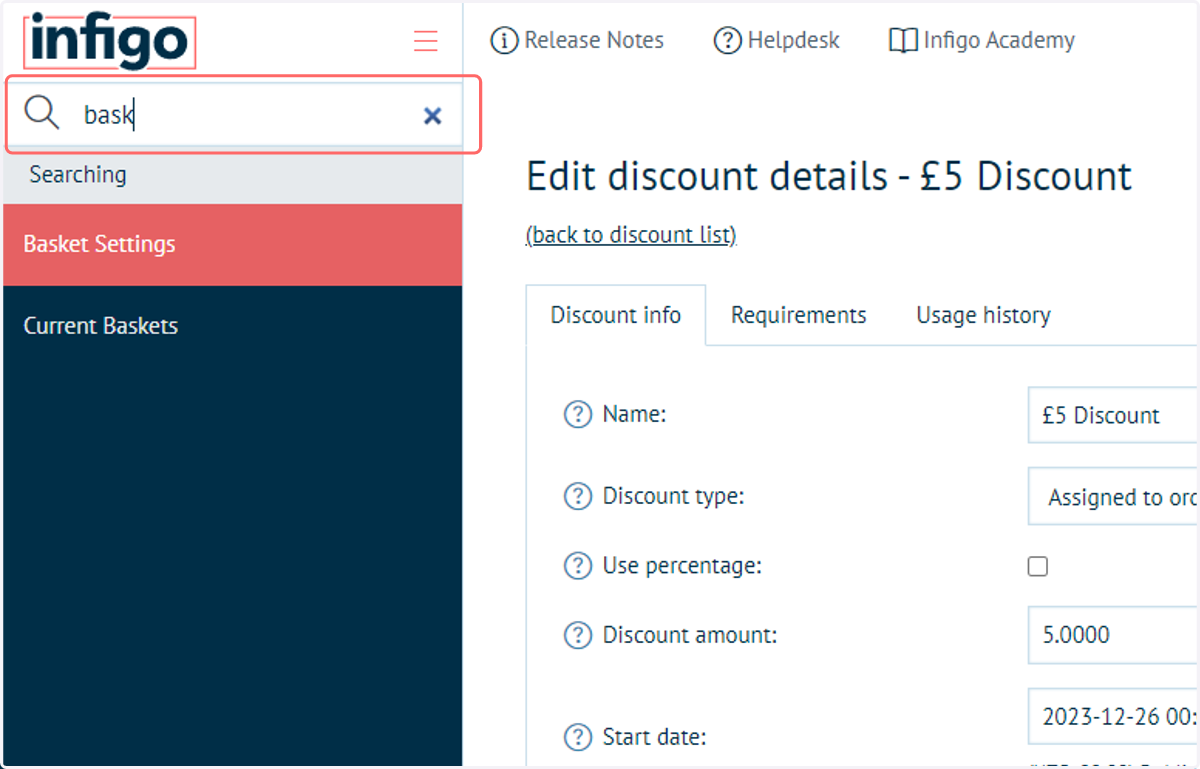
11. Navigate to Basket Settings
By default, the box in which to enter a coupon code in the basket and checkout screens are not enabled. These can be enabled with two basic setting changes.
Begin by navigating to the Basket Settings.
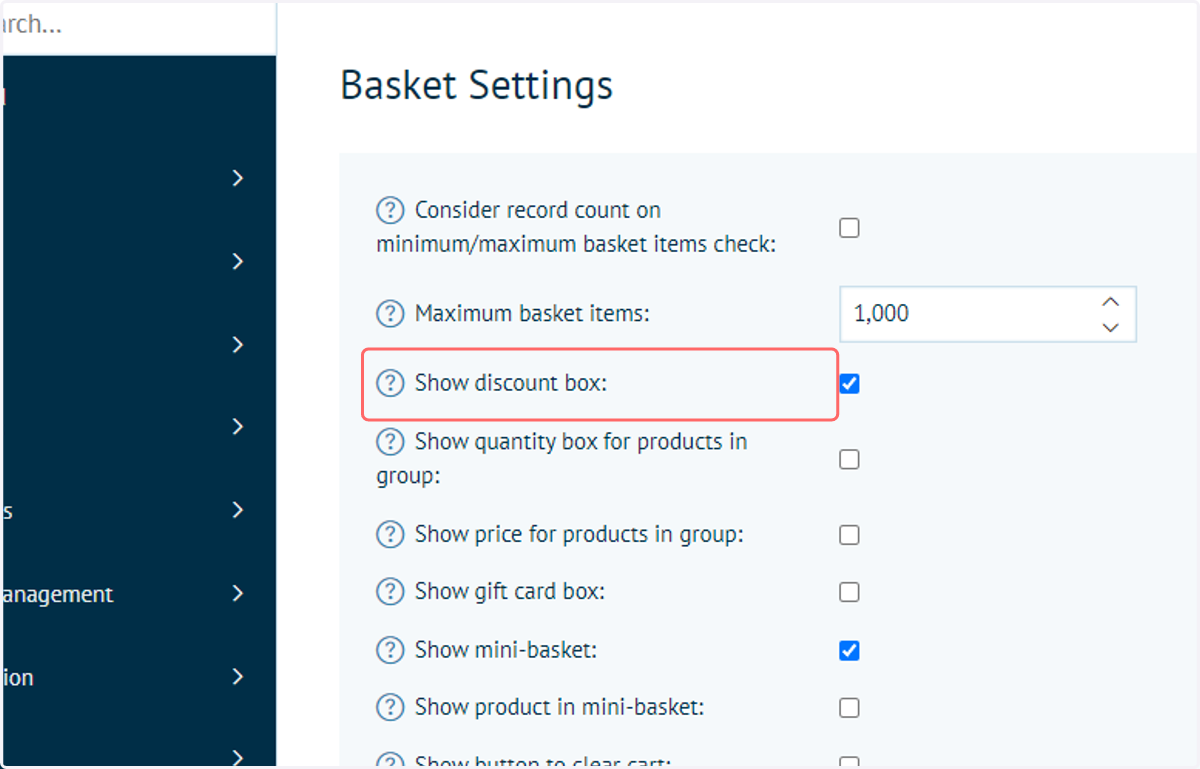
12. Click on Show discount box:
This will display the coupon code box in the basket screen.
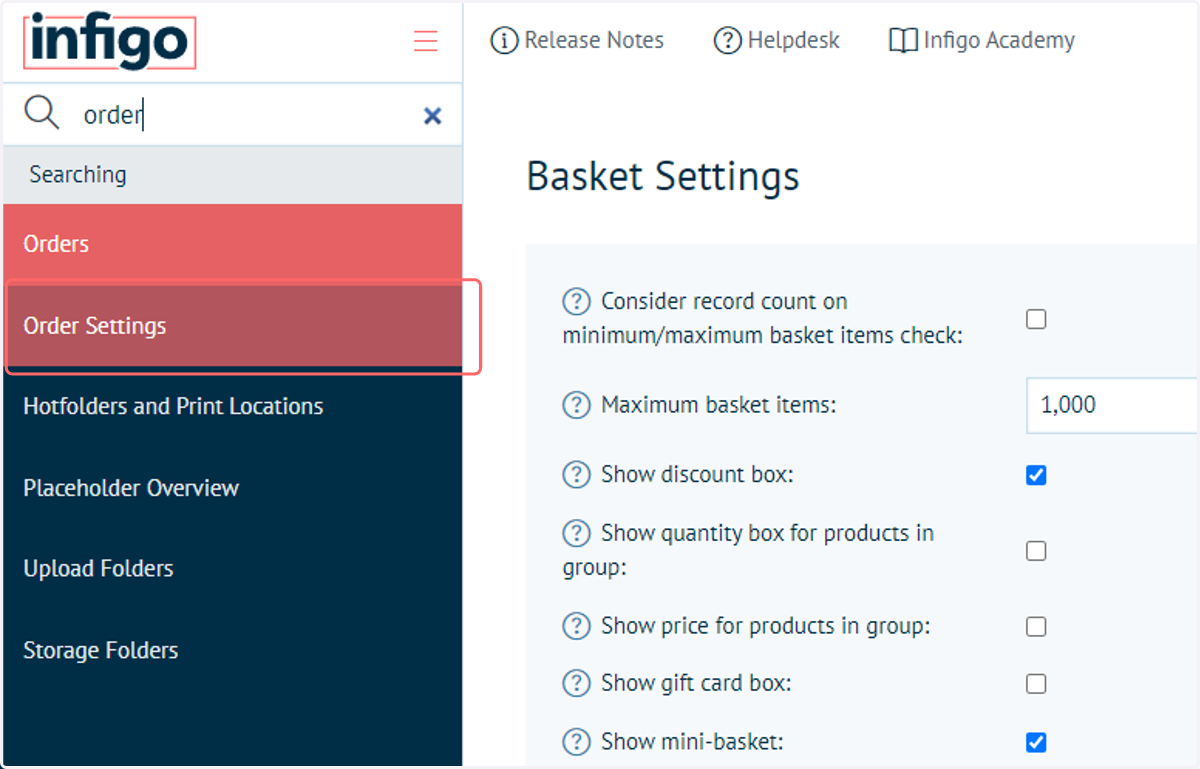
13. Navigate to Order Settings
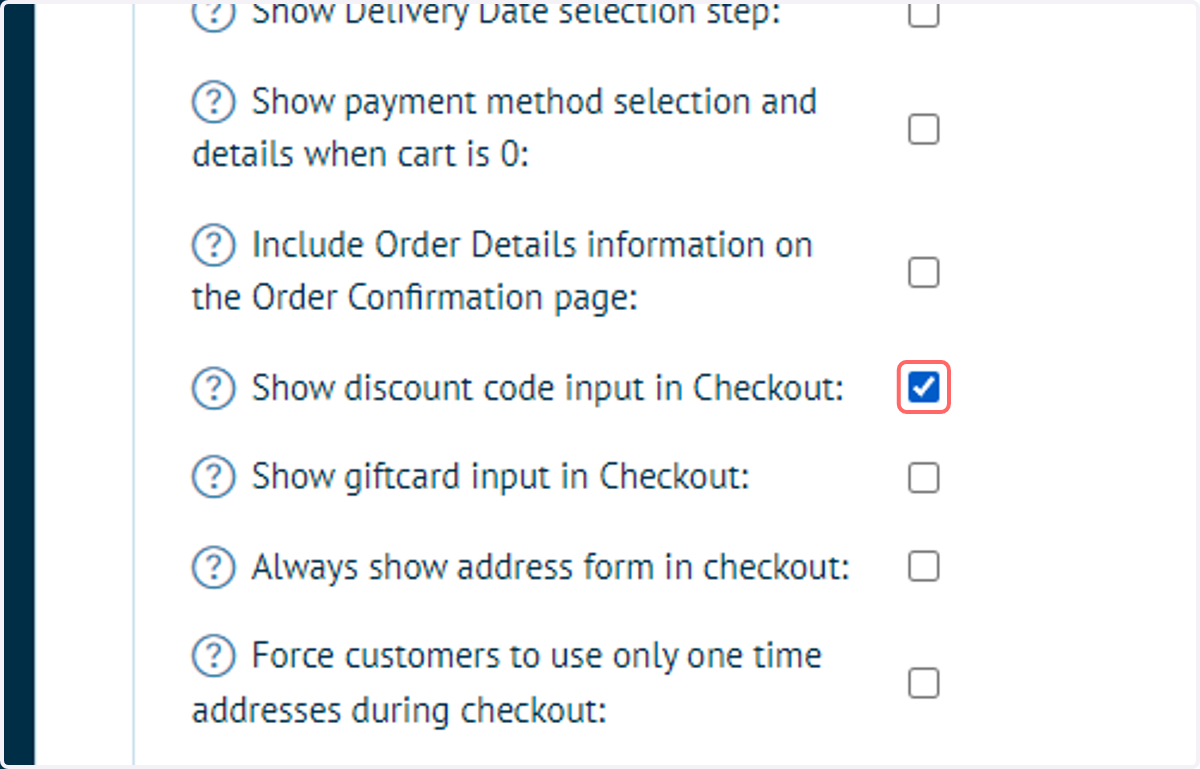
14. Check Show discount code input in Checkout
This enables the coupon code input box on the checkout pages.
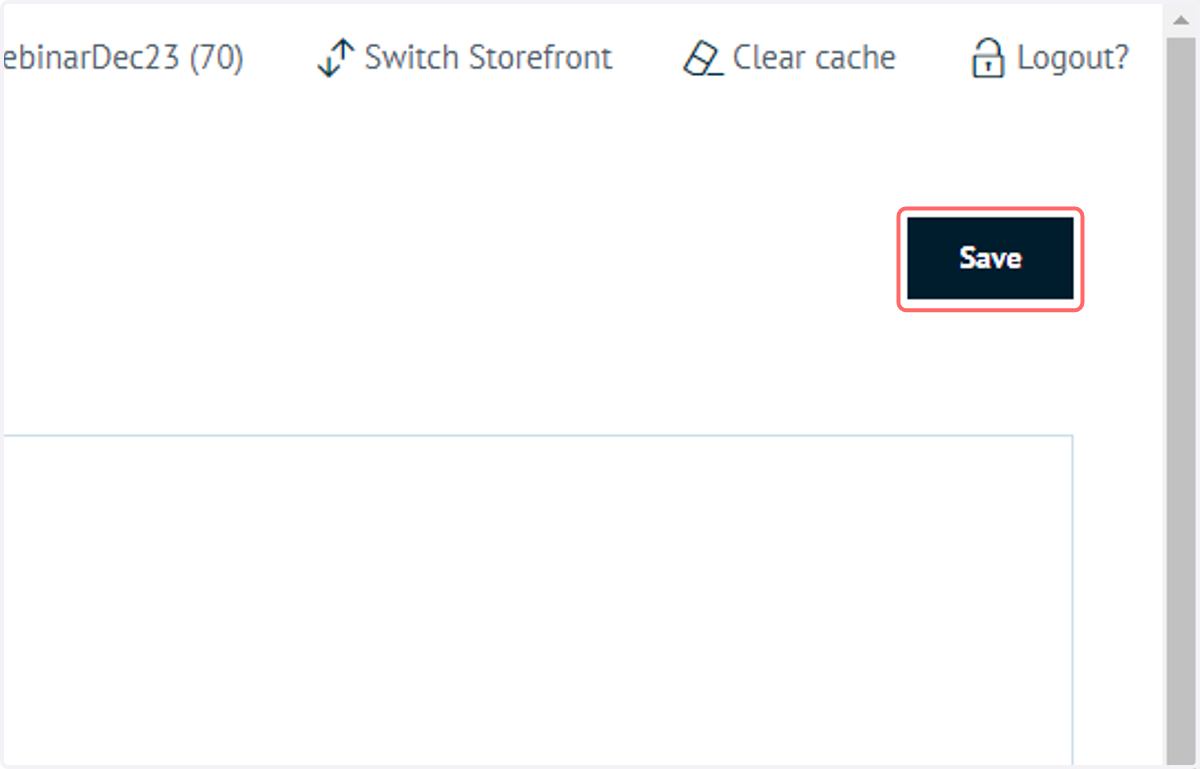
15. Click on Save
16. We will not navigate to the front end and see this in action.
Add items to your basket and navigate to the basket page.
The Discount Code box will be visible. Enter your code and click Apply coupon.
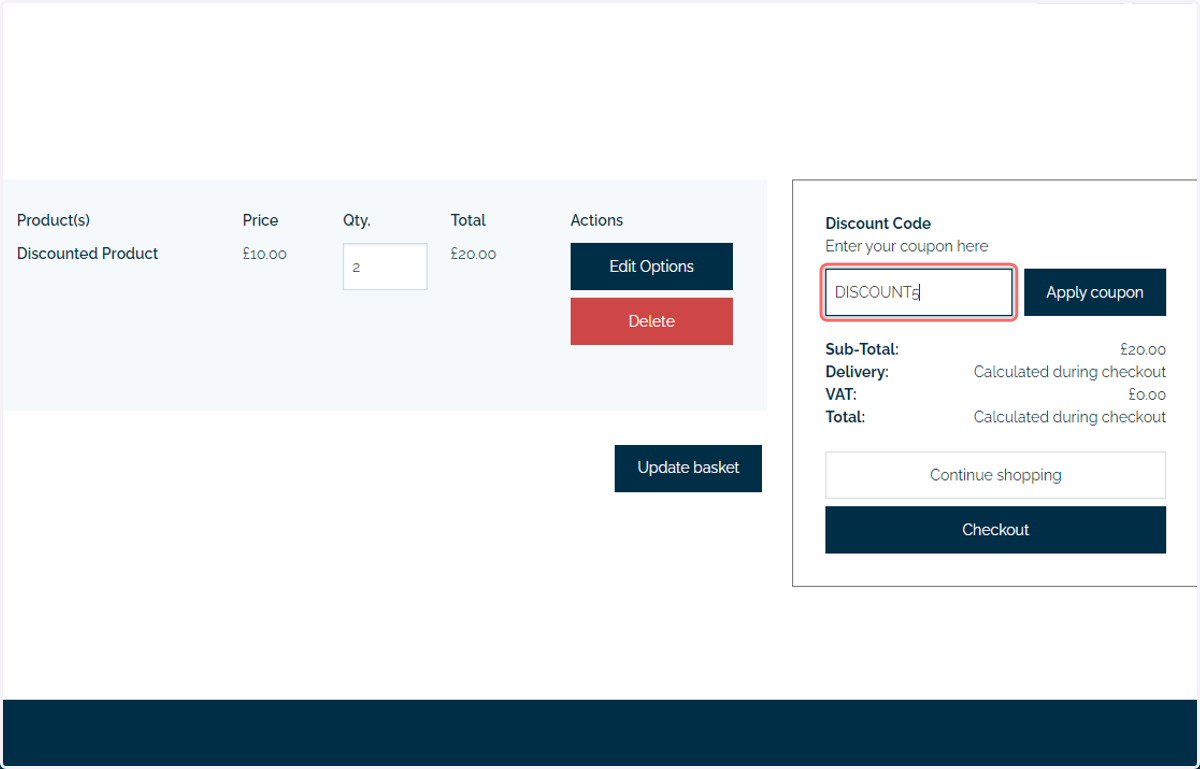
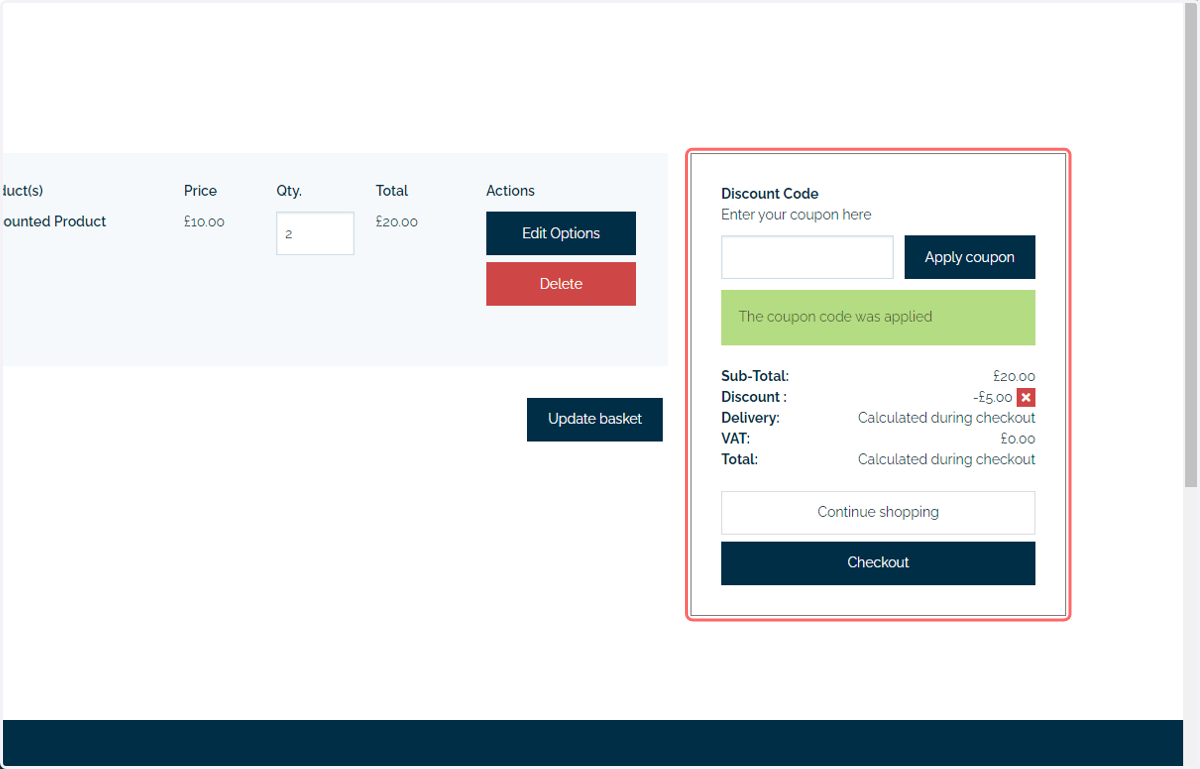
17. The system will register and display the discount
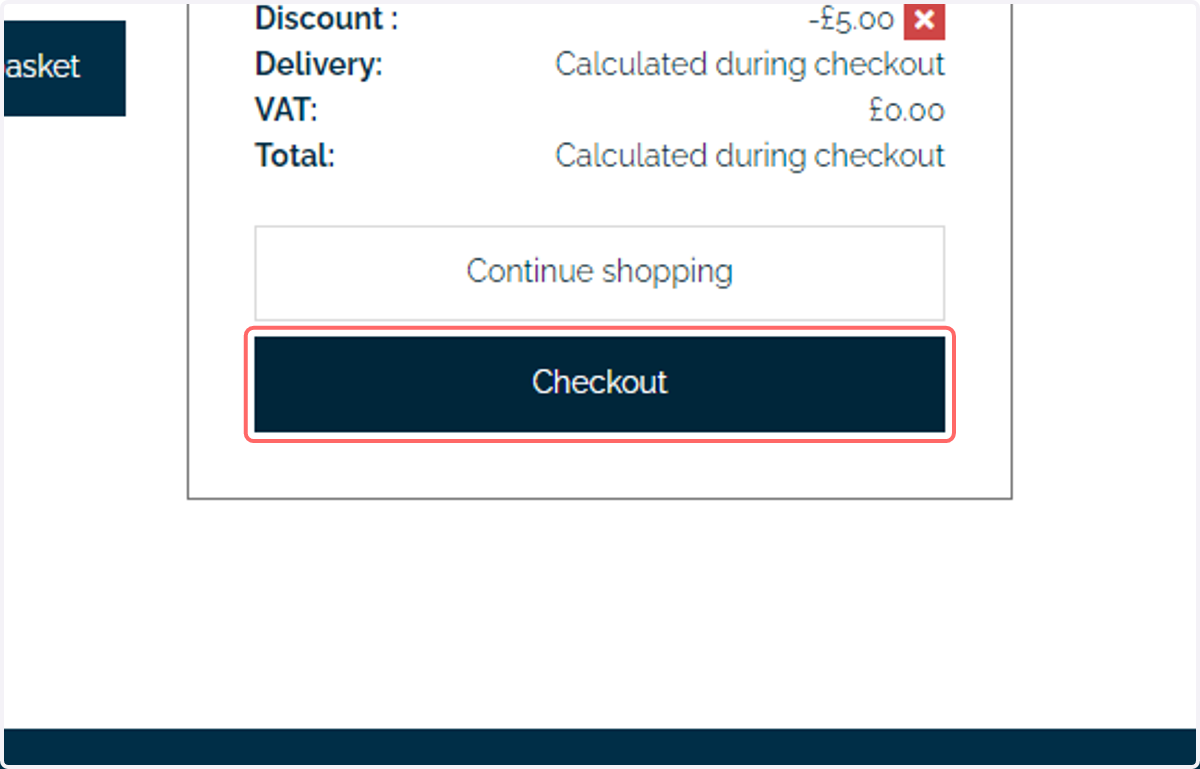
18. Proceed through the checkout process
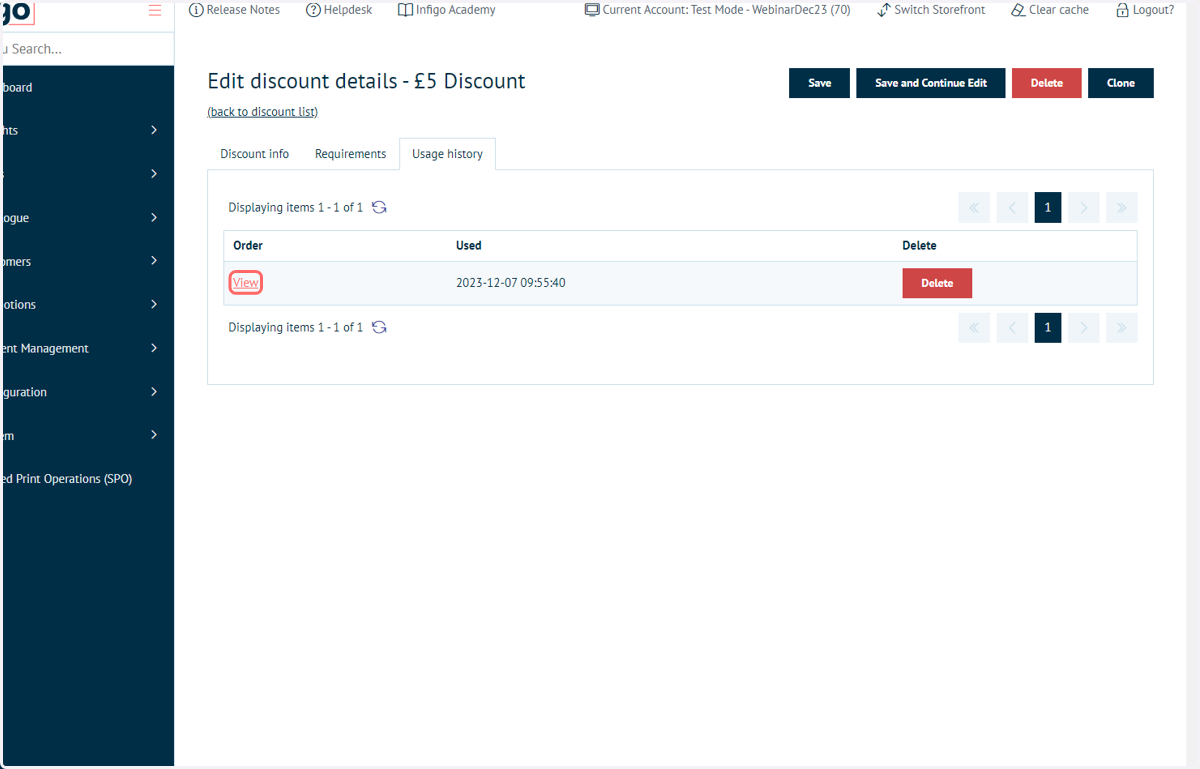
19. Usage History
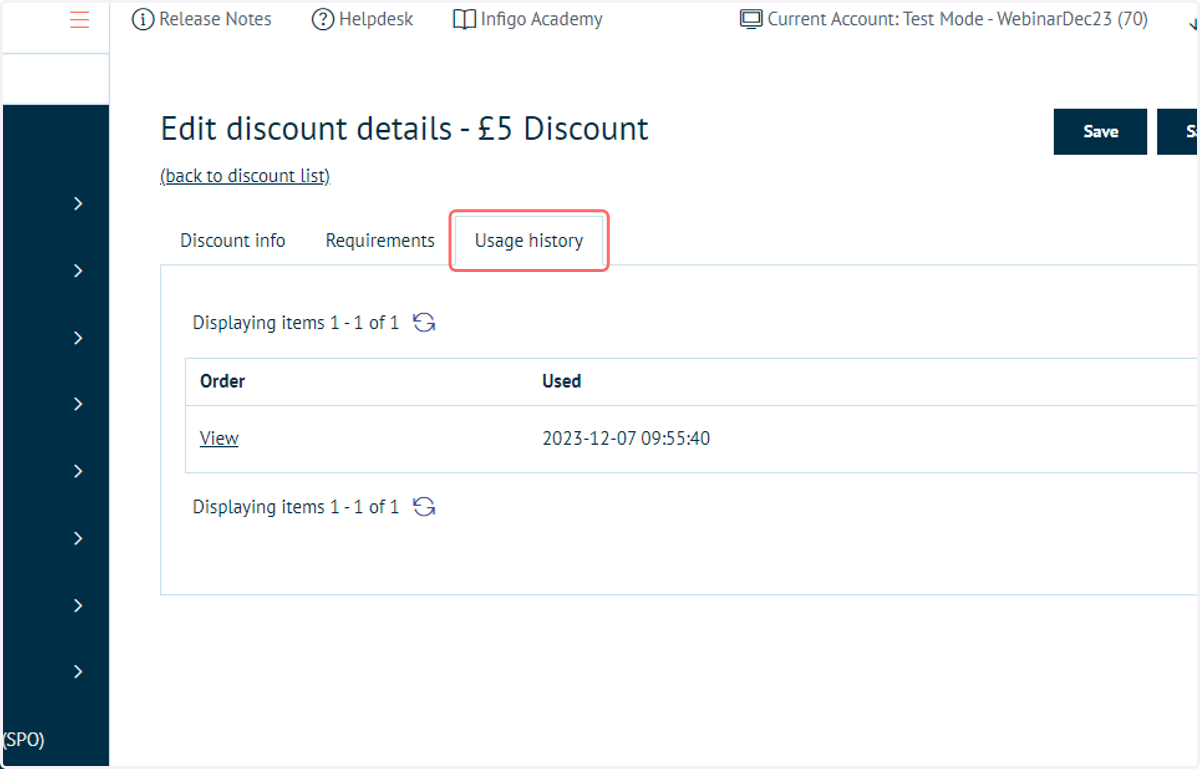
For certain discounts, you are able to view a usage history and see a breakdown of when and by whom the discount was utilised.
Navigate back to the Discounts screen in Infigo Admin and click the Usage History tab.
20. Click on View
See additional details on each usage instance by clicking View.
This will take you to the specific order page where this discount was utilised.
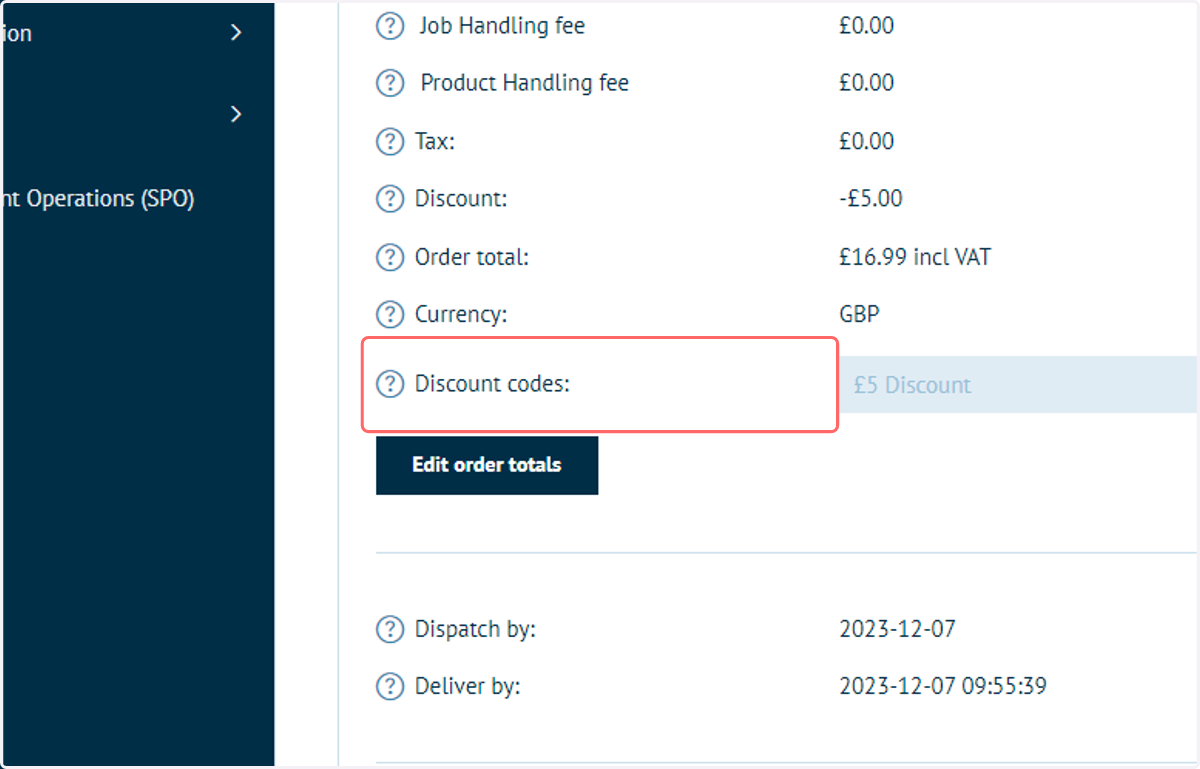
21. Click on Discount codes: