Defining and exporting spot colours from Invent
Here, we will learn how we can define spot colours within Invent and transfer them for use in our end MegaEdit product.
As we shall see, spot colours can be defined in various locations within Invent, including as part of a colour resource set, as a default colour for a colour variable, a specified colour for a field property, and others.
These spot colours are exported as part of the MEX file, resulting in one or more spot colour categories being created and utilised in MegaEdit.
In this tutorial, we will see examples of where we can apply and utilise these spot colours.
We begin with a basic, pre-configured Invent template.
1. Colour resource set
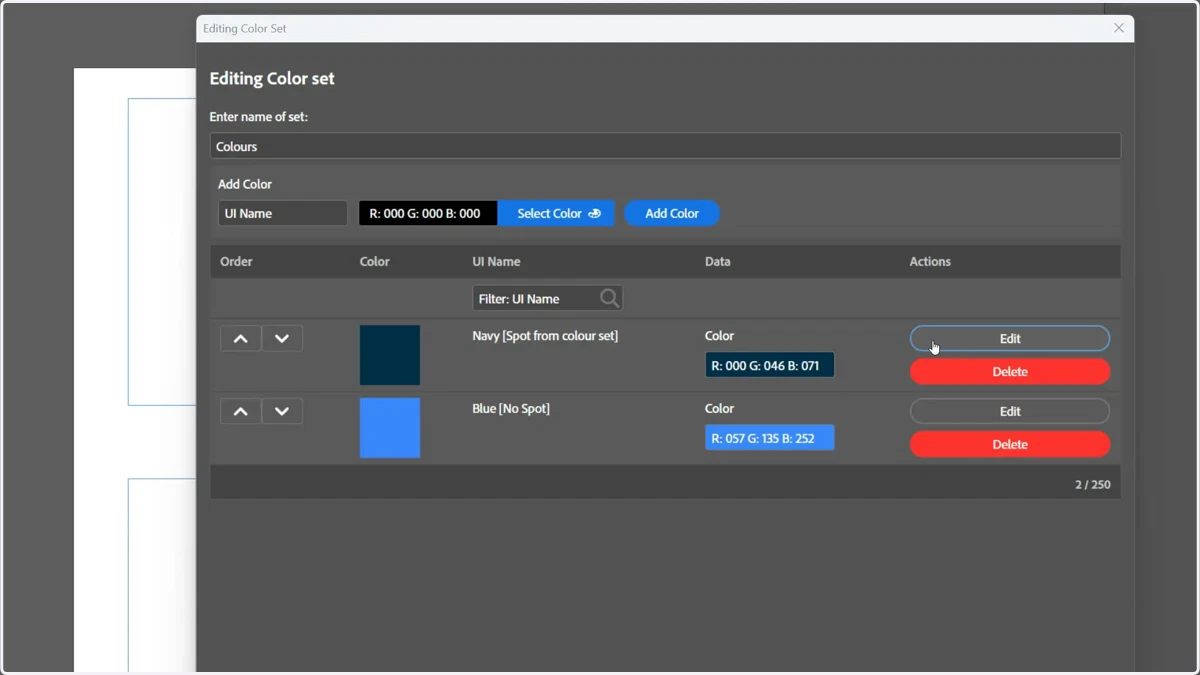
A colour resource set has been created containing two colours.
The navy colour has been defined as a spot colour (seen in the following steps).
the blue colour has not specifically been defined as a spot colour.
2. Defining a colour as a spot colour
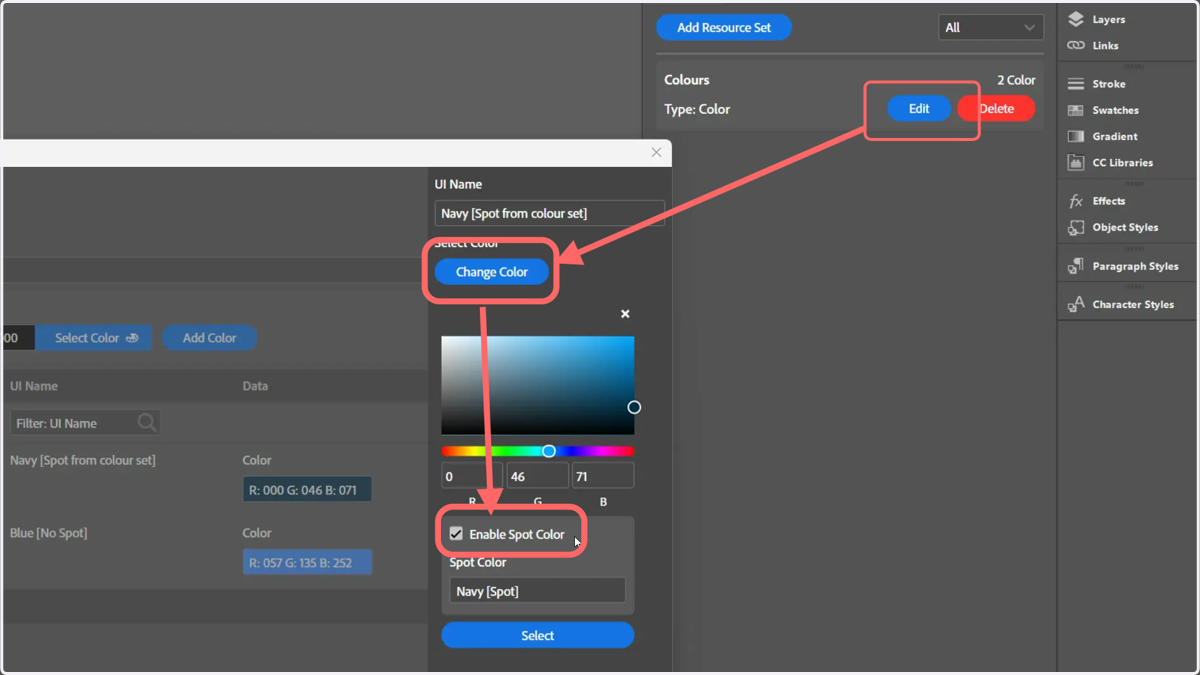
Within a colour resource set, click Edit > Change Color > Enable Spot Colour.
The spot colour can be independently named, and whatever RGB value applied here will be saved as a spot colour.
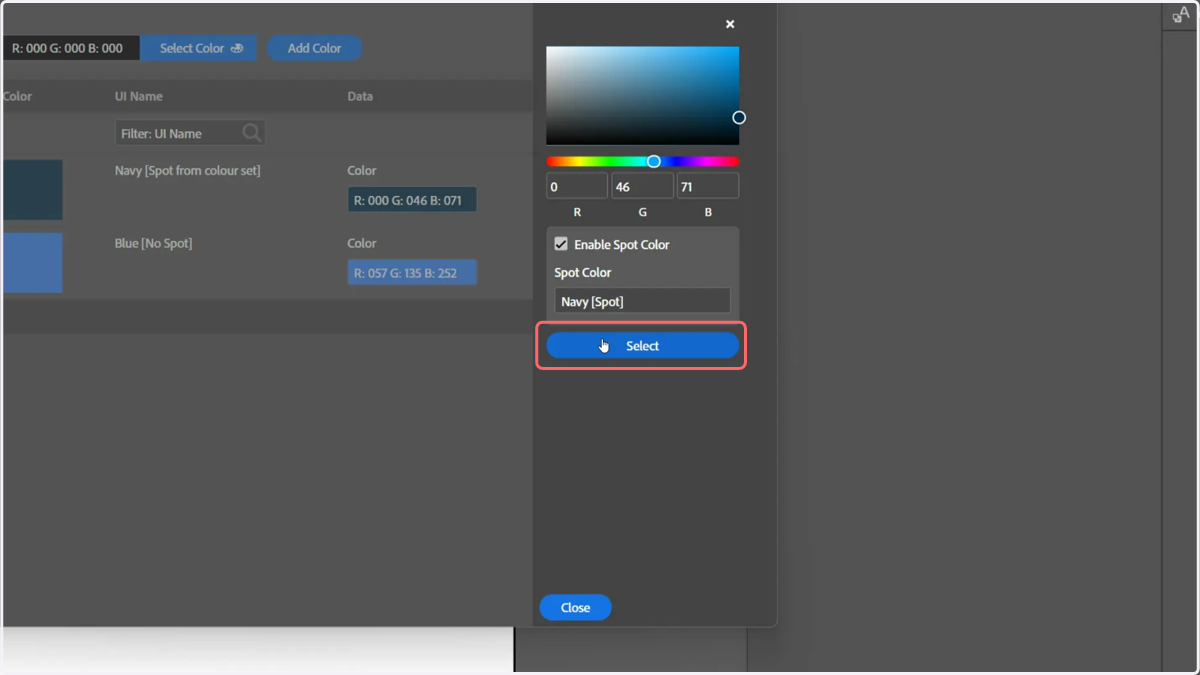
3. Click Select to confirm
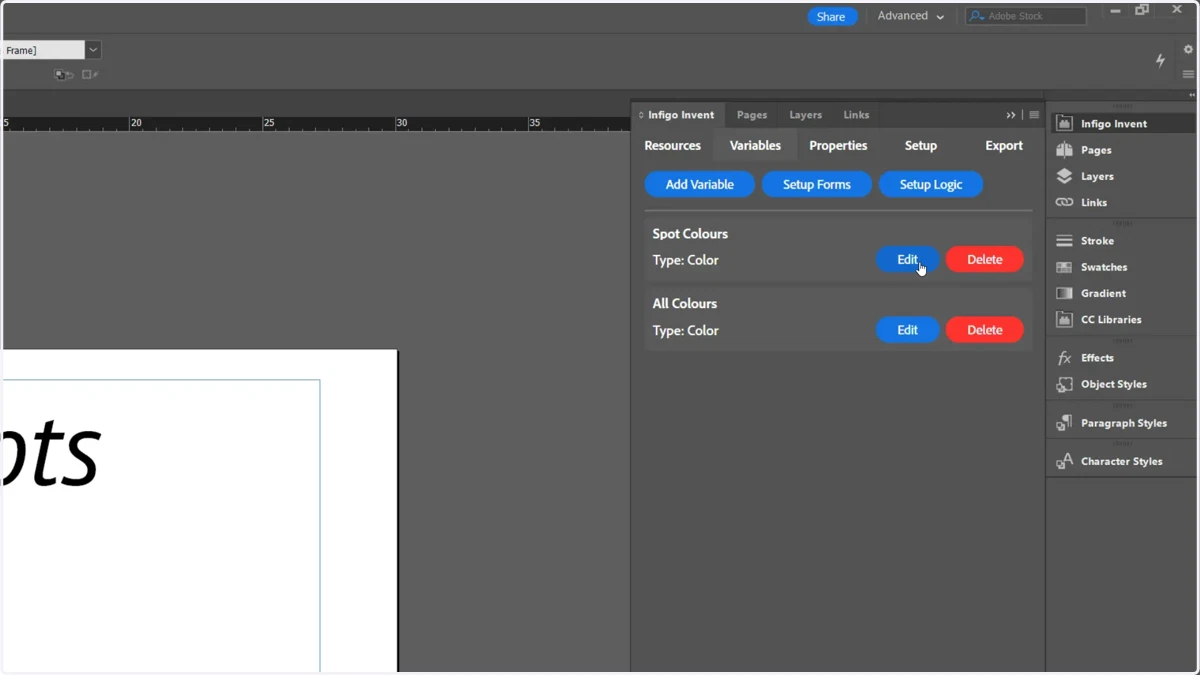
4. Two variables have also been created in our Invent template
One variable links directly to defined spot colours (from all sources), whilst the second is linking to colours from our defined colour resource set.
5. The Mode of a colour variable can be set to Spot Colour, which will draw all spot colours from the template, regardless of where they were defined.
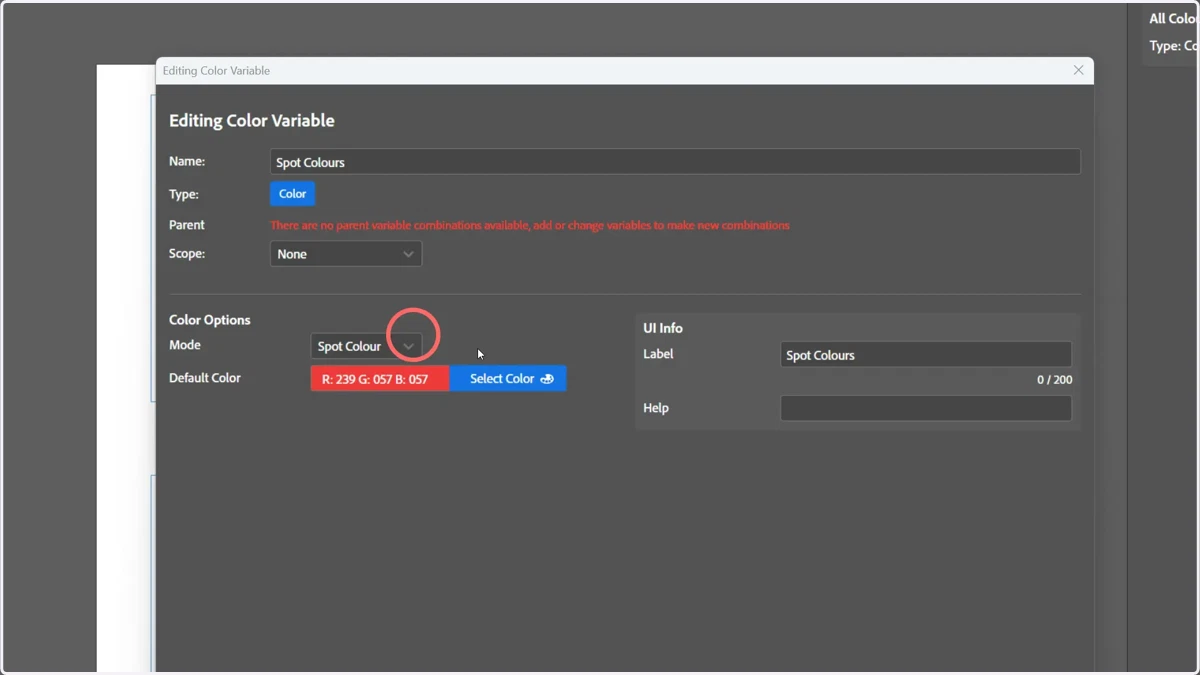
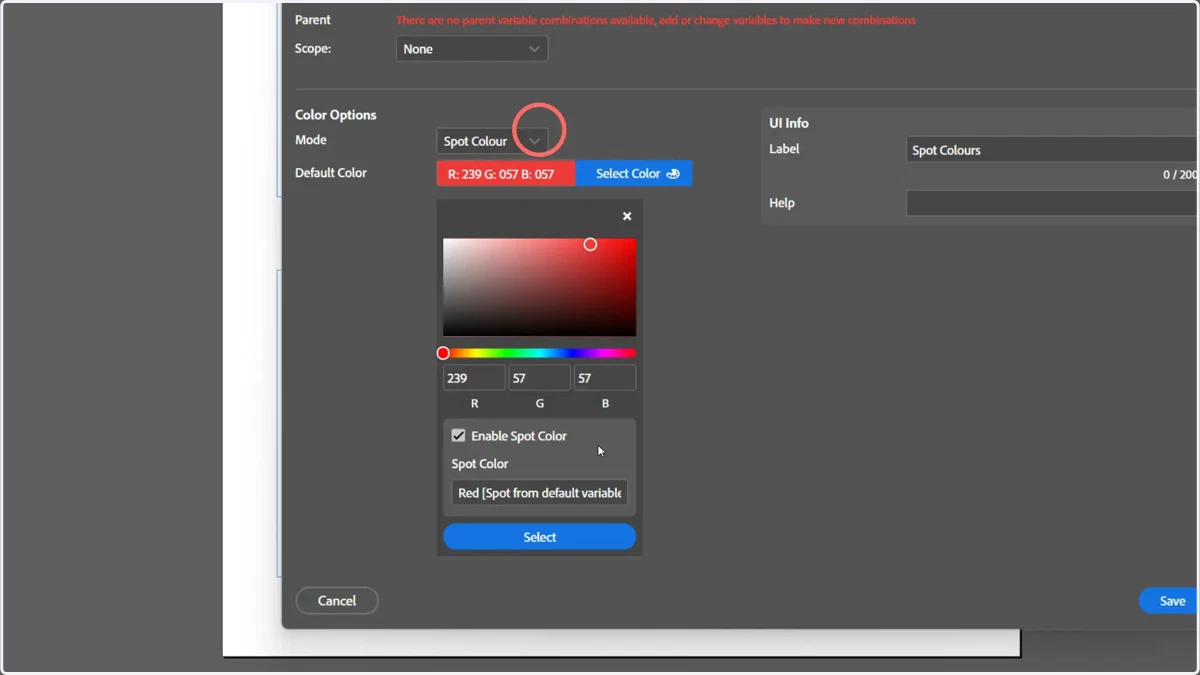
6. Within a variable is one example of another location spot colours can be defined
In this example, we have set the default colour of the colour variable. This has also been defined as a spot colour, using the same method as described with the colour resource set.
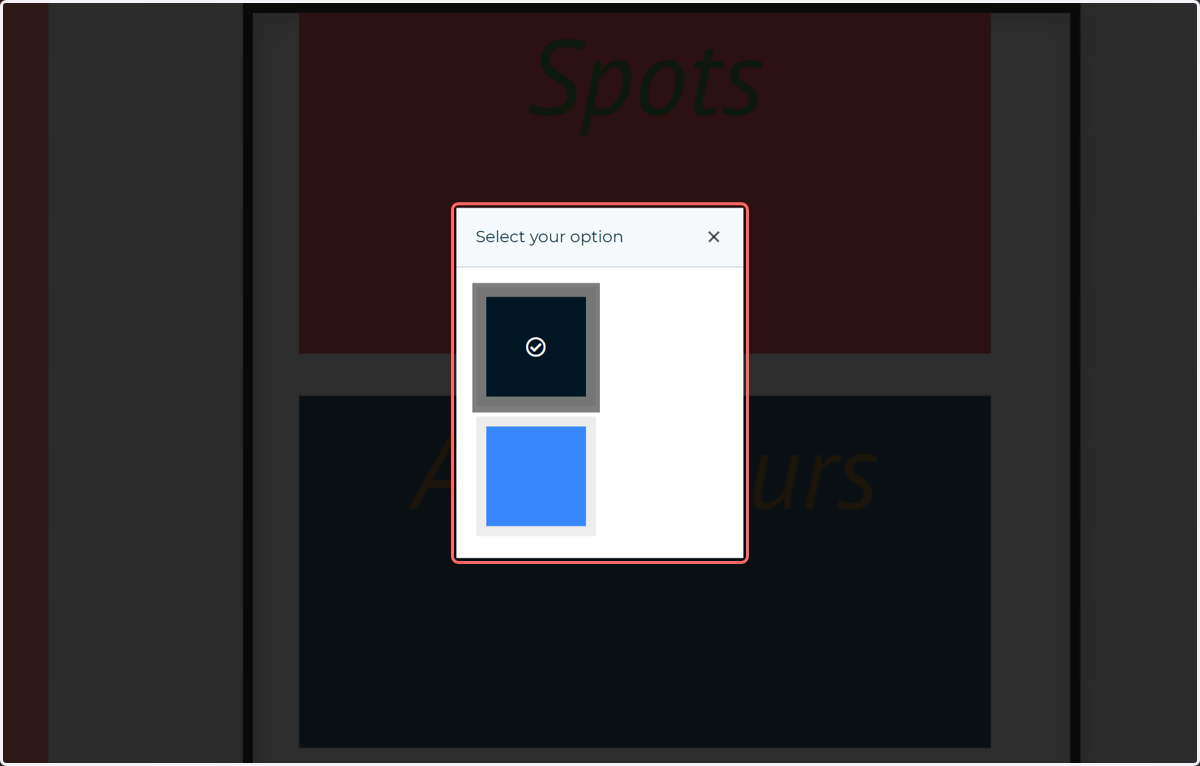
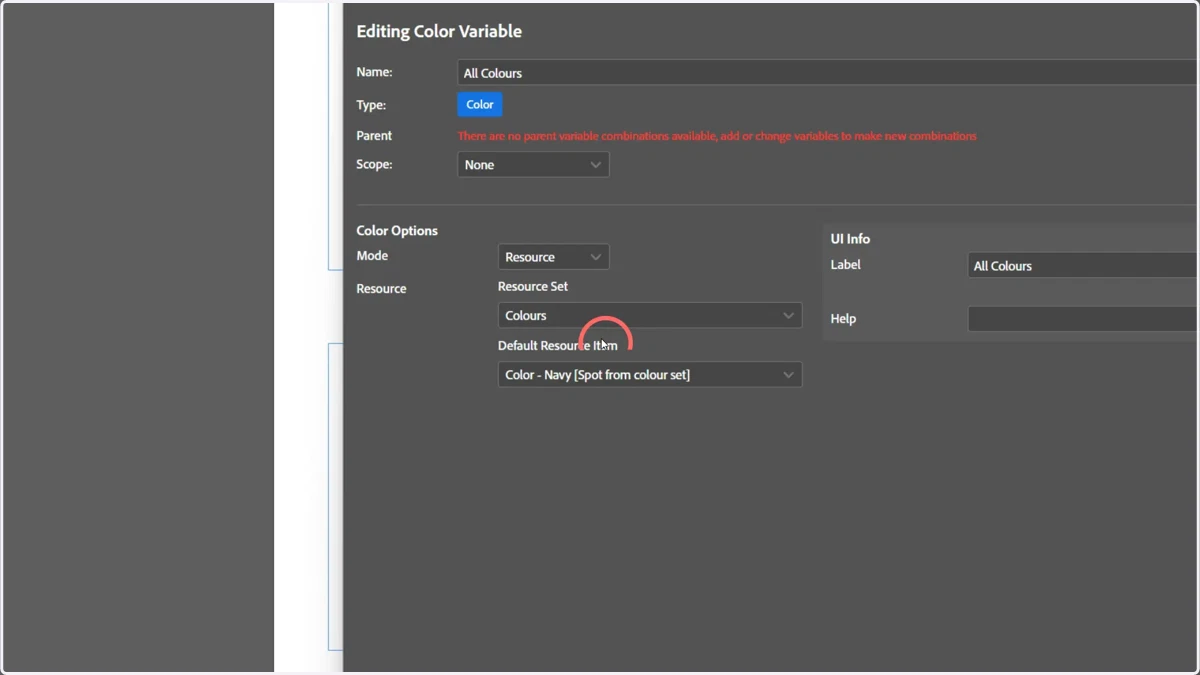
7. For comparative purposes, the second variable has been linked directly to our colour resource set, not specifically to spot colours.
8. Field properties are another example of locations where spot colours can be defined
In this example, we have set the text to a static colour, but have also saved that colour as a spot colour.
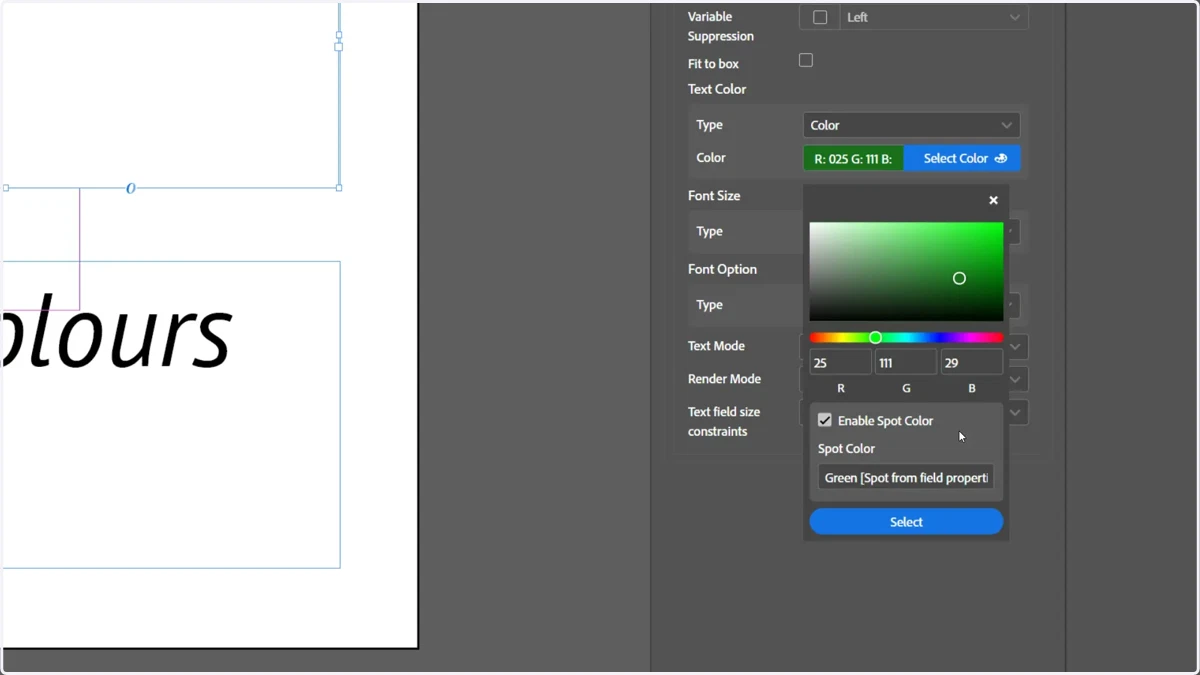
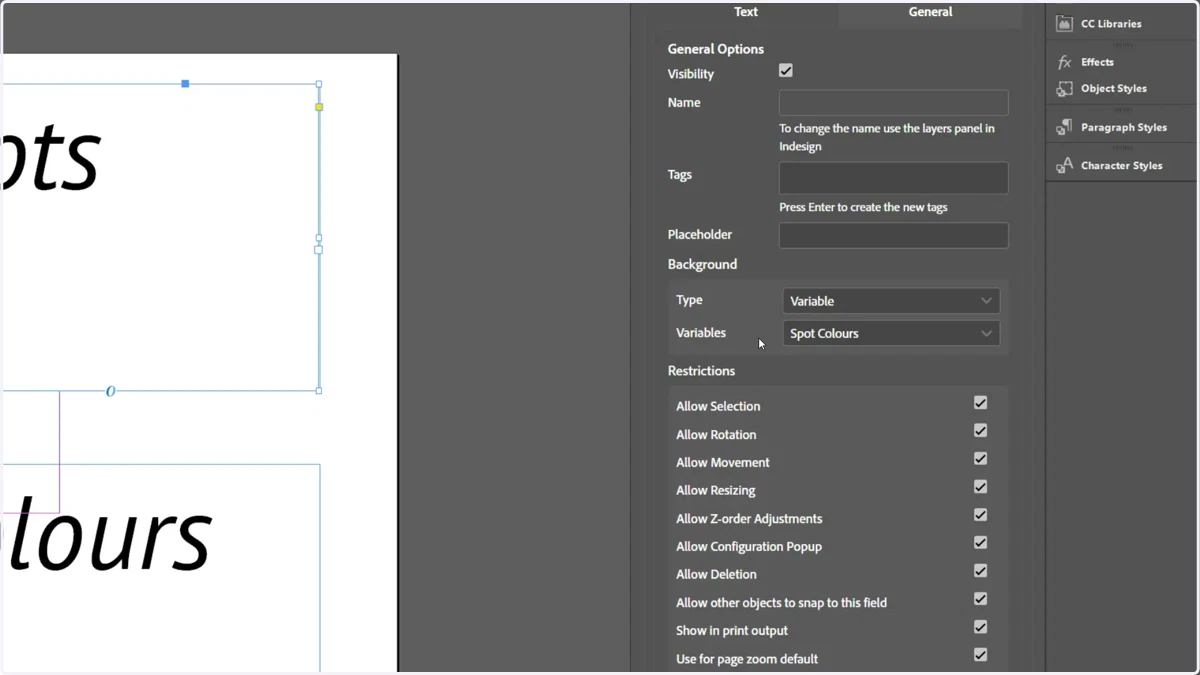
9. In our example, the field background has been linked to the Spot Colours variable.
When interacted with in MegaEdit, this will allow the background to change to ANY defined spot colour, regardless of source.
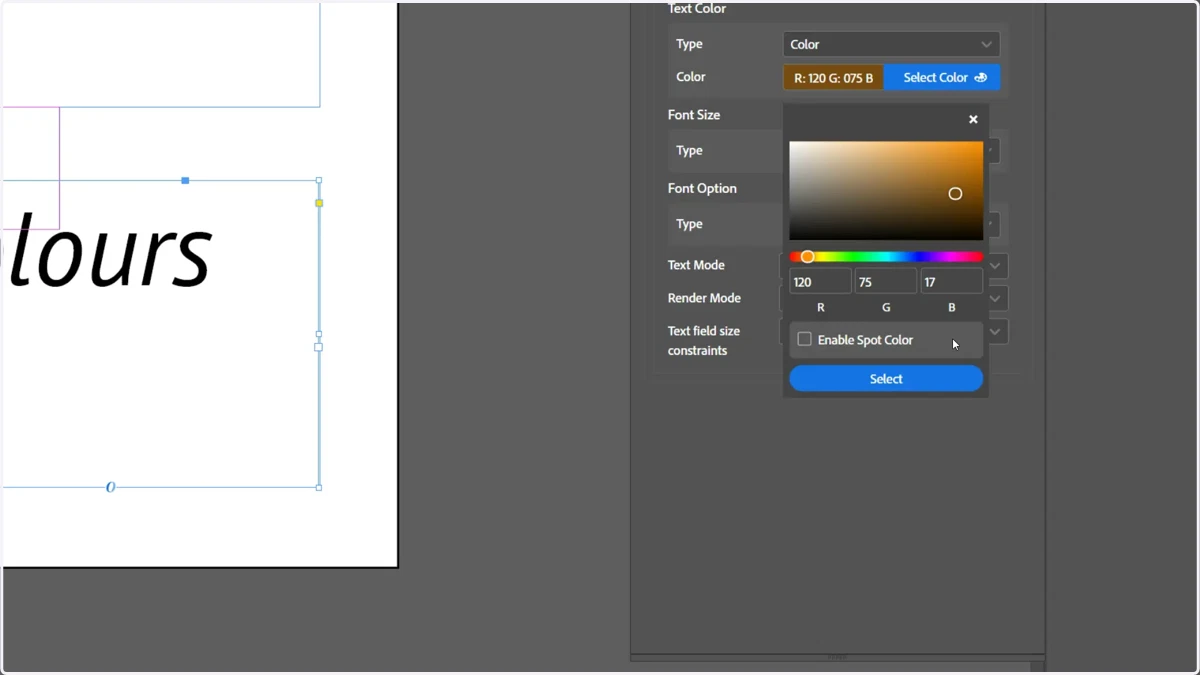
10. For comparative purposes, a second field has been linked to a static colour, not defined as a spot colour
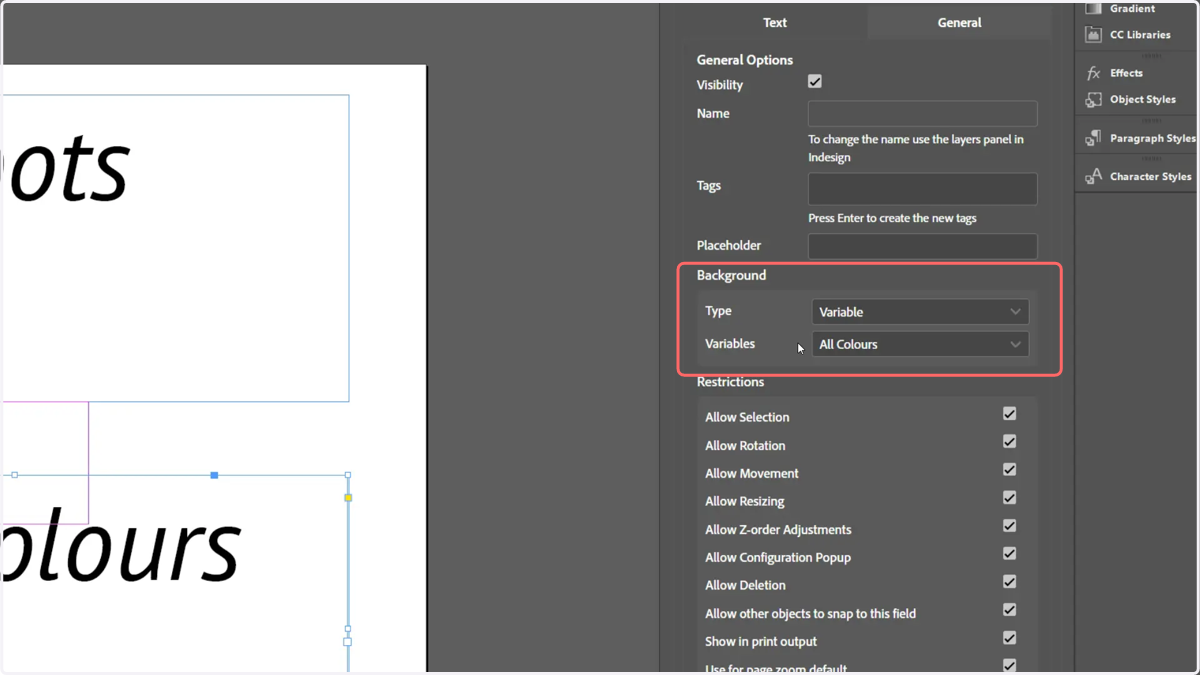
11. The background of this comparative field has been linked to the All Colours variable, which in turn is linked to all entries in the colour resource set.
12. At this point, we export the template and upload it to MegaEdit.
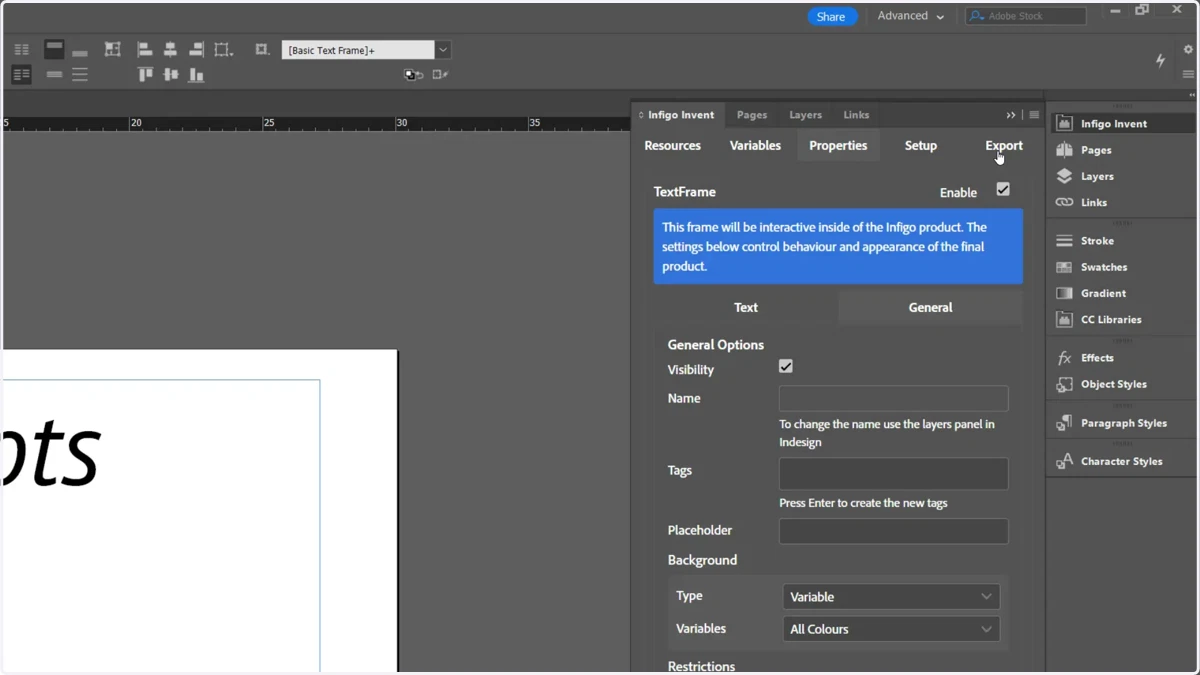
Infigo Admin
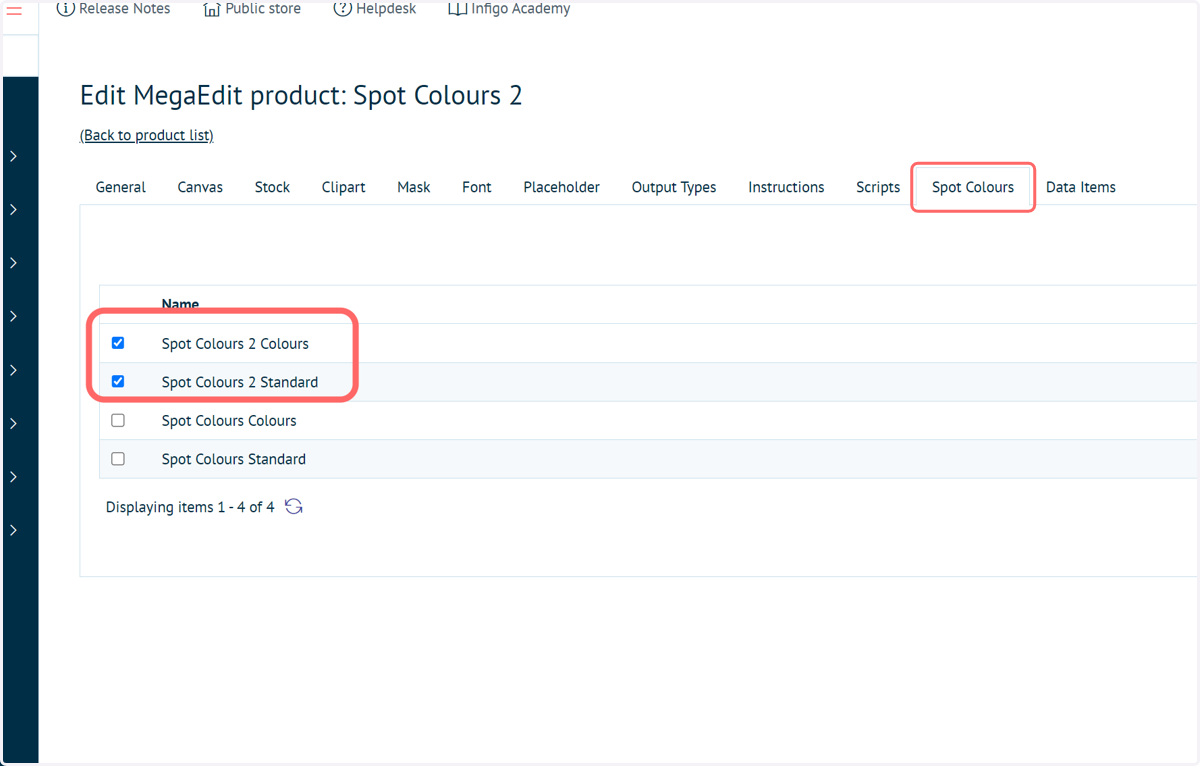
13. Navigate to the MegaEdit Config settings of your uploaded product and click on Spot Colours
As part of the MEX import, we can see two new spot colour categories have been created and automatically applied to the product.
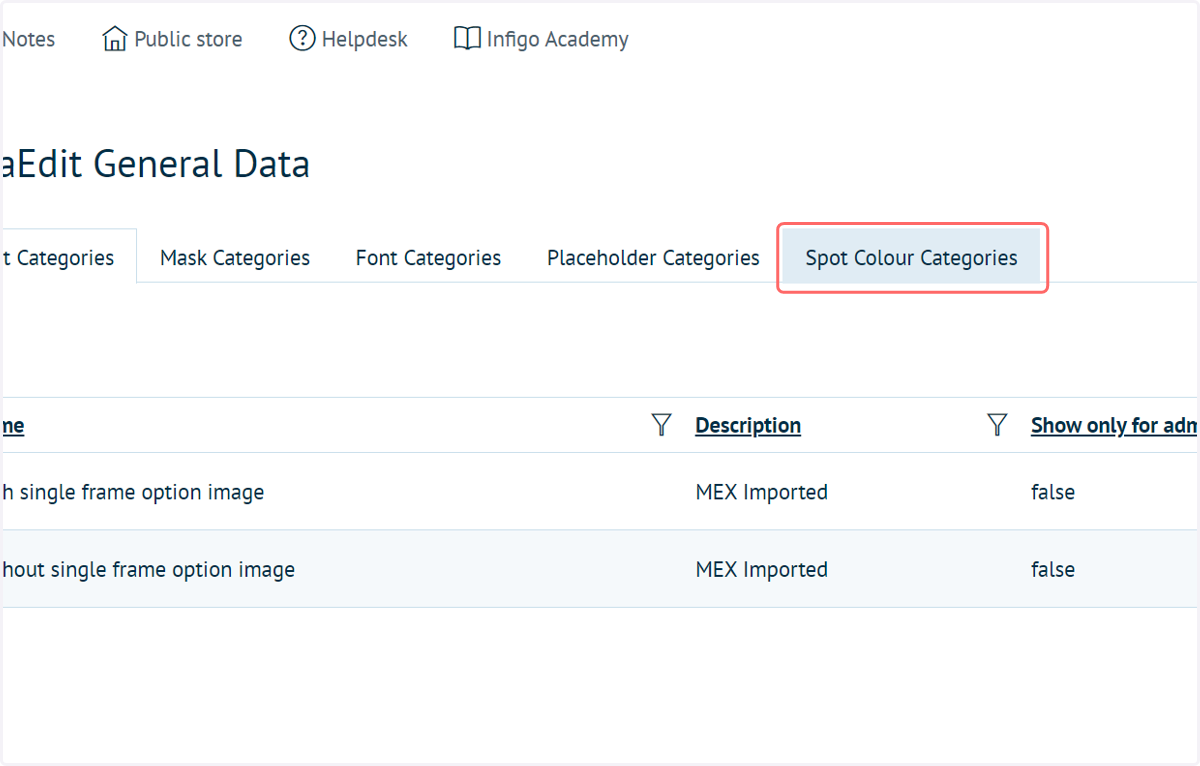
14. Navigate to MegaEdit General Data and click on Spot Colour Categories
Here, we can see what is contained within those new spot colour categories.
Click Configure on each category to see its contents.
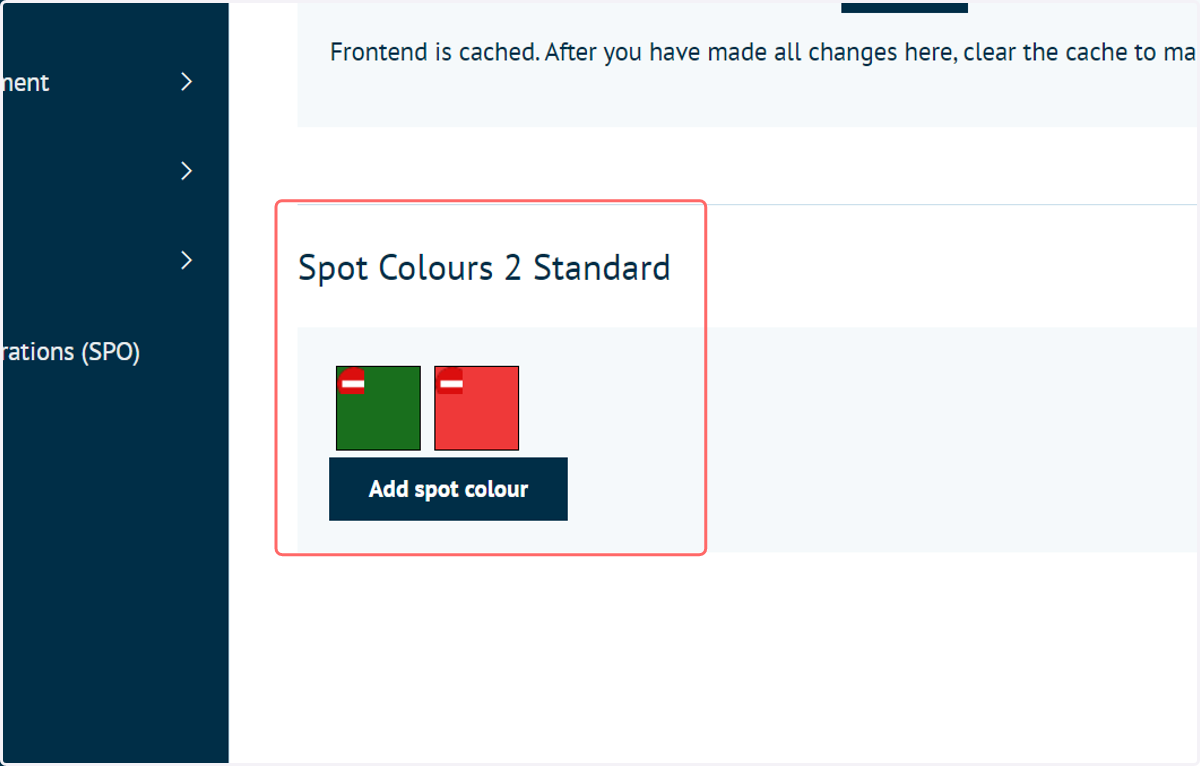
15. "Standard" category
The standard category contains the spot colours created outside of the colour resource set.
For example, we created the two spot colours listed here as part of a variable and a field property.
16. "Colours" category
The colours category contains spot colours created in our "Colours" resource set.
The name will be taken from the resource set name.
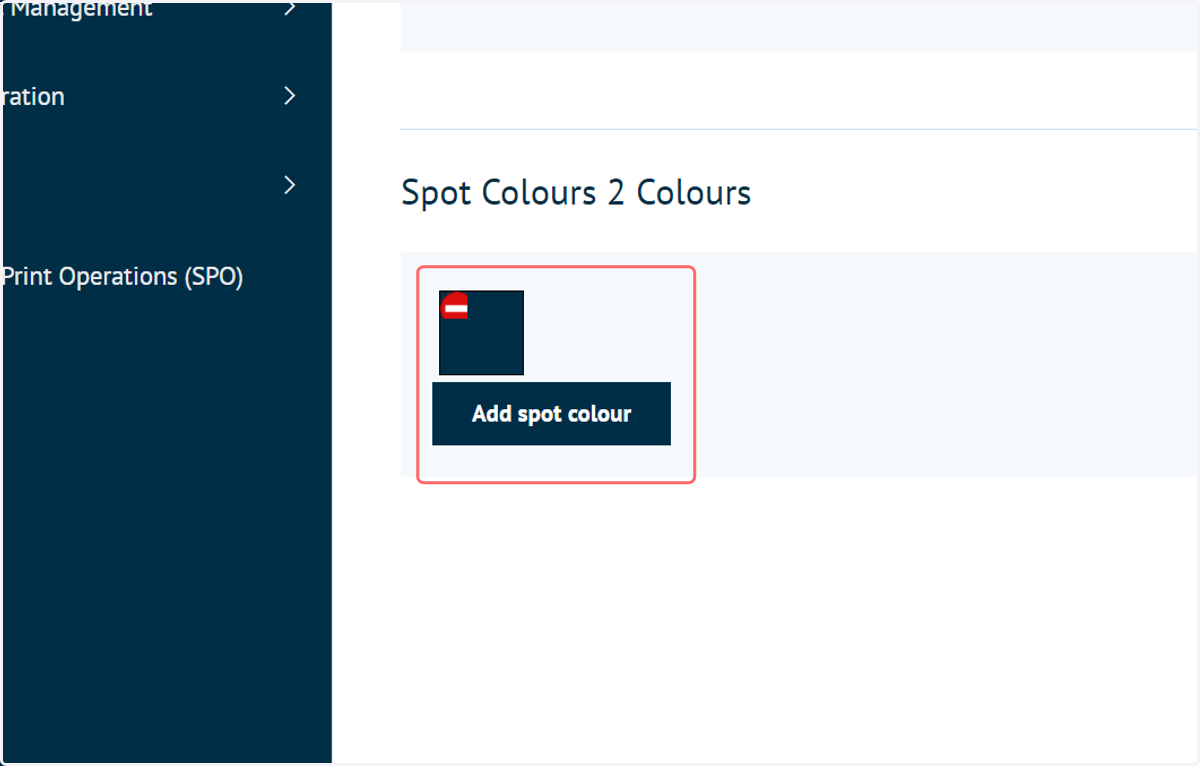
17. Launch the MegaEdit product
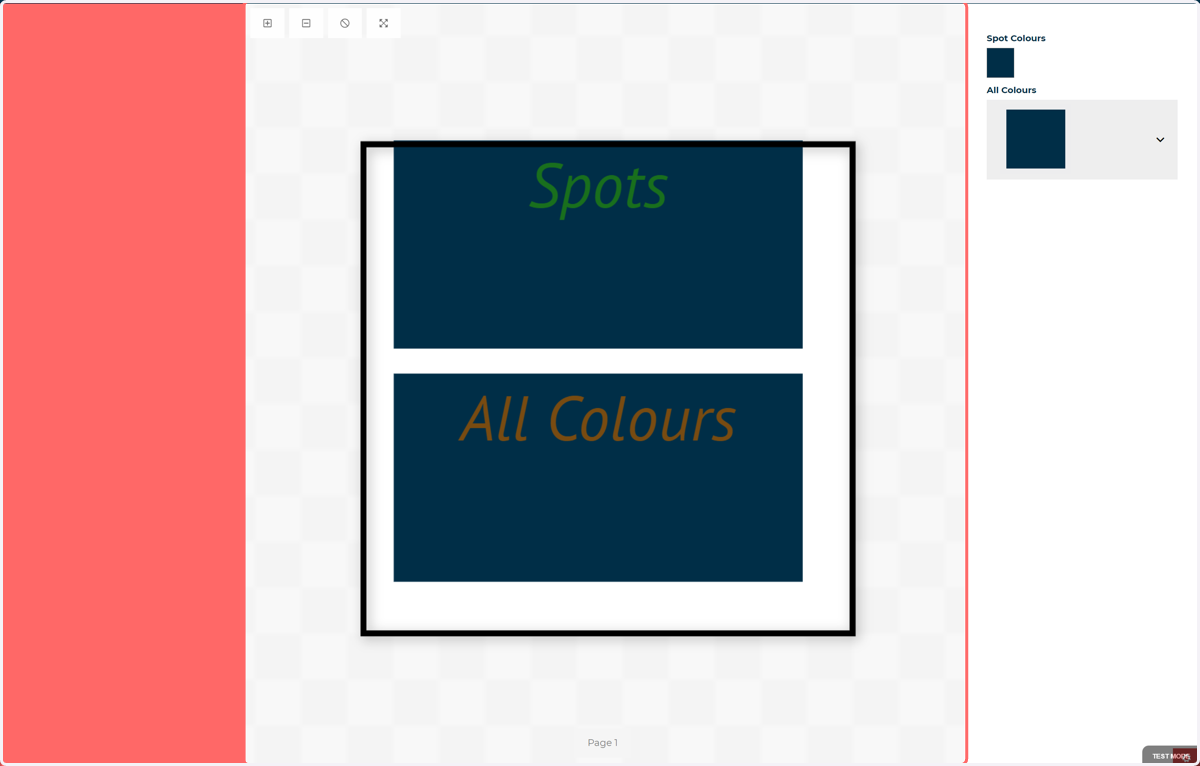
18. Spot Colour variable
As a reminder, this variable was linked directly to defined spot colours.
We can see here that all spot colours are selectable, regardless of where they were created.
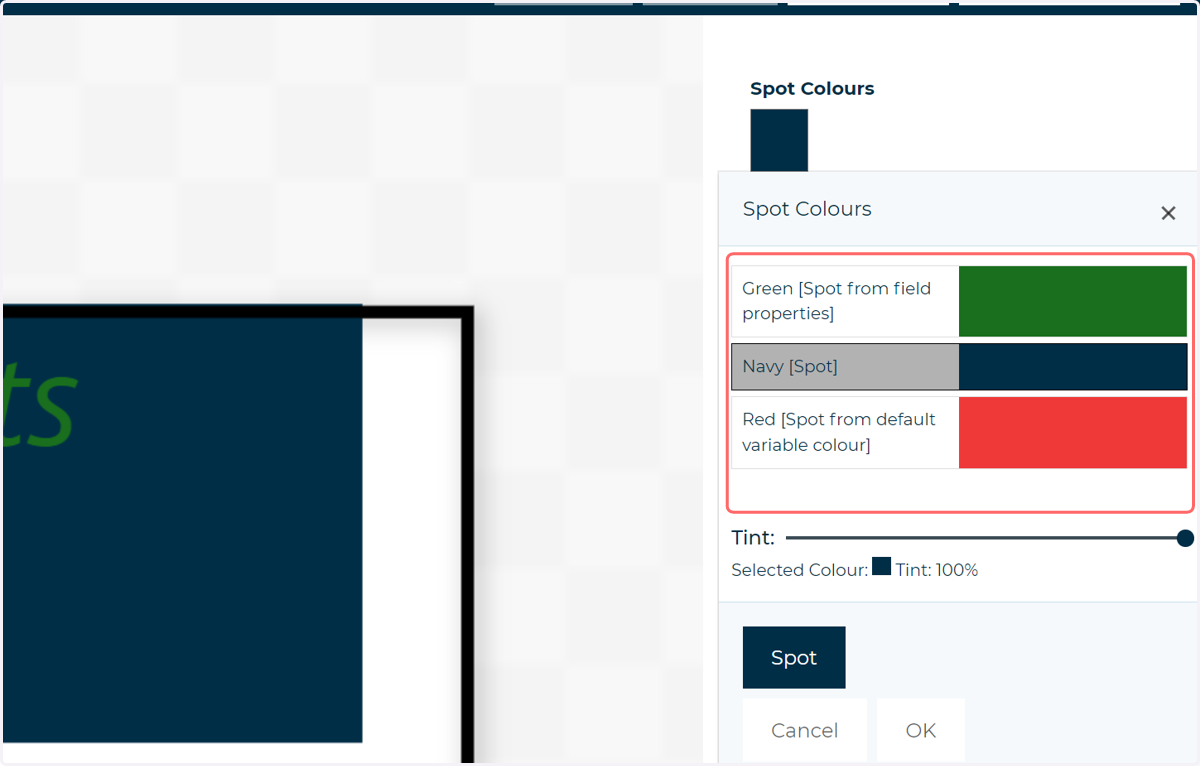
19. In comparison, the All Colours dropdown only lists colours present in its linked resource of the generated colour set.