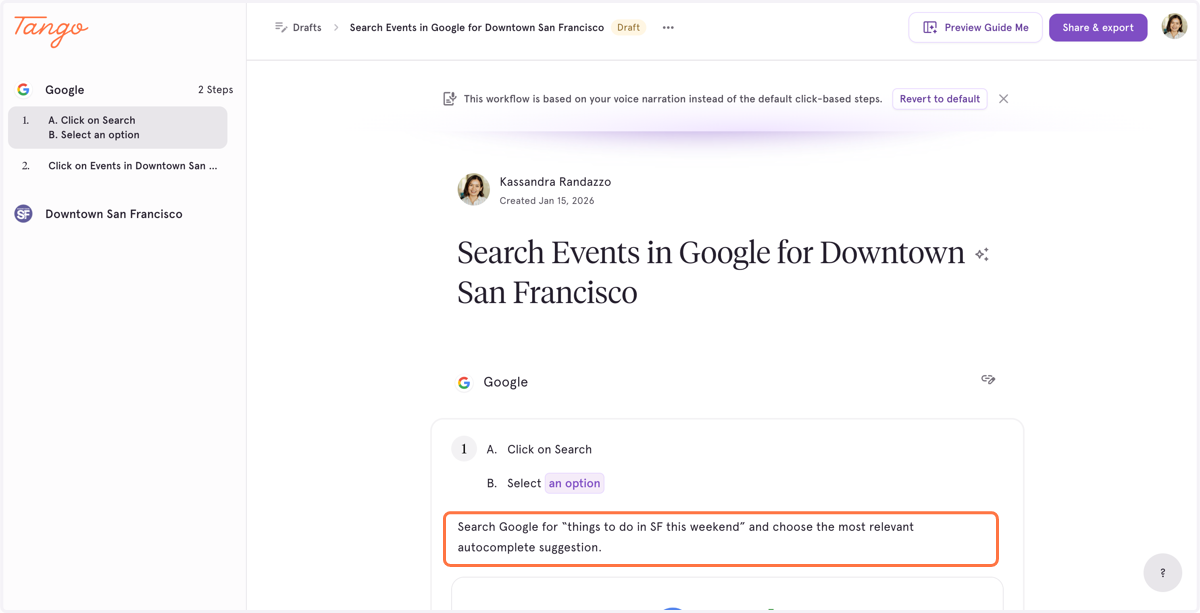
How to Use Voice Transcription during Capture
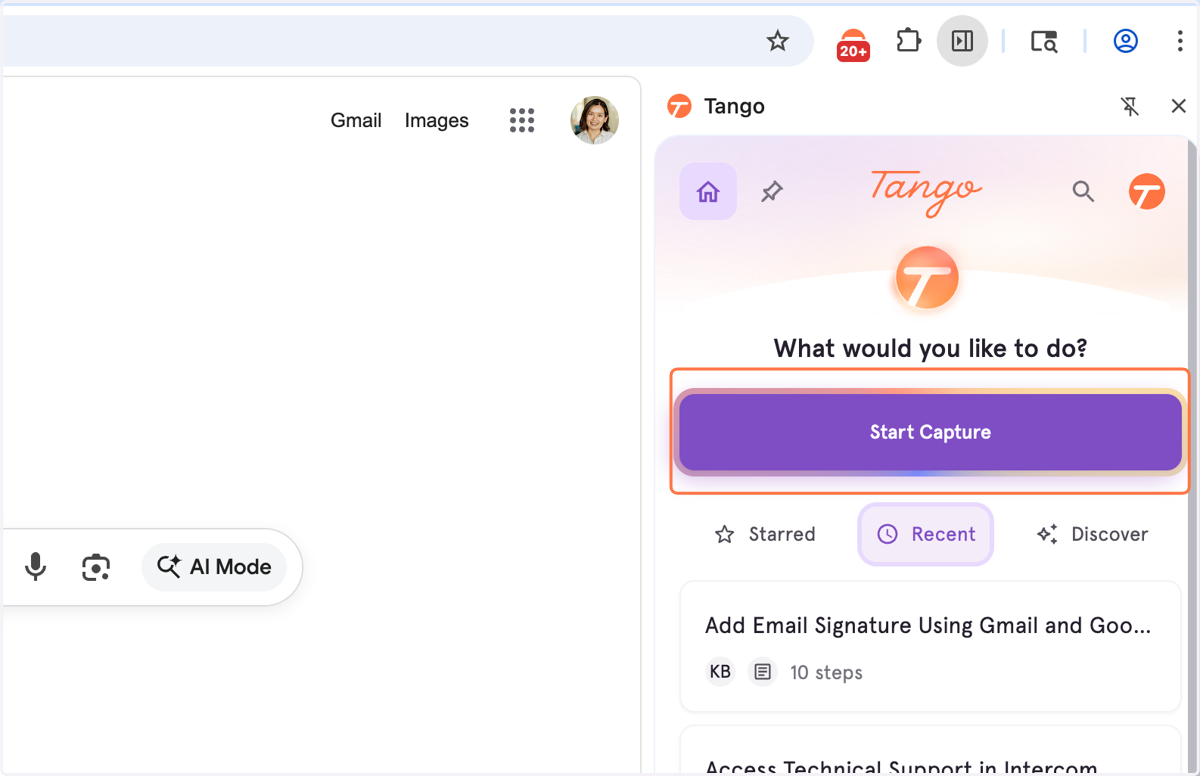
1. Open your Tango extension and click on "Start Capture"
2. If given the option between How-to guides and Automations, choose "How-to Guides".
If you did not see this option, proceed to the next step.
Voice Transcription is only supported by the How-to Guide format for now.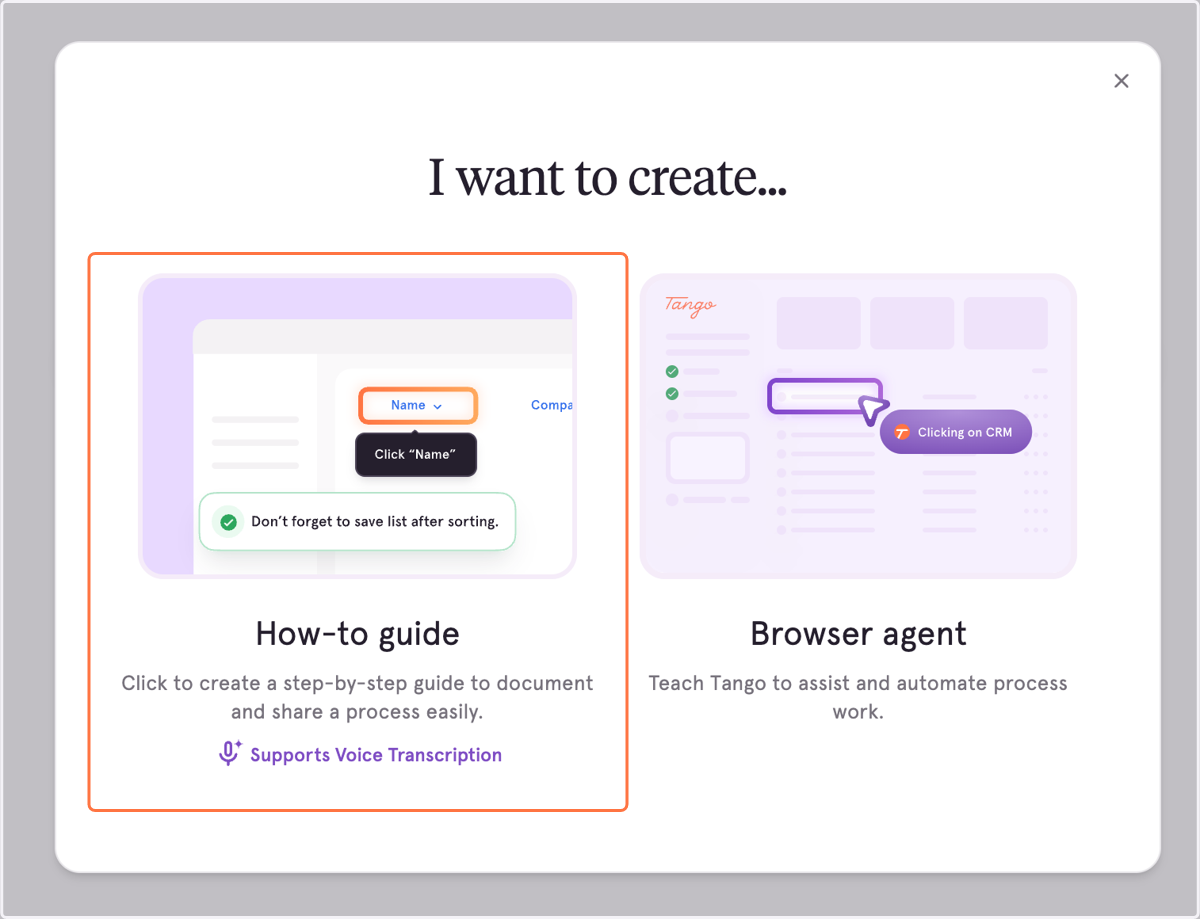
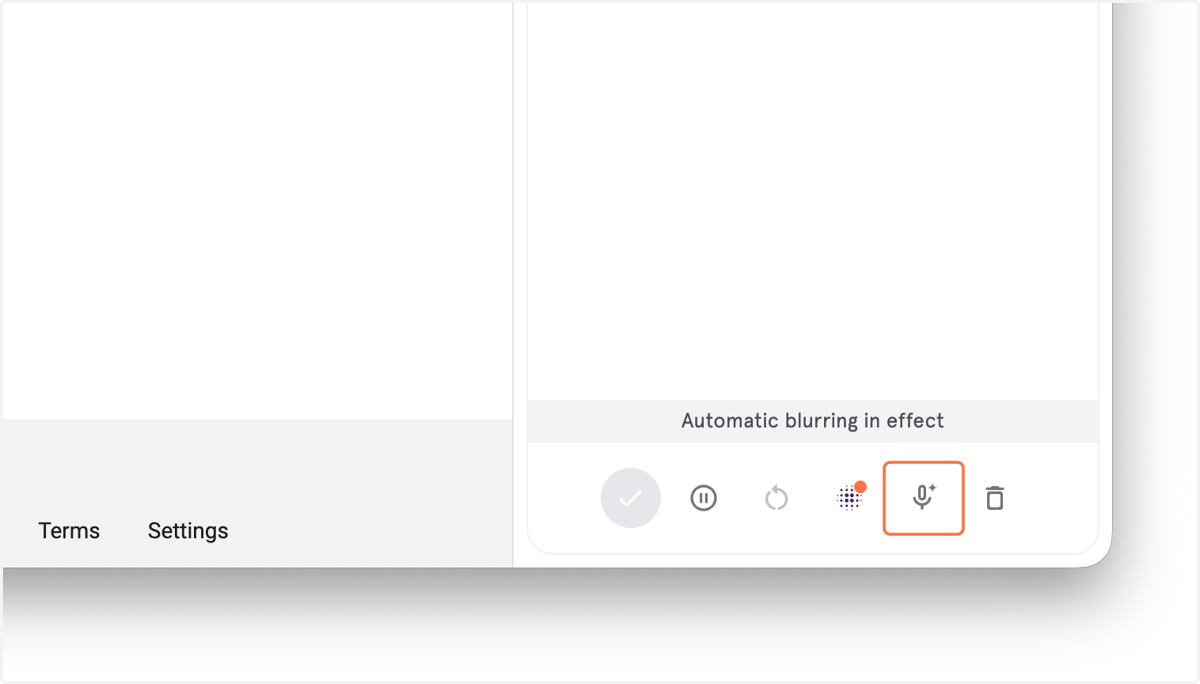
3. Click on the "Voice Transcription" icon in the lower right of your capture panel.
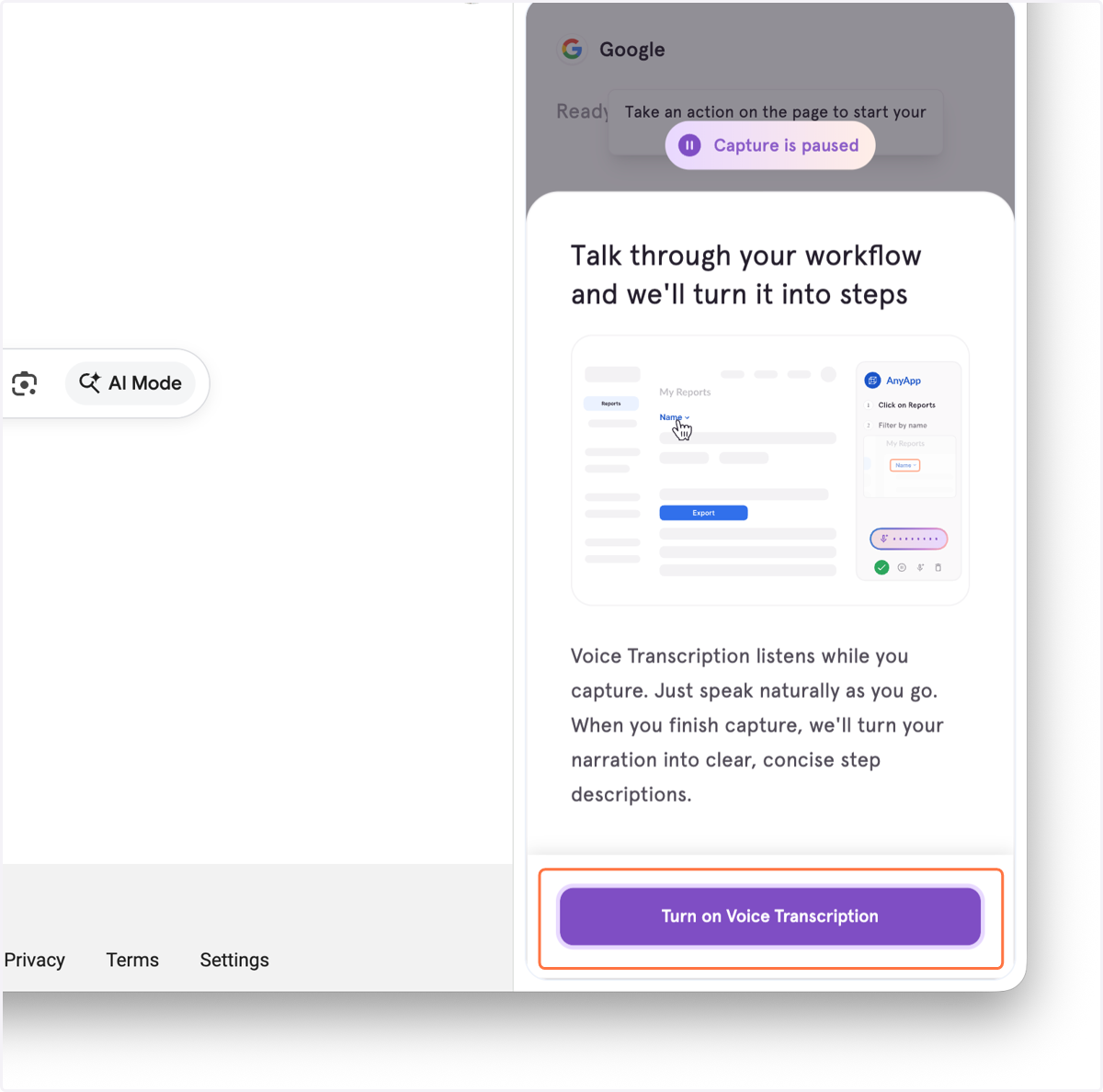
4. If this is your first time, you'll see a brief explanation of the feature first. Then, Click "Turn on Voice Transcription" to enable it.
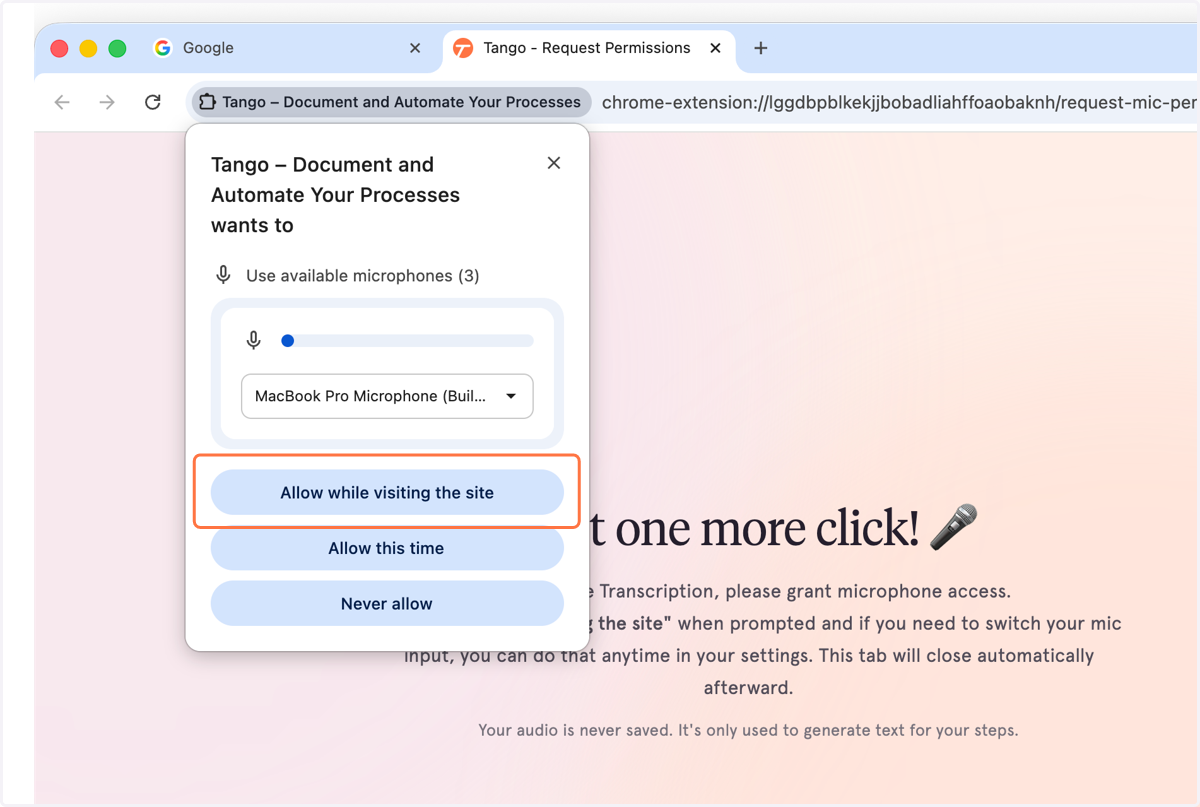
5. For Chrome users: Click on "Allow while visiting the site" to enable. Note: Selecting any other option will not correctly enable voice. For Edge: Click "Allow" to proceed.
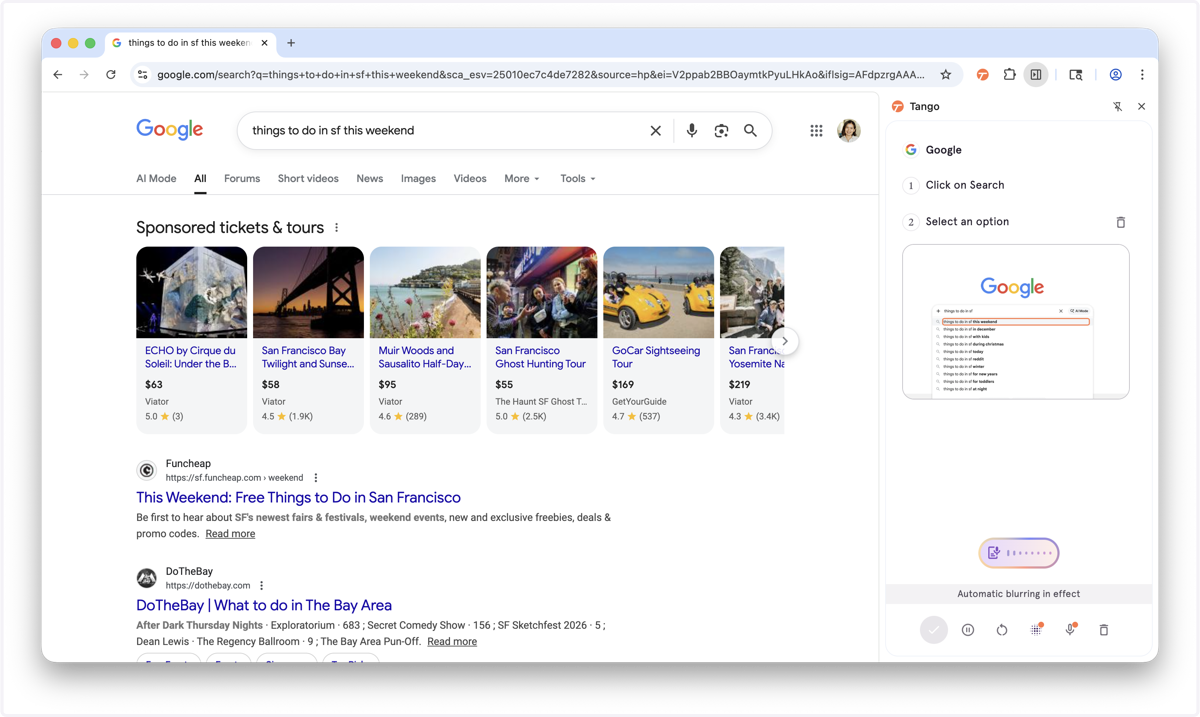
6. Once Voice Transcription is enabled, you can begin speaking and continue recording your workflow.
An indictor in the bottom half of the capture panel shows that this feature is currently on.
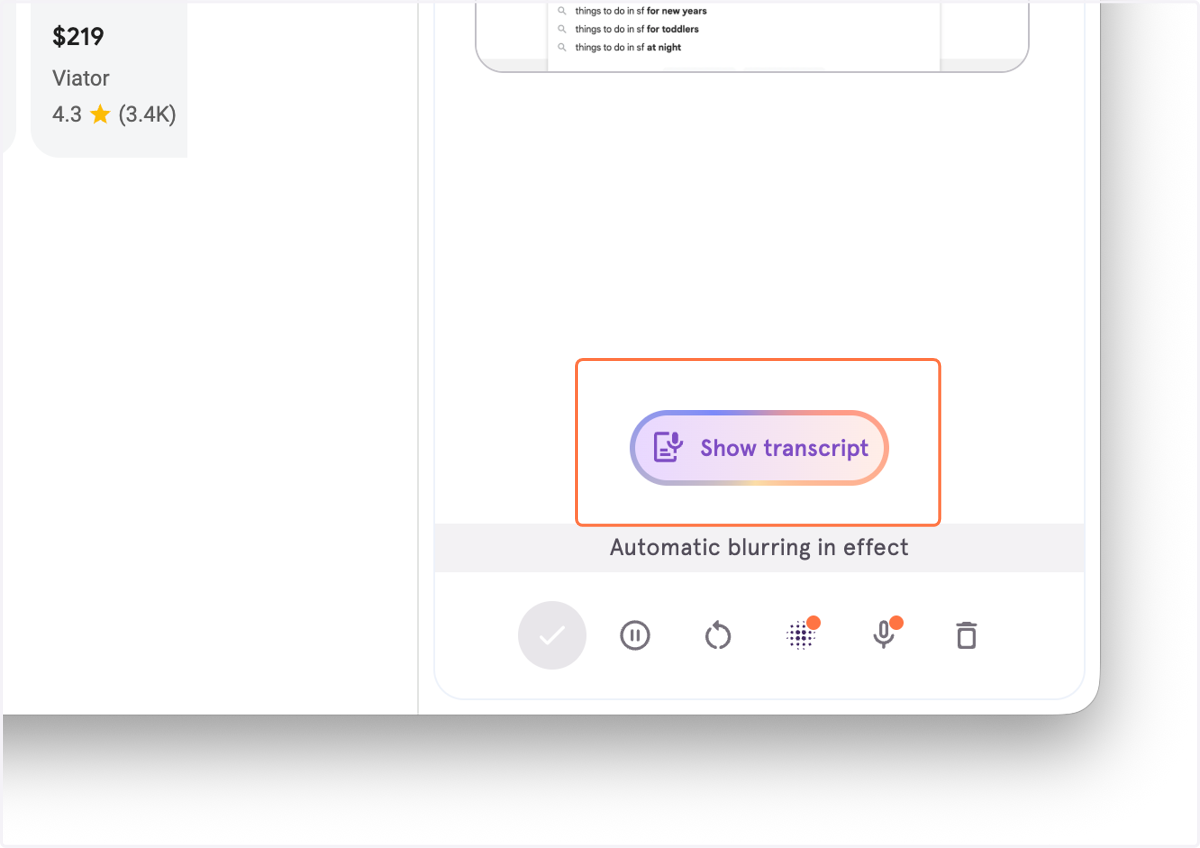
7. If you'd like to see an active transcript of what you've said so far during capture, hover over the voice indicator and click "Show transcript".
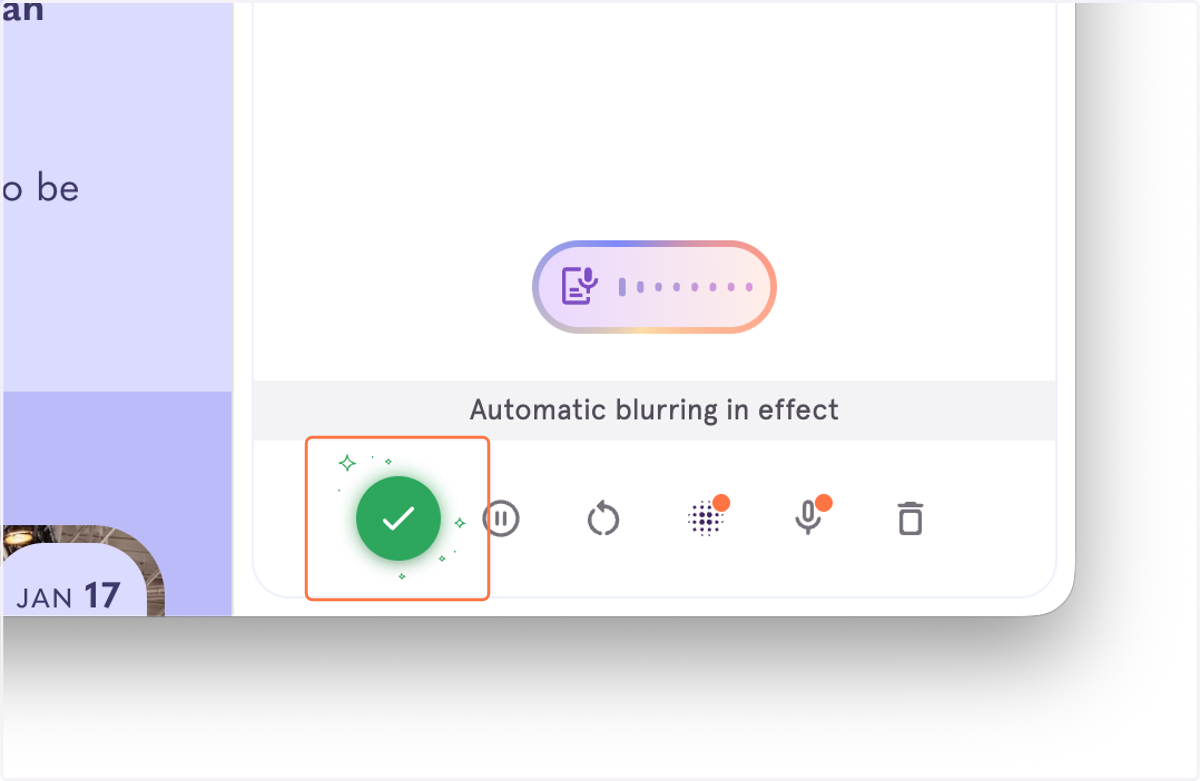
8. When you are done recording your workflow, click the green checkmark at the bottom of the Capture panel.
9. Once finished, your workflow should include polished descriptions that reflect the context you gave while using Voice Transcription. All descriptions are editable should you need to change anything.
Note: Workflows with Voice Transcription enabled may take a few moments to load.