Generic Pricing Script | The Basics | GT_PR_£_Pricing Scripts_001
In this tutorial, we will take a look at the basics of the Generic Pricing Script.
Pricing scripts are versatile tools used to customize and control product pricing. They allow users to define pricing based on various attributes and attribute combinations, providing the flexibility to adapt pricing to specific business needs.
Whilst custom pricing scripts can be created for niche scenarios, the Infigo provided Generic Pricing Script can be used for the vast majority of cases.
1. Navigate to or create a new product
Pricing scripts are activated on a product basis.
To begin, navigate to or create a product for which you wish to apply this type of pricing to.
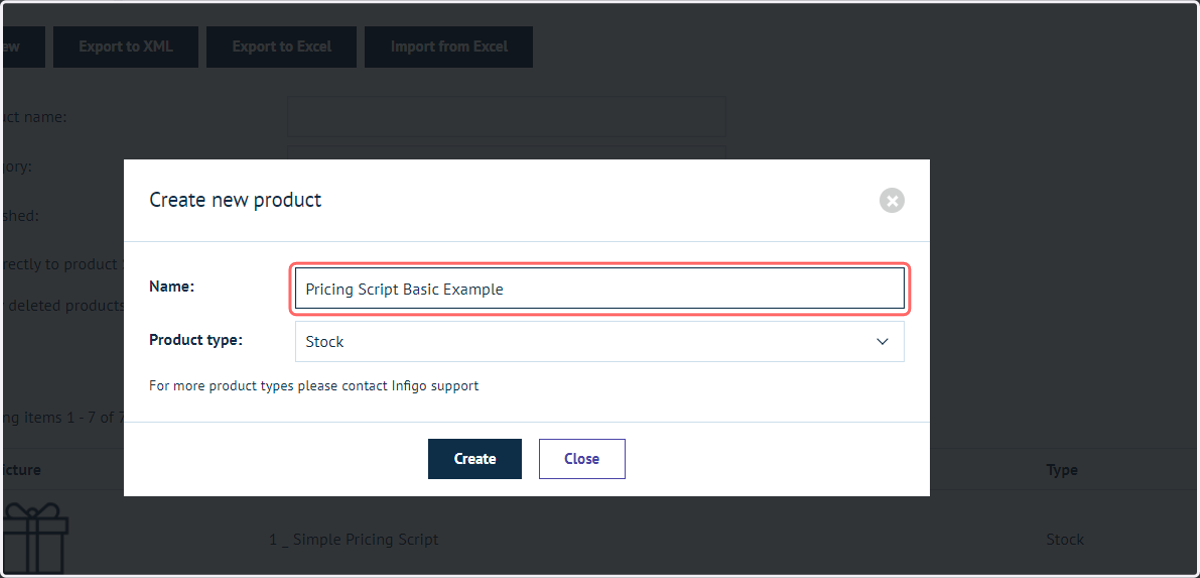
2. Click on Product variants
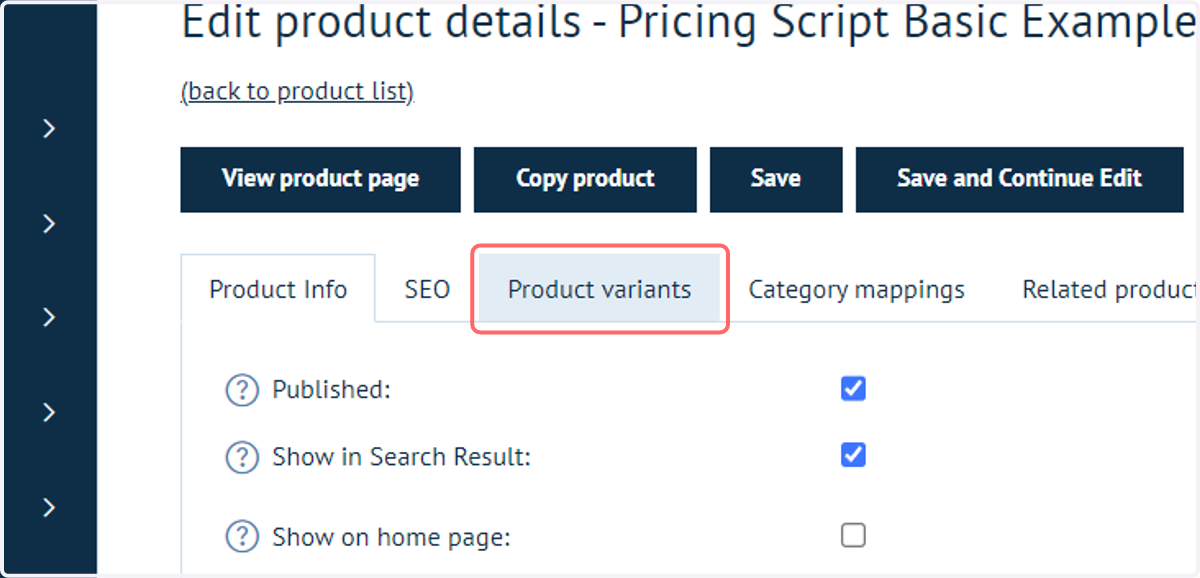
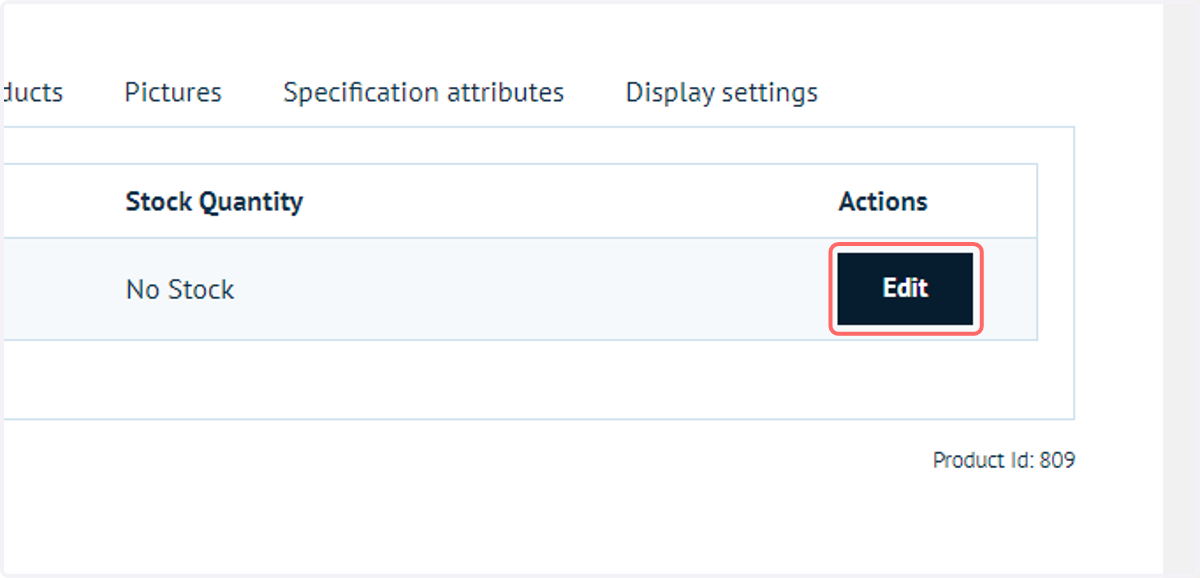
3. Click on Edit
The settings for applying and modifying the pricing script are within the Product Variant settings.
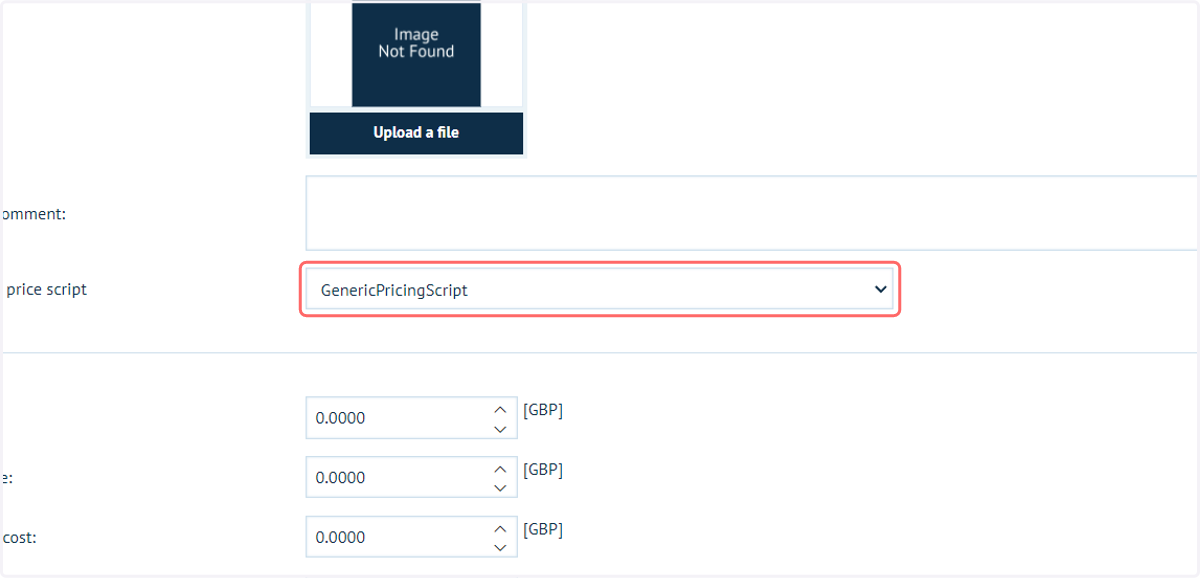
4. Select GenericPricingScript from Attach a price script
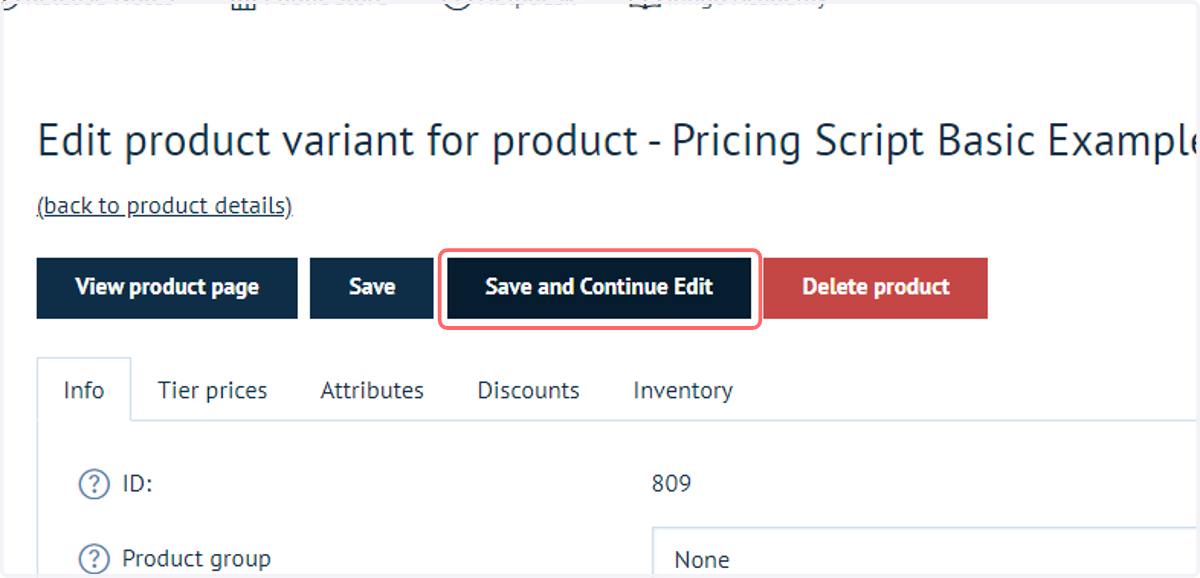
5. Click on Save and Continue Edit
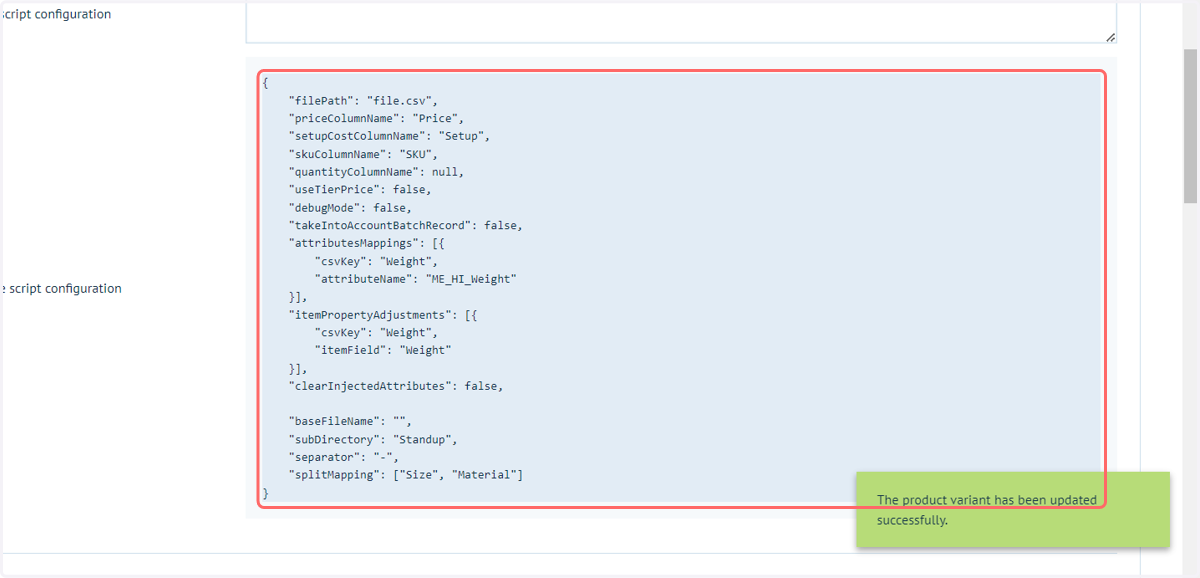
6. Example script configuration
The generic pricing script has a default configuration. If no additional configuration is performed, the settings displayed in the blue box will be followed for this product.
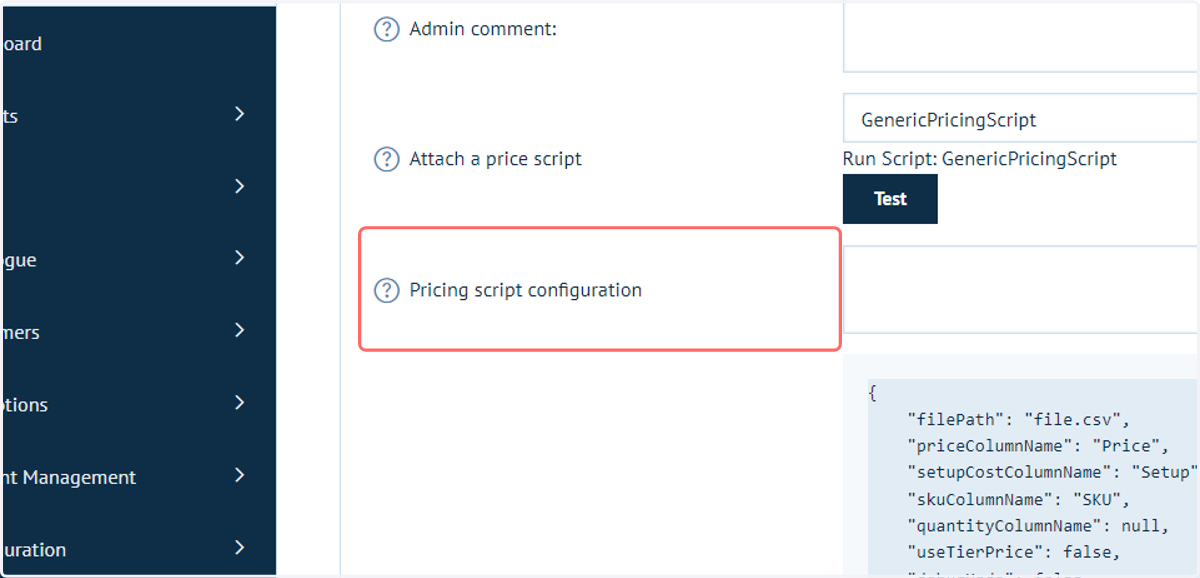
7. Click on Pricing script configuration
We can override all or part of the generic configuration within the Pricing script configuration box.
Before taking a look at this in further detail, we will address the CSV document containing all the pricing information for this product.
8. Associated CSV for this product
In addition to configuring settings for the pricing script, all of the pricing options will need to be detailed in a partnering CSV document.
This example is about as simple as these documents can get. Later tutorials will add more complexity to the pricing structure.
This sample document contains:
2 columns matching with product attributes (A & B)
A quantity column
A price column
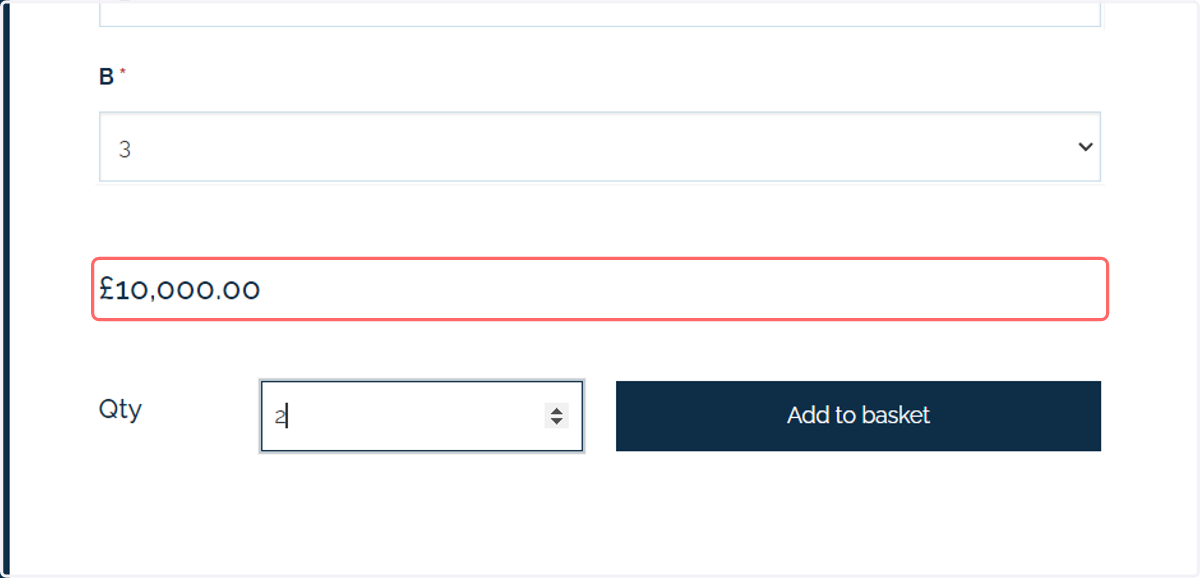
Each row details a different pricing scenario. In this simple example we detail 10 scenarios where pricing will be returned. If any selection sits outside of this scope (such as a quantity of 2 is specified), a default value of £10,000 (or your selected currency) will be displayed.
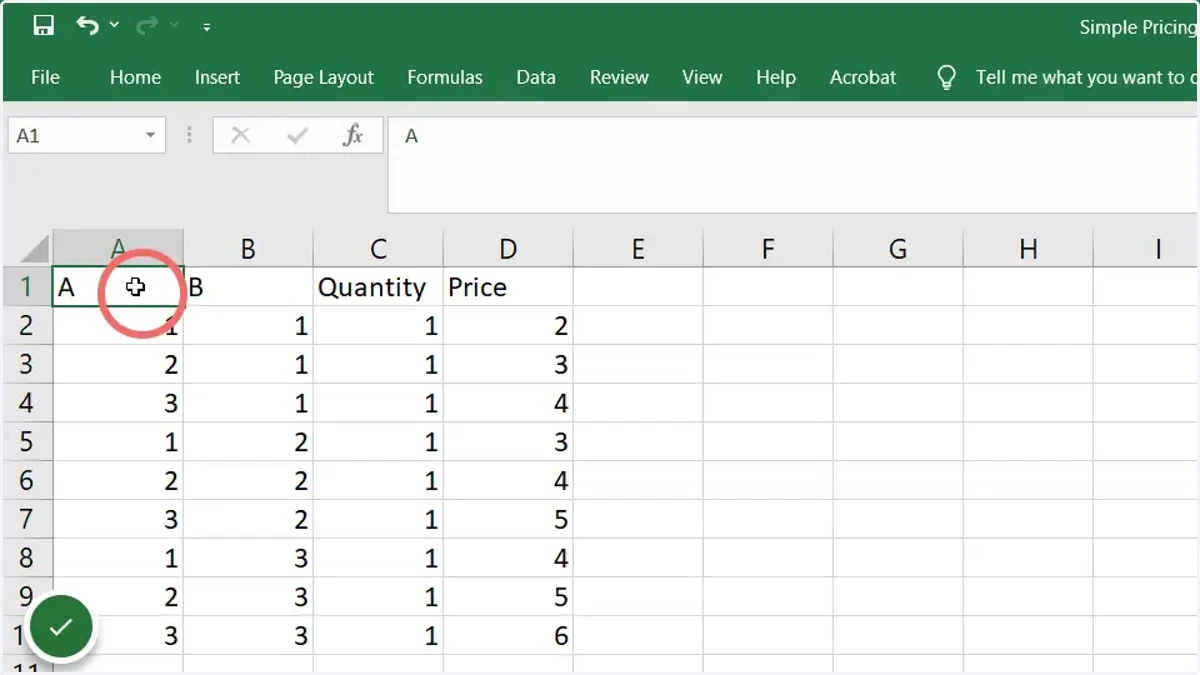
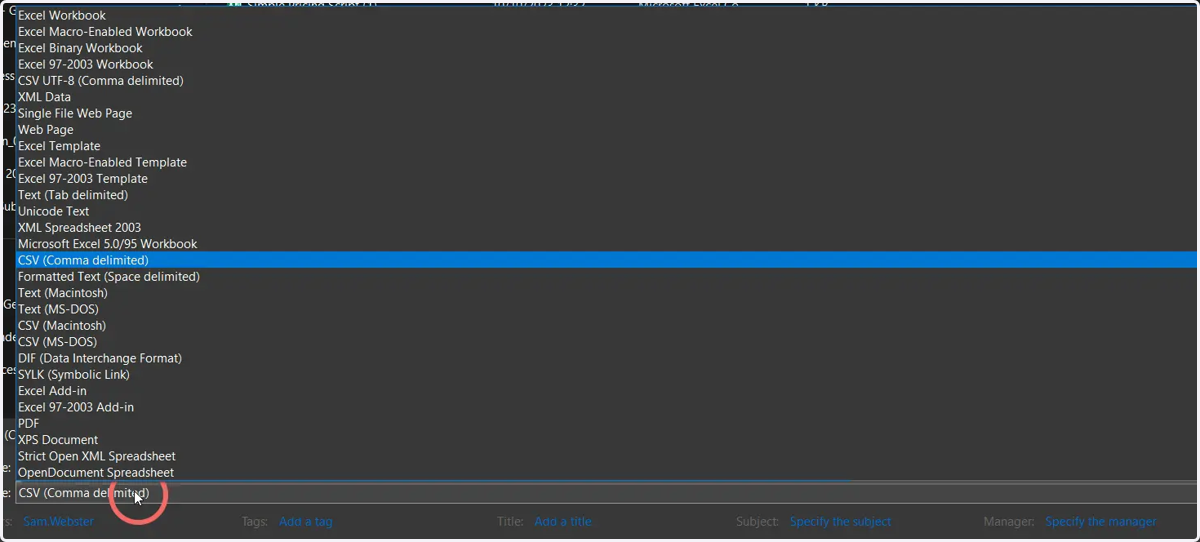
9. Save this file as a comma delimited CSV document
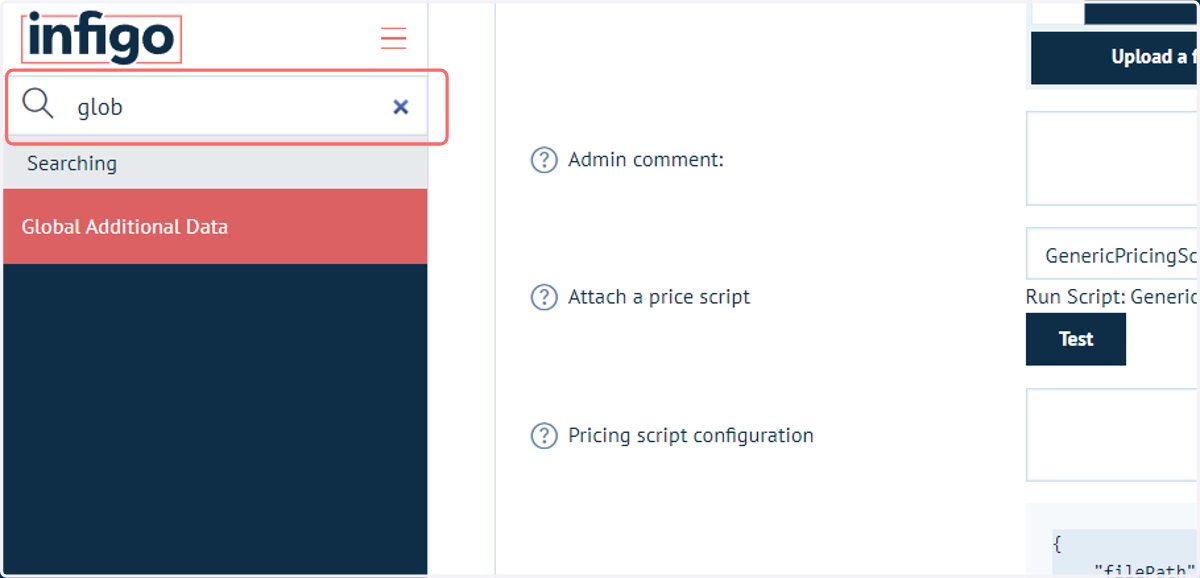
10. Upload this CSV data to Infigo via the Global Additional Data tab
This area of Infigo acts as a file storage area for these CSV documents.
Files can easily be added to this area, or split into sub-directories if required.
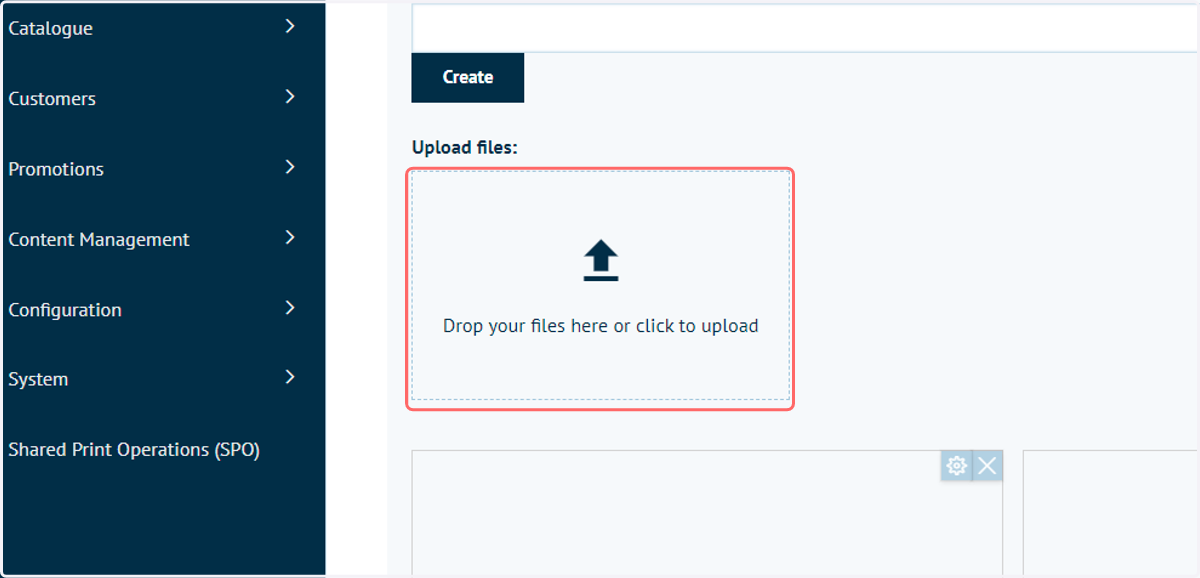
11. Click the upload icon and select the CSV
12. Click the settings icon on the newly uploaded file to change the name if required
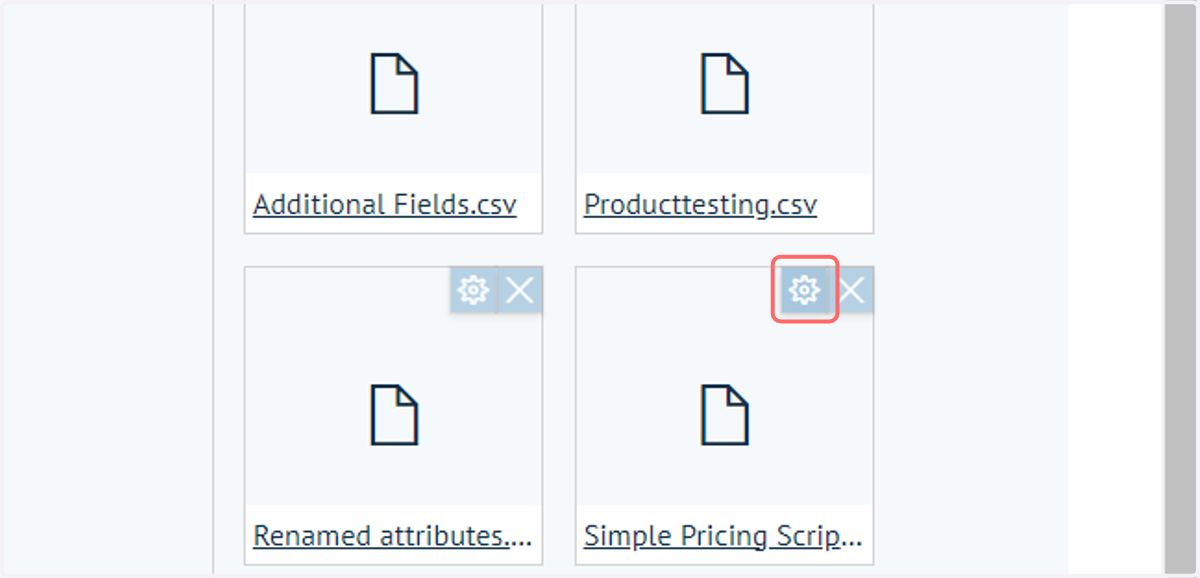
13. Navigate back to the product variant settings to begin configuring the script for this product
Only segments of code requiring alteration from the default script need to be addressed in the script configuration area.
In our simple example, all we will be doing is:
Specifying the linked CSV file containing data relevant to this product
Specifying the name of our Quantity column
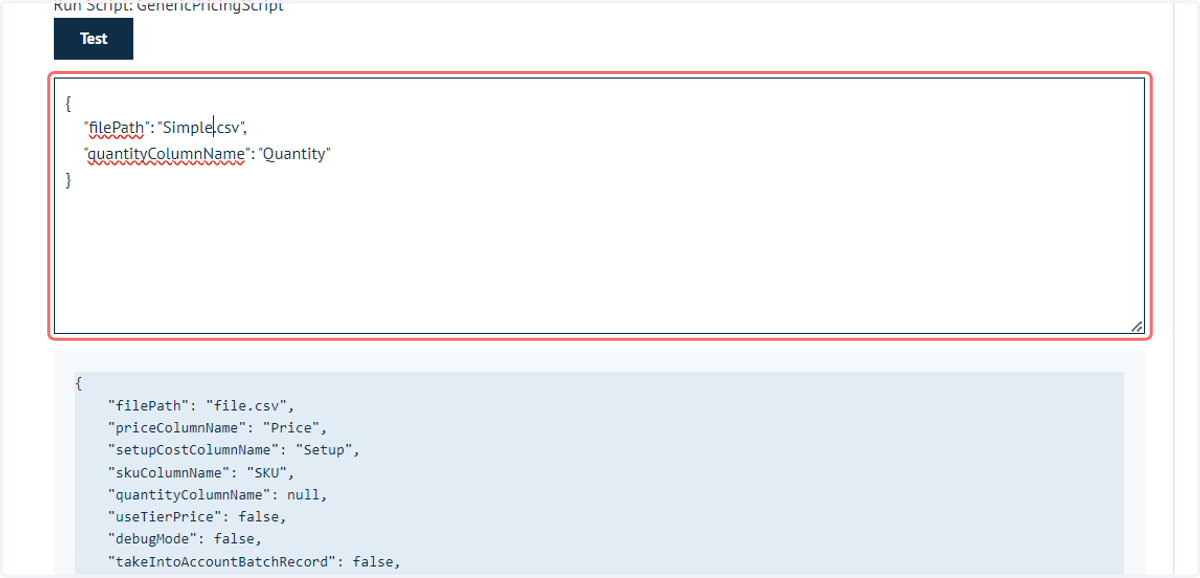
14. Input the relevant configuration details
Type the name of the associated CSV into the filePath line.
Type the name of the Quantity column into the quantityColumnName line.
NOTE: The LAST line of code does not require the "," symbol at the end of the line. If this is included, your script will not run. This is a very common syntax error.
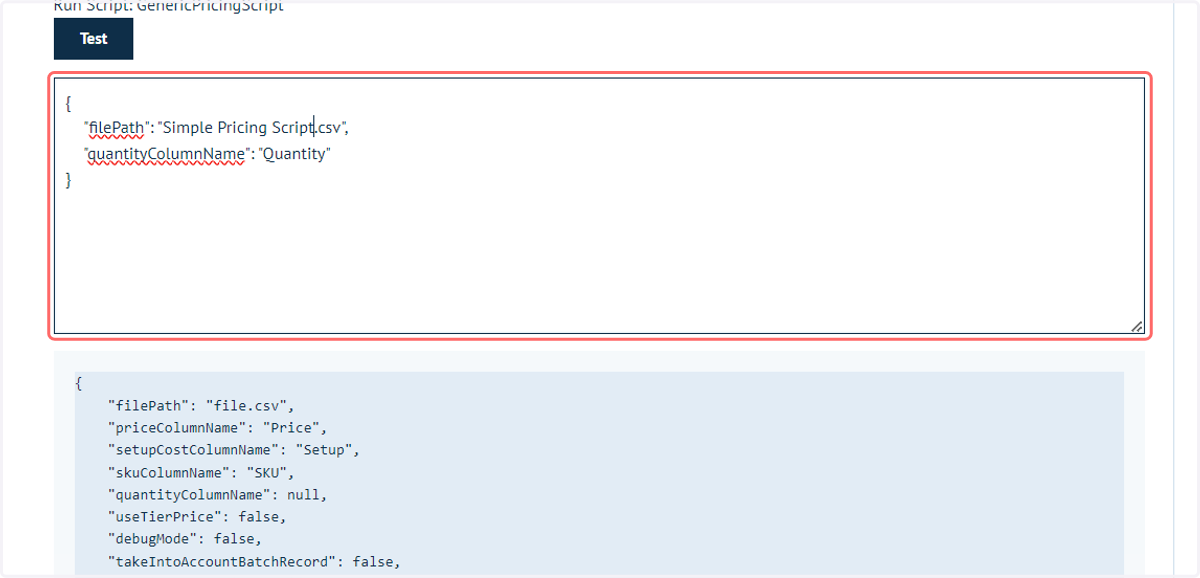
15. Click on Save and Continue Edit
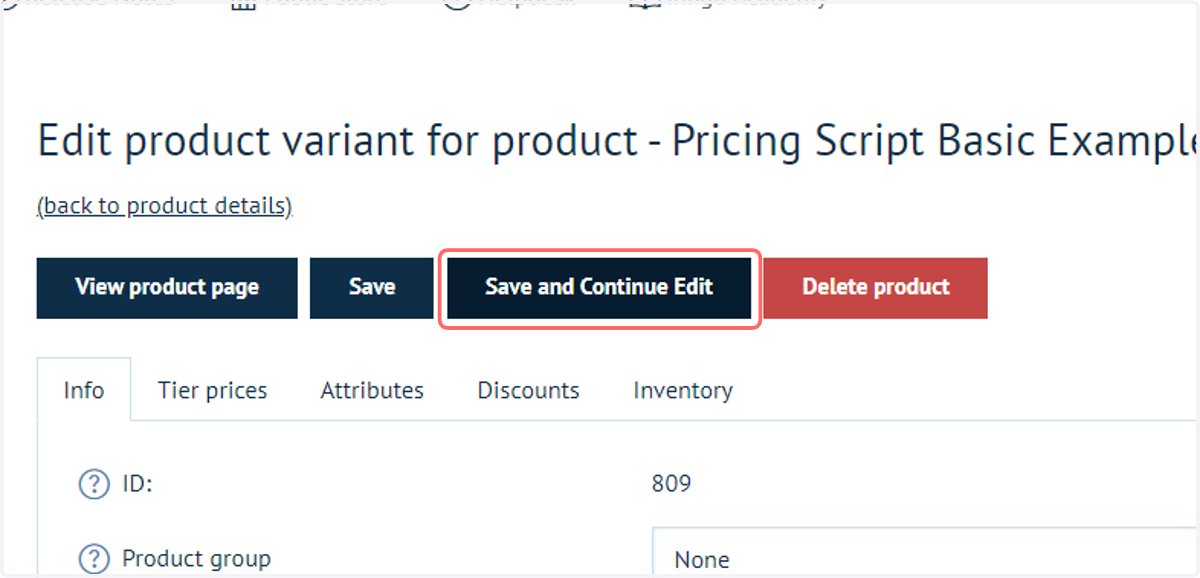
16. Click on View product page to review this product on the front-end and check the script operation
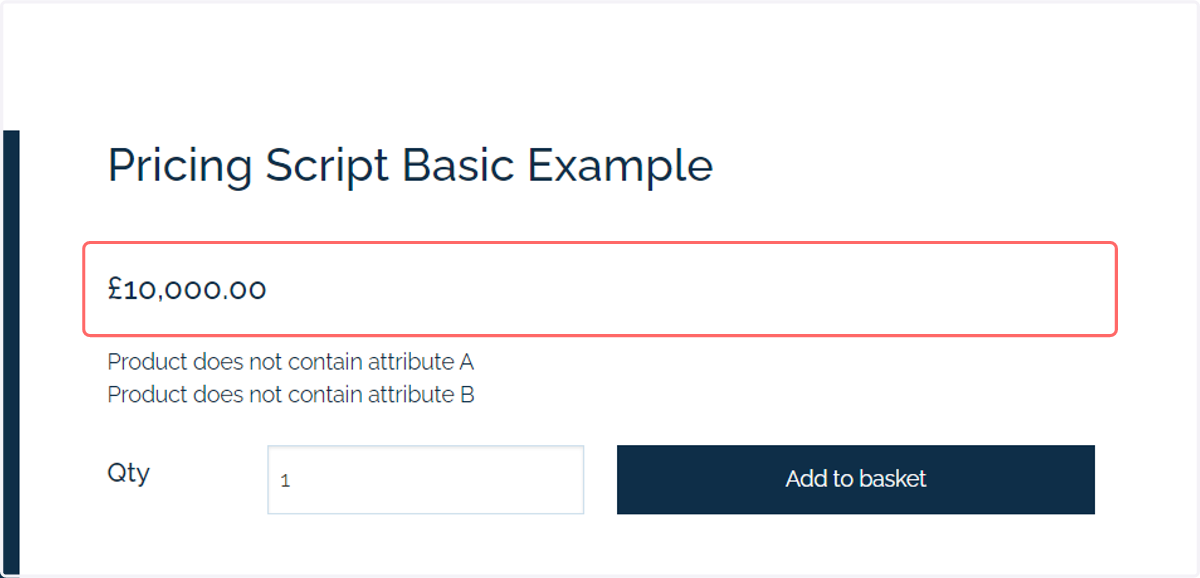
17. We are presented with a price of £10,000
This is the default price if there is an error utilising the pricing script.
We are also presented with some helpful information into where the potential problems are occurring. In this case, it is due to the fact there is no match between the attributes specified on the product (currently none) and the attributes specified in the pricing script.
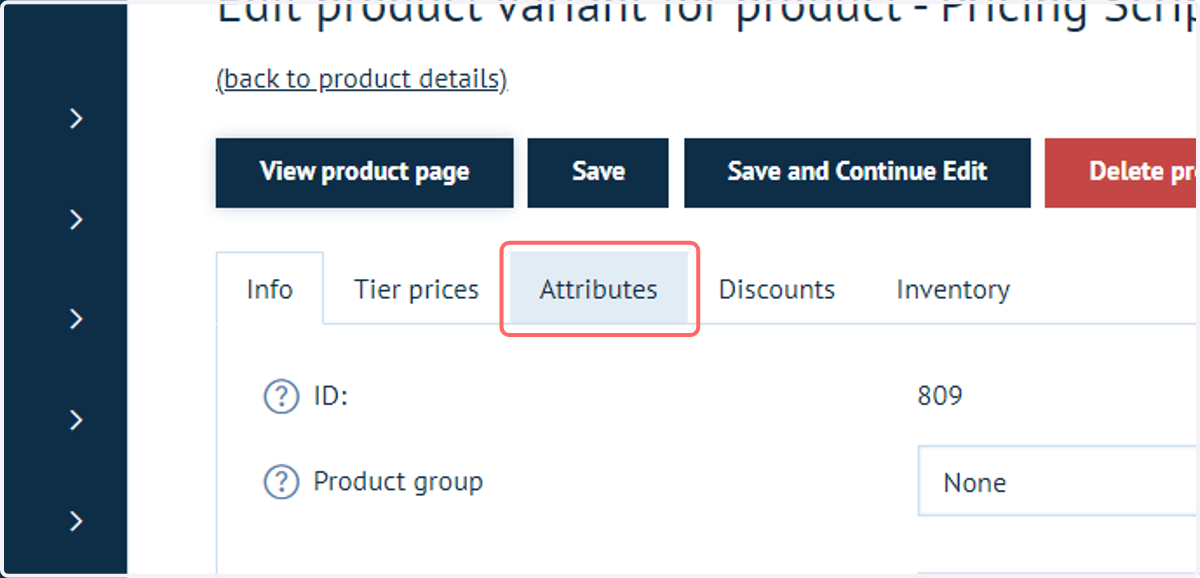
18. Navigate back to the product variant settings and click on Attributes
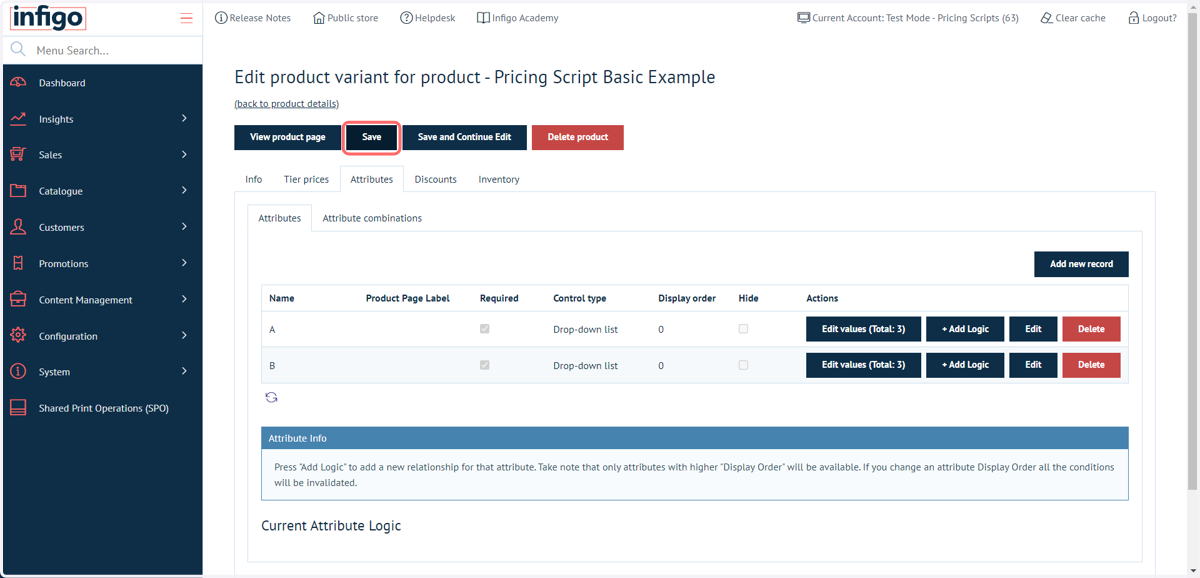
19. Assign the relevant attributes and Save
In our simple example, we are assuming the product attribute names and the column headers within the CSV have identical naming.
This is the easiest way to utilise the generic pricing script.
We can specify if there is a difference in naming convention, however this will be covered in a later tutorial.
20. Navigate back to the product landing page on the front end
We now see that when we update the attribute selection, the price updates.
This is showing data being read from the uploaded CSV document.
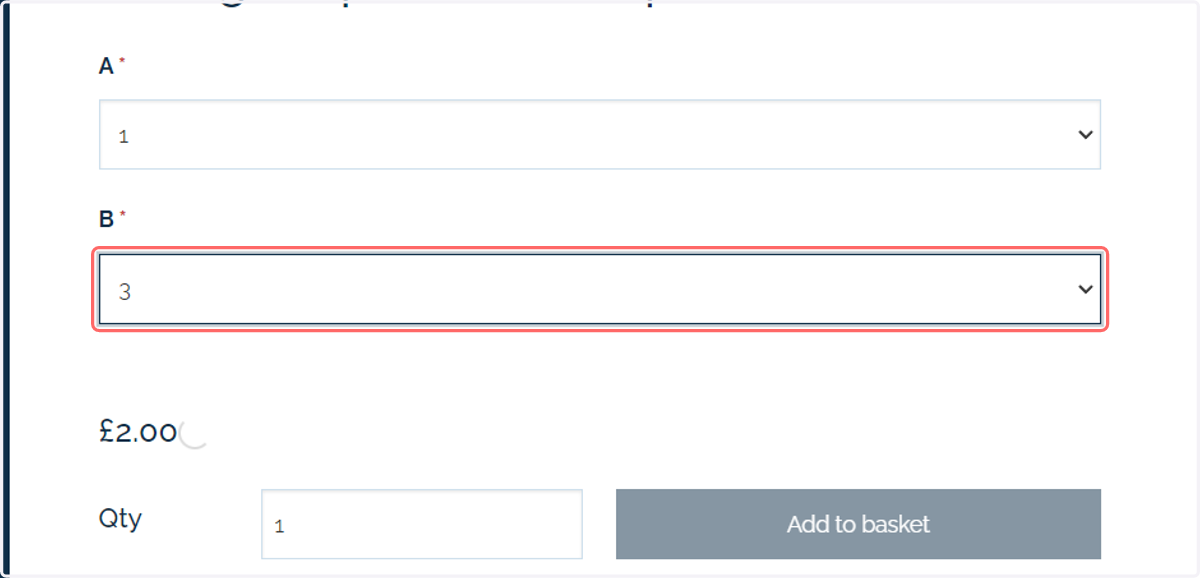
21. Specify values outside of the CSV entries
If I change the specification to sit outside of the range within the CSV (such as changing to a quantity of 2), we can see the price reverts to the default of £10,000.
This makes it clear there is a problem with the selected entry combination.