Adding Blogs to your Storefront | BG_049
It's easy to activate blog functionality on your Storefronts, allowing you to create informative, SEO ready articles for your user base.
Here, we'll show you how to activate the blog feature and get a sample blog created. In addition, we'll see how to add the Blogs module to our Storefront pages.
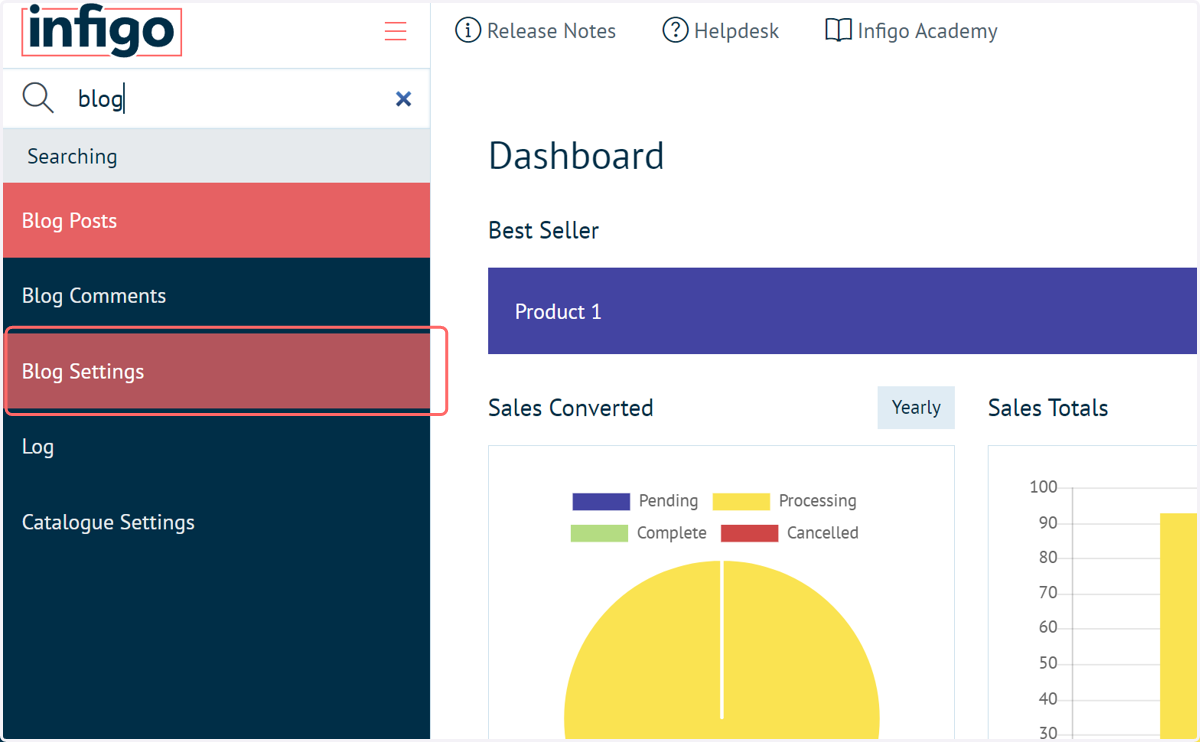
1. Navigate to Blog Settings
2. Blog Enabled
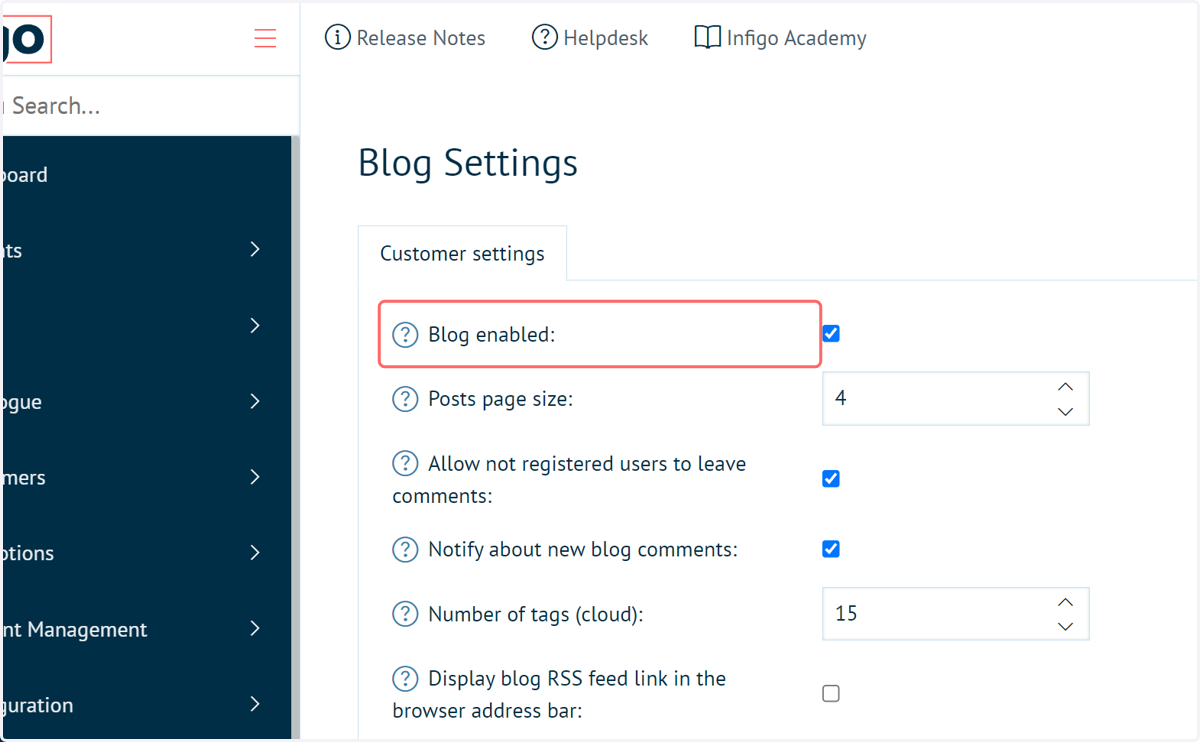
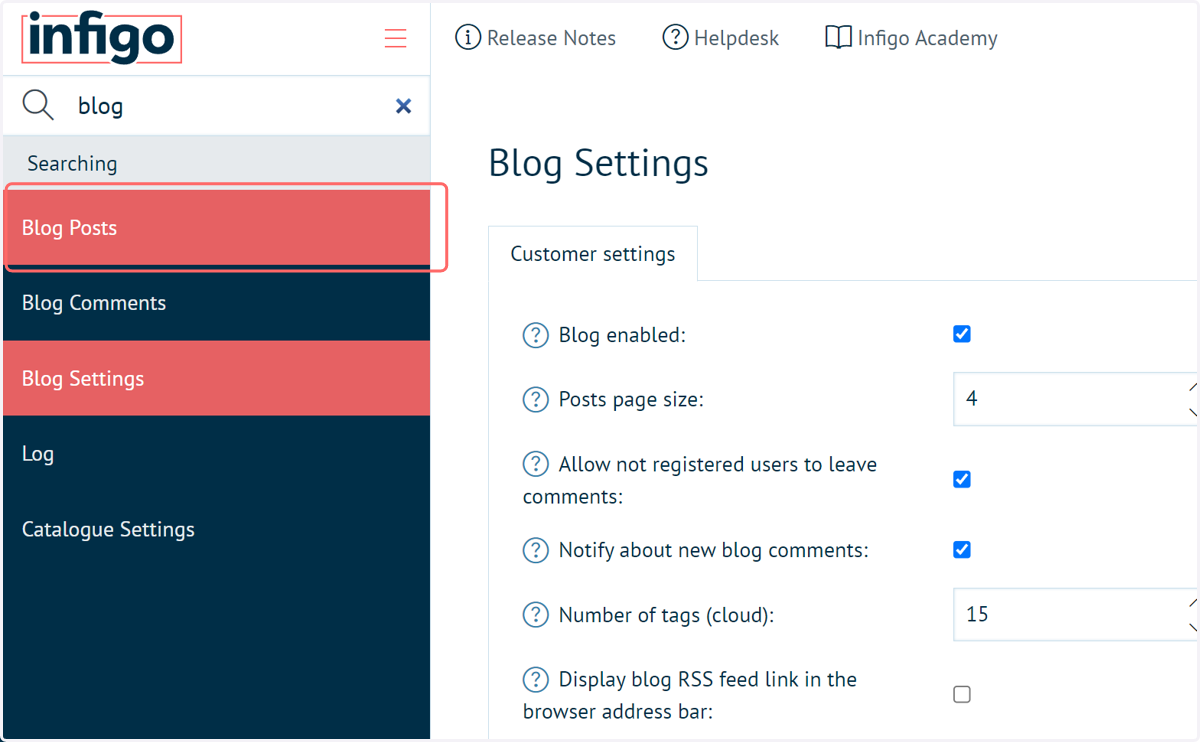
By default, blogs are disabled on your Storefronts. The functionality is activated by clicking the Blog Enabled checkbox.
Please note, this doesn't mean blogs will now be visible on your Storefront pages. We'll cover this later.
3. Blog Settings
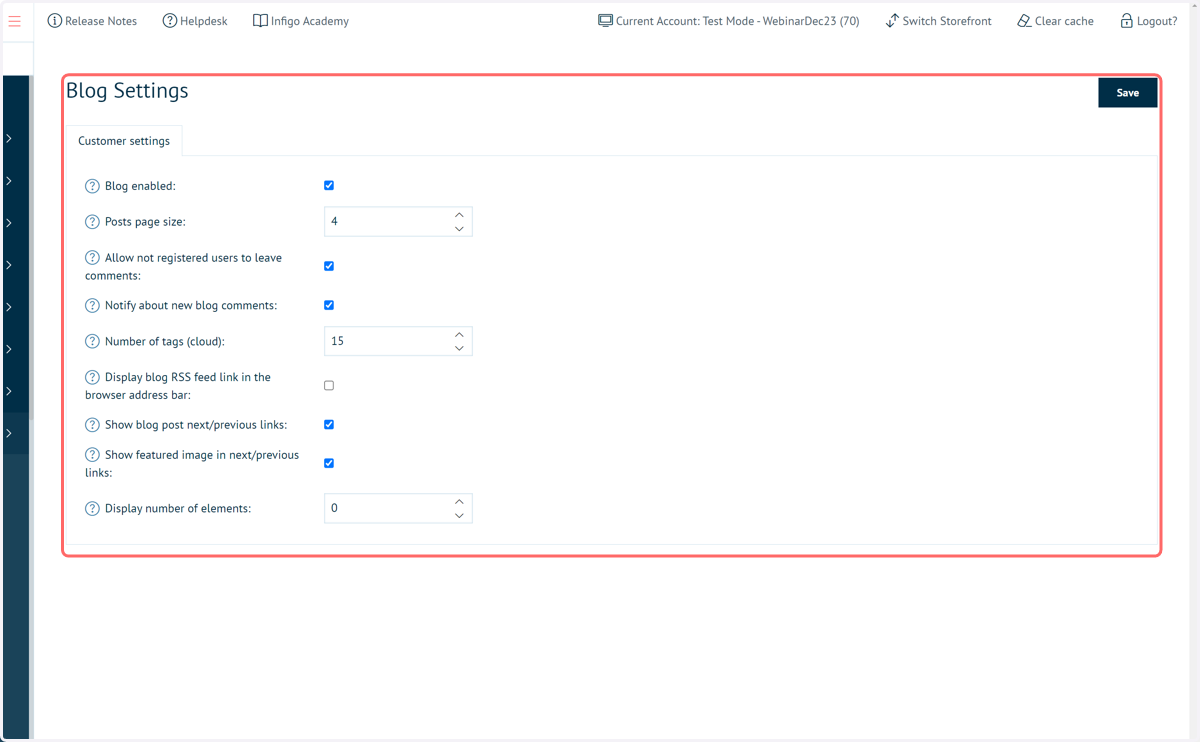
Additional settings covering all blogs are also present on this page. Such as, for example:
Specifying whether unregistered readers can leave comments
Blog comment notifications
Visual settings such as the use of blog featured images and the number of posts shown per-page.
4. Click on Save
5. Navigate to Blog Posts
Next, we'll take a look at creating a new blog post.
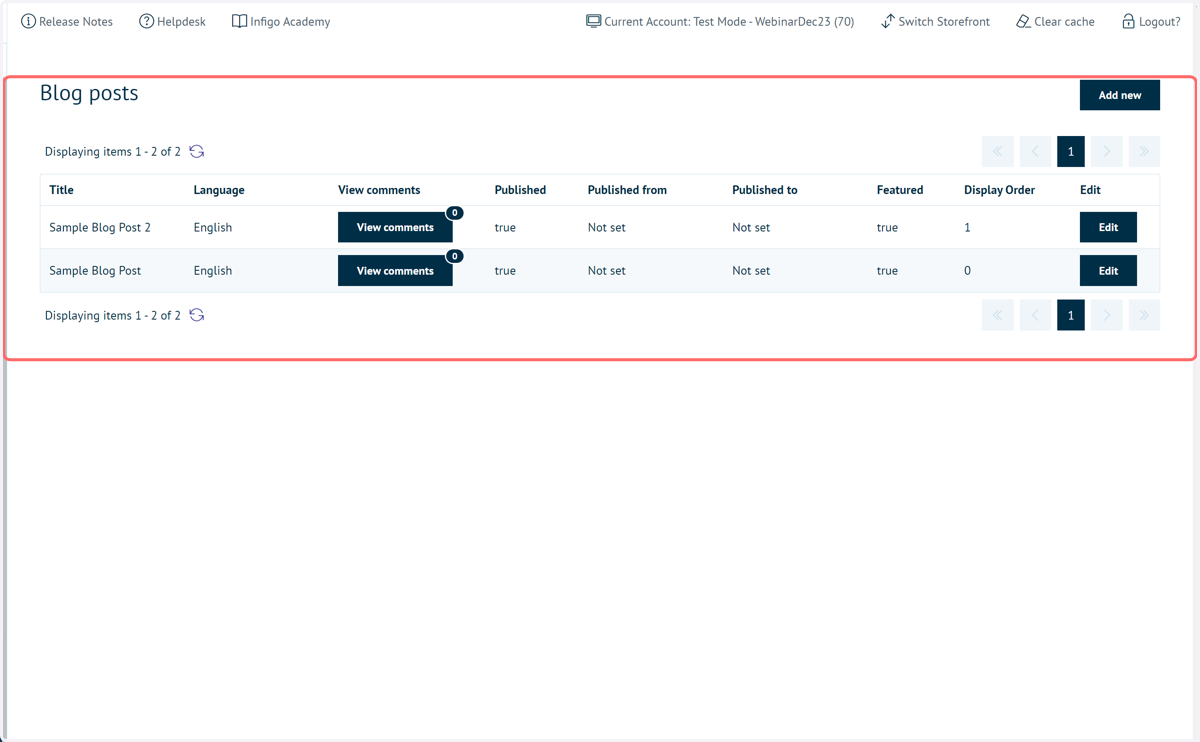
6. Blog posts
Details on all existing blog posts are displayed. Administrators have the ability to view and edit these blogs, in addition to creating new blog posts.
7. Click on Add new
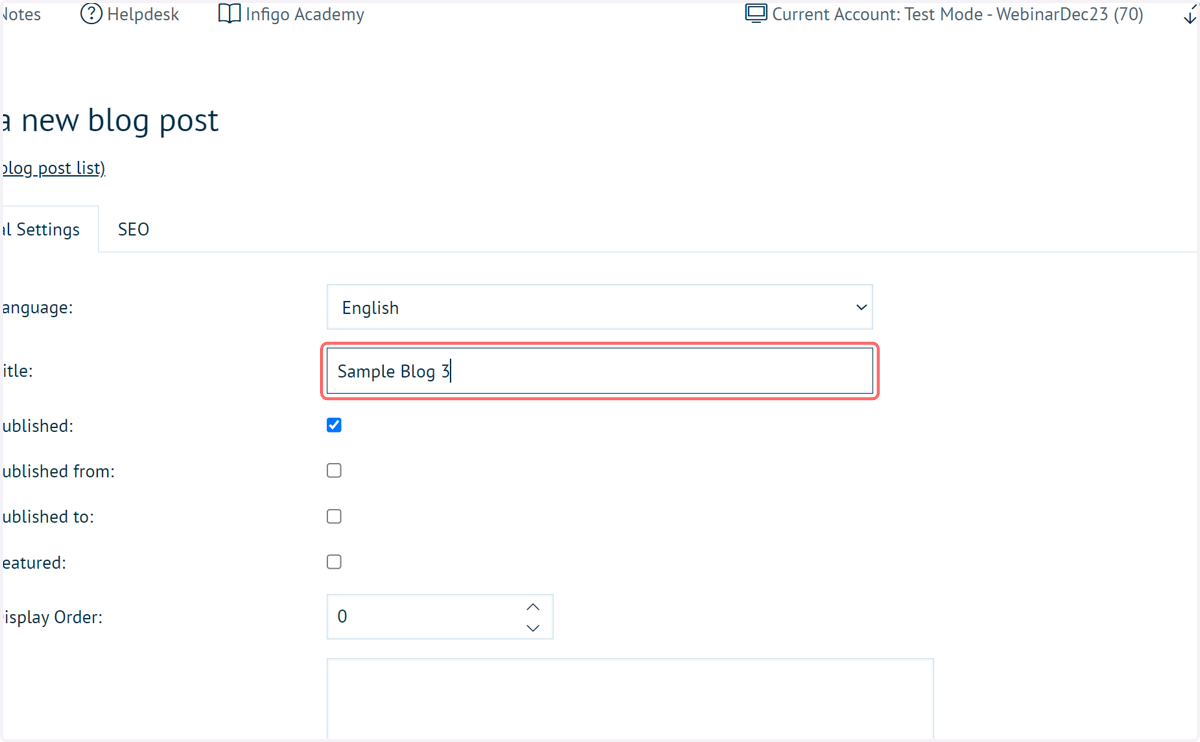
8. Type a name for your blog
This name is customer facing, so choose wisely!
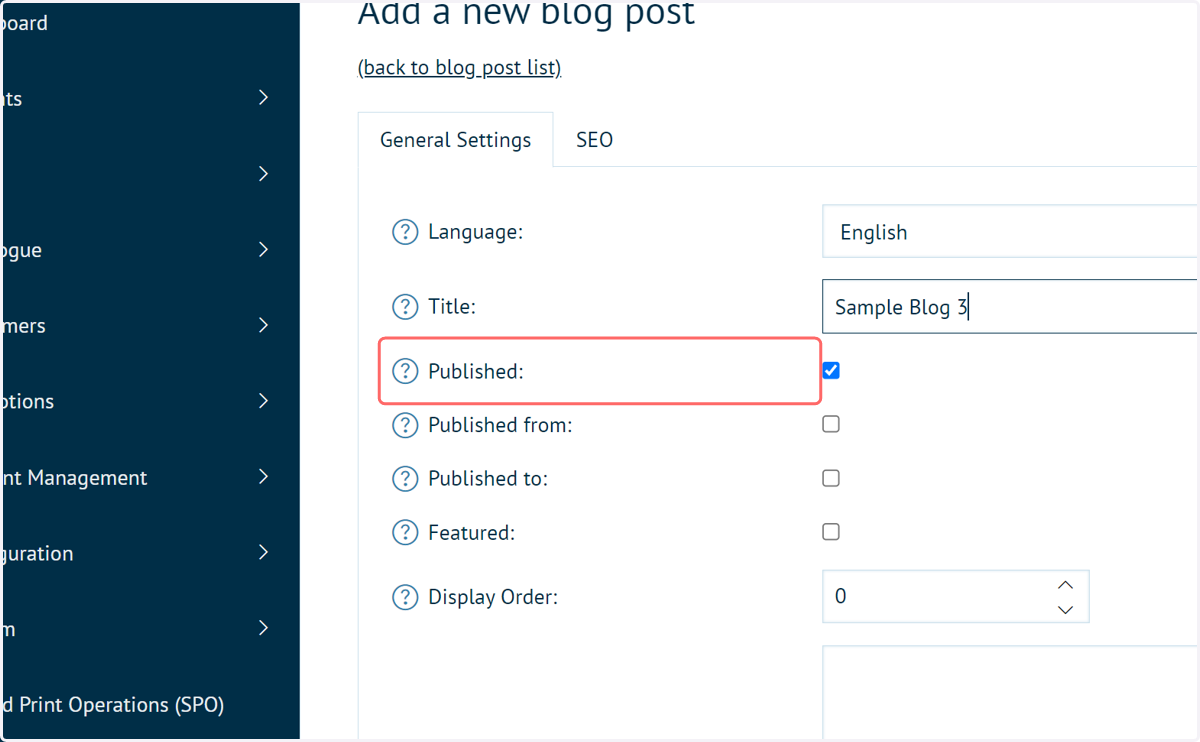
9. Select whether the blog is published
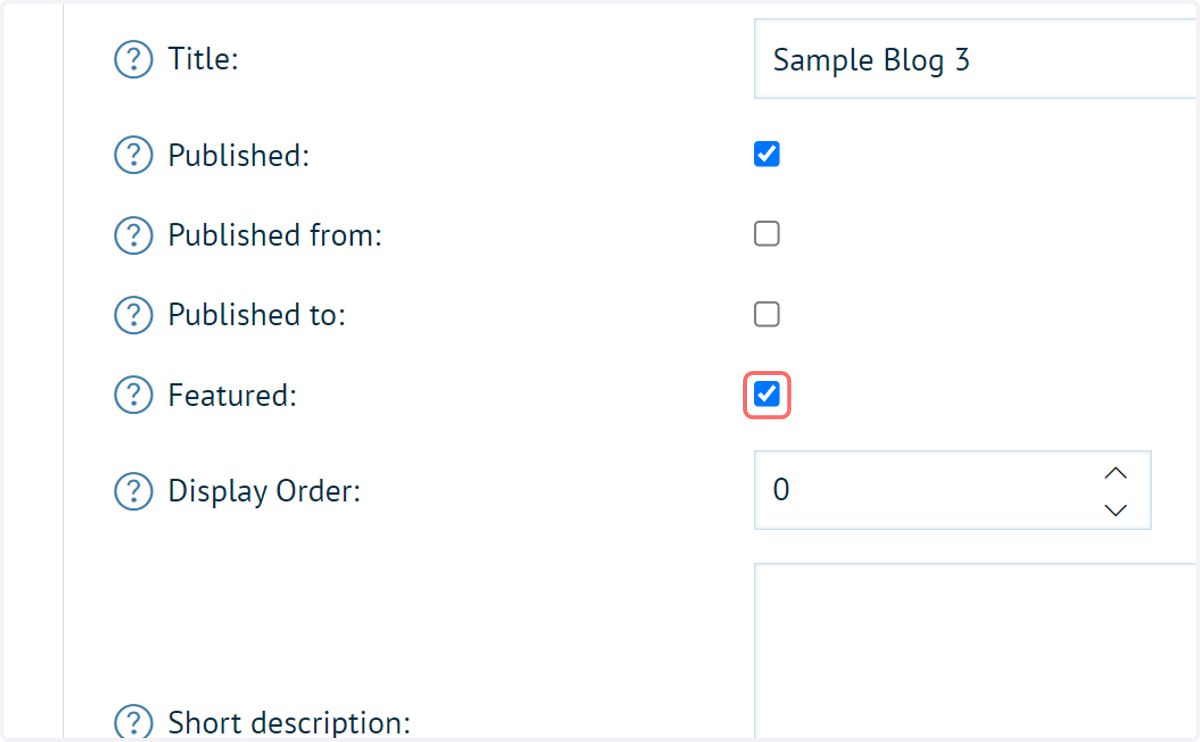
10. Check Featured
A featured blog will appear in the blog module which we can add to your Storefront pages (covered later).
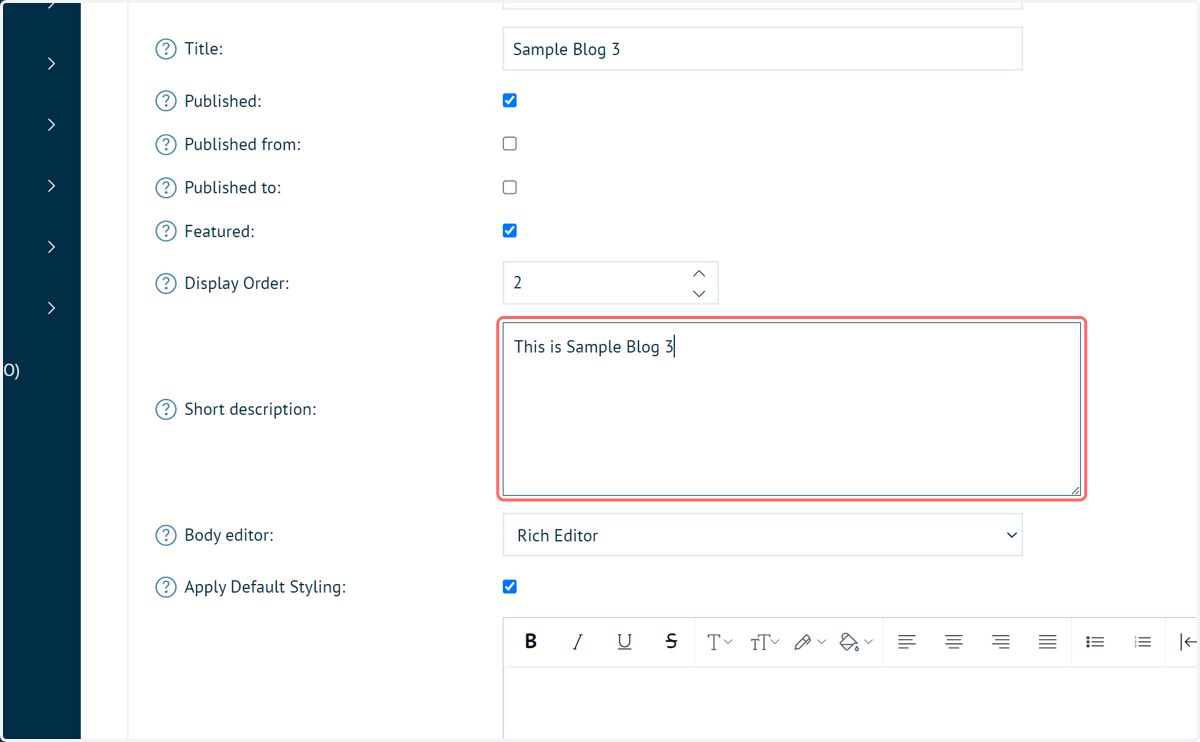
11. Input a short description
An initial description for your blog post. This will be shown on the main blog page, as a teaser for the blog post contents.
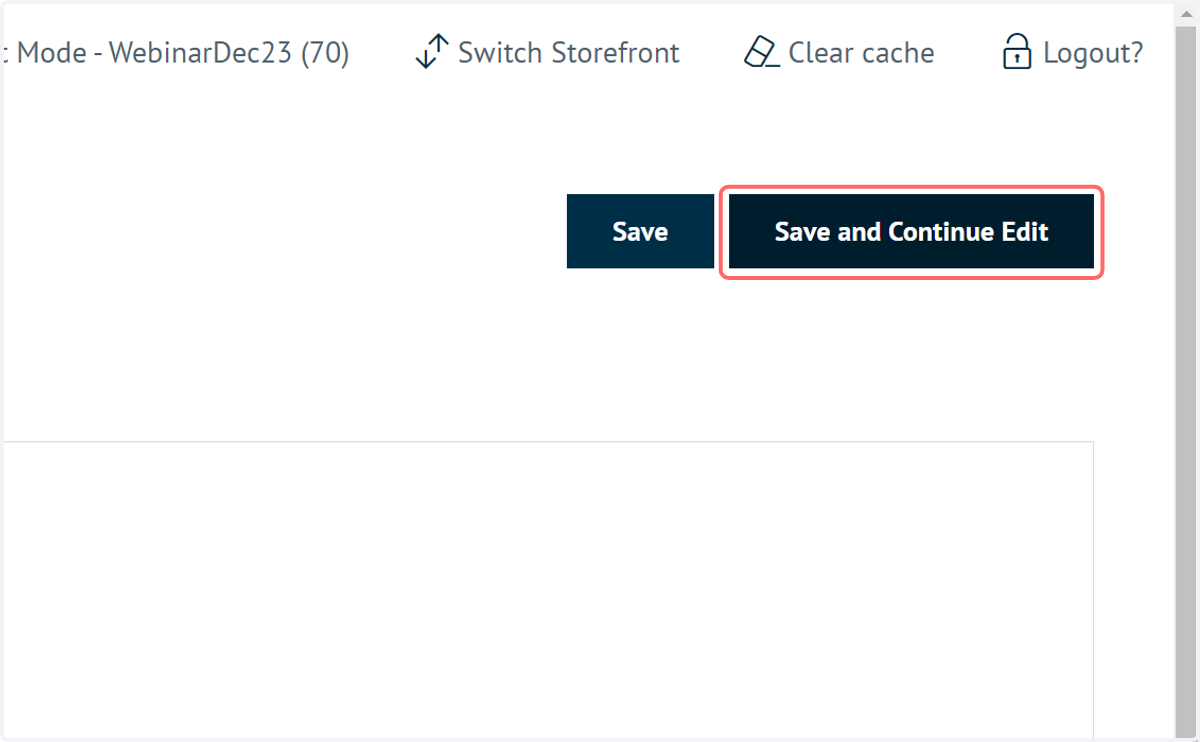
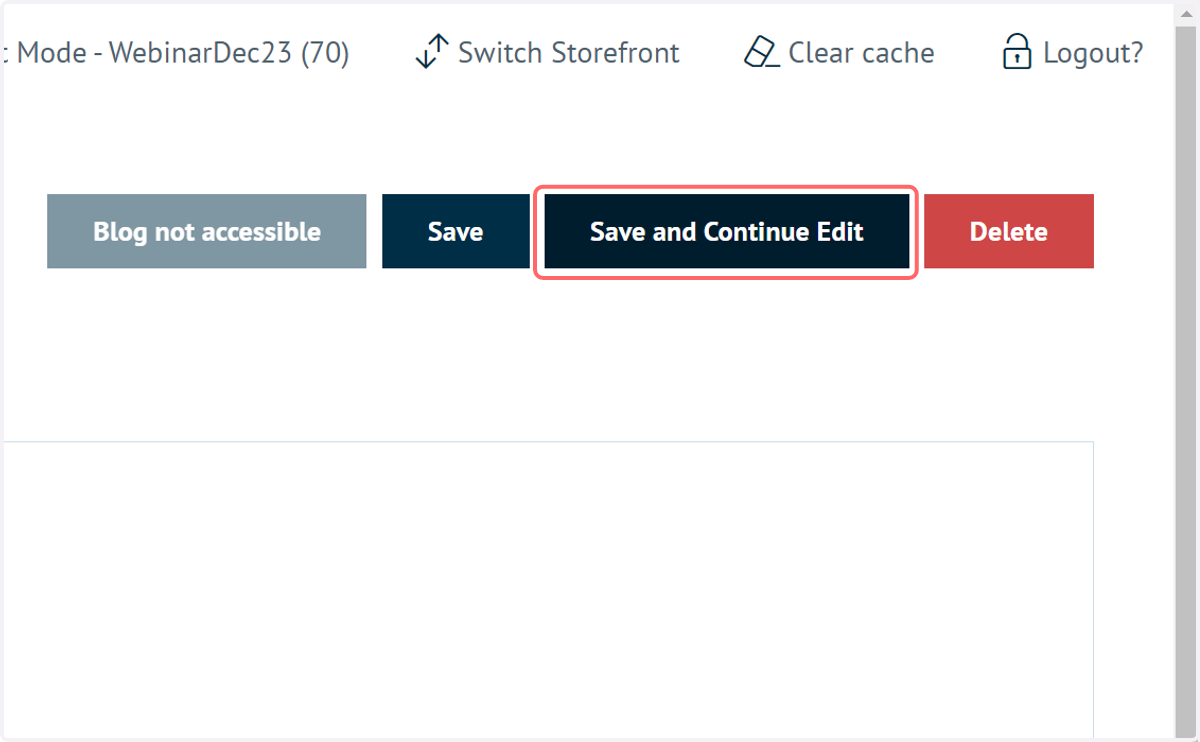
12. Click on Save and Continue Edit
13. Construct your blog post content
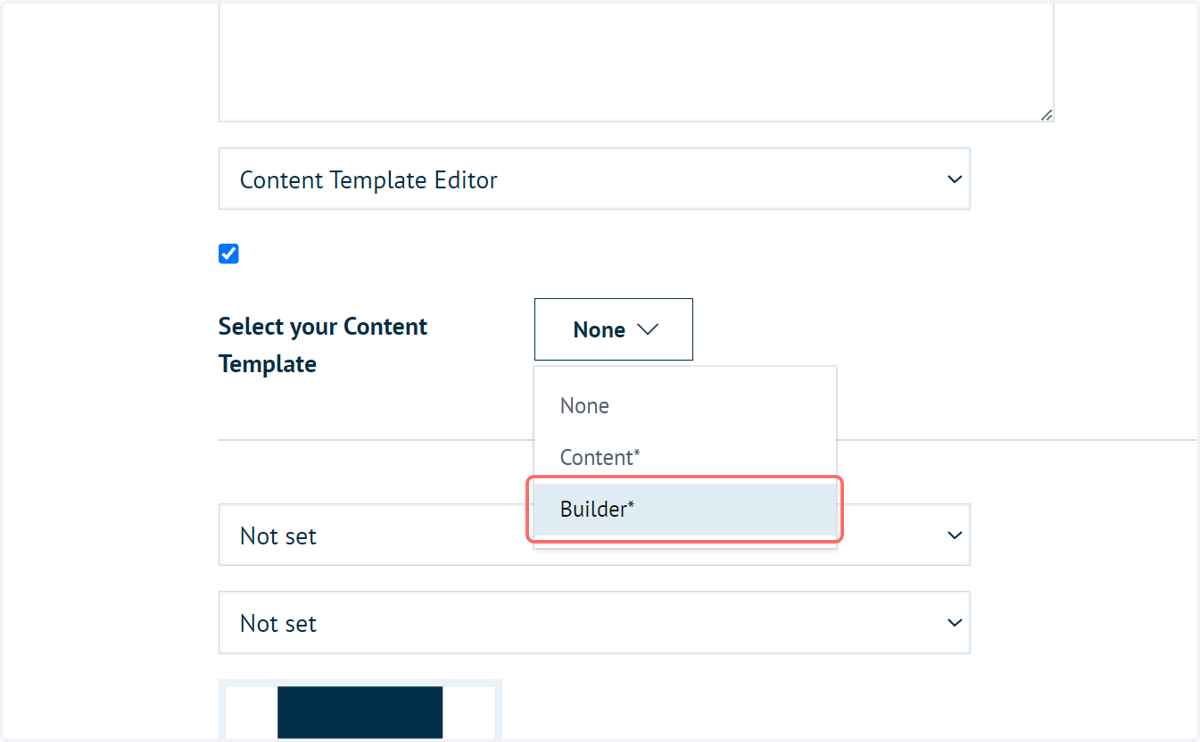
Several methods can be utilised to generate the main body content of your blog post.
We recommend utilising the Content Template Editor, allowing you to construct well formatted content using our building block style system.
The Infigo Academy contains many resources on the use of Content Templates.
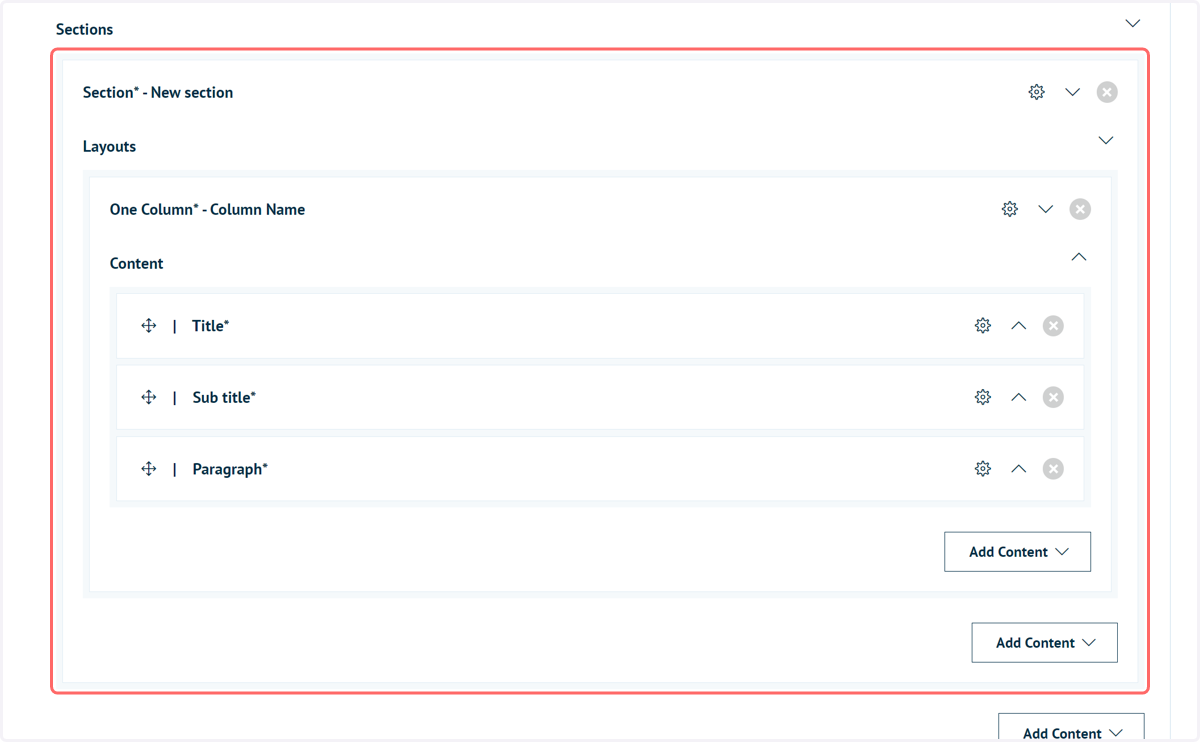
14. Construct content
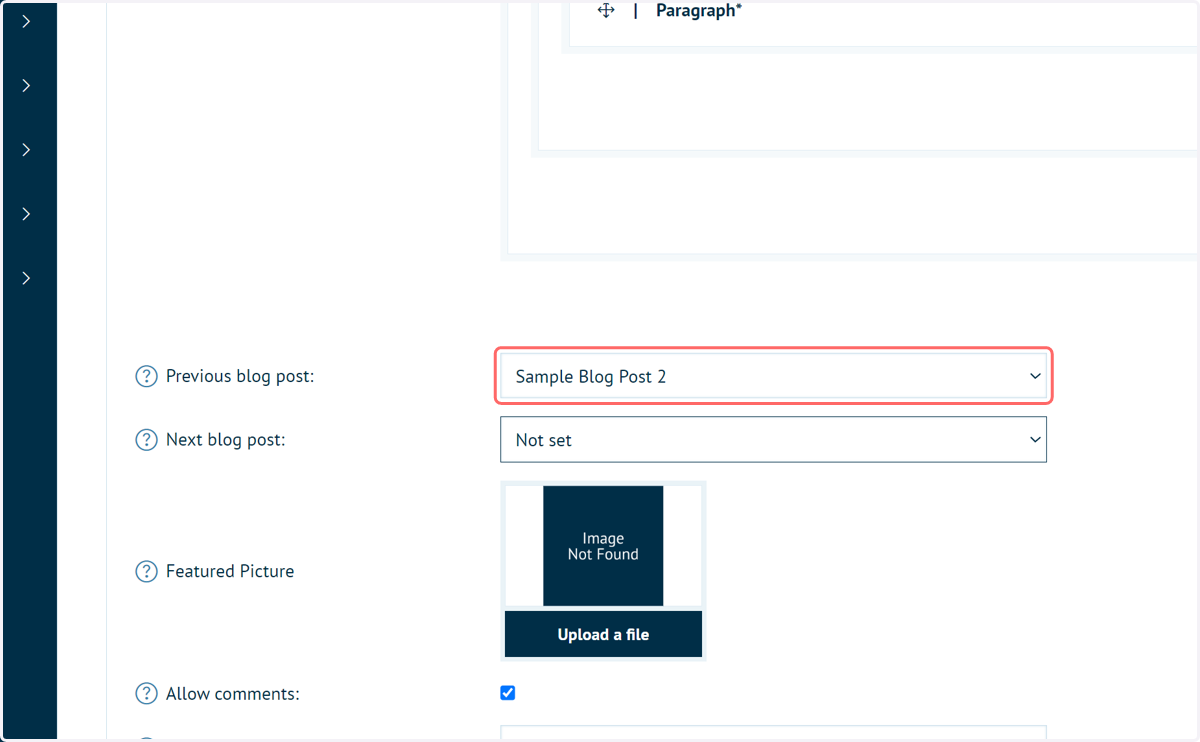
15. Select if this blog entry should have links indicating previous and next blog posts
Choose which posts are relevant
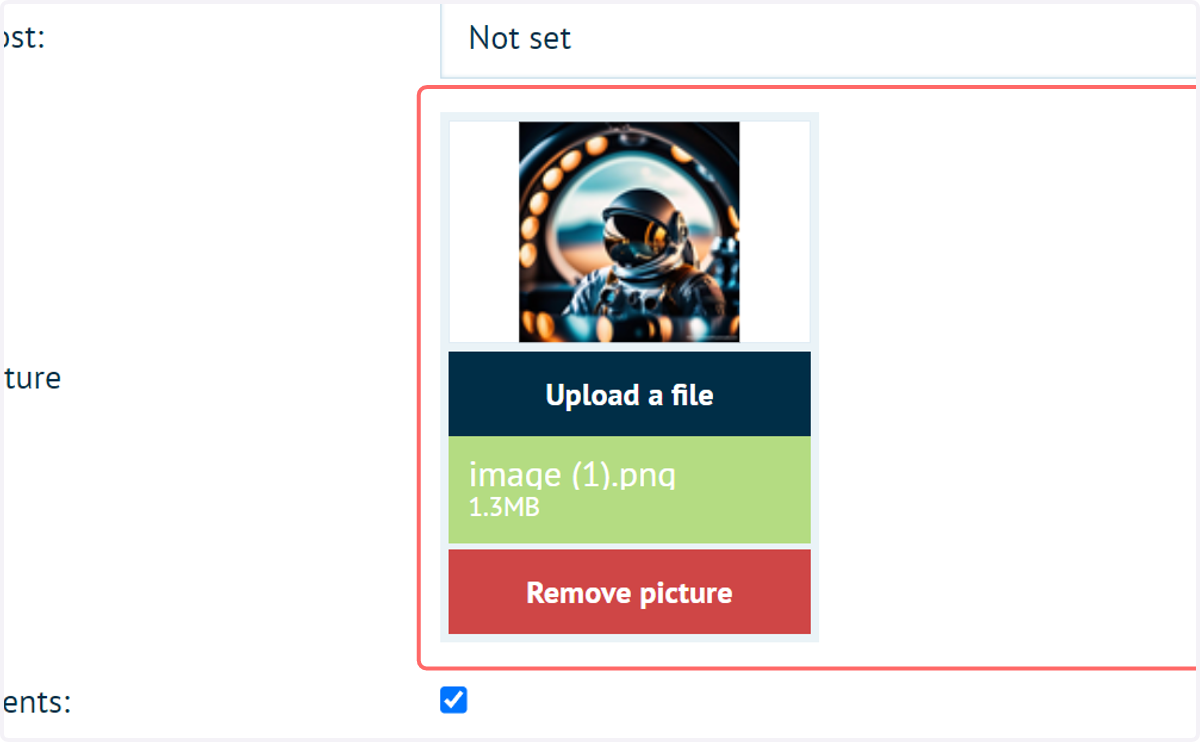
16. Upload a main featured image for this blog
This will be used in several locations, including as a larger image when the blog is selected.
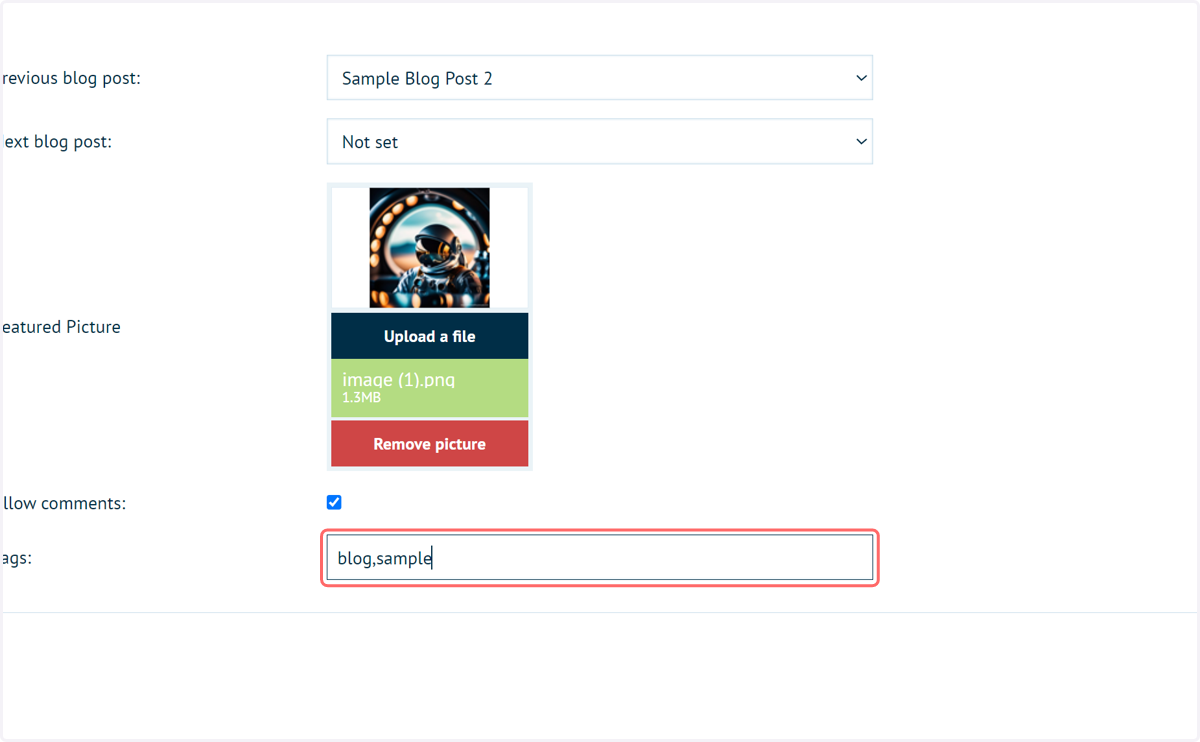
17. Apply tags if relevant, to note similar themes between your blog posts
18. Click on Save and Continue Edit
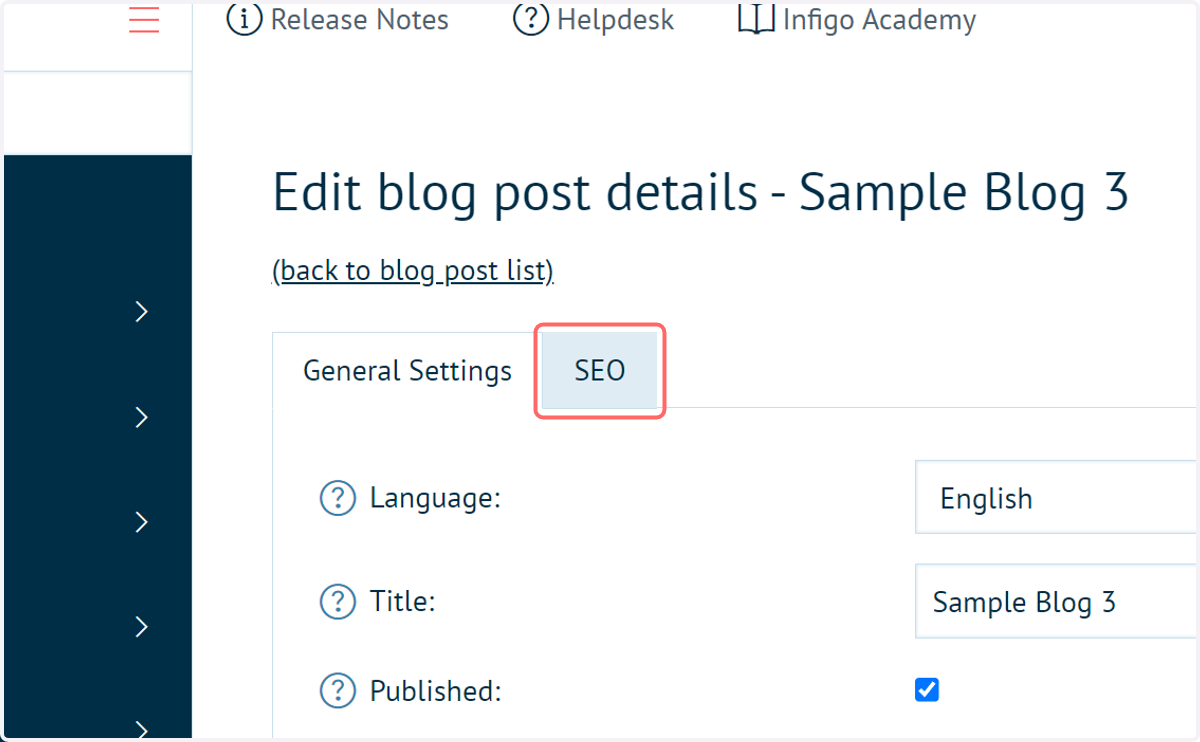
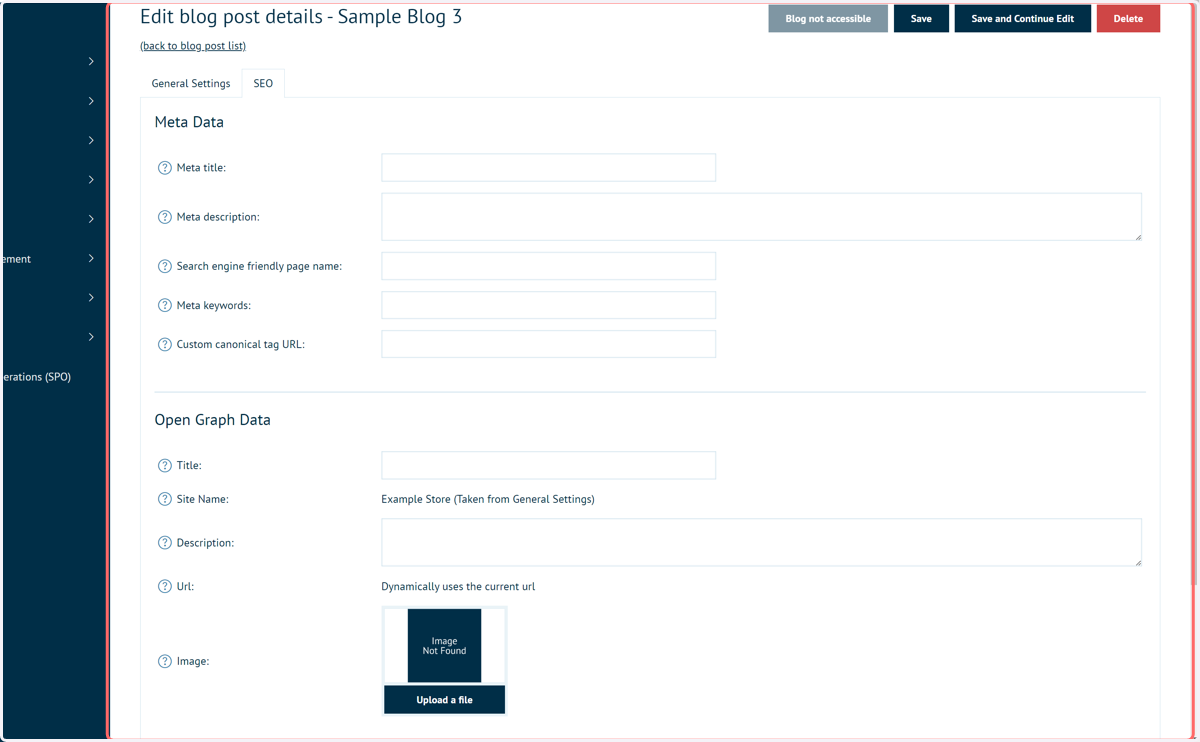
19. Click on SEO
Blog posts can be SEO optimised with a range of helpful fields in the SEO tab
20. SEO fields
21. Page Layouts
By default, the Blog module is not present on any of the standard page layouts and must be added if you want to view the Featured blogs.
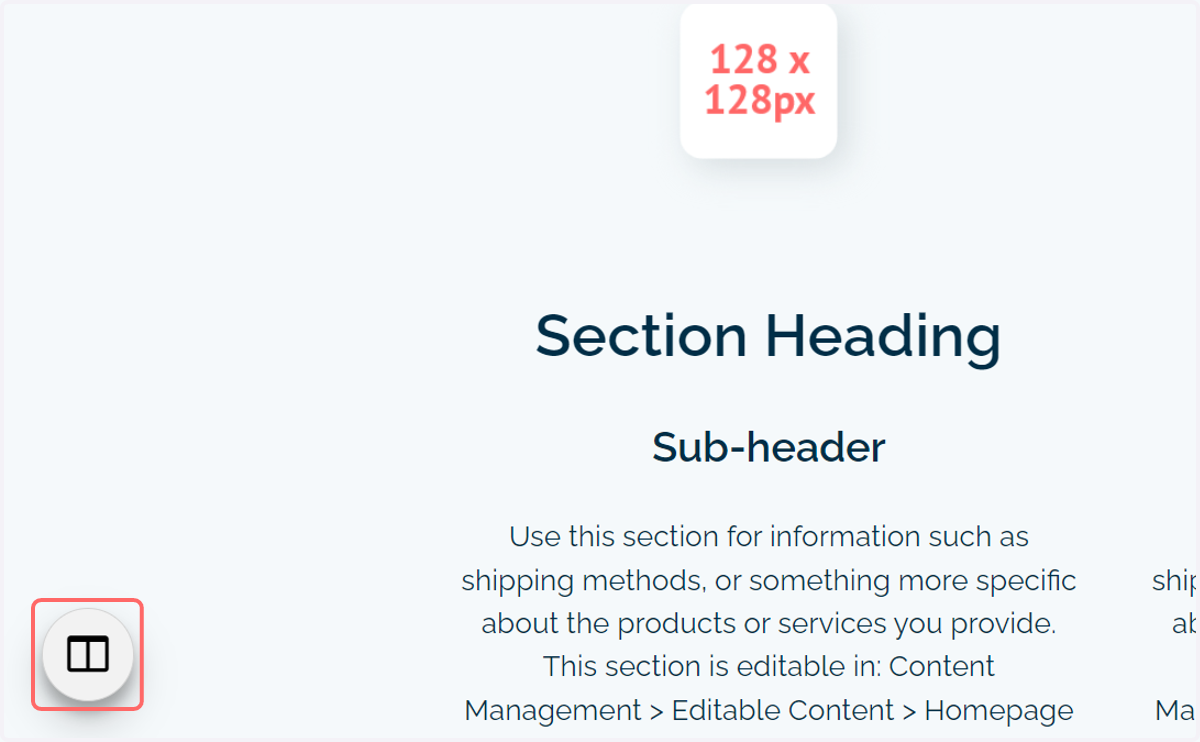
On the page you wish to display the blog module, click on Show layout administration panel
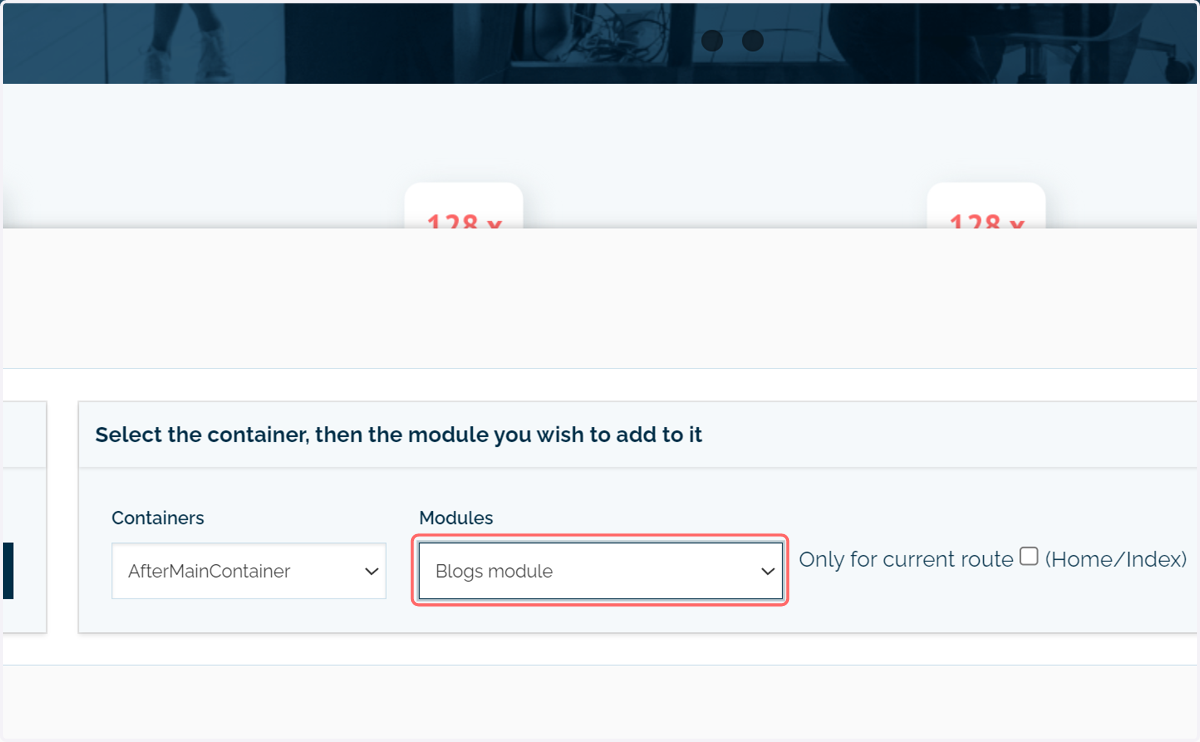
22. Select Blogs module
Specify the container in which you want the module to be added, then select the Blogs module.
Other tutorials are available in the Infigo Academy on managing page layouts.
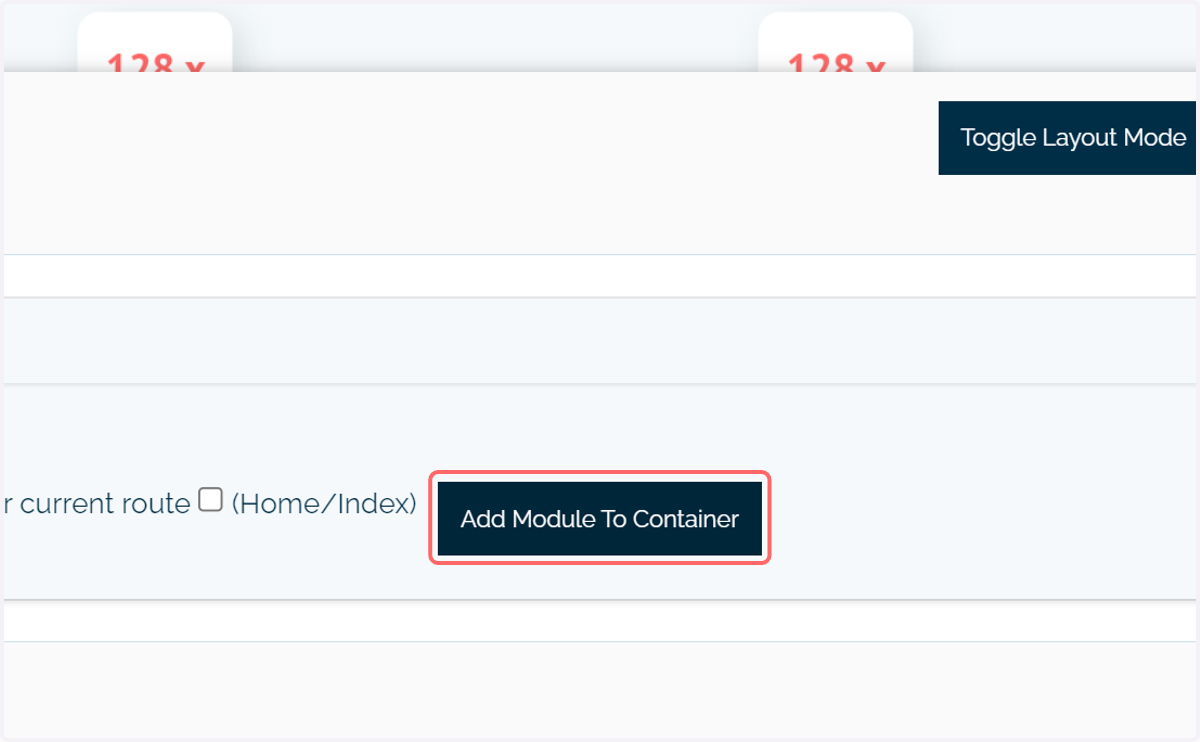
23. Click on Add Module To Container
24. A featured blog section will now be available on the page of interest
Only blogs marked as Featured will be displayed in this section.
To get to all blogs, you can navigate to the "/blog" URL
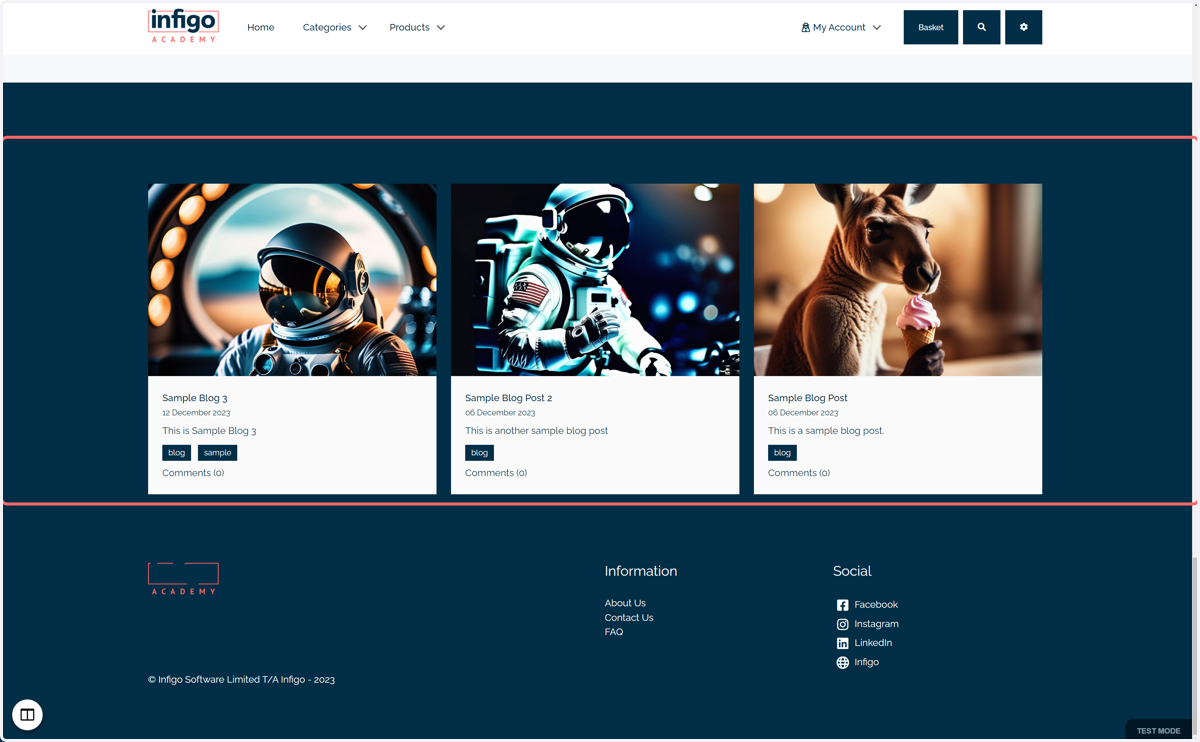
25. Users can access a blog post by clicking on one of the featured tiles
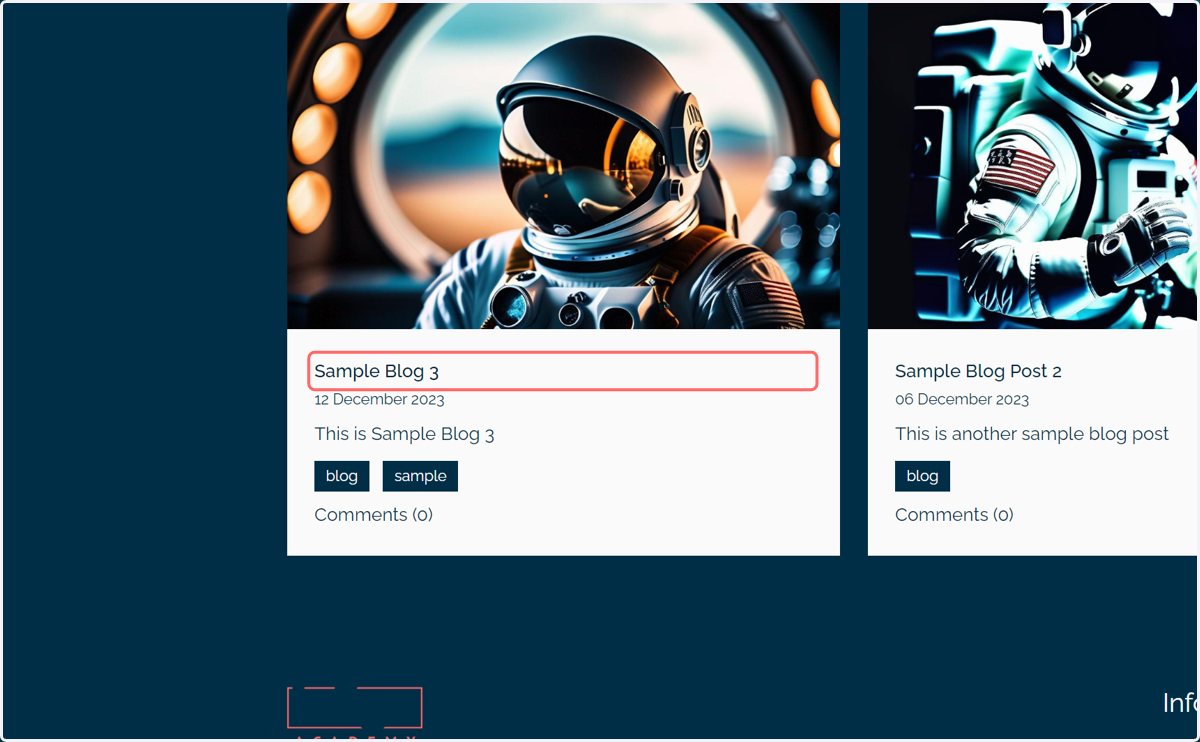
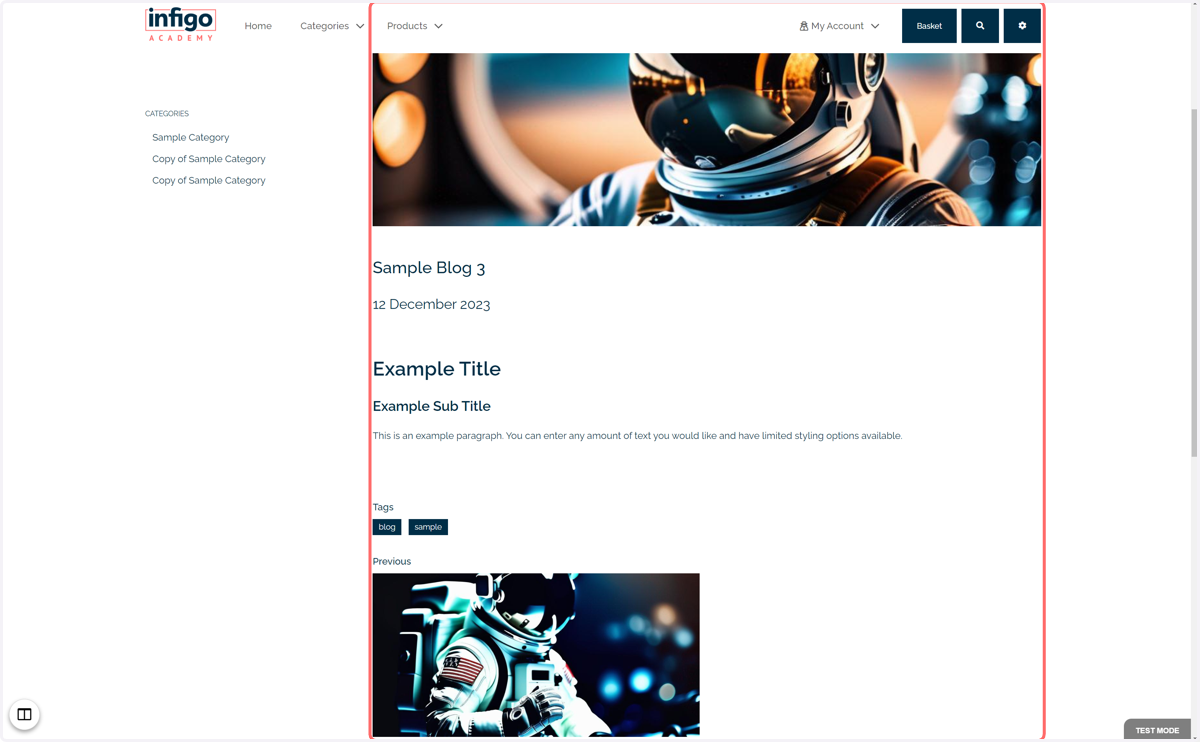
26. Blog post
The blog post will be displayed containing a range of elements, including:
Main hero image (from the uploaded featured image)
Blog content
Tags
Navigation to other blog posts
The blog post page layout may require further amendment using the Layout Administration panel. You may find the default blog page is missing critical elements such as the header bar or footer. The layout administration panel can assist in adding these and formatting the page.
The Infigo Academy contains resources on managing page layouts using this panel.
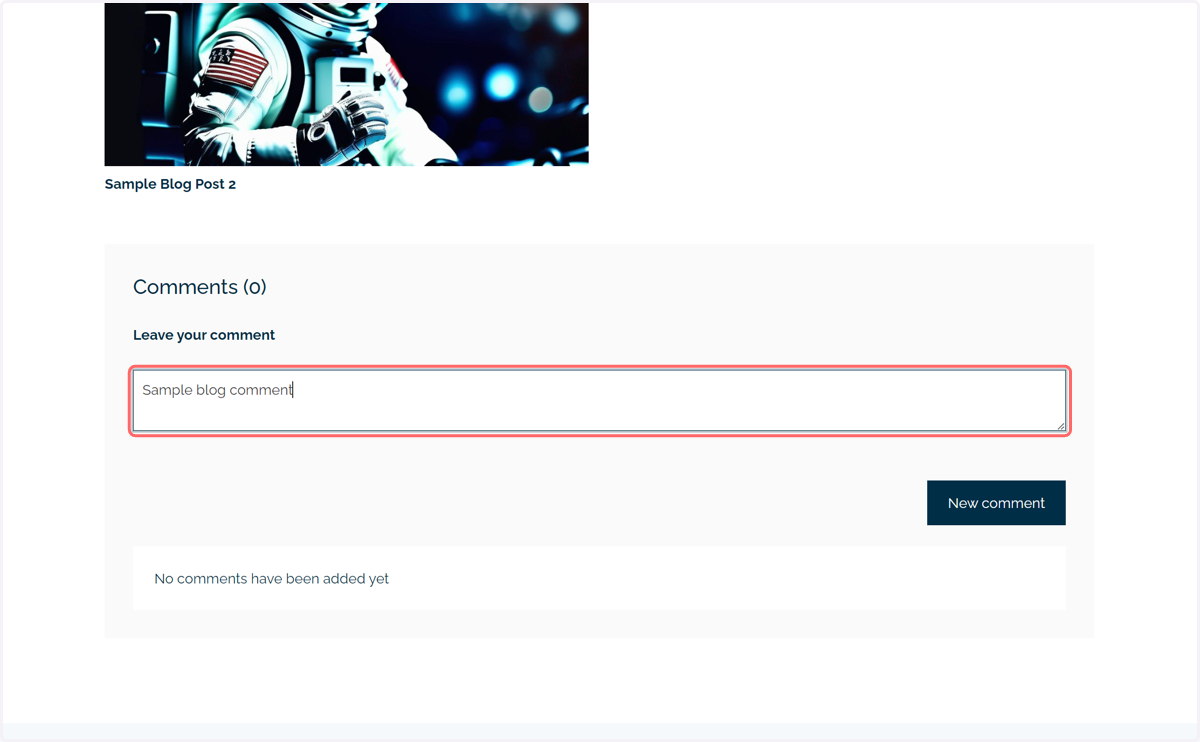
27. Comments can be made on blog posts
28. Click on Blog Comments in the admin area
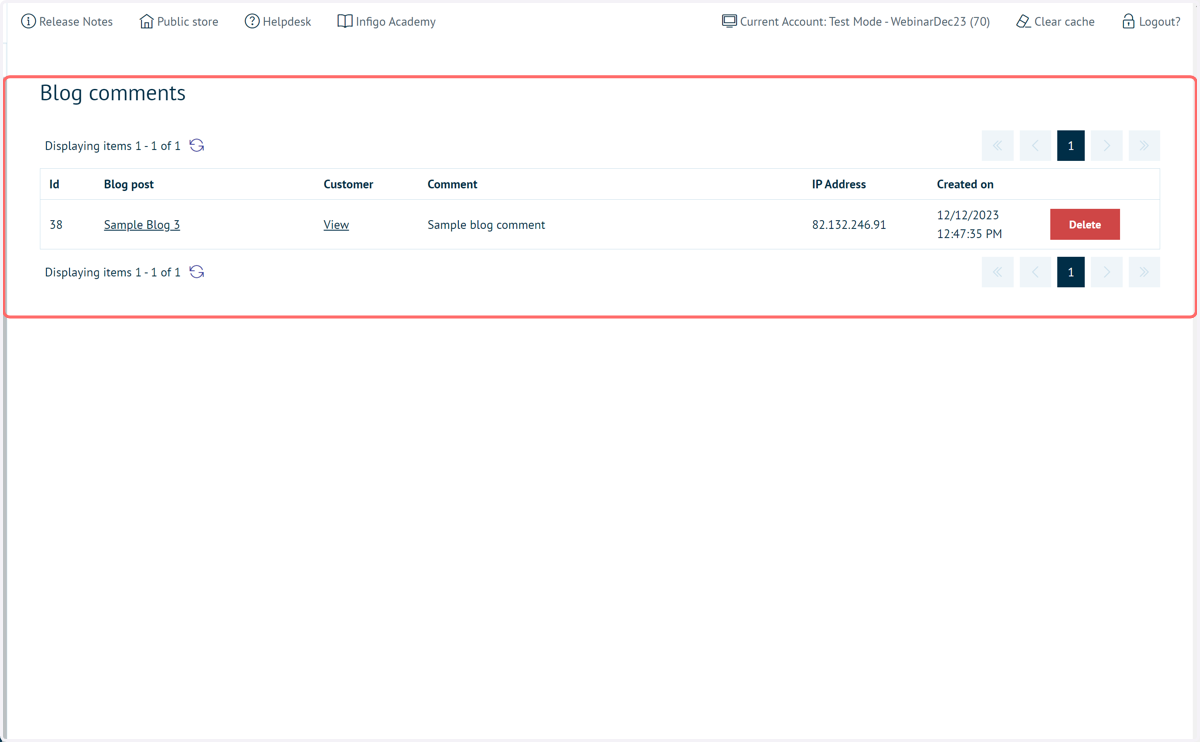
Any comments on your blogs can be reviewed in a dedicated area of Infigo.
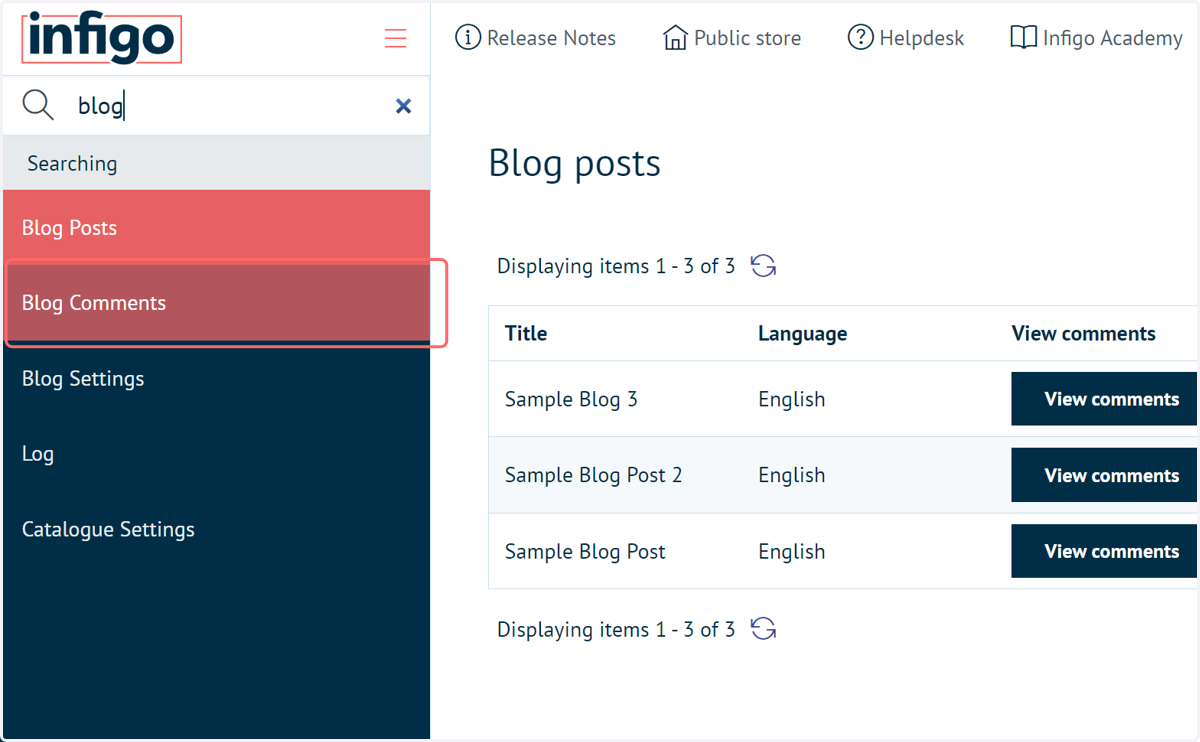
29. Blog comments