How to Build a Sitemap and Create Content in Writemaps
WriteMaps | Create Sitemaps Online
1. Type "sitemaps@lkfmarketing.com"
2. Click on NEXT
3. Type password (check WAM for current password)
4. Click on LOGIN
5. Click on
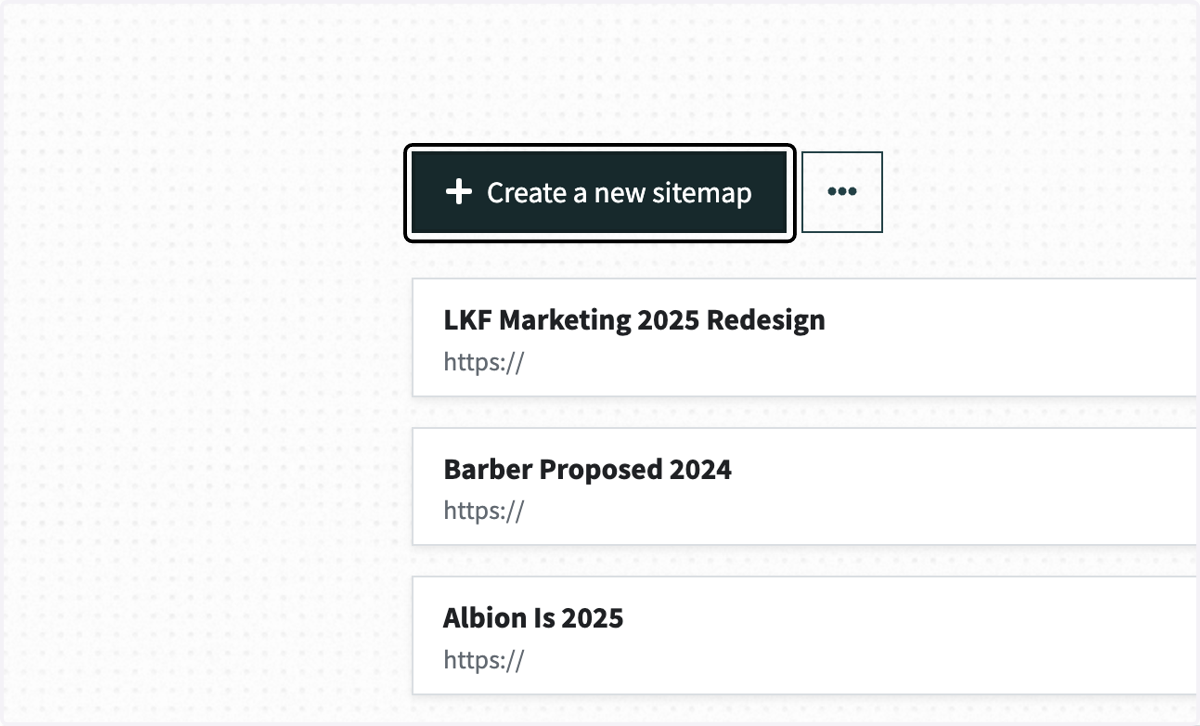
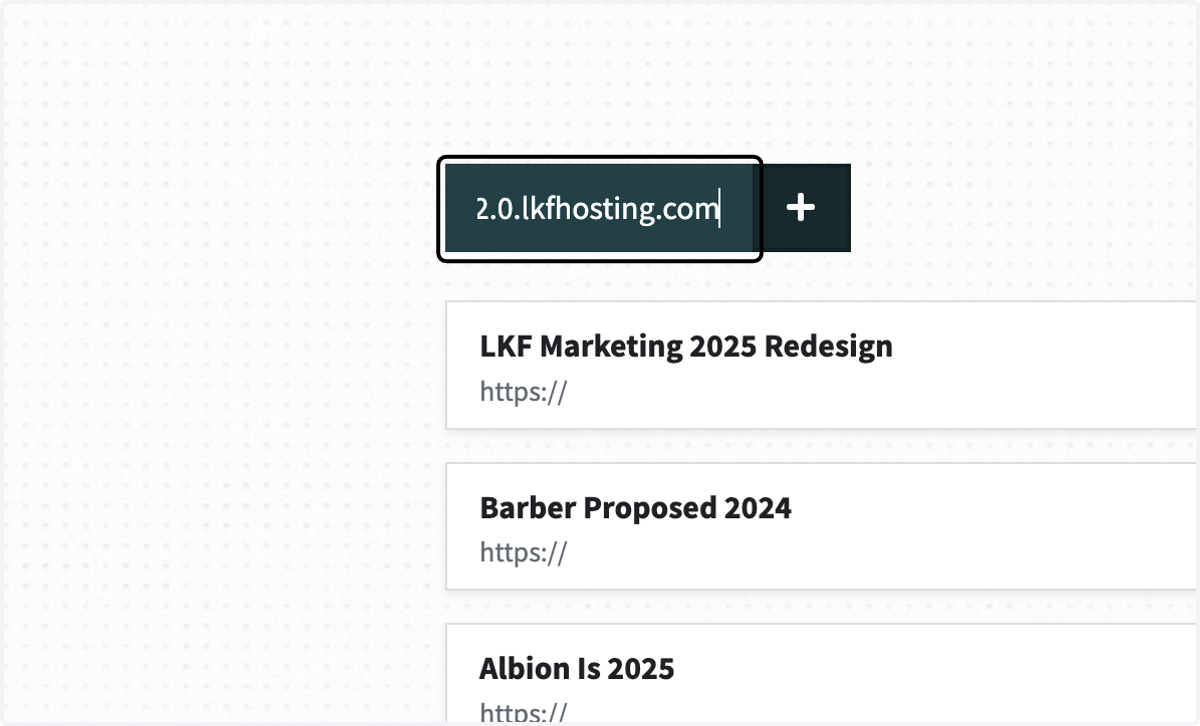
6. Type the name of the project
7. Type "Features"
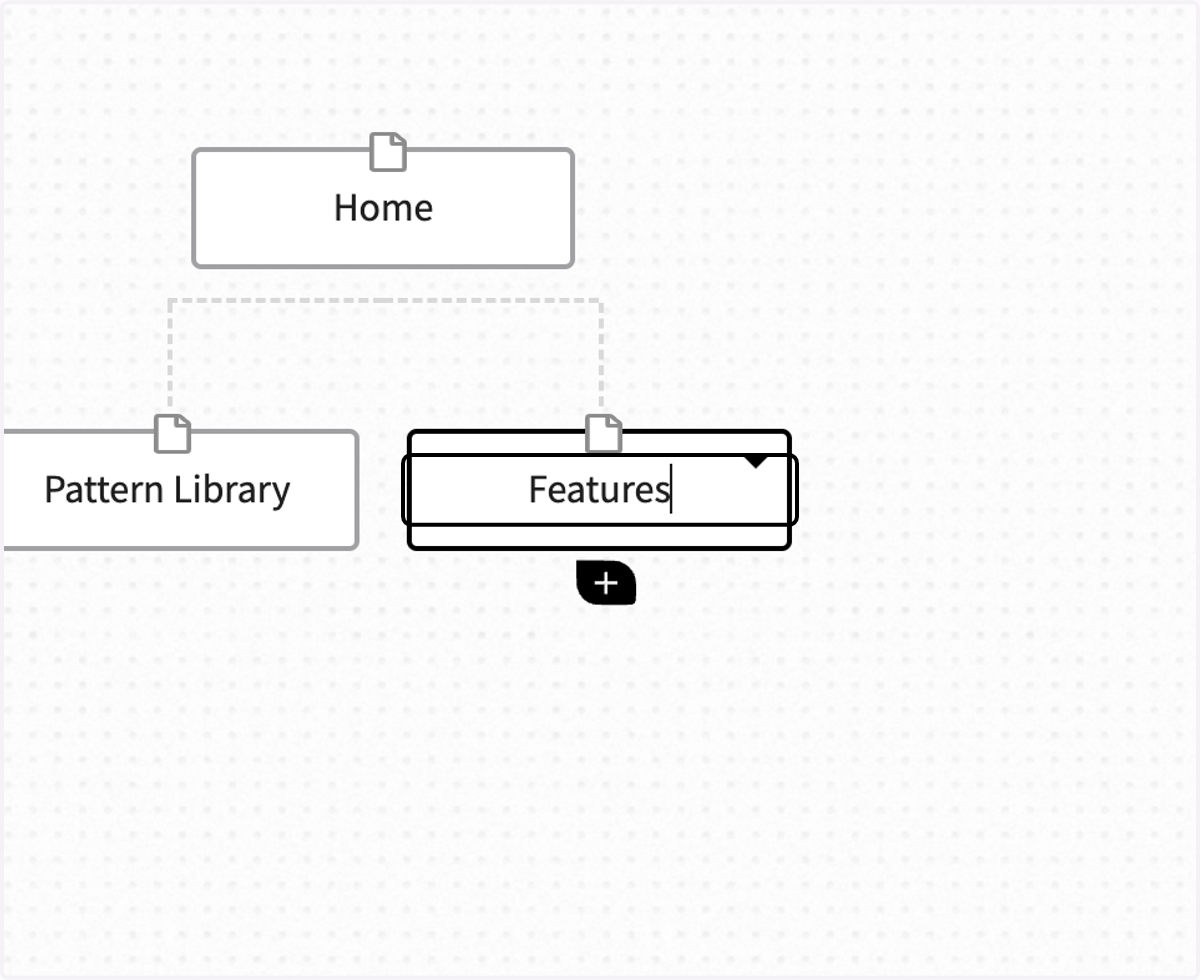
8. Click on Add a page to add additional pages to the main navigation
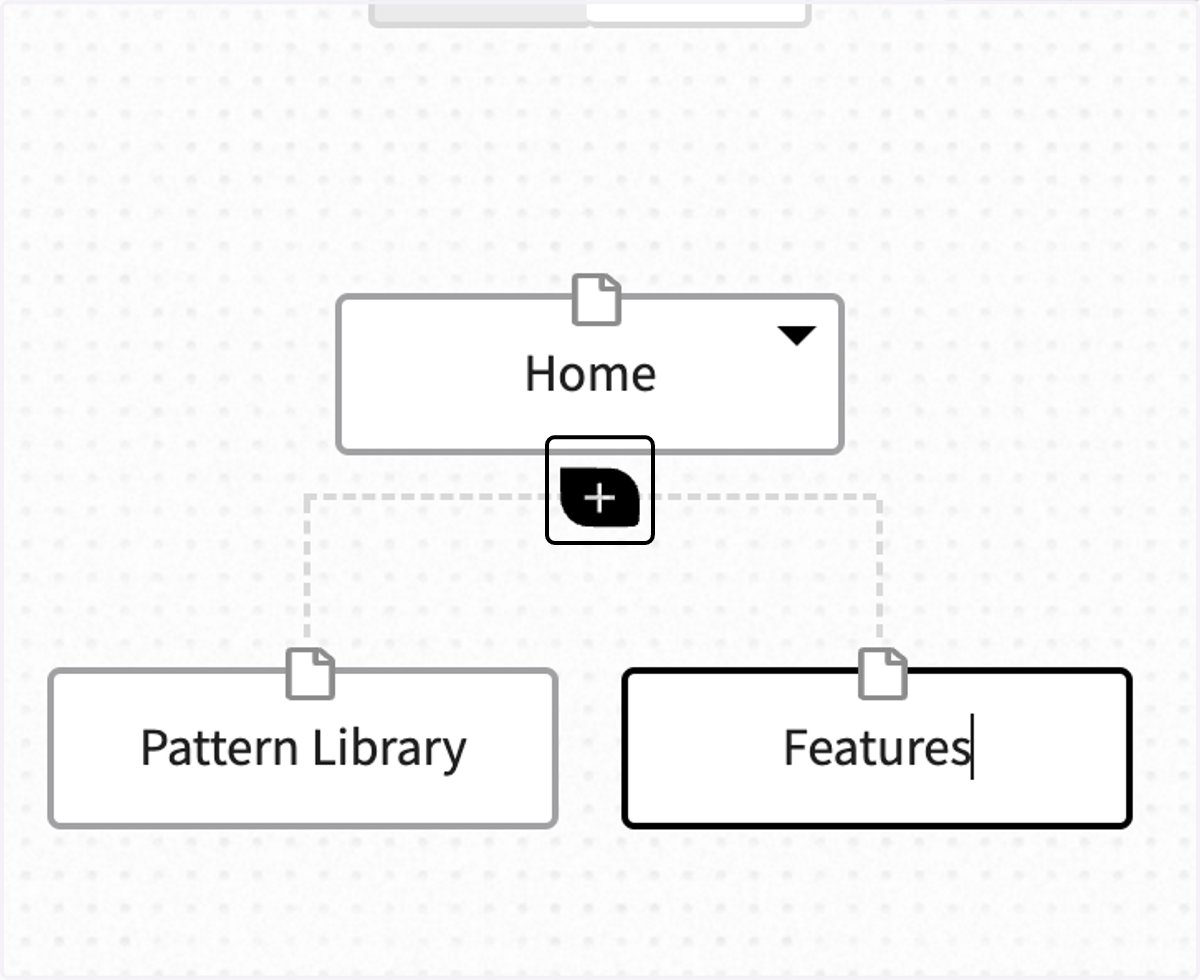
9. Click on Add a page
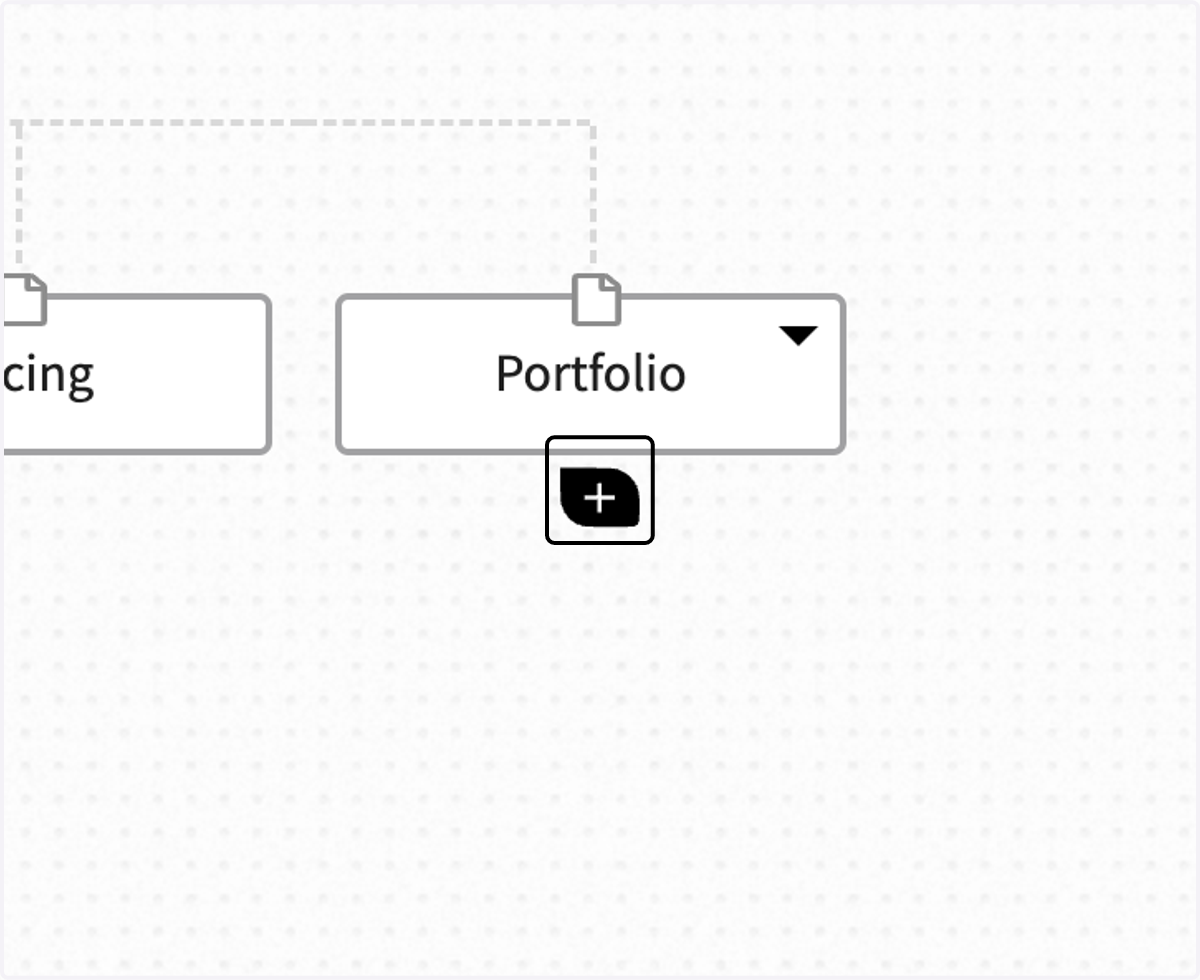
10. Type the name of the subpage, repeat as necessary
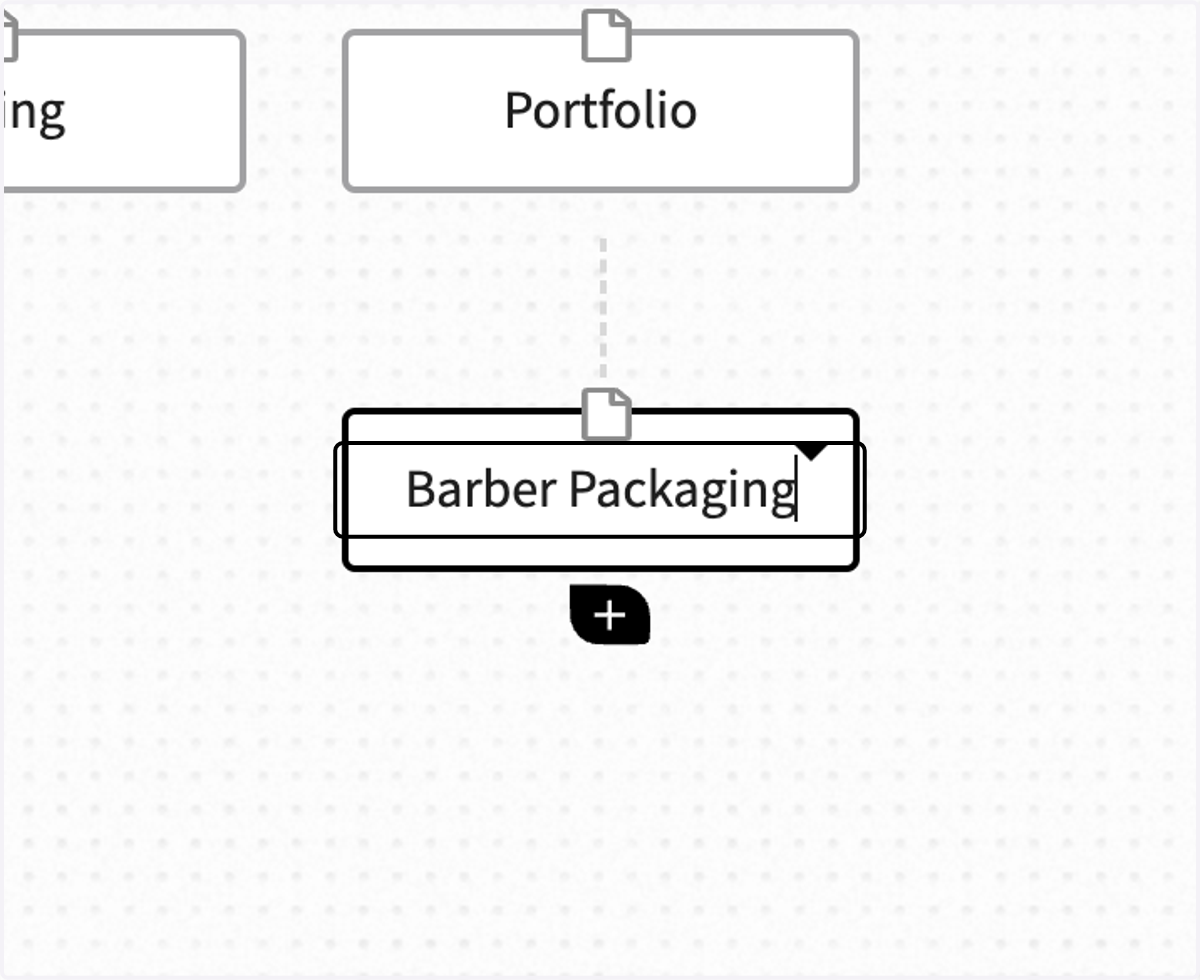
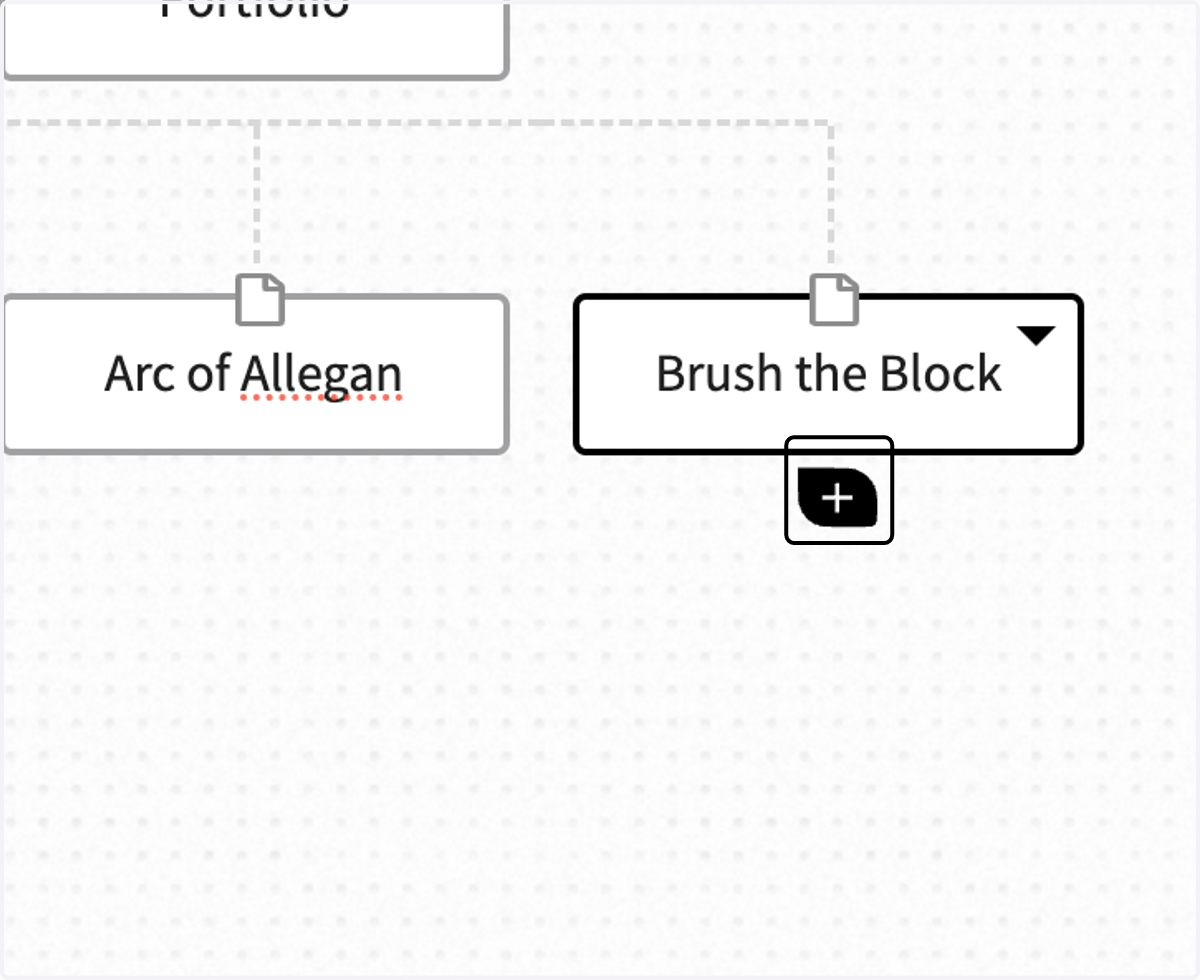
11. Click on Add a page to add more subpages
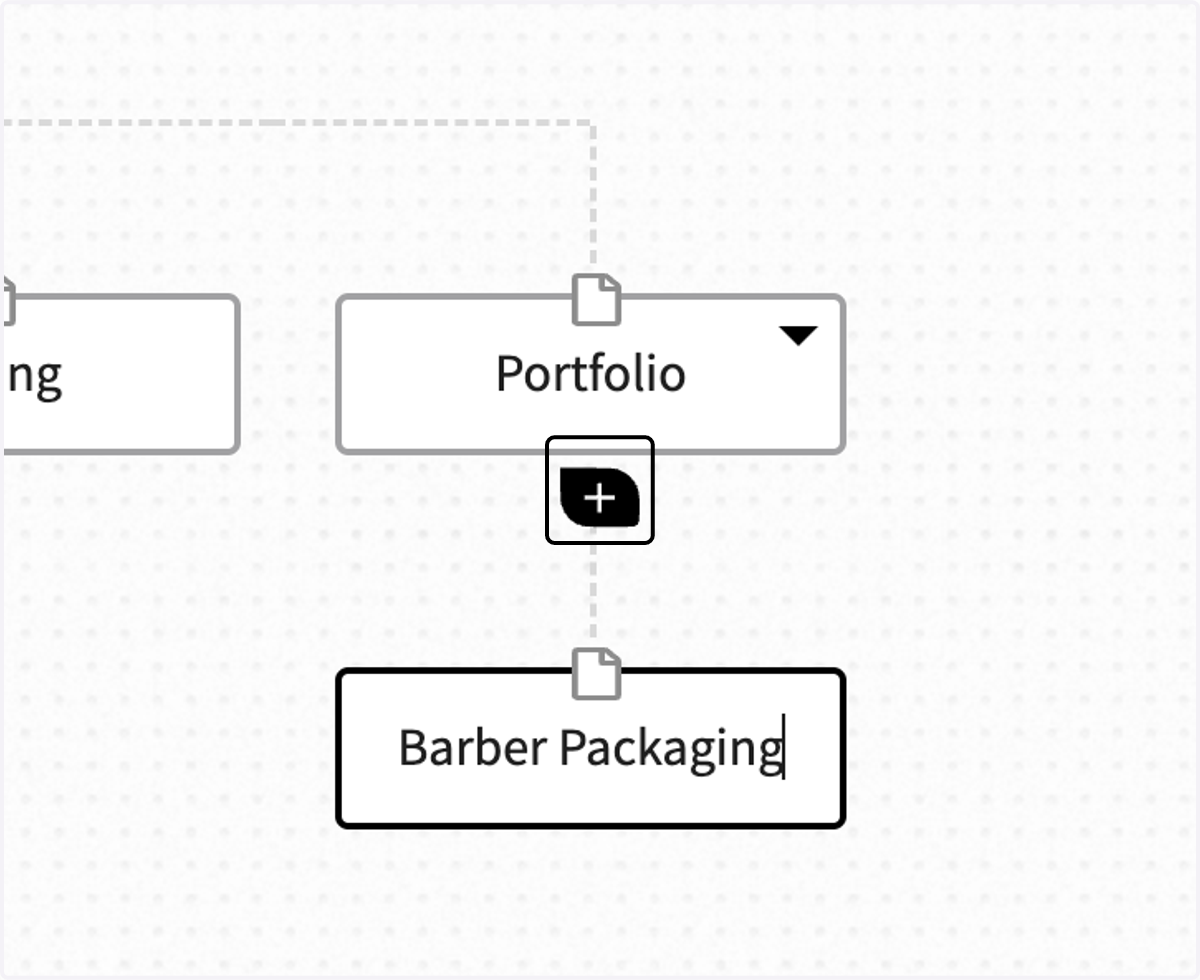
12. Click on Add a page on the subpage if you need a third level subpage (this level is uncommon)
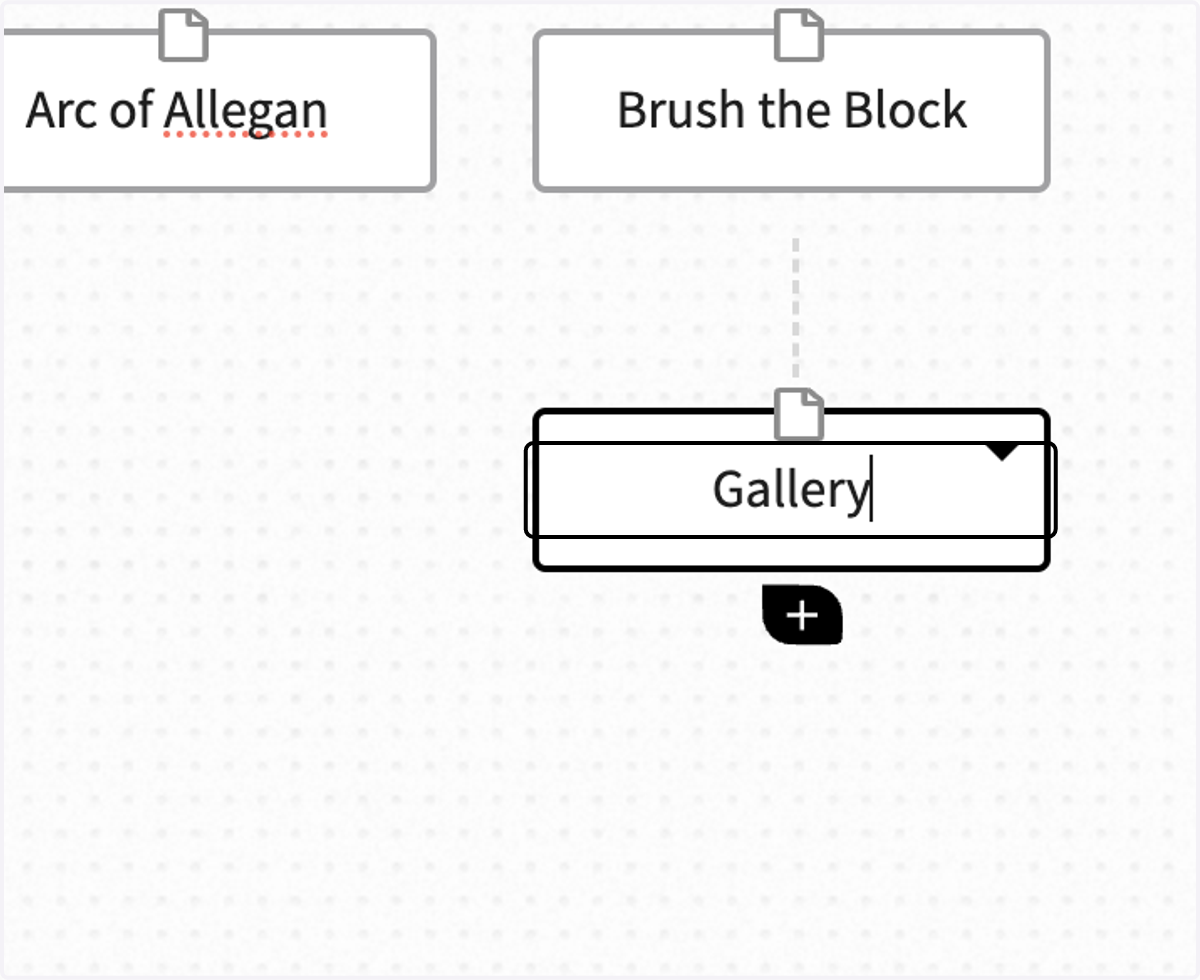
13. Type "Gallery"
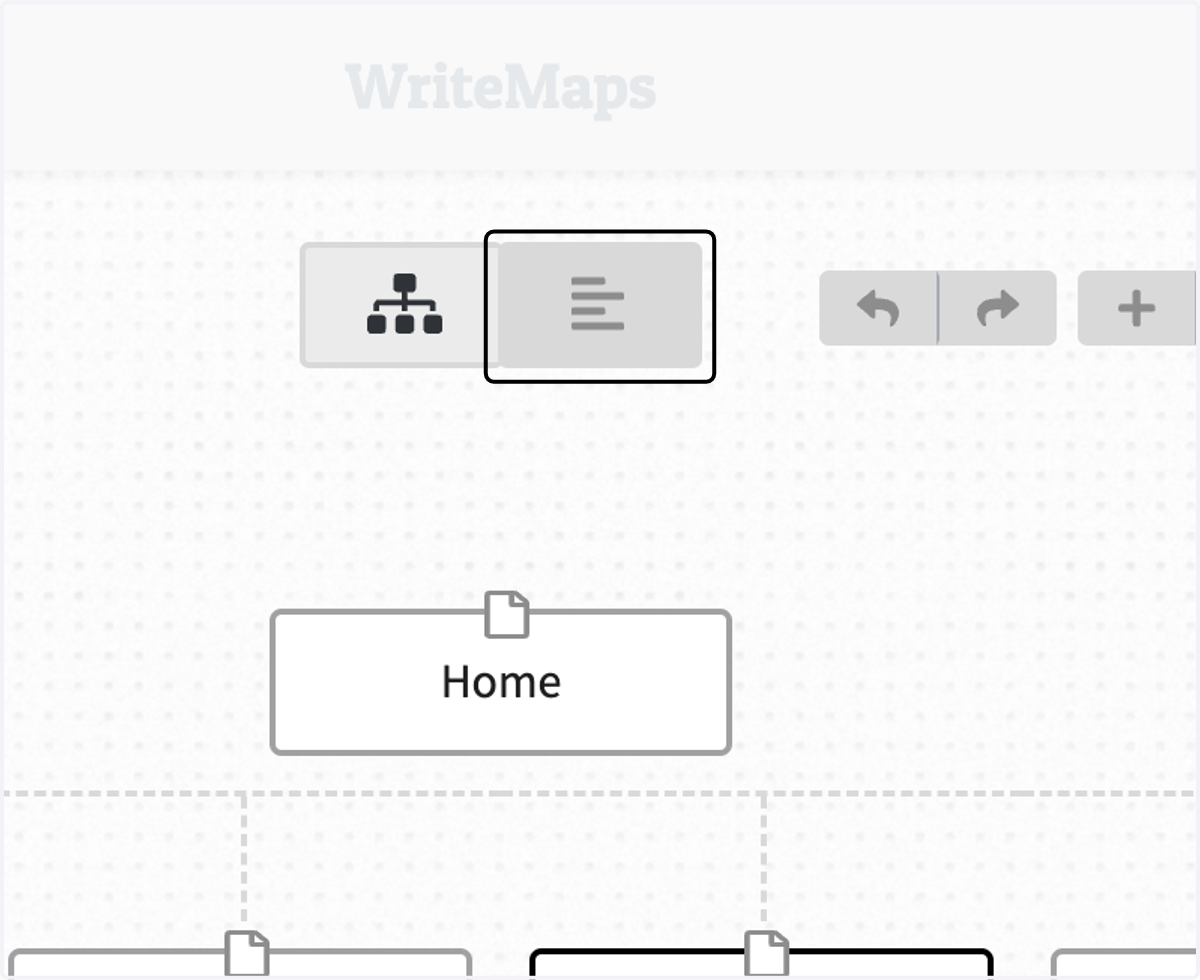
14. To start to create and organize content, click on Content View
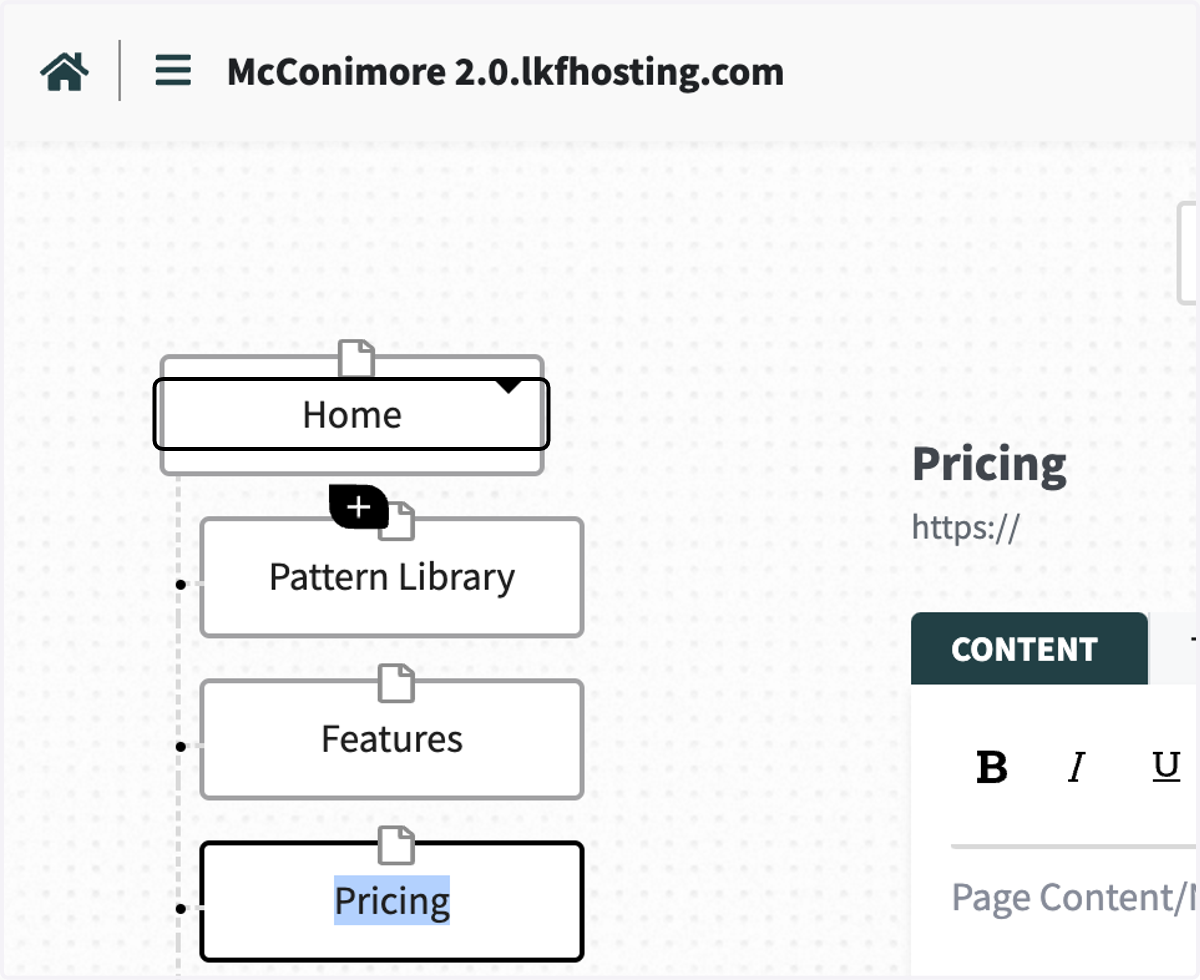
15. Click on Home
16. Type in your content
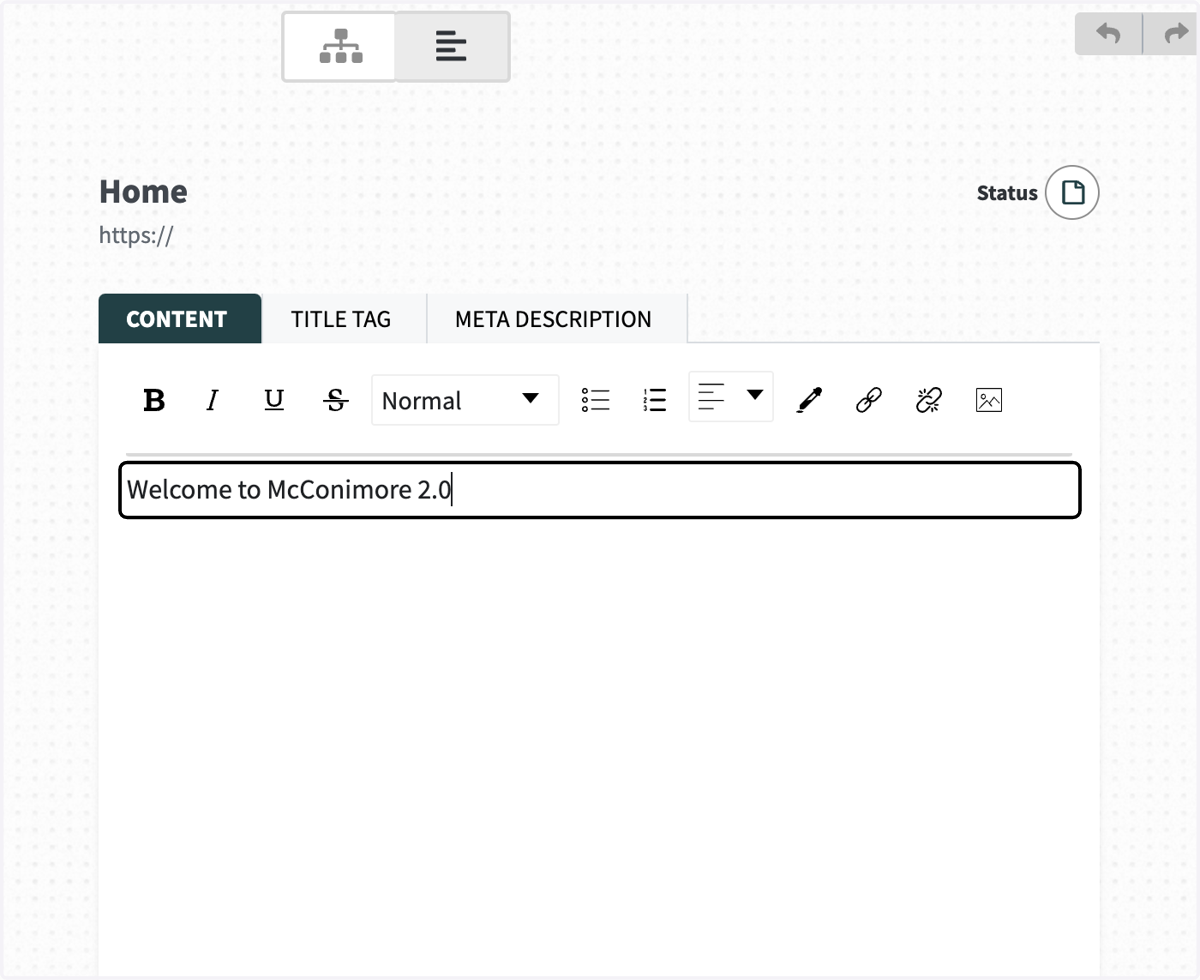
17. You can select the hierarchy of the content in the dropdown menu under "Normal"
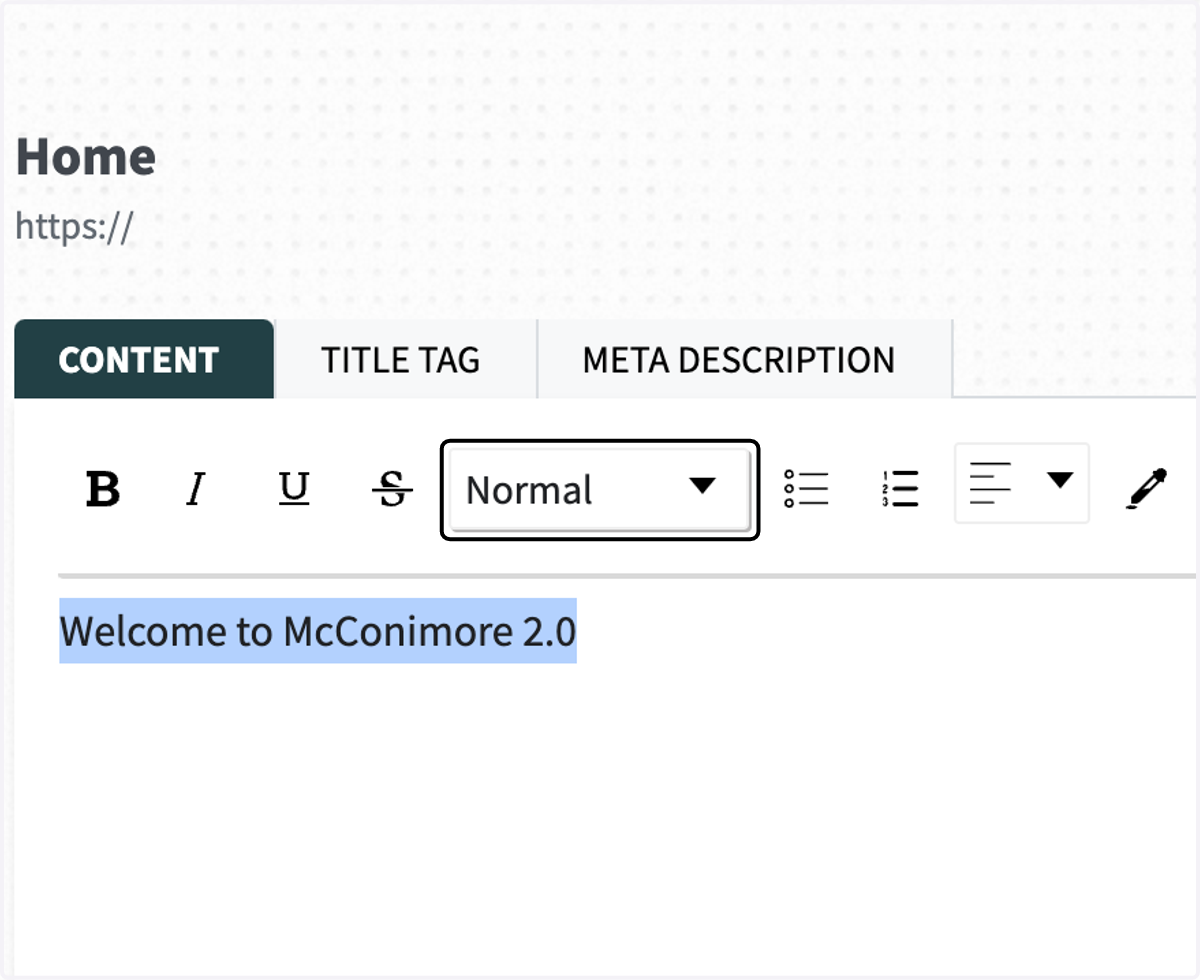
18. Select the heading level or text type you need
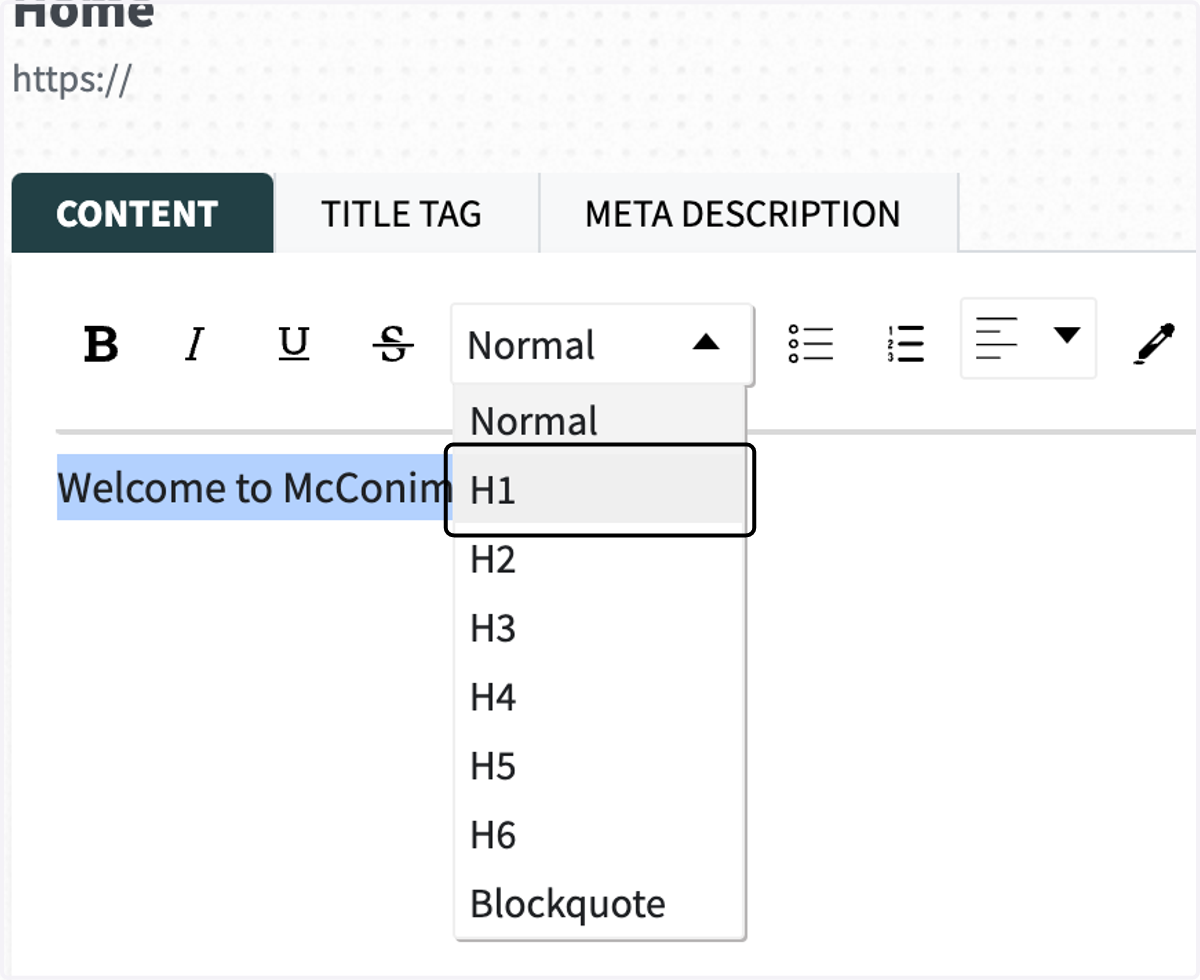
19. Click on rdw-dropdown
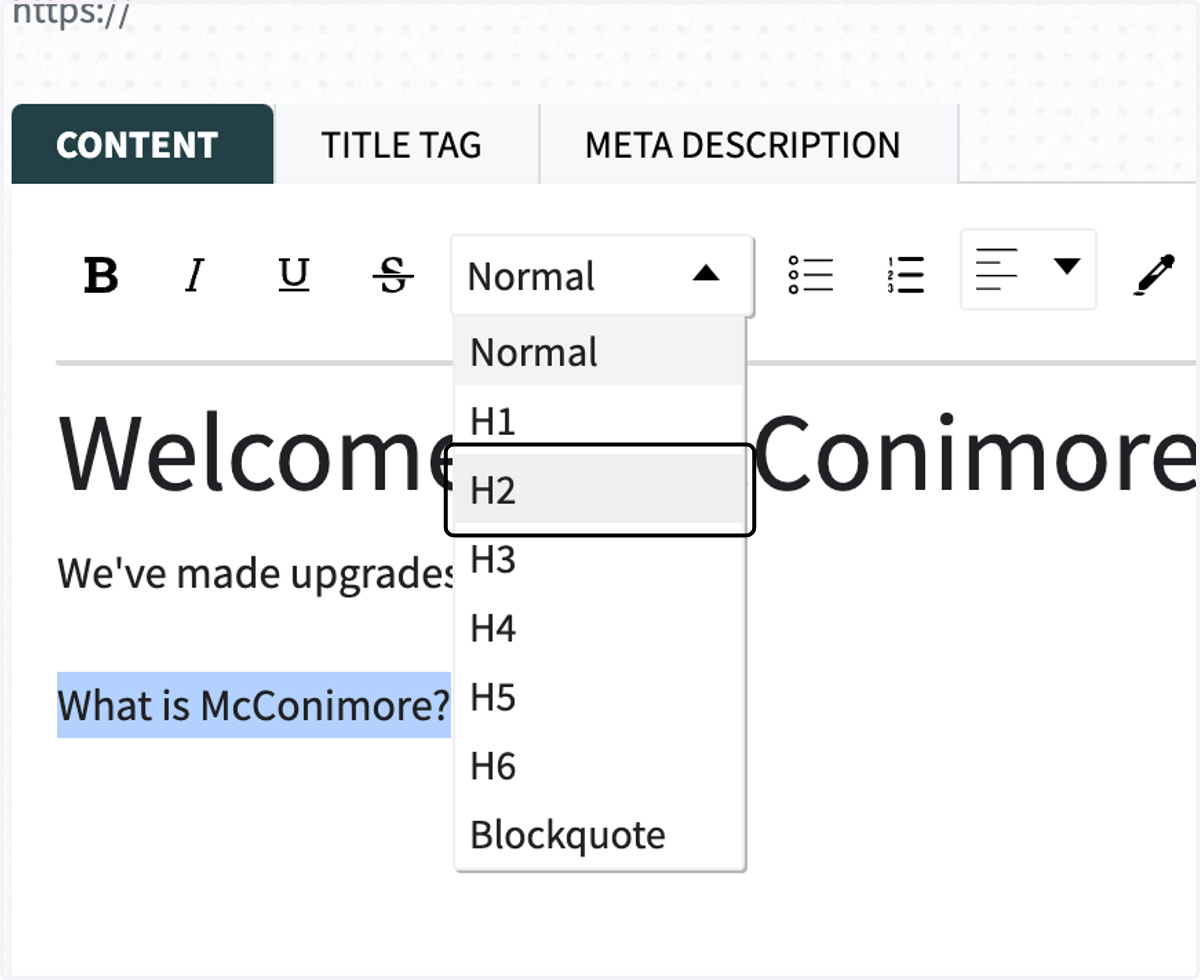
20. Click on TITLE TAG
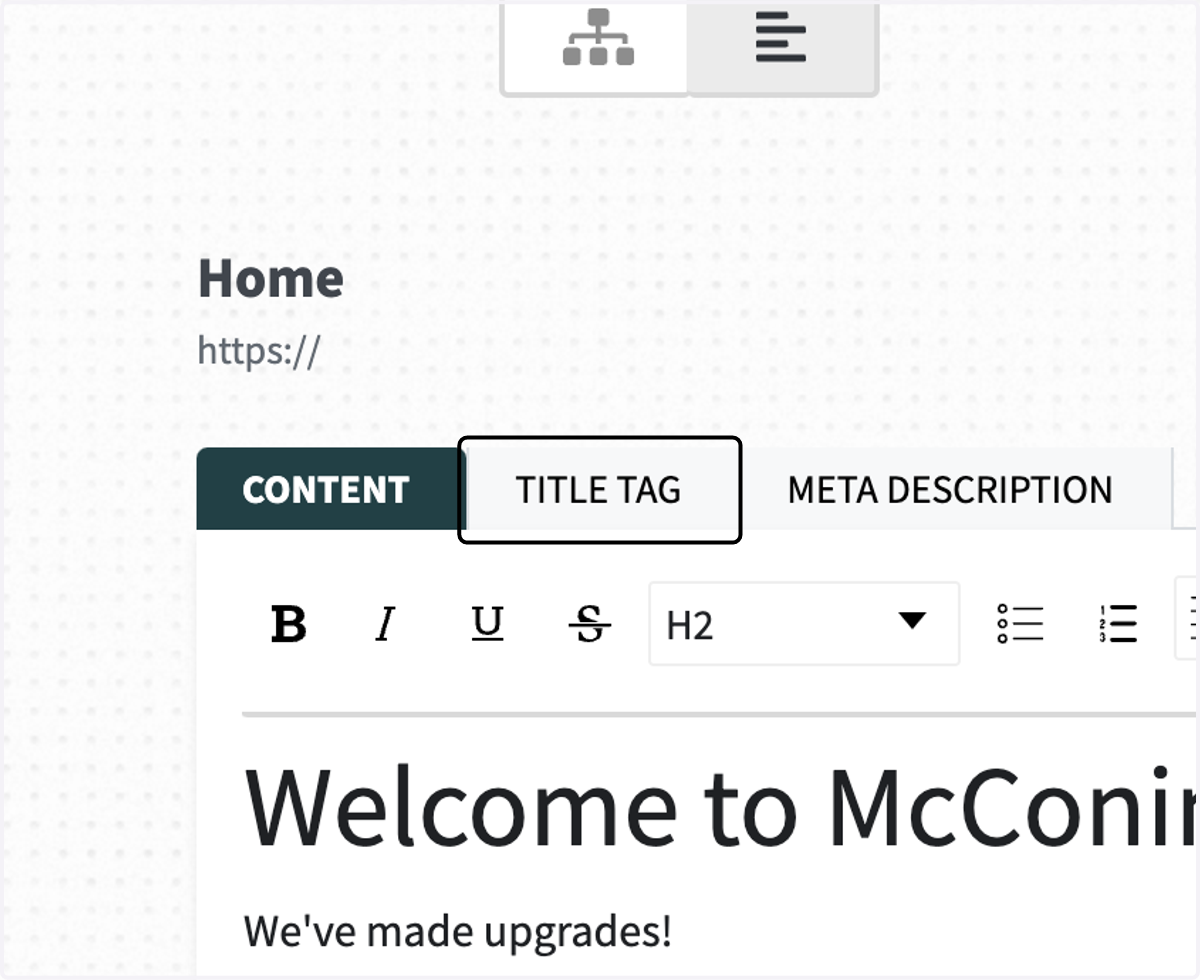
21. You can add a Title Tag
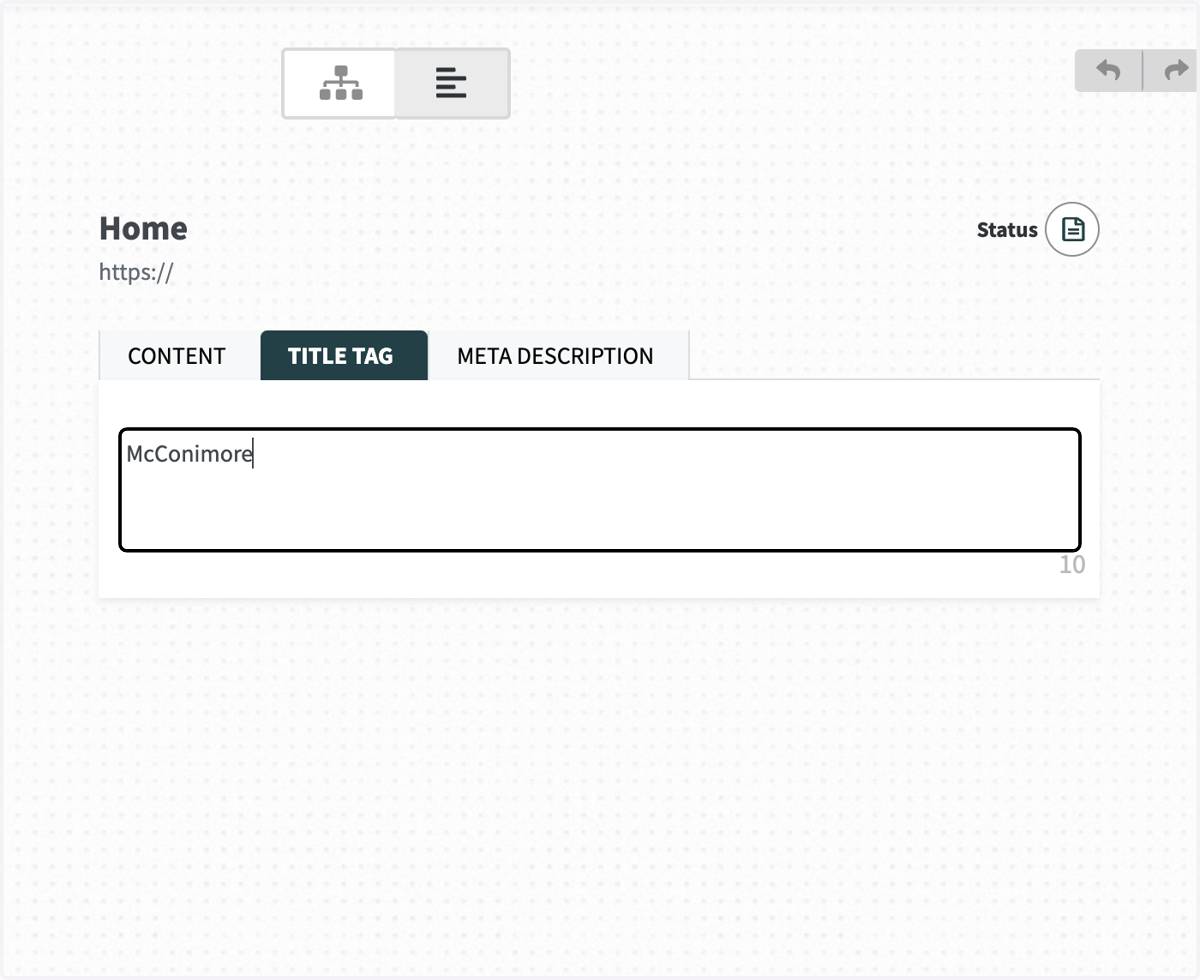
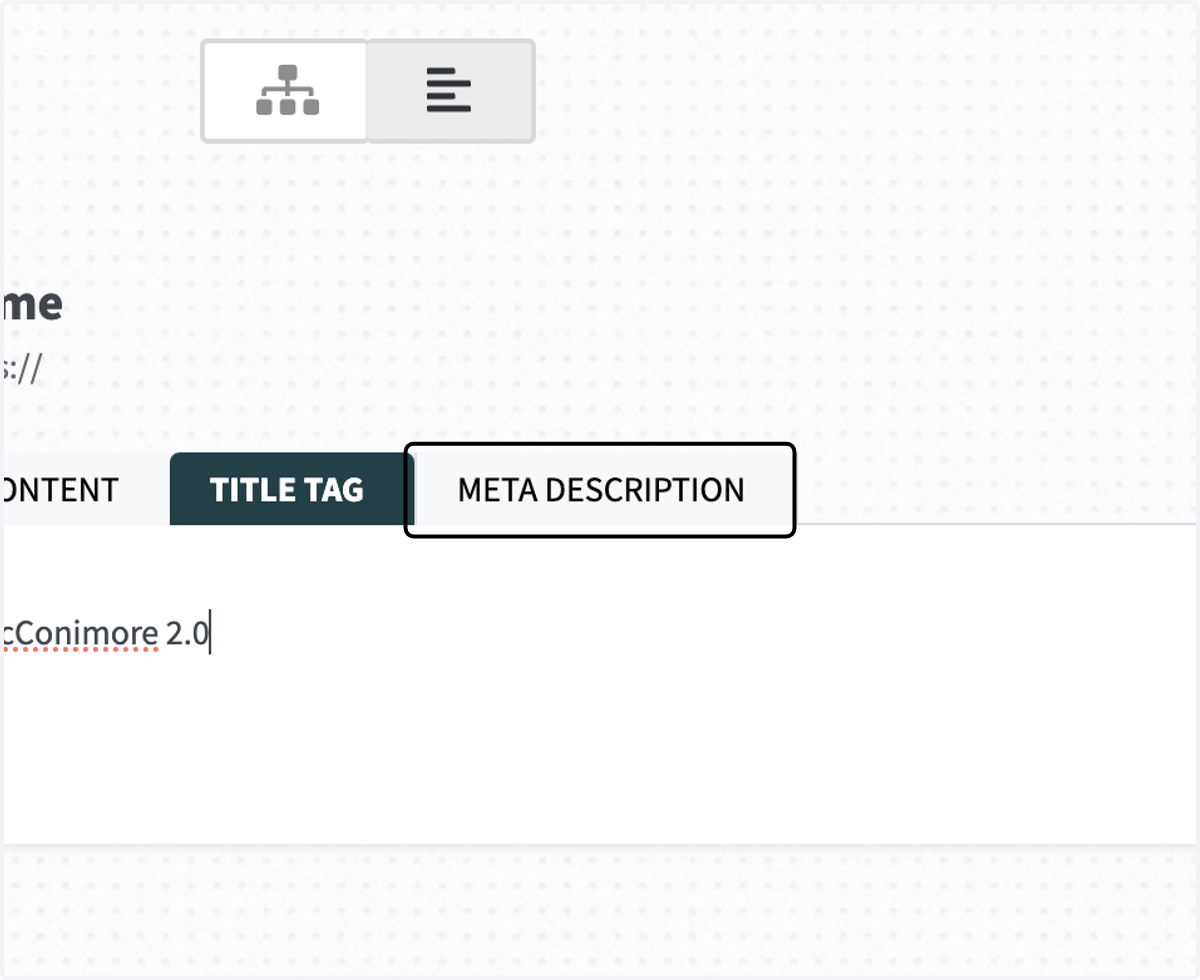
22. ...and a META DESCRIPTION
23. You can also add links by highlighting the text...
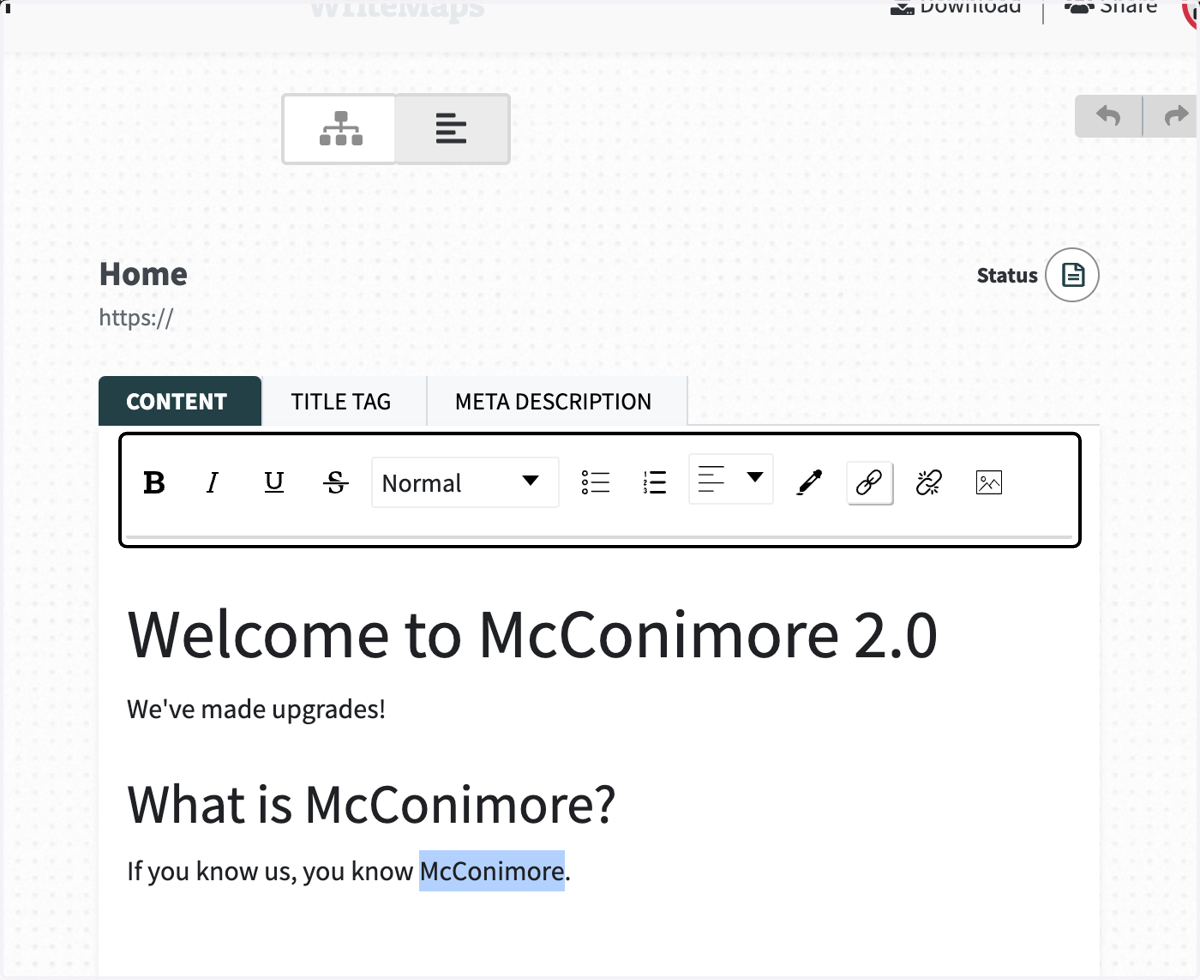
24. clicking on the link icon and typing the link target
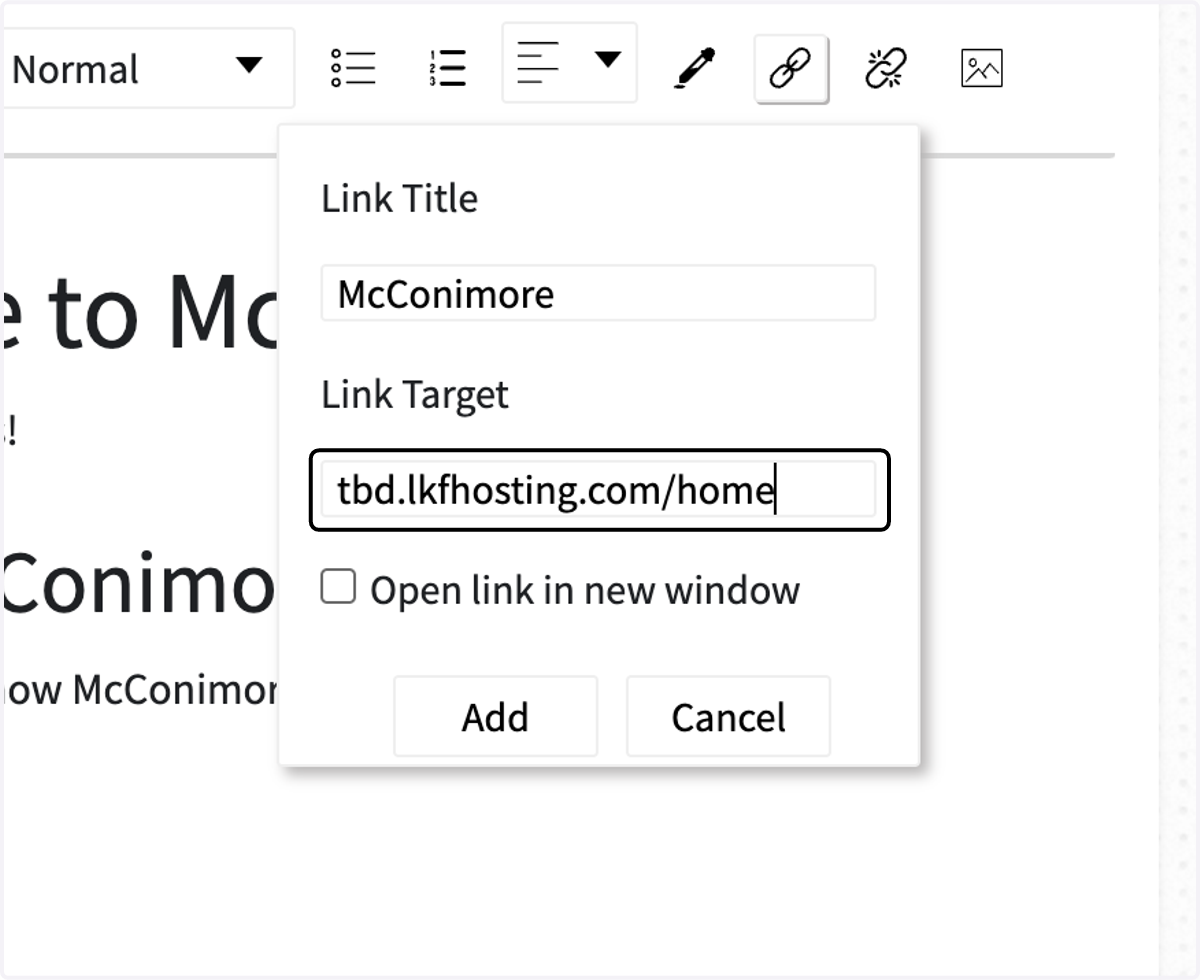
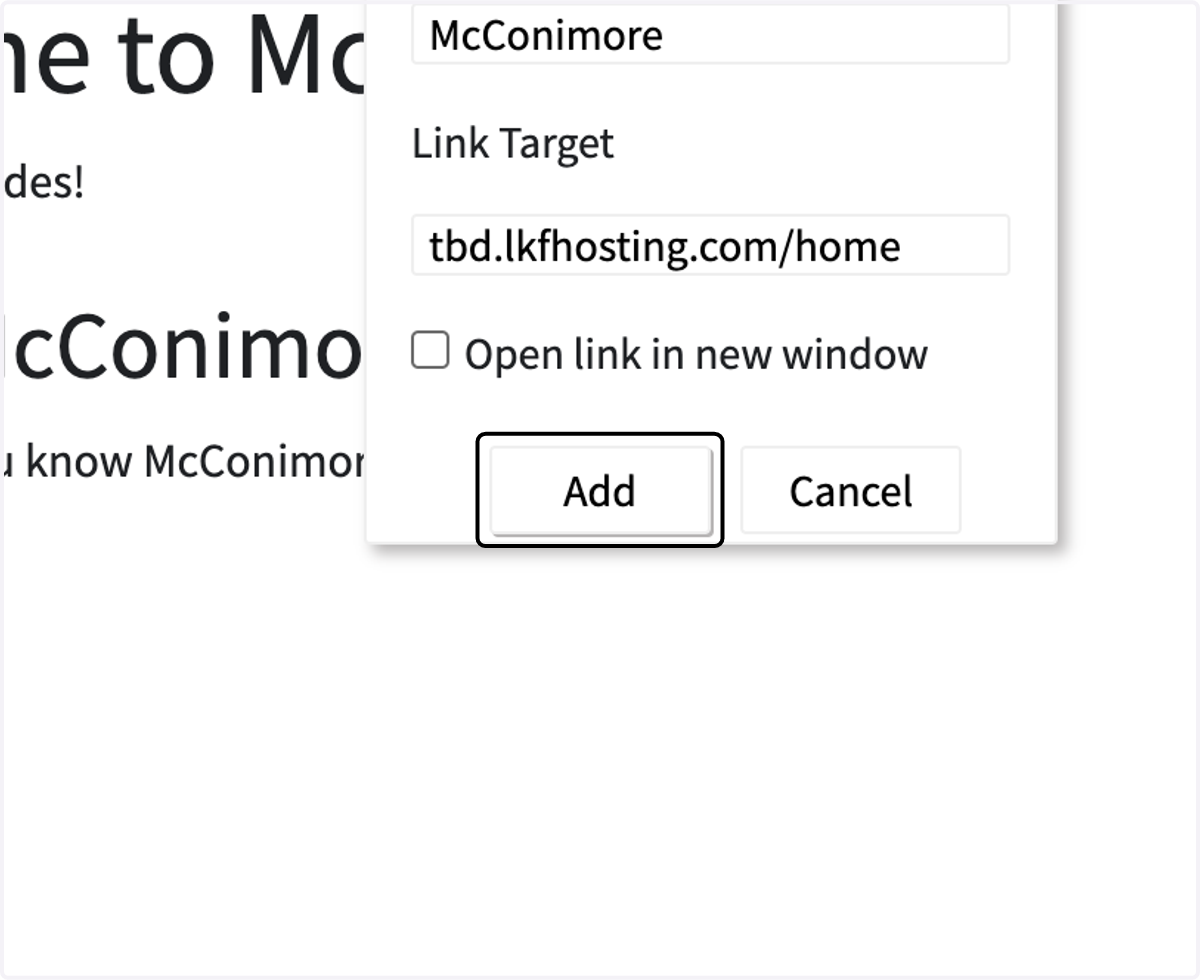
25. Click on Add
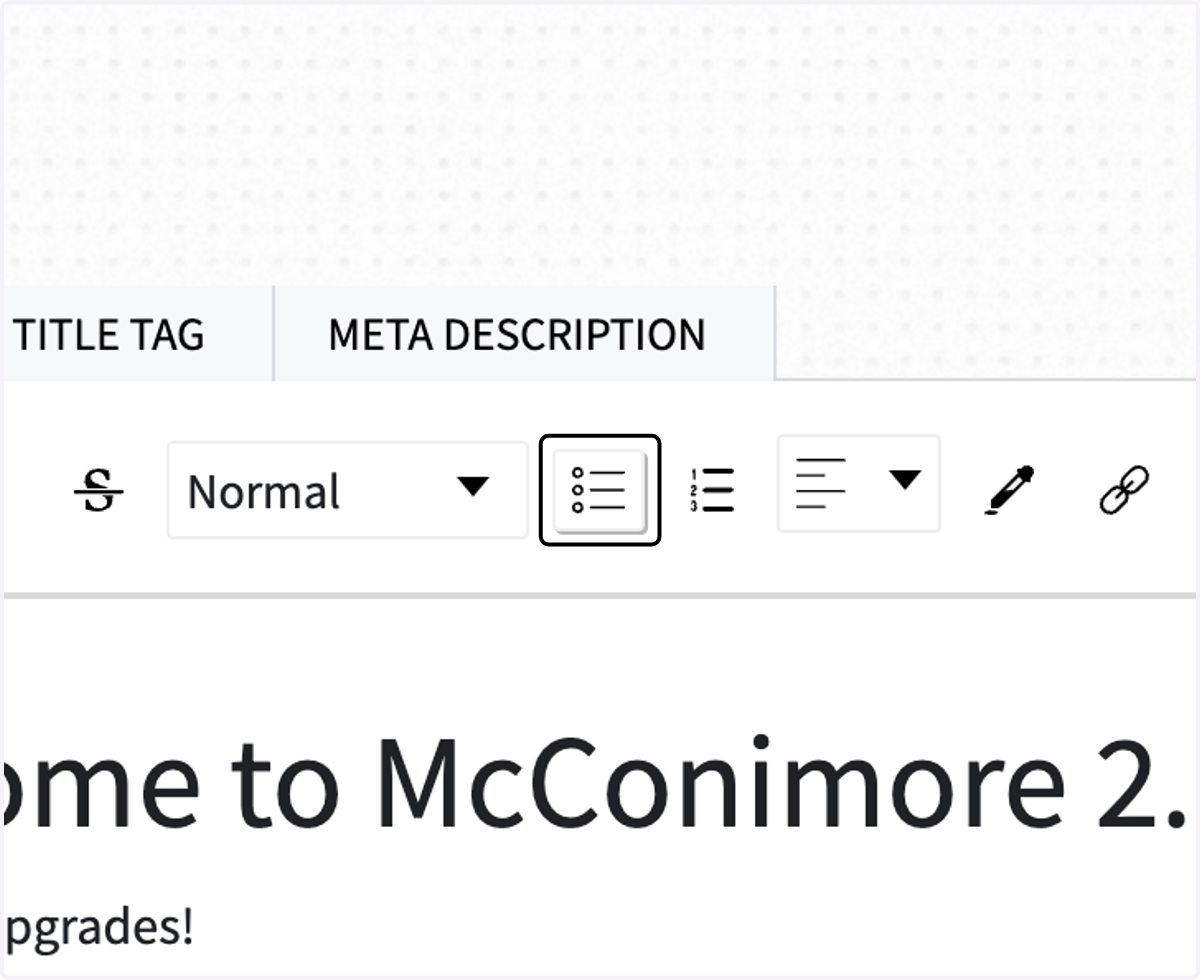
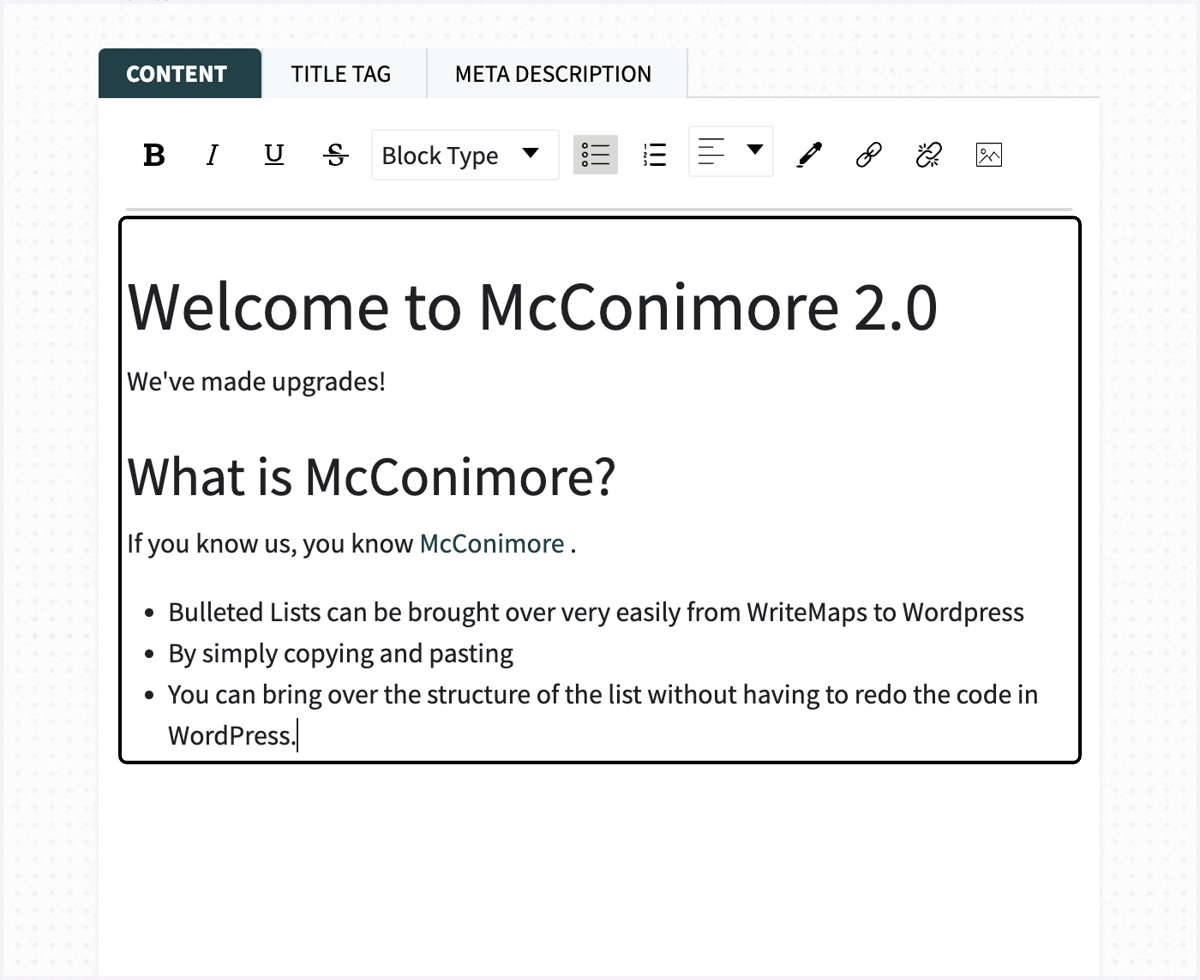
26. You can add unordered or ordered (numbered) lis
27. Type rdw-editor
Bulleted Lists can be brought over very easily from WriteMaps to WordPress
By simply copying and pasting
You can bring over the structure of the list without having to redo the code in WordPress.
28. Type rdw-editor
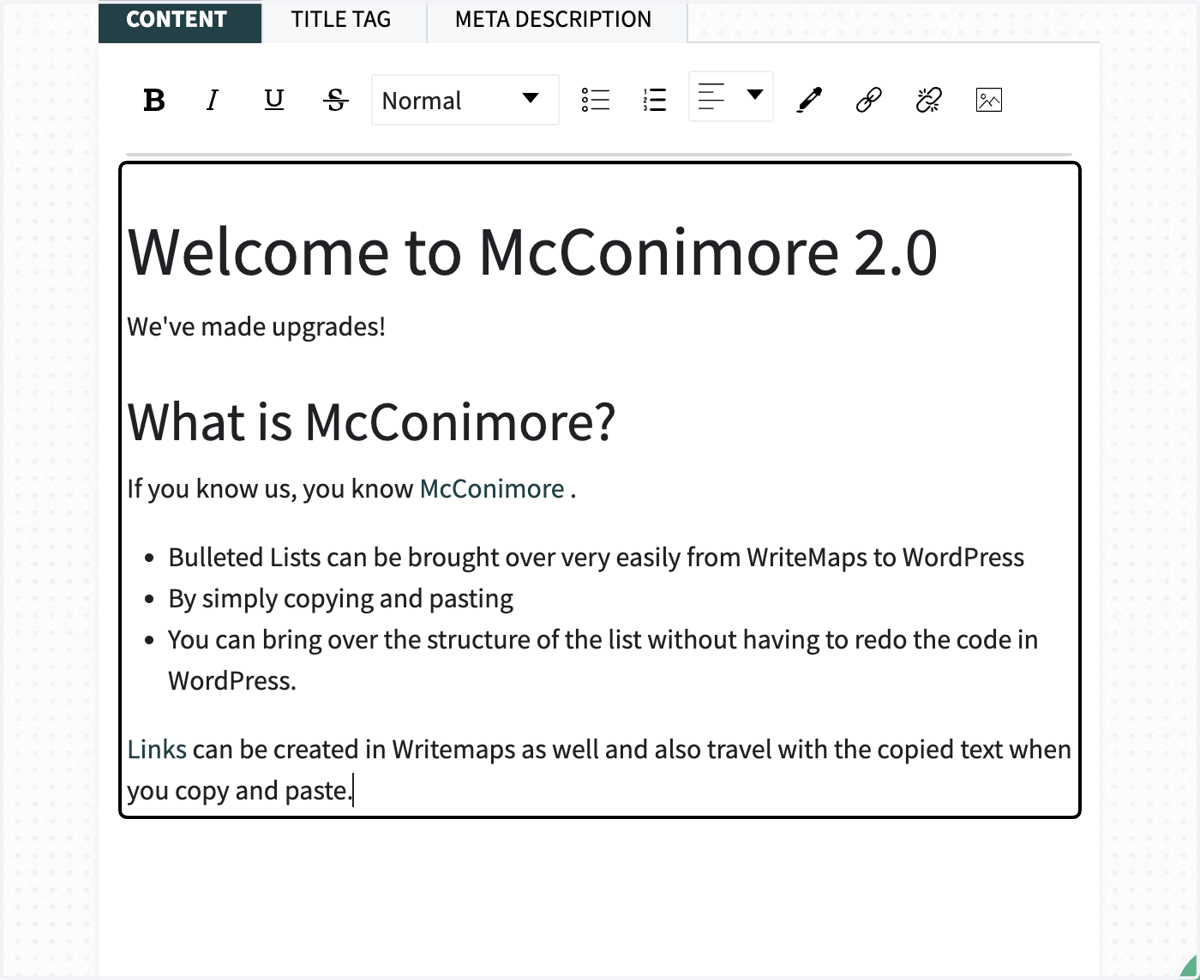
29. If you want to change the color of the text, you can highlight the word and click on the color picker
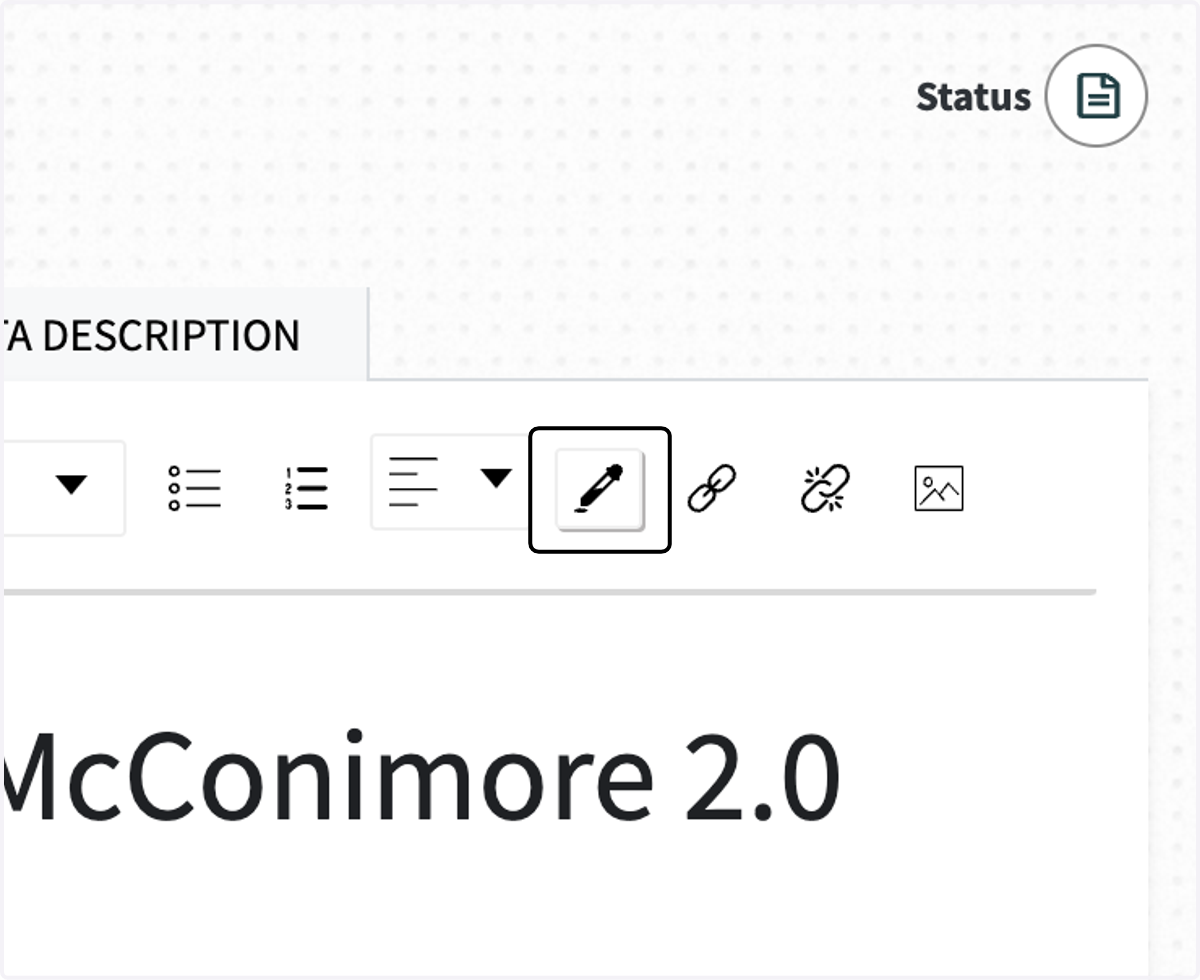
30. Click on rdw-color-picker
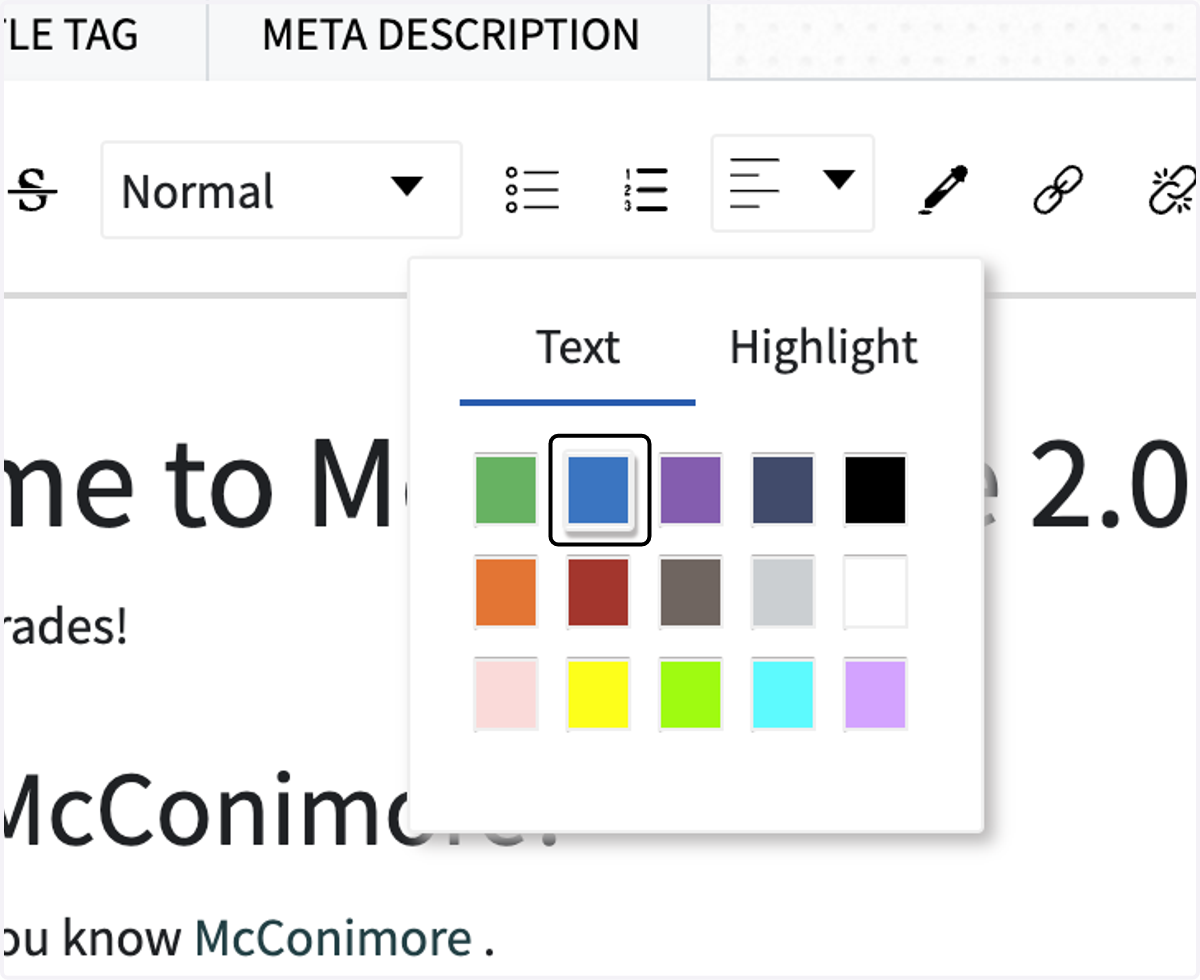
31. Click on rdw-color-picker
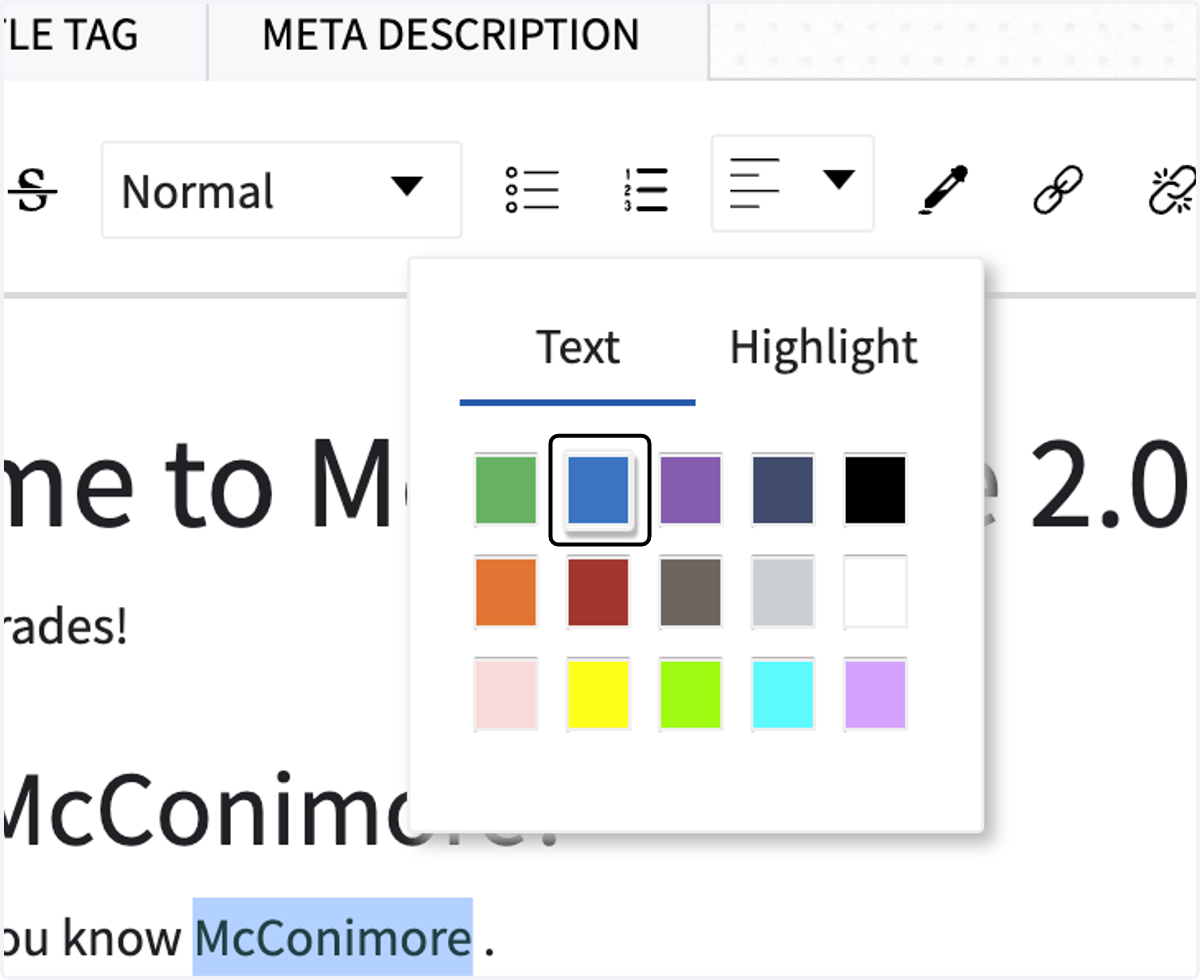
32. Type rdw-editor
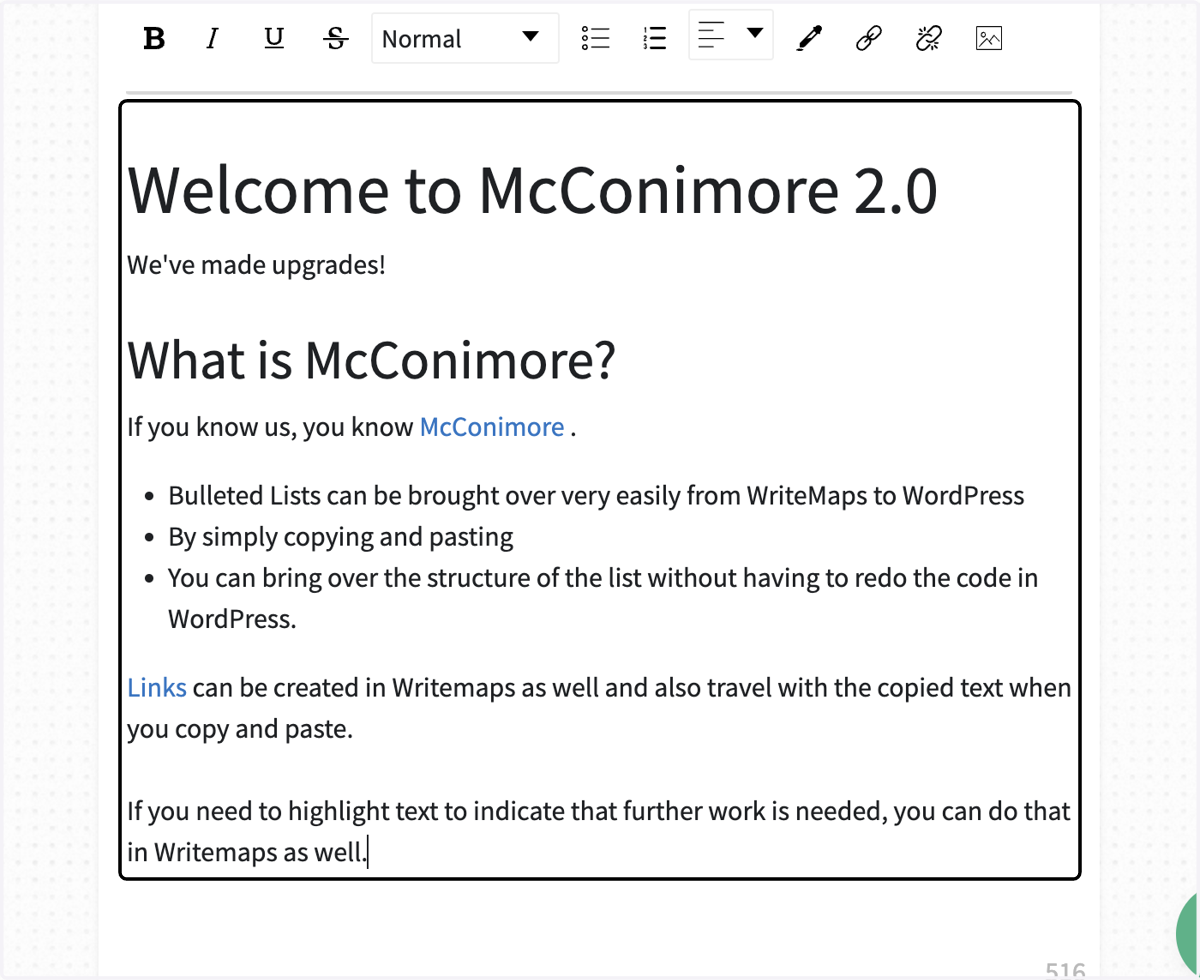
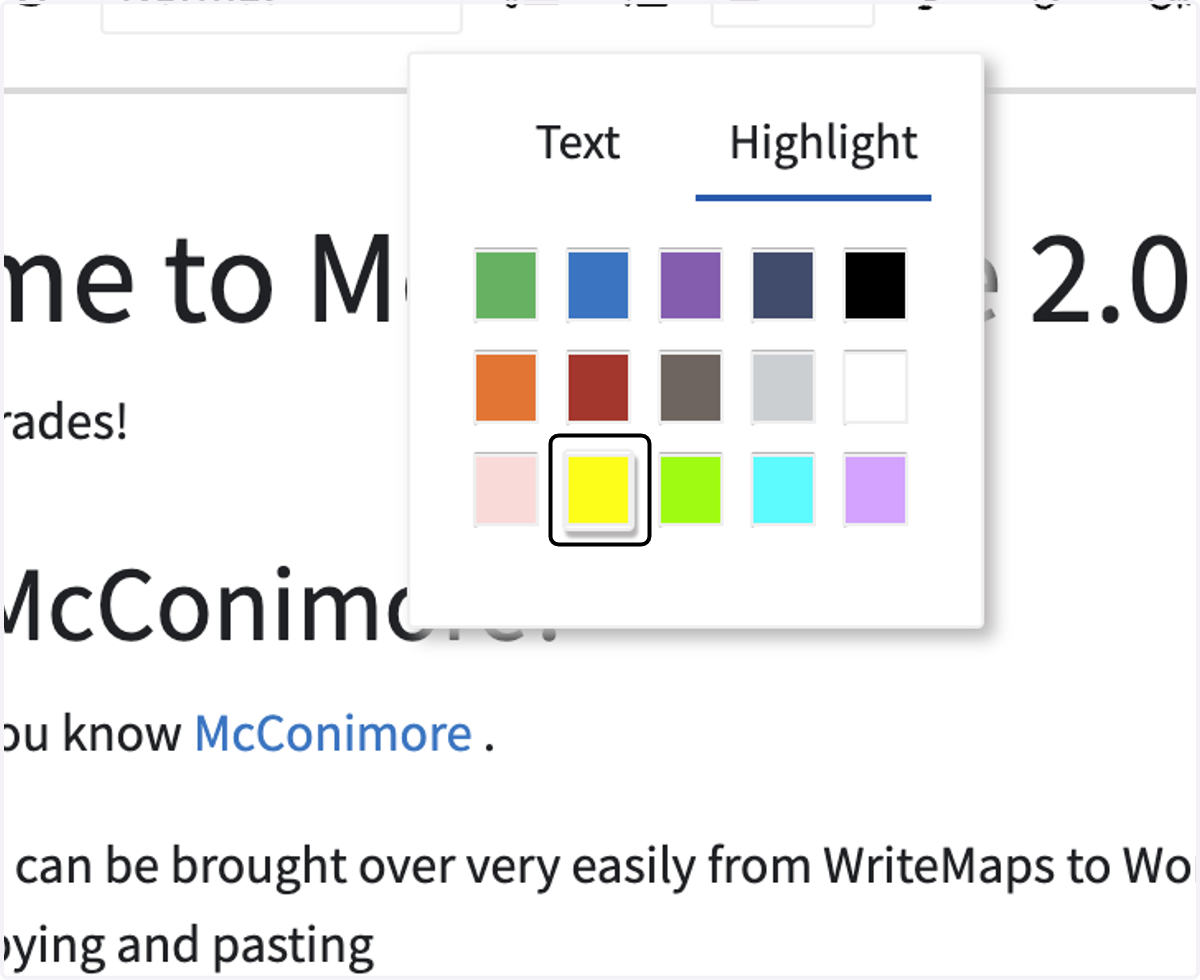
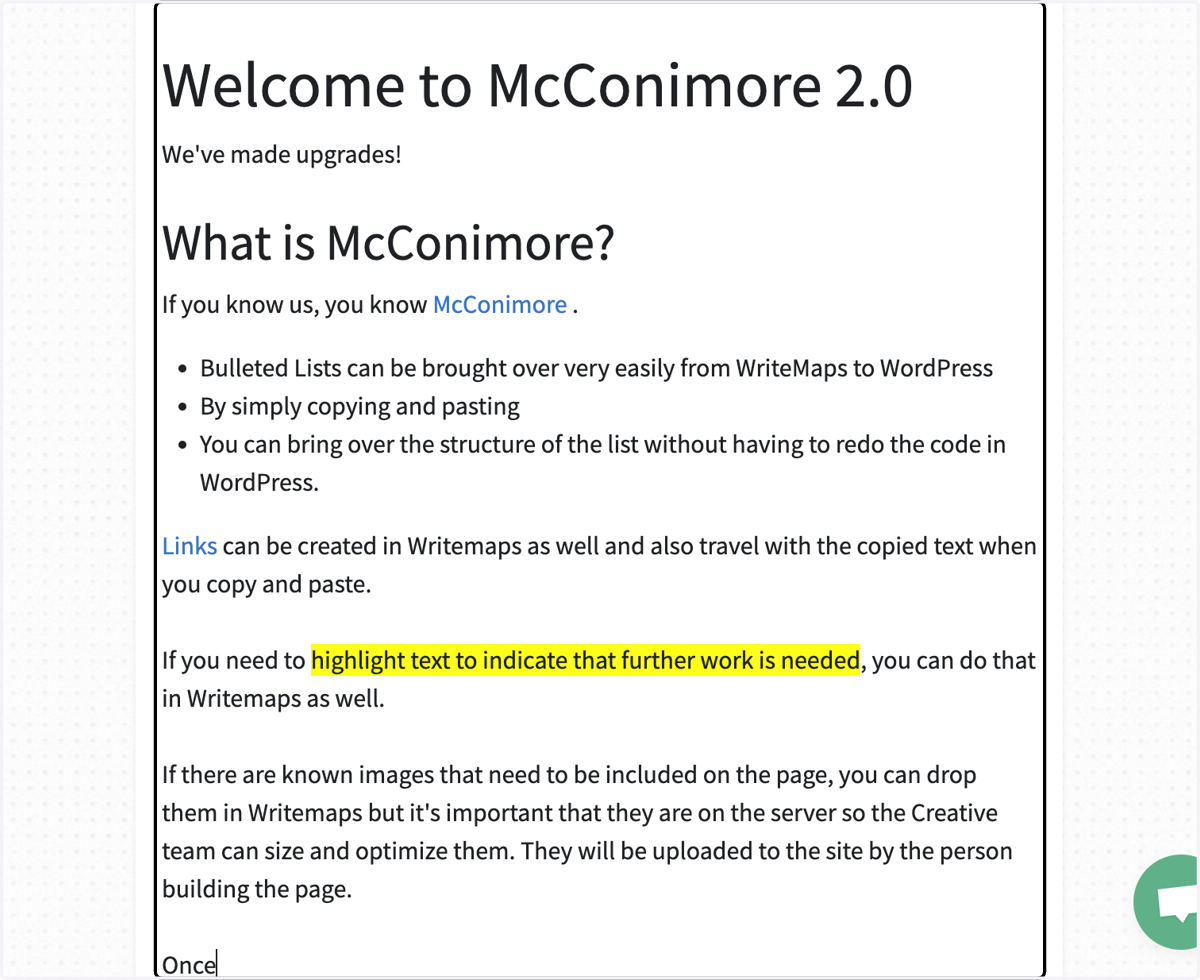
33. If you want to highlight text that needs more attention, select the text and click on the color picker
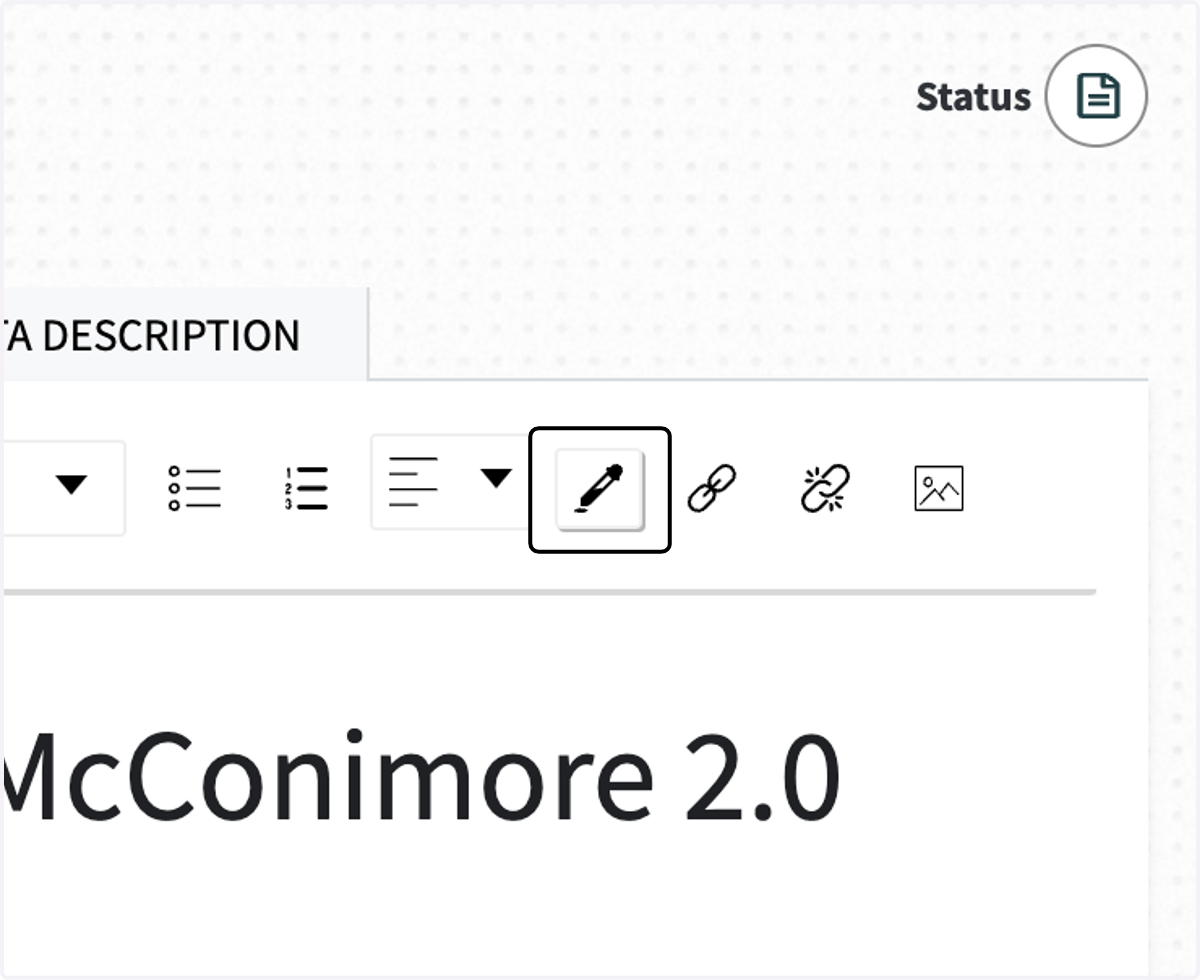
34. Indicate "Highlight" and pick your color
35. Type rdw-editor
36. To have other people review your work, you can use the Share function
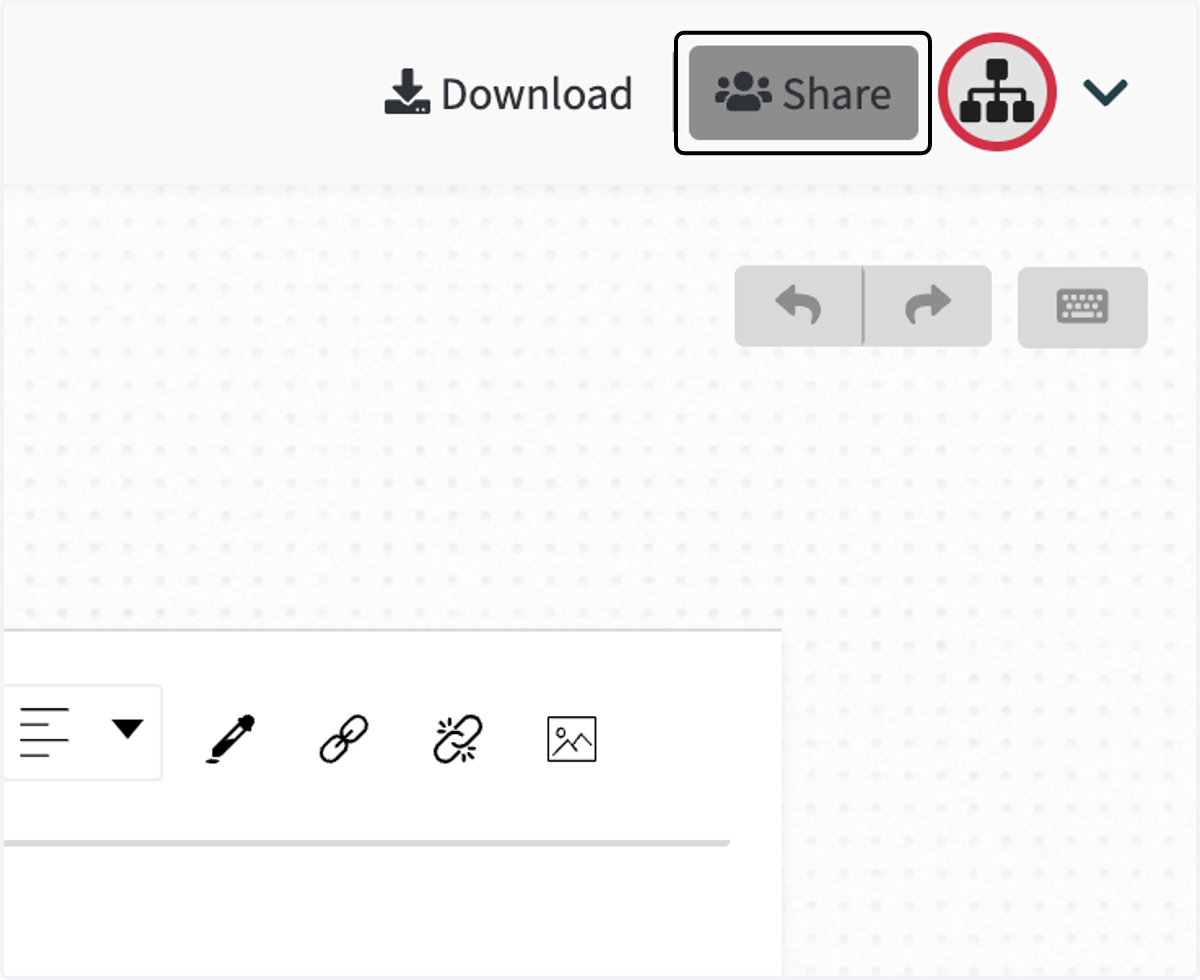
37. Select Can edit
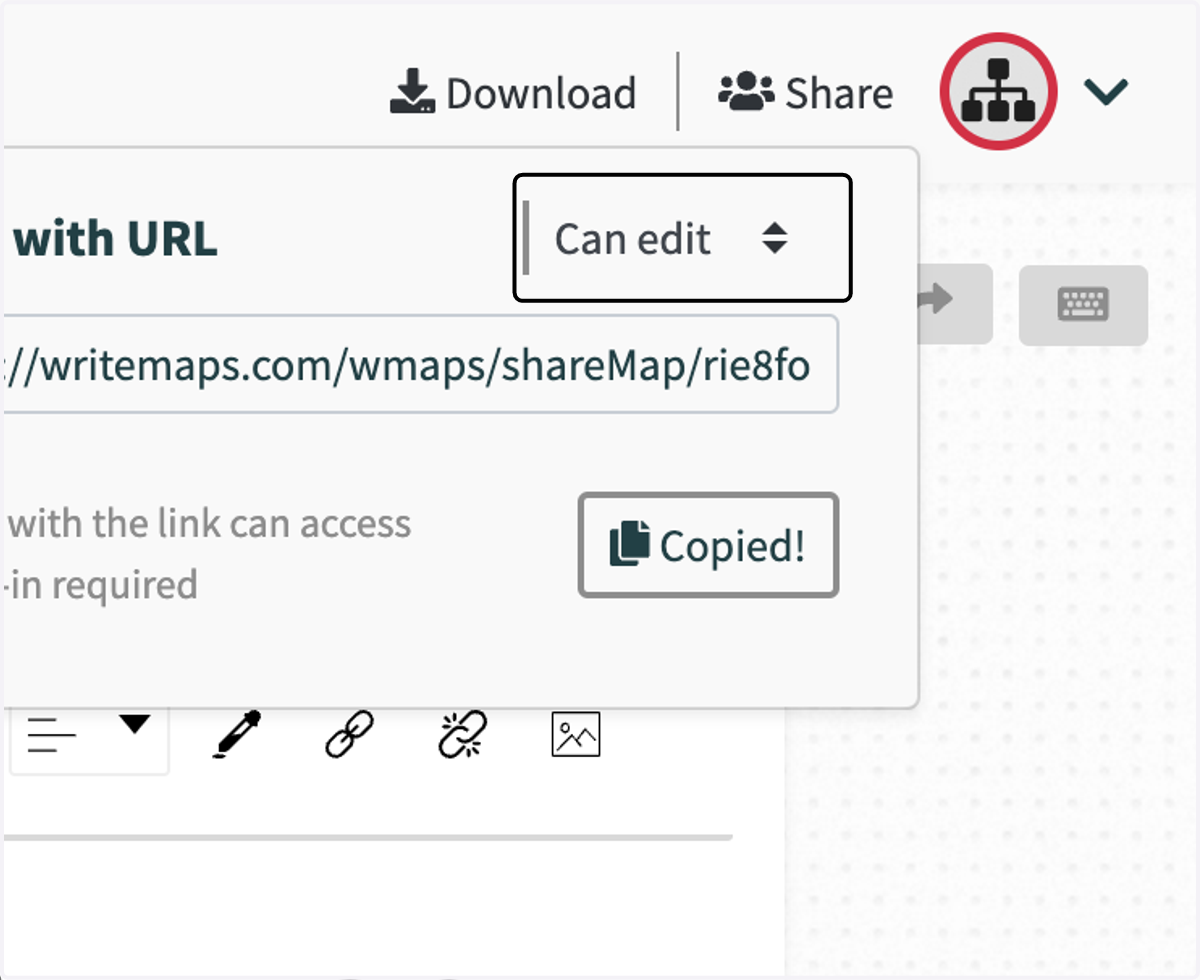
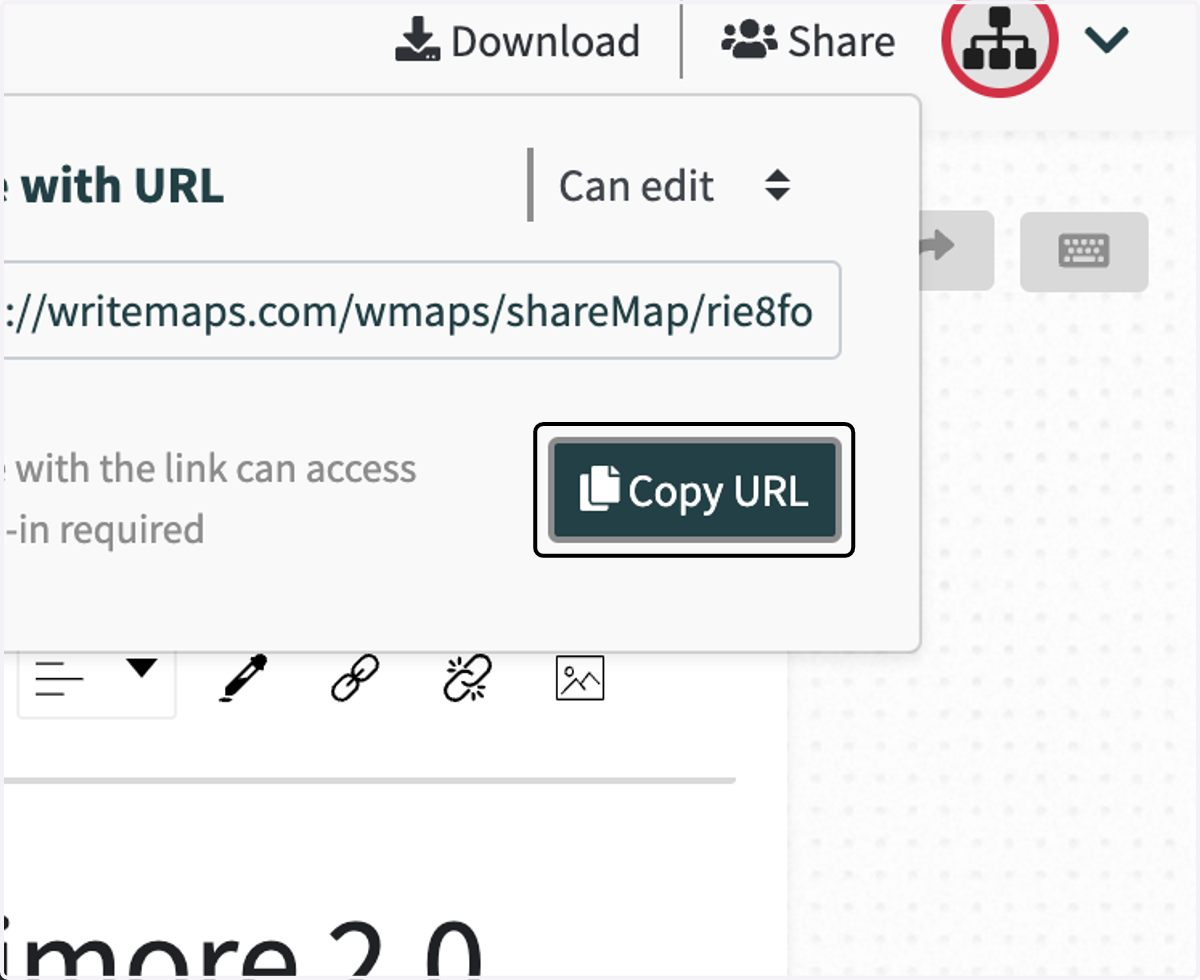
38. Click on Copy URL to provide the link to the people you want to review
39. If you need to download the site map or the content, click on Download
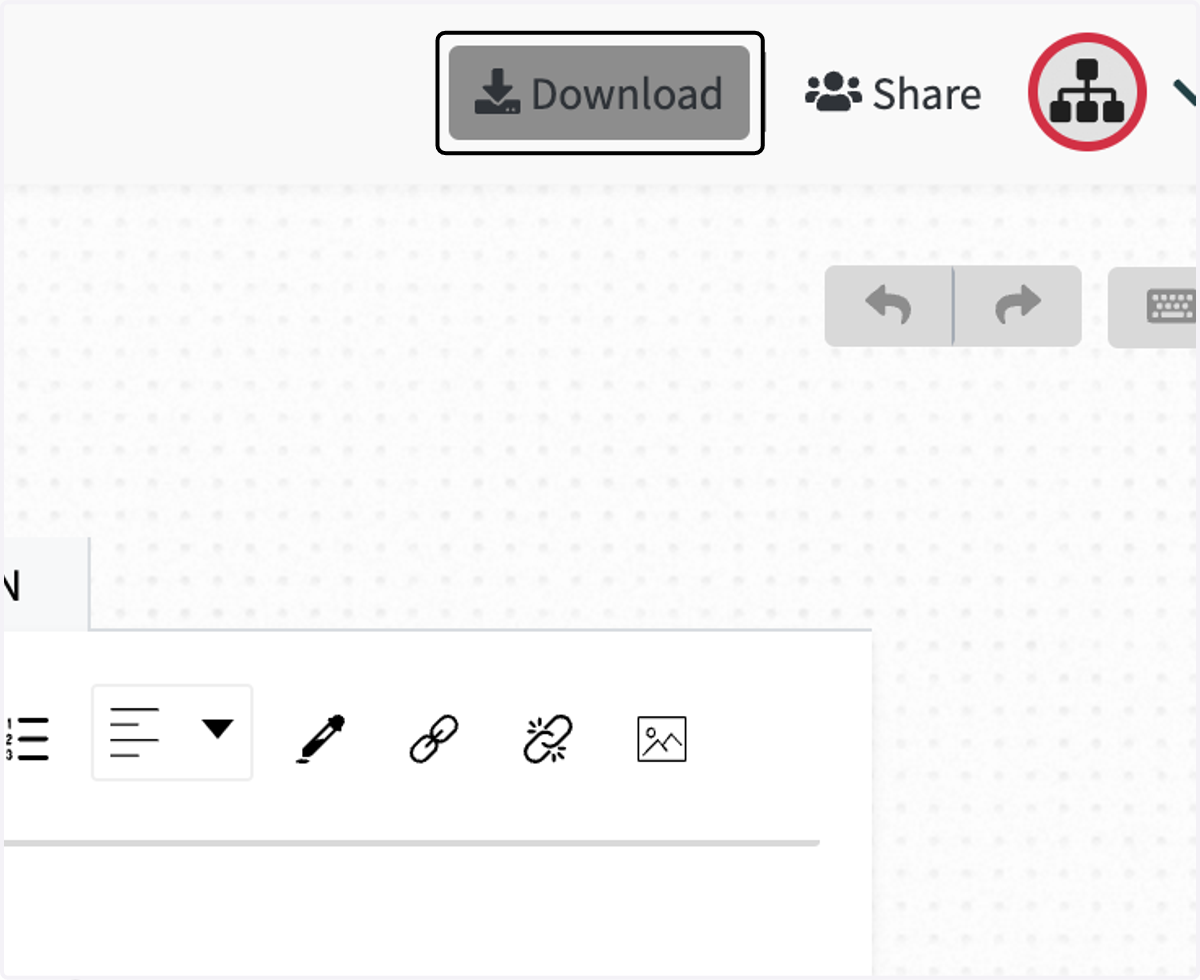
40. Select PDF Sitemap
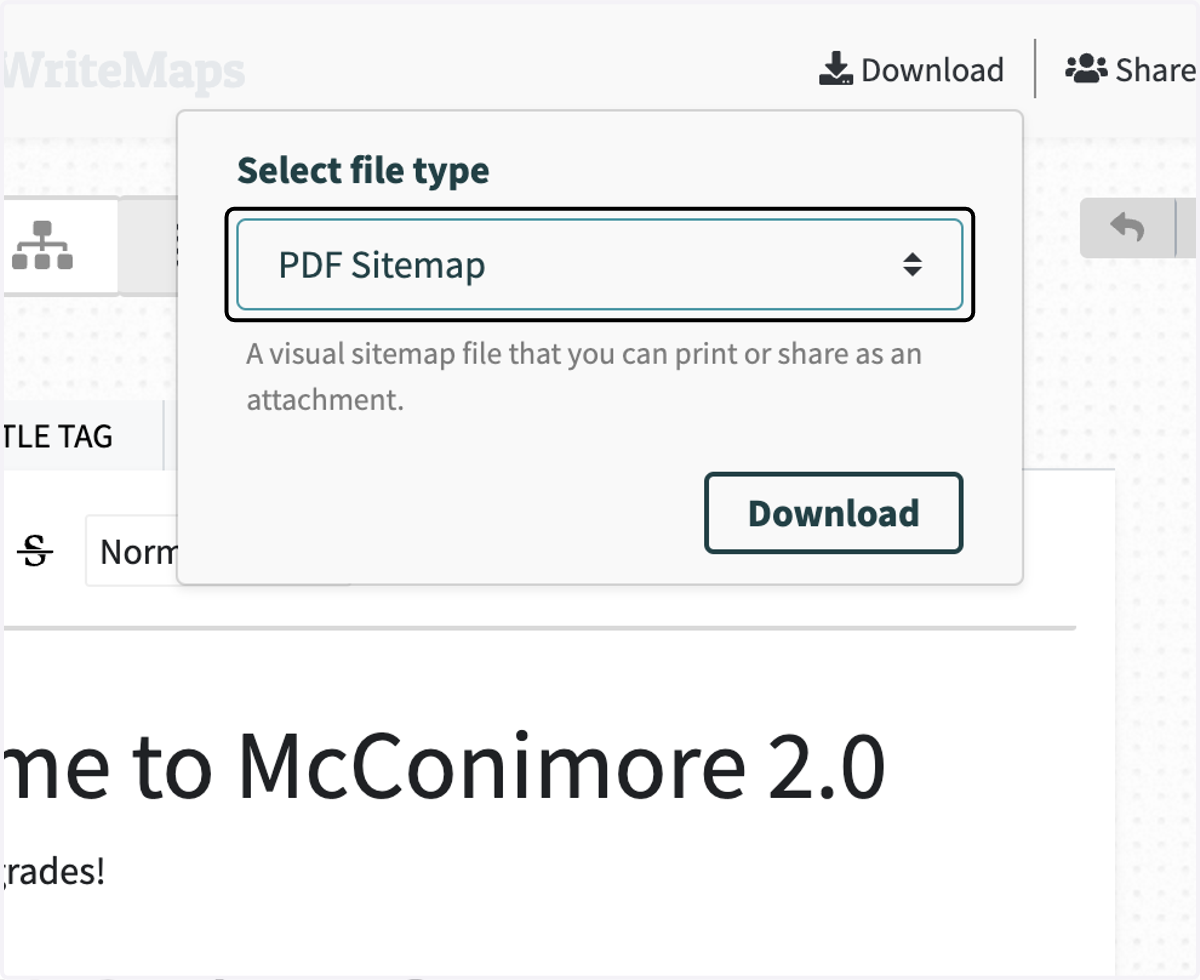
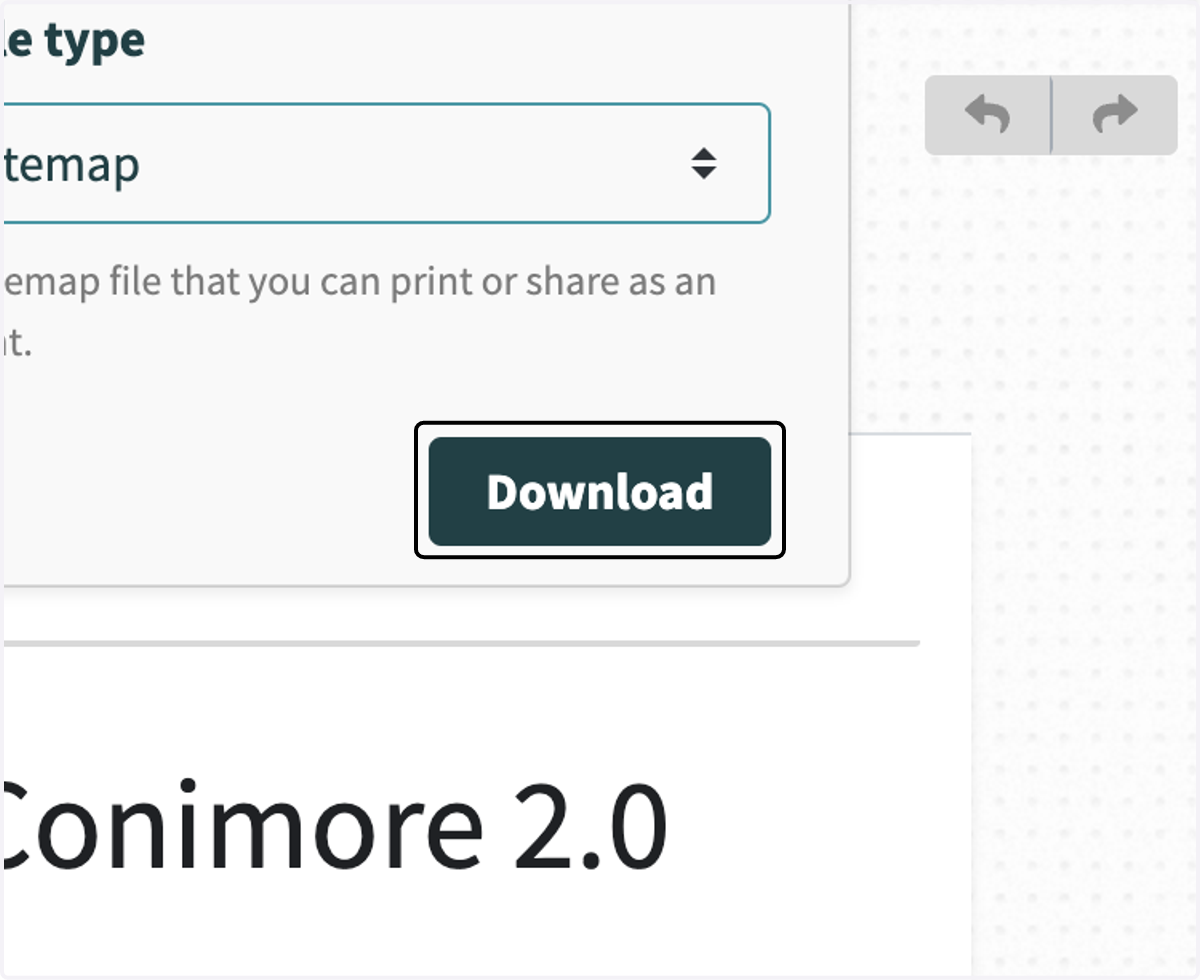
41. Click on Download
42. If there isn't enough space for you to create a new sitemap (we have ten sitemaps at one time), you will need to get approval to ***Archive*** a sitemap of a launched site or an inactive project
NOTE: It is important to ARCHIVE a sitemap and not delete it
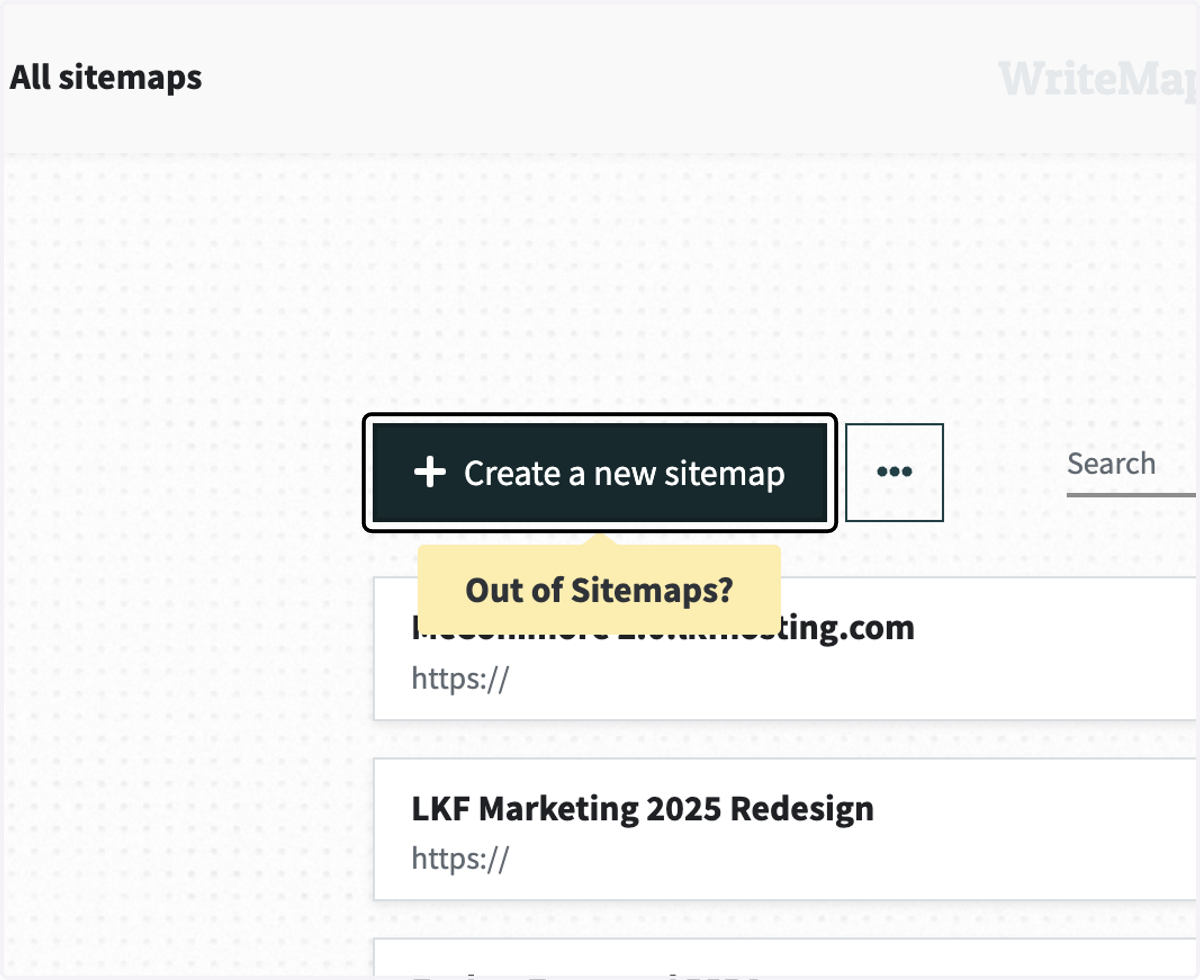
43. You can Search Writemaps for keywords