GT_GEN_002_Amending text in your storefront and admin areas (Language Strings)
Infigo allows you to customise most text labels and content within each storefront. In this tutorial, we will show you how to locate and amend these text strings.
Infigosoftware
1. Much of the language strings within your Infigo storefront (front end and back end) can be customised to suit you and your customers
We will investigate an example of each. In our front end, we will update the "Change password" page title to read "Security Settings".
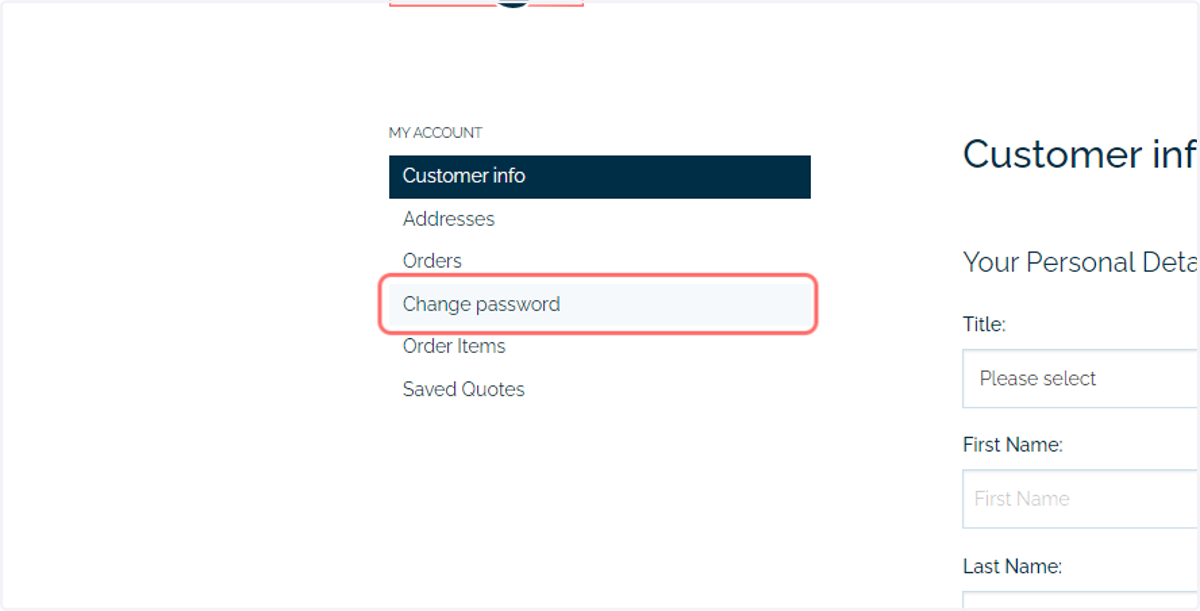
2. Much of the language strings within your Infigo storefront (front end and back end) can be customised to suit you and your customers
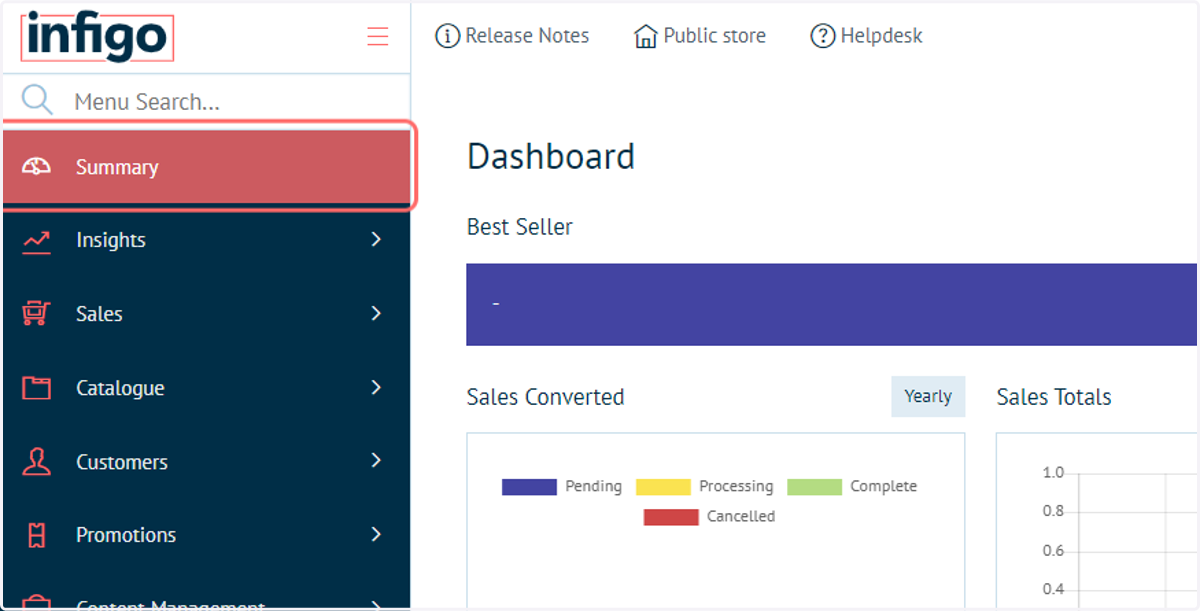
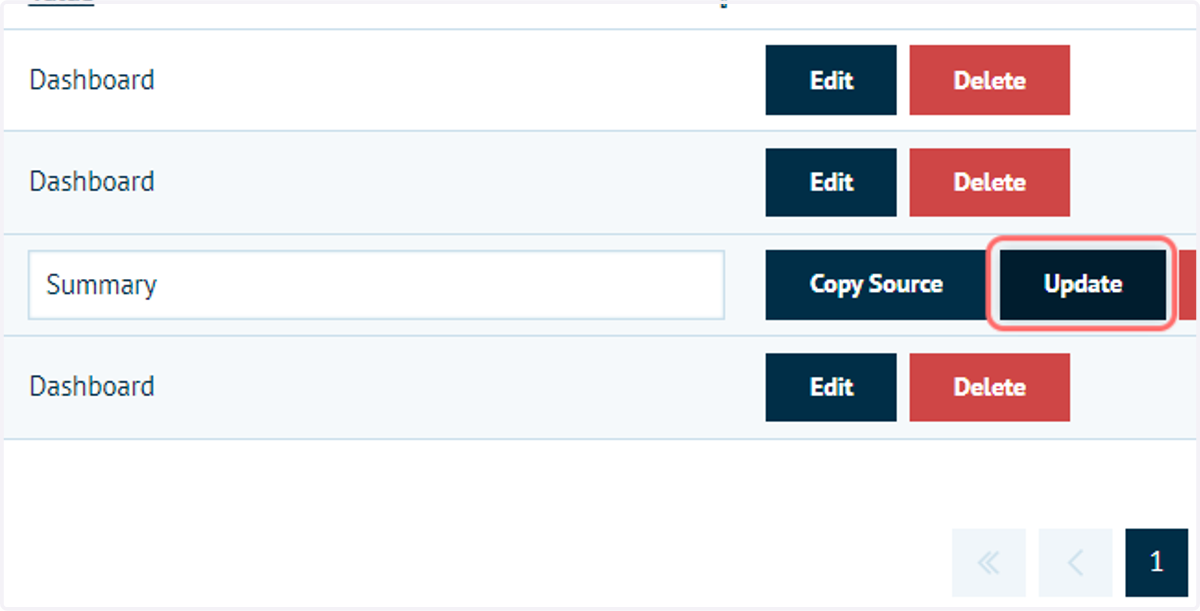
We will investigate an example of each. In our backend, we will update the "Dashboard" menu title to read "Summary".
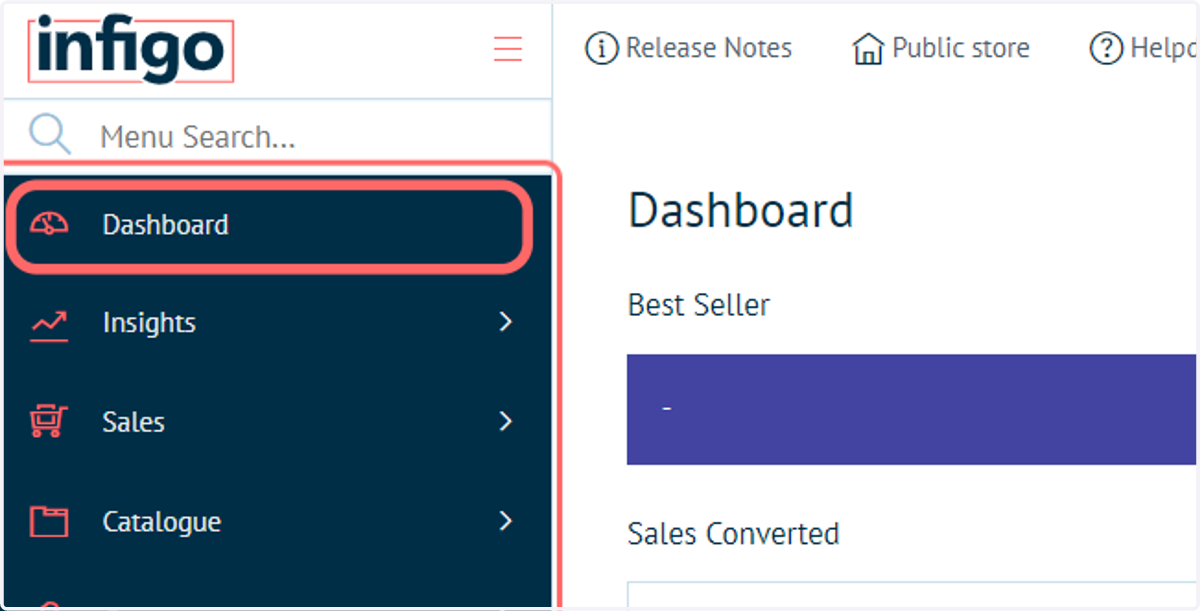
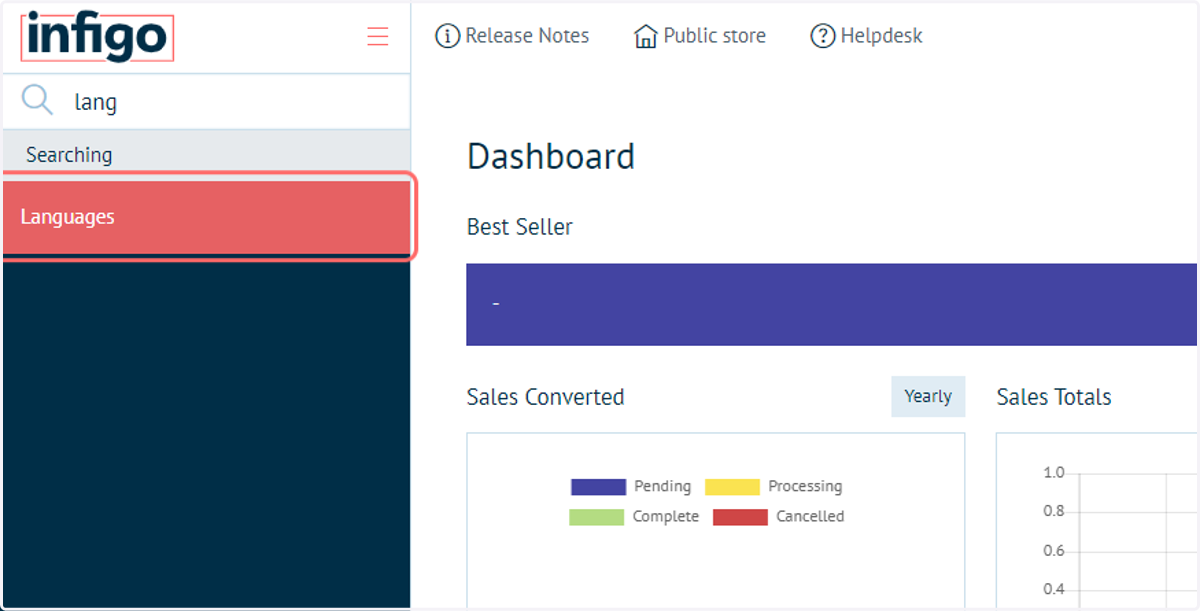
3. To begin, navigate to the Languages page
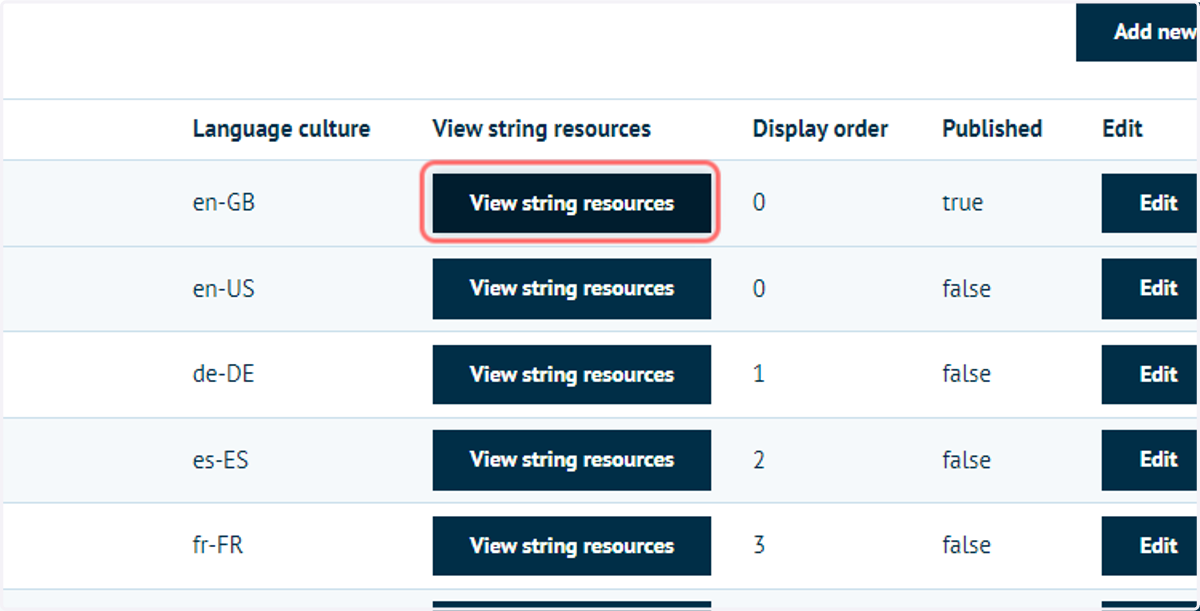
4. Click the View String Resources button on the published language string that you'd like to amend.
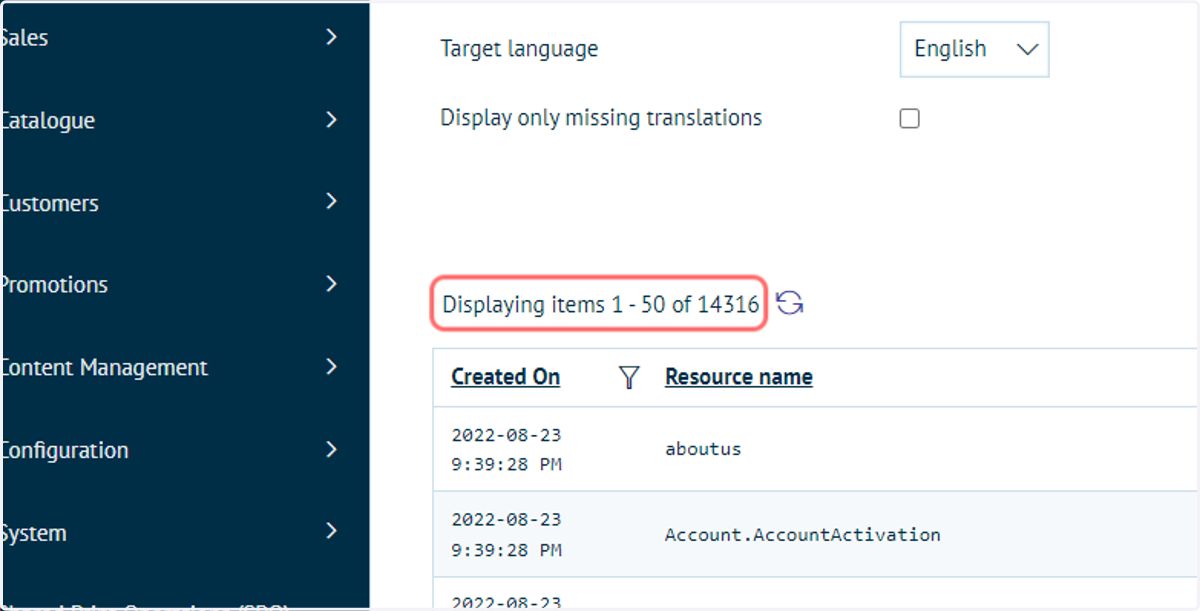
5. Available entries
Manual searching is unlikely to be effective, due to the large amount of available language strings within your Infigo software.
We provide filter capabilities, allowing you to locate required language strings with ease.
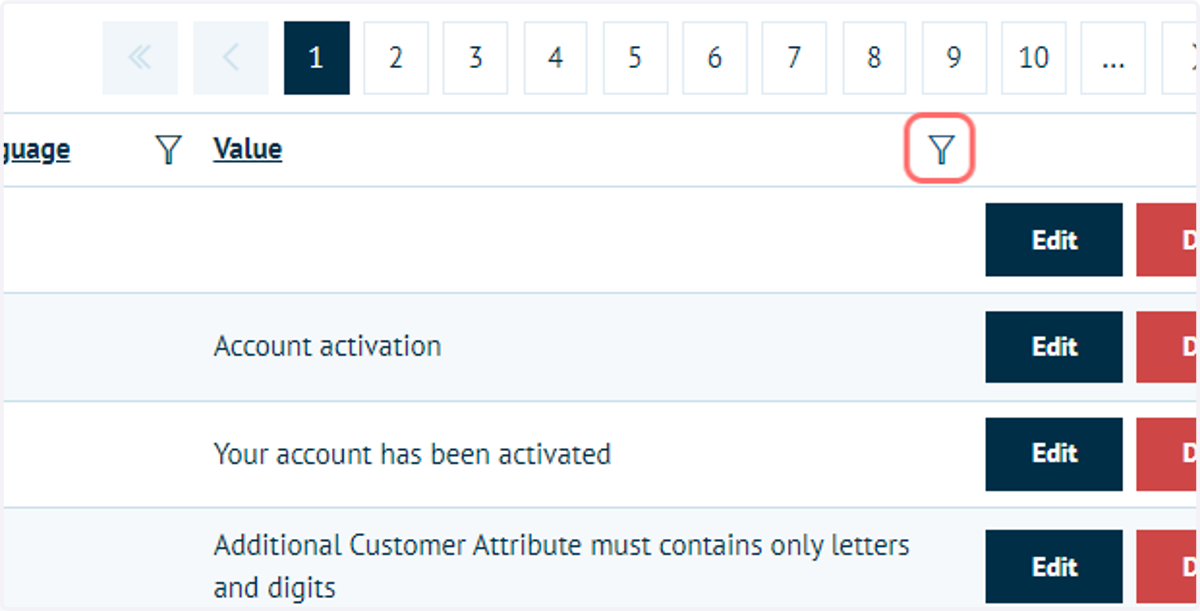
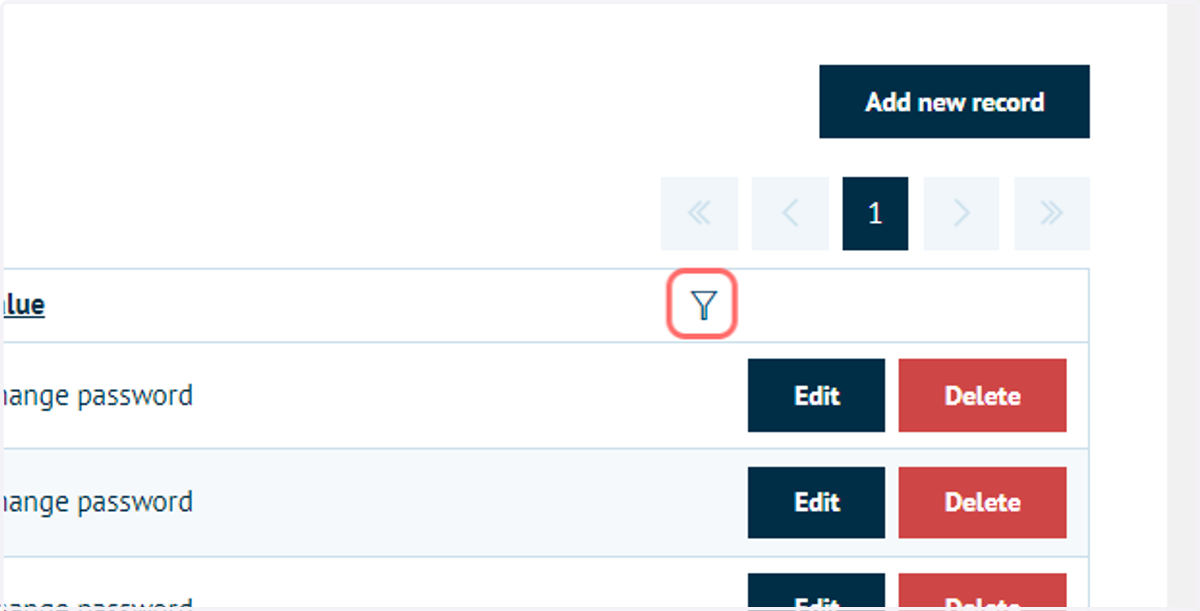
6. Use the filter funnel icon at the top of the Value column - the Value column is the easiest way to search for the wording / text that you'd like to change.
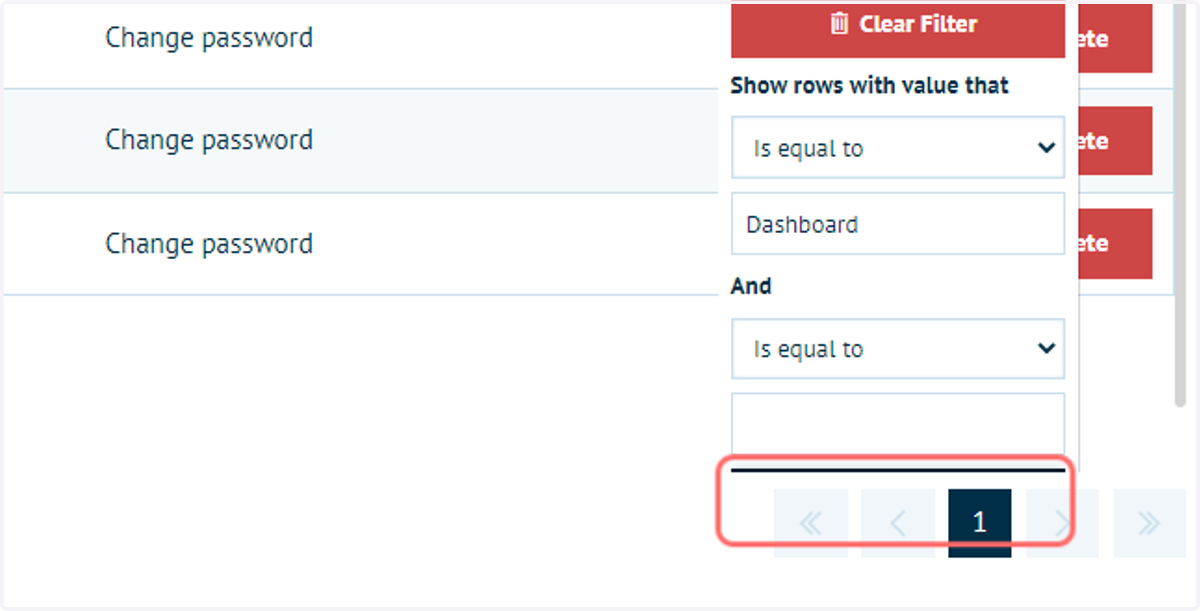
7. Enter the language string to search for
You are able to search using a number of approaches.
If you know the entire language string, you can search using "Is equal to", which is likely to give you a smaller number of returned options.
However, if you only know part of the string, you are able to search using "Contains", which displays any language string where your search term is present.
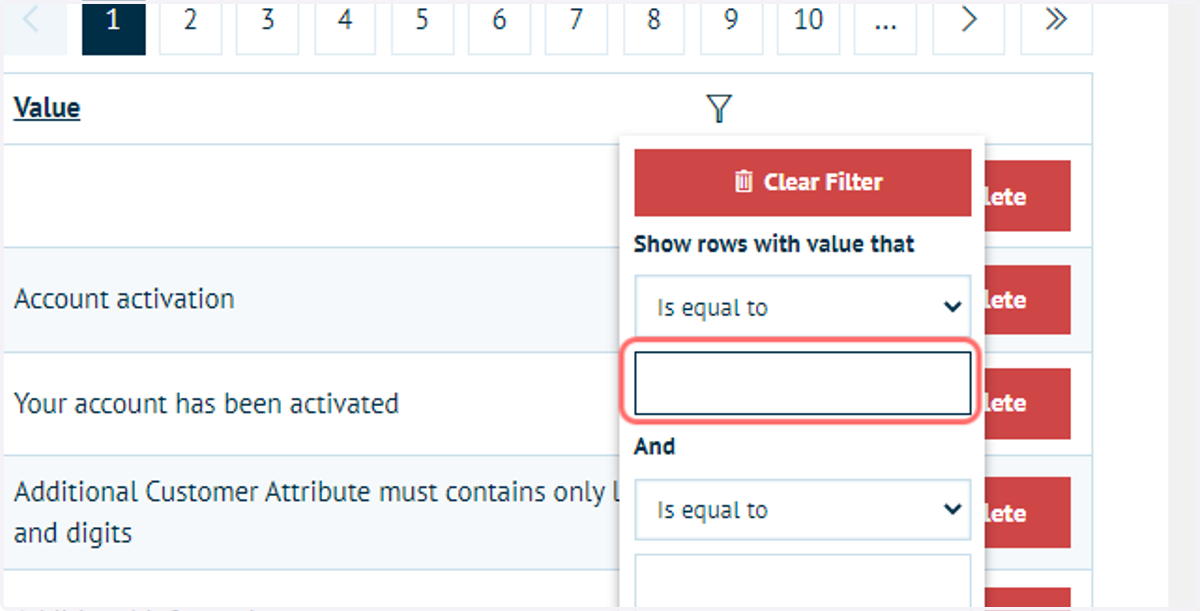
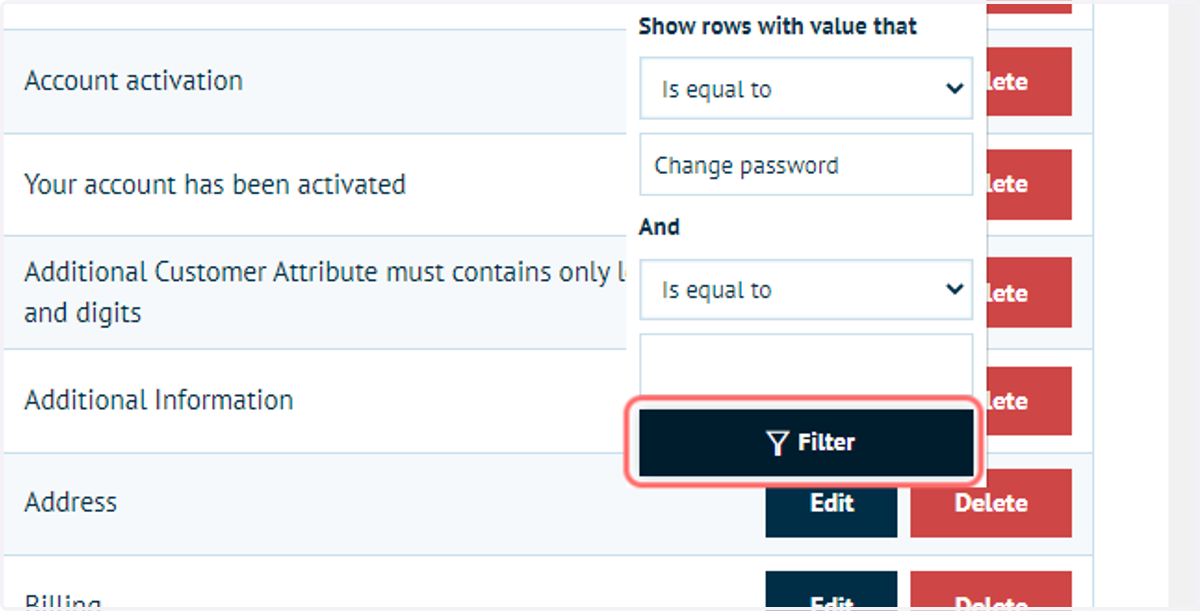
8. Type a query and click on Filter
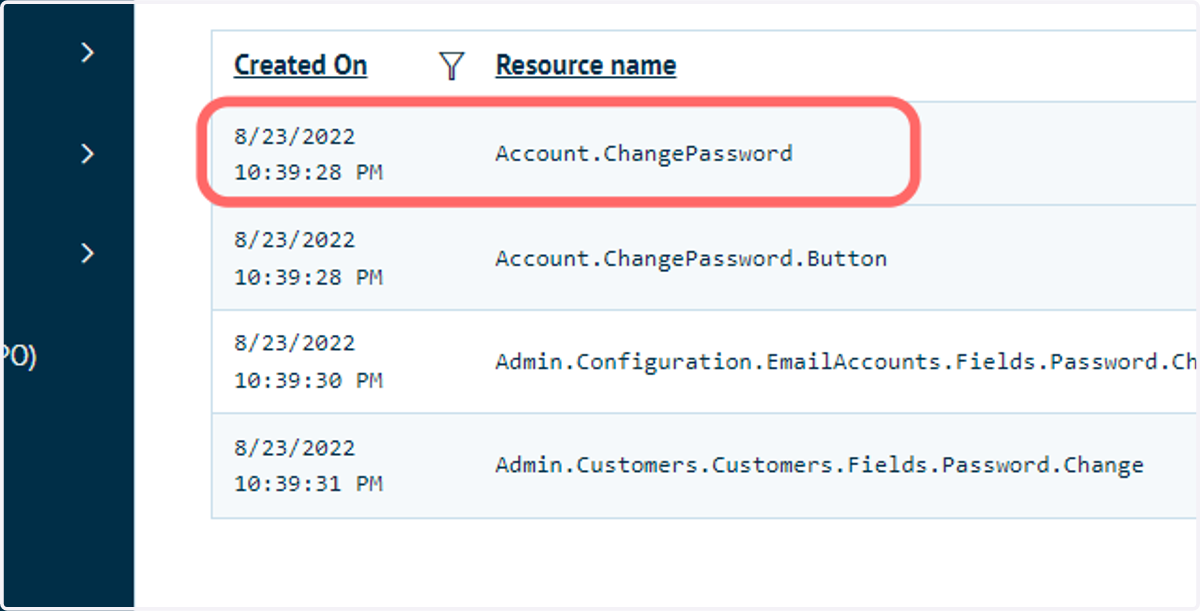
9. You should only use the RESOURCE NAME column to identify if this value is the correct instance (the resource name normally contains page names that the value appears on, and a little more info). Never change the resource name, this will break links on your storefront.
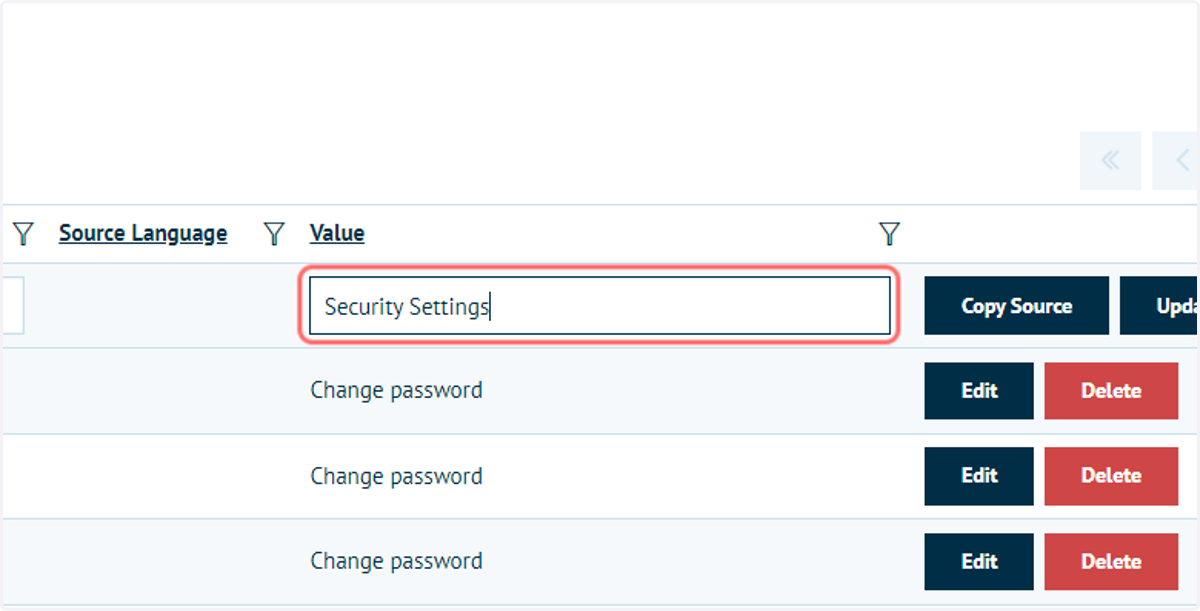
10. Click Edit next to the required resource and enter a new Value
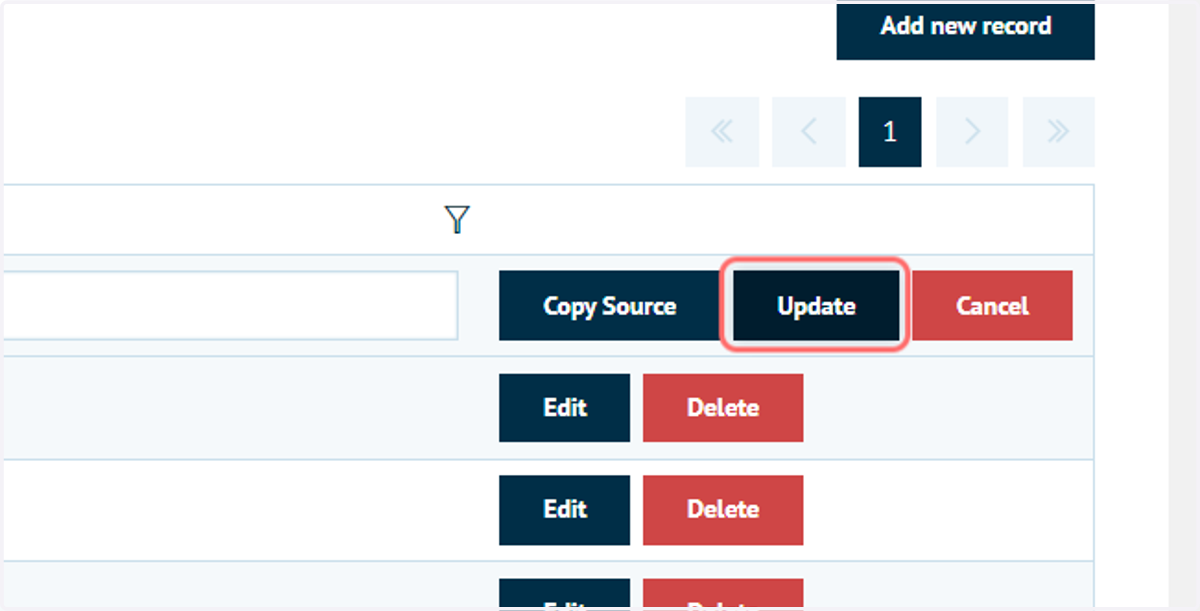
11. Click on Update
12. Reload the page containing the string of interest to check the results
Changes will appear instantly
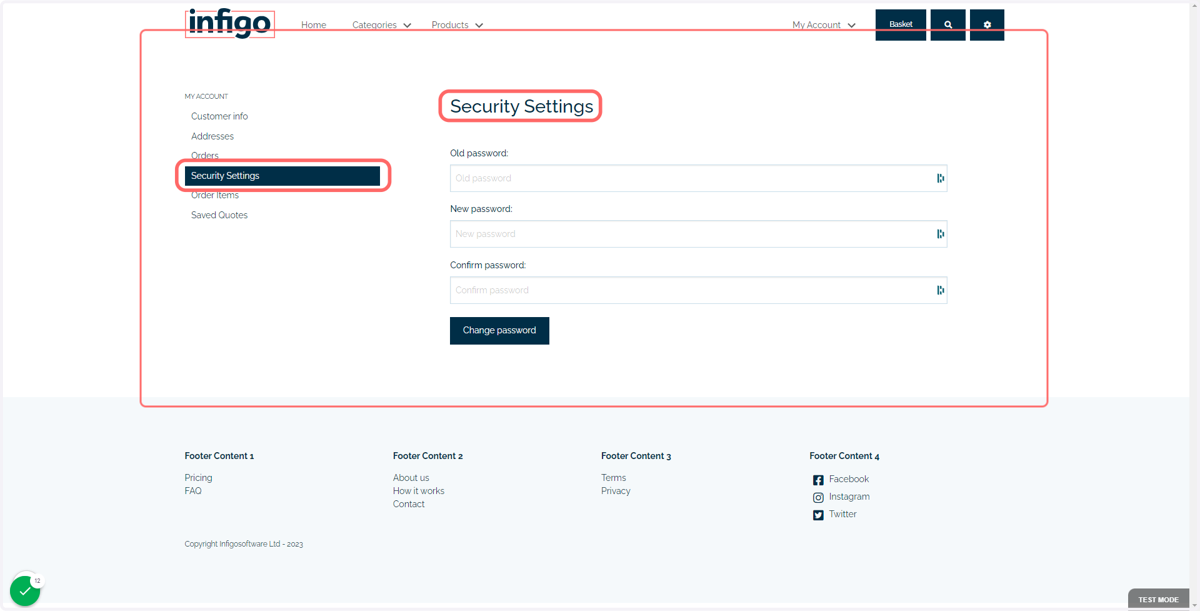
13. Changes made to language strings on the back end are done in exactly the same way
14. Complete a search term and click Filter
15. Modify the language string and click on Update
16. Reload the page to confirm these changes in the back end