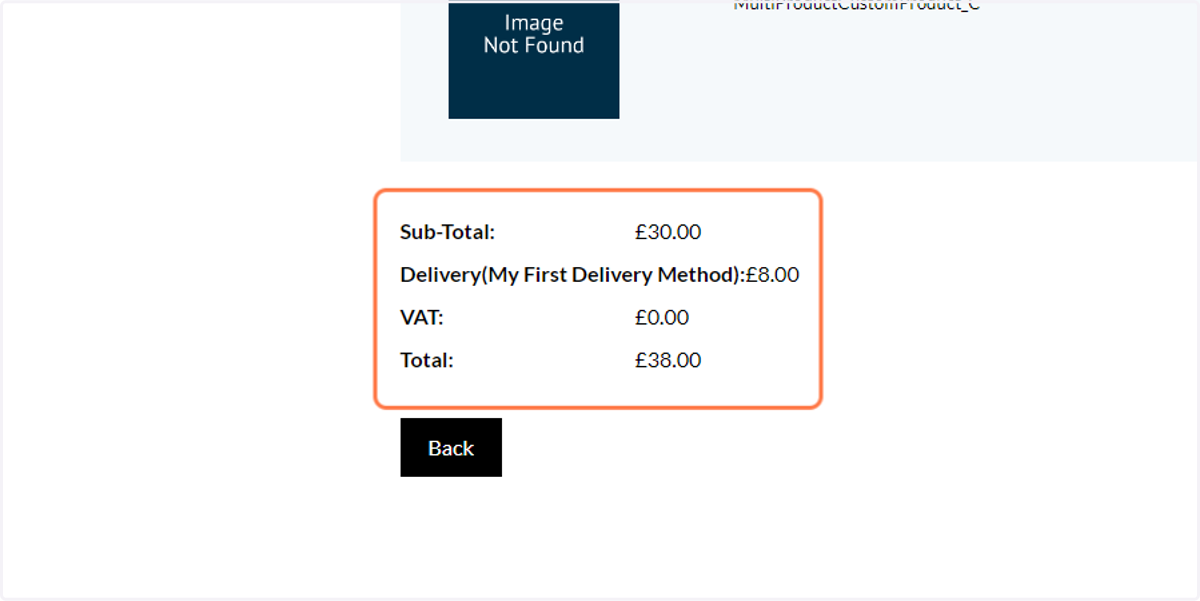
Delivery / Shipping Options - The Basics
In this tutorial, we will begin to explore the available delivery / shipping options available to Infigo users.
We will look at:
General delivery settings
Defining delivery methods
Inputting delivery restrictions
Delivery computation
Infigo have numerous plug-ins available, linking to global delivery / shipping companies. We will briefly discuss the plugins available during this tutorial, however they will be covered in more detail during other tutorials.
Infigosoftware
1. Navigate to the Delivery Settings on your storefront back-end
To begin, we will define some general delivery settings
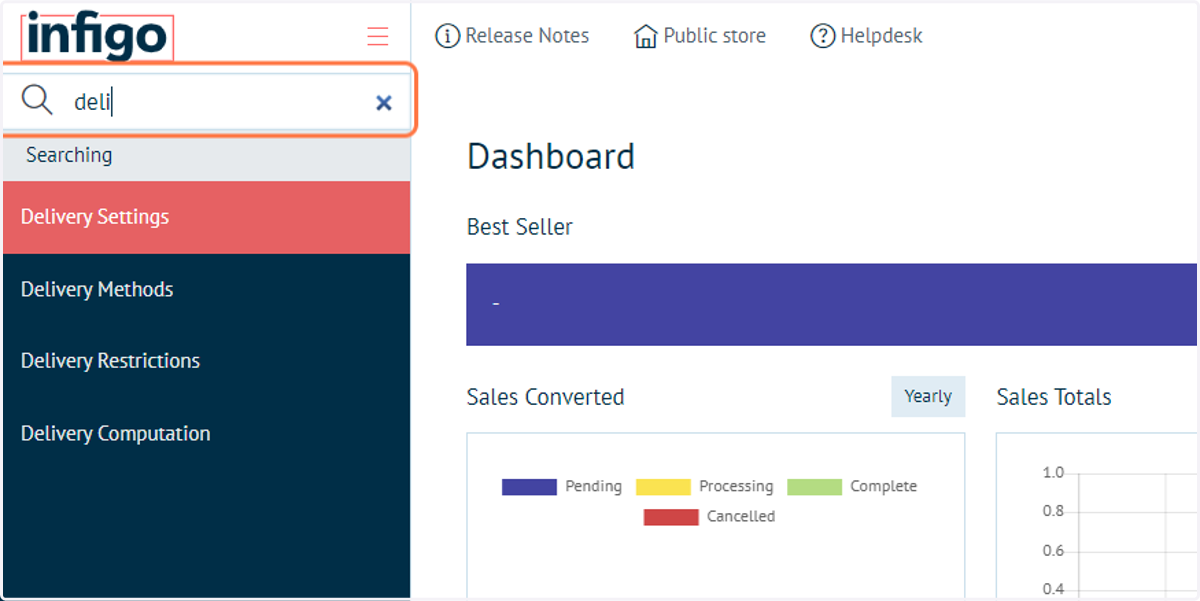
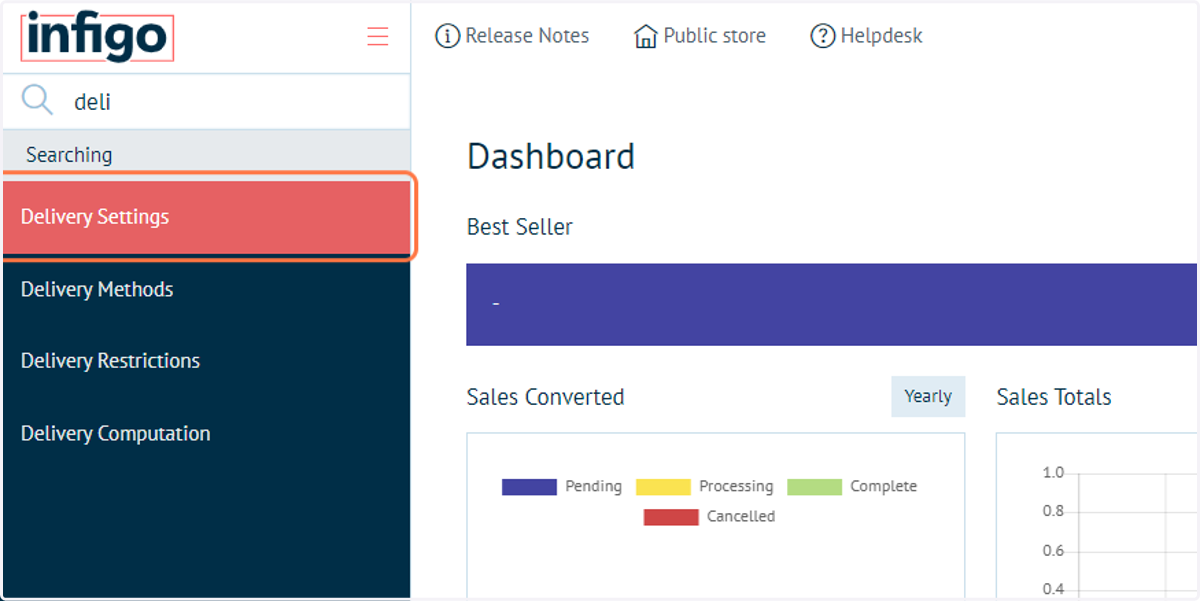
2. Click on Delivery Settings
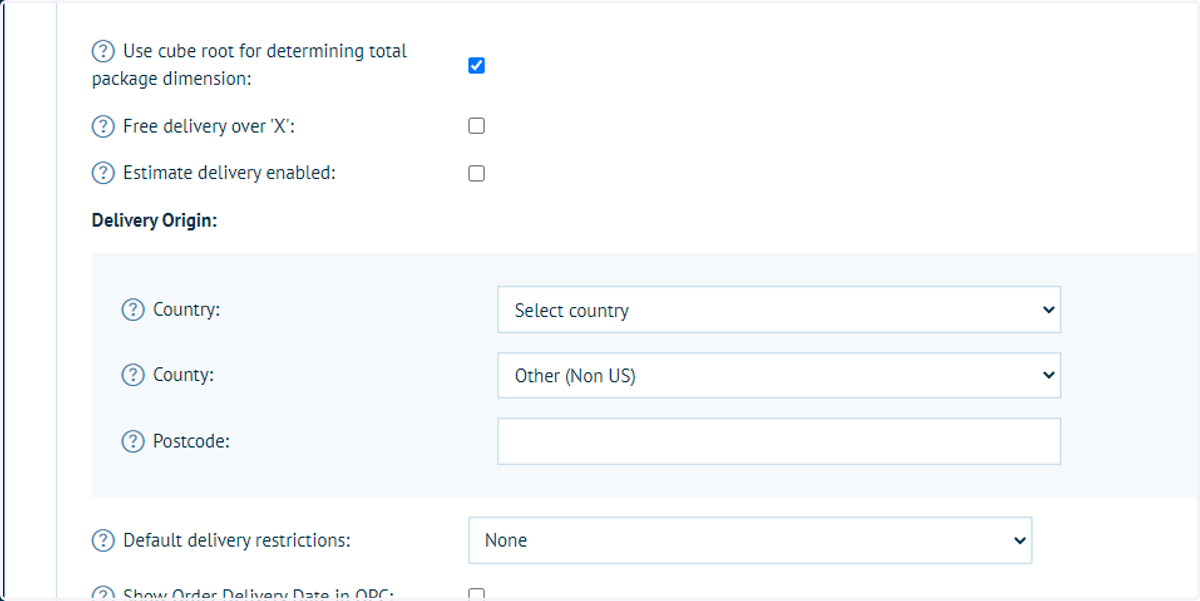
3. Explore available delivery settings
These general delivery settings are used to define information which sit outside of the other, more specific delivery sections.
Define information such as:
Delivery origin details
Free delivery trigger price
4. Click on Save
Infigosoftware
5. Navigate to the Delivery Methods section on your storefront back-end
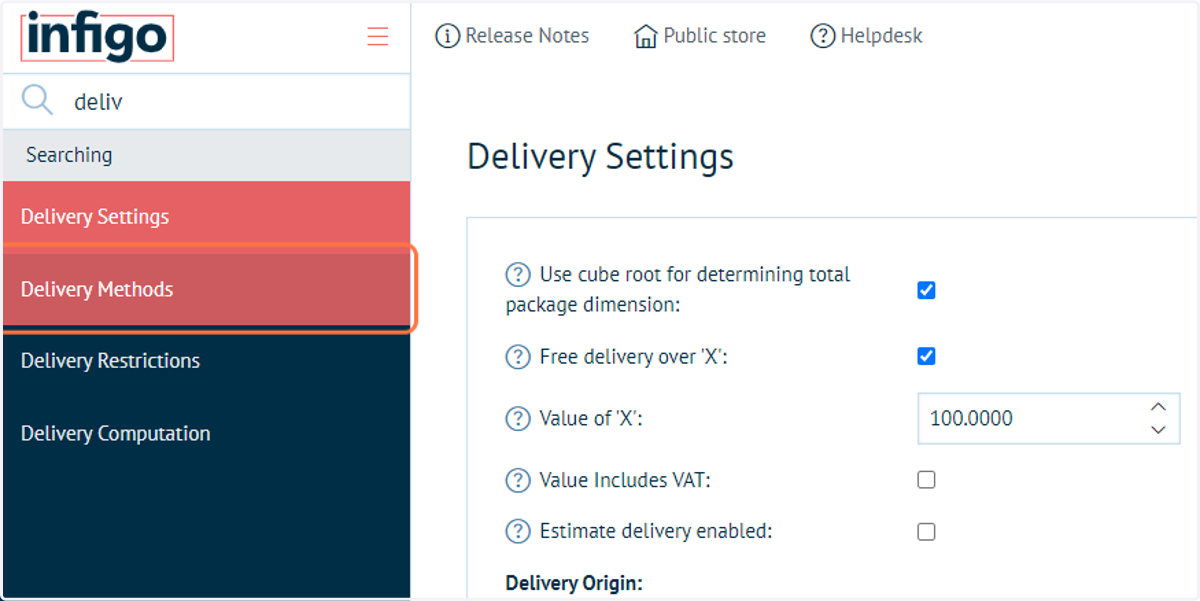
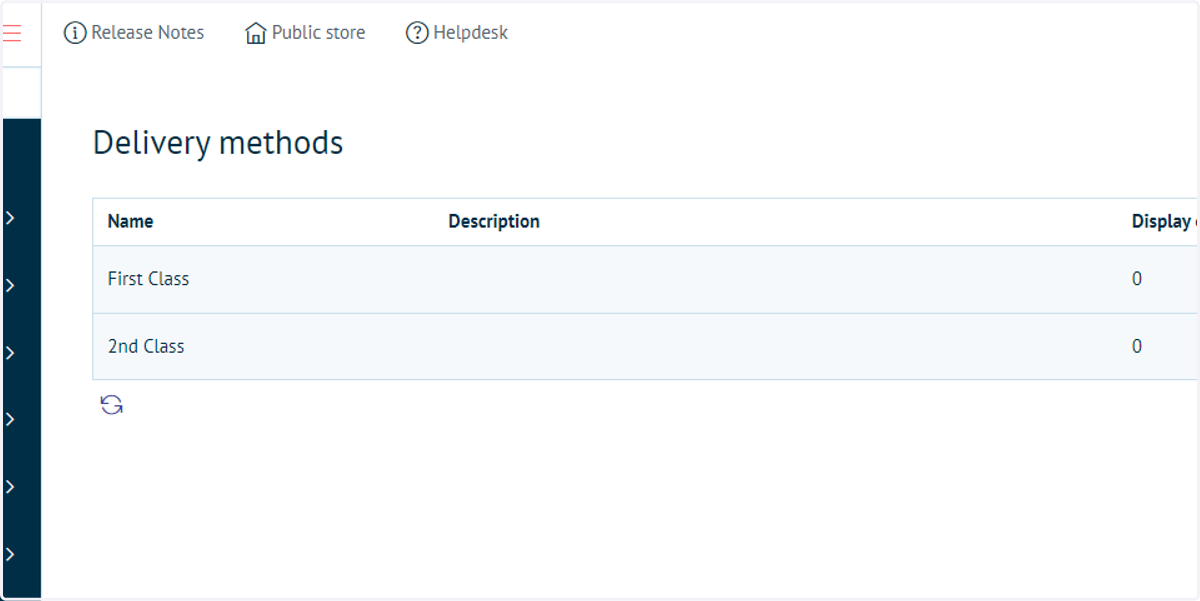
6. Examine delivery methods
A delivery method is the user-facing side of how Infigo handles delivery. When a customer is in the 'Delivery Method' stage of checkout, they will choose one of the methods configured here, and the cost of the delivery will be handled by the 'Delivery Rate Computation' configuration against the delivery method.
As delivery methods do not handle any of the calculations, and are simply what the customer will see in checkout, they are fairly simple to configure.
First Class and Second Class delivery methods will be pre-defined within your Infigo storefront. These are controlled from a platform level and cannot be amended or deleted by a Storefront Administrator.
A Storefront Administrator does have the ability to define additional delivery methods.
7. Click on Add new to define a new delivery method
8. Type a name for the delivery method, such as "My First Delivery Method"
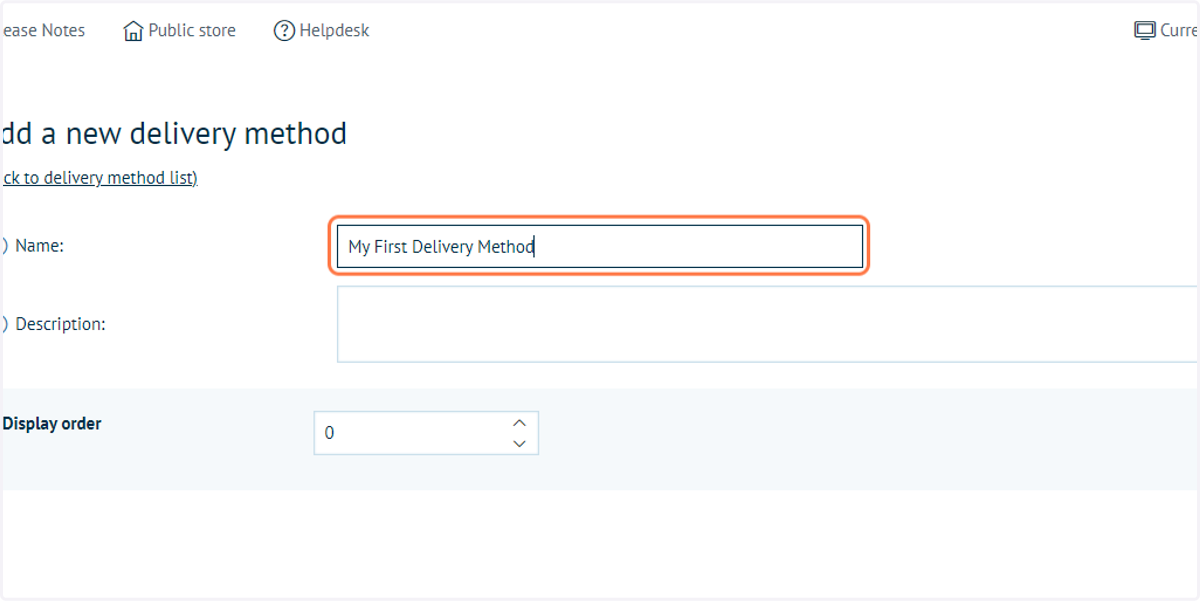
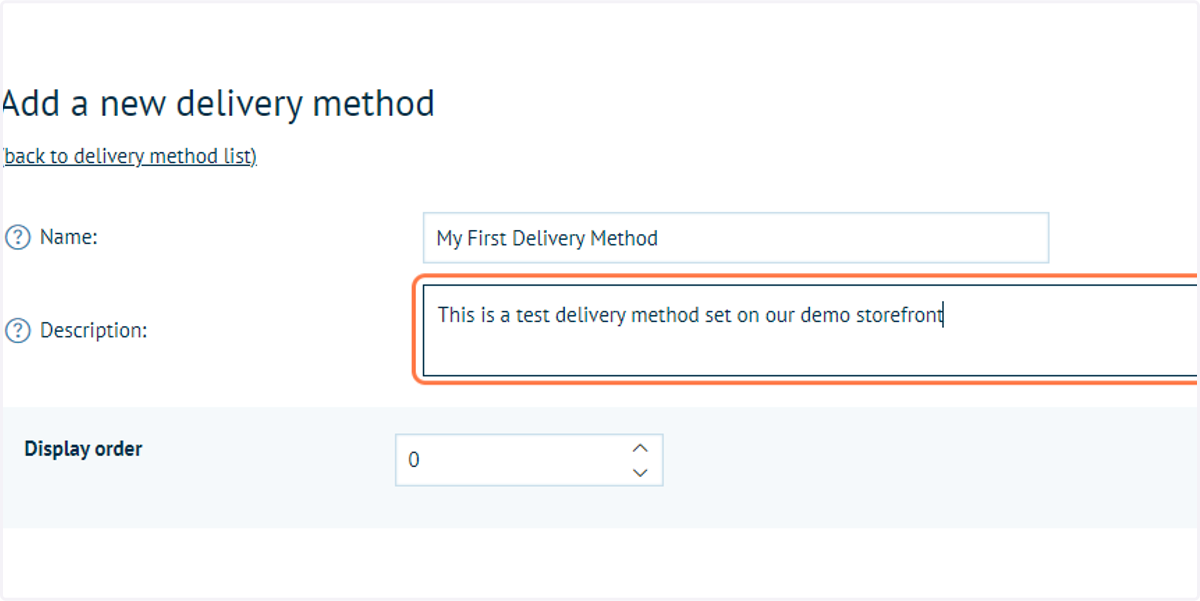
9. Define additional descriptions and display order
These will influence where this delivery method appears within delivery options when a customer is checking out.
Name:
This is the name of the delivery method and will appear below the delivery icon in checkout, and next to the price, allowing the user to identify what the method is. We recommend you use a simple and concise method to ensure that your users understand which method is which.
Description:
This description will appear above the delivery icon in the checkout and allows you to provide a bit more information on what the method is. As with the name, we recommend keeping this simple and concise.
Display Order:
The display order controls the order in which the delivery methods will load within checkout. The lower the method's display order number is, the sooner it will be loaded.
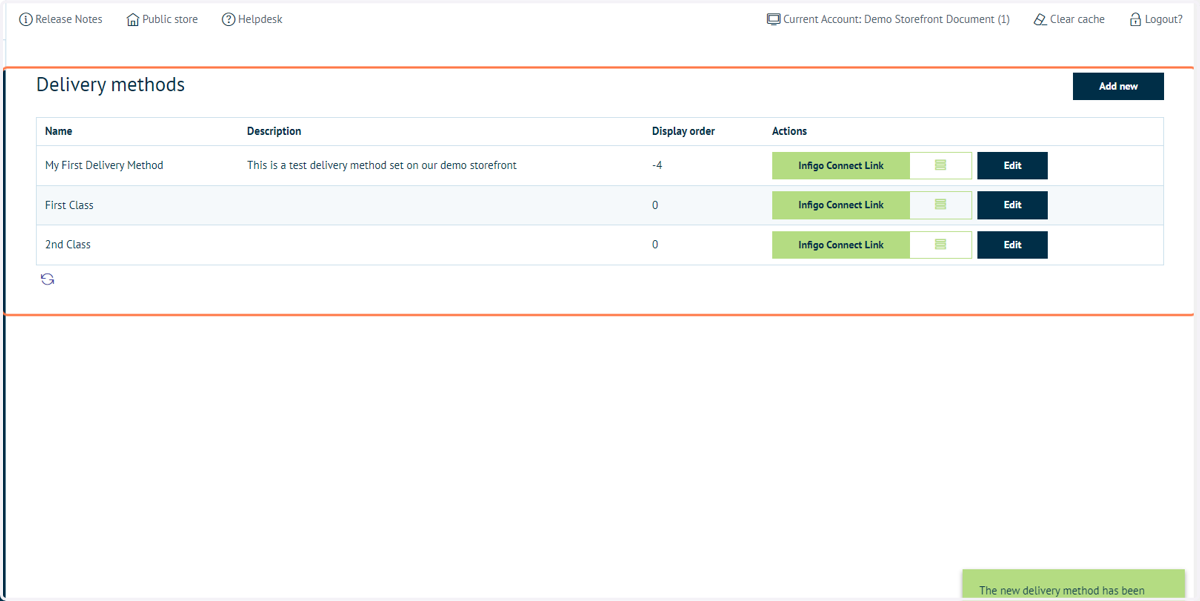
For example, if you were to configure delivery method A to have a display order of 0, and delivery method B with a display order of 1, then delivery method A will always load before delivery method B. However, if you were to give delivery method C a display order of -1, then delivery method C will load before both A and B.
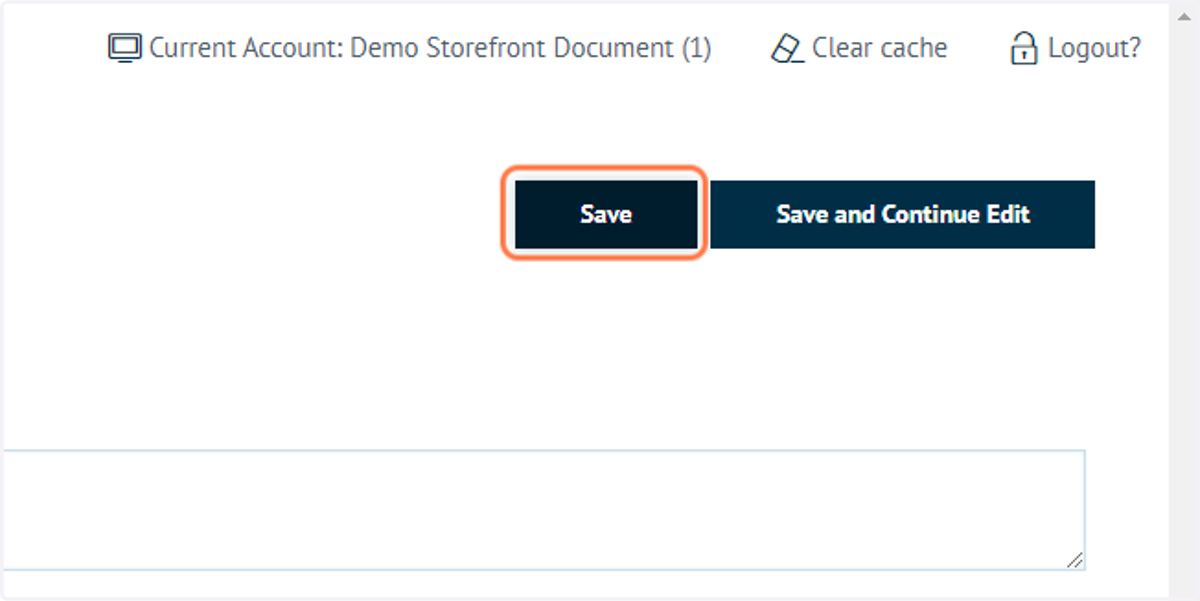
10. Click on Save
Infigosoftware
11. Your new delivery method is now defined
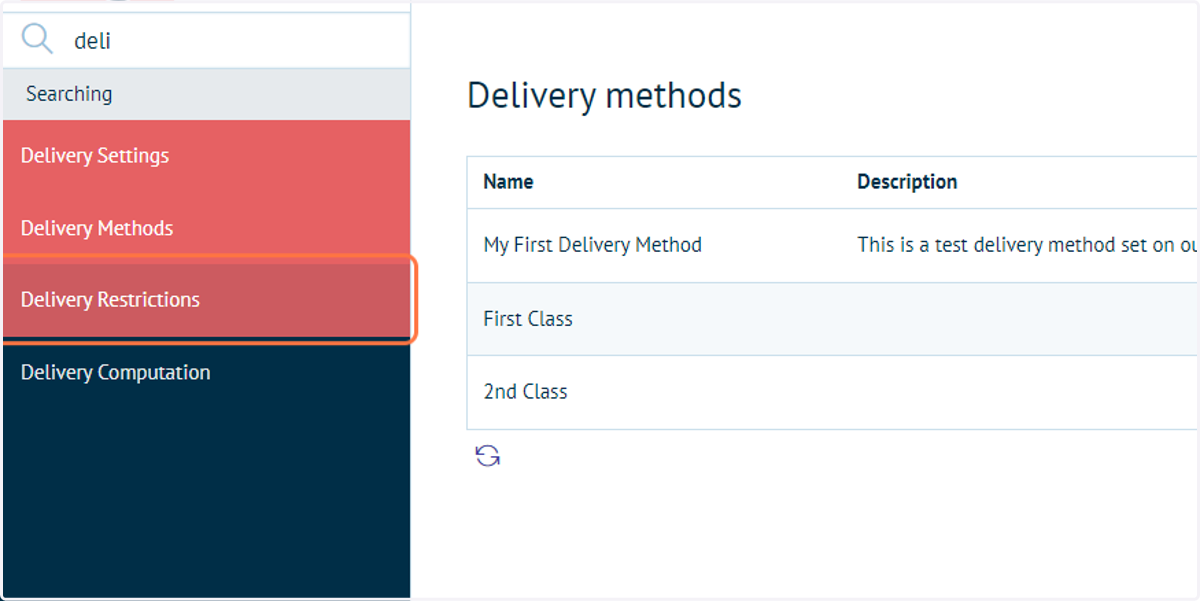
12. Navigate to Delivery Restrictions
This section allows a Storefront Administrator to define any limitations with shipping, to ensure customers are only able to access delivery options that are relevant to them and their location.
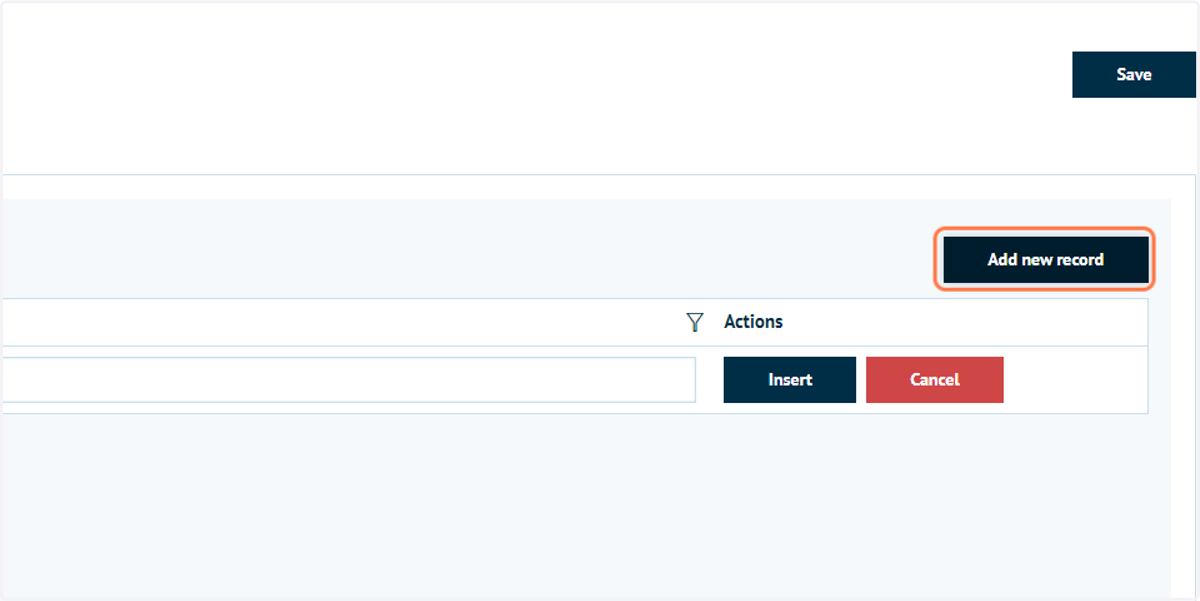
13. Click on Add new record within the Delivery options (restrictions) tab
Infigosoftware
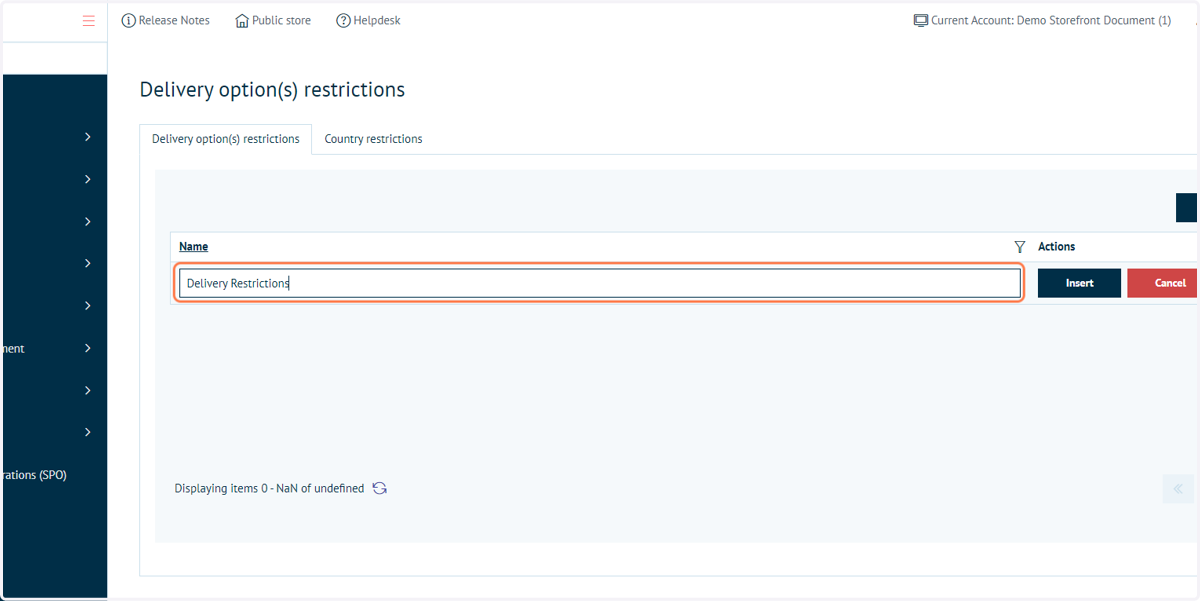
14. Type a name for this restriction, such as "Delivery Restrictions"
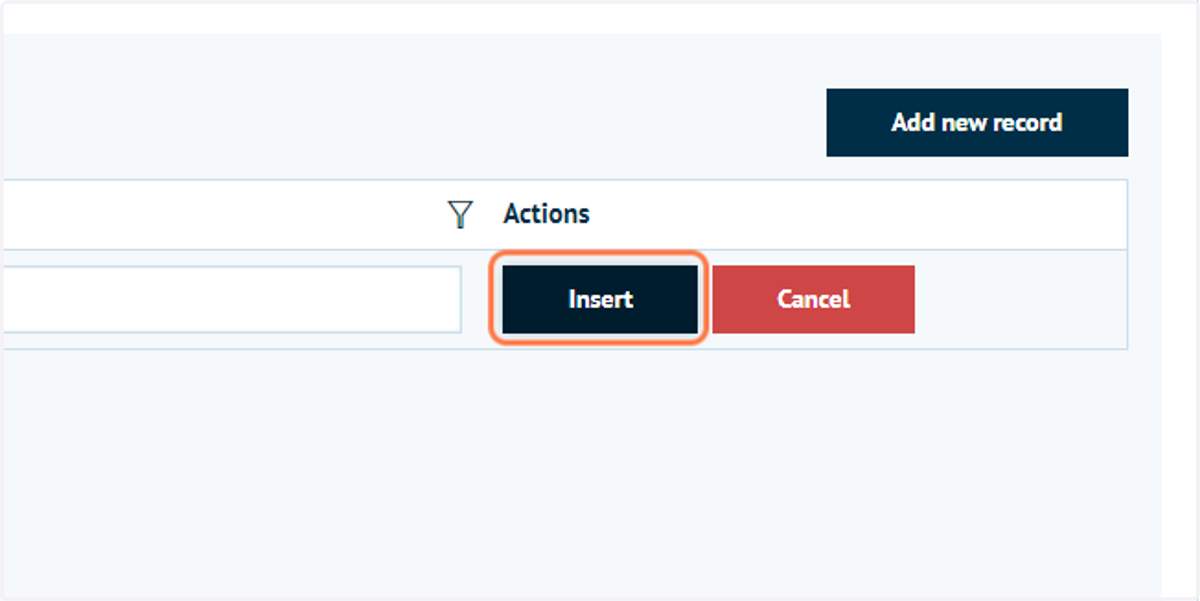
15. Click on Insert
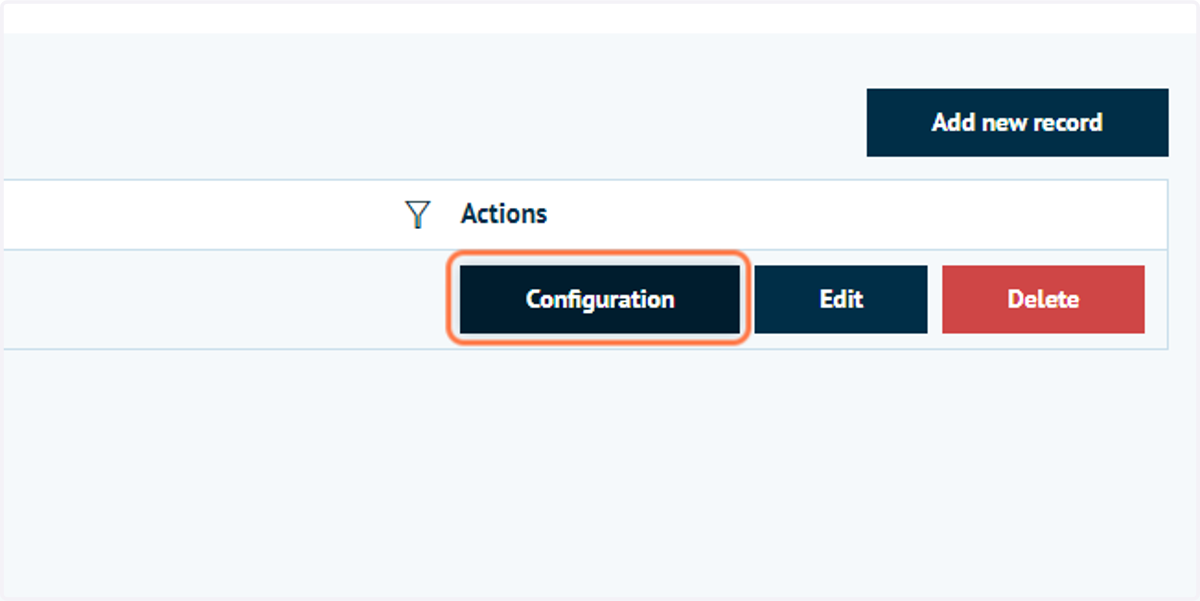
16. Click on Configuration
Click Configuration to define additional detail related to this restriction.
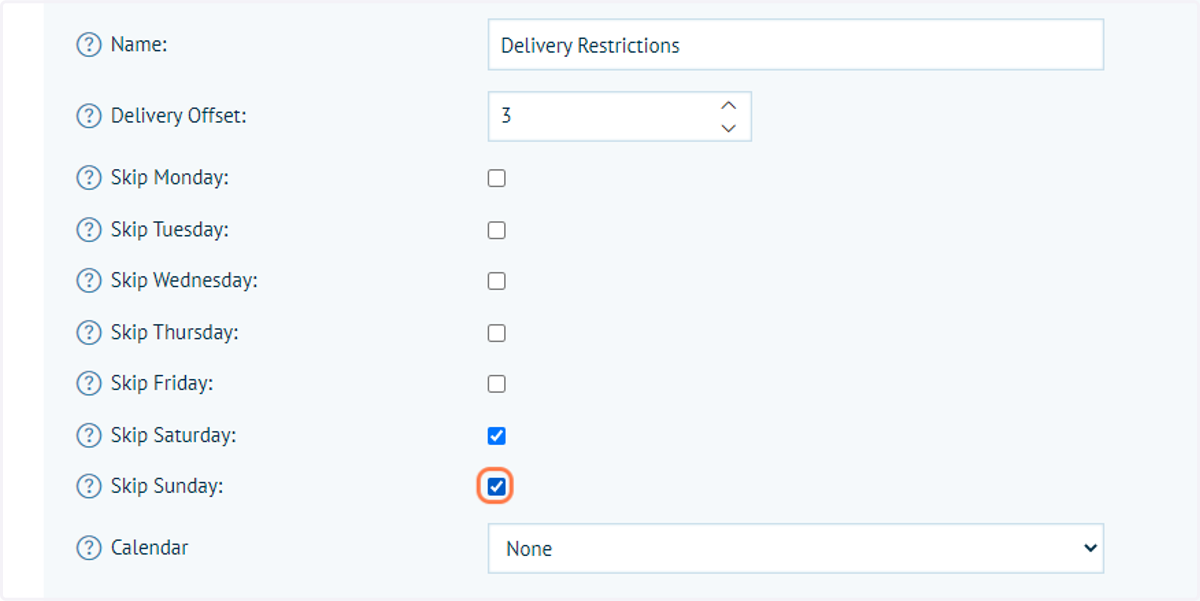
17. Explore available restrictions
From this screen, administrators are able to further define delivery restrictions, such as:
Delivery offset - The amount of days required for delivery after the status is set to shipped
Skip days - Selected days are ignored when calculating the execution time offset
18. Click on Save
Infigosoftware
19. Click on Country restrictions
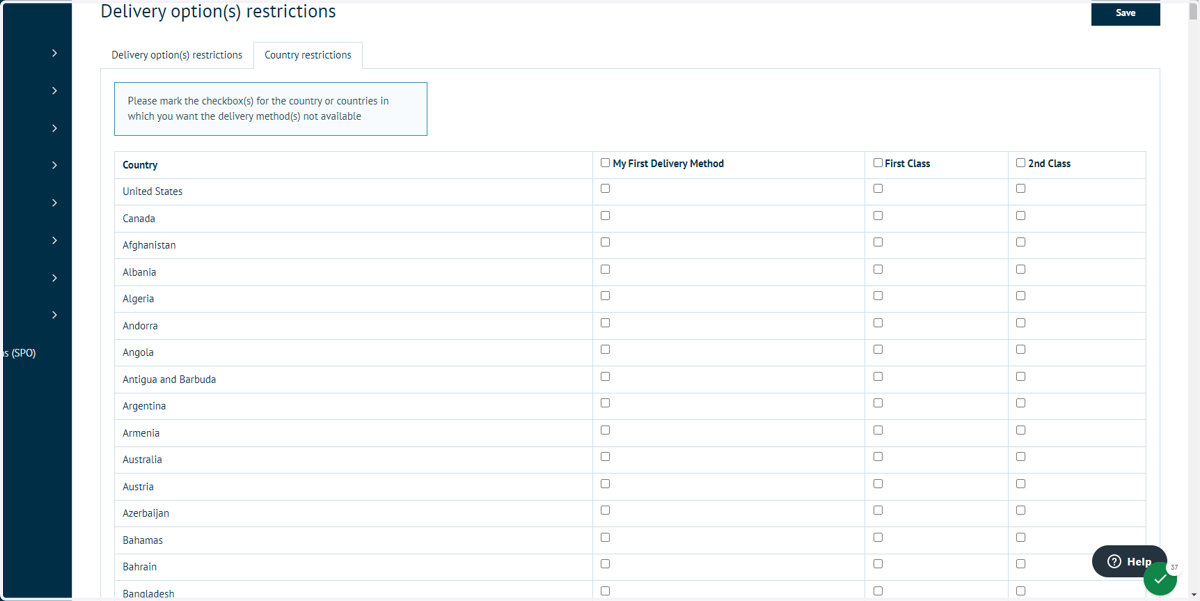
This tab allows administrators to define if delivery methods are unavailable in select countries.
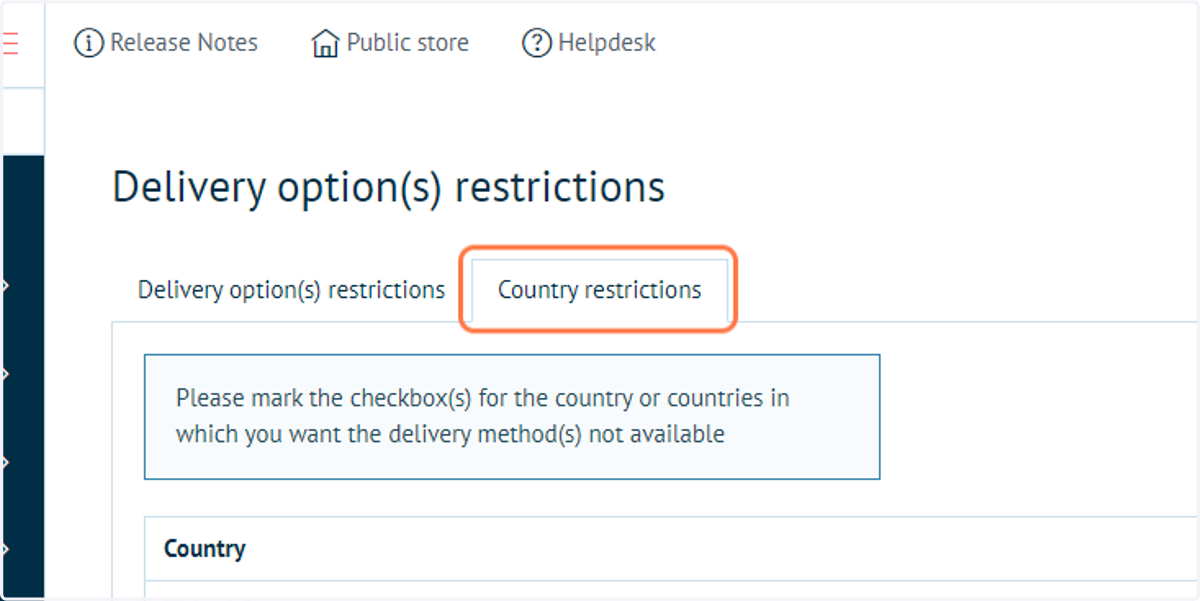
20. Country restrictions
Any checked box will make that delivery method unavailable in the selected country.
Infigosoftware
21. Click on Save
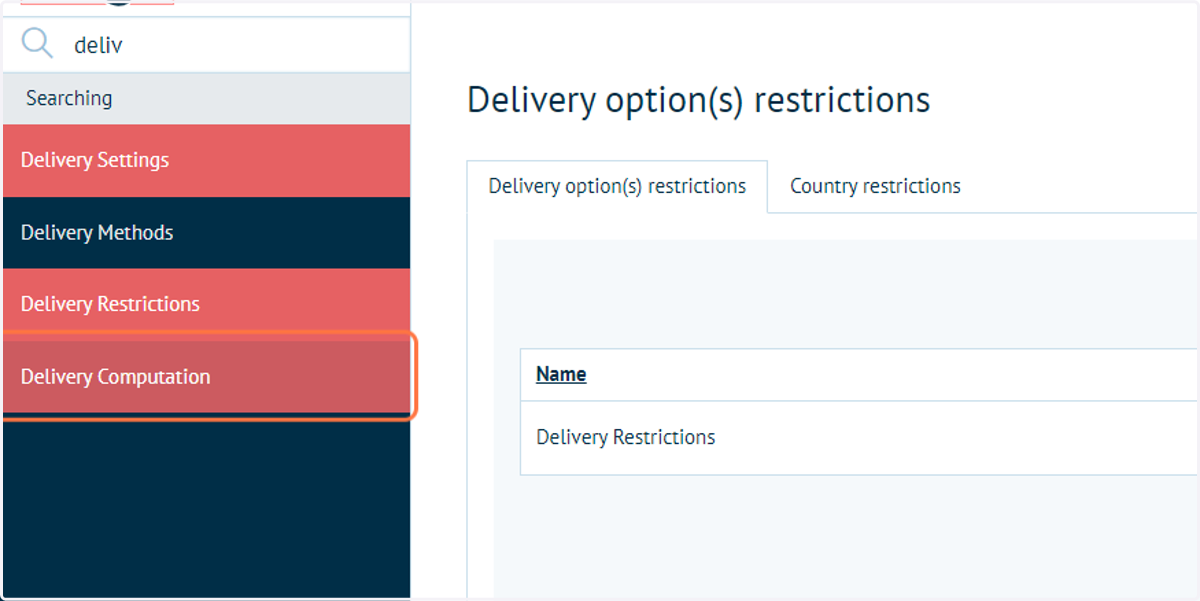
22. Navigate to Delivery Computation
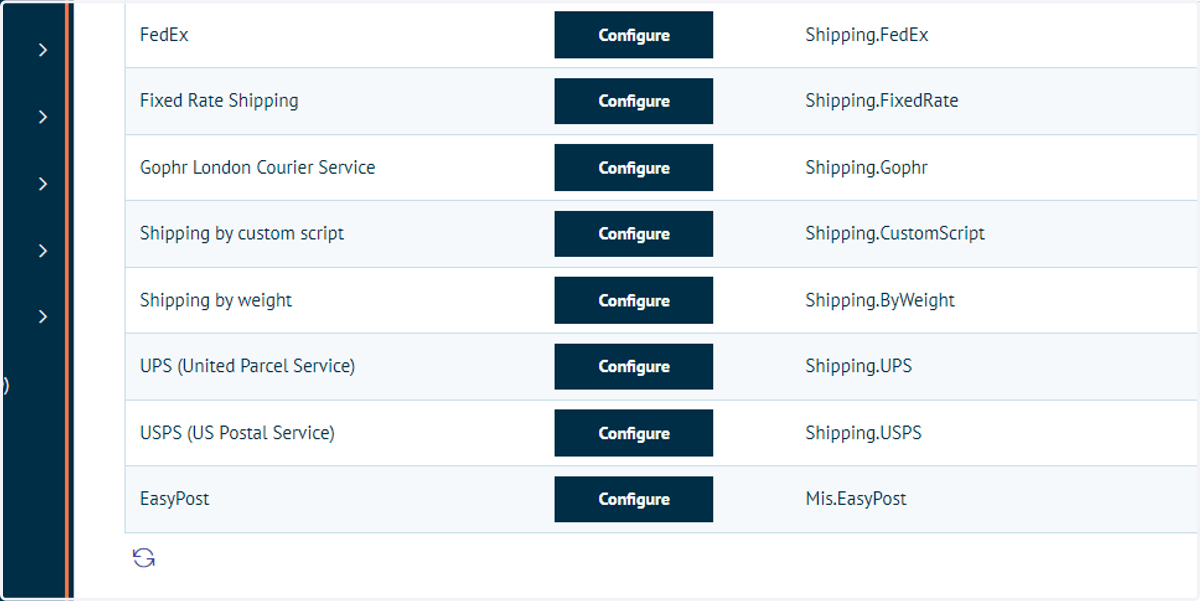
23. Delivery rate computation methods
From this screen, Administrators can define or calculate costs of delivery, along with defining the methods available to customers.
The methods displayed are a mixture of those contained fully within Infigo (such as Fixed Rate Shipping or Shipping by Weight) and those which are linked to external services via available plug-ins (such as EasyPost).
This tutorial will focus on the methods internal to Infigo.
Infigosoftware
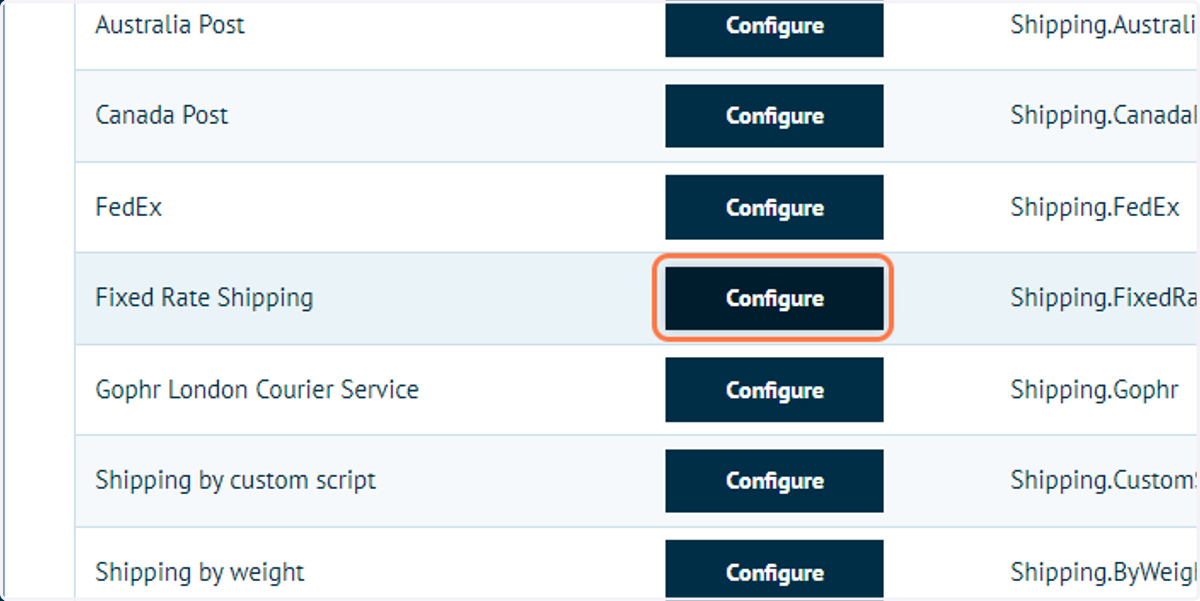
24. Click on Configure of Fixed Rate Shipping
Fixed Rate Shipping will be enabled by default. Next, we will configure our shipping costs.
25. Define Fixed Rate Shipping costs
Here, administrators can define shipping costs which are fixed in value.
One value is specified for each shipping method, which will be used for every order where the method is selected. There is no variation for size, weight or otherwise when using this method.
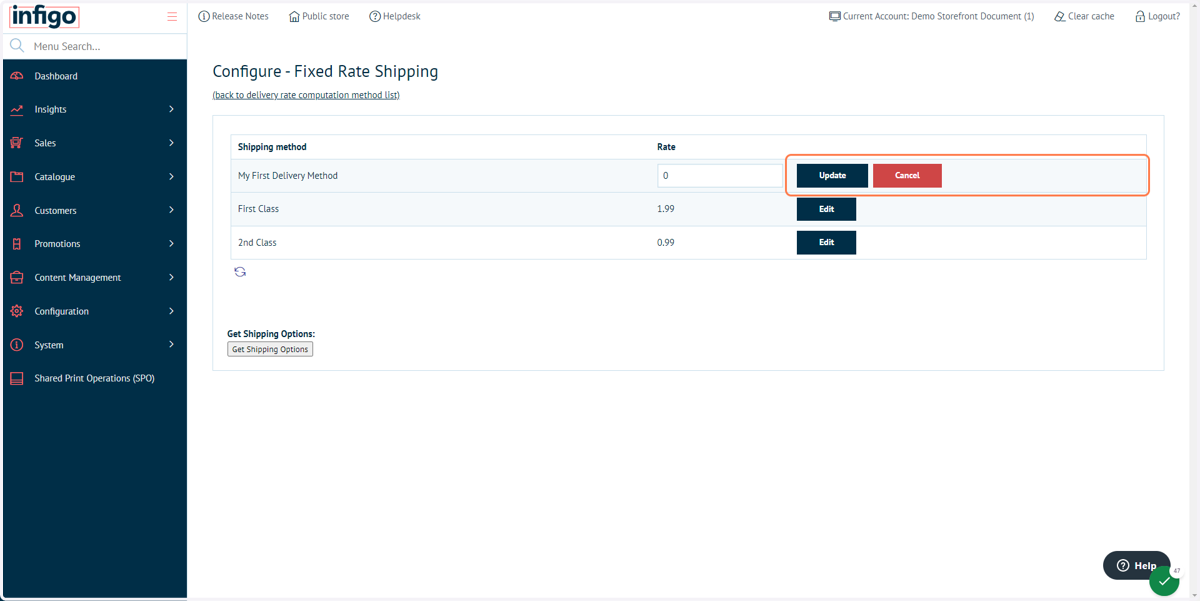
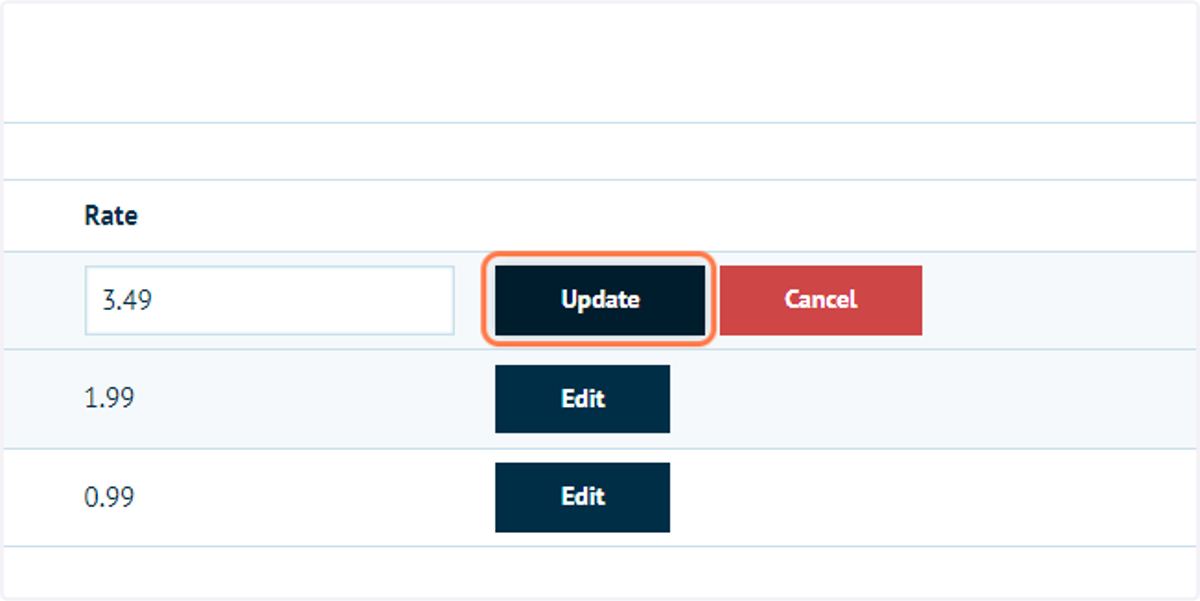
26. Enter new fixed rate shipping costs and click Update
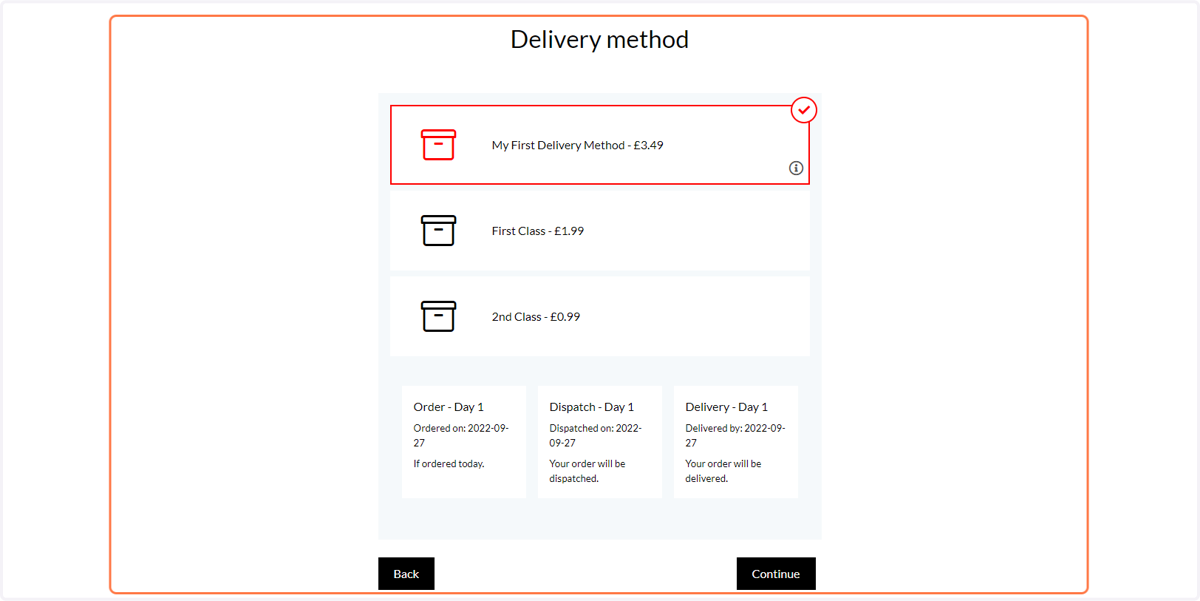
27. To view these changes on our storefront front-end, click on Public store
28. Navigate to basket, checkout and fill out any required data
You will be taken to a delivery method page.
Your fixed rate shipping costs will be displayed and customers will be allowed to select between them.
29. Return to Delivery Computation Methods and click on Edit next to Fixed Rate Shipping
Next, we will explore Shipping by Weight.
For simplicity, we will first deactivate the Fixed Rate Shipping method.
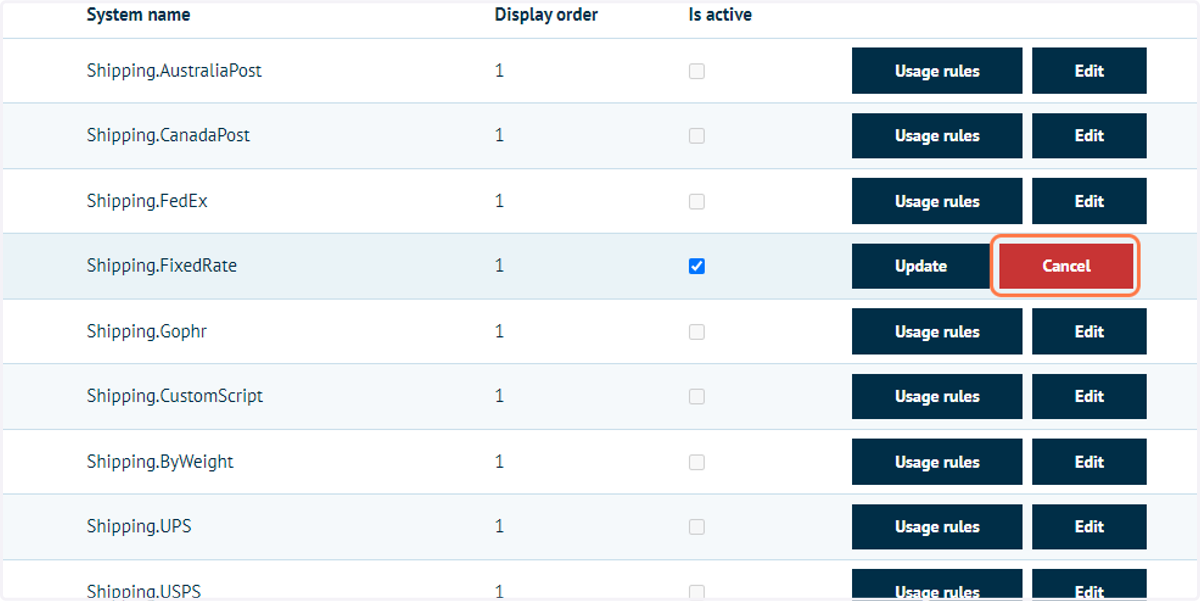
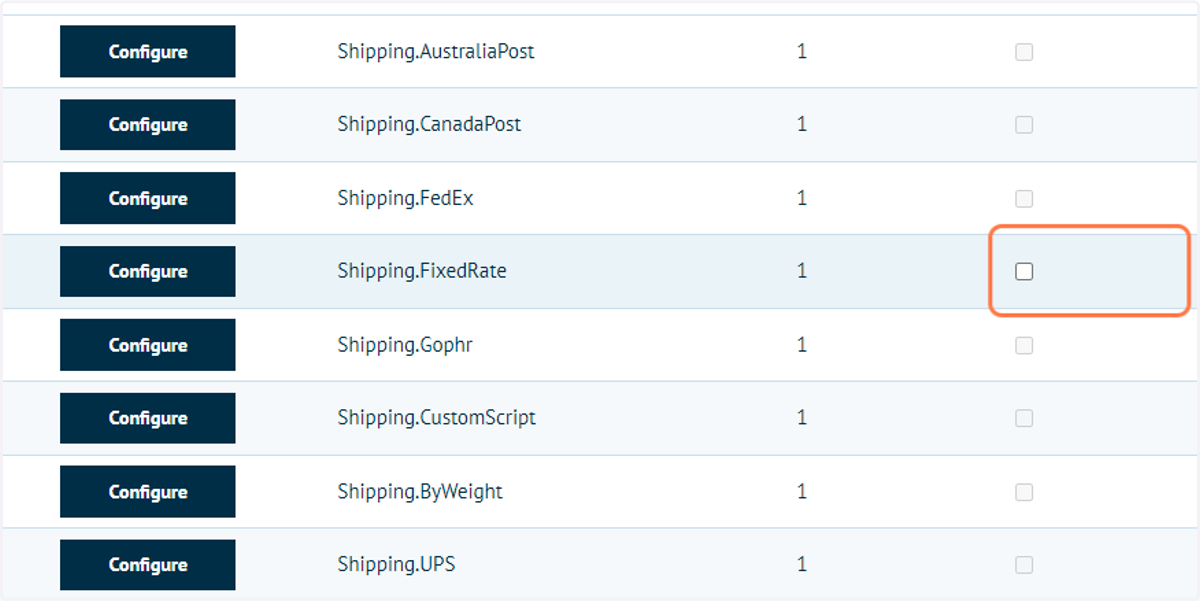
30. Uncheck IsActive
Infigosoftware
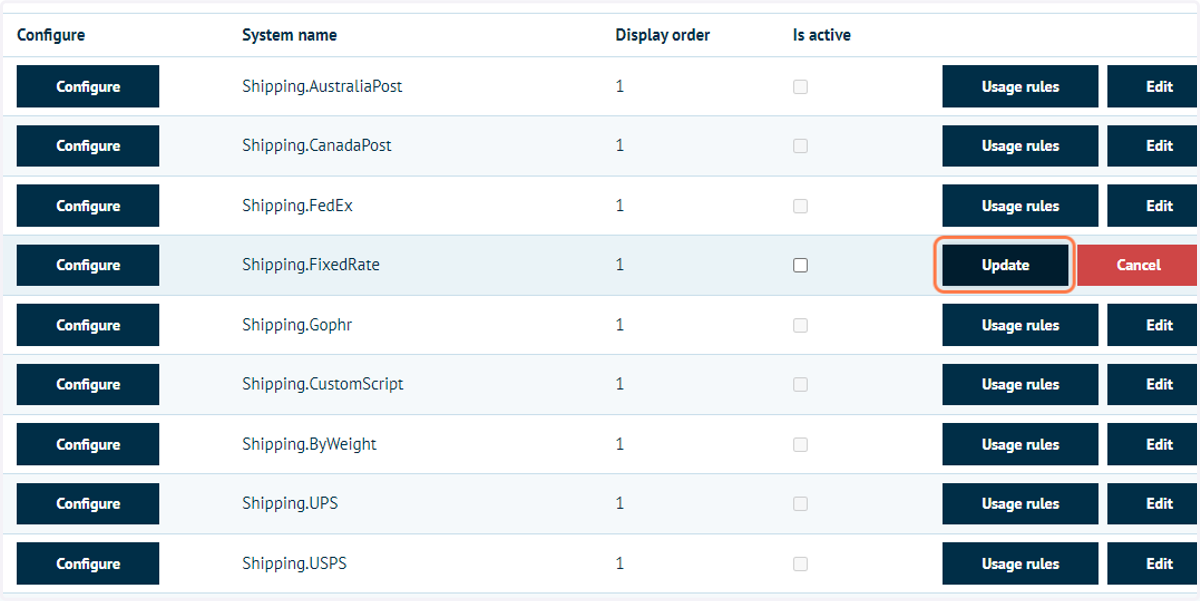
31. Click on Update
32. To activate Shipping by Weight, click on Edit
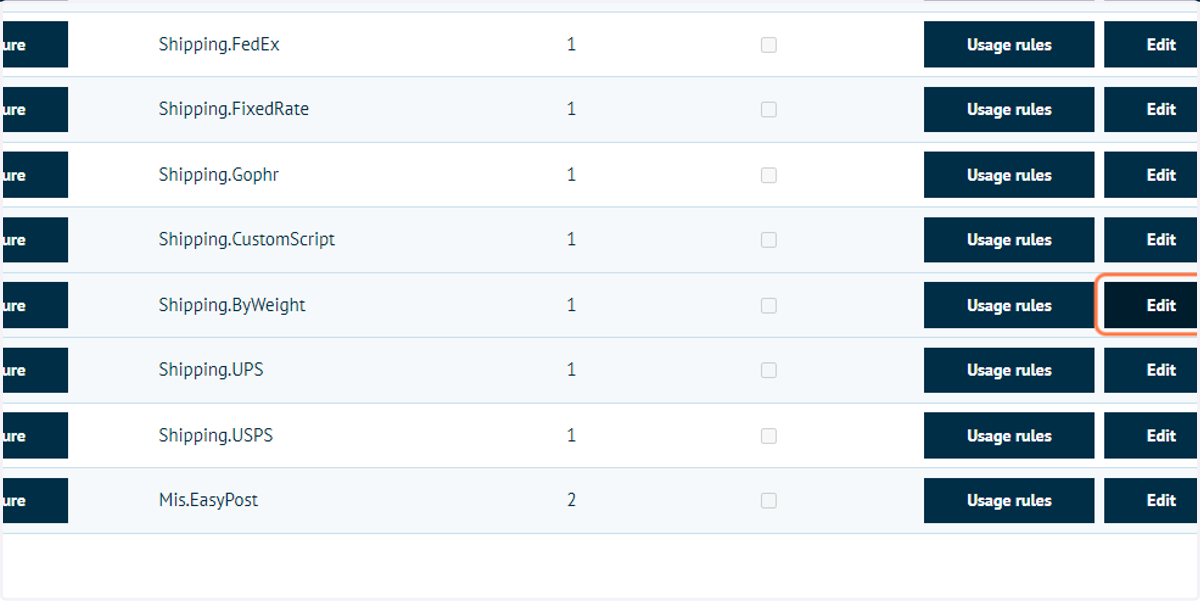
33. Check IsActive and click Update
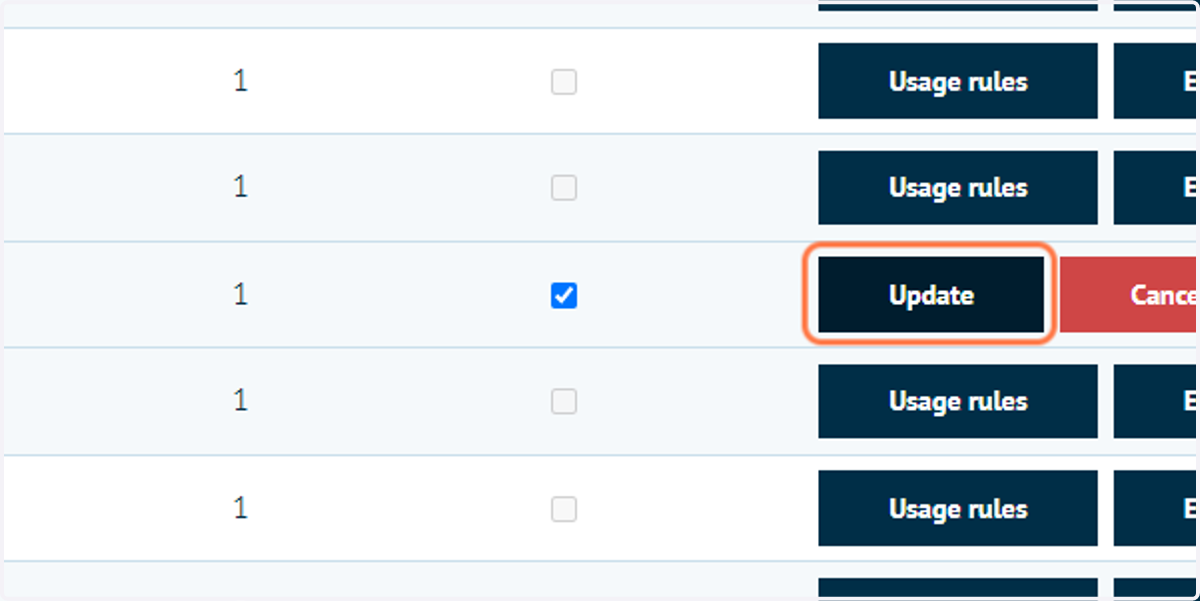
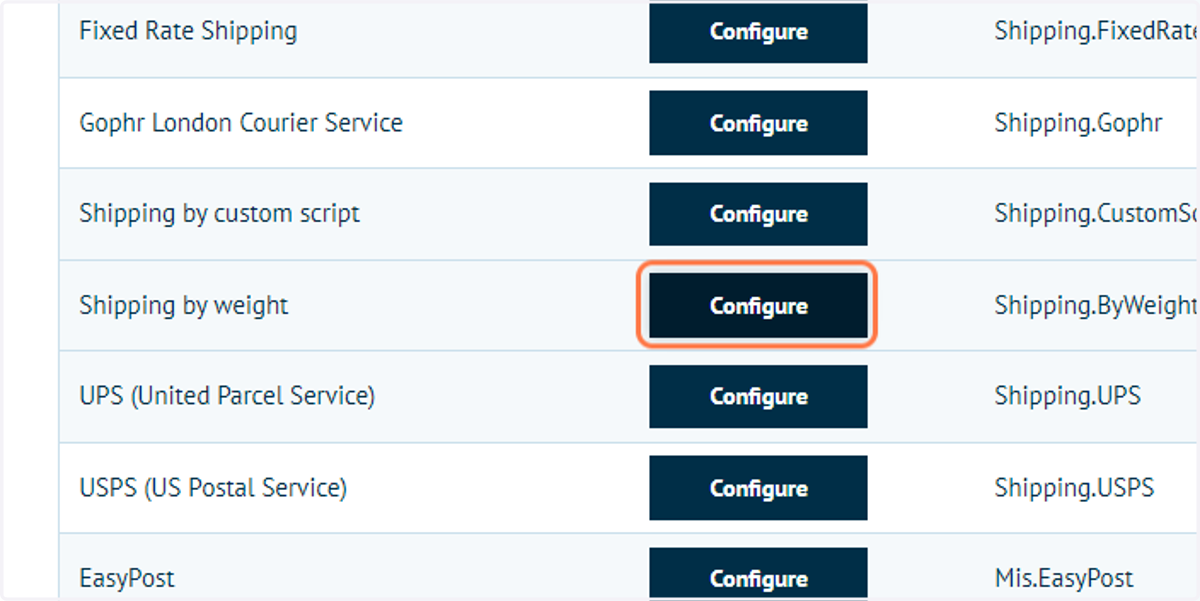
34. To configure the Shipping by Weight method, click on Configure
Infigosoftware
35. Shipping by Weight configuration options are now displayed
One of the shipping options which Infigo offers is weight based shipping. This allows you to set weight tiers for each country on your storefront, meaning that if a customer is ordering a particularly heavy order line, you could restrict them to only have certain methods available, and charge them different costs for different weight tiers.
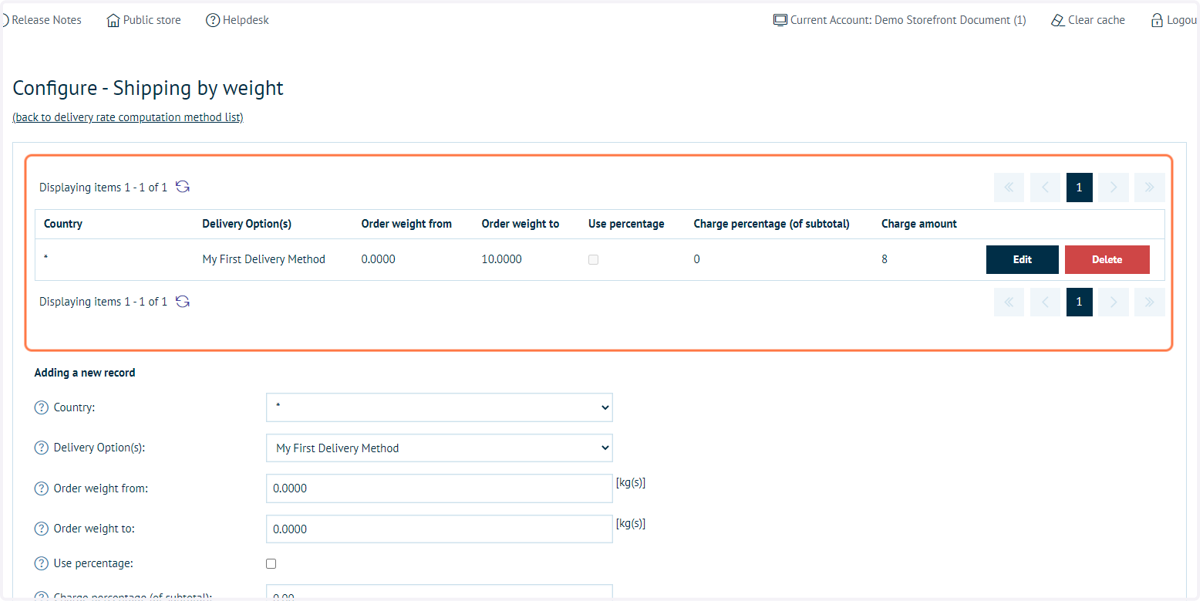
The very first part of this configuration page is the table of Shipping by Weight records, and this is because this is the most relevant part of the configuration as Shipping by Weight is controlled entirely by records in this table.
To add a record, you will need to use the form shown below the table, and fill out the fields, which are explained below:
Country
This is the country the record will apply to, allowing you to set completely different tiers for different countries. If you would like to make a tier that will affect all countries, however, then simply select the "*" option from this dropdown menu (selected by default).
Delivery Option(s)
The delivery option(s) are what the user will see during the checkout process if they meet the requirements for the record. For example, if you created a record which used the "First Class" delivery option, then if a user met the requirements for that record, they would see the "First Class" delivery option in checkout.
The list of delivery options loaded is populated from the Delivery Methods menu found under Configuration > Delivery > Delivery Methods.
Order weight from & Order weight to
These fields are used to set the weight boundaries for this tier's requirement. If the user's order's total weight falls within the boundaries set with these settings, then they will qualify for this record/weight tier and be able to choose it during the checkout process. Please note that the user will only need to qualify (and should only qualify) for one of the weight tiers configured for the delivery option in order for it to appear.
All weights are calculated in kilograms (kg).
Use percentage
If this setting is enabled, then the cost for selecting this delivery method will be a percentage of the order subtotal instead of a flat rate.
Charge percentage (of subtotal)
If the "Use Percentage" setting is enabled, then this setting will be the percentage of the subtotal charged for delivery.
Charge amount
If the "Use Percentage" setting is not enabled, then this setting will be used to set the fixed rate which will be applied when the user selects this option.
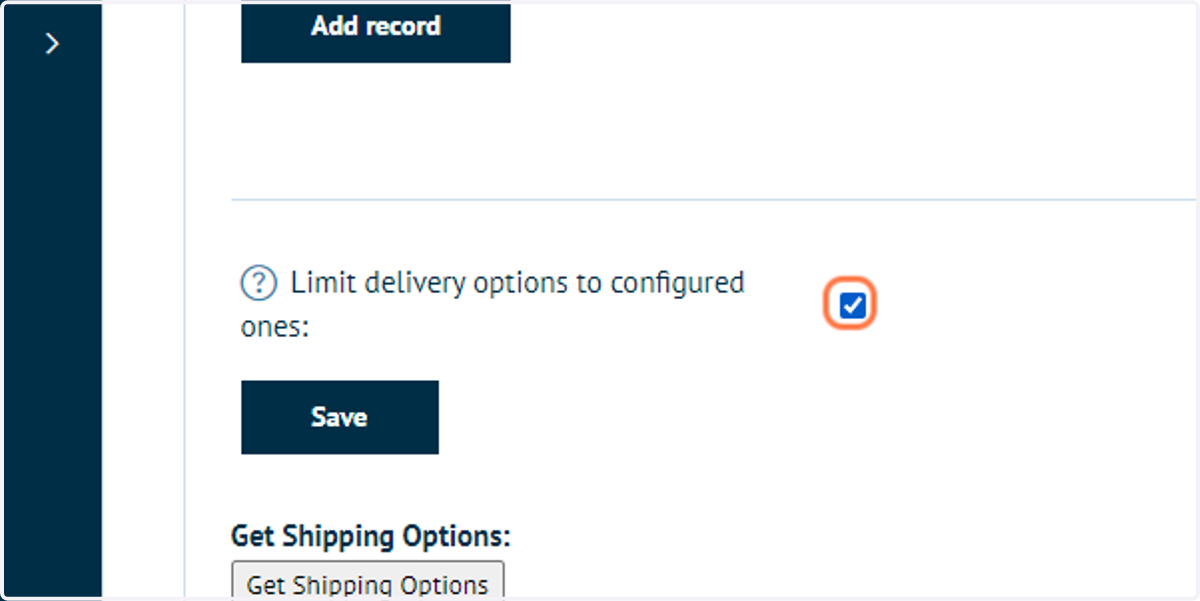
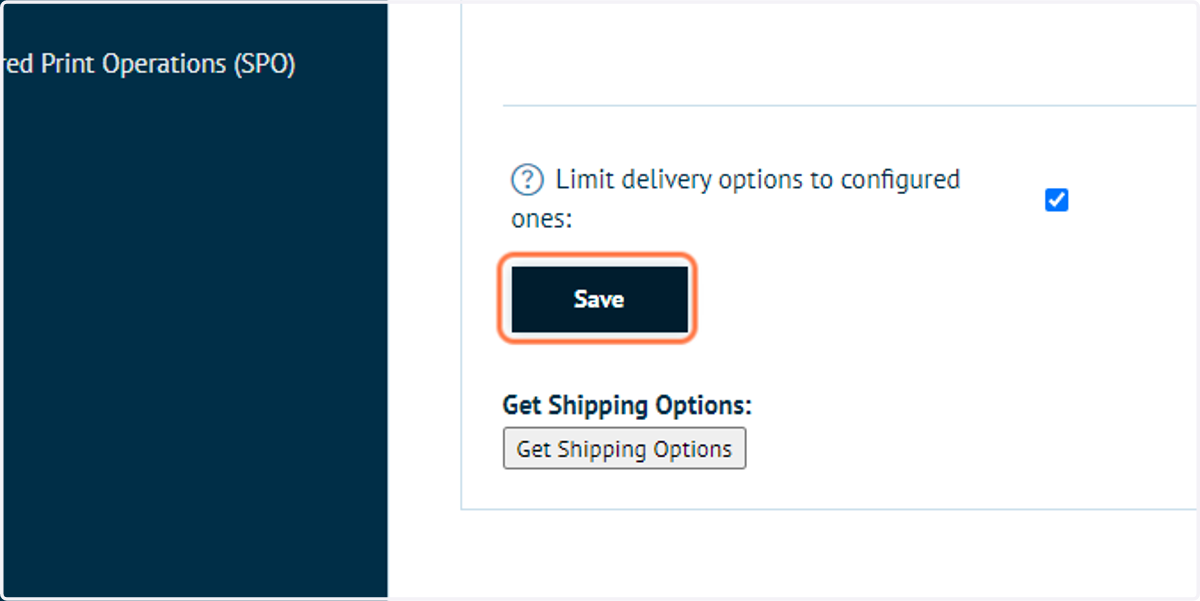
Limit delivery options to configured ones
If this setting is enabled then the only delivery methods that will load during the checkout process will be the ones configured within weight based shipping.
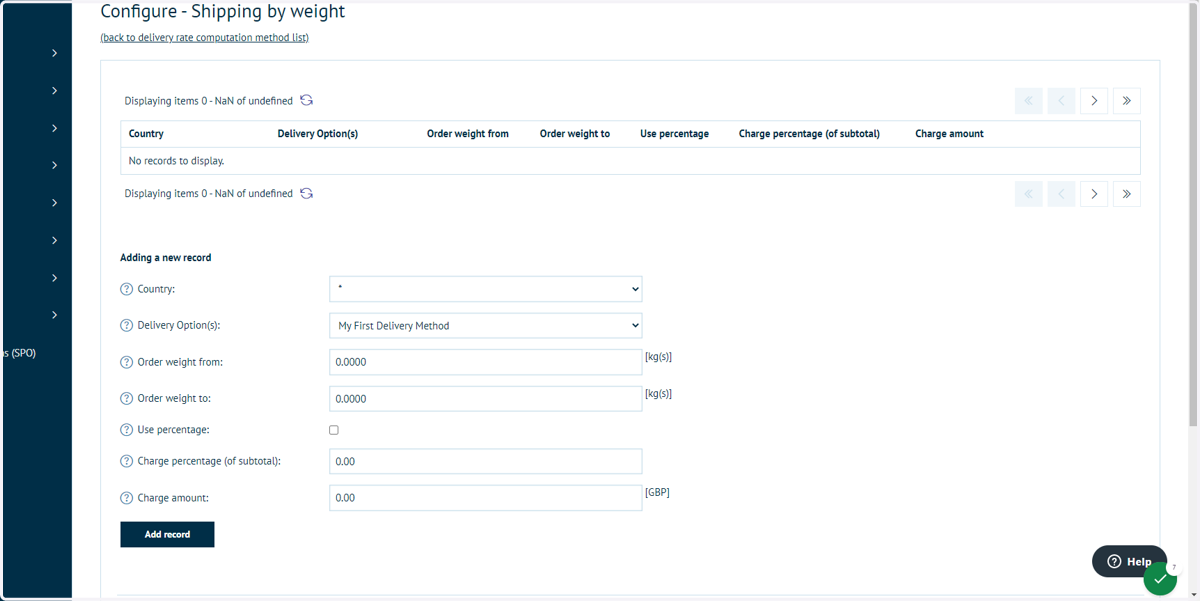
36. Complete fields and click on Add record
In this example, we will define shipping costs based on weight for our "My First Delivery Method" shipping option.
Complete fields as below to apply a £8 charge to orders <10kg.
Click on Add record to confirm this entry.
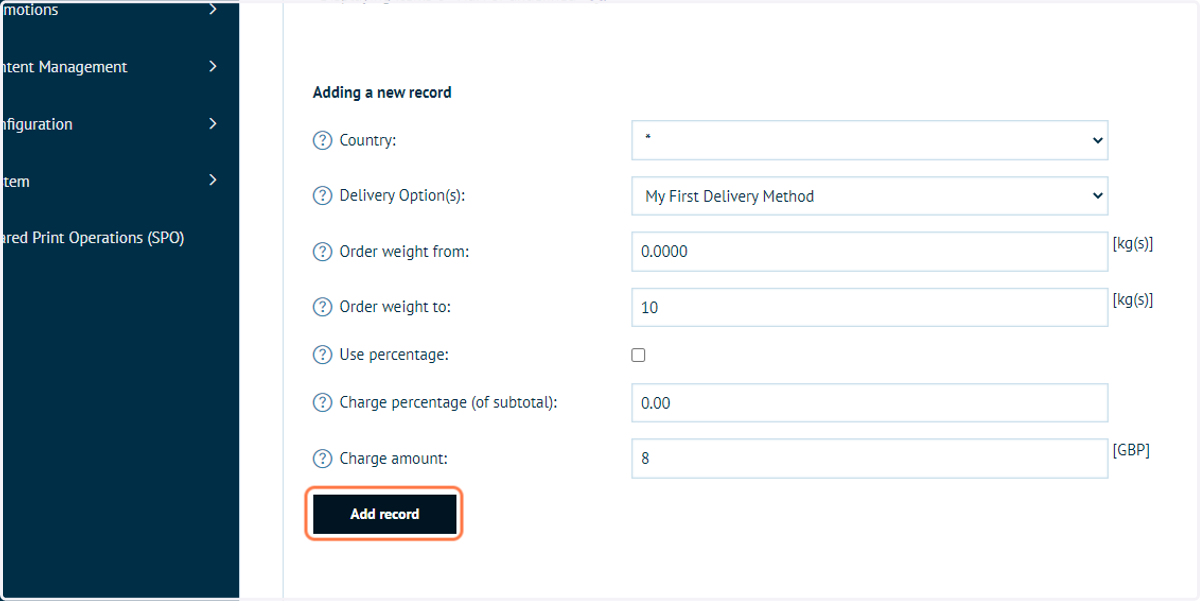
37. This record is now defined
38. Add 2 additional Shipping by Weight records
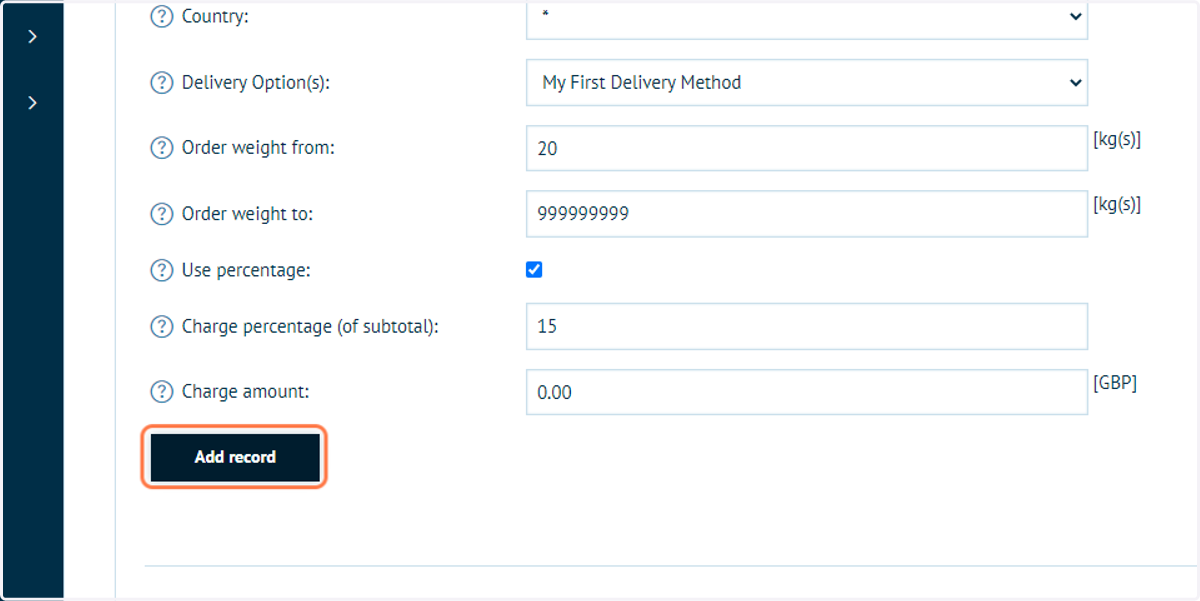
Define two additional records covering:
Packages between 10kg and 20kg at a charge of £12
Packages over 20kg at a charge of 15% of the subtotal (shown in the screenshot below)
Infigosoftware
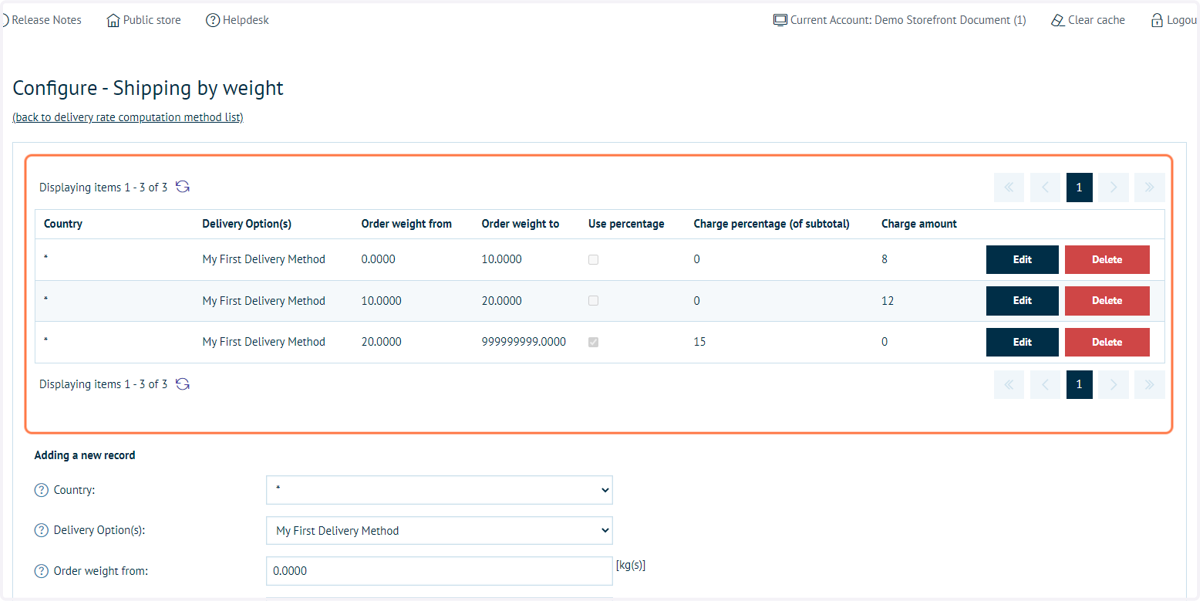
39. All three records should now be defined
40. Check Limit delivery options to configured ones
This option ensures that only the delivery options defined by records on the Shipping by Weight page will be utilised.
41. Click on Save
42. View the public store and view these changes
Infigosoftware
43. Navigate through the basket and checkout. Your delivery cost will now be calculated based on defined weight