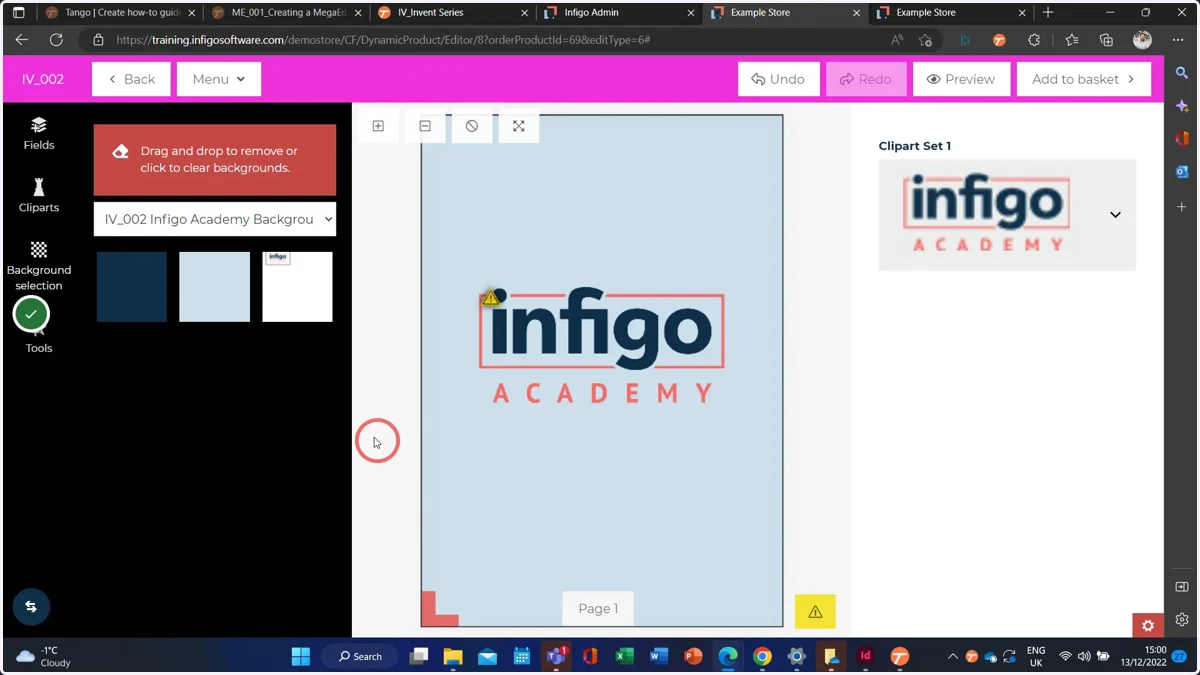
Dropdown Variables & Clipart Resource Sets
In this tutorial, we will learn how to create clipart sets within Invent for use in your MegaEdit templates.
We will link the selected clipart to a variable, which will appear as a selectable option in our MegaEdit template.
The variable will then be linked to an image field located on our canvas.
Some key terms of note:
Variables within Invent are used to create forms for your products. They can take the form of text, boolean (true/false), dropdown and more.
Resources are collections of assets that can be used to help create a MegaEdit product. There are several forms of assets available through Invent, including backgrounds, cliparts and fonts.
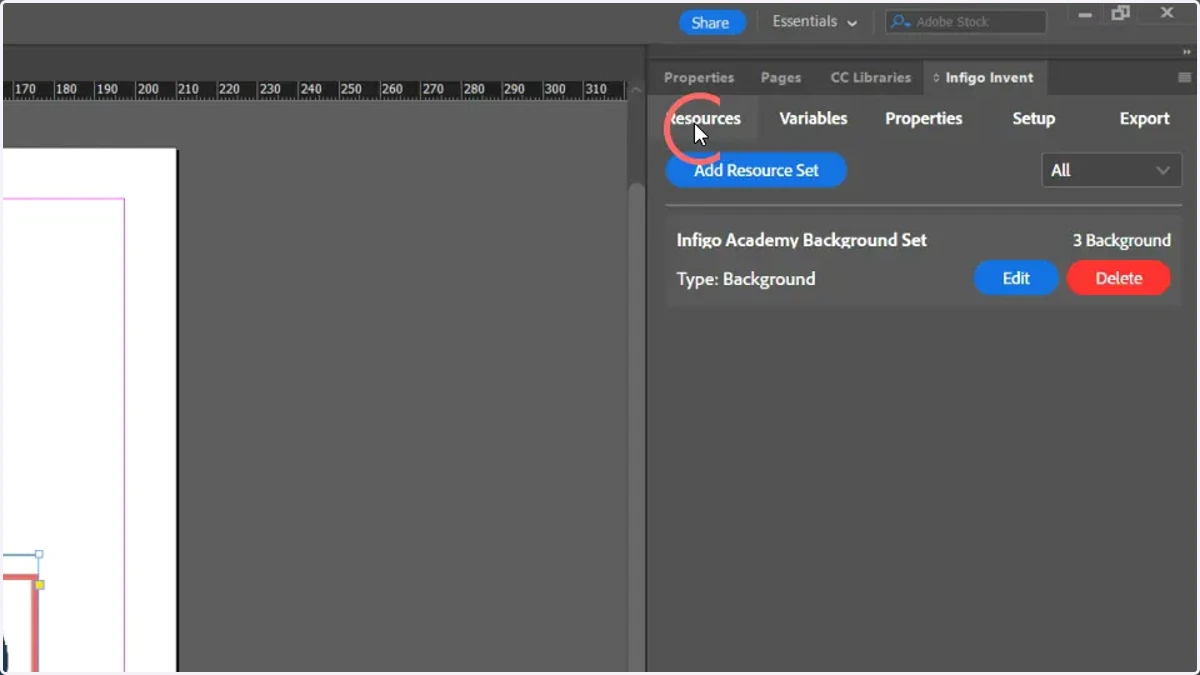
1. To begin creating a Resouce Set, click Resources
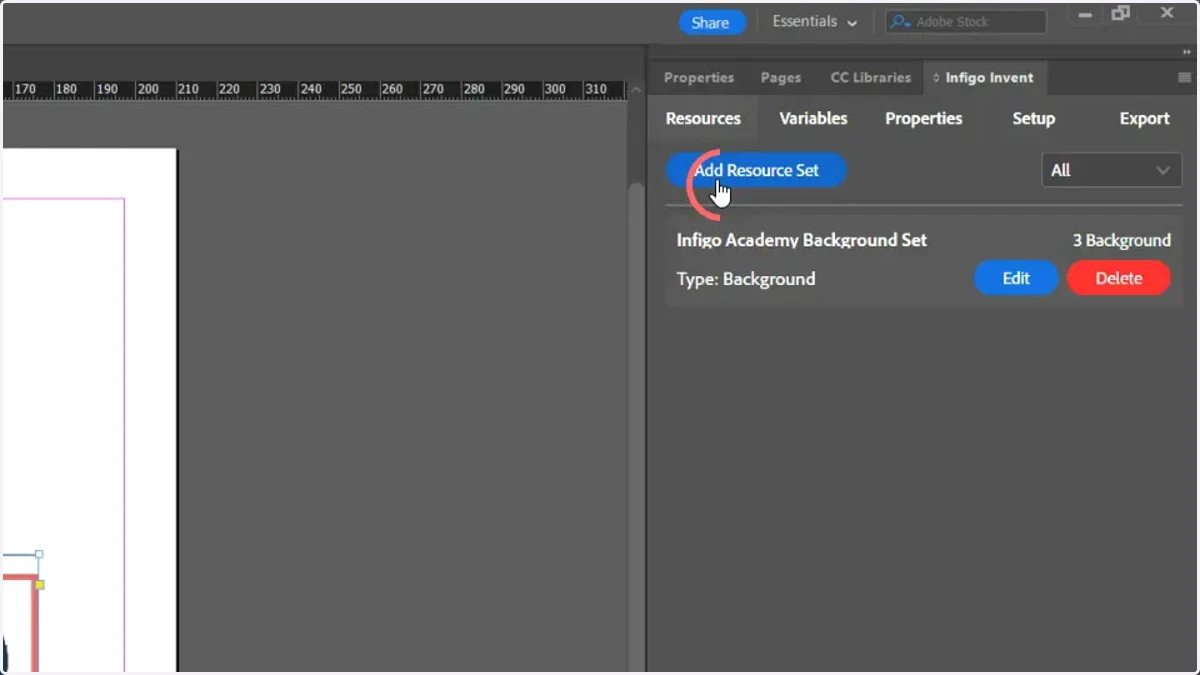
2. Click Add Resource Set
adobe
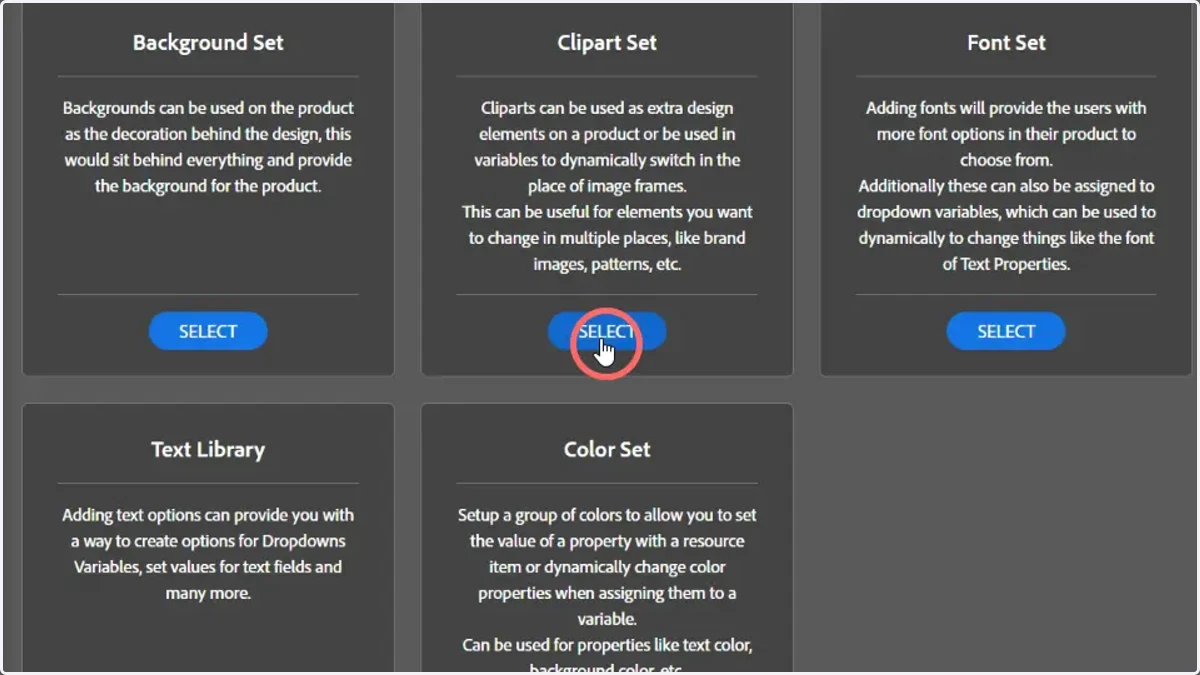
3. Select the Resource Set type to add. For this example, clip Clipart Set
Clipart Sets
Cliparts can be used as extra design elements on a product either as fixed assets on the design or as options for users to select from when personalising their MegaEdit product.
Creating a Clipart Set allows you to create a container to upload all the image files you want to make available. These then get created and included as a Clipart Category and Clipart's within it in Infigo once imported.
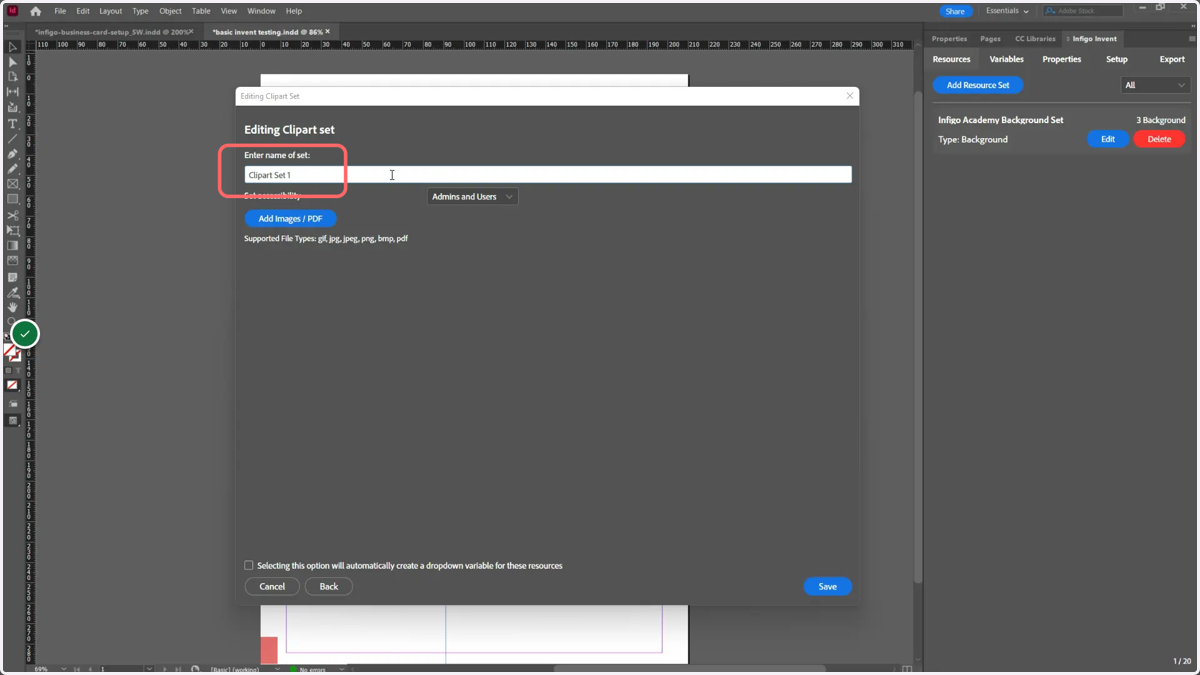
4. Enter a name identifying the Clipart Set
adobe
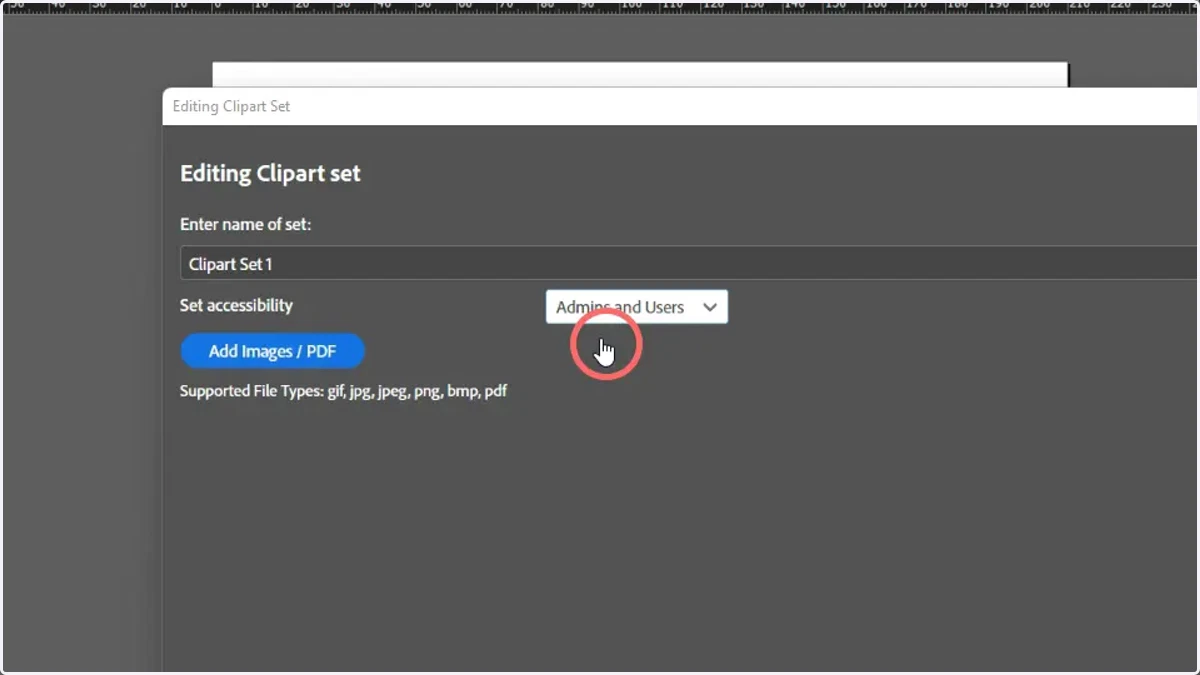
5. Select an accessibility level
You can make this resource set available to administrators only, or administrators and users.
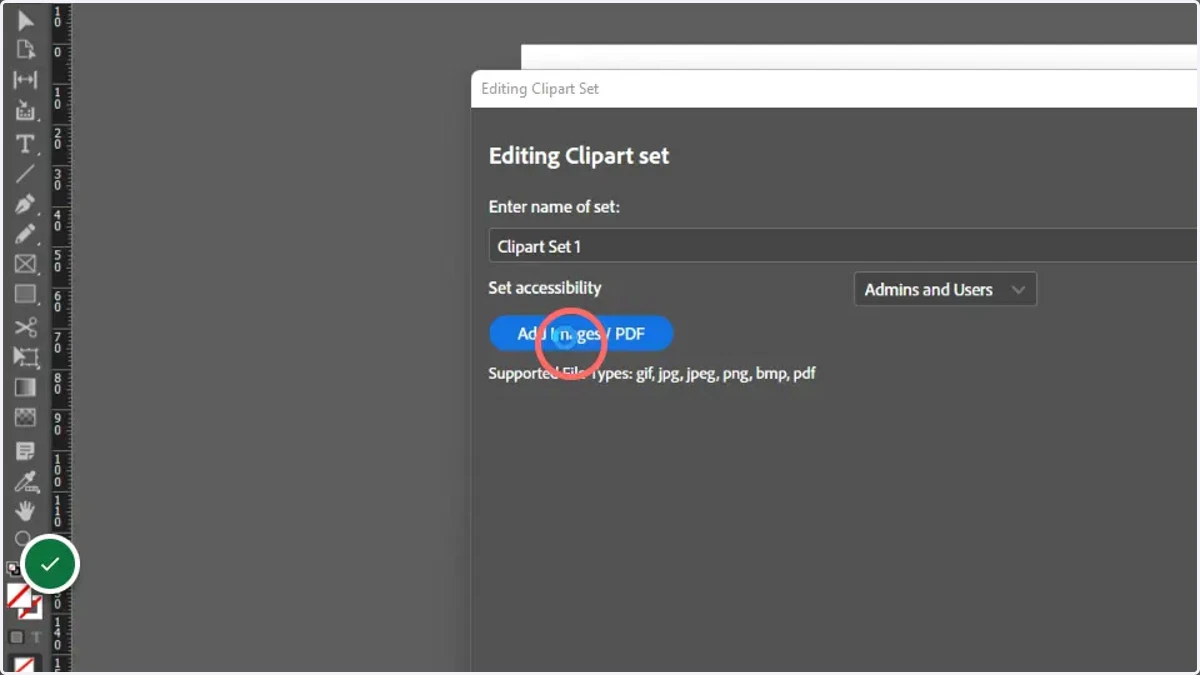
6. To add resources to your Clipart Set, click Add Images / PDF
adobe
7. Select any resources you would like to add to the Clipart Set
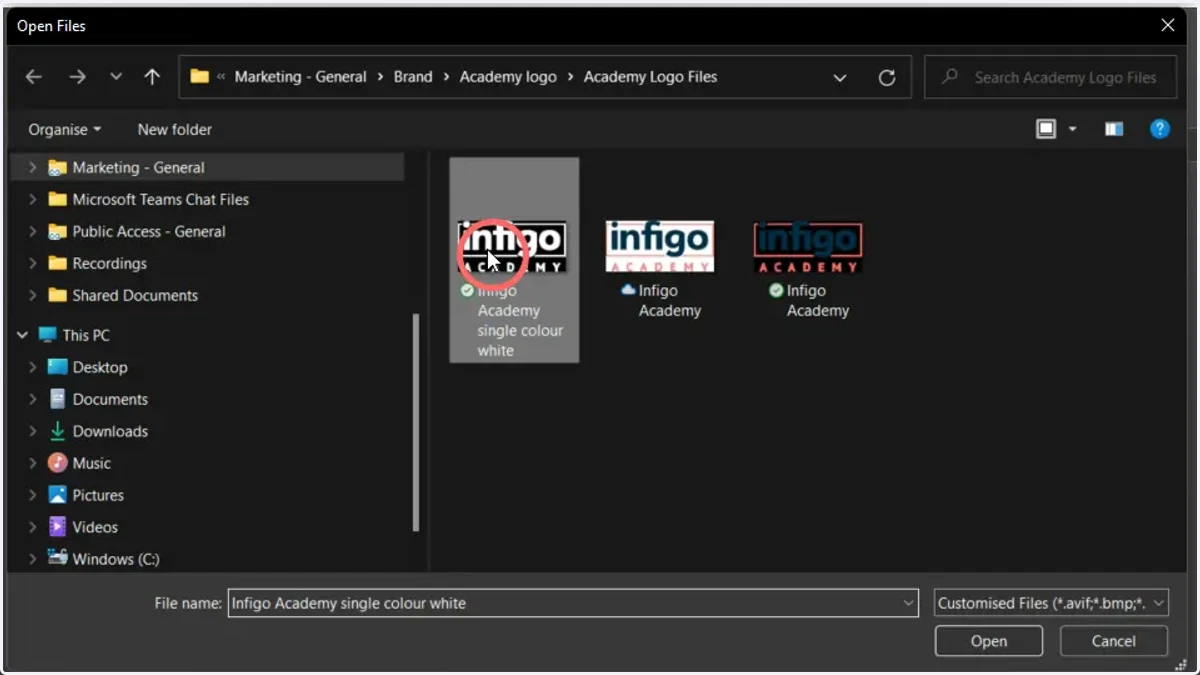
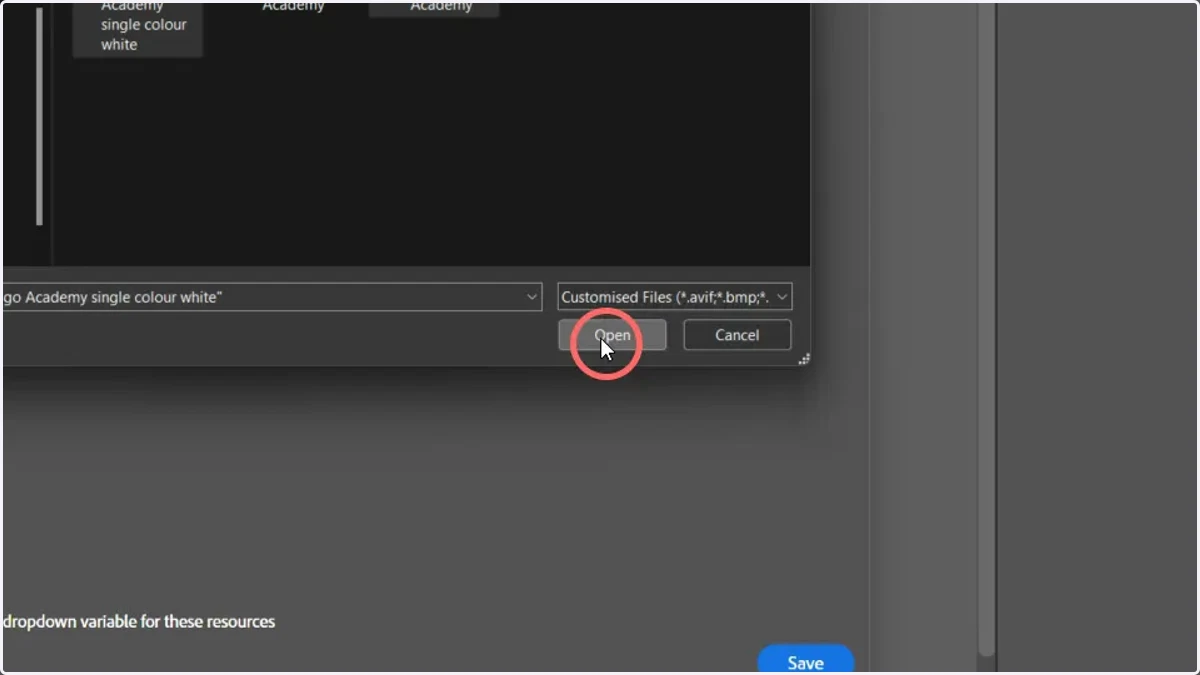
8. Click Open
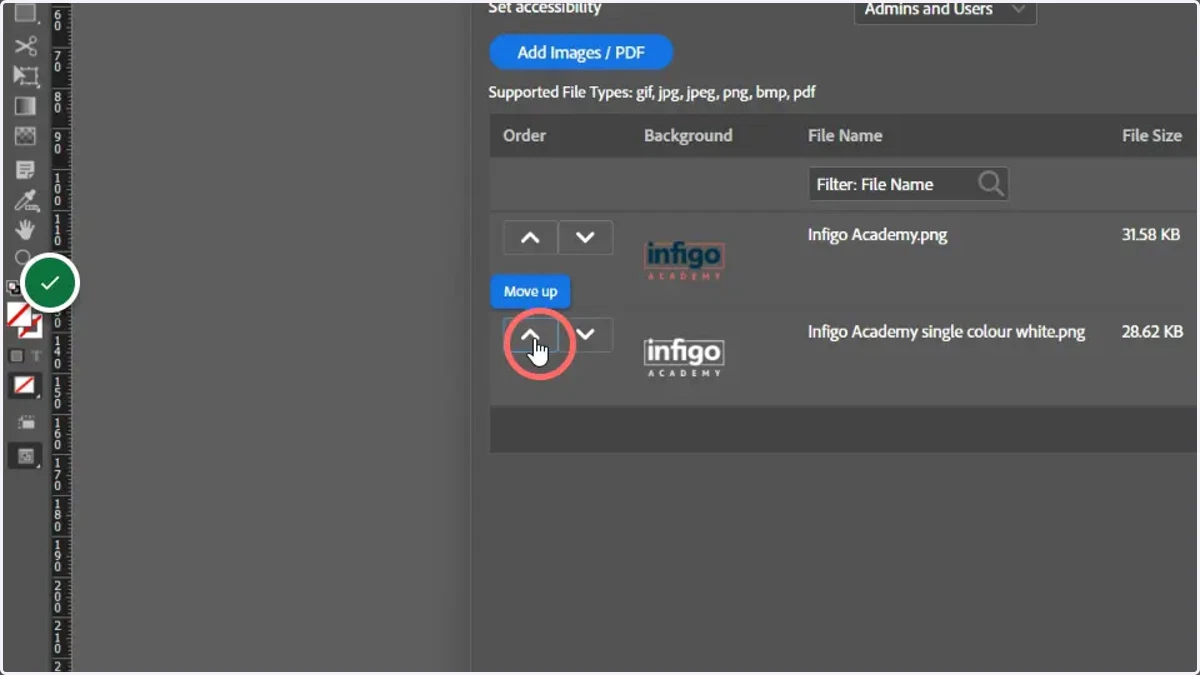
9. Change the order of resources if required
Changing the order of resources in the Clipart Set will change they order they display within the MegaEdit editor
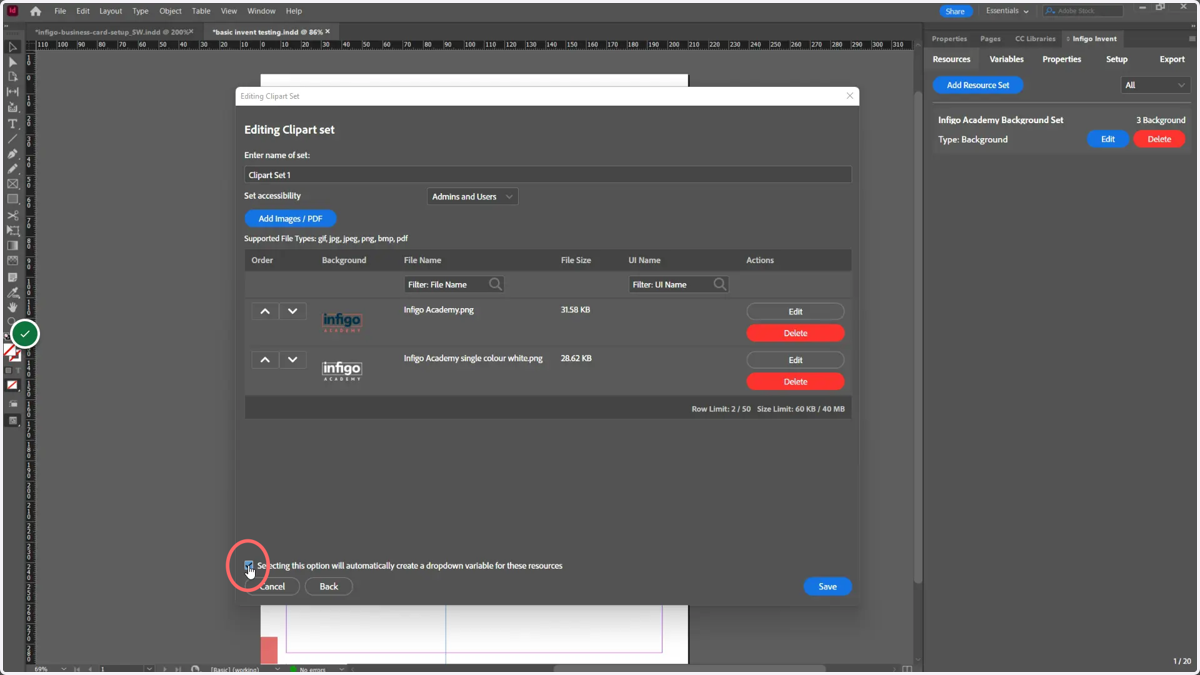
10. Consider automatically creating a dropdown variable
Dropdown variables are commonly created to link to resource sets. We have added a function which will automatically create a dropdown variable linked to this Clipart Set.
Any variables can also be created and modified separately if required.
adobe
11. Click Save
12. Click Variables
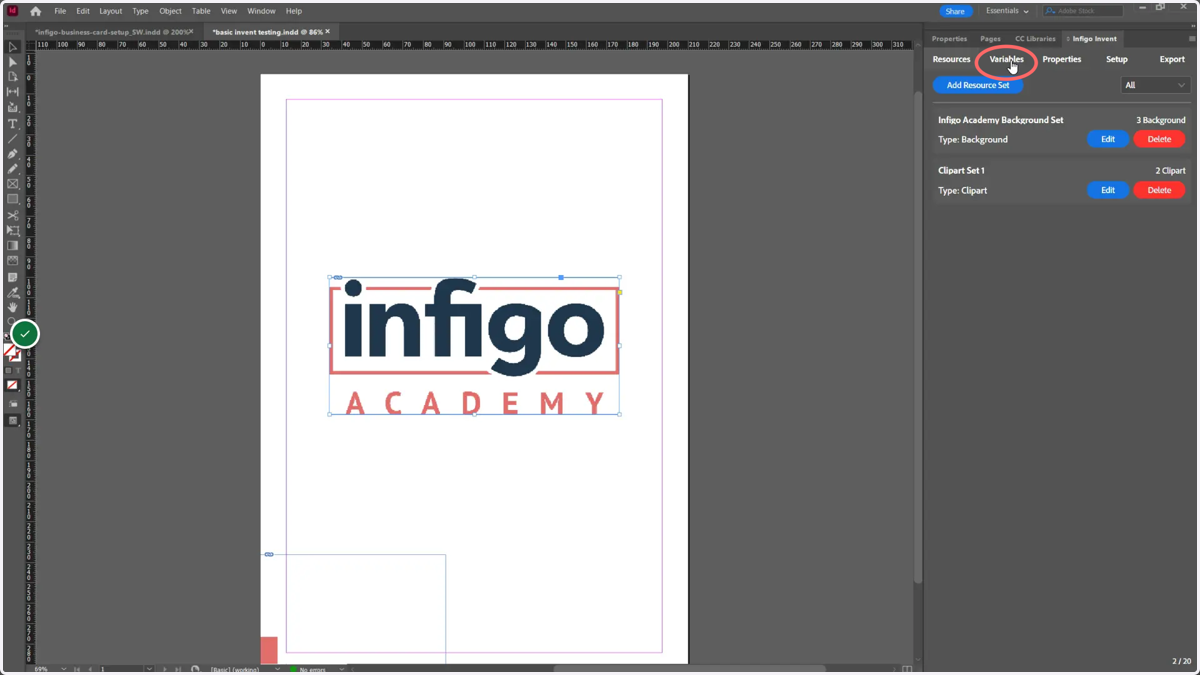
13. Edit dropdown variable
A dropdown variable was automatically created when we added our Clipart Set. This variable can be amended by clicking the Edit button.
New variables can be created using the Add Variable button. Other tutorials will cover the different types of available variable.
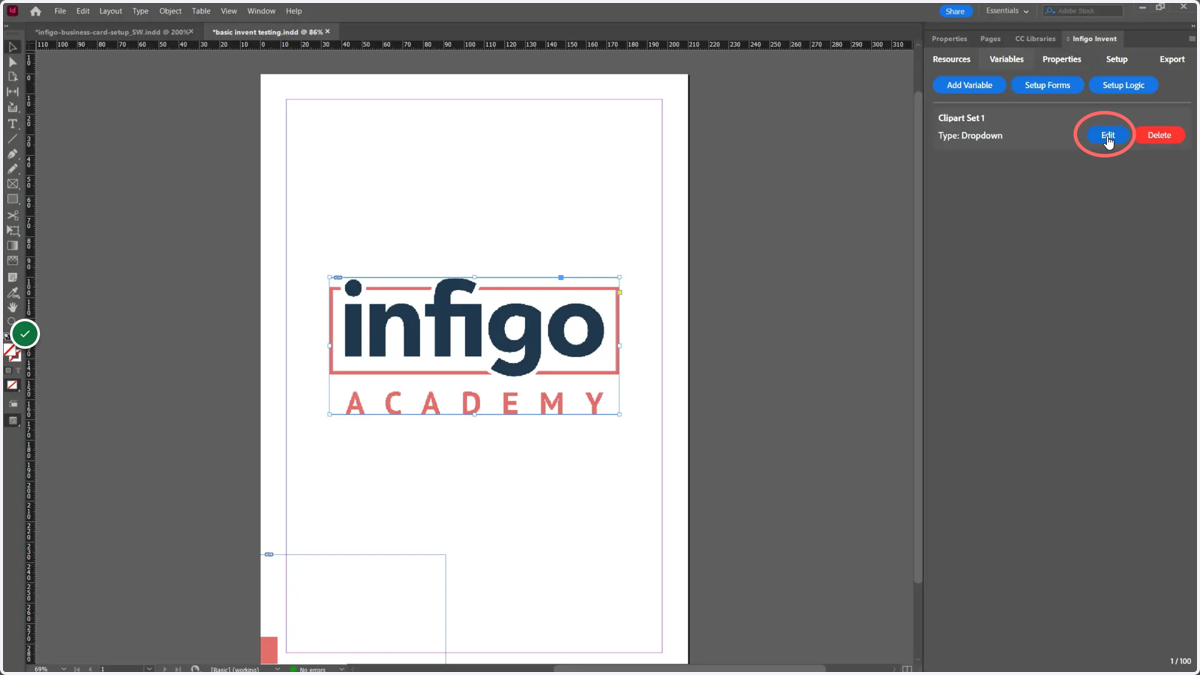
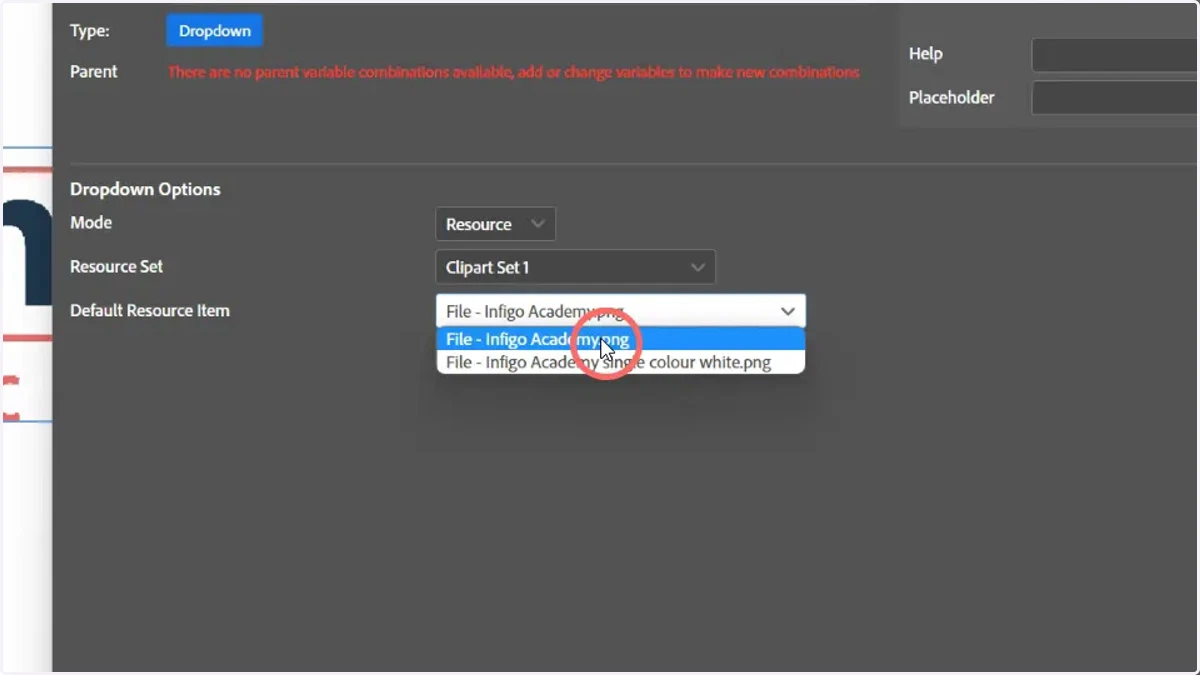
14. Select dropdown variable Mode
Select between:
Value - Manually add values for the user to select between
Resource - Select between the Resource Sets created within the Invent tab
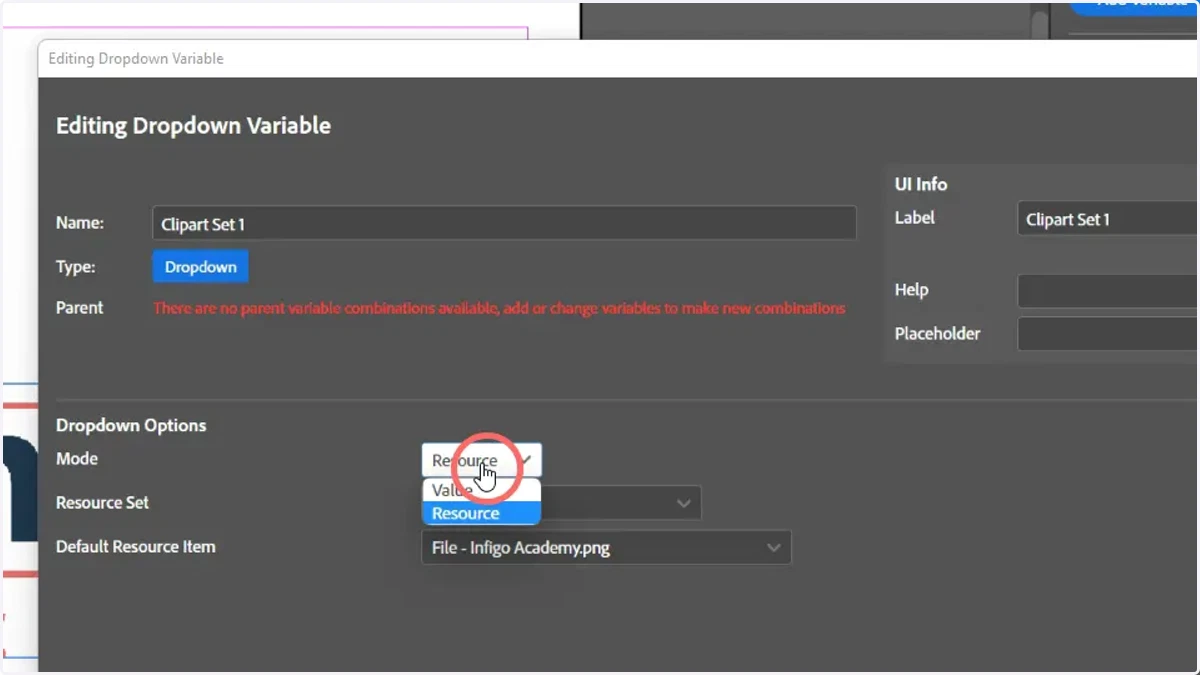
15. Select a Resource Set
For Resource mode, select a resource set to utilise
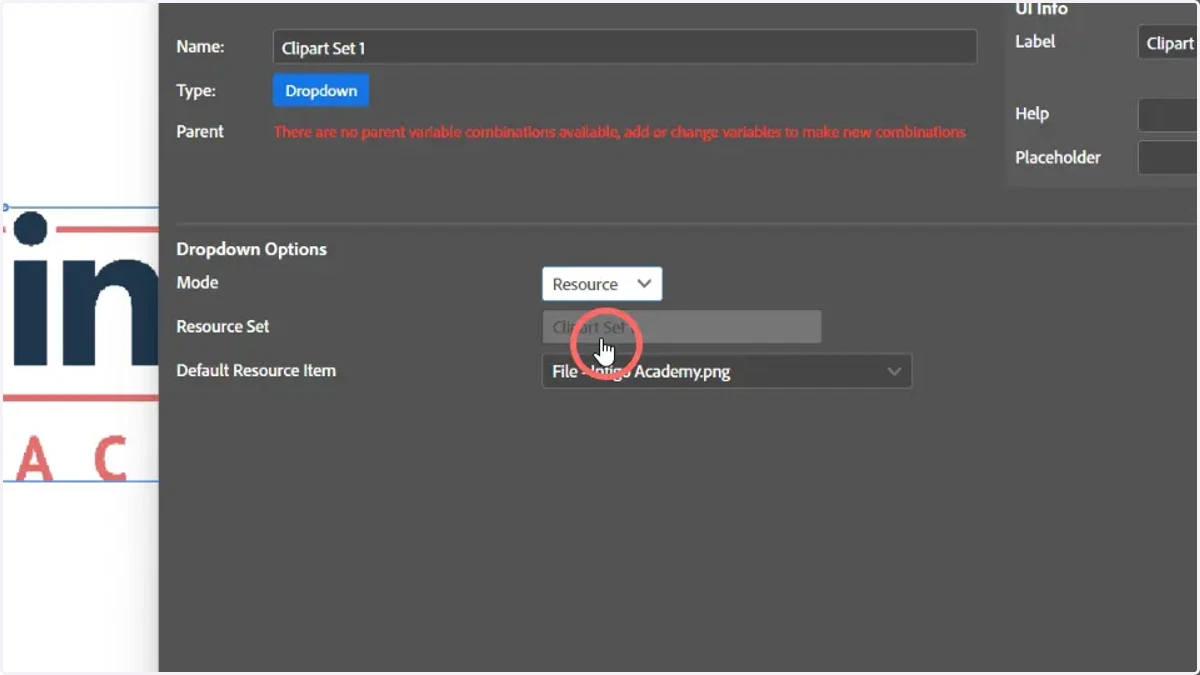
16. Select the default resource to use from the selected Resource set
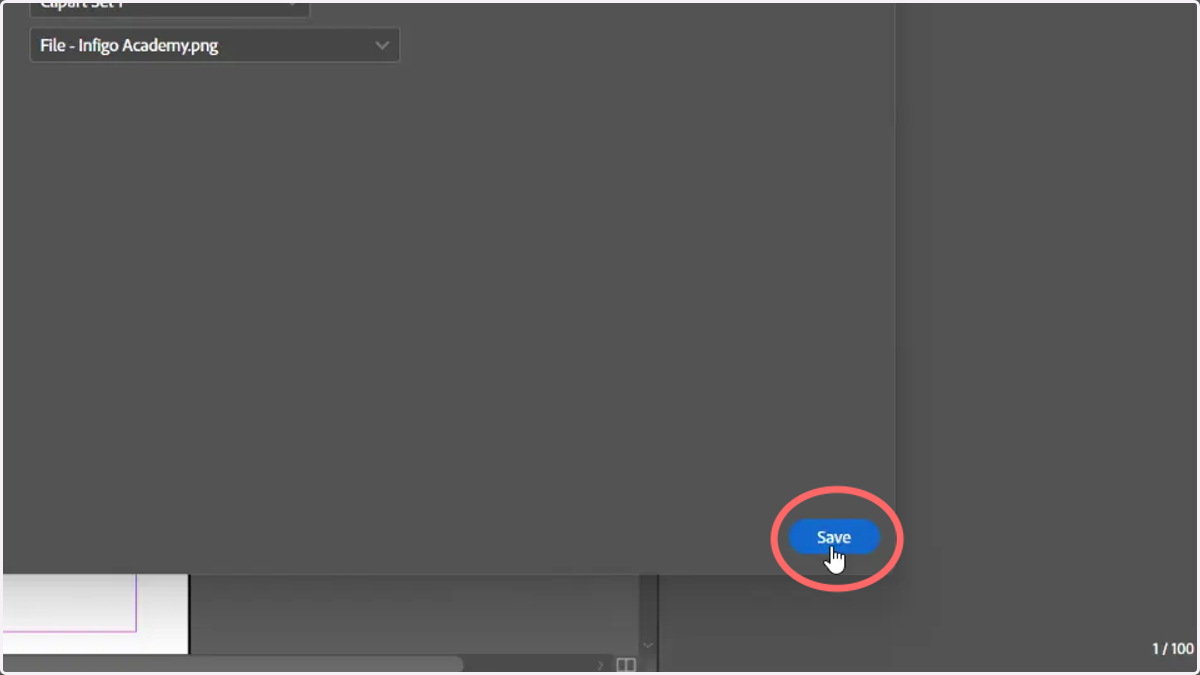
17. Click Save
adobe
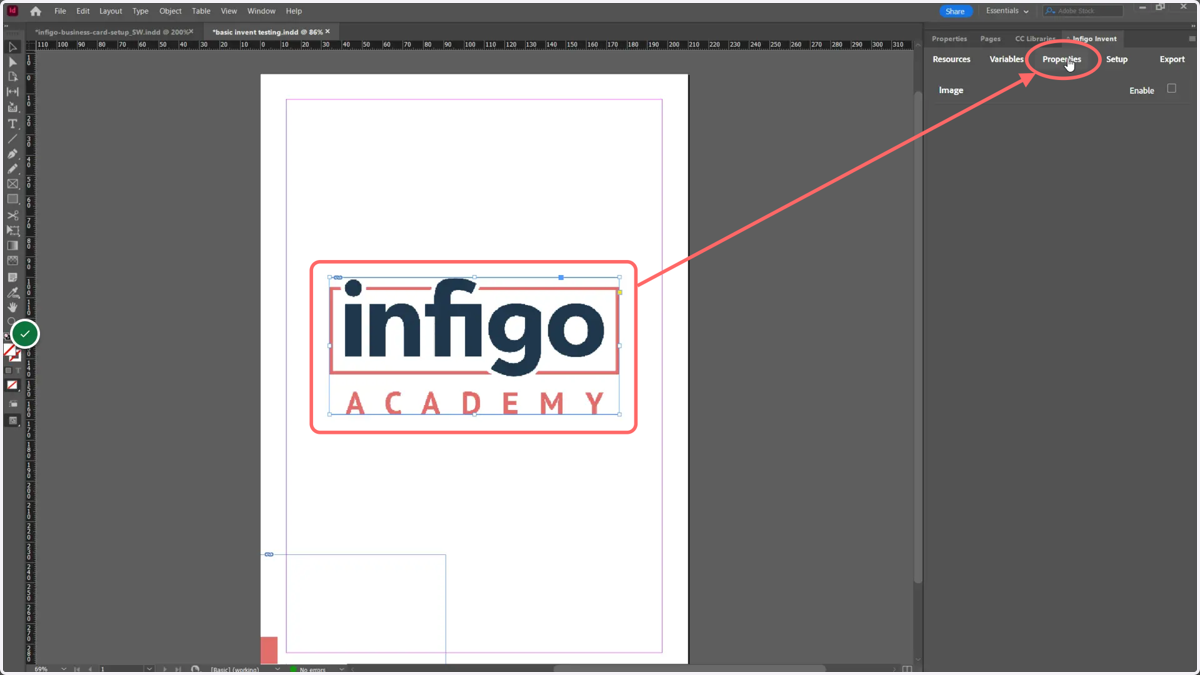
18. Select an image field and click Properties
Next, we will set up a variable image field. We begin by loading the Properties tab within the Invent plugin.
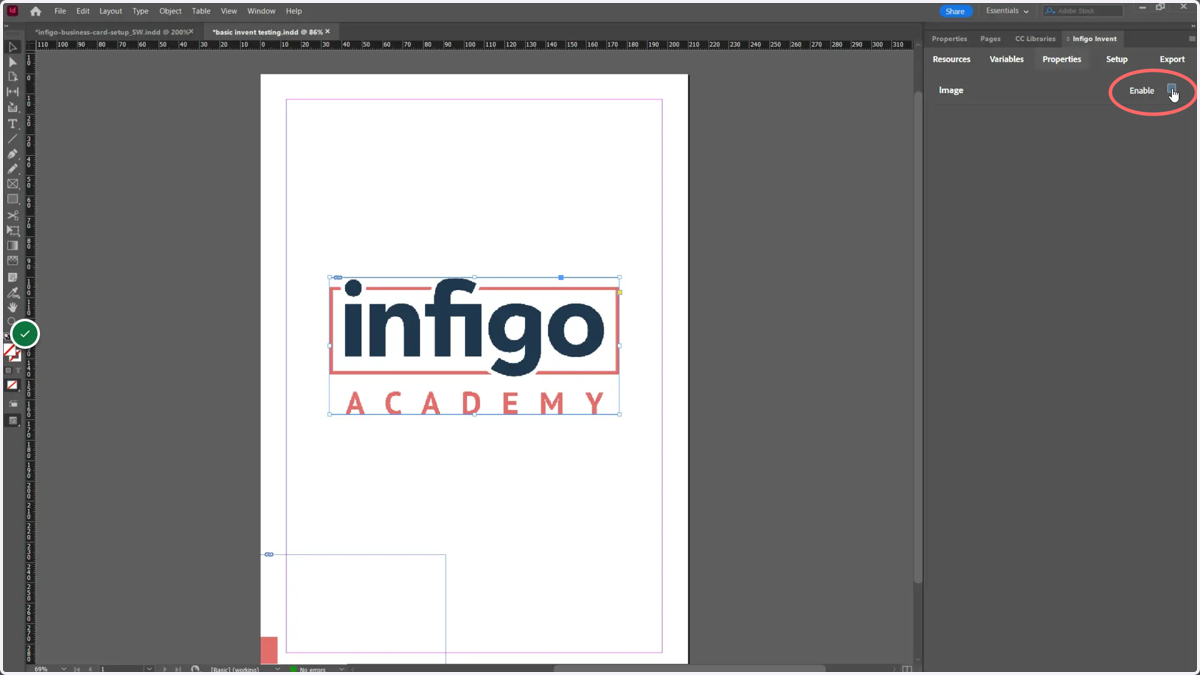
19. To make a field variable, click Enable whilst the field is selected on the canvas
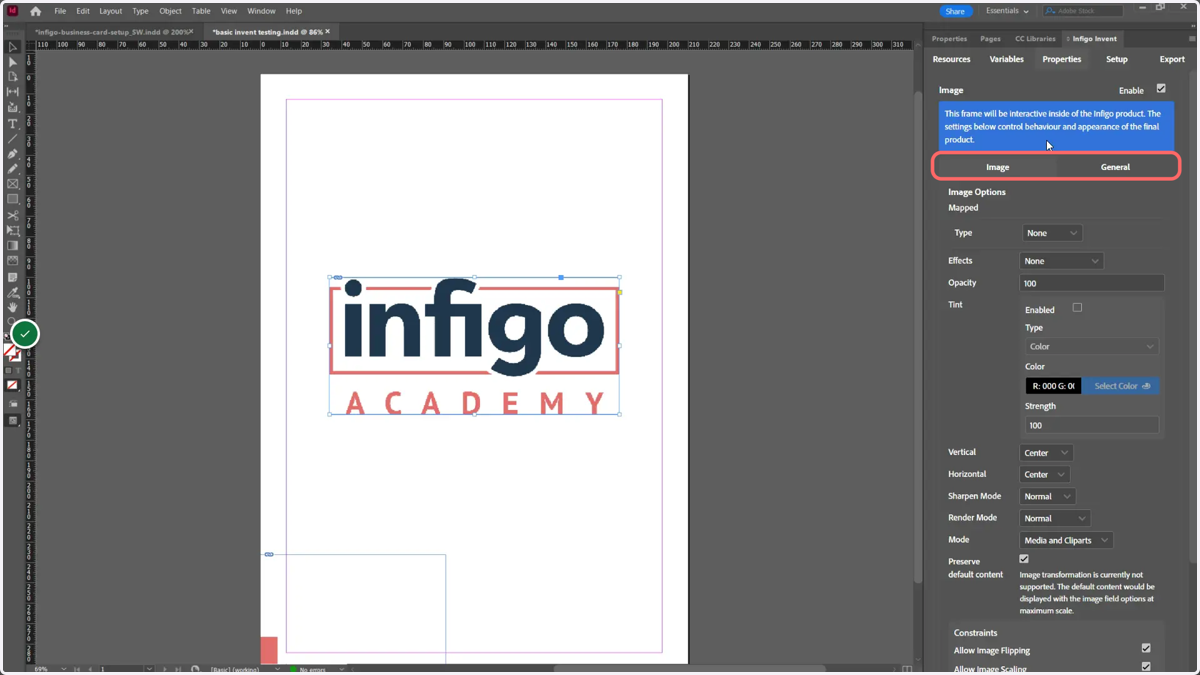
20. Review available options for image fields
Options will appear allowing you to customise Image settings and General settings.
Image settings allows modifications to be made or enabled/disabled in the selected image (covered more in this tutorial).
General settings covers modification of the image background, as well as additional restrictions such as disabling field deletion and configuring transformation commands.
adobe
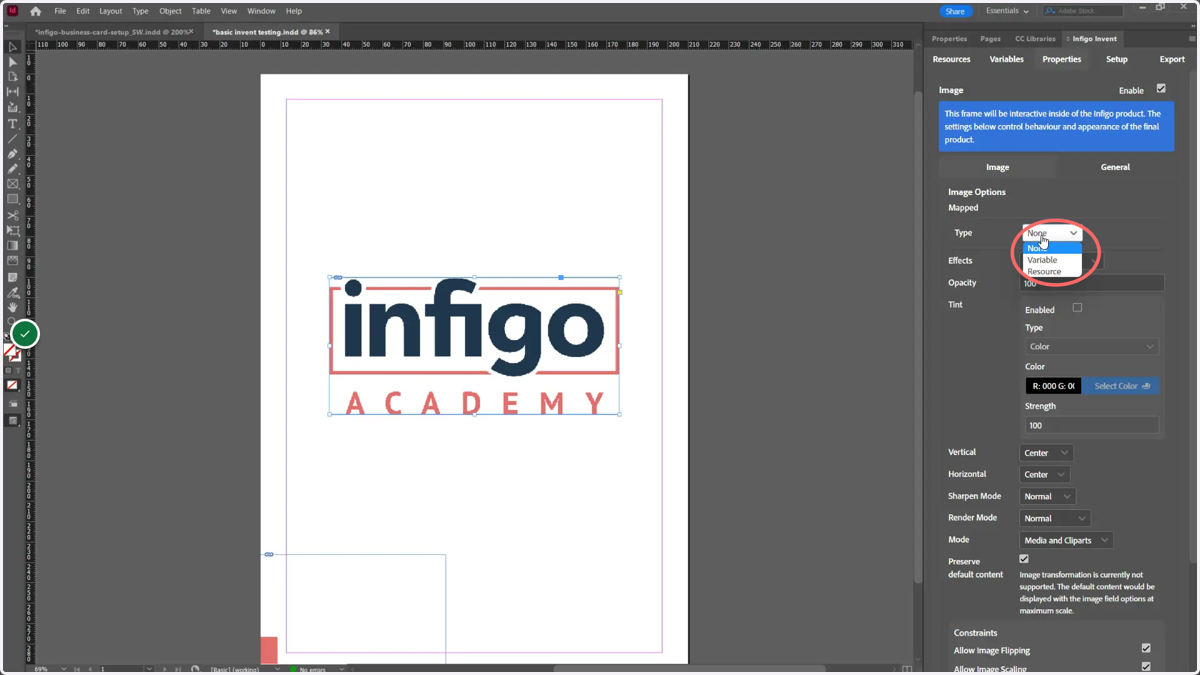
21. Map the image used to either a variable or resource set
In order to dynamically change the image from our MegaEdit editor, we need to map the image field to either a specified variable or a specific resource set.
In our example, we will link to our created dropdown variable. Begin by selecting Variable from the Type dropdown list.
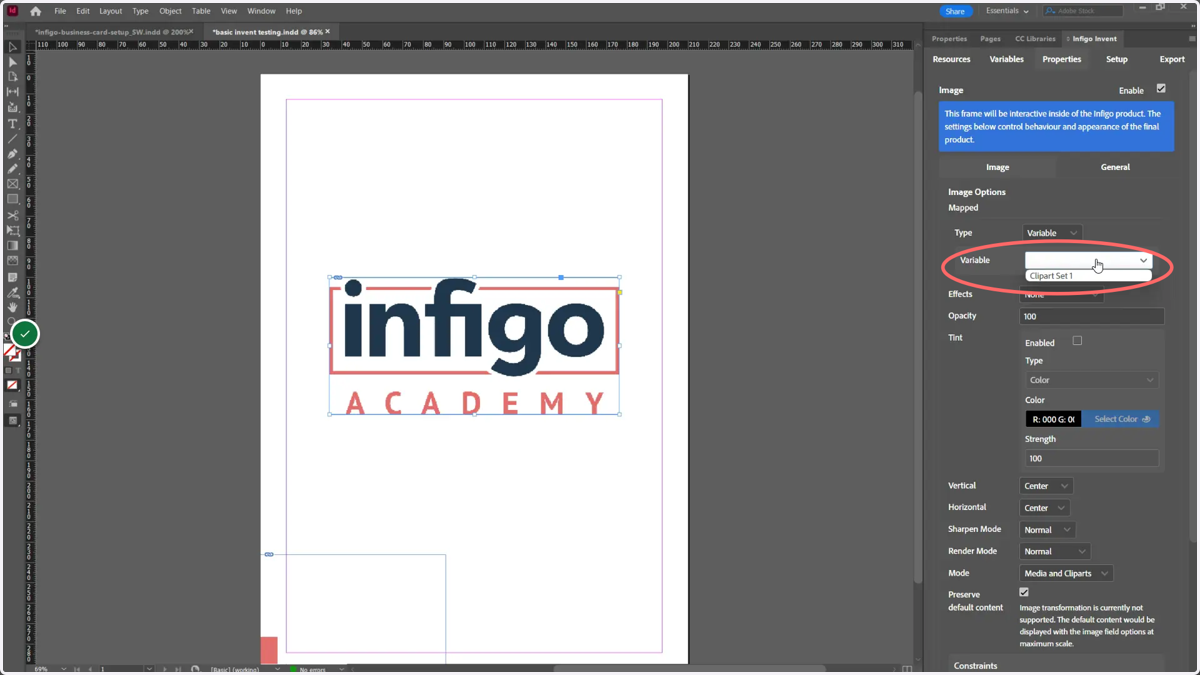
22. Select the variable to use
With Type Variable selected, a new field appears named Variable. From here, you can select between available variables in this Invent template.
23. Select Media and Cliparts from the Mode dropdown to enable the use of both resource types
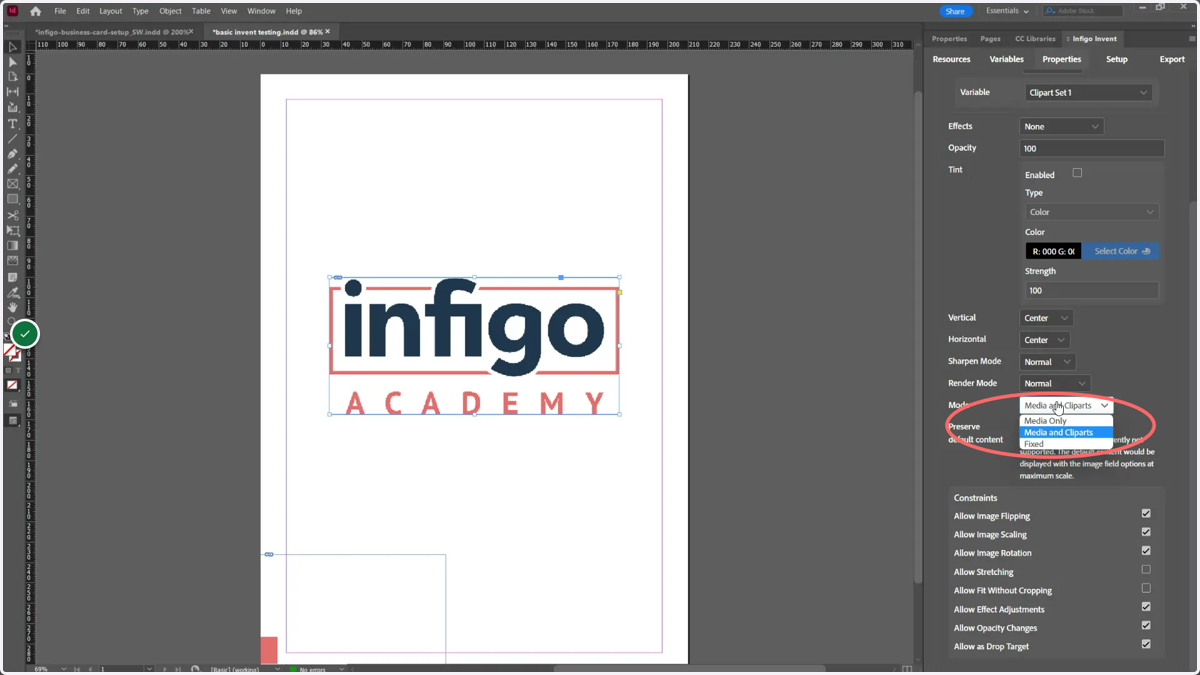
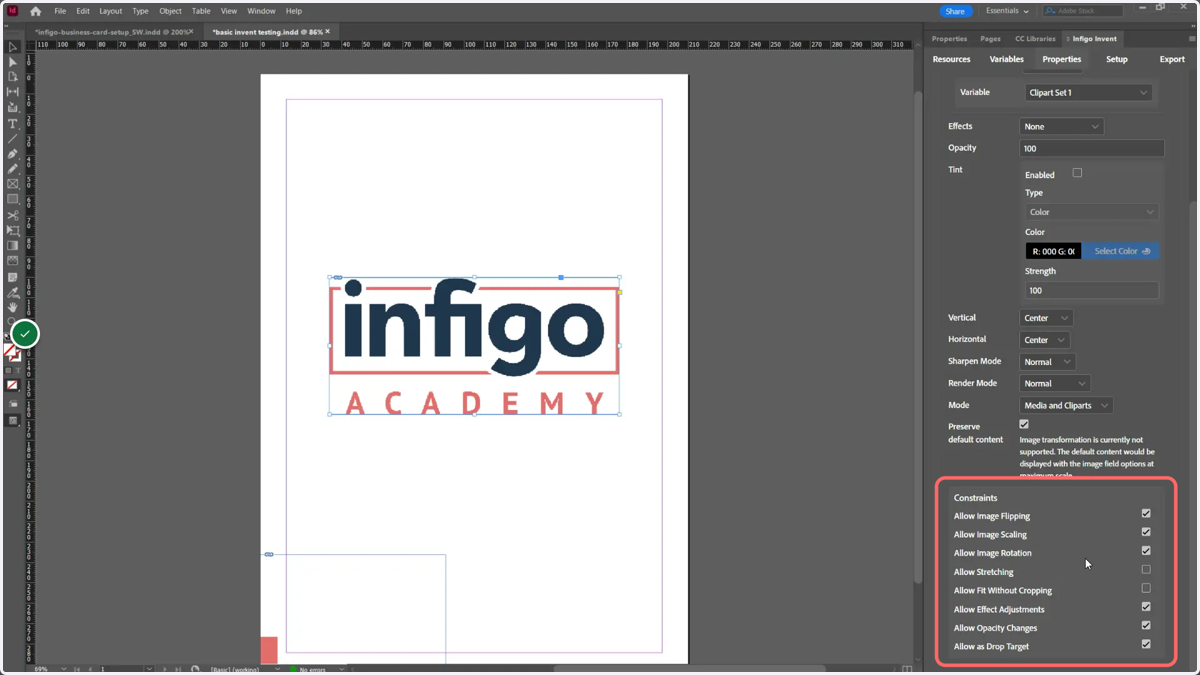
24. Review image constraints
Image constraints can be used to control the ways in which end users can interact with this image field in the MegaEdit editor.
For example, you can:
Limit transformations such as flipping or rotation
Force an image to resize within the frame rather than being cropped to fit the frame
Enable or disable effects such as opacity and shadows
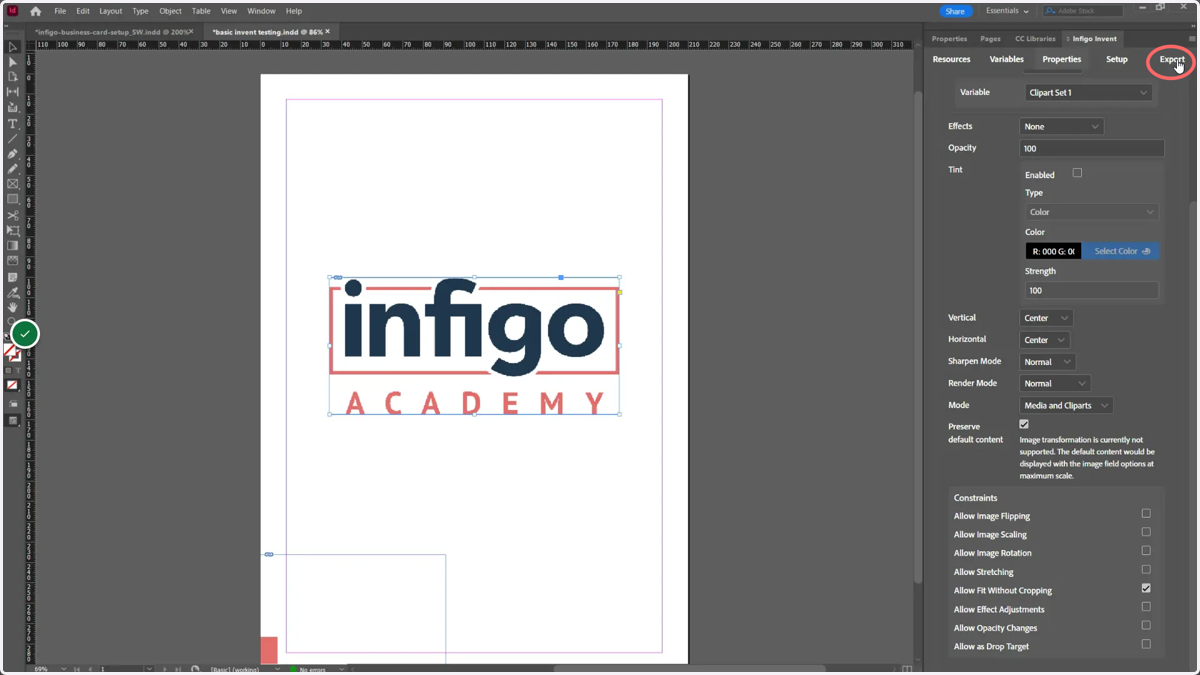
25. Navigate to the Export tab
From here you can obtain the MEX file which can be imported into your Infigo MegaEdit products to create a variable product template.
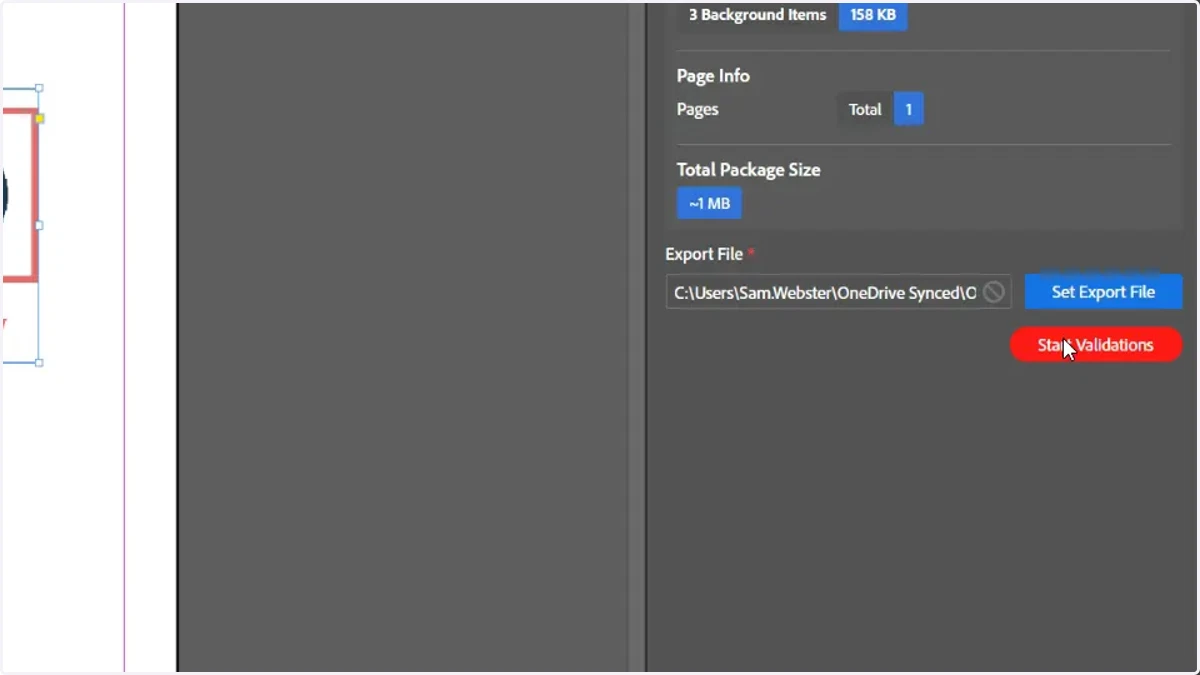
26. Click Start Validations and resolve any issues
adobe
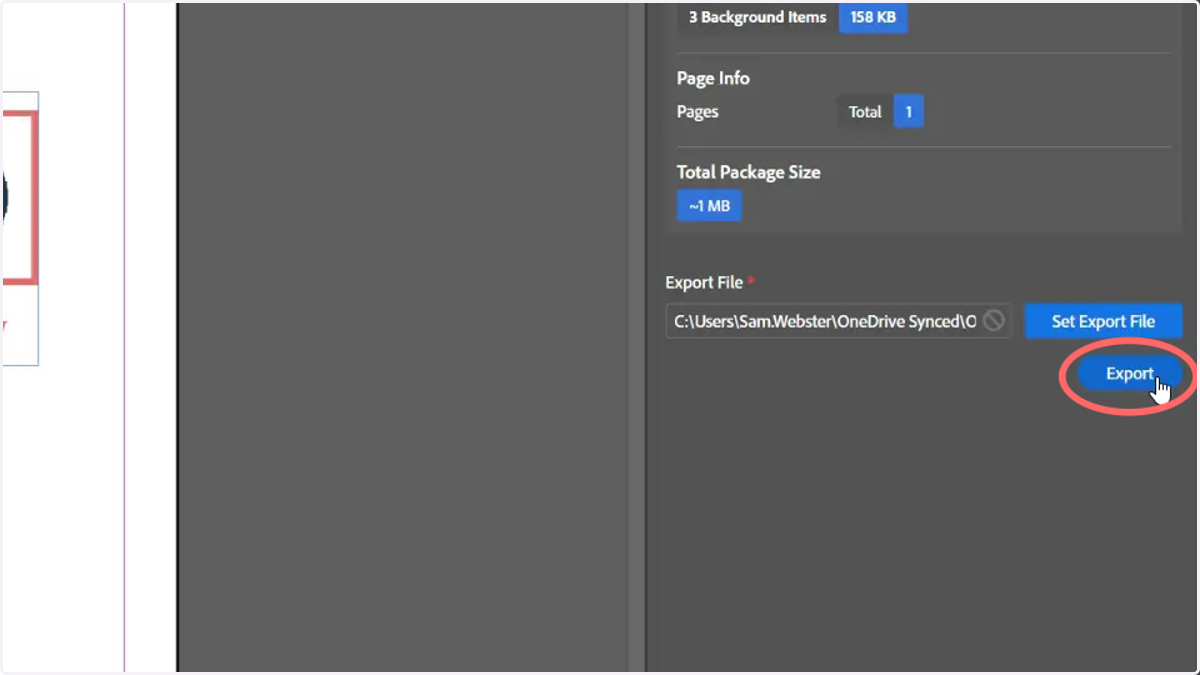
27. Click Export and save the MEX file
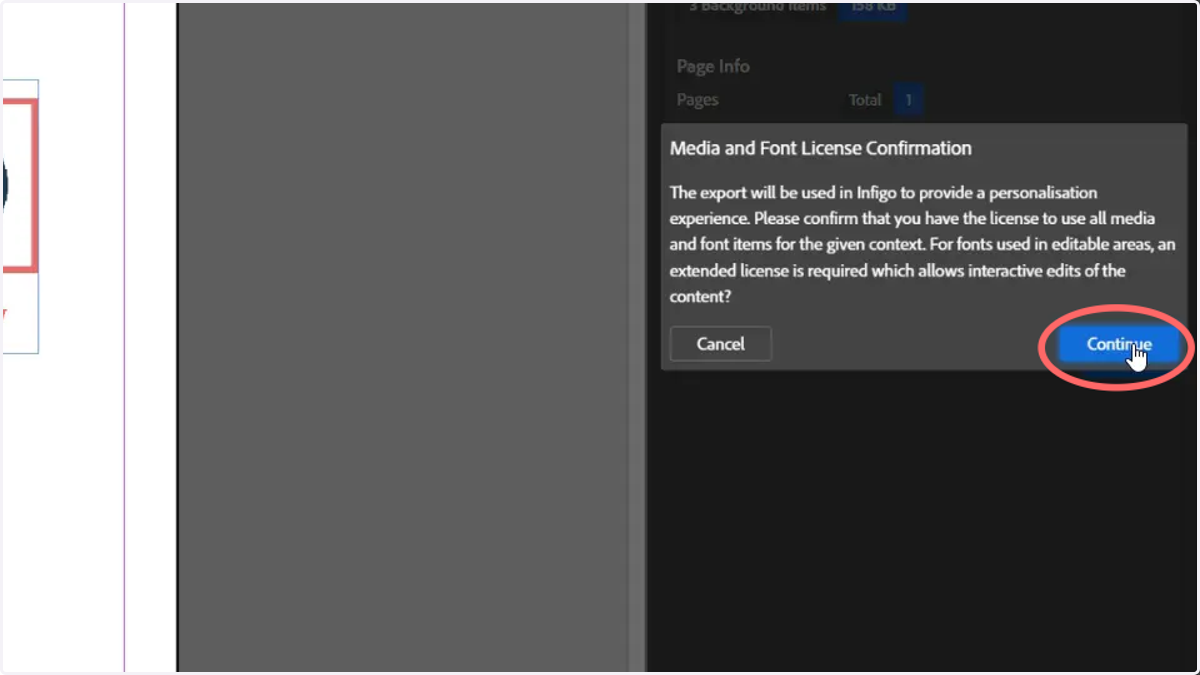
28. Review license information and click Continue
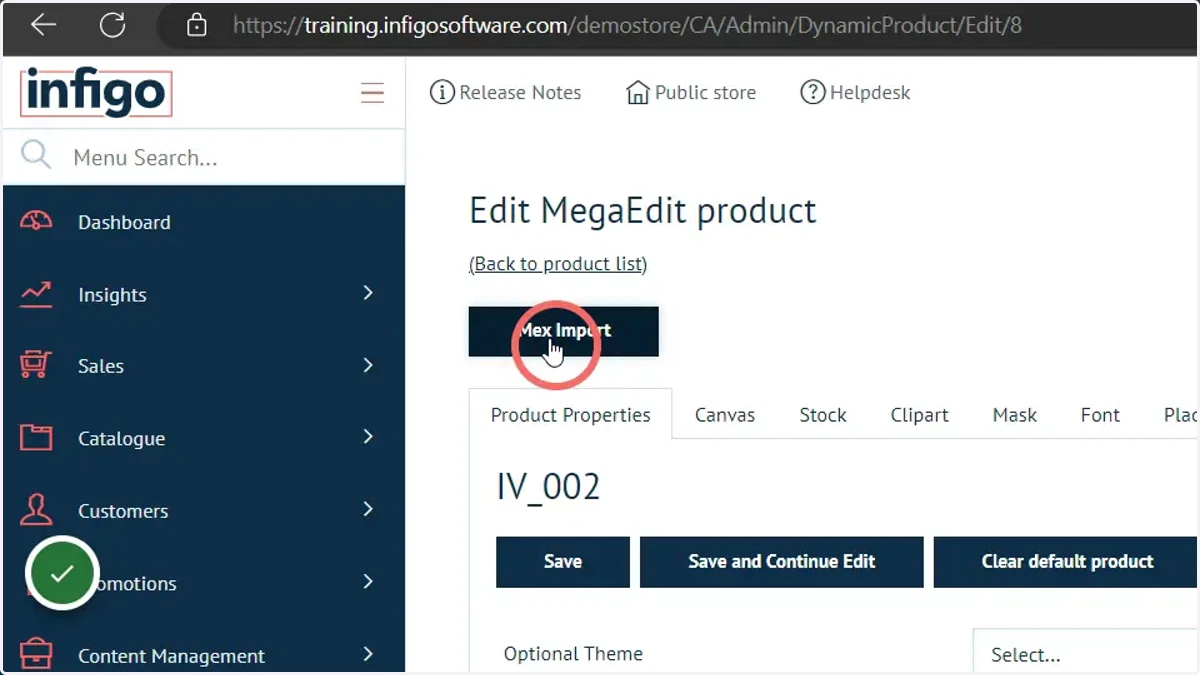
29. Navigate to your product's MegaEdit configuration settings and click MEX Import
Ensure you choose a product already defined as a MegaEdit product type.
This product does not need to have canvas, stock and output types defined. All of this information is created and selected as part of the MEX file.
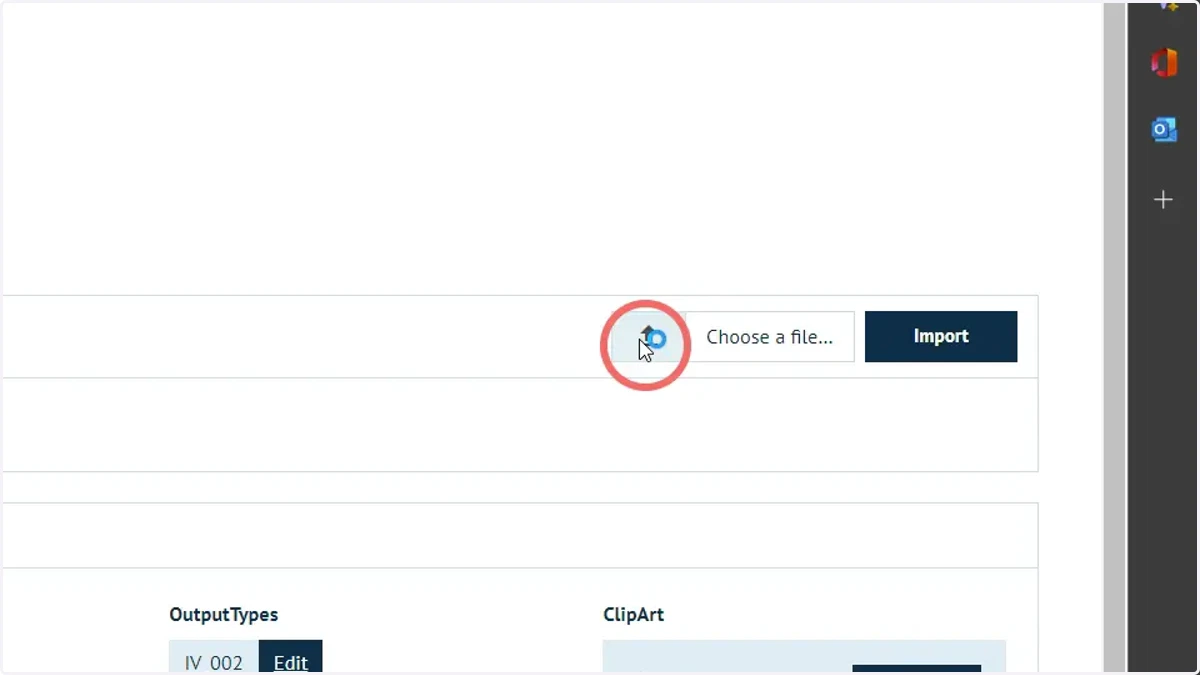
30. Click the upload icon, select an MEX file then Import
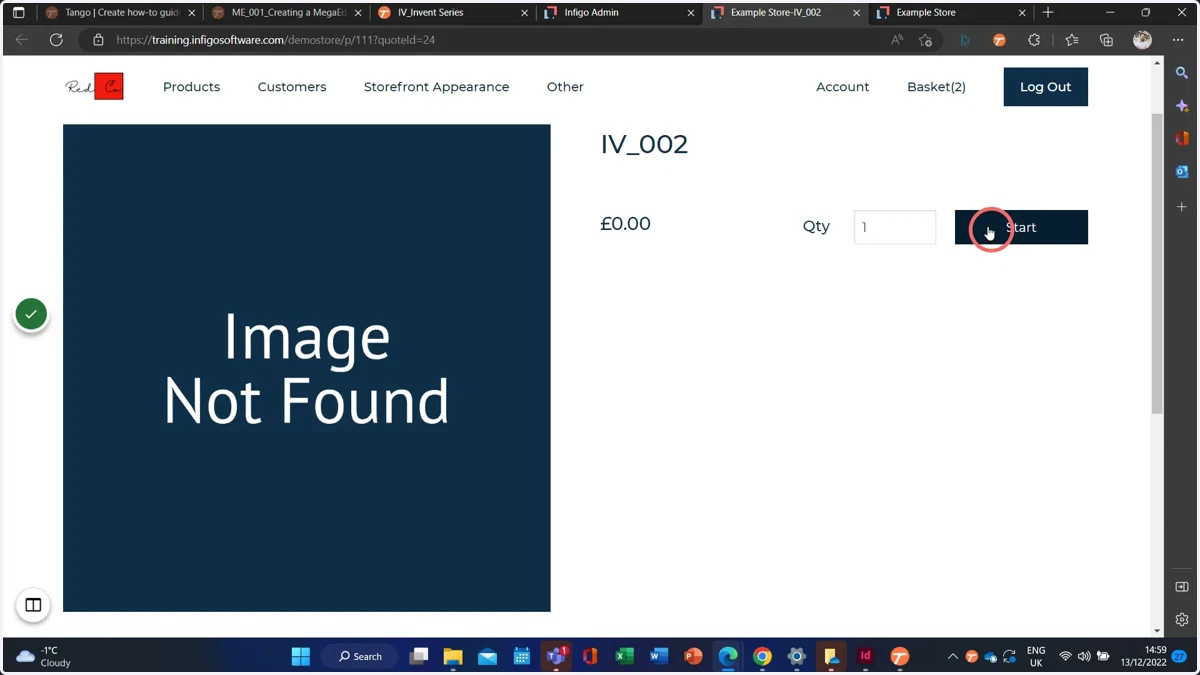
31. Launch the MegaEdit editor for this product
32. Review and test your variable image field
A form variable will be visible to the right of the screen. The contents of the form variable is the resource sets assigned to that variable.
As this variable is linked to one of the image fields on the canvas, changing the dropdown will change the image on the canvas.
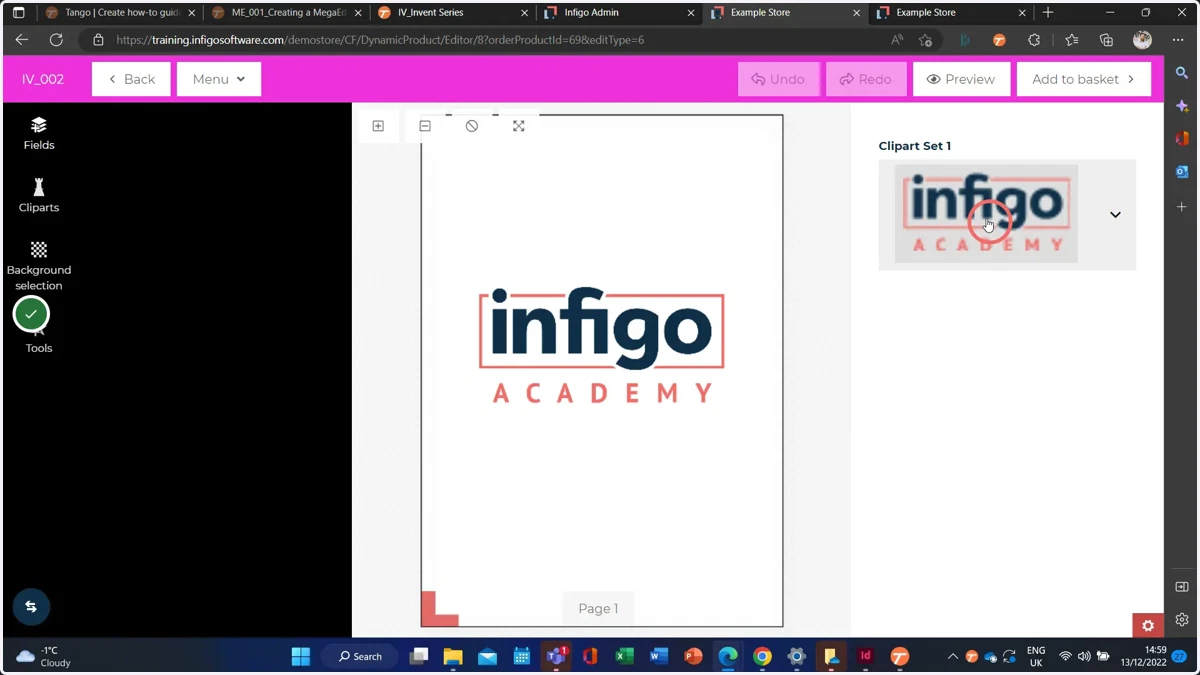
33. Click the variable dropdown and select between available resources
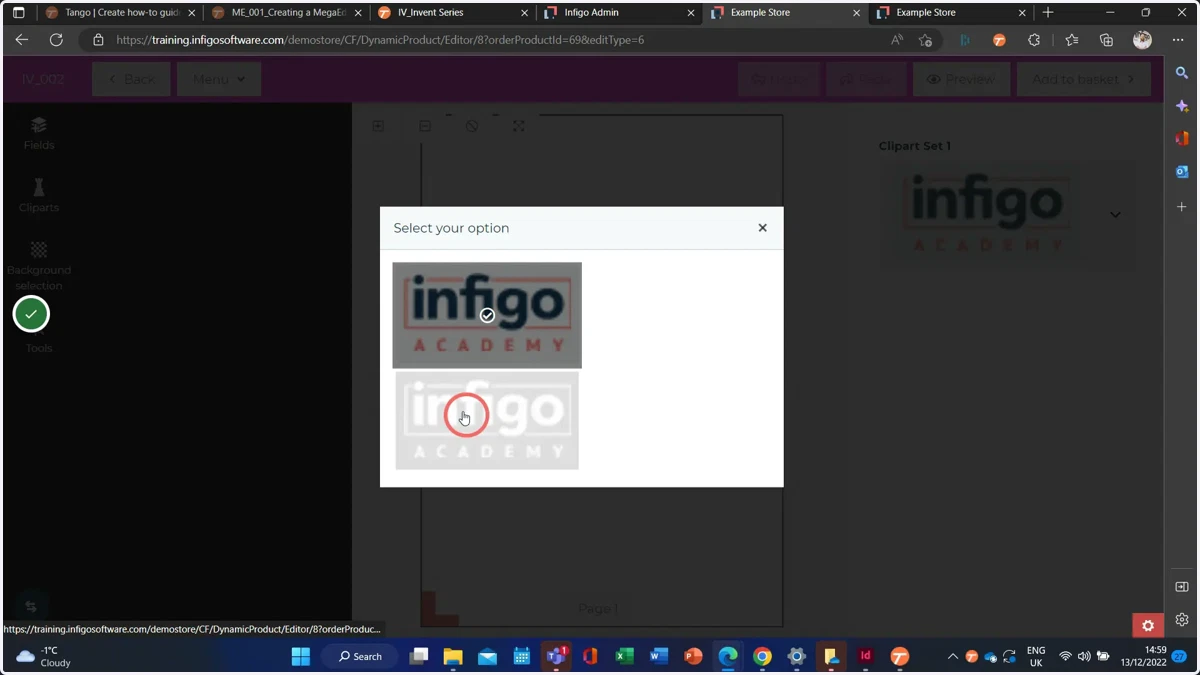
adobe
34. The utilised image will be updated
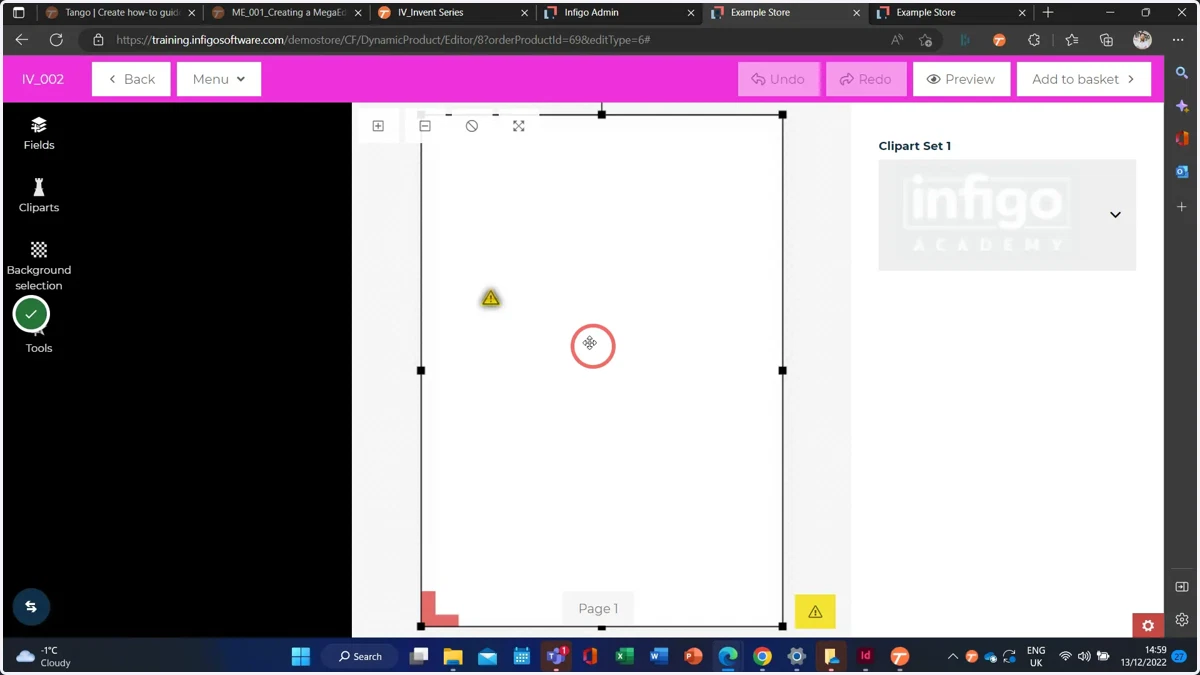
35. Example of modified image against a different background selection
Changing the background selection options is covered in a previous tutorial.
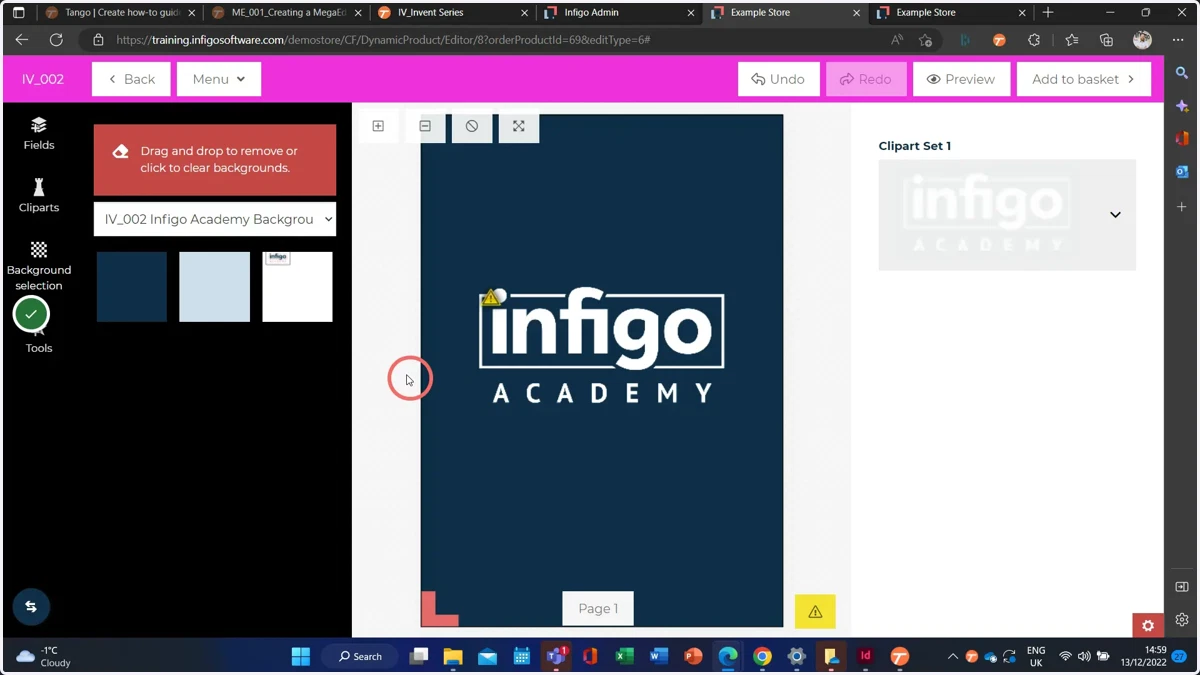
adobe
36. Background and image variation example