BG_027_Shared Print Operations (SPO)
This tutorial details the Shared Print Operations (SPO) tab, where administrators, print operators and other approved users can access information related to orders placed on your storefront.
Prior to exploring the SPO tab in Infigo's admin area, we will simulate placing an order on our storefront.
1. Add items to your basket
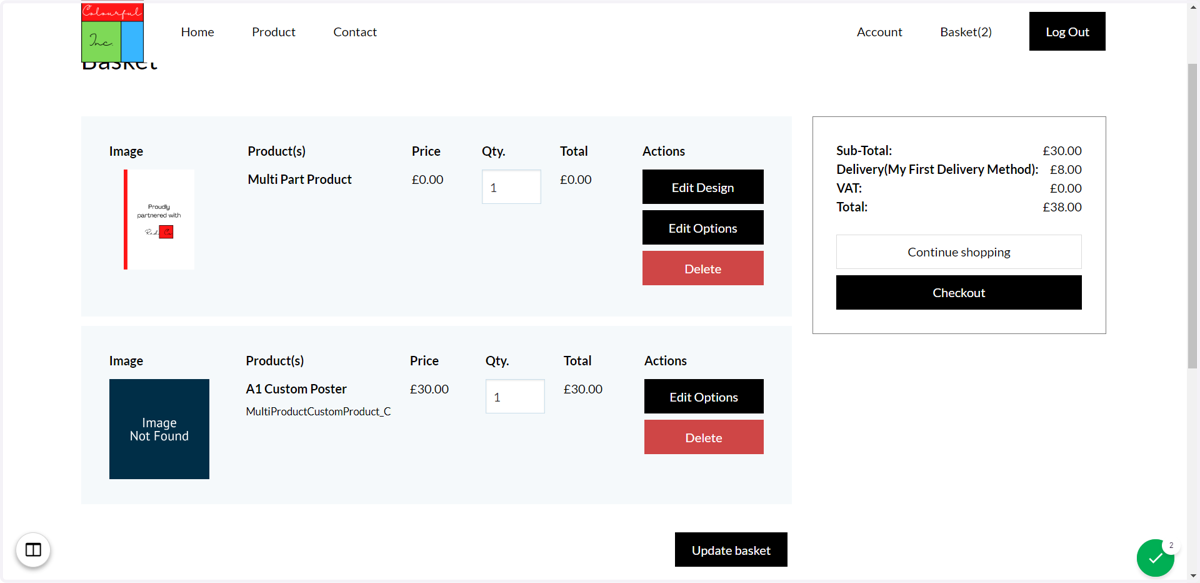
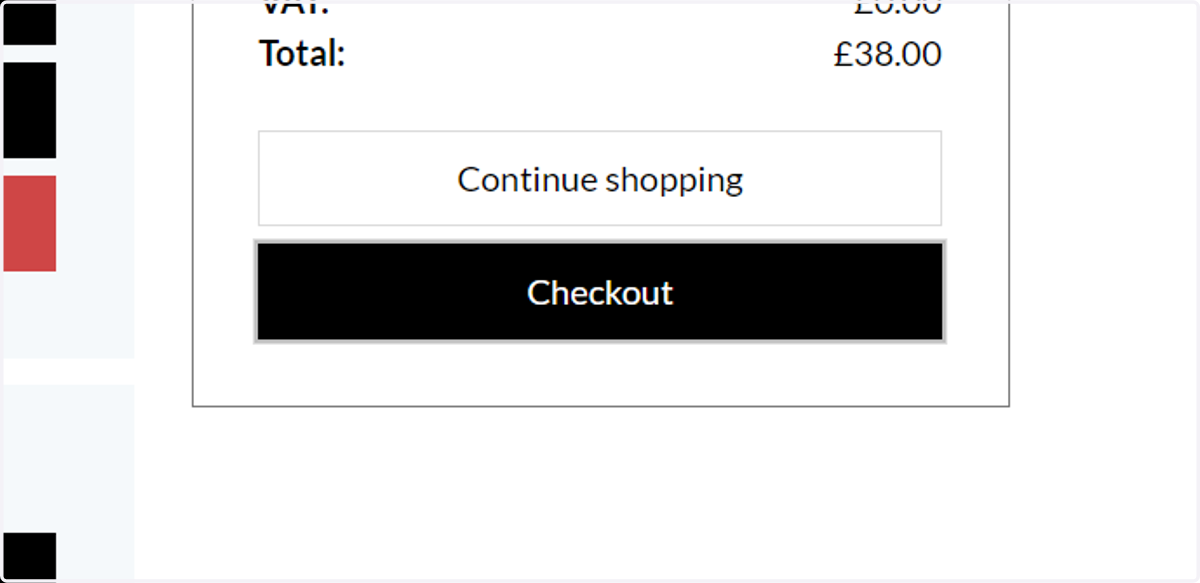
2. Click on checkout to process the order
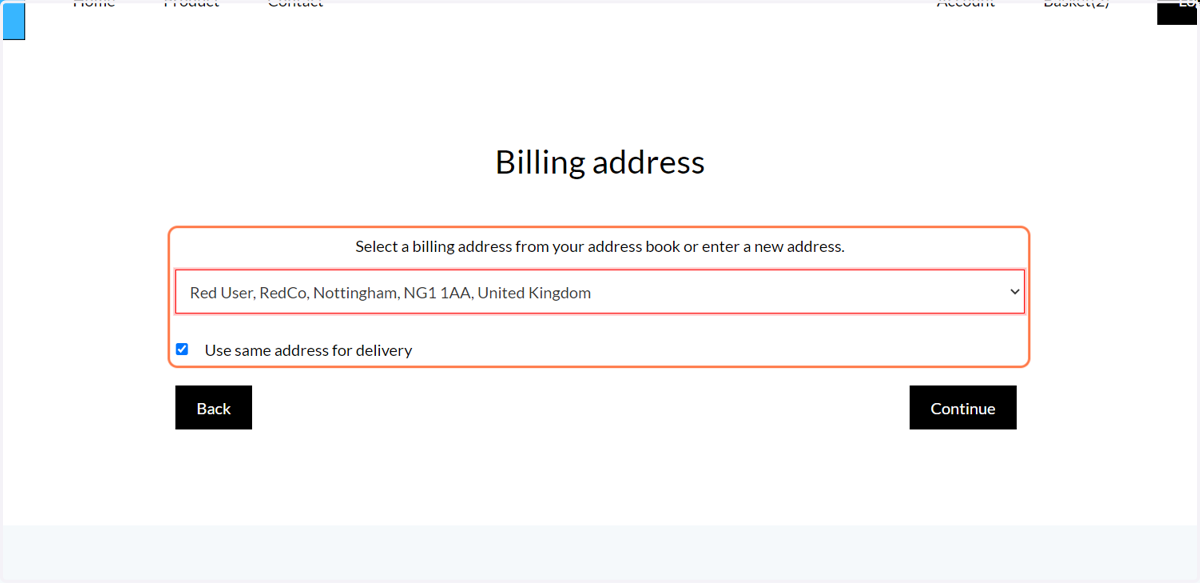
3. Select an existing address or add a new address.
Customers can specify whether to use the same billing and shipping address.
4. Click on Continue
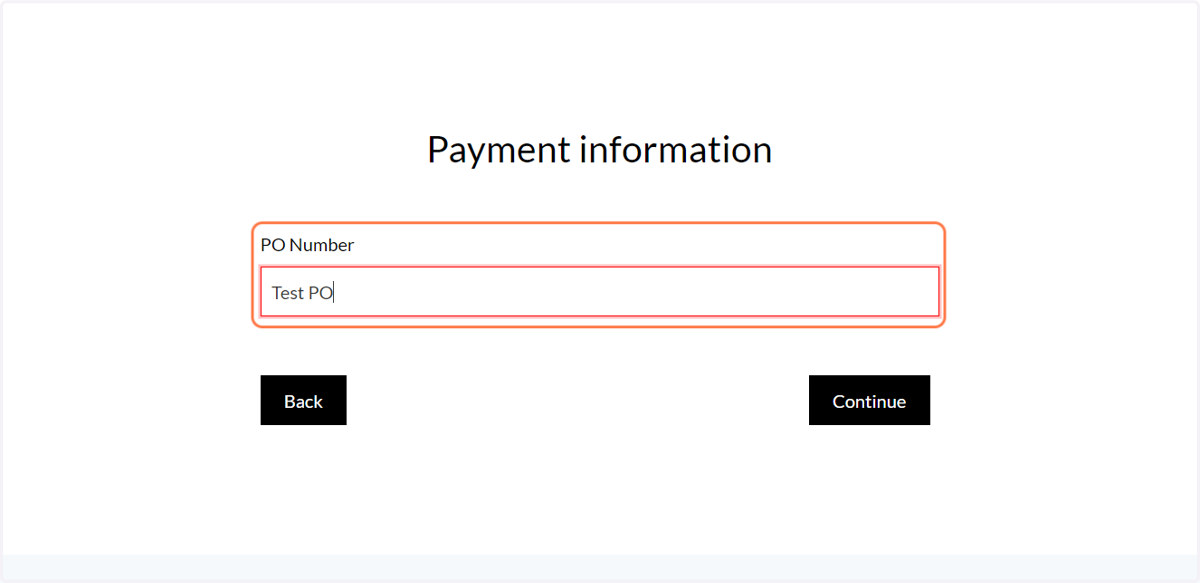
5. Fill in the details for your payment method
In our example storefront, the only enabled payment option is Purchase Order.
The Purchase Order option is great for testing purposes, as you can place an order on your storefront without any interaction with third party applications and no money has to actually be exchanged.
This screen will update to reflect the payment methods available on your t
6. Click on Continue
7. Click on Confirm to place the order
8. Your order has been placed
The details of this order will now be available in the admin area.
One location of these order details is the Shared Print Operations (SPO).
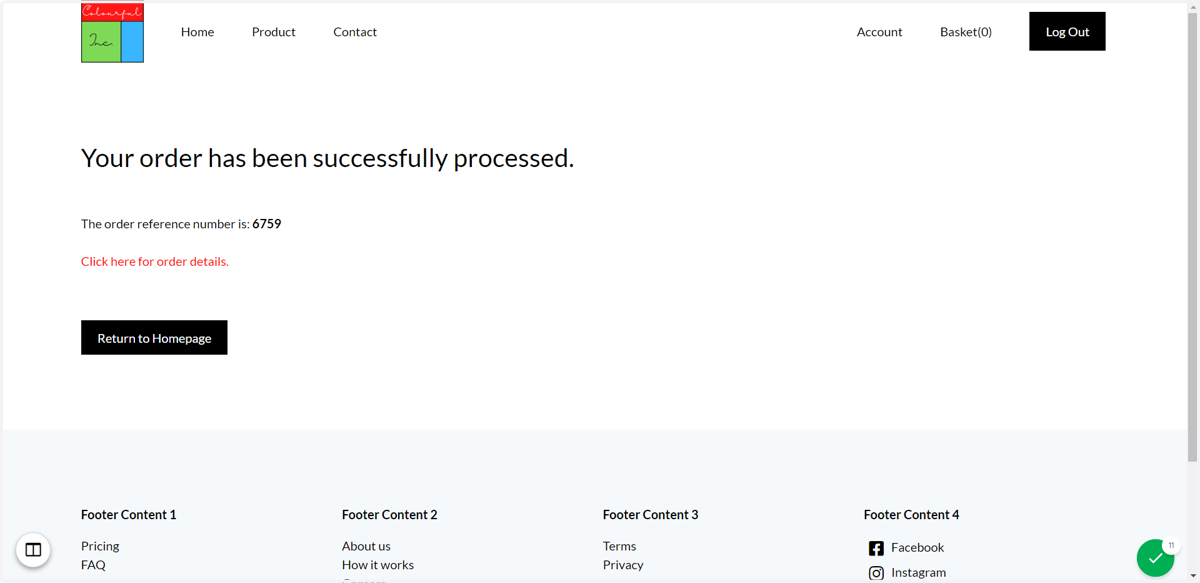
9. A customer can click on Click here for order details to view the details of their orders.
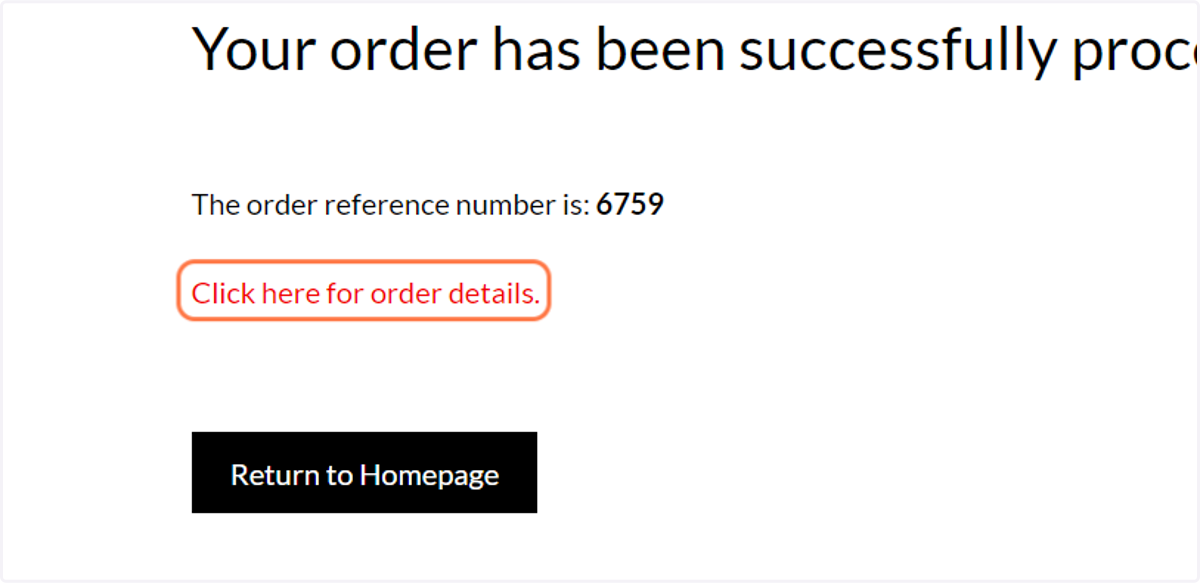
10. Their order details are visible in their user account area
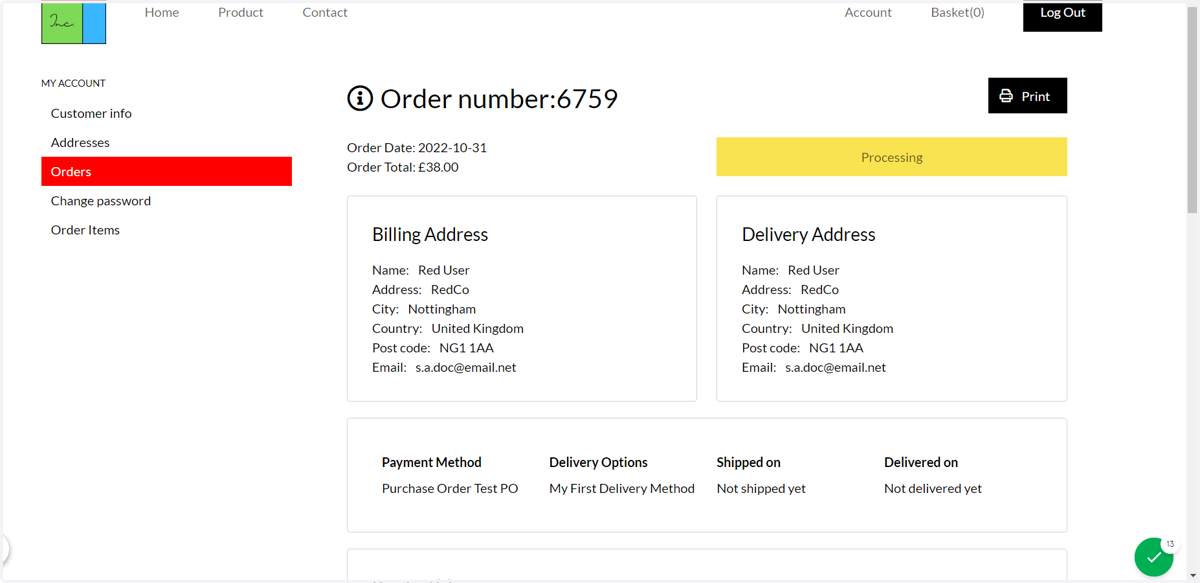
11. In the Infigo admin area, click on Shared Print Operations (SPO)
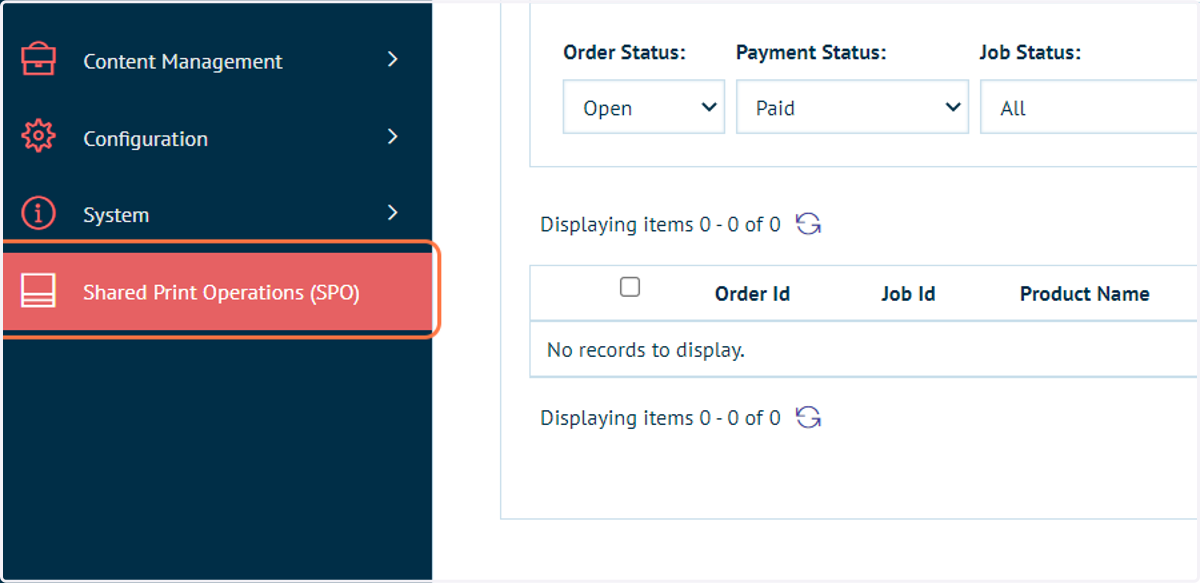
12. Locate your jobs
An order placed on your storefront can be made up of multiple product types, such as Stock, Static PDF or MegaEdit. These ordered products will be separated into tabs containing details separated by product type.
Variable Products | Relates to products generated via the Infigo Editor
Static Products | Static PDF products
Multi Part Products | Custom PDF uploads
Other Orders | Stock products
MegaEdit Products | Products generated via the MegaEdit editor
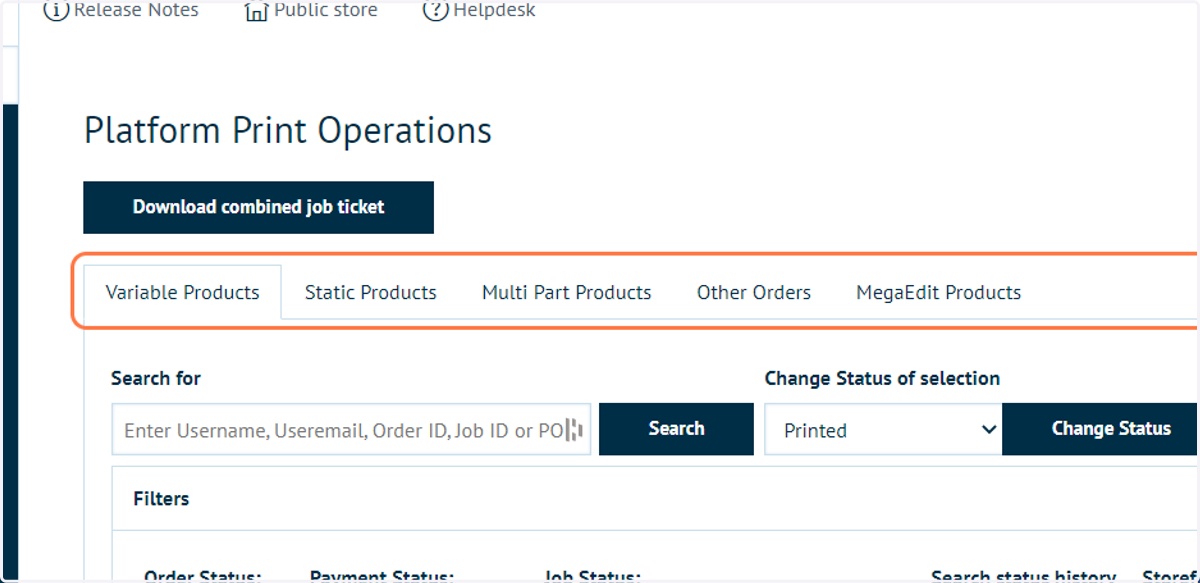
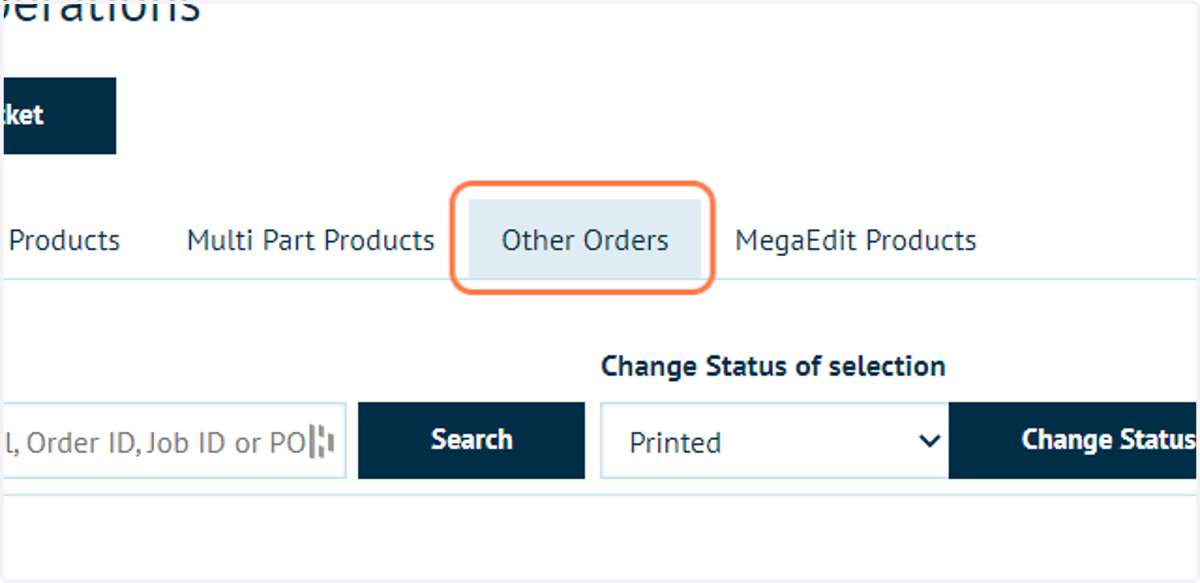
13. Click on Other Orders
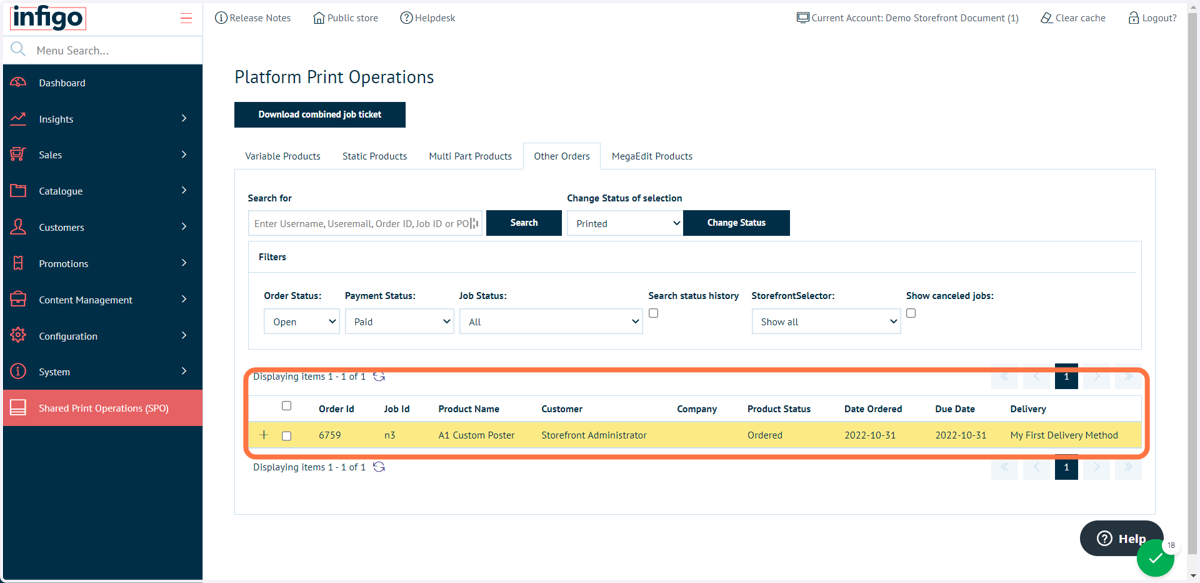
14. Review order details
Our sample order contained one Stock type product, with details visible under the Other Orders tab.
General order details can be seen, with additional detail viewed using the "+" icon.
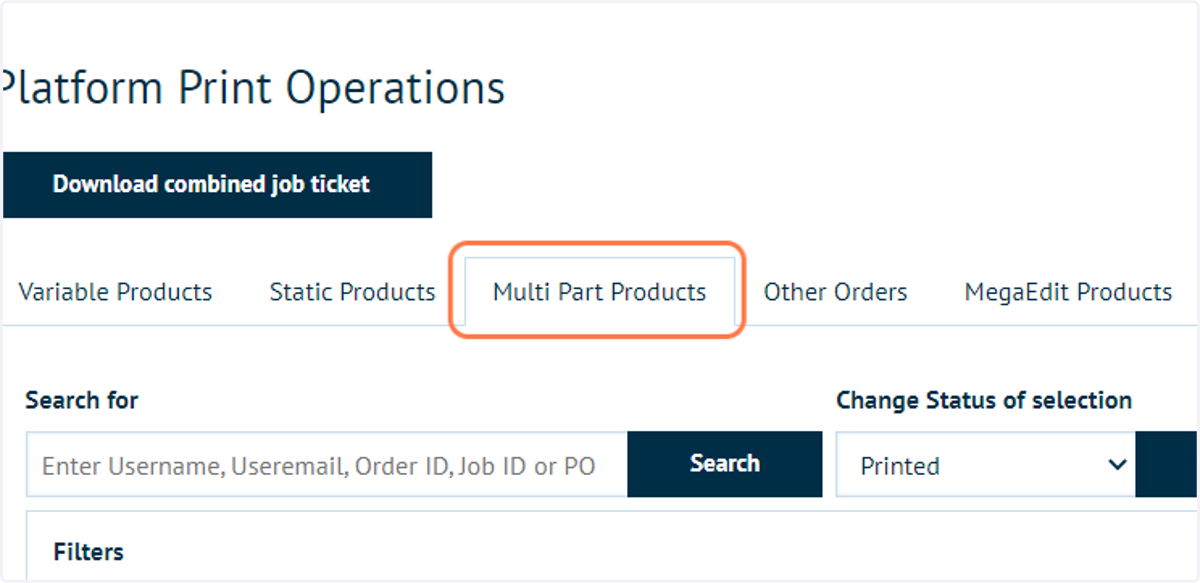
15. Click on Multi Part Products
16. Review ordered Multi Part product
The second item on our sample order was a Multi Part product. I.e. a PDF directly uploaded by the storefront customer.
The details of this order are visible under the "Multi Part Products" tab, with additional detail viewed using the "+" icon.
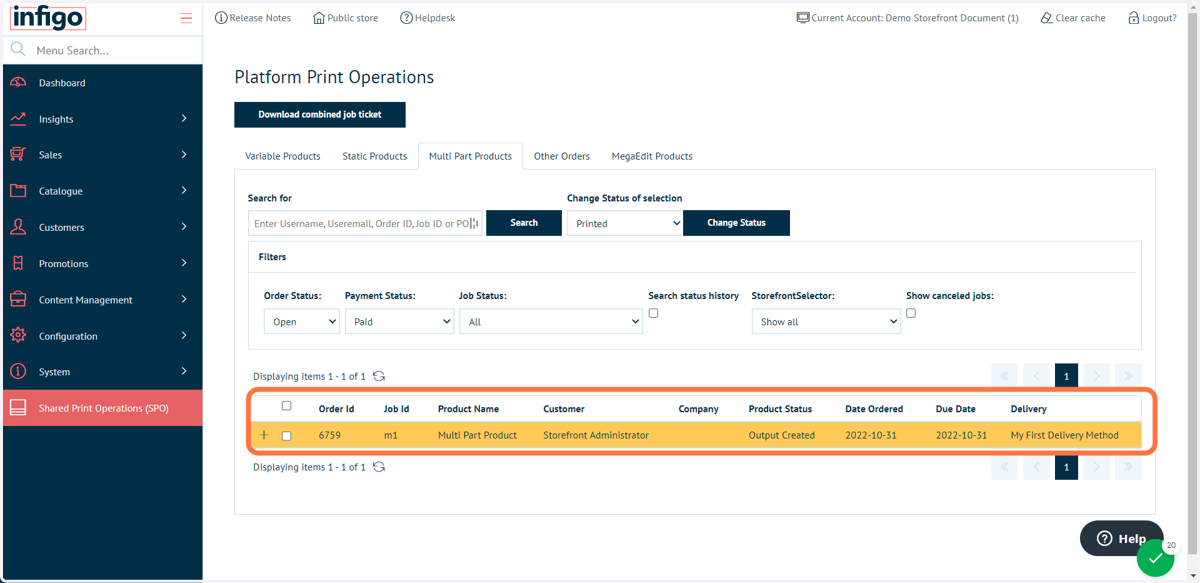
17. Click on "+" icon to show additional detail
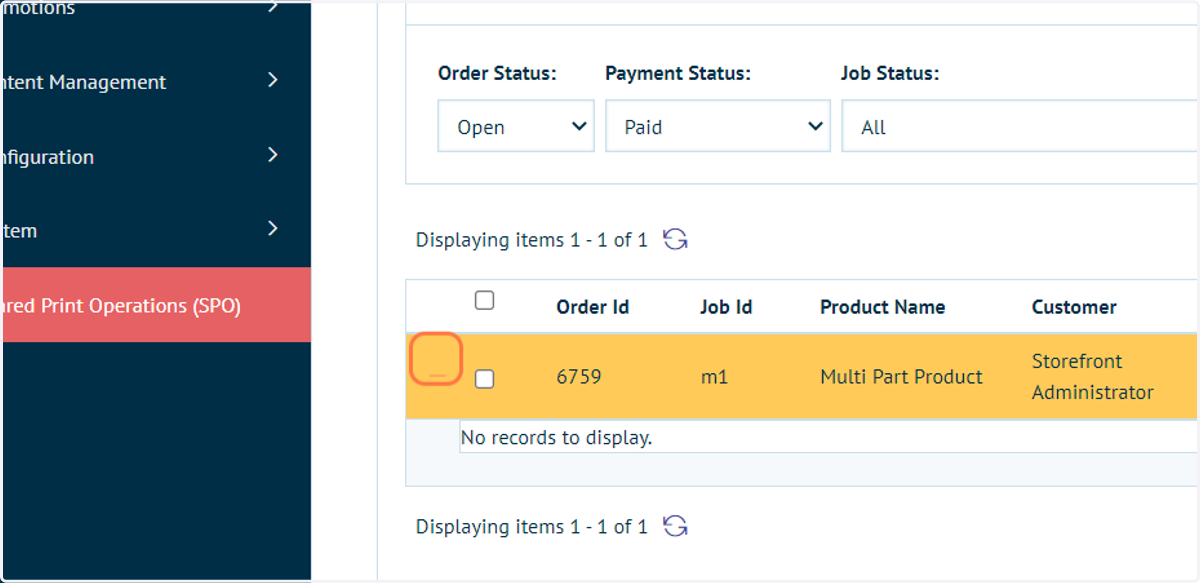
18. Customer table
Shows general details on the storefront customer placing the order.
Customer details can be manually edited from this table if necessary.
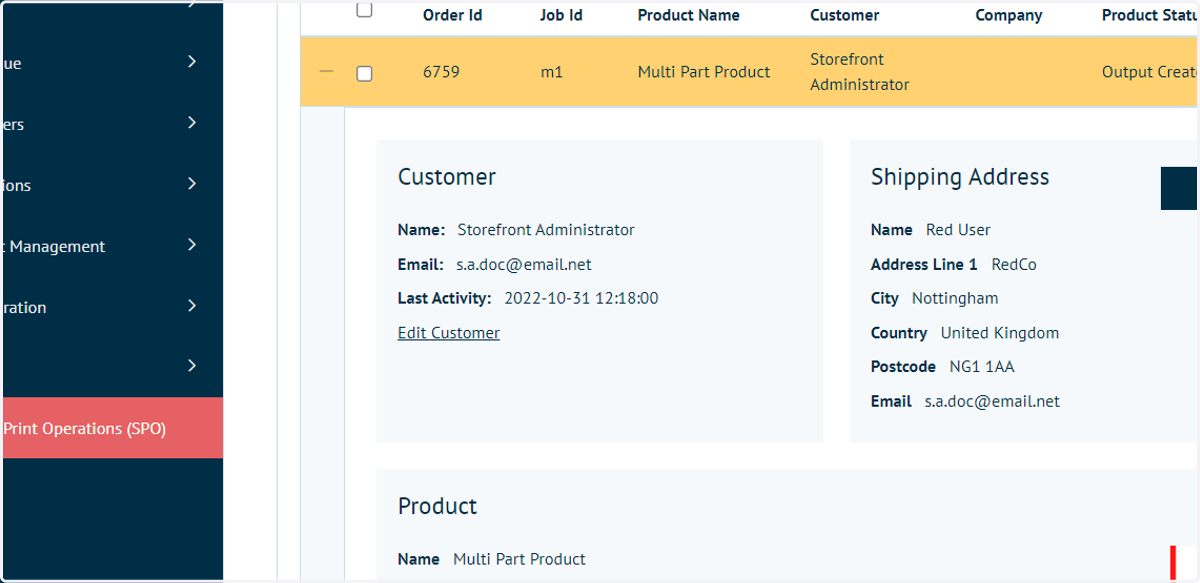
19. Shipping address
Shipping details specified by the customer during the checkout process.
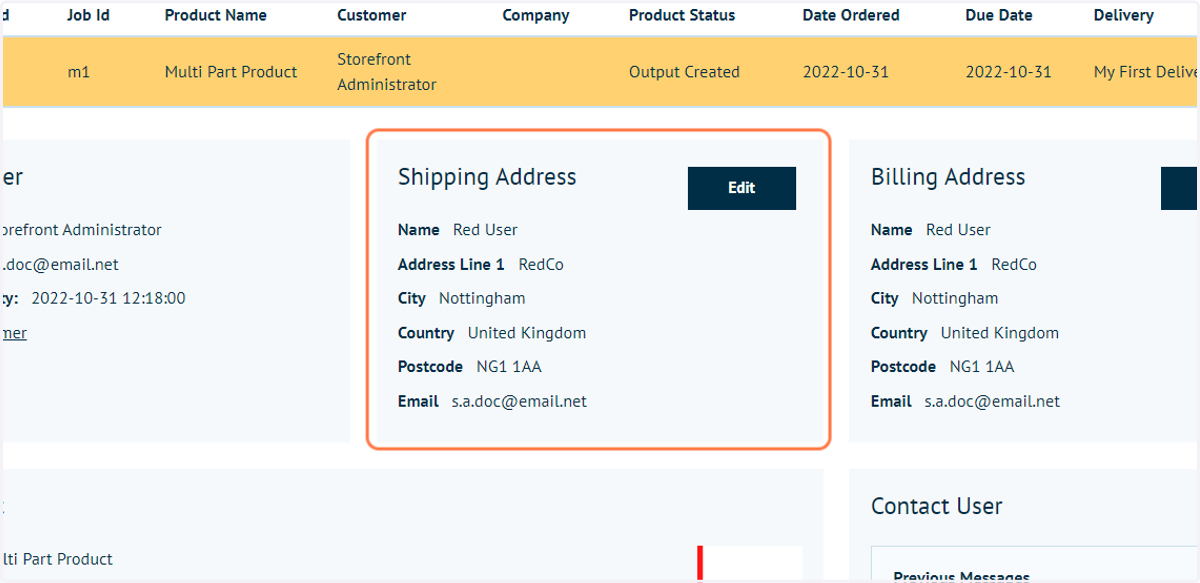
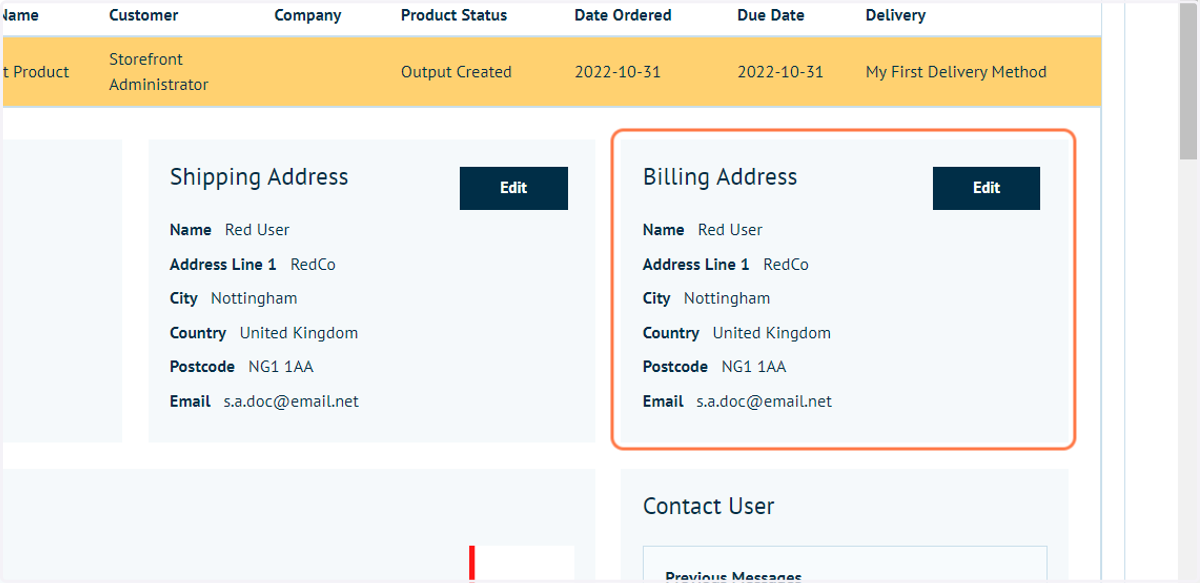
20. Billing address
Billing details specified by the customer during the checkout process.
21. Product
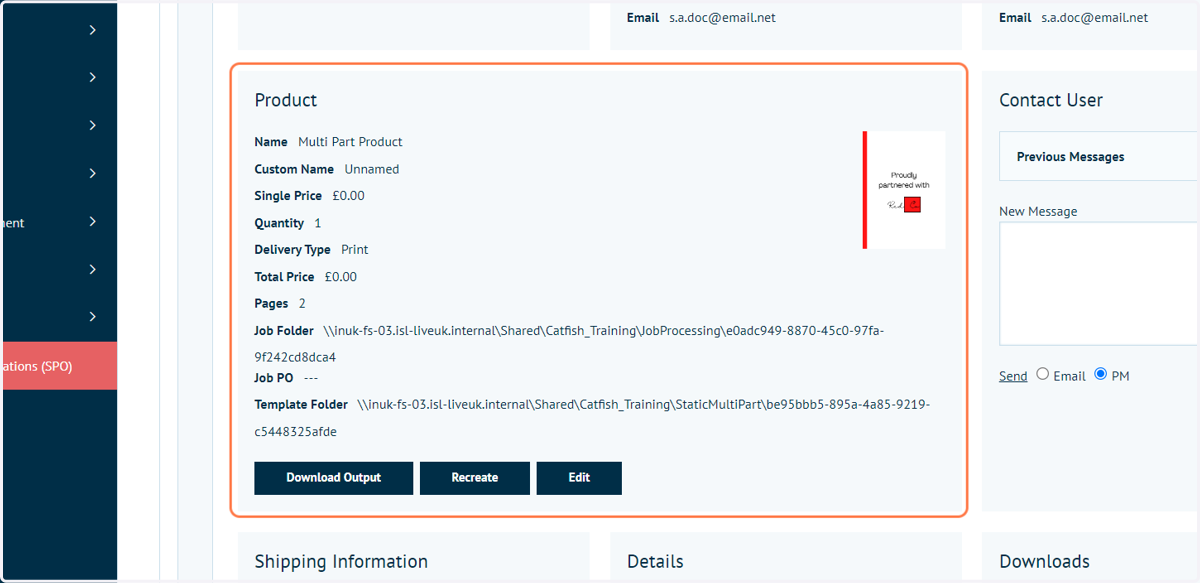
Contains details of the product included in the order. This section may have a slightly different appearance based on the type of product.
Where a PDF has been created or provided as part of the order process (such as with a Multi Part product, Static PDF or MegaEdit product), this screen will provide details of that job, along with the ability to download the Output PDF ready to print the job.
Should the Output PDF not be available, it can be generated again using the "Recreate" button.
The product can be manually edited from this area should any post order changes be required.
22. Contact User
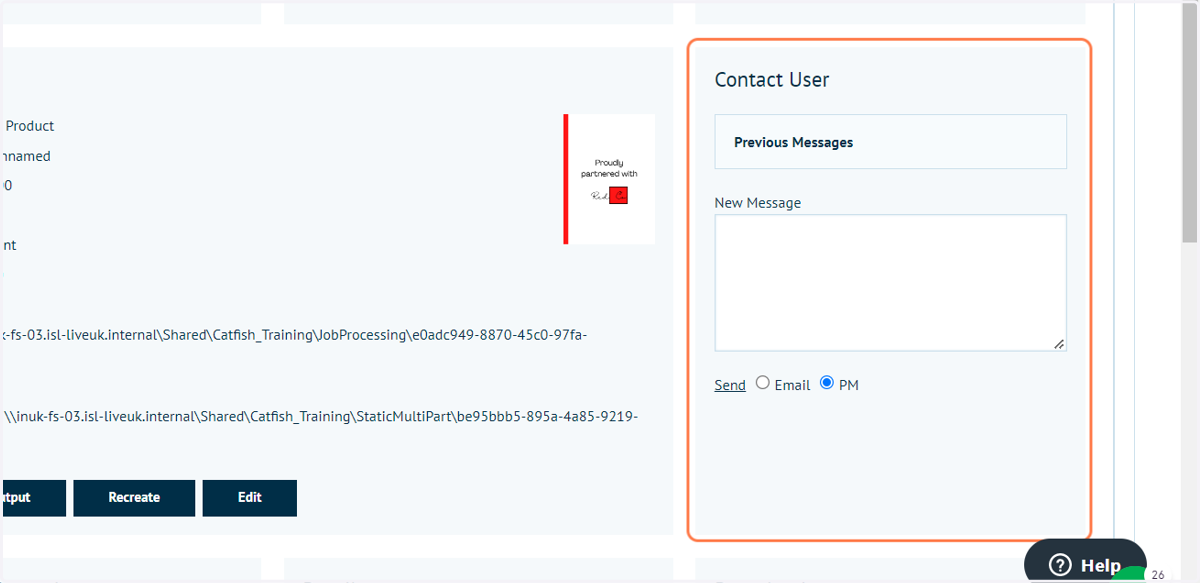
The customer can be contacted from this area, either via direct private message or via email.
This is useful if any additional information is required by the print operator in order to carry out the job.
23. Shipping Information
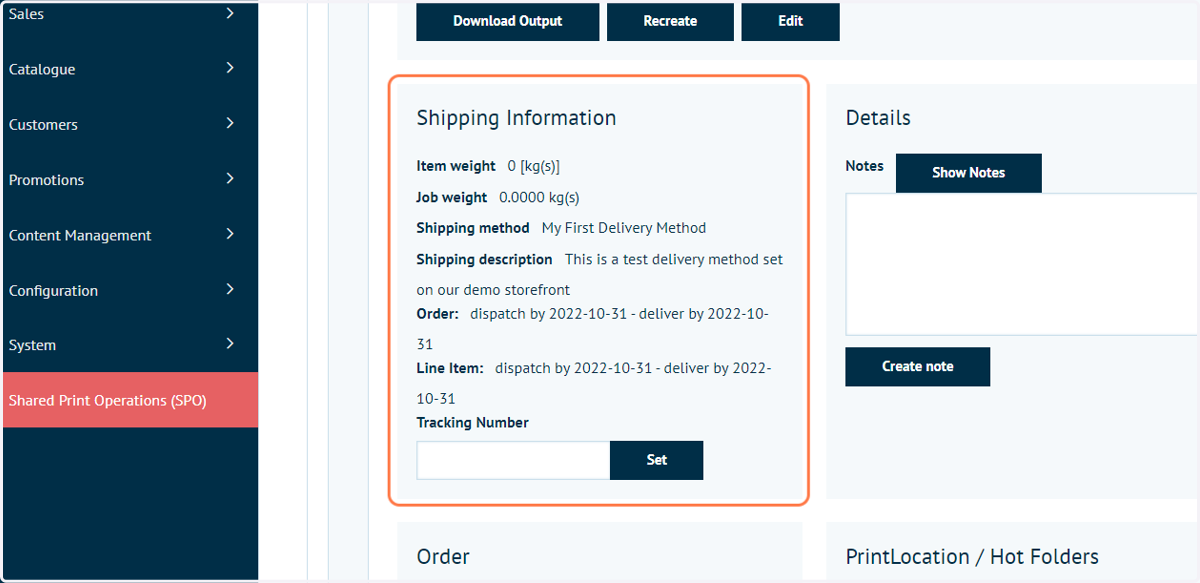
Delivery/Shipping details are provided in this area, including the selected delivery method, item and job weight (reliant on product weights being specified).
Additionally, expected dispatch and delivery dates are generated using the information specified on your delivery settings.
If a tracking number is generated or obtained, the administrator or print operator can paste it in here allowing all parties to track an order.
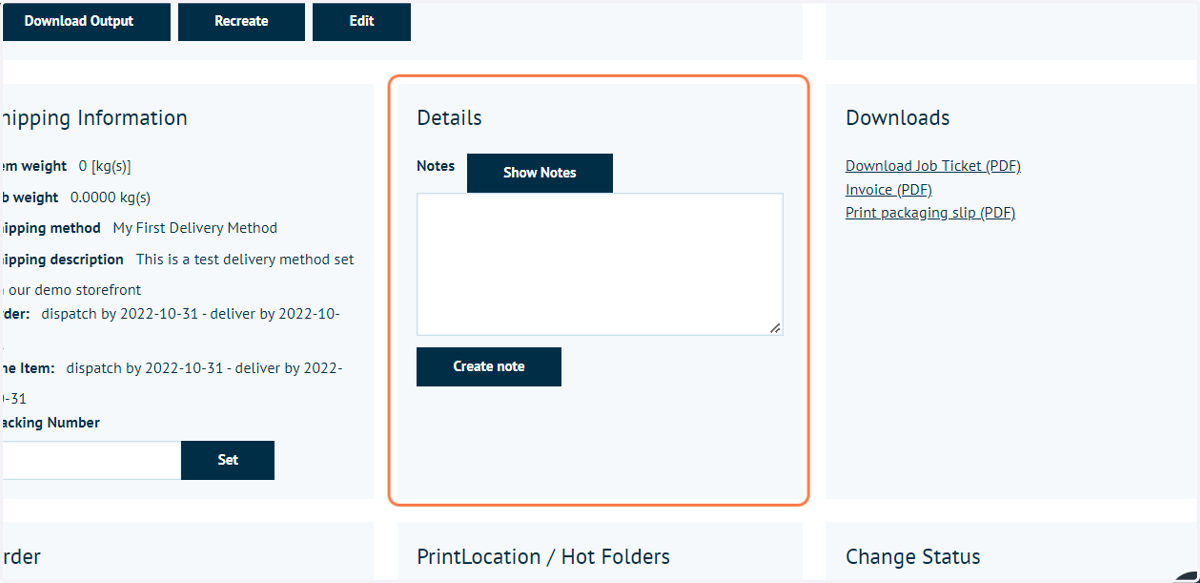
24. Details
An area for administrative only notes. These will be saved with the order but are not visible to the customer.
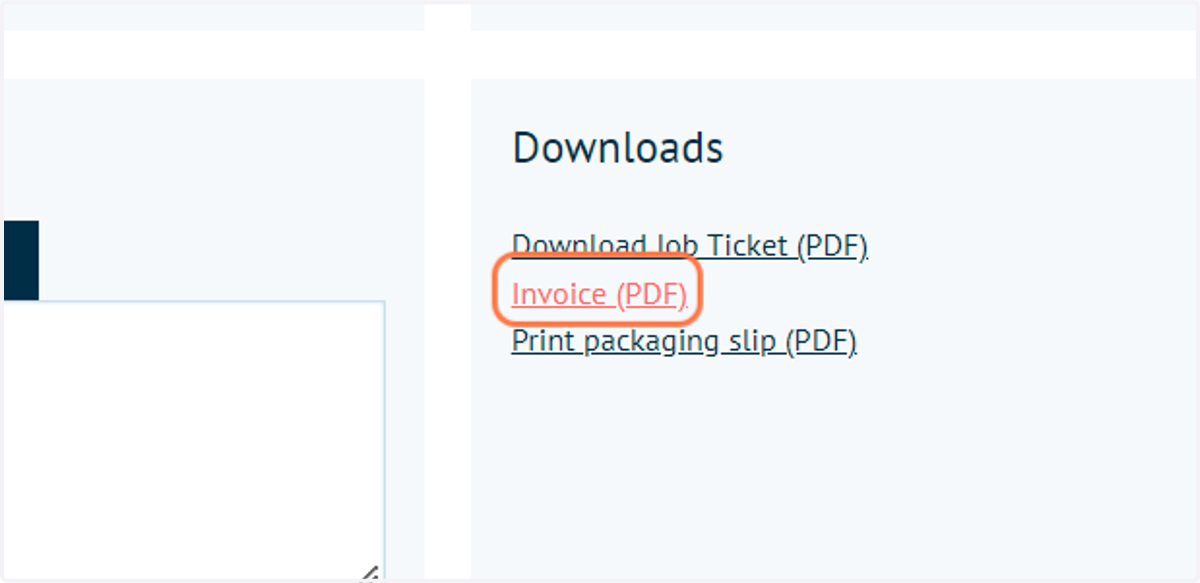
25. Downloads
SPO automatically generates several documents containing critical order based data.
The default versions of these documents are Infigo branded and contain standard job information.
It is possible to customise the content and branding of these documents. Please contact Infigo support for assistance with this.
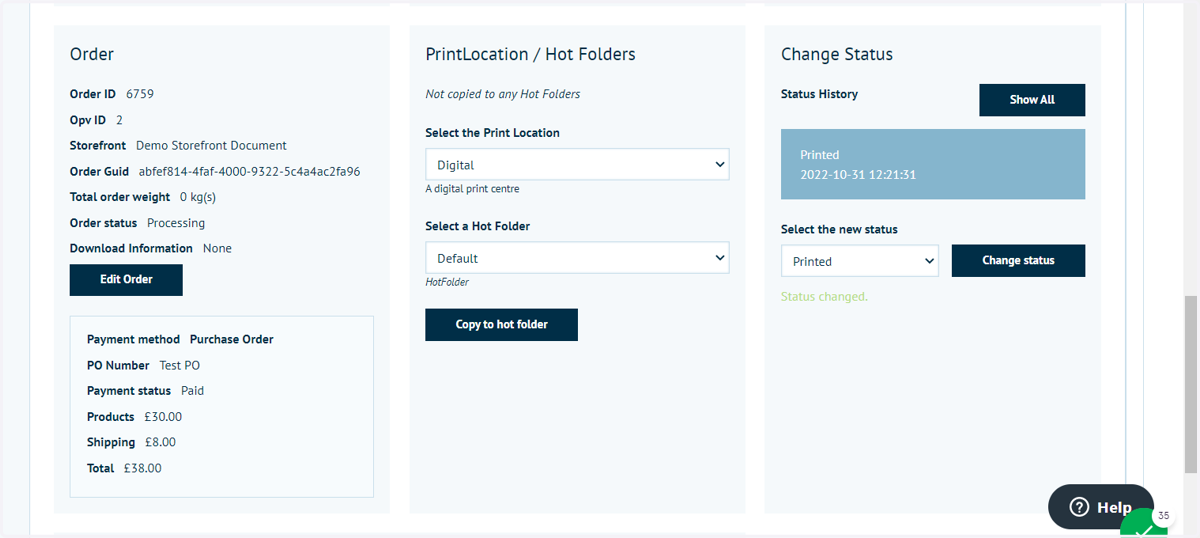
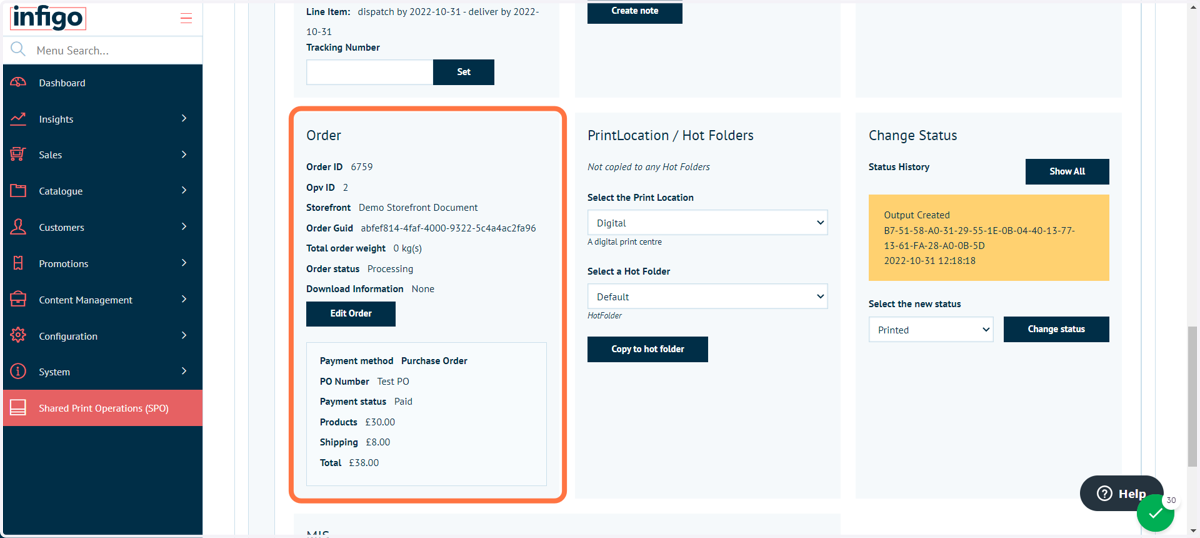
26. Order
General order details, including the storefront of origin, payment details and current order status.
These details can be manually amended from this table if required.
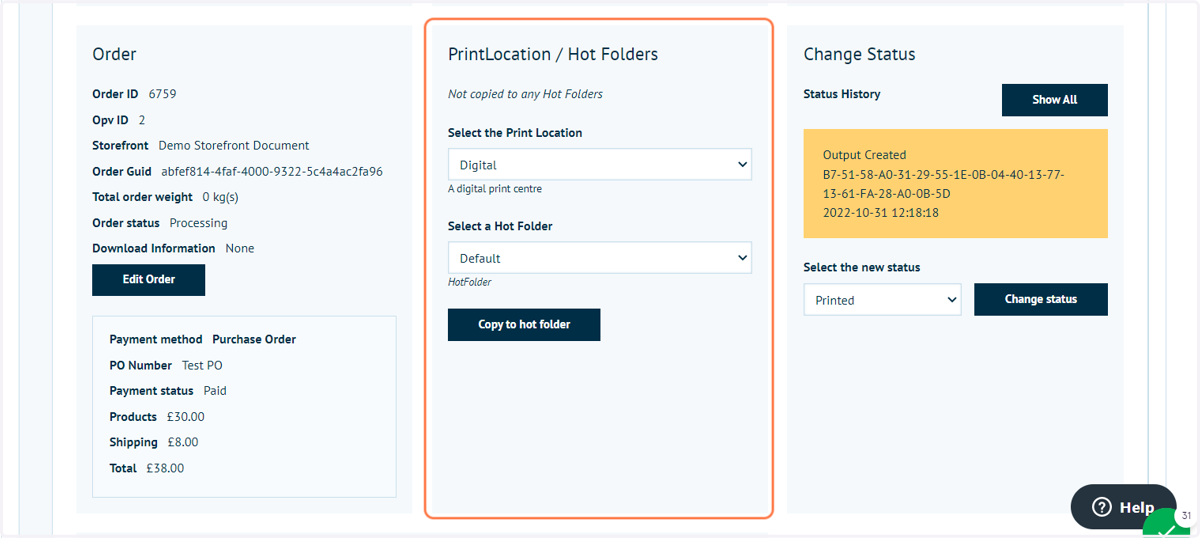
27. PrintLocation / Hot Folders
The concept of hot folders and Print Locations is to allow routing of specific jobs (output files).
A print location, by definition, should be thought of as a separate location where production happens. Hot folders are then created and assigned to a print location so that you can manage what folders jobs will be pushed into for that specific print location.
In this section, you can select from a list of print locations and hot folders, which an administrator has defined elsewhere in Infigo.
28. Change Status
Show's the current status of the print job, with the ability to update to a new status. This will be used, for example, if a job is to be marked as "Printed" or "Shipped". This may trigger additional actions such as sending an email to the customer.
In addition, a history of status changes can be reviewed. This allows team members to see how a job has progressed through the system.
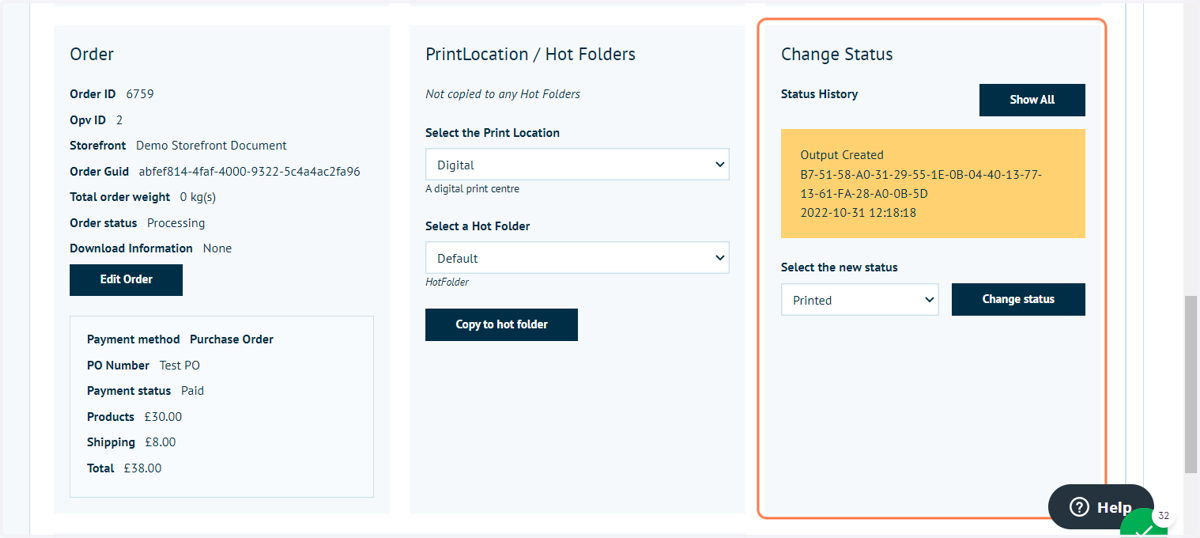
29. Click on Change status
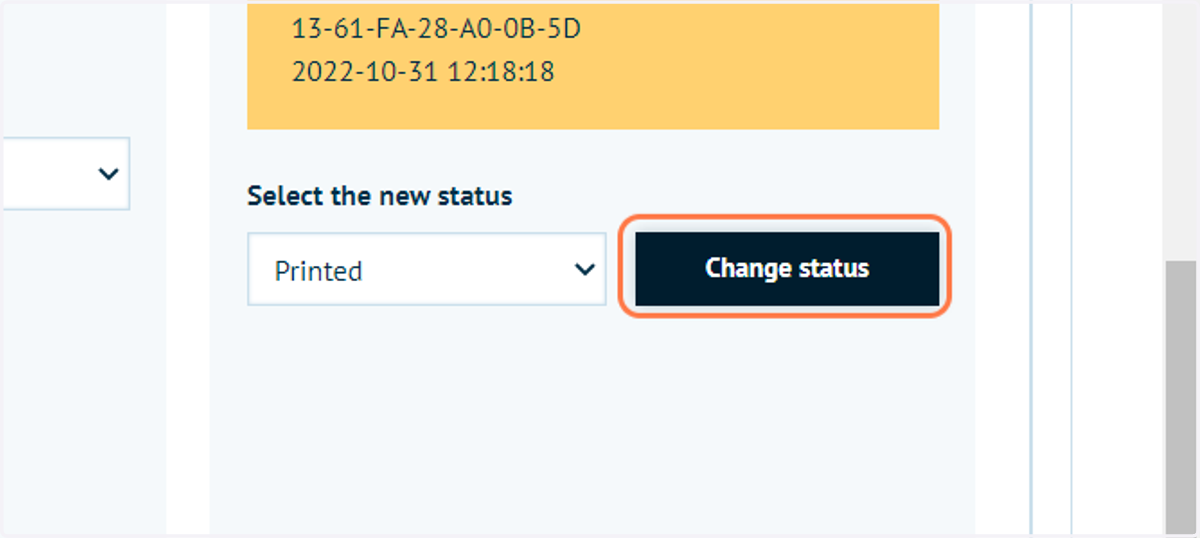
30. Change Status
Changing the status will often result in a different highlighting, allowing users to easily distinguish between job status'.
This will also be reflected in the main list of jobs in SPO.