Adding user instructions to MegaEdit
At Infigo, we have worked hard to make MegaEdit an intuitive and easy to use product. However it's always possible that your end users could benefit from a little extra help in how to use your carefully customised product and user experience, which have the potential to be incredibly intricate.
In this tutorial, we will explore how to add instructions and additional hints to the MegaEdit interface, allowing you to give your end users the support they need to have a positive experience with your products.
Infigosoftware
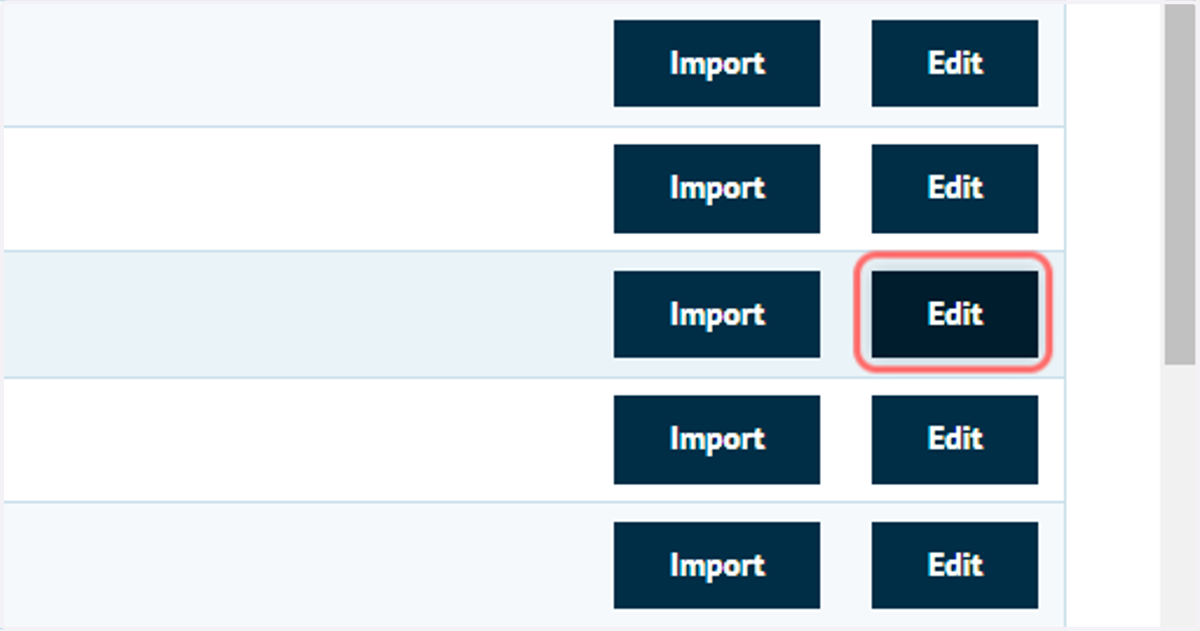
1. To begin, navigate to your MegaEdit products and click Edit
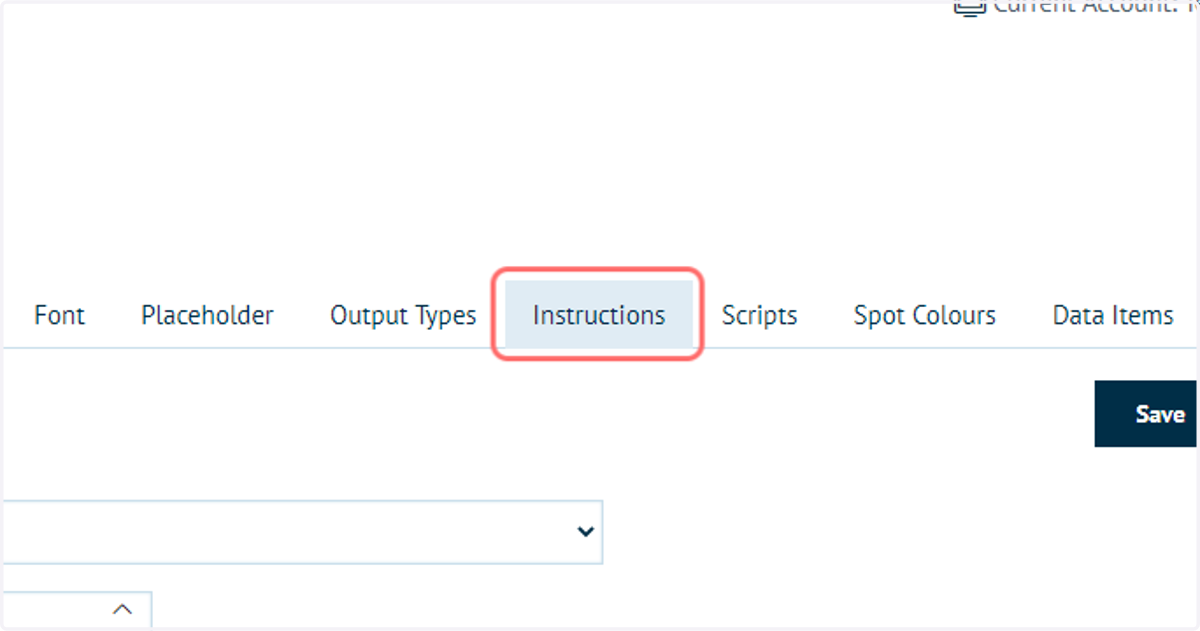
2. Click on Instructions
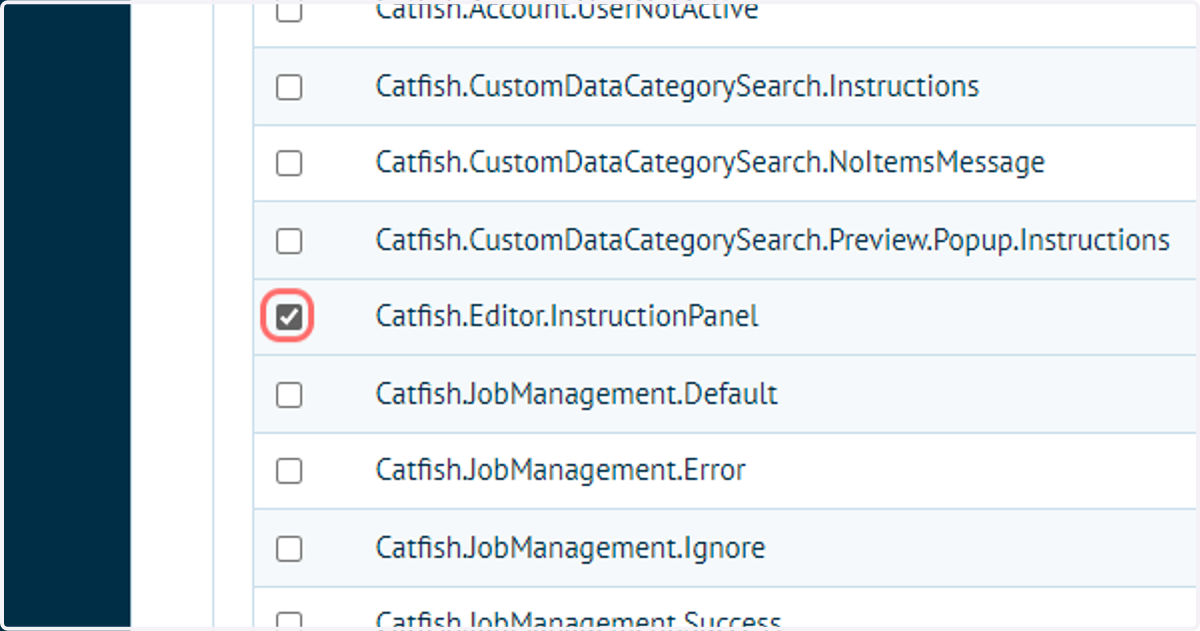
3. Check Catfish.Editor.InstructionPanel
This option enables a pop-up box when the editor is launched, into which administrators can craft instructions for their end users.
The instructions shown are controlled by an Editable Content block.
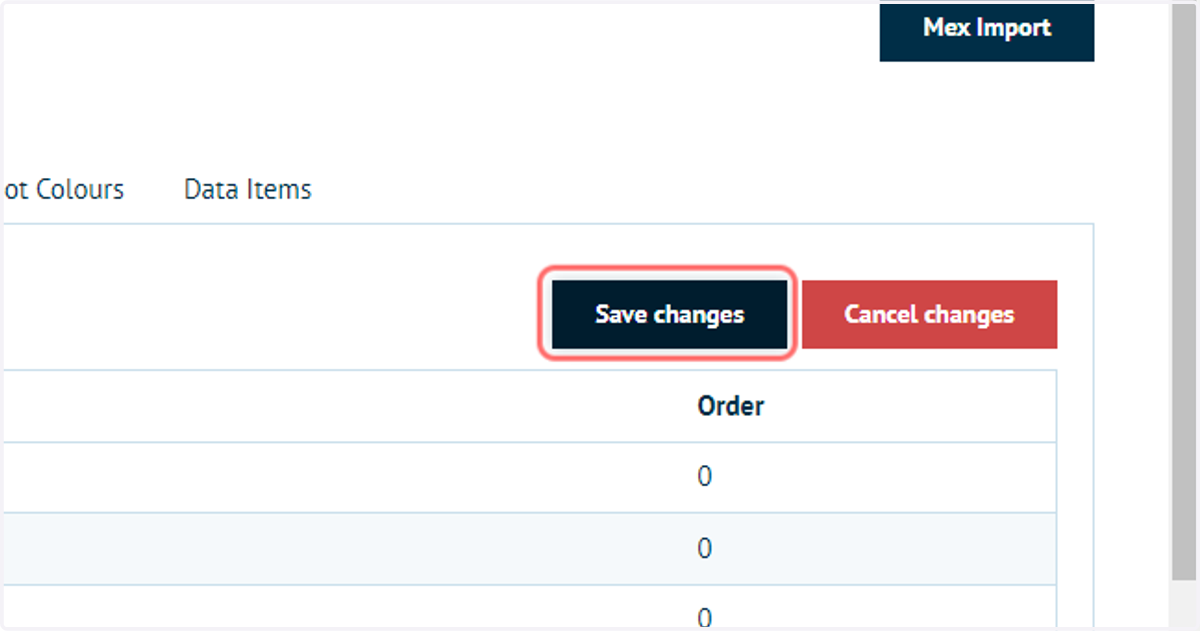
4. Click on Save changes
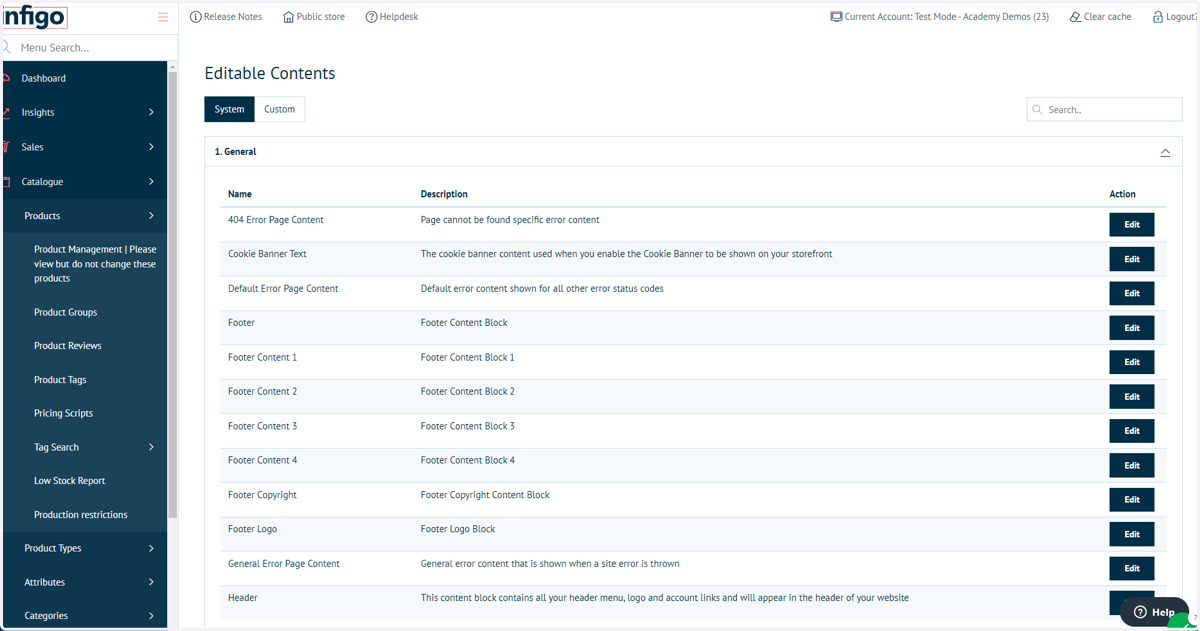
5. Navigate to the Editable Content area
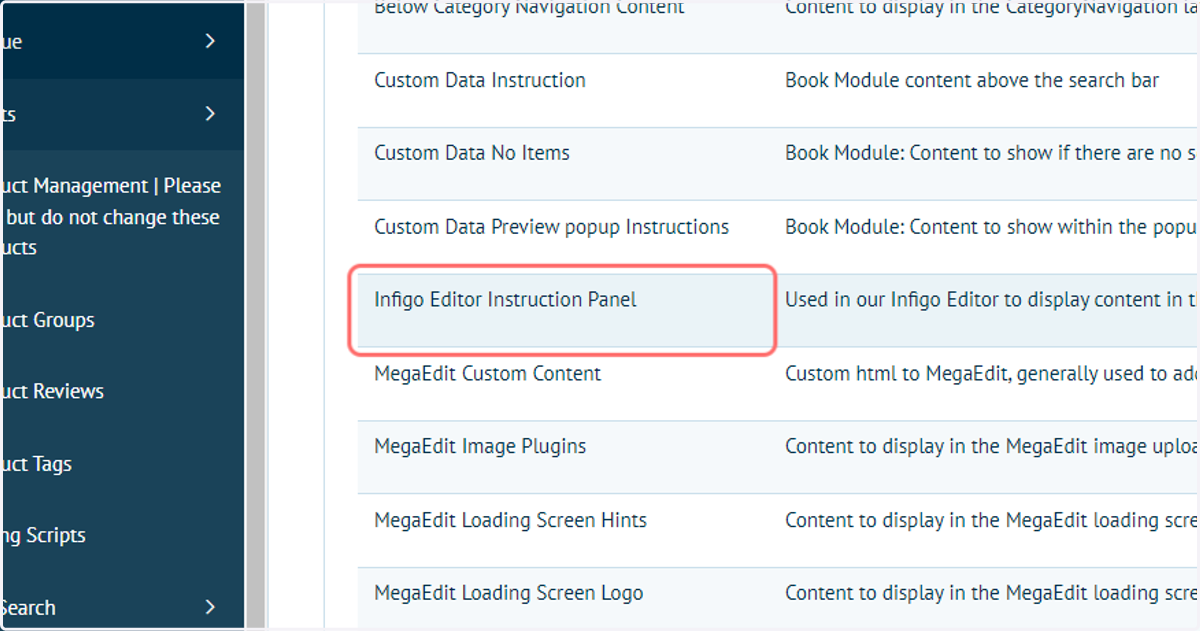
6. Locate the "Infigo Editor Instruction Panel" field in the Products and Editors section
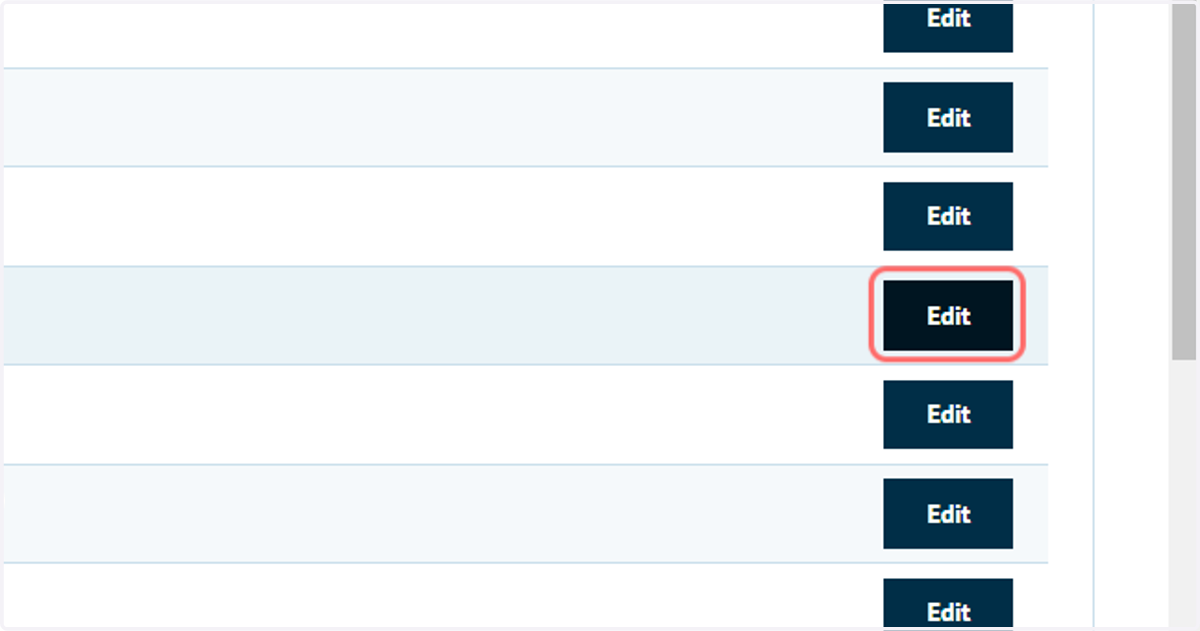
7. Click on Edit
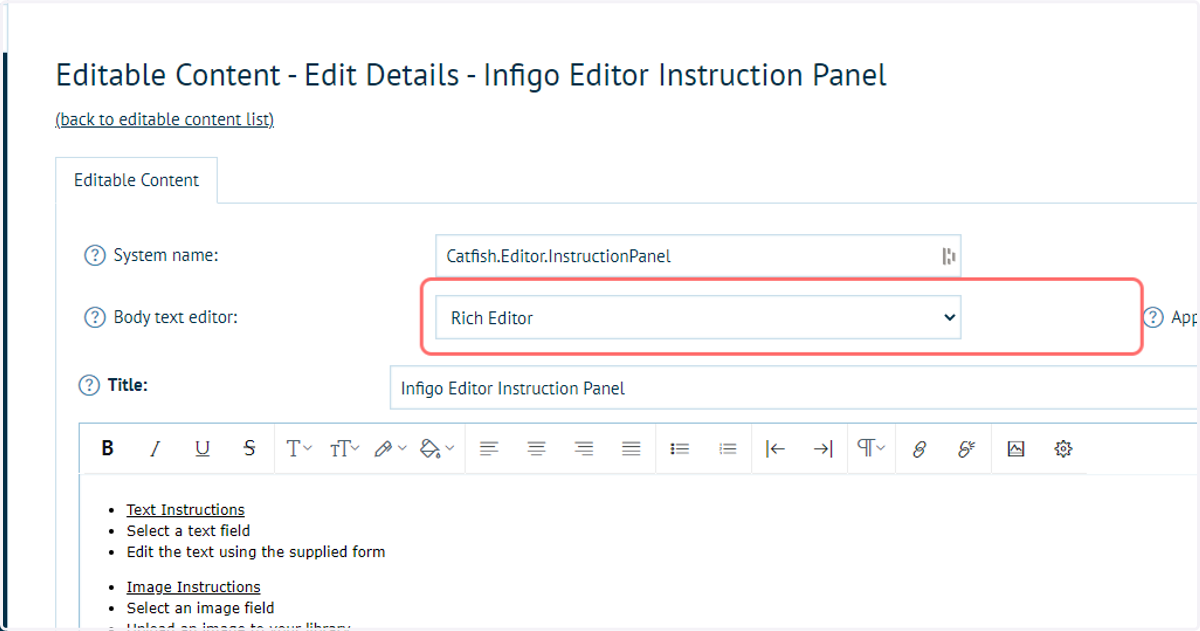
8. Any of the three body text editor types can be used to construct instructions
Rich Editor gives a word processor style format, allowing you to build your instructions and directly format them. Pictures and hyperlinks are examples of elements which can be added here.
Code Mirror Editor allows you to write HTML code.
Content Templates allow you to construct HTML code using easy to use content blocks. Please see previous tutorials on Content Templates for more information.
9. Content Templates
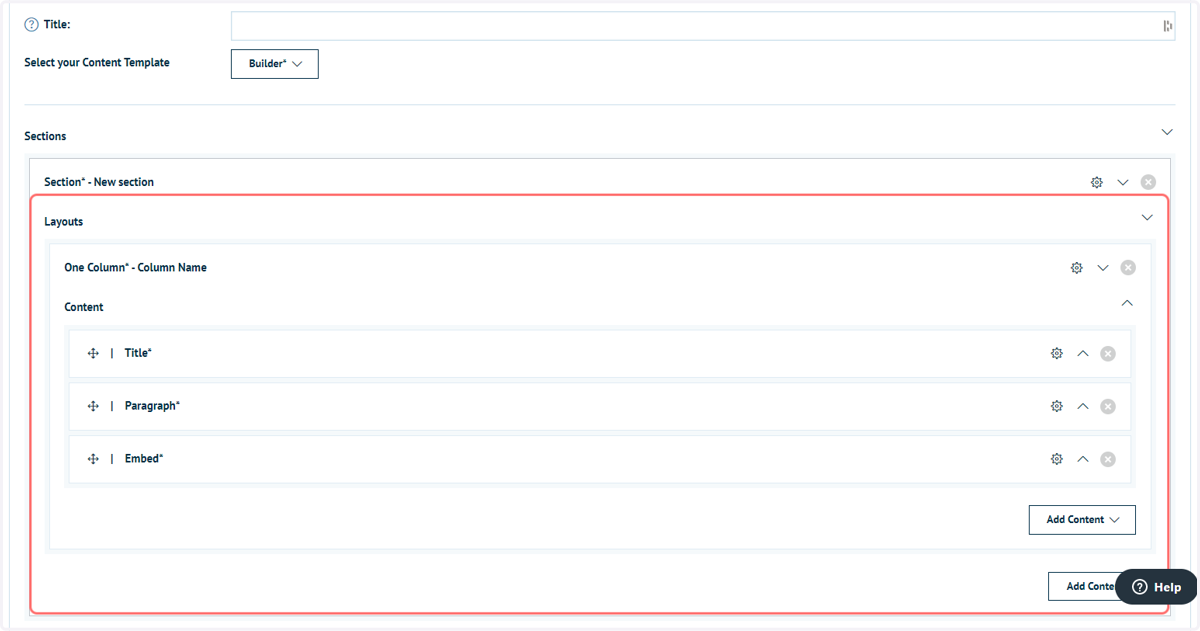
Using Content Templates is recommended as you can create beautifully formatted instructions with ease.
Please be aware that some features, such as the slider, may not function in the MegaEdit instructions.
In the example below, we have added a title, main paragraph of text and have embedded a video from YouTube.
10. Launch the MegaEdit editor for this product
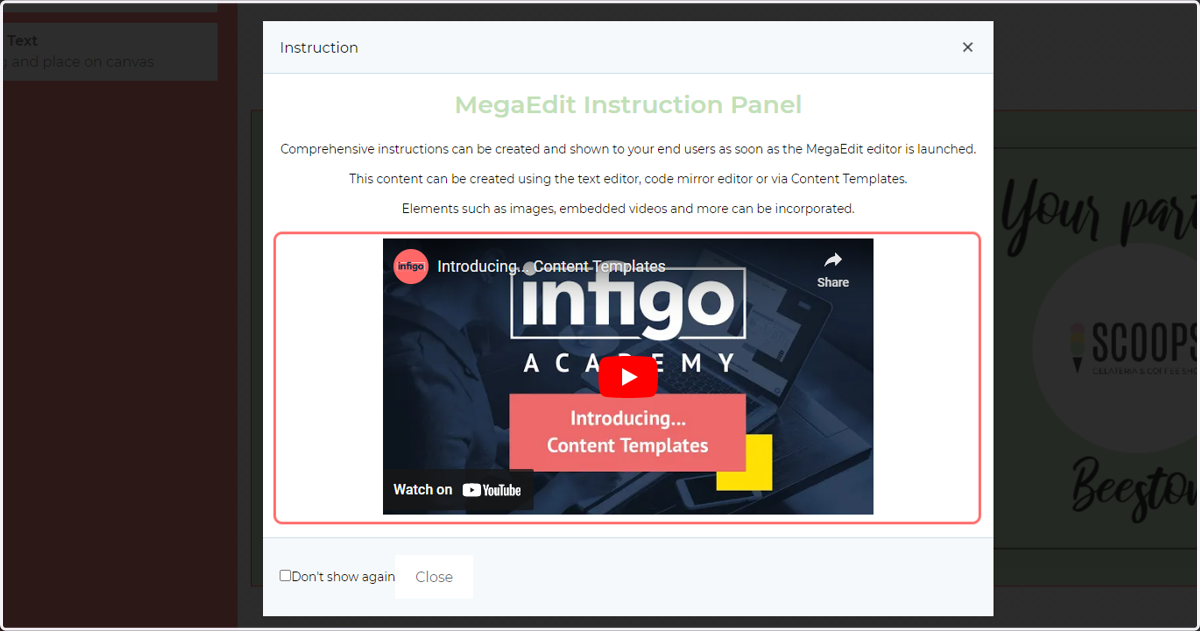
Upon launch of the editor, you will now see an Instruction pop-up, containing the formatted details you entered within the Editable Content block.
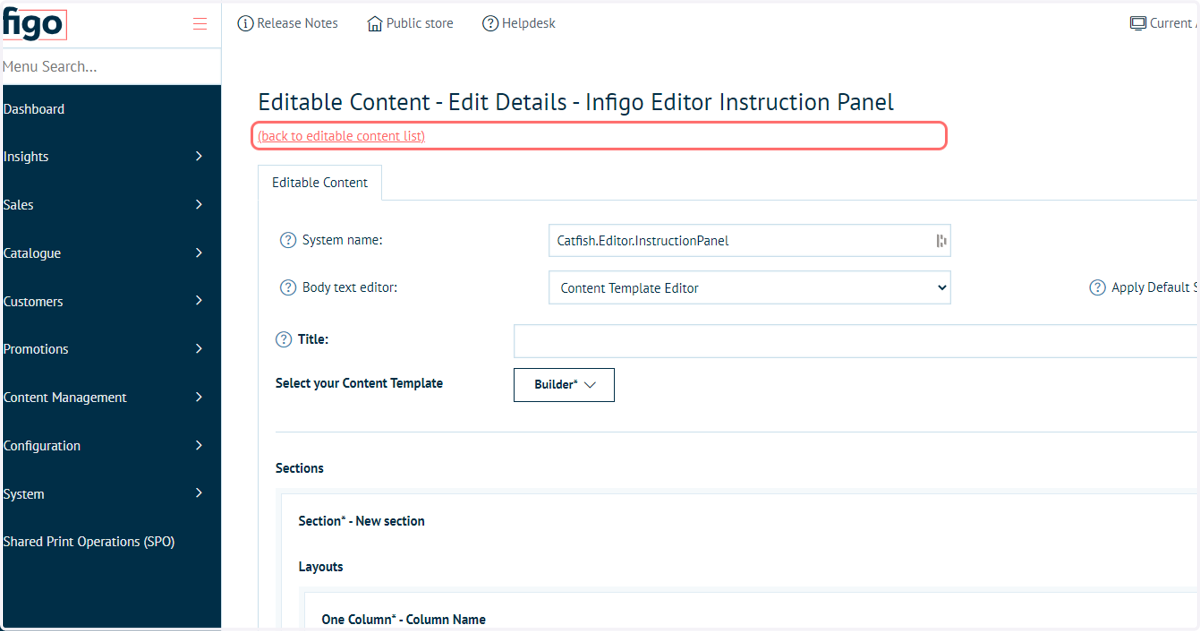
11. Click on (back to editable content list)
12. Next, we will show how to apply hints to the MegaEdit loading screen
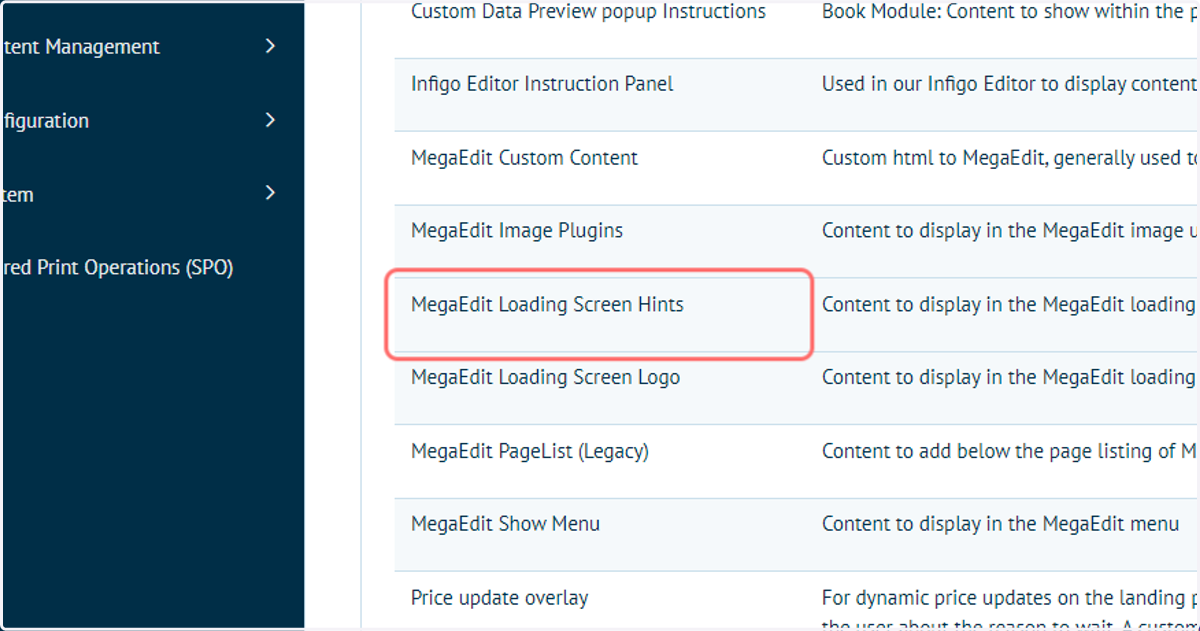
13. Navigate to the MegaEdit Loading Screen Hints within Editable Content
This content block is dedicated to this functionality.
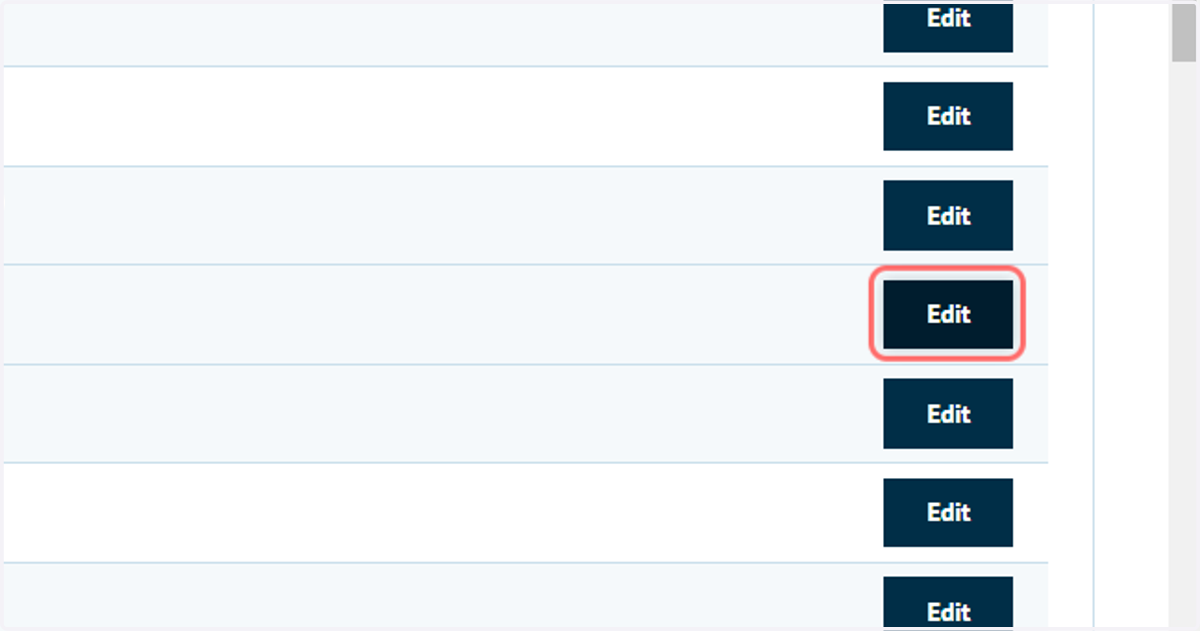
14. Click on Edit
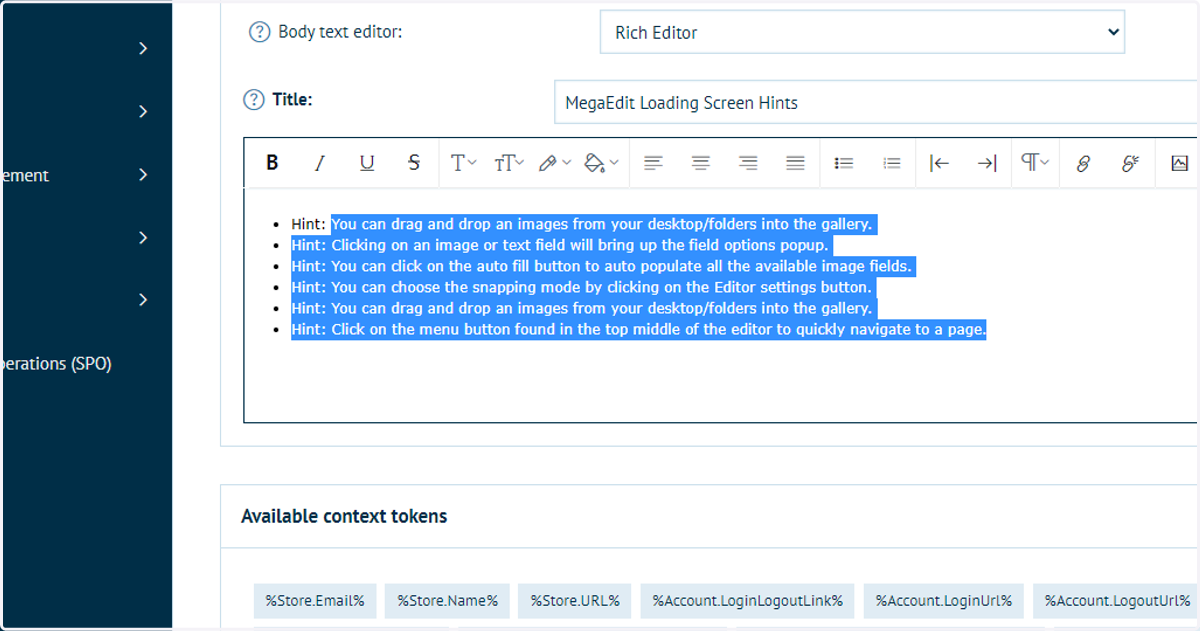
15. Default hints
Several default hints will be present by default.
You are able to remove, edit or add to these hints, however the format needs to remain the same, where each hint is a bulleted line.
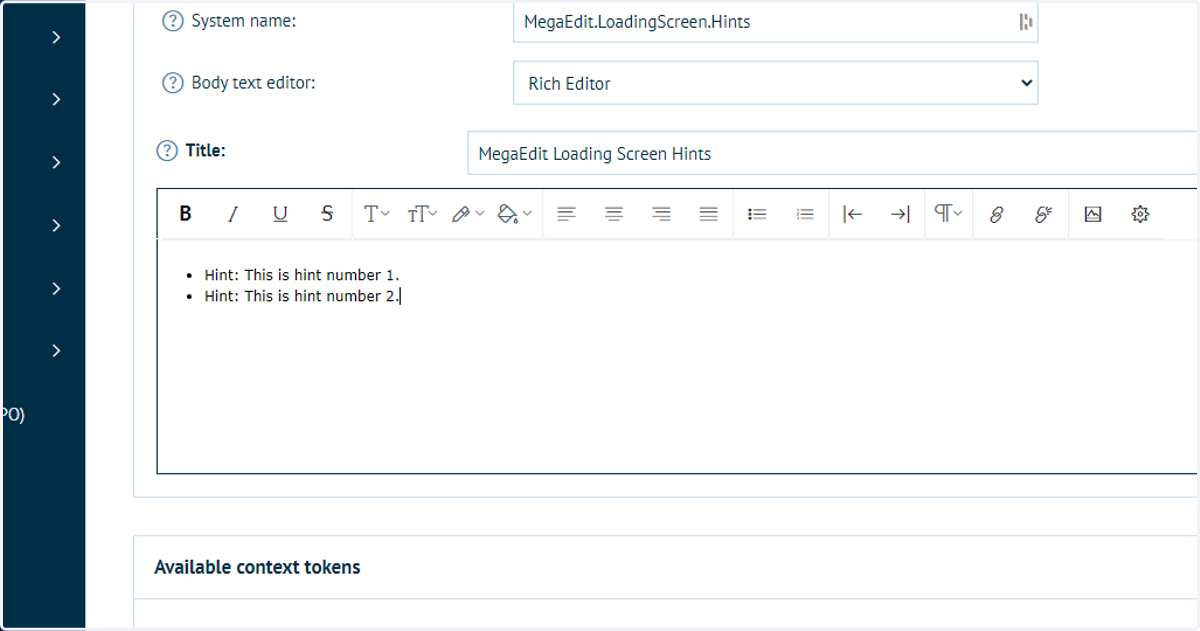
16. Sample hints
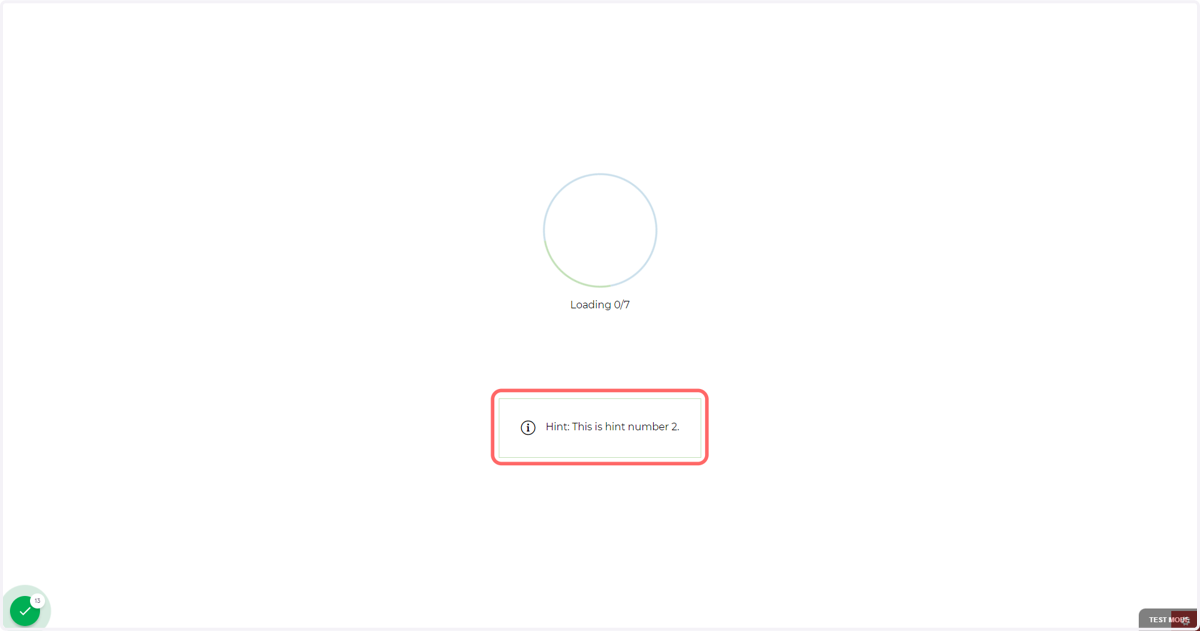
We have replaced the hints list with a simple example to show this functionality.
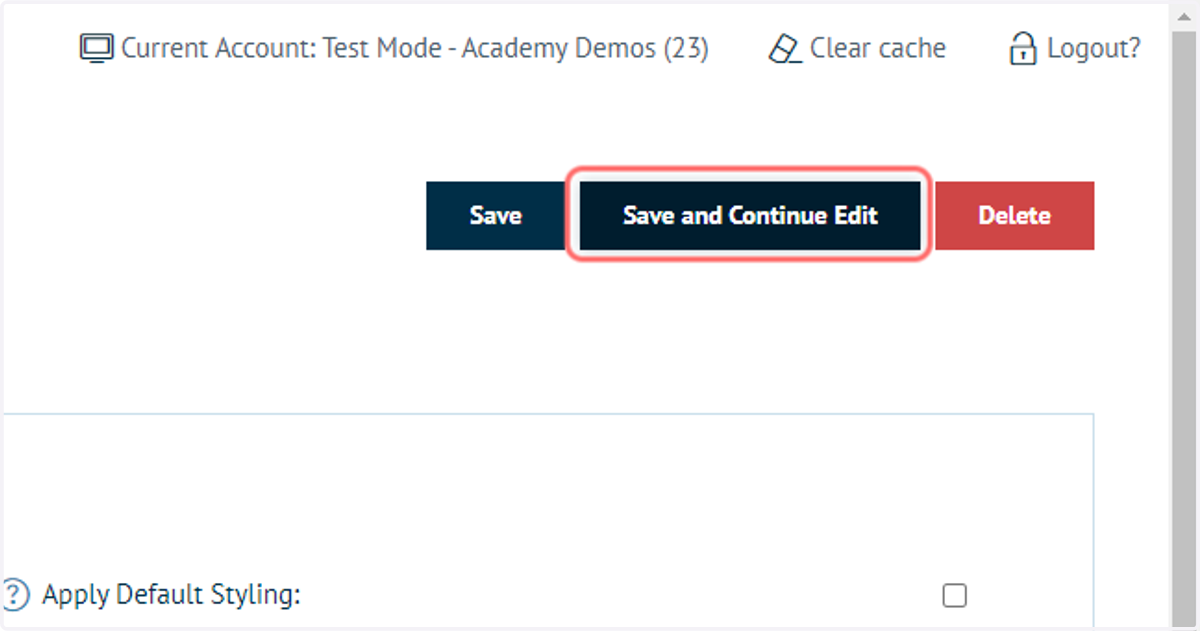
17. Click on Save and Continue Edit
18. Relaunch the MegaEdit editor
One of your hints will be selected and displayed at the bottom of the loading screen.