Harringtons Pet Food: Log In to PetClub Points Redemption
Describes process from sign-on, through to points redemption
Visit the Harringtons Pet Food homepage
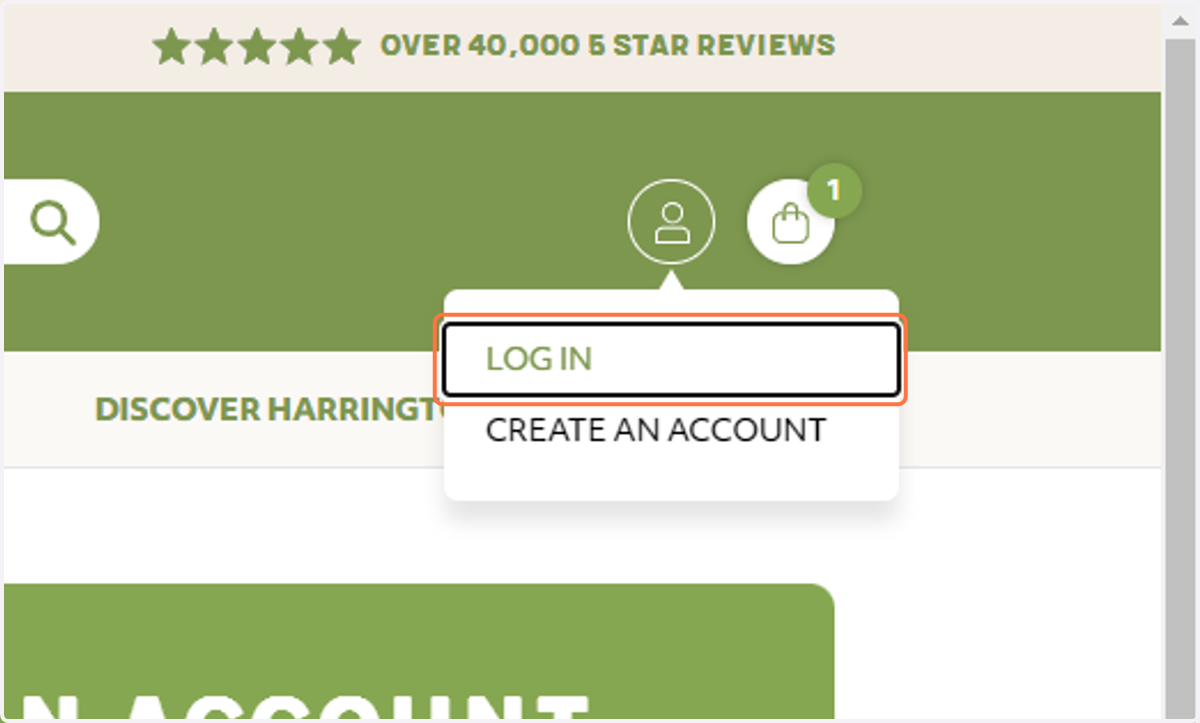
1. Select LOG IN
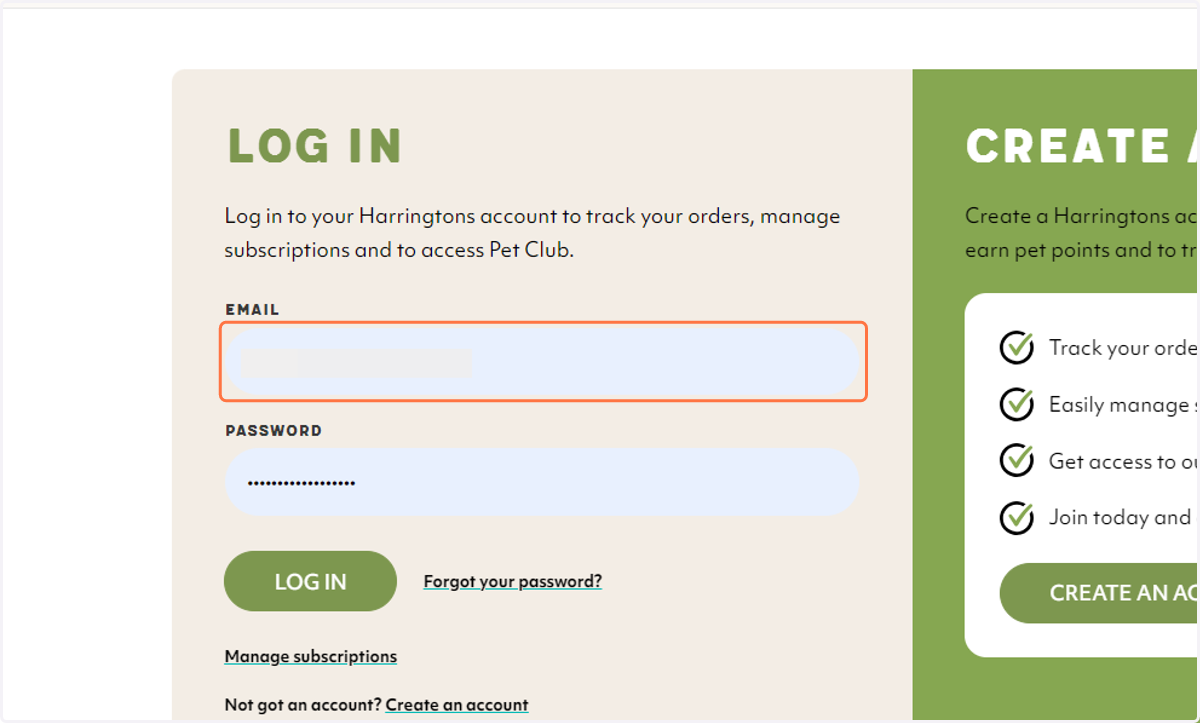
2. Enter your email and password in the fields provided, and select LOG IN
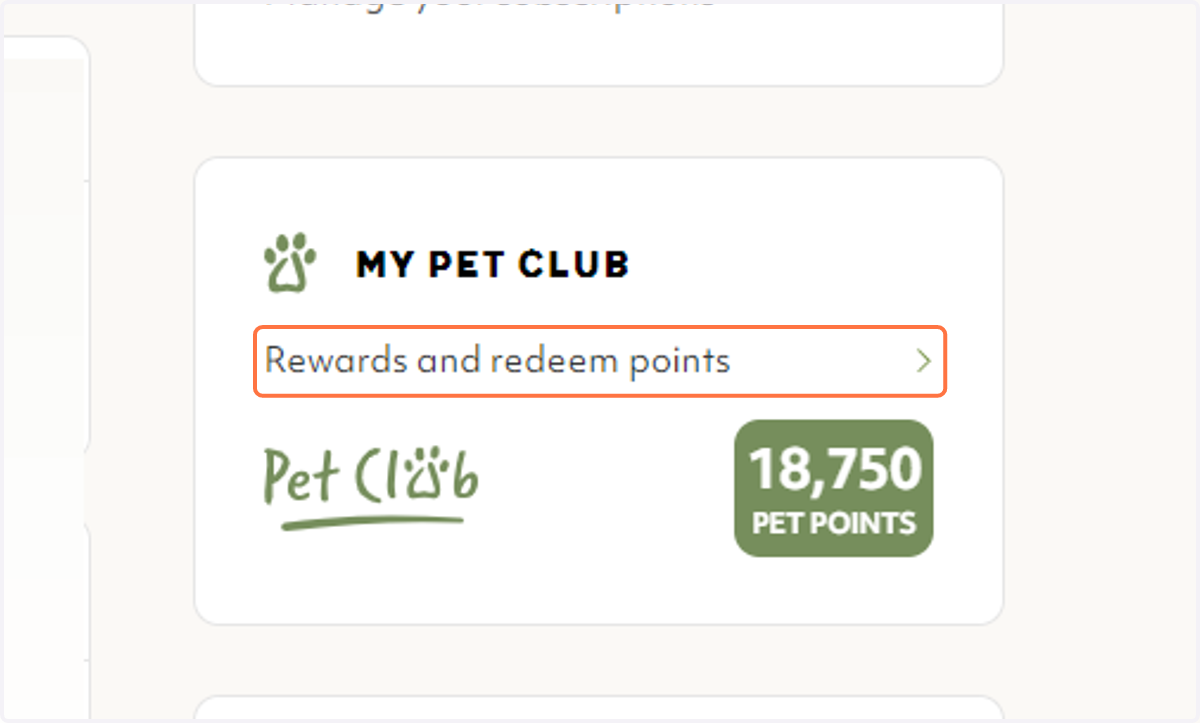
3. 'My Pet Club' box will appear in the Account Dashboard view
This shows your current points balance, and will take you to your personal Rewards area when selected
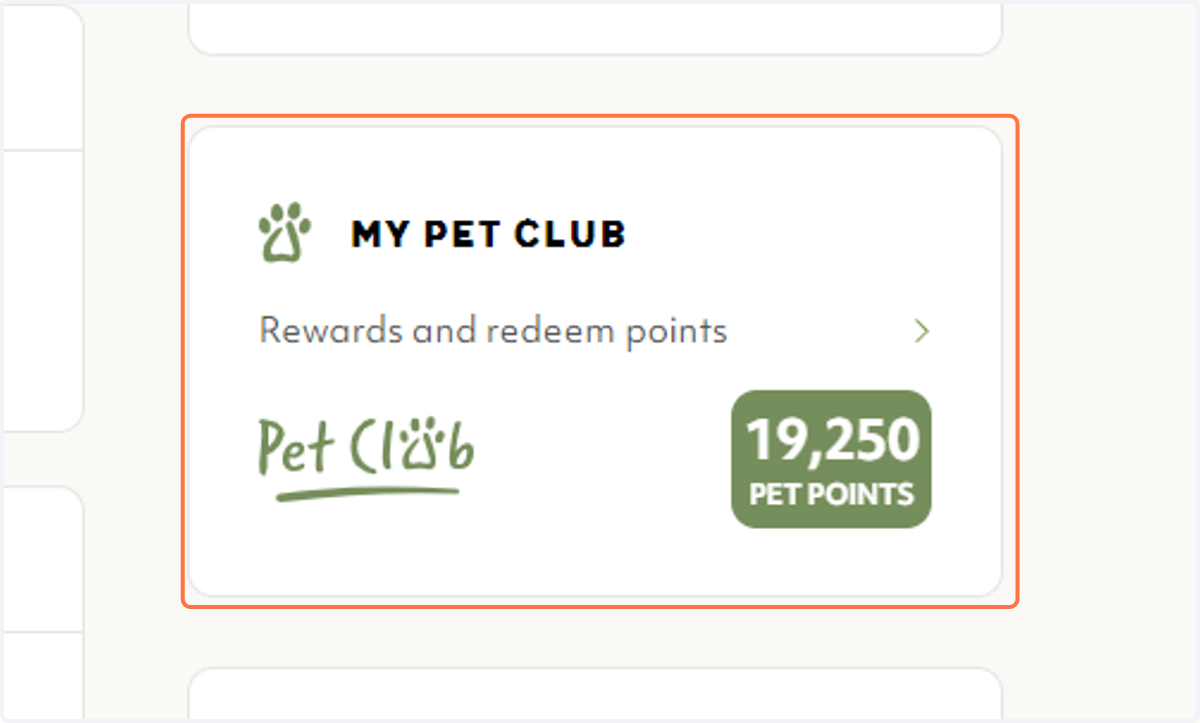
4. Select the wording 'Rewards and redeem points' to view your Rewards in detail
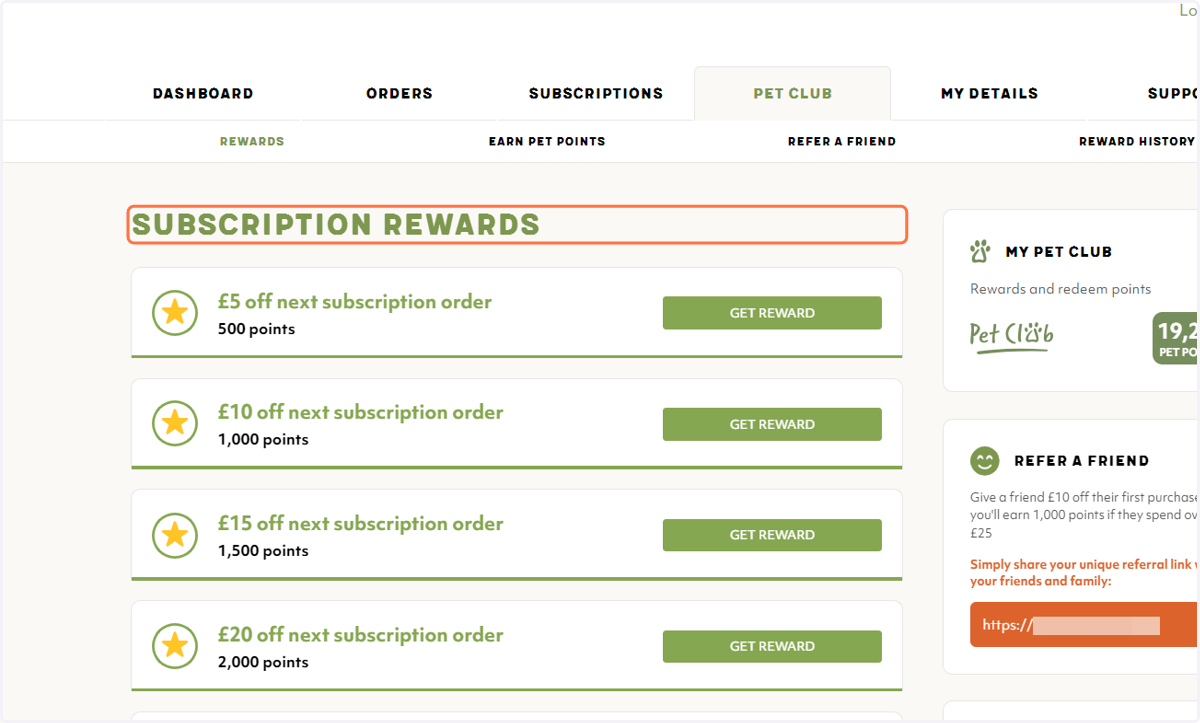
5. For SUBSCRIPTION REWARDS, check the list of available options below
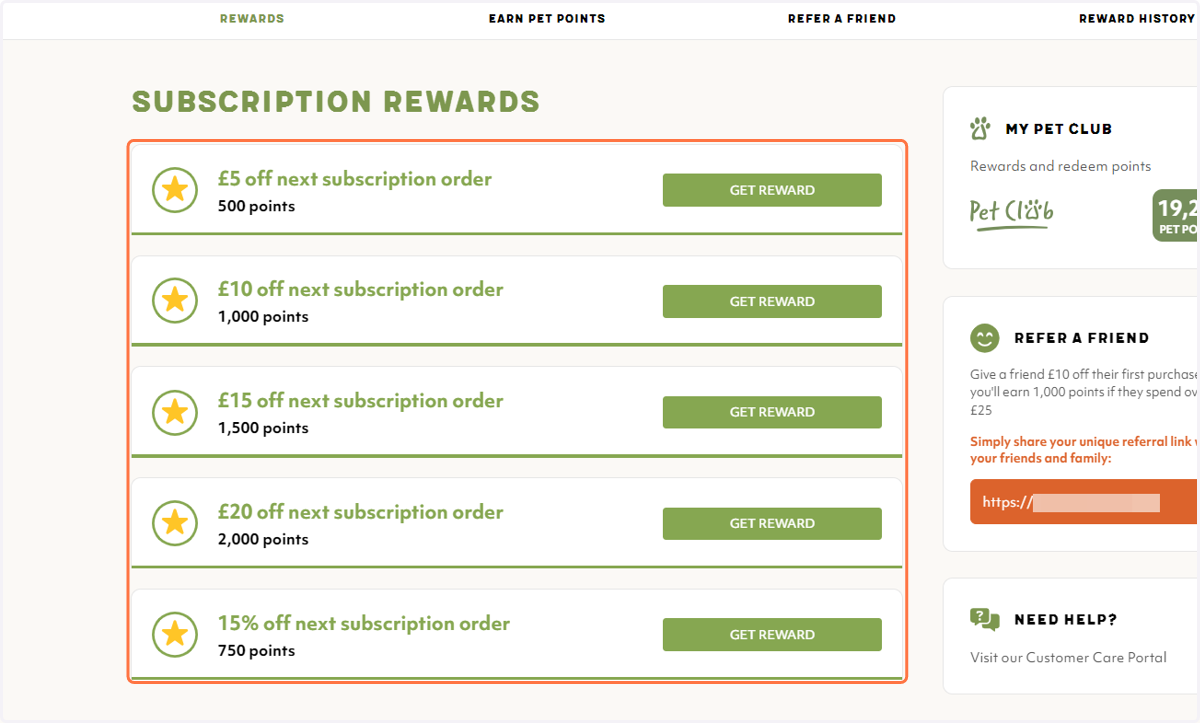
6. The vouchers available will have a 'Get Reward' option that you can select
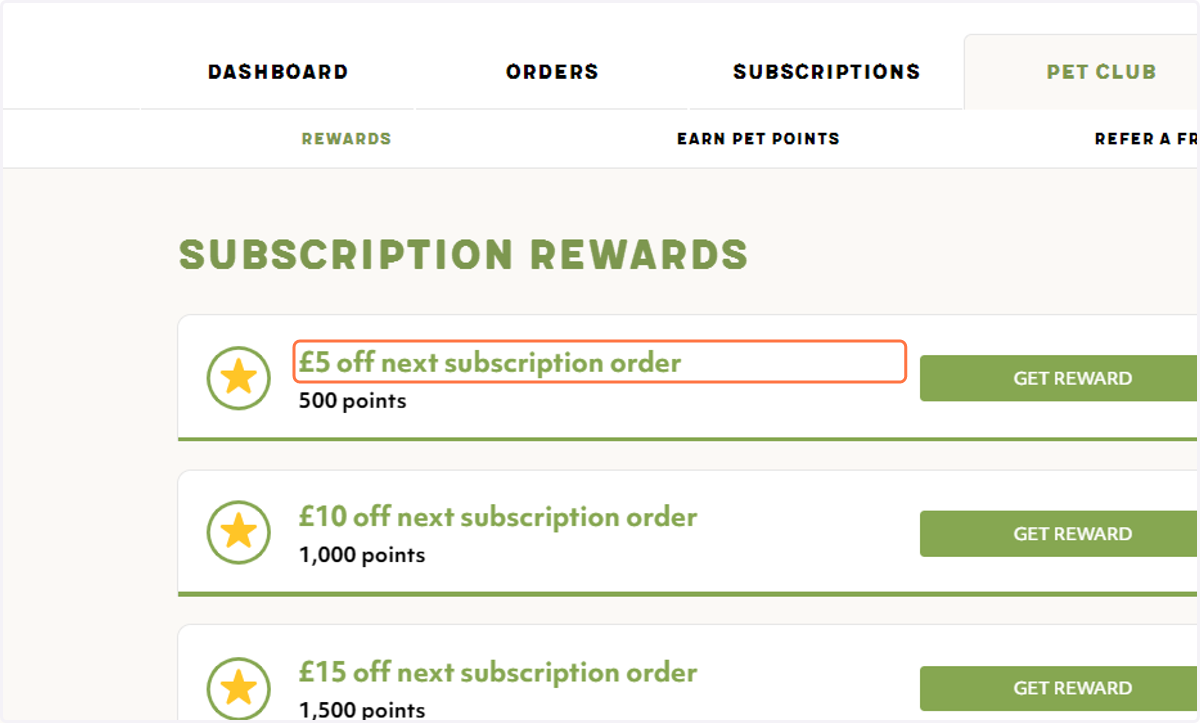
7. Notice the top voucher listed offers £5.00 discount against the next subscription
For instance, the first voucher in this example applies against your next scheduled purchase for items you already have recurring orders for. Note this voucher type will not work at the checkout, so scroll onward for the next voucher type to use
8. For ONE-TIME PURCHASE REWARDS, scroll down
Further down the page you can view an applicable list of one-time voucher options
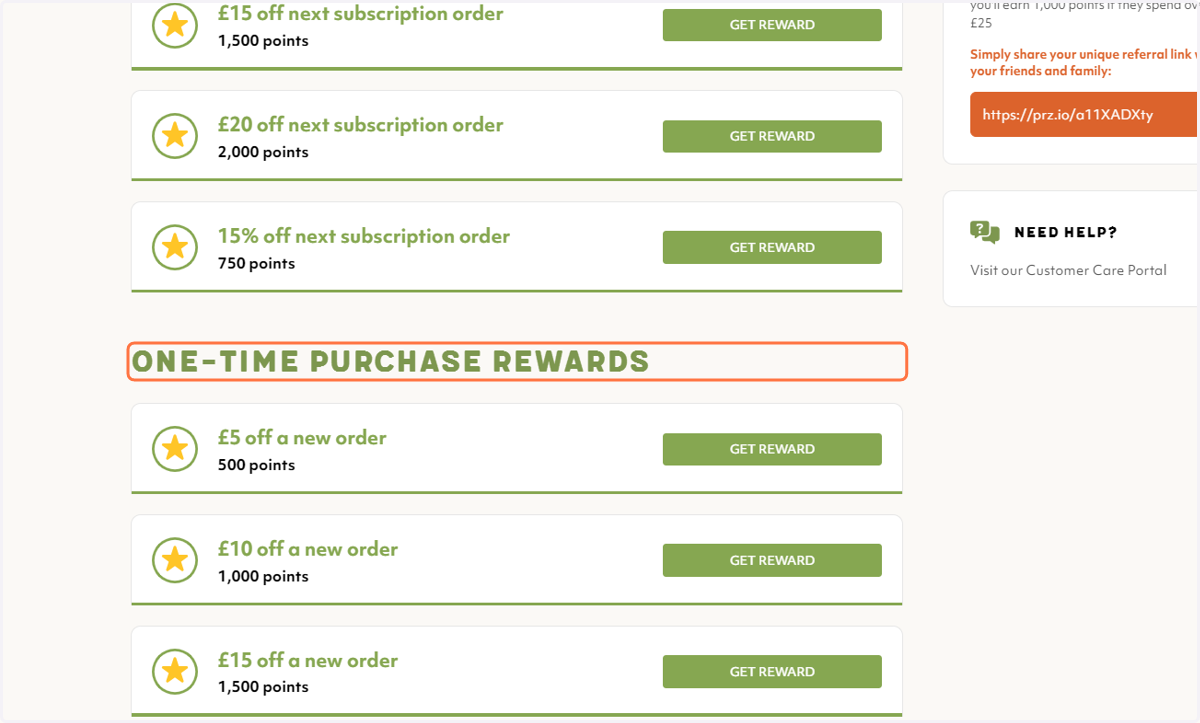
9. Notice the difference to our prior example
The top voucher in our second list offers £5.00 discount against a brand-new purchase (via checkout, which can apply to your first Subscription or Non-Subscription order with us)
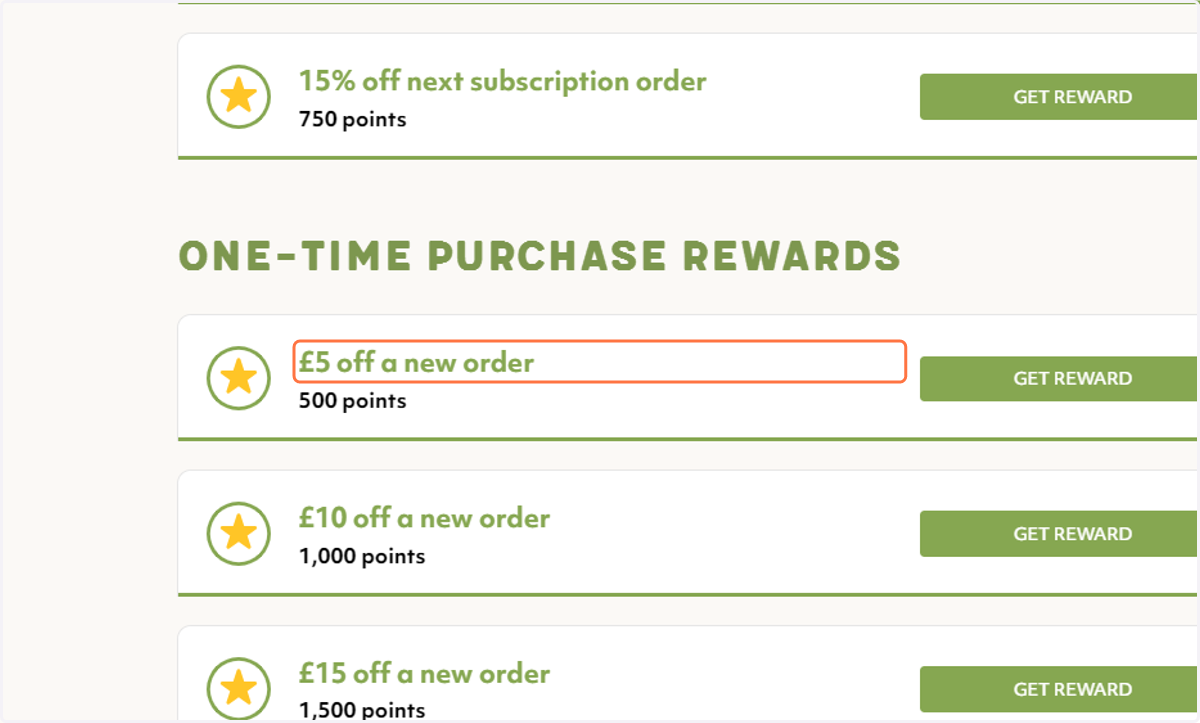
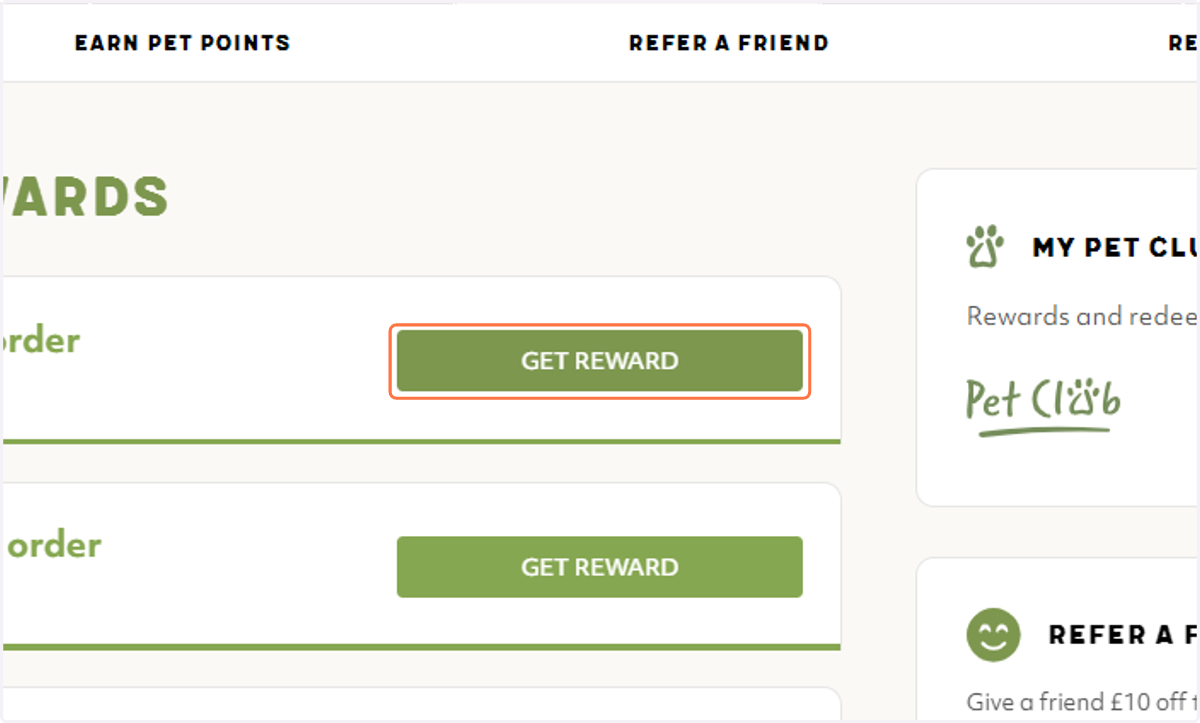
10. To finalise selection, select 'Get Reward'
11. Please read the disclosure message
This will allow you to double-check that you've selected the right voucher before you proceed
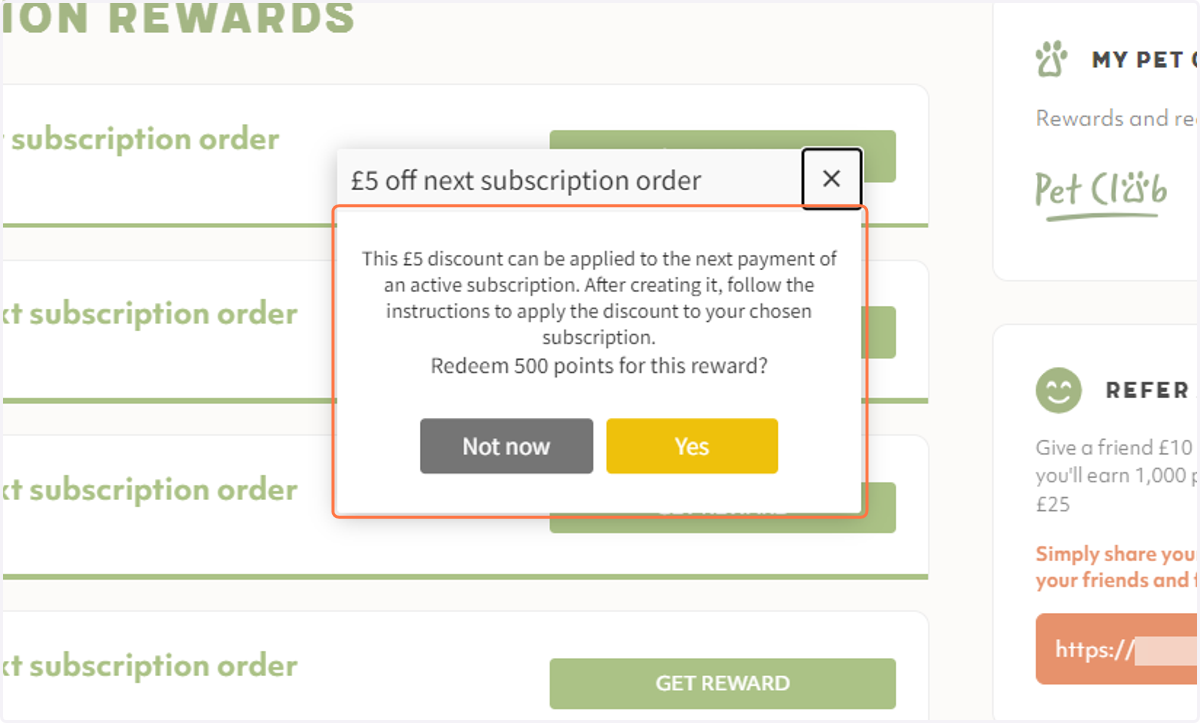
12. If you're happy, select 'Yes' - otherwise, select 'Not Now'
Choosing 'Not Now' will cancel the request to redeem, and your points will remain in your Pet Club pot unchanged.
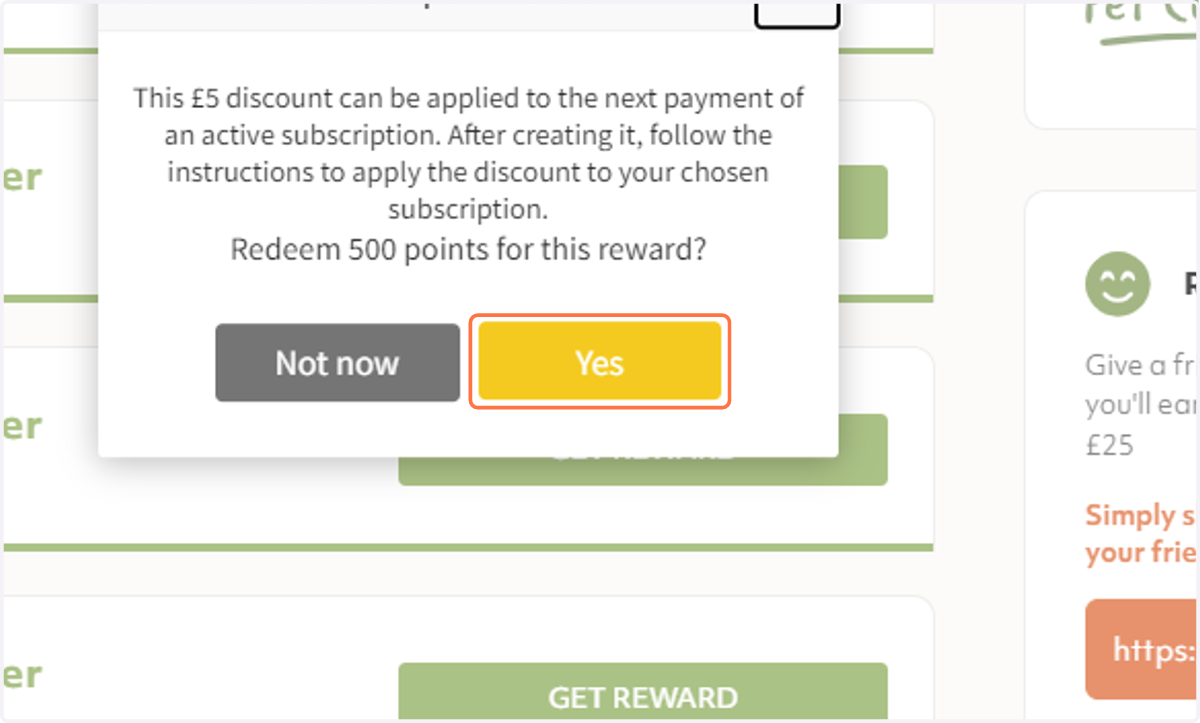
13. If you choose 'Yes', a unique voucher code will be displayed
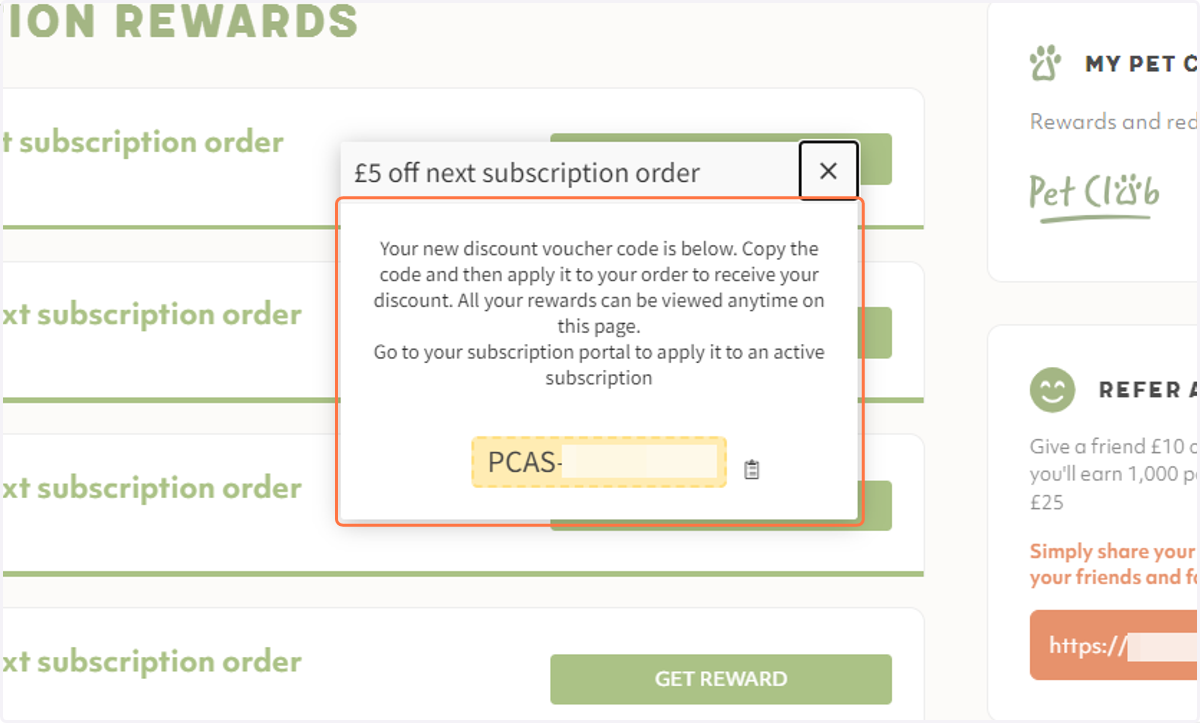
14. At this stage, the voucher is ready to be used
You can keep note of the code for later or proceed with the application of your voucher into your settings. It has not been applied to any purchase or upcoming subscription as yet and will not do so without further action. The code must now be entered into the discount field (if subscription, then via your Subscription settings - if one-time purchase then via checkout, before your payment details).
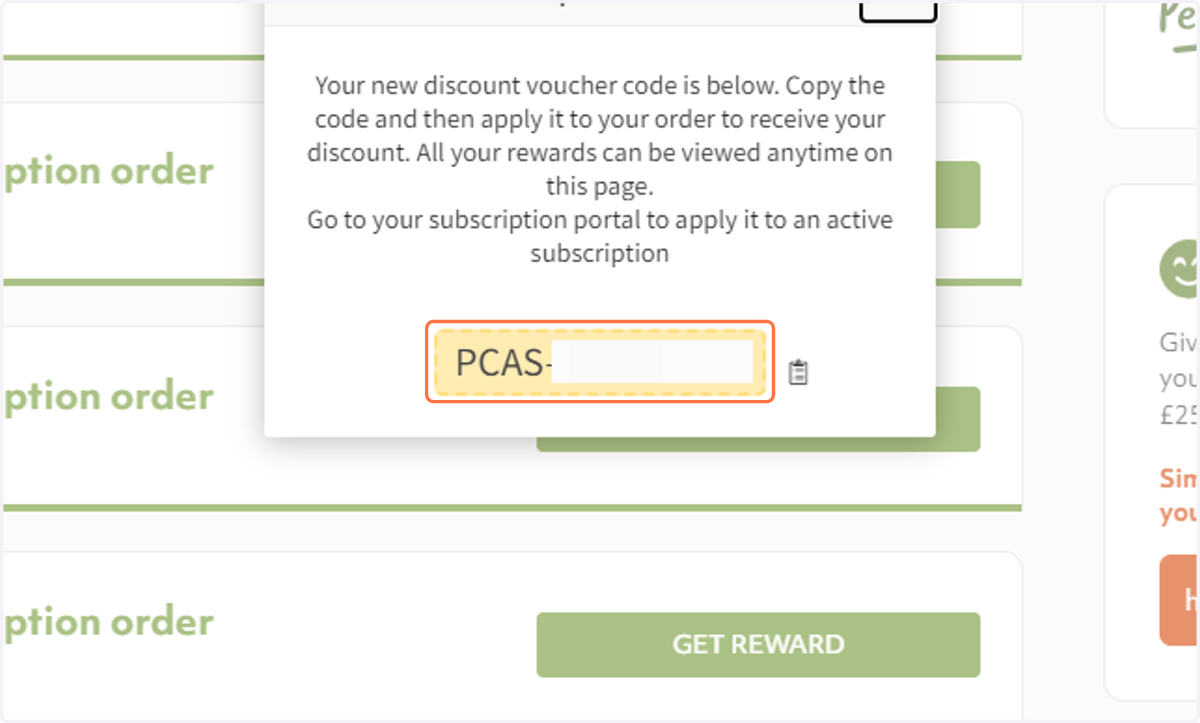
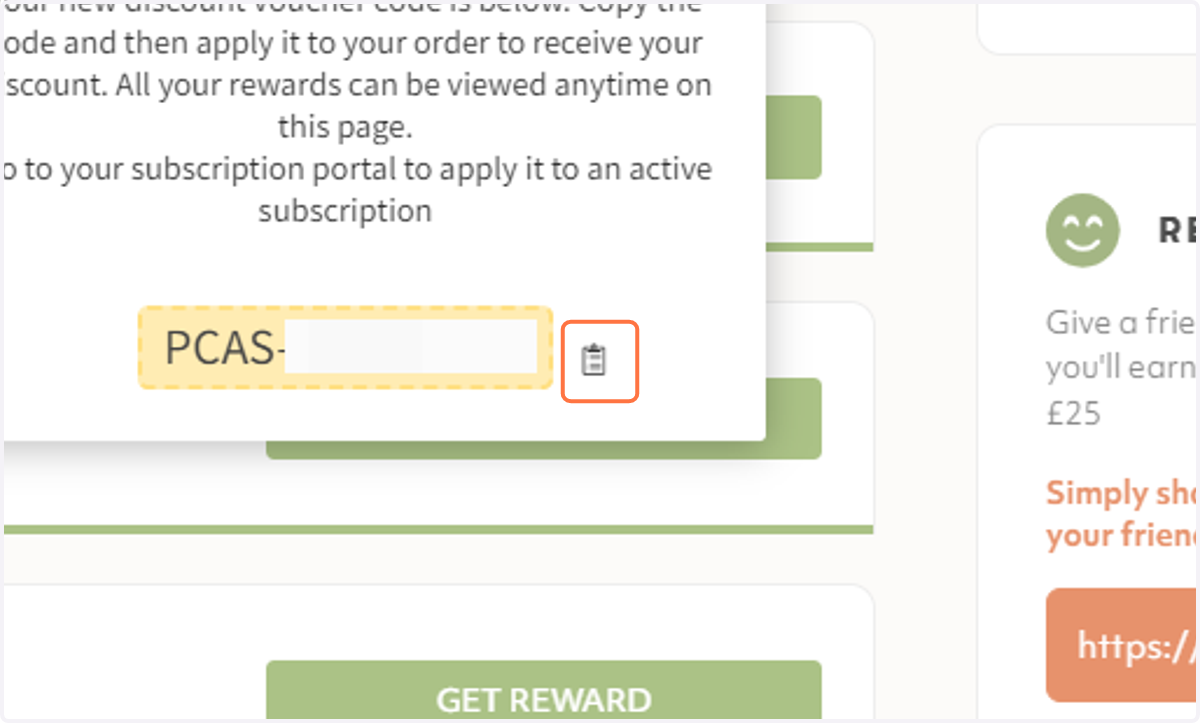
15. Select the clipboard icon to copy the voucher code
This icon allows you to copy the code to your device's copy/paste system. If you plan to apply the voucher straight away, proceed to the Subscriptions or Checkout (as appropriate)