Charging a No-Show Fee or Forfeiting a Deposit
This article shows you how to charge a no show fee or claw back a deposit in the event that your patient does not show up.
Prospyr - Schedule
1. When no show fee is enabled for your workspace, you will be prompted to capture a credit card at the time of booking.
You can either select a saved card, or click new card and manually type the card information. This step will be required regardless of if the appointment is booked online or directly by staff.
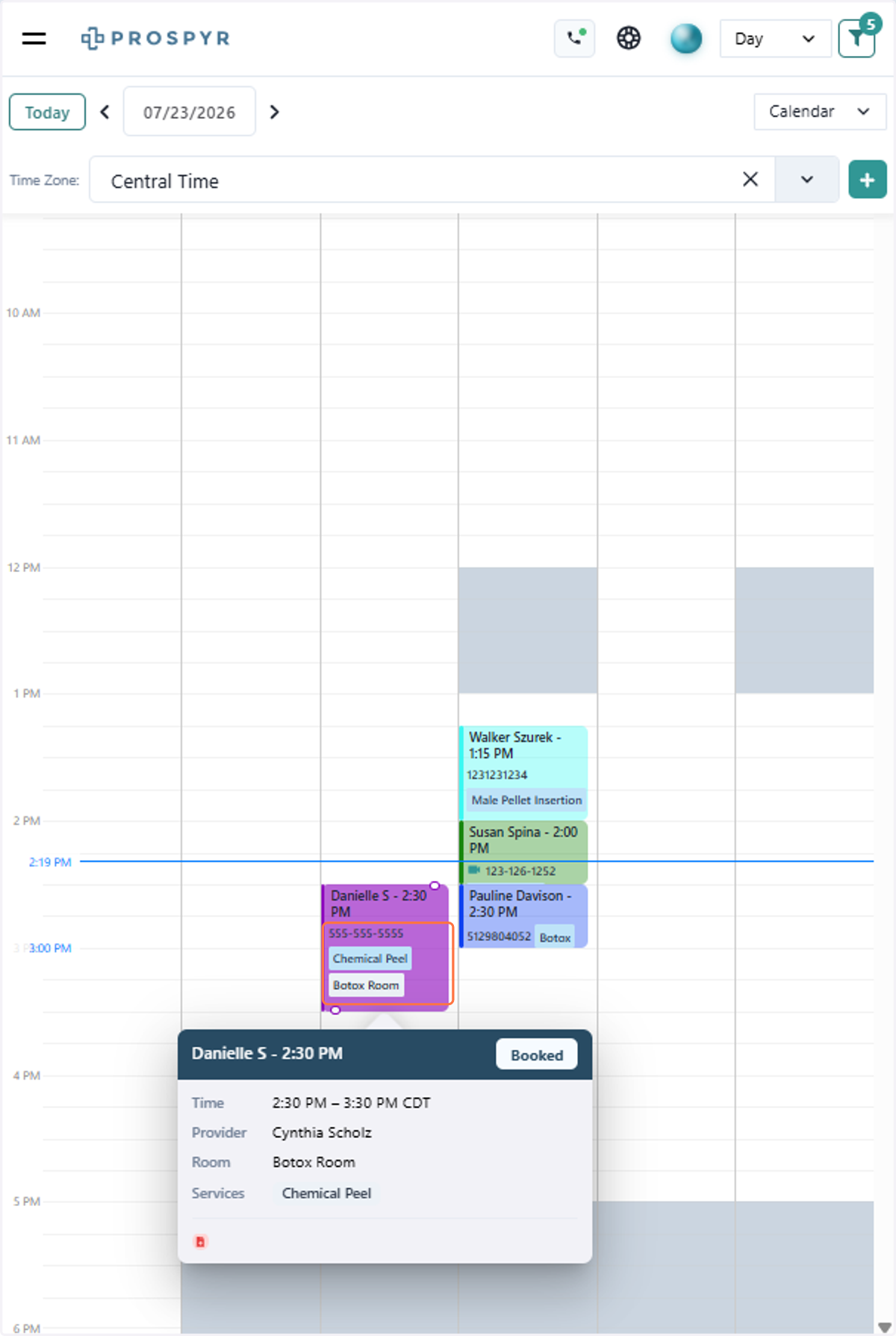
2. If your patient no-shows, click on the affected appointment from the schedule
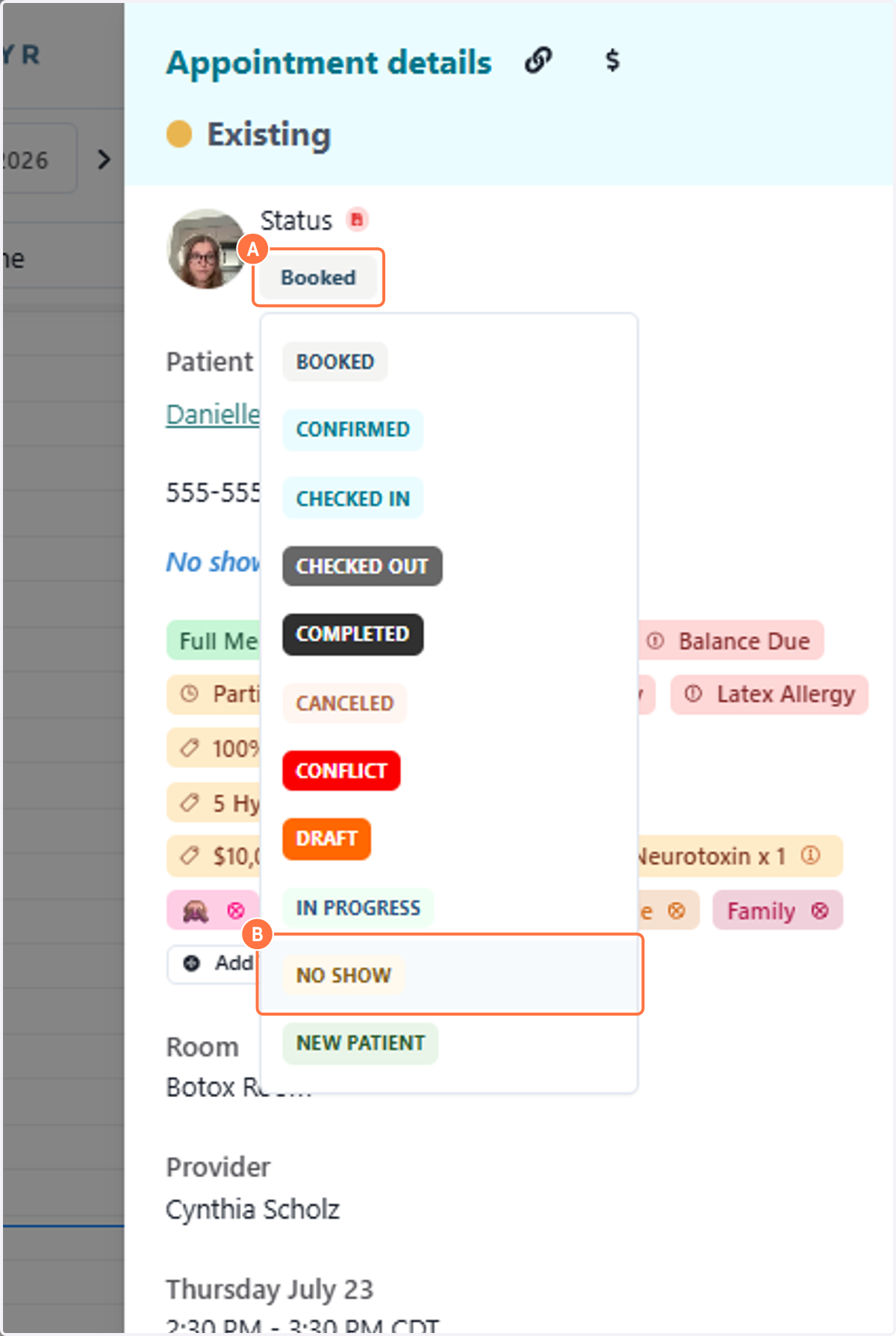
3. A. Click on the Appointment Status
3. B. Click on NO SHOW
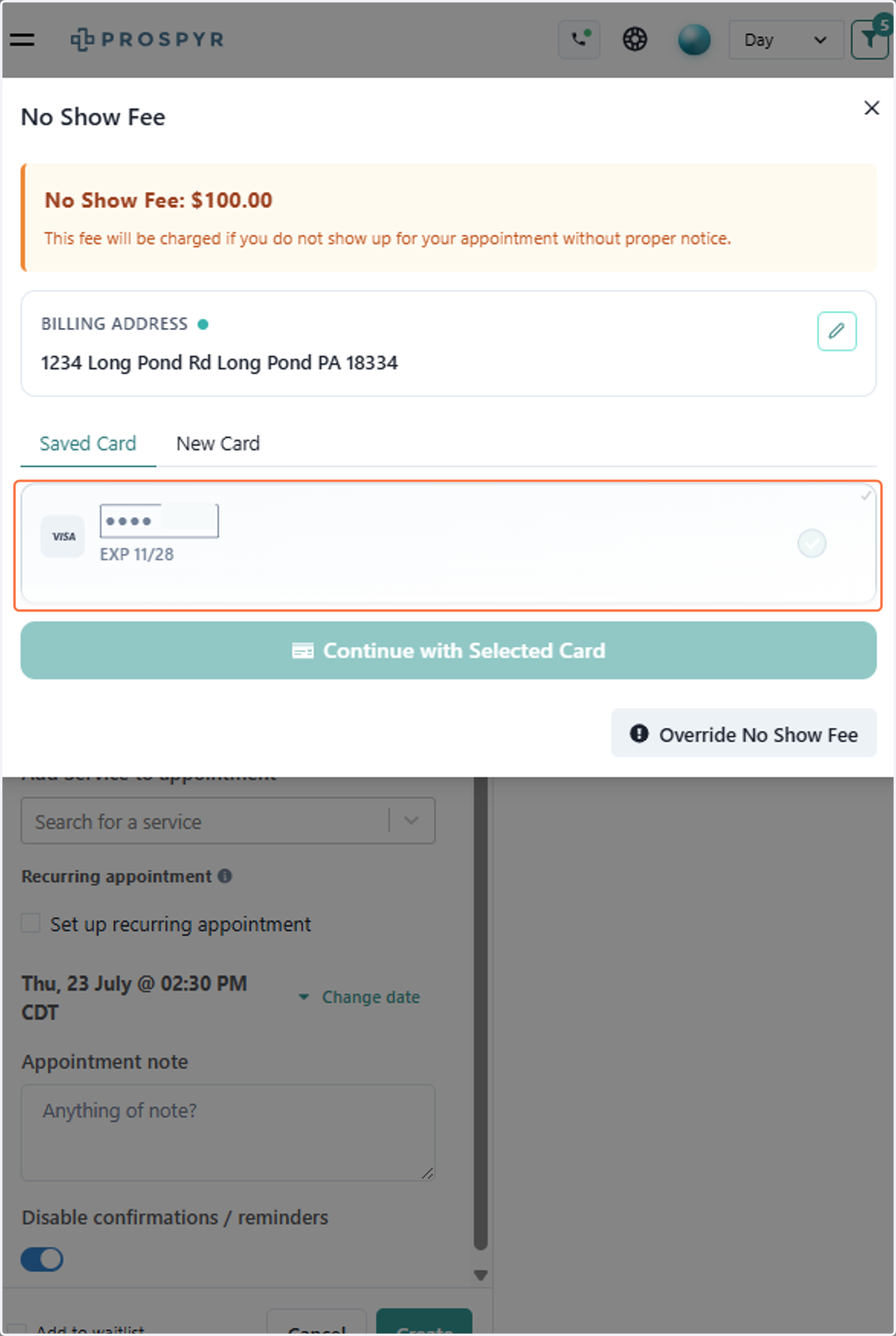
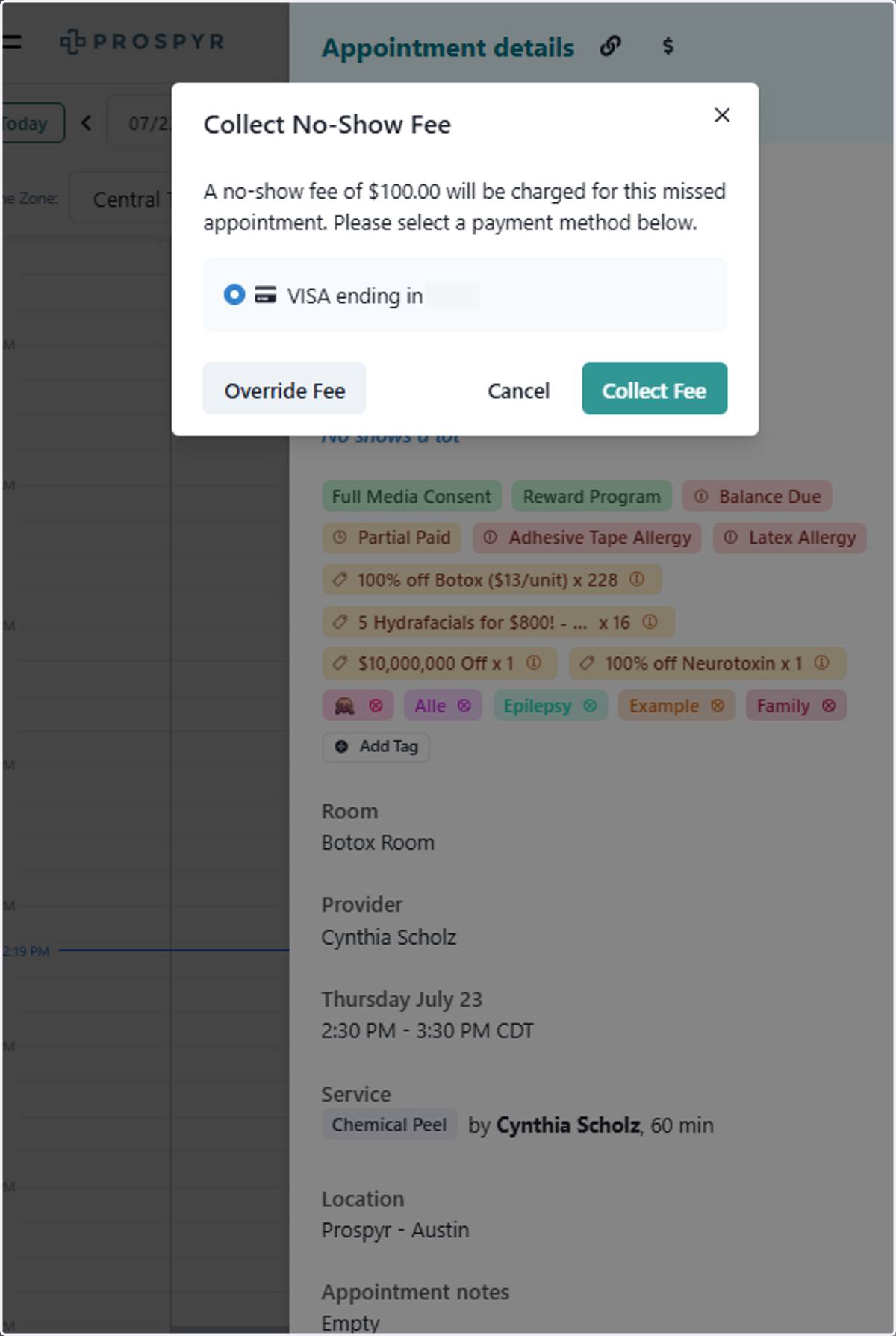
4. Select which card to charge, then click Collect Fee
In case you do not want to collect a no-show fee, you can click the override fee button
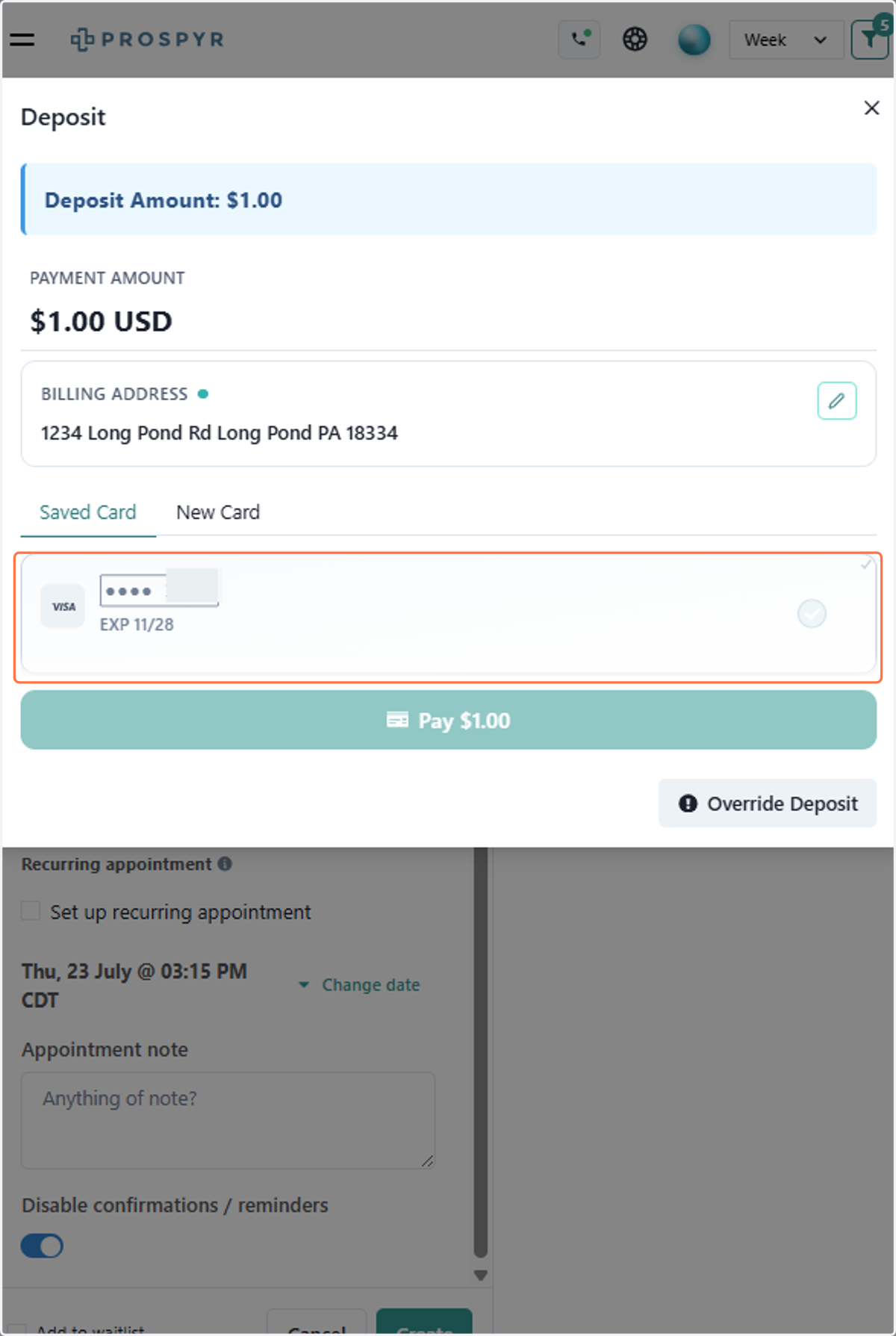
5. If the service has a deposit enabled, you will be required to collect a deposit at the time of booking
You can pay the deposit with either a saved card, or click new card to manually enter the card details
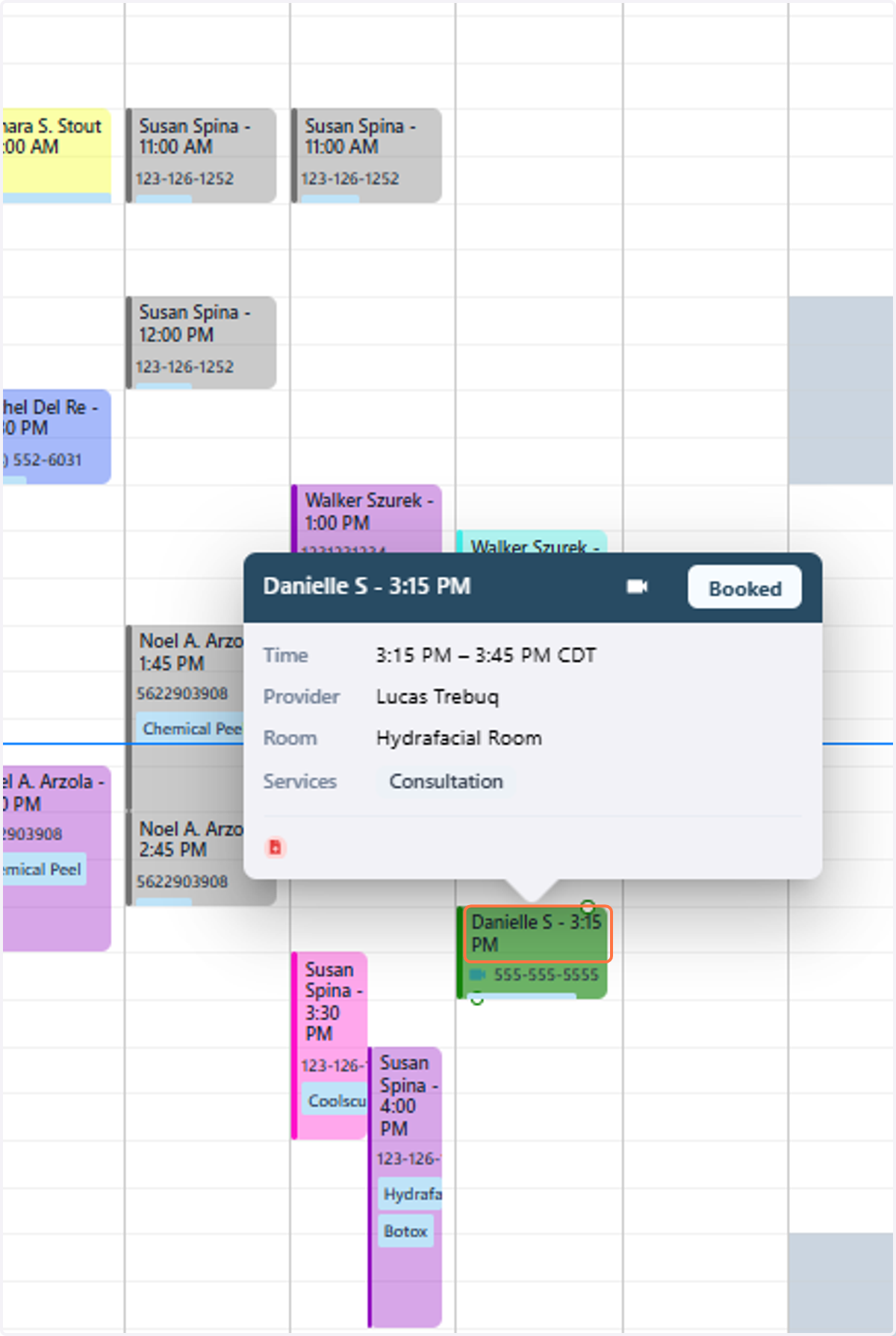
6. If you need to claw back a deposit, click on the affected appointment from the schedule
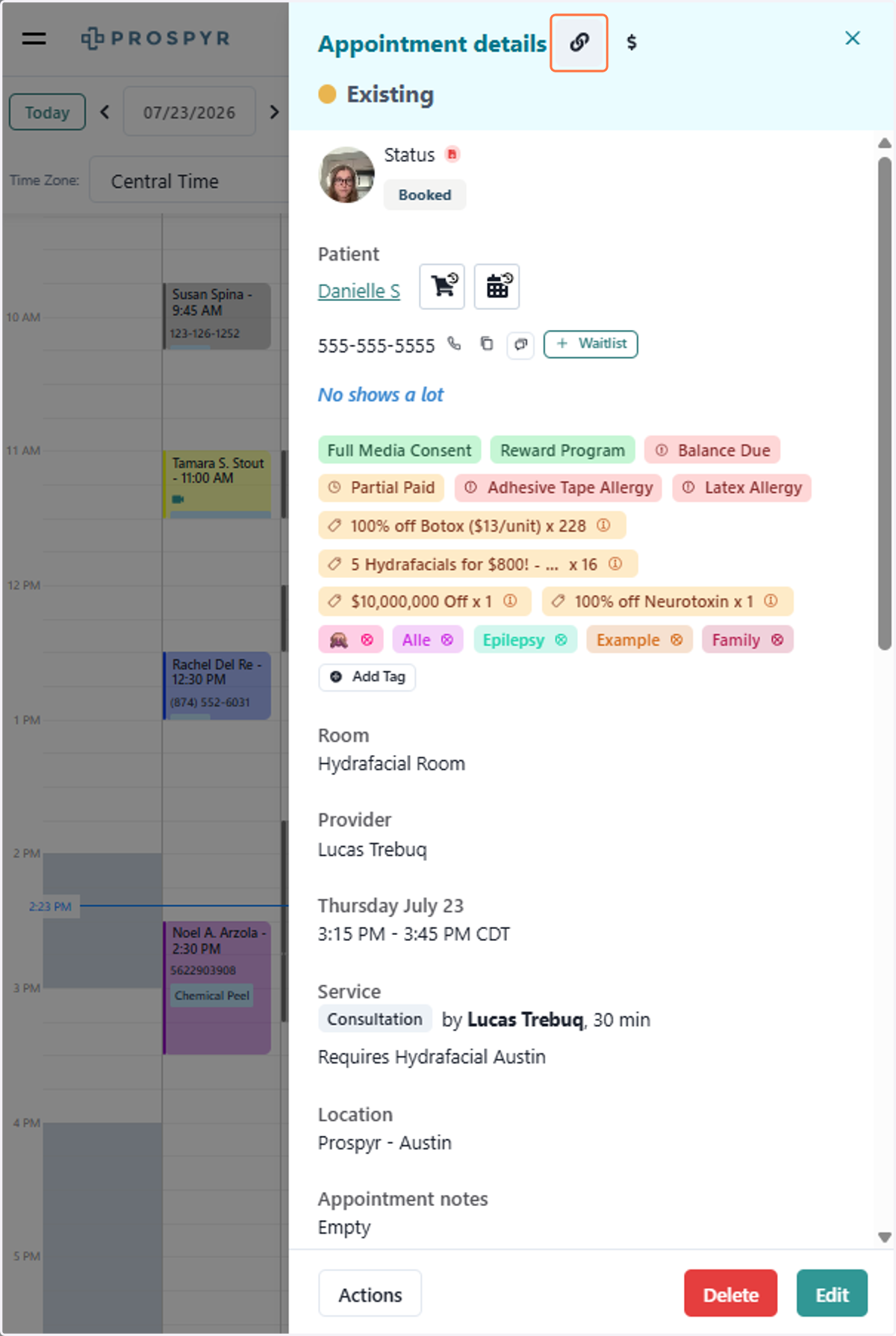
7. Click on link to appointment
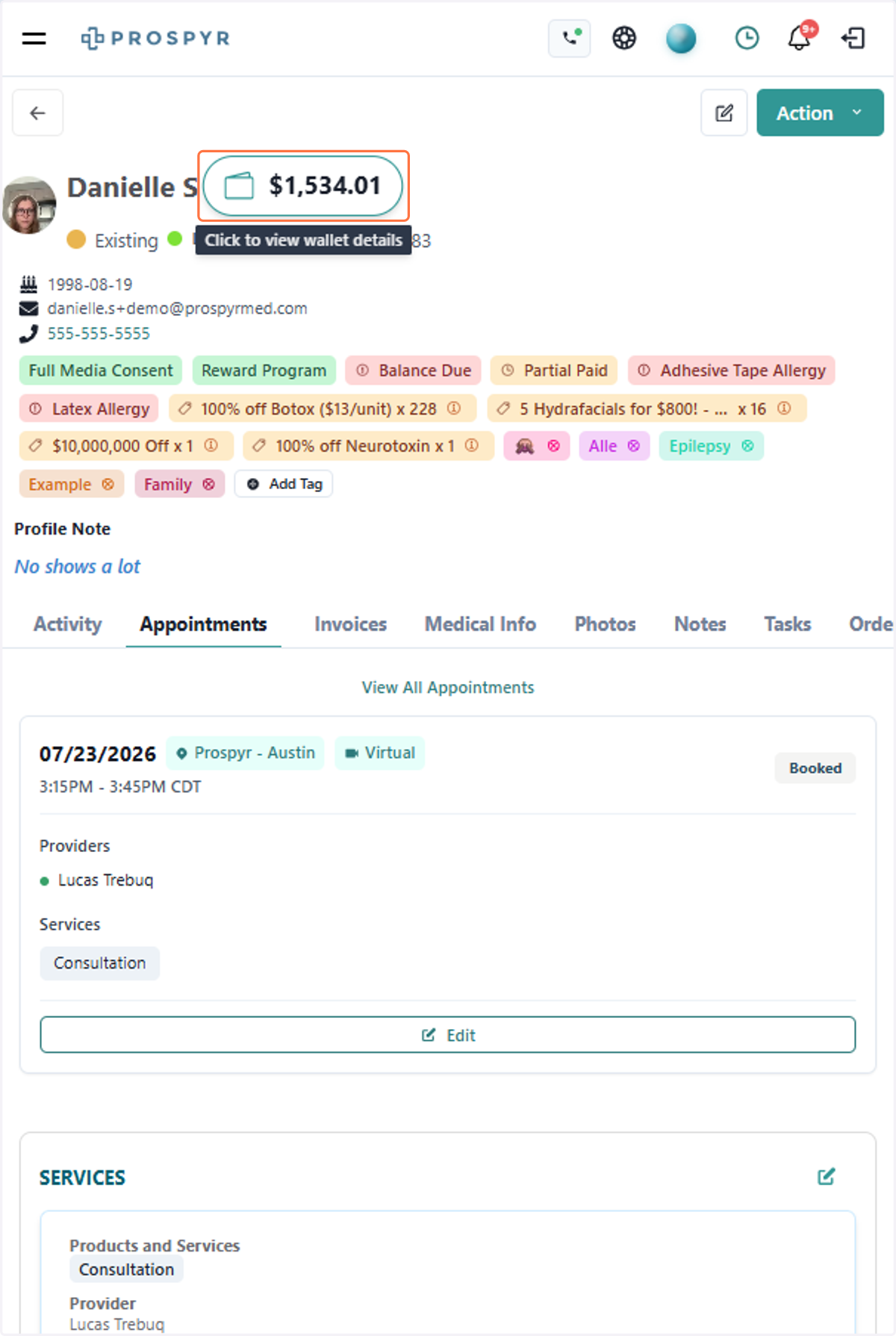
8. Click on the patient wallet
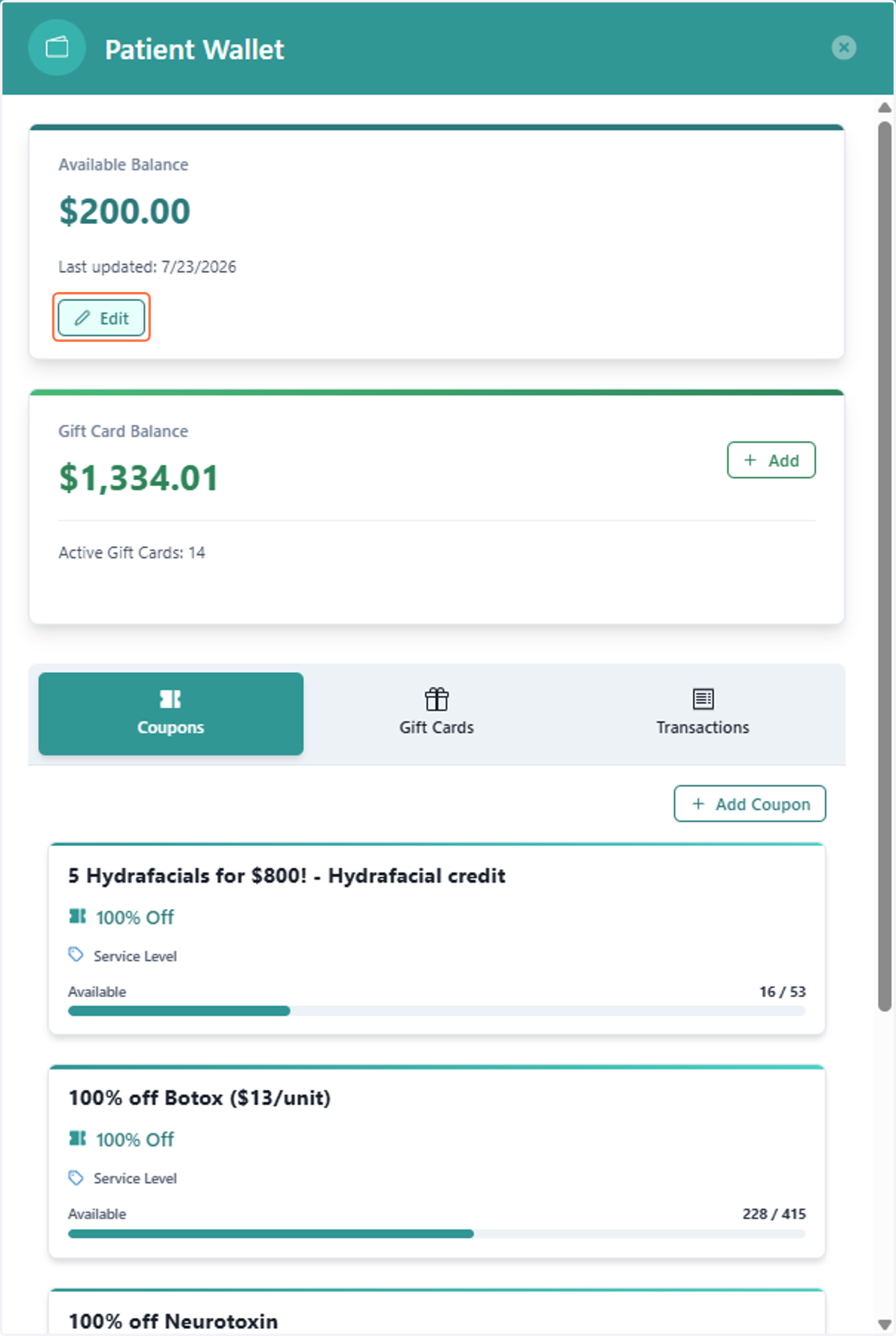
9. Click on Edit
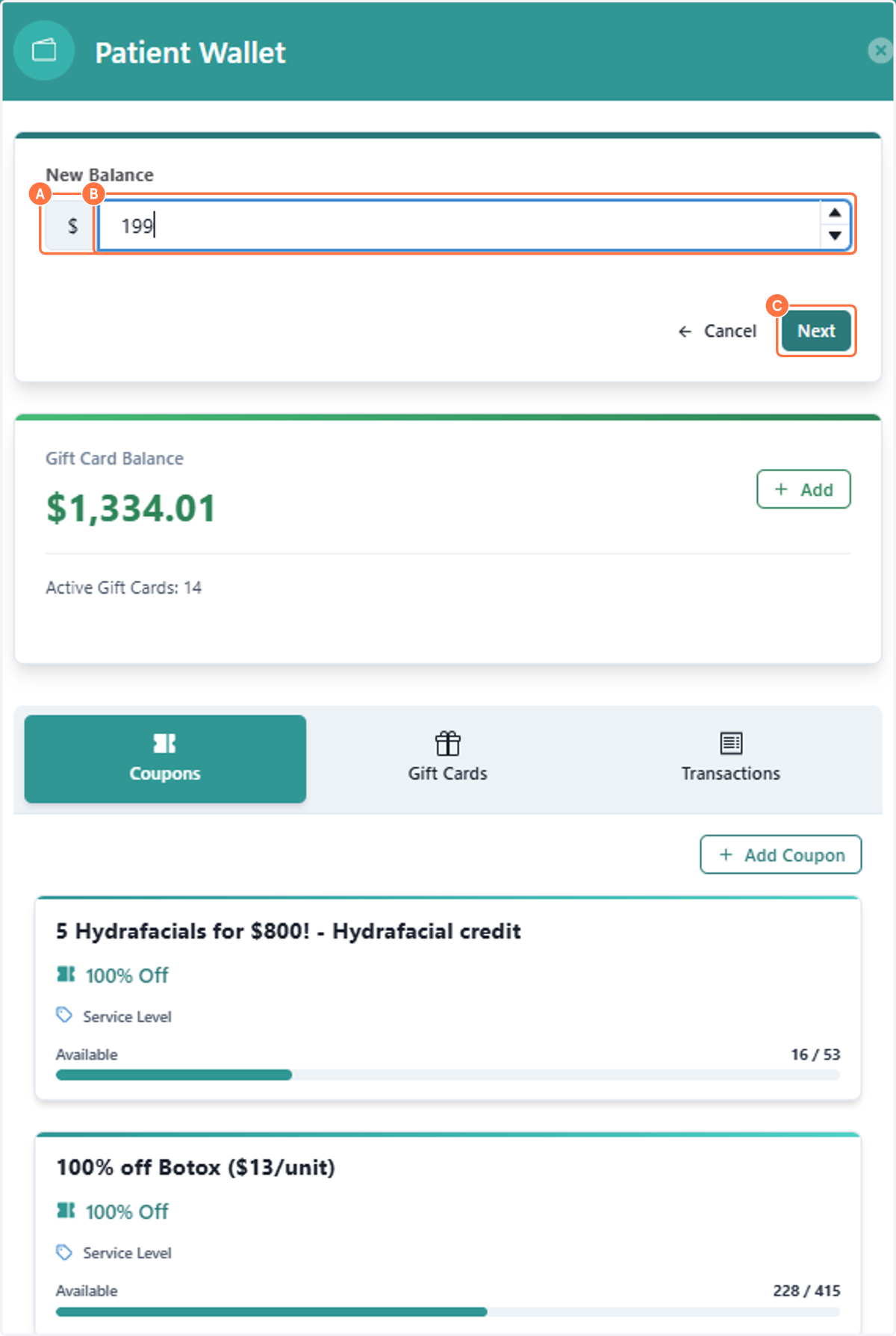
10. A. Click on $
10. B. Type New Balance
10. C. Click on Next
The new balance will be their current balance minus the deposit amount
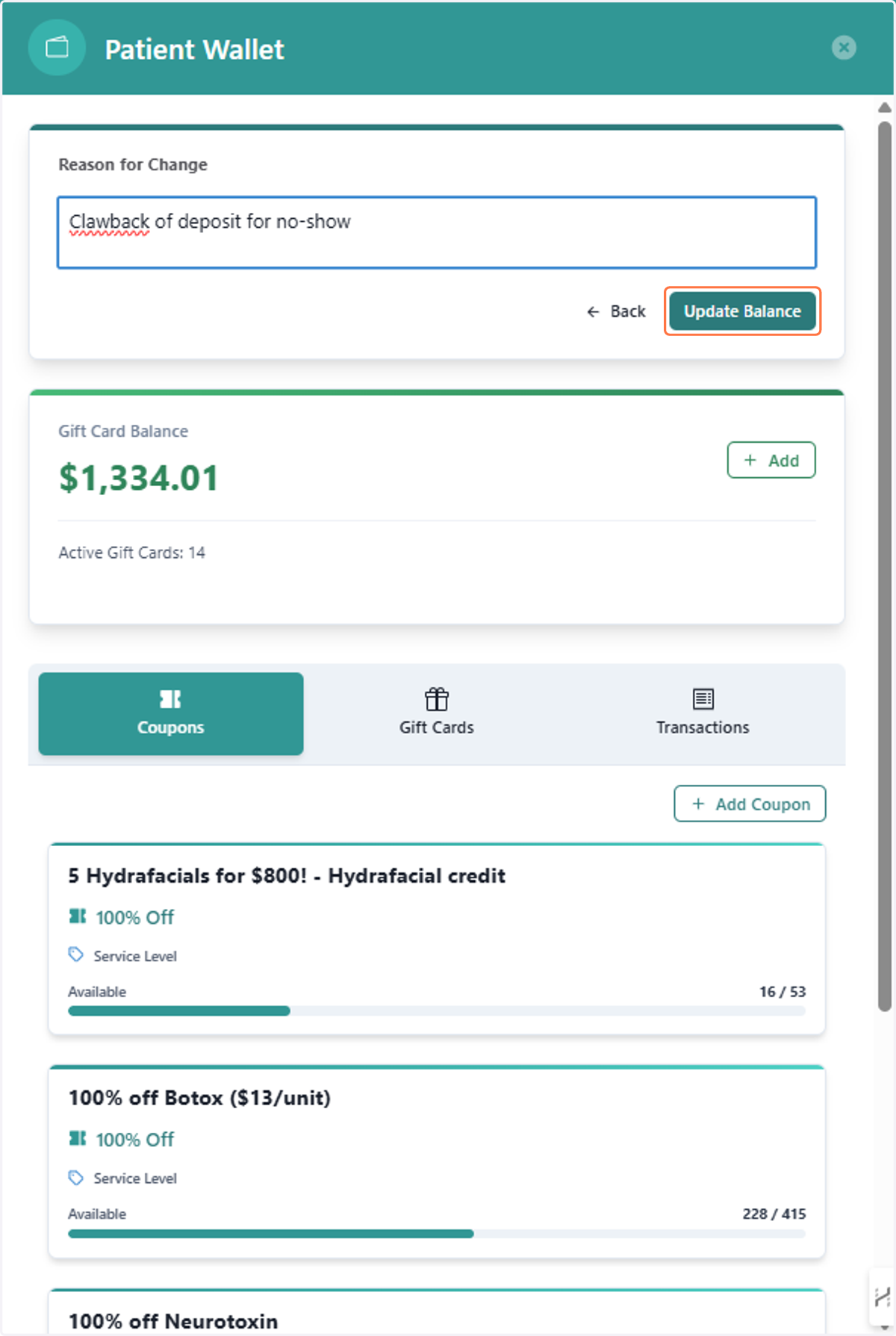
11. Type the Reason for Change
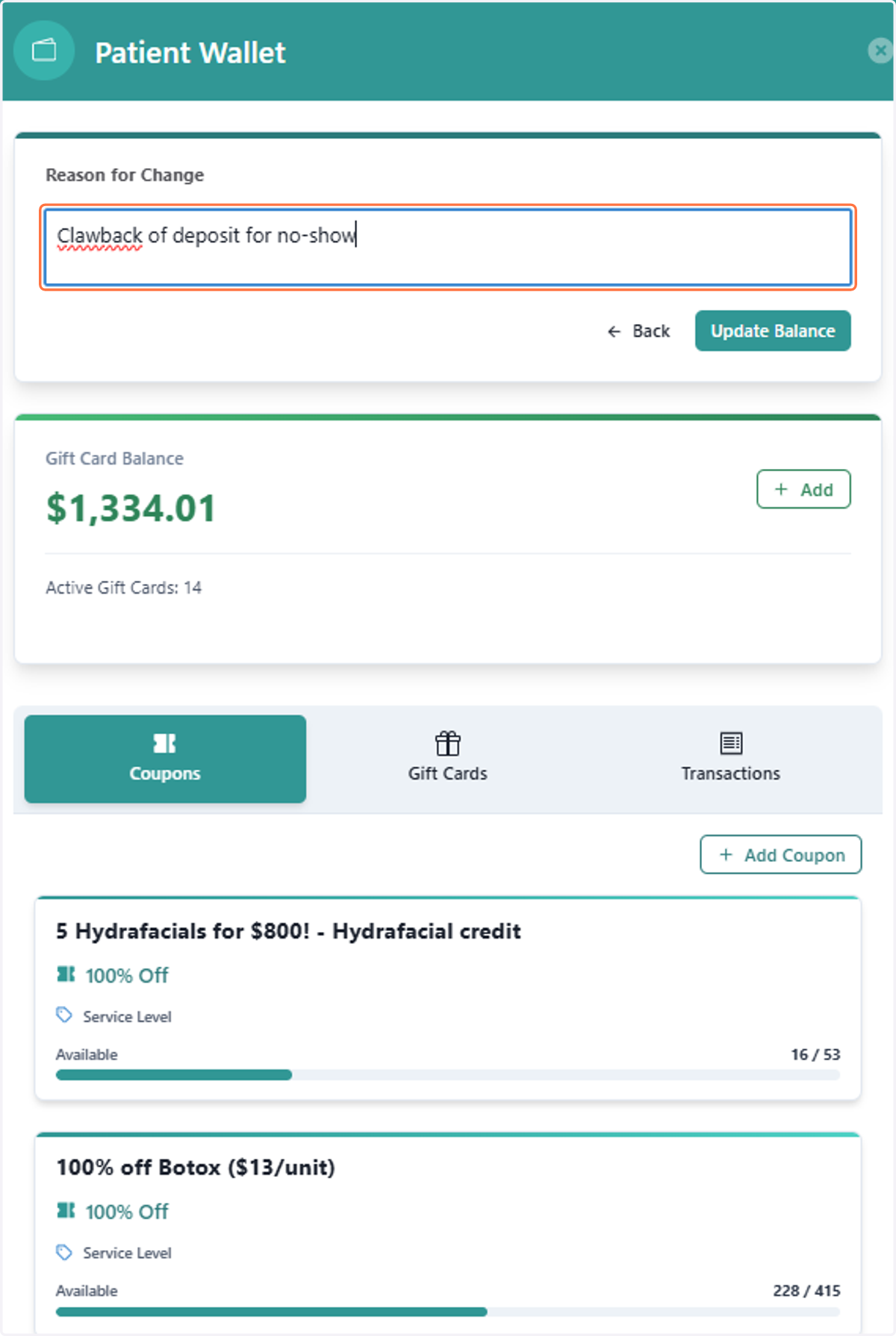
12. Click on Update Balance