Hot Folders and Print Locations with Infigo Sync
The concept of hot folders and Print Locations is to allow routing of specific jobs (output files). In this tutorial, we will review the steps taken within the Infigo software to create and manage the behaviour of your hot folders and print locations.
Please see our Help Desk for a more detailed written article on Hot Folders and Print Locations
Please see our Help Desk for a more detailed written article on Infigo Sync
The concept of hot folders and Print Locations is to allow routing of specific jobs (output files).
A print location, by definition, should be thought of as a separate location where production happens. Hot folders are then created and assigned to a print location so that you can manage what folders jobs will be pushed into for that specific print location.
You can create a number of print locations for a storefront, and within the print location you can create many hot folders.
All Infigo Storefronts are linked to one Platform wide Print Location to begin with.
A Print Location stores all Hotfolders and allows the printer to define specific download locations for each job, based on mapping criteria.
The Hotfolders are then replicated on an Administrators local machine and integrated into the print workflow (imposition / prepress etc)
Each mapping criteria is created to automatically assign the job to a Hotfolder when it is ordered.
1. Choose where to create your new Print Location
The easiest way to decide where you should create your print location is to consider which storefront(s) you want this to accept outputs from. If you would like your Infigo Sync instance to download from just one storefront, then it makes sense to create the print location on that storefront.
However, if you would like your Infigo Sync instance to download the outputs from all of your storefronts, then you would need to create your print location on the platform.
To begin, ensure you are logged in to either the platform or an individual storefront where you would like the Print Location to reside.
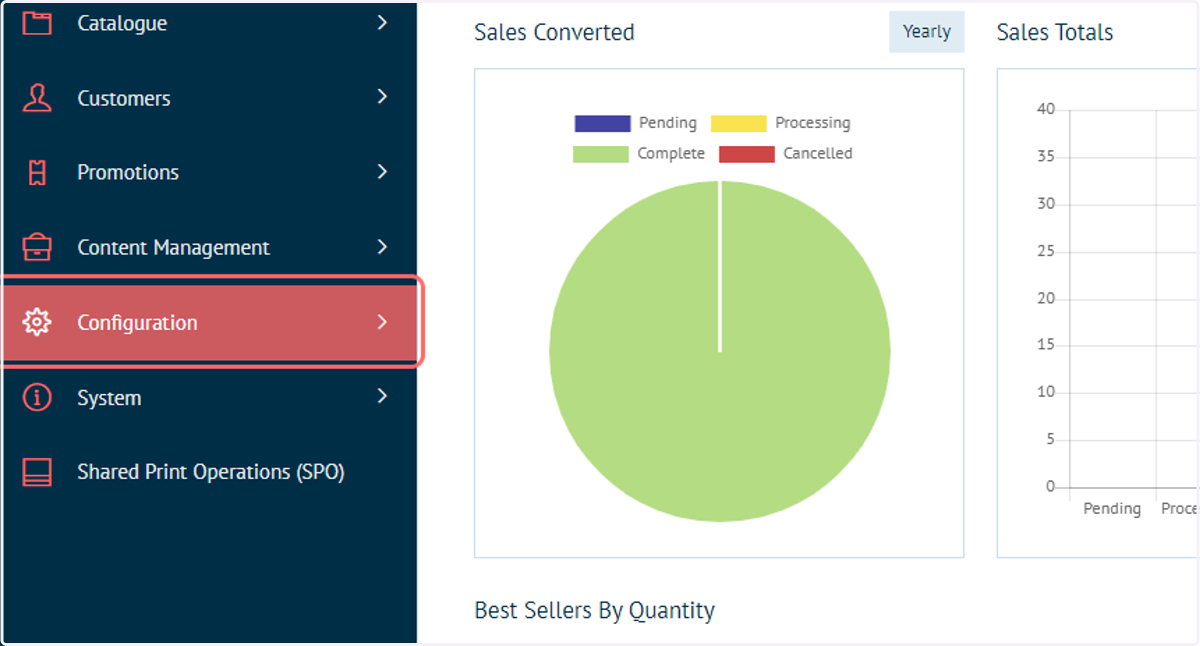
2. Click on Configuration
We will begin by creating a new Print Location.
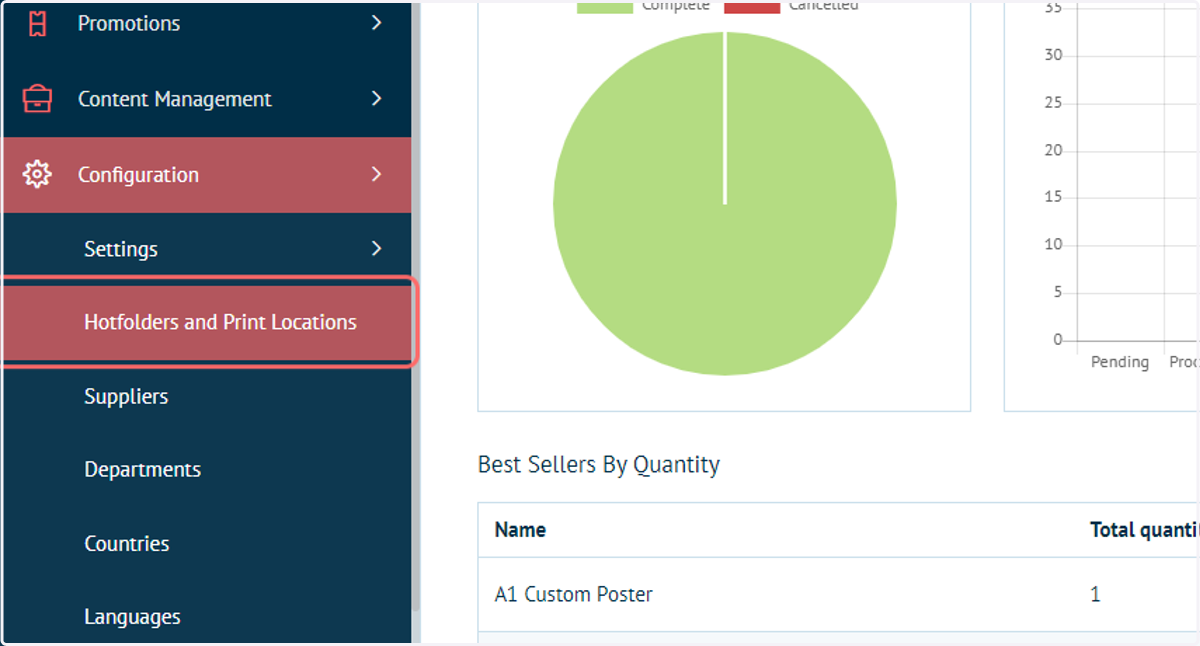
3. Click on Hotfolders and Print Locations
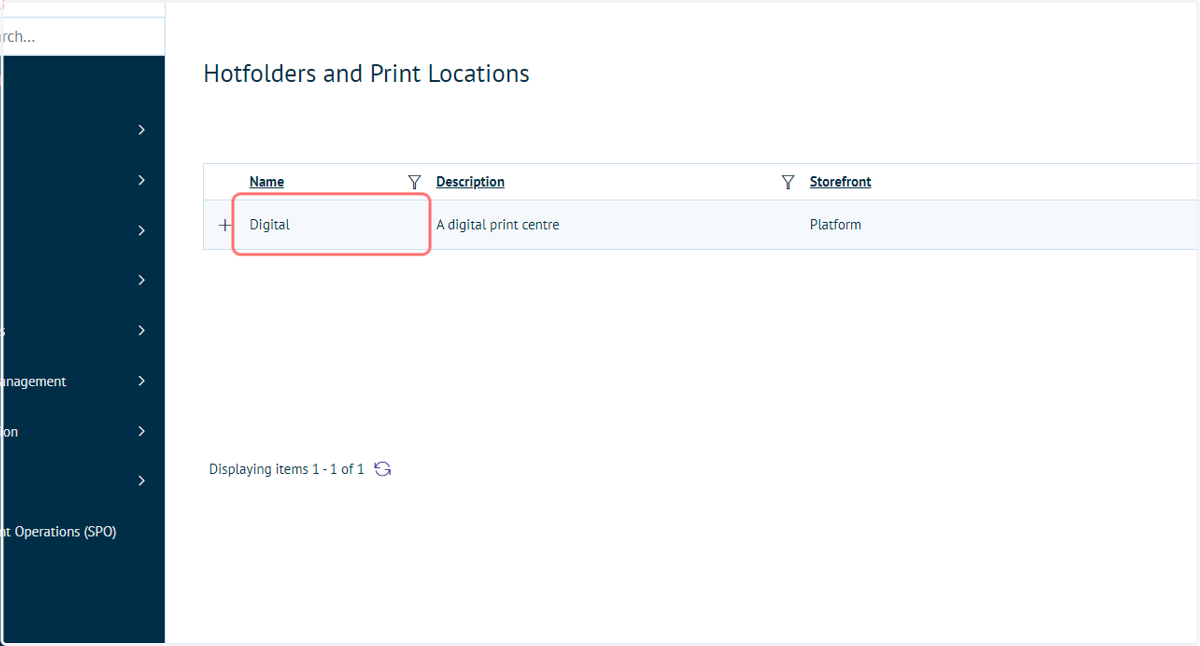
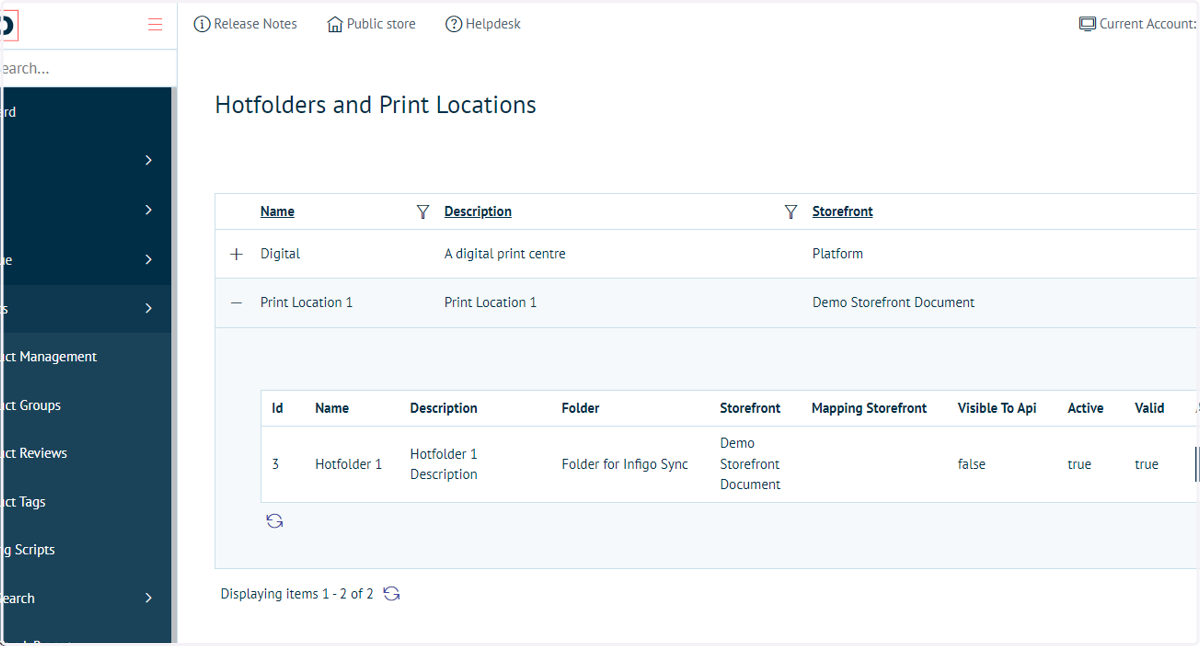
4. Existing 'Digital' Print Location
There will already be a print location present called 'Digital'. This is the default print location which is present on the platform and you are more than welcome to use it, however please note that a print location, and the hotfolders within it, can only be edited when you are on the same account.
In this case, the Digital print location exists on the platform, as seen in the 'Storefront' column in the screenshot below. This means that if I want to make any changes to it, I will also need to be on the platform.
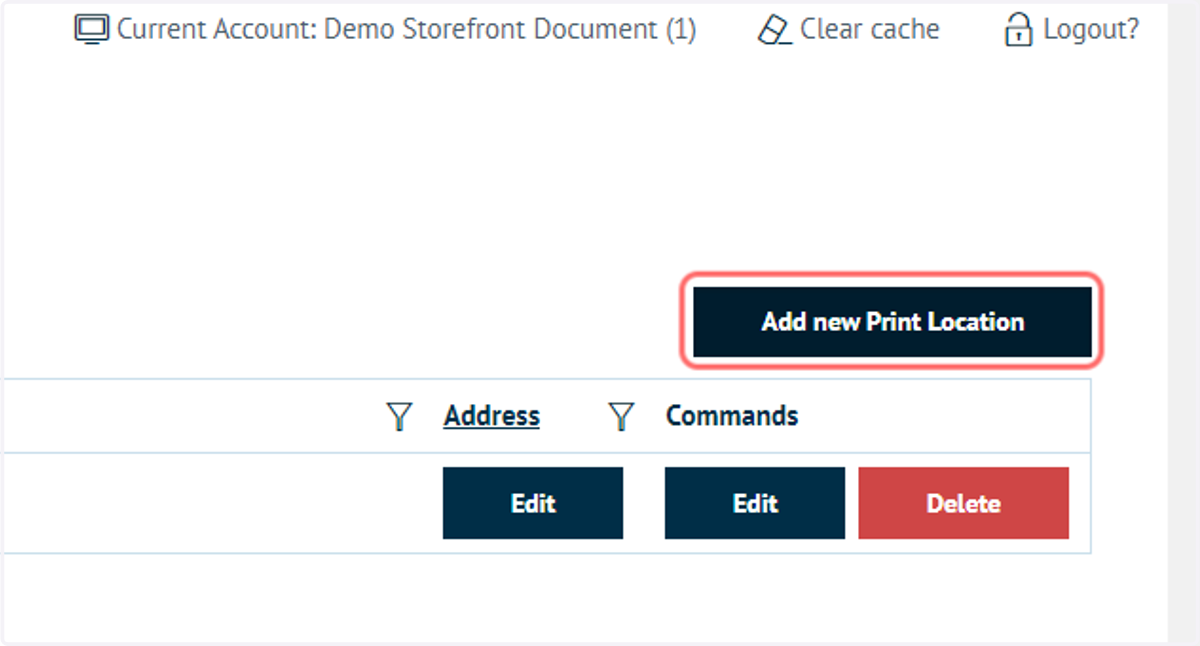
5. Click on Add new Print Location
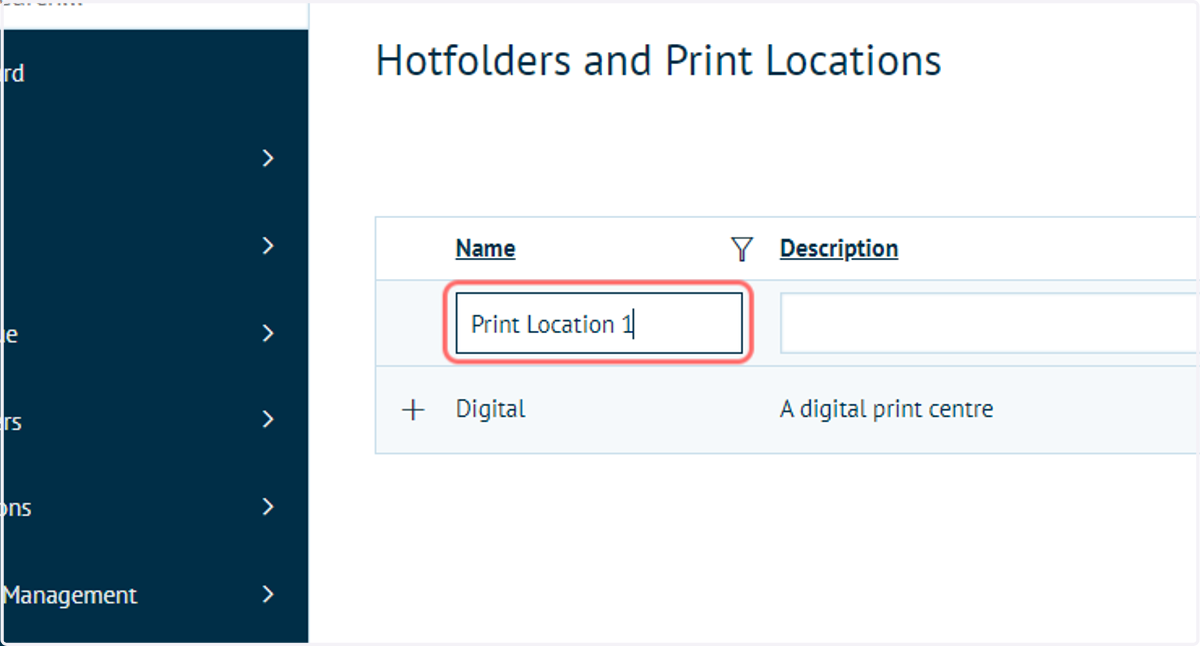
6. Enter a Print Location name, such as "Print Location 1"
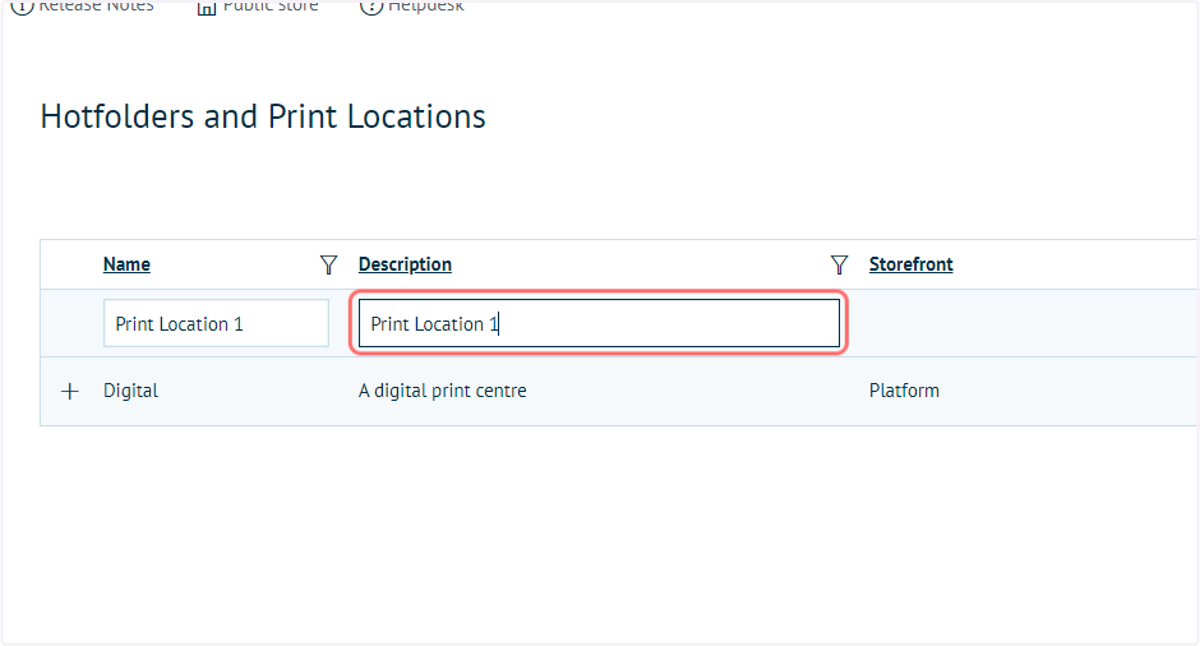
7. Enter a Print Location description, such as "Print Location 1"
8. Click on Insert
9. Add or modify address details using the Edit button under the Address column
This address is only really used in bespoke scenarios and can more often than not be overlooked.
10. Install and configure Infigo Sync
InfigoSync is a Windows based service which polls your Infigo Platform and downloads any print ready jobs to hotfolders.
It is a two way service that identifies files have successfully reached their destination on your internal network, and automatically updates the status of the order in Shared Print Operations.
InfigoSync can also upload files to the Infigo system.
11. Download Infigo Sync
To begin, download the Infigo Sync installer from our Help Desk
Setting up and installing InfigoSync – Infigo Help Desk (zendesk.com)
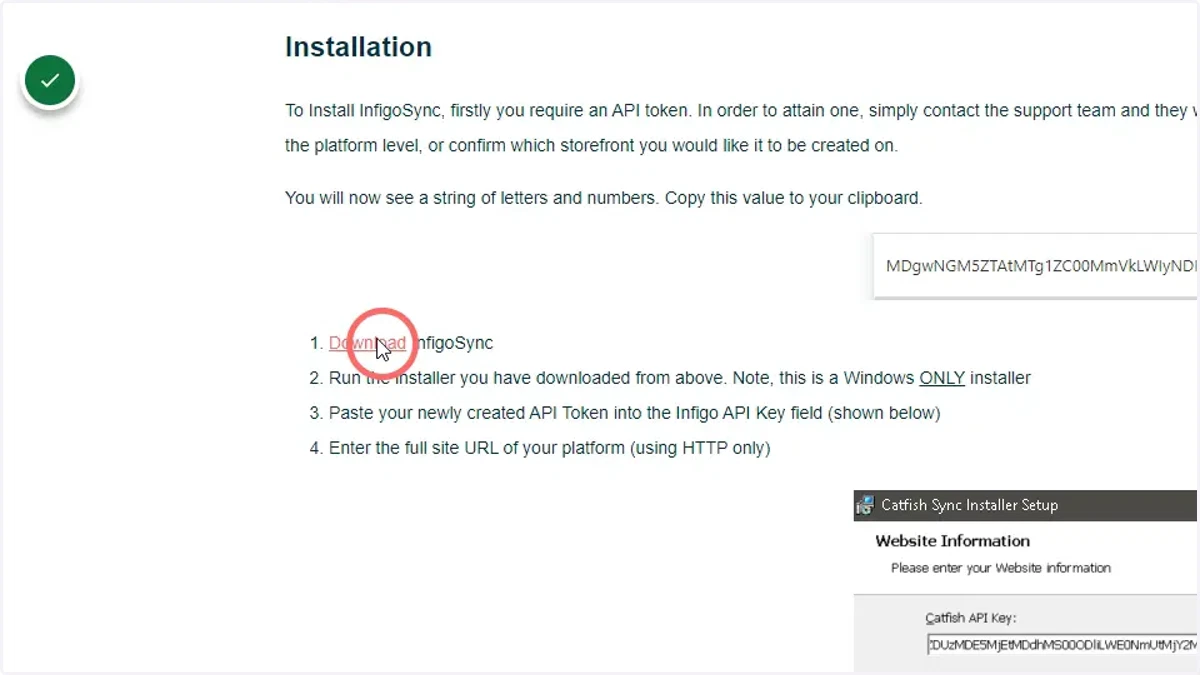
12. Click Download
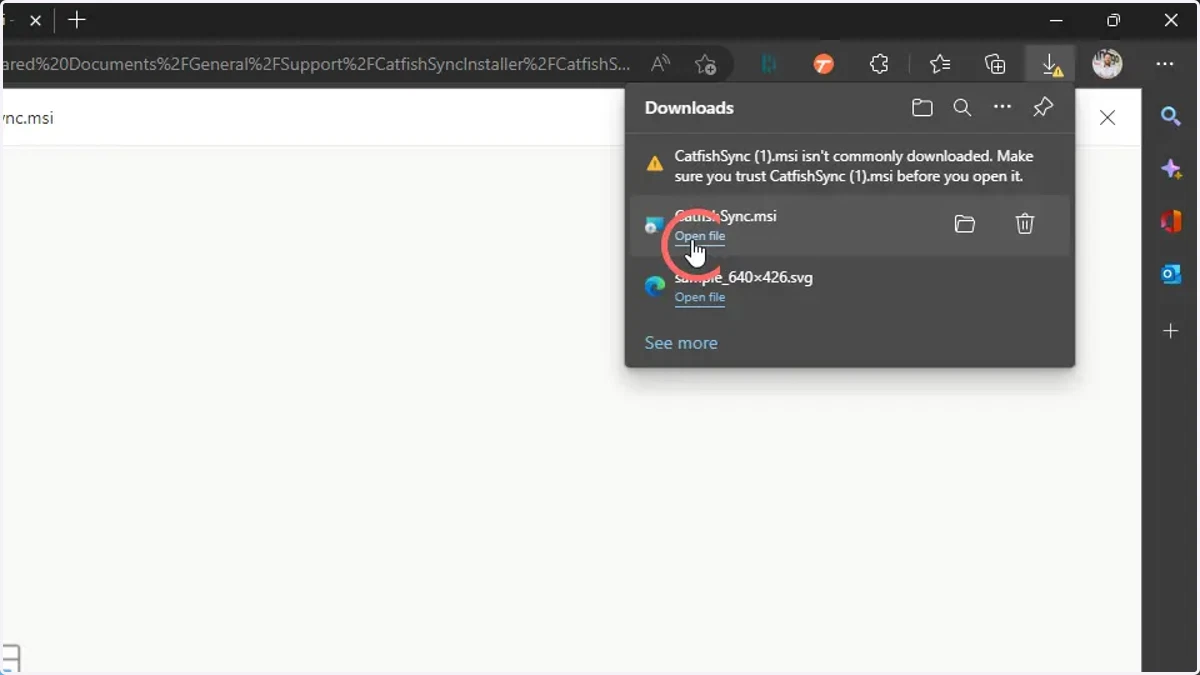
13. Run the Installer
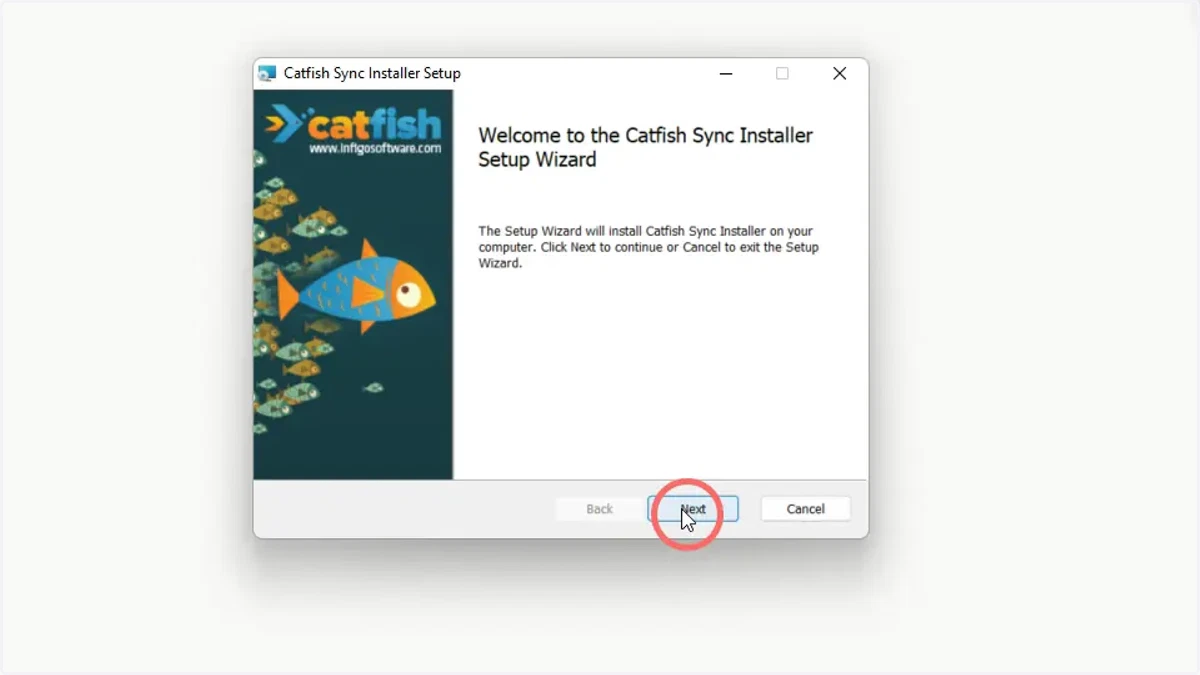
14. Click Next on the installer
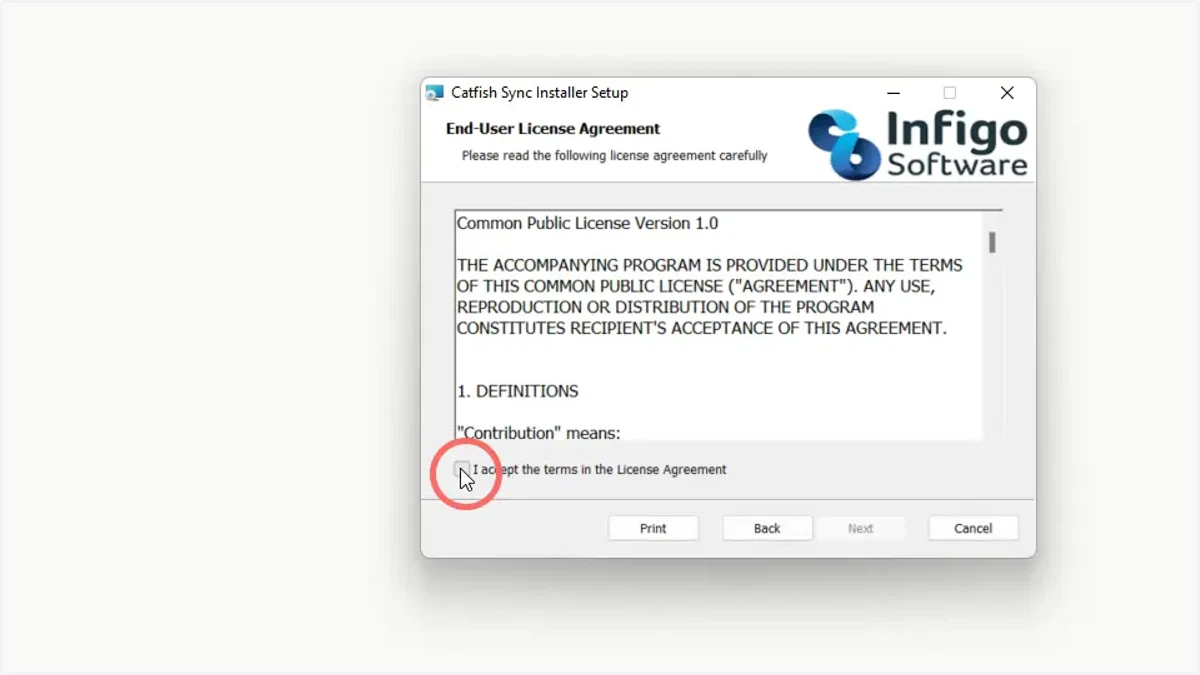
15. Accept terms and conditions
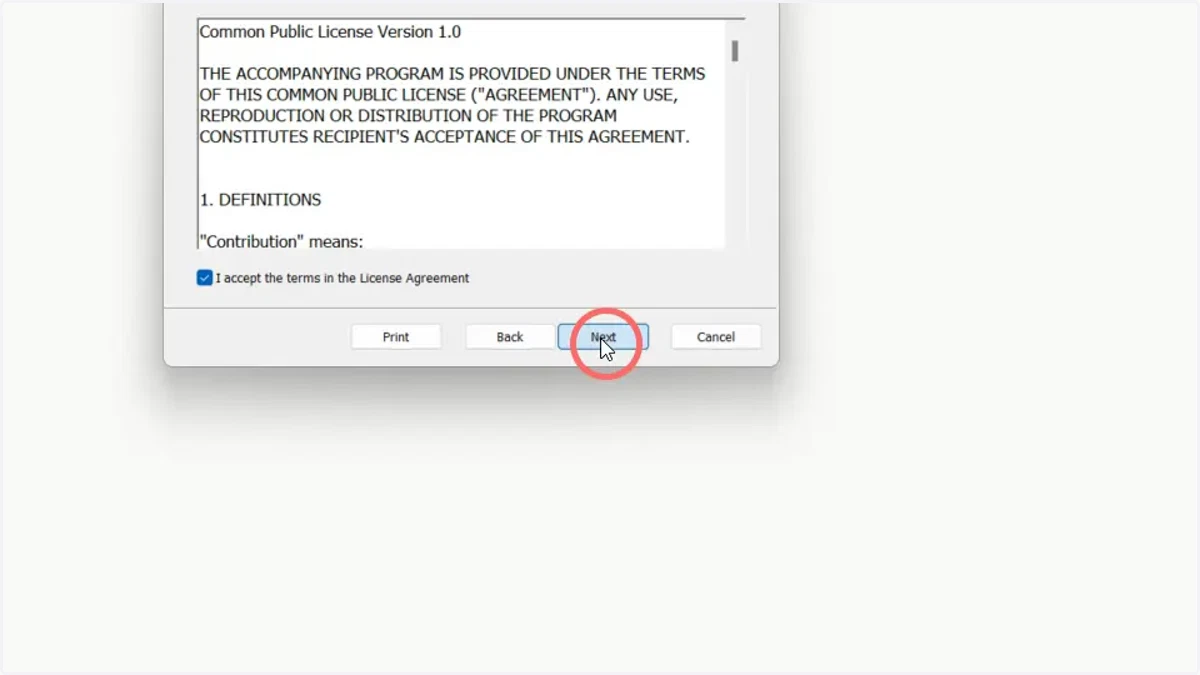
16. Click Next
17. Paste your API Token into the API Token field
In order to obtain an API Token, simply contact the support team and they will produce one for you.
When requesting a token, please confirm whether you would like it to be created on the platform level, or confirm which storefront you would like it to be created on.
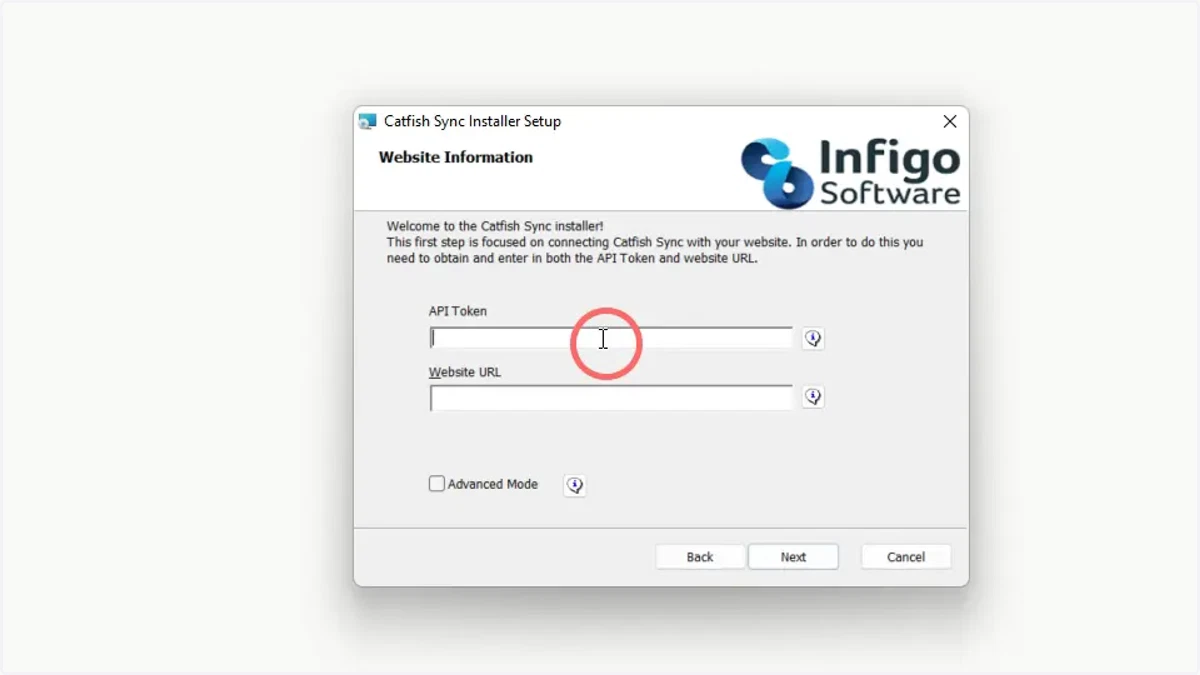
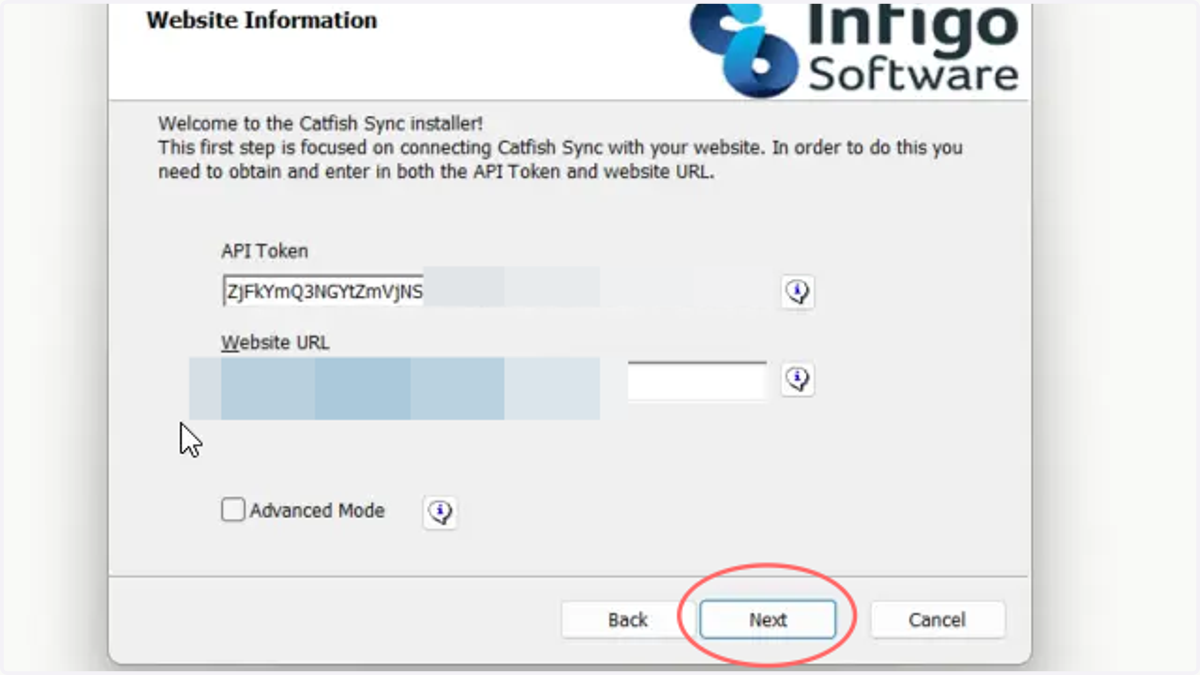
18. Input your website URL (using HTTP only)
Once input, click Next.
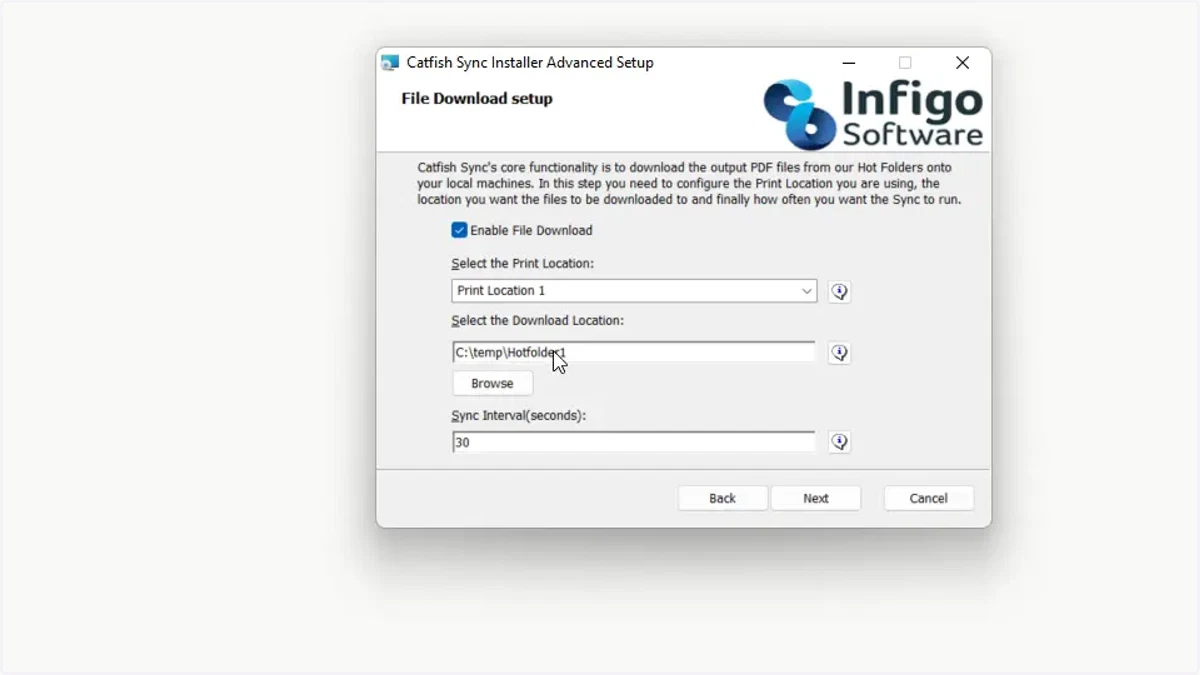
19. Complete Infigo Sync configuration settings
Select the Print Location relevant to your current needs
Input a file download location
Click Next and complete the installation
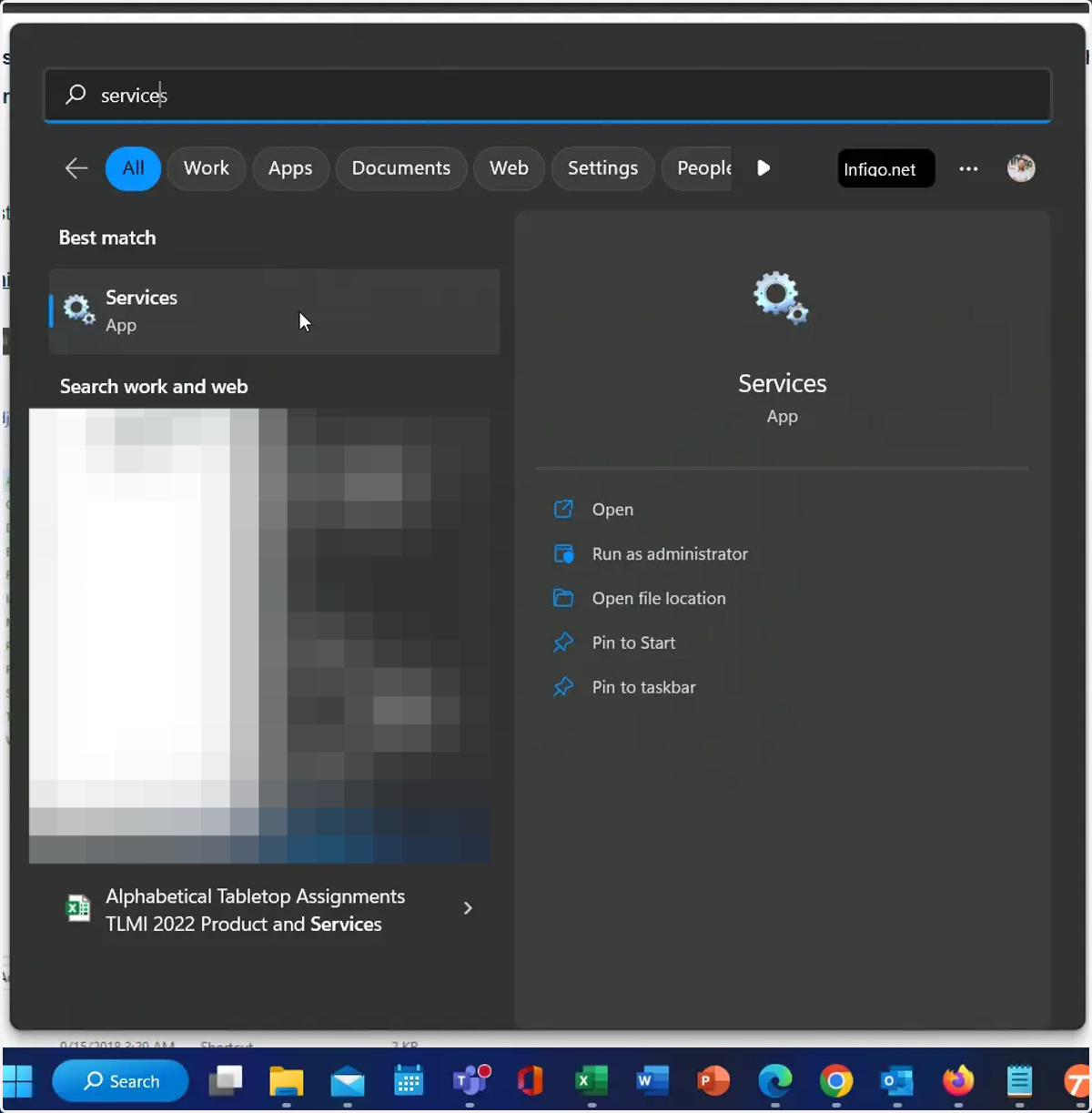
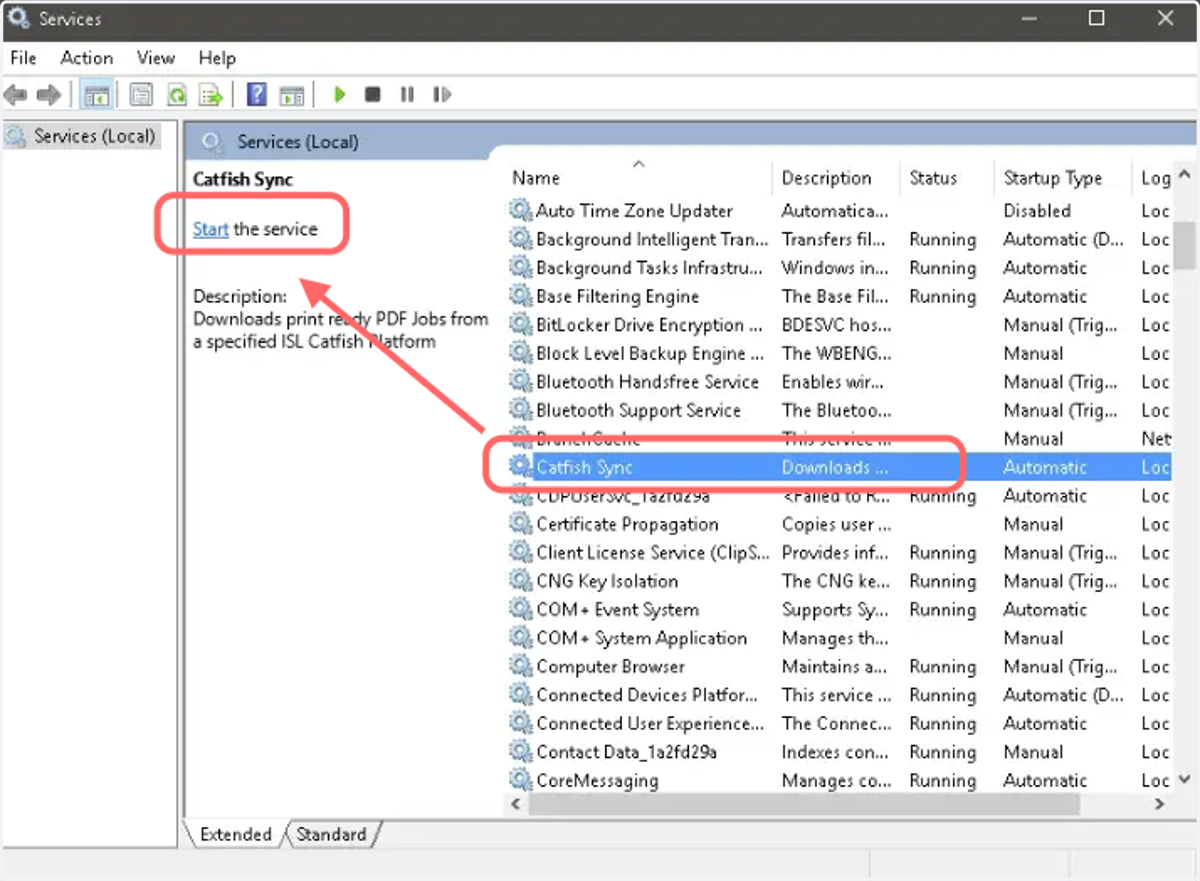
20. Navigate to Services on your computer
21. Locate the Catfish Sync service and click Start the service
Note: Catfish Sync is the old name for Infigo Sync
22. With a print location created and Infigo Sync configured, we will begin creating our Hot folders
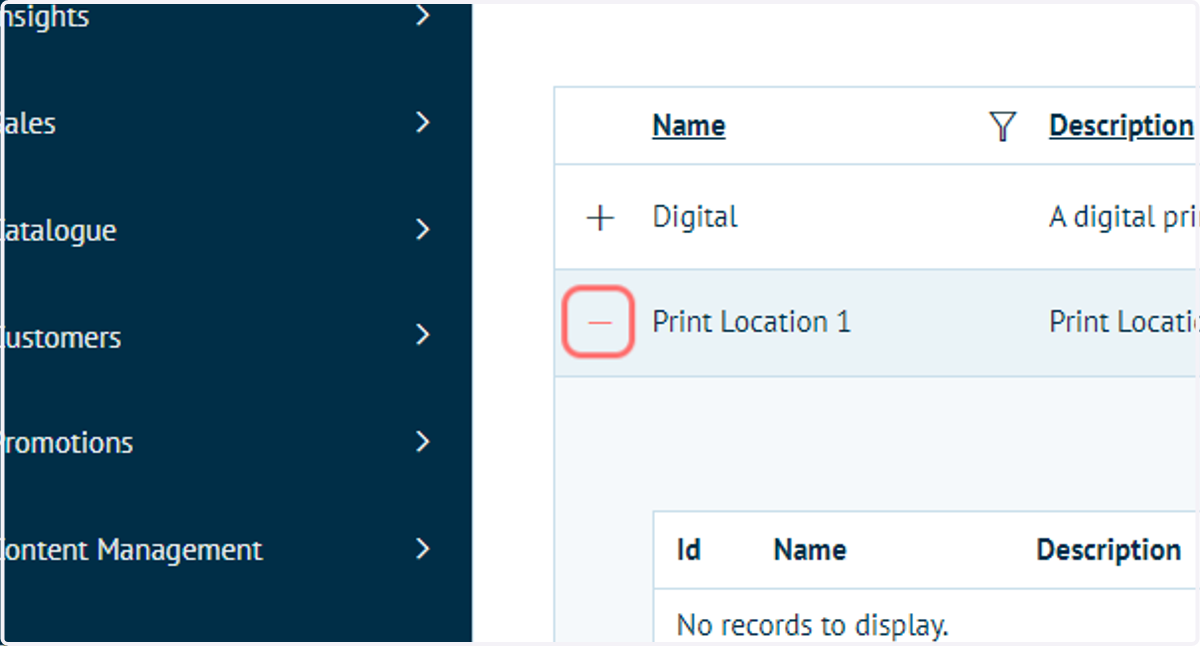
23. Click on '+' icon next to your Print Location
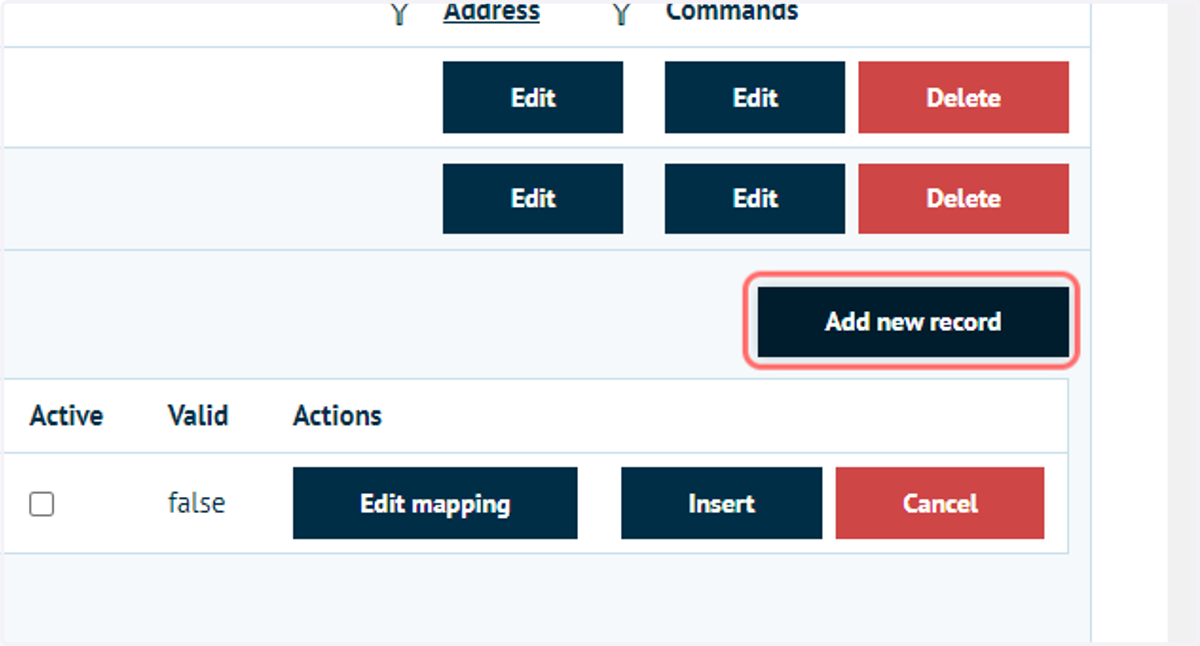
24. Click on Add new record
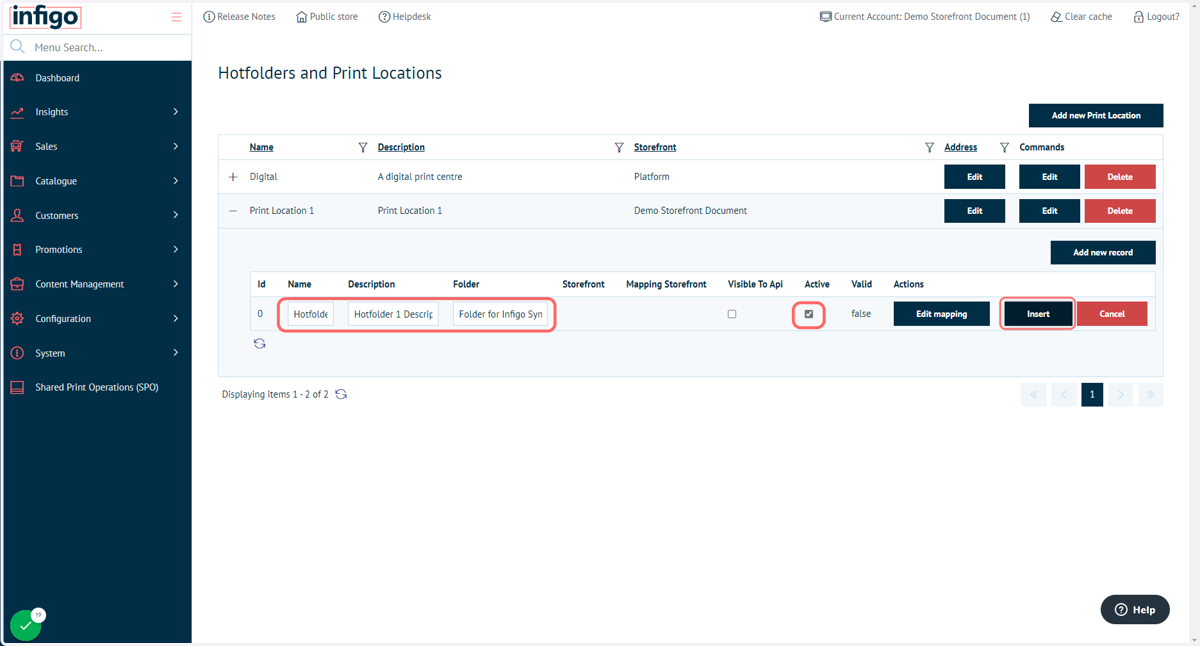
25. Complete Hot folder details and click Insert
Name - This is the system name for the hotfolder and can be used to identify it in the administration menu.
Description - This is a simple description of the hotfolder to allow you to identify its purpose.
Folder - this is the name of the folder that will be downloaded through Infigo Sync. This can be the same as the system Name, or different to it entirely, as this is designed to allow you to integrate Infigo Sync into your existing workflow.
Active - This is essentially an on/off switch for hotfolders as turning this off will make a hotfolder inactive and cause all parts of the system to ignore it entirely.
Insert - Once you are done with your configuration, click this button and the hotfolder will be created.
26. Mapping Hot Folders and Print Locations
Mapping is how you can control which order line output files go to which hotfolders. Our hotfolder mapping is less of a filtration system, and more of a guidance system, in that there is no way to configure the system to prevent files from going into certain hotfolders, and instead you will provide them with arguments for incoming folders.
27. For Hotfolder mapping, navigate back to Hotfolders and Print Locations
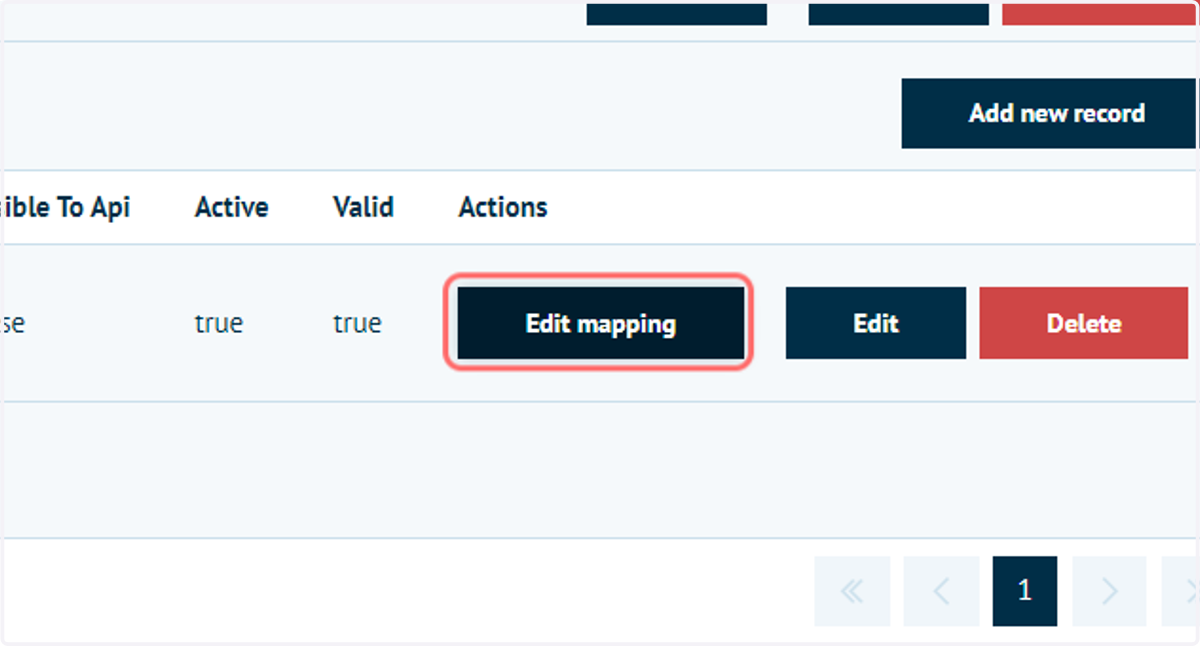
28. Click on Edit mapping
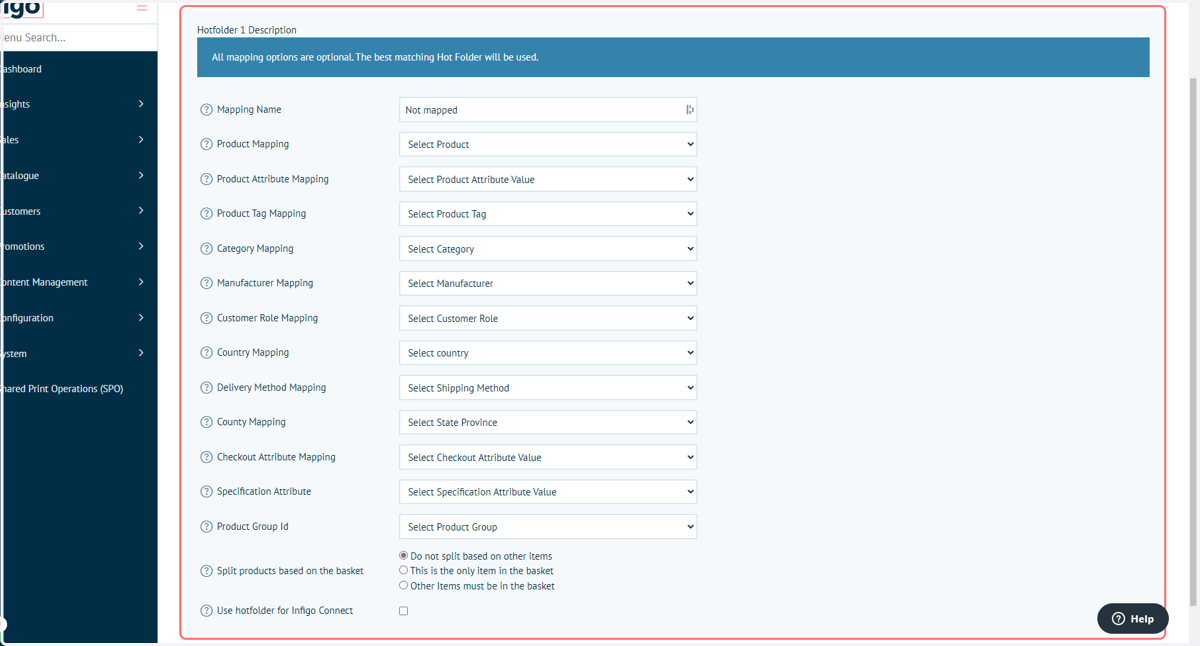
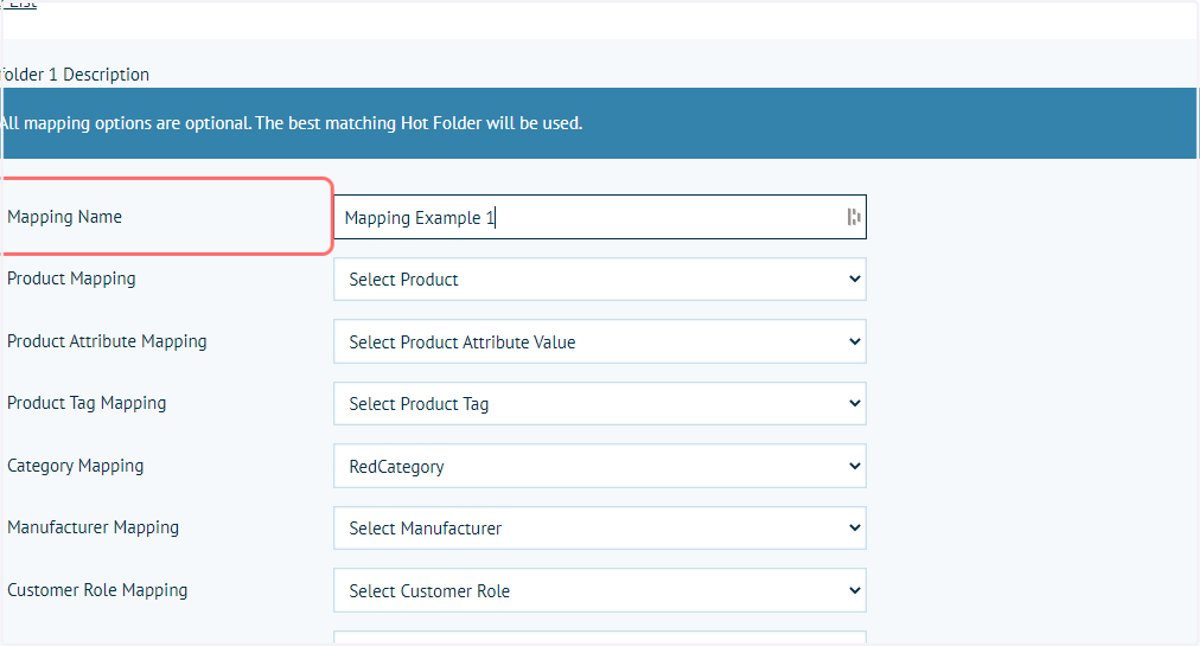
29. Select mapping properties
You can configure the mapping for each potential job property. A job property is simply some information that can be used to separate one job from another at a mapping level.
For example, you can use the "Product Tag" dropdown to map products which have specific product tags to the hotfolder you are currently configuring. This will cause any outputs that end up in this print location and have the mapped product tag assigned to them to go to this hotfolder.
You could be more specific and not only map the product tag, but the category, so that an output file for a product which has the mapped product tag assigned to it and is part of the mapped category will have two arguments for going to this hotfolder instead of one.
When a file is deciding where to go, it will go to the hotfolder it has the most arguments for. If your hotfolder is mapped to three properties, but the job only meets two of the mapping requirements, then the job will go to the next available hotfolder that it has valid mapping for.
30. Select relevant properties
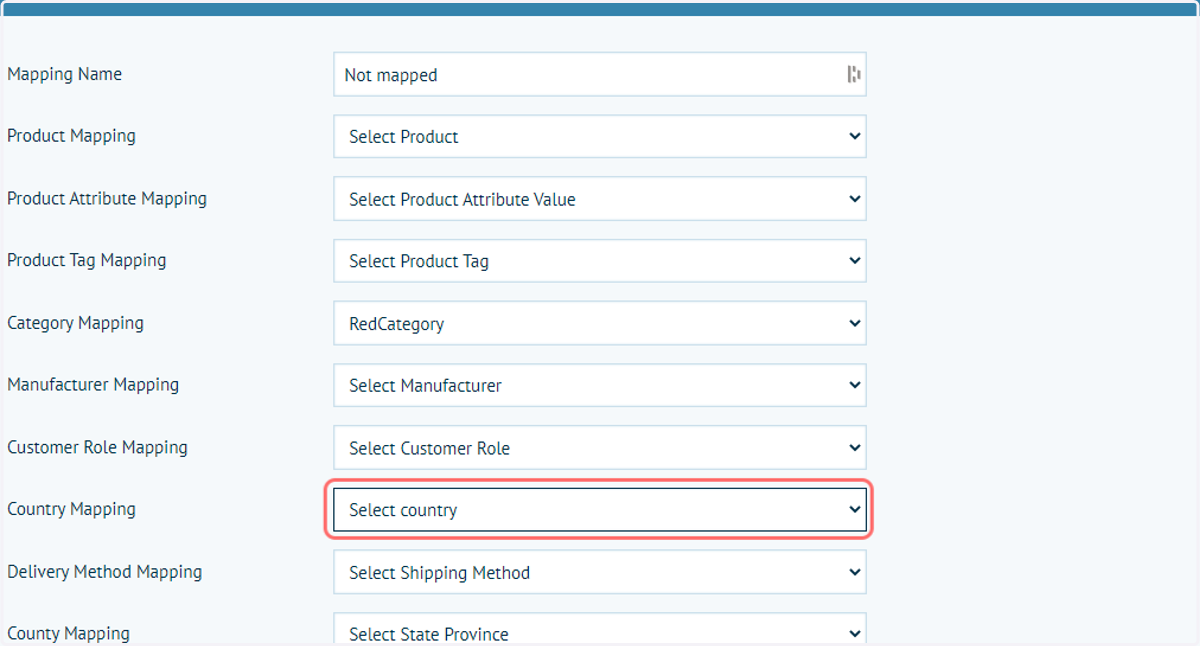
31. Input a Mapping Name
This is for reference only
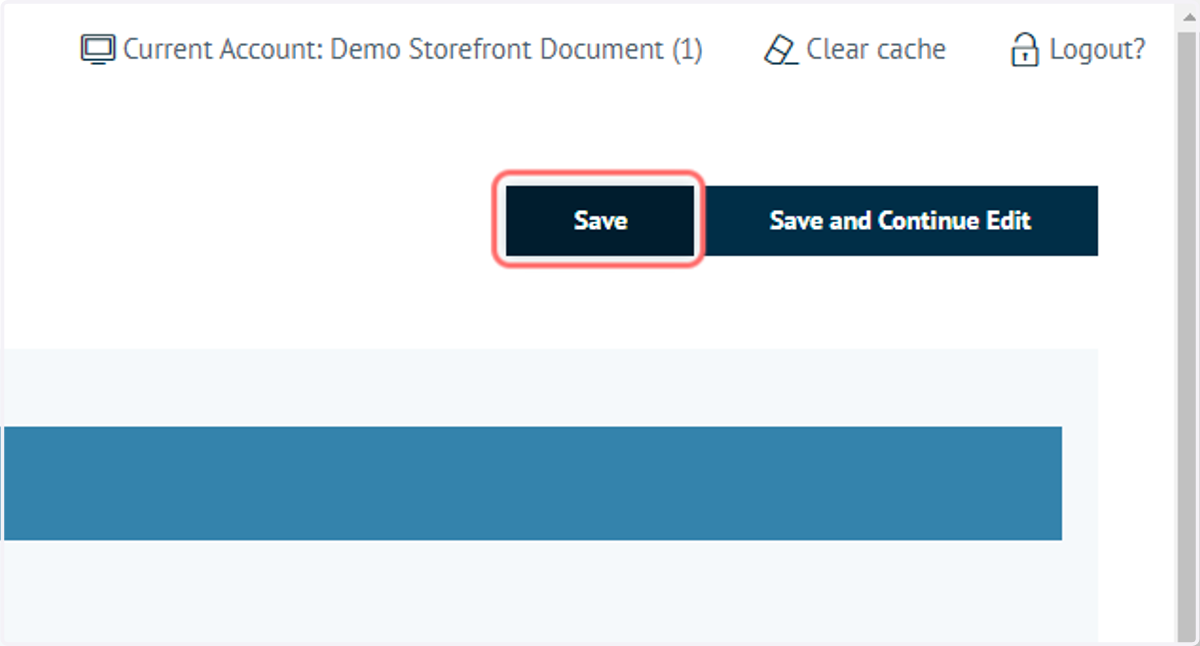
32. Click on Save
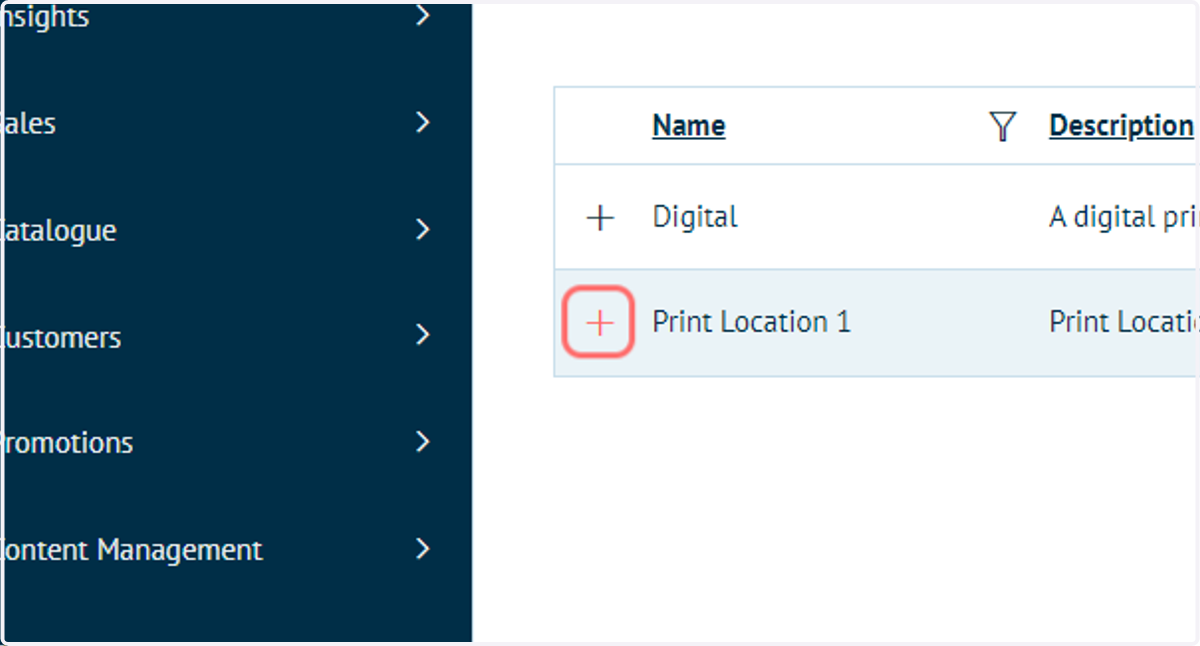
33. Before you 'Go Live' with your hotfolder, you'll need to make it visible to the API. Click on the '+' icon next to a Print Location
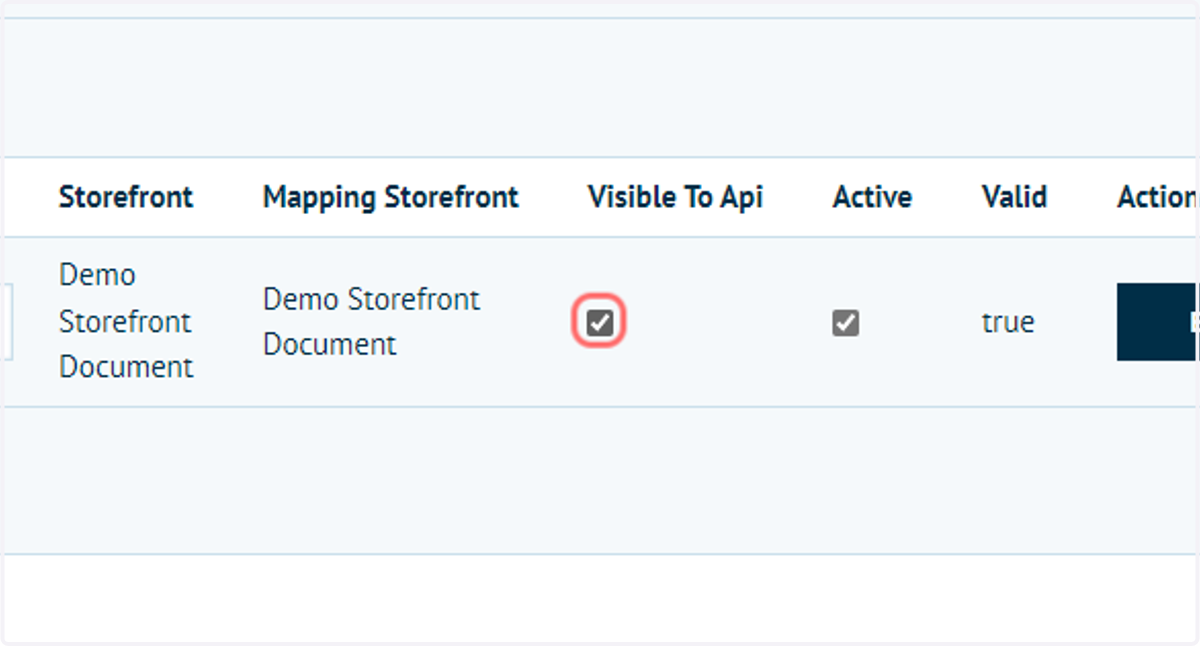
34. Click on Edit and check VisibleToApi
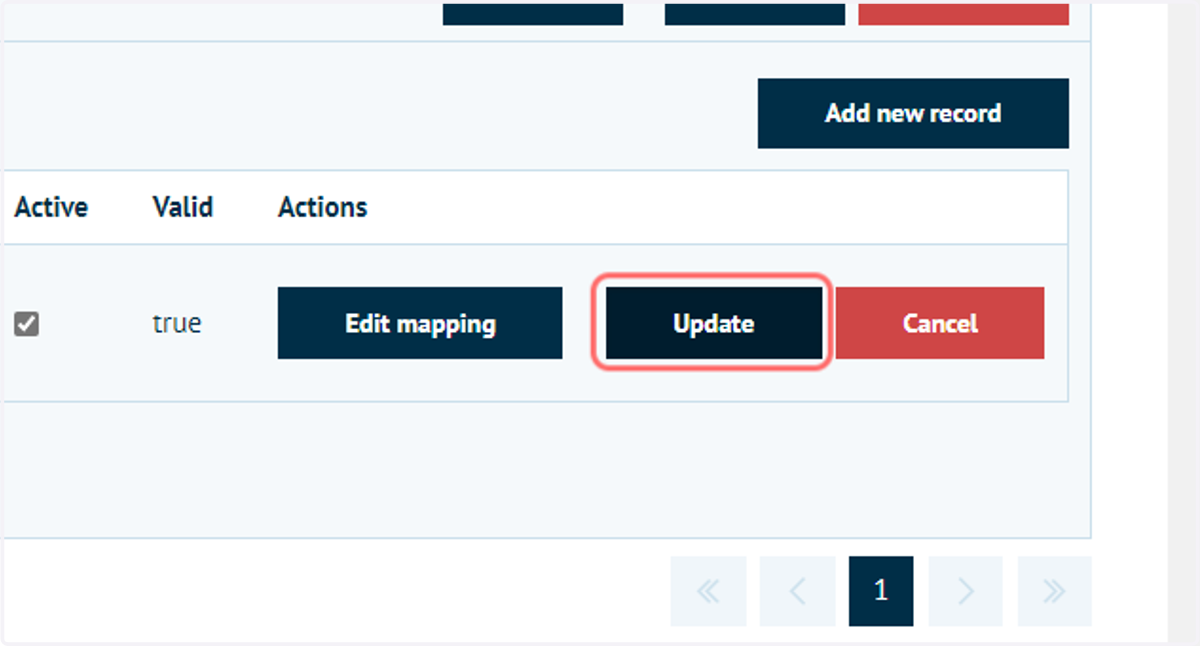
35. Click on Update
36. Copy Settings
As well as configuring where the files go when they are automatically copied, you can control which product types automatically copy their outputs, and whether or not they do so whenever an output is created.
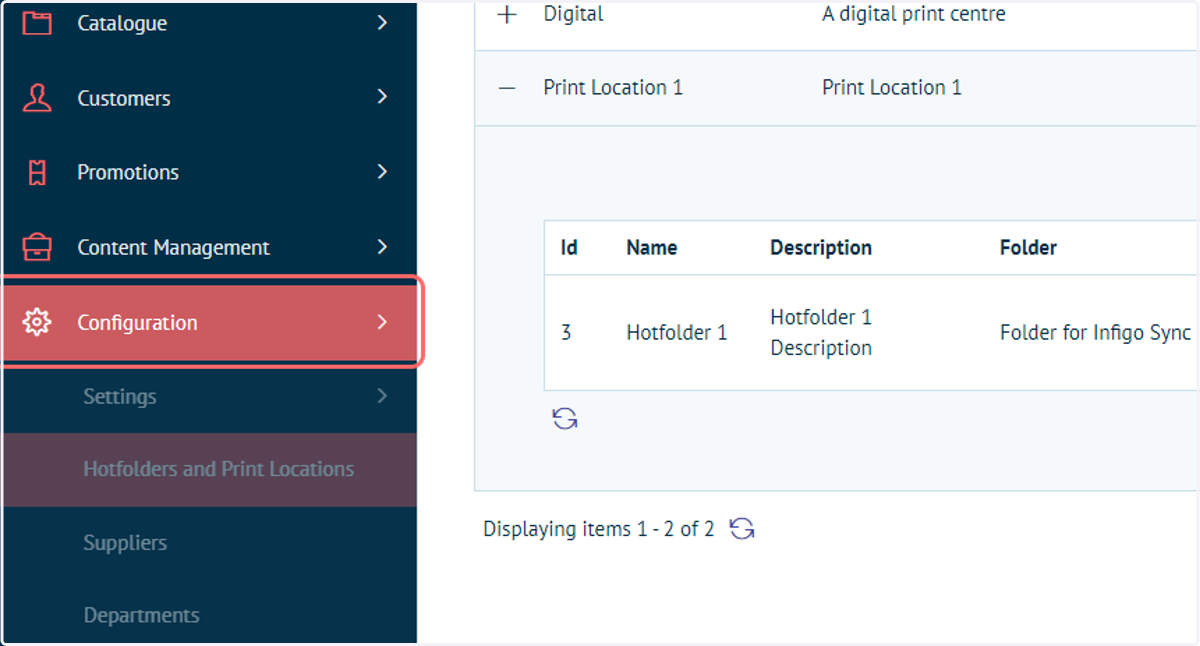
37. Click on Configuration
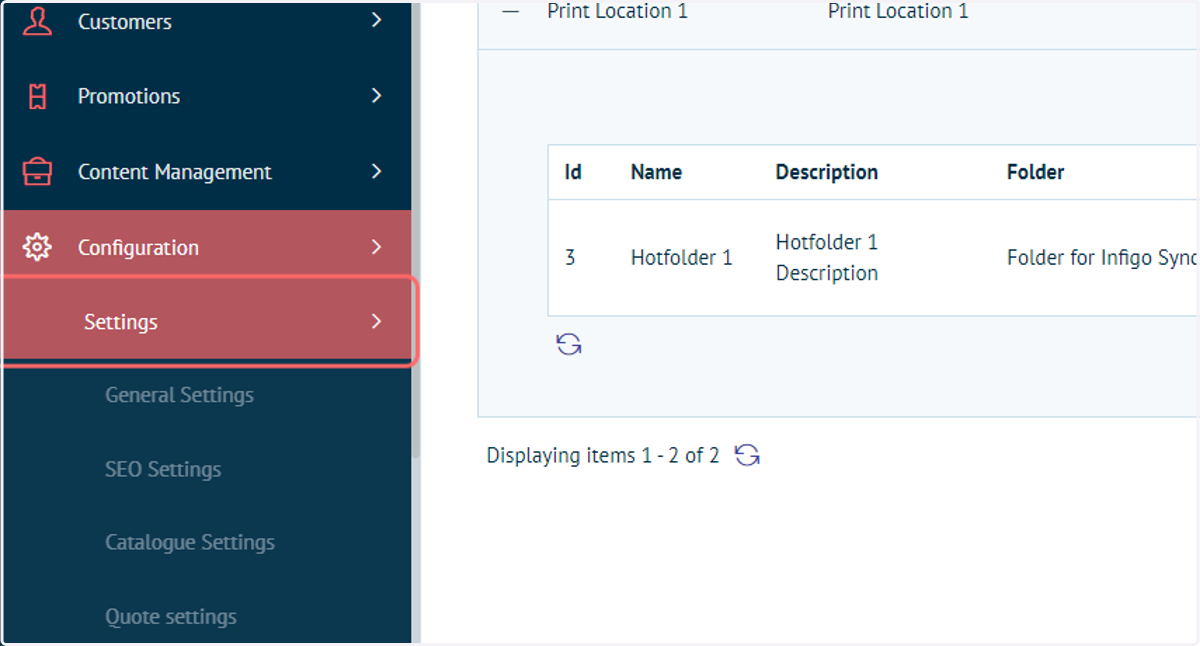
38. Click on Settings
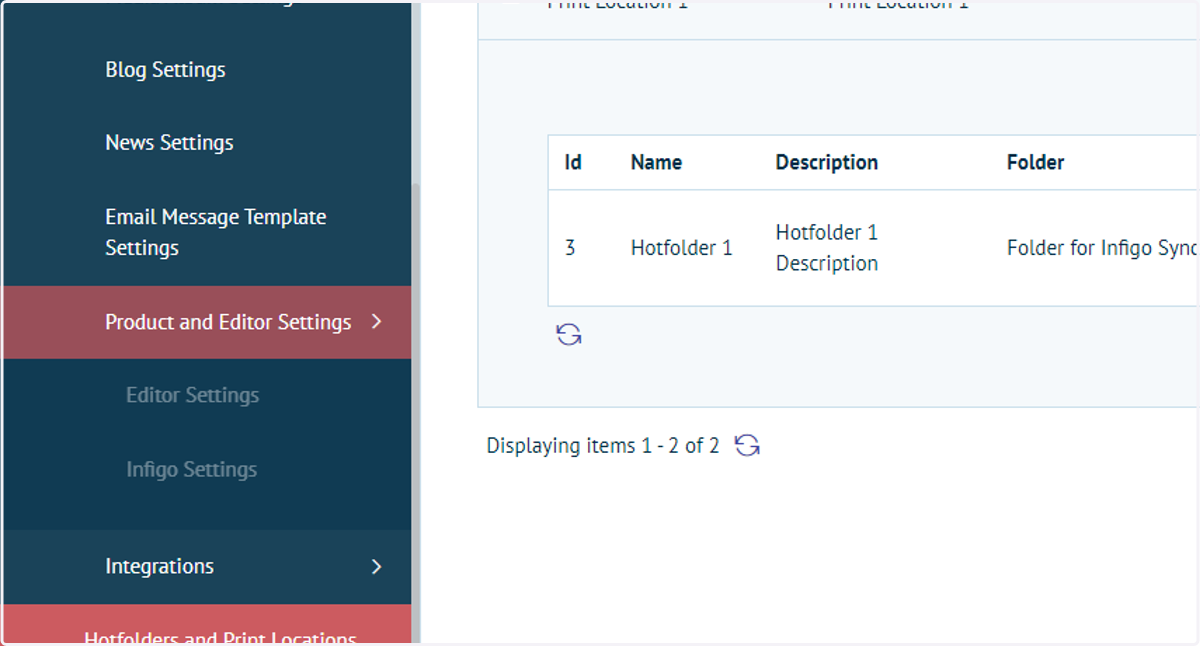
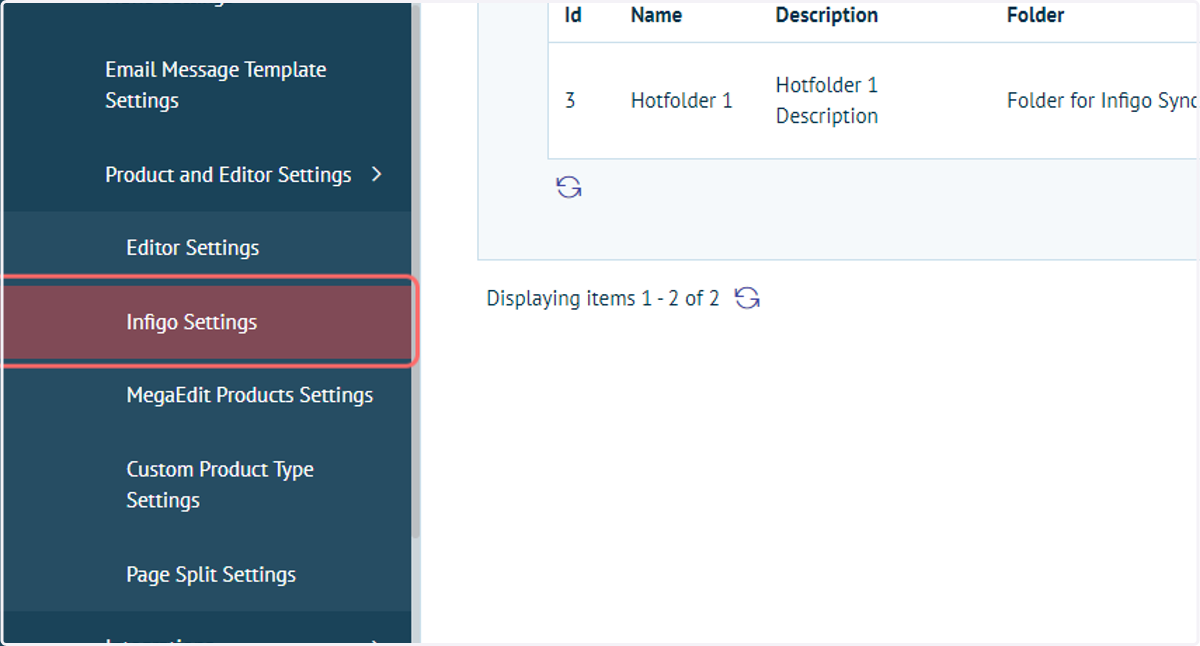
39. Click on Product and Editor Settings
40. Click on Infigo Settings
41. Control which products are copied
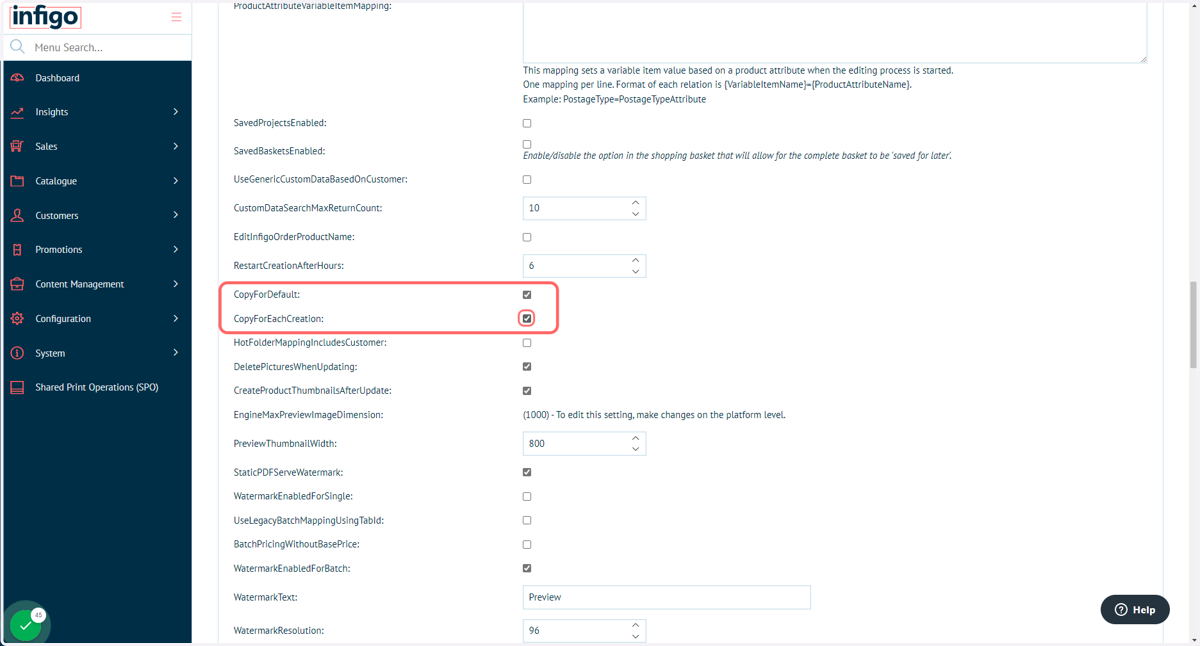
These settings allow you to control which types of products which have their outputs automatically copied to a hotfolder. To control which ones are copied, simply either check or un-check the box next to them, and all checked product types will have their outputs copied.
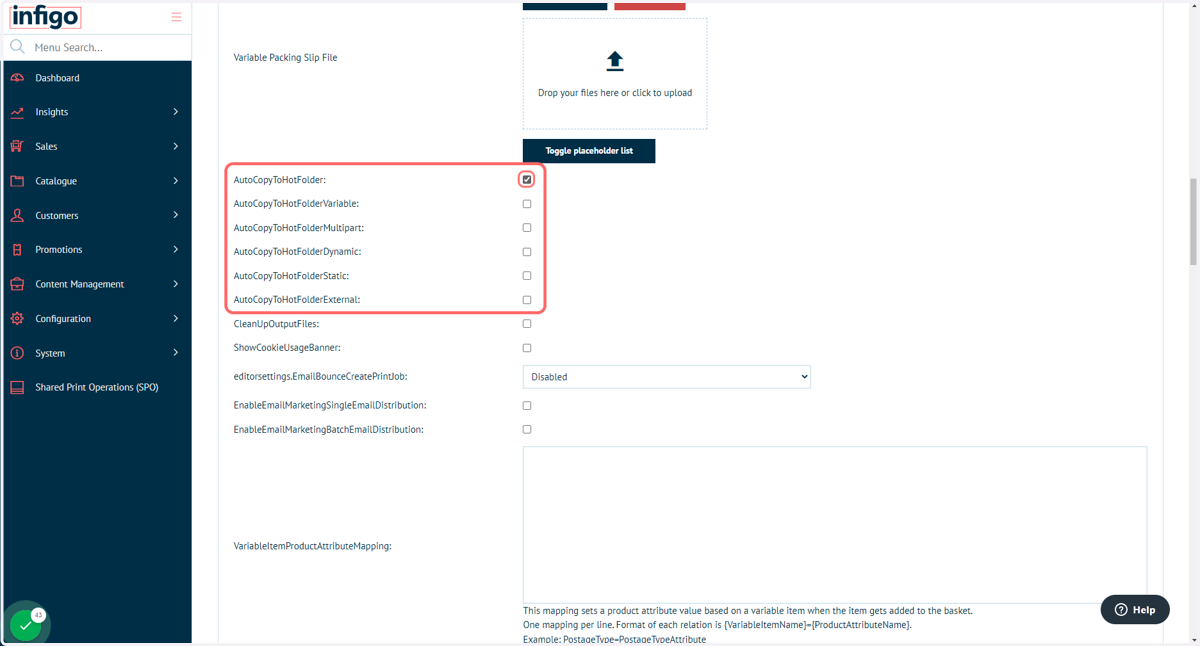
42. Control when outputs are copied
These enable the auto-copying of output files to a hotfolder when the order is first considered "Ready" (output is created, order is approved and marked as paid), and the copying for each time the output is re-created through Shared Print Operations respectively.