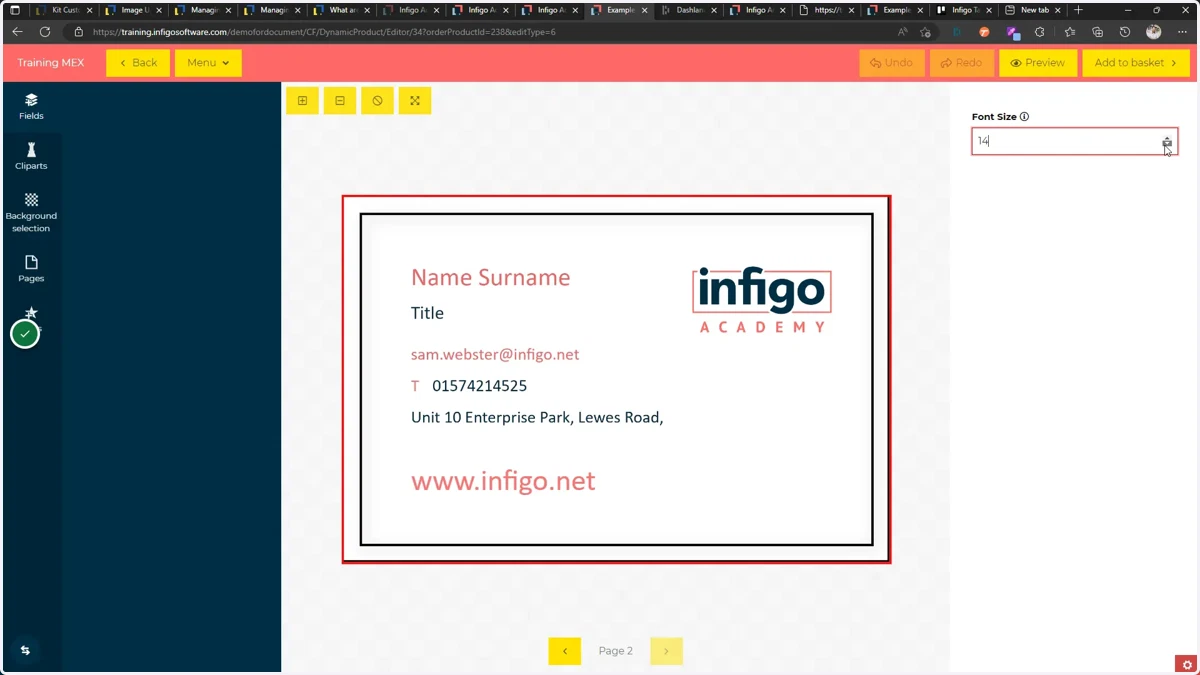
Number Variables
In this tutorial, we will learn how to specify and utilise the Number variable type.
These can be used where a numerical selector is required, such as when linking to a font size.
adobe
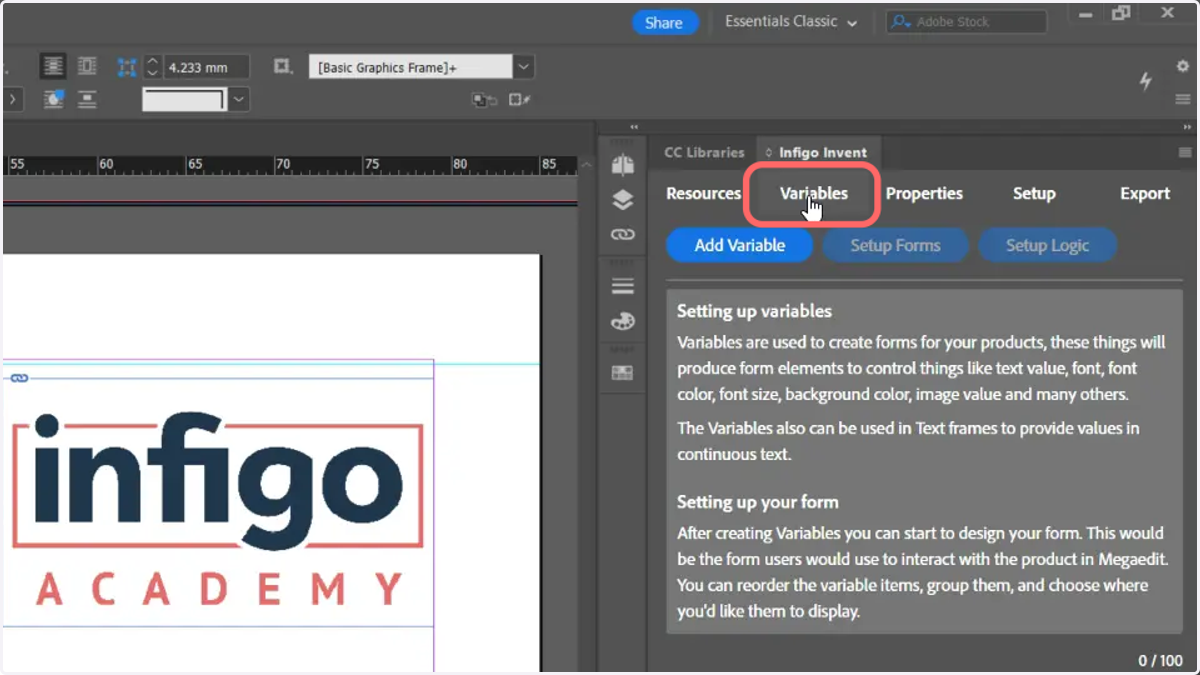
1. To begin, select the Variables tab within the Invent plugin in Adobe InDesign
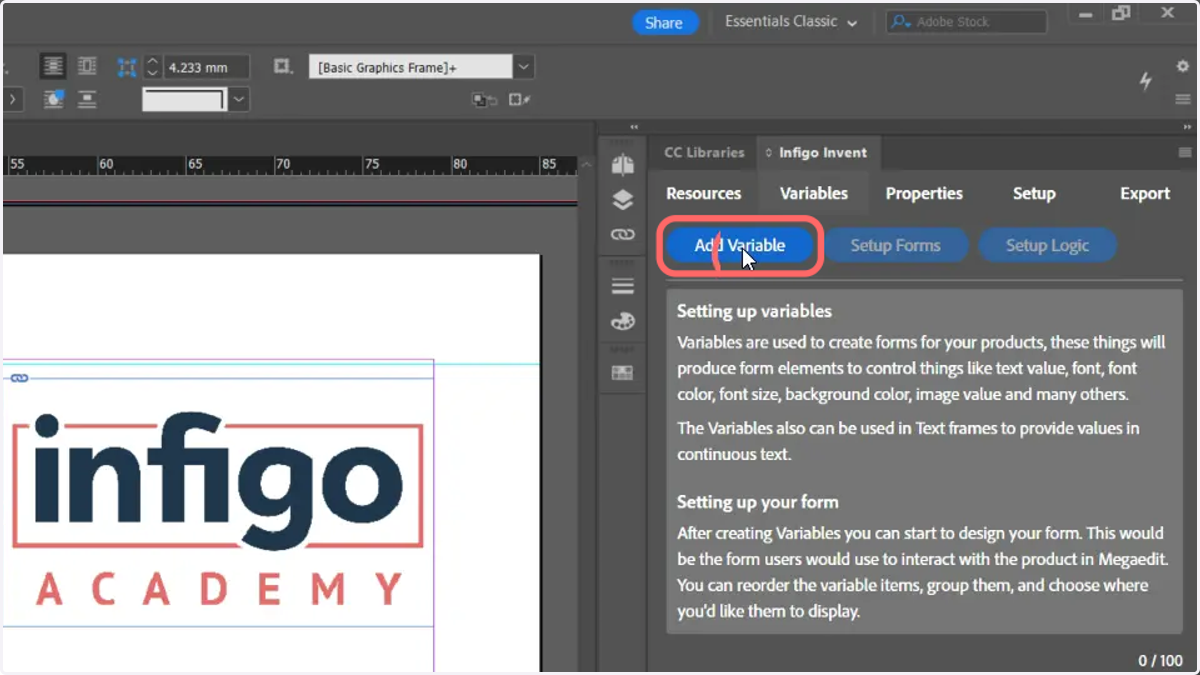
2. Click Add Variable
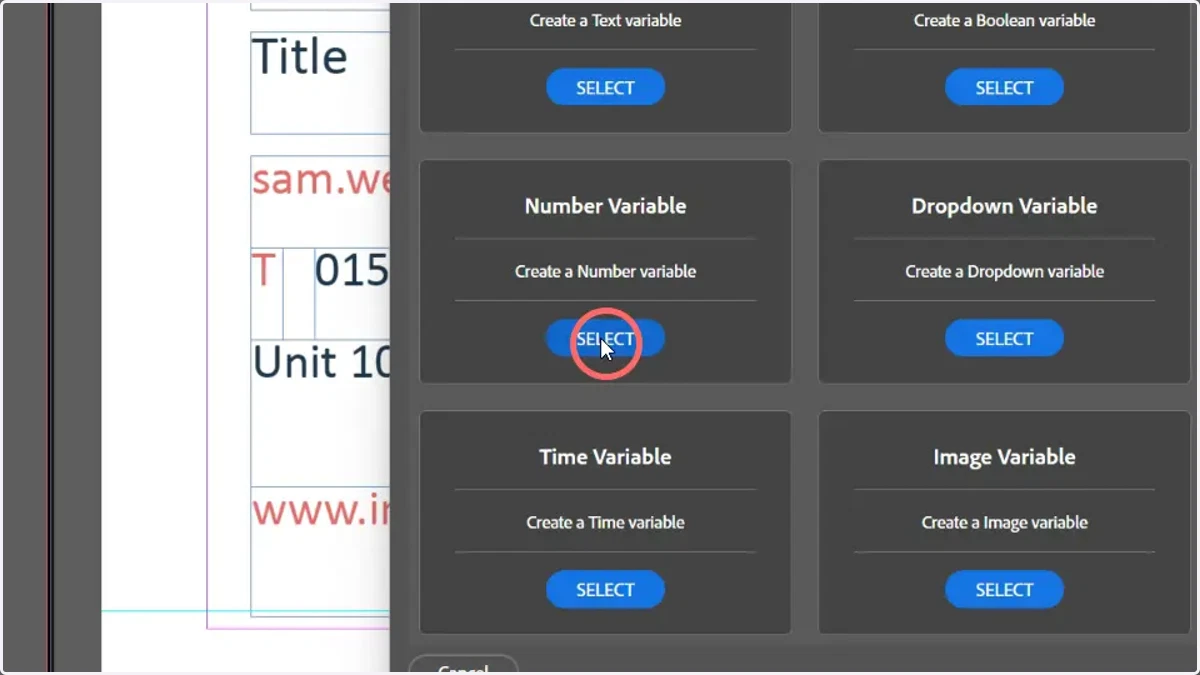
3. Select a Number Variable
4. Enter a variable name
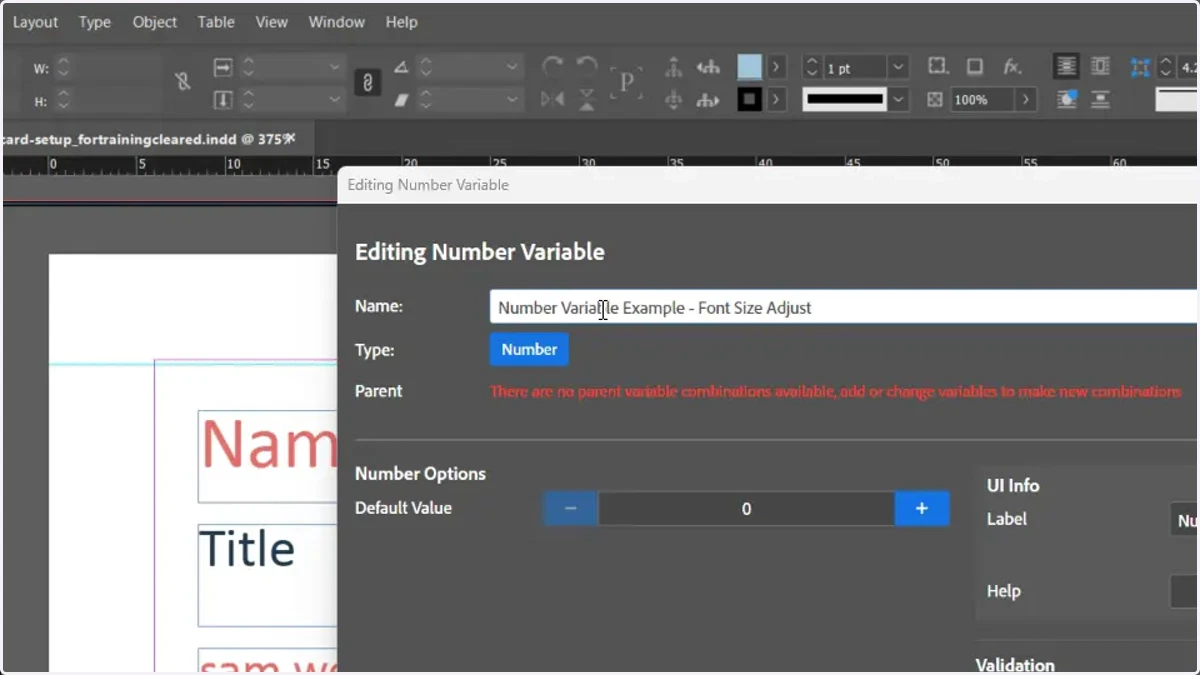
5. Specify a default number value
This is the value selected by the variable upon first loading the MegaEdit editor.
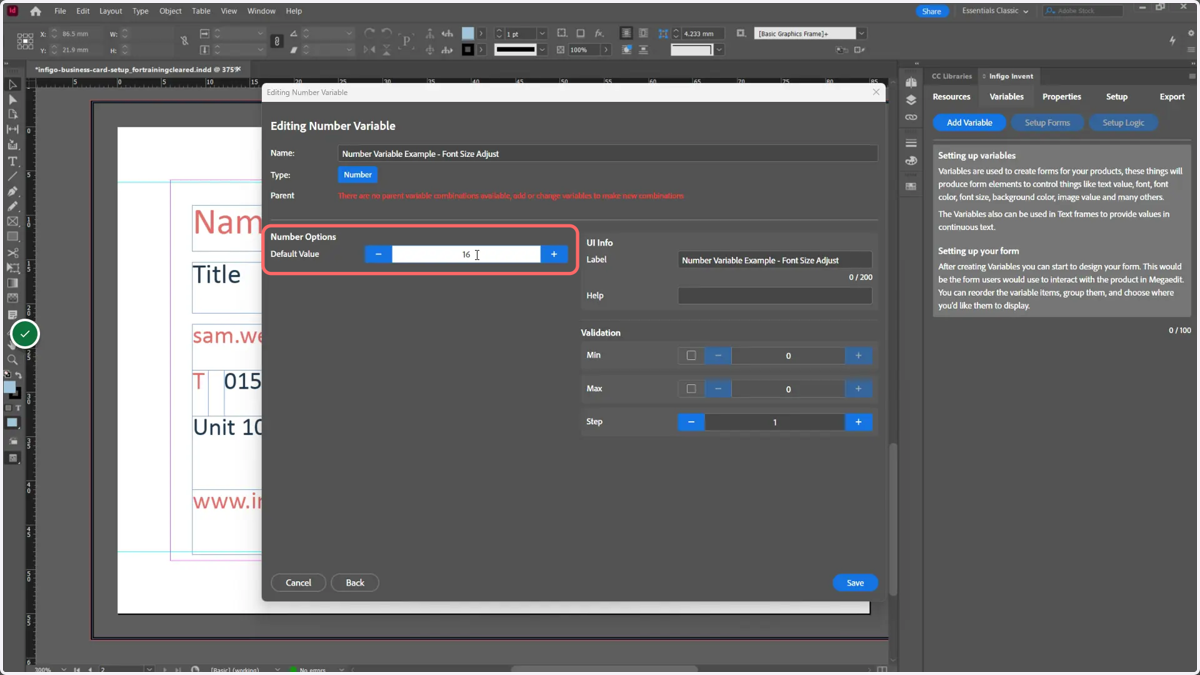
6. Optionally, complete additional UI information to be displayed to the end user
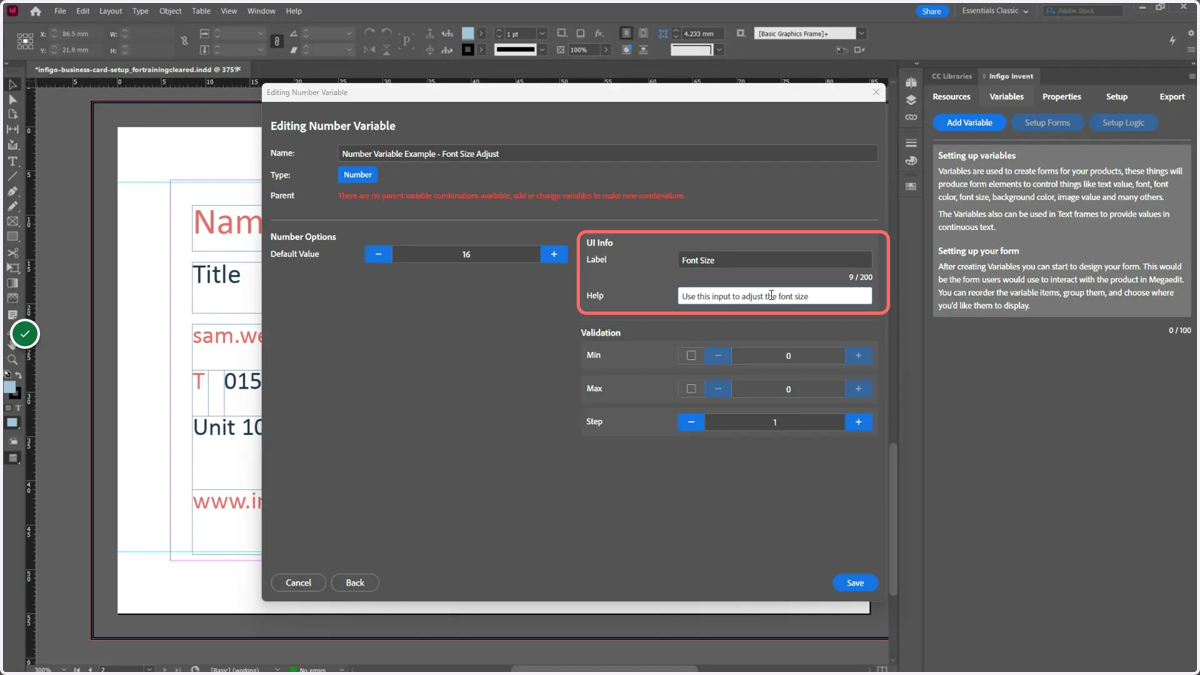
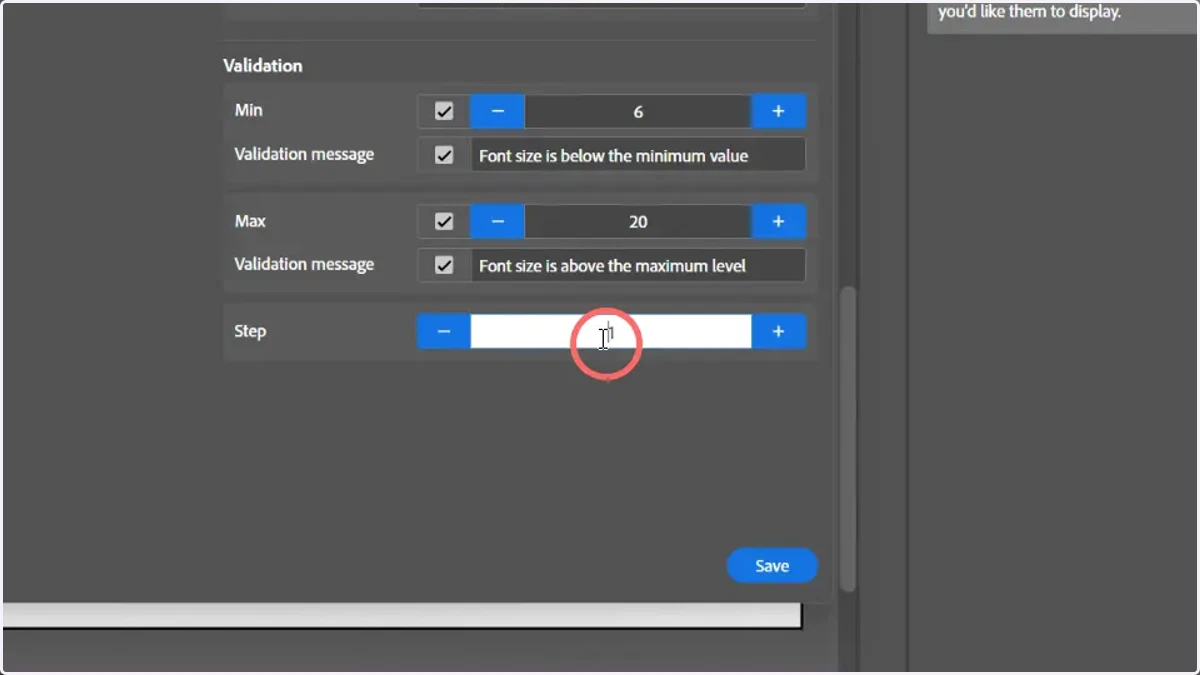
7. Optionally, complete some additional validation settings
Minimum and maximum numerical values can be specified, along with messages displayed to the user if these numbers are exceeded.
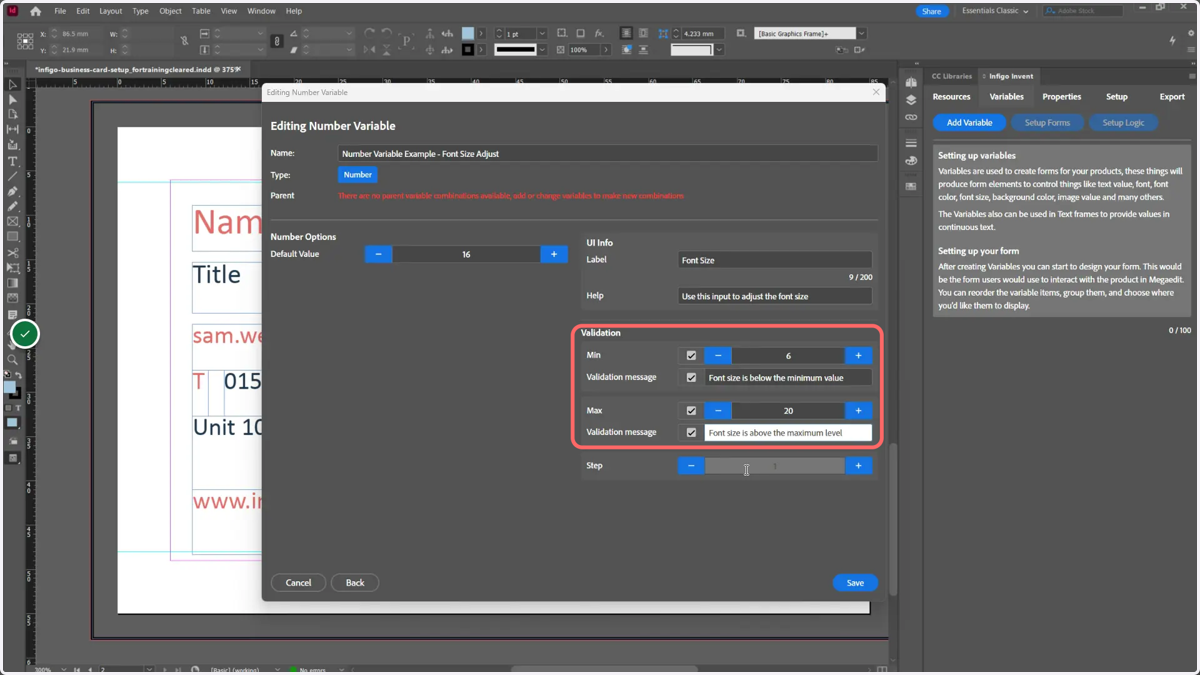
8. Specify a step increment
9. Click Save
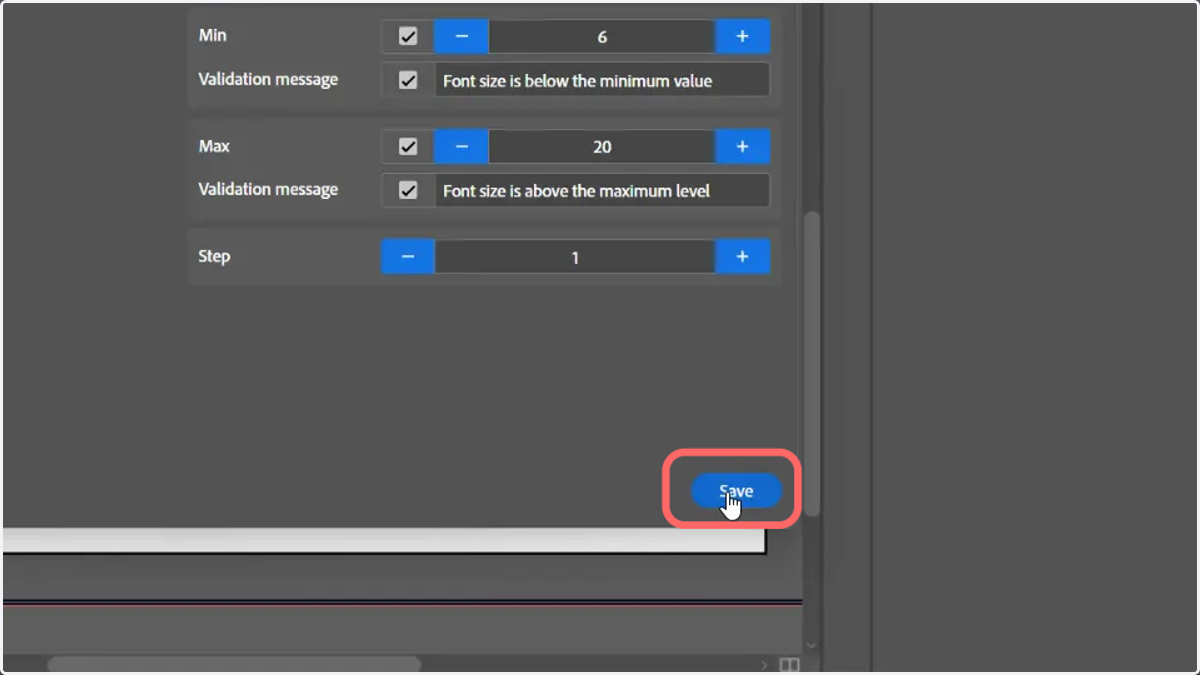
10. Your variable has now been created
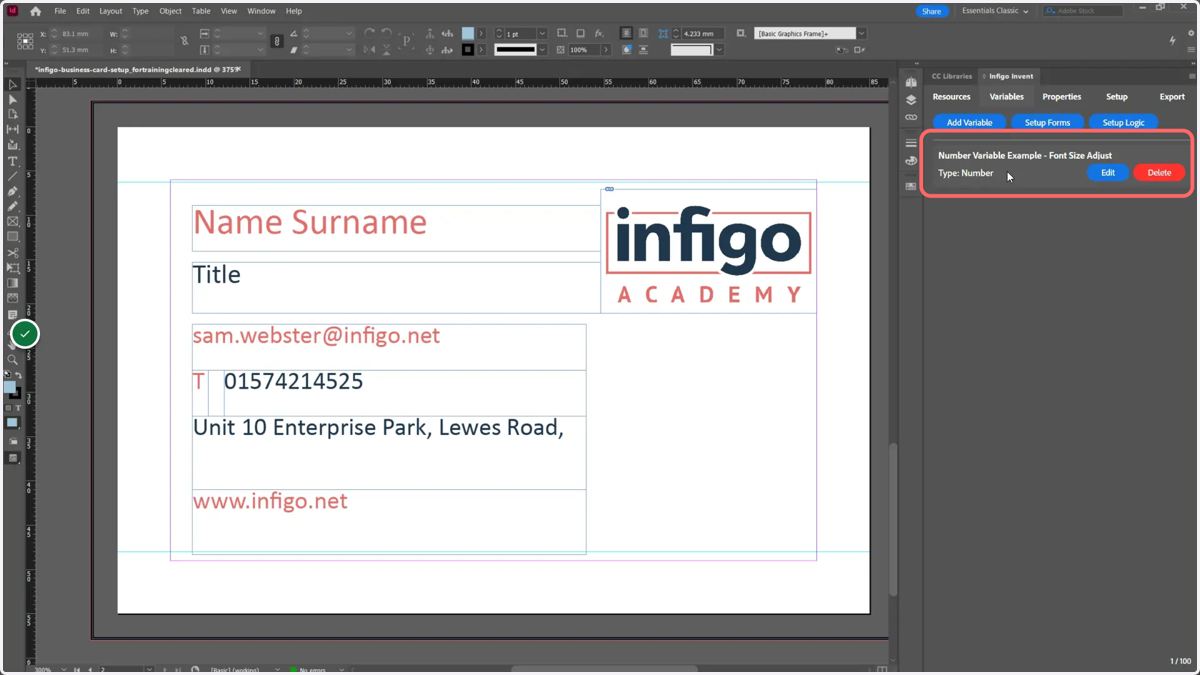
11. Next, we will link one of our text frames to this newly created variable
12. Select a text frame
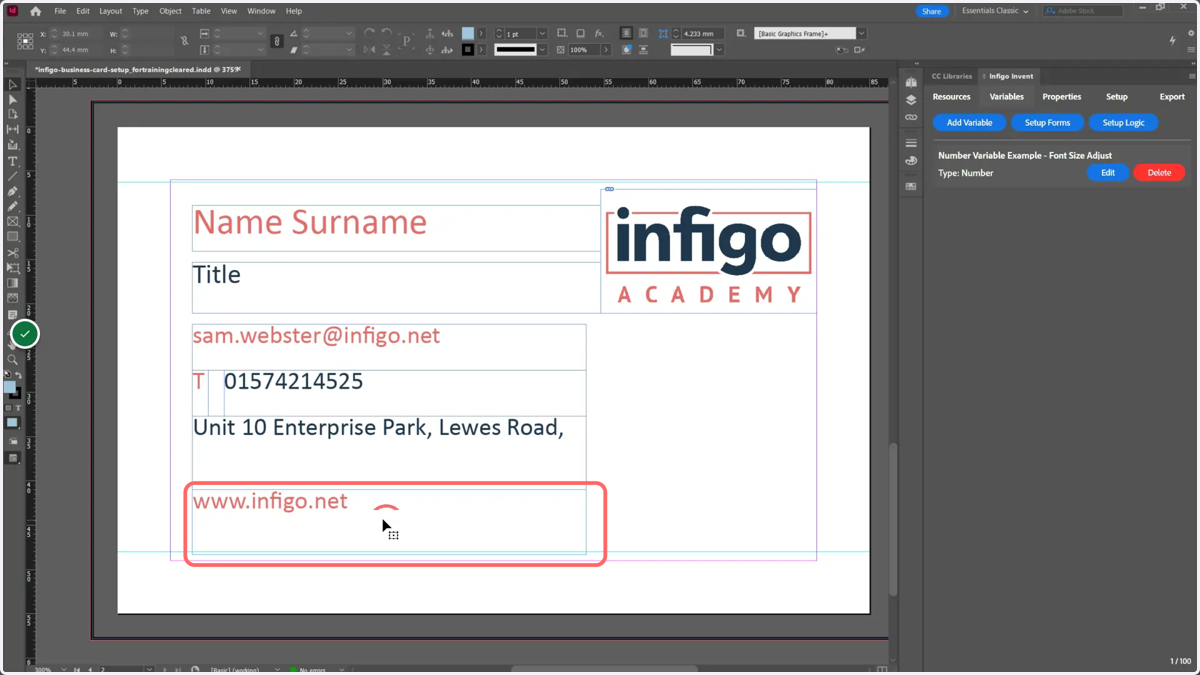
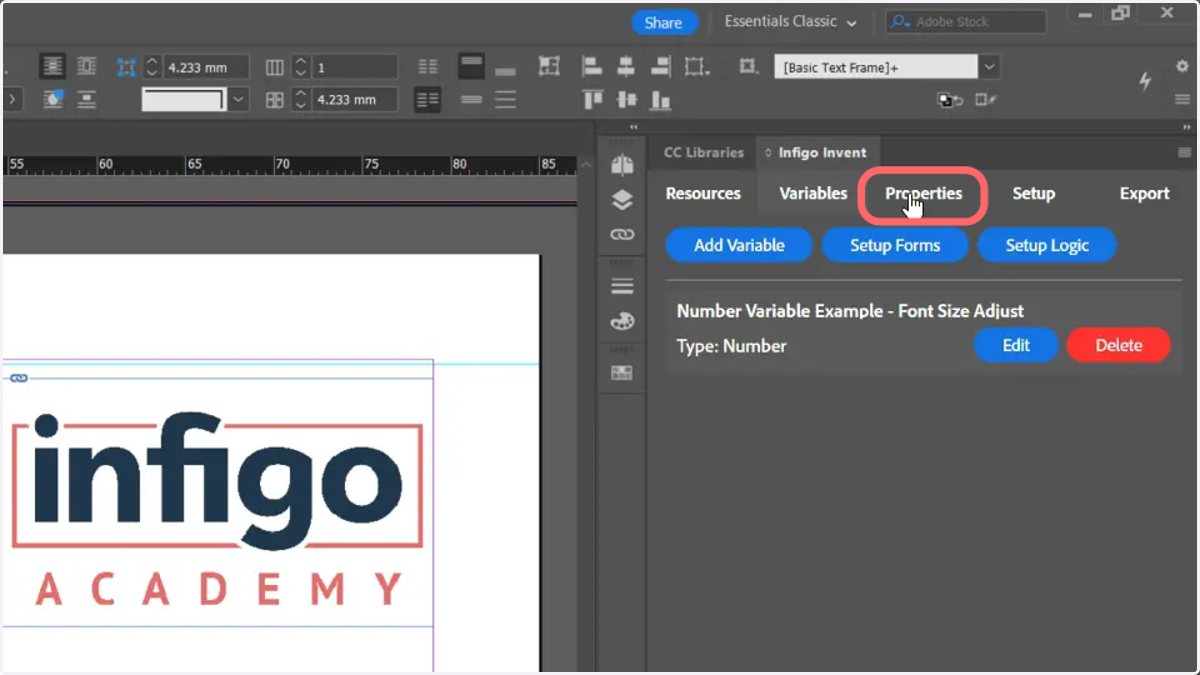
13. Click the Properties tab
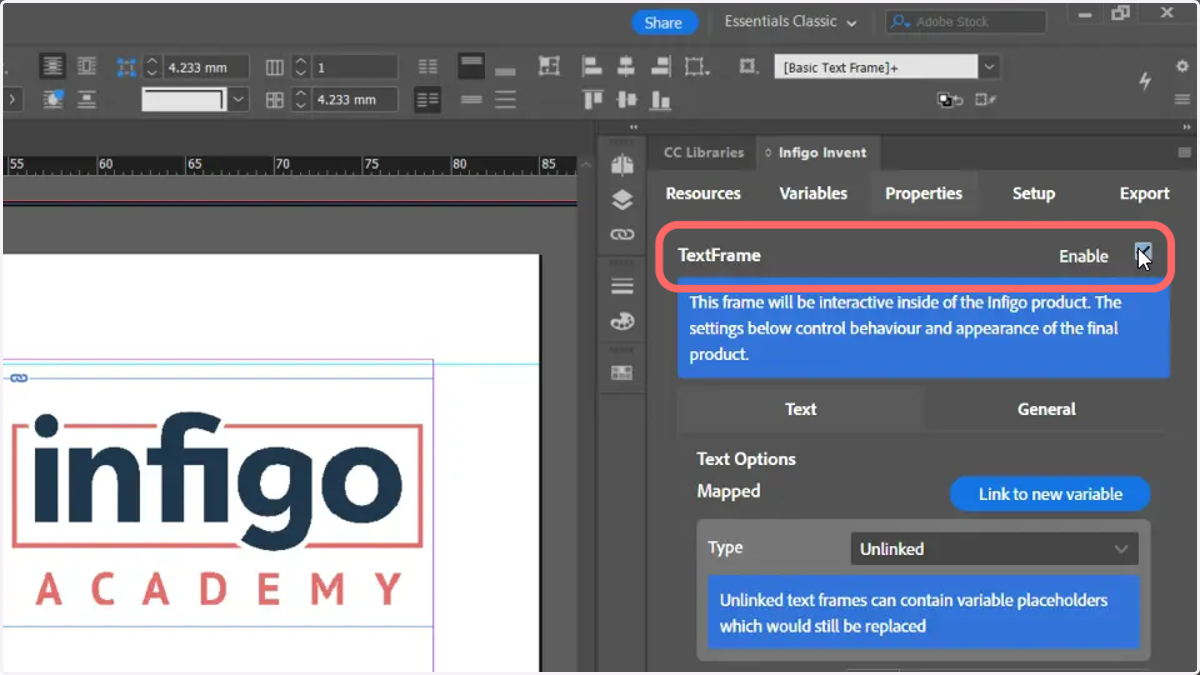
14. Enable the text frame to make it variable
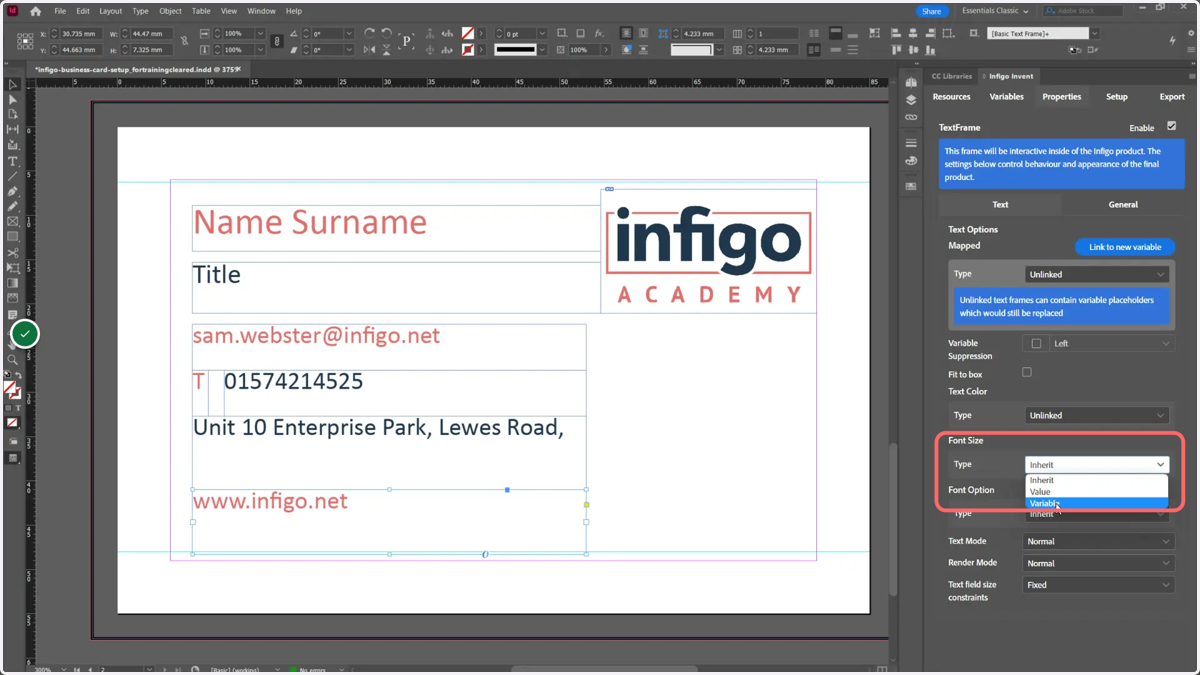
15. Locate the Font Size selection and change the type to Variable
This controls the font size of the text contained within the selected image frame.
By linking this to a number variable, we can directly control the font size via a form input.
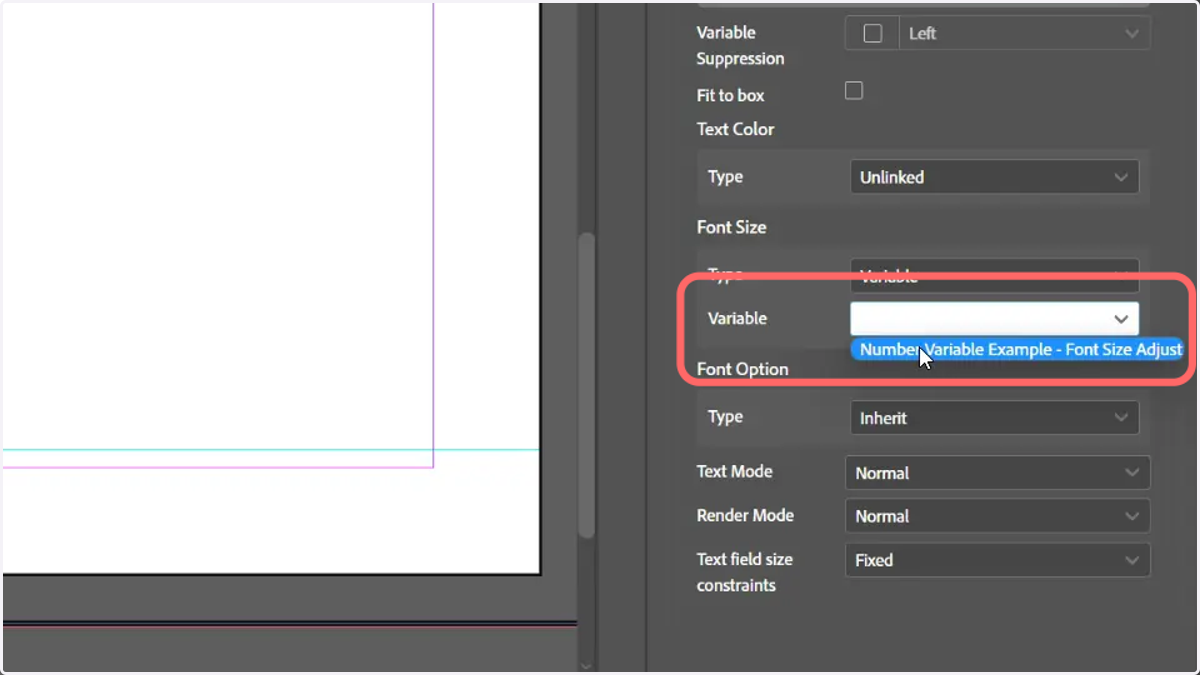
16. Select our Number Variable
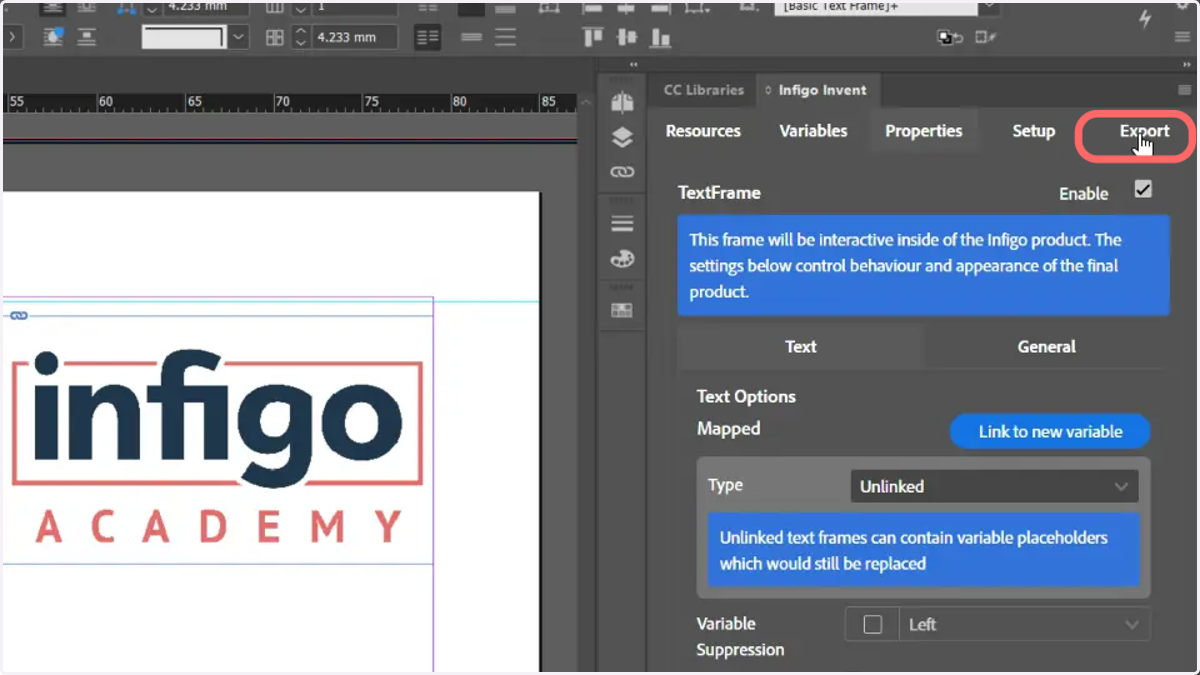
17. Navigate to the Export tab and create a MEX file of this template
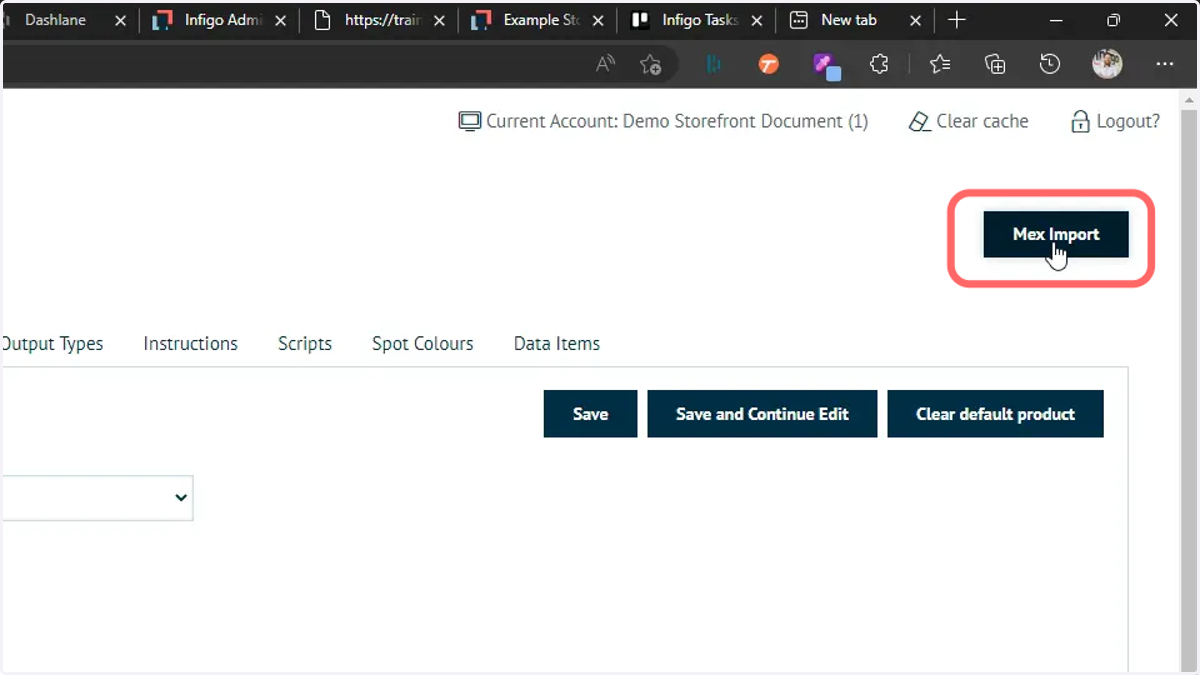
18. Upload the MEX template to your MegaEdit product and launch the editor
19. The Number Variable will be available within the MegaEdit form
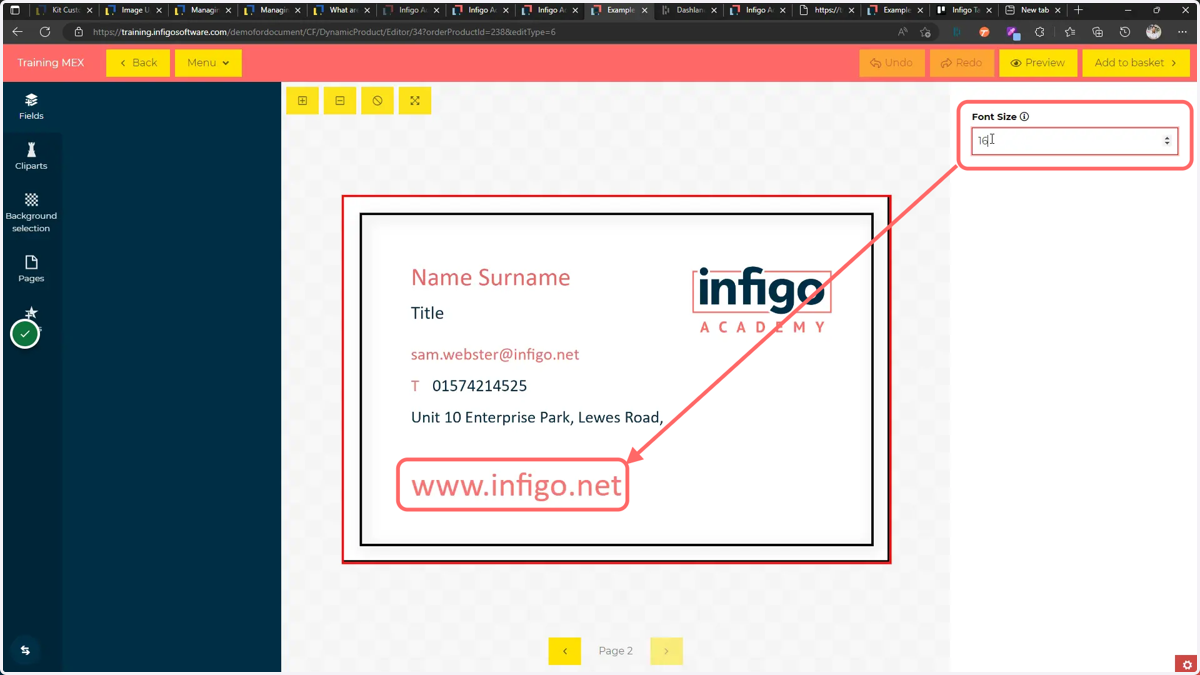
20. Altering the variable value will change the font size in the linked text box