Connect: Flow General Settings
In this tutorial, we will take a look at the options available in the General Settings of the Connect: Flow plugin.
This includes options such as configuring your output file and specifying which products are able to trigger the Connect: Flow plugin.
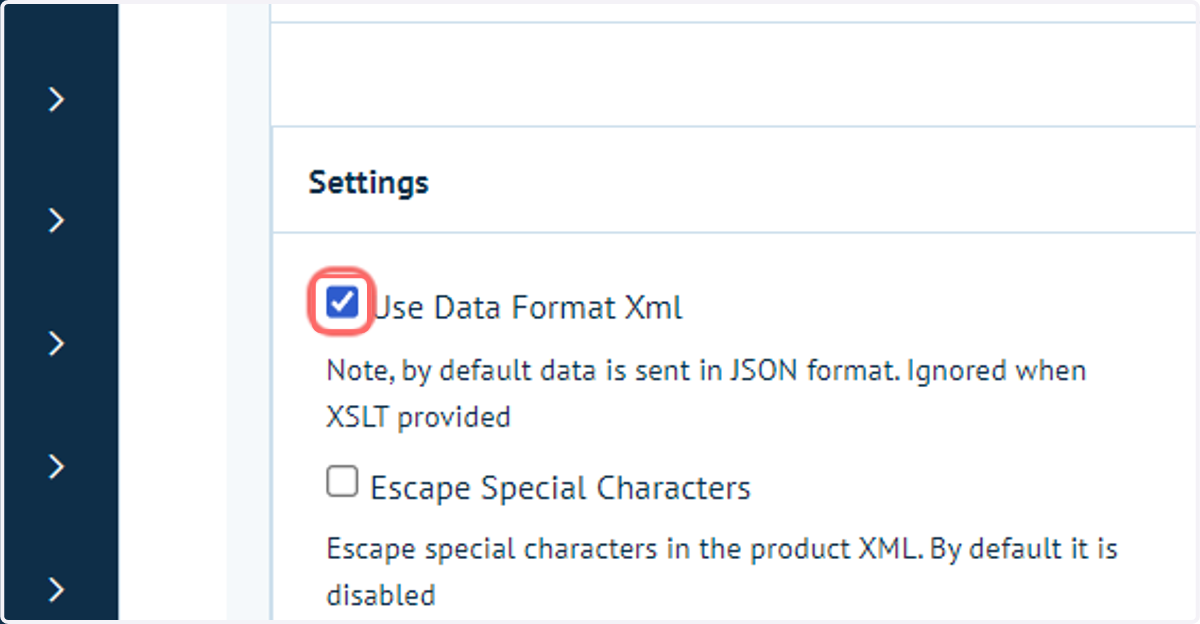
1. Use Data Format XML
A toggle switch between the creation of your output file in an XML or JSON format.
Having this option selected results in an XML being produced. Having this option deselected results in a JSON being produced.
Options further down this settings list allow configuration of an XSLT file. If they are utilised then this setting is ignored.
2. Escape Special Characters
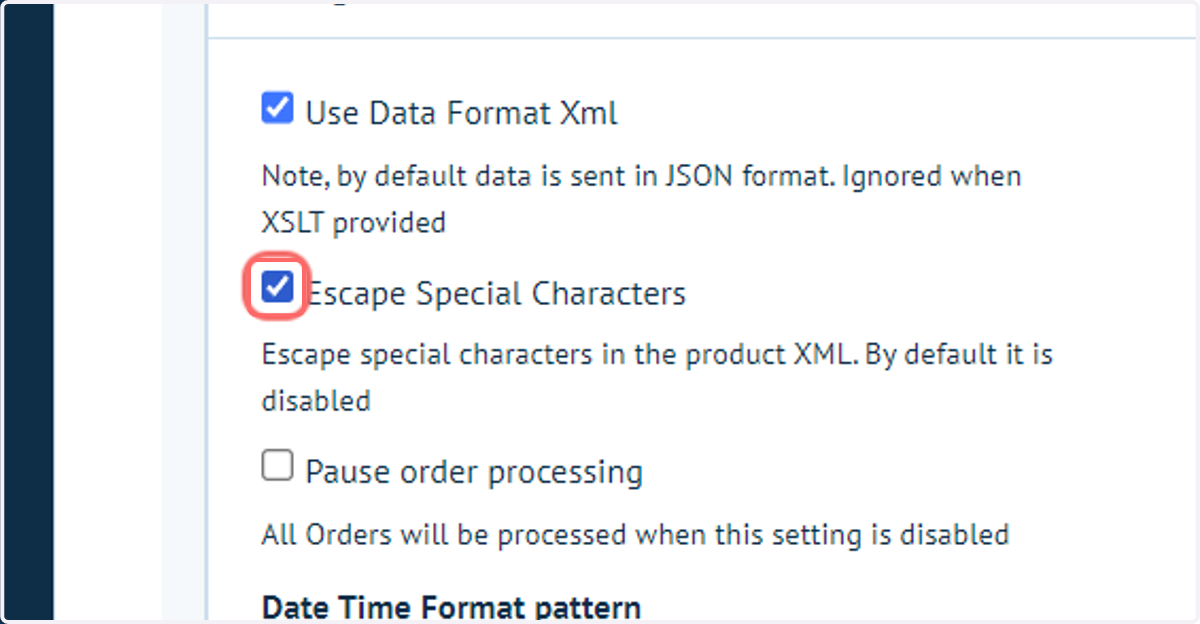
In an XML file, special characters are those that have special meaning within the XML syntax. These characters are reserved and cannot be used directly as text within the XML content. Instead, they need to be escaped using specific sequences of characters called escape sequences.
The following five characters are considered special characters in XML:
<(less than): It is used to start a new tag in XML. To represent this character as text, it needs to be escaped as<.>(greater than): It is used to end a tag in XML. To represent this character as text, it needs to be escaped as>.&(ampersand): It is used to start an entity reference or a character reference in XML. To represent this character as text, it needs to be escaped as&.'(apostrophe): It is used to denote attribute values in XML. To represent this character as text, it needs to be escaped as'."(quotation mark): It is also used to denote attribute values in XML. To represent this character as text, it needs to be escaped as".
By using these escape sequences, you can include these special characters within XML content without conflicting with the XML syntax. For example, if you want to include the text "4 < 5" within an XML element, it needs to be written as "4 < 5".
It's important to properly escape special characters in XML to ensure valid and well-formed XML documents. Failing to escape these characters can lead to parsing errors or misinterpretation of the XML data.
3. Pause order processing
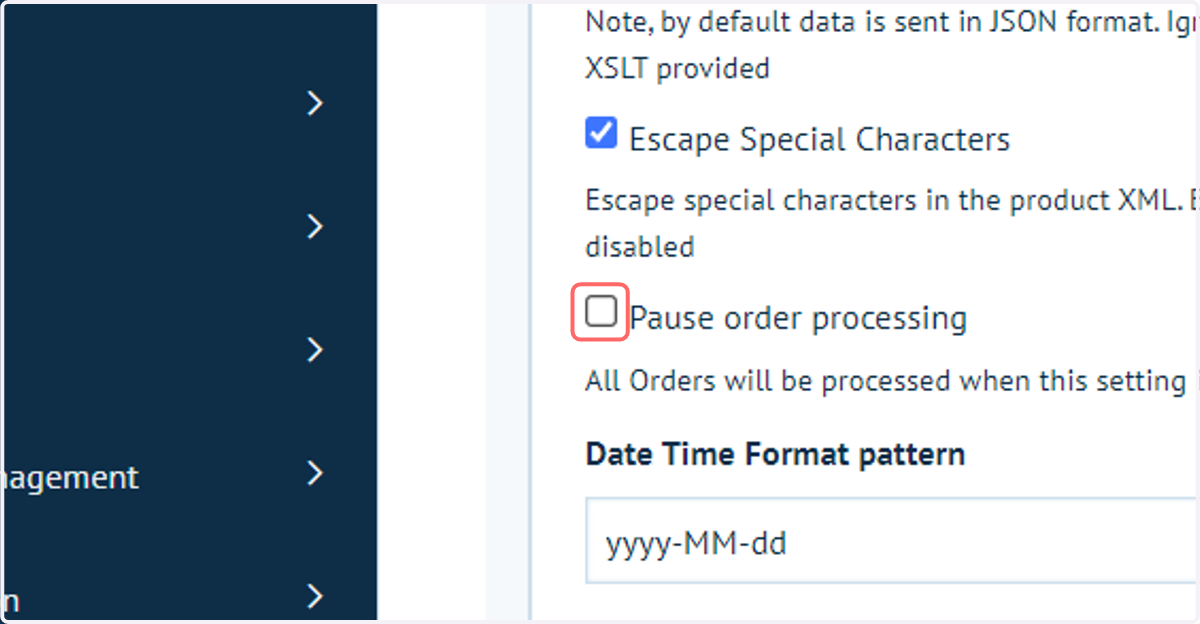
A stop toggle switch. Enabling this setting means that the Connect: Flow plugin is not triggered by any orders.
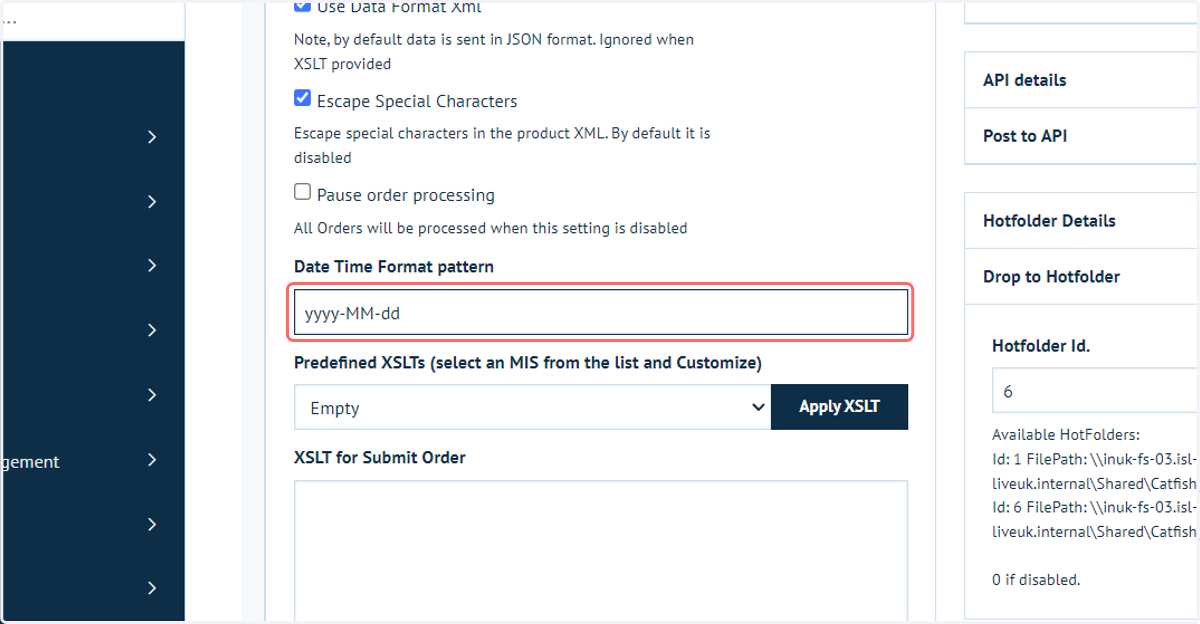
4. Date Time Format pattern
Provides the ability to specify a date format, such as "yyyy-MM-dd" or "dd-MM-yy".
5. Predefined XSLT
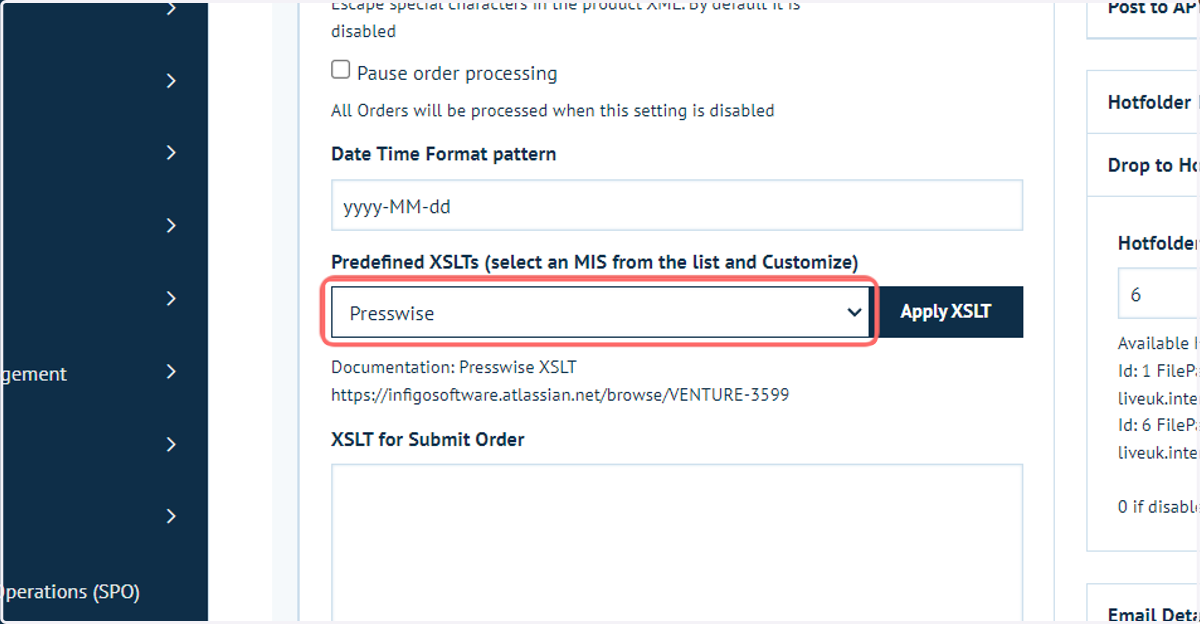
An XSLT file can be used to transform the standard XML into any format required by your third-party software.
We provide a range of pre-configured XSLT templates which can be freely utilised and modified as required.
Select a predefined XSLT format and click Apply XSLT to generate the content in the text box below this setting.
6. XLST for Submit Order
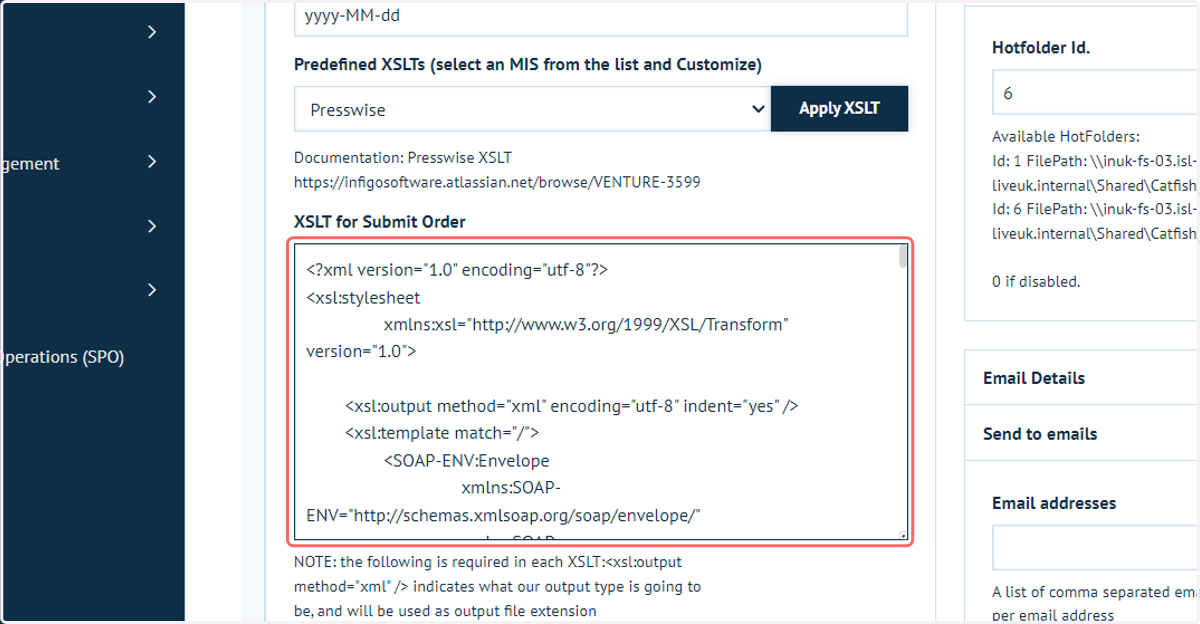
This is the XSLT script to be utilised upon the submission of relevant orders.
It works by transforming XML content into a format which can be utilised by your third-party system.
Infigo offer generation of XSLT files as a professional service for an additional development charge.
7. Delivery Type
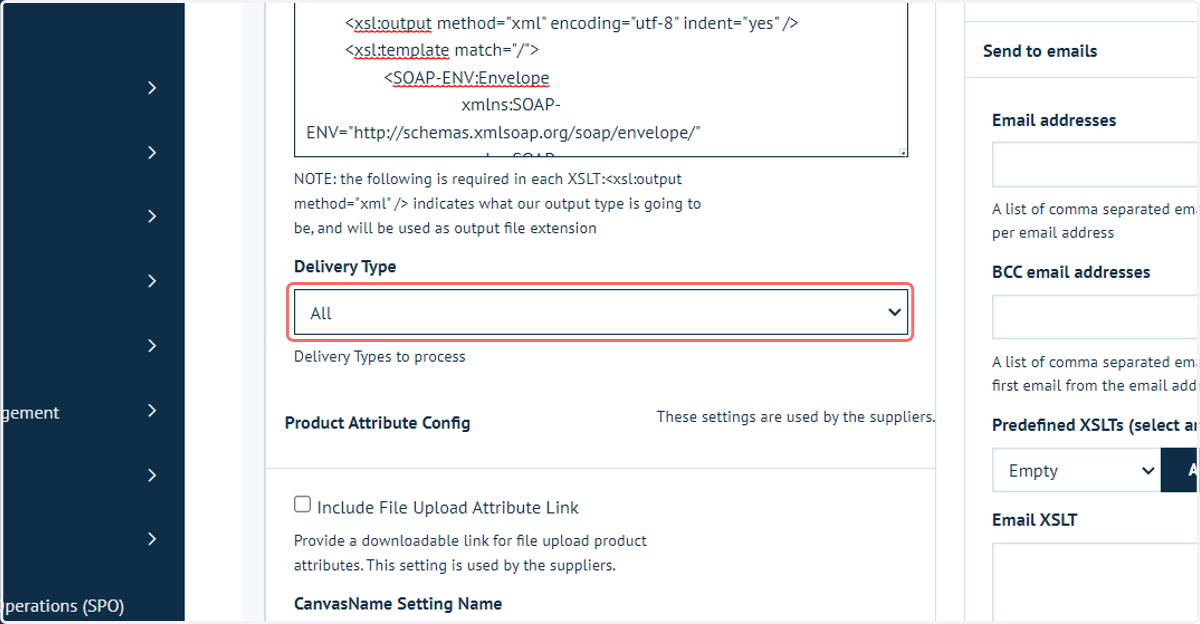
Available options in this dropdown are Print, Digital and All.
This allows you to specify which products trigger the Connect: Flow plugin based on their delivery configuration.
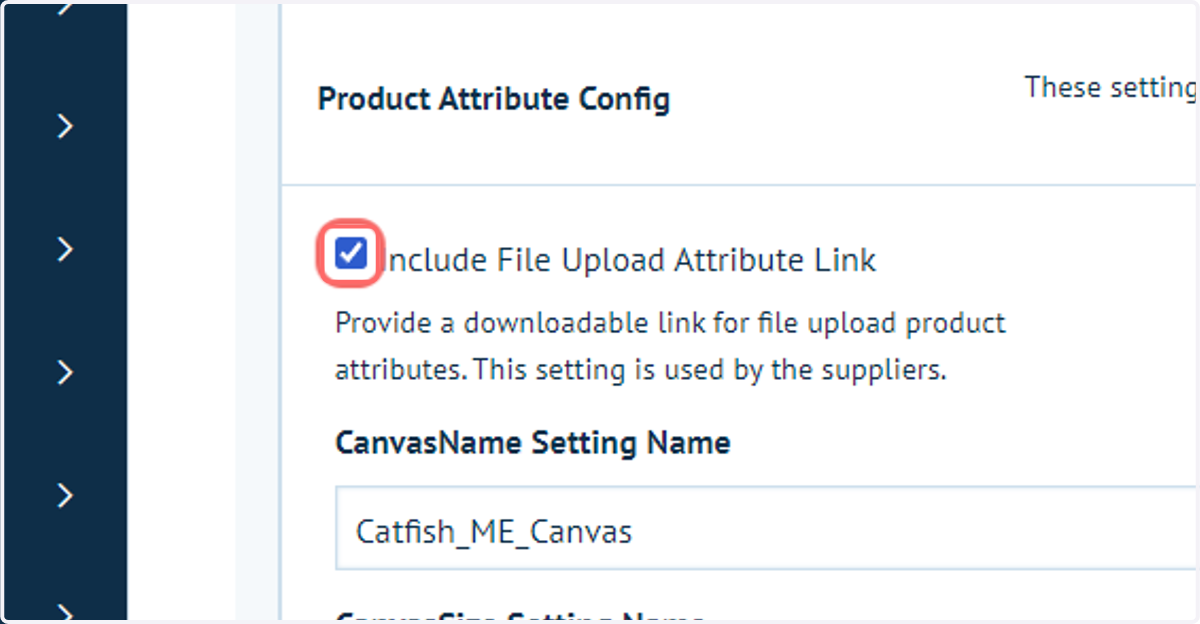
8. Include File Upload Attribute Link
A product attribute can be configured to allow users to upload additional files as part of an order.
This option within the Connect:Flow plugin ensures information on these uploaded files is captured within the output file by providing a downloadable link for the uploaded file.
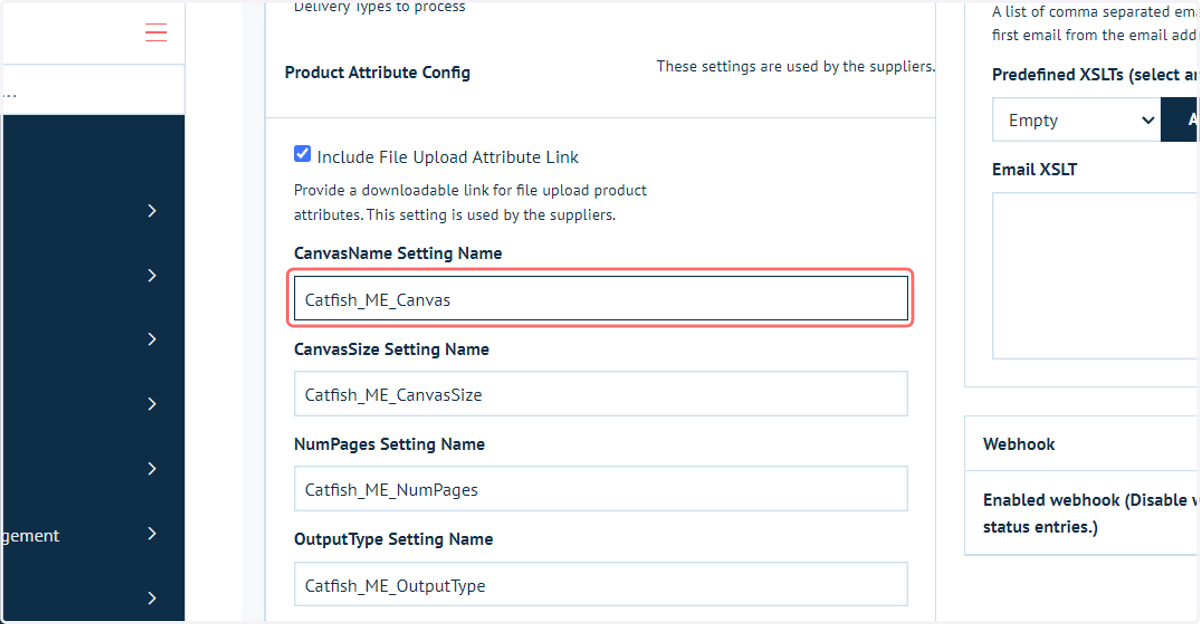
9. Naming Options
This set of options allows you to configure the naming convention of many areas of the output file.
The majority of users do not adjust these settings.
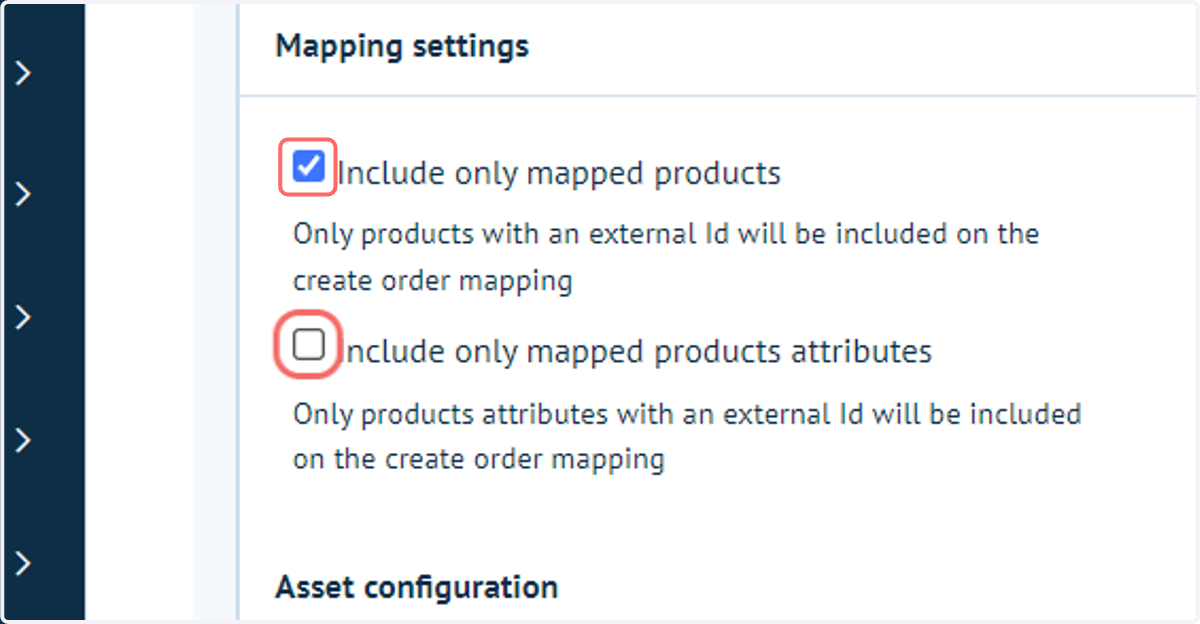
10. Include only mapped products
This options allows granular control over which products will trigger the Connect: Flow plugin.
With this checkbox selected, only products with an External ID specified will be considered by the plugin.
The next steps will briefly cover how to specify an External ID on a product-by-product basis.
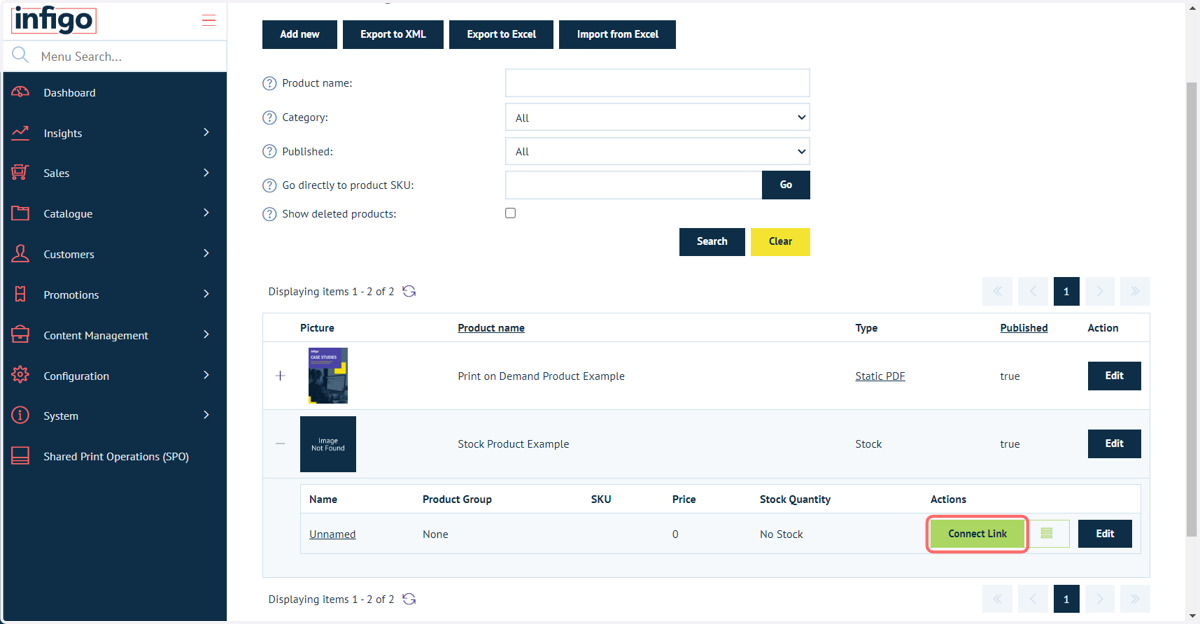
11. Navigate to the Product Management screen, select a product and click the Connect Link icon within the Product Variant table
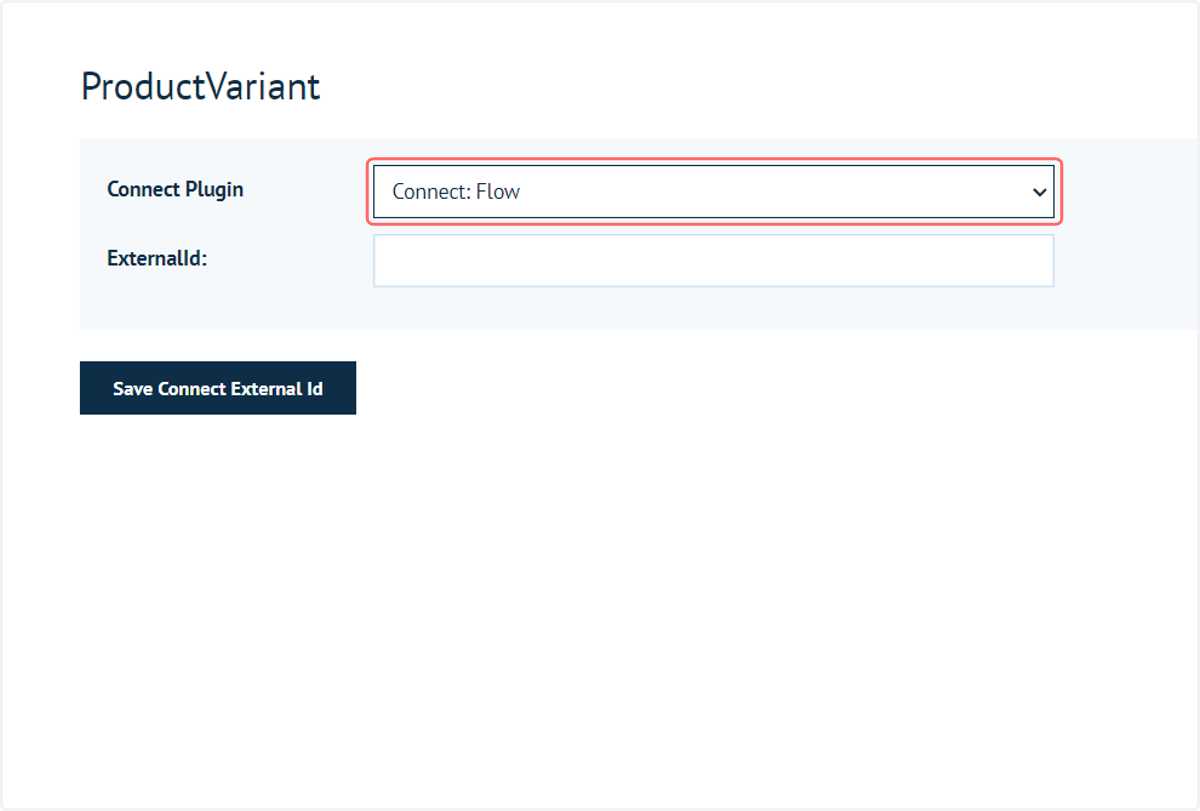
12. Select Connect: Flow from the list of plugins
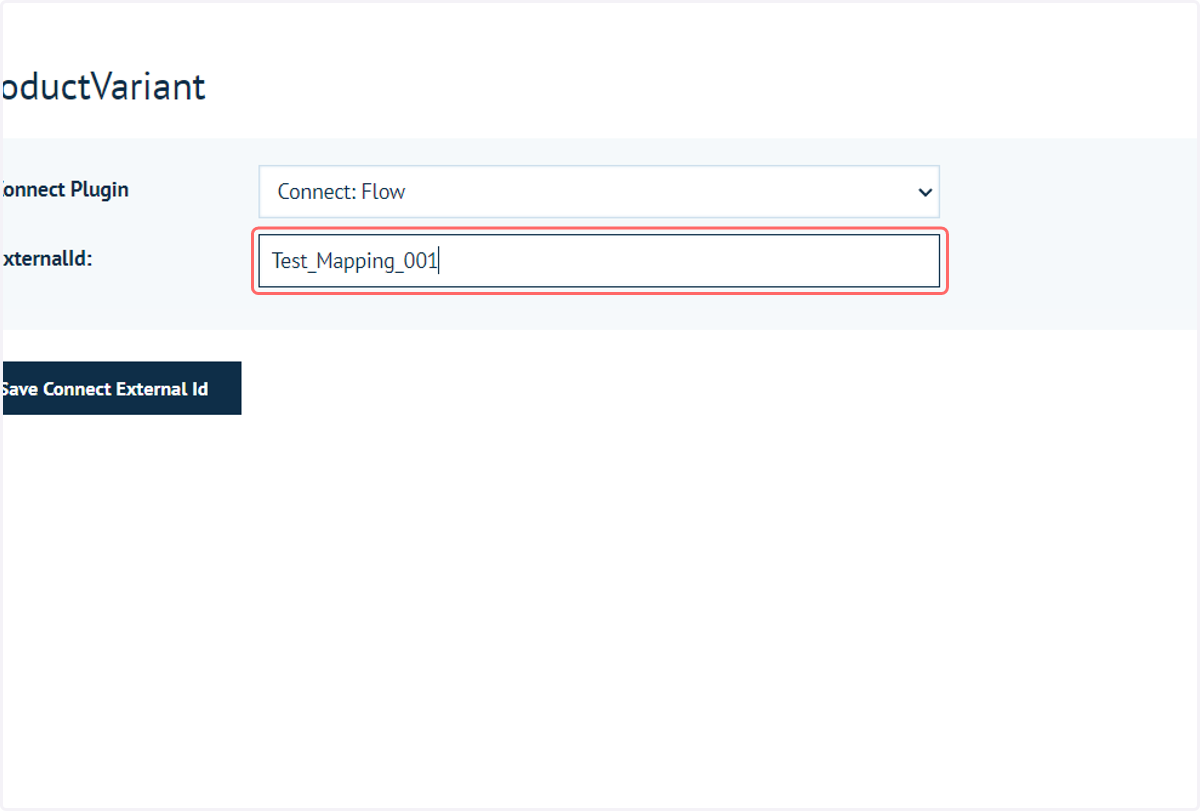
13. Input an ExternalID to use with this particular product
This is a perfect location to input an identifier for this product from your third-party system.
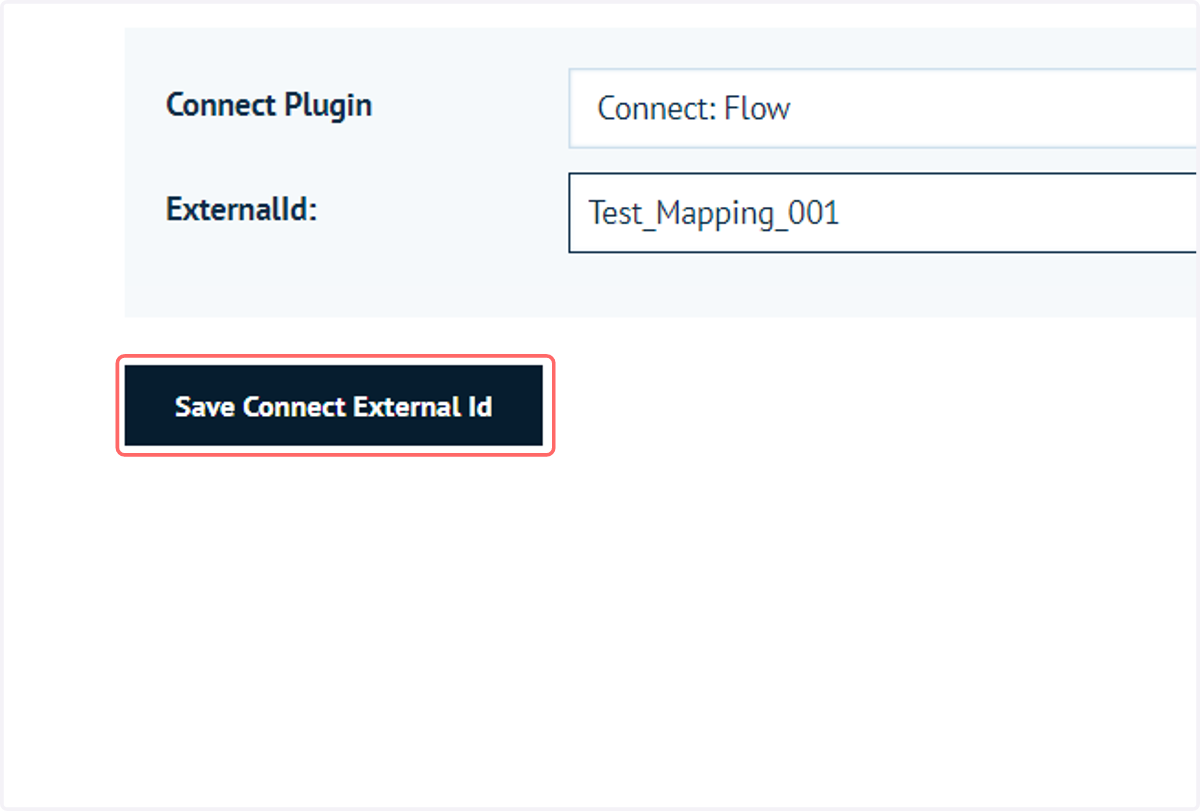
14. Click on Save Connect External Id
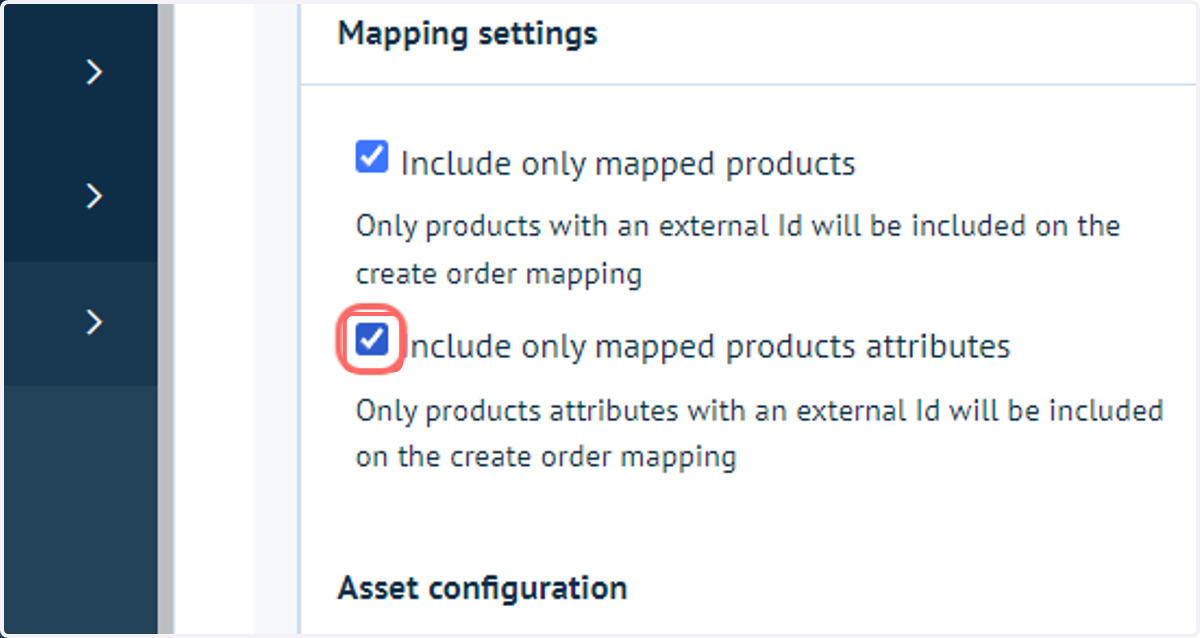
15. Include only mapped products attributes
Returning to the Connect: Flow General Settings..
This option has the same behaviour as above, but applies to product attributes (of which there may be multiple per product) rather than simply an entire product.
More information on Product Attributes can be found within the Infigo Academy or within our Help Centre.
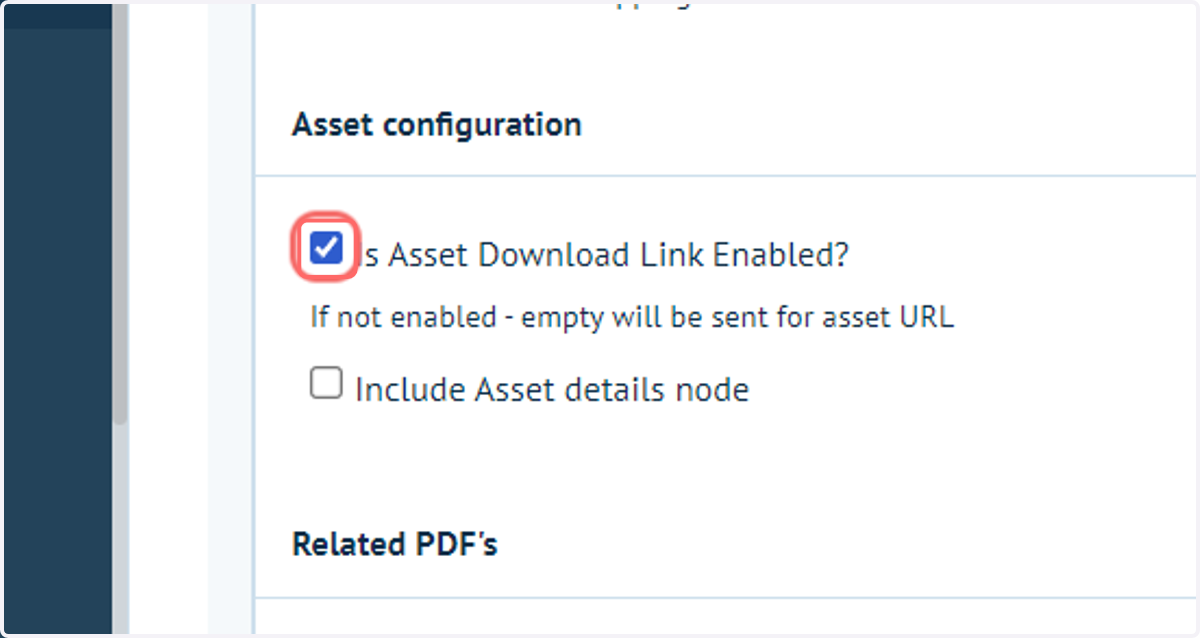
16. Is Asset Download Link Enabled?
If selected, provides a link in the output file to download the artwork produced by the Infigo job.
17. Include Asset details node
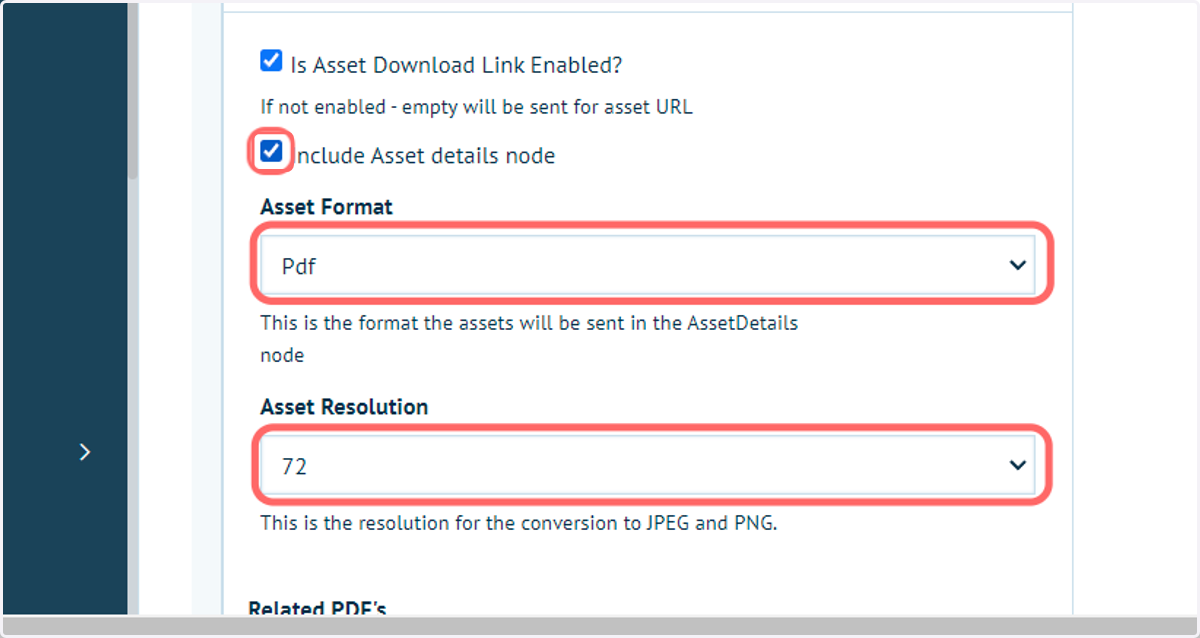
Allows the generation / inclusion of an image of your artwork.
Three formats are available:
PDF - This will simply use the artwork output generated by Infigo
PNG - A PNG is generated from the artwork output PDF
JPEG - A JPEG is generated from the artwork output PDF
If a PNG or JPEG image is being created, you are able to specify the resolution of the output.
18. Related PDFs
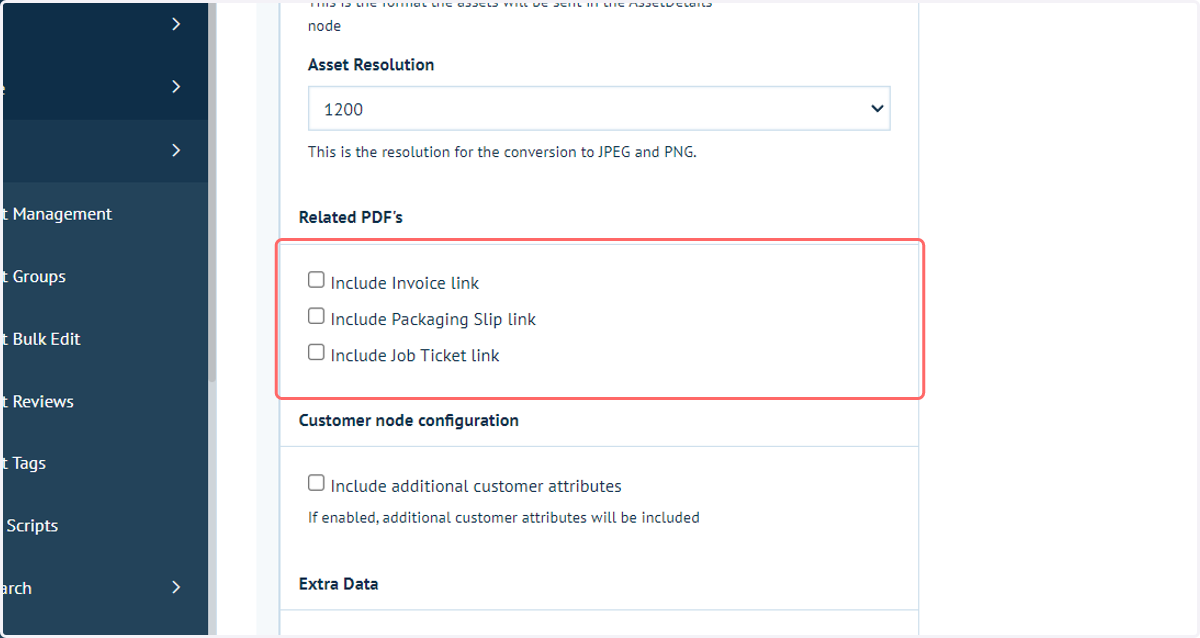
Adds links in the output file related for additional PDFs related to the job in question.
You can choose to include Invoice, Packaging slip and Job ticket links.
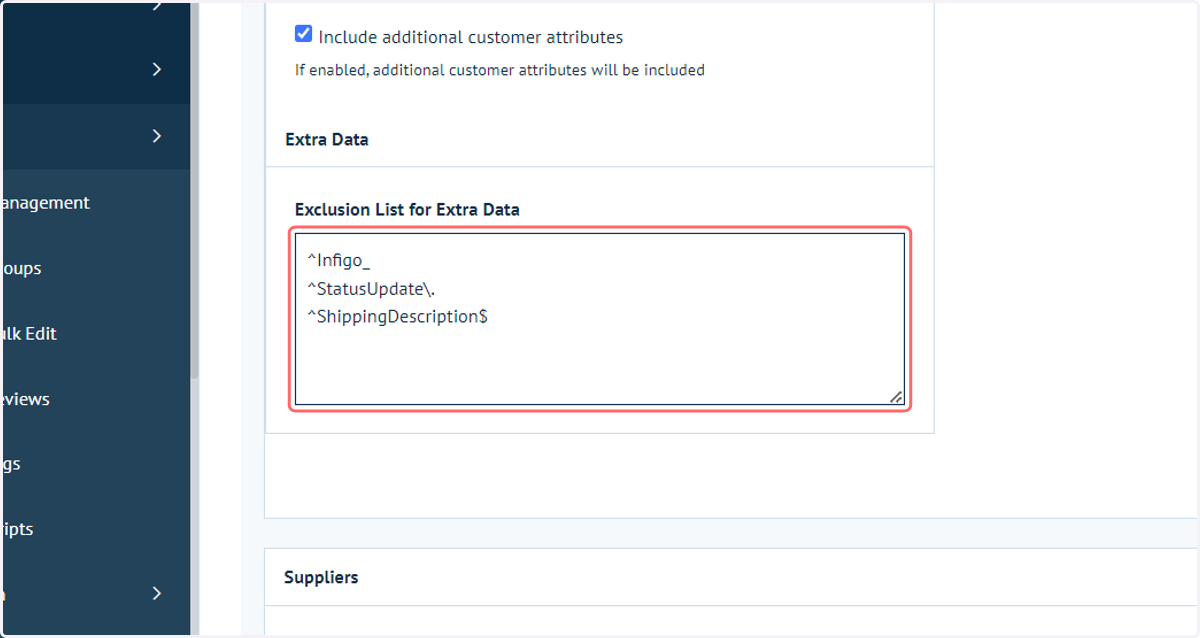
19. Exclusion List for Extra Data