Cancelling a WOTY Table

Login to Protech

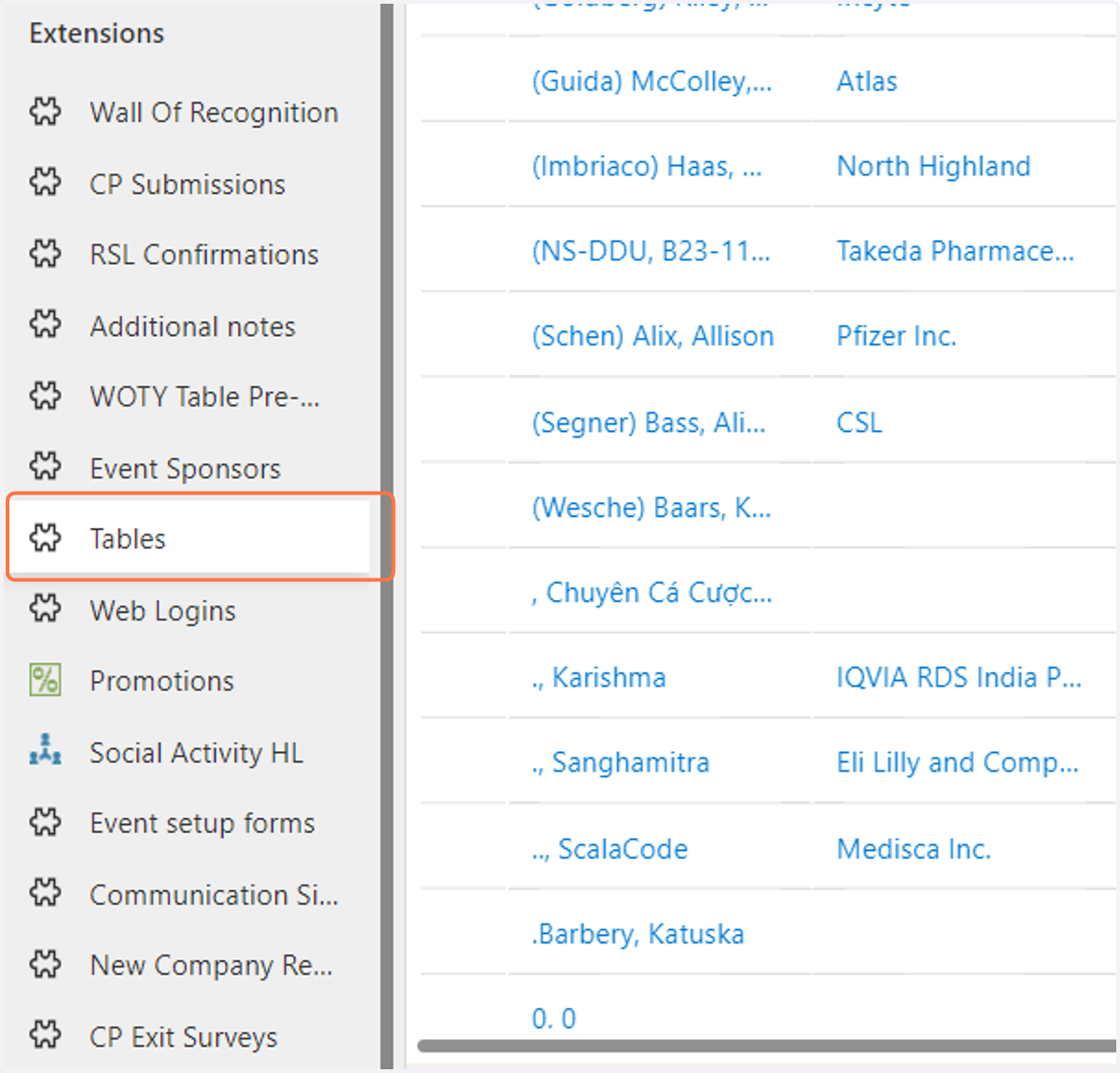
  1. 1. Click on Tables

    Click on Tables
  2. 2. Select the table and then Click on Edit
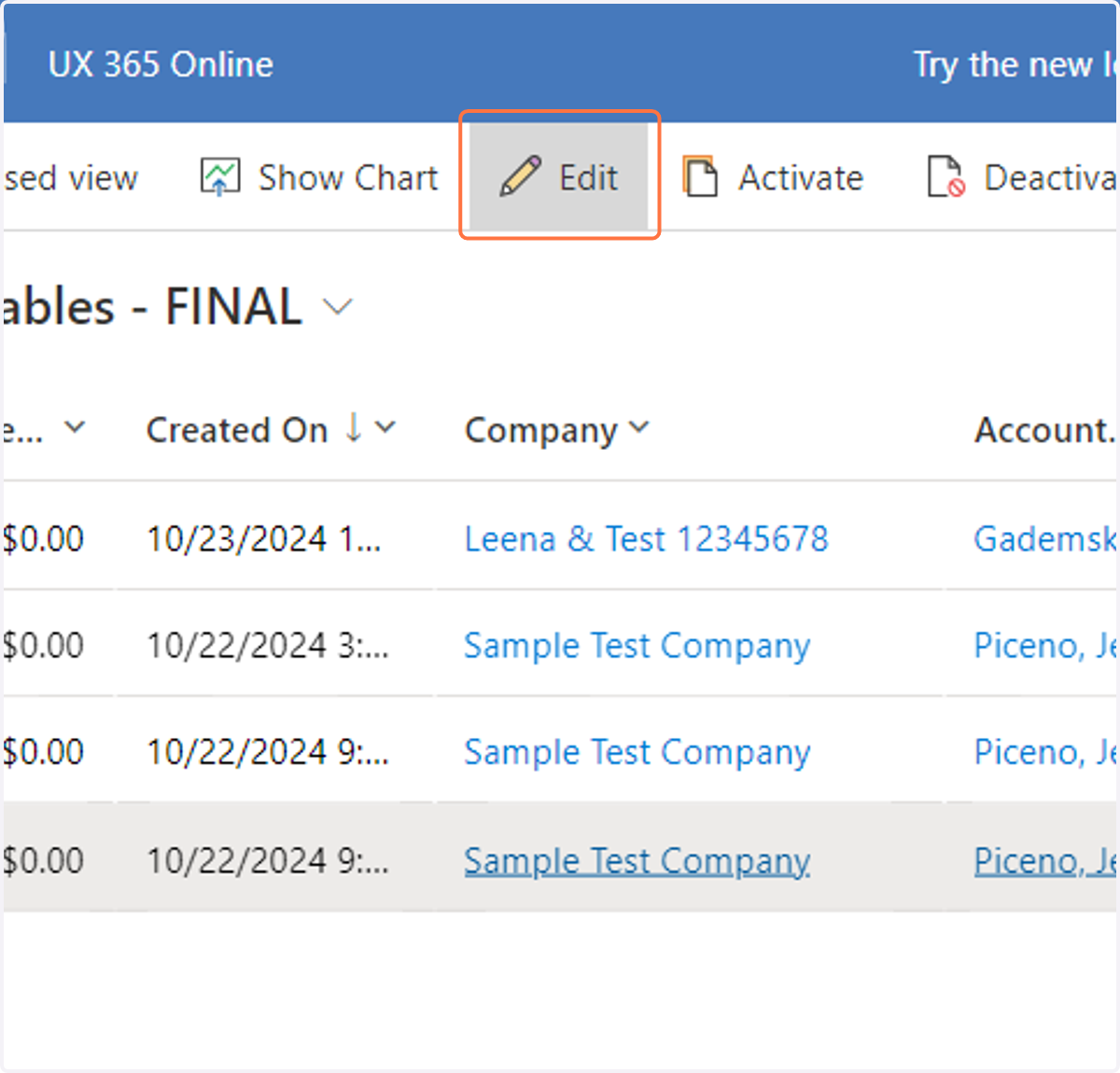
    Select the table and then Click on Edit
  3. 3. Click on Related Event Registrations (Seats)
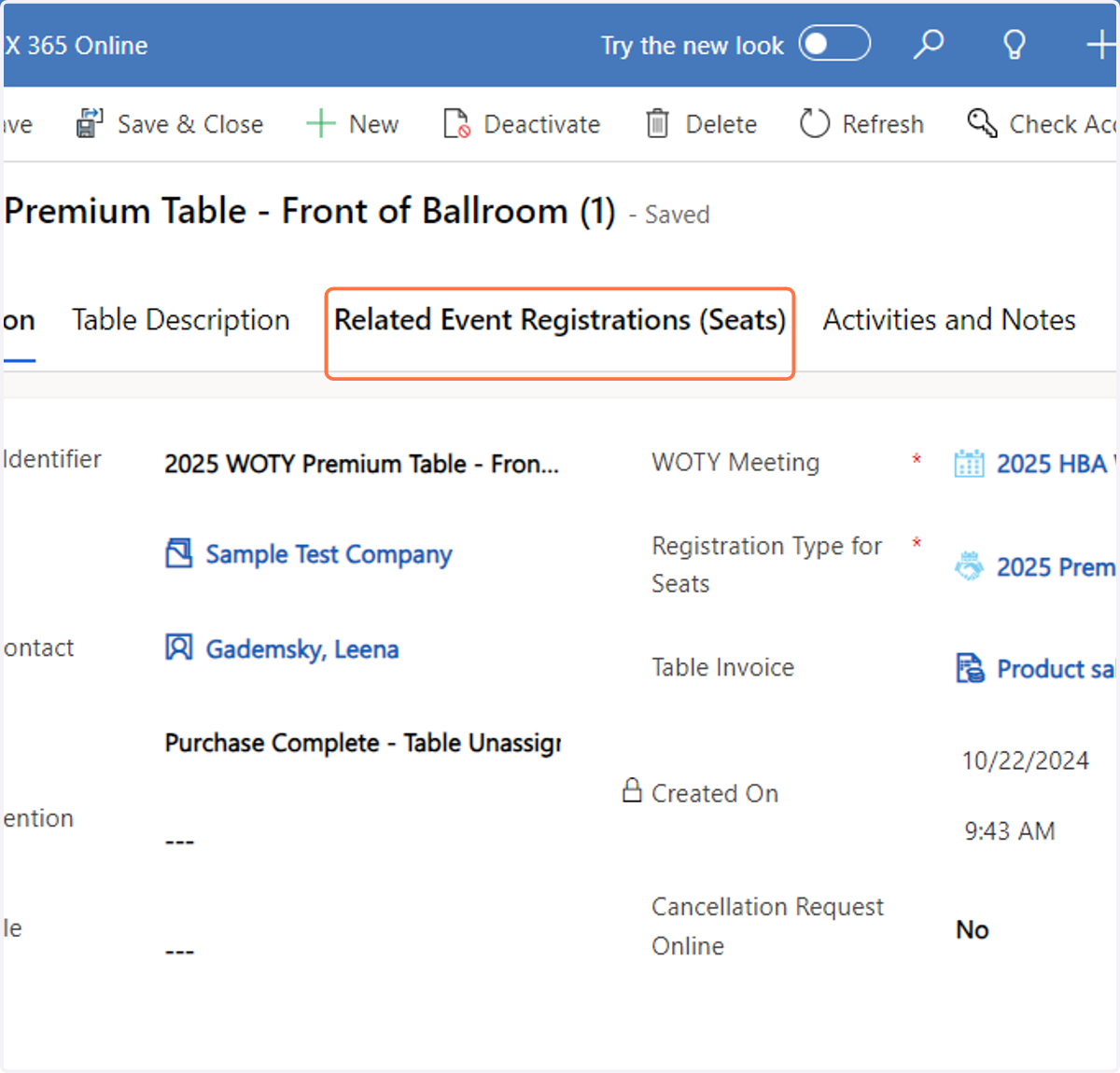
    Click on Related Event Registrations (Seats)
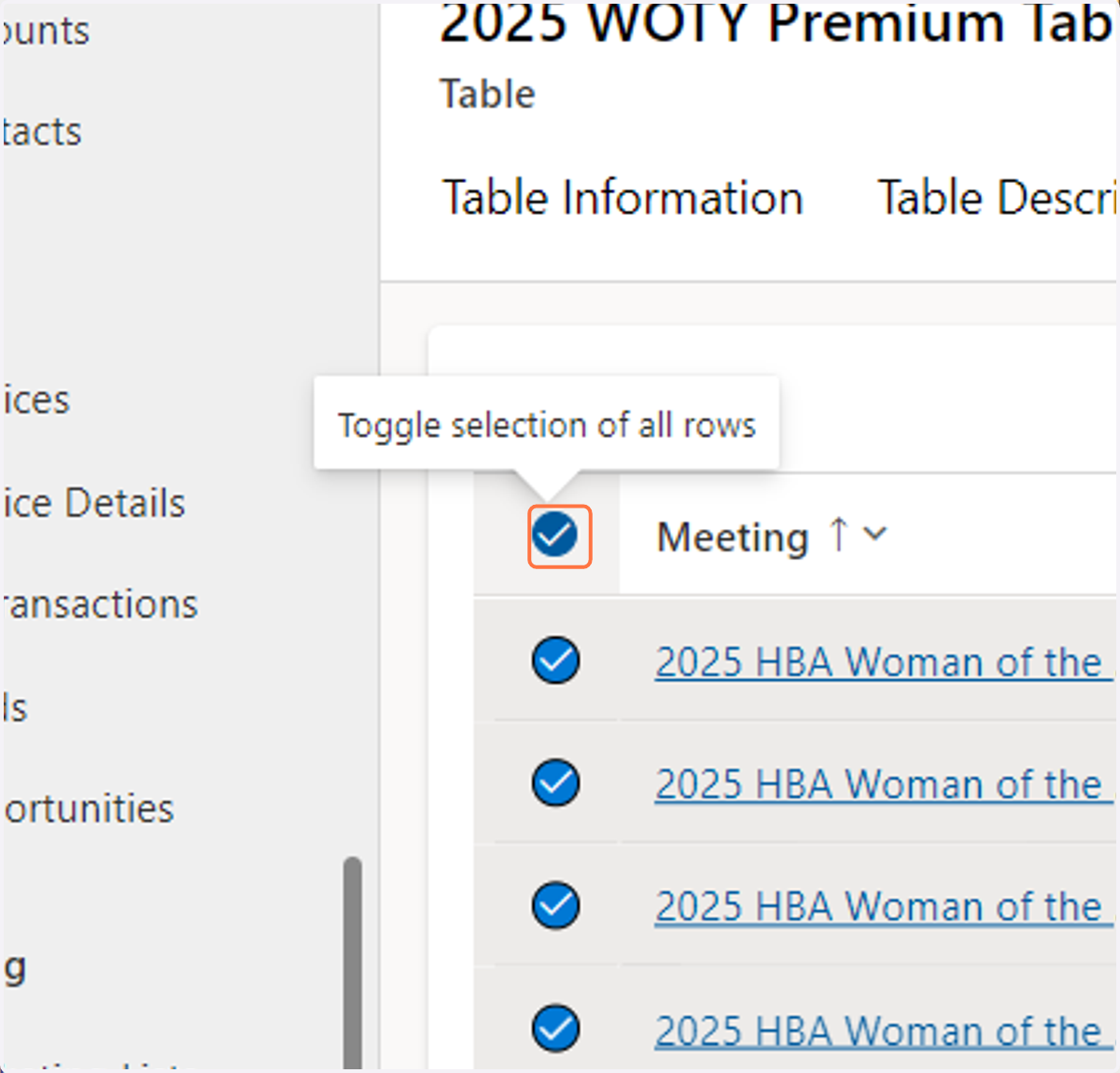
  4. 4. Select all 10 seats

    Select all 10 seats
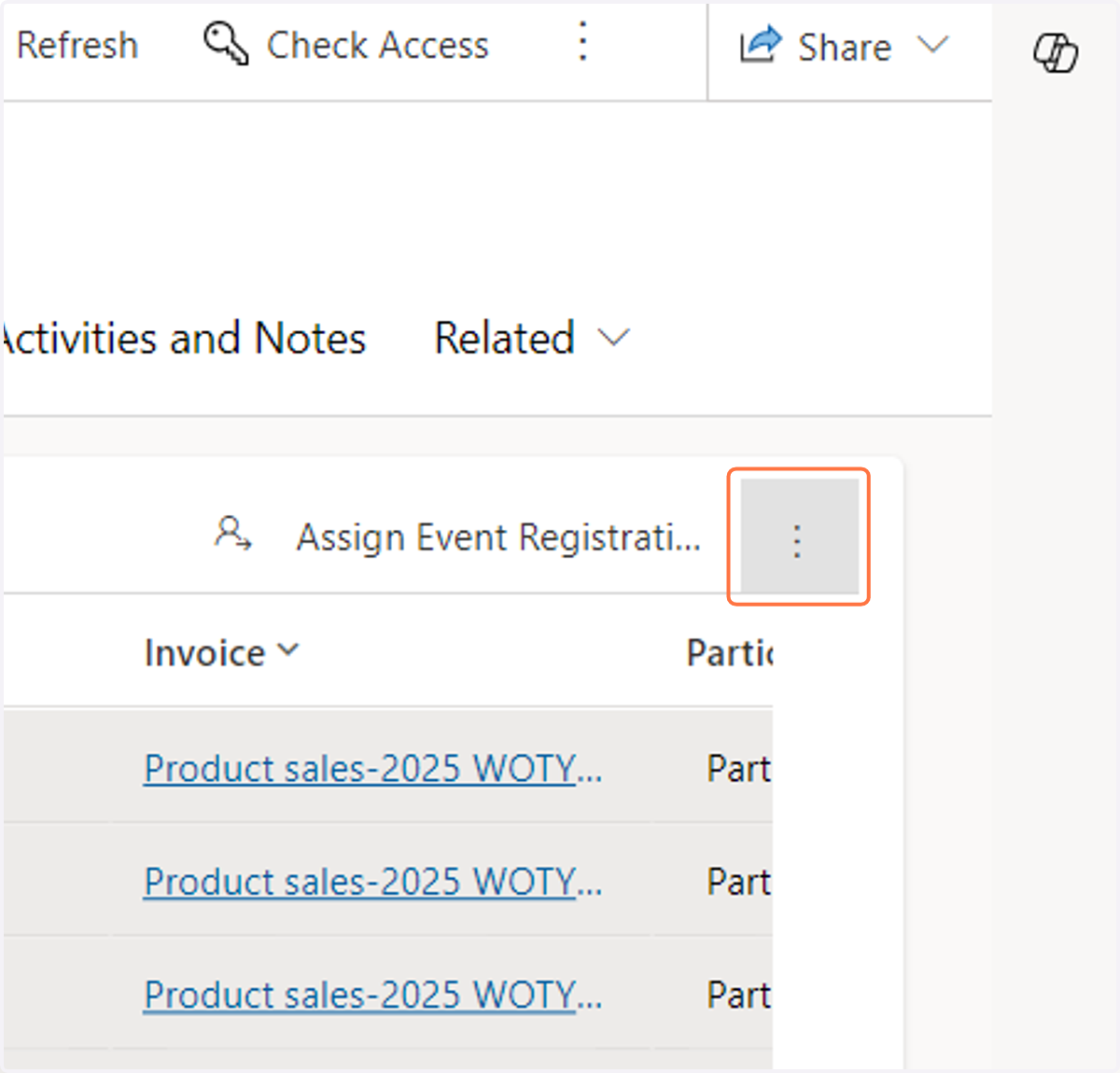
  5. 5. Click on More commands

    Click on More commands
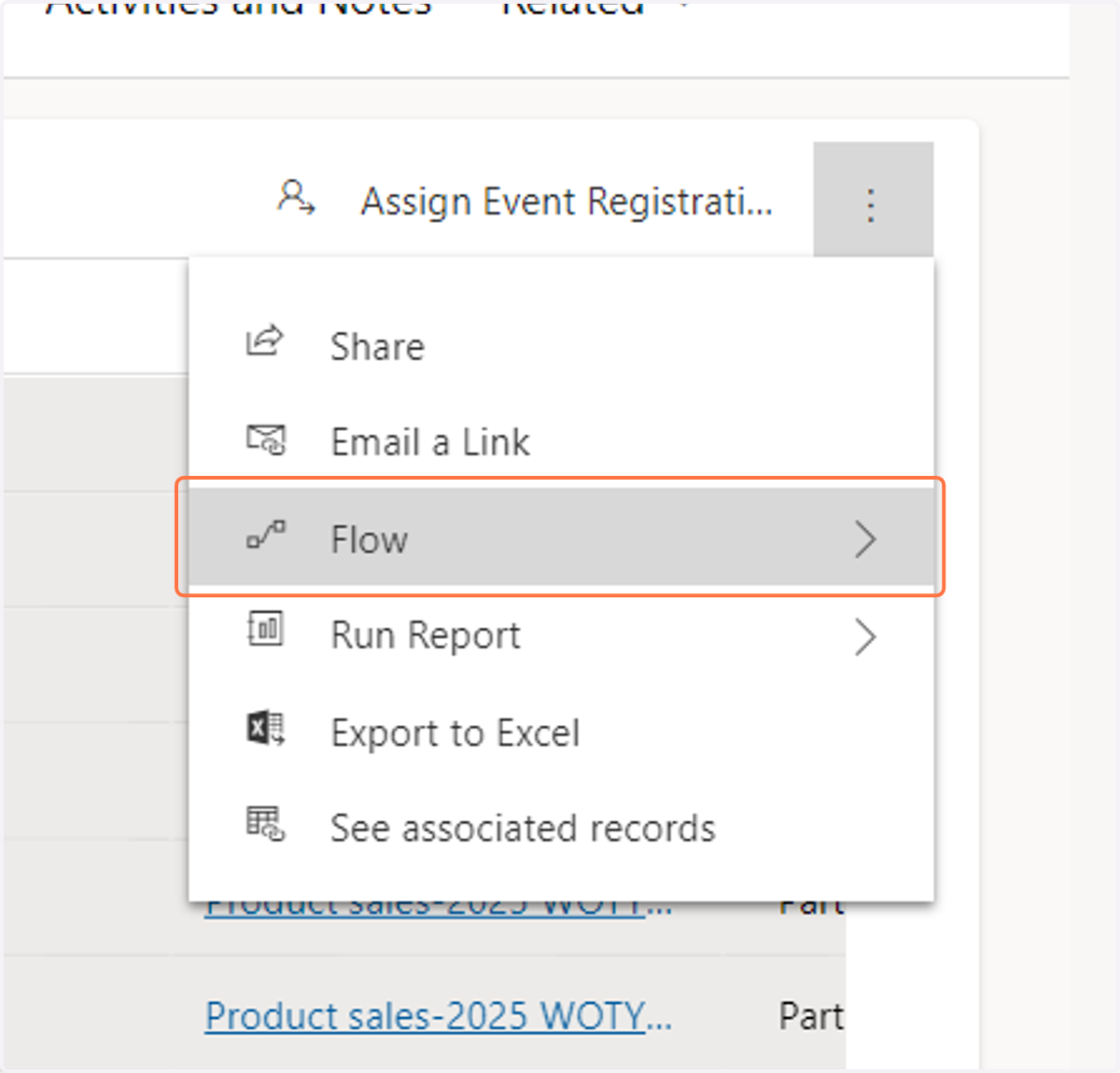
  6. 6. Click on Flow

    Click on Flow
  7. 7. Click on WOTY - cancel seats before deleting the table
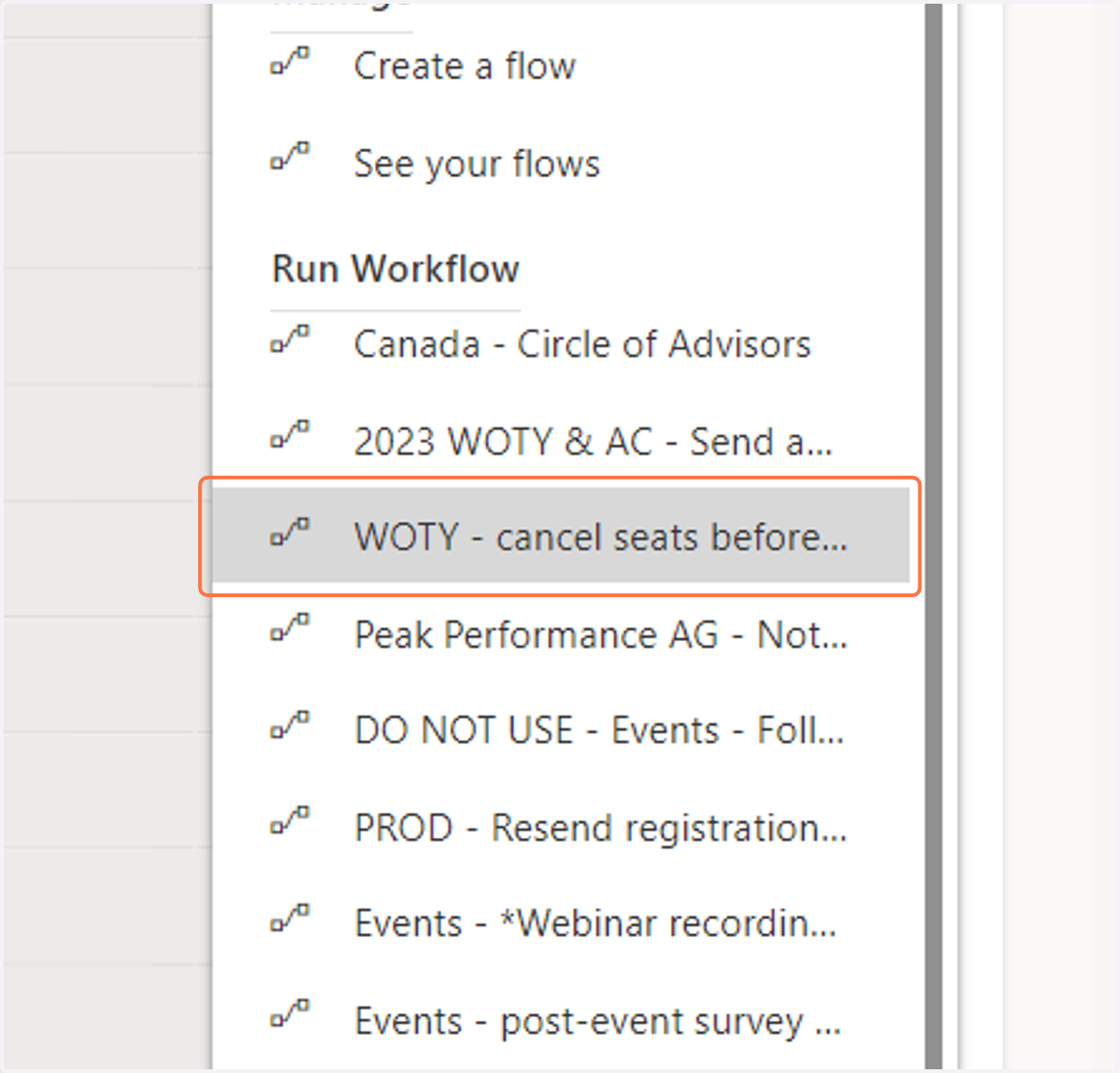
    Click on WOTY - cancel seats before deleting the table
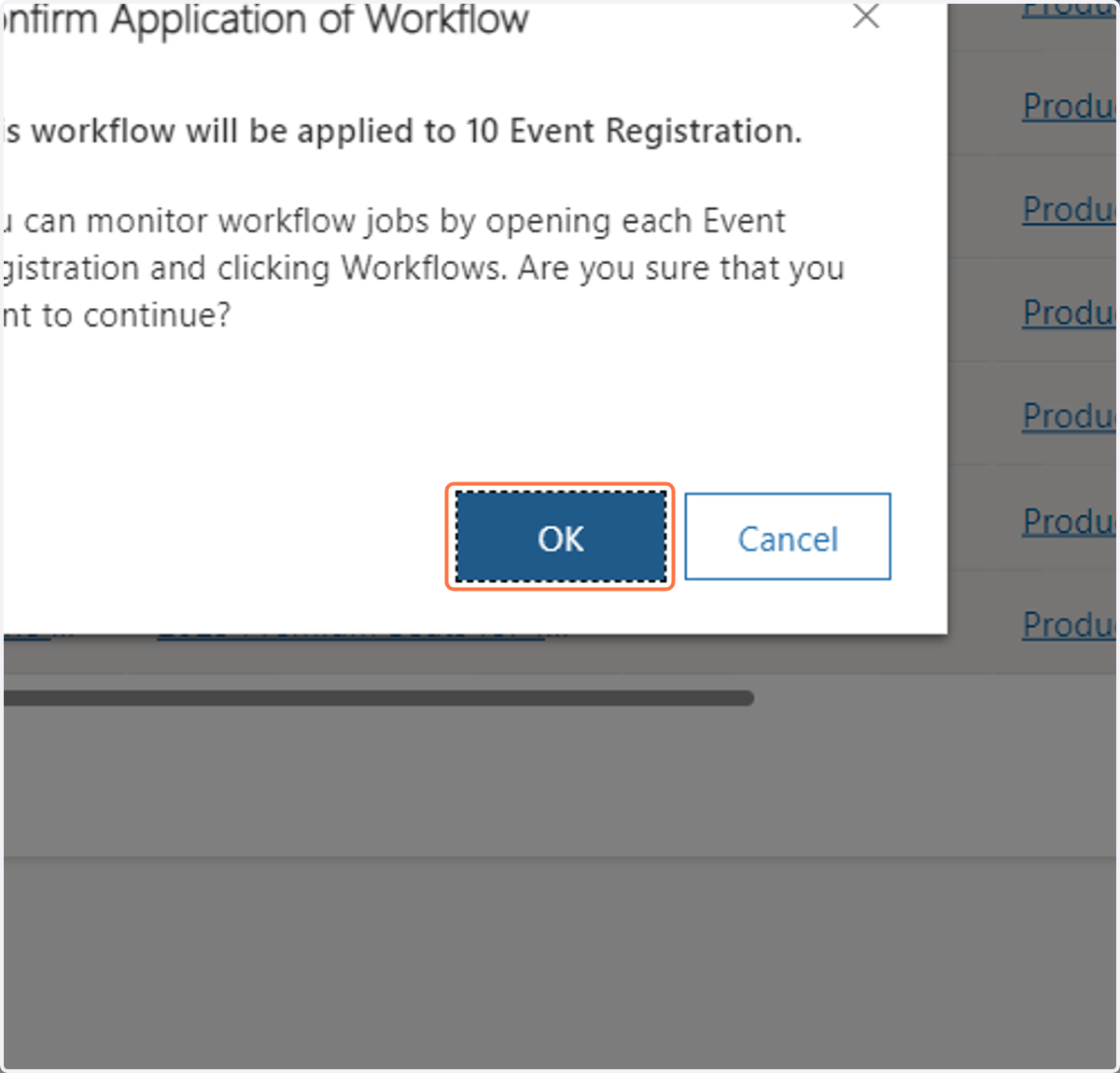
  8. 8. Click on OK

    Click on OK
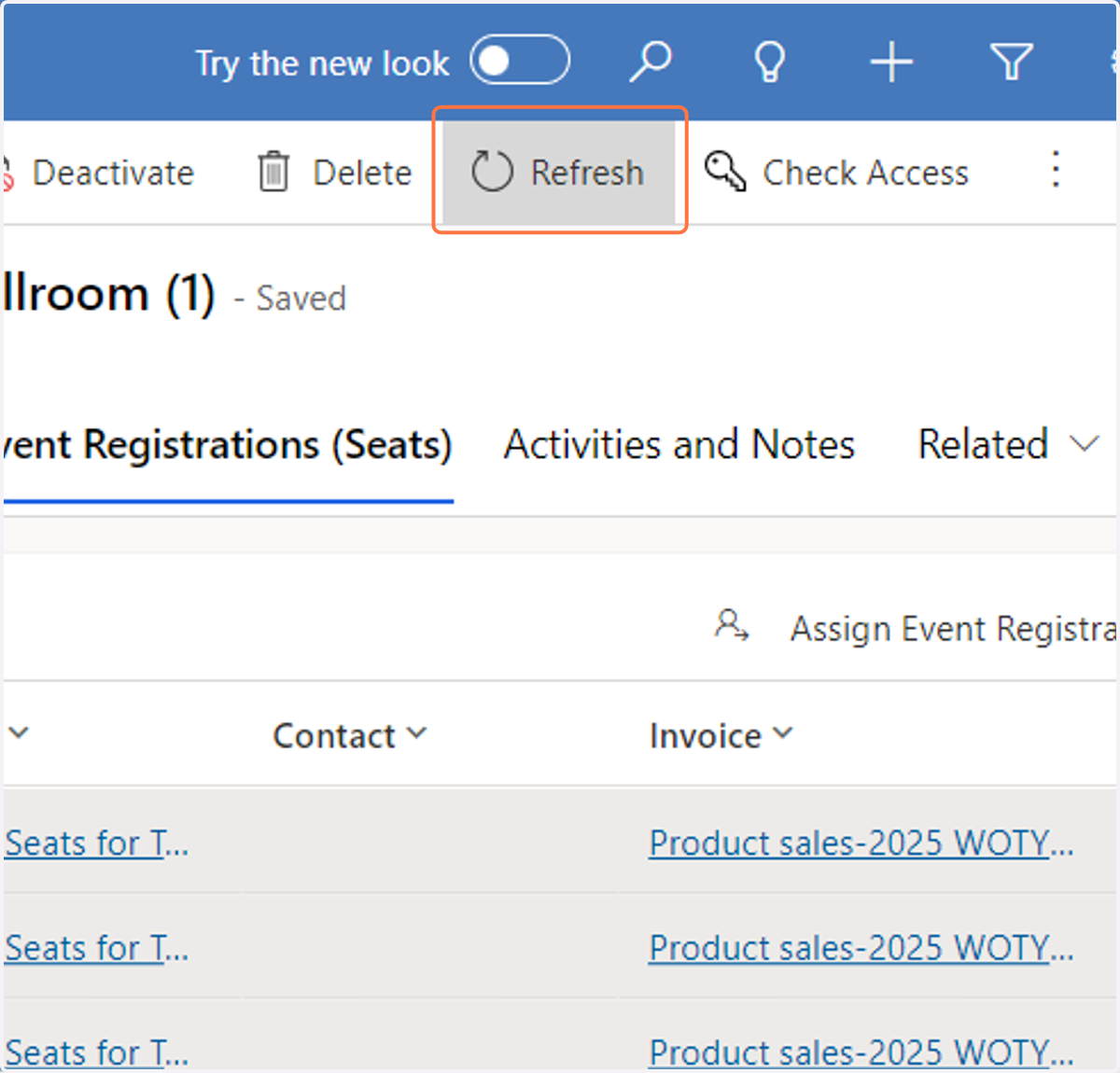
  9. 9. Click on Refresh

    Click on Refresh
  10. 10. Click on Related Event Registrations (Seats)
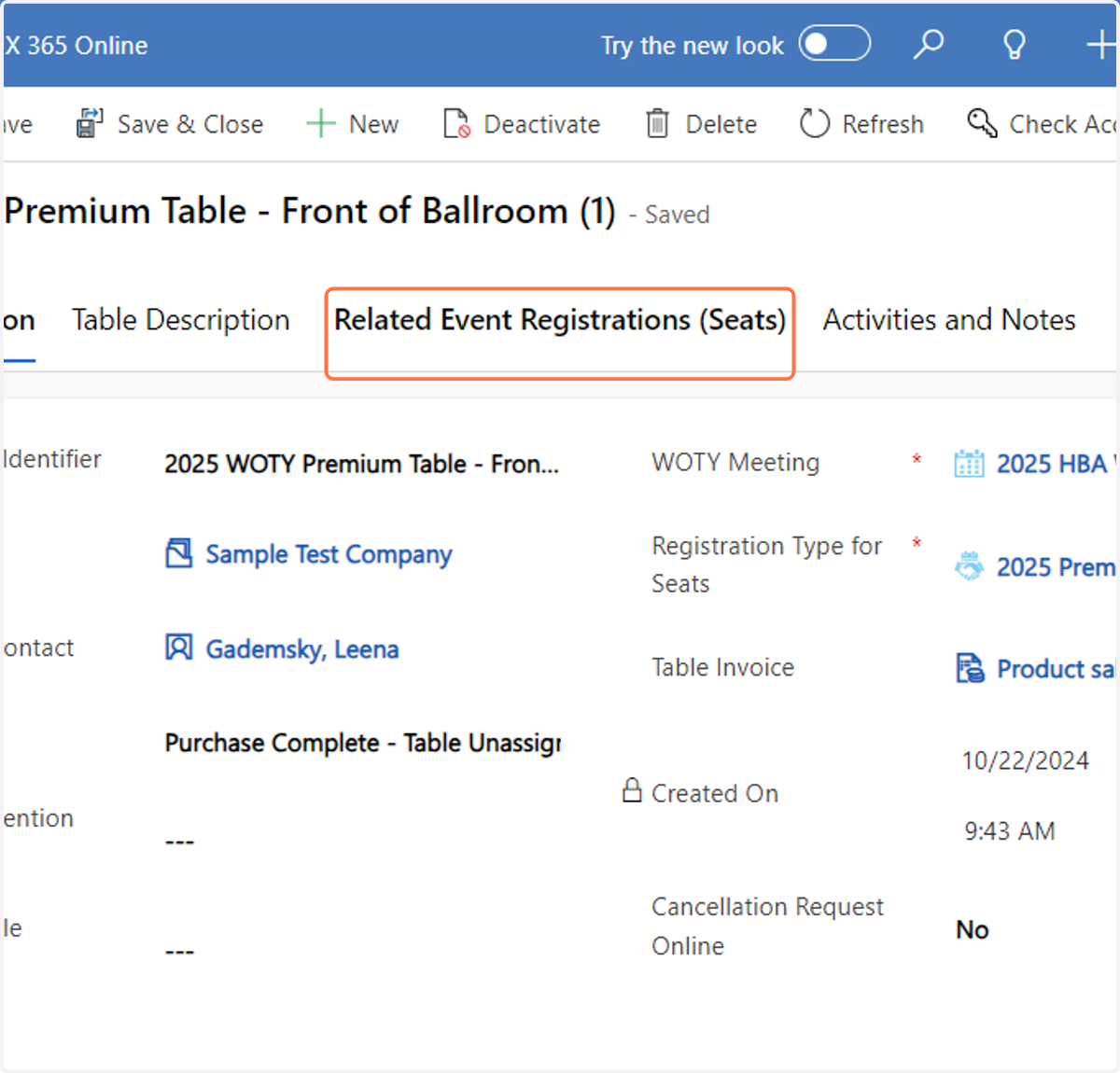
    Click on Related Event Registrations (Seats)
  11. 11. Make sure all 10 seats were removed. If not, click refresh and then repeat steps 9 & 10 until all seats are gone.
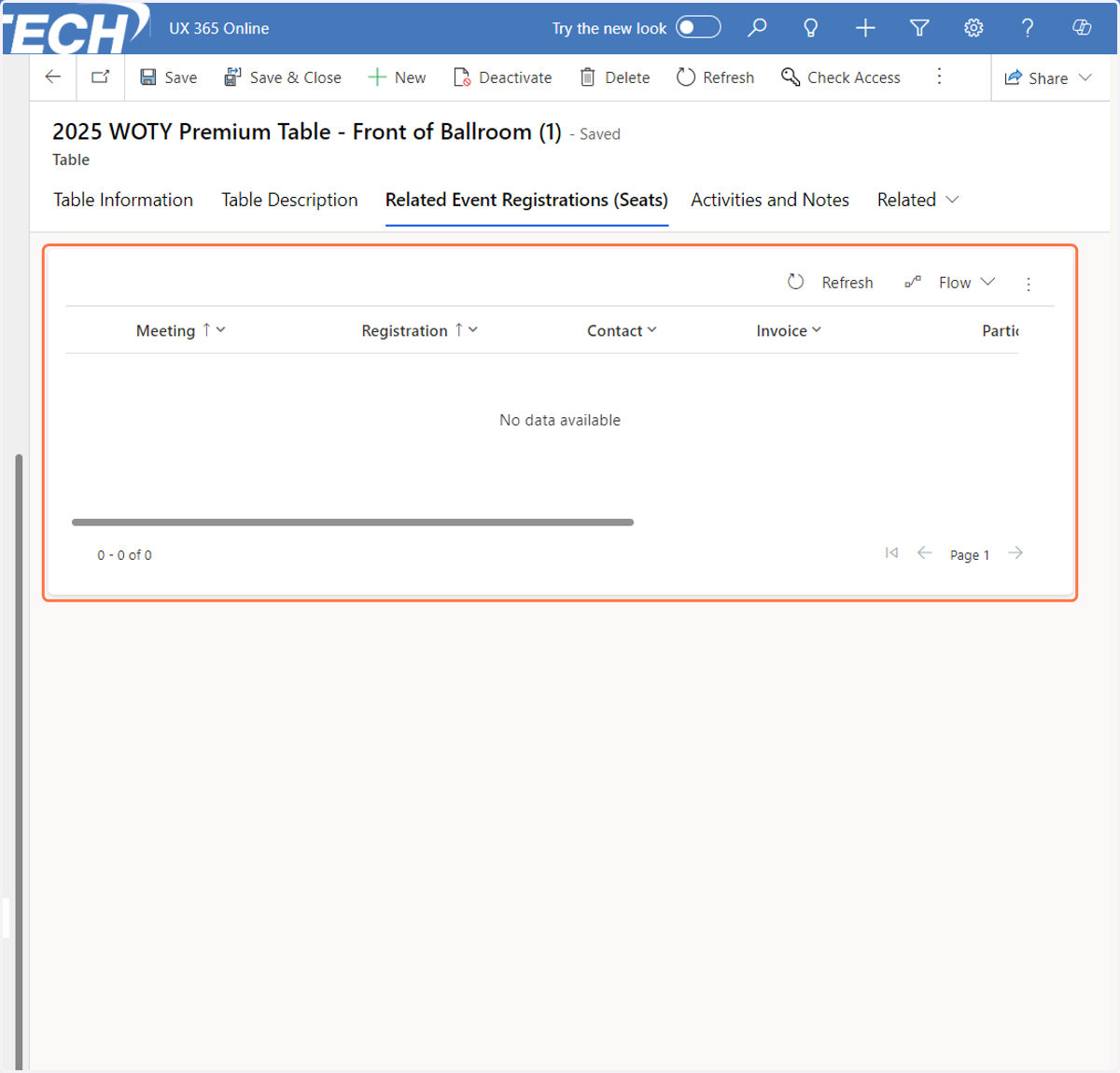
    Make sure all 10 seats were removed. If not, click refresh and then repeat steps 9 & 10 until all seats are gone.
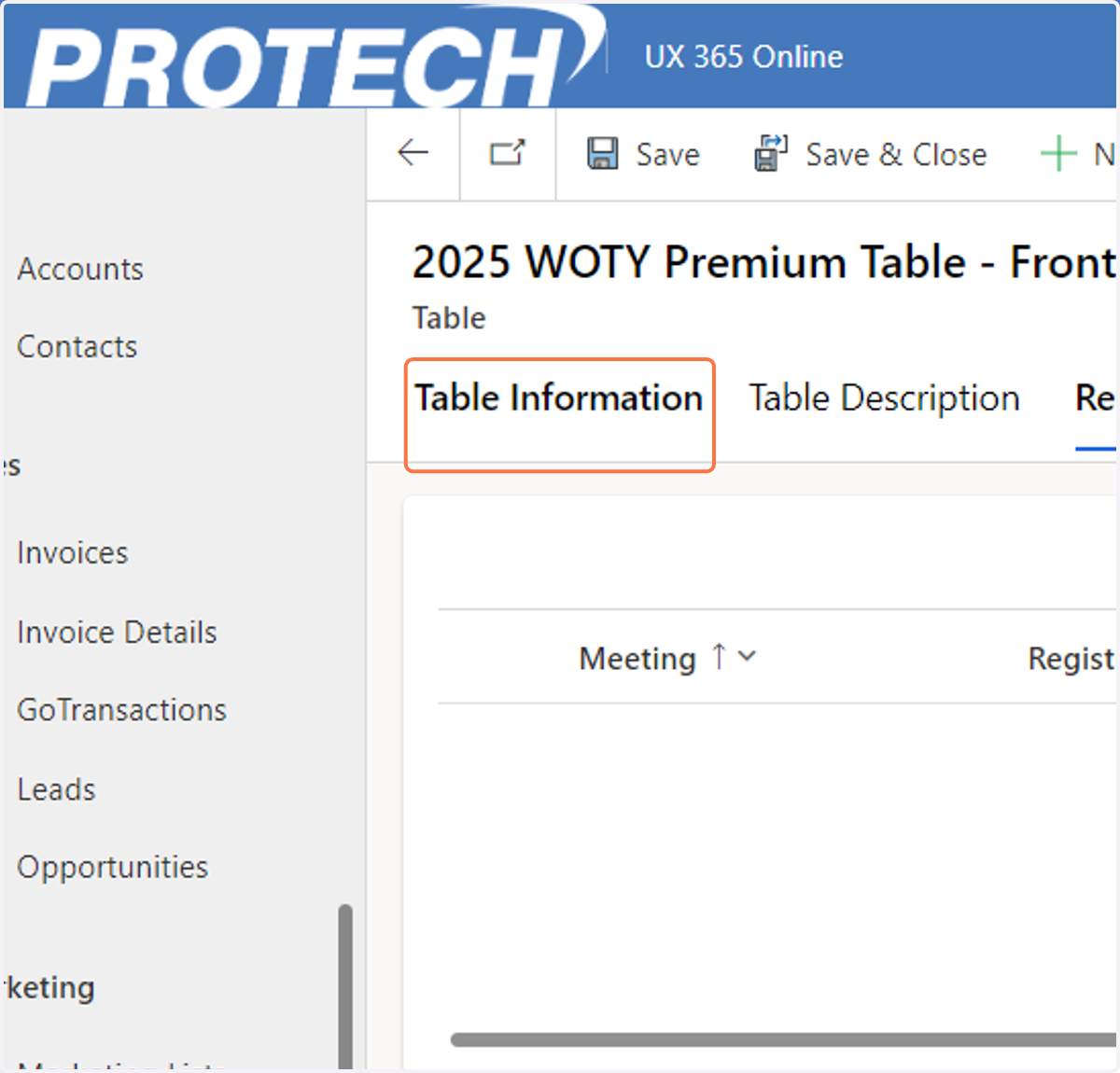
  12. 12. Click on Table Information

    Click on Table Information
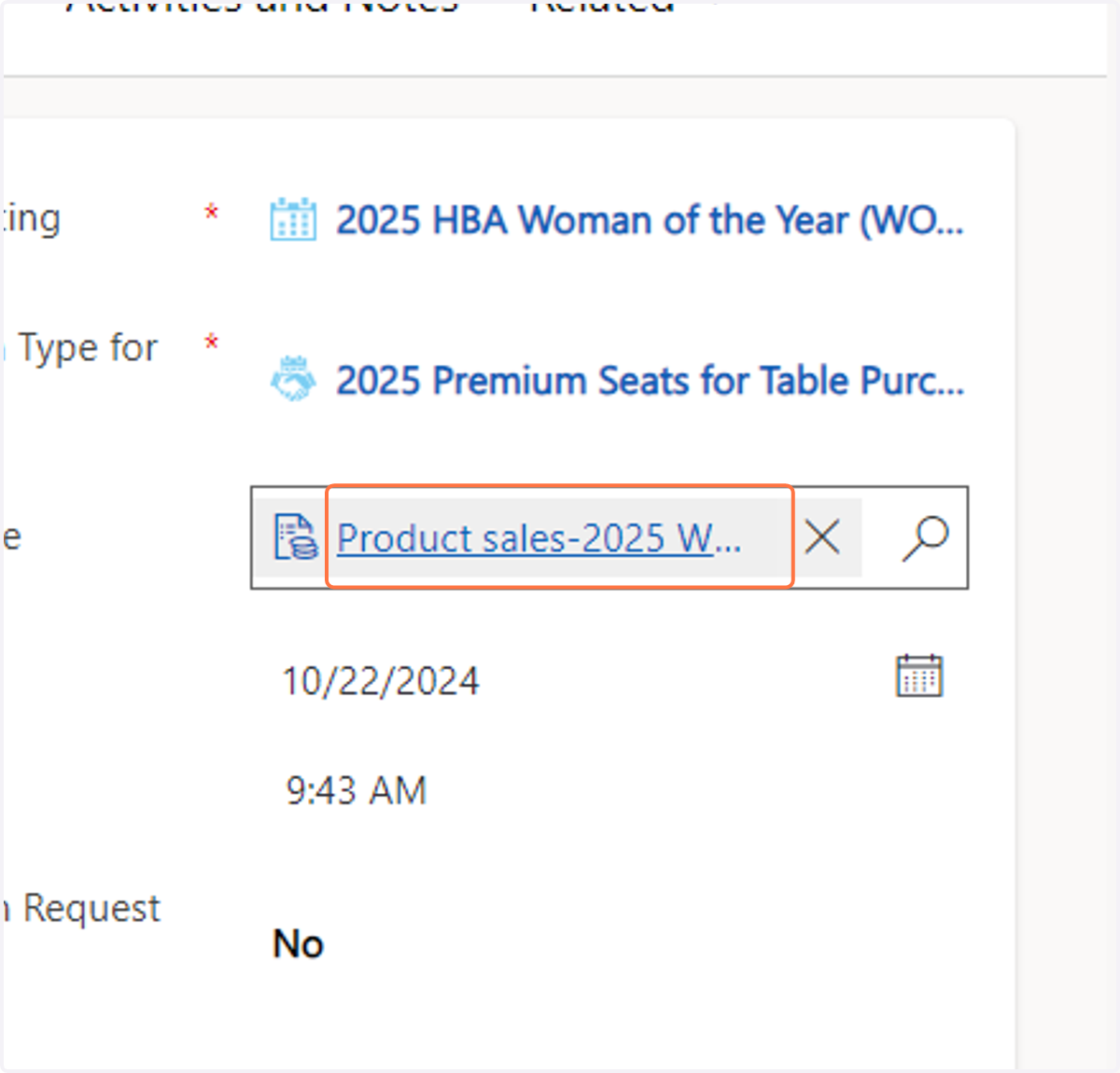
  13. 13. Click on Table Invoice

    Click on Table Invoice
  14. 14. Select the Table line item and then click on Cancel
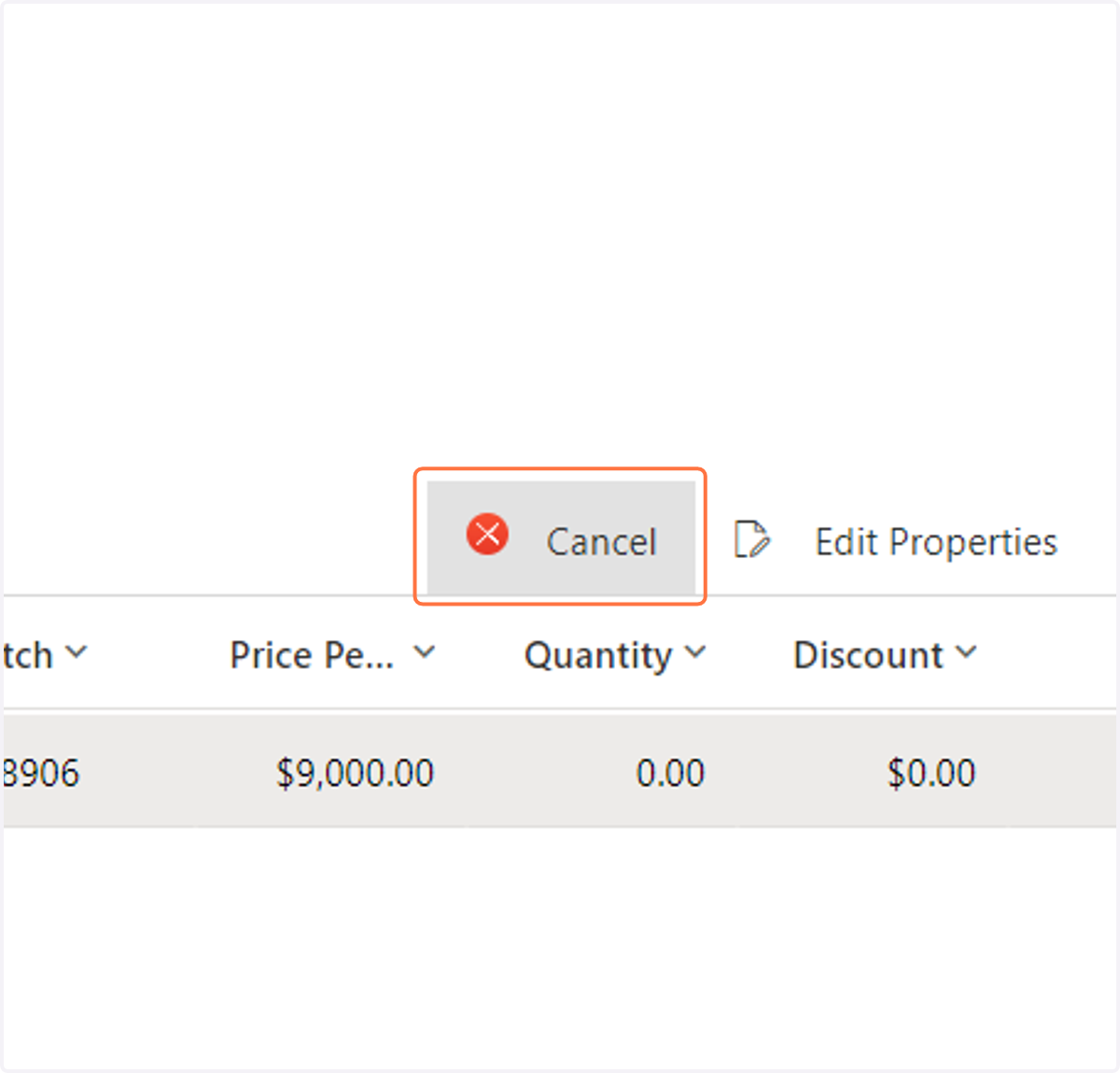
    Select the Table line item and then click on Cancel
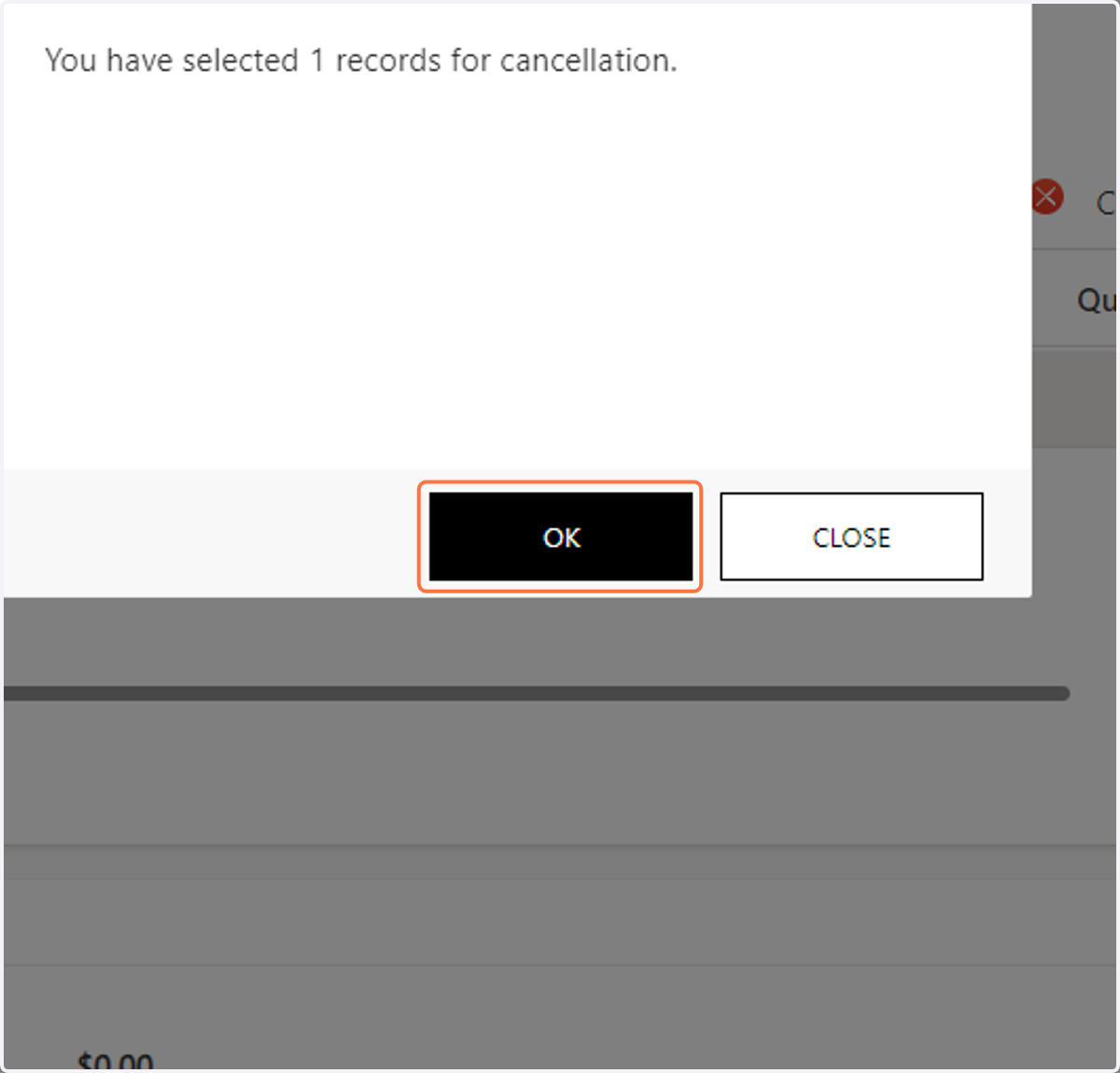
  15. 15. Click on OK

    Click on OK
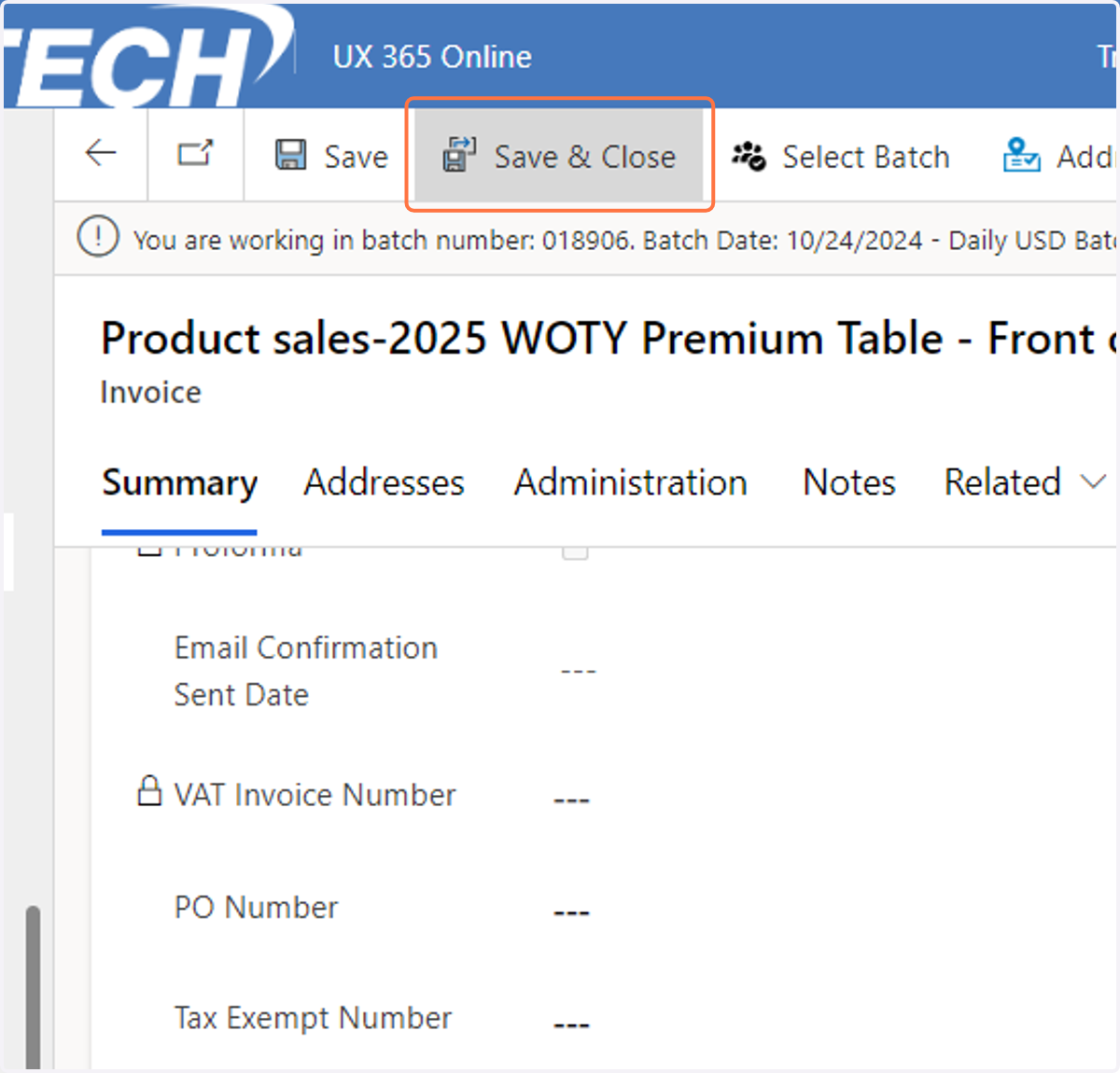
  16. 16. Click on Save & Close

    Click on Save & Close
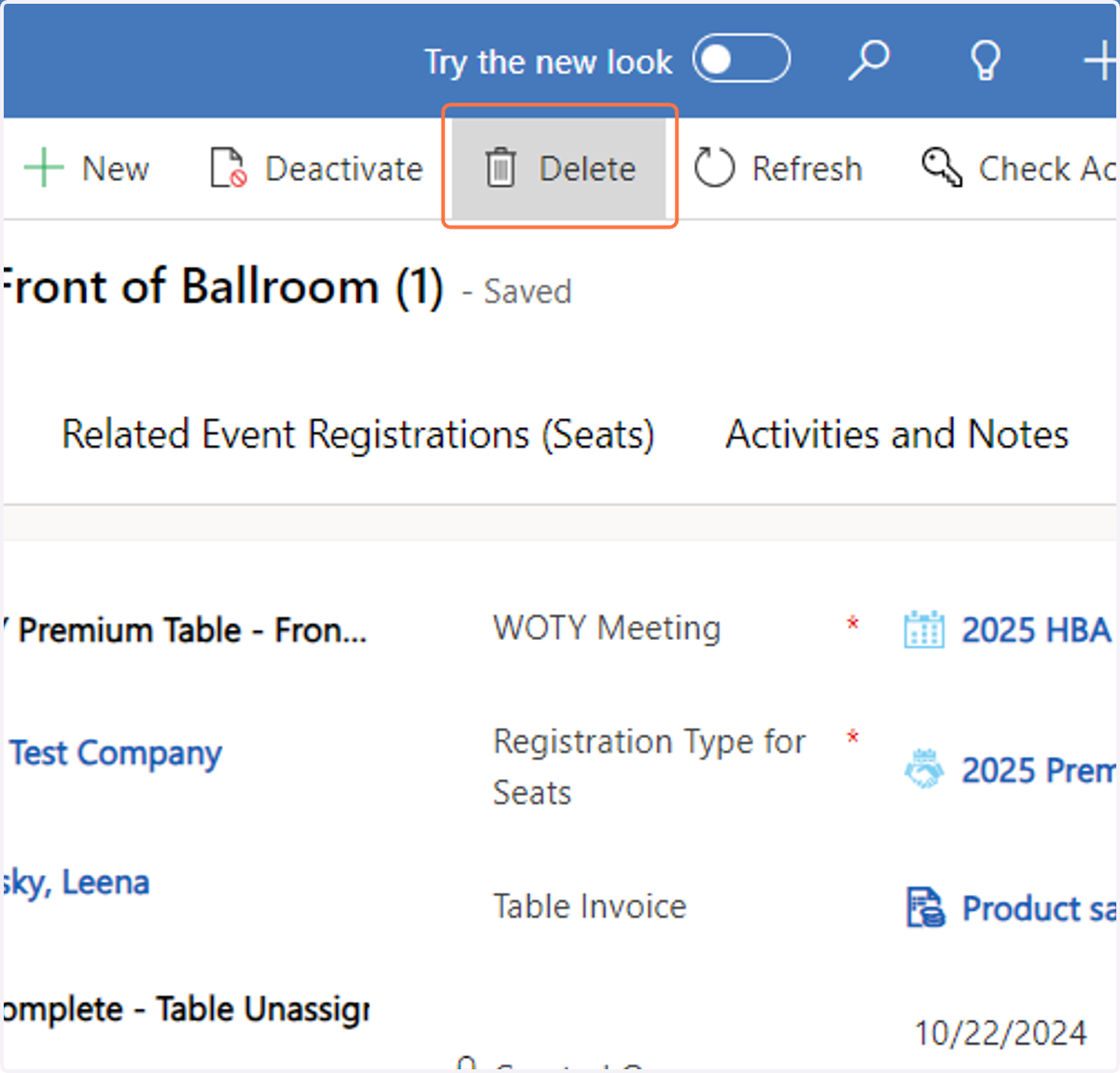
  17. 17. Click on Delete

    Click on Delete
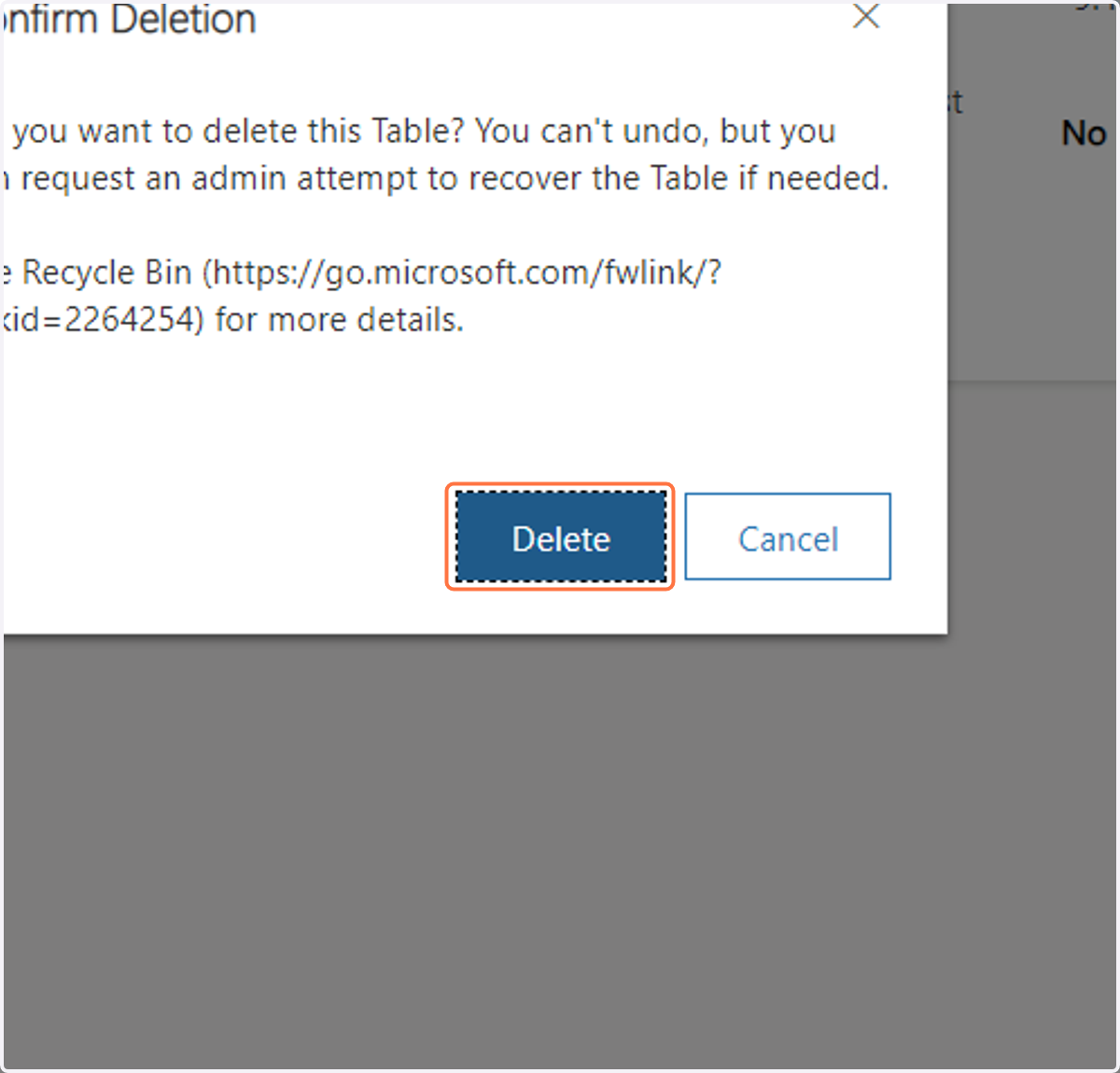
  18. 18. Click on Delete

    Click on Delete