Connect: CERM | Manually mapping (Infigo) departments to (CERM) customers and (Infigo) customers to (CERM) contacts
As we are interfacing between CERM and Infigo, it's important to distinguish between the different terminology used by both pieces of software.
(CERM) Customers | (Infigo) Departments- A grouped set of users registered within the system.
(CERM) Contacts | (Infigo) Customers - An individual user, usually sitting within one of the groups mentioned previously.
The Connect: CERM integration is capable of automating the process of (Infigo) department and (Infigo) customer exchange with CERM's equivalent.
Configuring this functionality is covered in other tutorials.
Here, we will learn how to manually map the Infigo and CERM equivalents, should you not wish to use the automated processes.
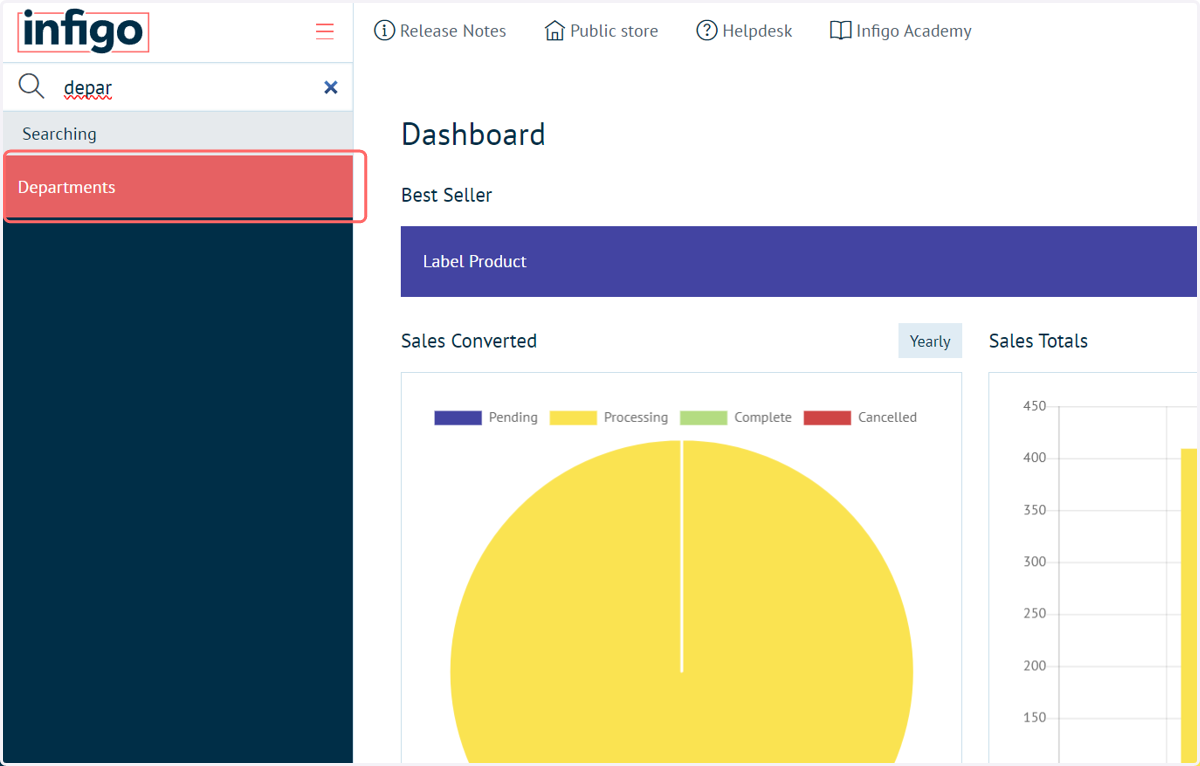
1. Navigate to Departments
First, we will look at mapping (Infigo) departments to (CERM) customers.
When performing this process manually, we must ensure that the required (Infigo) Department exists.
2. Click on Connect Link
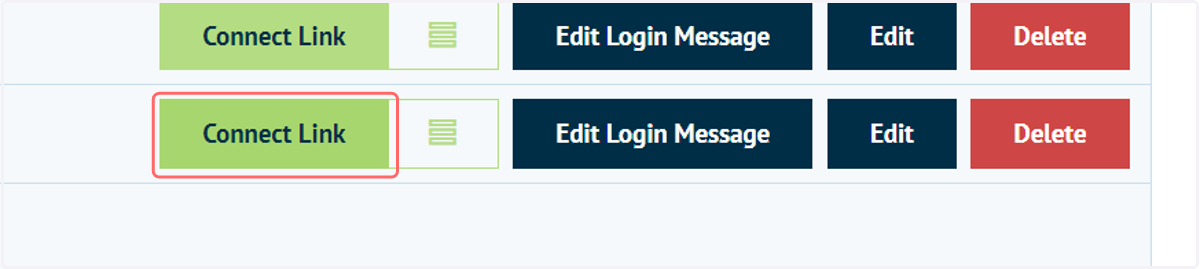
Locate / create the (Infigo) Department.
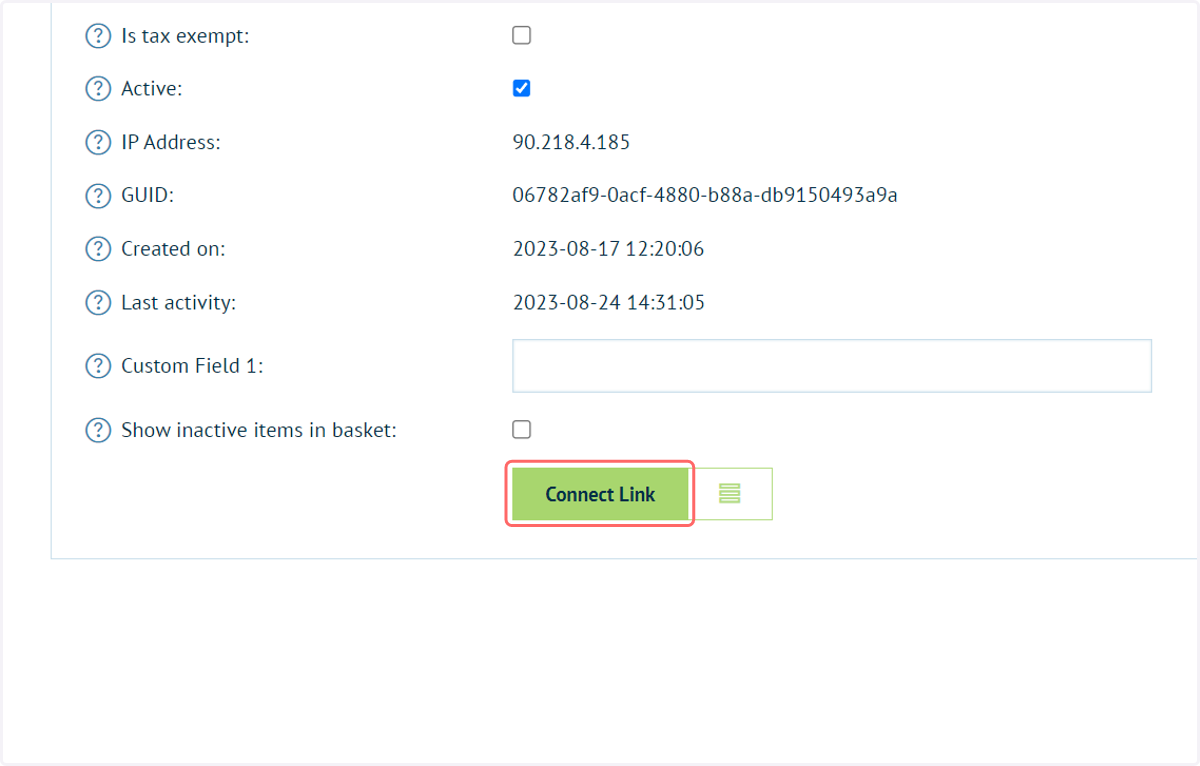
Once, created click the green Connect Link button.
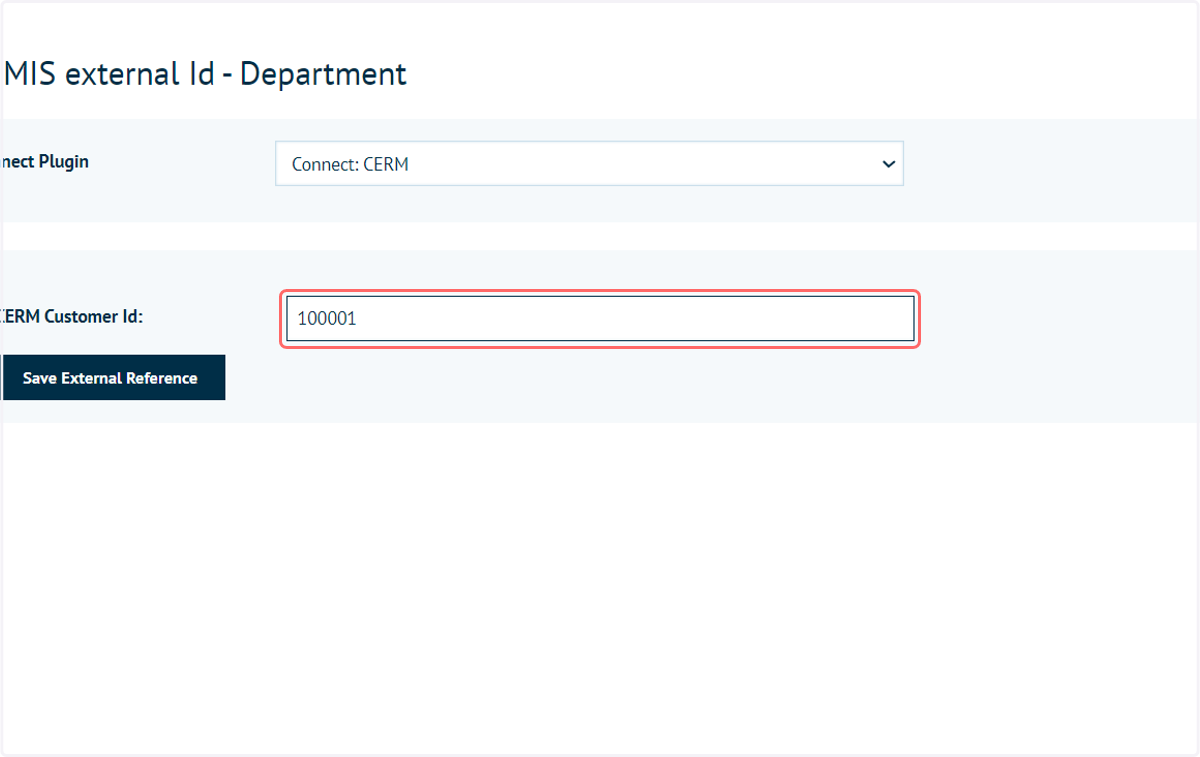
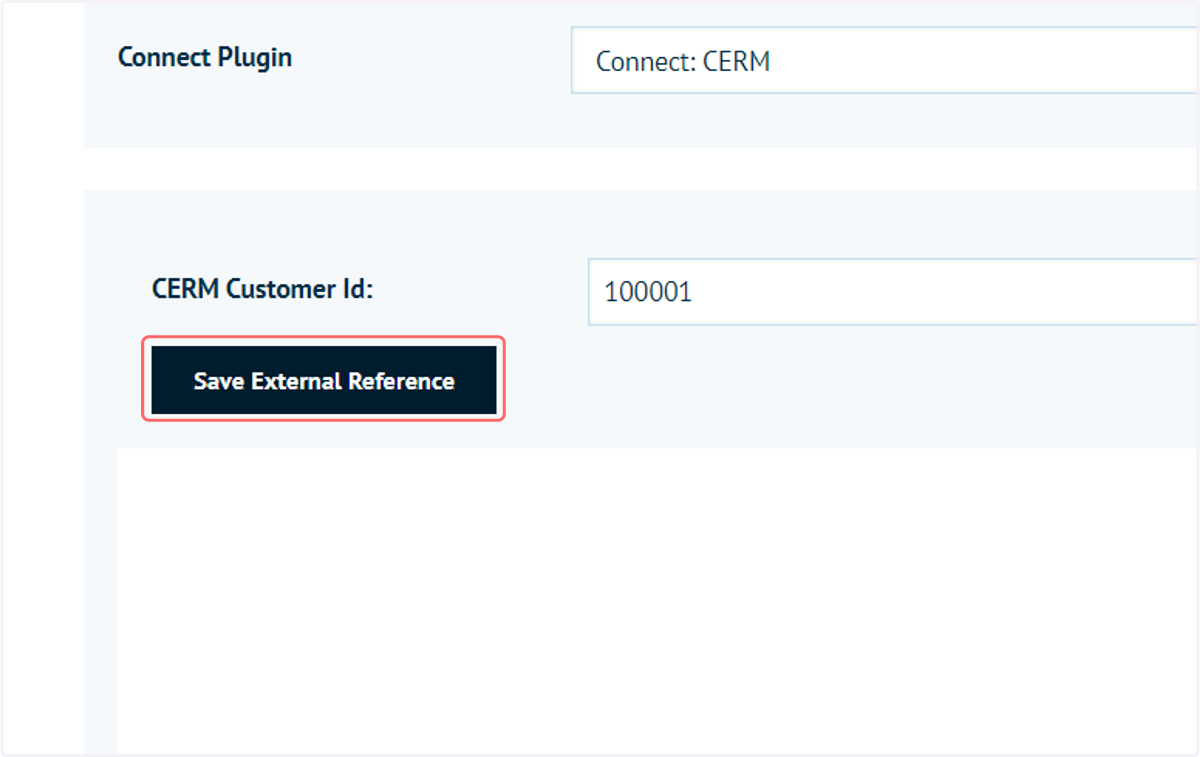
3. Enter CERM Customer ID
A pop up window is launched, allowing you to map the (Infigo) Department to a specified (CERM) Customer ID.
4. Click on Save External Reference
The mapping between (Infigo) Department and (CERM) Customer is completed.
5. Select and save customers
Ensure the (Infigo) Customers required for the department are selected.

6. Click on Save changes

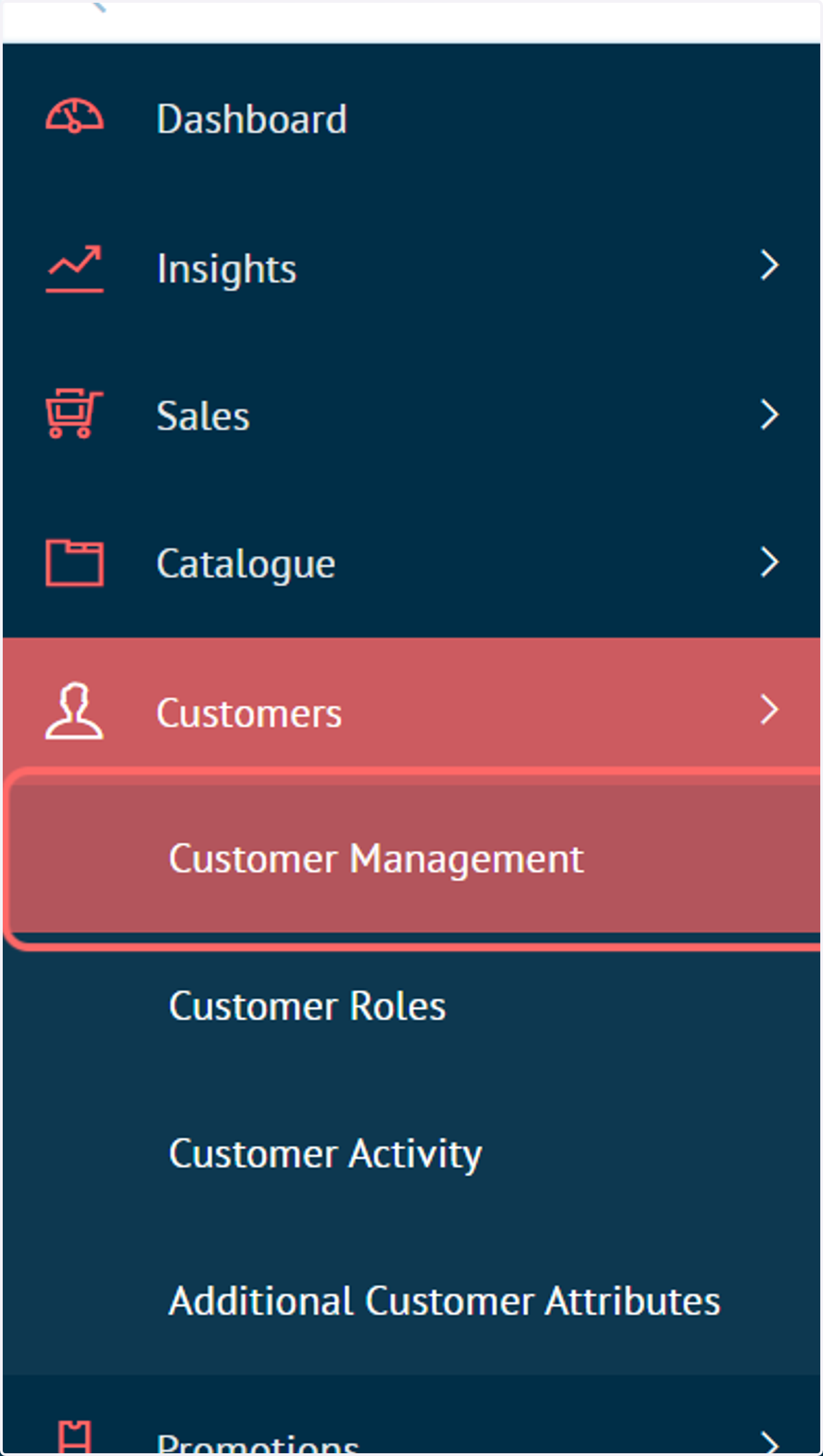
7. Navigate to Customer Management
Next, we will perform similar actions mapping (Infigo) Customers with (CERM) Contacts.
Begin by navigating to the Customer Management area.
8. Click on Edit
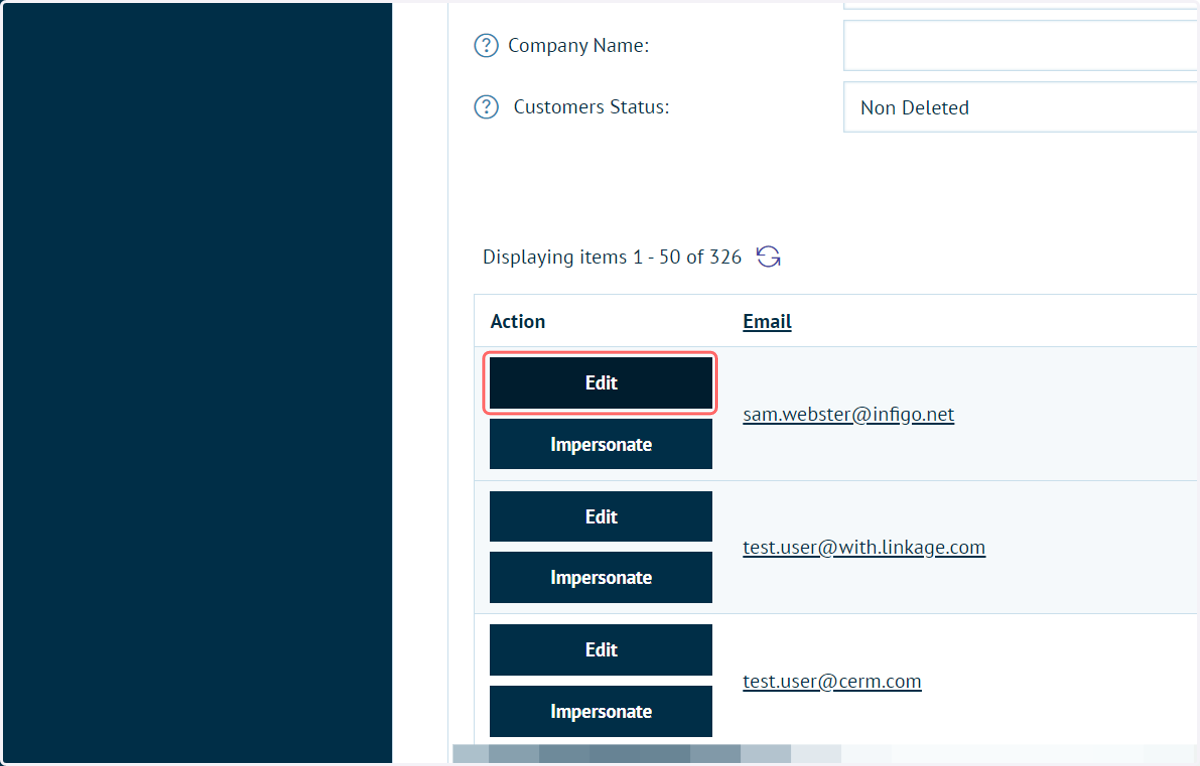
Click Edit next to the (Infigo) Customer you wish to map
9. Click on Connect Link
10. Enter a Contact ID
A pop up will appear prompting the entry of a (CERM) Contact ID.
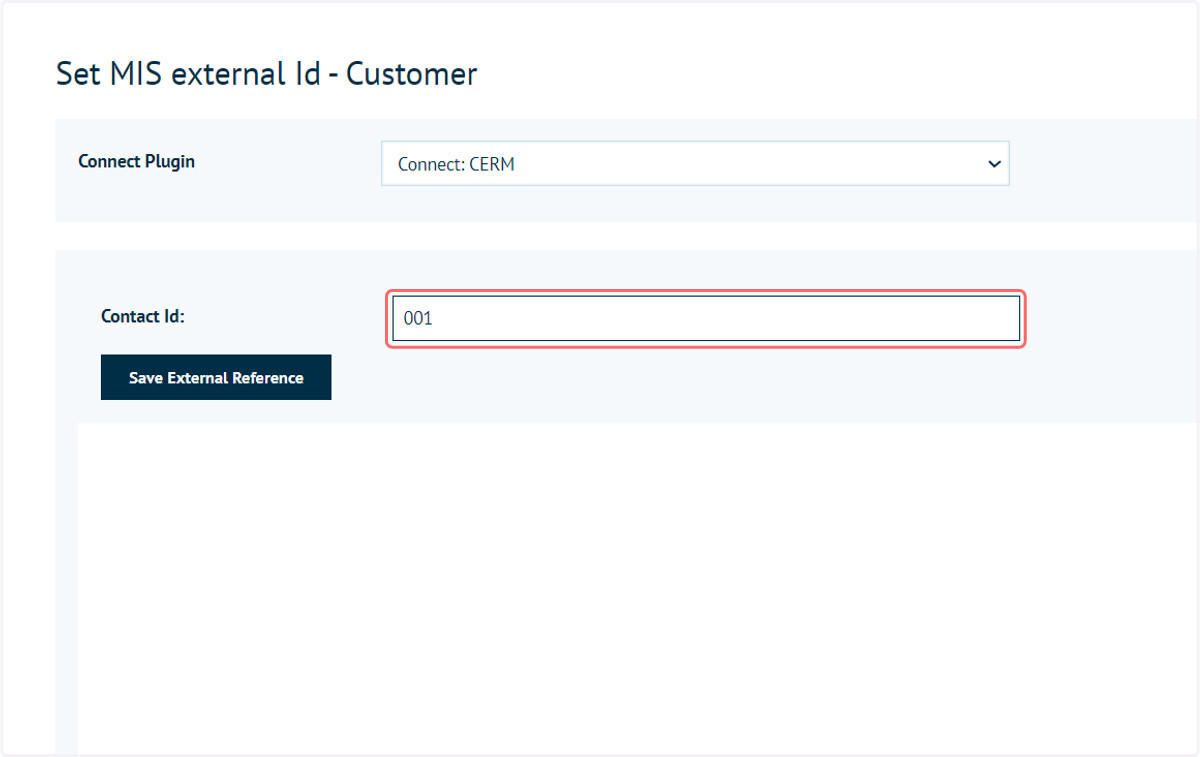
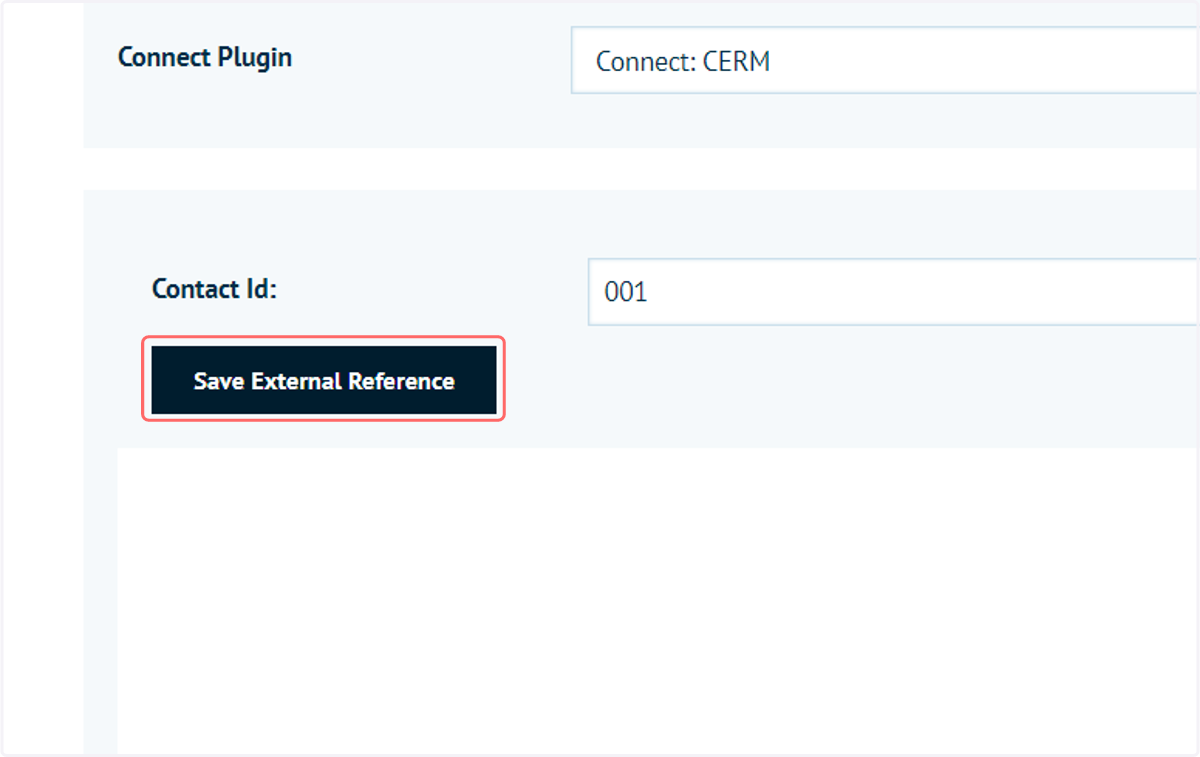
11. Click on Save External Reference
The mapping between (Infigo) Customer and (CERM) Contact is now completed.