Program Registration Guide 10/14/24
Start by visiting GHPLD's website homepage
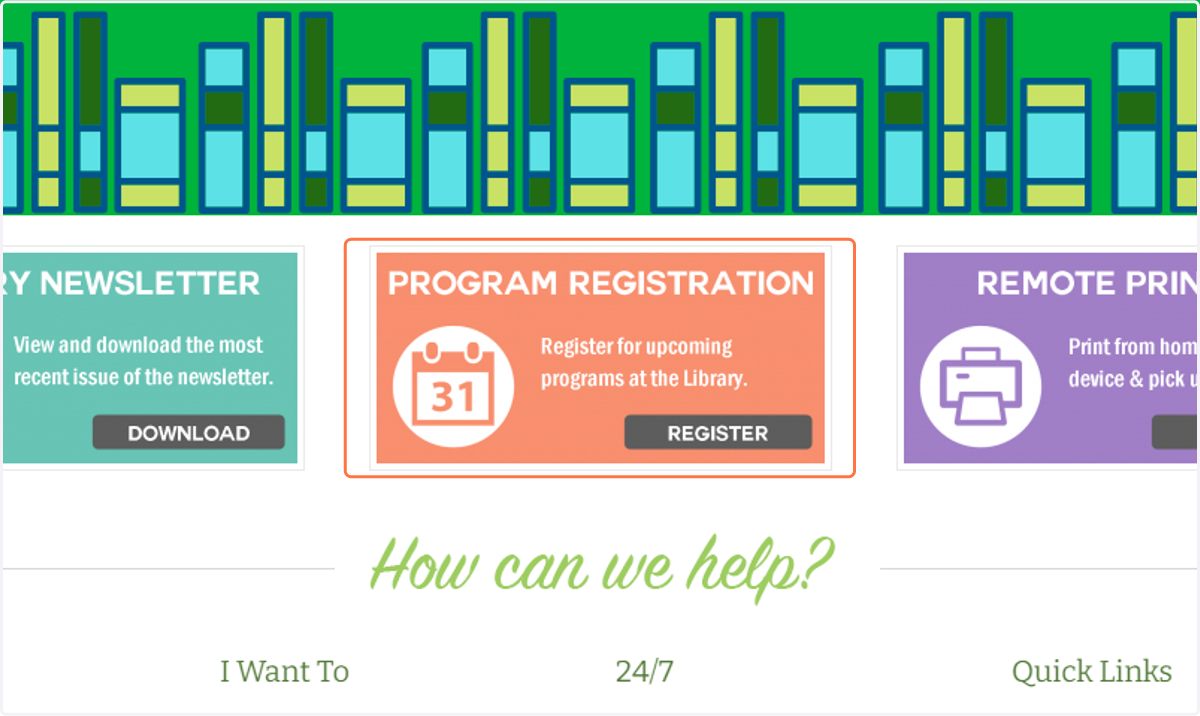
1. Click on Program Registration
The easiest way to get to LibraryCalendar is from the our website, www.greenhillslibrary.org. From the homepage, click the "Program Registration" button.
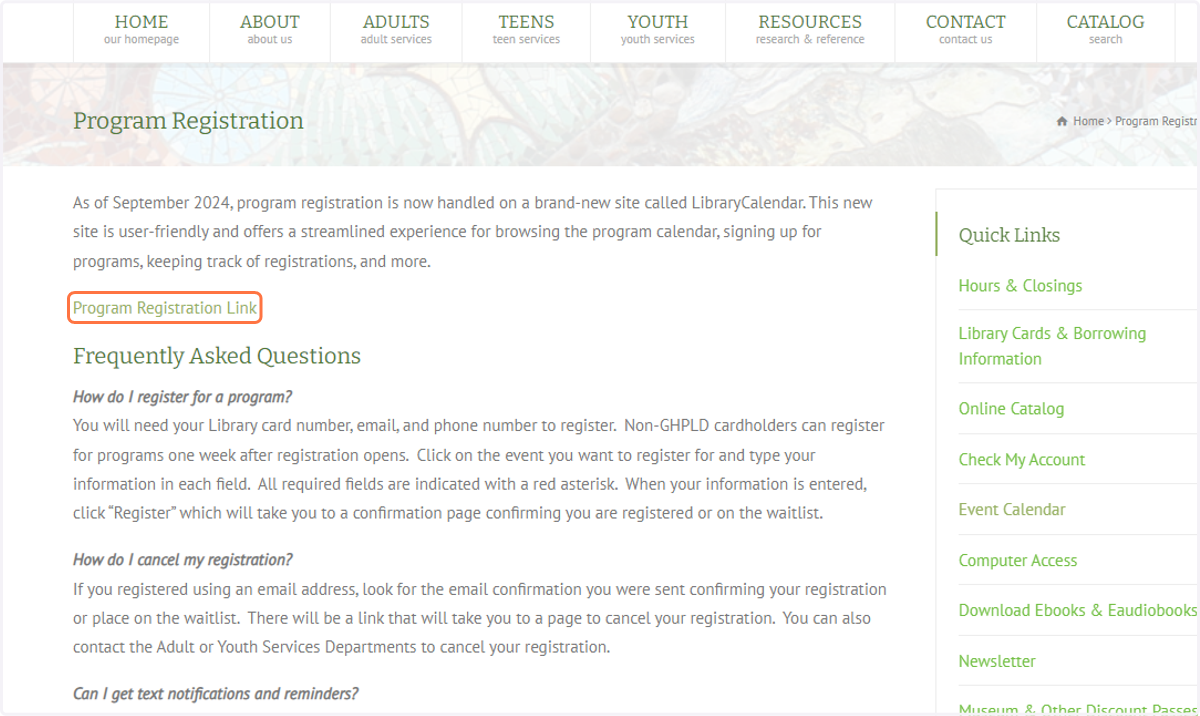
2. Click on Program Registration Link
This page contains FAQs about registering for Library programs. Click the "Program Registration Link" button to be taken to LibraryCalendar.
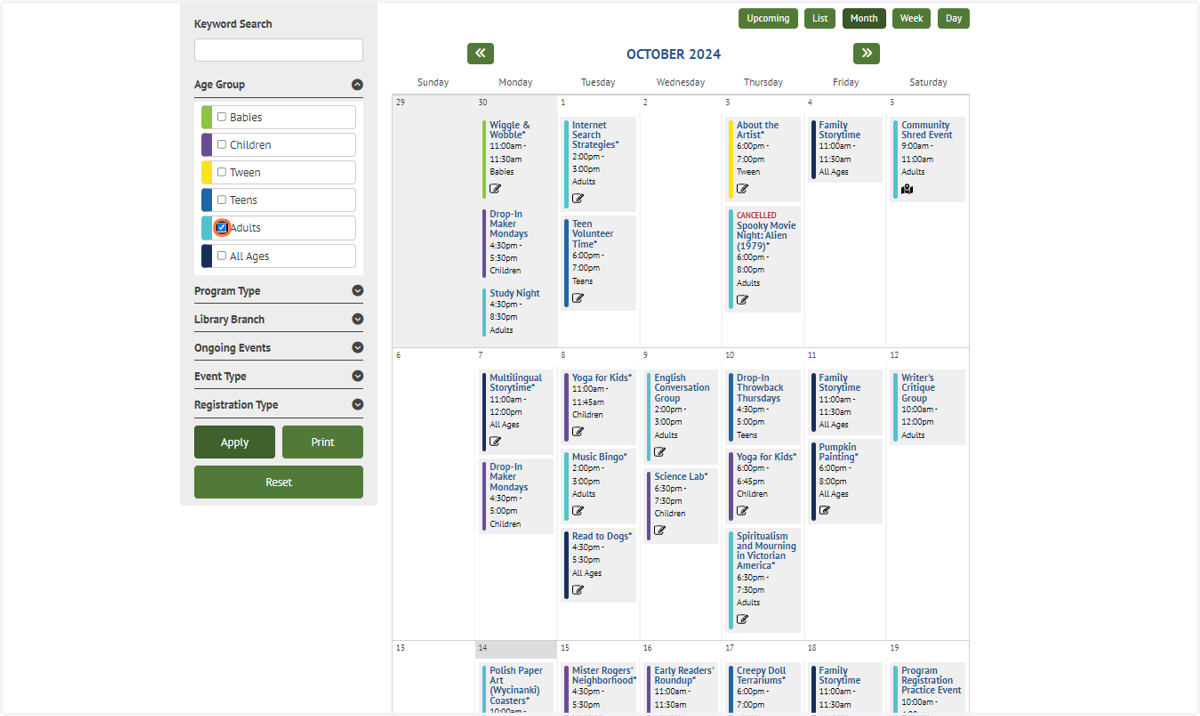
Month Calendar View on LibraryCalendar
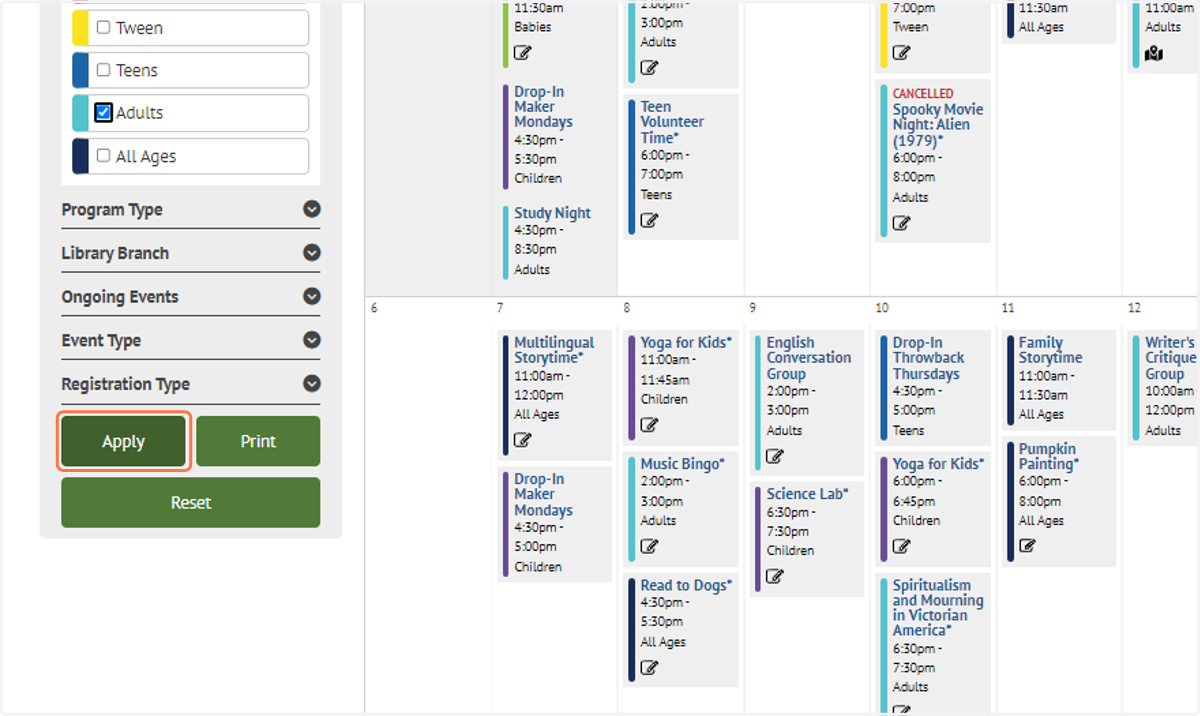
3. Select calendar filters
Once you follow the link, you will be taken to the current month on LibraryCalendar. Since the calendar shows all scheduled programs, some people use filters to more easily see what programs are available. The calendar can be filtered by age group, program type, room location, and more. For this example, we are using the filter that shows programs only for Adults 18 and over. You may select more than one filter at a time.
4. Click on Apply
Click apply to update calendar with filtered programs.
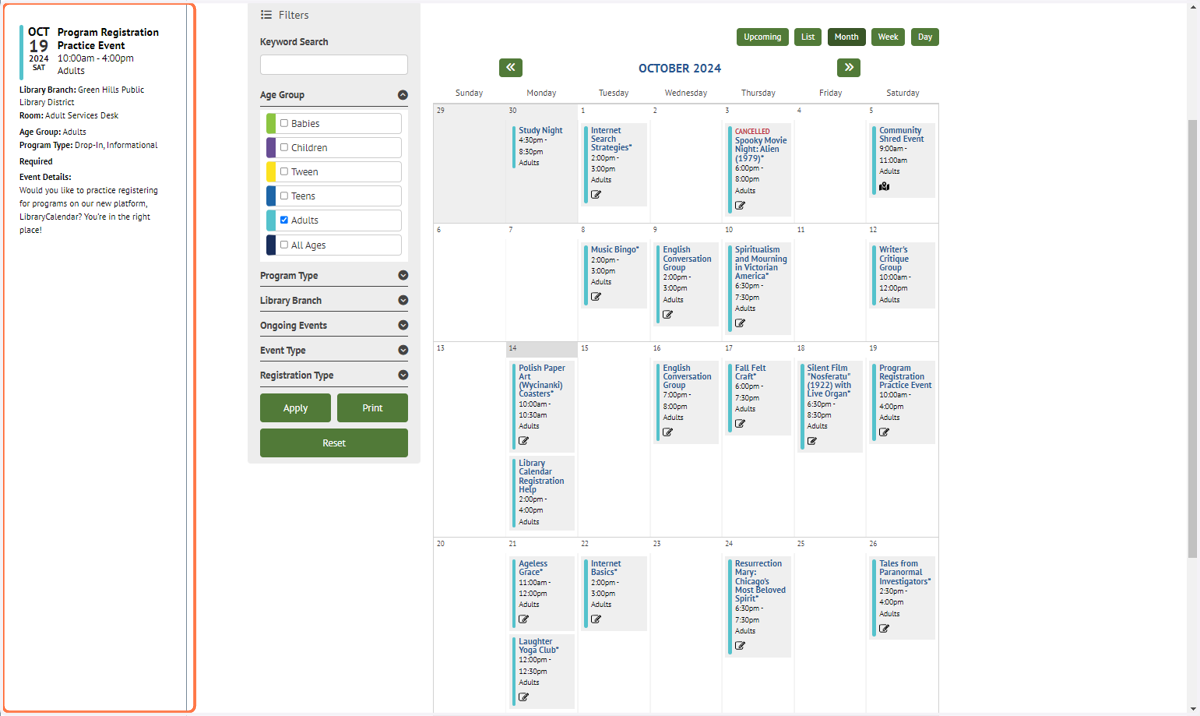
5. Program information sidebar
If you hover the mouse over a program title, you'll see a popup on the left side of your screen with more information about the program, including date/time, age group, room location, and event description.
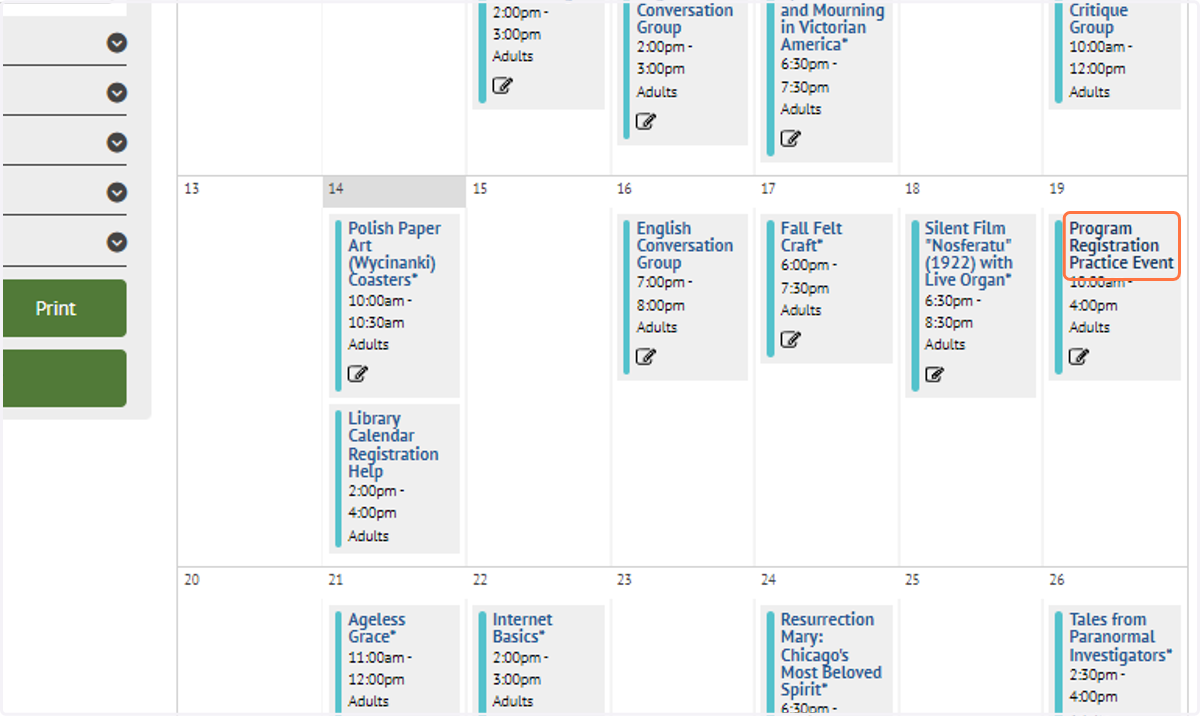
6. Click on Program Registration Practice Event
Click on an event title to open the registration page.
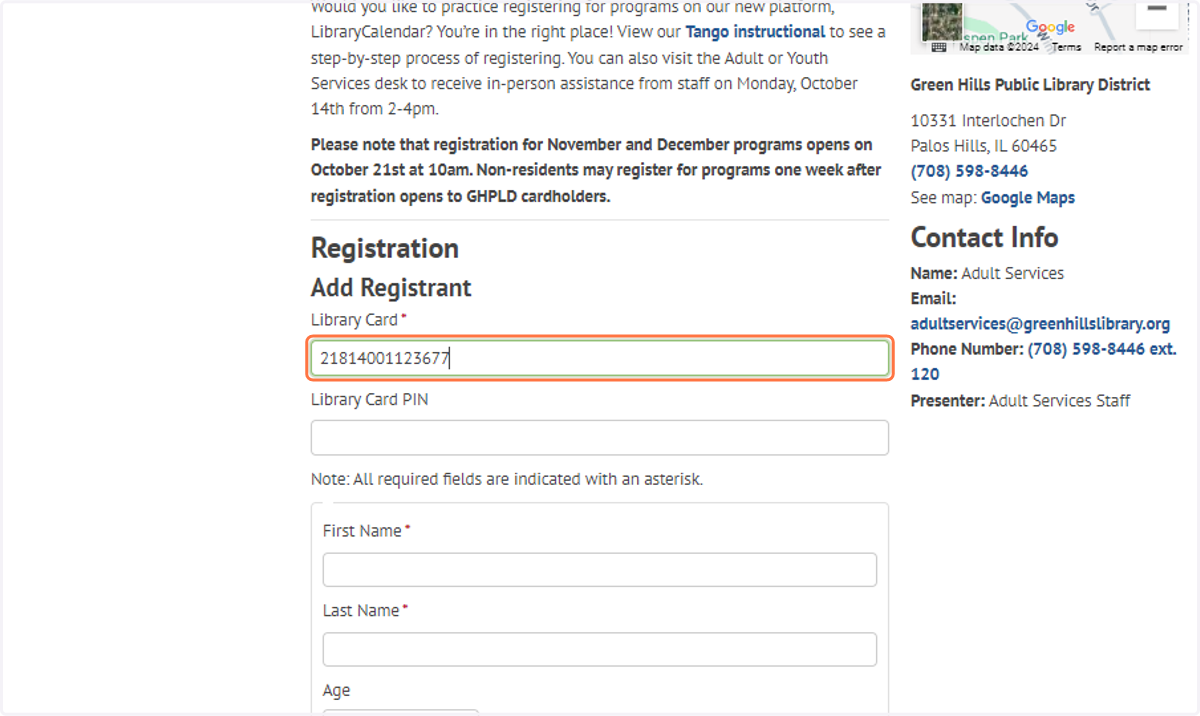
7. Fill in required registration information
Enter your GHPLD library card number. Non-residents may register for programs one week after registration opens to GHPLD cardholders.
8. Enter PIN
Your PIN should be the last four digits of the phone number you have on file with us. If you need to reset your PIN, please visit the Patron Services desk or call 708-598-8446 ext 110.
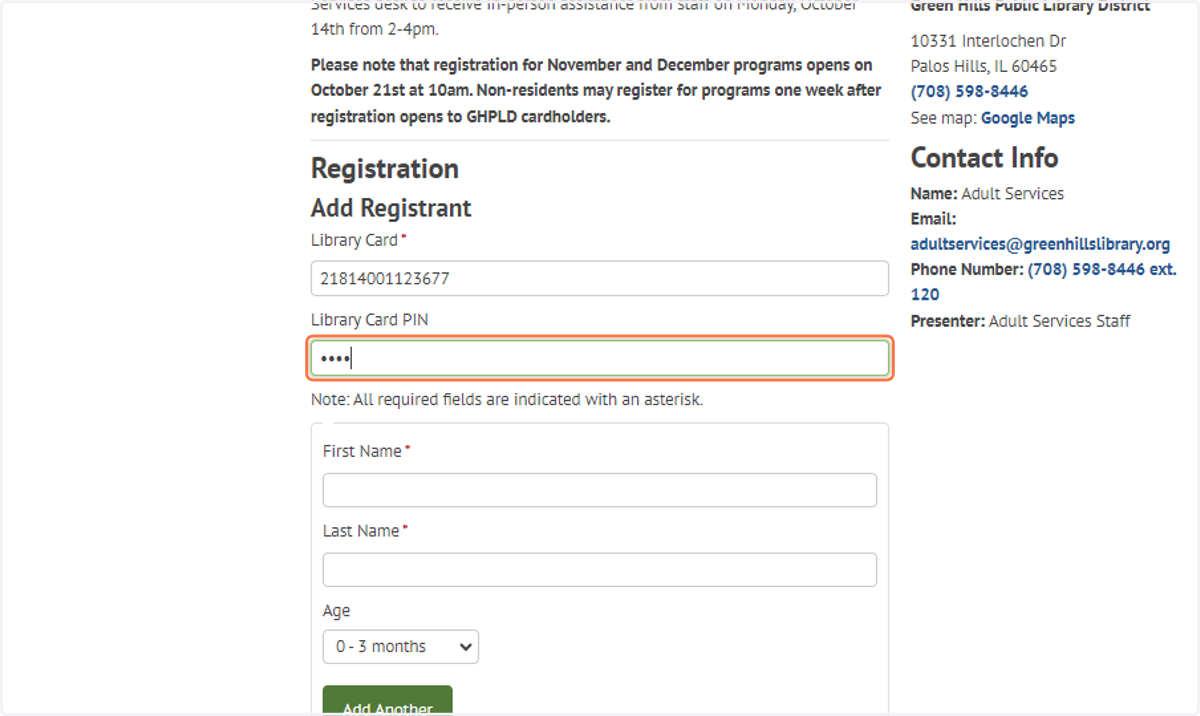
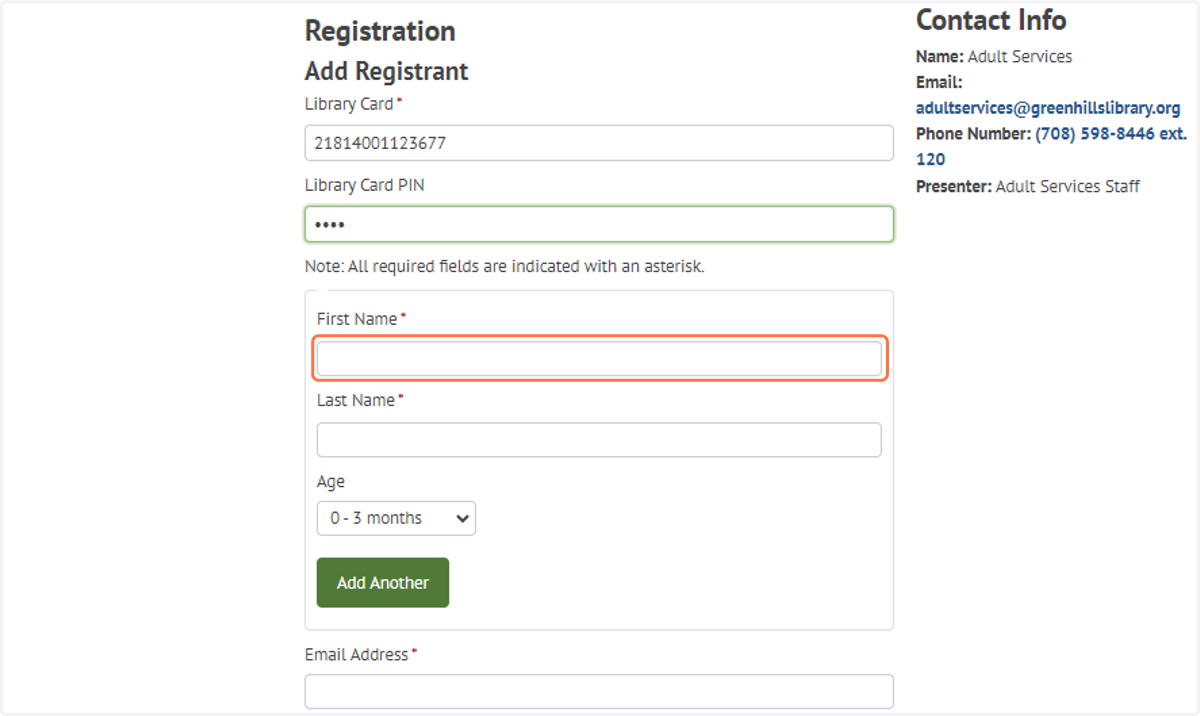
9. Click on First Name
If you have a valid Green Hills Library card, your name will auto-populate. If it does not, please fill in your name.
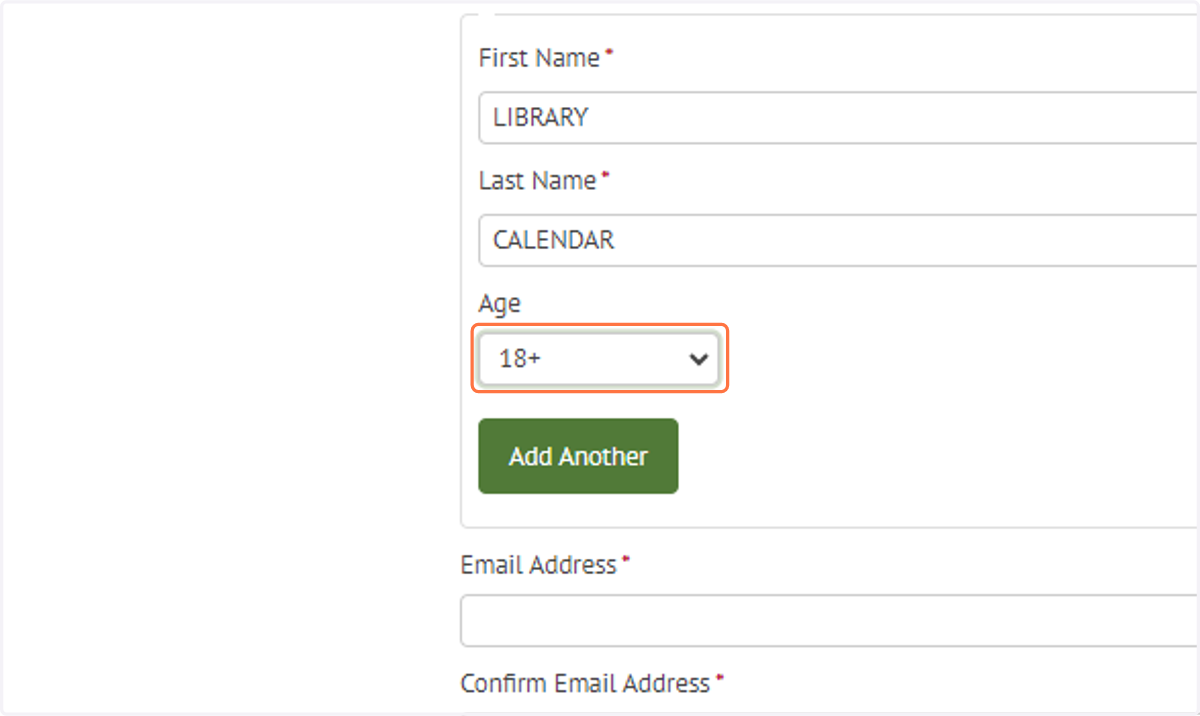
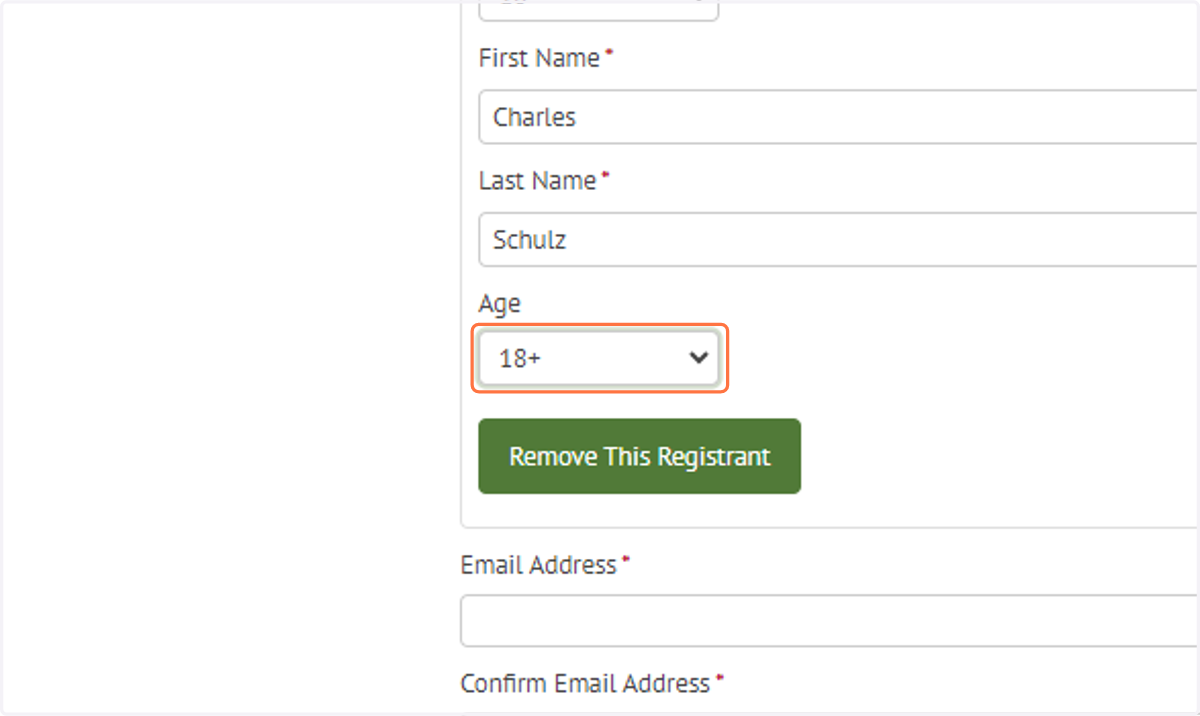
10. Select 18+ from Age
Select "18+" from Age dropdown. Please note any program labeled as "Adult" requires that participants be 18 or older to attend. If you don't change the age, you will not be able to register for the program.
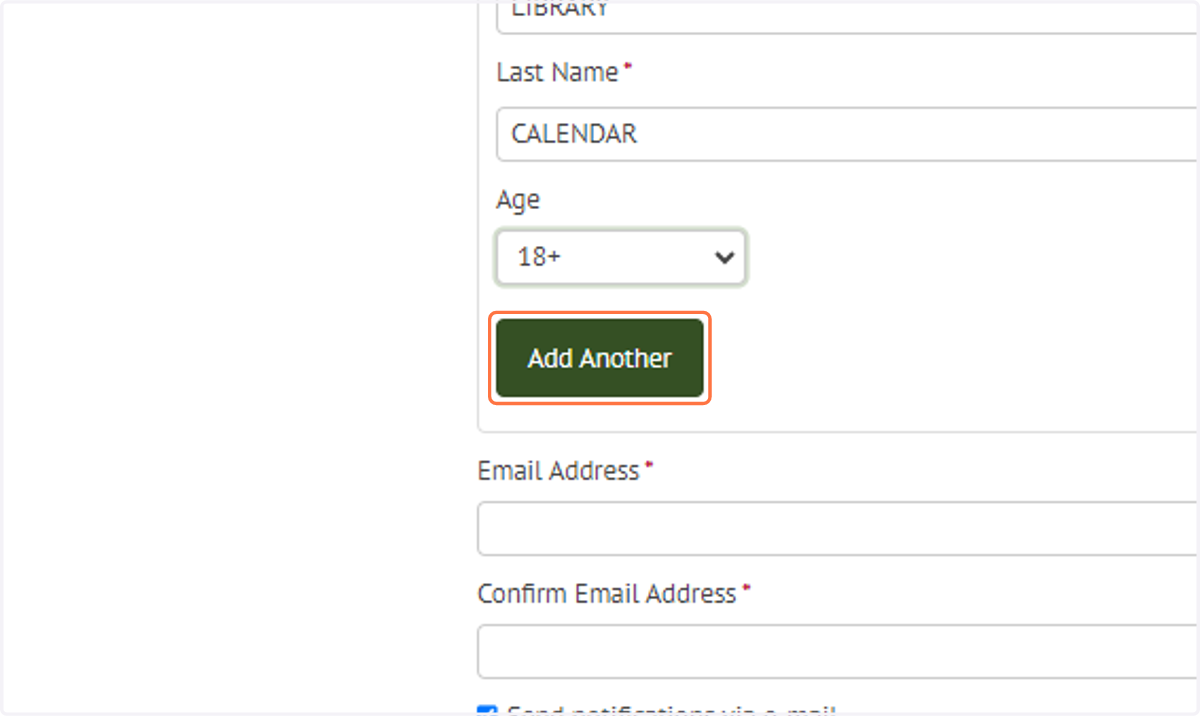
11. Adding a guest
If you would like to register someone else for the program, click "add another". If the registration is only for yourself, skip this step.
12. Enter guests name and age
If your guest is under 18, they will not be able to attend the Adult program. If you would like to remove the guest from your registration, click "Remove this registrant".
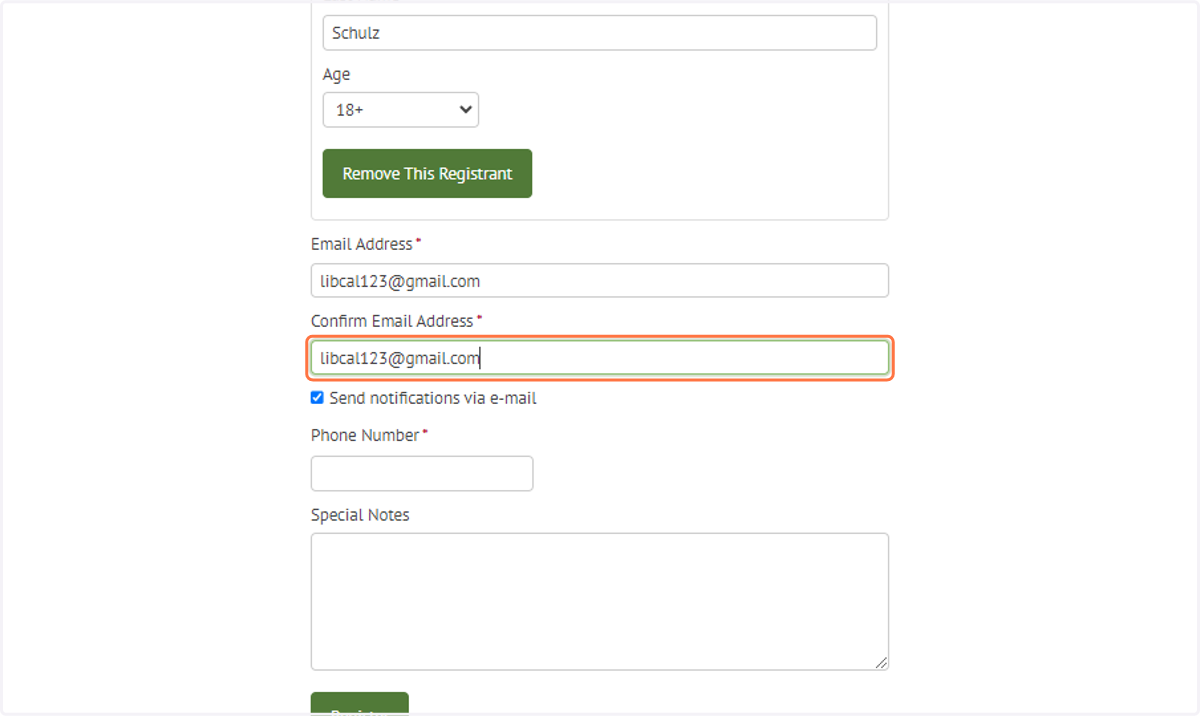
13. Enter and confirm email address
Check the box for "send notifications via e-mail" to receive updates about your registration. At this time, text reminders are not available. If you do not opt in to email notifications, you will have to call Adult or Youth Services to check your registrations.
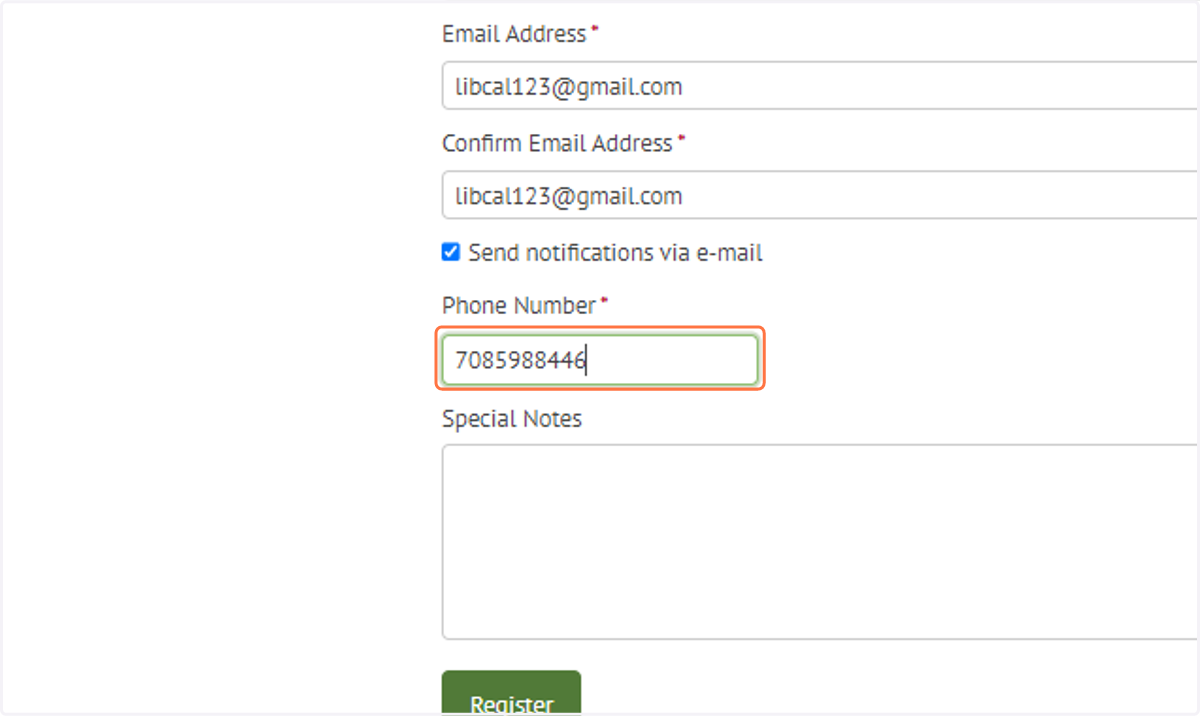
14. Enter your phone number
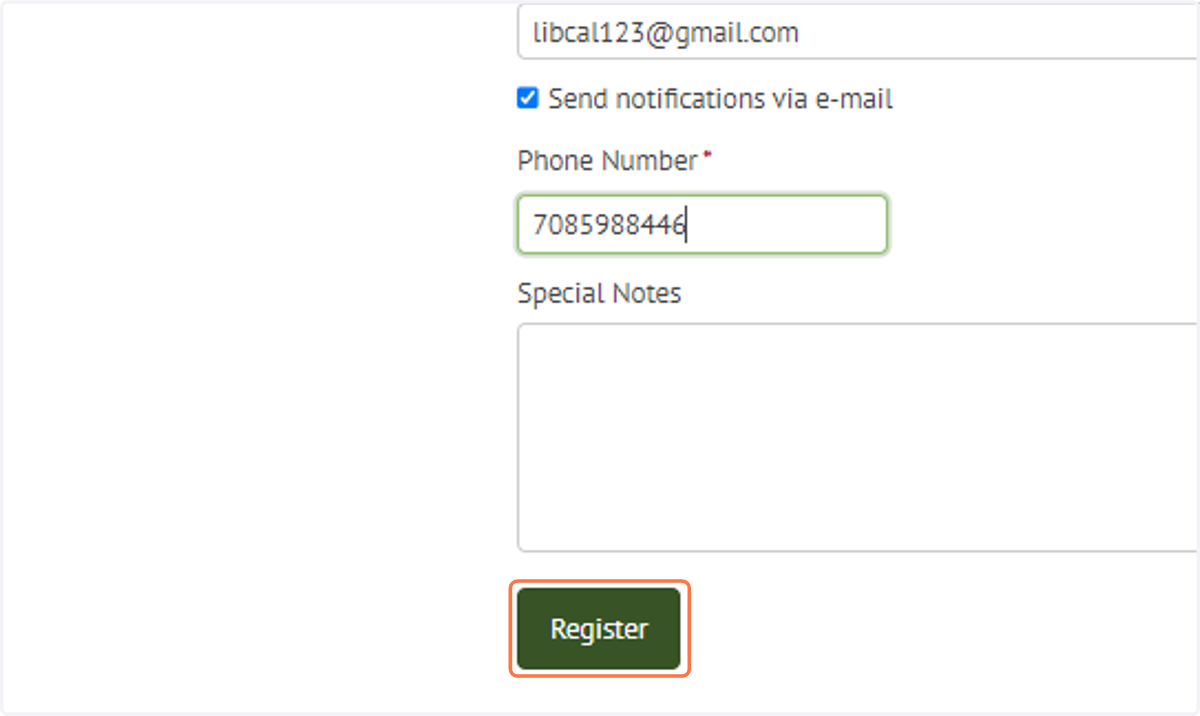
15. Click on Register
Click "Register" to submit
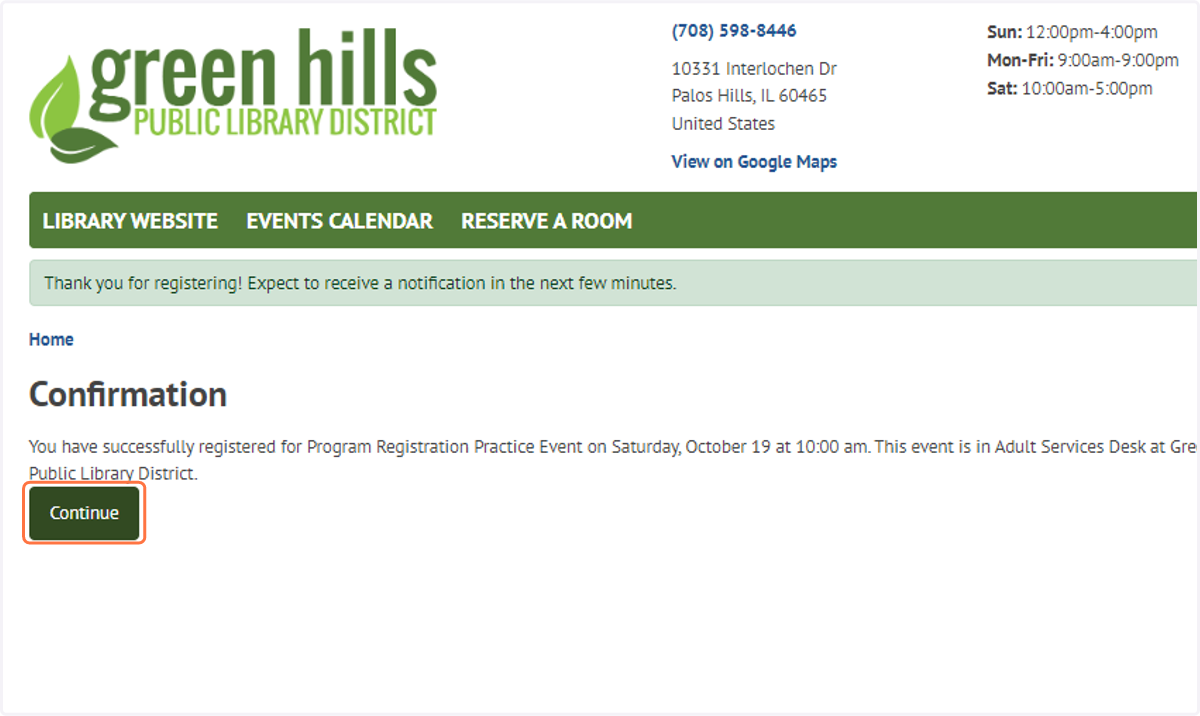
16. Confirmation page
On the confirmation page, you will see the status of your registration (registered or waitlisted) and program information including time, date, and location. Click continue to return to the program calendar.