CI_RFQ_004_RFQ on the front-end
Once we have configured the RFQ module, as seen in the previous tutorials of this series, we are able to utilise it to request and receive quotes for jobs.
In this tutorial, we will explore this workflow, as seen on the front-end of your Infigo storefront.
We will begin by navigating to one of our products requiring quote
Infigosoftware
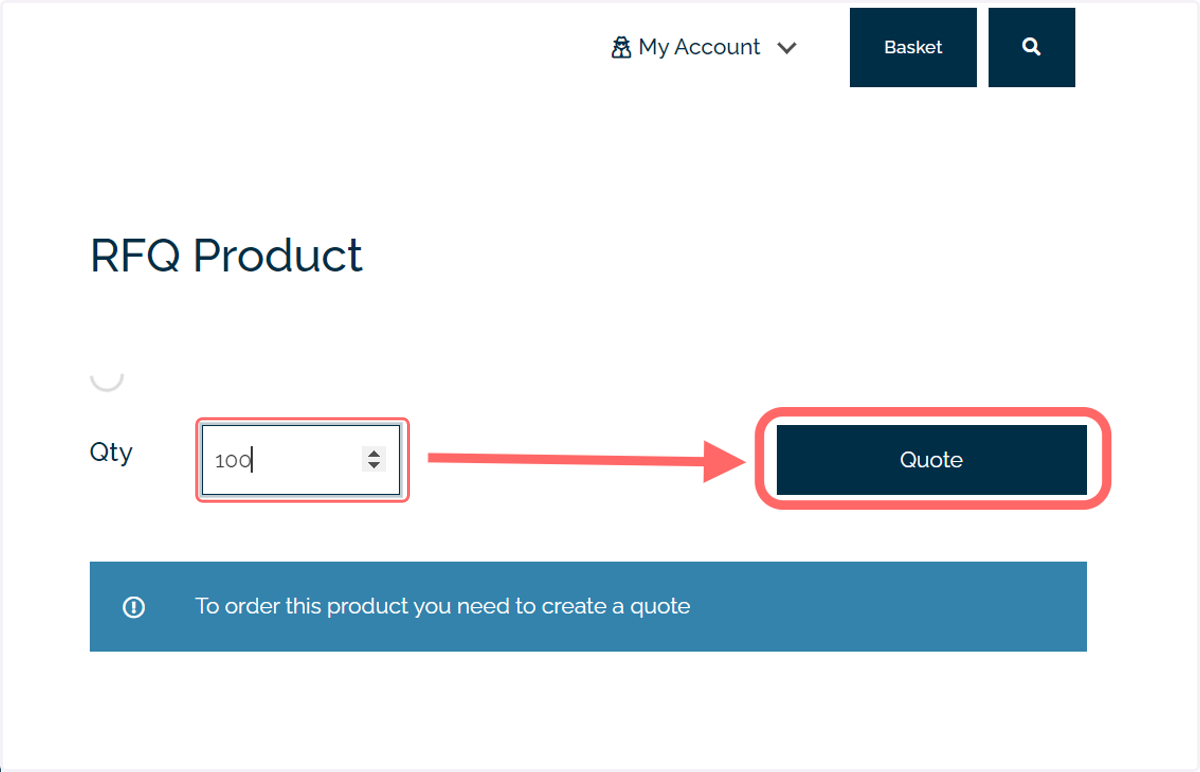
1. On the product of interest, enter a quantity and click Quote
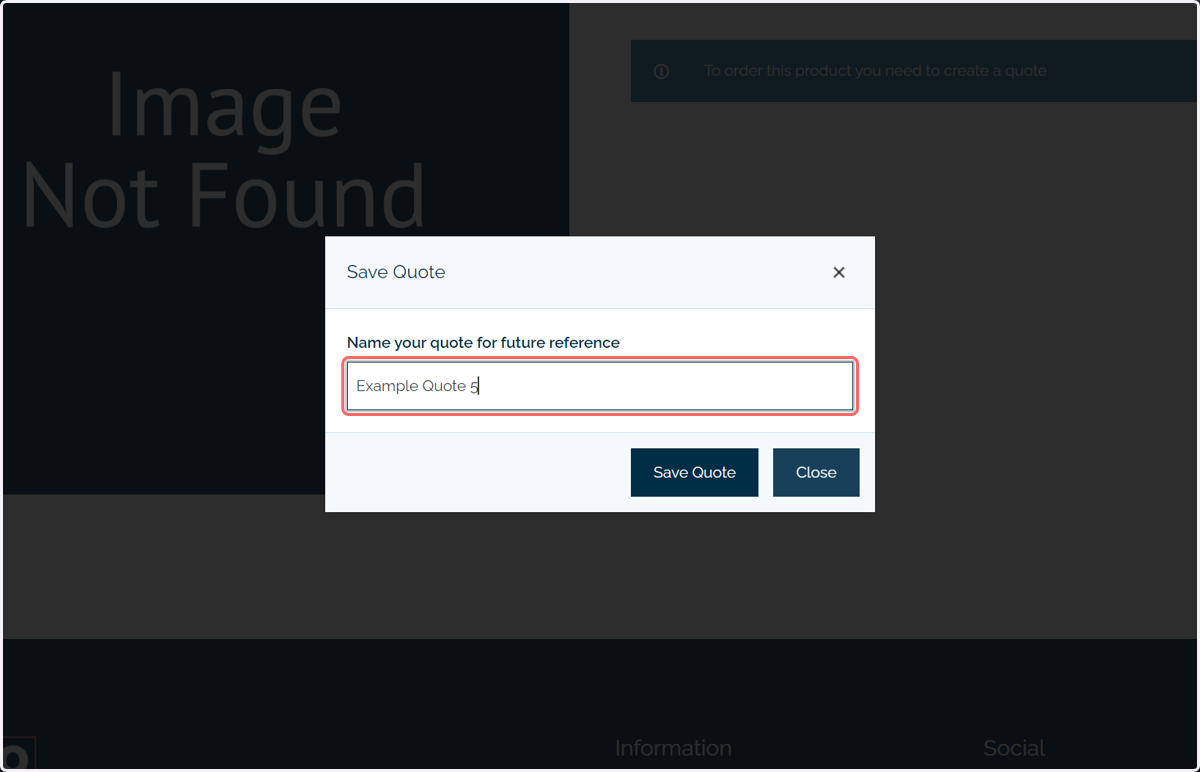
2. Enter your quotation reference
This reference will be used to identify the quote in the user's My Account area.
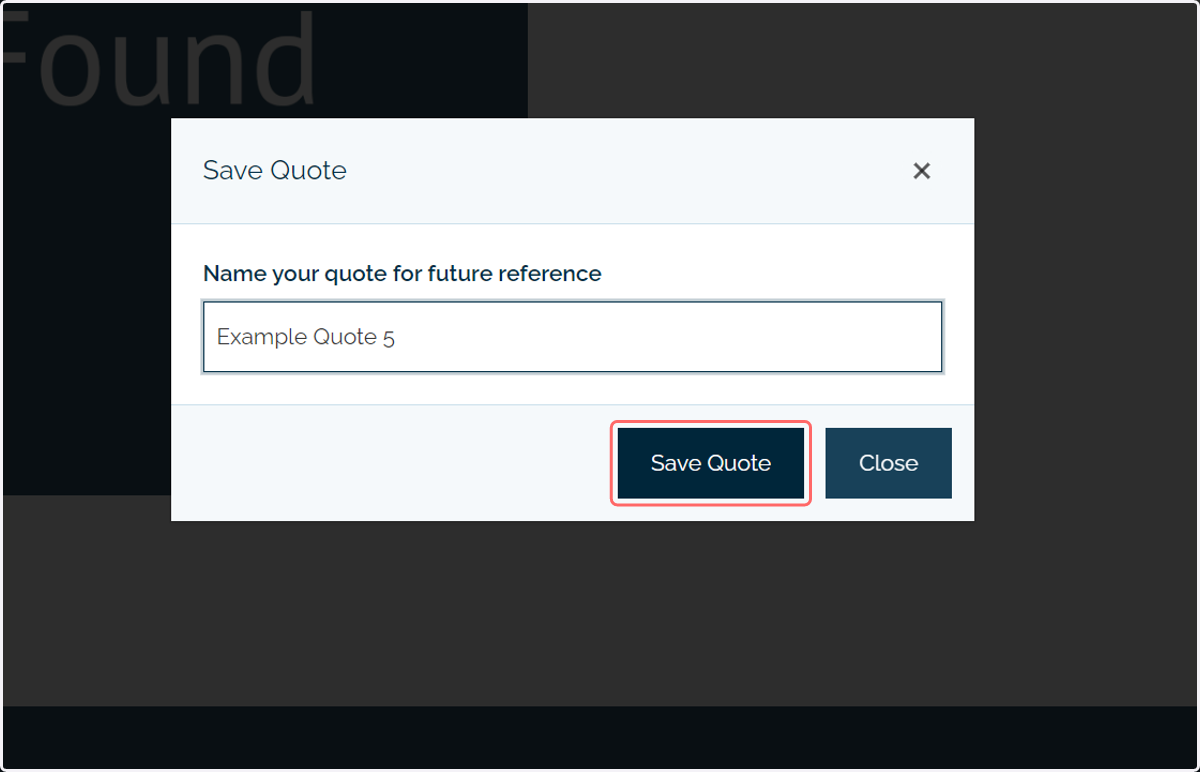
3. Click on Save Quote
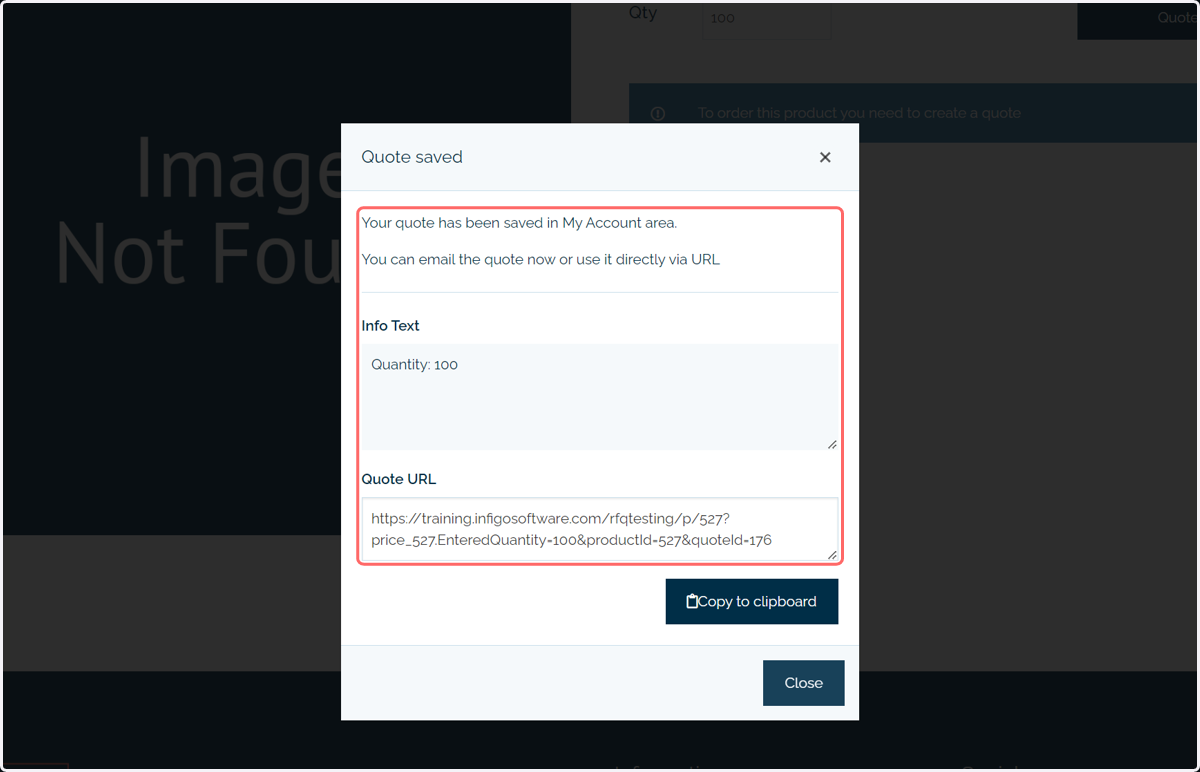
4. Your quote will be saved, with associated details displayed on screen
This screen also acts as a trigger for the RequestBid email template, which will send an email to all relevant suppliers with details of the job, along with a link to a bidding form.
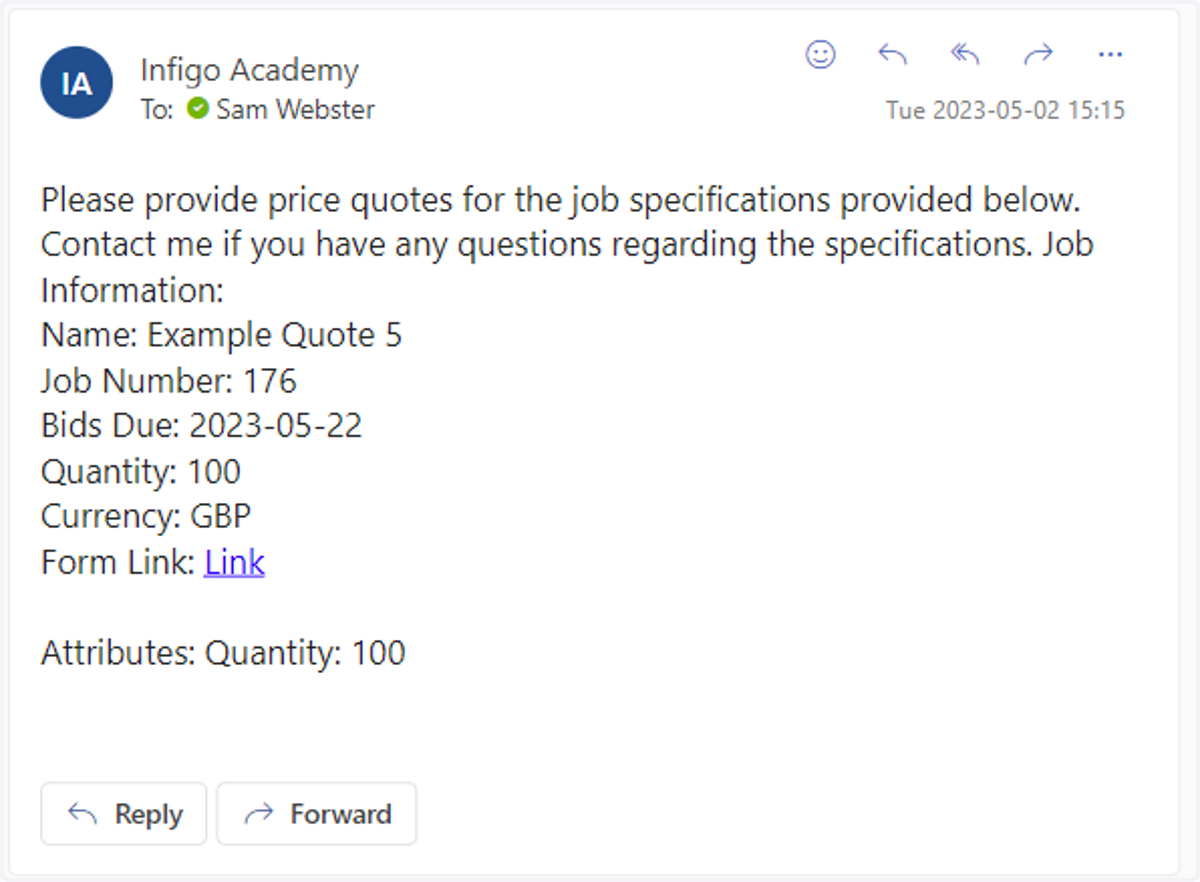
5. Your matching suppliers will receive an email similar to this
The email content may change depending on whether you have customised your email template.
Suppliers are able to click the Form Link button to respond to the quote.
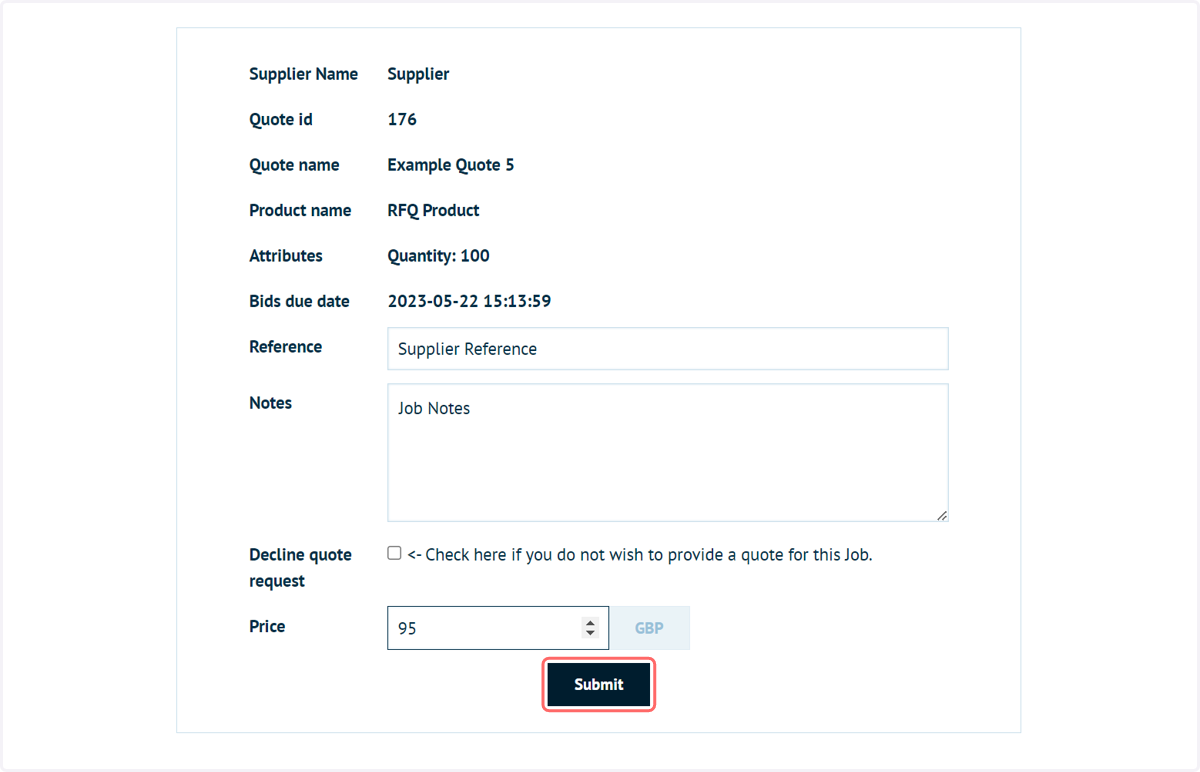
6. Your suppliers will be sent to a form similar to this
This form may appear differently if you have customised the related Editable Content block.
Suppliers can enter details of their bid in this screen and click Submit.
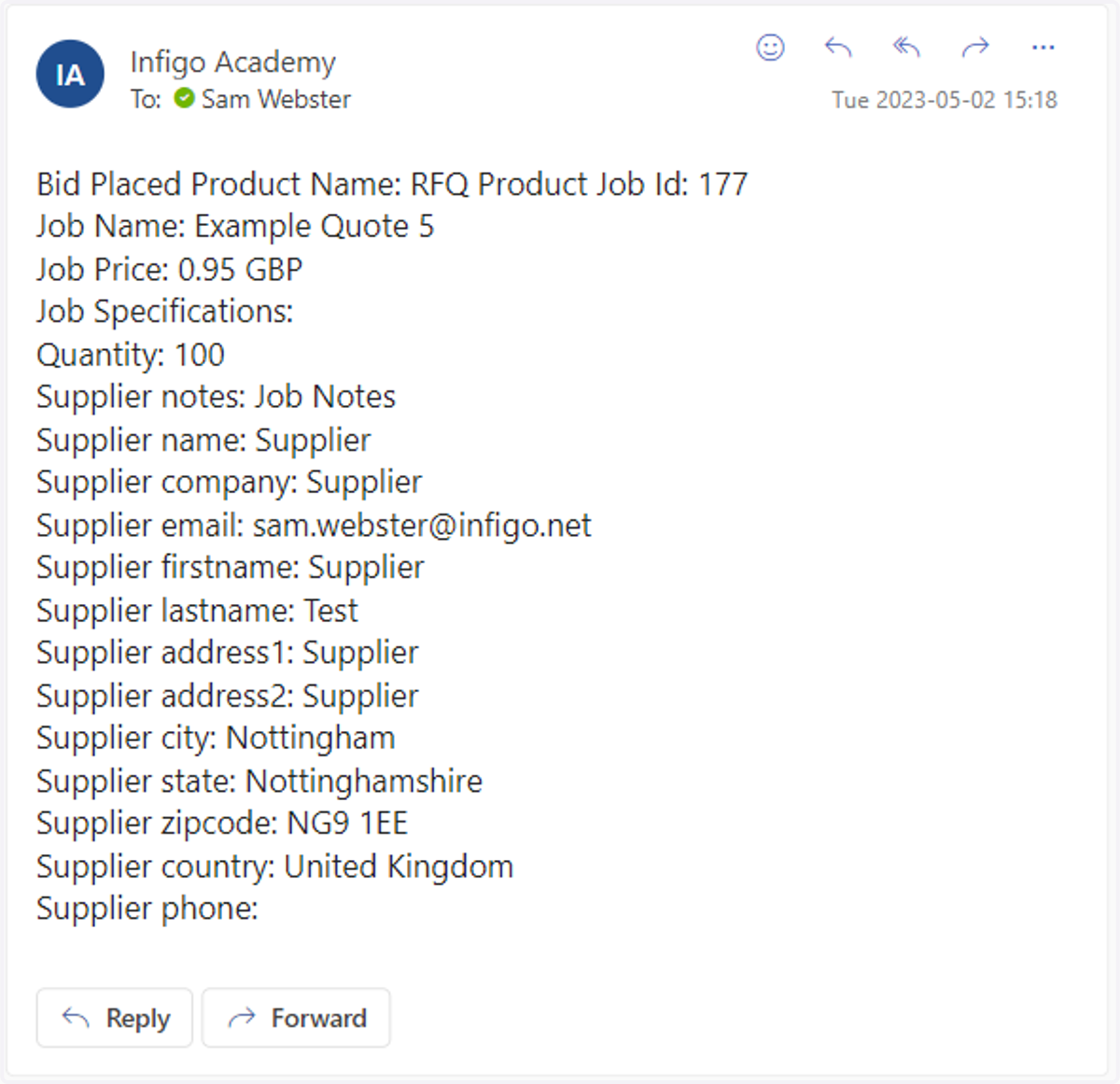
7. This will trigger a return email to the employee requesting the quotation, which will appear similar to below
This may again appear differently if the email template has been customised.
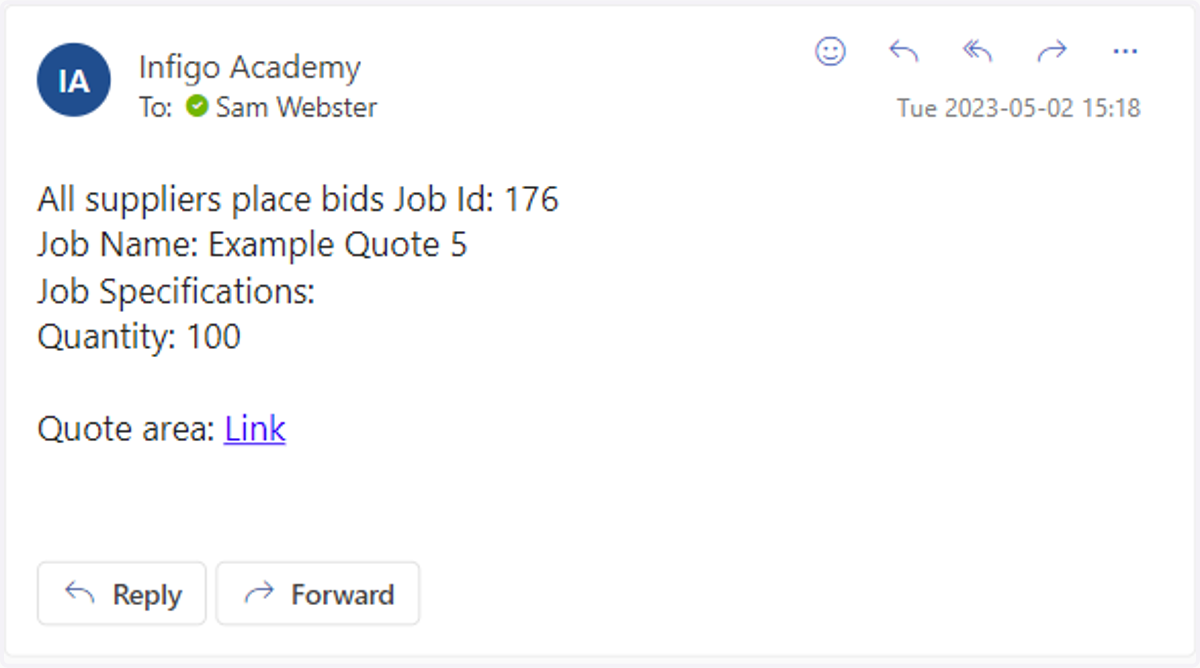
8. When all bids have been received, an additional email will be triggered and sent to the employee requesting the quotation
The default template contains a link to the quotation area of the Infigo storefront.
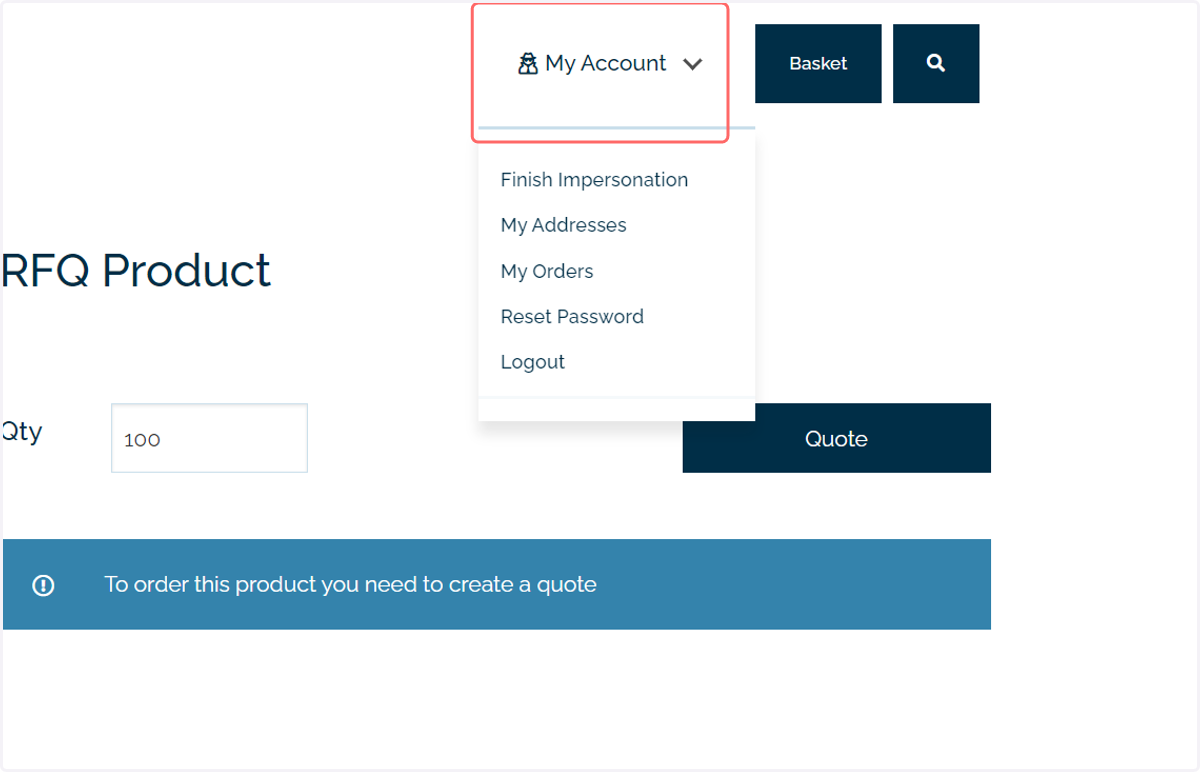
This can also be accessed from the My Account section
9. Click on My Account
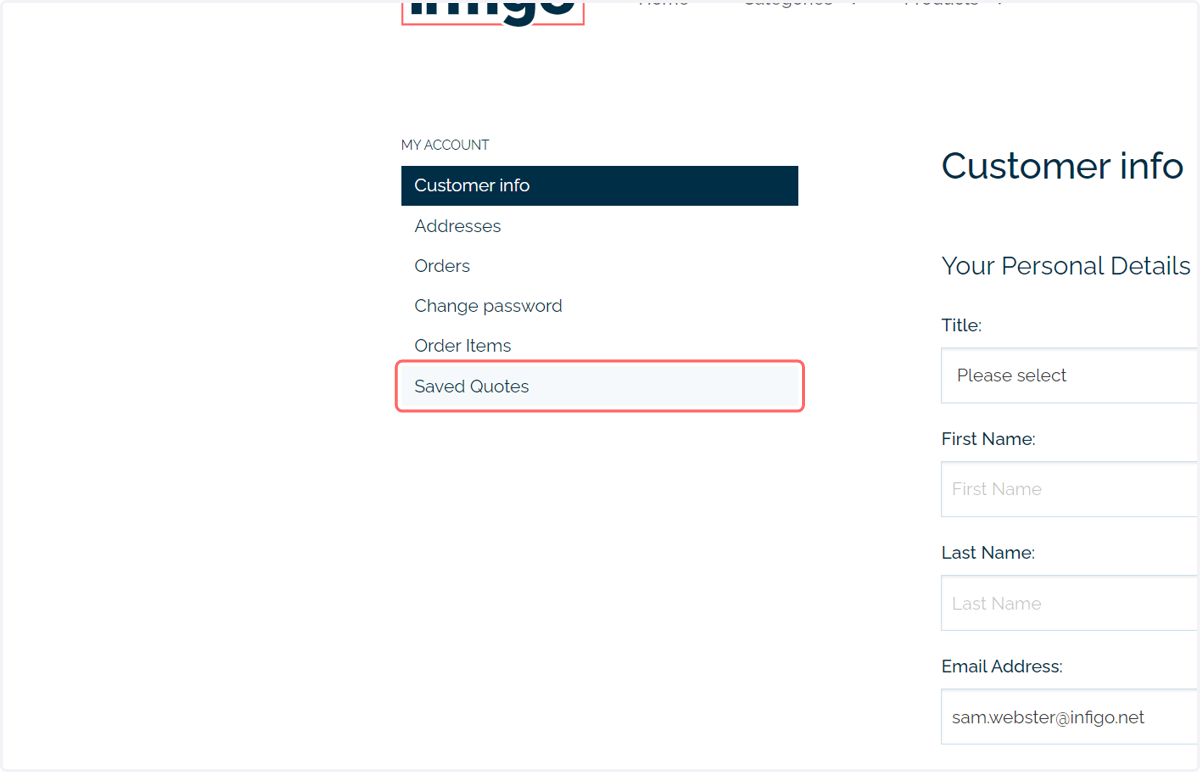
10. Click on Saved Quotes
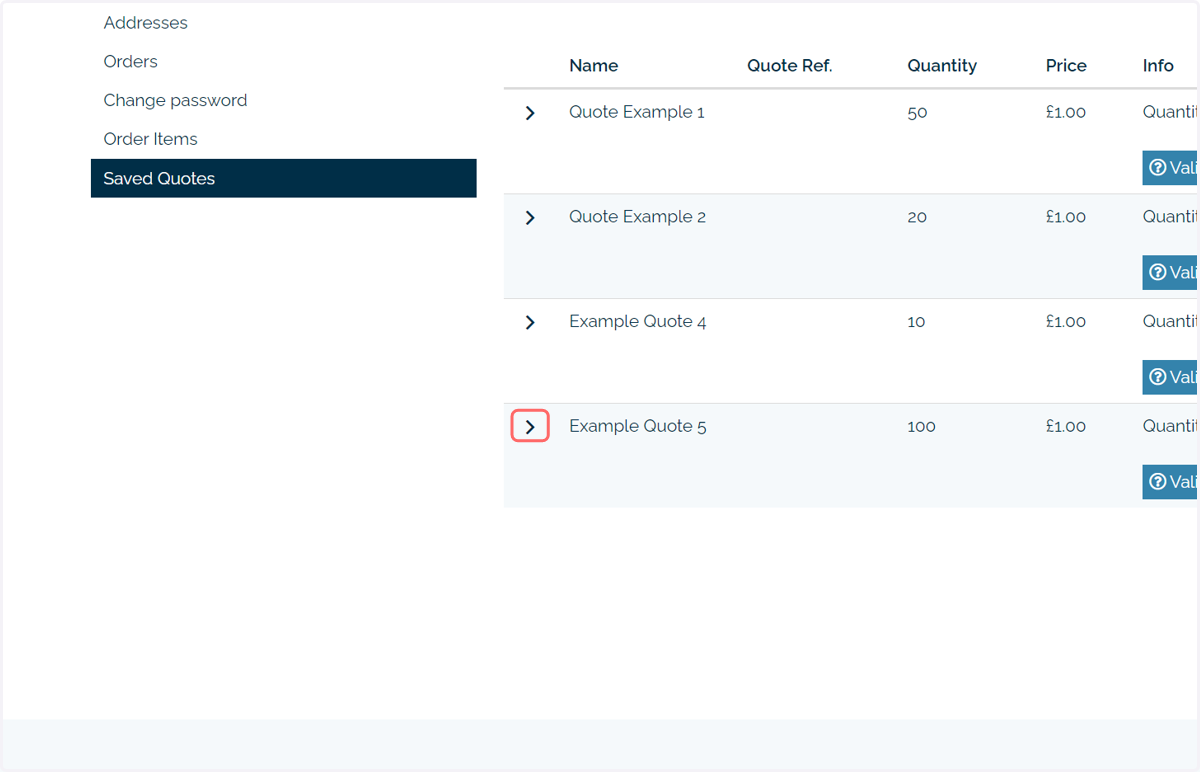
11. Saved quotes will be displayed and can be expanded to reveal additional detail
12. Any received bids will be shown as Child quotes
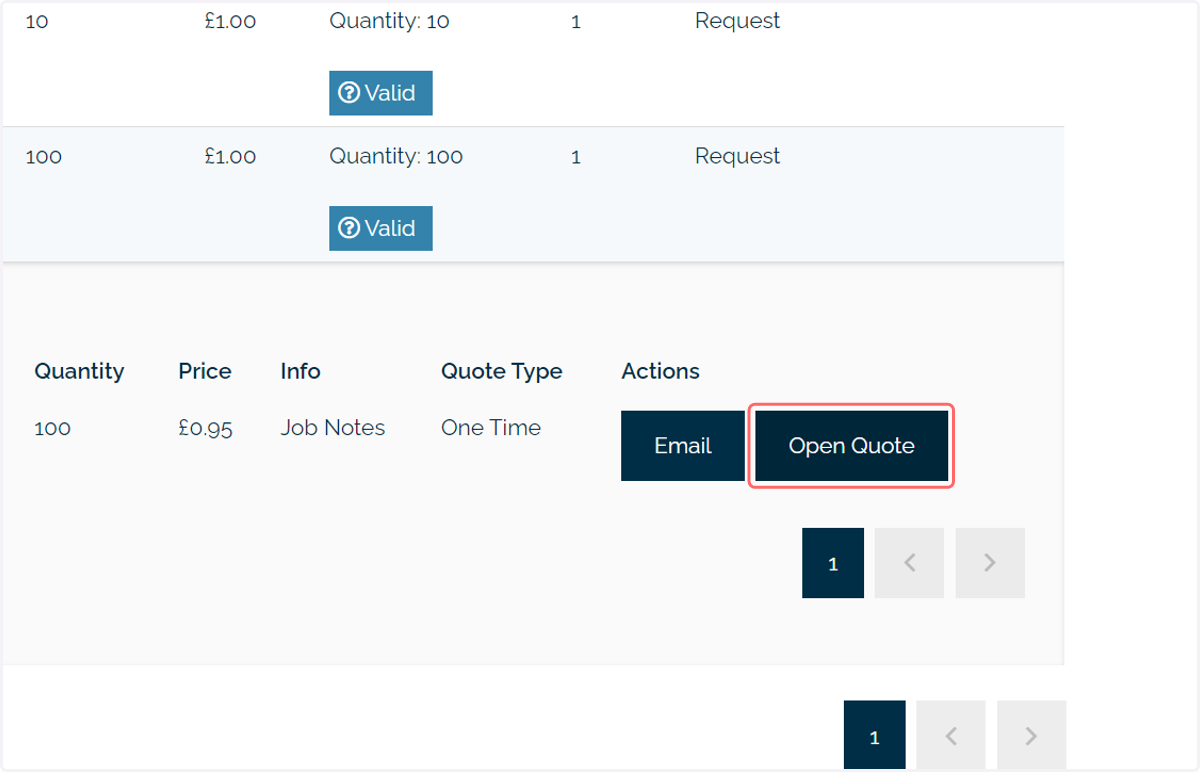
A child quote can be accepted by clicking Open Quote
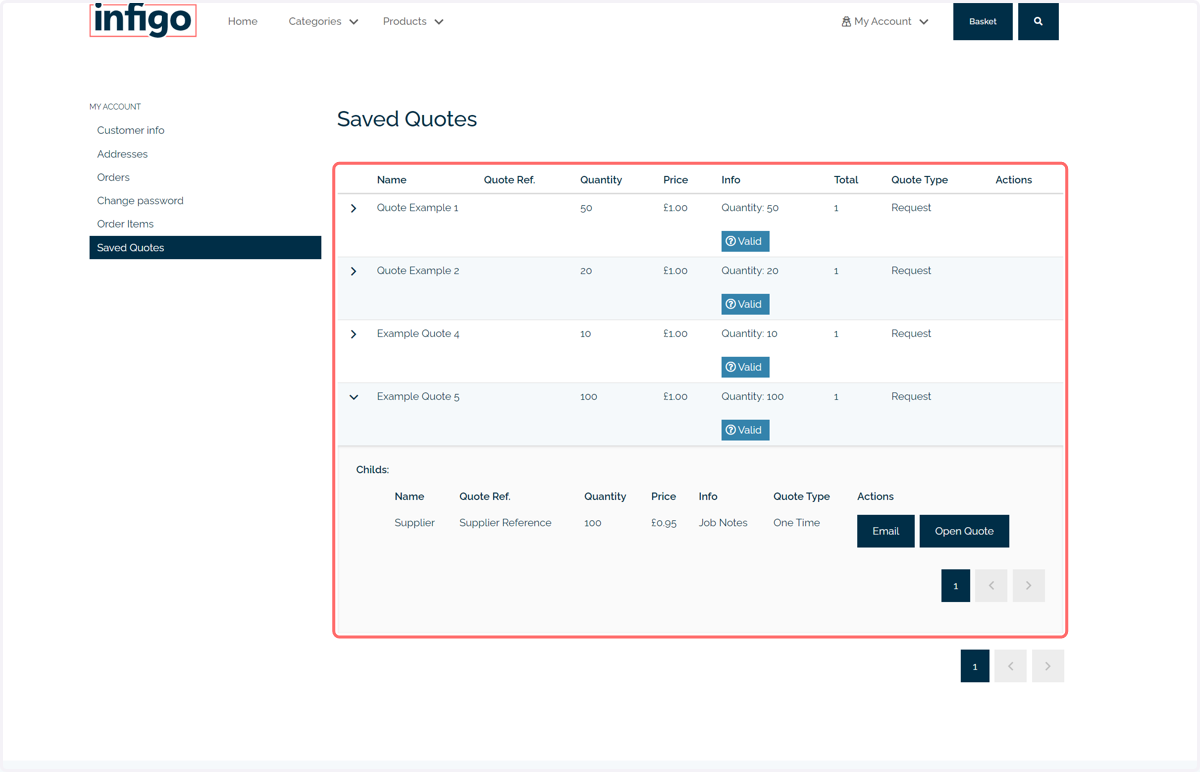
13. Click on Open Quote
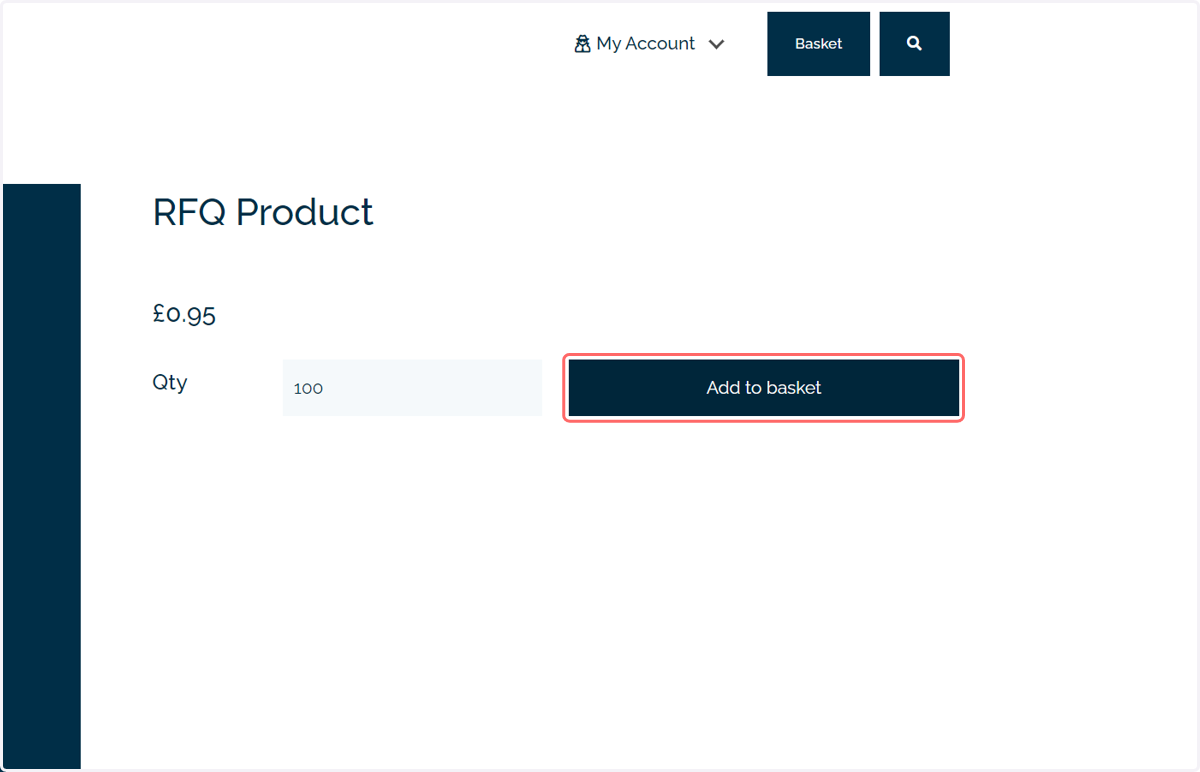
14. You will be taken to product landing page, where the accepted quote can be added to basket
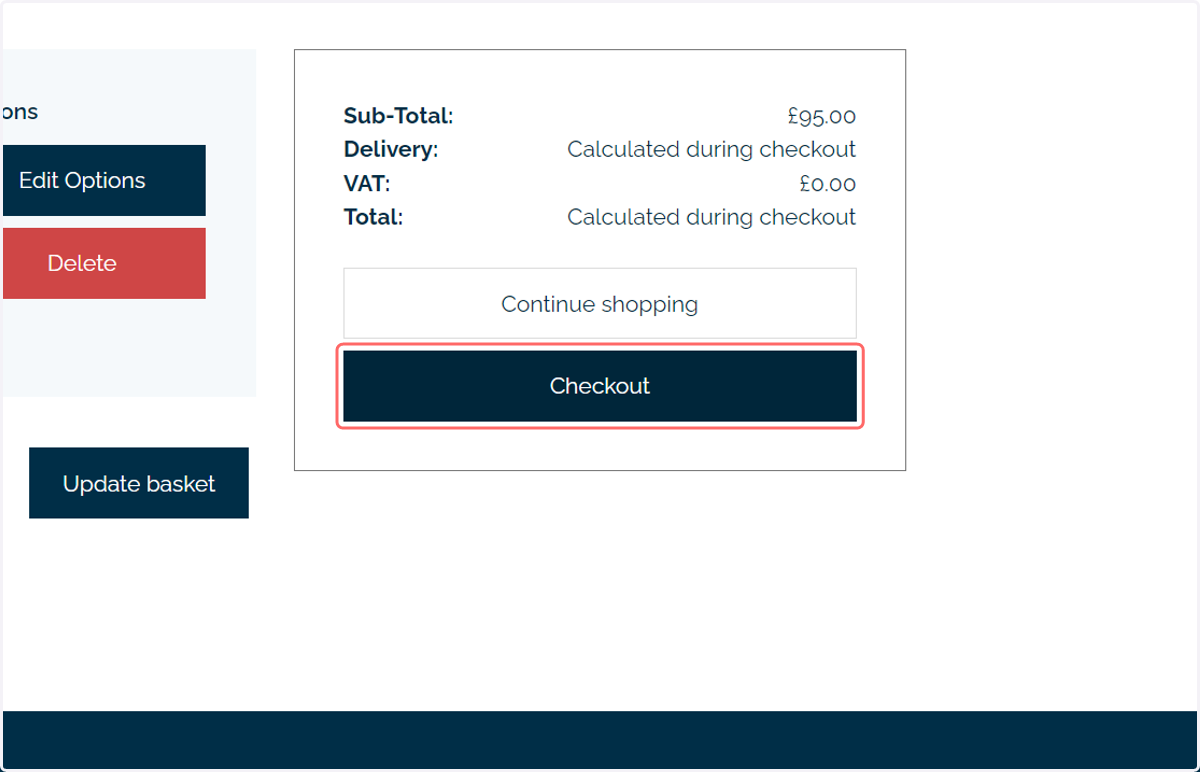
15. Complete the checkout process
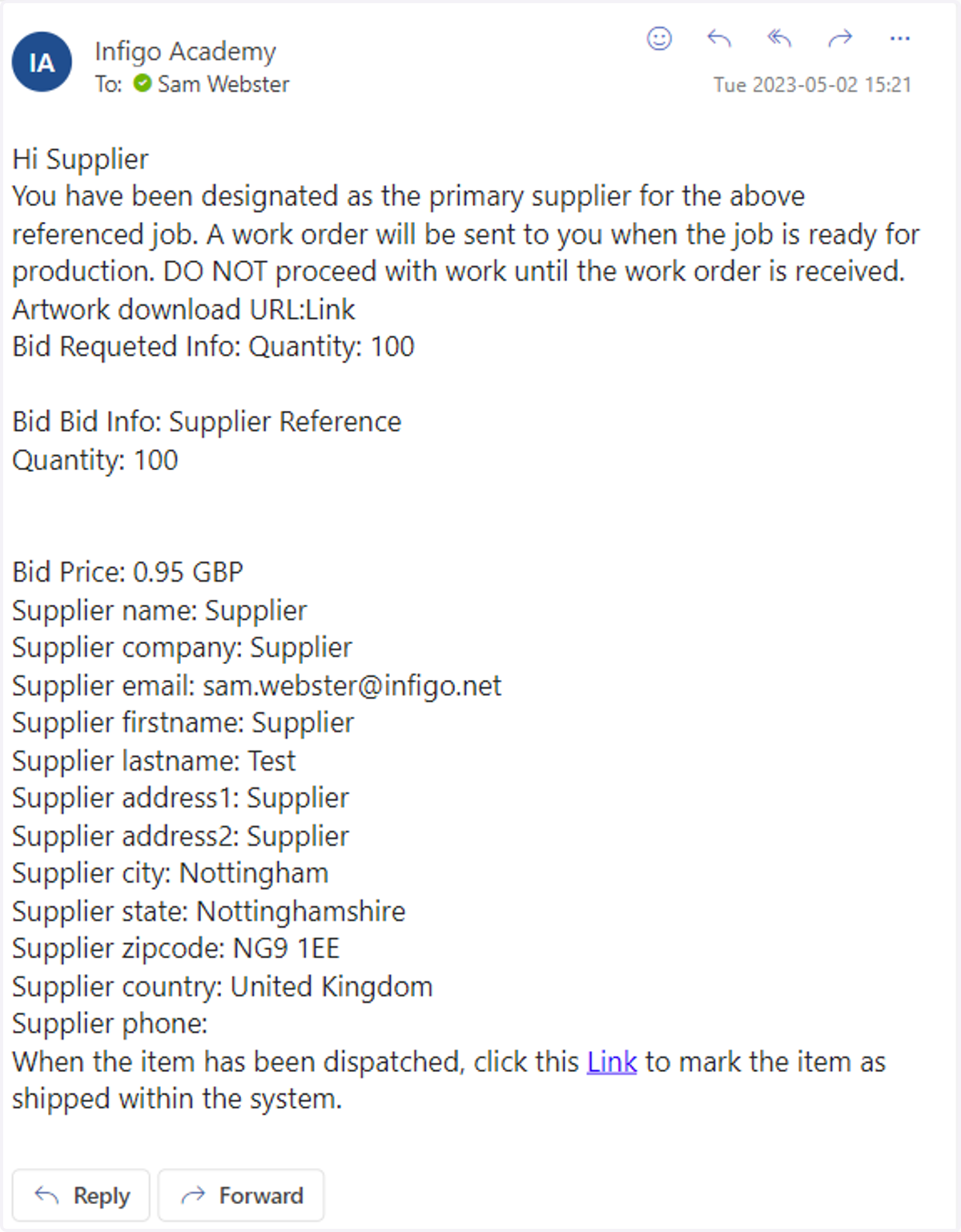
16. Once completed, the supplier will receive a Supplier Won email, giving additional instructions
This email may again appear differently if customised within your Email Message Template screen