Further configuration of text fields in the Form Builder | FB_009
In this tutorial, we'll continue the configuration of our basic sample product using the Infigo Form Builder. In this section, we'll take a look at configuring some additional text fields, providing customers with a specific set of customisation options and input types.
1. Starting point
This tutorial follows on from FB_006. Since the end of that tutorial, we have added a few additional text fields for:
Title
Email
Address
Date
The following has been configured on these fields in advance:
Font
Text size
Name applied to each field in the Custom Tab
Placeholder text changed to match the intent of that field
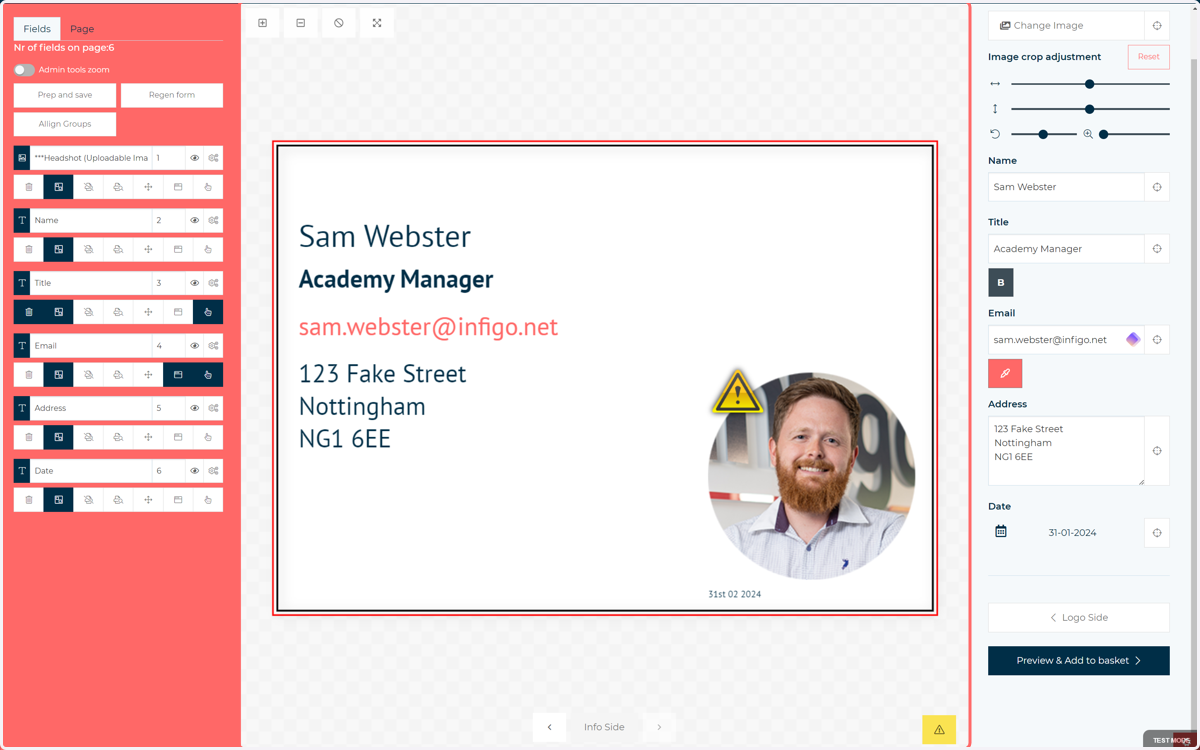
Besides these changes, the fields are all in their default state. We can see there is no sign of them at present on the main form, shown on the right of the screen.
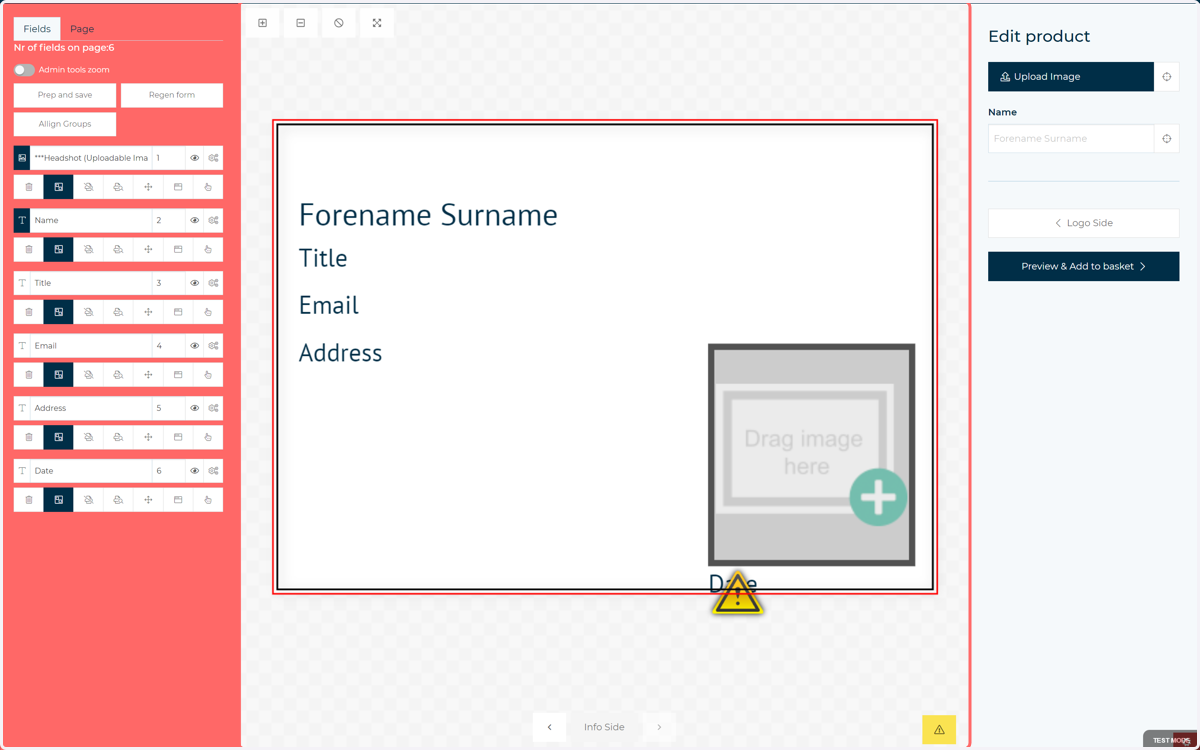
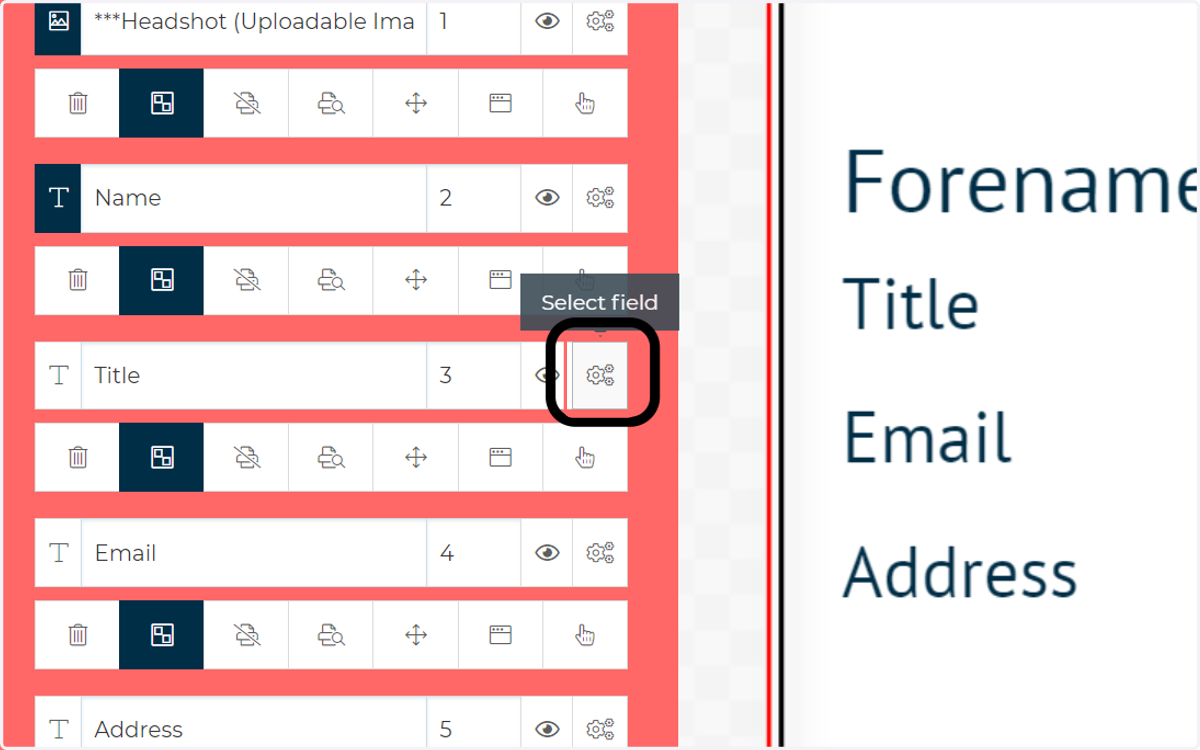
2. We will start by going to the additional configuration options for the Title field
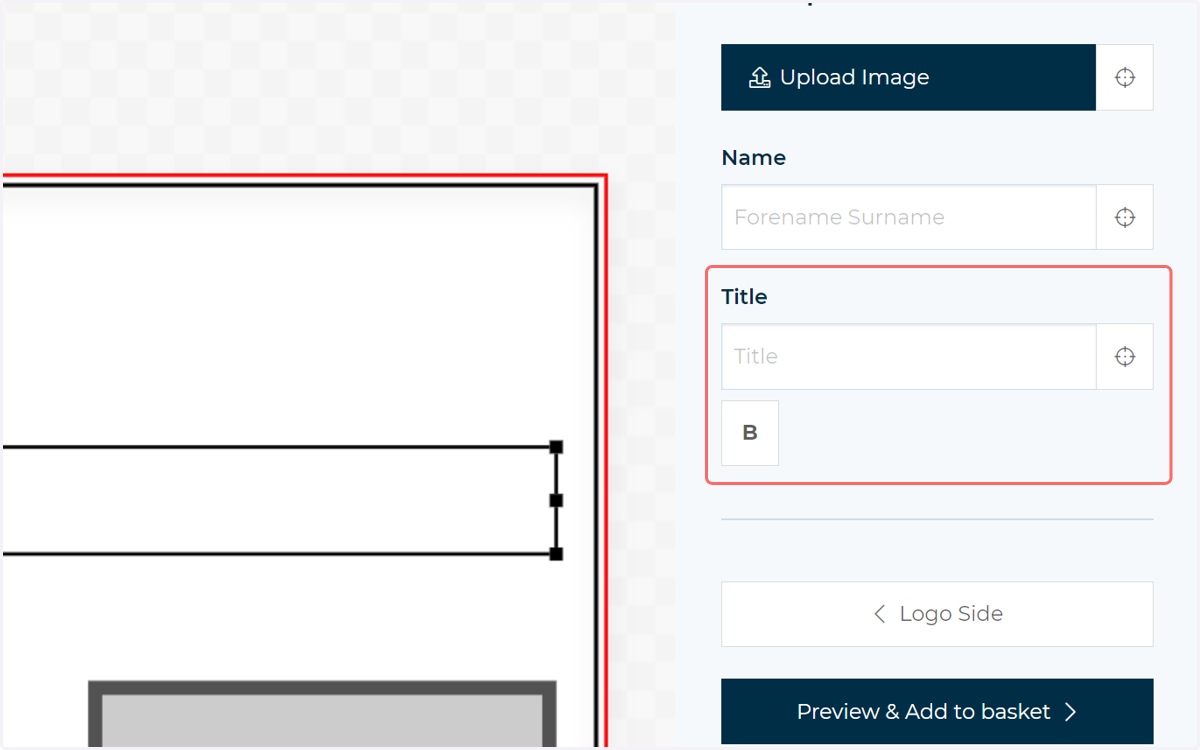
Our intent with this field is to provide a single line input. The user will have the ability to delete this field should they not need it. In addition, the user will have the ability to make this text bold.
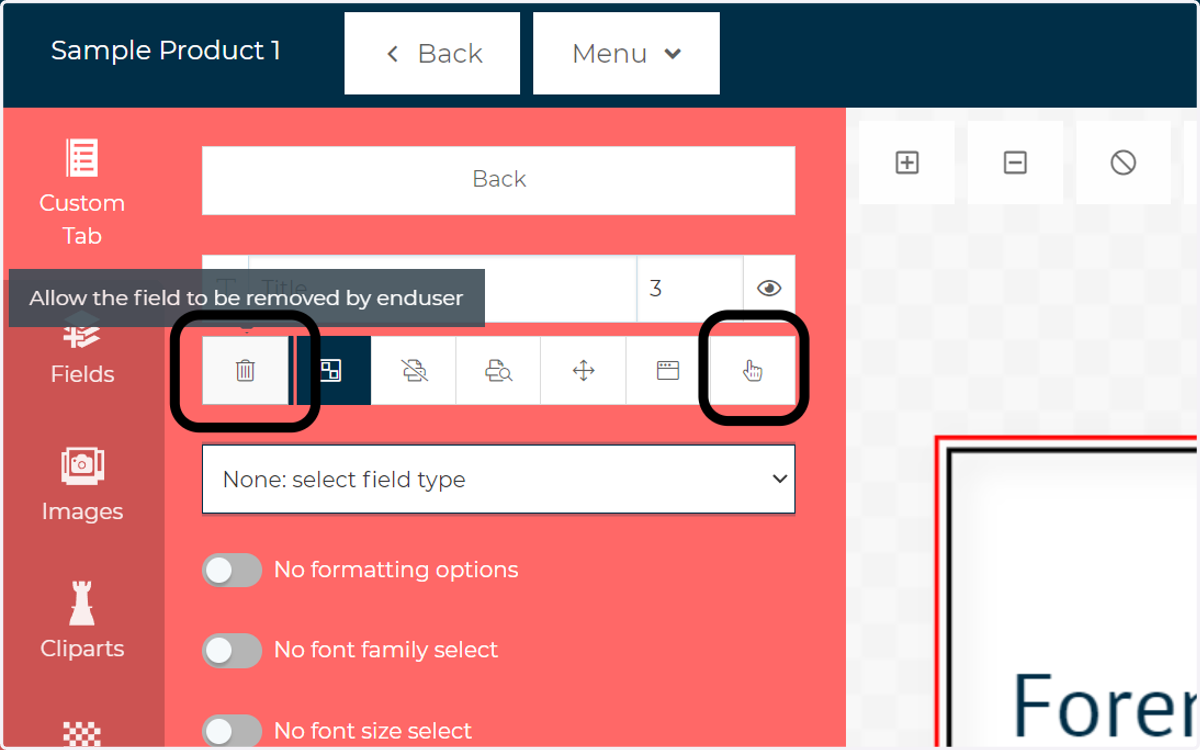
3. Select appropriate interactivity options
As stated, we wish for the customer to be able to delete this field should they not need it. To accomplish this we need two options enabled, deletion and selection.
4. As with the name field, we wish for this to be a single line text input
With this dropdown specified, the field will now be available on the main form for you to interact with.
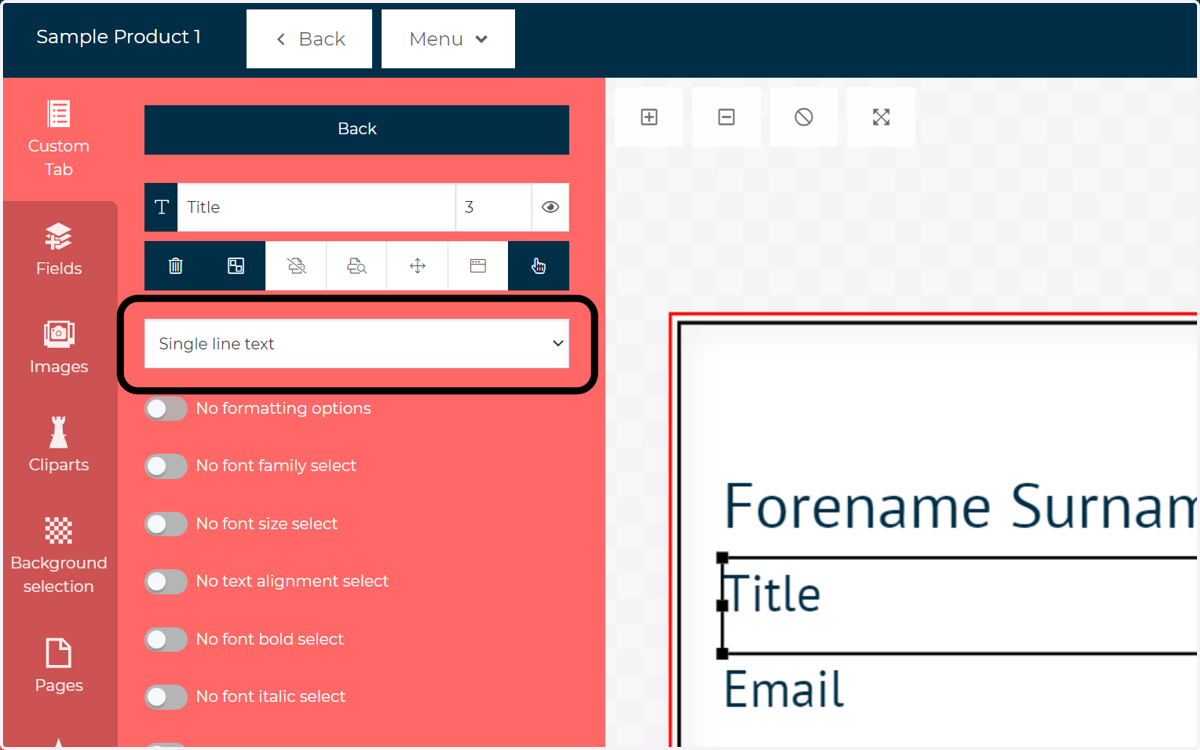
5. Configure formatting options
Formatting options can be configured as required, allowing you to control how much configurability your users have with a field. In this example, we only want the user to be able to make this text bold. Every other option will be disabled.
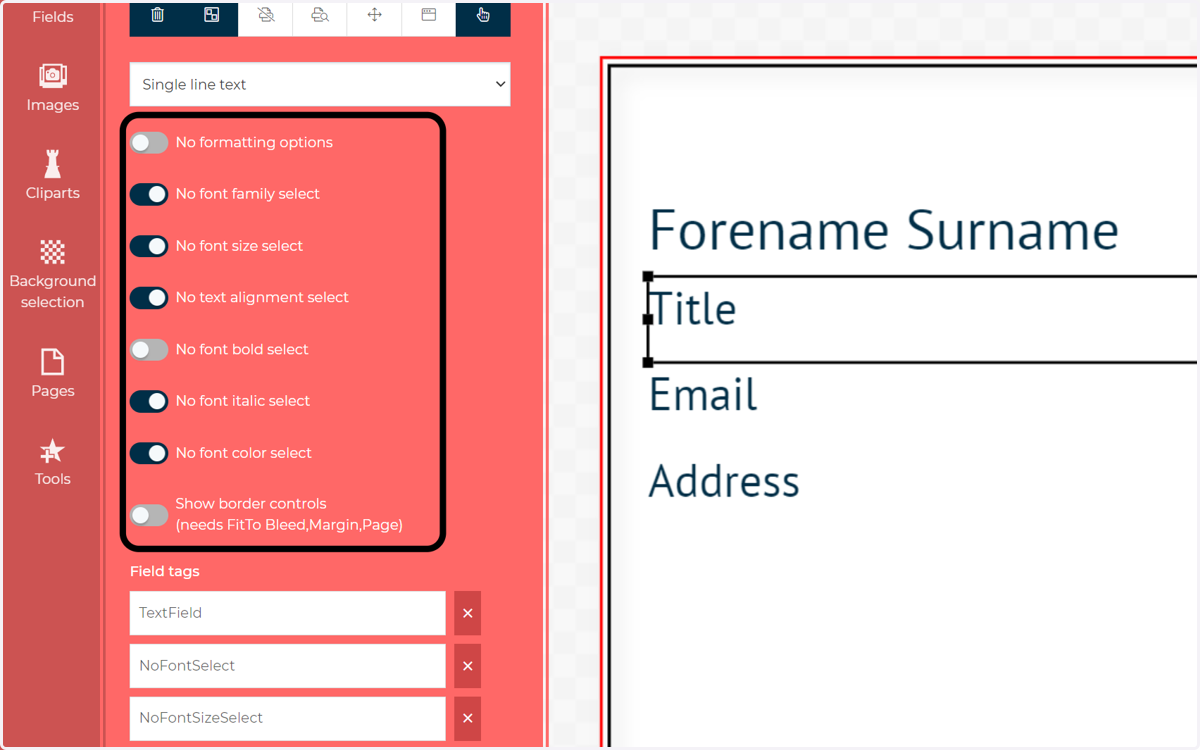
6. The Title field is now configured and available for use in the form
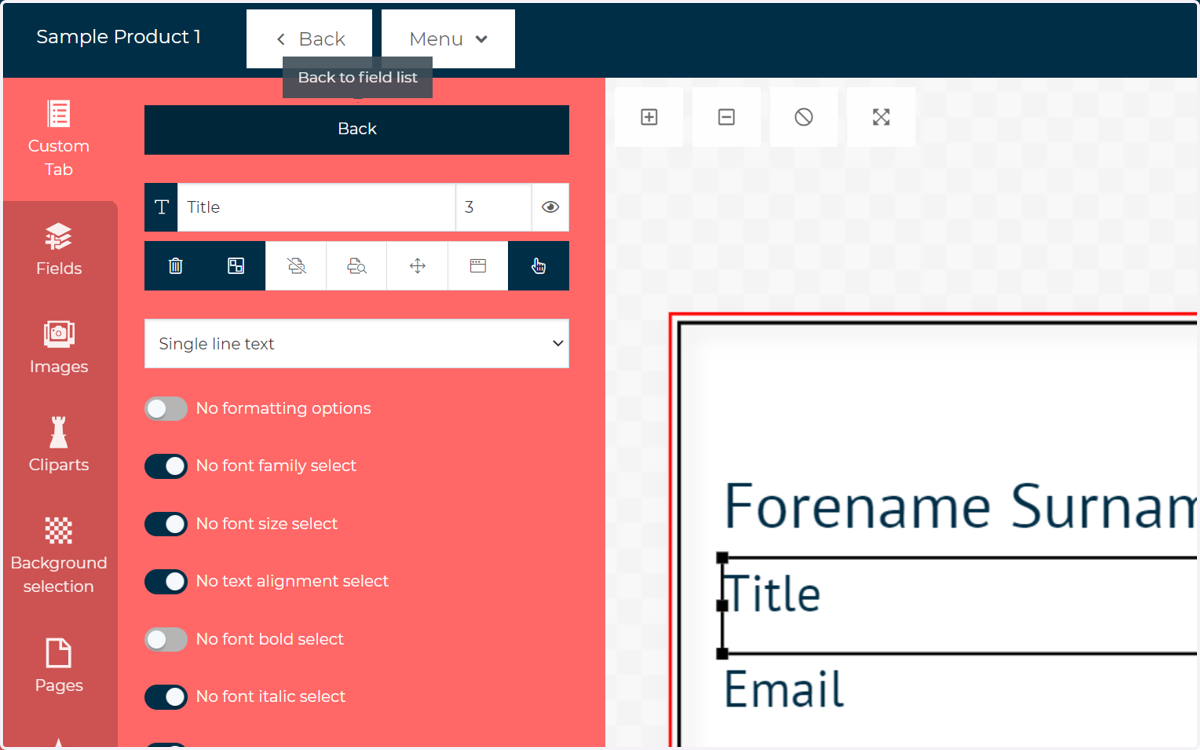
7. Click on Back
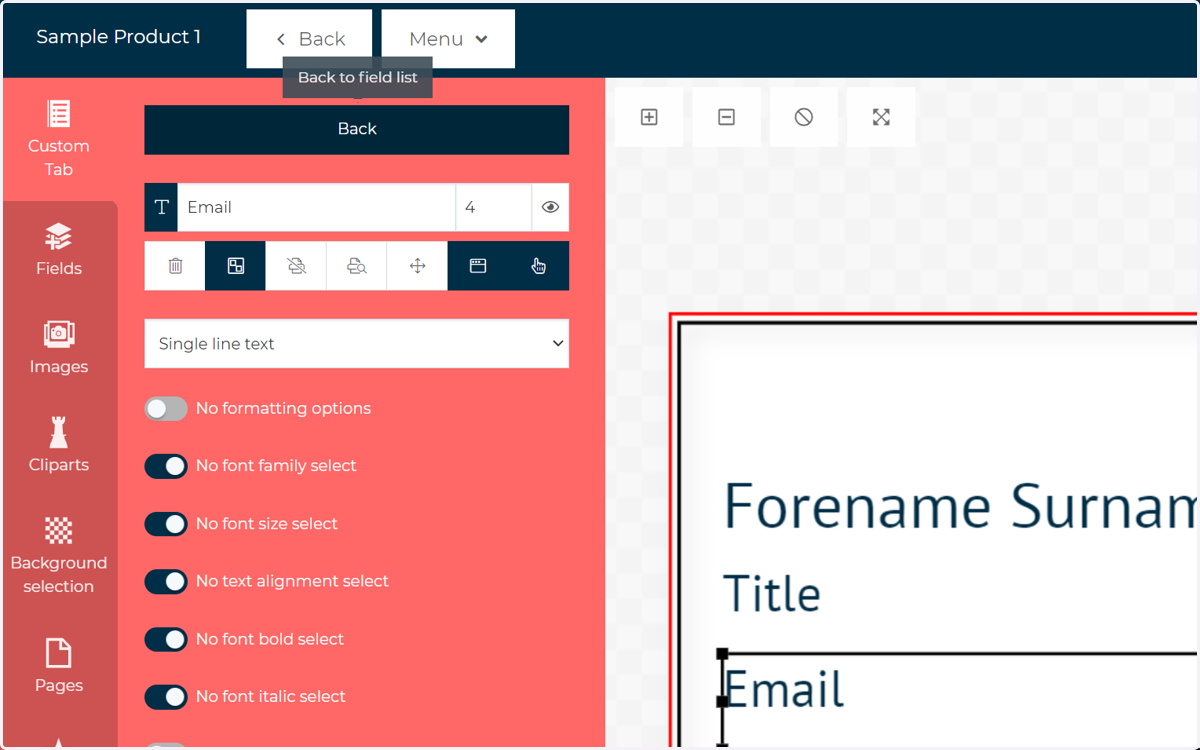
8. Configure the email field
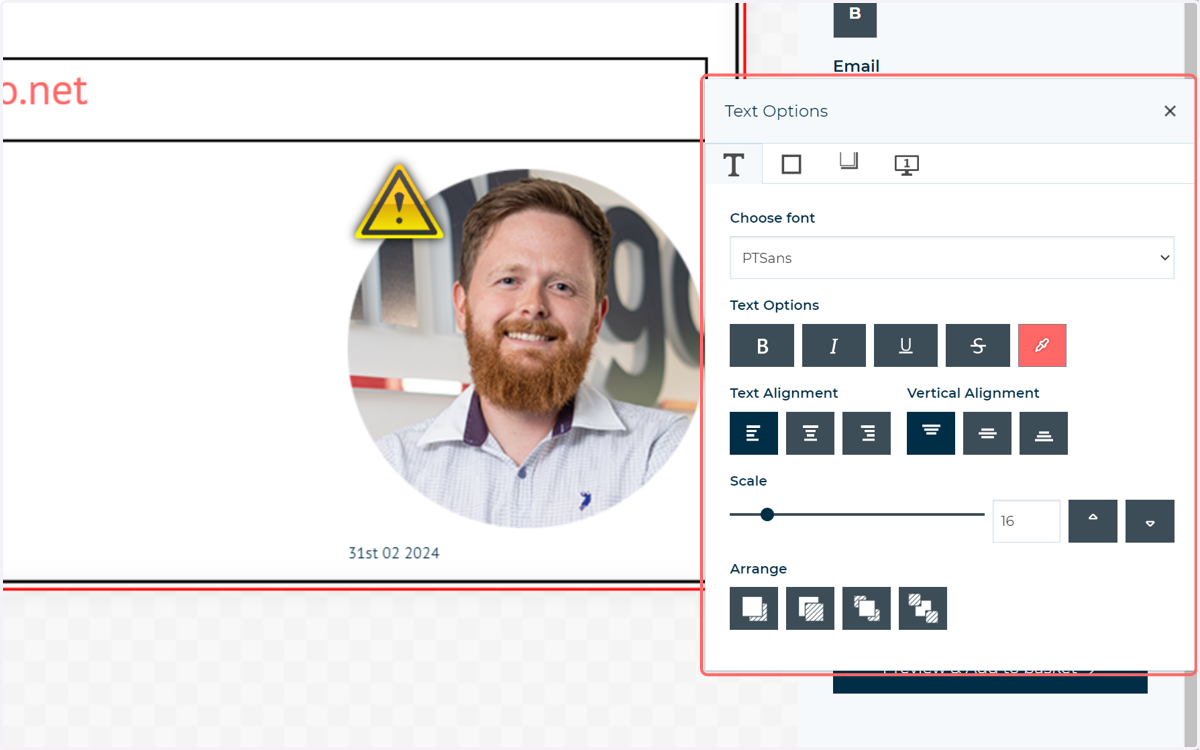
Our email field will have slightly different configuration options available to the user. We wish the user to be able to change the text colour. In addition, we want to allow the user to open the additional configuration pop-up. This is done by double clicking the field on the canvas and gives access to a wider range of configuration and interactivity options.
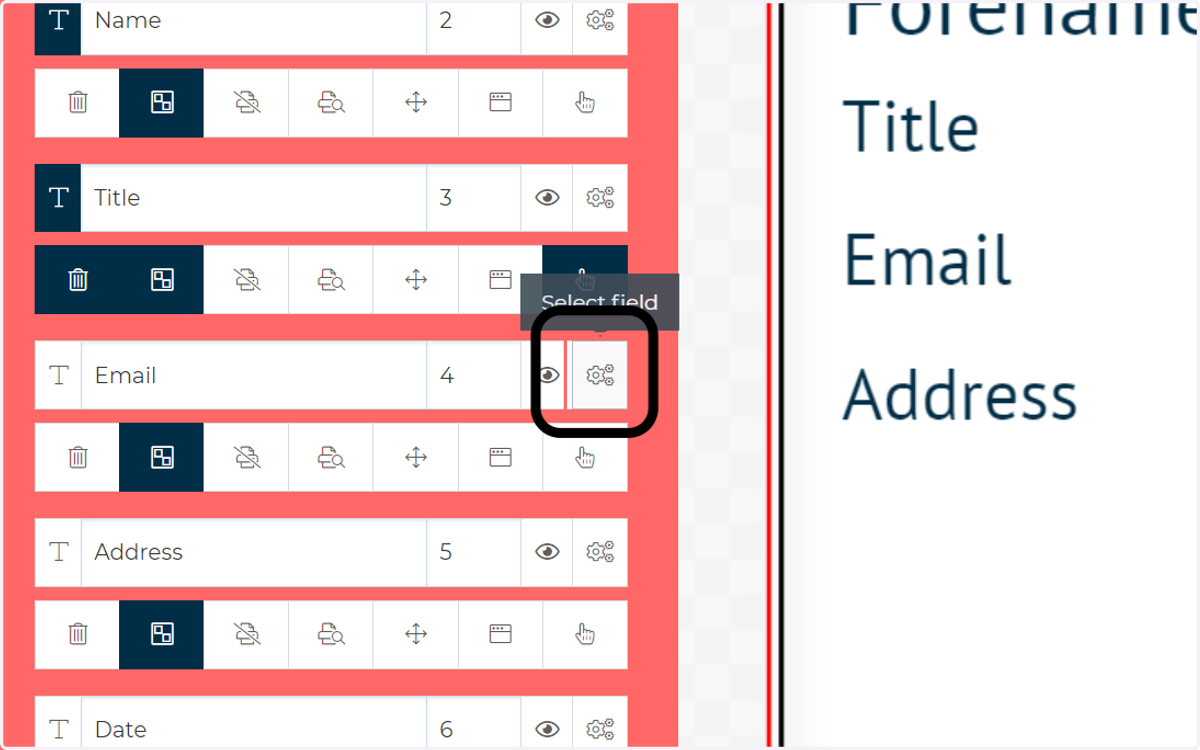
9. Enable interactivity options
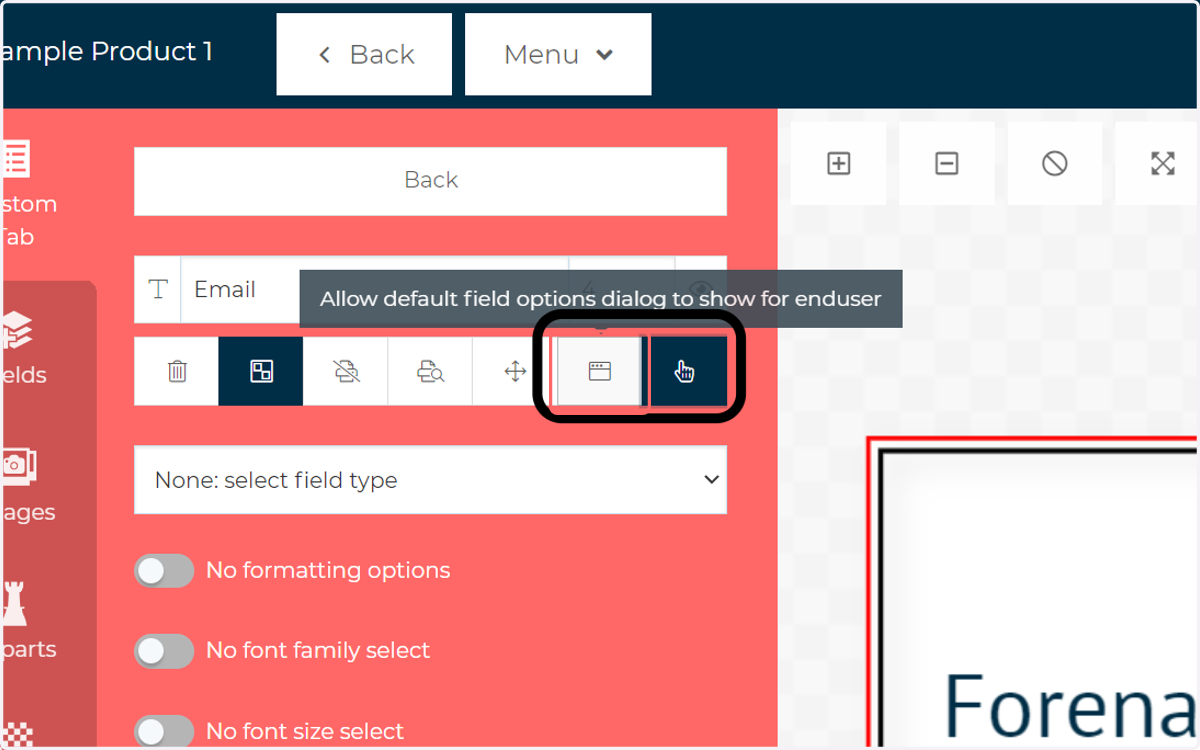
To allow the user to utilise the configuration pop up, we need to enable selection and pop up toggles.
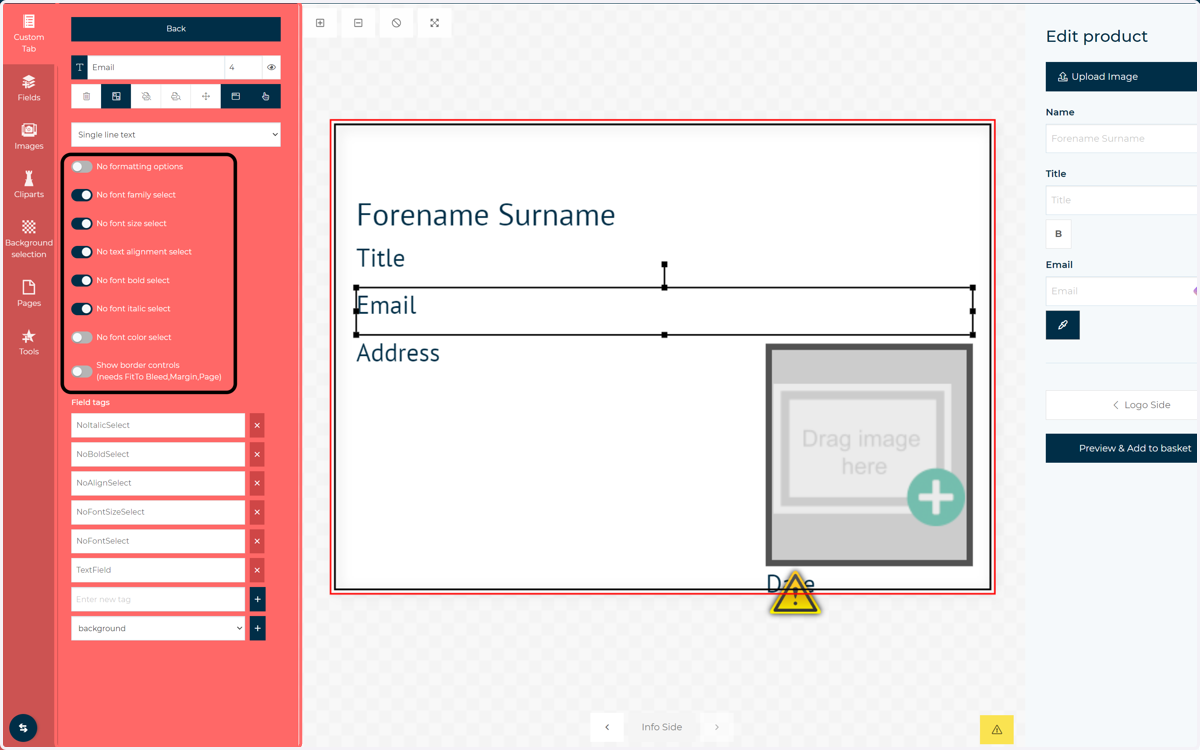
10. Select required formatting options
As with the previous field, we can control the formatting options available to the user via the set of toggles. In this field, we only want to allow the changing of the font colour.
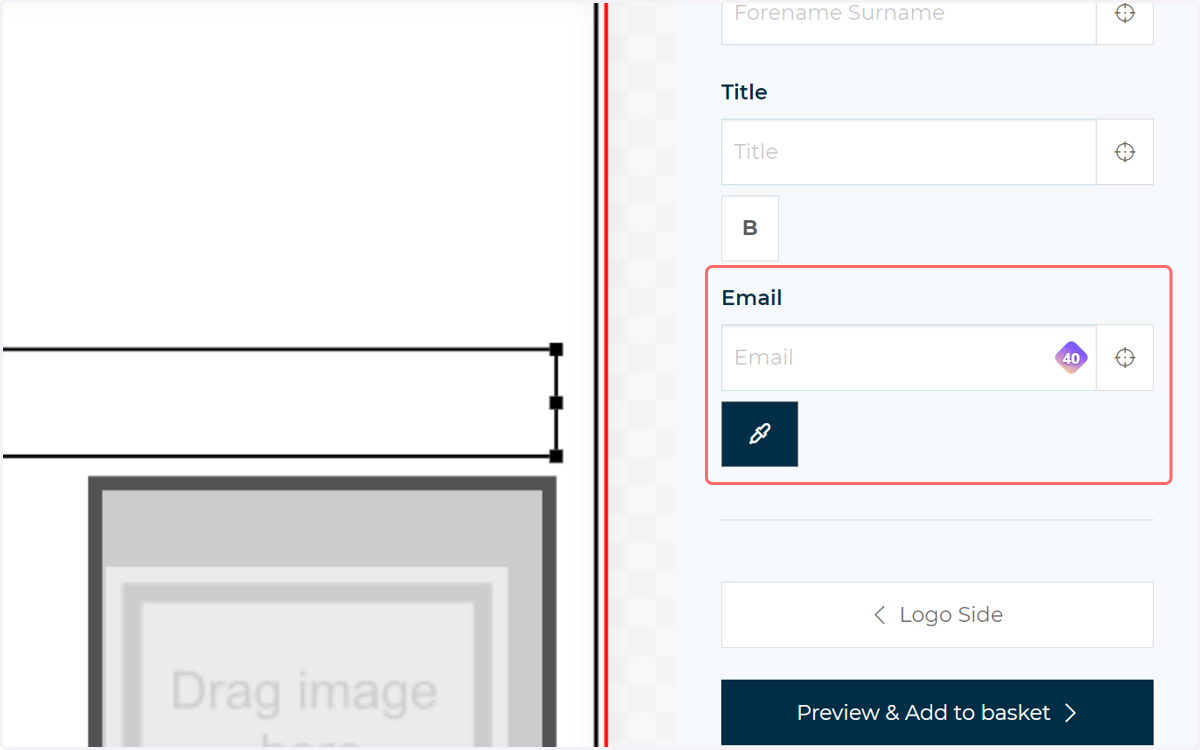
11. Our email field is now configured and available for use in the form
12. Click on Back
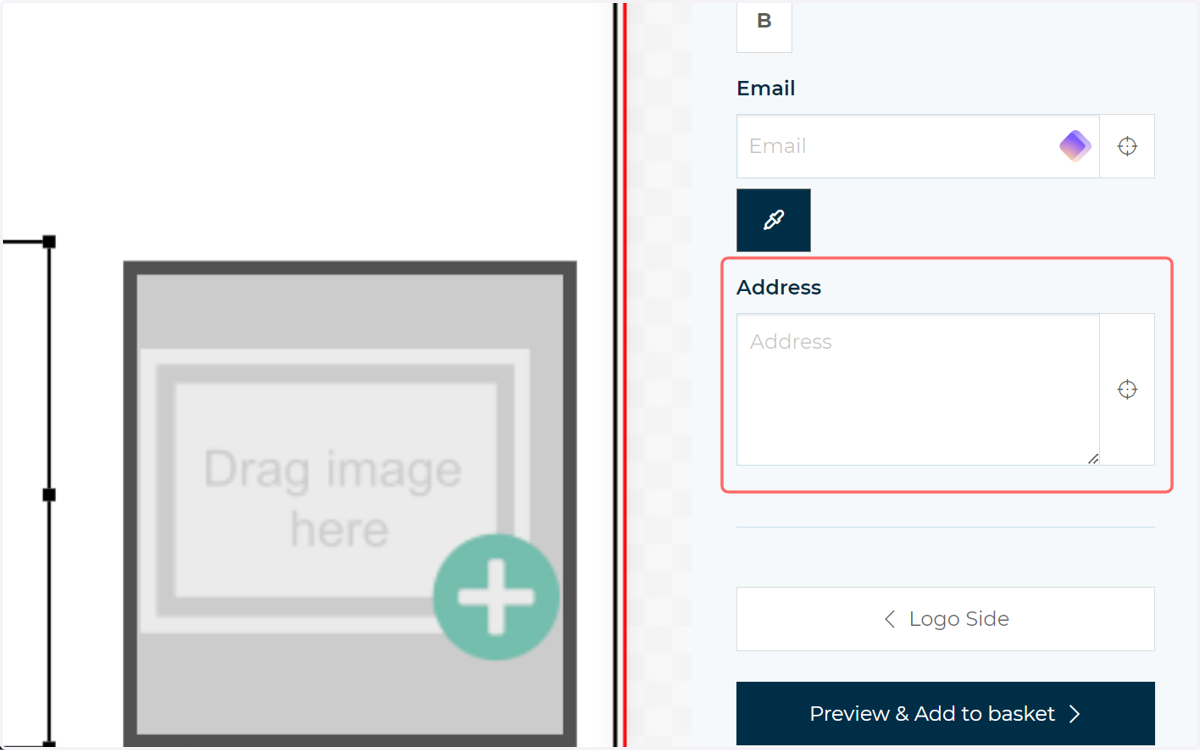
13. Configure the Address field
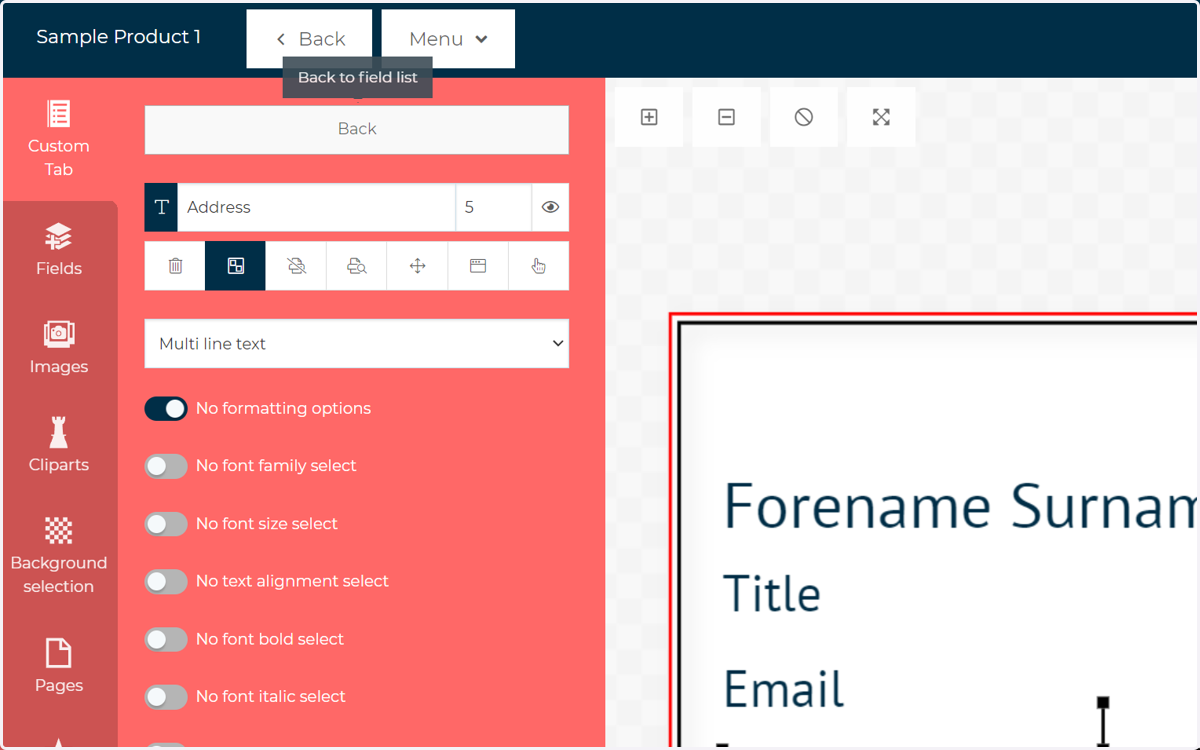
The address field will be a multiline input, allowing our users to insert line breaks and enter text over multiple lines. All other configuration options will be unavailable to the end user.
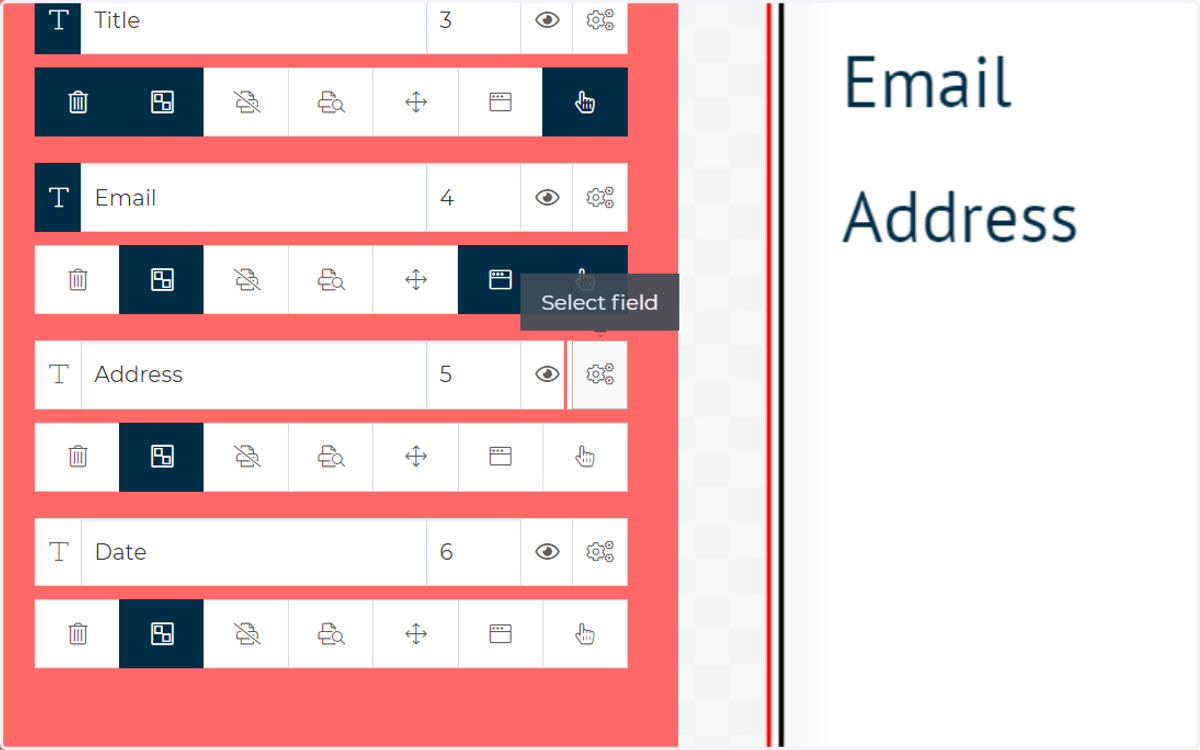
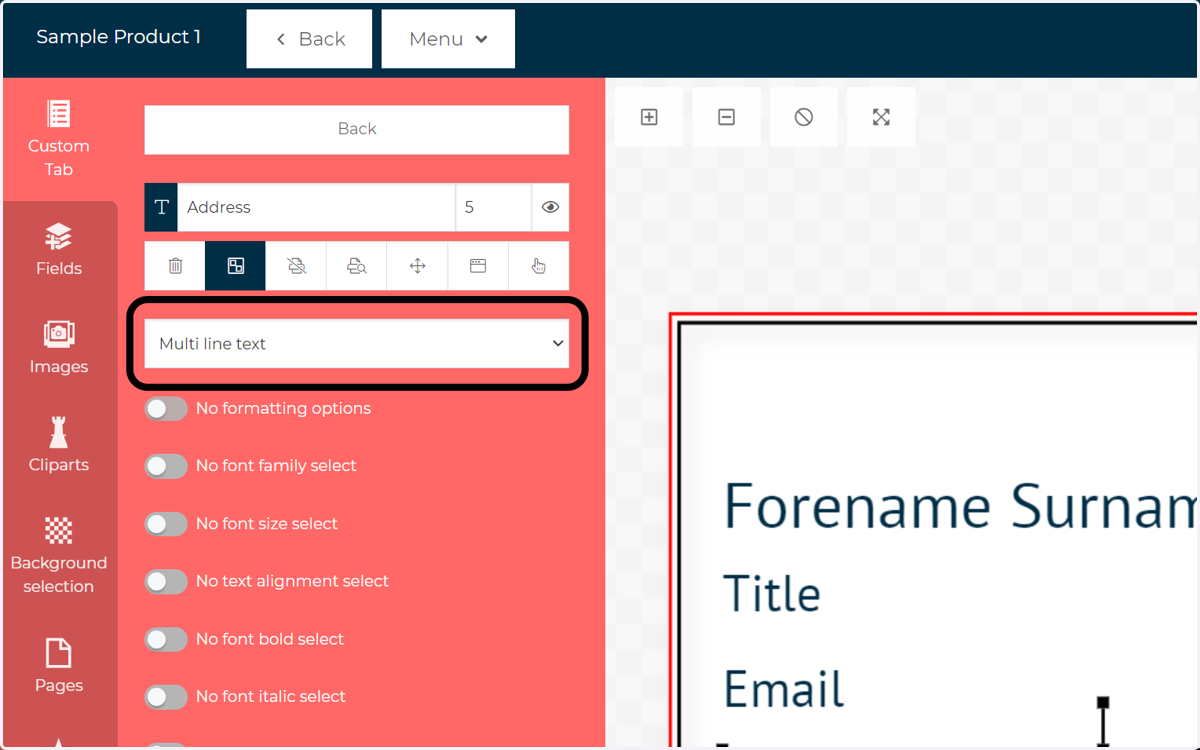
14. Select Multi line text
As the name suggests, this allows for multi line text input. With this dropdown selected, the field will now be visible on the main form.
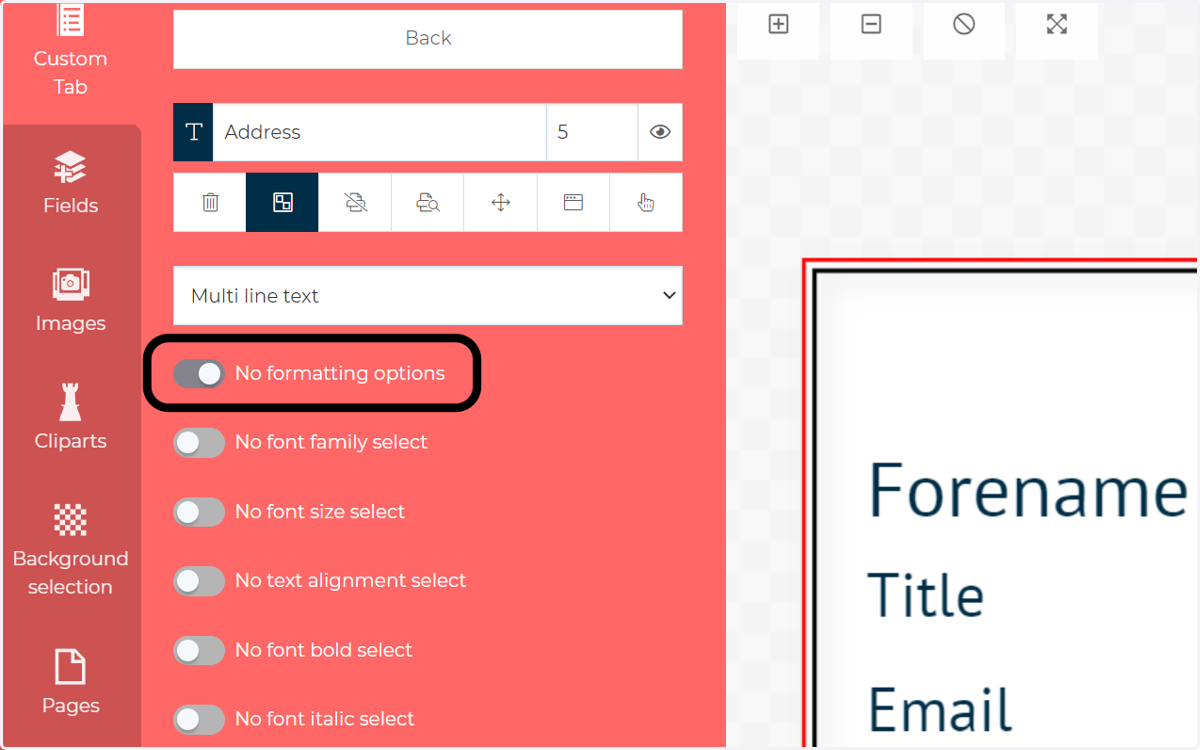
15. Check No formatting options
The easiest way to remove all customer formatting options is to check this toggle. Only the text input will remain available on the form.
16. The address field is now configured and available for use.
17. Click on Back
18. Configure the date field
This field will allow users to pick a specific date using a dedicated date picker feature. Users will not be able to format this text or manually input text into the field.
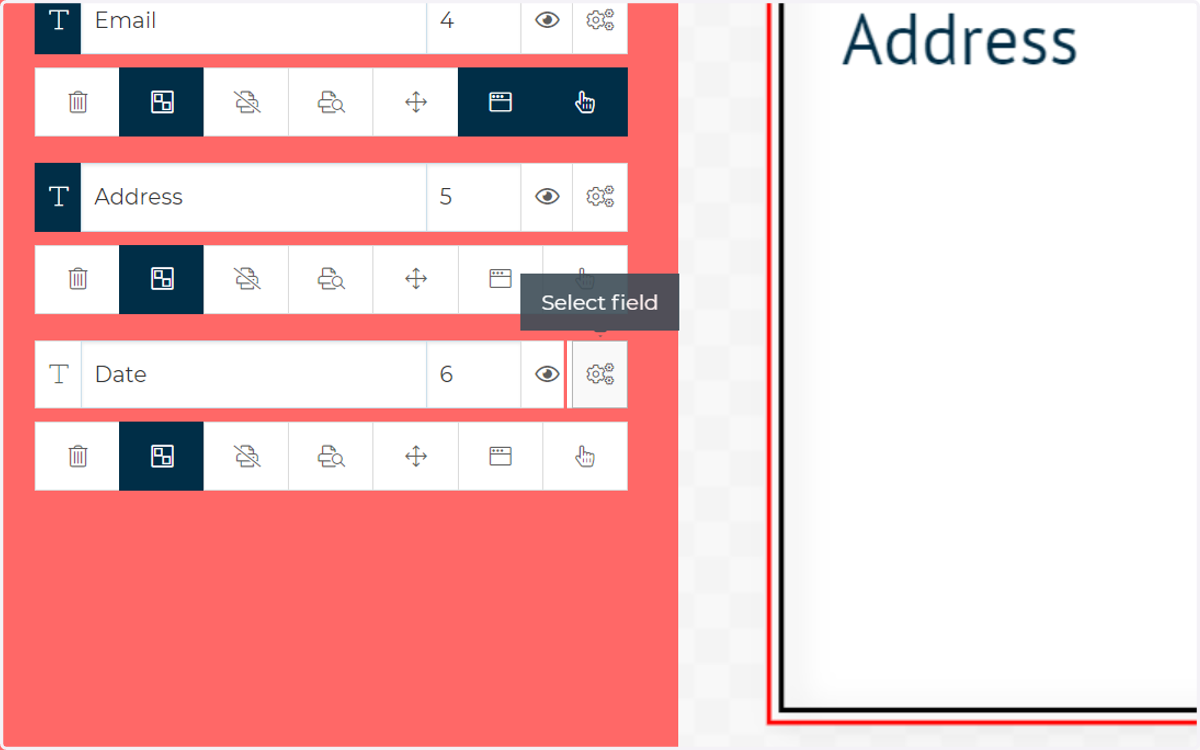
19. Select Date
Once an option is selected in this dropdown, the field will be available on the main form.
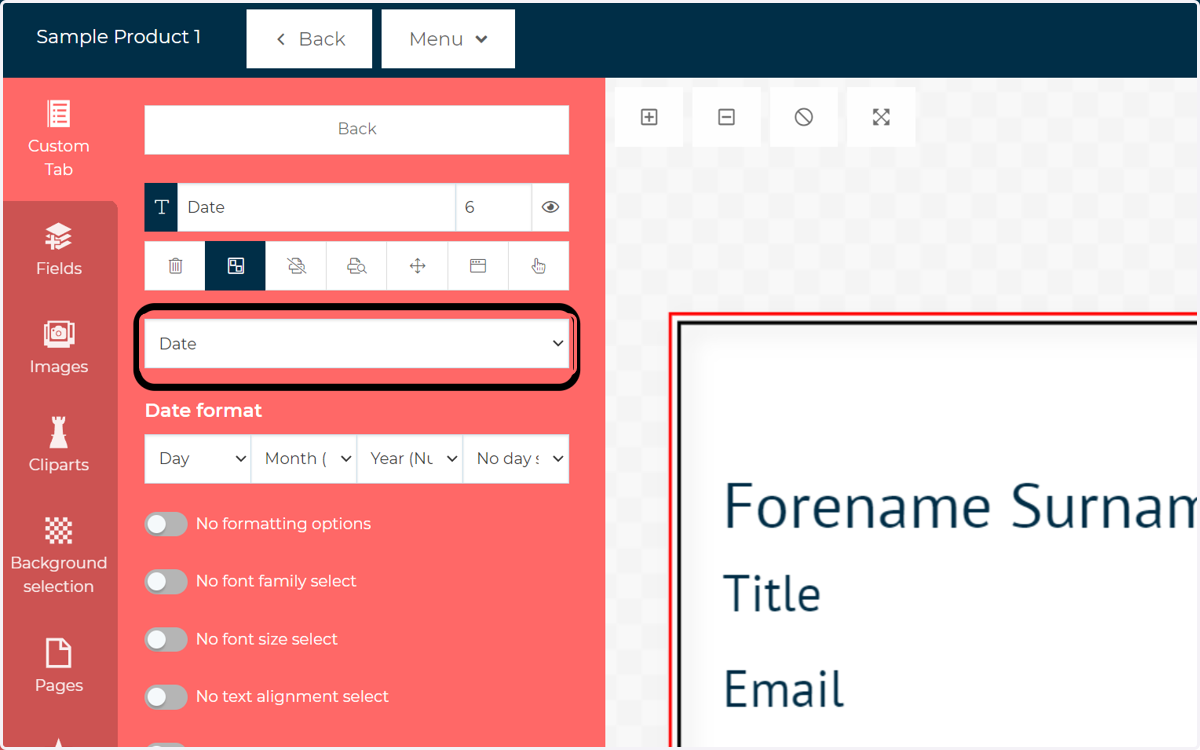
20. Specify date format
This set of options will appear when Date is selected. You can choose the format of the date to be displayed on the form and canvas.
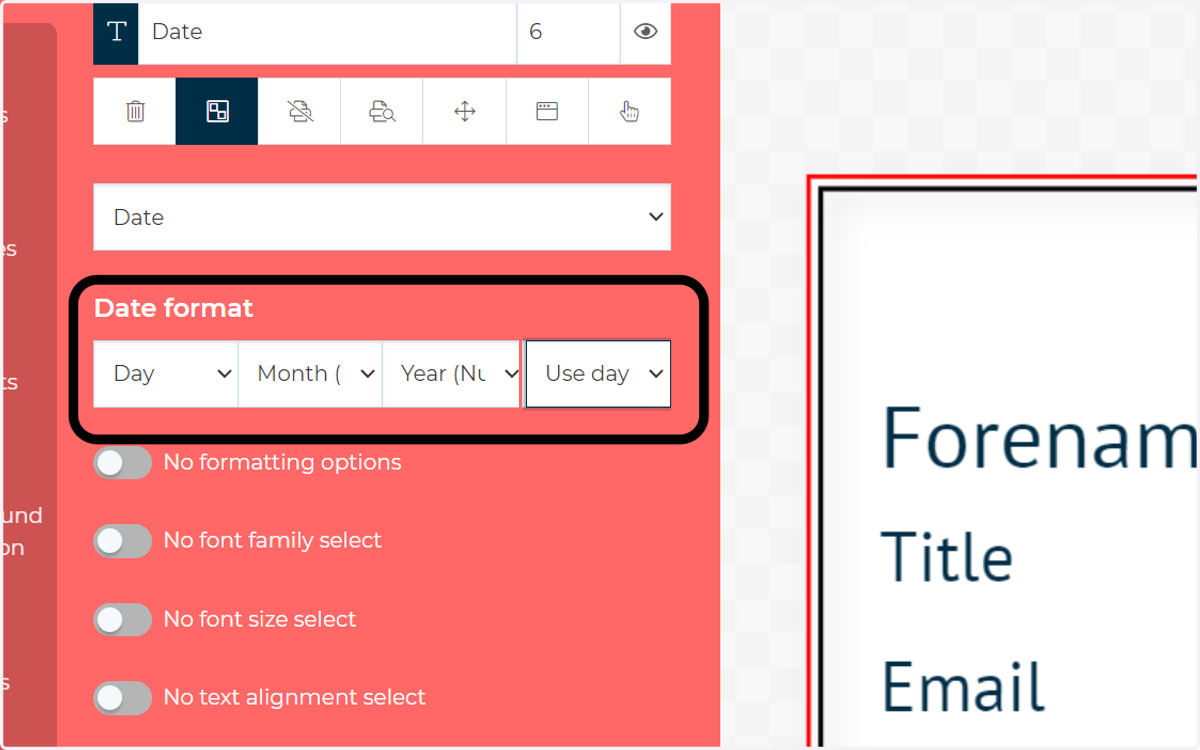
21. Hint: you can change some of the field formatting using the form, saving you having to utilise the pop-up whilst configuring your template. If these formatting options are disabled, the changes you have already made to the format will still apply.
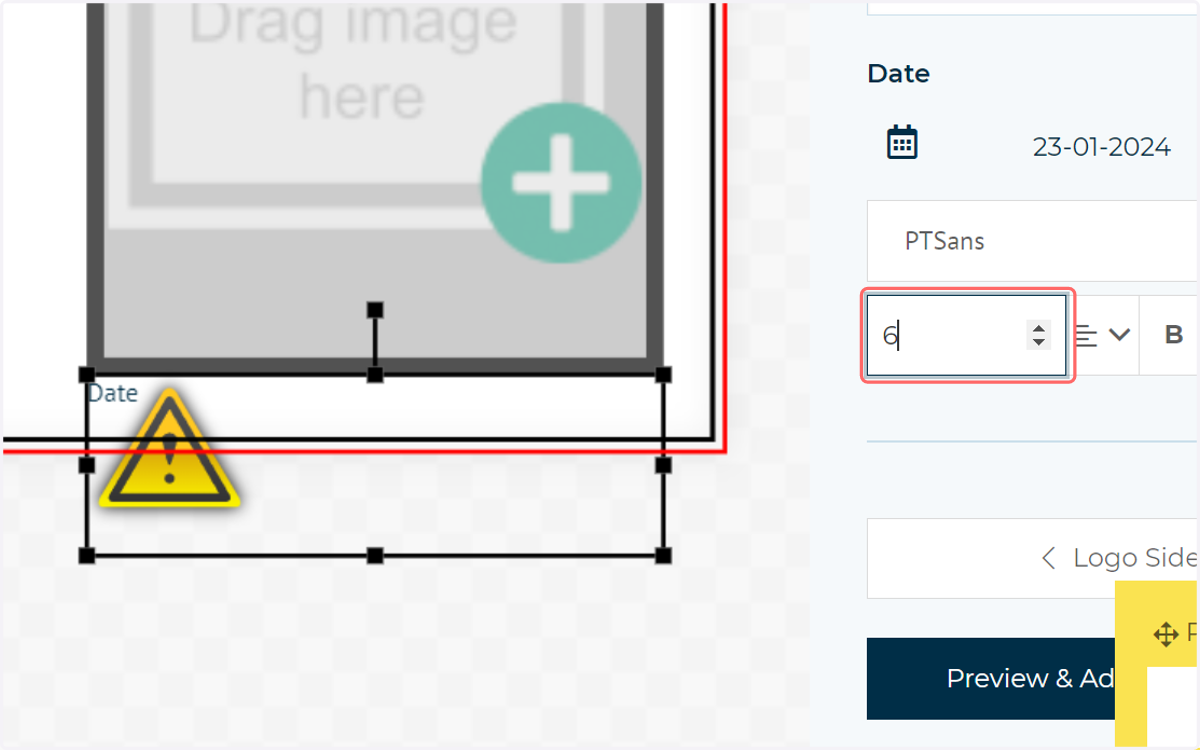
22. Check No formatting options
For this field, we do not want our end user to have any formatting options.
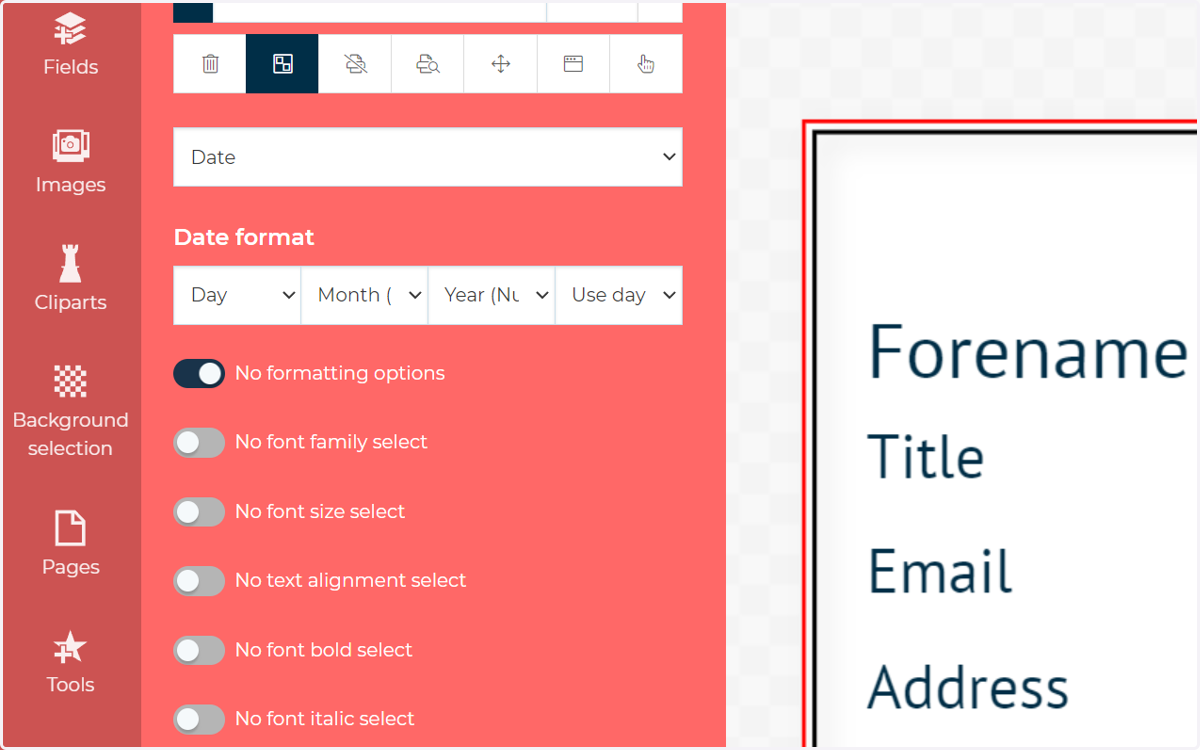
23. Our date field is now configured and available for use
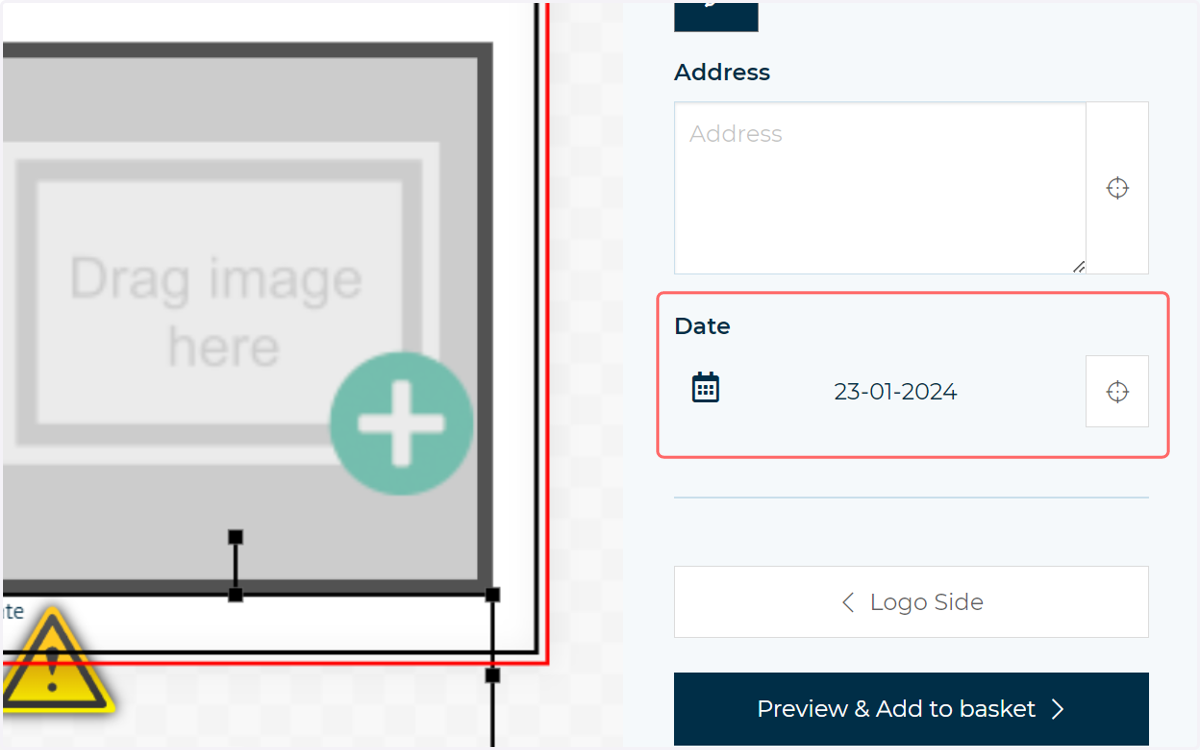
24. We can interact with the main form as an administrator, to test it's functionality
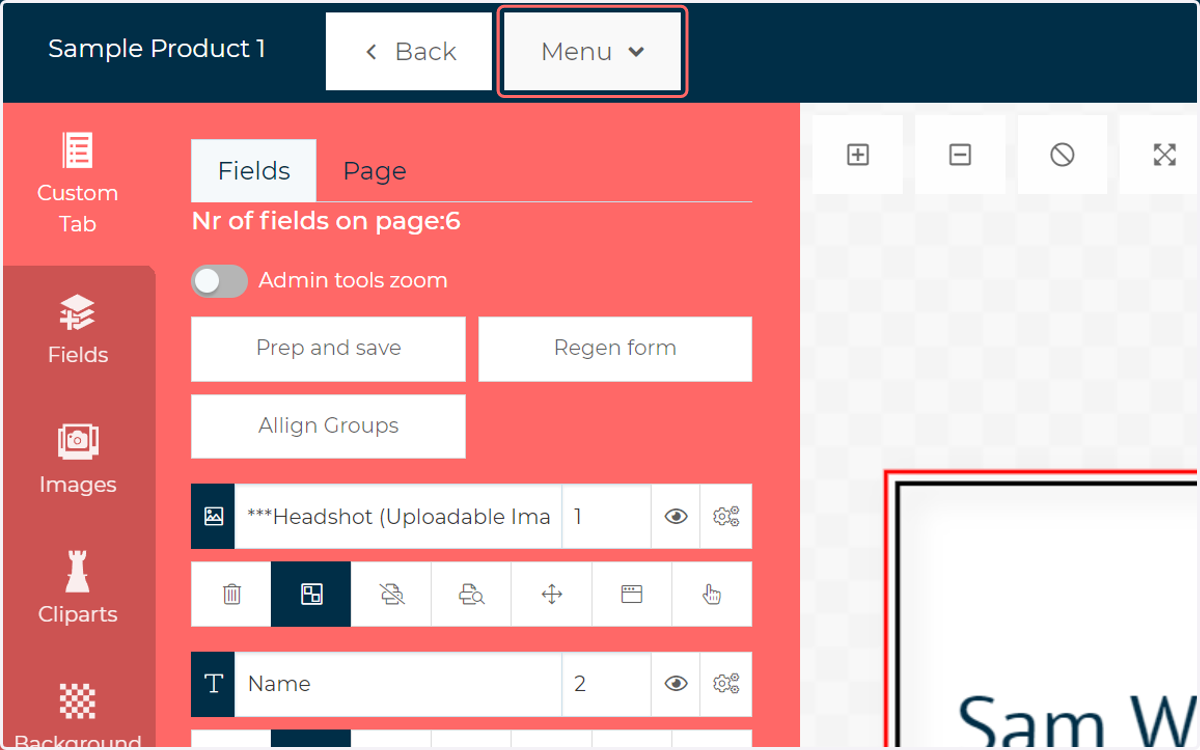
25. Click the Menu dropdown
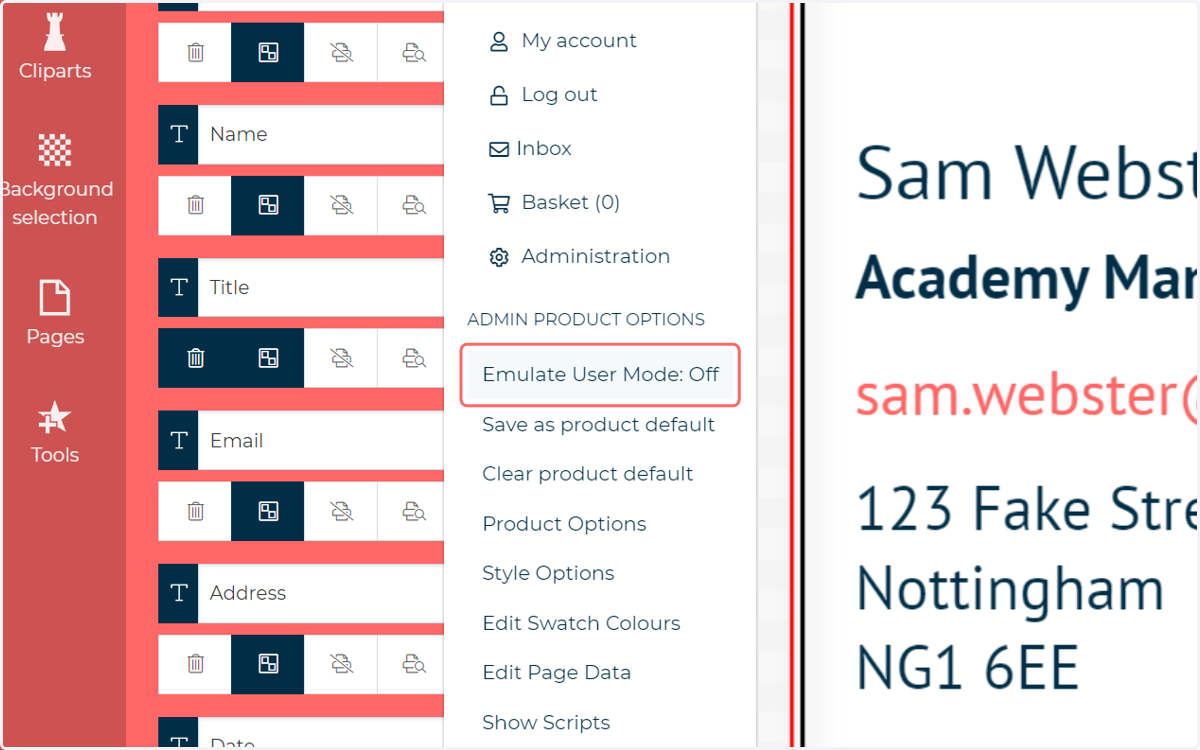
26. Click on Emulate User Mode
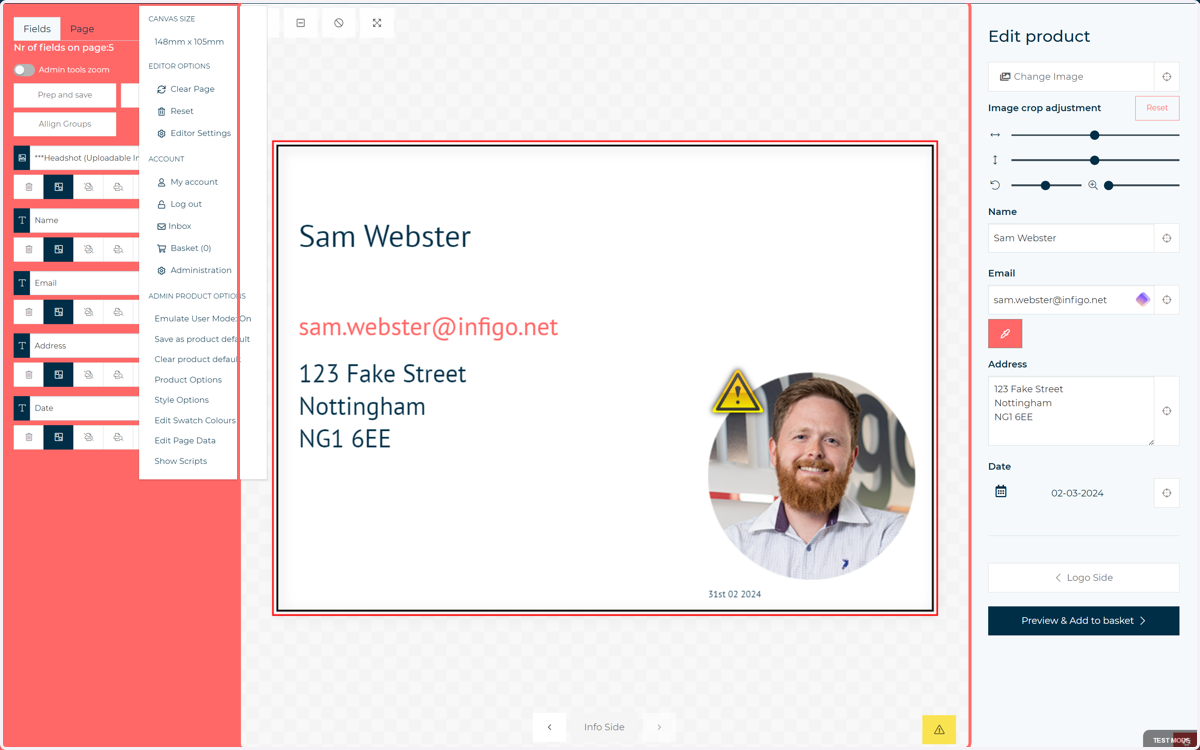
This option will allow us to interact with the fields on our canvas as our end users would. So, for example, where we've specified fields can or cannot be selected, deleted, moved, etc, we will be able to simulate this configuration using this mode.
Note, Emulation Mode will NOT show you the template exactly as your customer sees it. To see exactly how your end users see your product template, you will need to impersonate or log in as one of those users.
27. As specified, we have the ability to select the email and open the configuration pop up
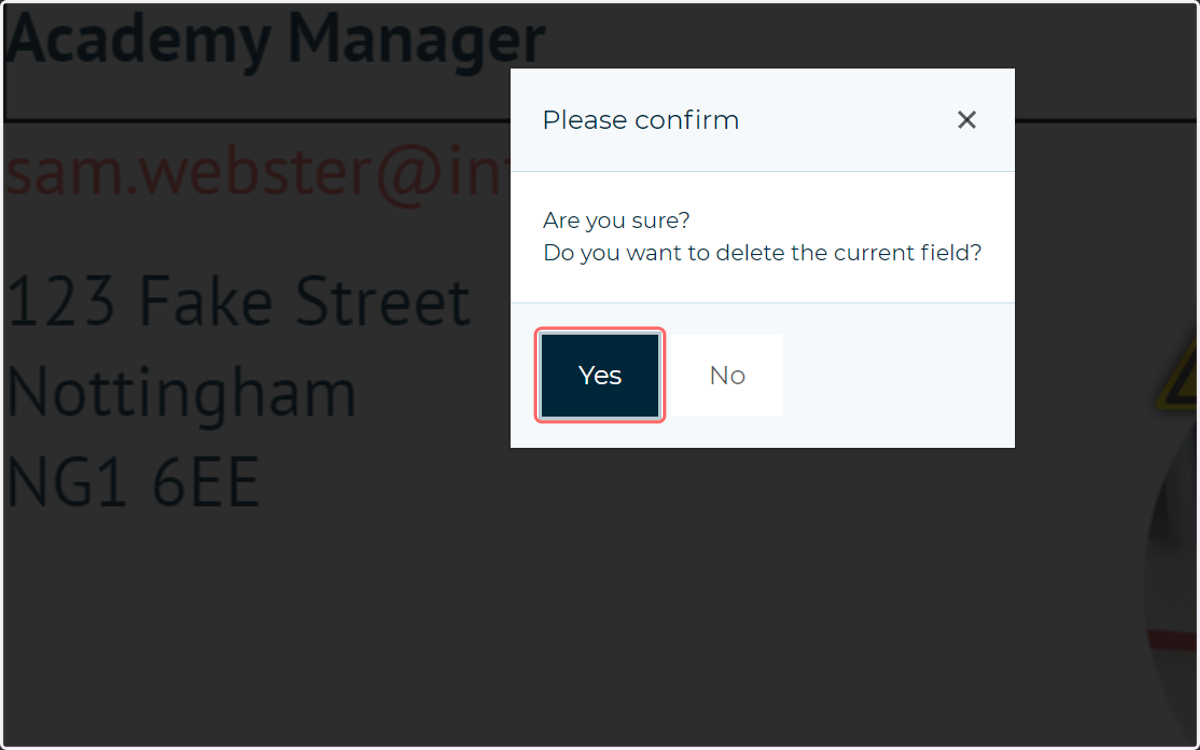
28. As specified, we have the ability to delete the Title field
29. As specified, all other fields on the canvas are not selectable by the user (which is also true in Emulation mode)