BG_019_Selecting alternate page layouts
This tutorial will introduce you to page layout functionality within Infigo.
Key terminology:
Layout - The overall structure and configuration of your page.
Page Groups - A group of pages on your storefront which follow the same structure, such as Product pages or Category pages.
Container - Areas of your main layout, including elements such as a header, footer and main content.
Module - Elements that sit within (or relative to) containers and add information or functionality to your page. This could include, for example; a search bar, product navigation or imagery.
To help you structure your storefront's pages in a consistent manner, the Layout Manager allows you to assign different layouts to different page groups. A layout is simply a saved configuration of modules and containers which can be assigned to multiple page groups.
Infigo facilitates consistency across the pages on your site by ensuring that page groups utilise a shared layout.
For example, all category pages will, by default, contain nothing but the products and subcategories assigned to it. Therefore, since they all follow this concept, we have grouped all categories into the same Page Group, and so they will share the same layout.
The full list of page groups can be found below:
Homepage
Category pages
Product pages
Content pages
My Account pages
Checkout workflow
Basket
Product search results
Blog listing page
Individual blog articles
Login page
Note: Whilst you are able to assign the same layout to as many of these page groups as you would like, please keep in mind that the content may load differently for different groups.
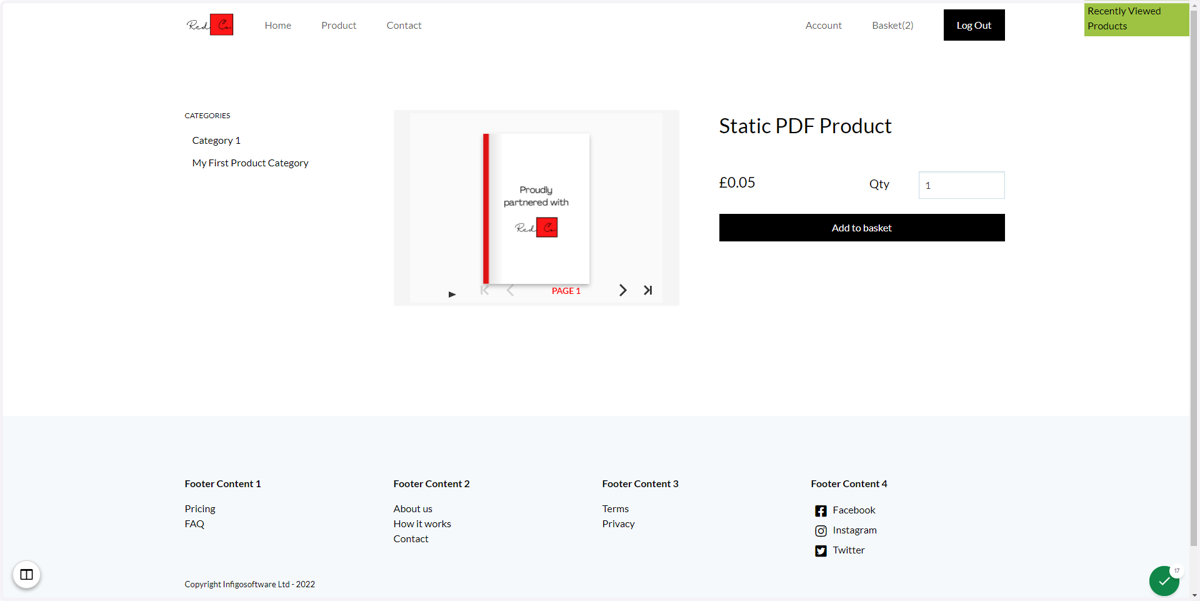
1. To begin, load two of the products available on your storefront as separate tabs
Right click on the product and click "Open in New Tab"
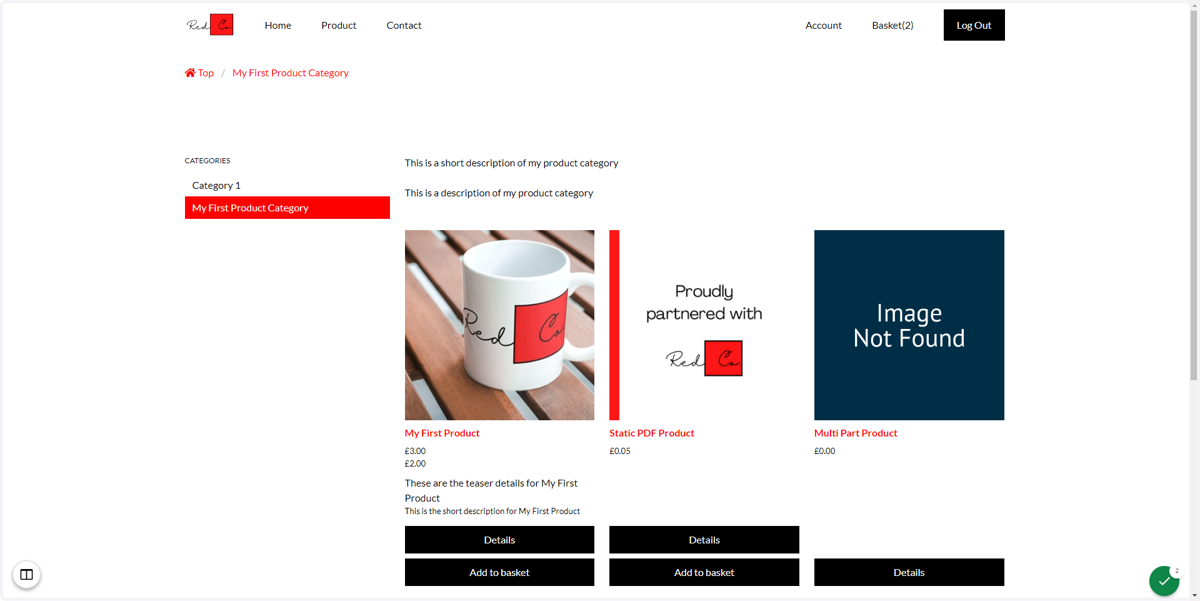
2. Your initial page layout
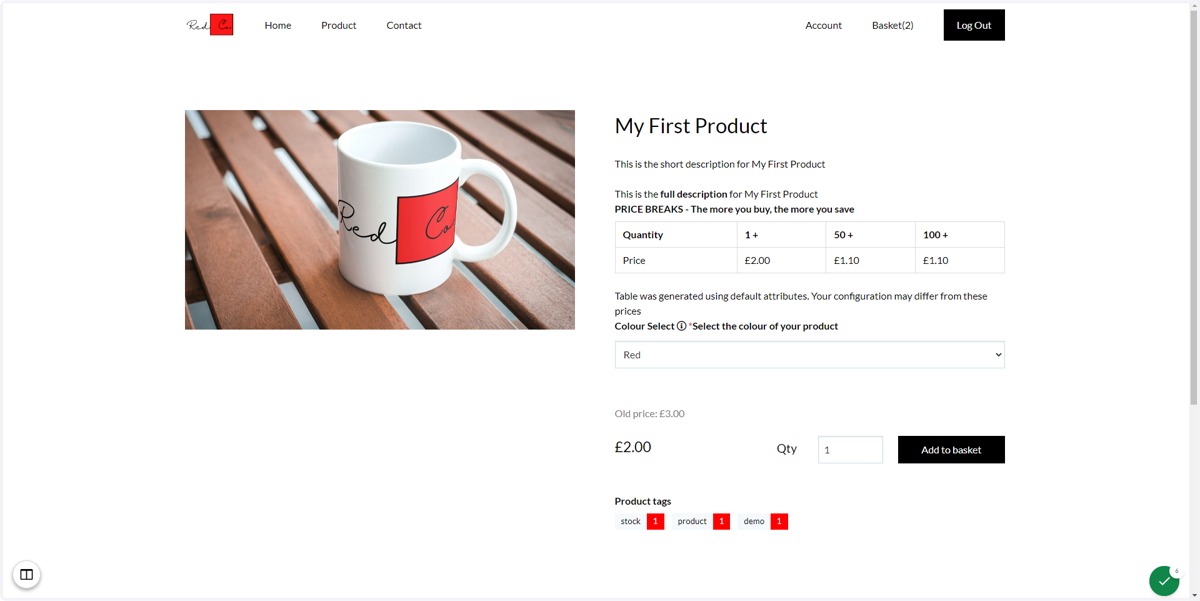
Your loaded product pages will be utilising one of the pre-defined page layouts in order to display the information.
3. Click on Show layout administration panel
This icon grants Storefront Administrators access to the Layout Administration panel.
This panel allows the administrator to change and customise page layouts.
This tutorial will focus on changing between existing layouts.
4. Examine the list of available layouts
Infigo provide a set of pre-created layouts for you to select from.
When applied, your current page will reload with the new layout utilised.
Please keep in mind that many layouts have been left unconfigured to serve as a blank slate for you to work with.
We also recommend sticking to any layout that begins with "1 Column" or "2 Column" as these are the officially supported layouts.
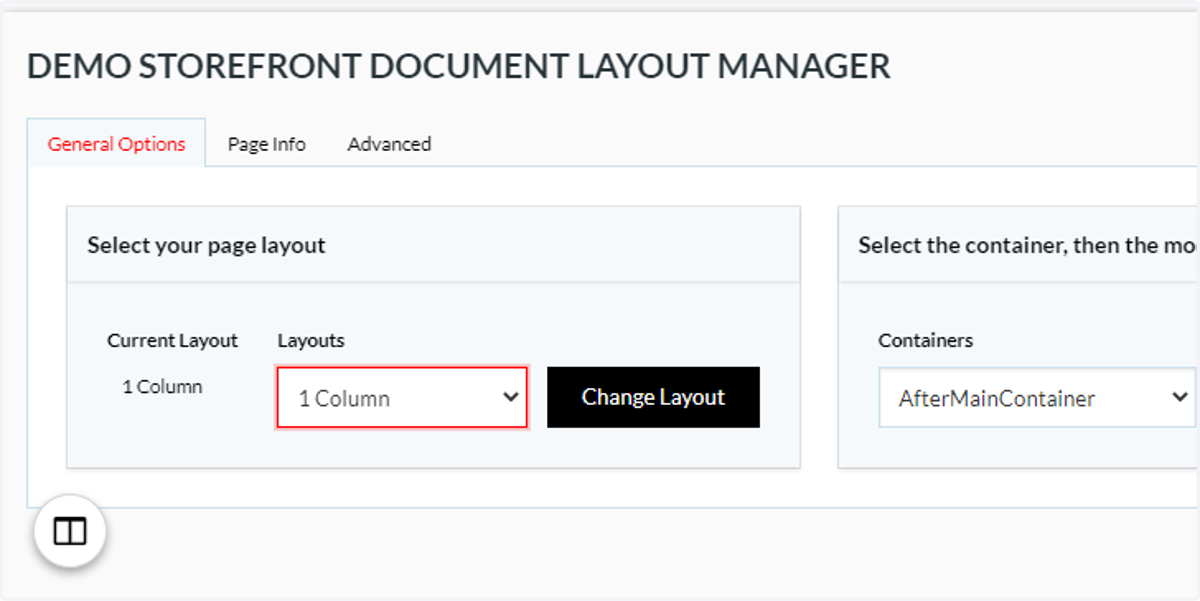
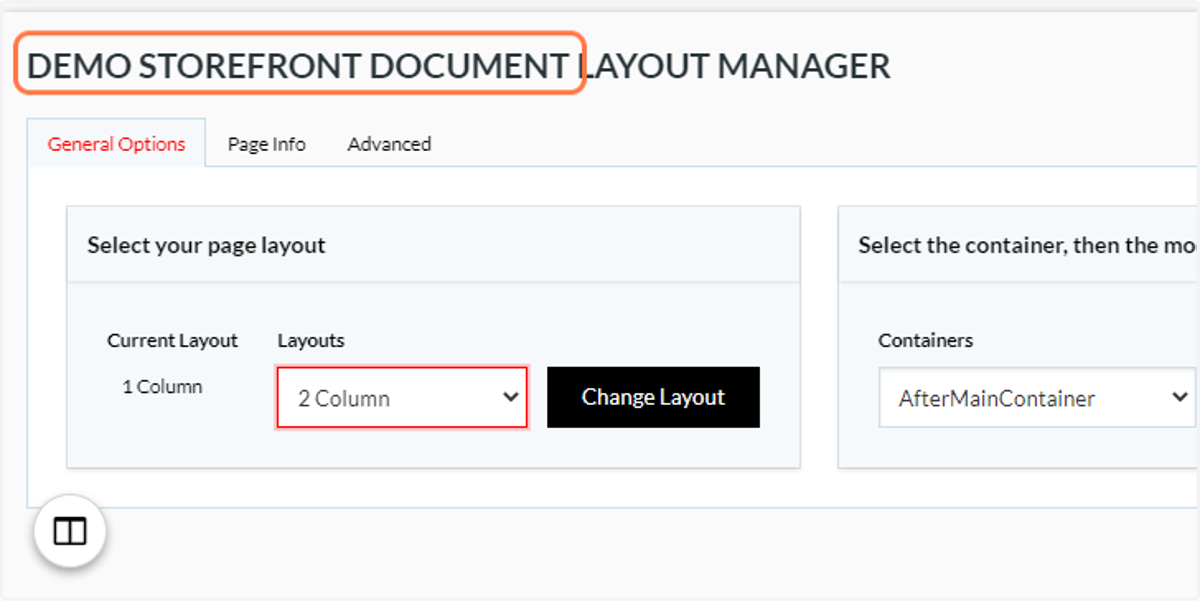
5. Click on 2 Column
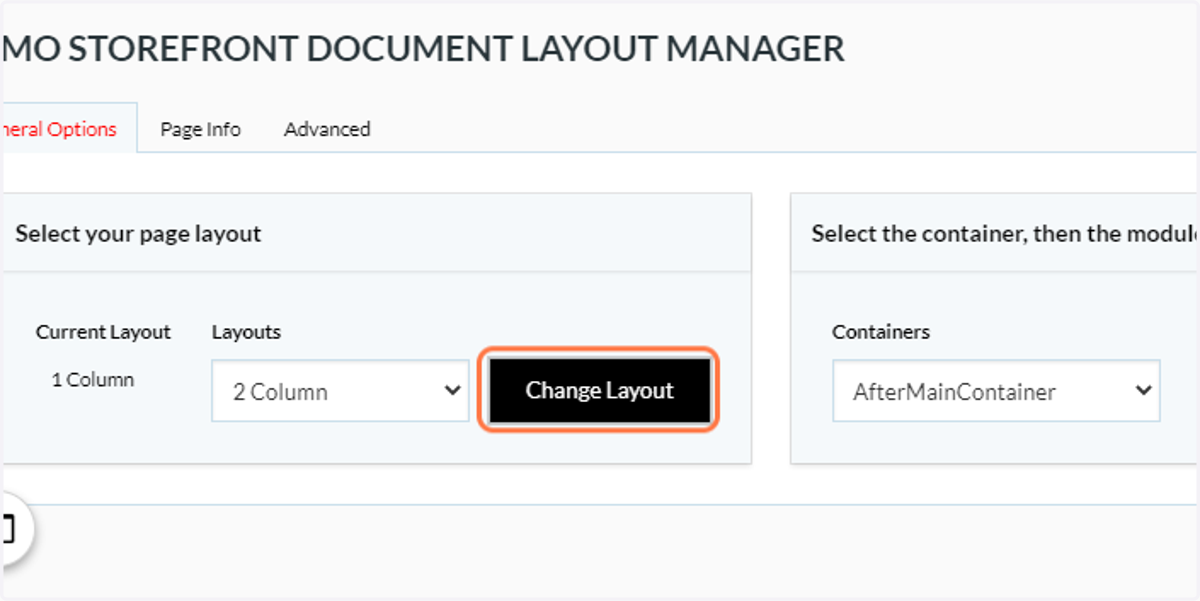
6. Click on Change Layout
7. Examine your product pages
With the layout changed to the "2 Column" option, all product pages will now display this new layout.
"2 Column" grants the ability to place modules side-by-side, whilst "1 Column" layouts limit you to a single line of modules.
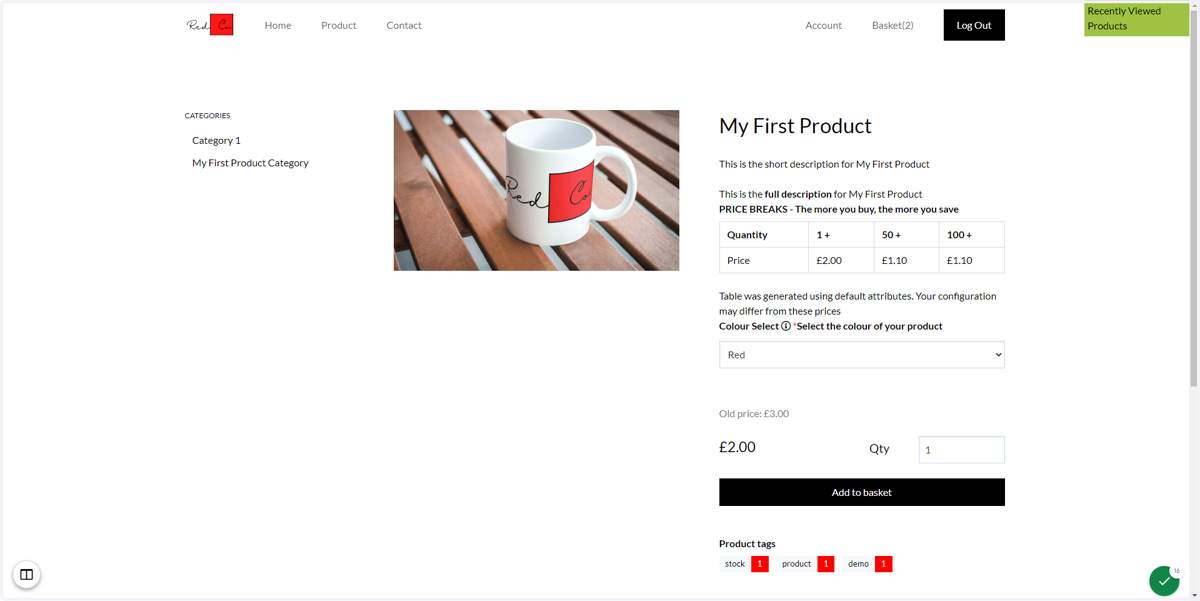
8. Refresh your second product to see the updated layout applied