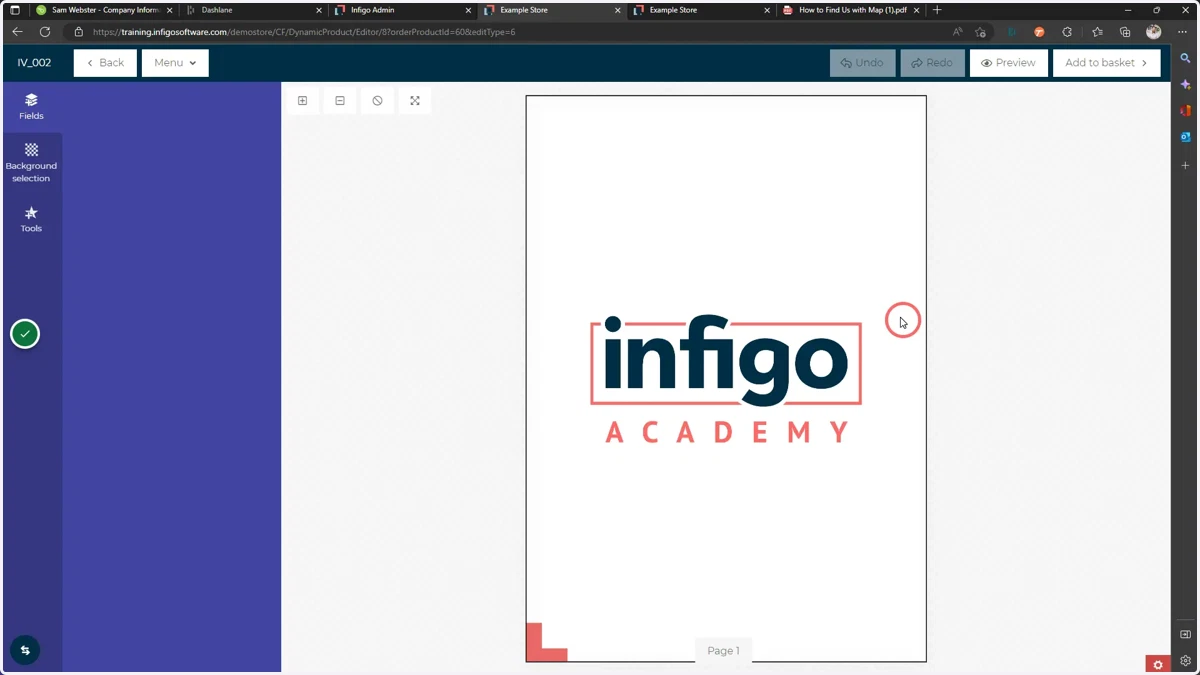
Creating a MegaEdit product with Invent template
In this tutorial, we will learn how to utilise a template created using the Invent plugin for Adobe InDesign.
We will export the template from InDesign and add it to Infigo via a MegaEdit product type.
adobe
1. Navigate to the Export tab of the Infigo Invent tab in Adobe InDesign
In our basic example, we have not set up any resources, variables, properties or otherwise. These will all be covered in later tutorials.
Here, we are simply exporting an Invent file that we can utilise within Infigo.
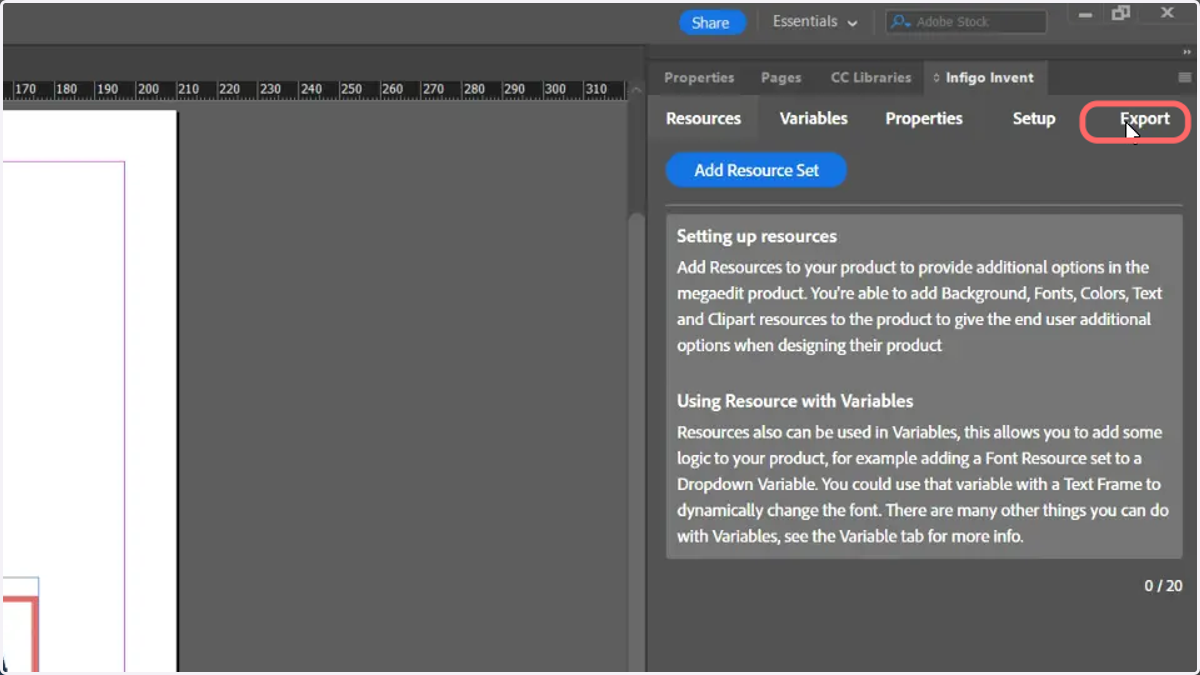
2. Click Set Export File and define a name and location for the export
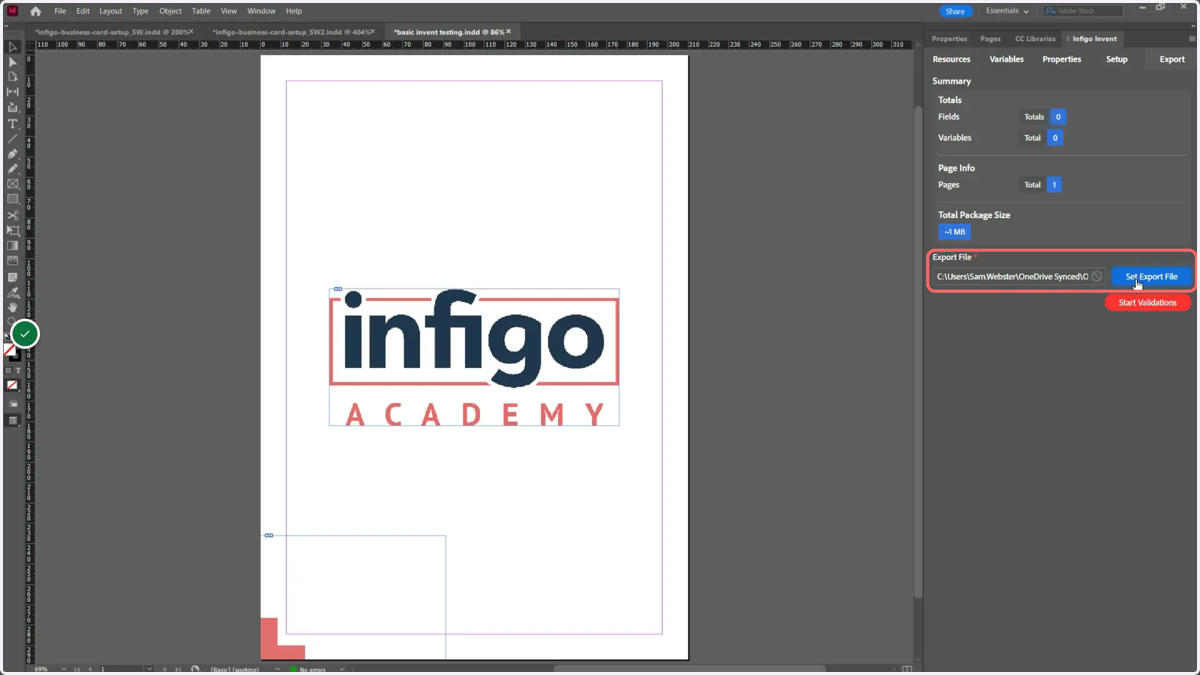
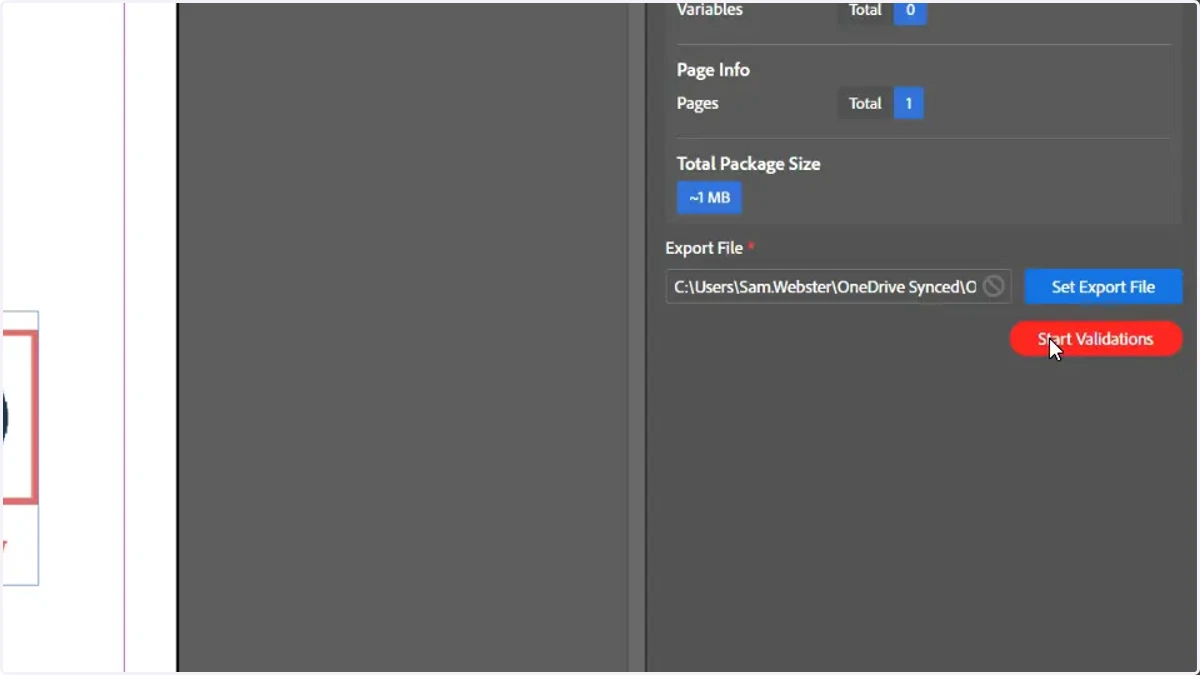
3. Click Start Validation
This will check the configuration of your Invent template prior to export.
If any problems are found, the export will fail and warning messages displayed.
adobe
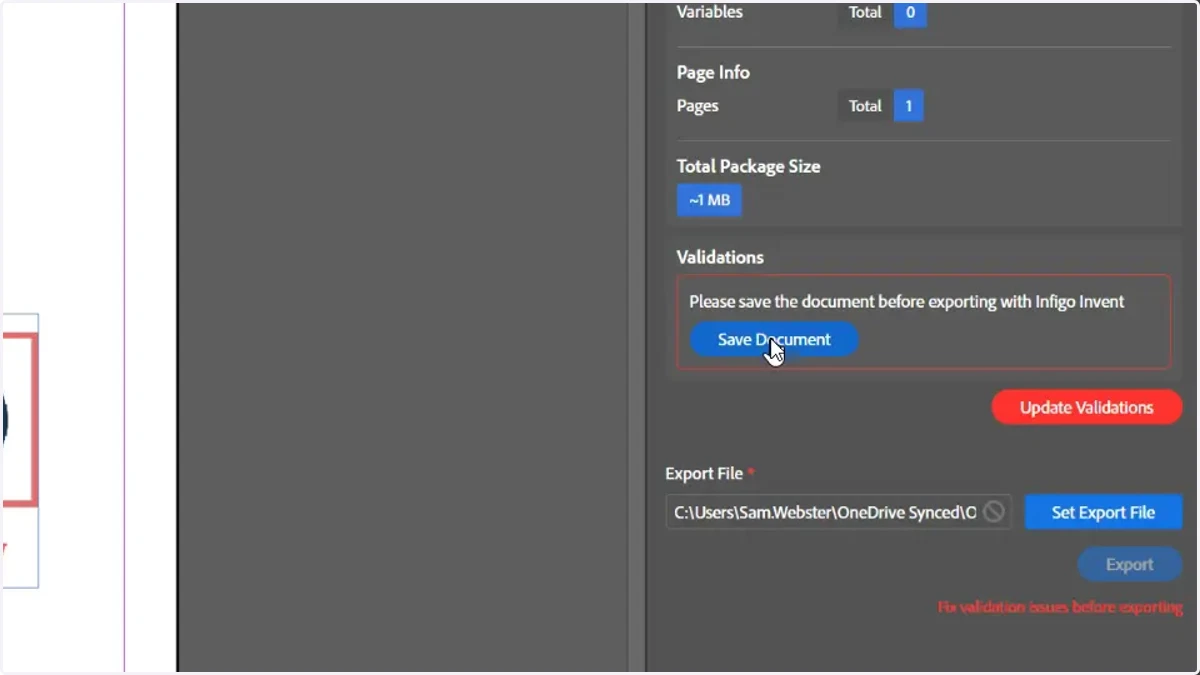
4. Click Save Document
In our example, we have one warning, informing us we need to save the document prior to exporting.
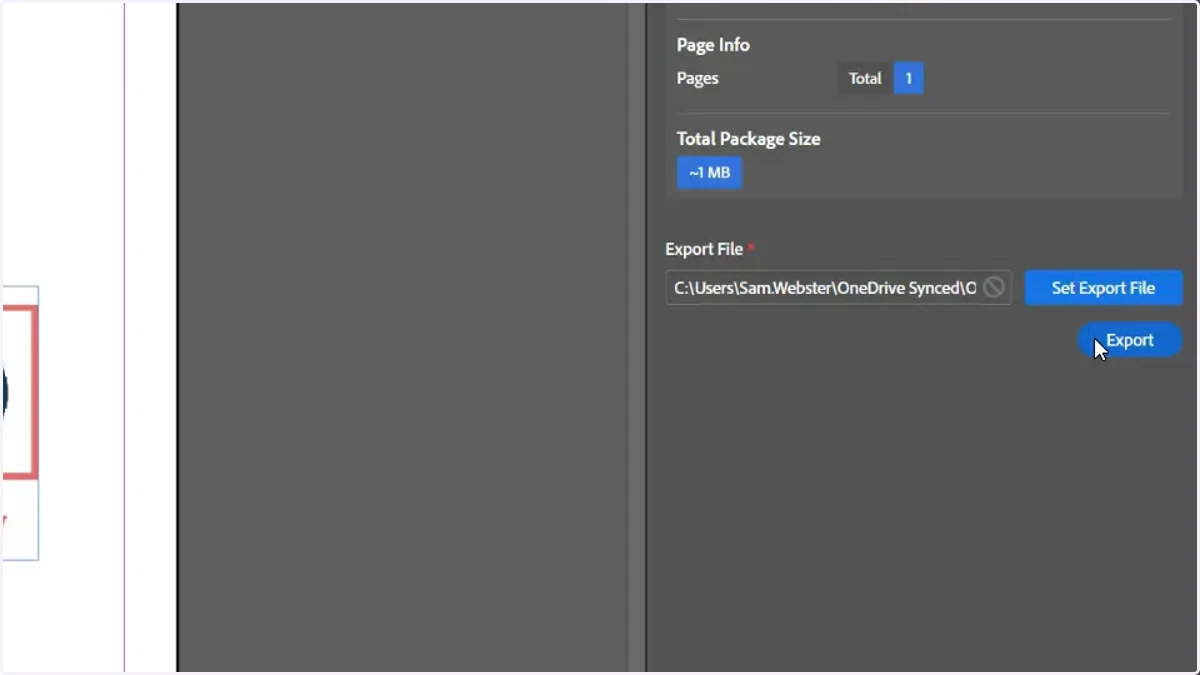
5. Click Export
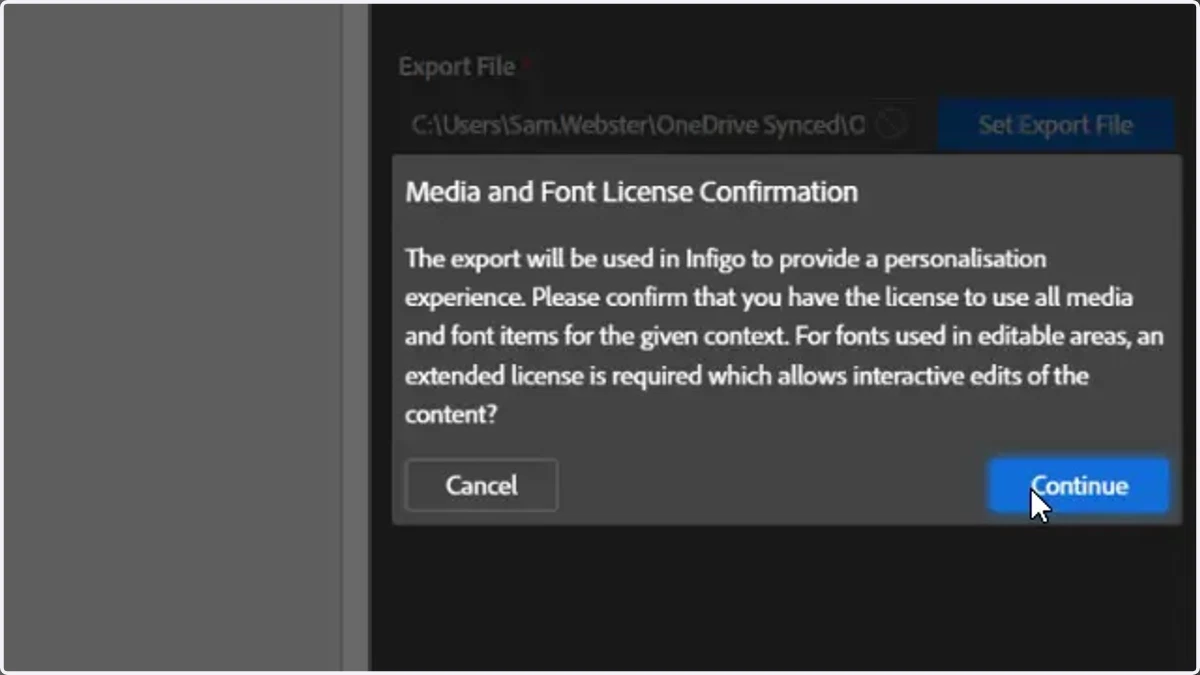
6. You are required to confirm you have the license to use all media and fonts in the exported content
7. Navigate to your Infigo admin area and create a new stock product.
8. Click Catalogue
We must convert our new Stock product to a MegaEdit product.
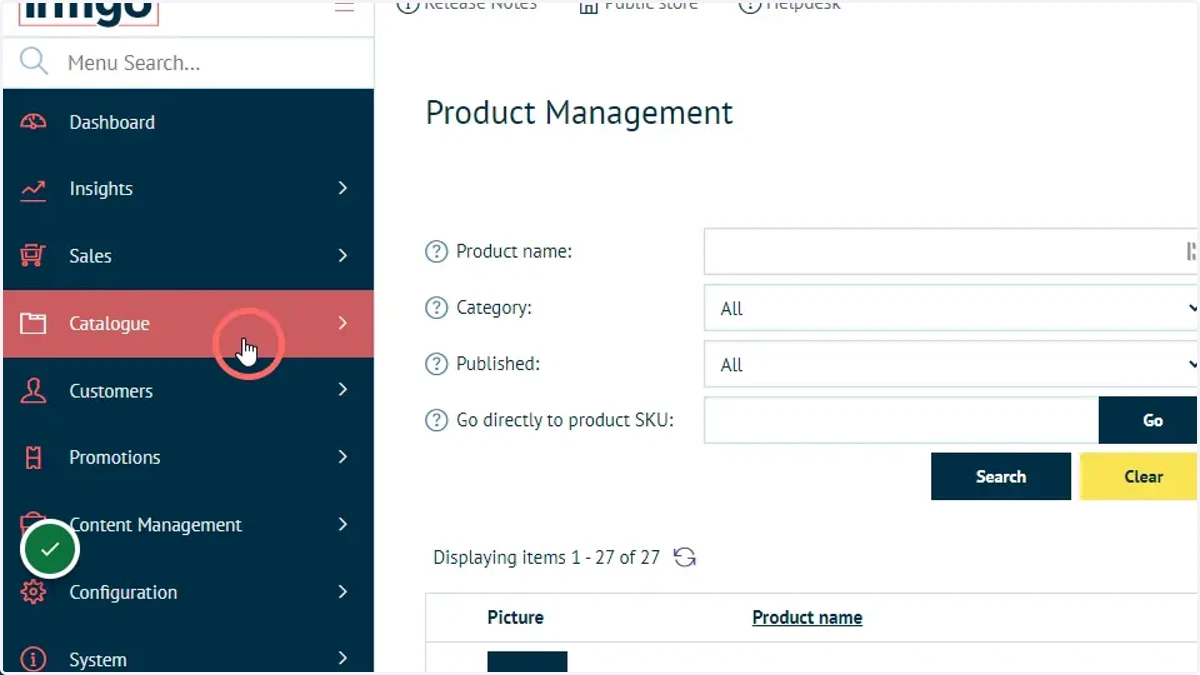
9. Click Product Types
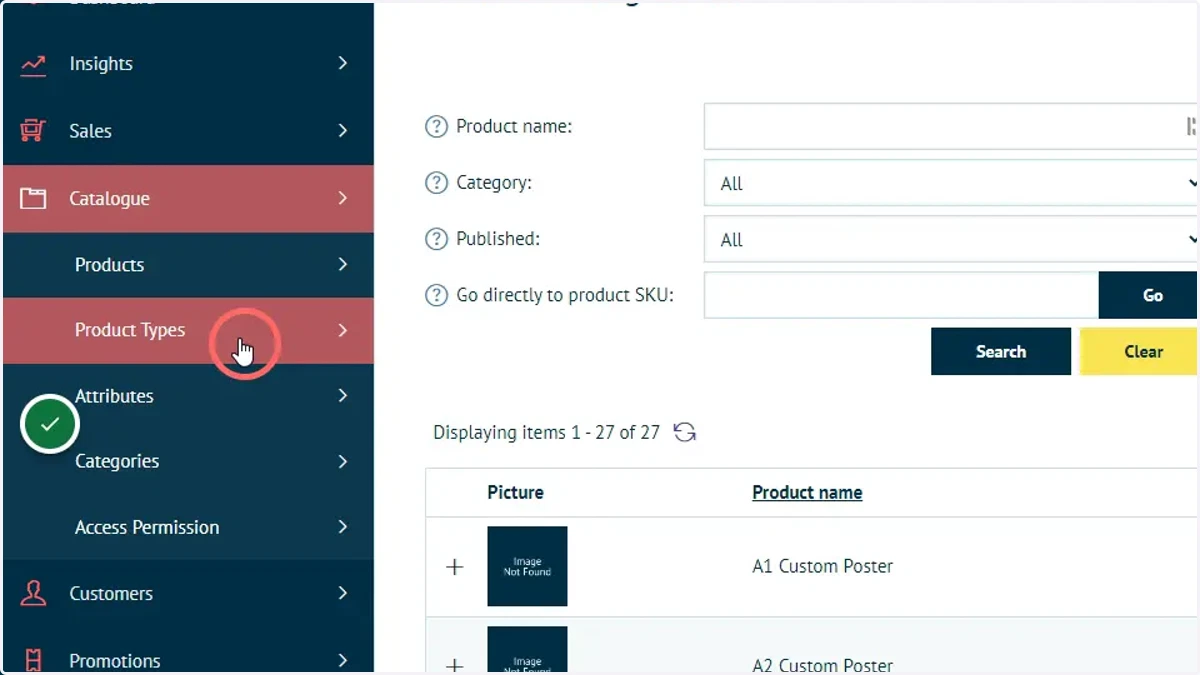
10. Click MegaEdit
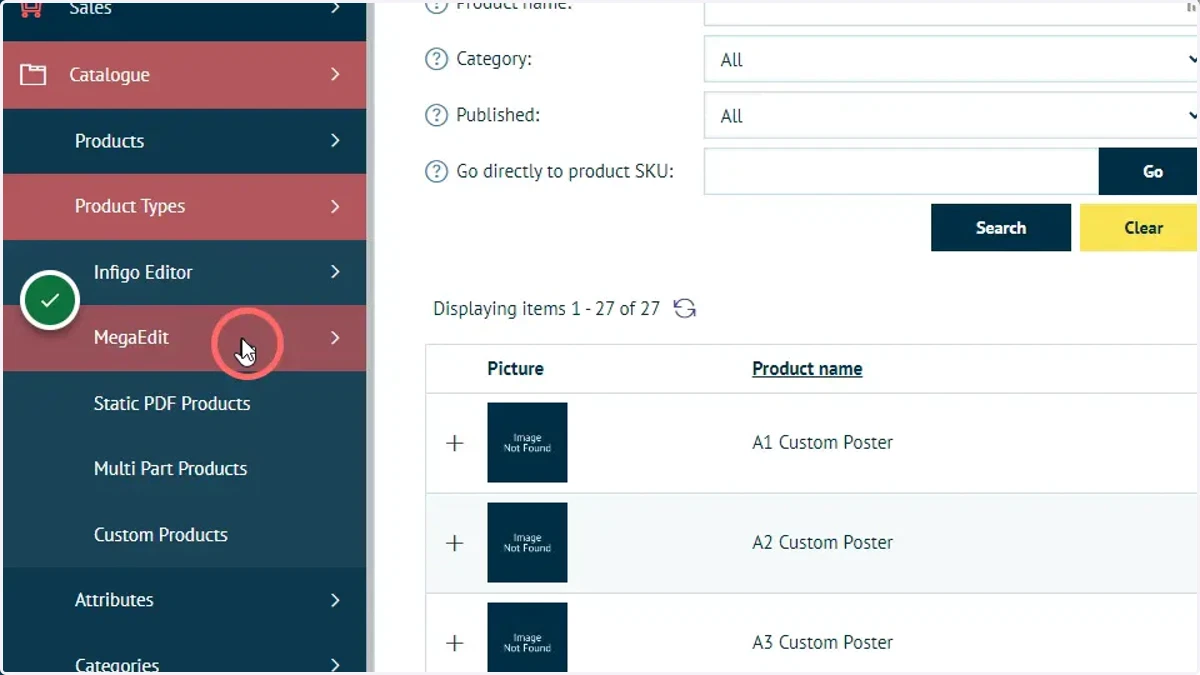
11. Click MegaEdit Products
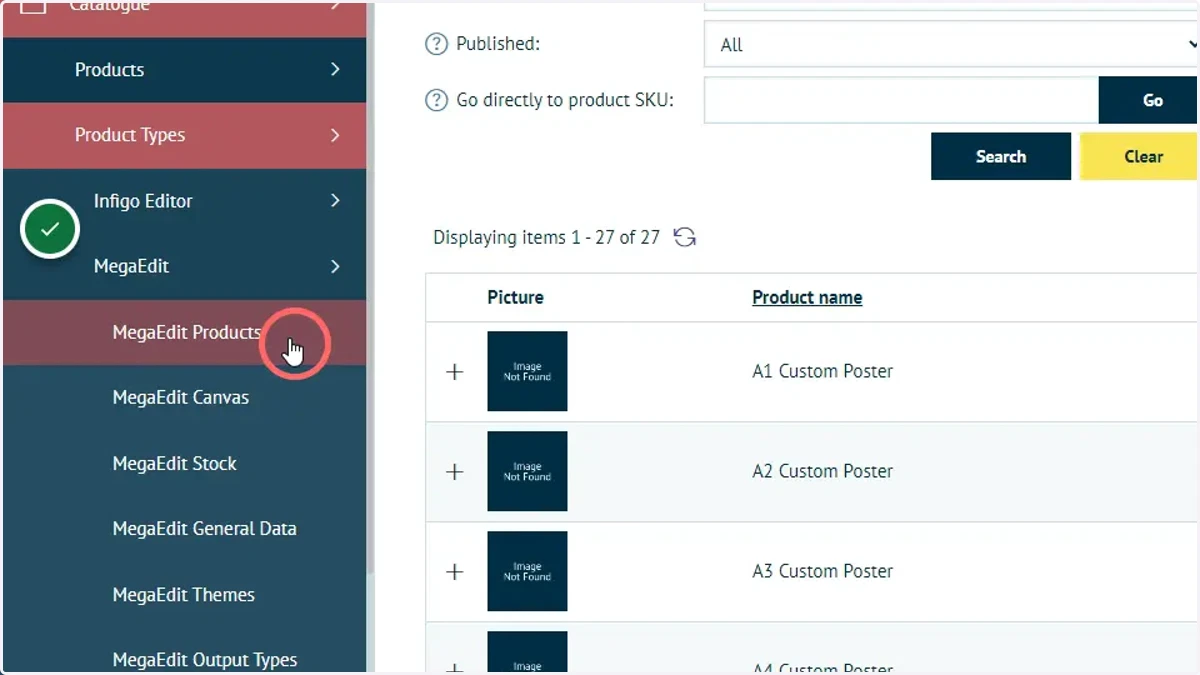
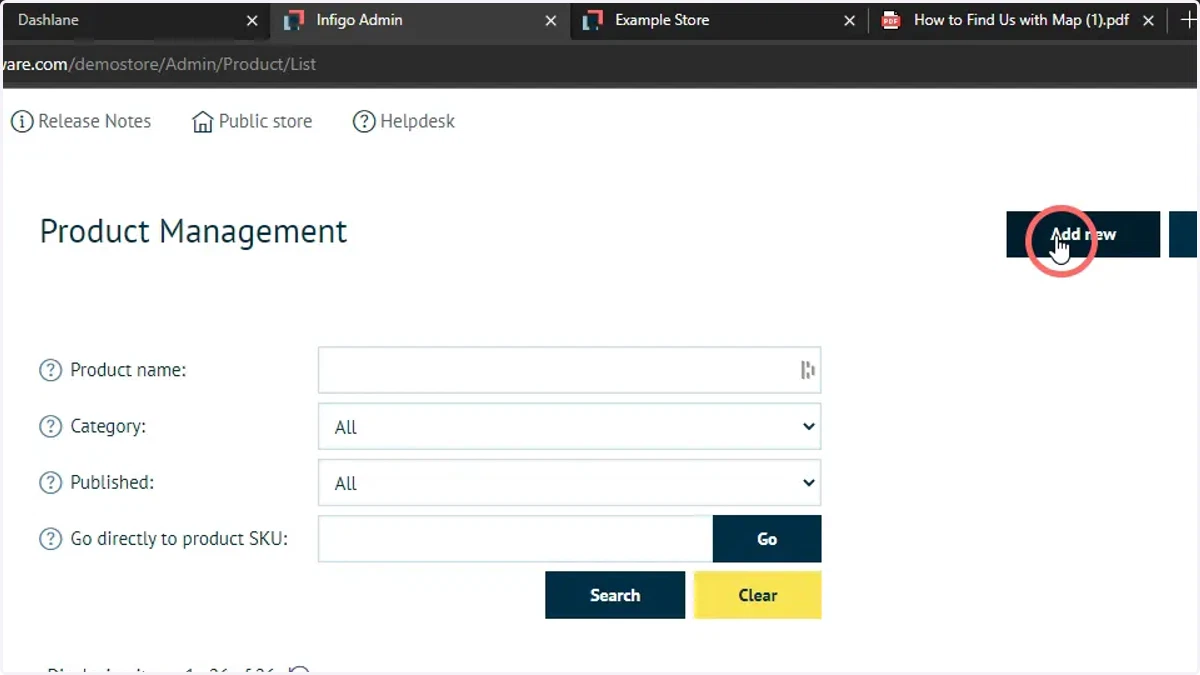
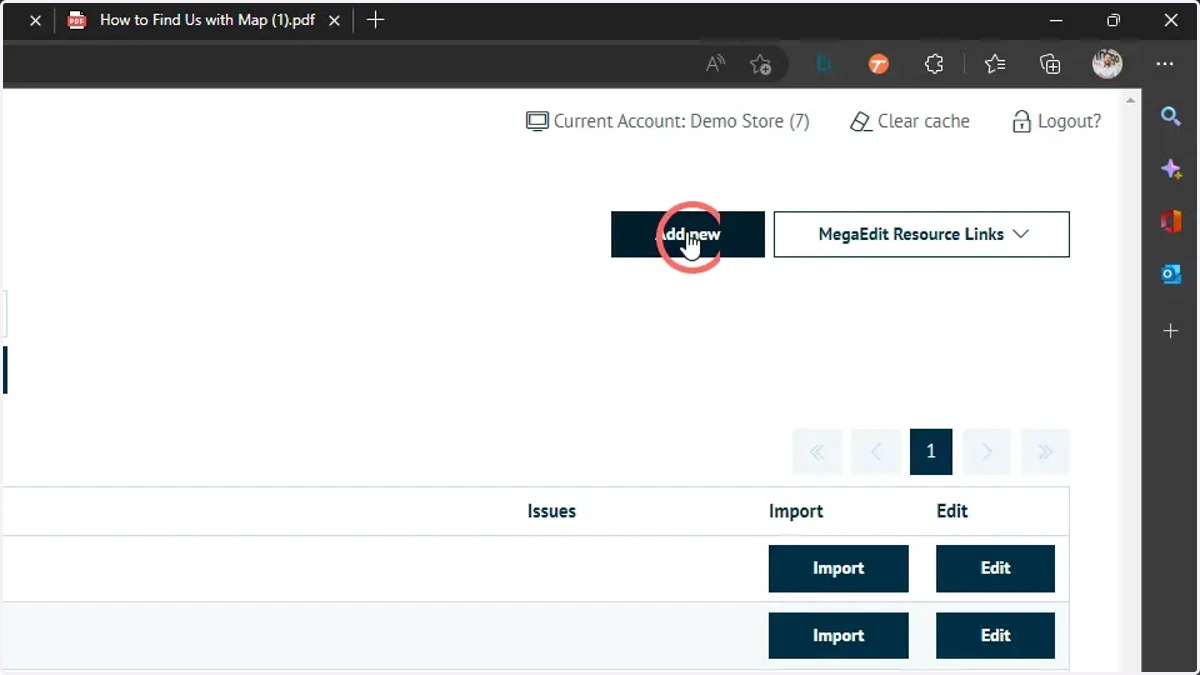
12. Click Add New
microsoft
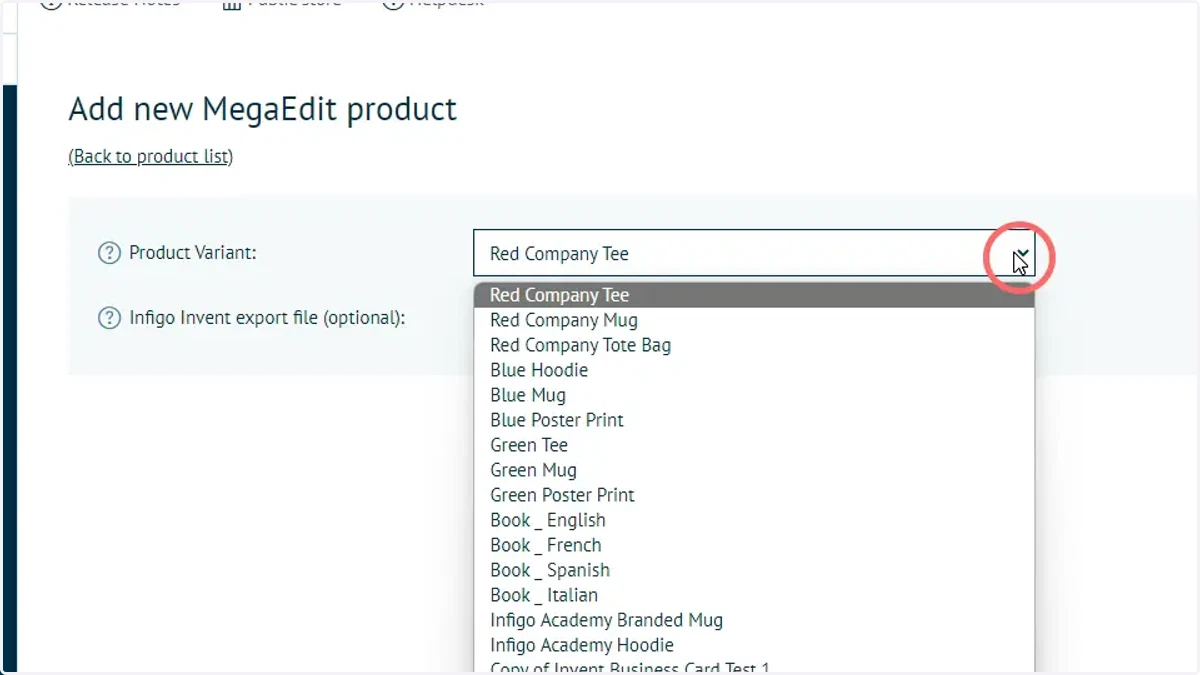
13. Select the product to convert from Stock to a MegaEdit product
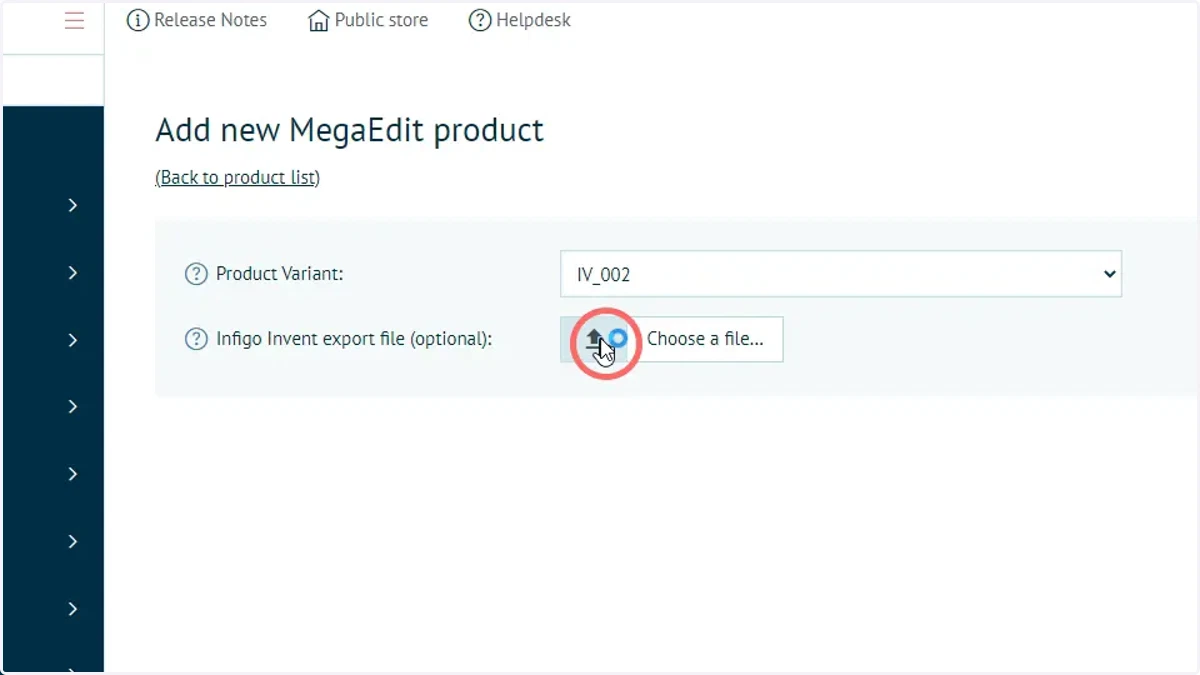
14. Select the Invent export file you obtained from Adobe InDesign
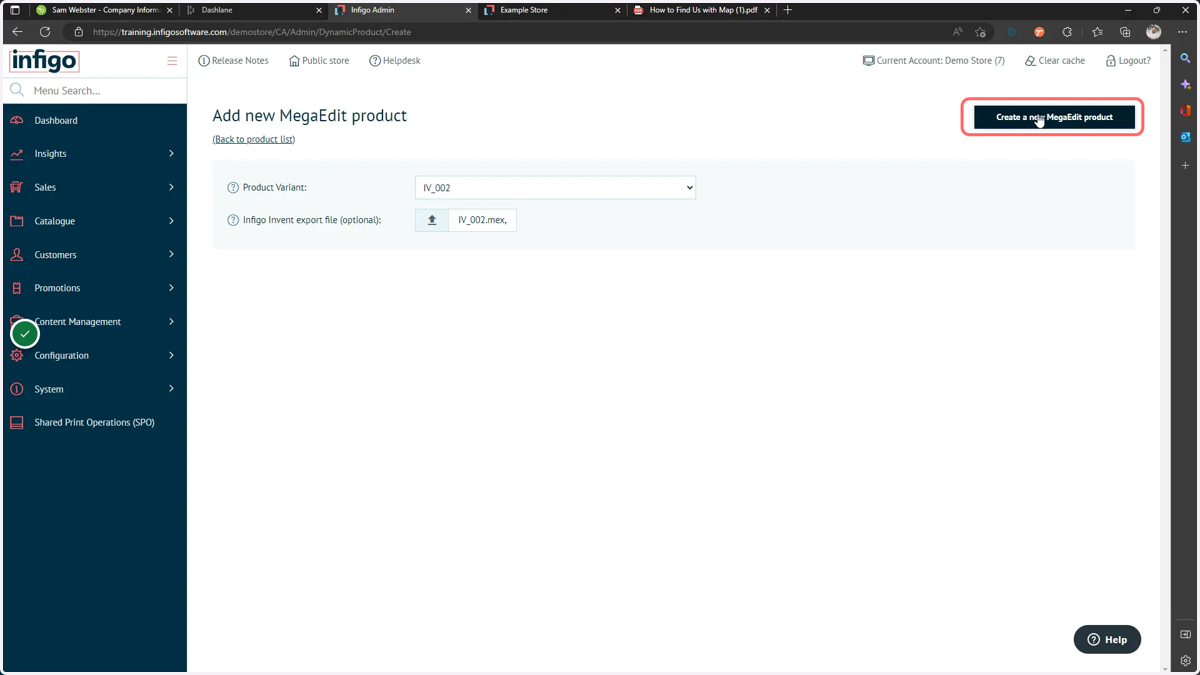
15. Click Create a new MegaEdit product
16. Click Mex import to review the details of the imported Invent template
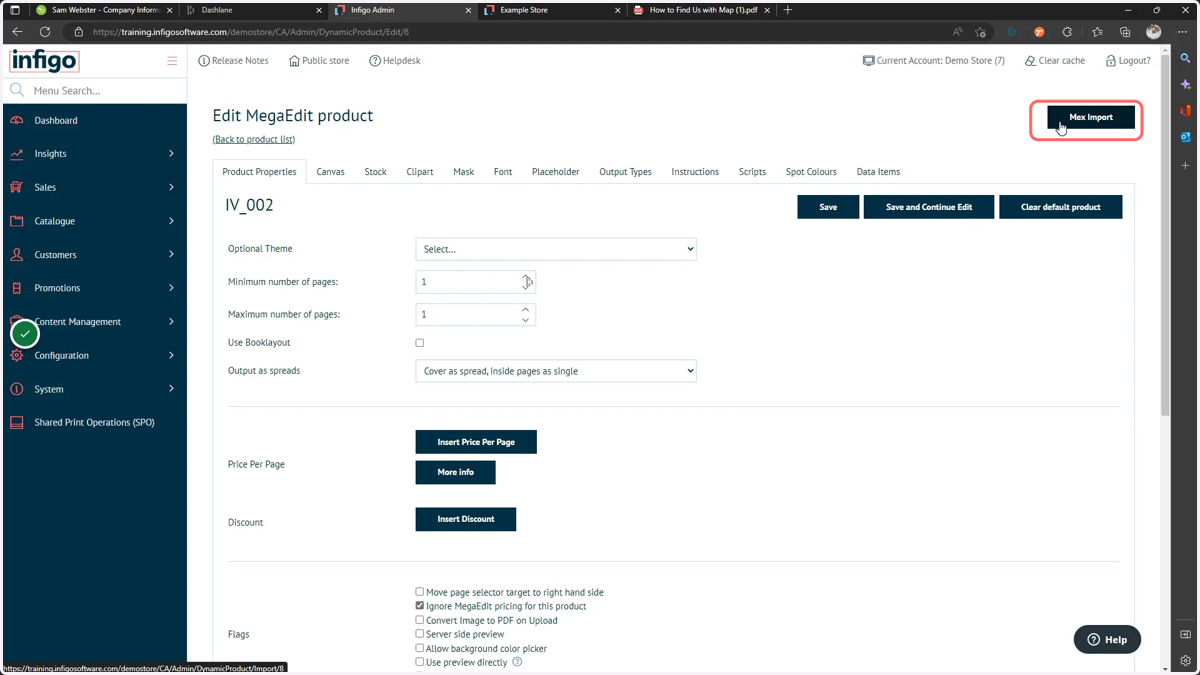
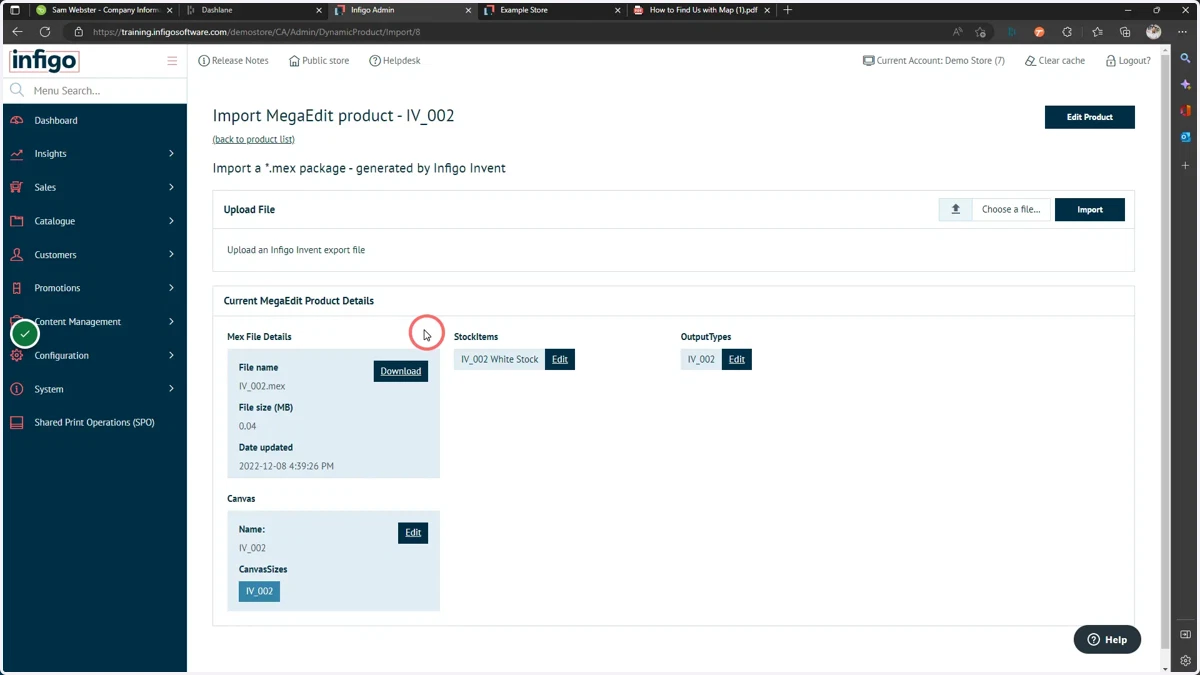
17. Details will be displayed
This includes details on the required Canvas, Stock and Output Type resources, which are automatically generated from your Invent template
microsoft
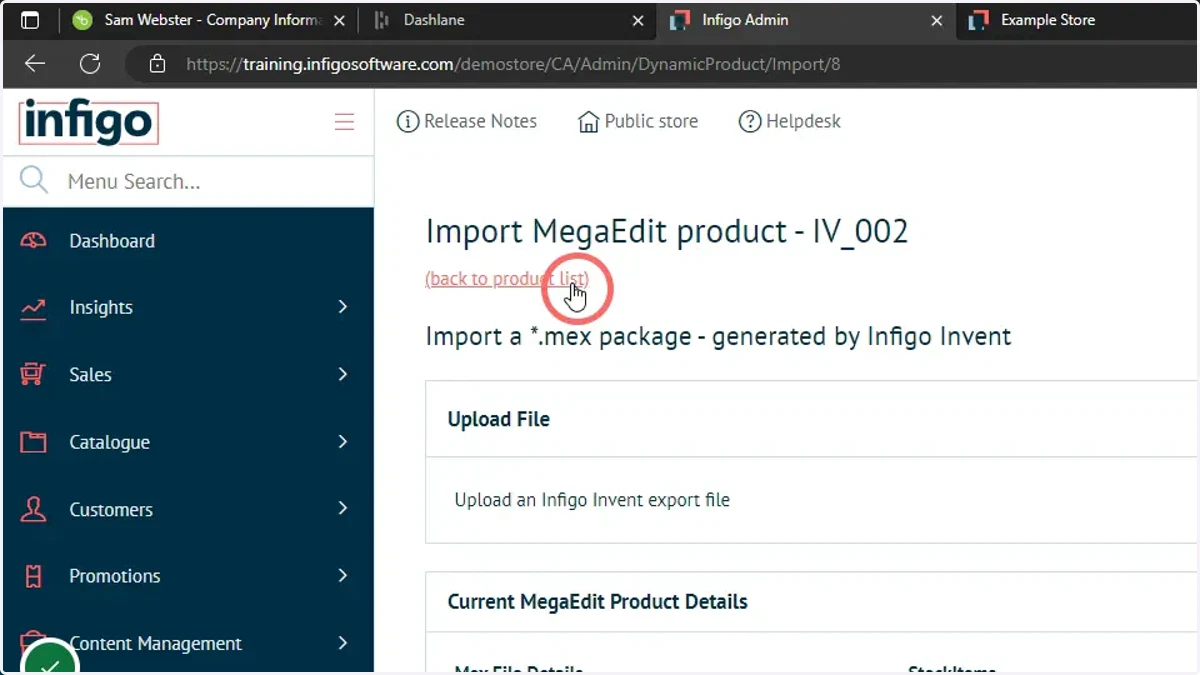
18. Click back to product list
19. Navigate to the product on your storefront and launch MegaEdit
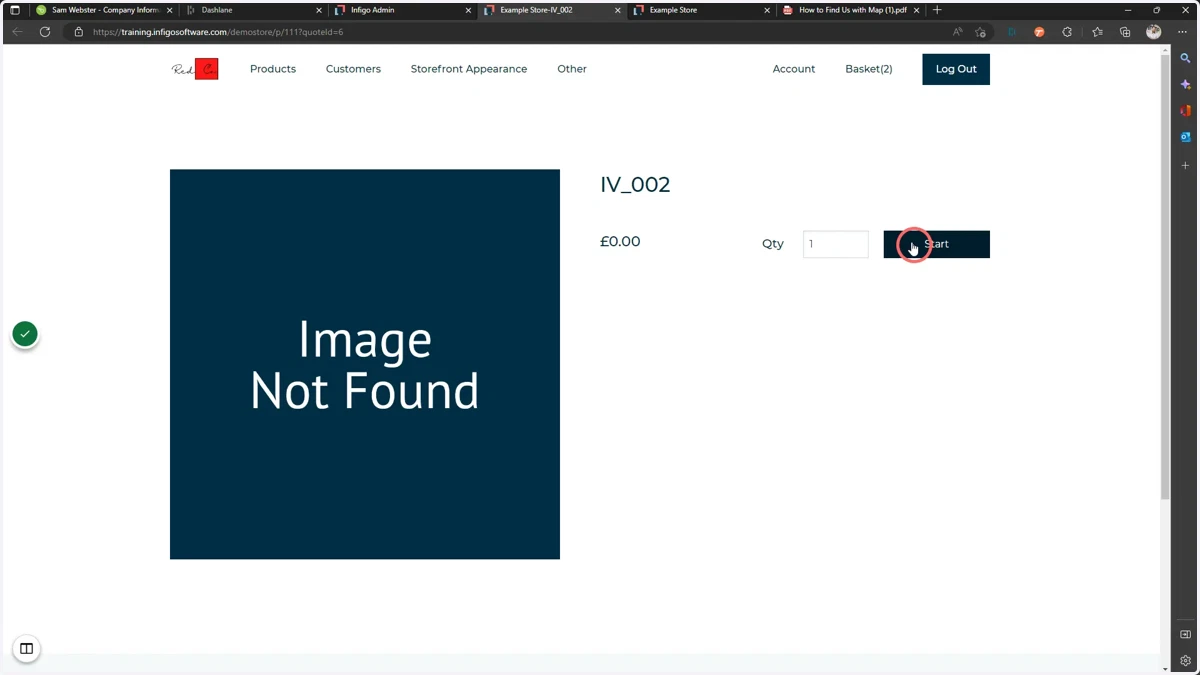
20. Your exported Invent template will be available within MegaEdit