MegaEdit Product Properties
In this tutorial, we will investigate the Product Properties of our MegaEdit products.
These consist of general product settings including; available number of pages, page pricing, preview options and more.
Infigosoftware
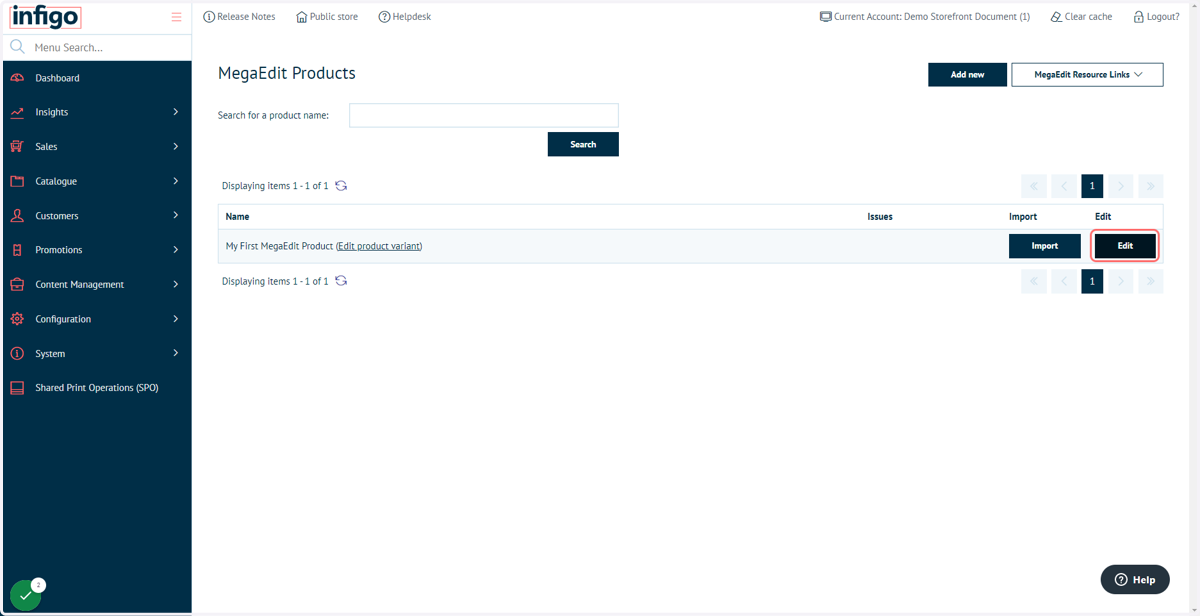
1. Click on Edit
To access MegaEdit product properties, click edit next to a product on the MegaEdit Products screen
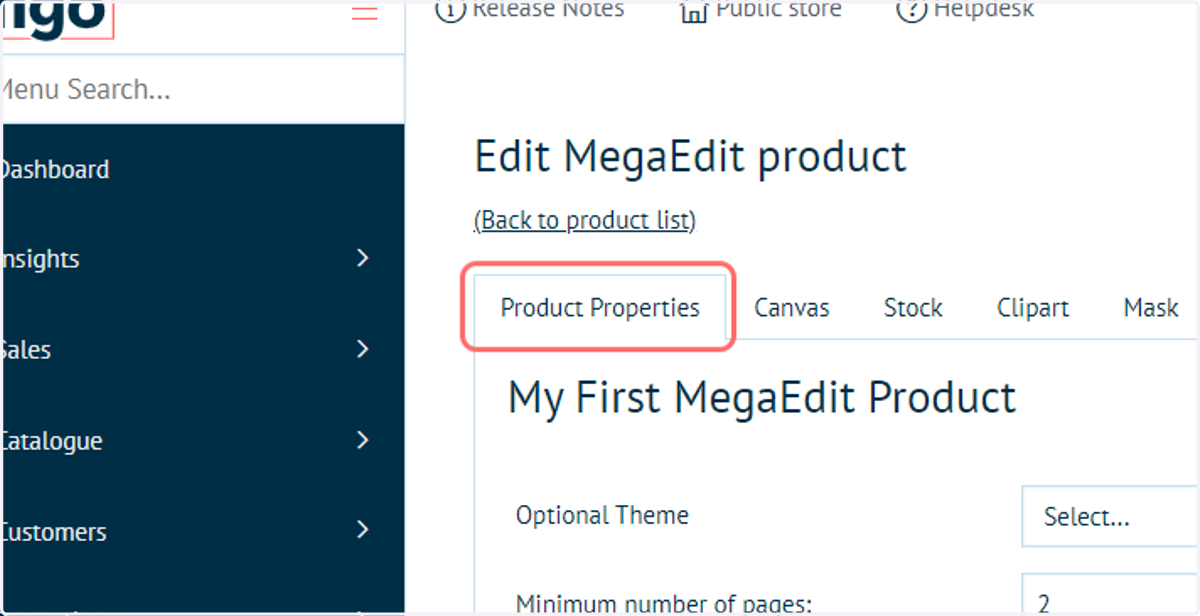
2. Click on Product Properties
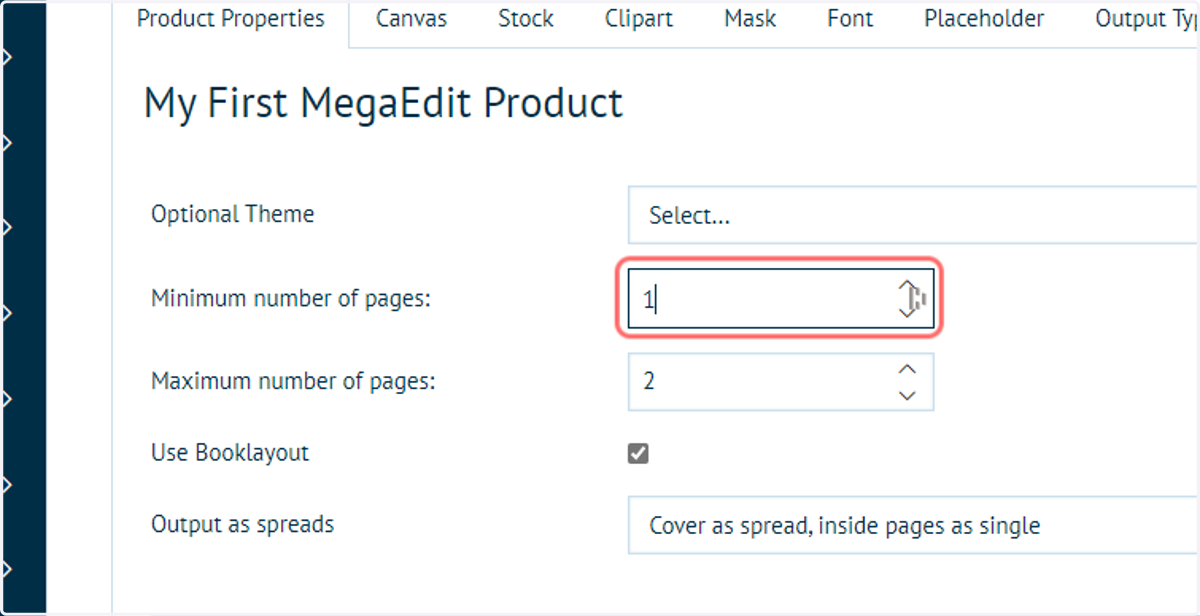
3. Specify a minimum and maximum number of pages
Controls the page quantity limits for this product. If the number of pages is not variable, set both values to the required page value.
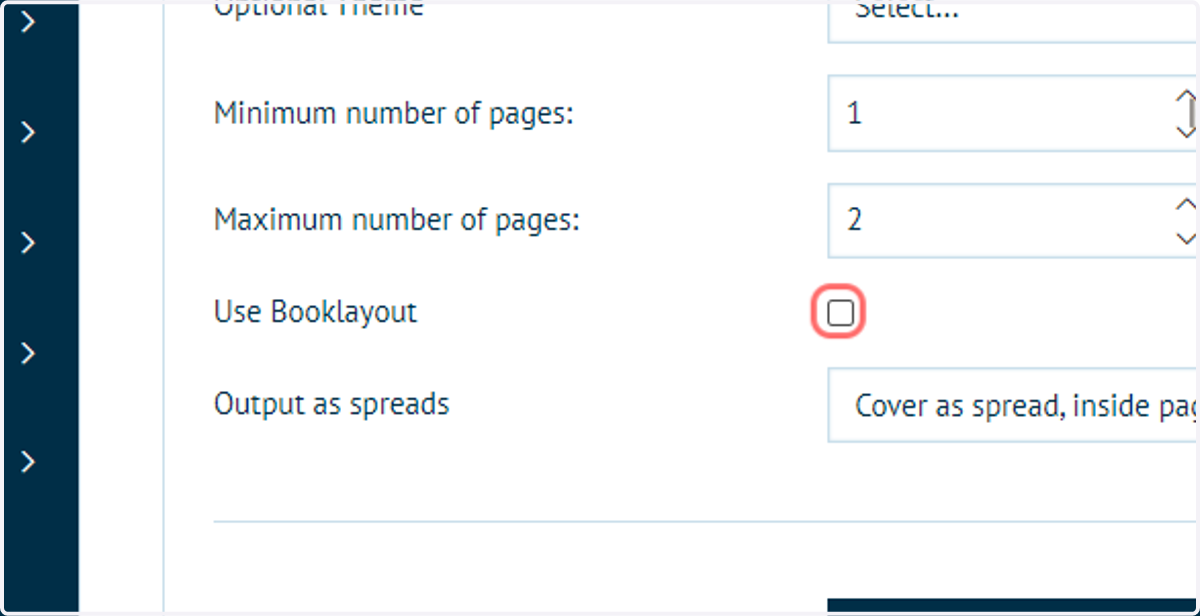
4. Select layout options
This specifies whether your product is intended to be in booklet format and will generally control how the layout will behave.
For our example, we will not use a booklet layout.
Infigosoftware
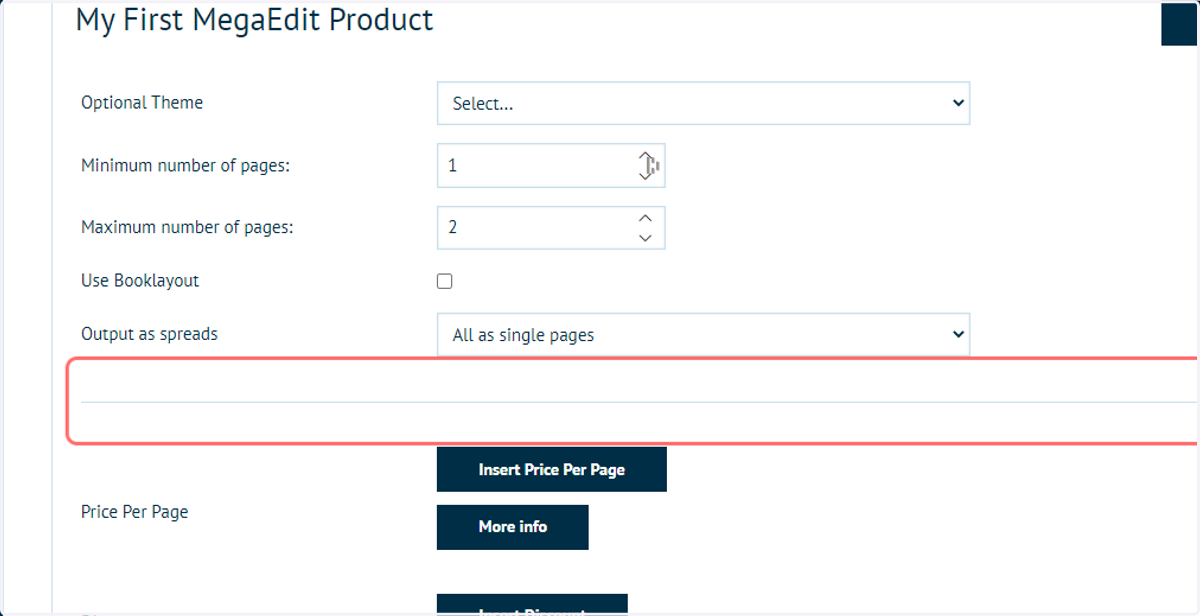
5. Configure Output as spreads
This will determine how your output PDF will be configured.
If creating a booklet you can choose one of the cover options. For our example, we will have each page as a single page.
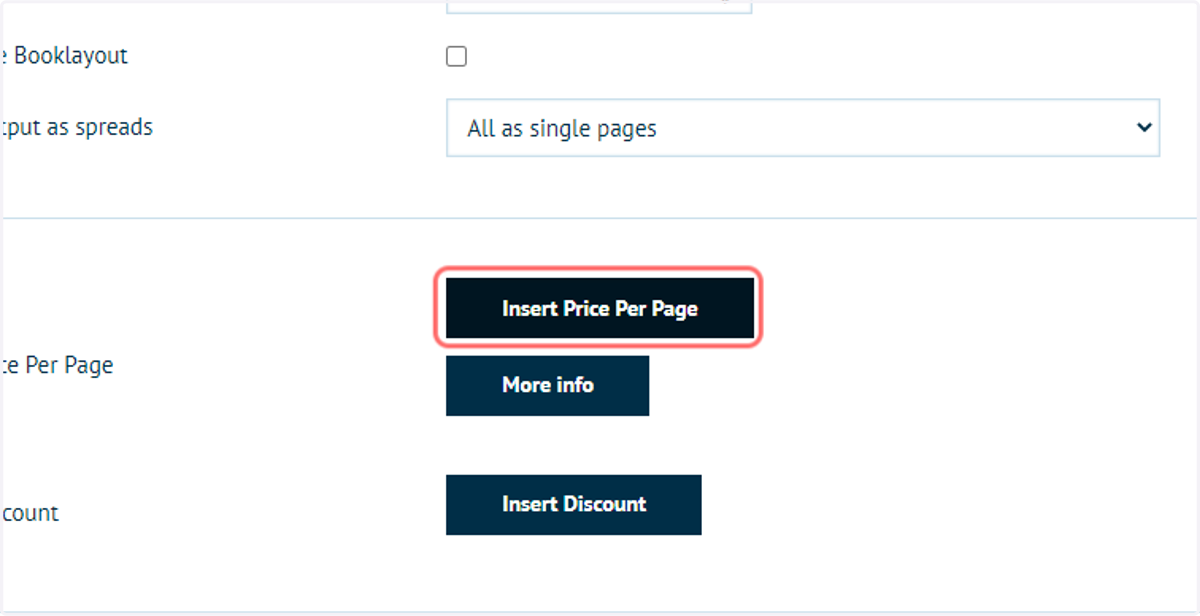
6. Click on Insert Price Per Page
Primarily for booklet creation with a dynamic number of pages.
A price can be set against each page that is added.
User specifies a tier and then a price per page.
Infigosoftware
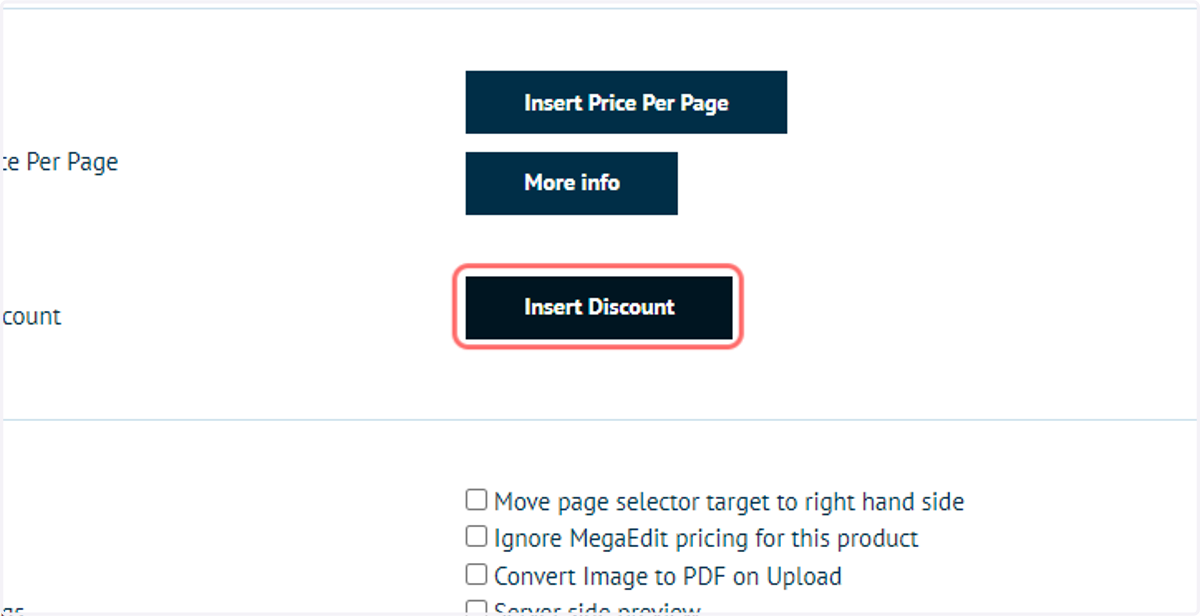
7. Click on Insert Discount
Focused on booklet or photobook customers and is not generally used elsewhere.
Insert a discount based on product quantity. This would not display in the basket as a separate discount.
Is not generally used, as in most cases administrators will want customers to use a coupon code to obtain a discount, so their usage can be tracked.
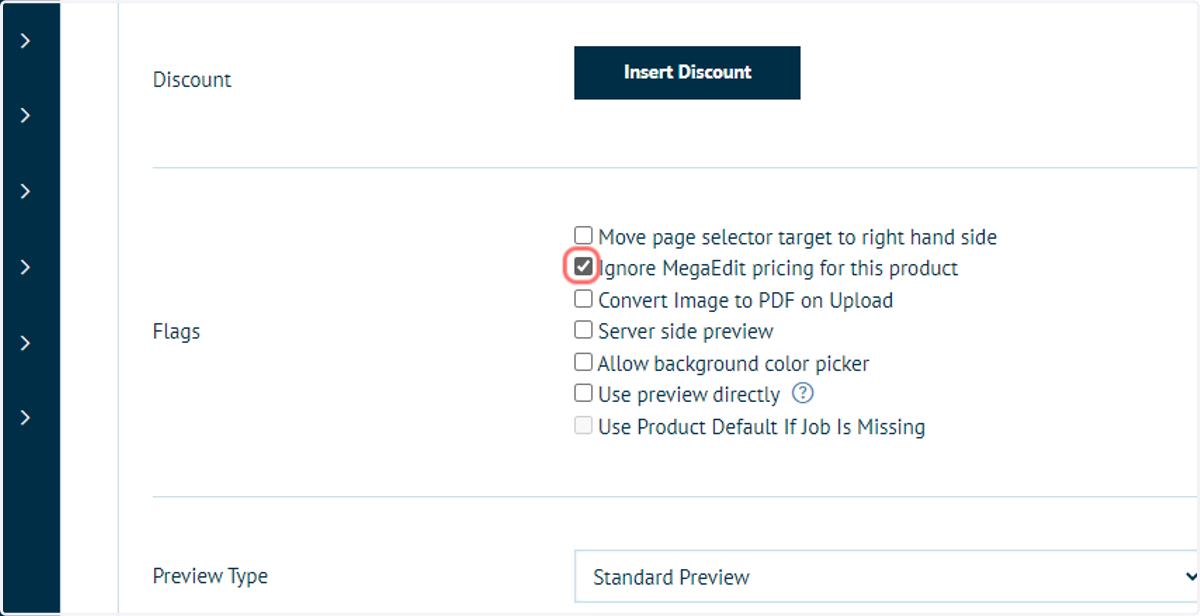
8. Review Product Properties flags
Be aware of MegaEdit pricing. During the setup of this product, we have seen areas where price tiers are specified and factor increases are specified. They will be applied as soon as those settings are saved.
Should you wish to revert a product to using the standard Infigo pricing structure (specified in the Product Variant settings), check "Ignore MegaEdit pricing for this product".
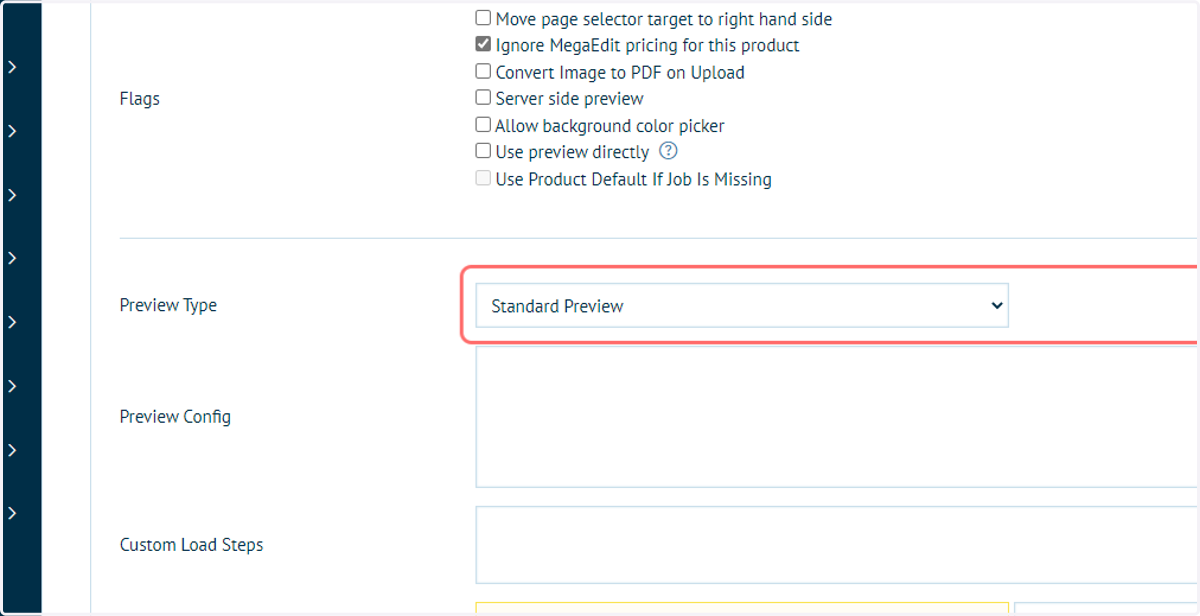
9. Click on Standard Preview
Select whether a product preview will be available.
Infigosoftware
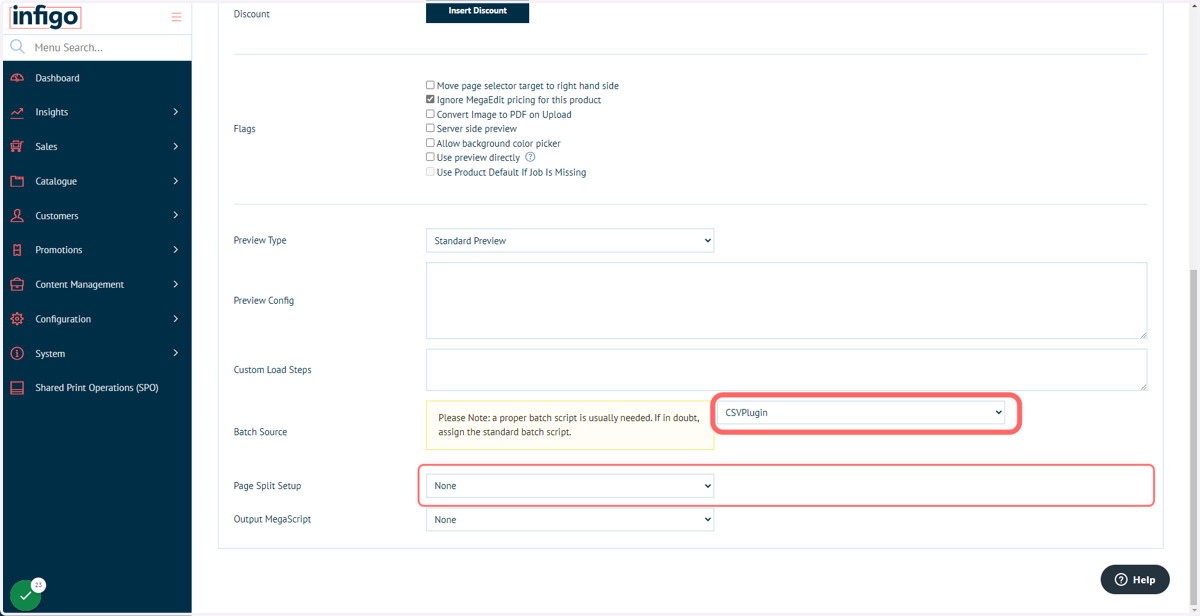
10. Select a batch source, if required.
Allows the customer to upload a variable data file, such as from a CSV. This is useful if there are multiple data records to be utilised in your dynamic product, such as creating business cards for multiple people within a business.
This option selects the type of upload the dynamic product will accept. In our example, we will choose CSVPlugin, where customers can upload a CSV document.
11. Click on Save