Securly Parent Portal Sign Up Directions
These directions show how parents in Edmonds School District can login to Qmlativ and sign up for Securly Parent Portal accounts and activity report emails to see student browsing data via Securly reports.
Login to Qmlativ Family Access
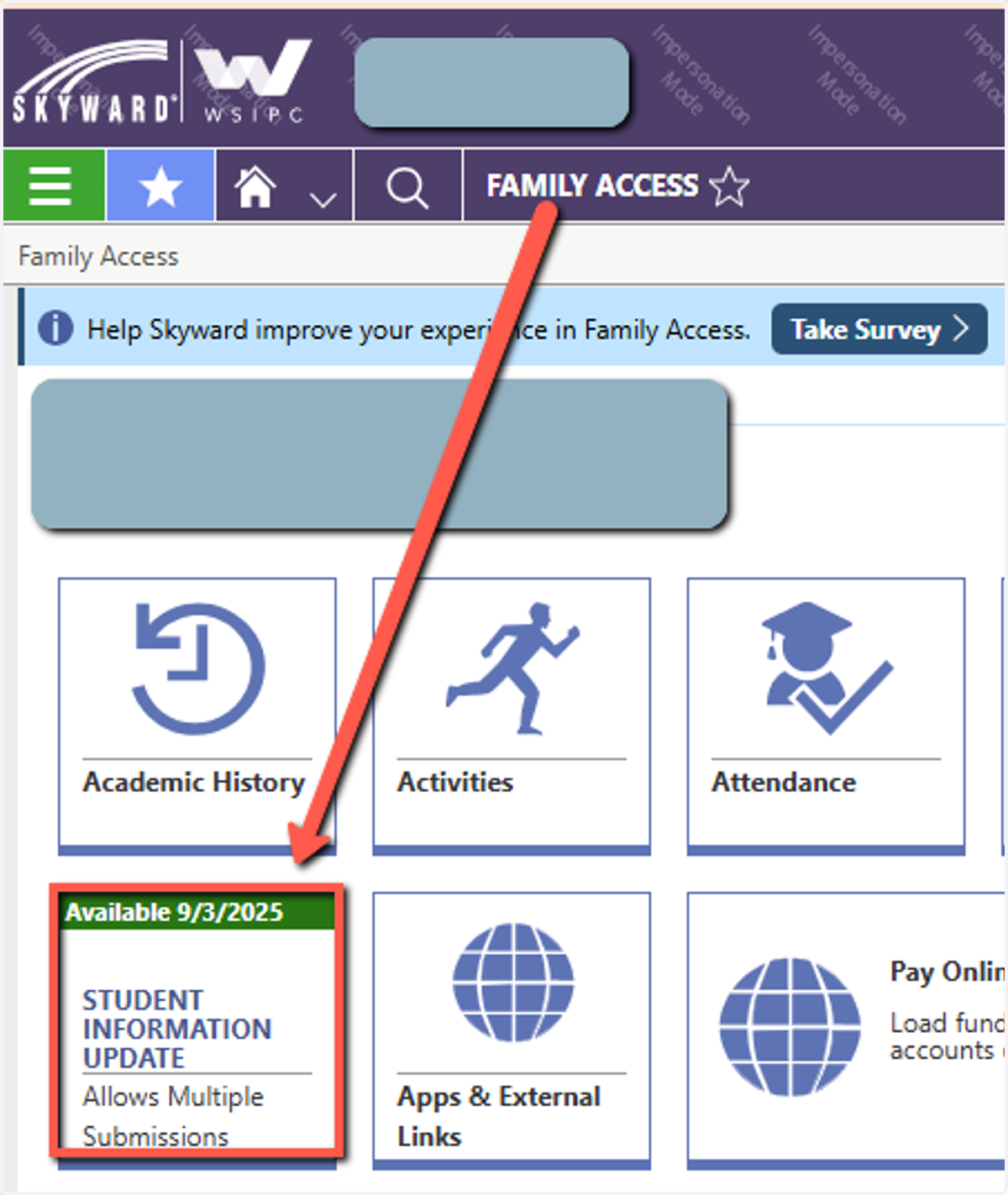
Login to Edmonds Qmlativ and scroll down to your student in Family Access.
1. Select Student Information Update Tile
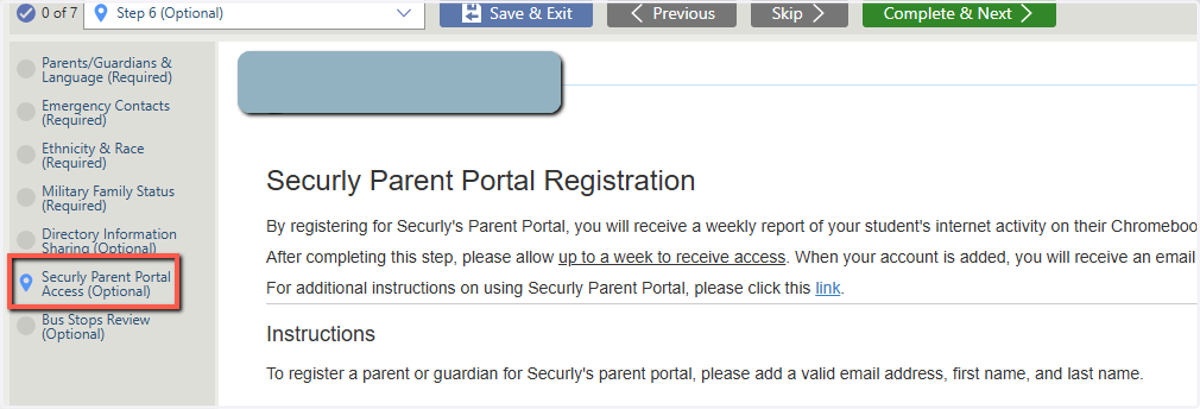
Find the online form called Securly Parent Portal Access - click it to get started
2. Select Securly Parent Portal Access (Optional) from the list on the left
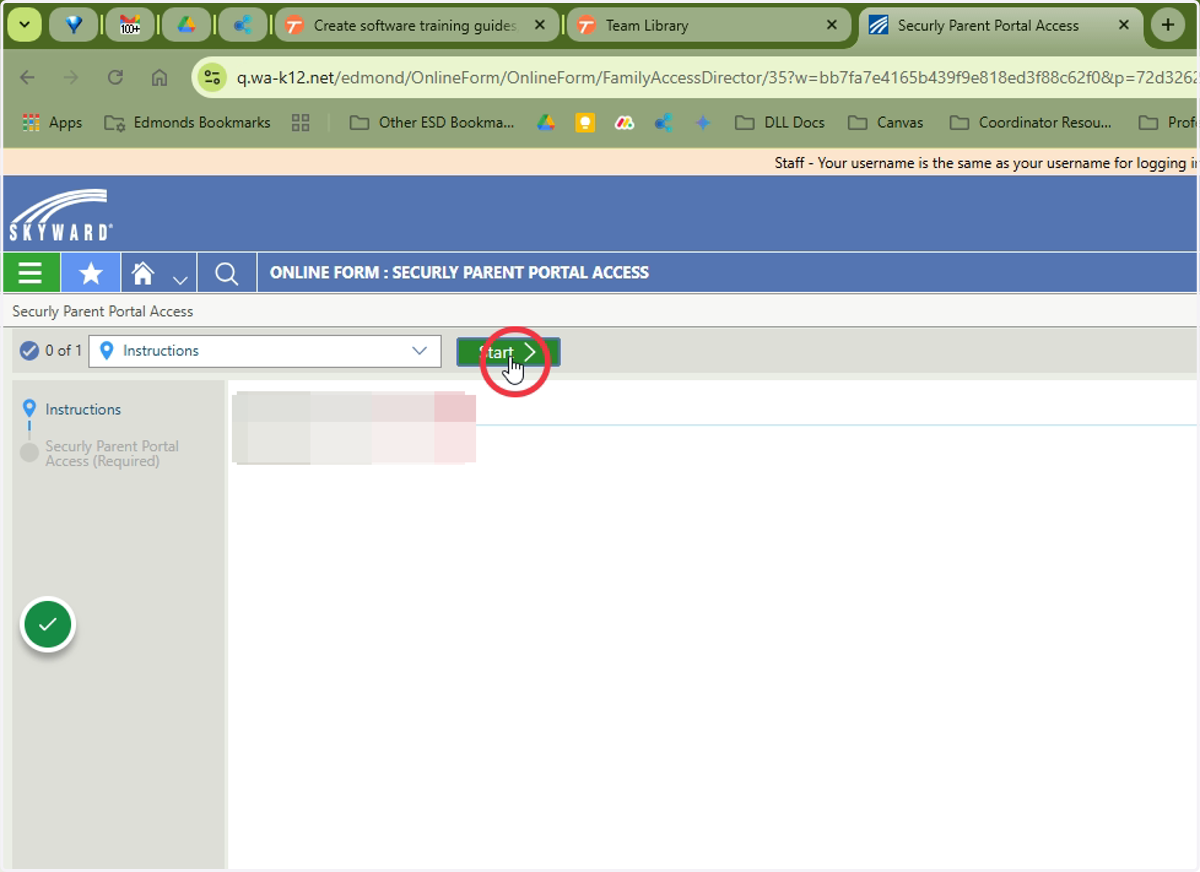
3. Click start to begin the form
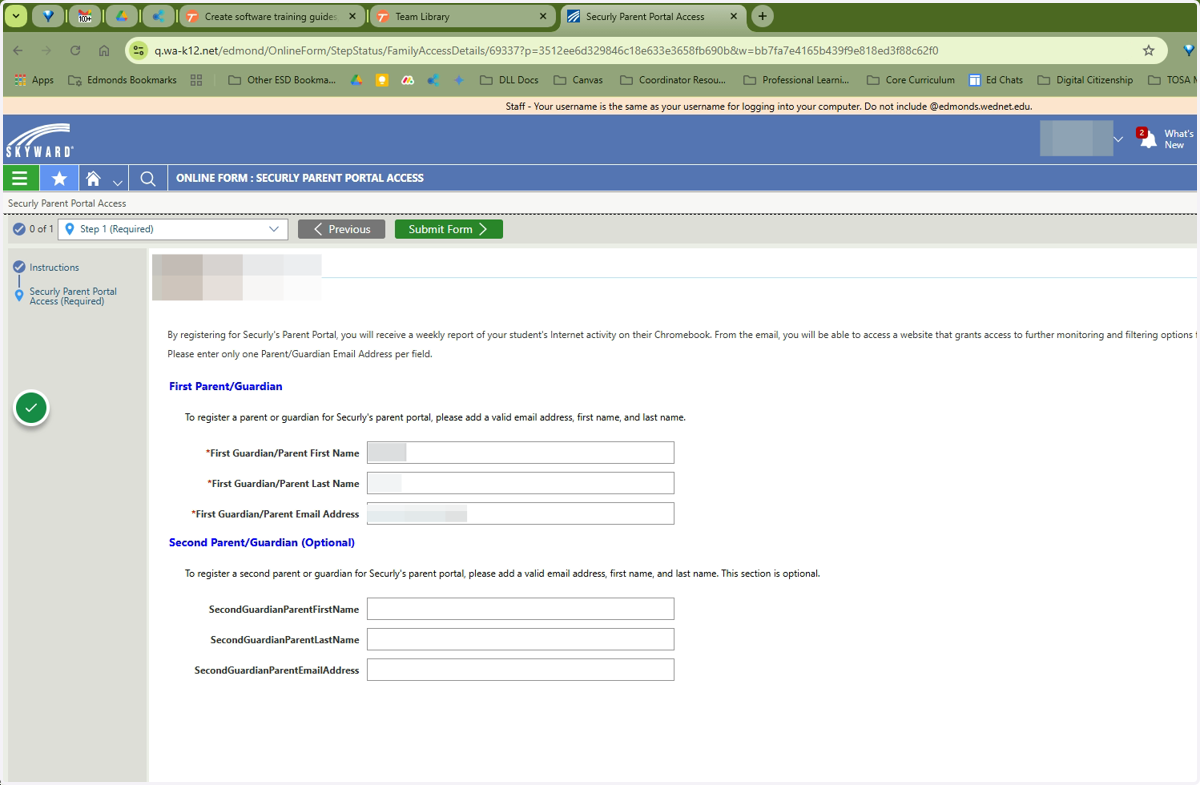
4. Enter parent/guardian information
Enter your first and last name and email address to initiate the process to receive Securly activity reports for your student. If you have two or more students, these steps will need to be repeated for each student.
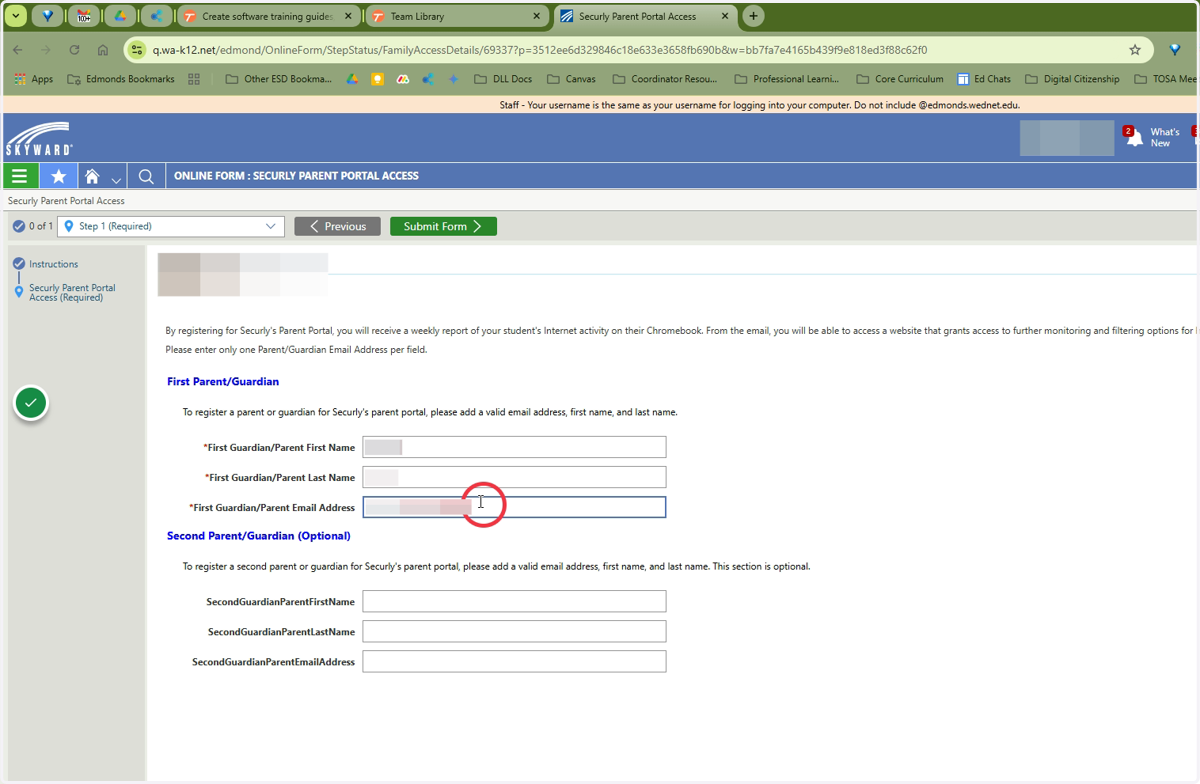
5. Second Parent/Guardian Information
If desired you can enter the information of a second parent or guardian to initiate the process for them to also receive Securly activity reports.
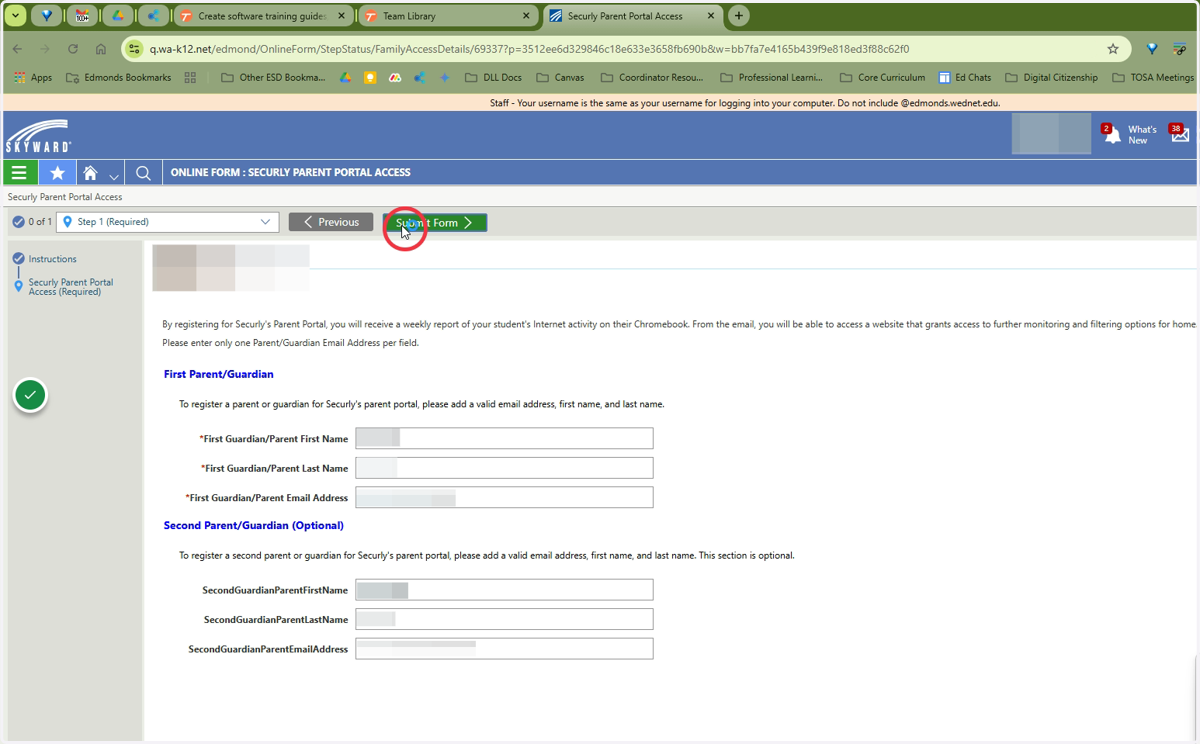
6. Submit Form
After you have entered all necessary information, click submit form.
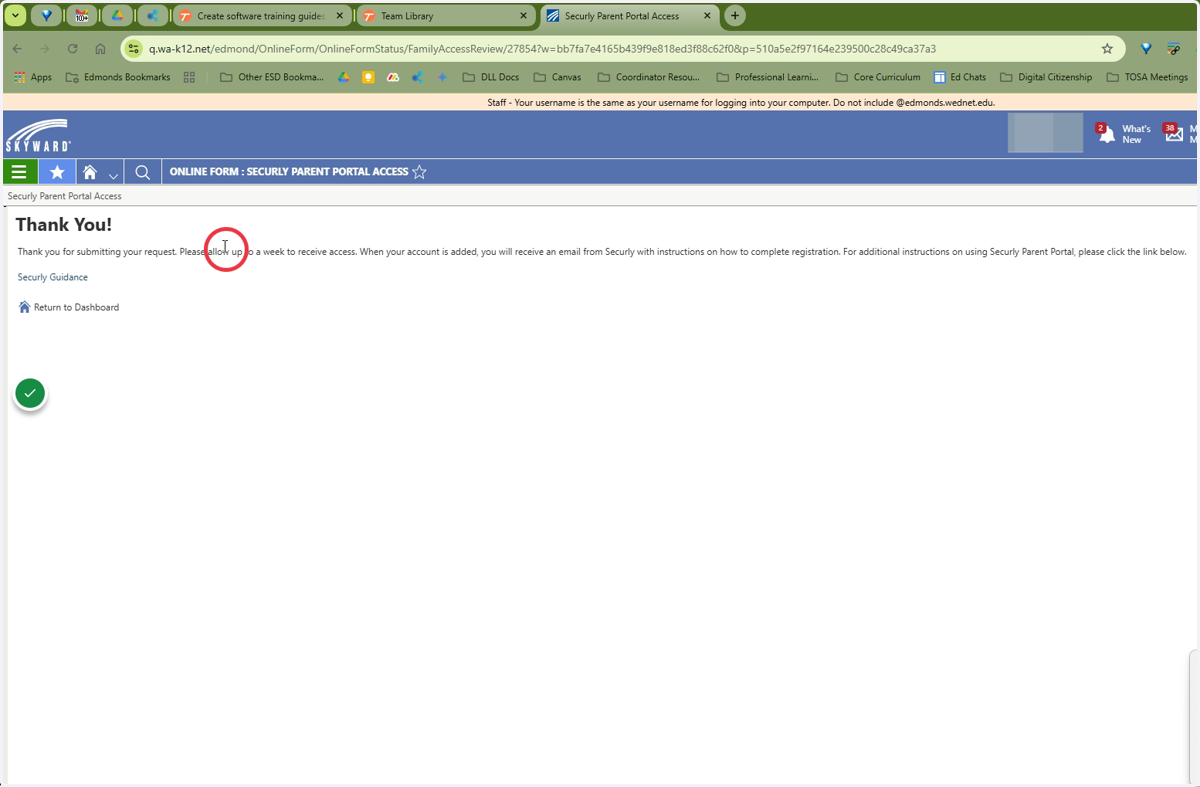
7. Final Screen
Please look for a sign up email from Securly to complete your account set up.
8. For additional information see the Securly Parent Portal Website