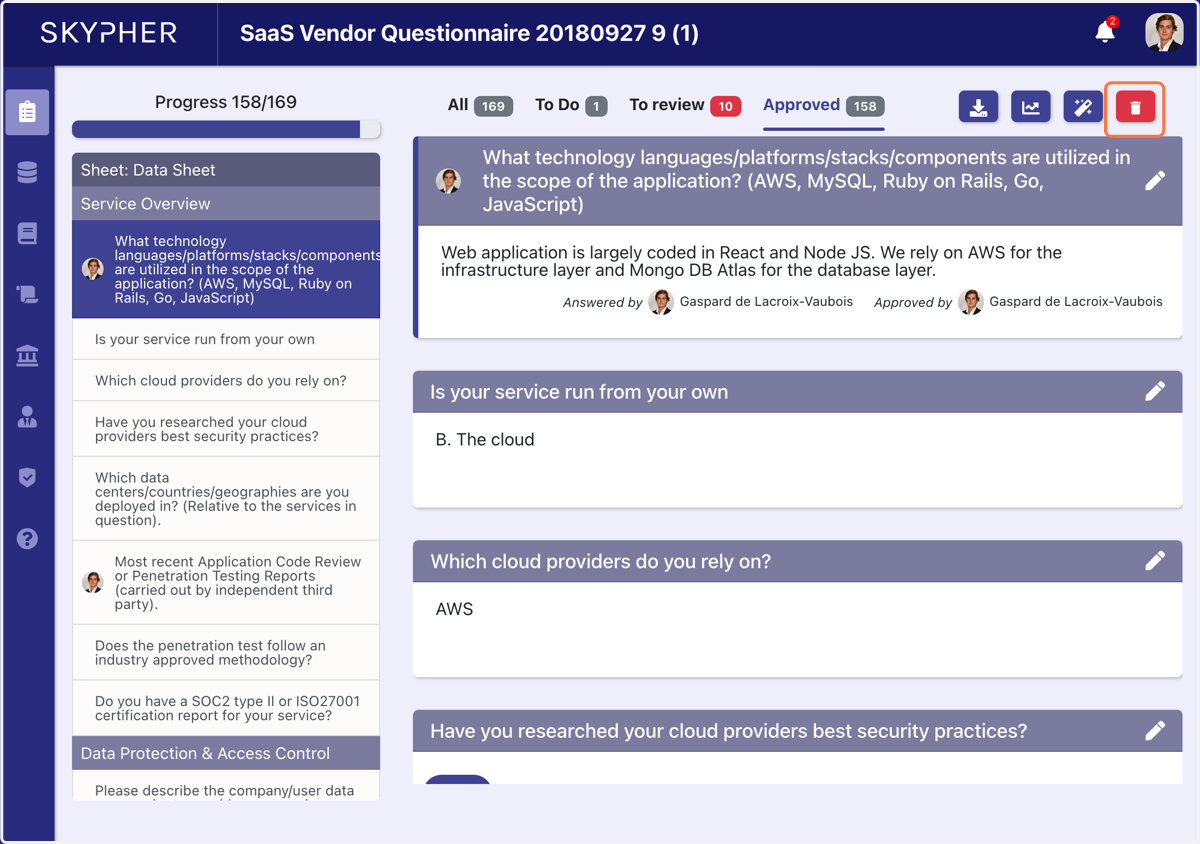
Complete a questionnaire on the plateforme
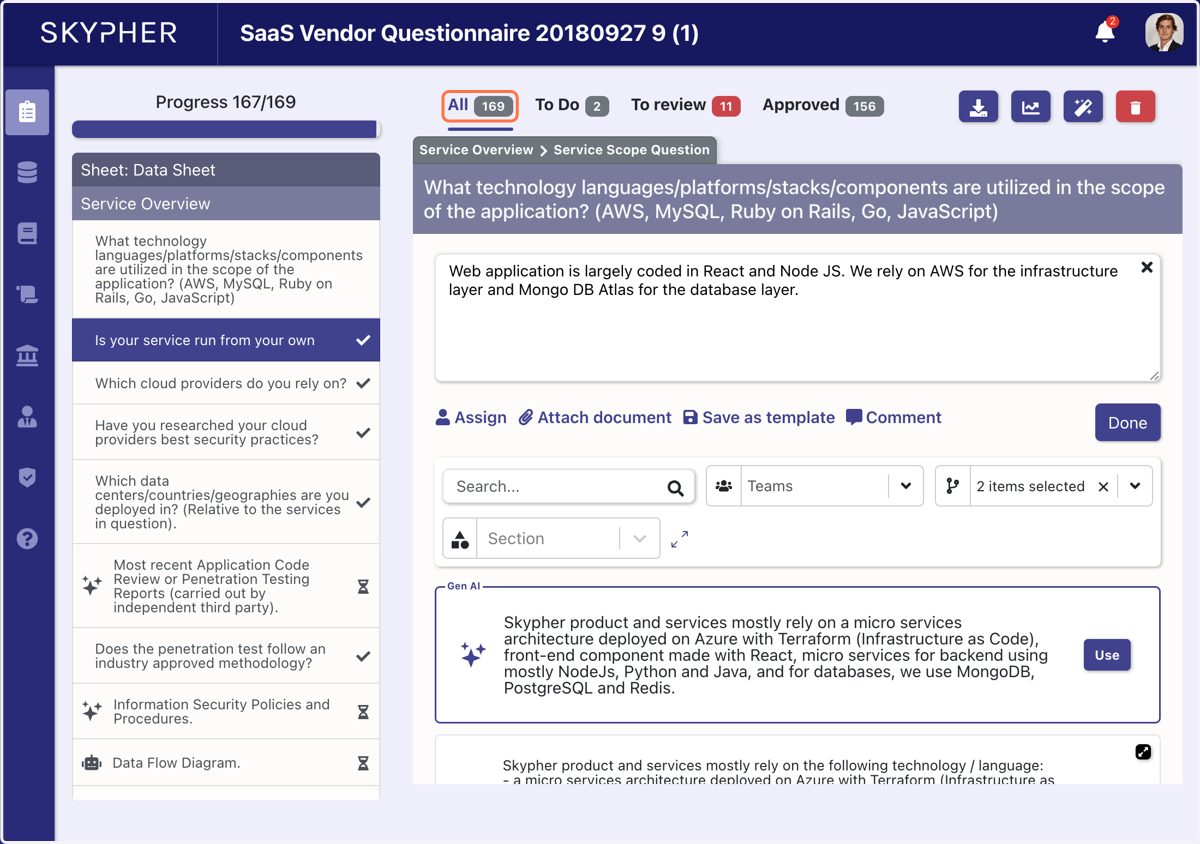
1. Once you uploaded the questionnaire, you can click on All to see all the questions
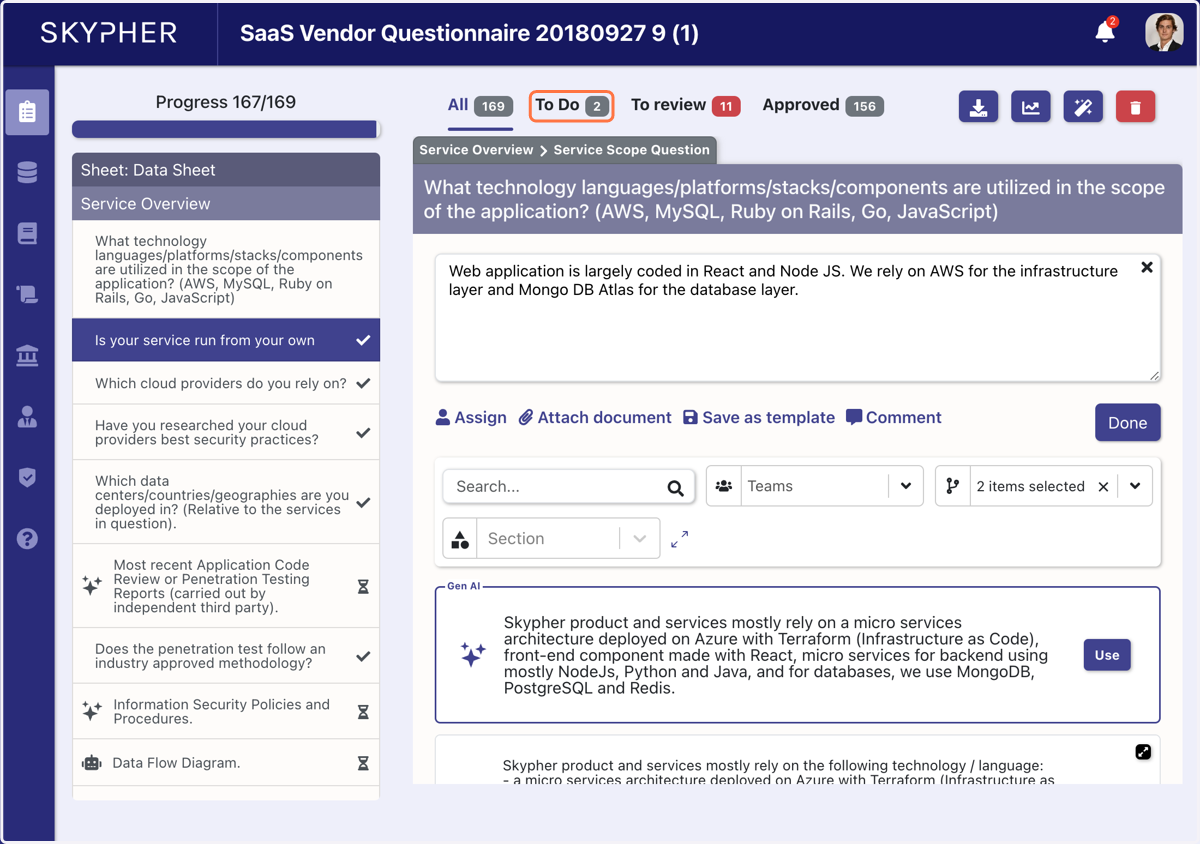
2. Click on To Do to see all the questions to be done
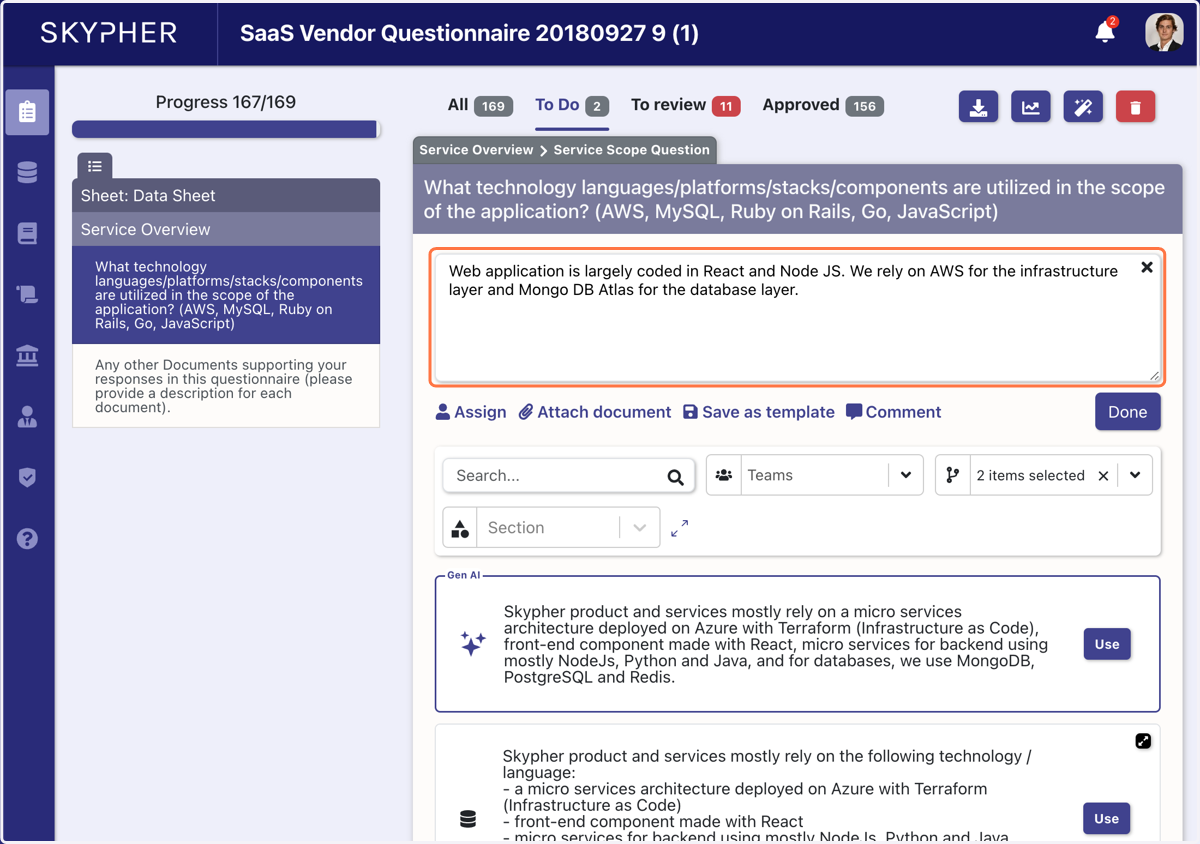
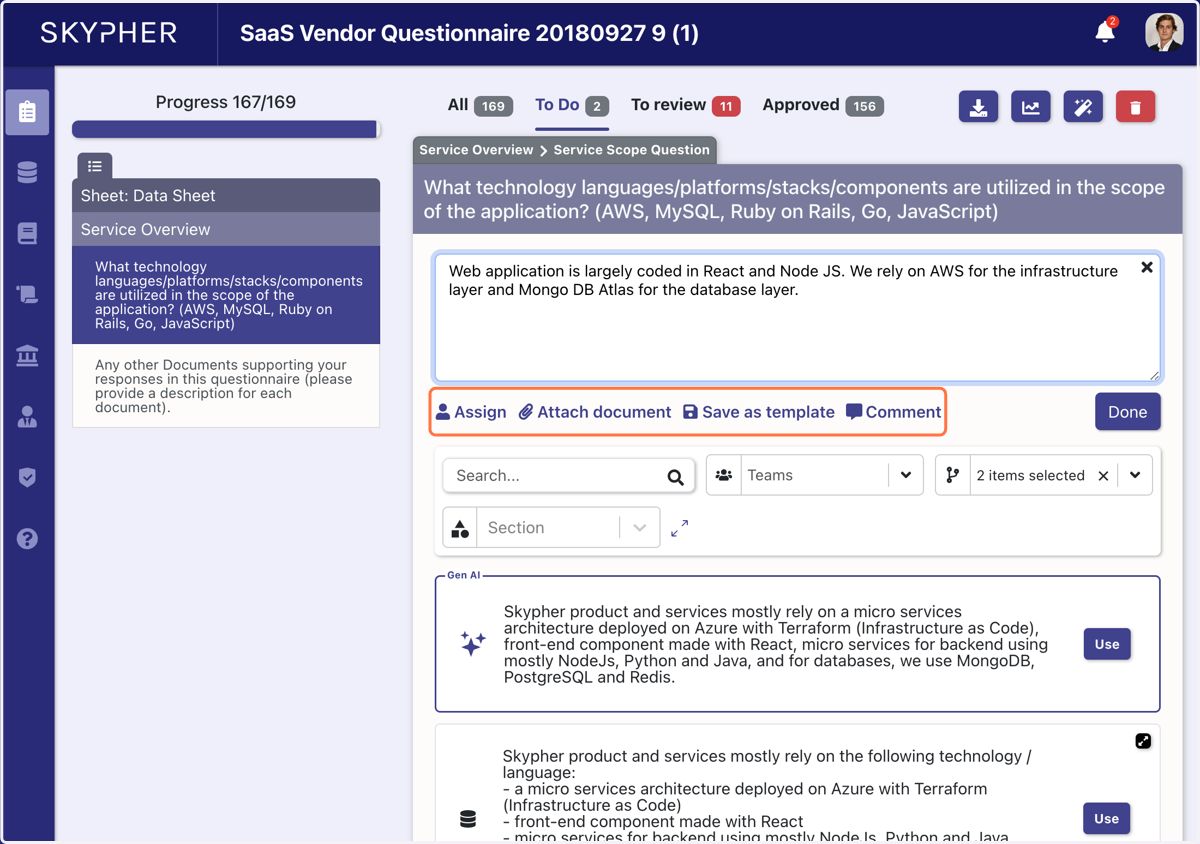
3. In the section To Do, you can see the suggested answer to a question
4. You can assign the question to a member of your team, attach a document, save as a template or even add a comment (and tag someone)
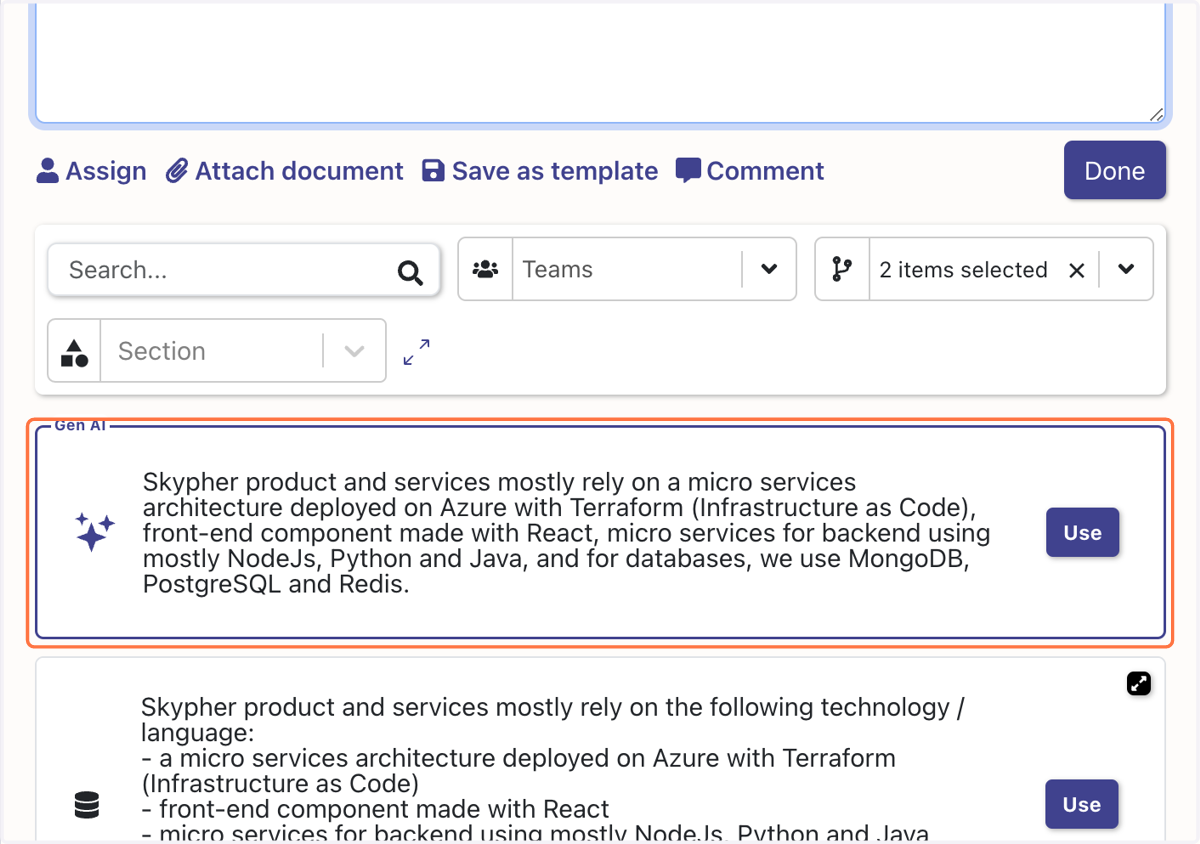
5. Click on Use for the satisfying answer.
Here you can see that the suggested answer is given by Gen AI. You can also modify each answer within the answer section.
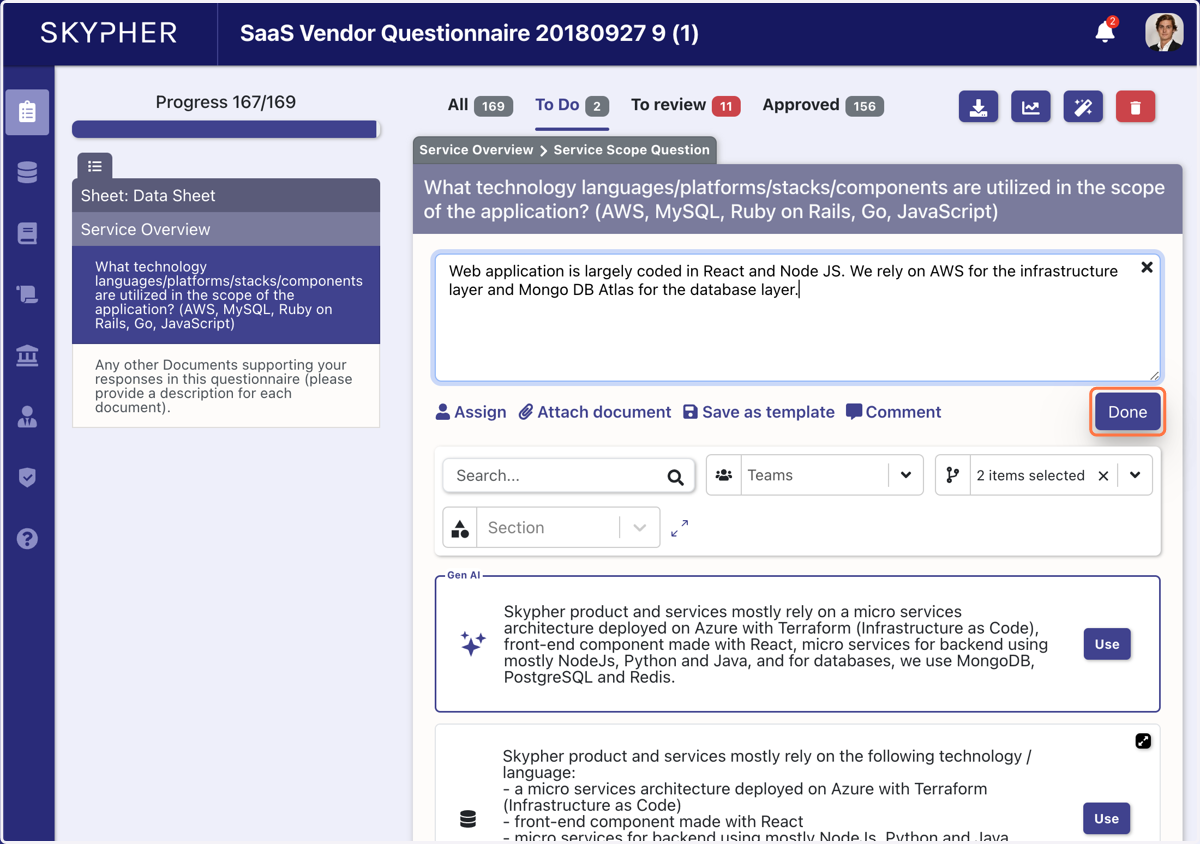
6. Once you are satisfied with your answer, click on Done
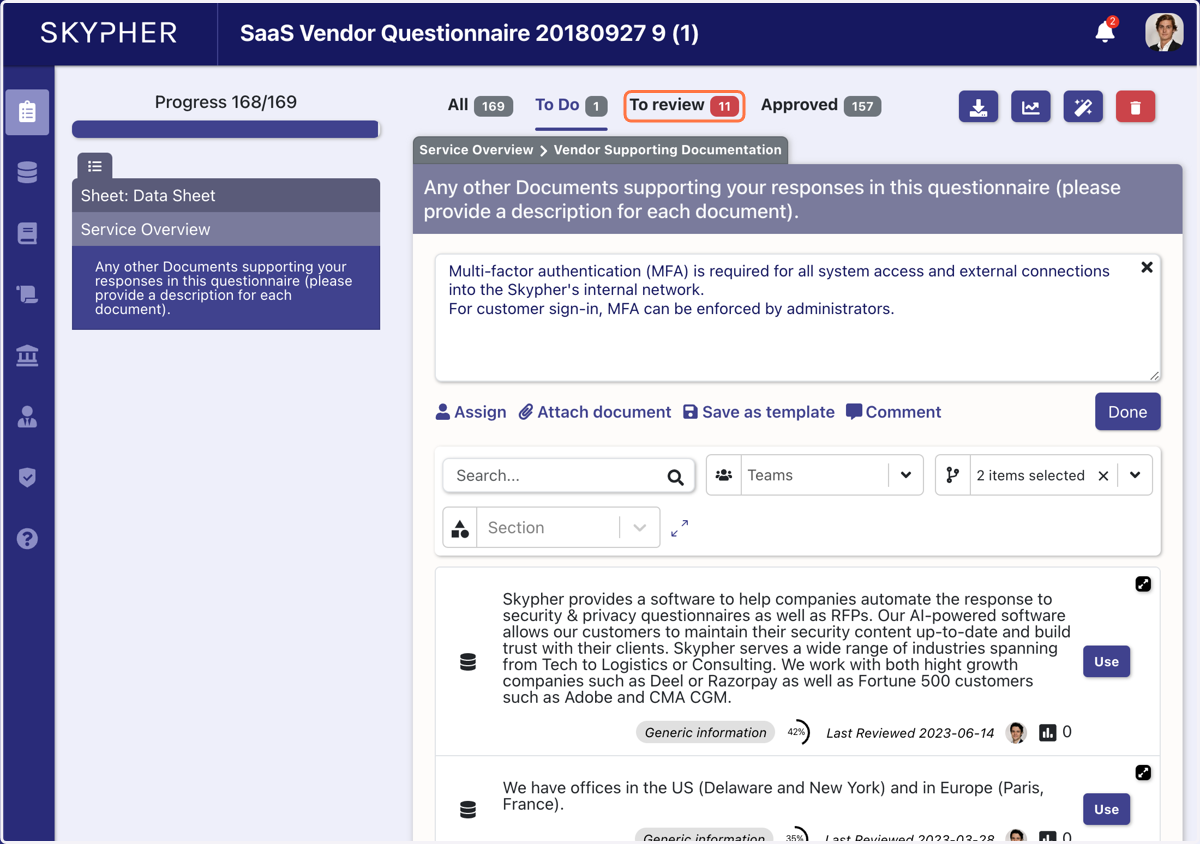
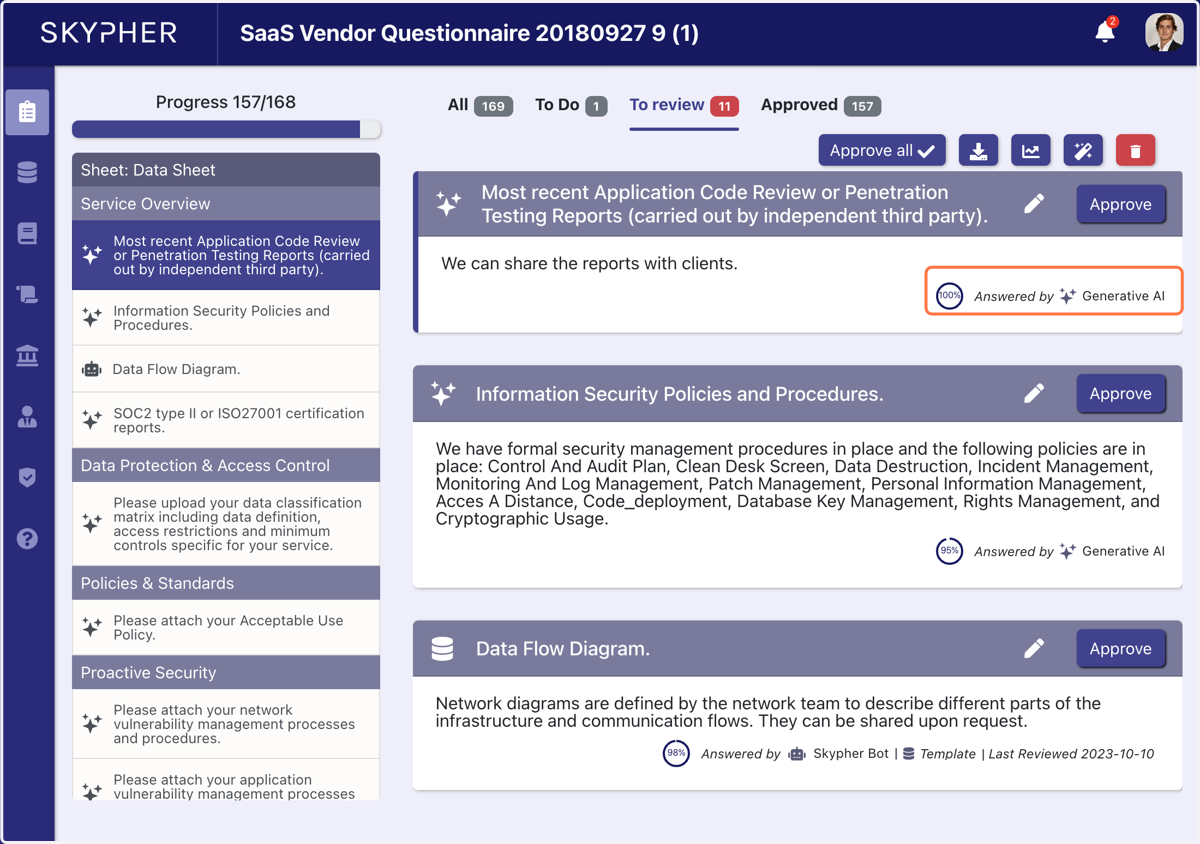
7. Click on To review to see all the questions that have been answered and autofilled
8. You can see where the question comes from and the confidence level of the software (here - 100%)
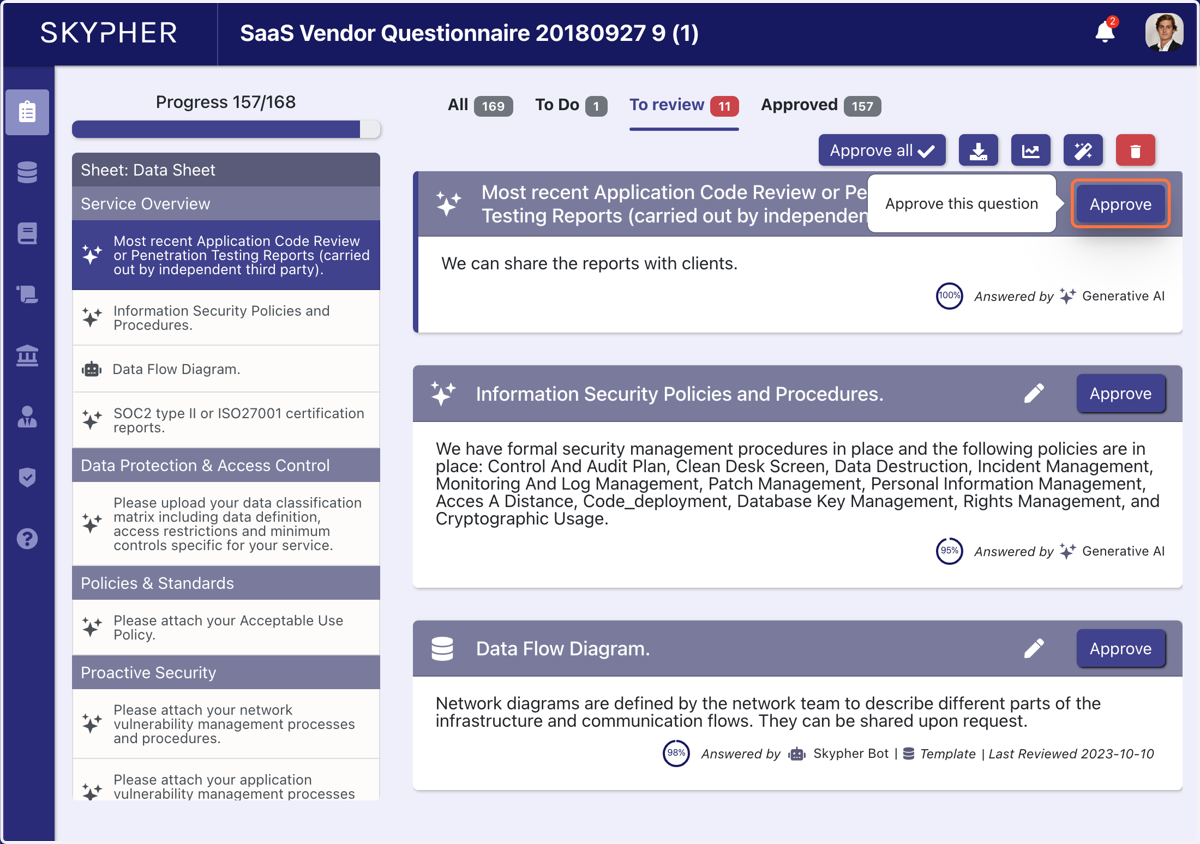
9. Once you are satisfied with the answer, click on approve or approve all
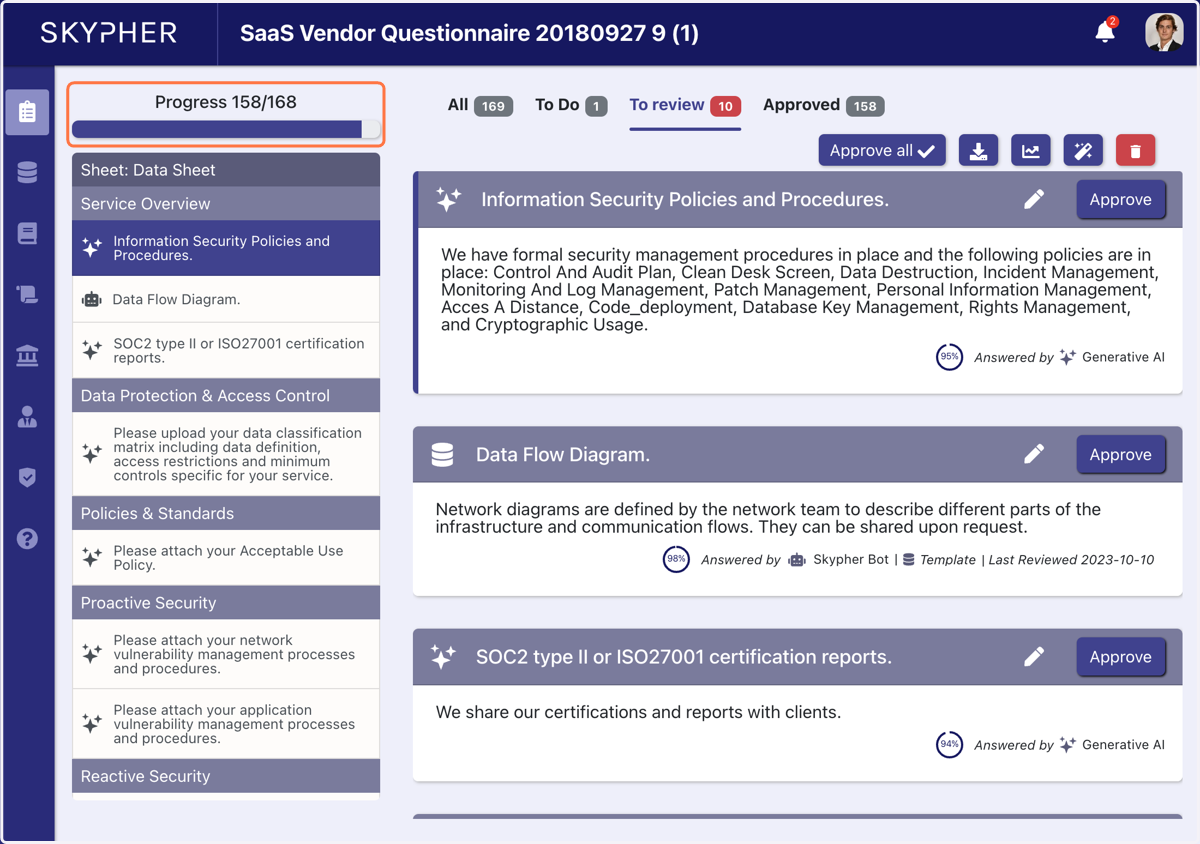
10. Your progress is constantly displayed
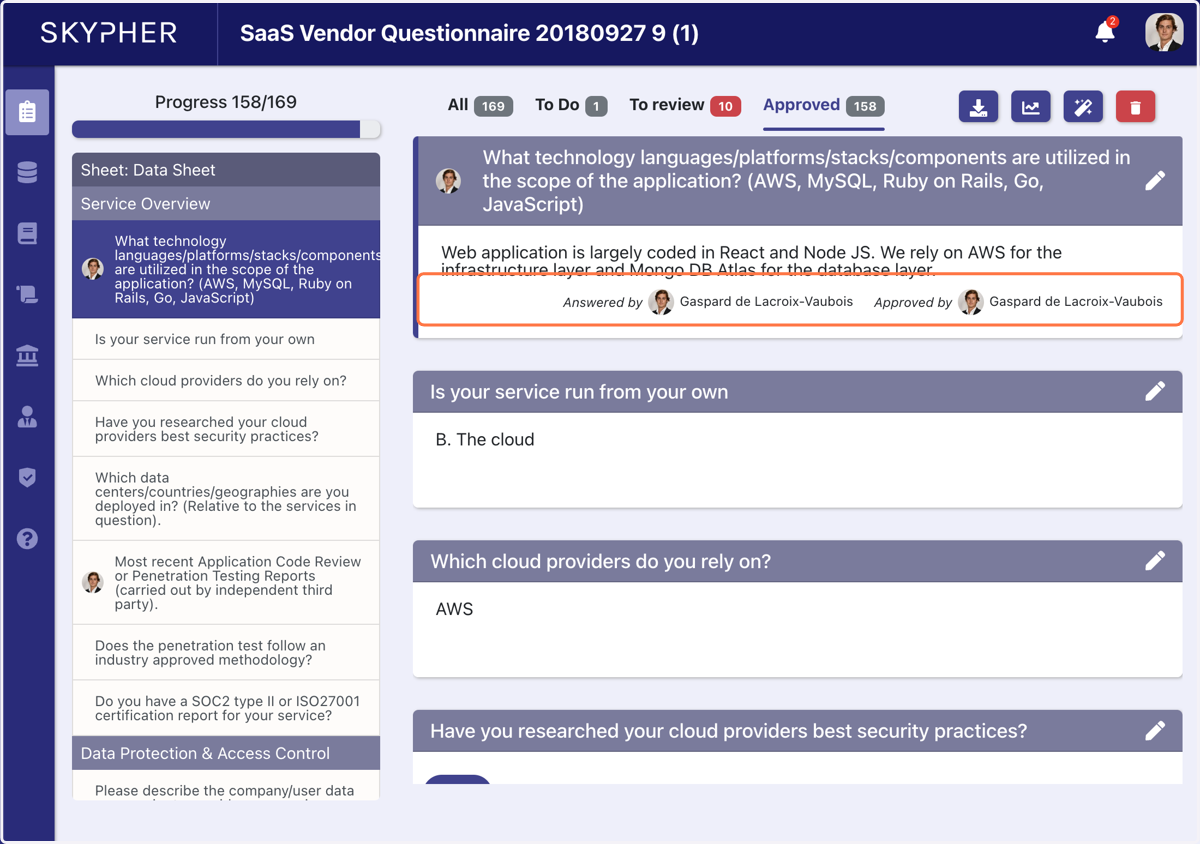
11. Click on Approved to see the final answers
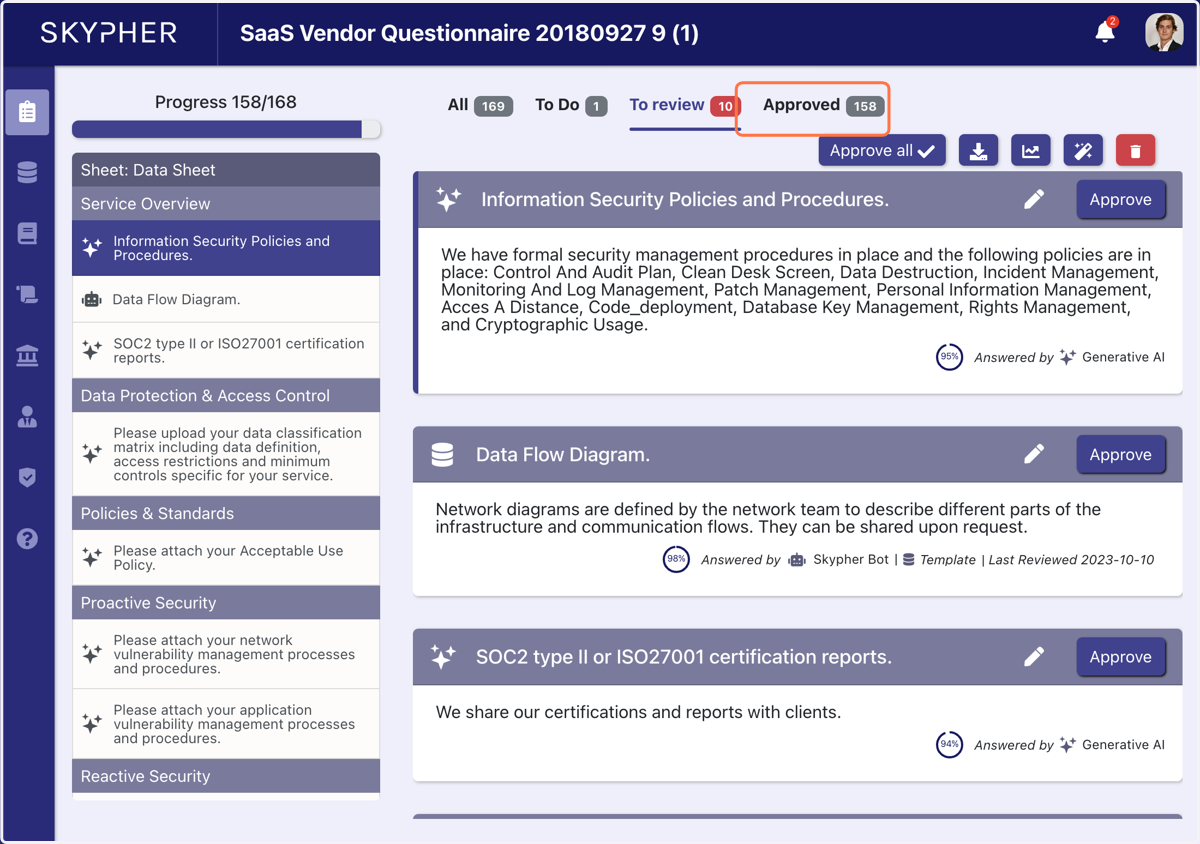
12. In the Approved section, you can see who answered and approved the question
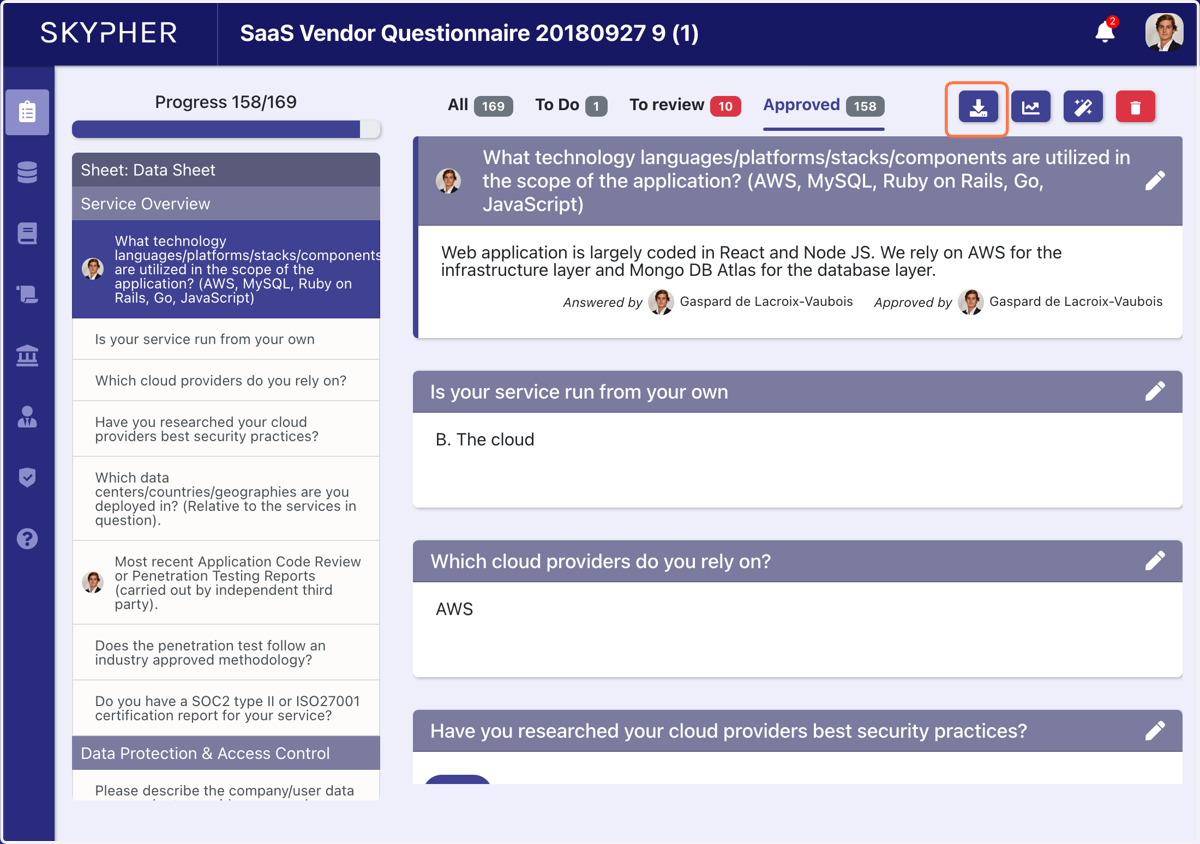
13. Click on the download button to download the security questionnaire
It will be dowloaded as a zip file with the security questionnaire and all the documents attached to a question
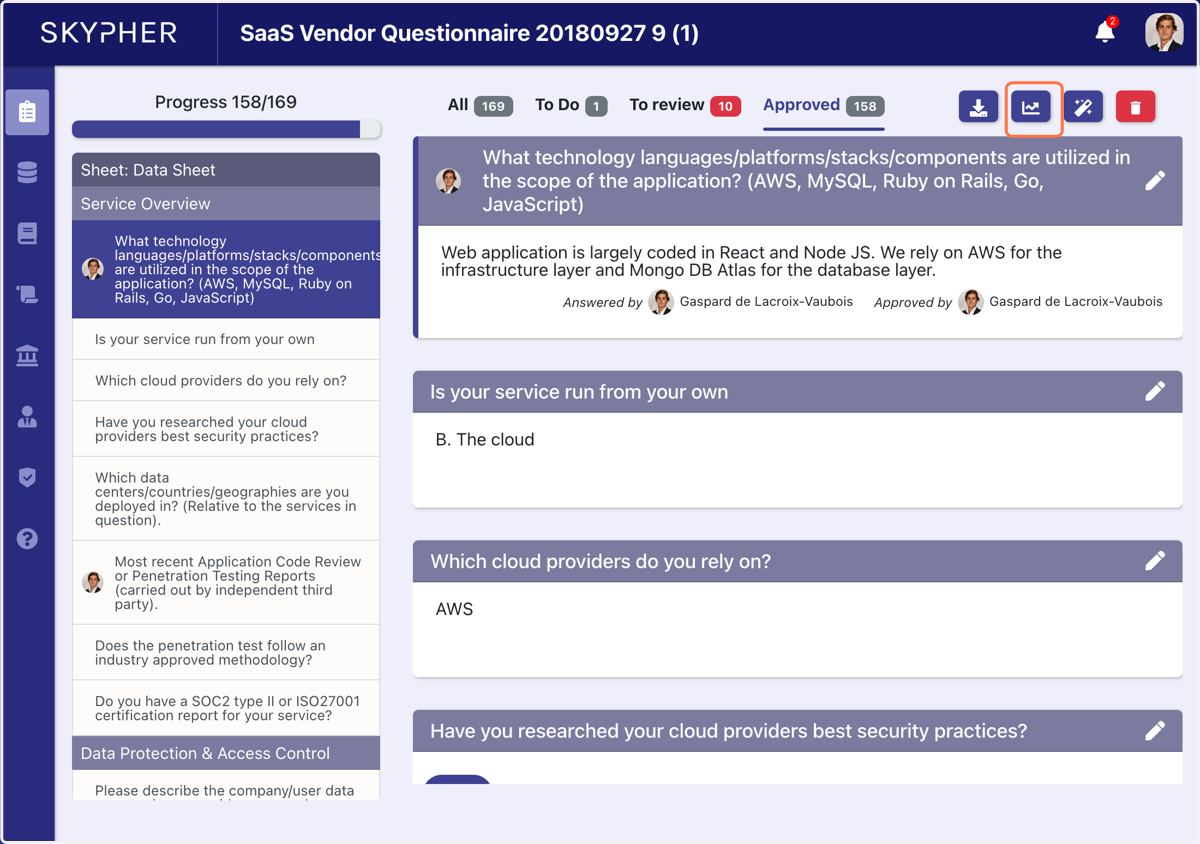
14. Click on this button to get analytics of the questionnaire regarding your team and progress
15. To delete the questionnaire, click on this button