Approval Workflow Advance Requirement Rules
Infigo have introduced the ability to configure more granular rules around controlling what orders and order line items should go through approval.
Historically, approval has been an on/off switch where the only fine control was to enable it per product and to allow some people to bypass it entirely.
The Approval Workflow Advance Requirement Rules feature provides access to a whole series of rules that you can configure ranging from approval based on order quantities, shipping fees and order totals.
NOTE: This feature may not be available in your platform by default. Please contact Customer Support for more information on gaining access to this feature.
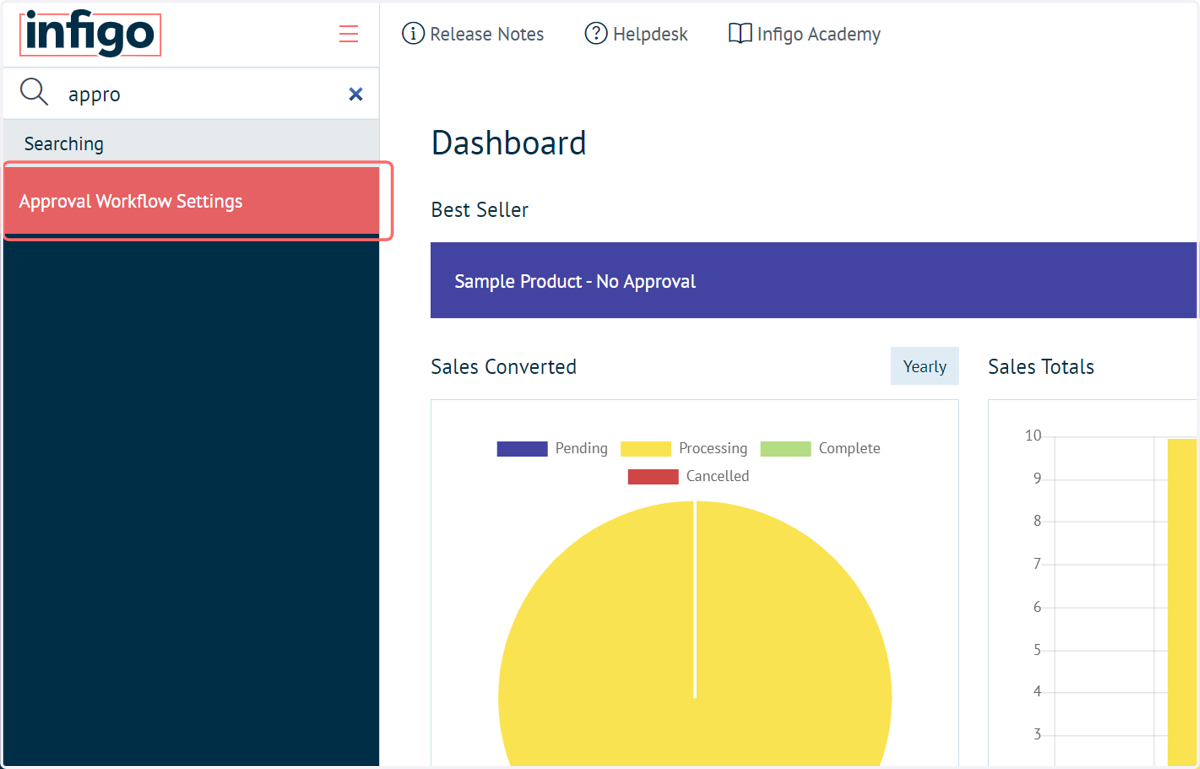
1. Navigate to Approval Workflow Settings
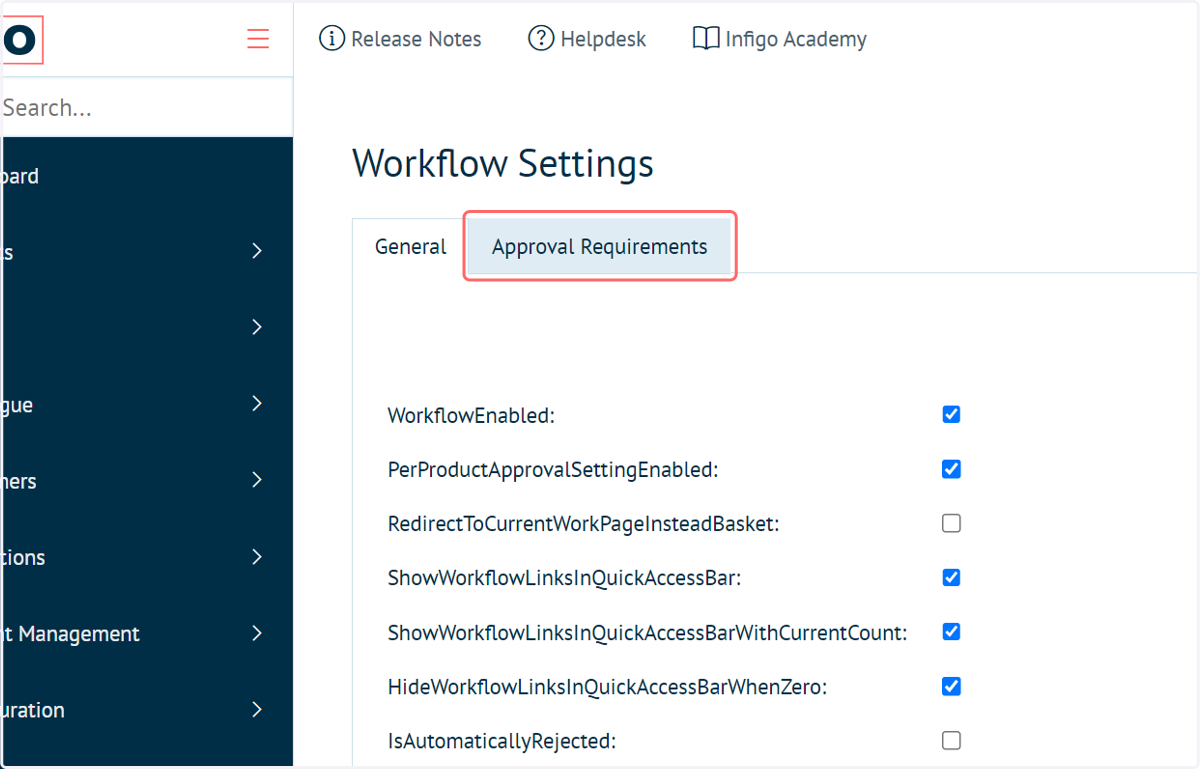
2. Click on Approval Requirements
Prior to utilising the Approval Requirements, you must ensure the approval workflow is enabled on the General tab.
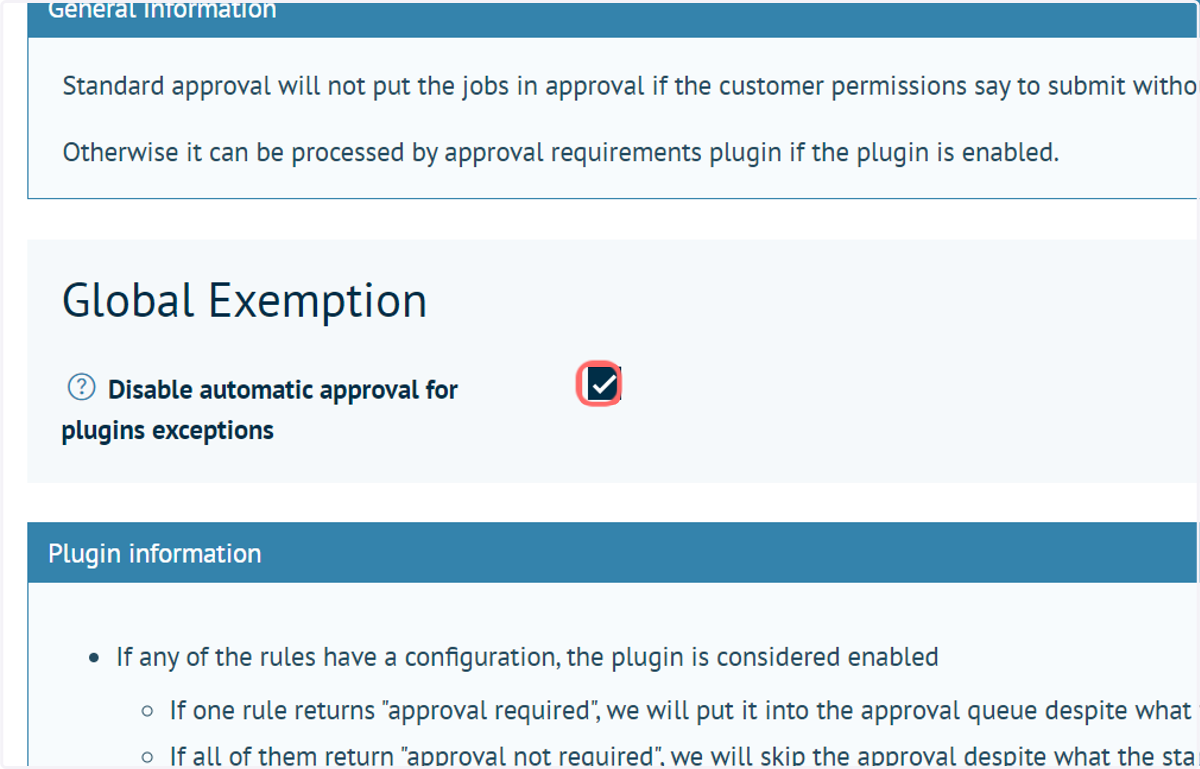
3. Select a Global Exemption option
Firstly you need to decide, similar to our Access Permissions, if you want by default everything to go through approval and you are applying exception rules for situations where it shouldn't go through approval - or the opposite - where nothing goes through approval until you configure a rule that states it should.
Your approach depends on your requirements, but in this example we will focus on the approach that we want nothing to go through approval unless it matches one of our requirements we will setup.
So the first thing we need to do is enable the Global Exemption setting at the top of the Approval Requirements tab.
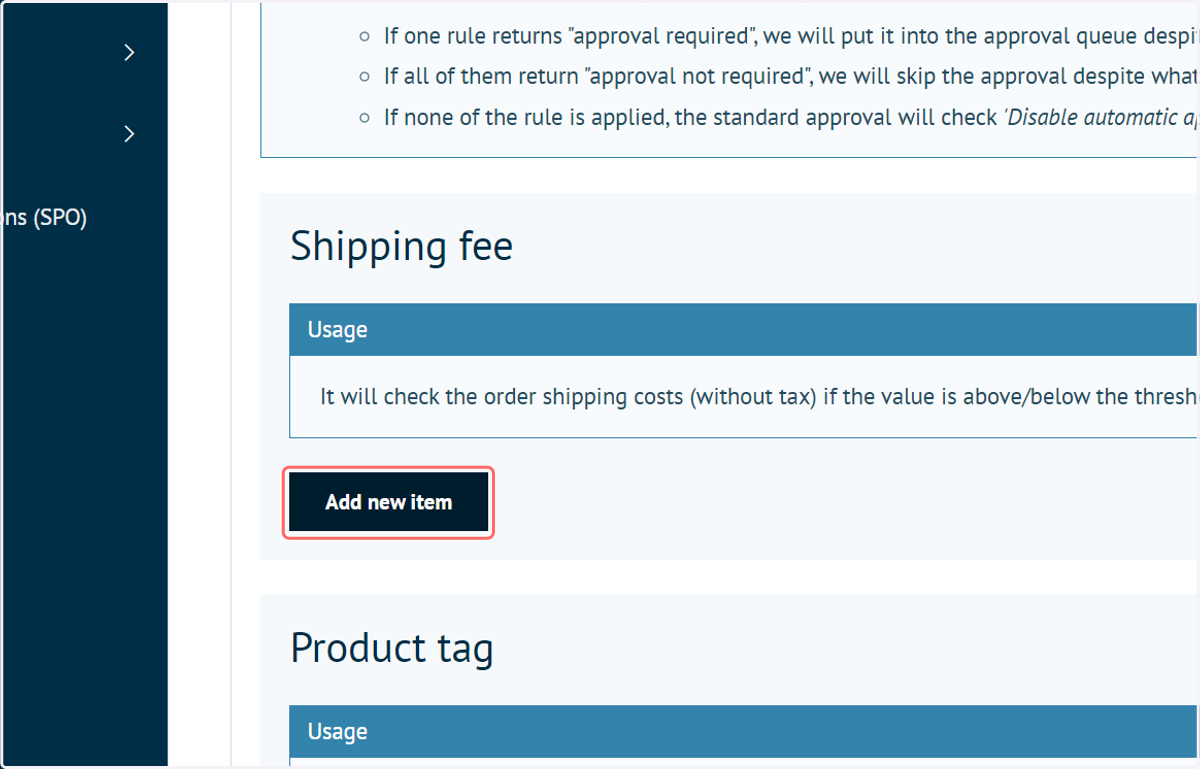
4. Shipping Fee | Click on Add new item
Based on the value of an orders shipping cost (excl. tax)
This rule allows you to specify a lower and upper value threshold for a shipping cost for an order and then whether if that threshold is met it should go through approval or not.
When this rule is executed the entire order will require approval.
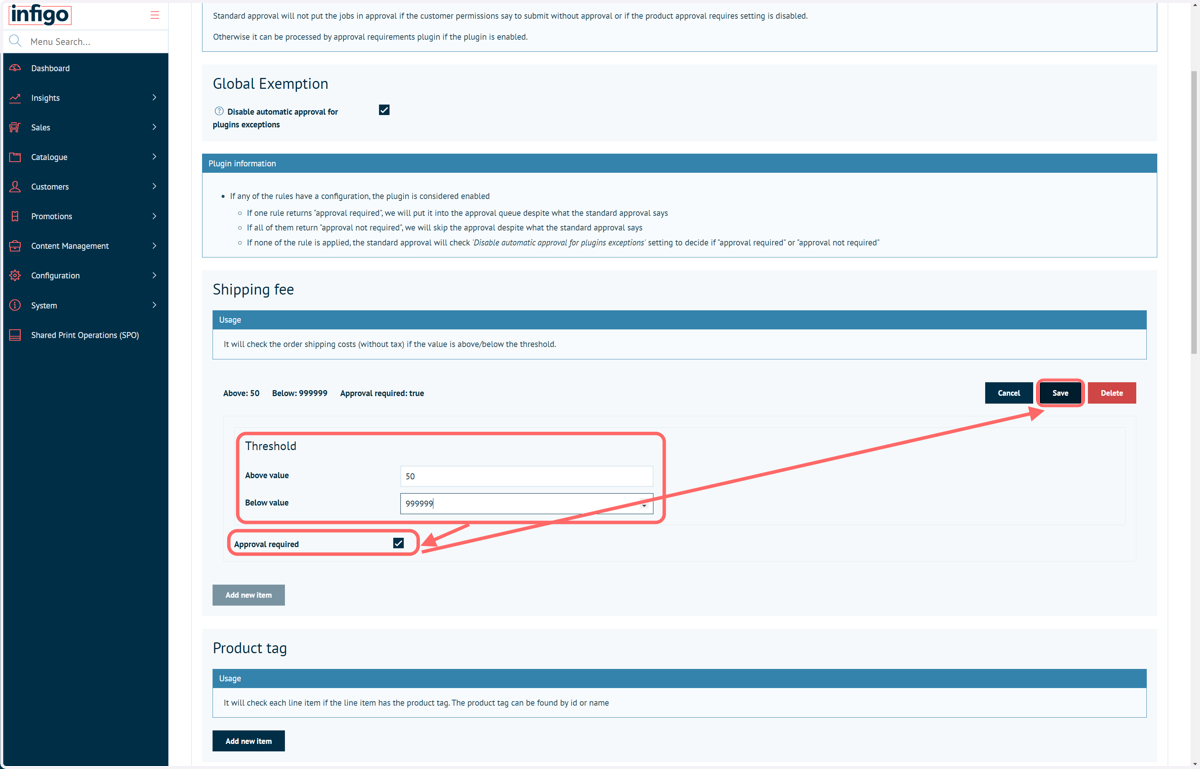
5. Shipping Fee | Complete the configuration and Save
Available Rules:
Lower quantity threshold
Upper quantity threshold
Requires Approval
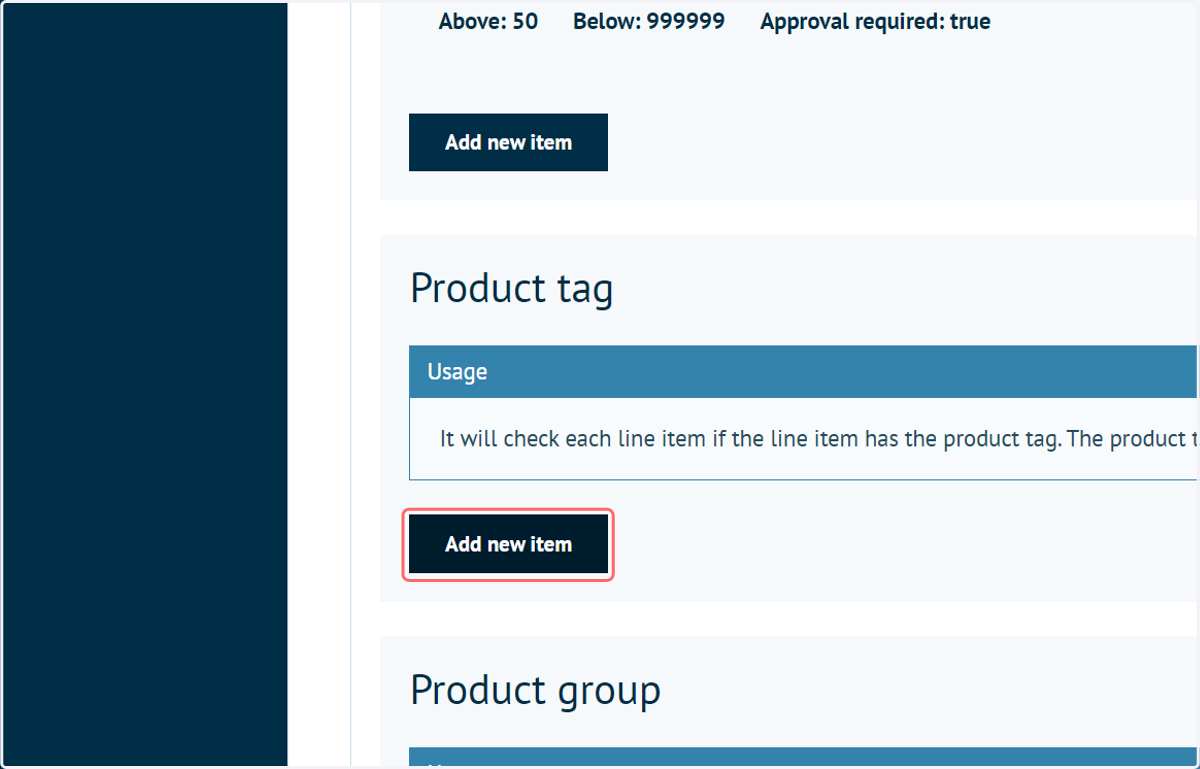
6. Product Tag | Click on Add new item
Based on a specified product tag
This rule allows you to specify a Product Tag. So when a product is ordered that has that specific product tag applied it will require approval.
When this rule is executed only that order line will require approval.
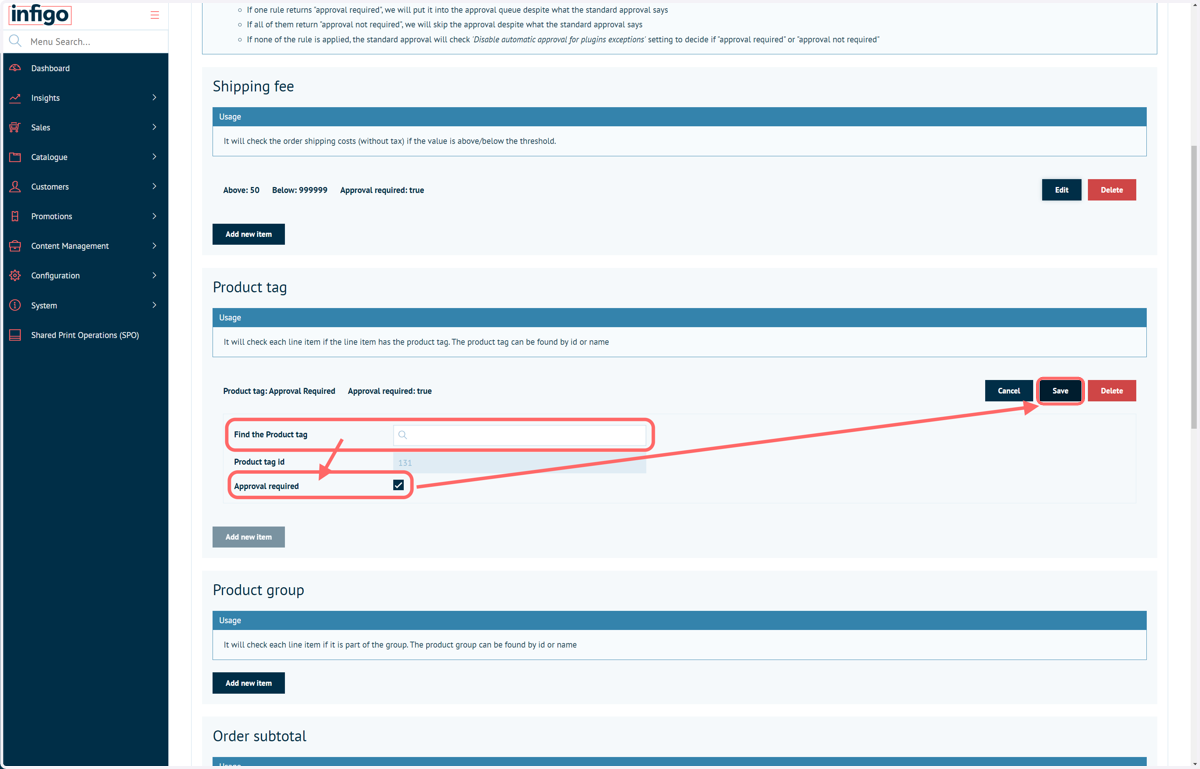
7. Product Tag | Complete the configuration and Save
Available Rules:
Product Tag
Requires Approval
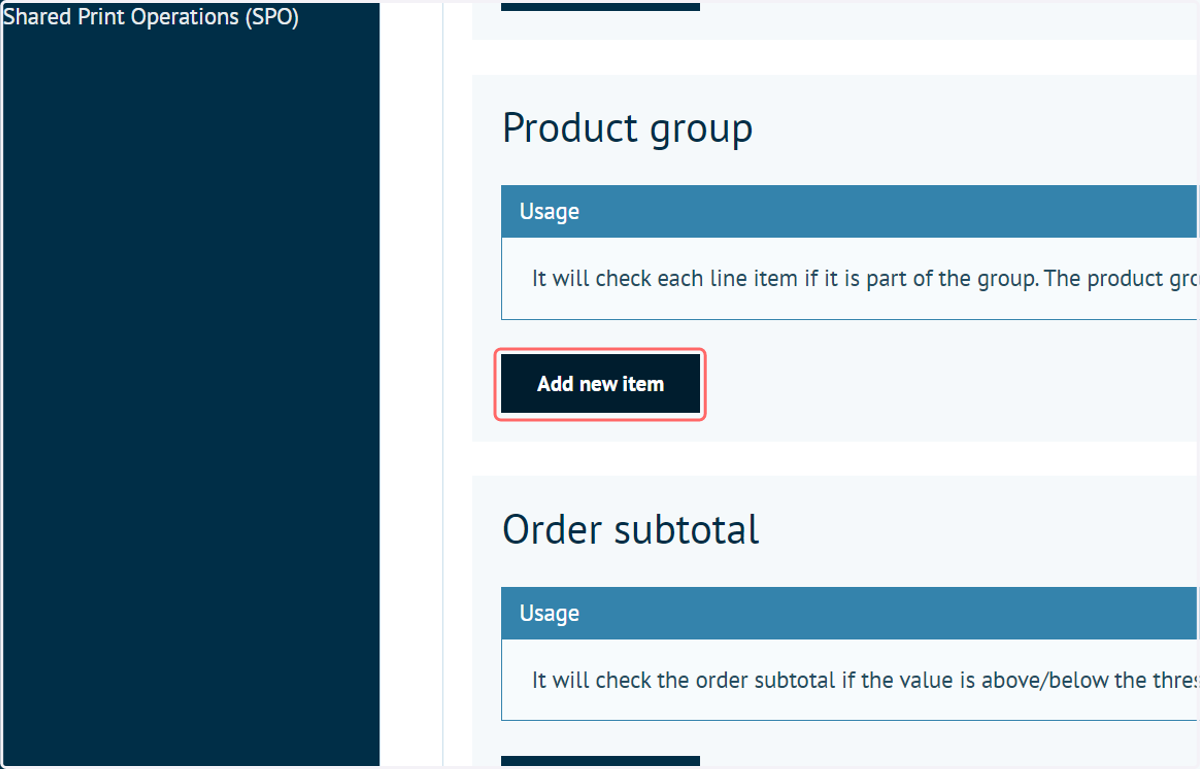
8. Product Group | Click on Add new item
Based on a specified product group
This rule allows you to specify a Product Group. So instead of explicitly enabling approval on a product basis, if you are using Product Groups you can set this to the entire group meaning approval is required for all products within it.
When this rule is executed only that order line will require approval.
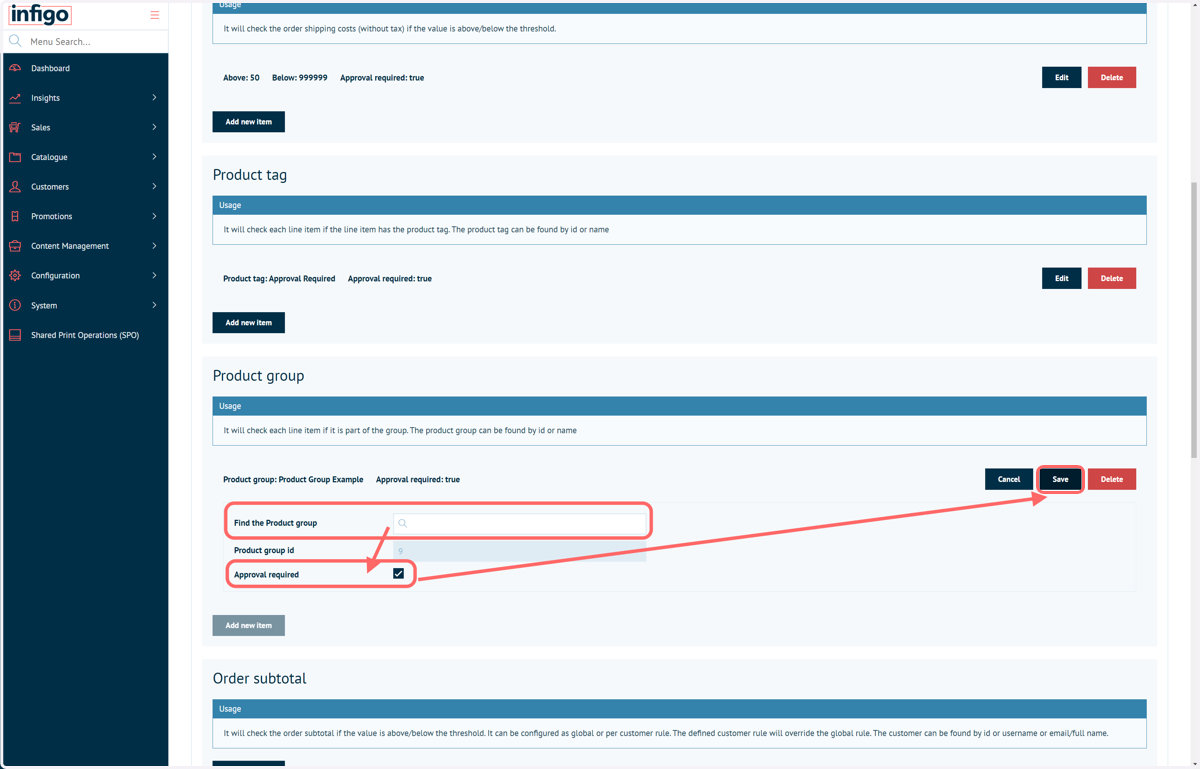
9. Product Group | Complete the configuration and Save
Available Rules:
Product Group
Requires Approval
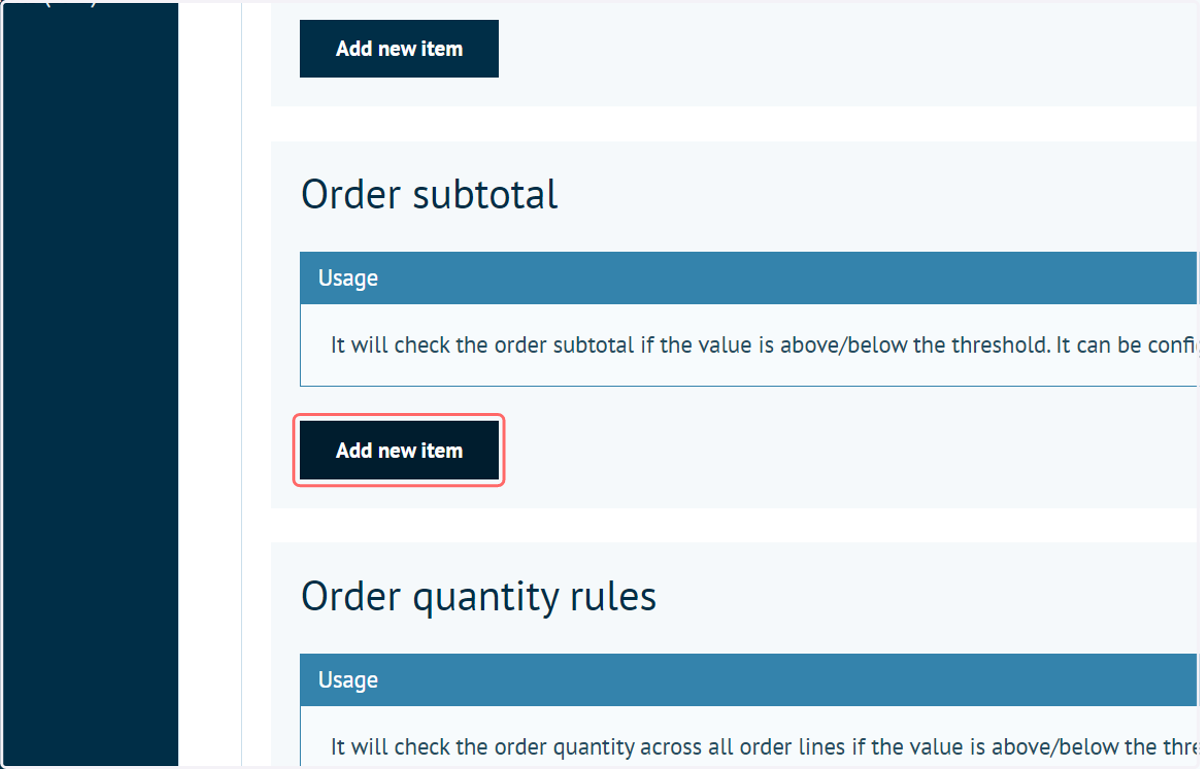
10. Order Subtotal | Click on Add new item
Based on the sub total value of the order. Can be controlled on a per customer basis.
This rule allows you to specify a lower and upper value threshold for the order sub total on a per customer basis.
You can specify the customer(s) you want to apply these thresholds to and then configure whether if that threshold is met it should go through approval or not.
When this rule is executed the entire order will require approval.
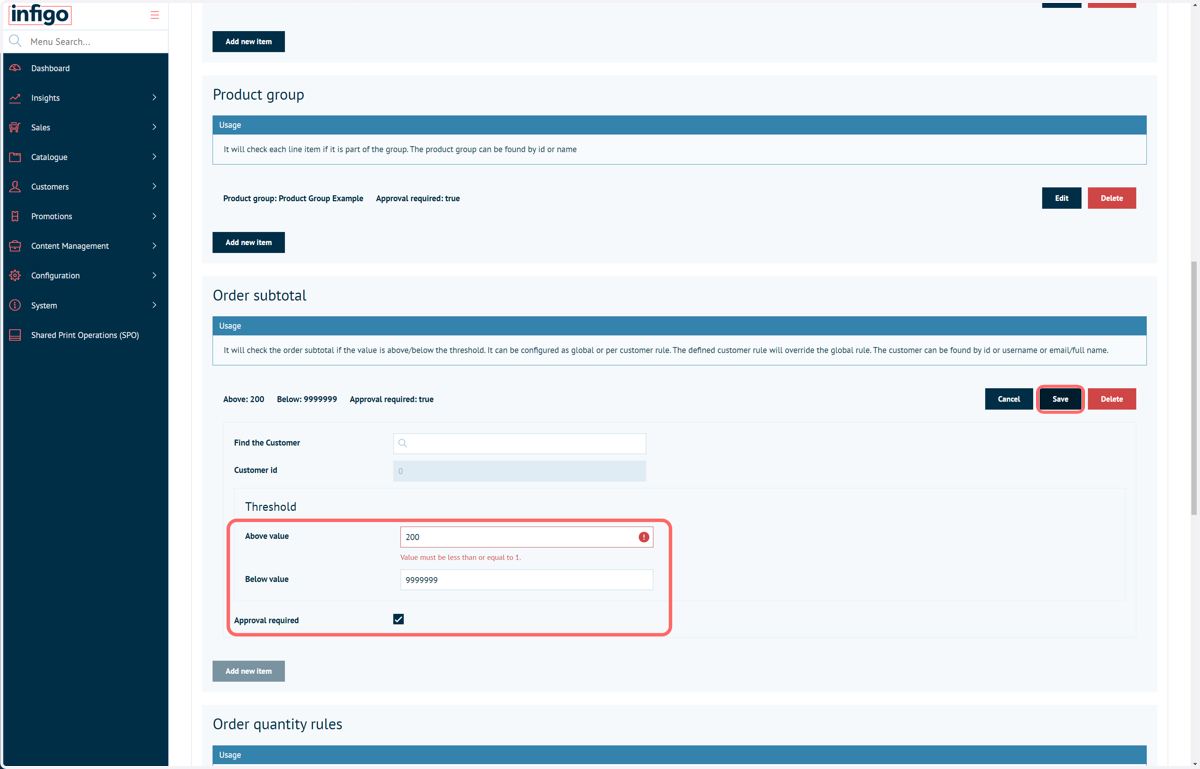
11. Order Subtotal | Complete the configuration and Save
Customer specifications do not have to be entered if not required.
Available Rules:
Lower quantity threshold
Upper quantity threshold
Customer
Requires Approval
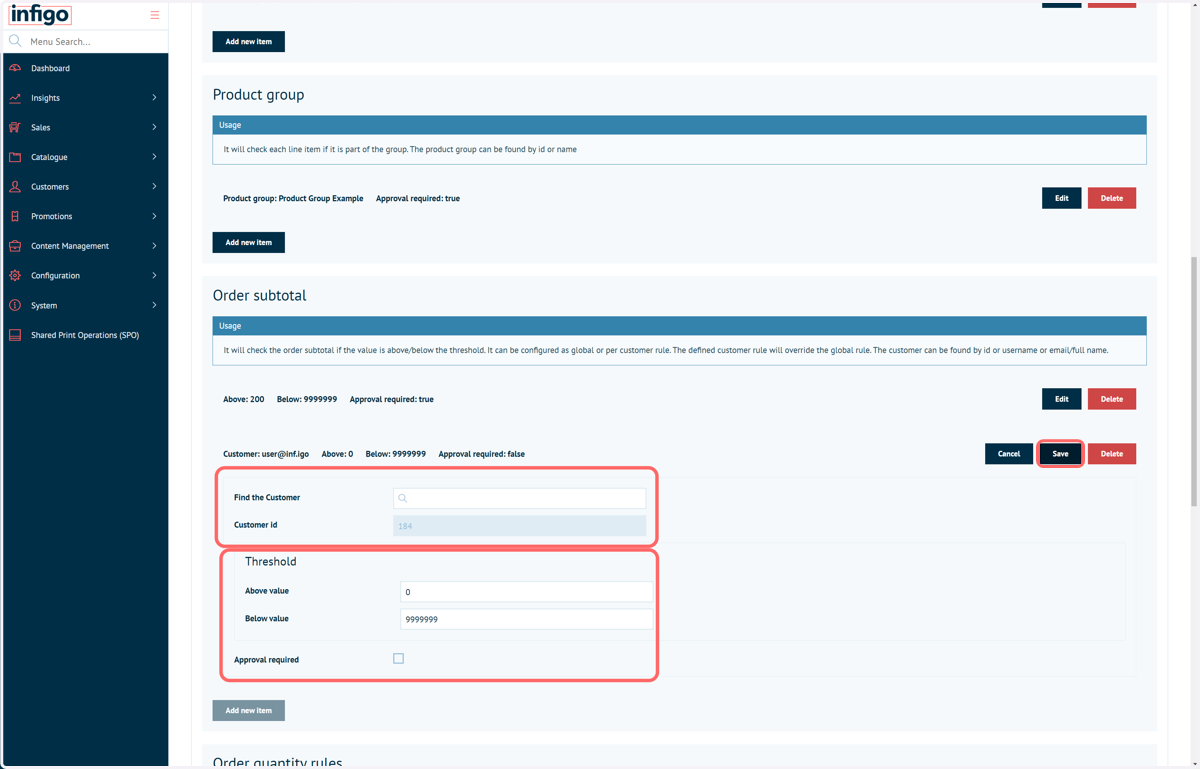
12. Order Subtotal | Complete the configuration and Save
Order subtotal rules can be set for specific customers
Available Rules:
Lower quantity threshold
Upper quantity threshold
Customer
Requires Approval
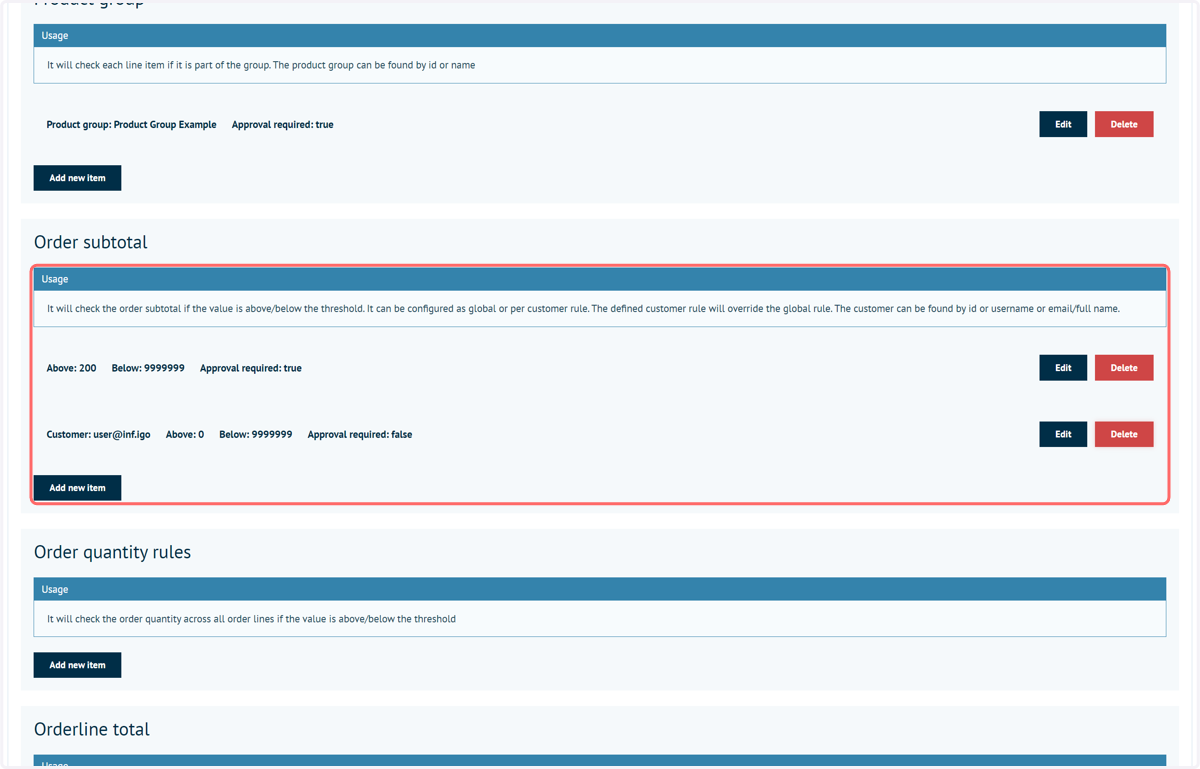
13. Multiple rules can be applied to each grouping
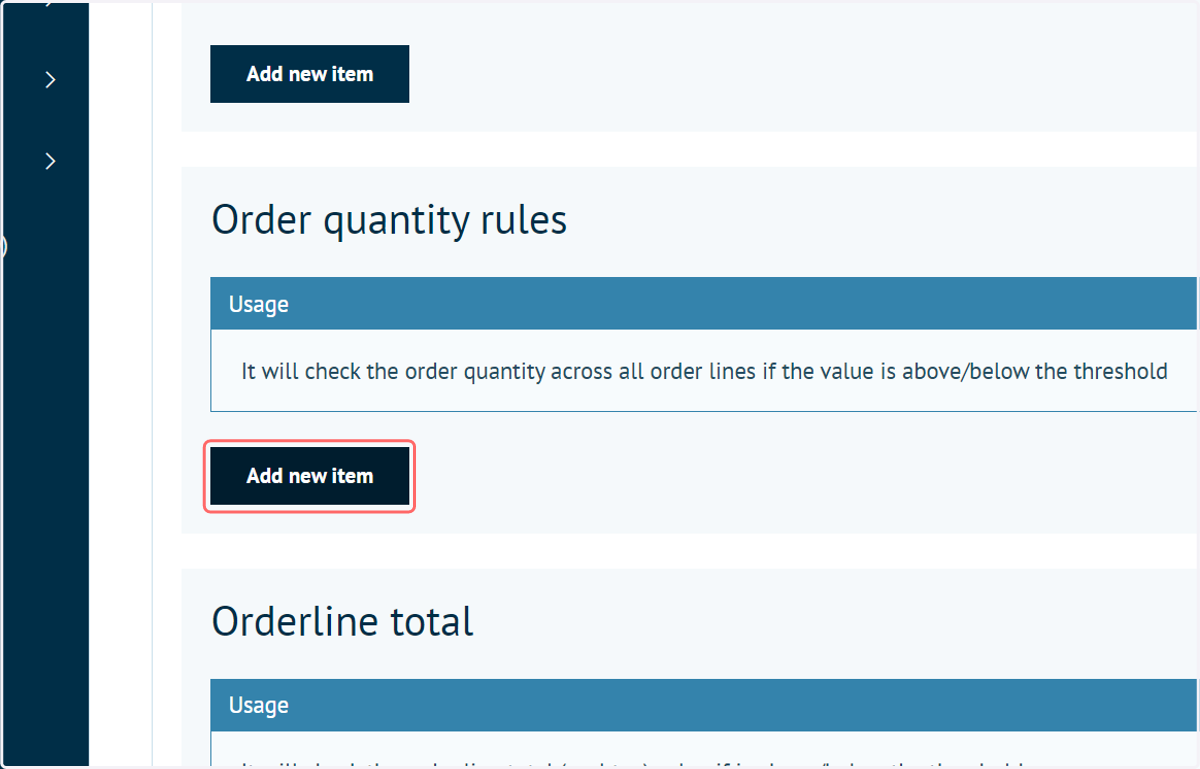
14. Order Quantity | Click on Add new item
Based on the number of individual items being ordered.
This rule allows you to specify a lower and upper quantity threshold for an entire order and then whether if that threshold is met it should go through approval or not.
When this rule is executed the entire order will require approval.
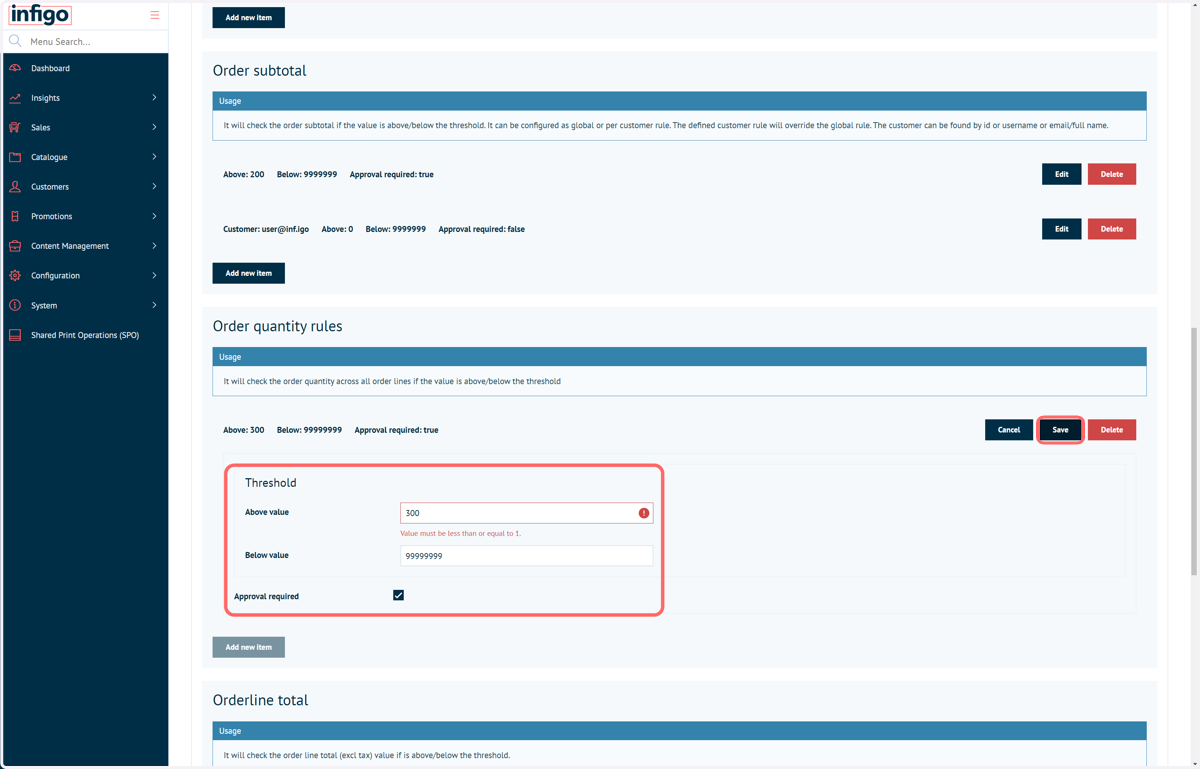
15. Order Quantity | Complete the configuration and Save
Available Rules:
Lower quantity threshold
Upper quantity threshold
Requires Approval
16. Orderline Total | Click on Add new item
Based on the total value of an order line.
This rule allows you to specify a lower and upper value threshold for order lines and then whether if that threshold is met it should go through approval or not.
When this rule is executed only that order line will require approval.
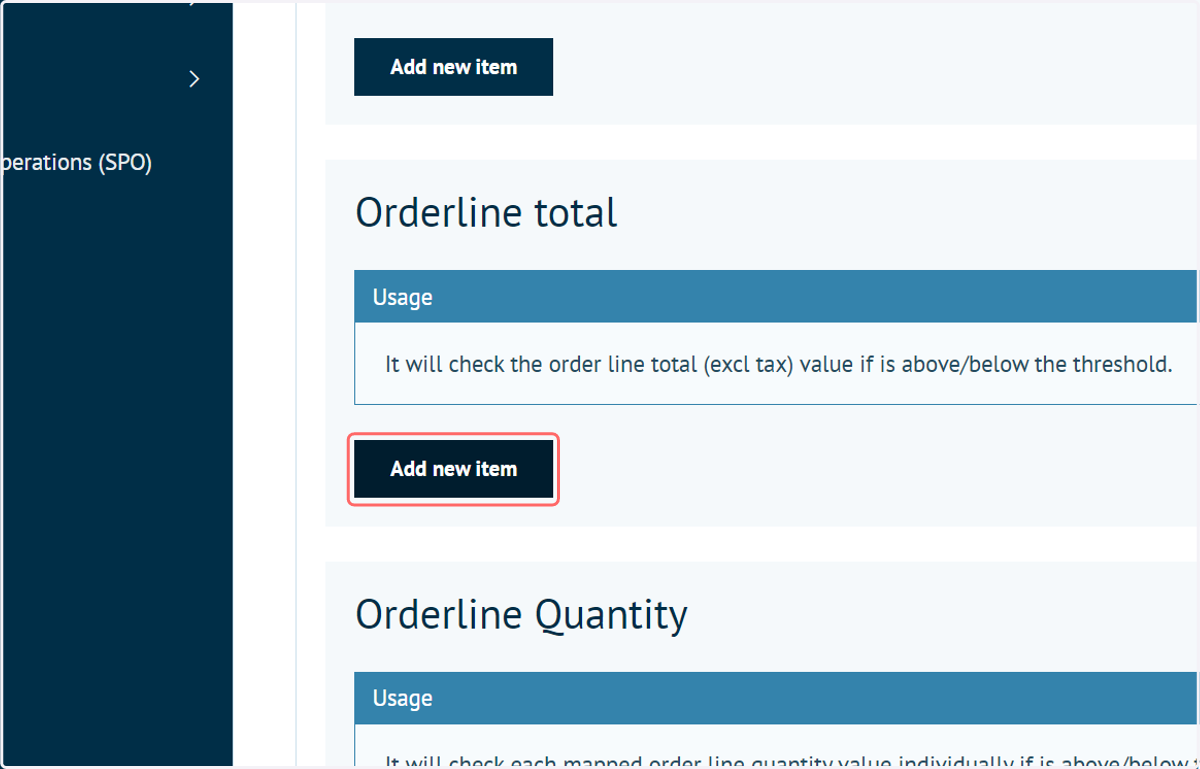
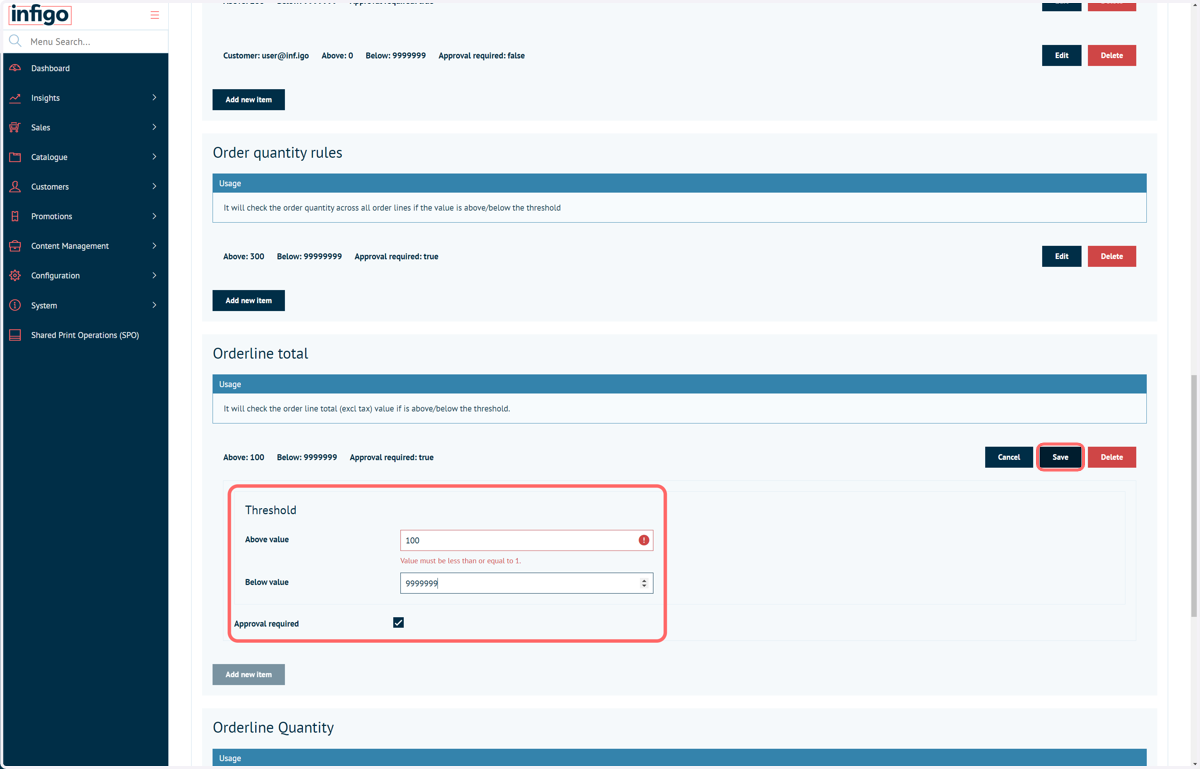
17. Orderline Total | Complete the configuration and Save
Available Rules:
Lower quantity threshold
Upper quantity threshold
Requires Approval
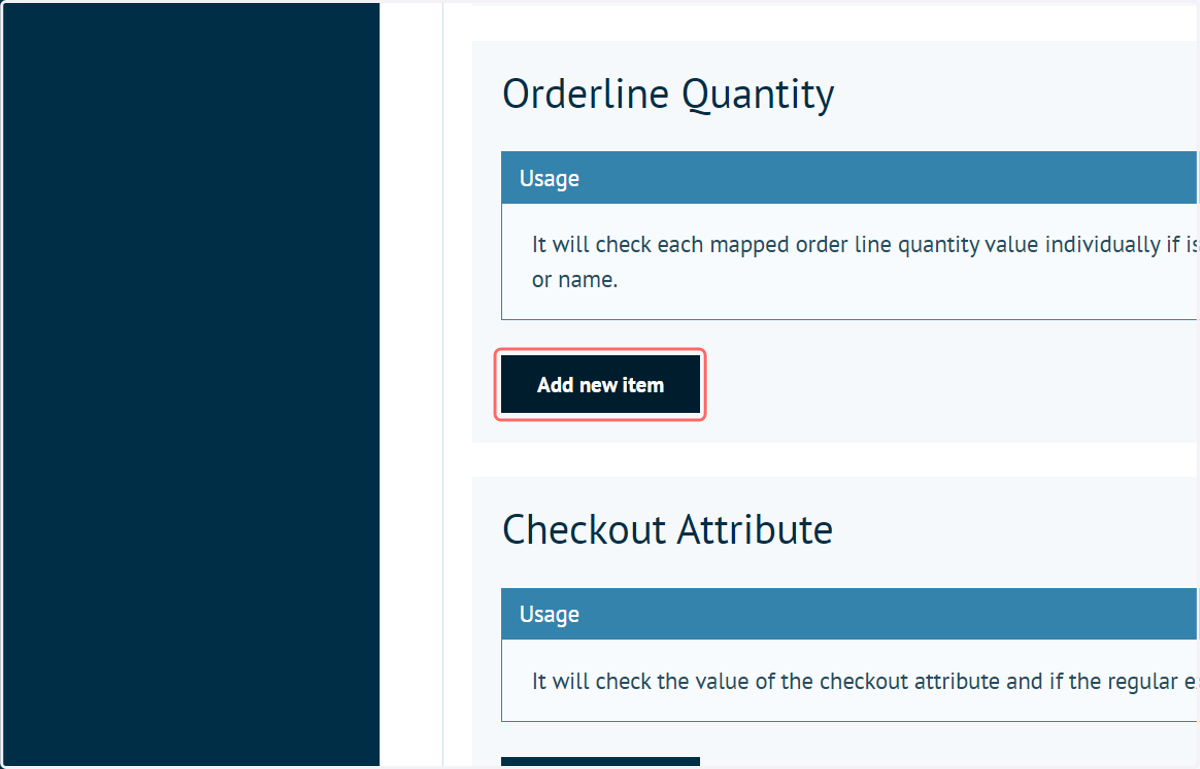
18. Orderline Quantity | Click on Add new item
Based on the quantity of an individual order line. Can be controlled on a per product basis.
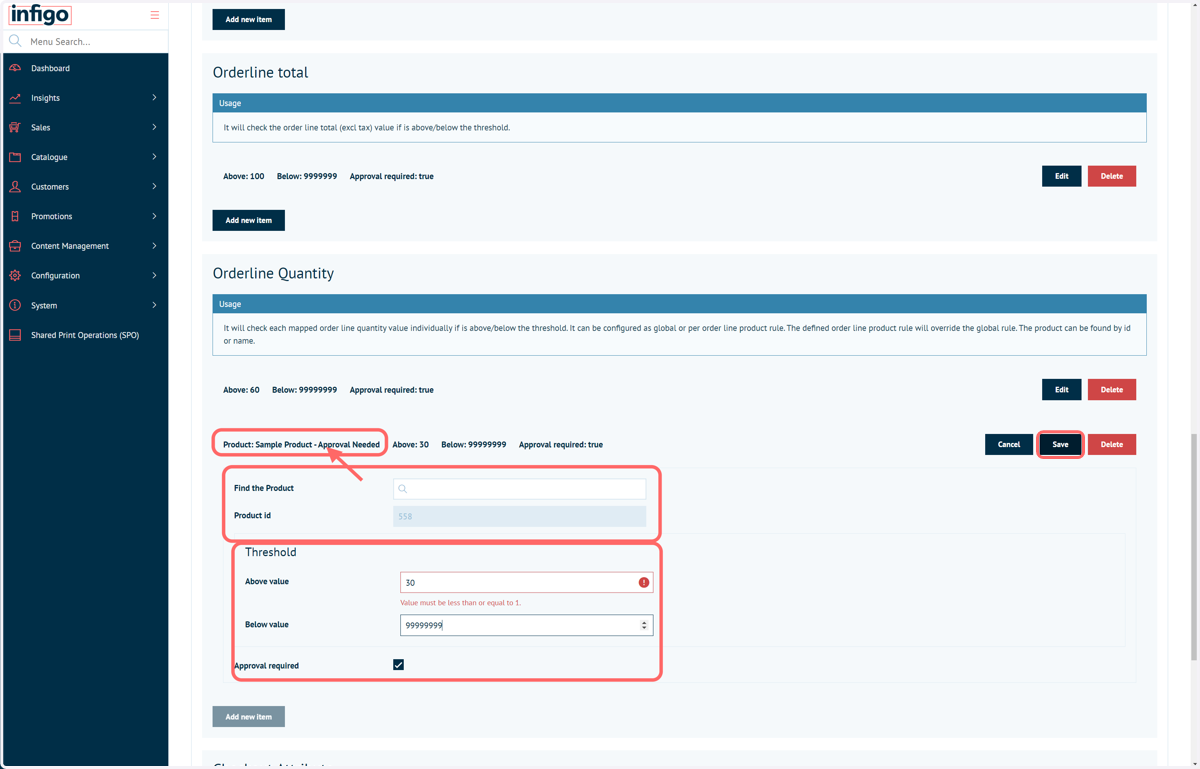
This rule allows you to specify a lower and upper quantity threshold for an individual order line on a per product basis. You can specify the product(s) you want to apply these thresholds to and then configure whether if that threshold is met it should go through approval or not.
When this rule is executed only that order line will require approval.
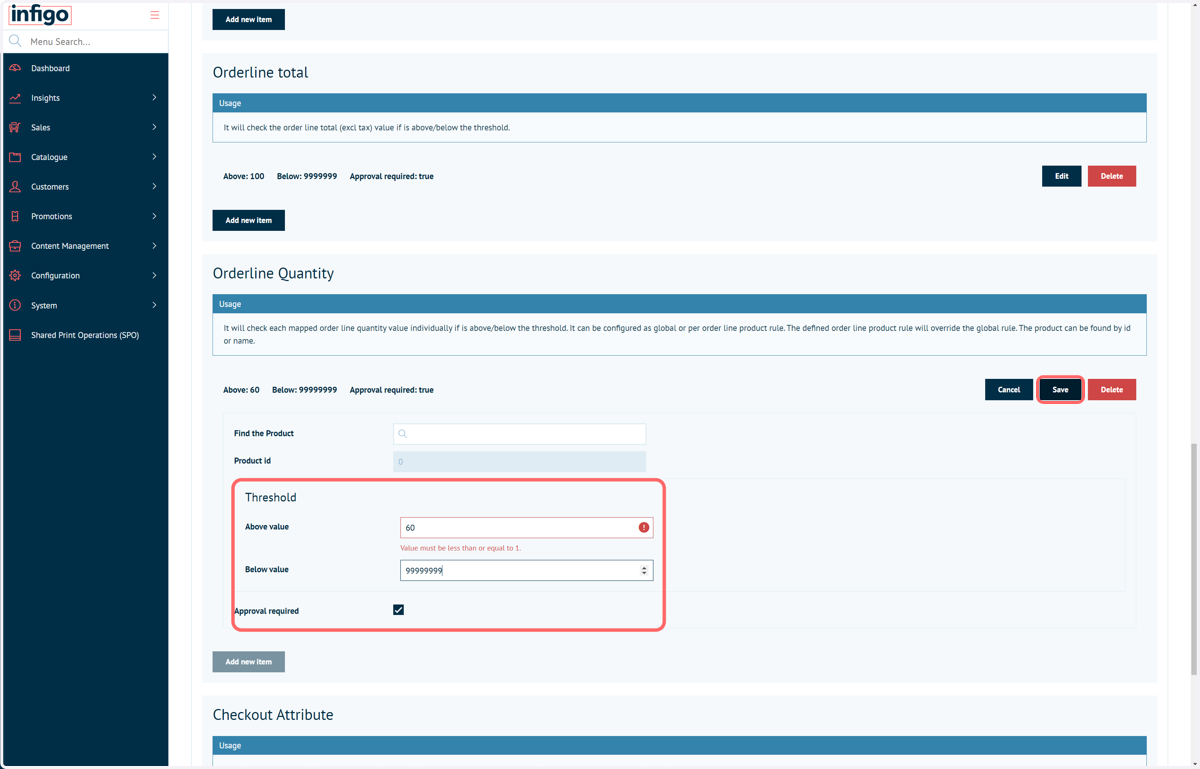
19. Orderline Quantity | Complete the configuration and Save
You are not required to specify a product for this rule if not relevant.
Available Rules:
Lower quantity threshold
Upper quantity threshold
Product
Requires Approval
20. Orderline Quantity | Complete the configuration and Save
Rules can be defined on specific products if required.
Available Rules:
Lower quantity threshold
Upper quantity threshold
Product
Requires Approval
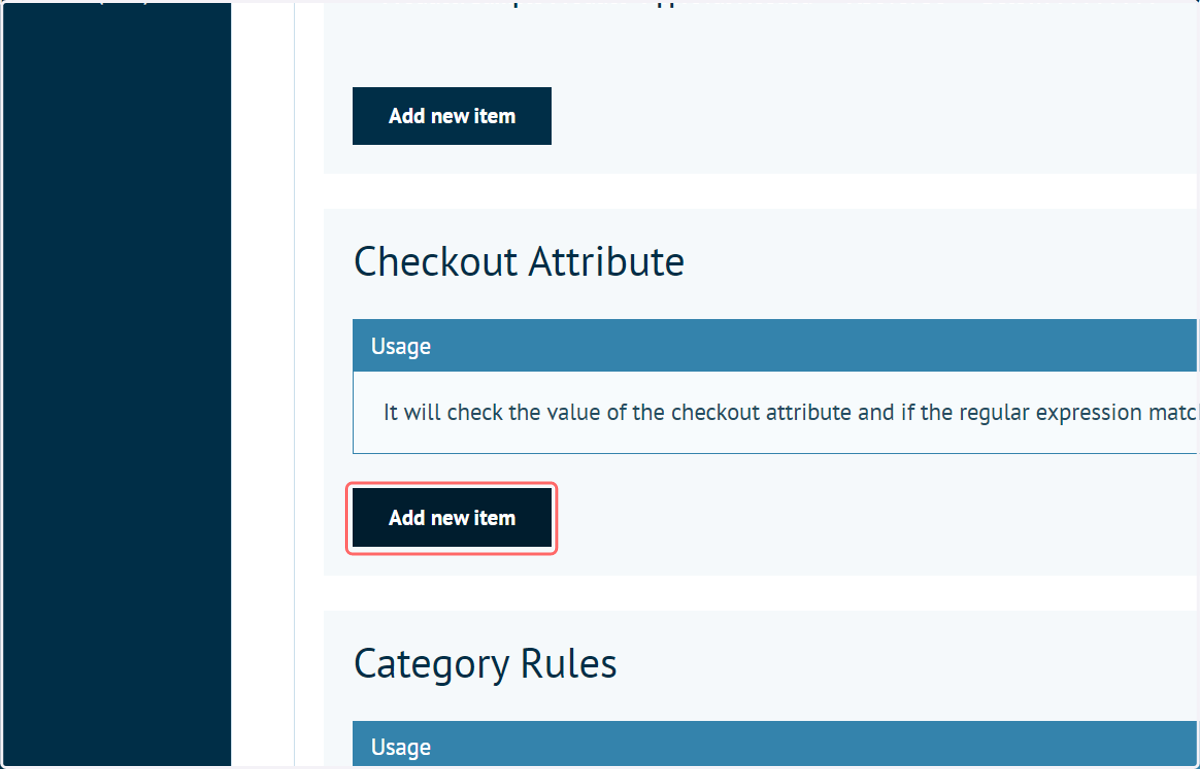
21. Checkout Attribute | Click on Add new item
Based on the value of a Checkout Attribute. Can be controlled on a per Checkout Attribute basis.
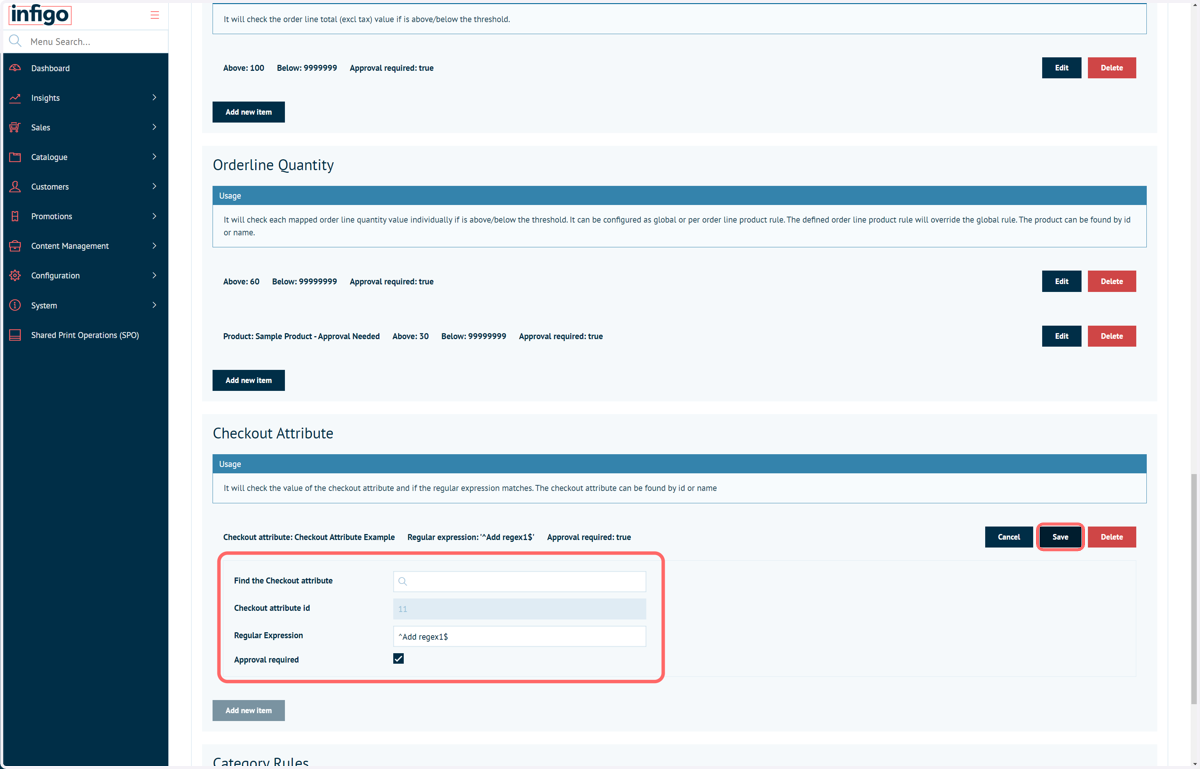
This rule allows you to specify a Checkout Attribute you want to check the value of and then specify a Regular Expression rule that it should be compared against. Then specify whether if the value of that checkout attribute matches the set regex it should go through approval or not.
When this rule is executed the entire order will require approval.
22. Checkout Attribute | Complete the configuration and Save
Available Rules:
Checkout Attribute name
Regex
Requires Approval
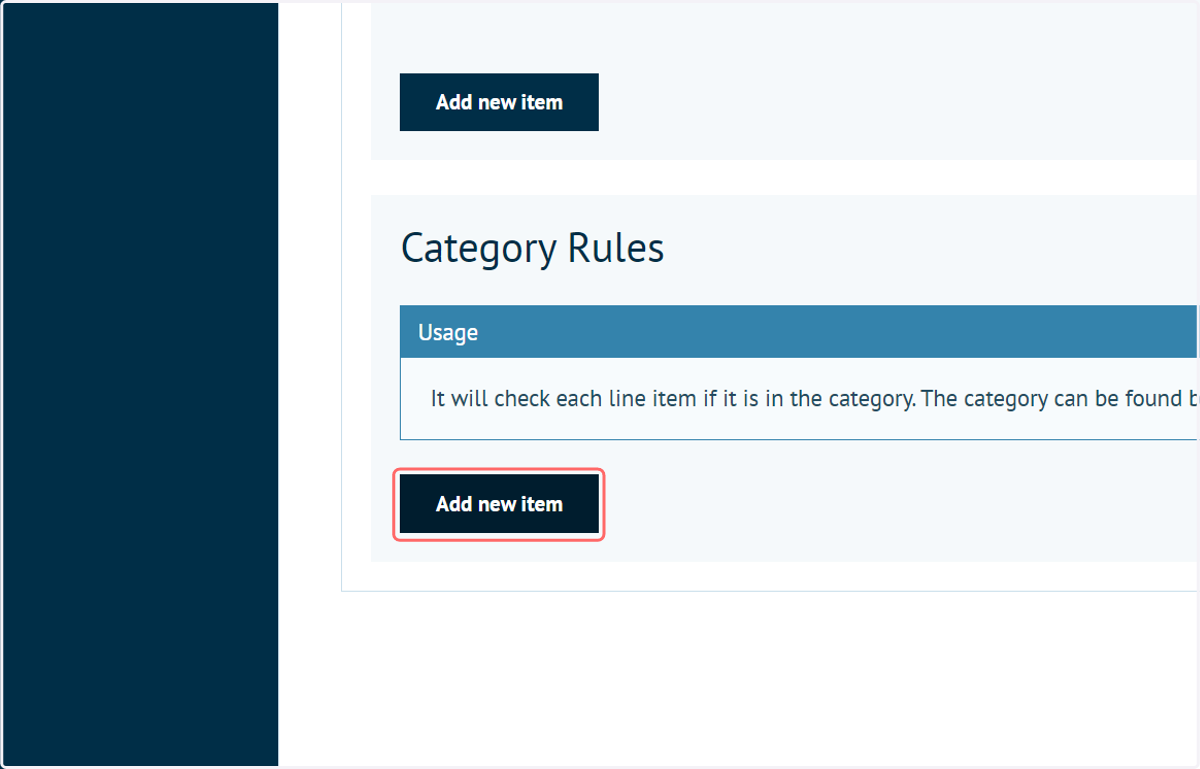
23. Category | Click on Add new item
Based on a specified category
This rule allows you to specify a complete category of products that should require approval.
When this rule is executed only that order line will require approval.
24. Category | Complete the configuration and Save
Available Rules:
Category
Requires Approval
25. REMEMBER: Click on Save at the top of the page before leaving!