Select delivery time during checkout
Infigo have introduced the ability to select a delivery time during the checkout process, which works in conjunction with the delivery date picker also available.
This information can also be send onwards to Tharstern, for users utilising the Connect: Tharstern plugin.
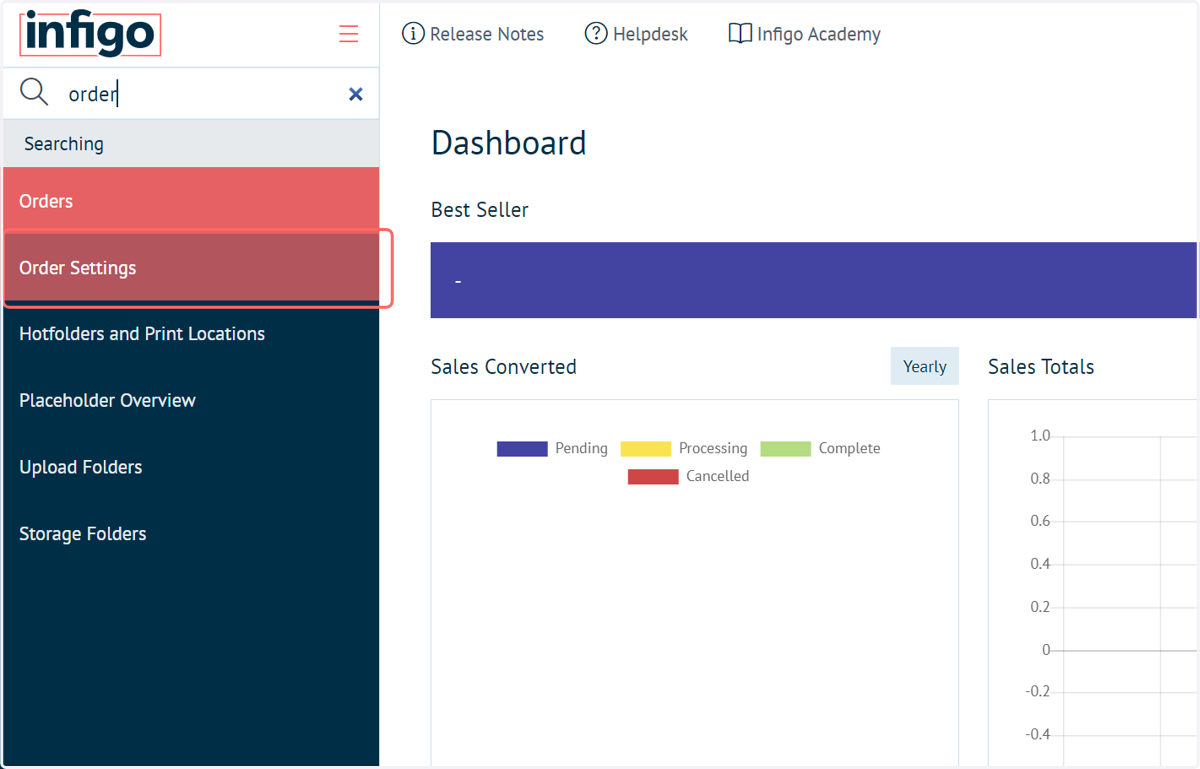
1. Navigate to Order Settings
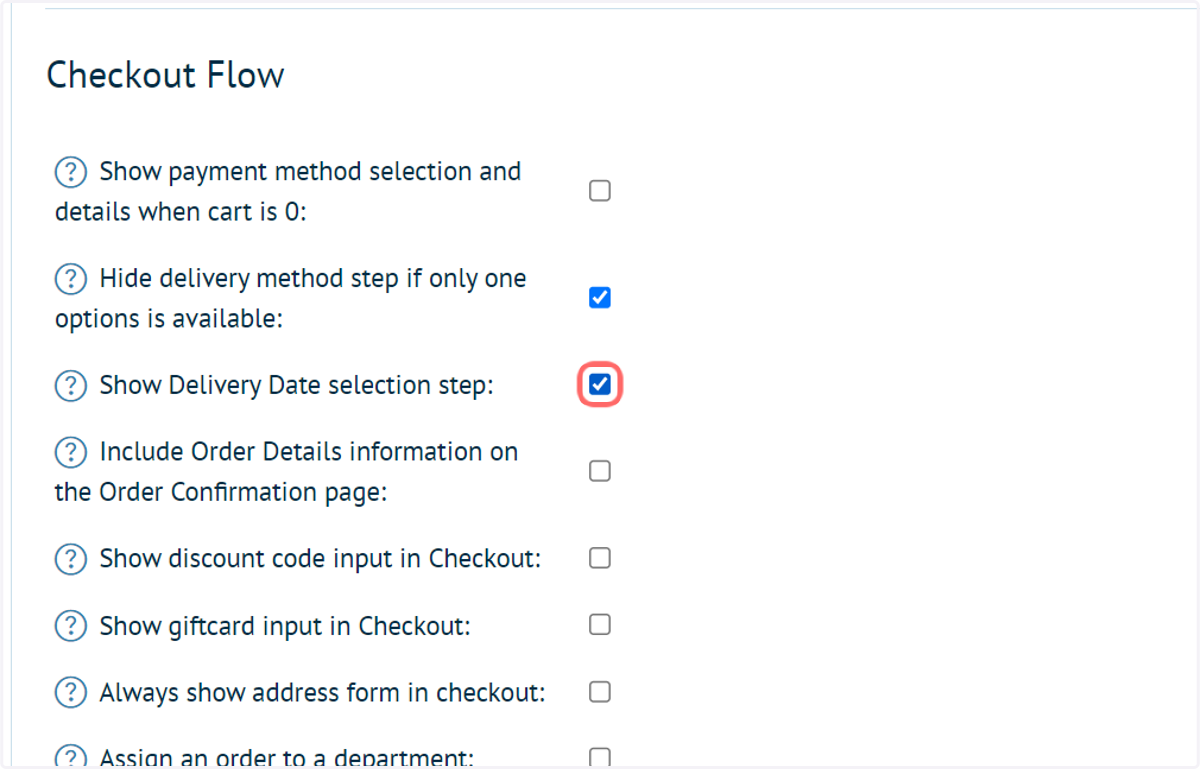
2. Check Show Delivery Date selection step and click Save
This option adds an additional step to the one-page-checkout, allowing the user to specify a delivery date.
When a specific date is selected during the checkout process, the 'Dispatch By' and 'Deliver By' dates will be set accordingly.
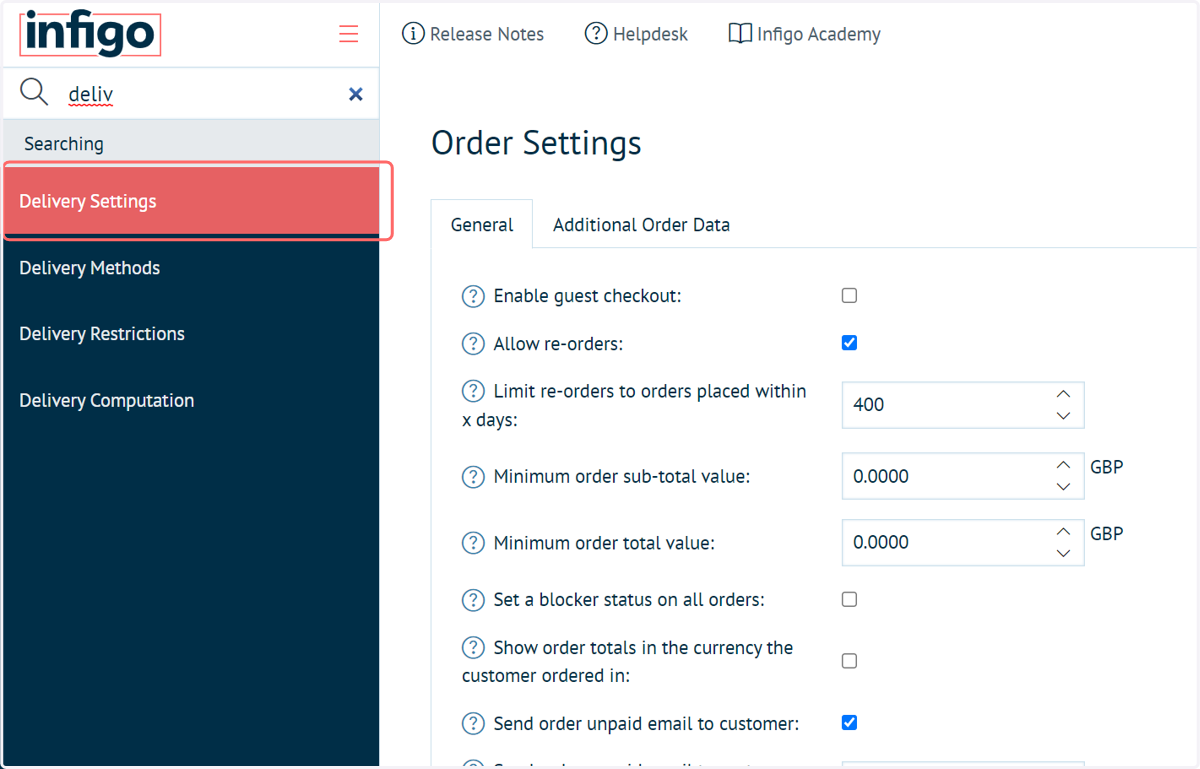
3. Navigate to Delivery Settings and the Delivery Date section
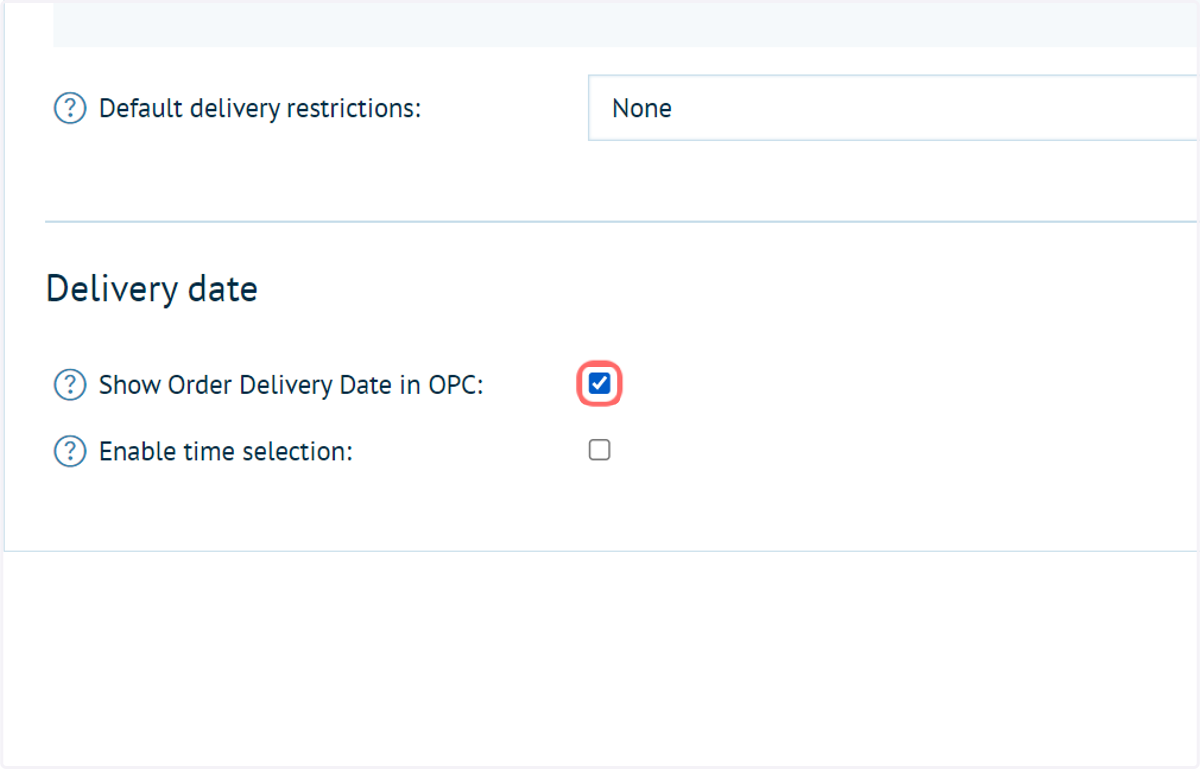
4. Check Show Order Delivery Date in OPC
This setting shows the order delivery date within the one page checkout delivery step.
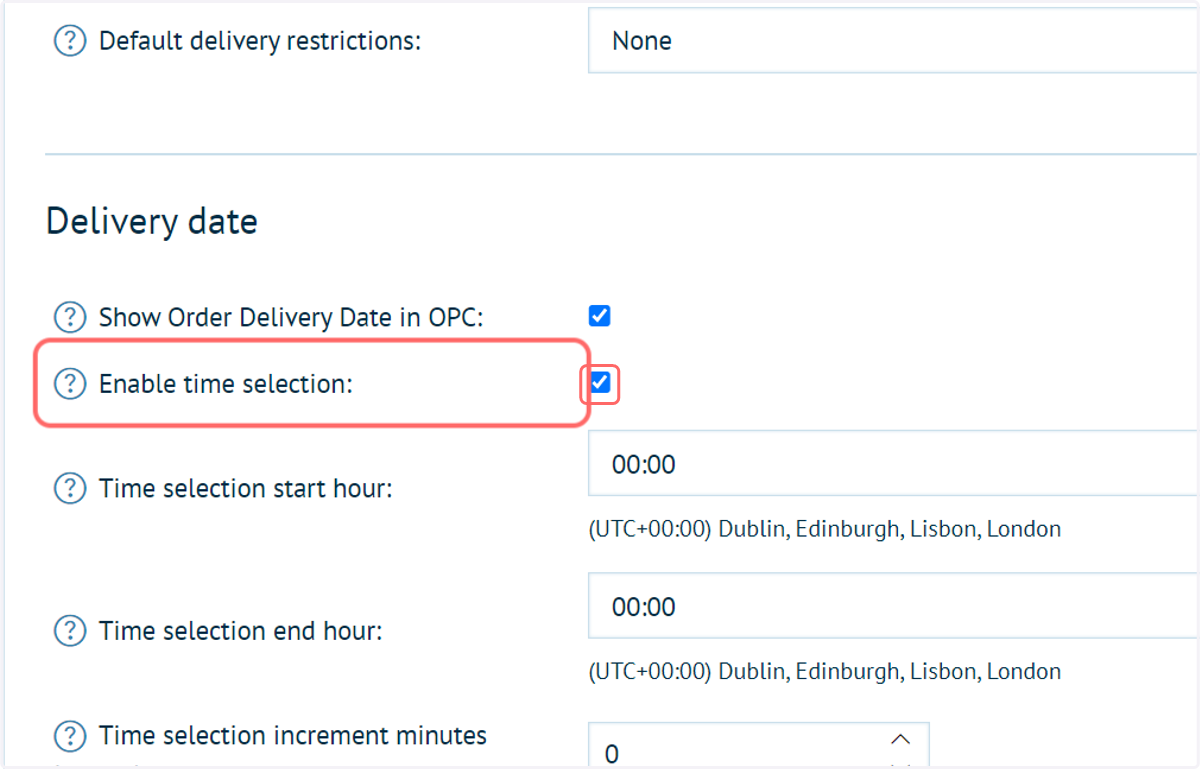
5. Check Enable time selection
When enabled, this setting displays a Time Selection input on the same screen as the date selection during the checkout process.
This function will only be utilised when the date picker (activated in a previous step) is enabled.
NOTE: At the time of recording, this setting is located in the Delivery Settings, however in future releases it may be located in the Order Settings below the "Show Delivery Date" option mentioned in step 2
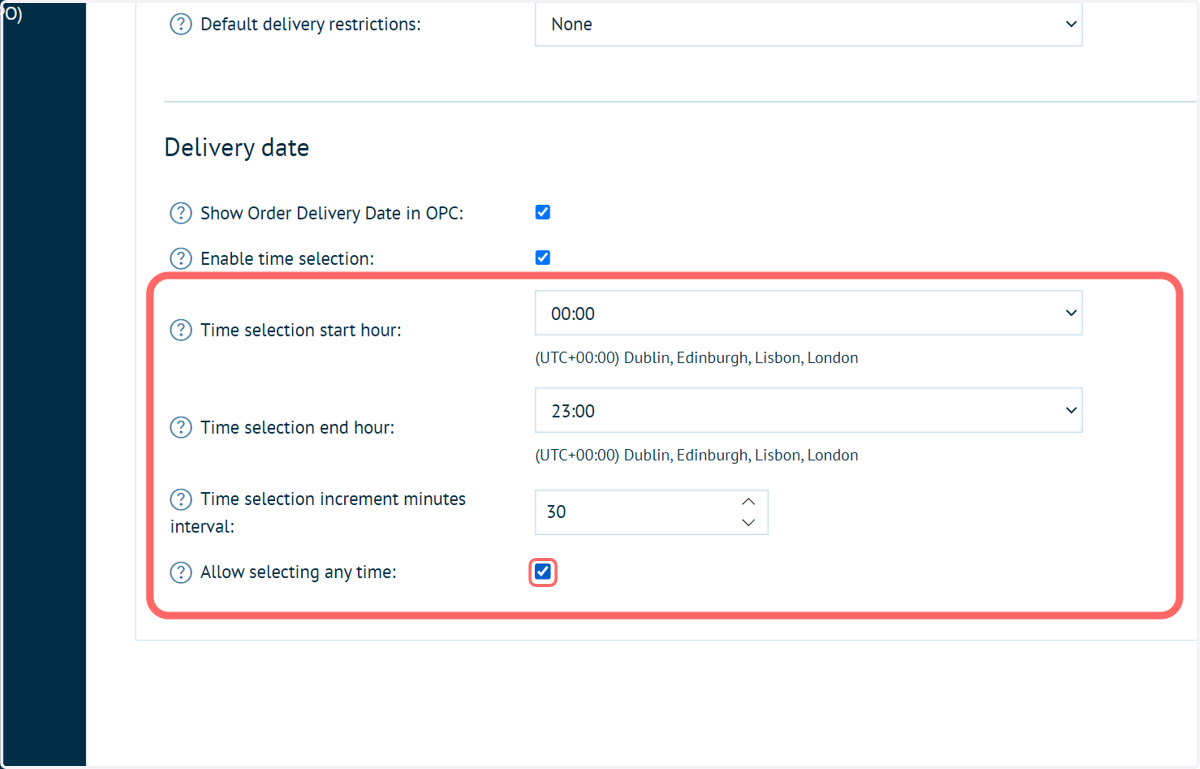
6. Specify time ranges
Other options will appear allowing you to define the available delivery start and end time, along with available time increments.
7. Click on Save
8. Navigate to checkout on the front-end to test this functionality
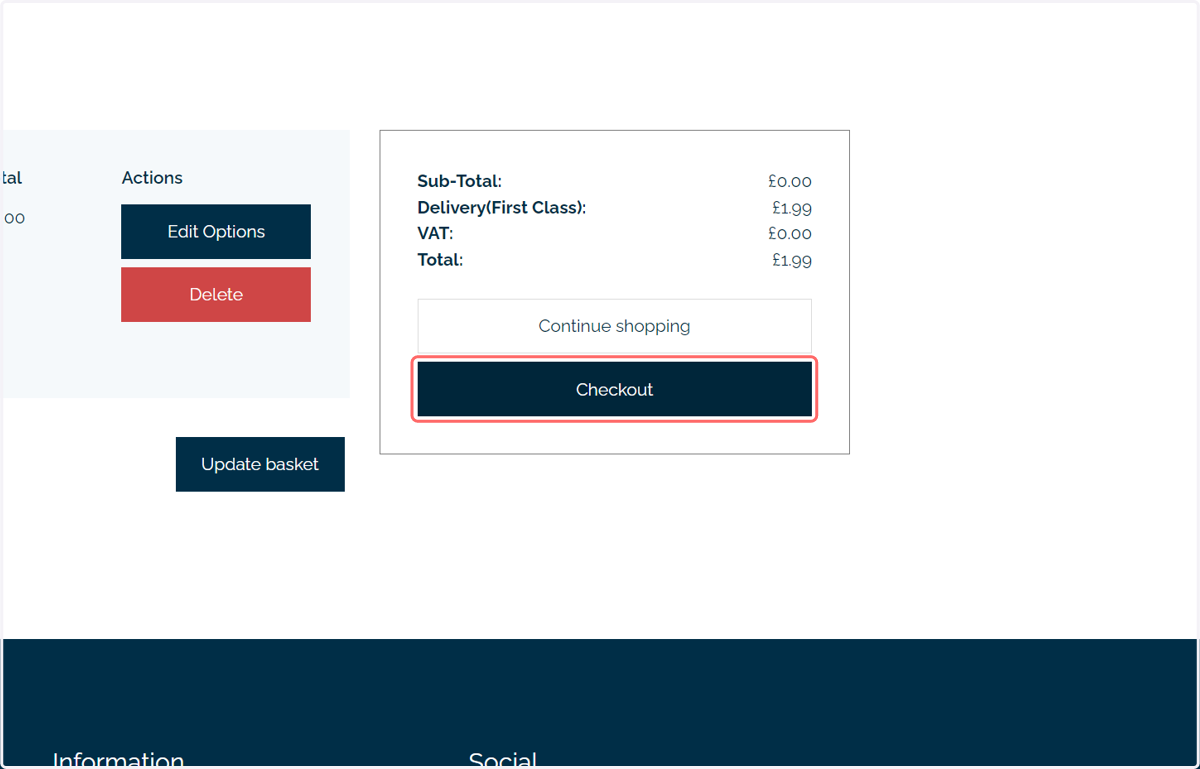
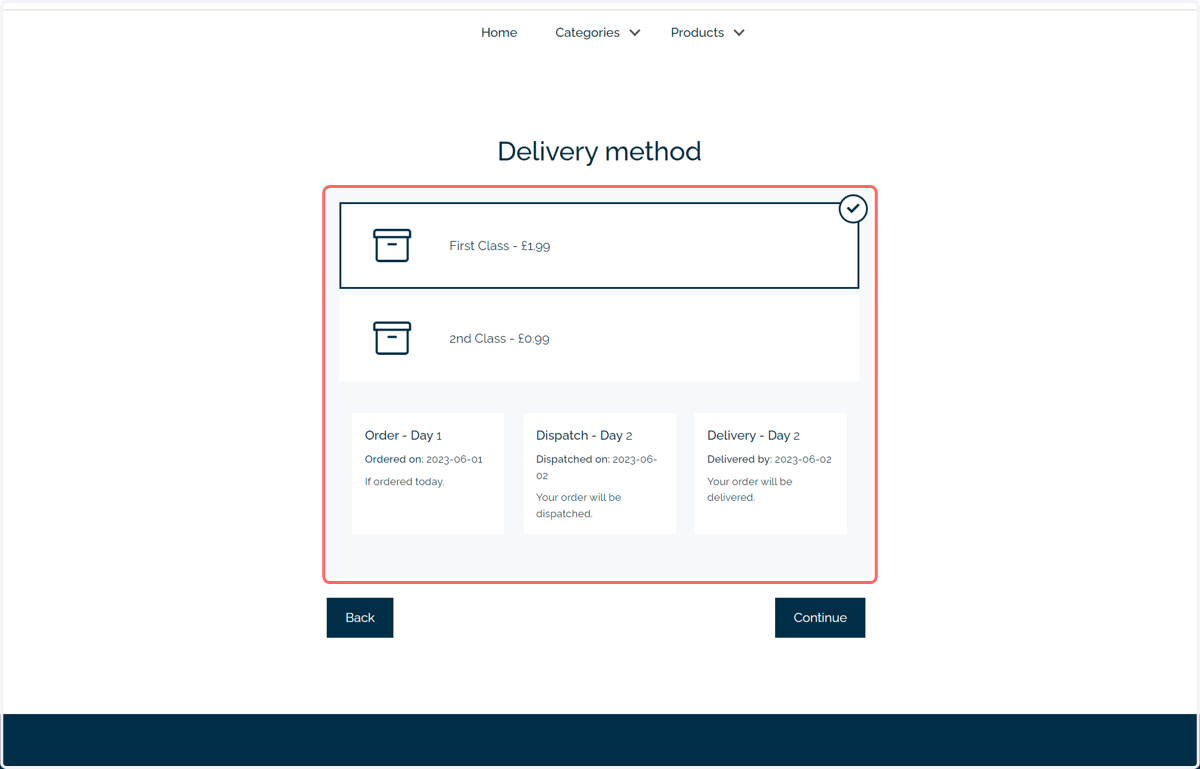
9. The Delivery Method step will now display the dates of key order dates
This is as a result of the "Show Order Delivery Date in OPC" option enabled in step 4.
10. A Delivery Date page will also be displayed
This page will only be displayed with the delivery date option enabled.
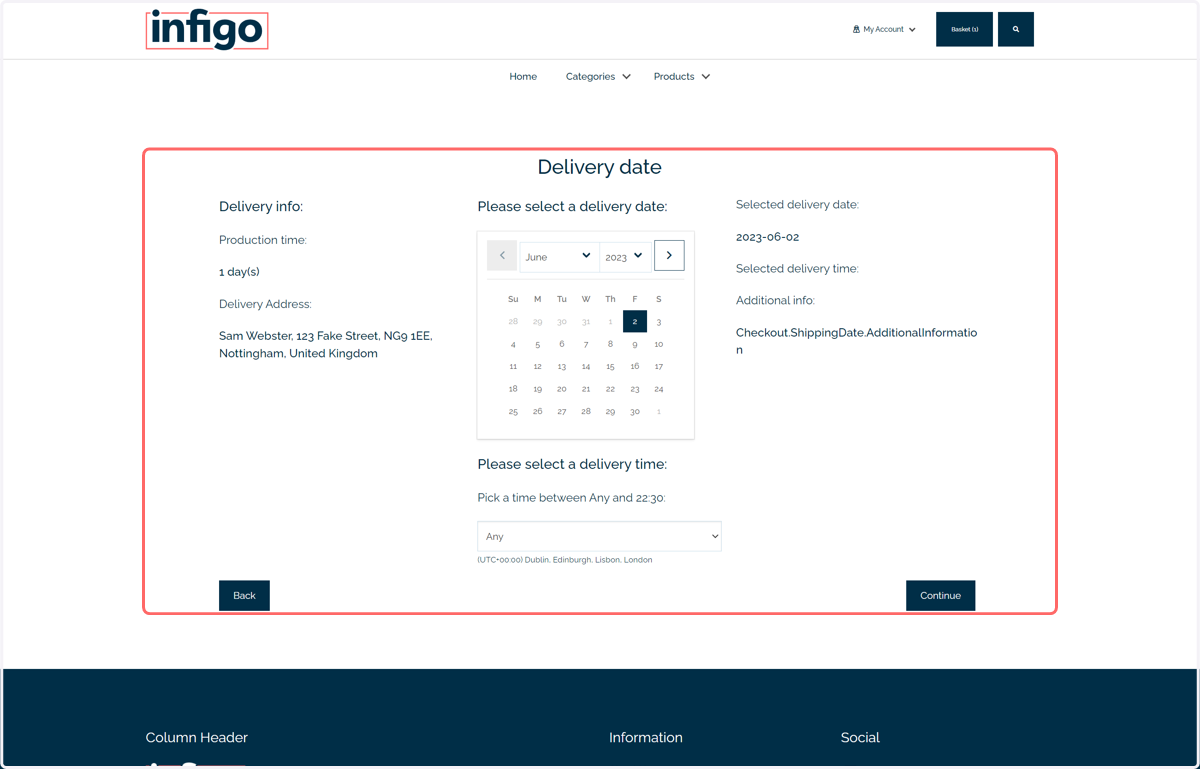
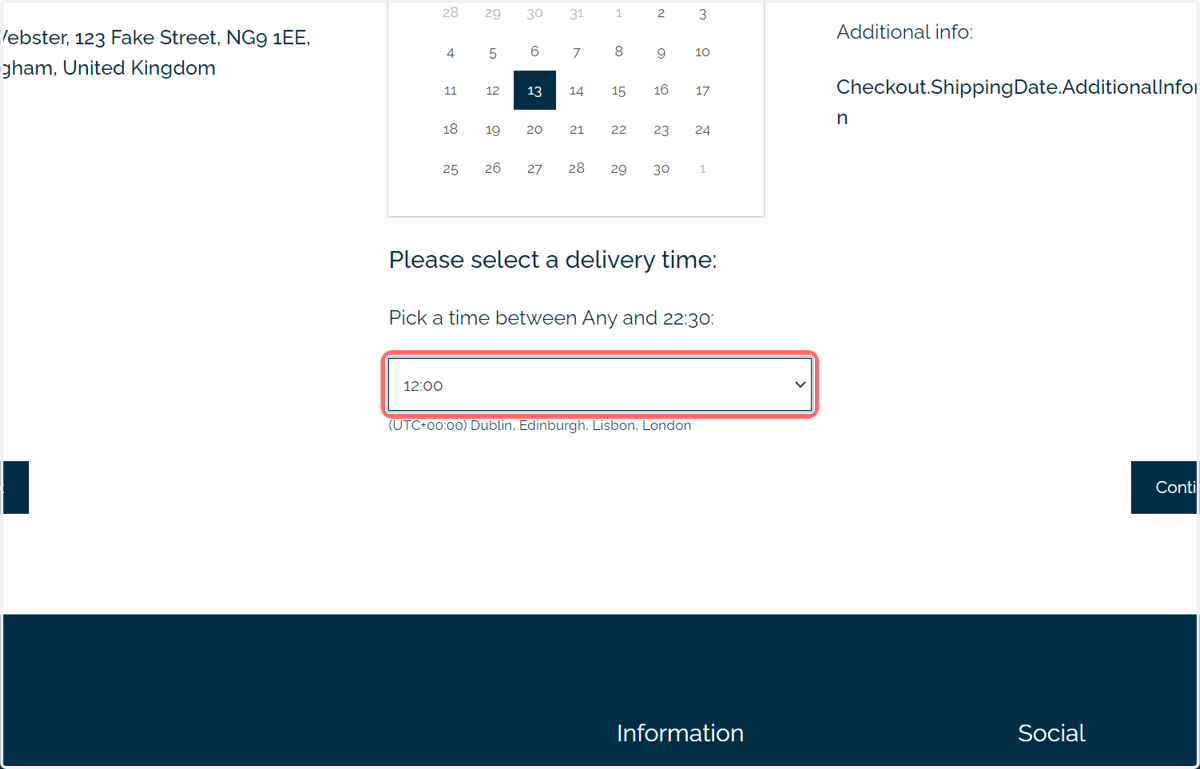
11. Users can select a specific date and time based on the limits specified by the administrator
12. Navigate to Connect Plugins
For Tharstern users, this time data can also be sent via your Connect: Tharstern plugin.
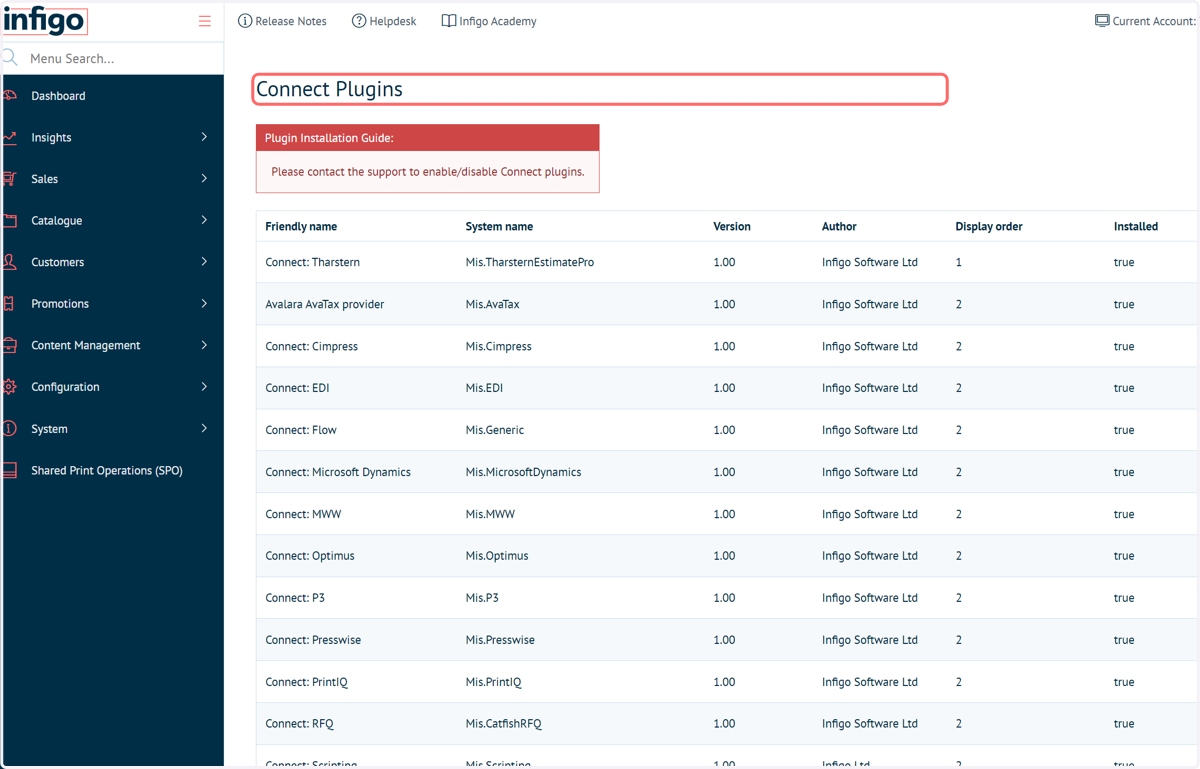
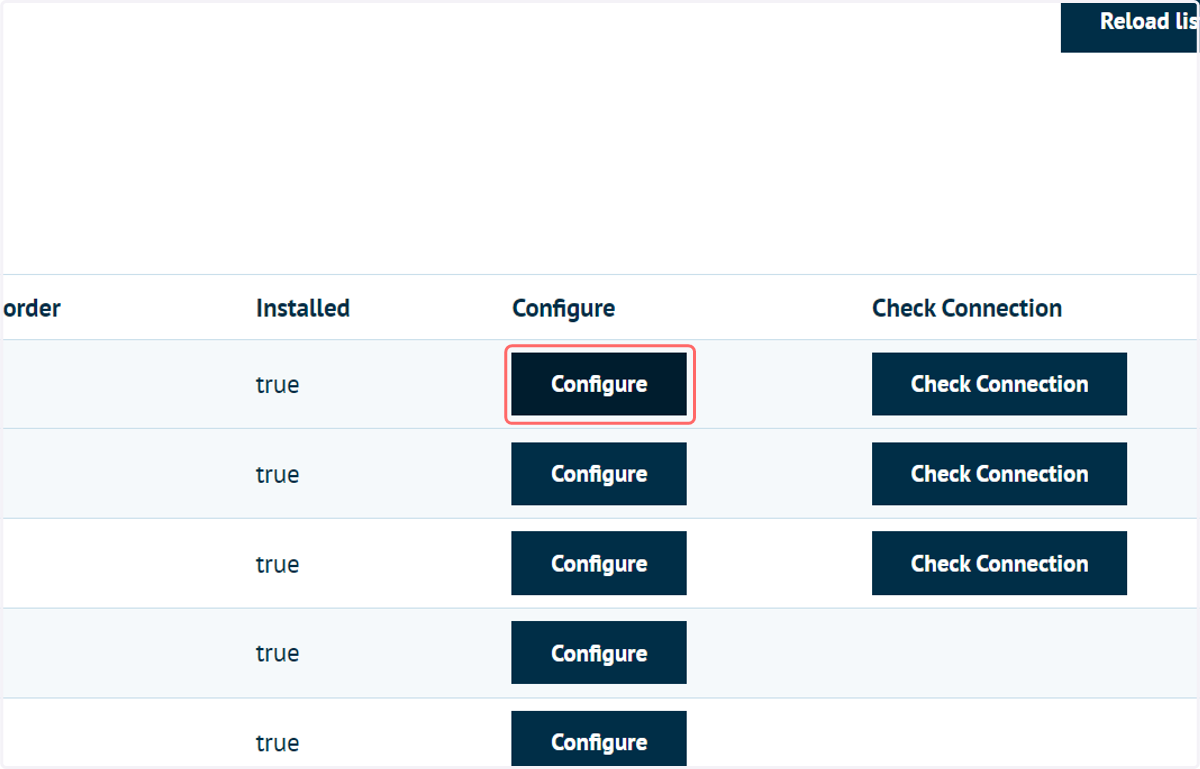
13. Click on Configure on the Tharstern row
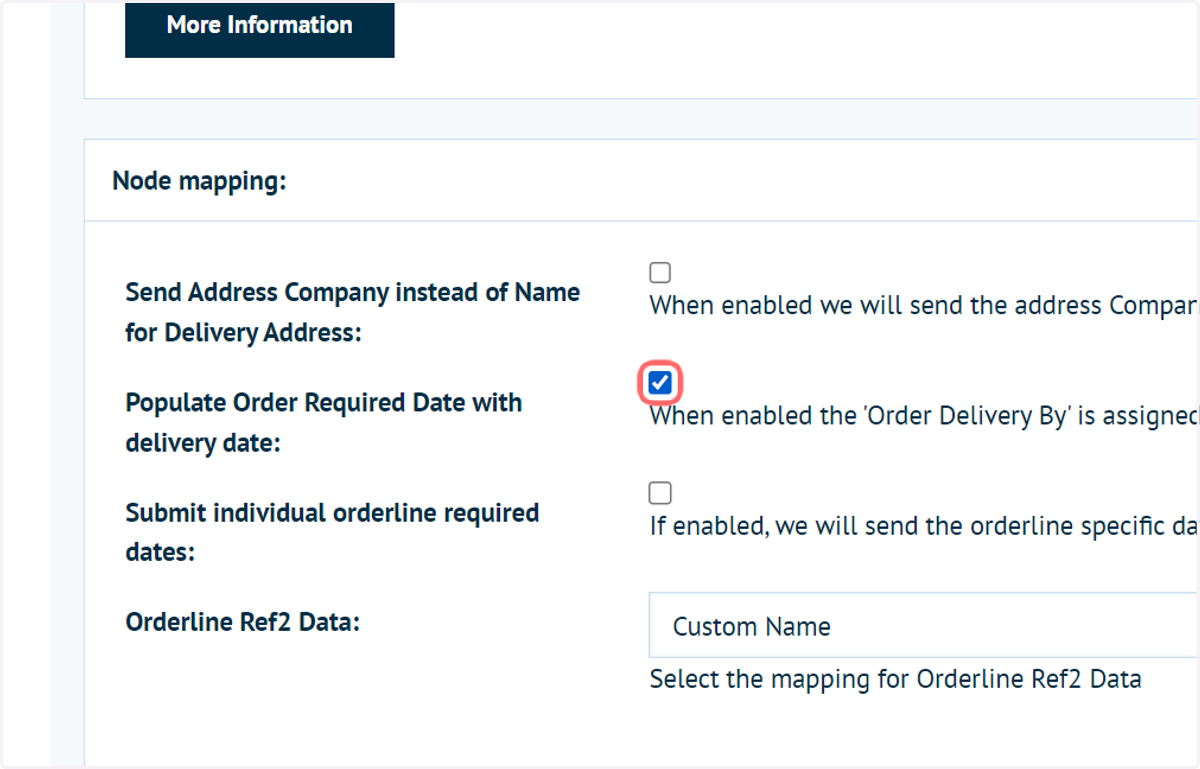
14. Check Populate Order Required Date with delivery date:
This will ensure the date and time selections are sent via the API between Infigo and Tharstern.
15. Click on Save