DonorCharm Guide - Add Donation Forms
Elevatedfundraising
1. Go to app.elevatedfundraising.com
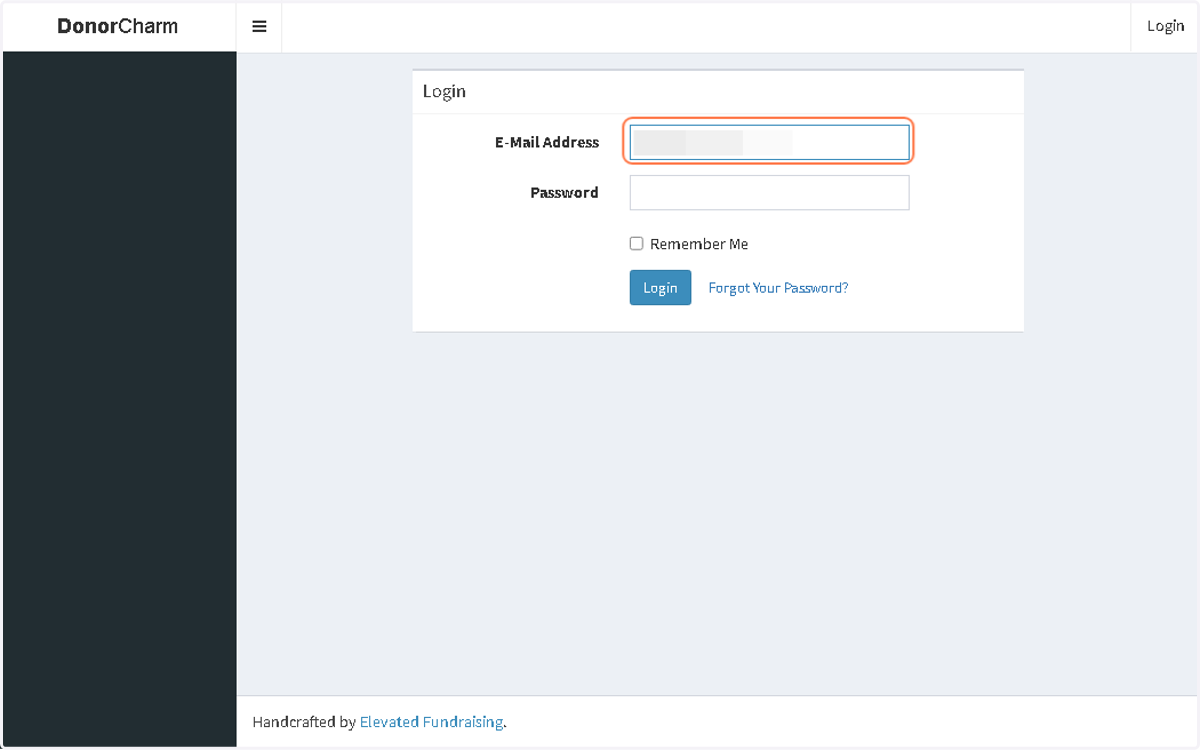
2. Enter in Your Email Address
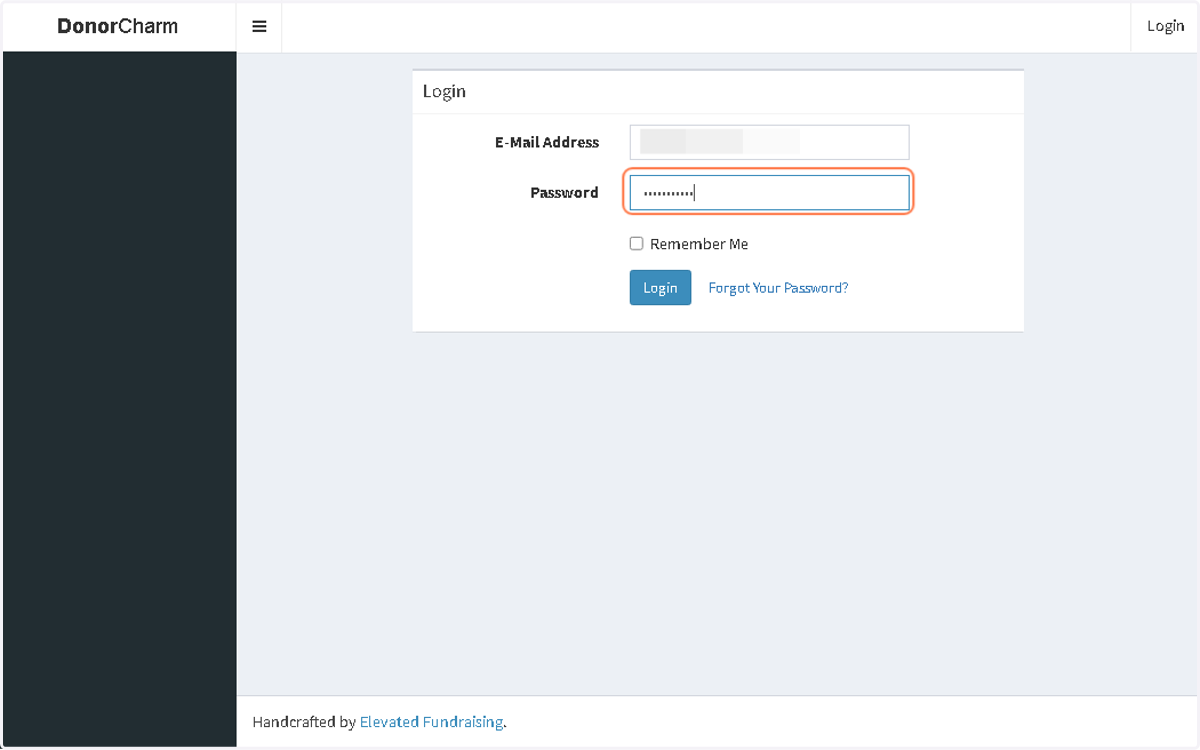
3. Enter in Your Password
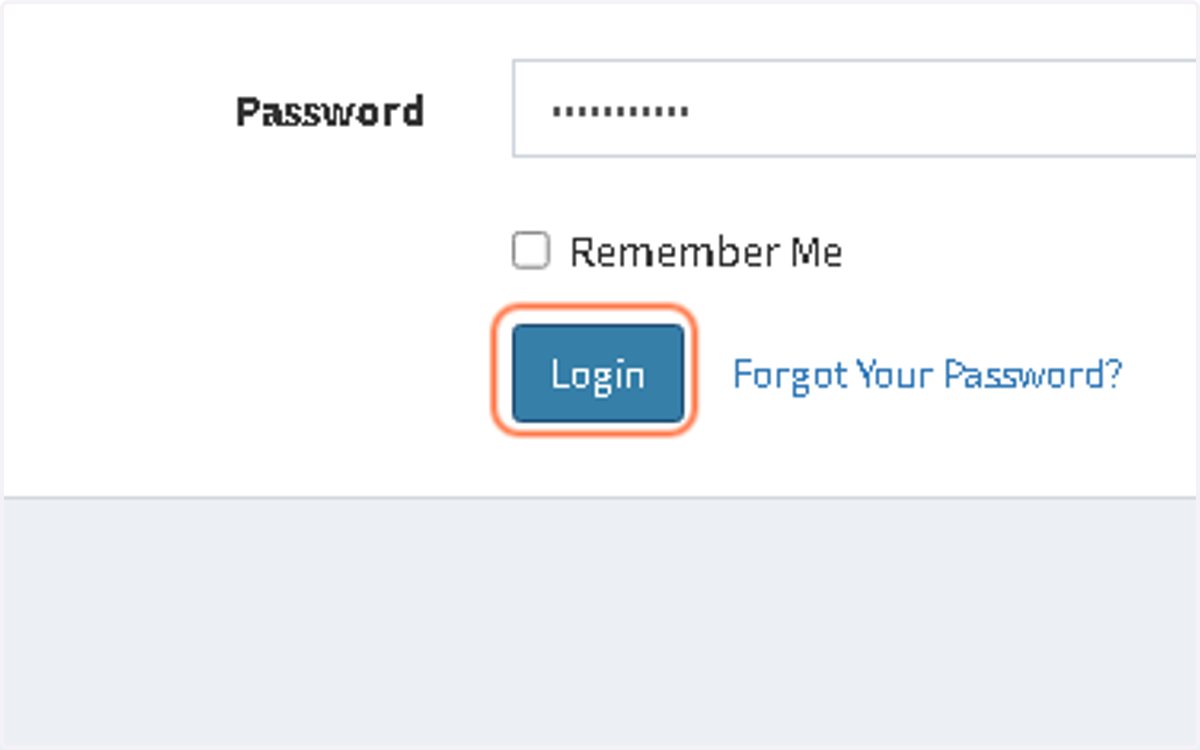
4. Click on Login
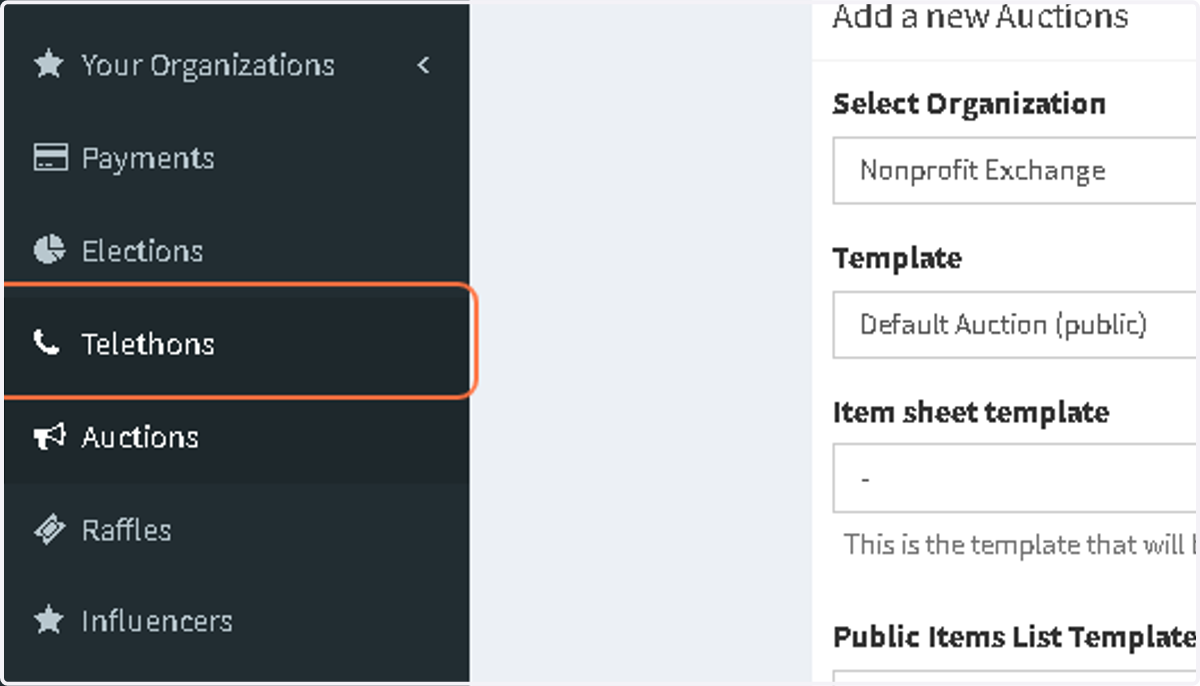
5. Click on Telethons
A telethon is a donation page available to the public, allowing donors to make contributions. Donations made through this page will go towards whatever cause the telethon is raising funds for.
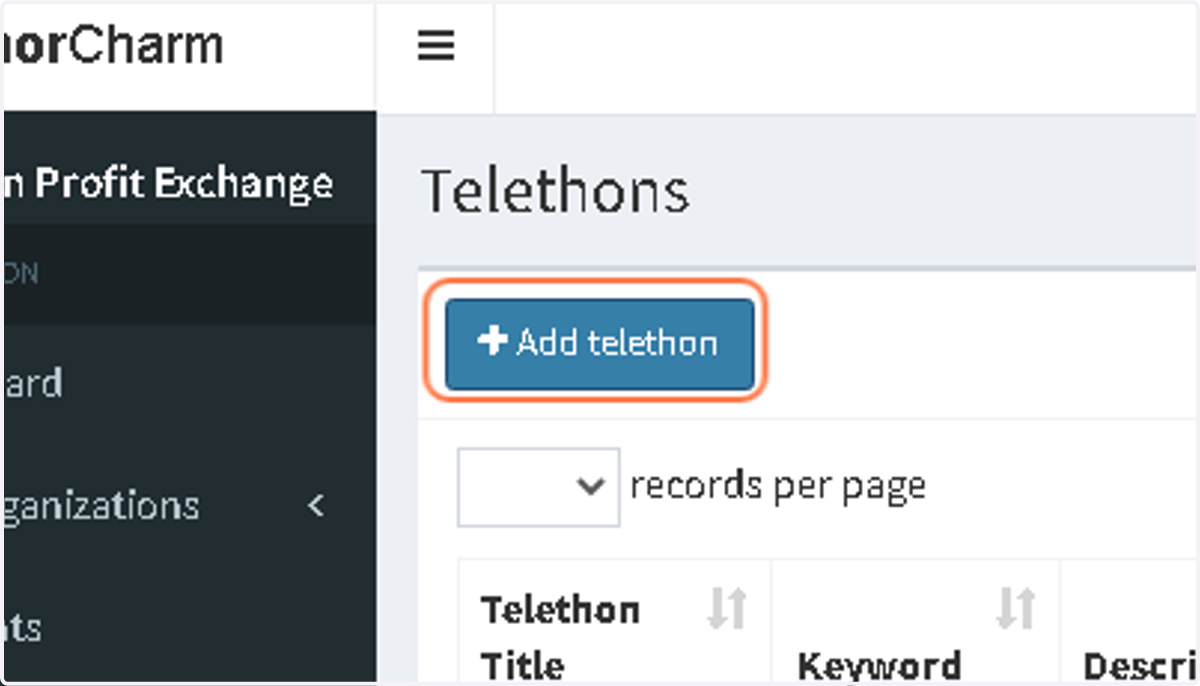
6. Click on Add Telethon
Clicking on the "Add Telethon" button allows users to create a donation page for their chosen cause. They can customize the page with information about the cause, set payment options and start receiving donations from supporters.
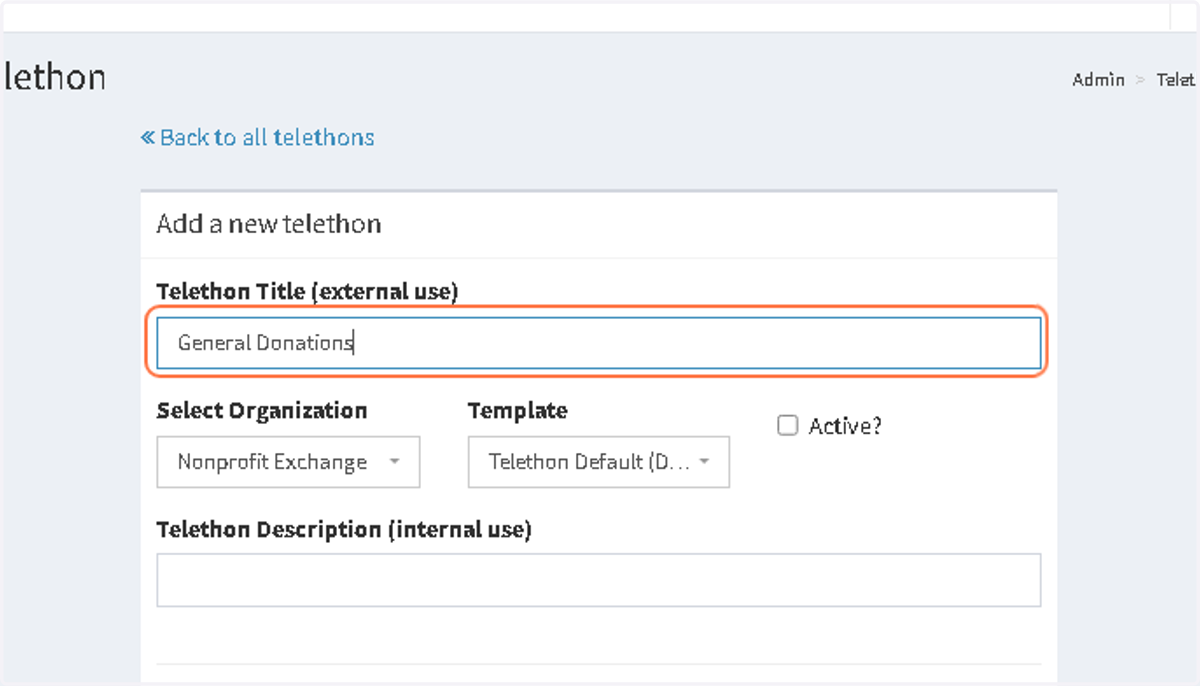
7. Enter in the Telethon Title
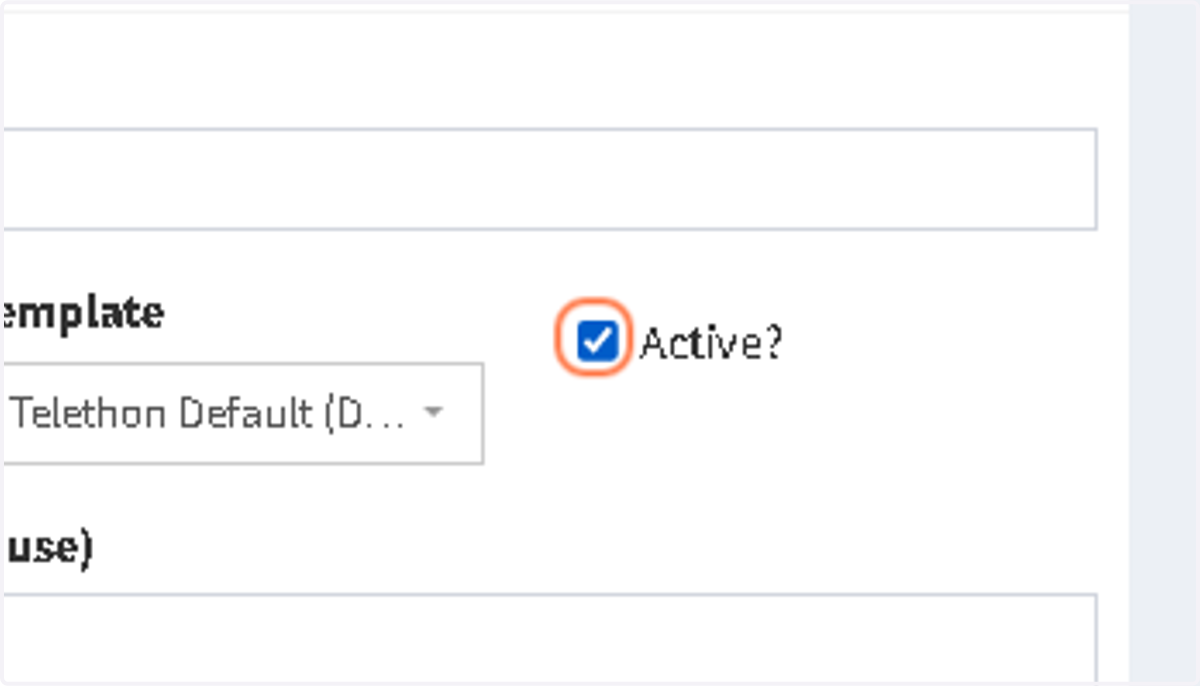
8. Check Active
Clicking the "Active" activates the telethon.
9. Enter in the Telethon Description
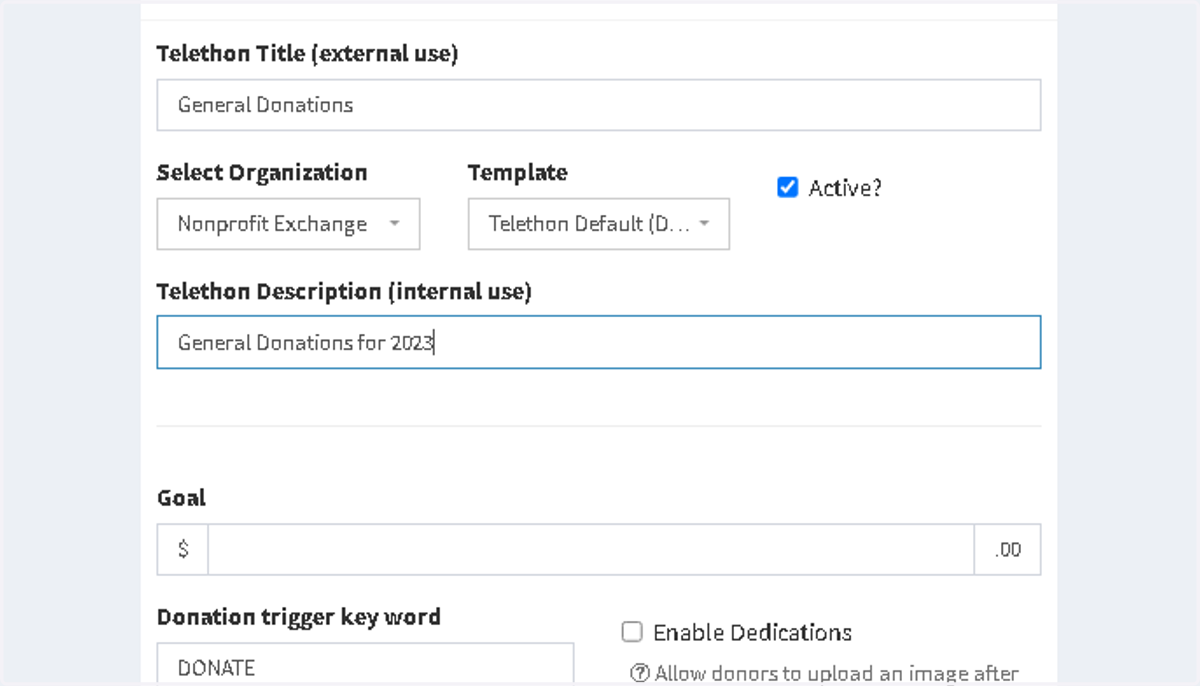
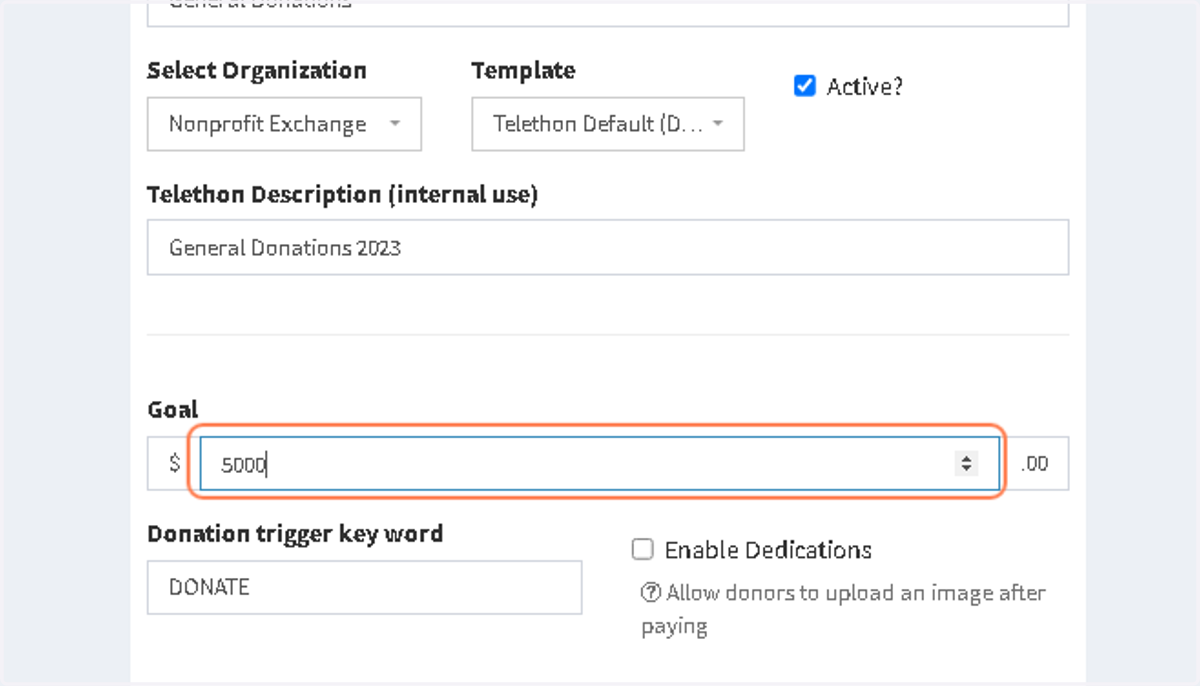
10. Enter in the Goal Amount
By entering a goal amount, organizations can set a clear target for their fundraiser, helping them to track how close they are to achieving it.
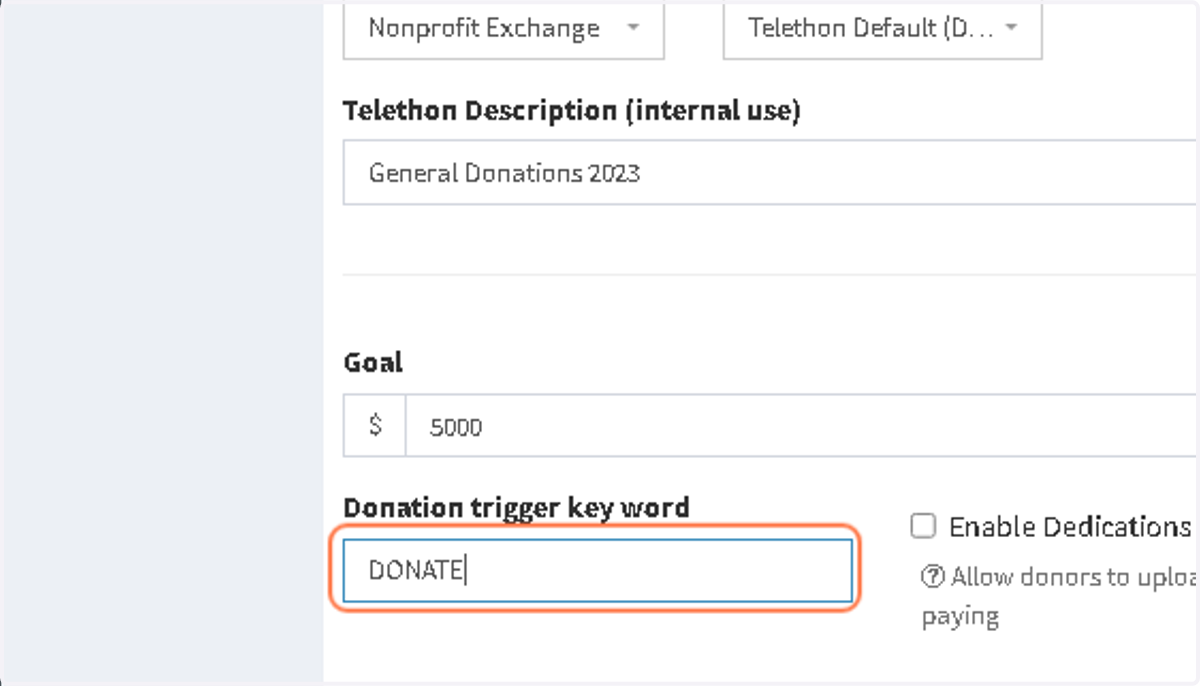
11. Enter in the Donation Trigger Keyword
By setting a donation keyword, donors can trigger the donation by using the keyword.
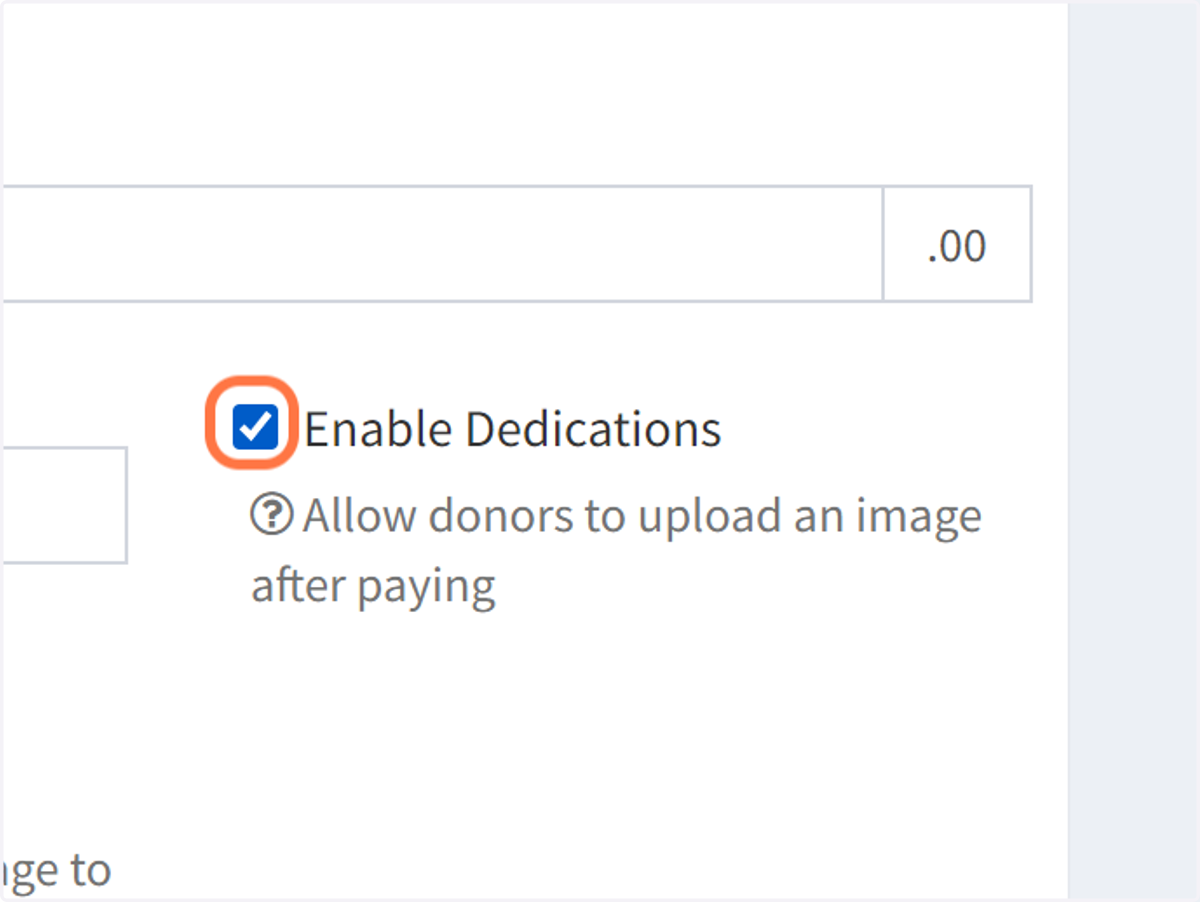
12. Check Enable Dedications
Donors can upload an image to express their appreciation after making a donation. This is a great way to show your support and appreciation for the cause.
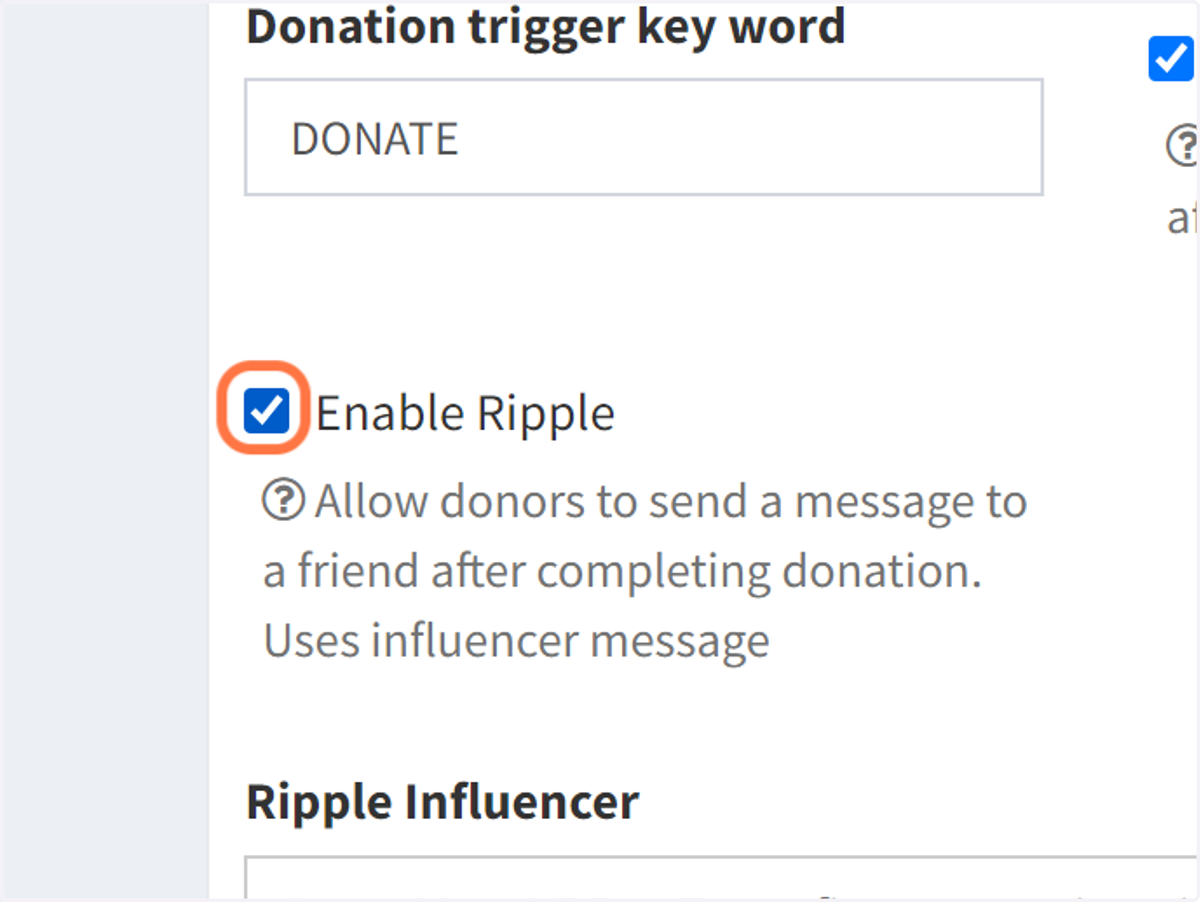
13. Check Enable Ripple
Ripple enables donors to spread the word about their donation by sending a message to challenge a friend to donate when they have completed their donation. This influencer message makes it easy for people to make an impact and encourages others to join in on giving back.
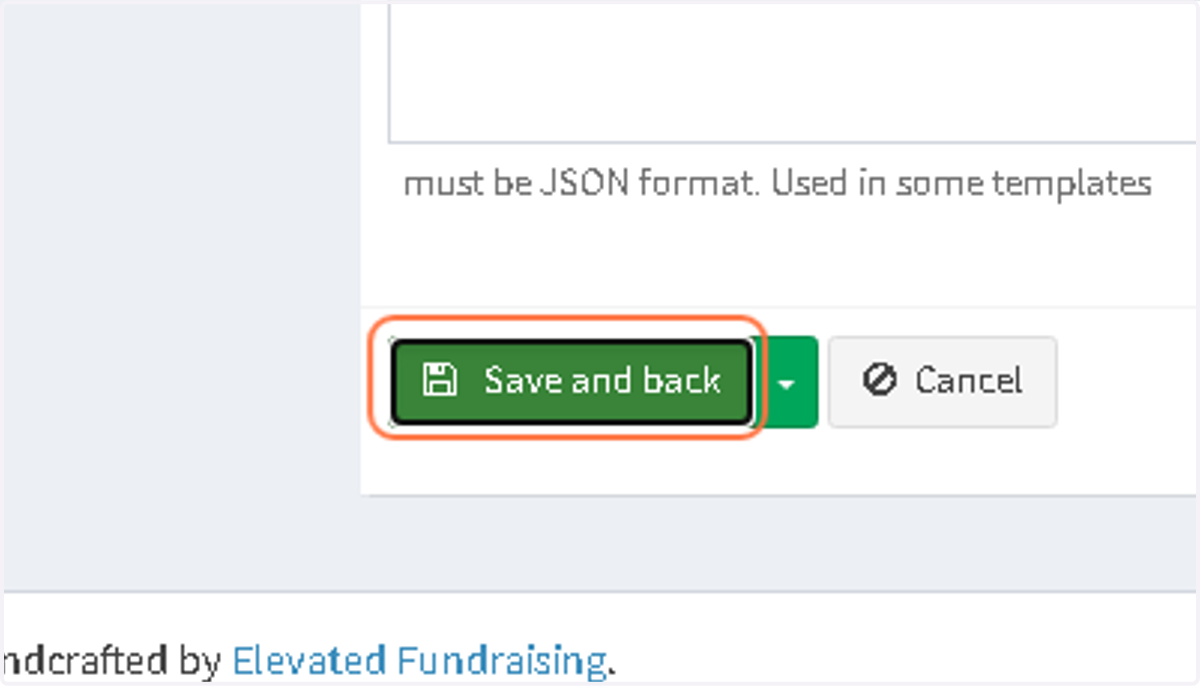
14. Click on Save and Back
15. Click on Enroll to view Public Donation Enrollment Page
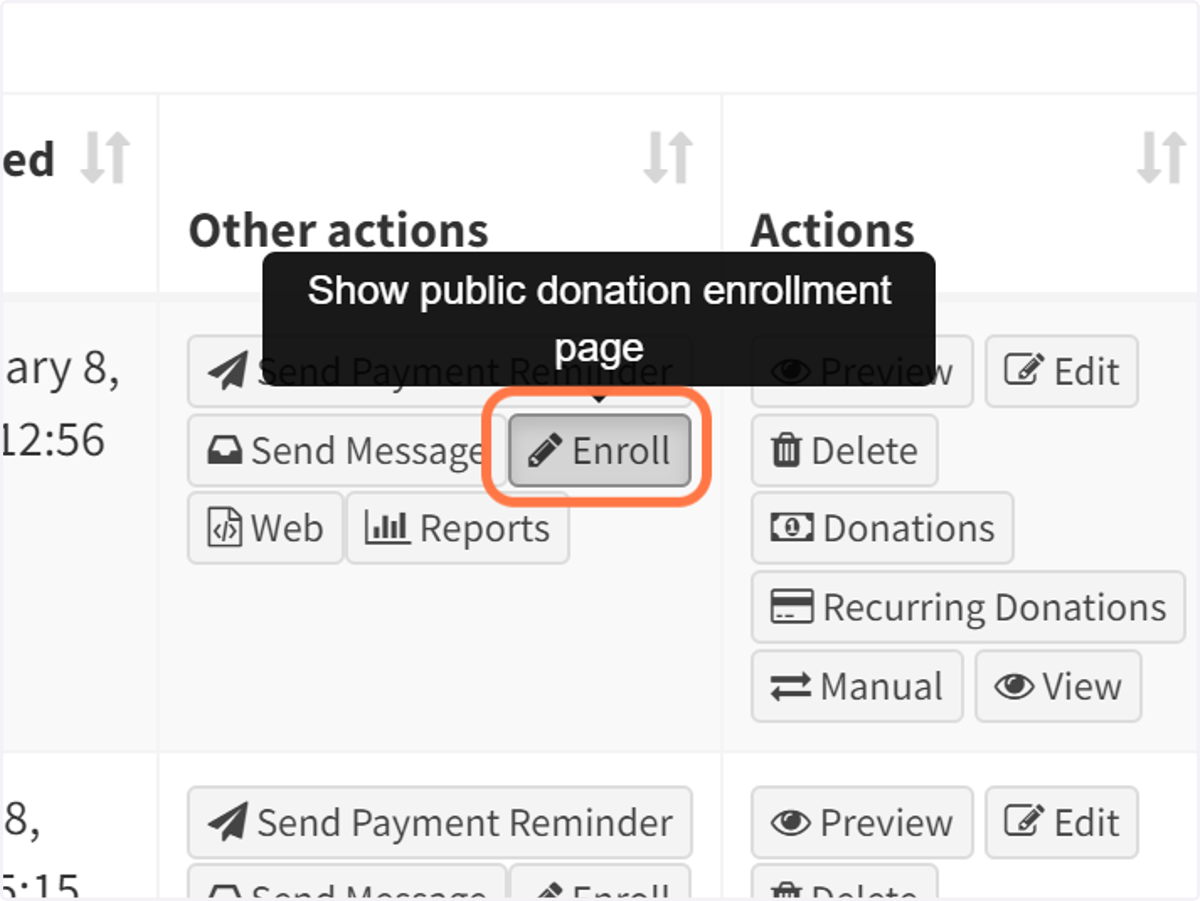
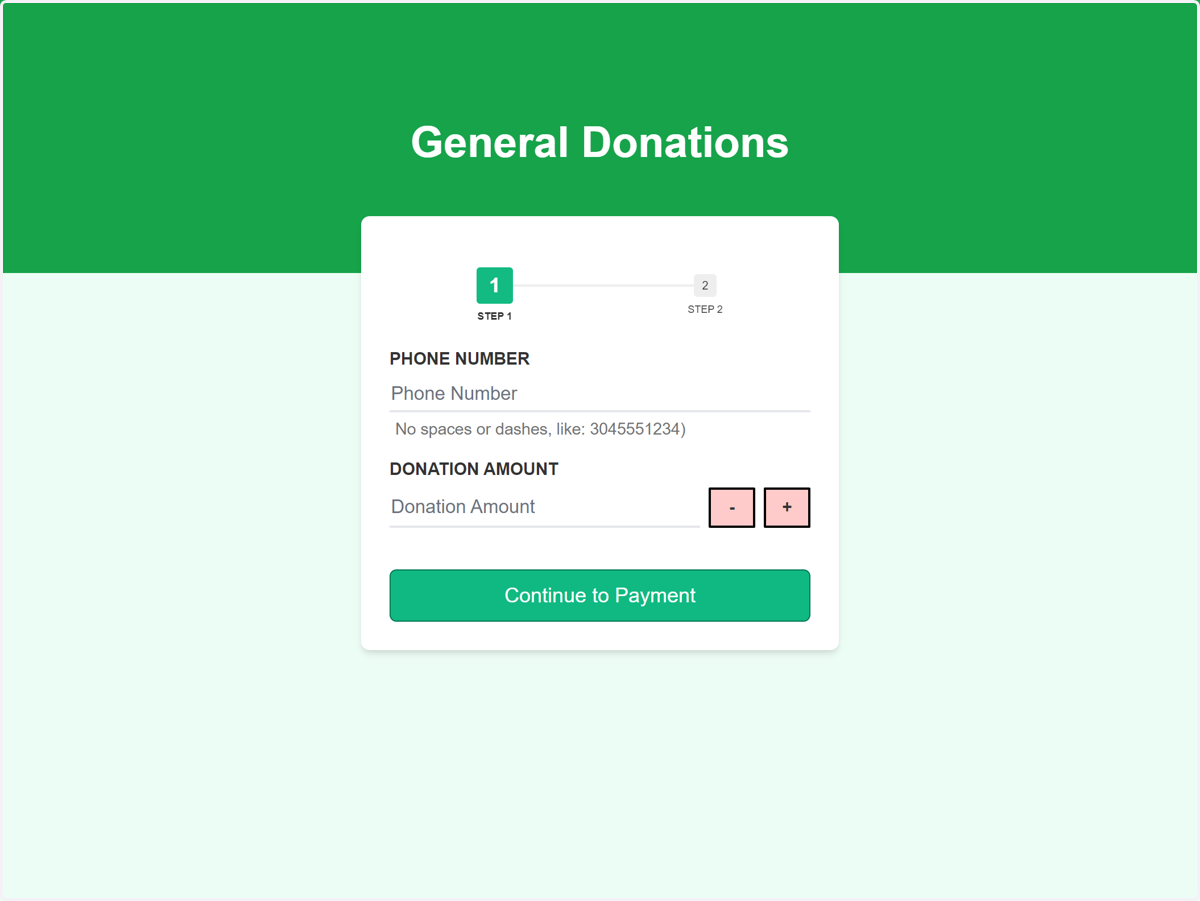
16. After clicking Enroll, you will be directed to the Public Donation Enrollment Page