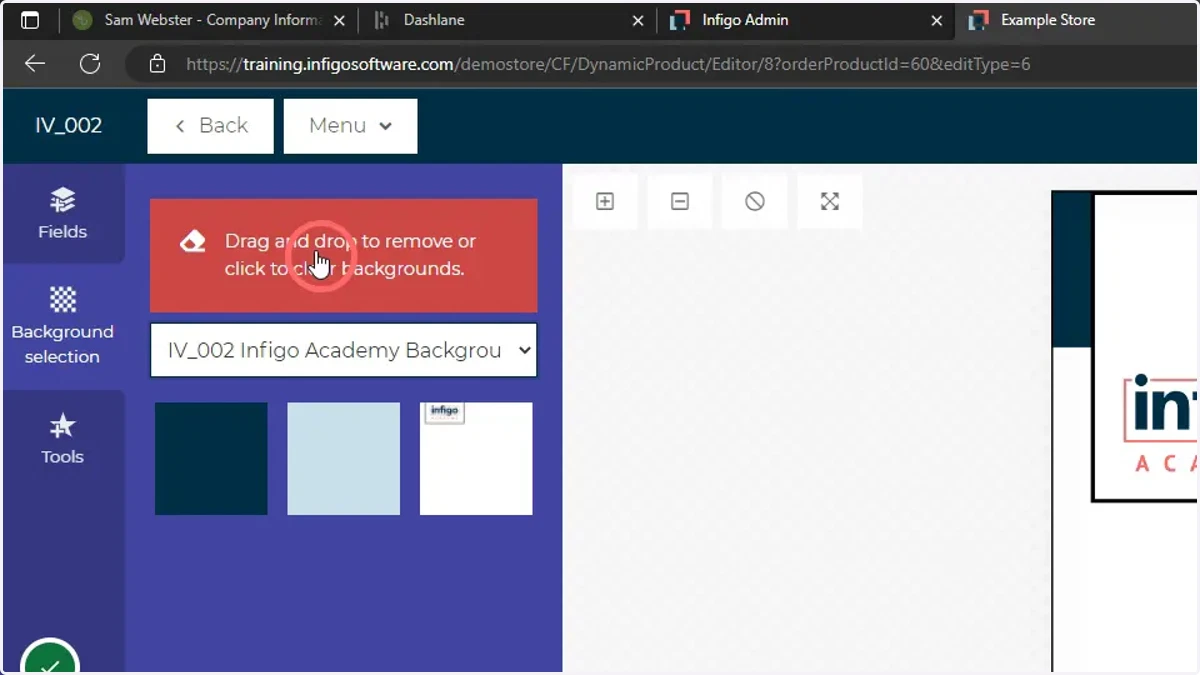
Creating and utilising background resources
In this tutorial, we will learn how to specify background resources such as solid colours or static imagery for use in our Invent templates within MegaEdit.
This consists of generating one or more Resource Sets, which are then directly selectable from within the MegaEdit editor with little additional setup required.
adobe
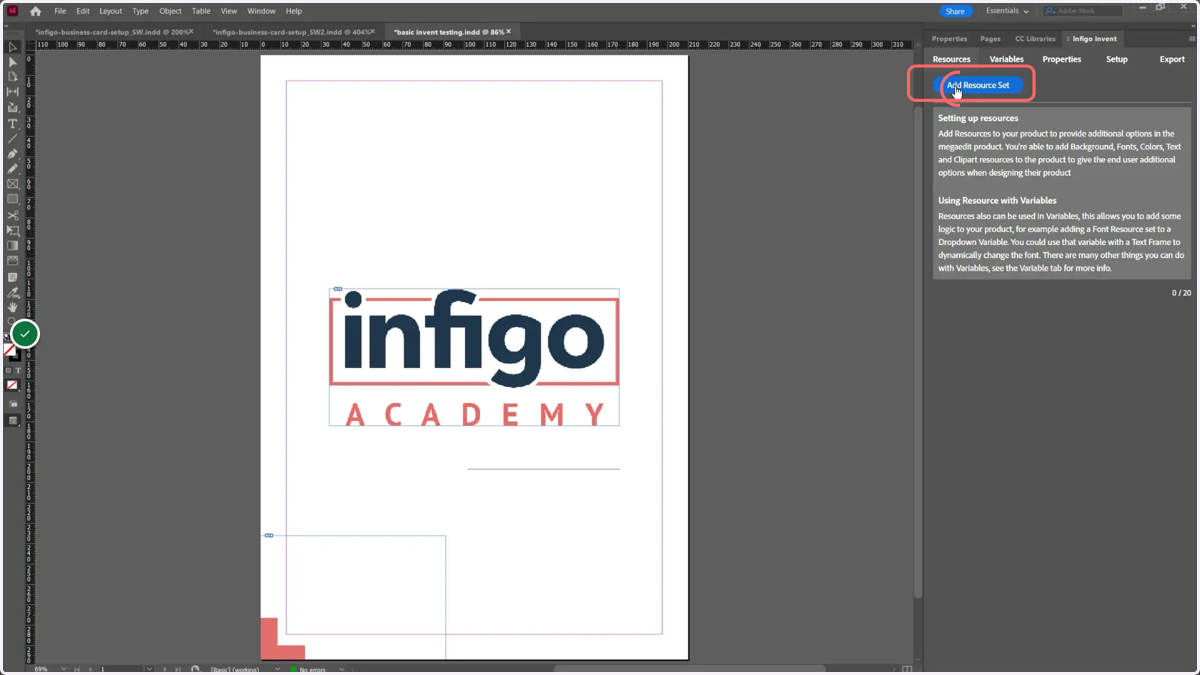
1. In Adobe InDesign with the Infigo Invent tab loaded, click Add Resource Set
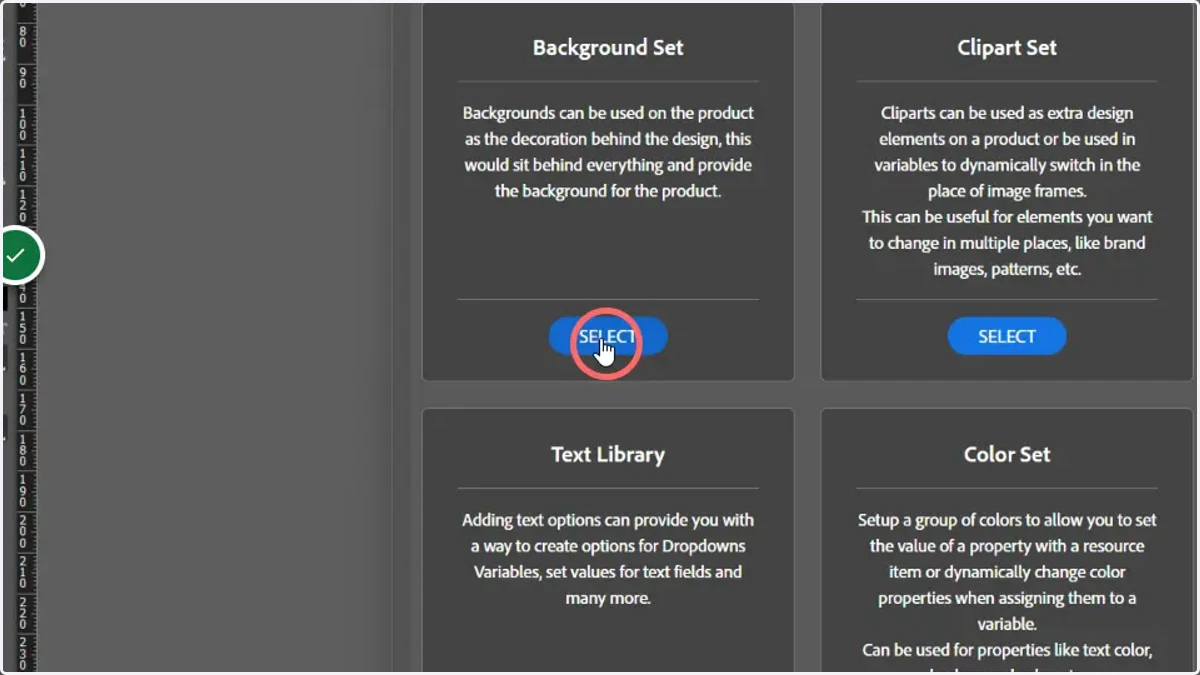
2. Click Background Set and Select
You are presented with a range of resource sets you can create. In this example we are creating a Background Set. Other sets will be covered in additional tutorials.
Backgrounds can be used on the product as the decoration behind the design. This would sit behind everything and provide the background for the product.
adobe
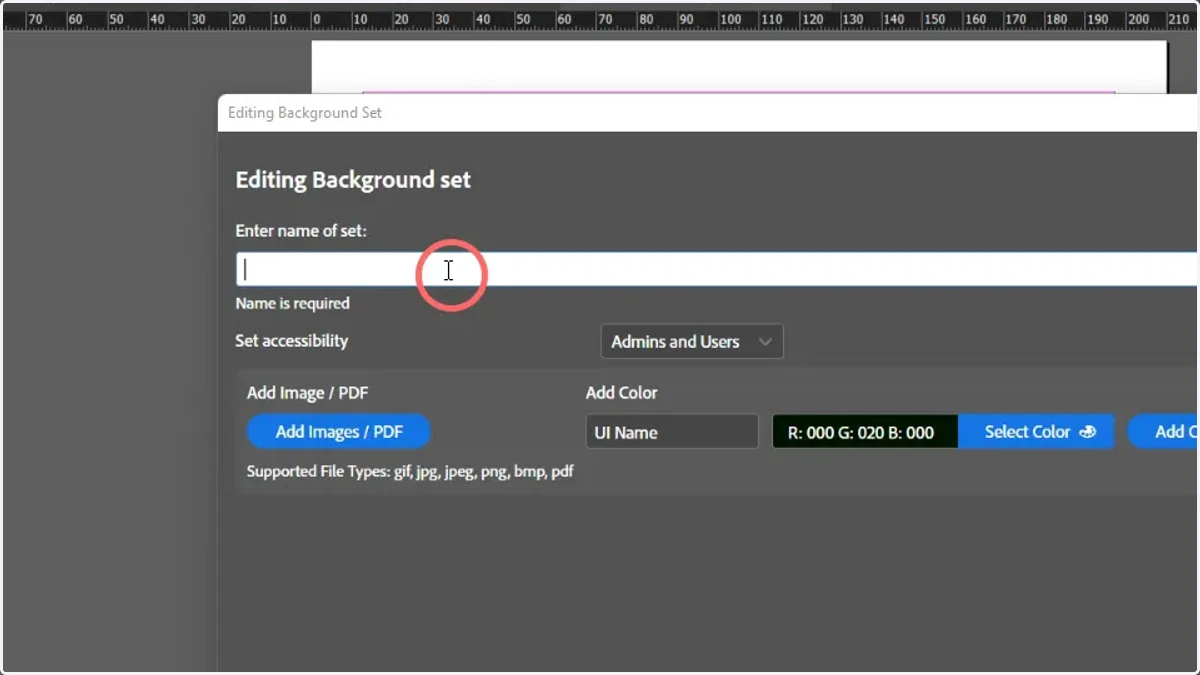
3. Enter a name for the Background Set
4. Click here
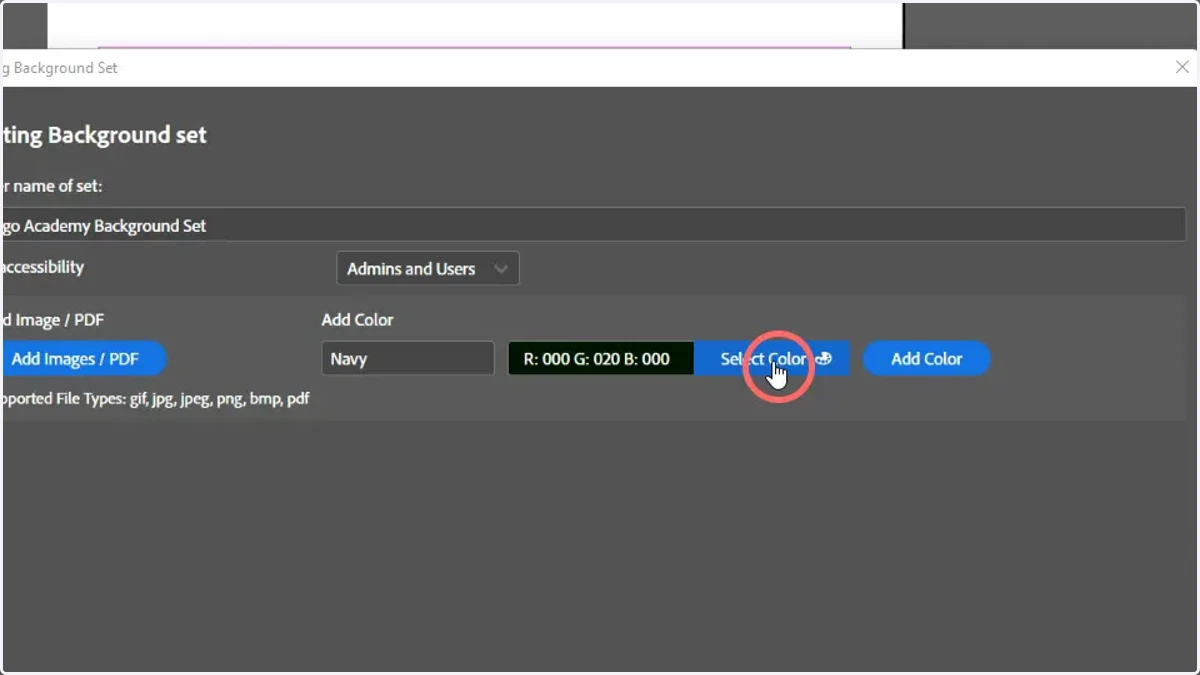
5. Click here
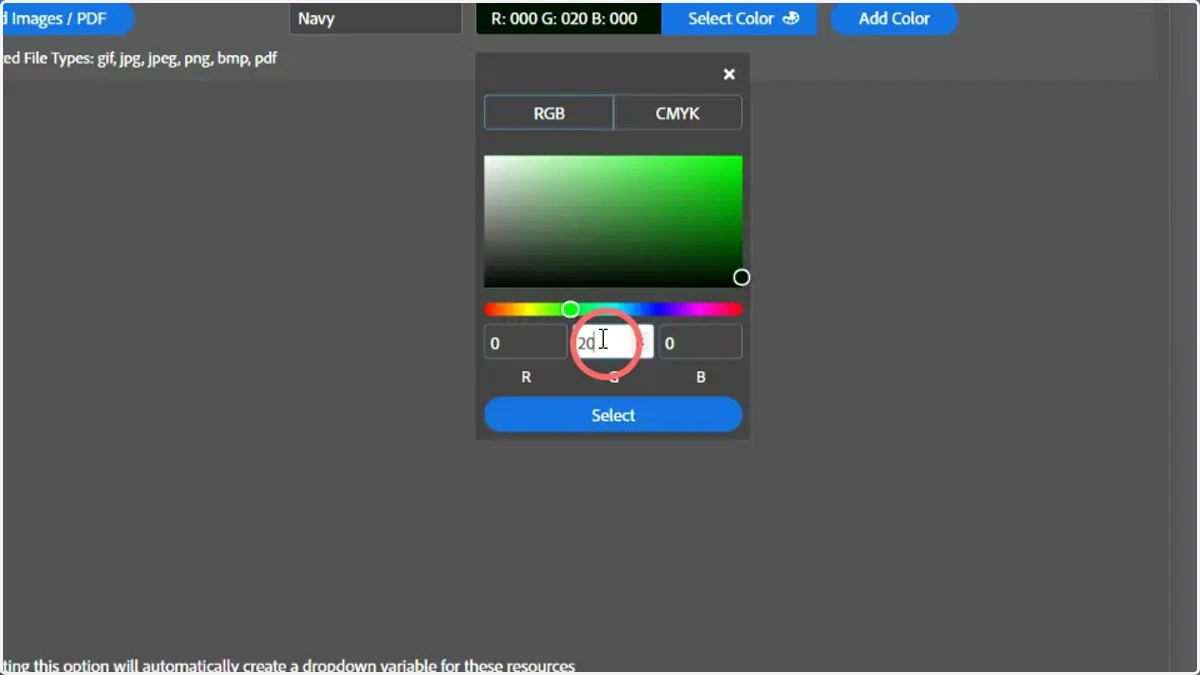
adobe
6. Drag to highlighter
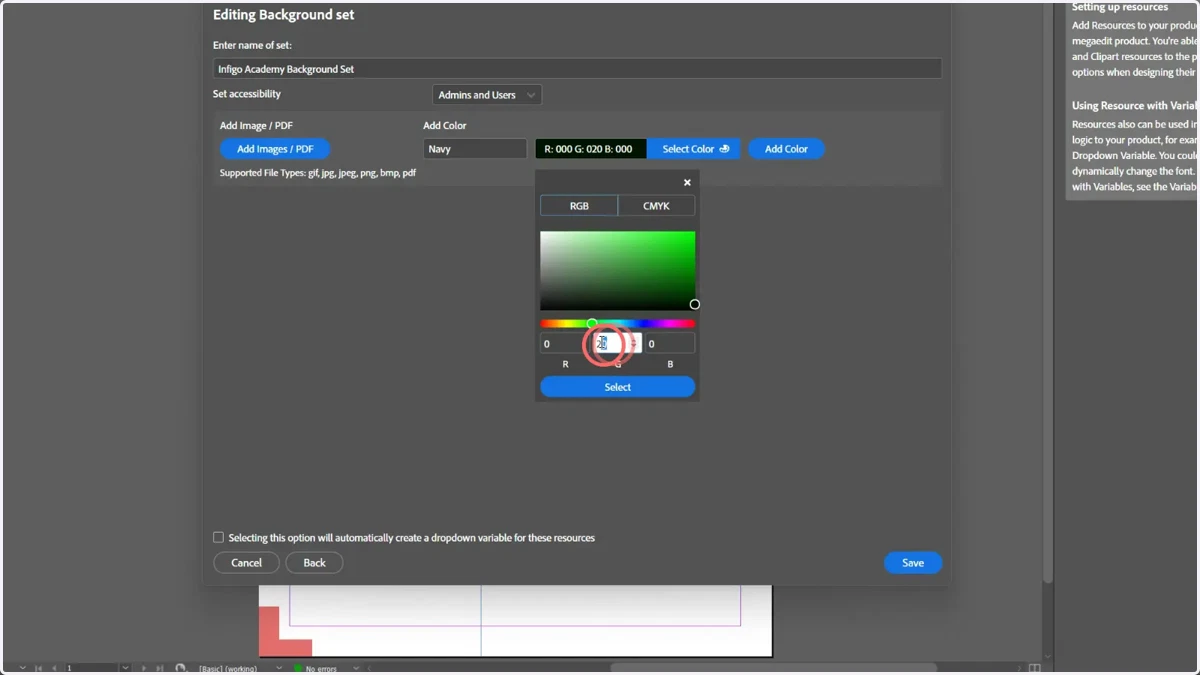
7. Type here
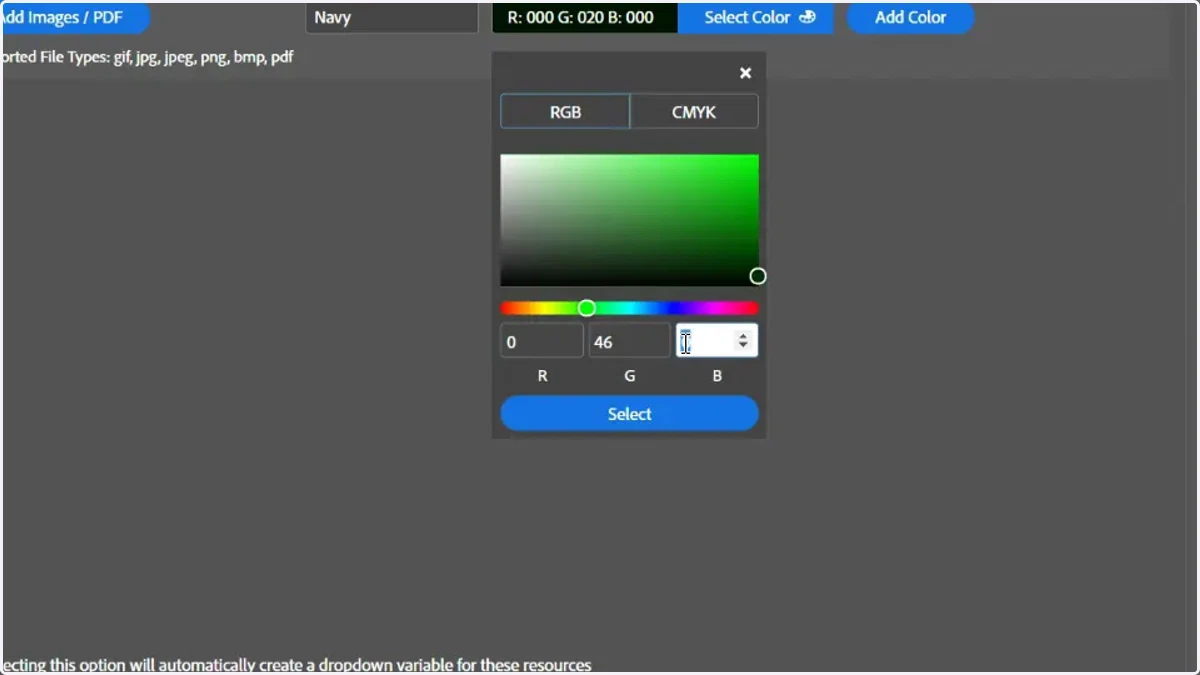
8. Click here
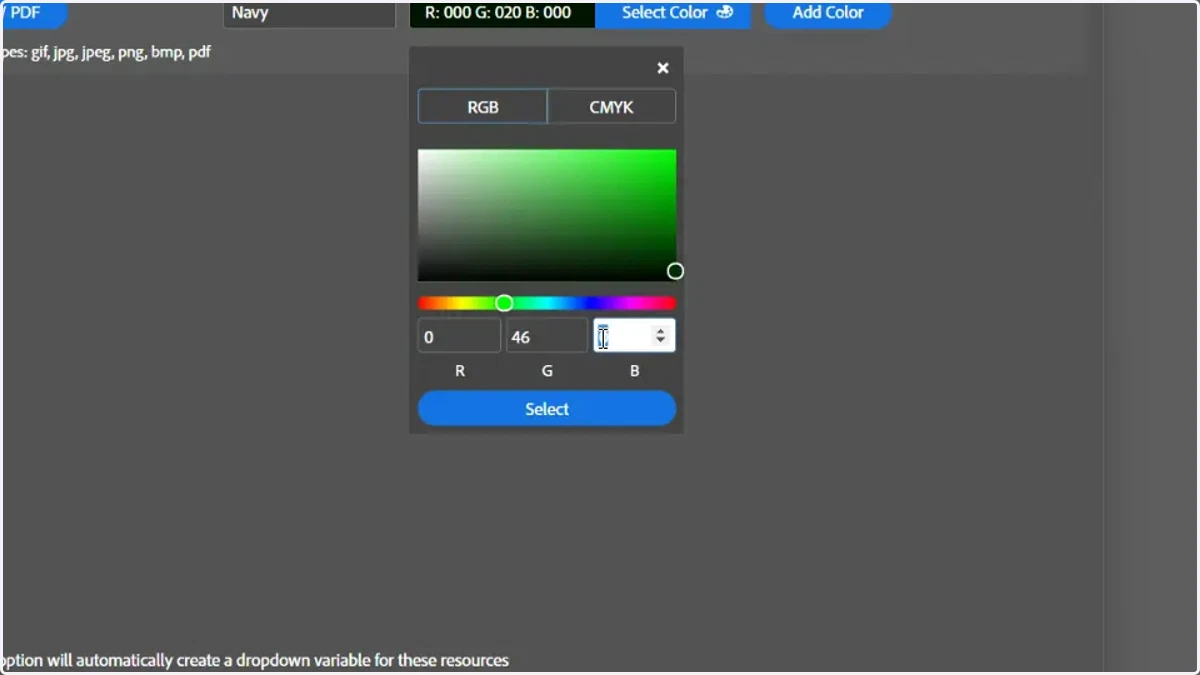
9. Begin specifying a colour
Specify a colour by:
Defining the name of your colour
Selecting the colour either via colour picker, RGB or CMYK values
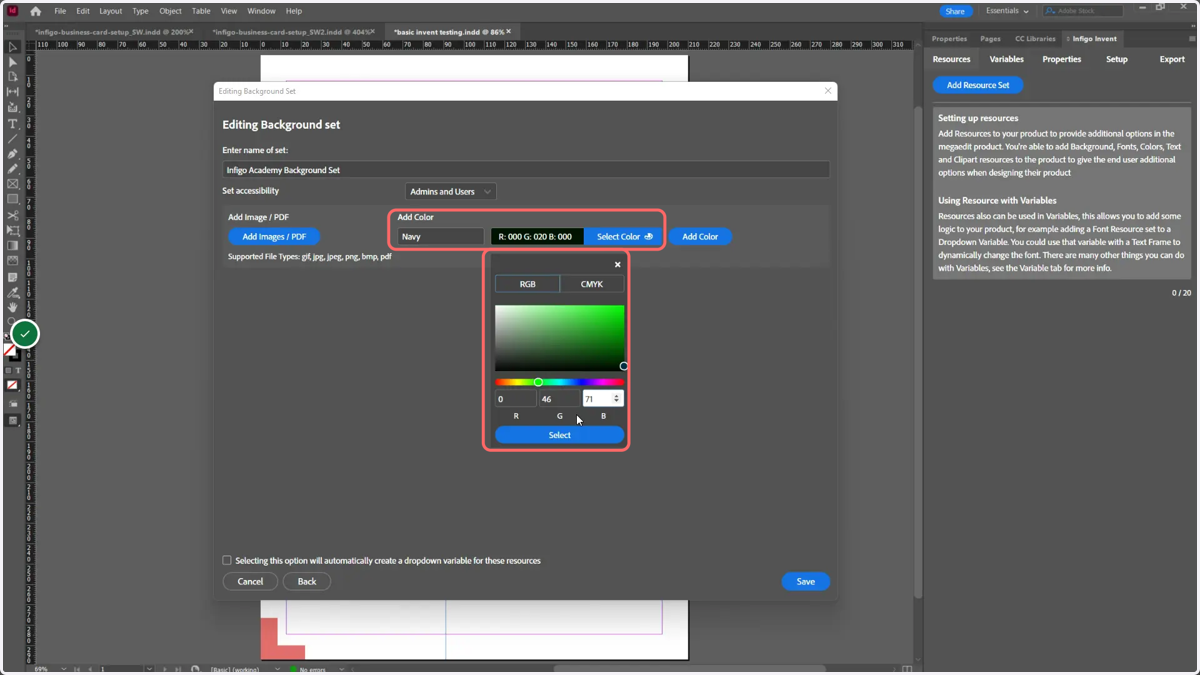
adobe
10. Click Select
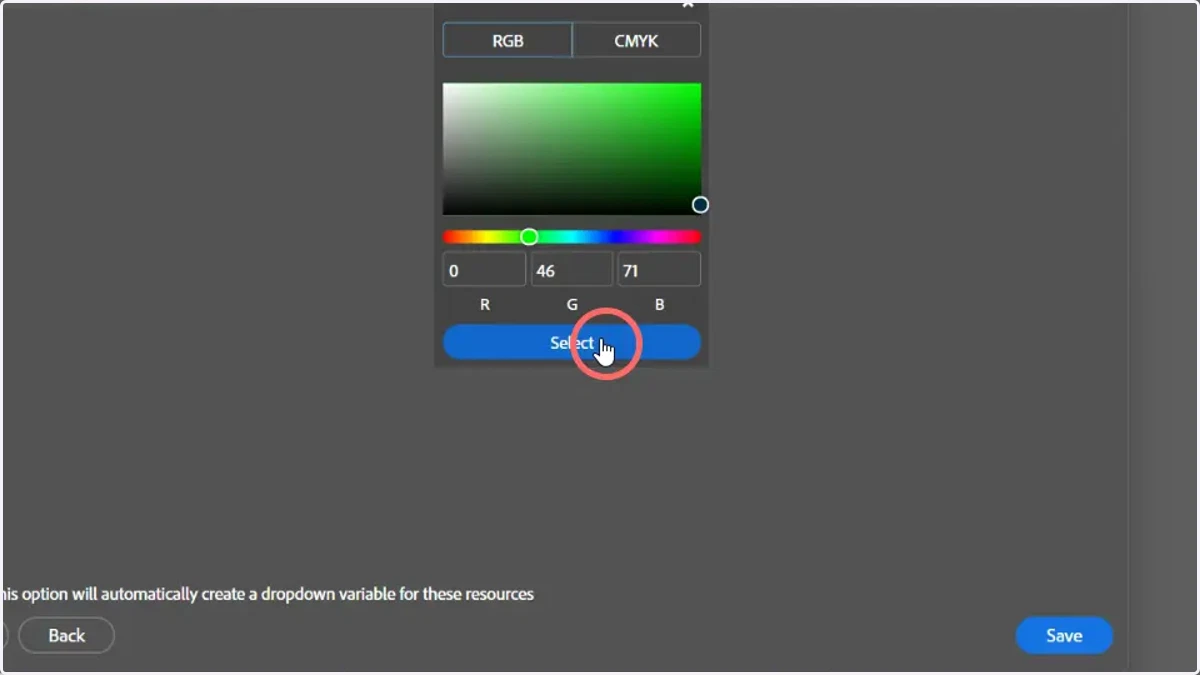
11. Click Add Colour
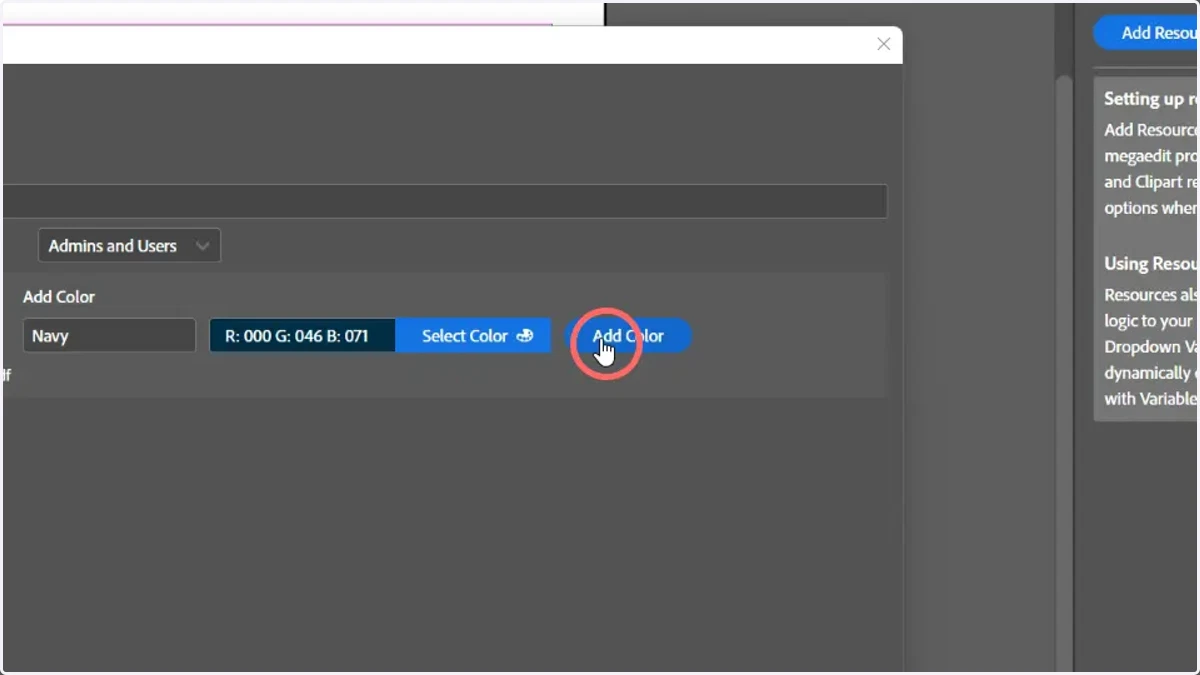
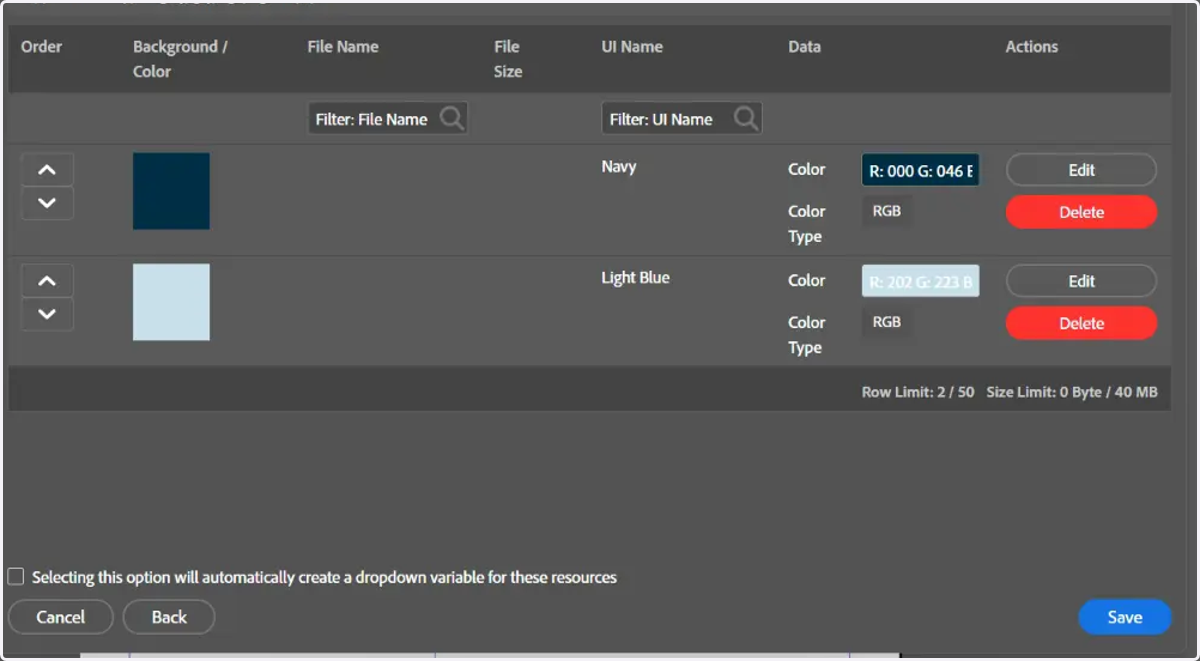
12. Multiple colours can be specified
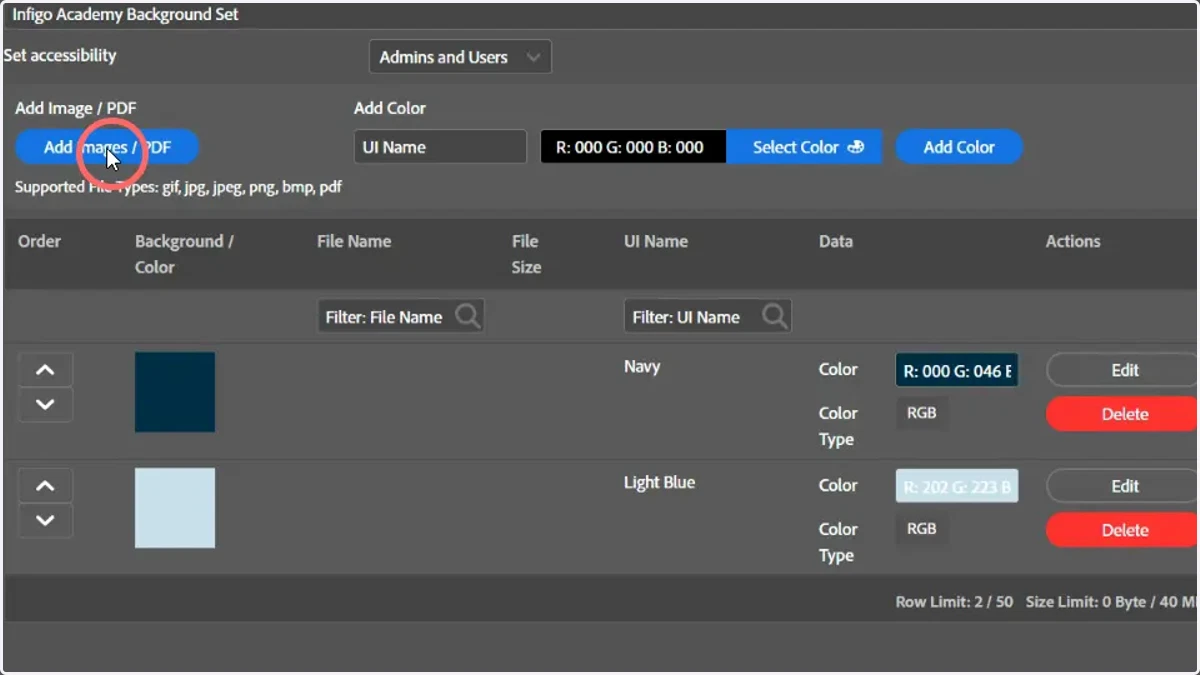
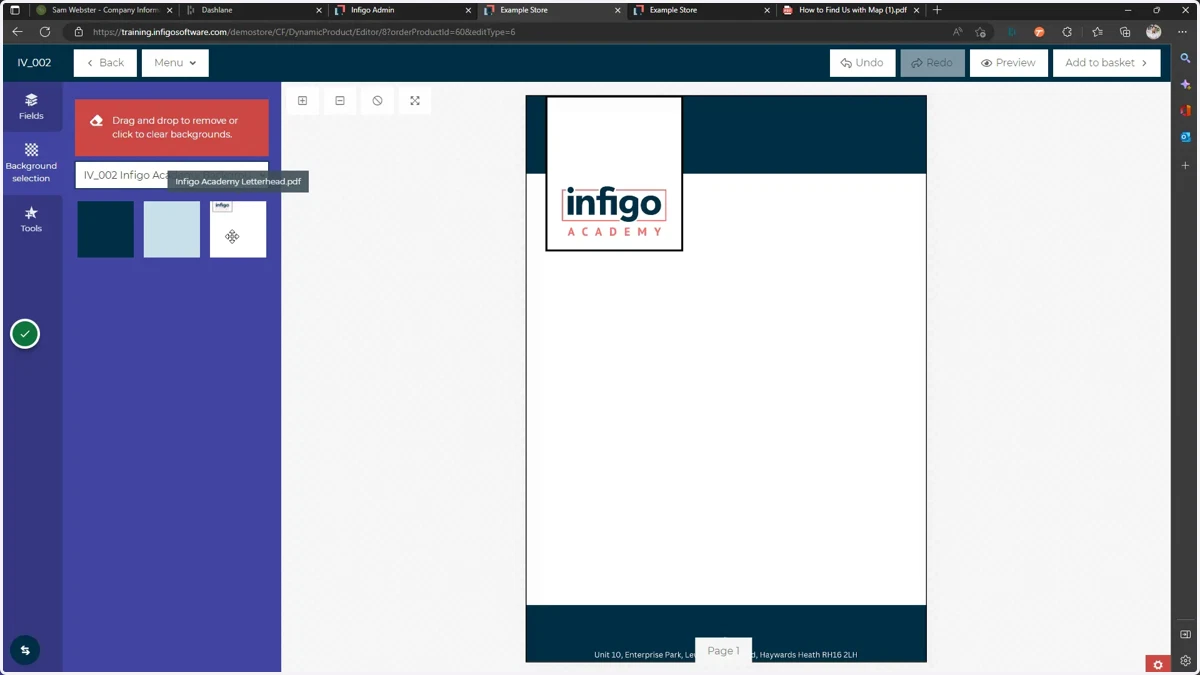
13. Images or PDFs can also be added as a background. To begin, click Add Images / PDF
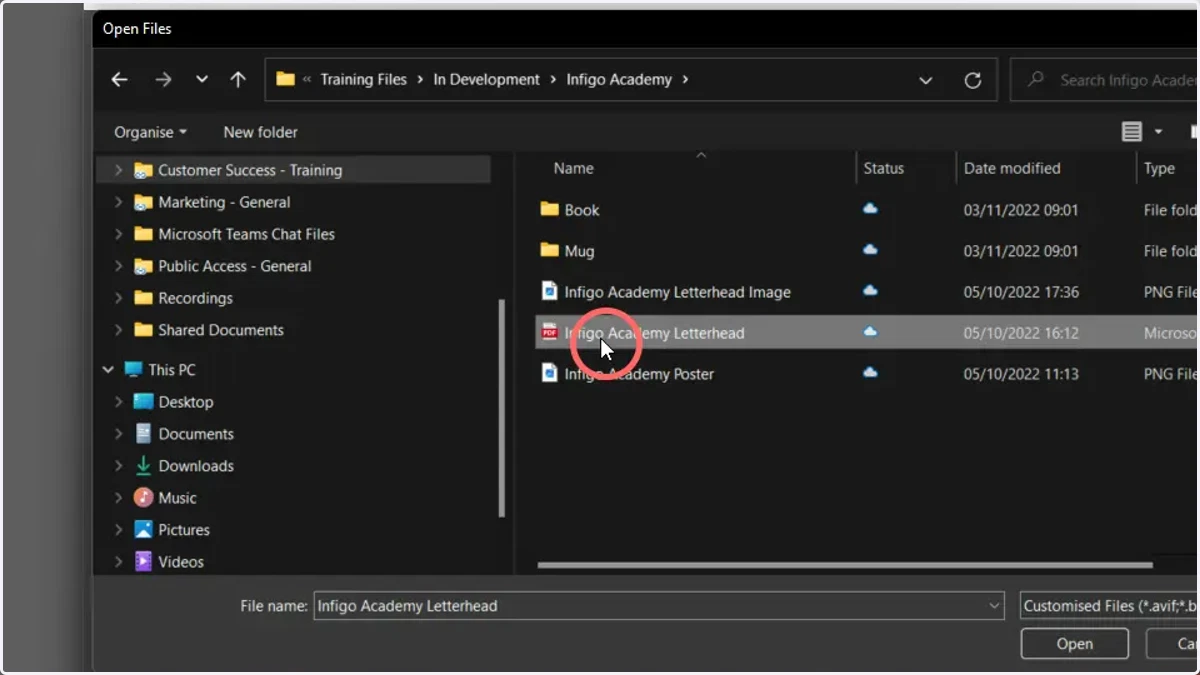
14. Select a file to add it to the Background Set
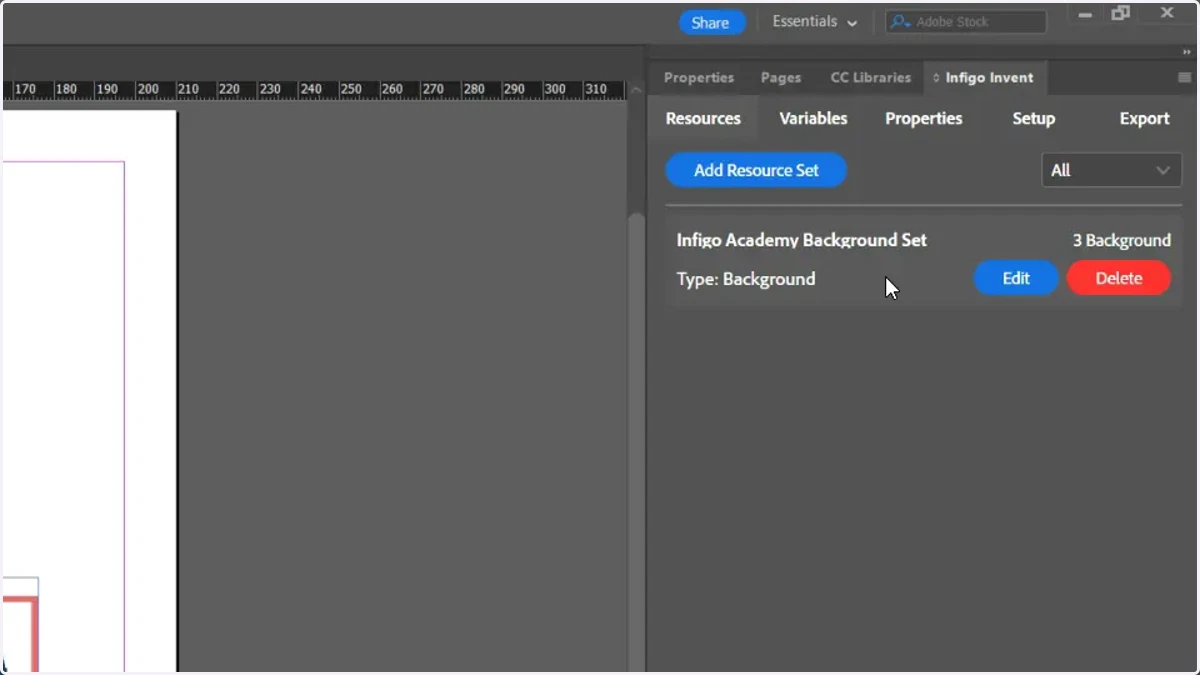
15. Click Save and your Background Set will be applied
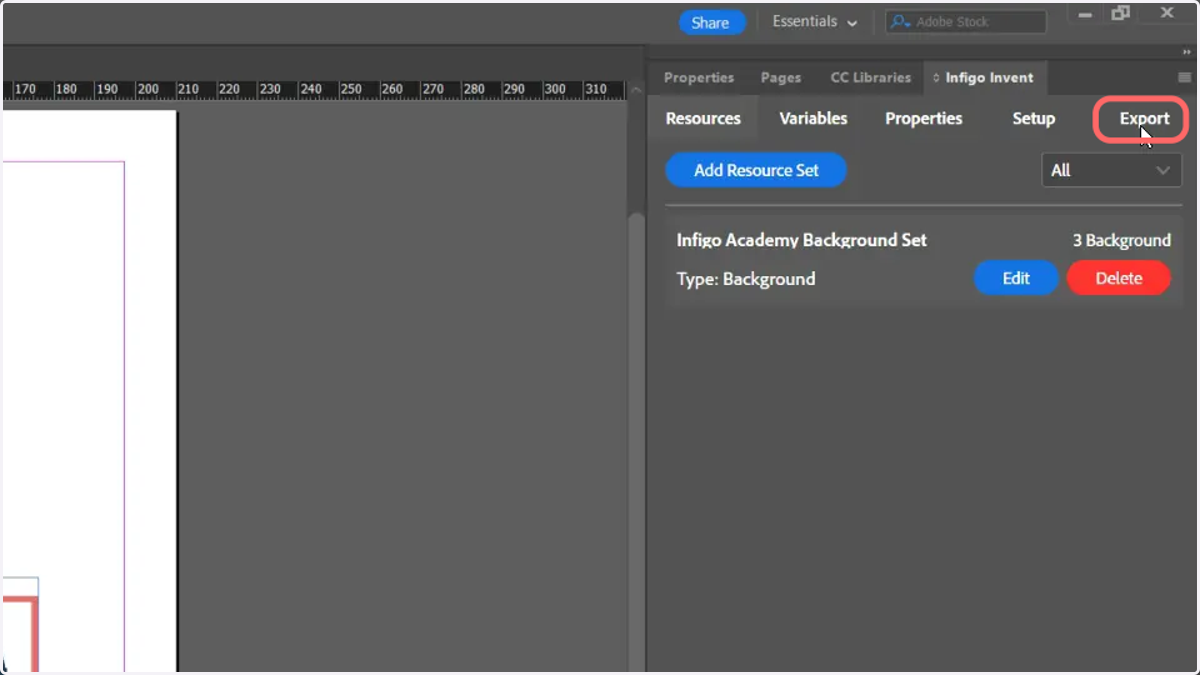
16. Re-export your template by navigating to the Export tab
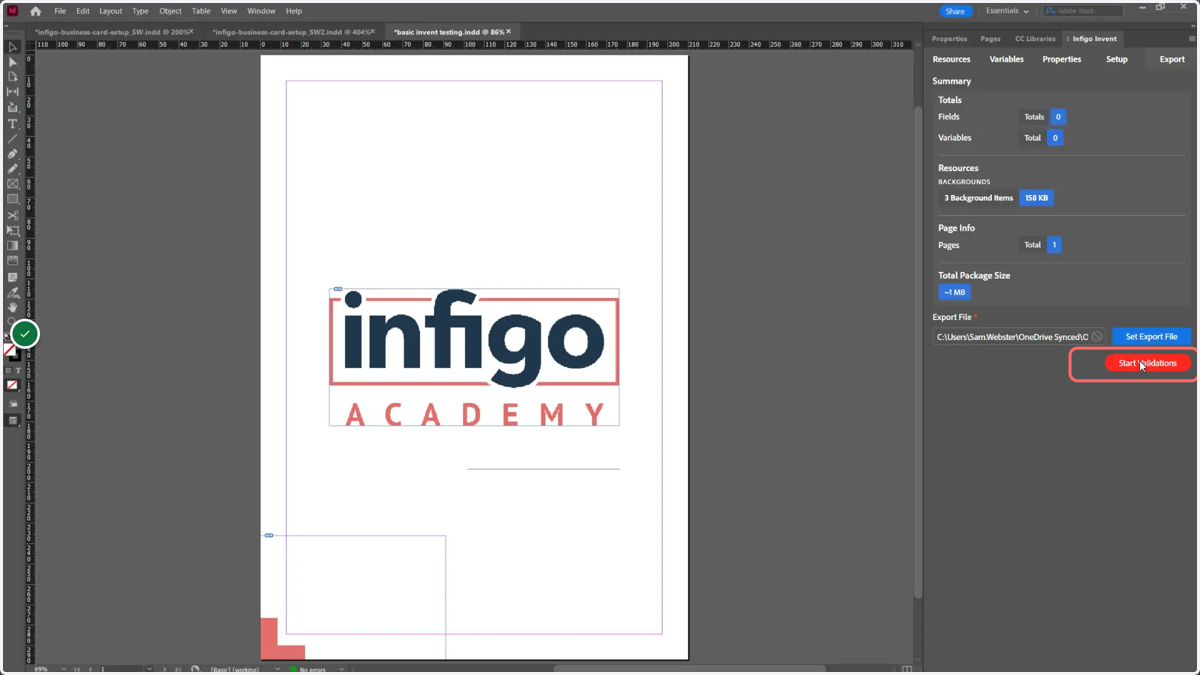
17. Click Start Validations and resolve any validation issues
adobe
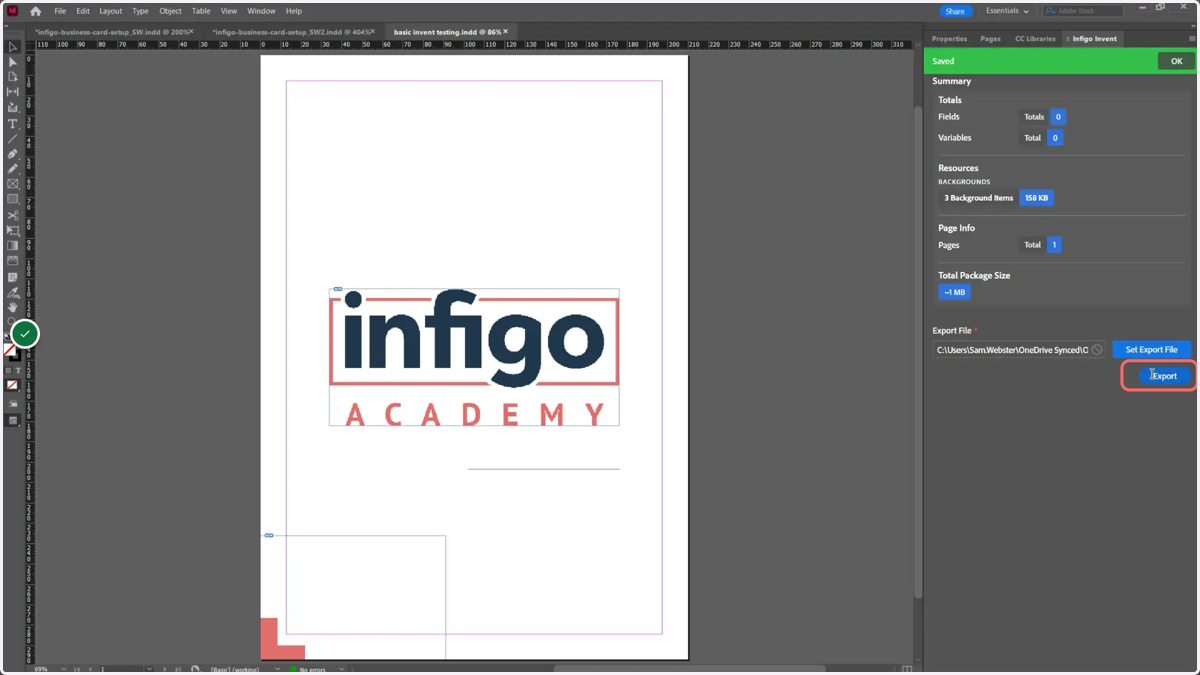
18. Click Export and save your Invent template
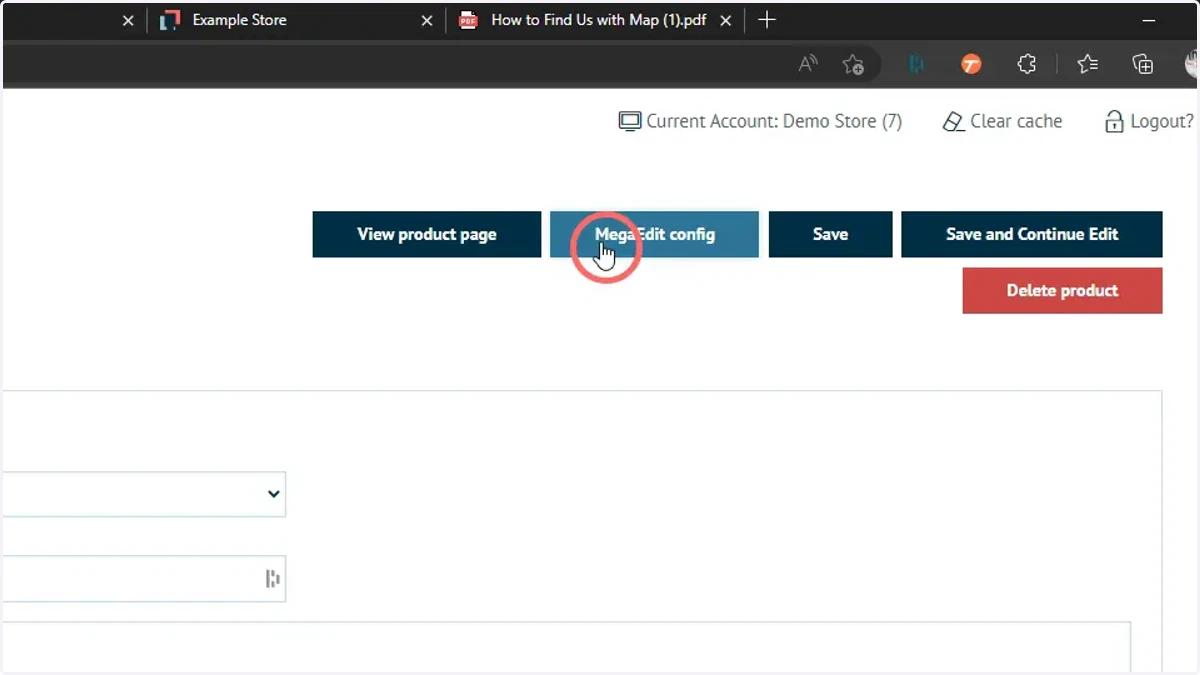
19. Navigate to the MegaEdit config settings of your product
Our next step is to update our template within MegaEdit.
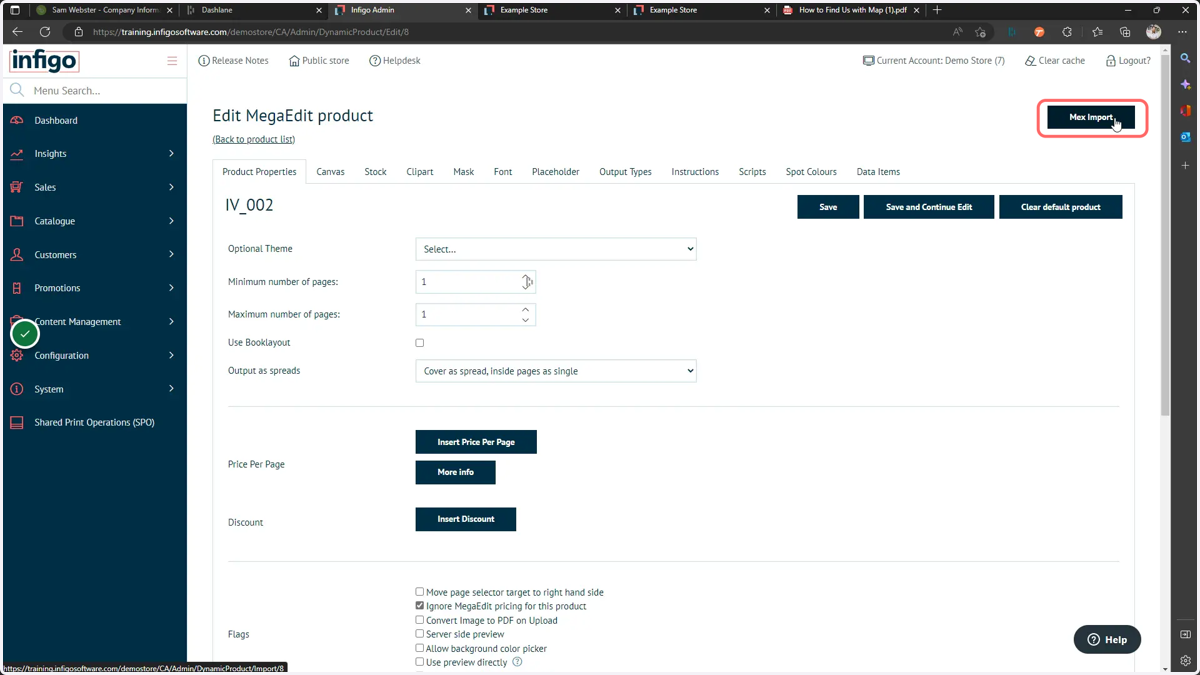
20. Click Mex Import
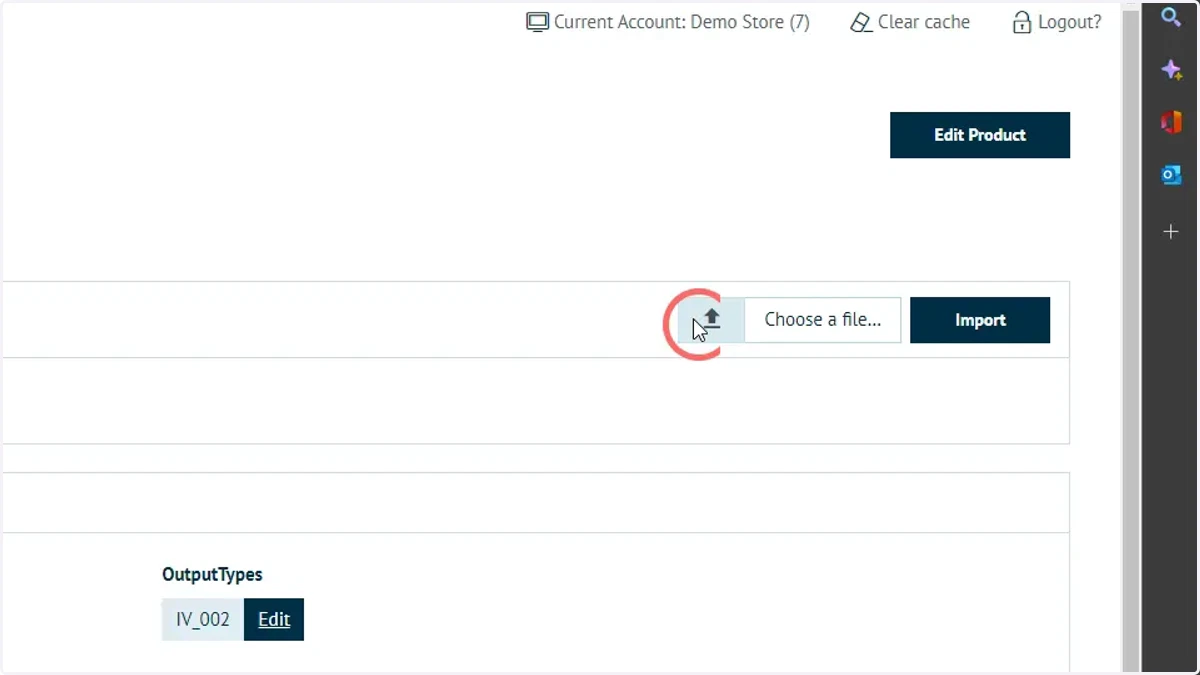
21. Click the upload button
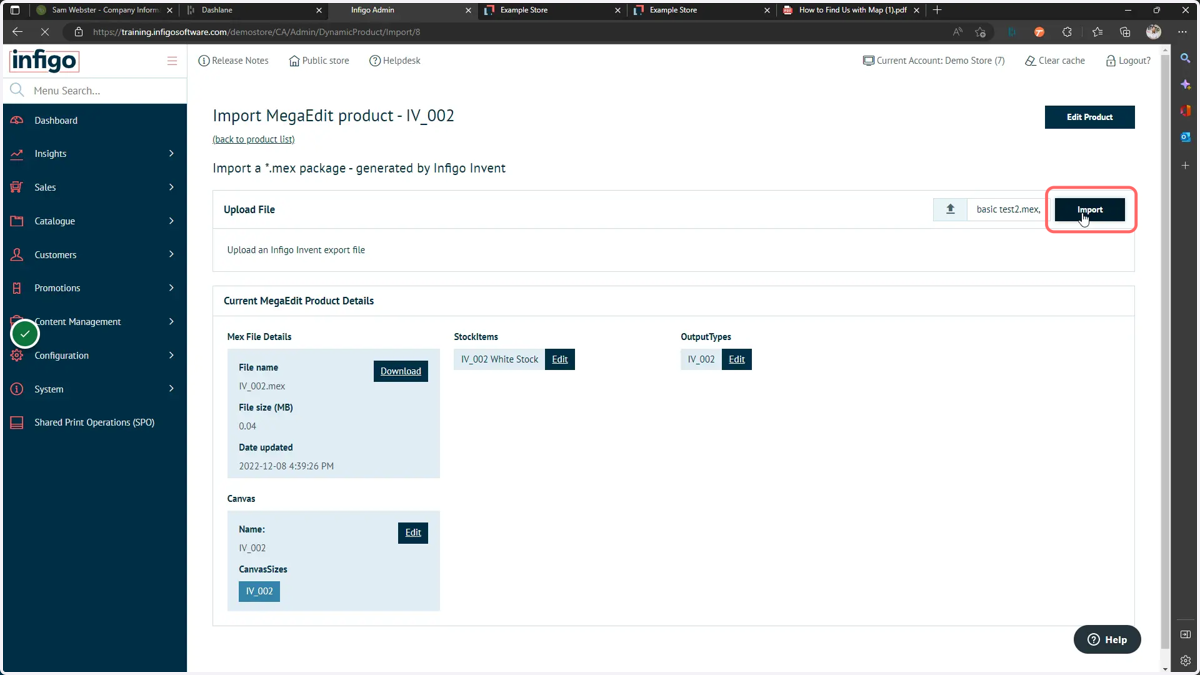
22. Select a file and click Import
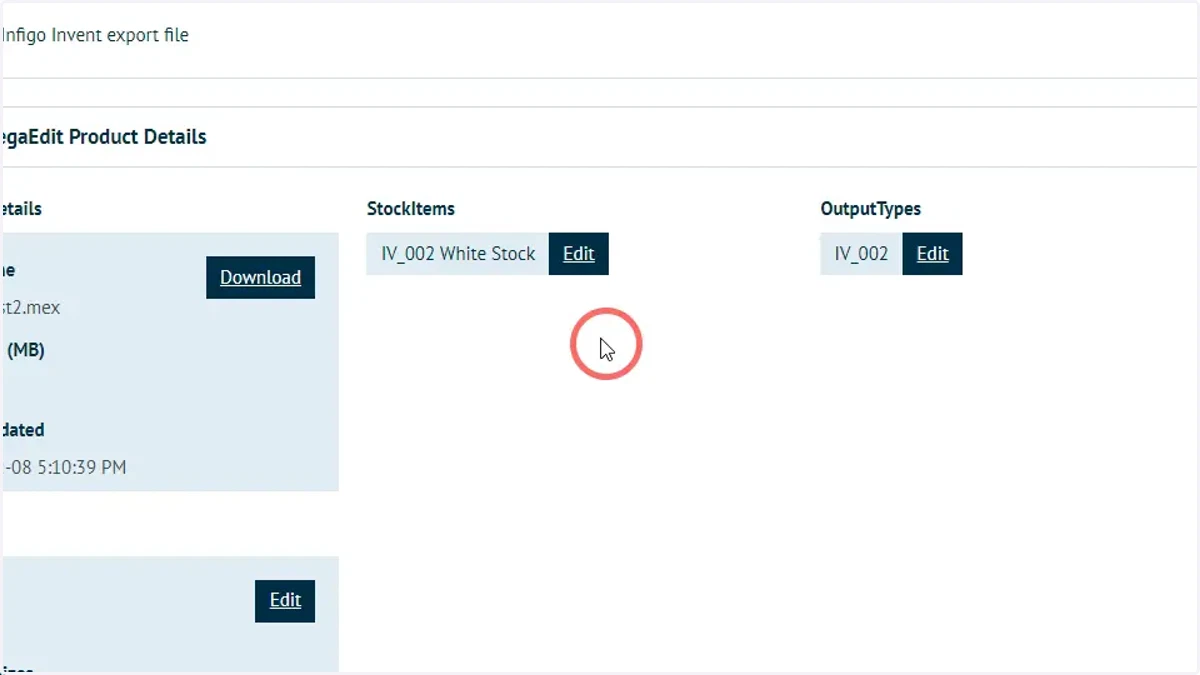
23. Updated template details will be displayed
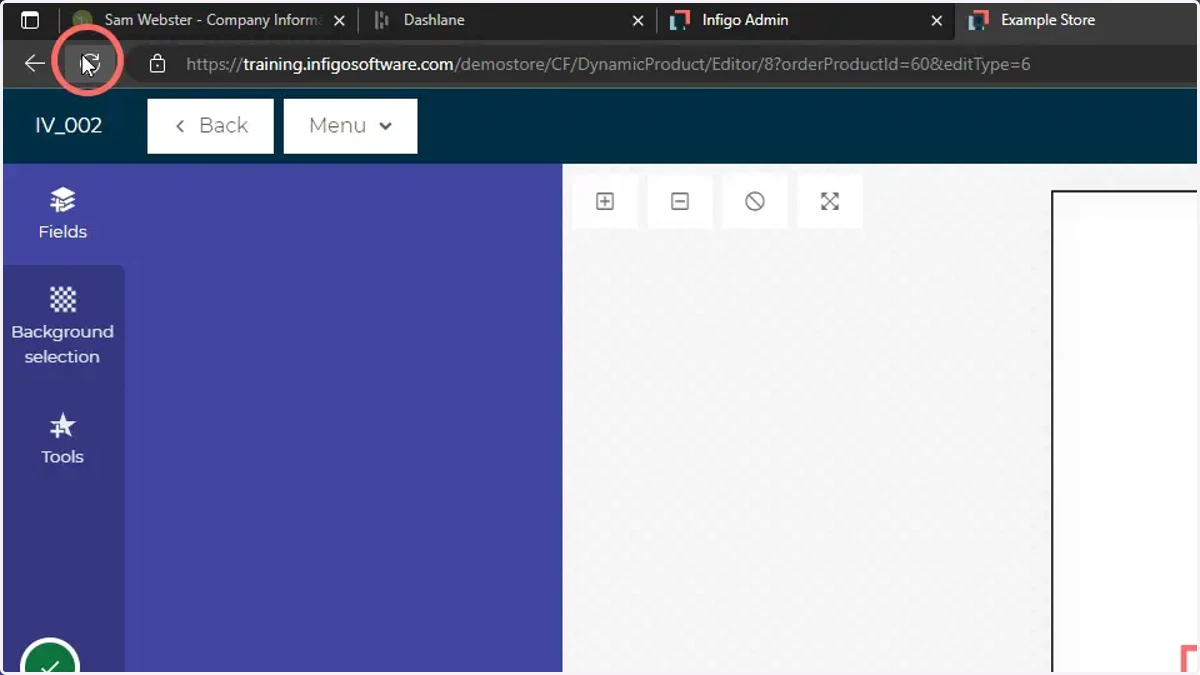
24. Load or refresh your MegaEdit editor product
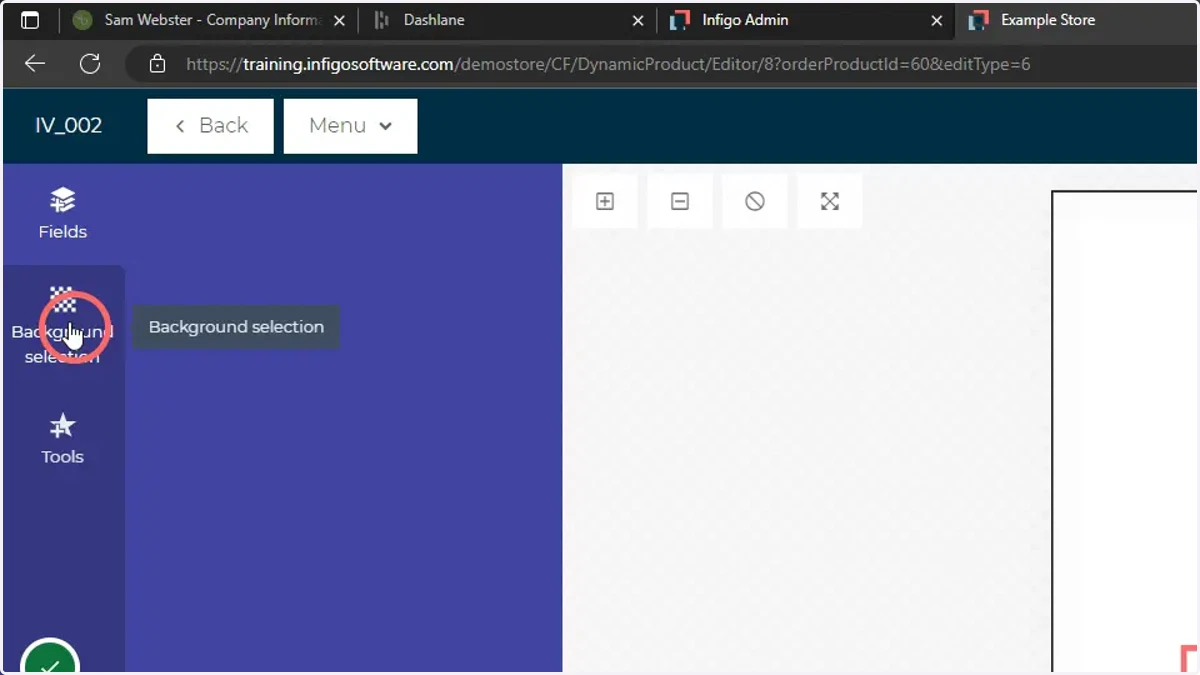
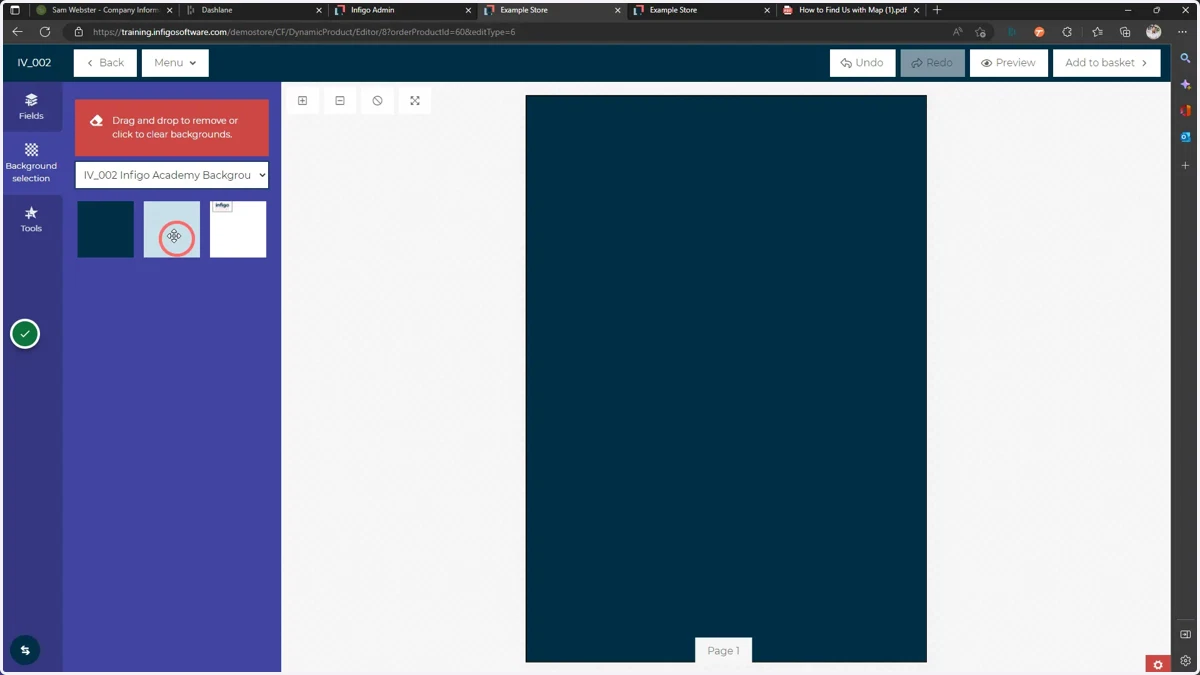
25. Click Background Selection
26. Select your Background Set
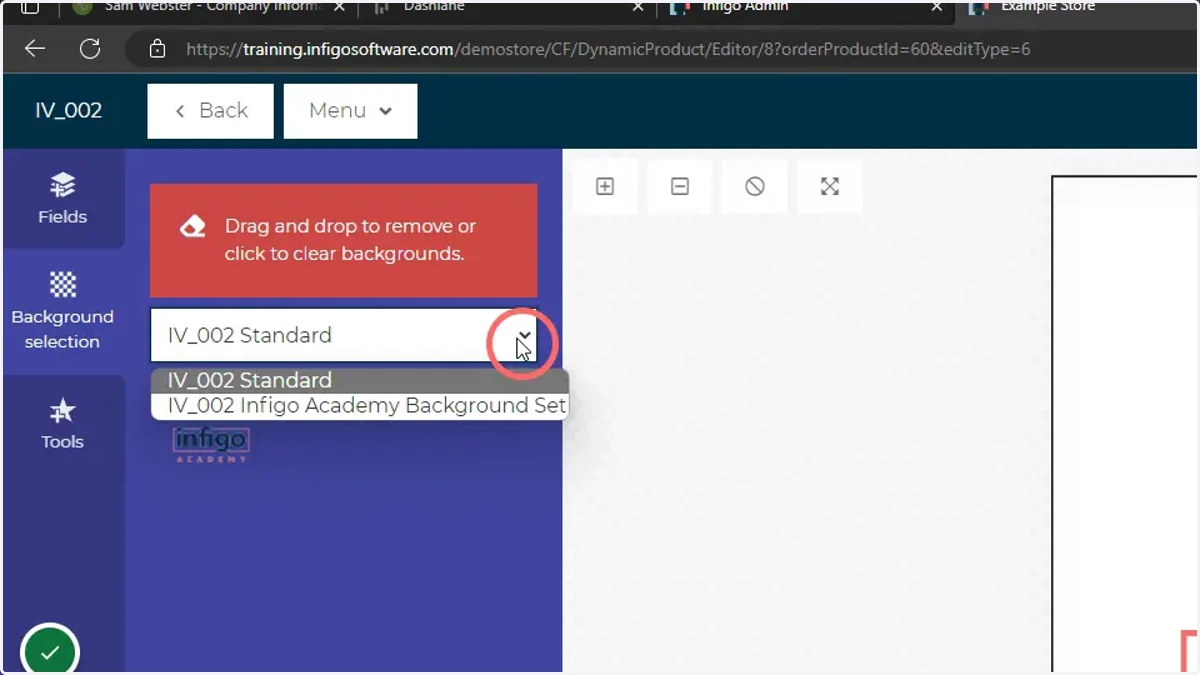
27. Your specified options will be available and selectable
Click or drag to apply them to your canvas.
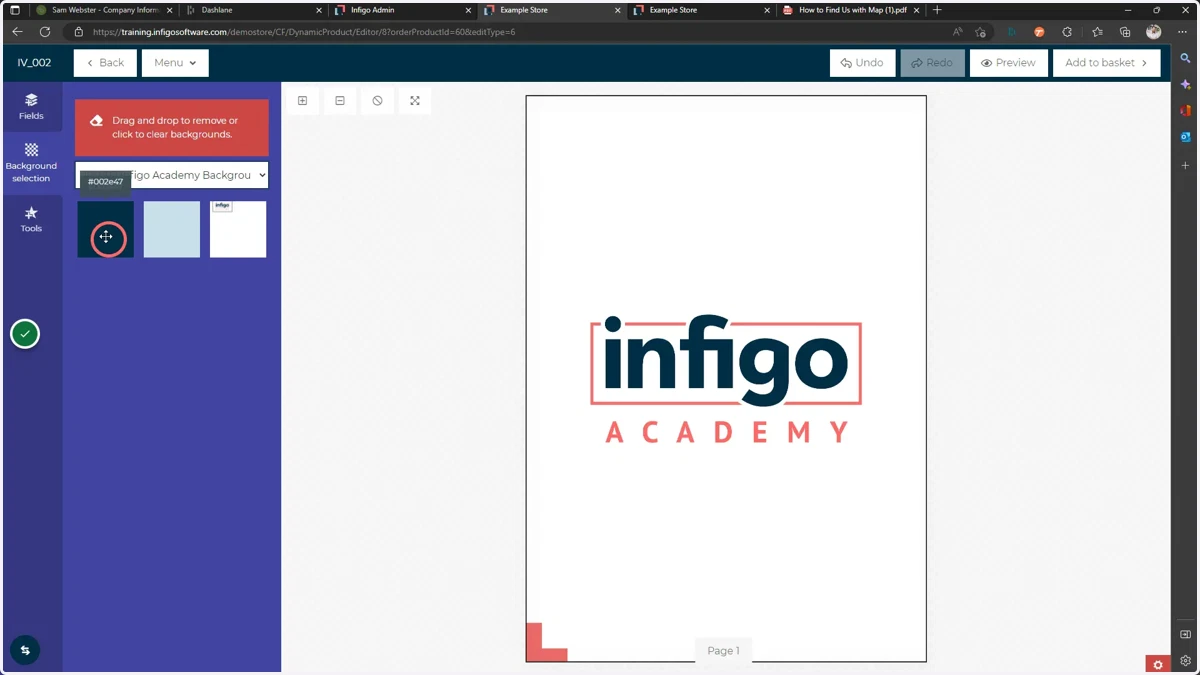
28. Background Colour Example
29. Background Image Example
adobe
30. Clear a background by clicking here