BG_ADV_CCT_004_Creating and utilising scripts in custom Content Templates
In this tutorial, we will learn how to implement and utilise scripts, allowing us to greatly increase the capabilities of our custom Content Templates with scripted content.
This example will focus on a particular scenario highlighting this functionality, however it is only a small sample of its overall capabilities.
Infigosoftware
1. Our current Content Page
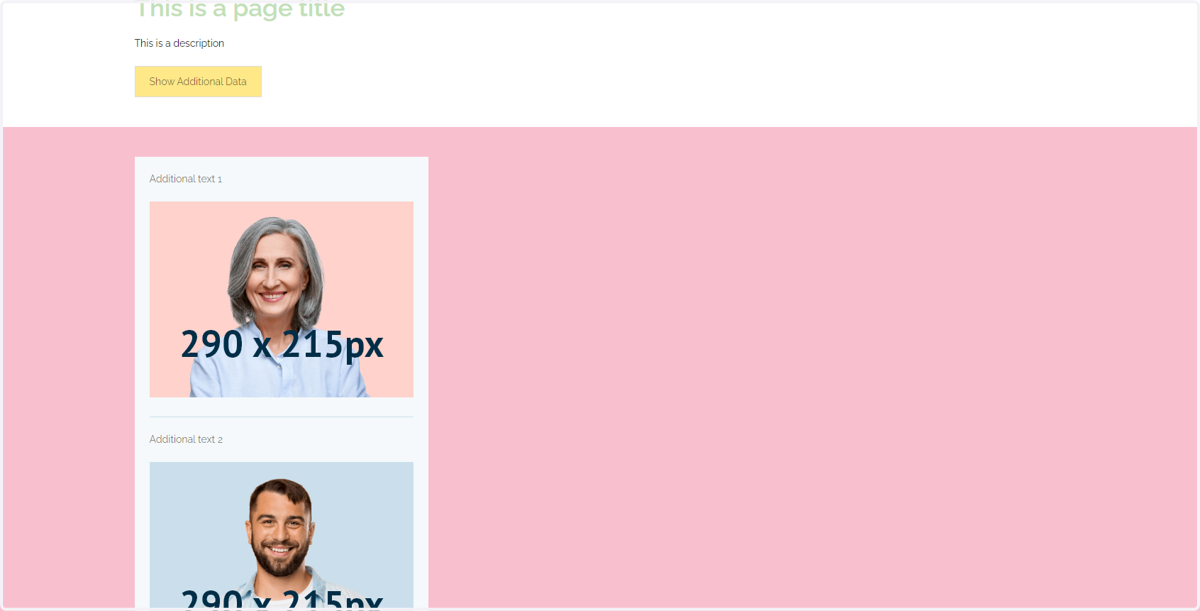
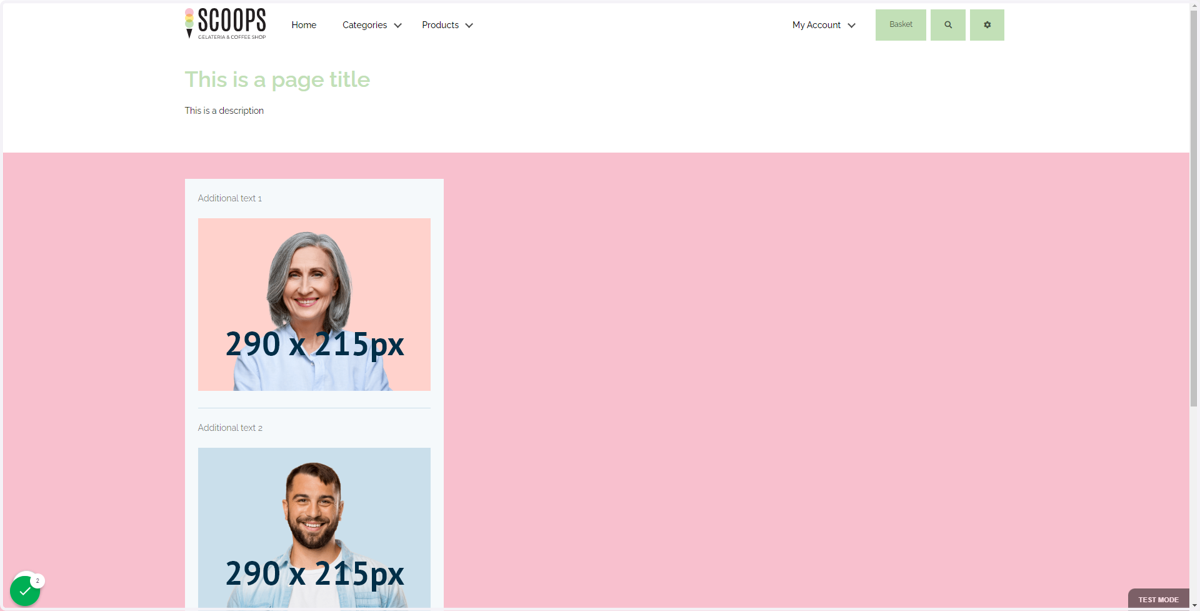
Our current Content Page, following on from the previous tutorials, looks something like this.
In this example, we do the following:
Hide the "Additional Details" section (pink section)
Create a button
Implement a script which changes the is-hidden attribute of a section
Link the button and script together, so that clicking the button reveals the additional data.
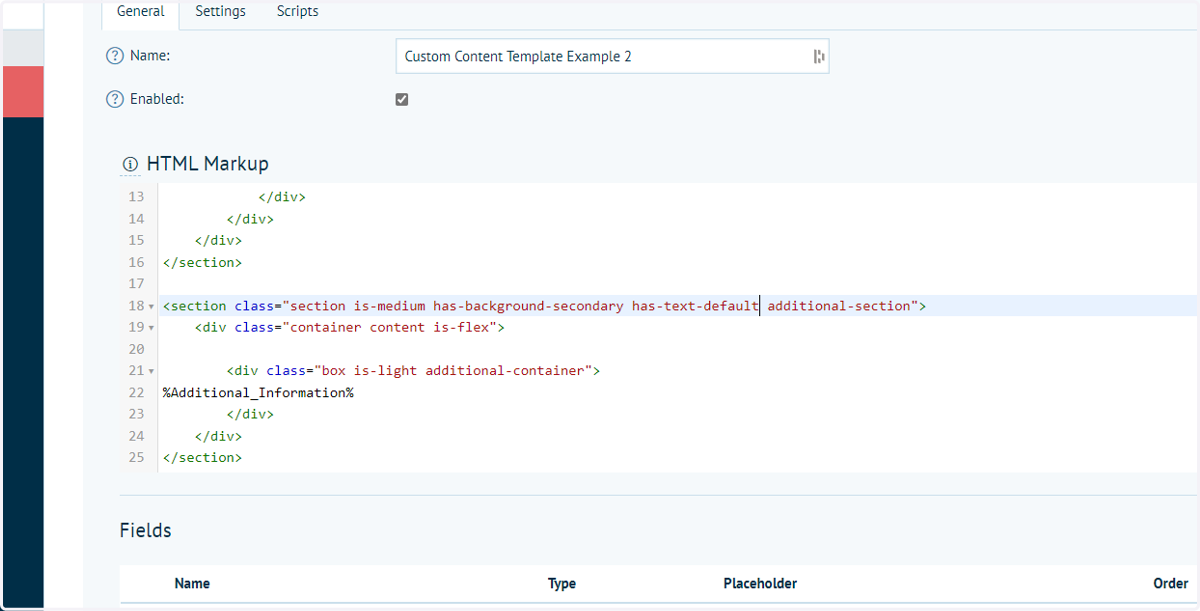
2. Click on "section is-medium has-background-secondary has-text-default additional-section"
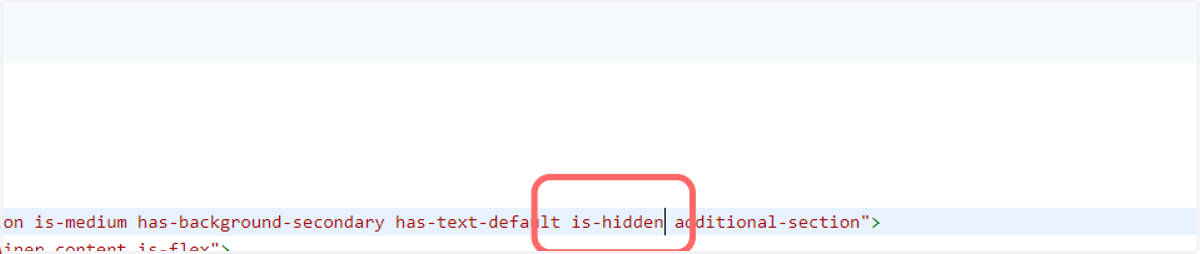
3. Add the is-hidden attribute
This is specifically for our example.
Add the is-hidden attribute to the additional-section to ensure it is not visible by default.
4. Click on Save and Continue Edit
This should be done on both the Content Template AND the Content Page where the template is being used.
Changes will not be seen on the front-end if the Content Page itself is not resaved with the updated Content Template.
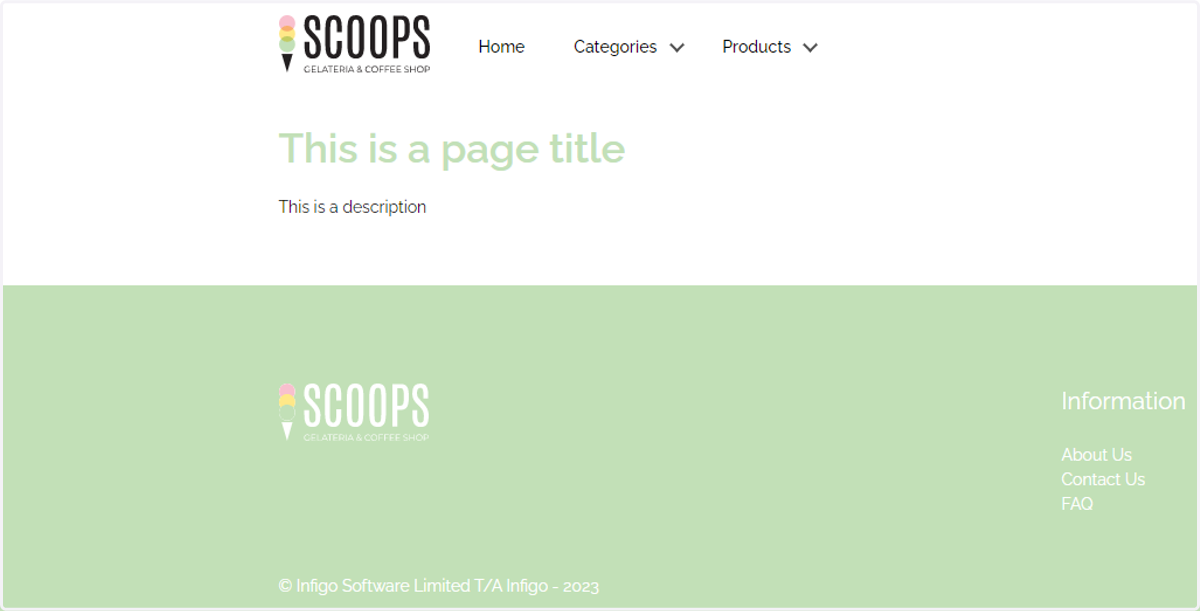
5. The Content Page now looks like this
This is specifically for our example.
The Additional Details section is now hidden by default.
6. Next, we add some boilerplate code for a button
This is specifically for our example.
Add code to the HTML Markup section meaning a button is shown.
The code used in this example is:
<div class="buttons"><button class="button reveal-section-button">Show Additional Data</button></div>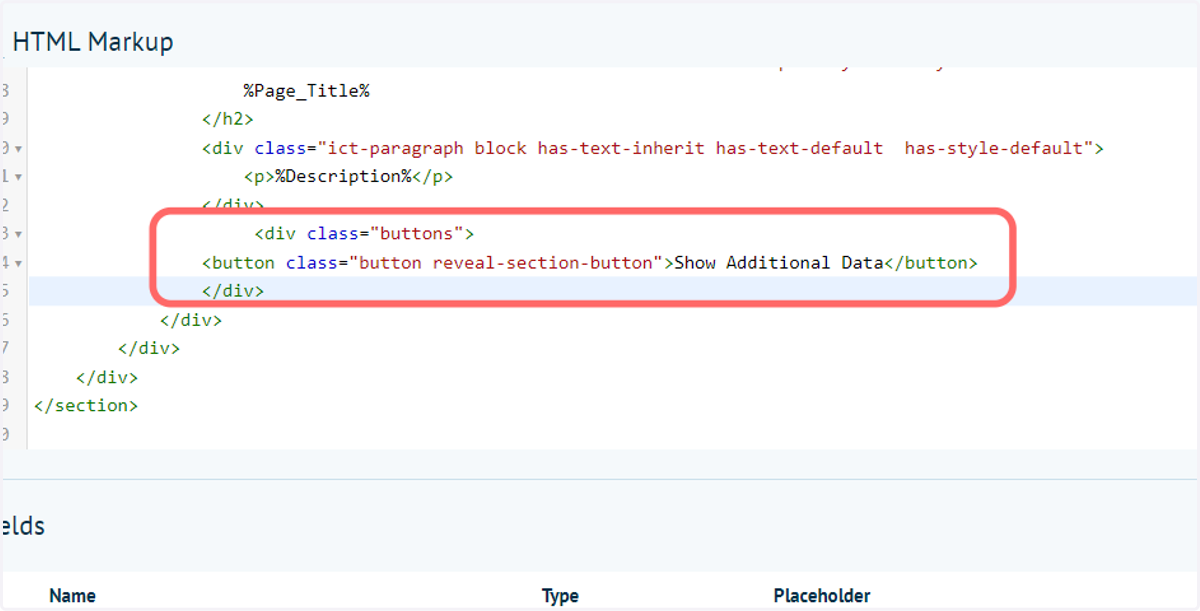
7. Click on Save and Continue Edit
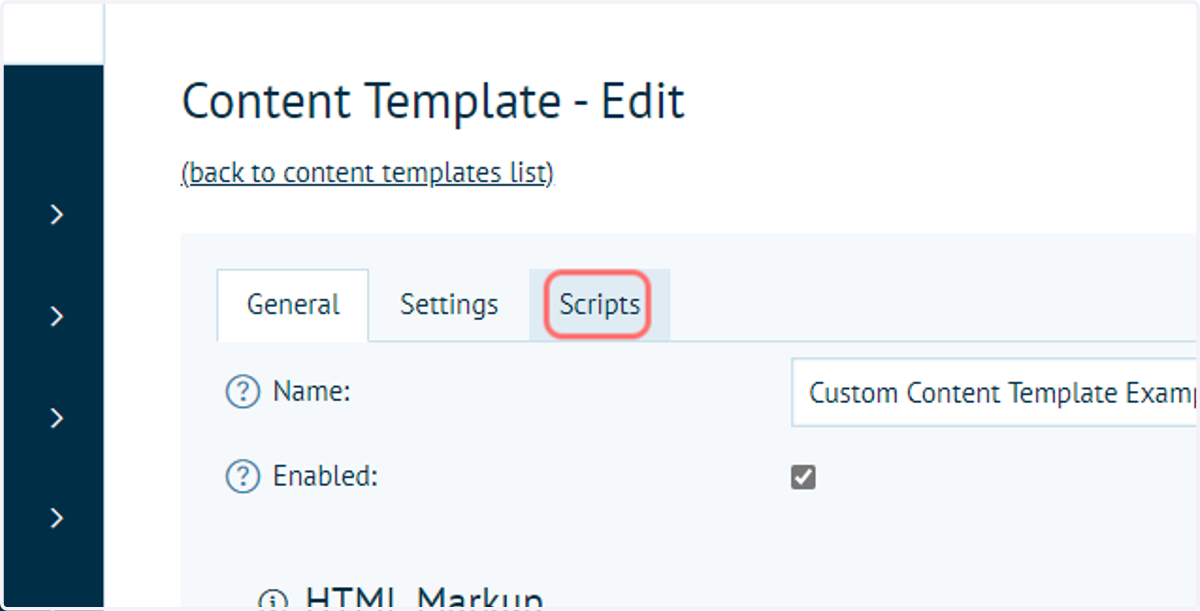
8. Click on Scripts
Next, we will create a script which we are able to utilise in one or multiple custom Content Templates.
Scripts can be added directly to the HTML markup, however if you intend to use a script multiple times, it makes more sense to create it as a separate, reusable script.
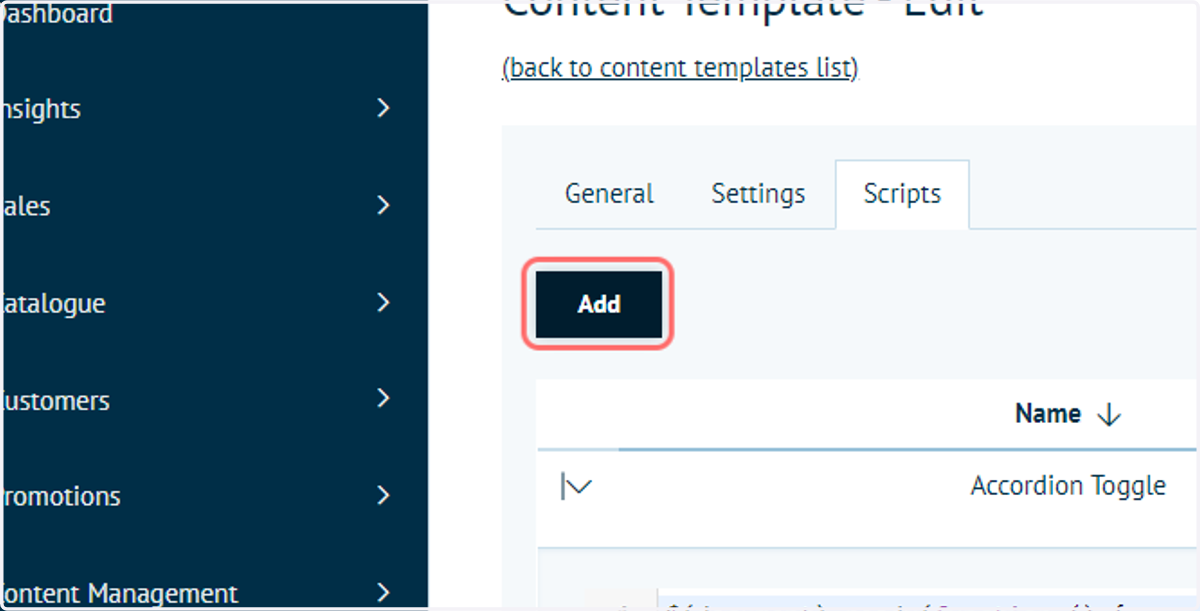
9. Click on Add
Several scripts are already available by default. We can create new scripts by clicking Add.
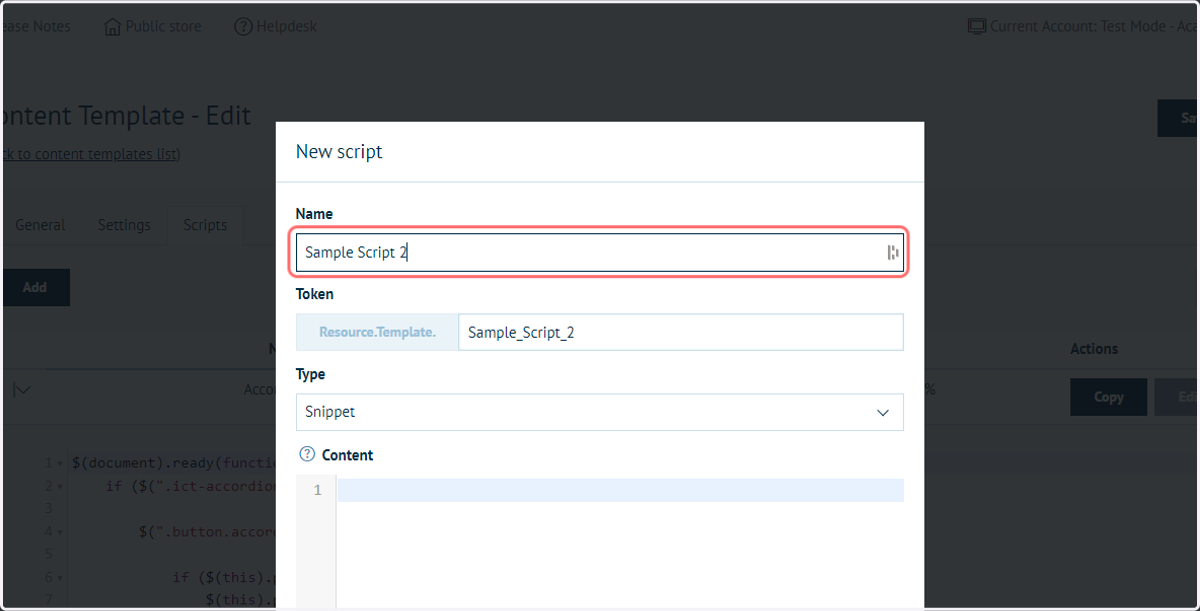
10. Input a name for the script
11. Input script code into the Content editor
This code snippet is specific to our example. It targets two page elements:
The button, named "reveal-section-button"
The currently hidden "Additional Details" section, named ".additional-section"
These element names must match the HTML markup code exactly.
The script means that when the button is clicked, the 'is-hidden' class is removed from the 'additional-section' section, meaning it will then be visible.
This is one, small example of the capabilities of scripting, however its true possibilities are endless. This aims to primarily show you how to use the custom Content Template functionality.
The script code used is:
<!-- Sample script snippet for revealing a hidden section -->$(window).load(function(){$('.reveal-section-button').click(function(event){event.preventDefault();$('.additional-section').removeClass('is-hidden');});});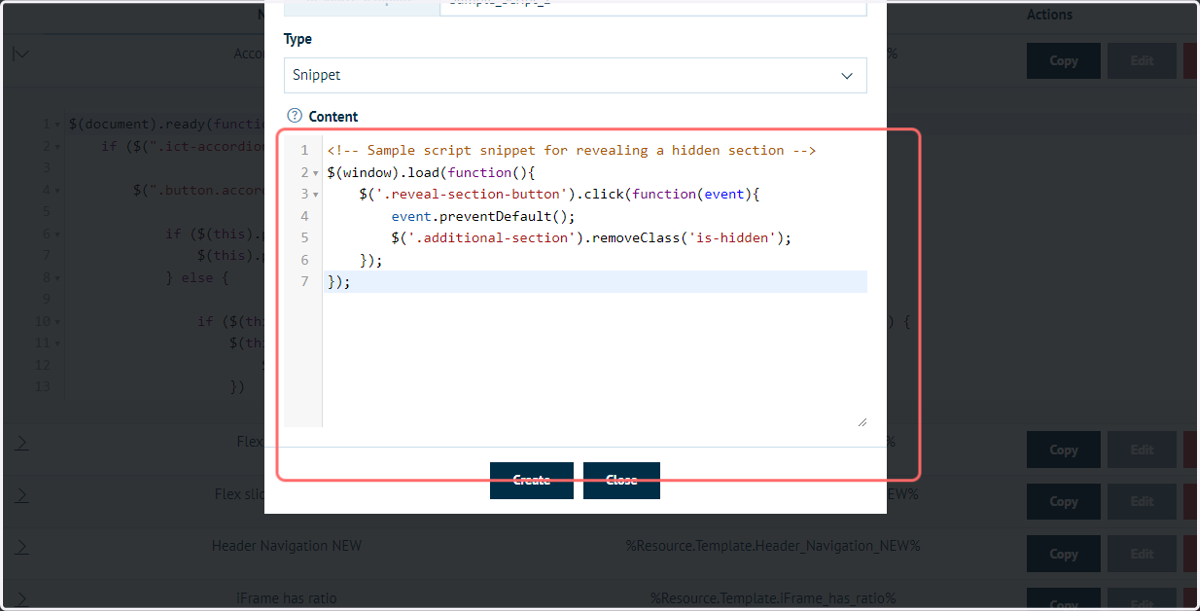
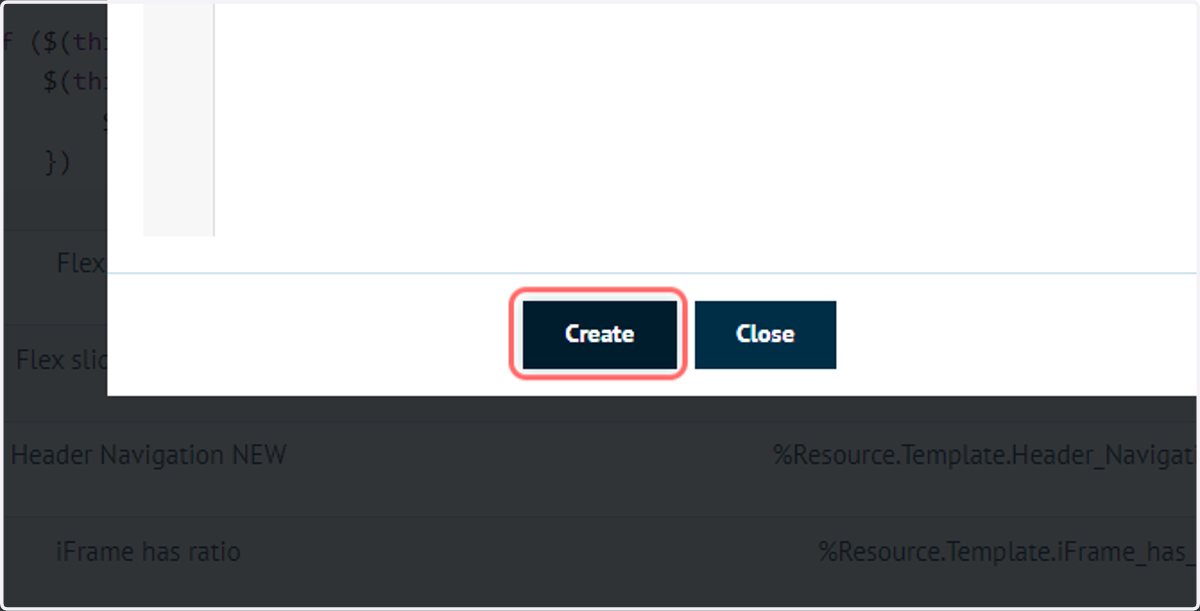
12. Click on Create
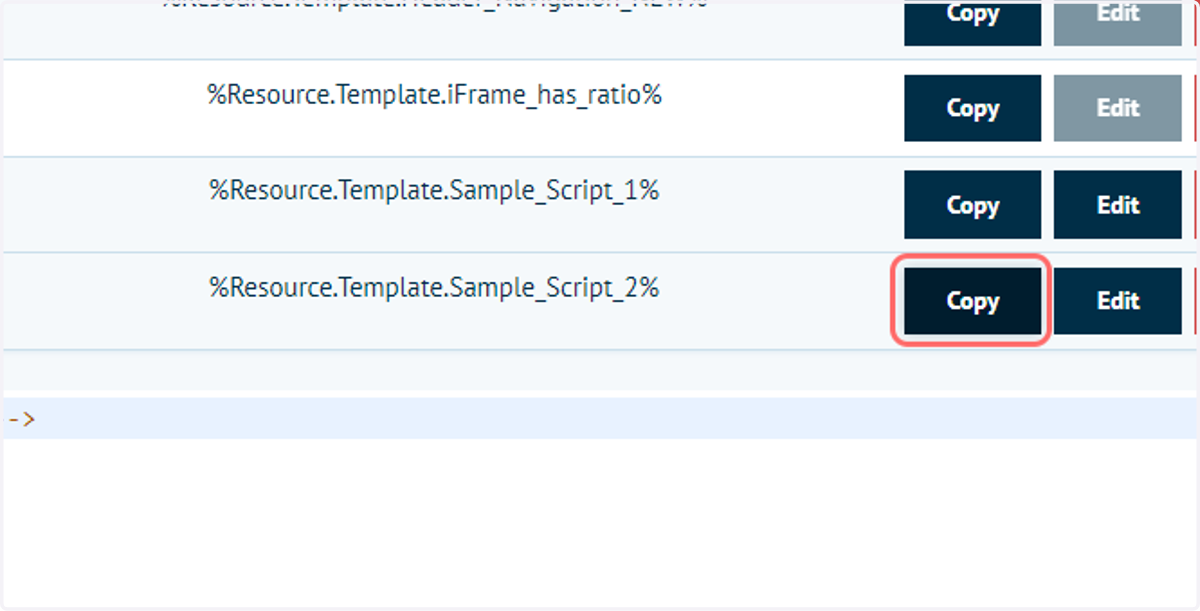
13. Click on Copy
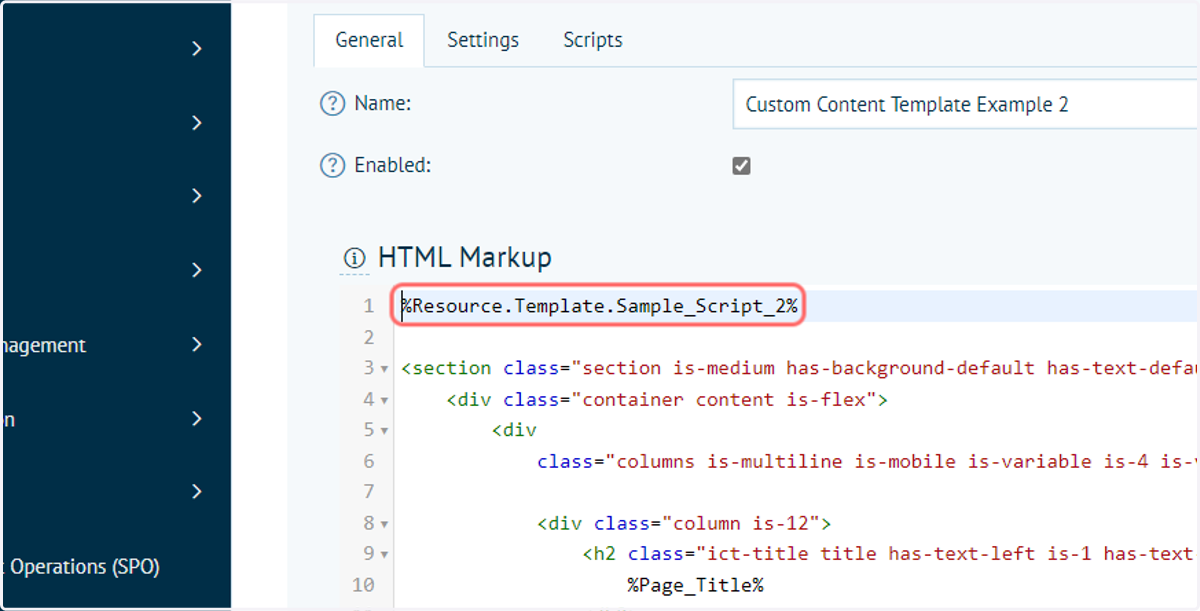
We can utilise this script in our custom Content Template by ensuring the token is referenced in our HTML markup.
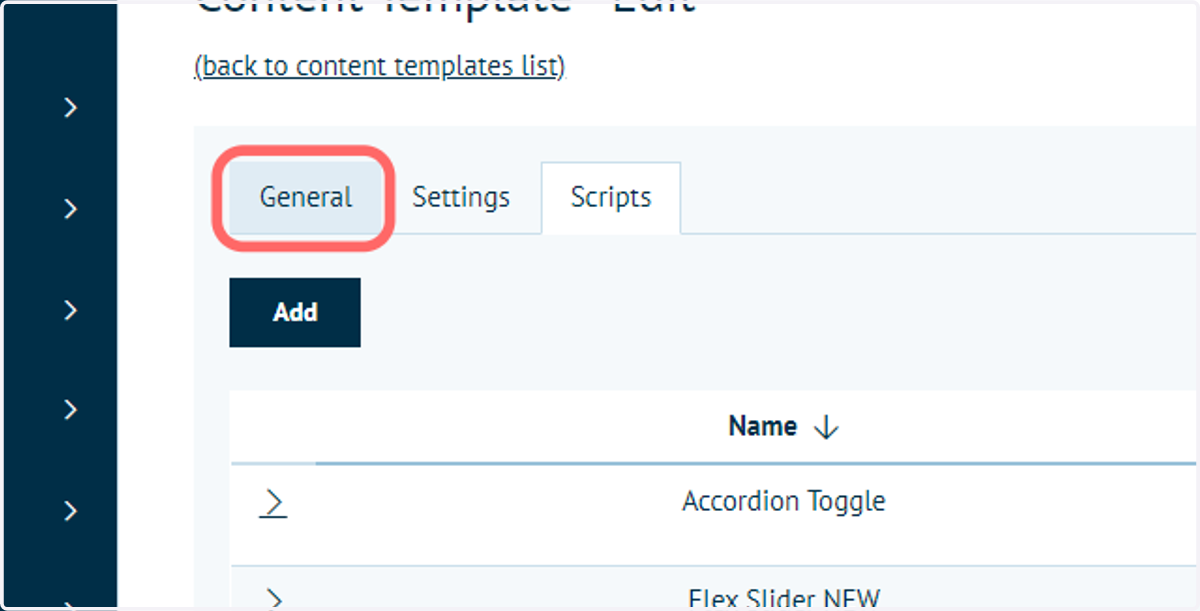
14. Click on General
15. Paste the token into the HTML markup
16. Click on Save and Continue Edit
Again, repeat this on both the custom Content Template and Content Page utilising the template.
17. Our page now shows the button. Click on Show Additional Data
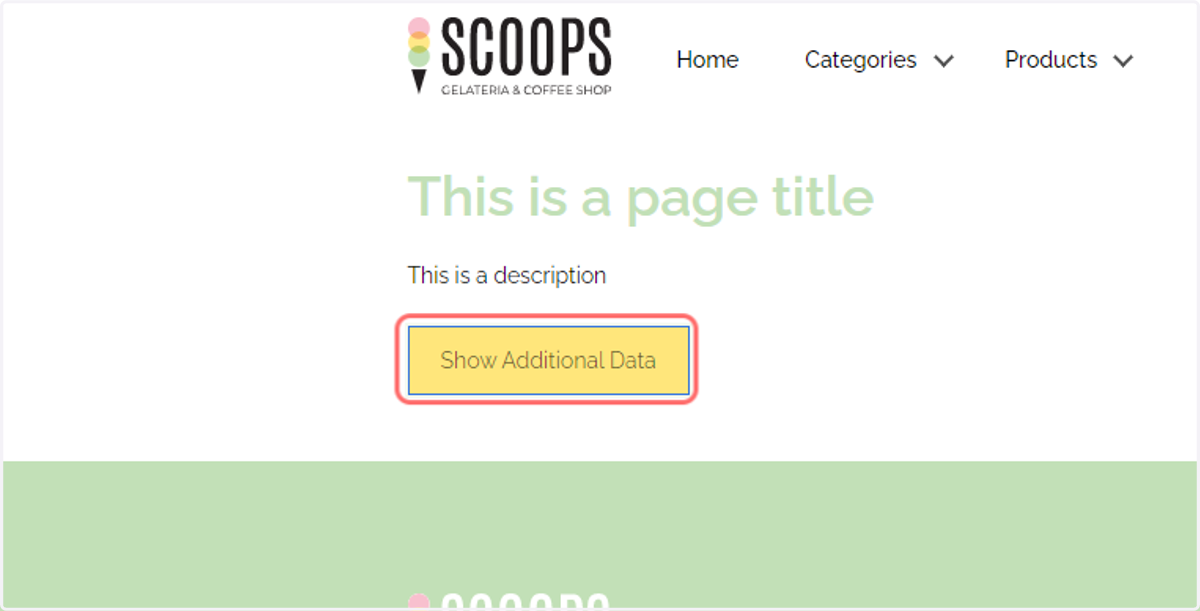
18. The Additional data section is now shown