Connect: Veracore Product Categorization
As part of our Veracore integration we allow for the products that you sync from Veracore via the Products sync to also be assigned to categories so that you can mimic your Veracore product hierarchy structure in Infigo - essentially assigning all your products that need it into Categories and Sub Categories.
As with the Customer Import, for this part of the integration we had to use Veracore's datasheet exports to provide the category information.
Run the product sync prior to completing the product categorization steps.
1. Download the Offer Categorization datasheet from Veracore
This can potentially be scheduled from within Veracore to be done automatically. Just ensure that the report contains the same important columns in the same locations as the table shown below*.
*Row 1 - Column A must be Offer ID and Columns P - Q must be Level 1, Level 2, etc. Please also make sure the level columns are blank if no subcategories are being used.
A hierarchy of 7 categories and subcategories can be used.
2. Place the file into a pre-agreed directory on local machine.
Infigosoftware
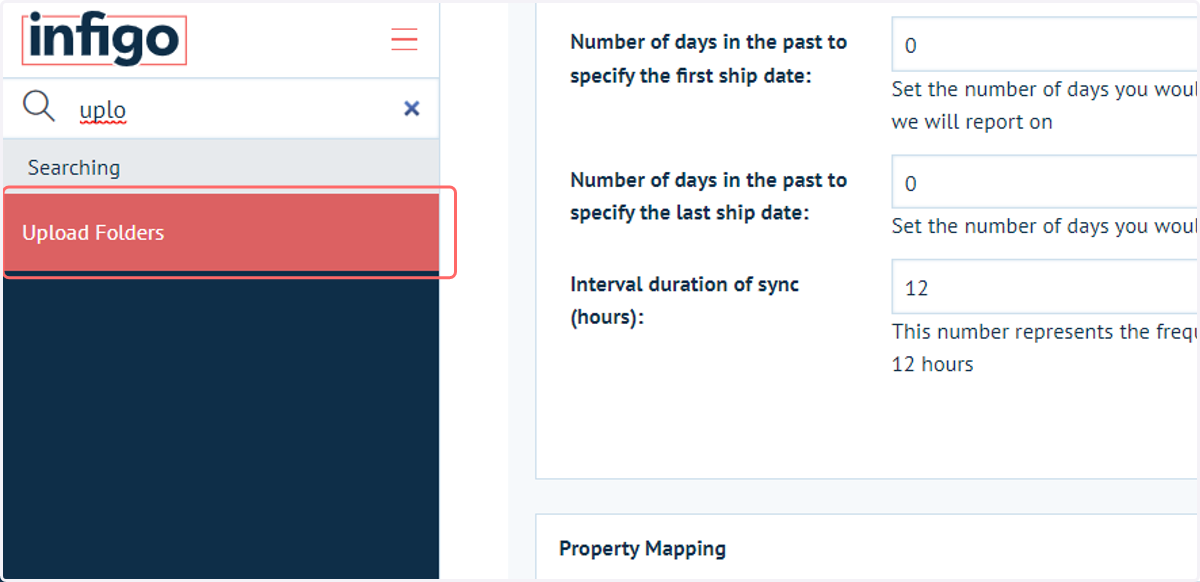
3. Click on Upload Folders
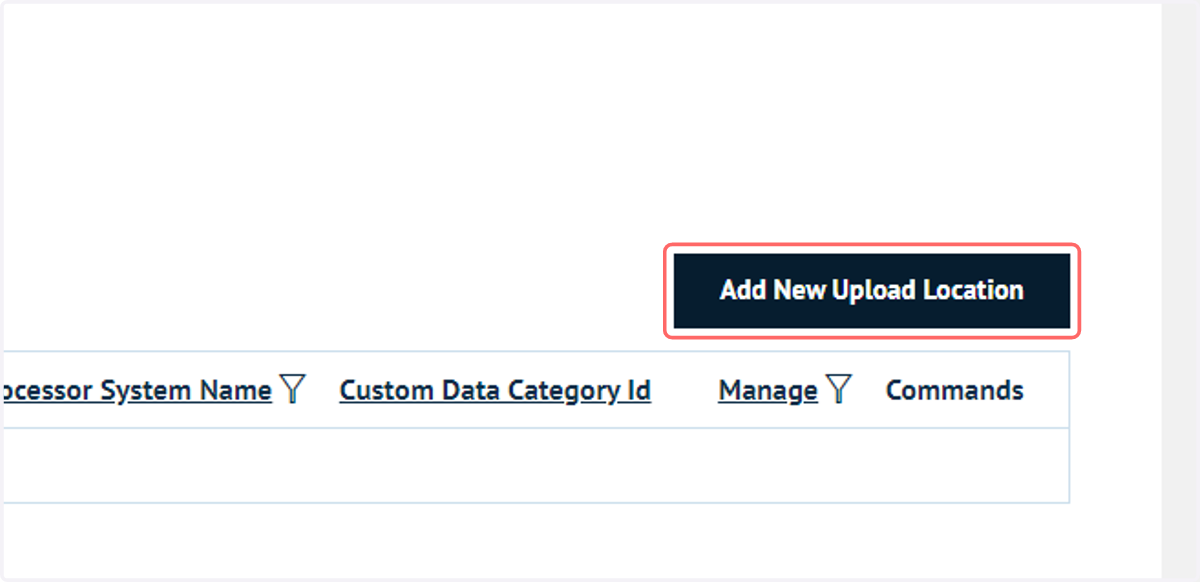
4. Click on Add New Upload Location
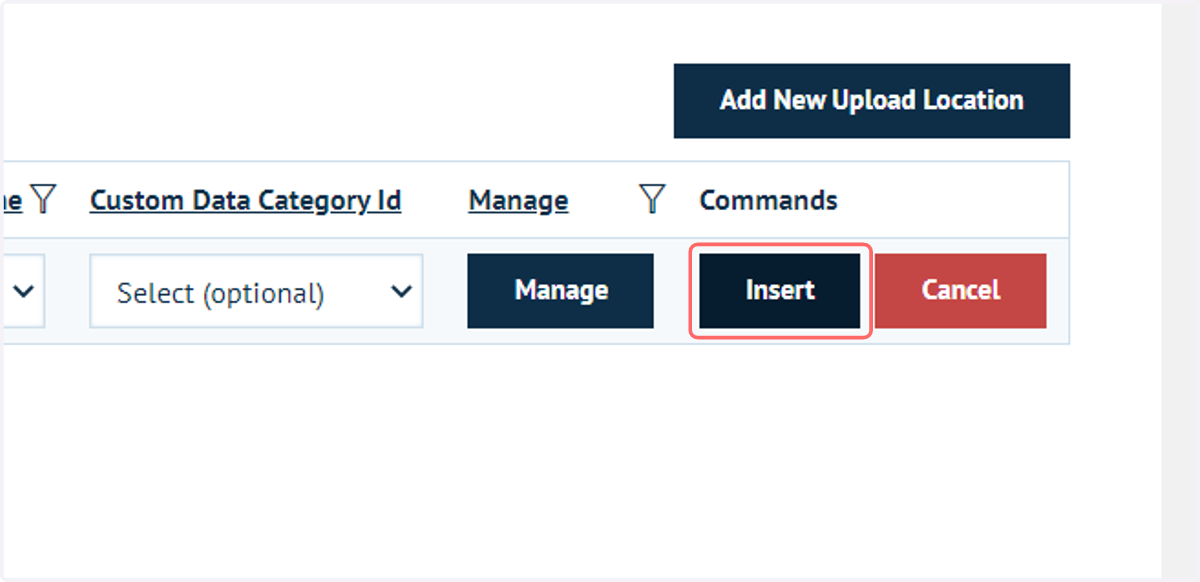
5. Click on Insert
6. Type "conn"
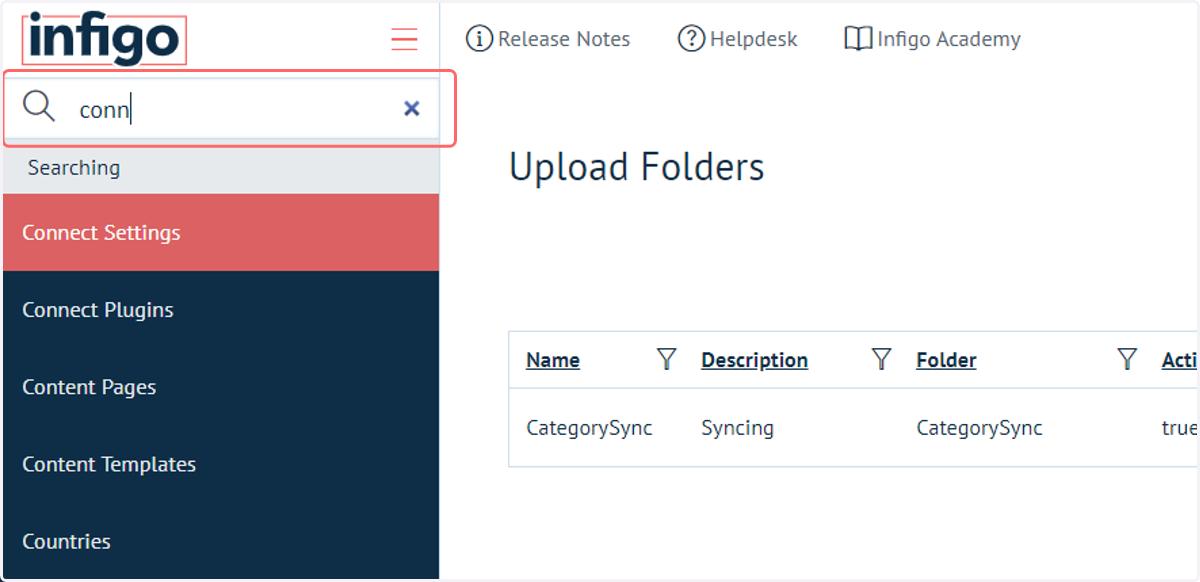
7. Click on Connect Plugins
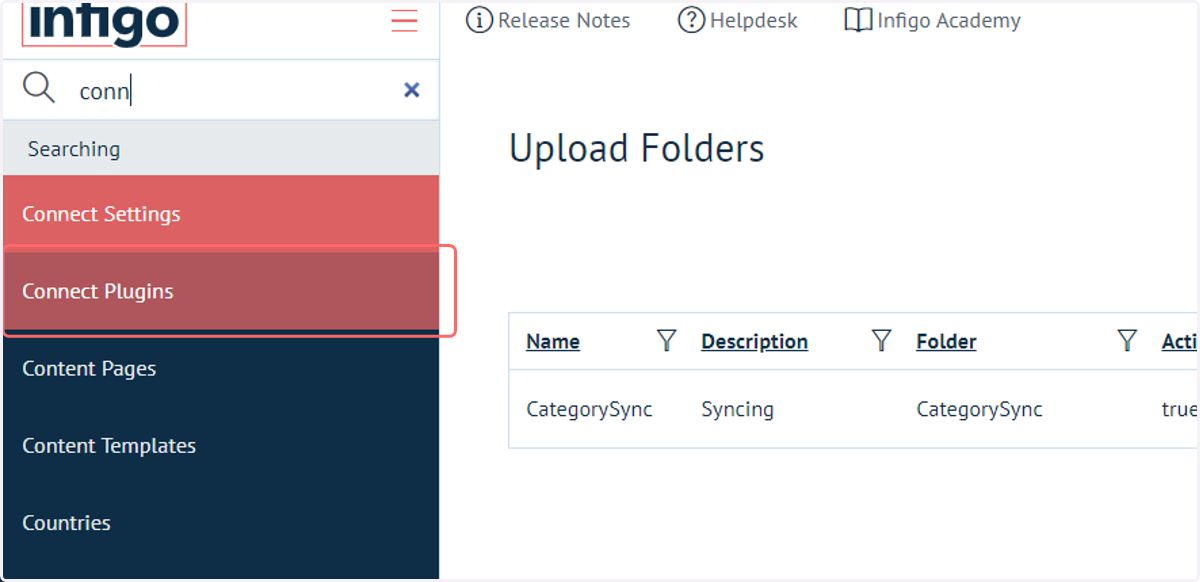
8. Click on Configure
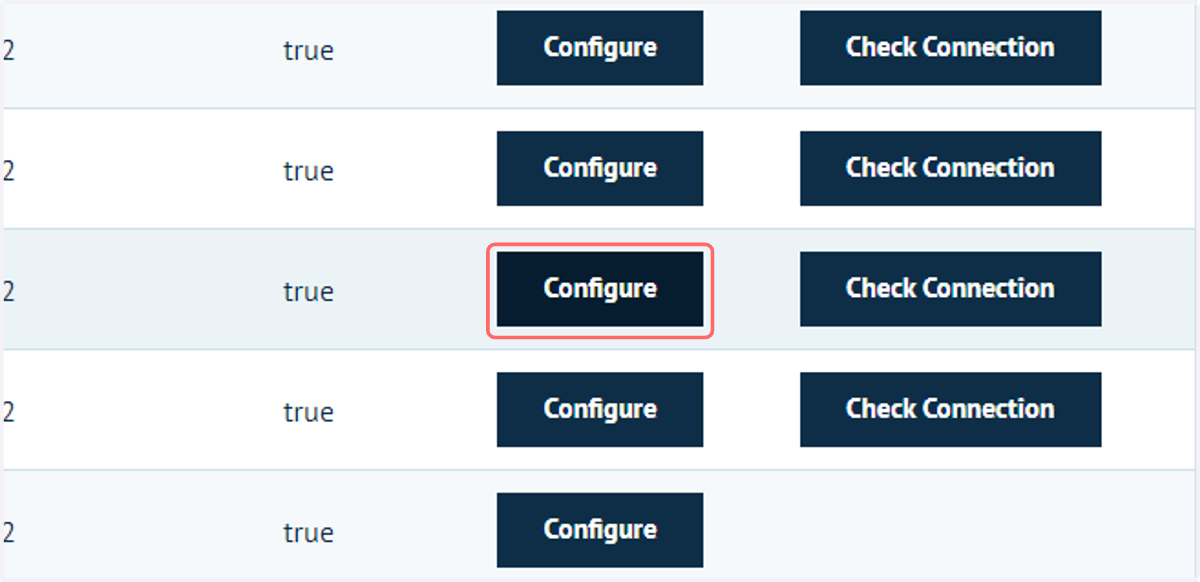
9. Click on Sync Product Categories via Data sheet
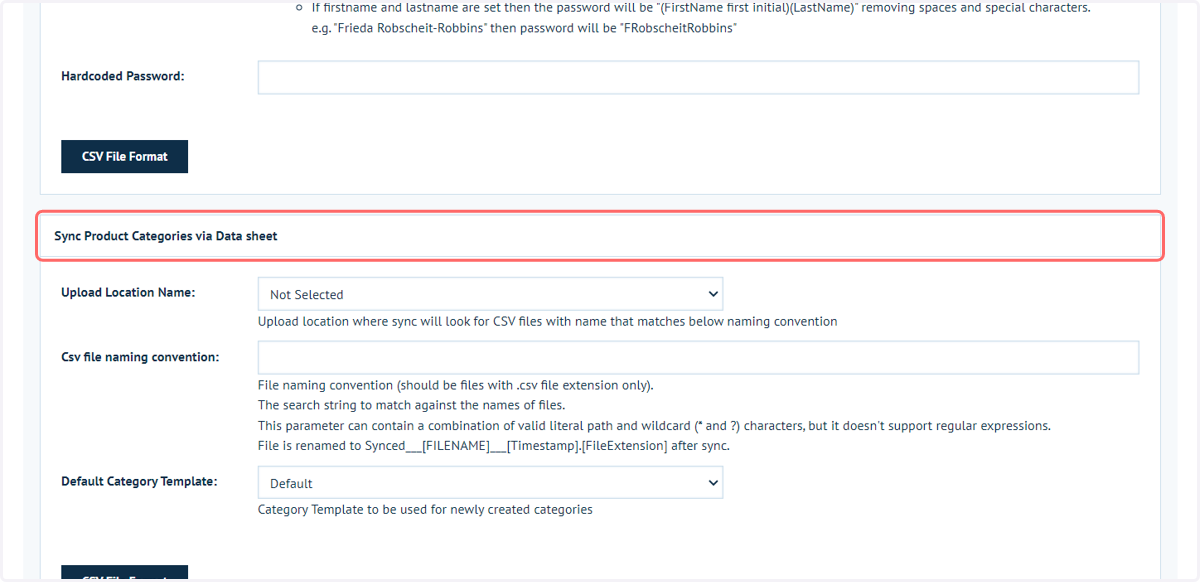
10. Select an Upload Location
Upload location where sync will look for CSV files with name that matches below naming convention
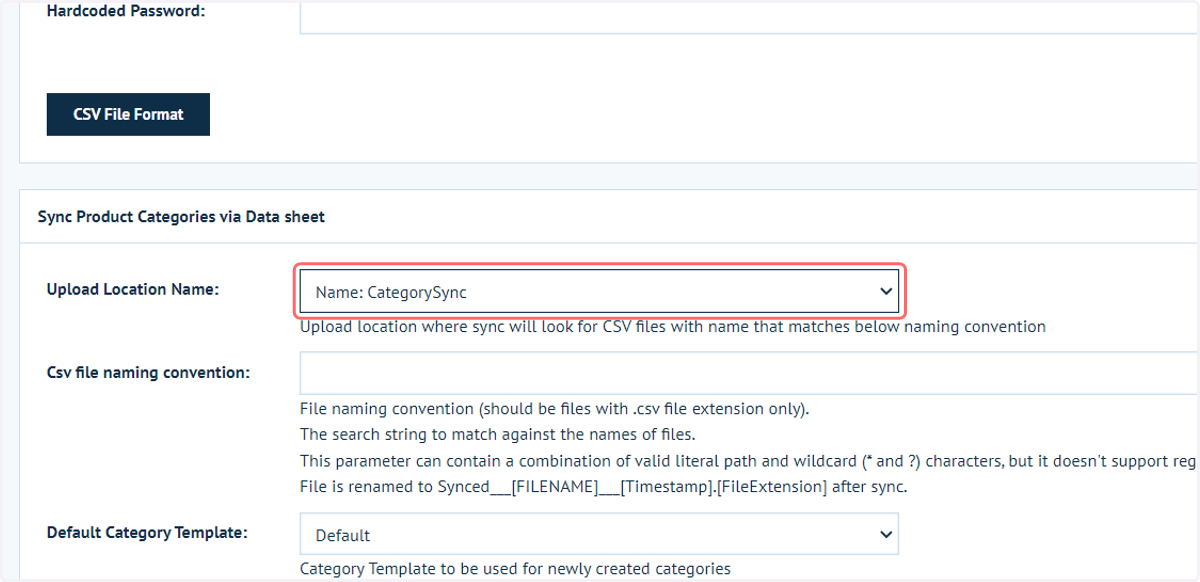
11. Type a naming convention, such as "*_category.csv"
File naming convention (should be files with .csv file extension only).
The search string to match against the names of files.
This parameter can contain a combination of valid literal path and wildcard (* and ?) characters, but it doesn't support regular expressions.
File is renamed to Synced___[FILENAME]___[Timestamp].[FileExtension] after sync.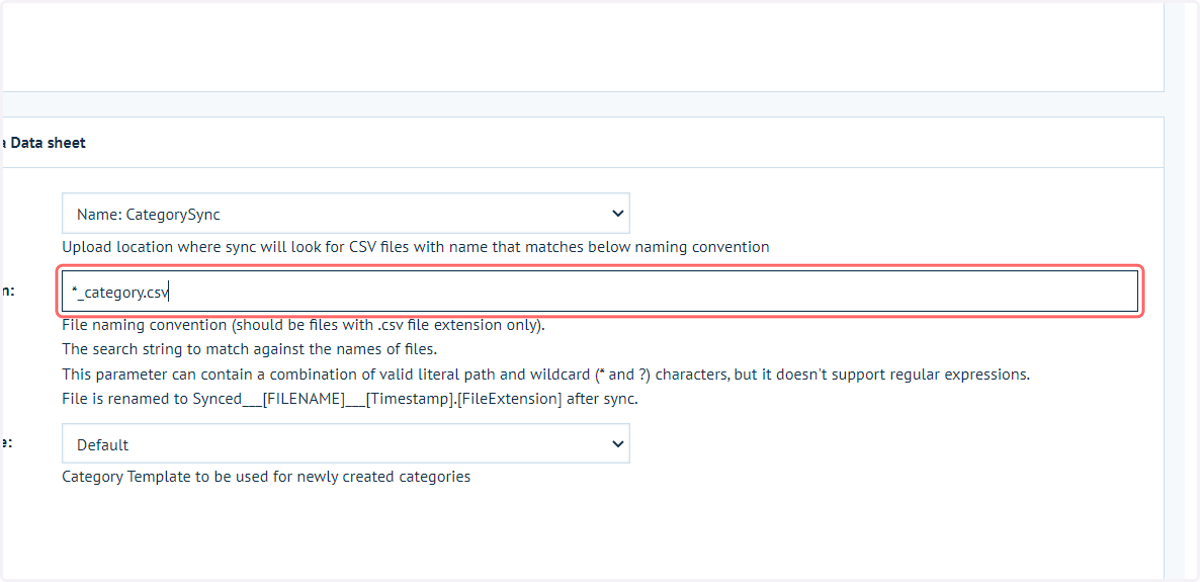
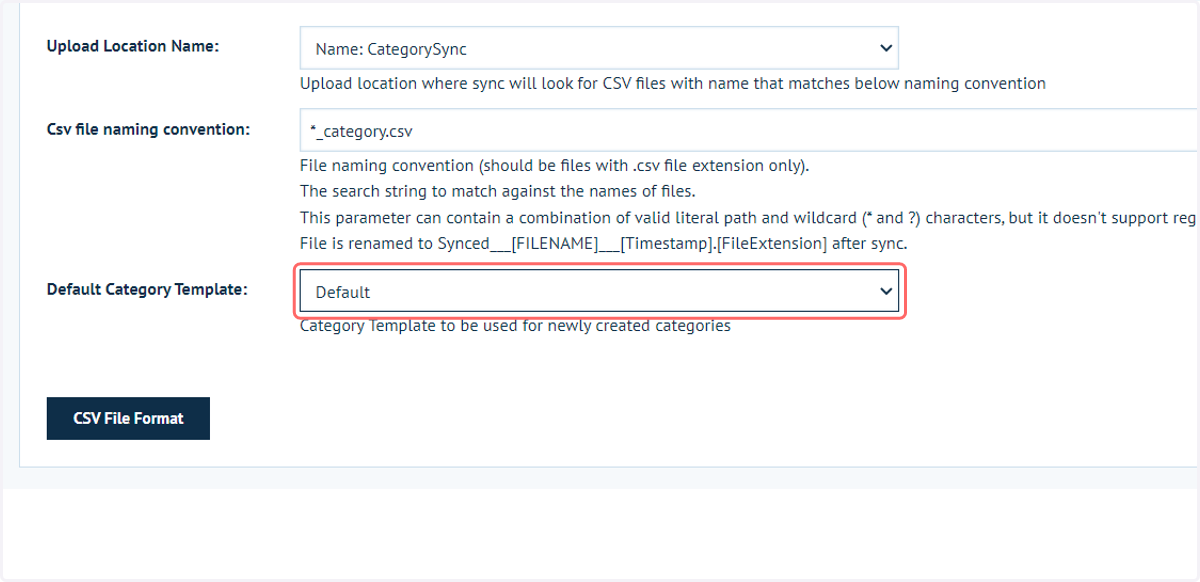
12. Select Default from Default Category Template:
13. Automatic import
Our windows application, Infigo Sync, will then pick up that file and import it into your Infigo platform automatically. You can of course decide just to import it manually if you wanted to control when this happens (manual import will be covered later).
The datasheet will contain an Offer ID that will link to a product in Veracore. It will also have a series of 'Levels' column that will determine the categories and sub-categories that need to be created and the product to be assigned to.
An Offer ID can exist on multiple rows in the datasheet if it should be assigned to multiple categories.
The import will iterate through the CSV file and for each Level it finds it will create a new category. And for each category it creates we will automatically assign the correct mapping value to ensure it is mapped to Veracore correctly.
The display order of the products is predetermined to the order in which they appear on the CSV file.

14. Manual syncing
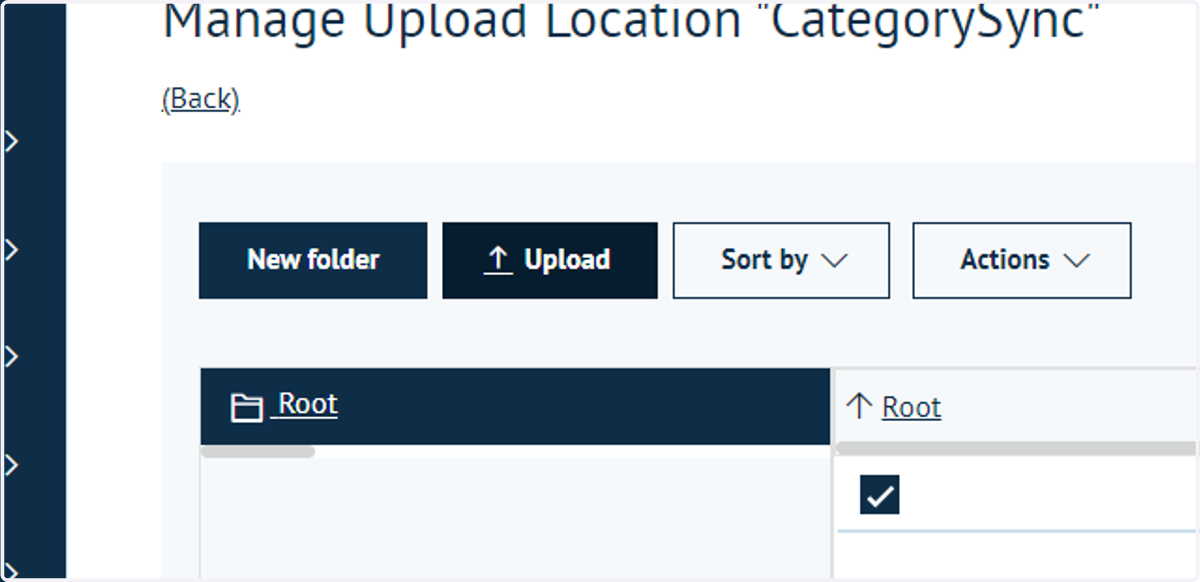
After you create your Upload Folder and link the folder in Connect: Veracore - simply go to the Upload Folder, and upload your CSV file. Attached to this article is a sample CSV.
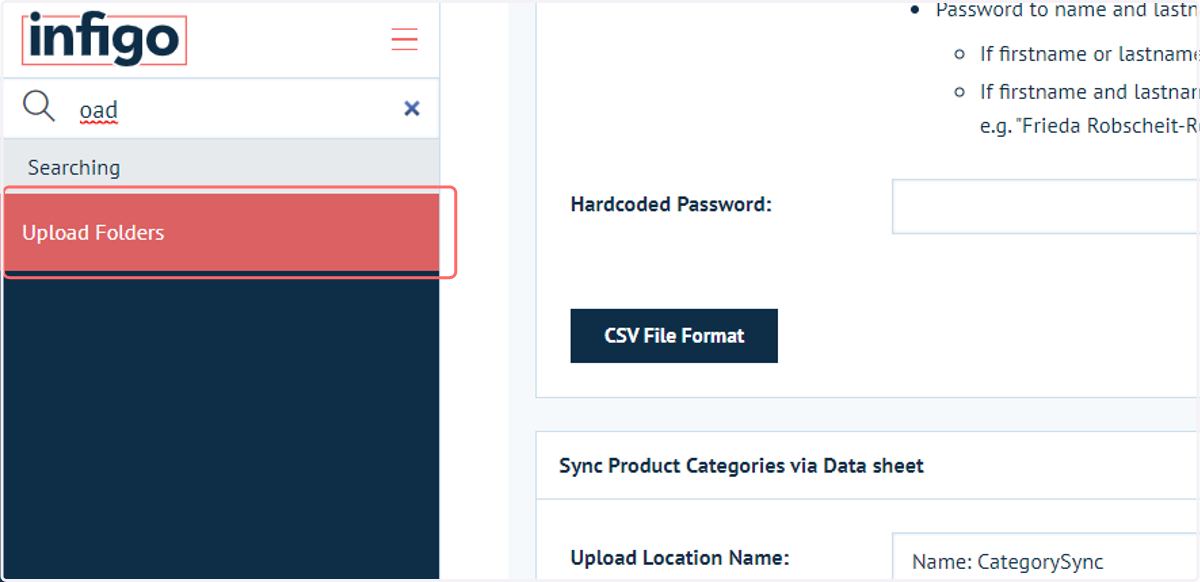
15. Click on Upload Folders
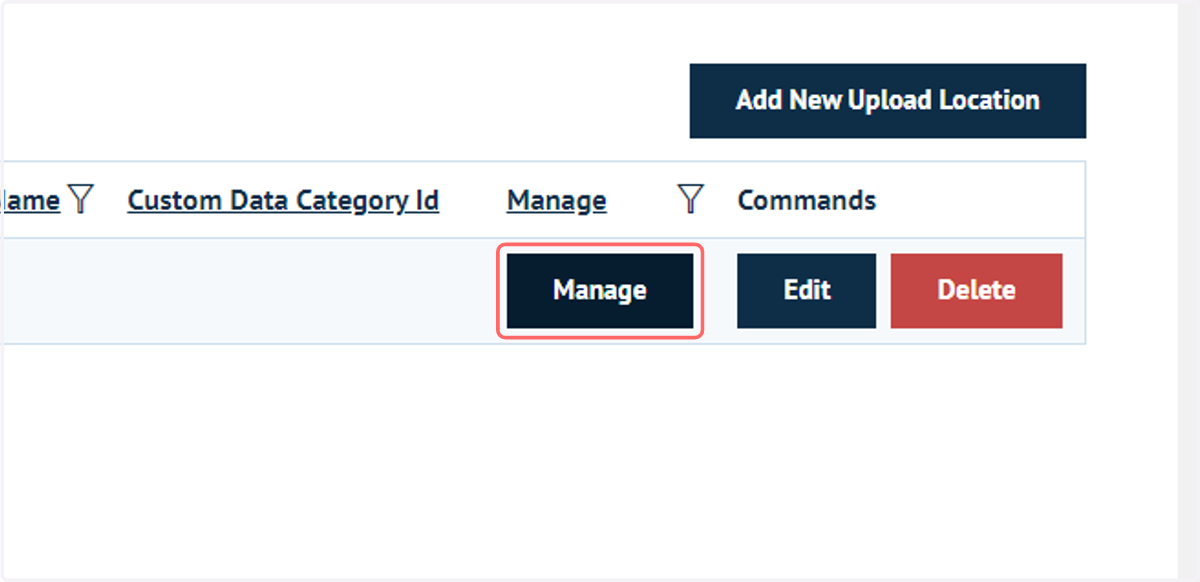
16. Click on Manage
17. Click on Upload
18. Sample CSV template
