Creating Address Books _ GT_AB_002
This tutorial takes a look at how to create both address books (a storage area for numerous addresses) and individual addresses contained within those address books.
We'll take a look at both manual input of these elements, along with available import tools.
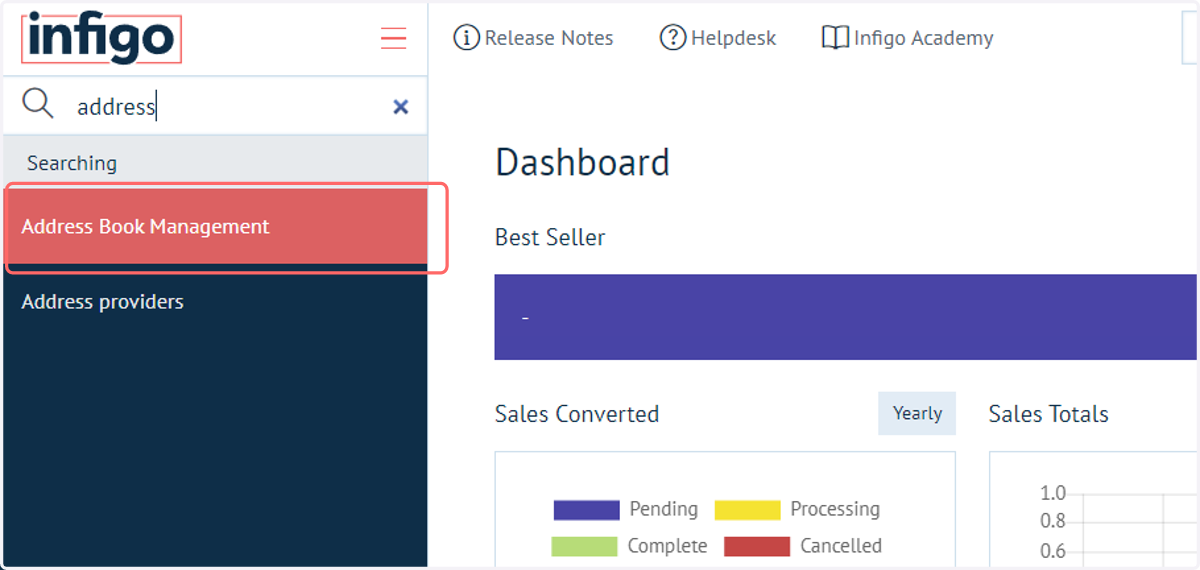
1. Navigate to Address Book Management
This area is used solely for the creation and management of address books, which can then be assigned to different user associated areas such as customer roles or departments.
2. Click on Add
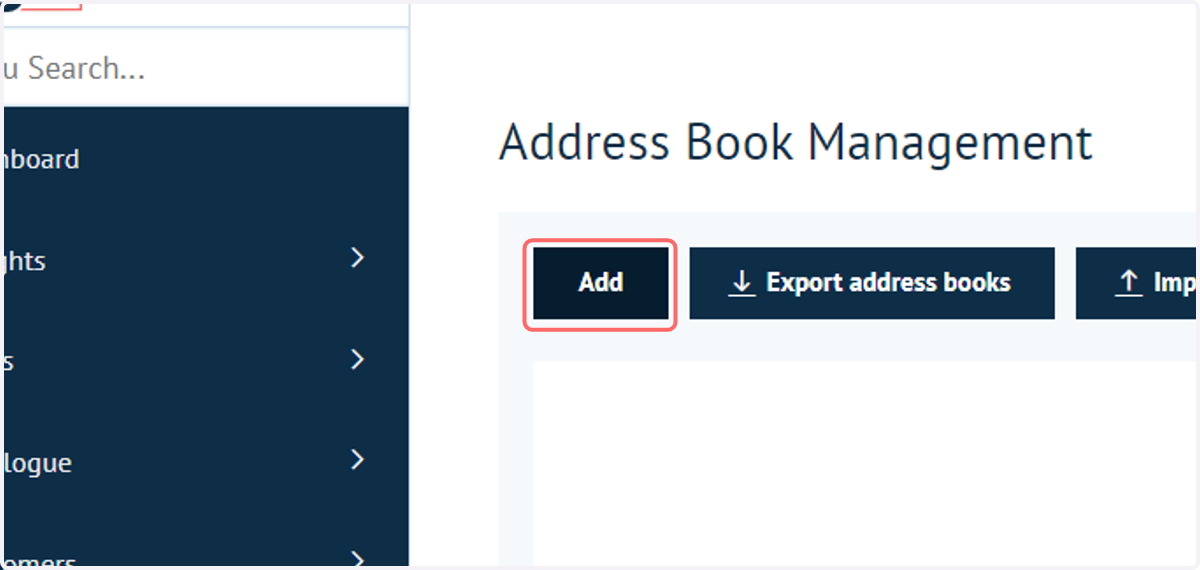
To begin, we will manually create an address book.
3. Complete address book details
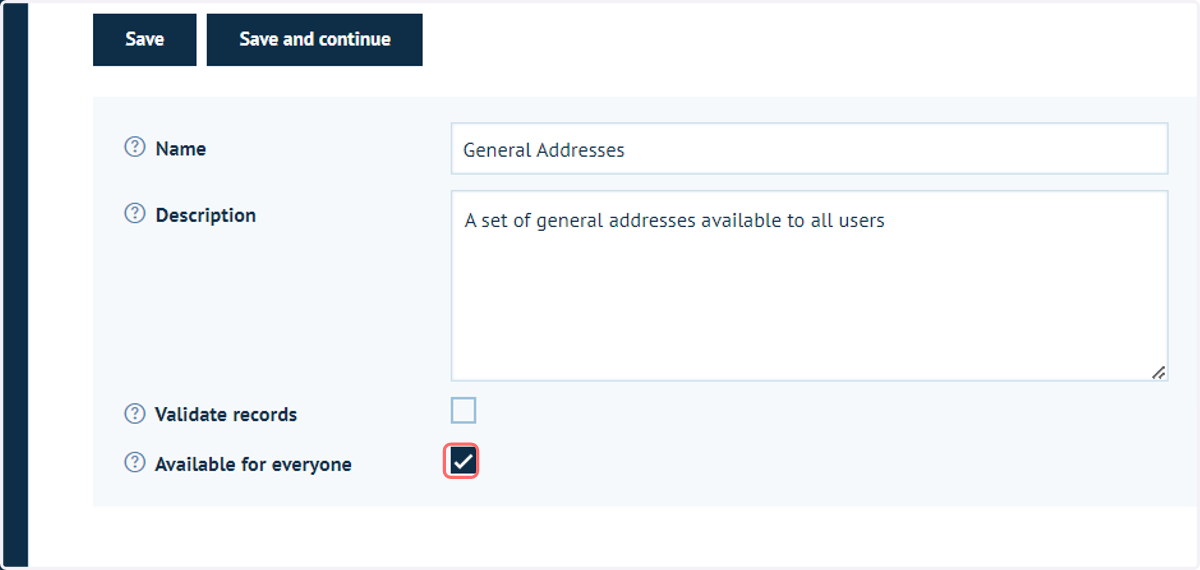
Fill in some basic details for the address book. These fields cover:
Address book name & description
Validate records | When admins input addresses into the address book, this setting specifies whether this address is verified against your storefront's address settings. This could be, for example, whether a company name is required.
Available for everyone | This setting means that any address within this address book will be available for any customer to use.
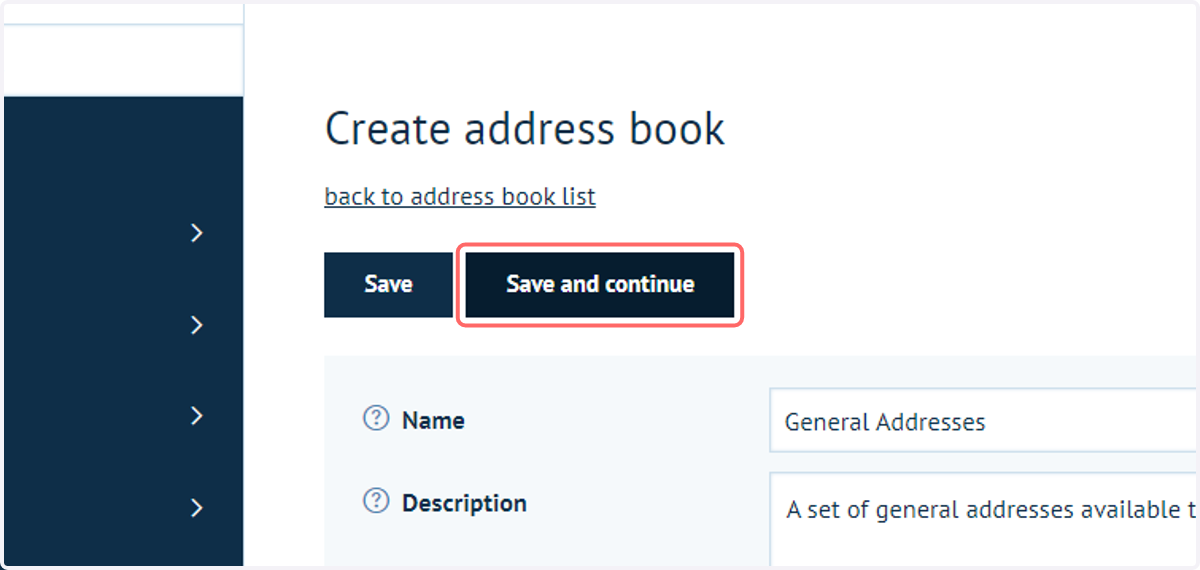
4. Click on Save and continue
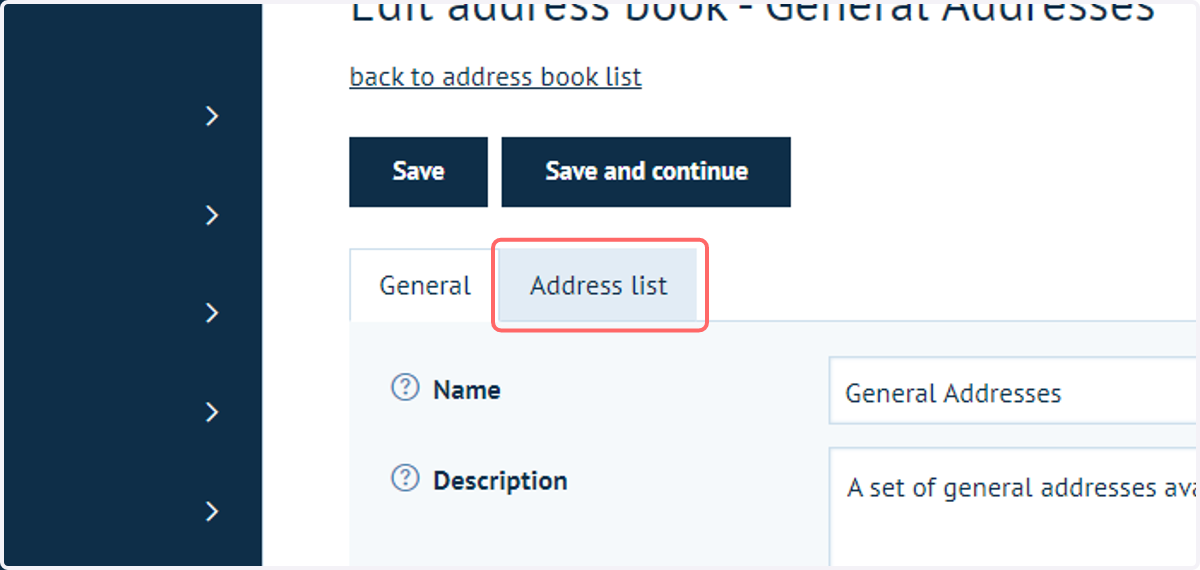
5. Click on Address list
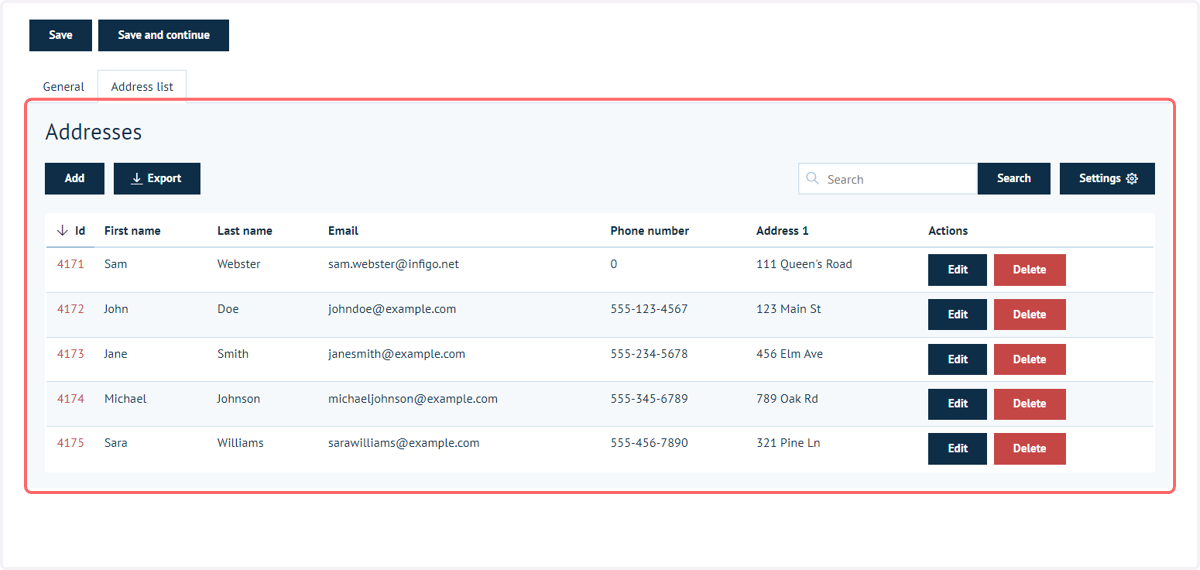
Once saved, an Address list tab appears, where you can begin manually inputting addresses to be contained within the address book.
6. Click on Add
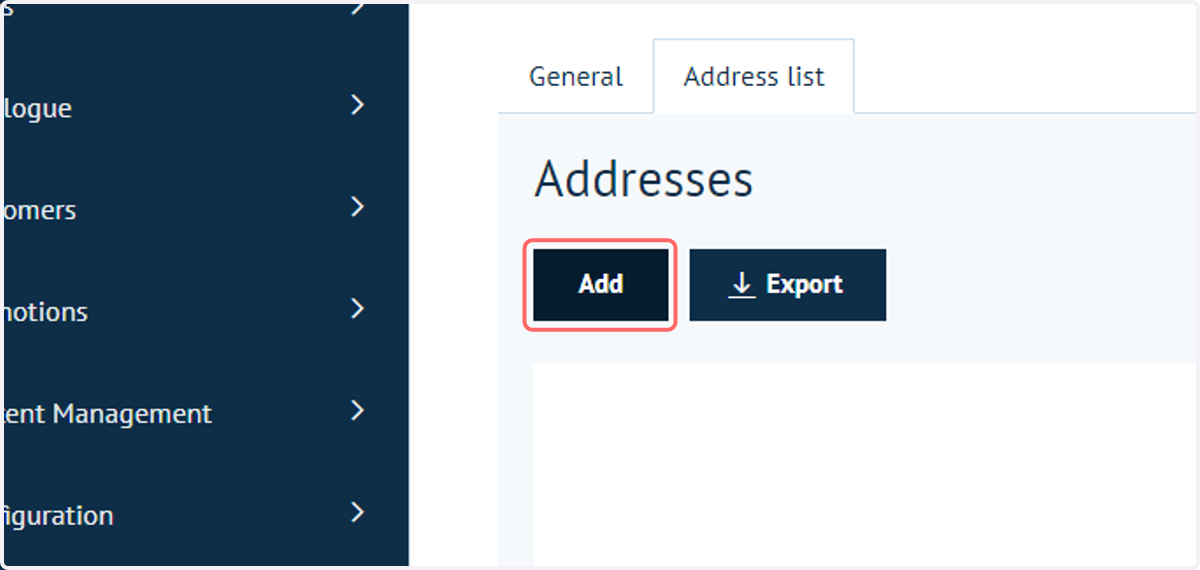
7. Complete the address details
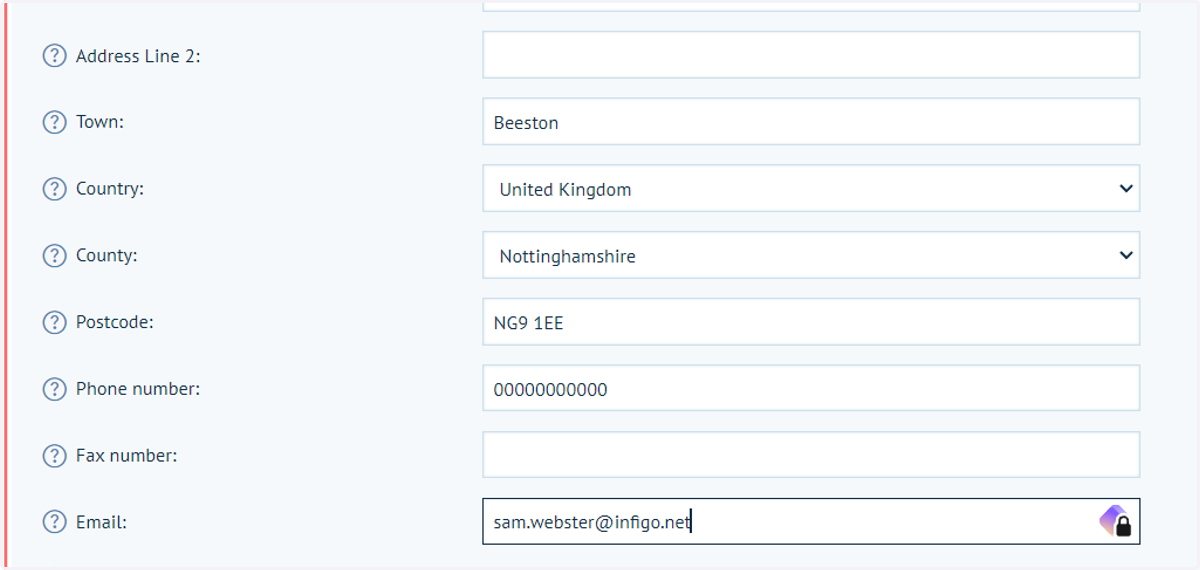
8. Address advanced settings
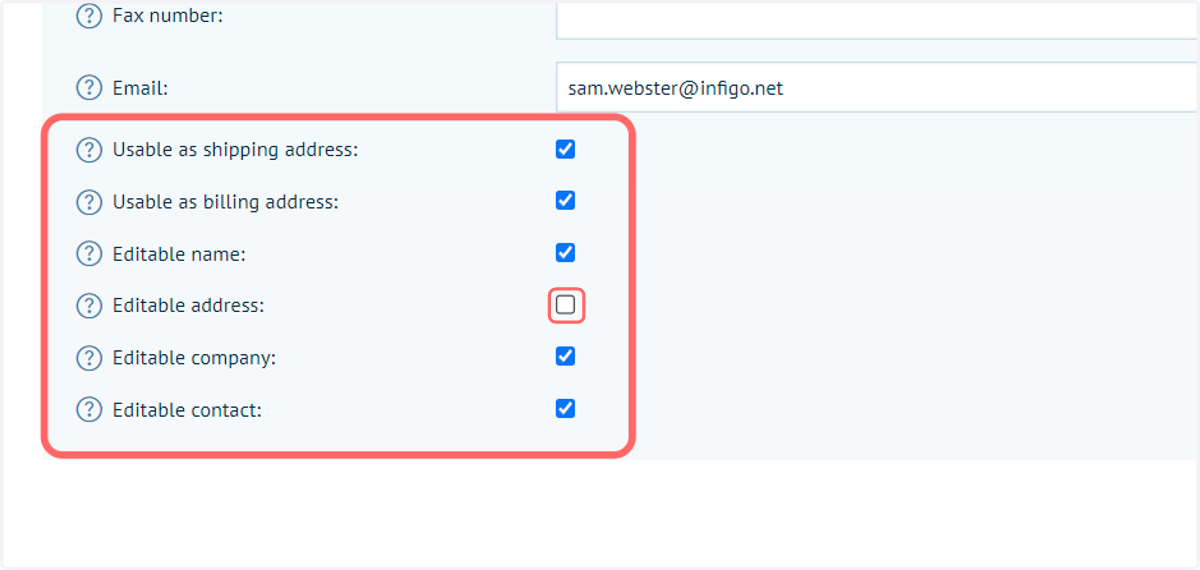
A series of options is available when inputting an address, controlling when that address can be used and how fixed or editable that address will be.
Firstly, you can define whether the address can be used for shipping or billing purposes, or, both.
The final set of options controls what a customer will be able to modify when selecting that address. You have the ability to make different parts of the address editable, such as the name, address fields, company name, or contact fields (such as email or phone number).
Deselecting all of these options will mean nothing on that address is editable when selected.
9. Click on Save
10. Click on Address list
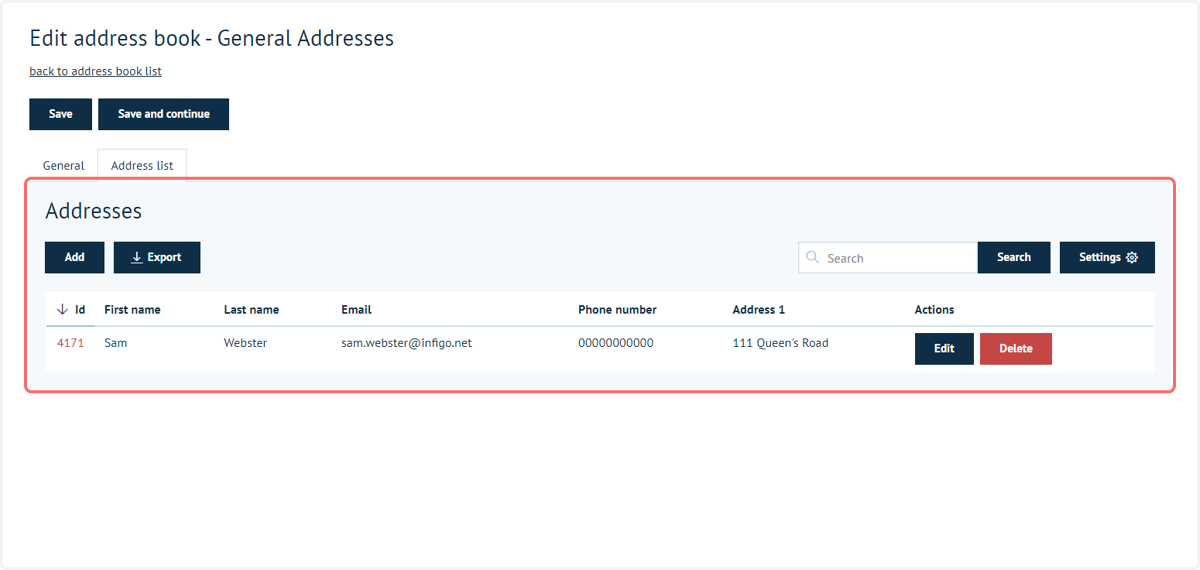
11. The newly added address is now available
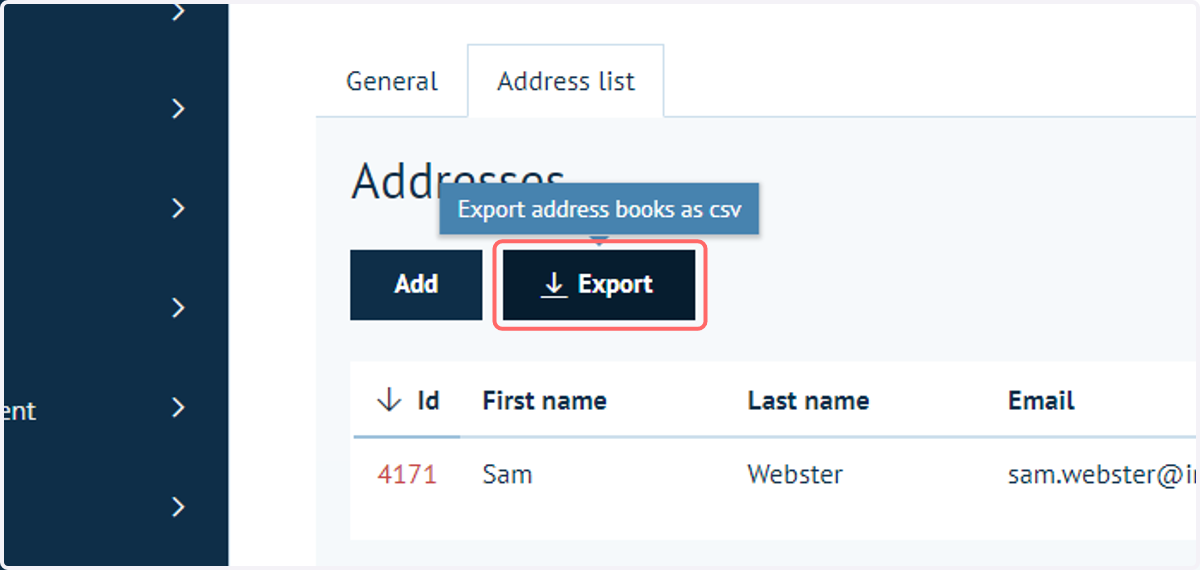
12. Click on Export
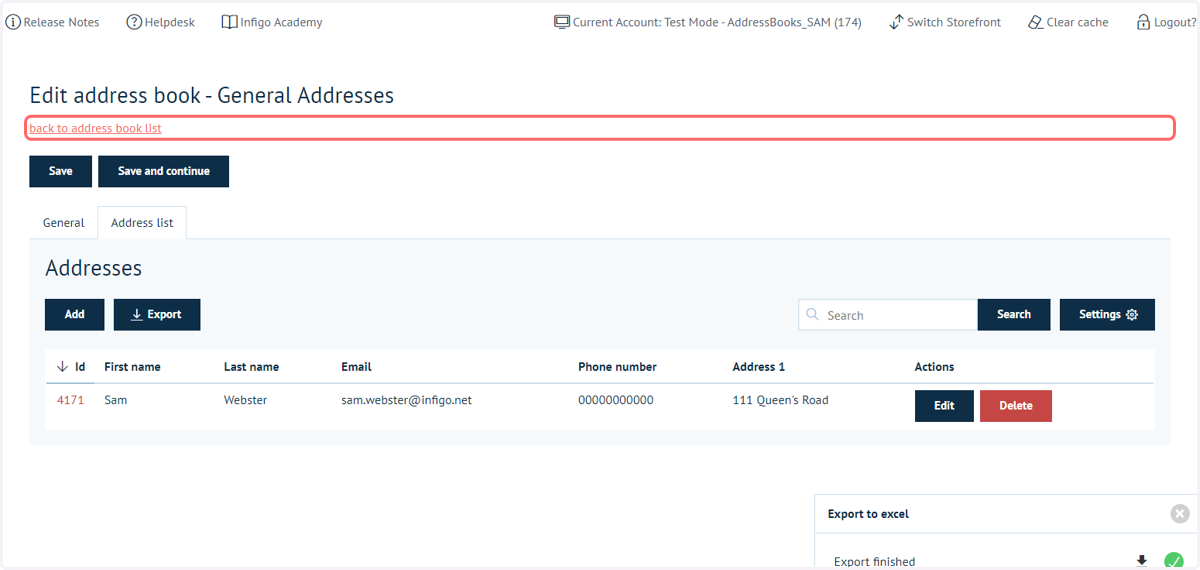
Addresses added to your address books can be exported from Infigo using the Export button (from within an Address book).
This will provide you details of entered addresses, along with a template from which you can add further addresses and re-import the CSV.
13. Click on back to address book list
14. Click on Export address books
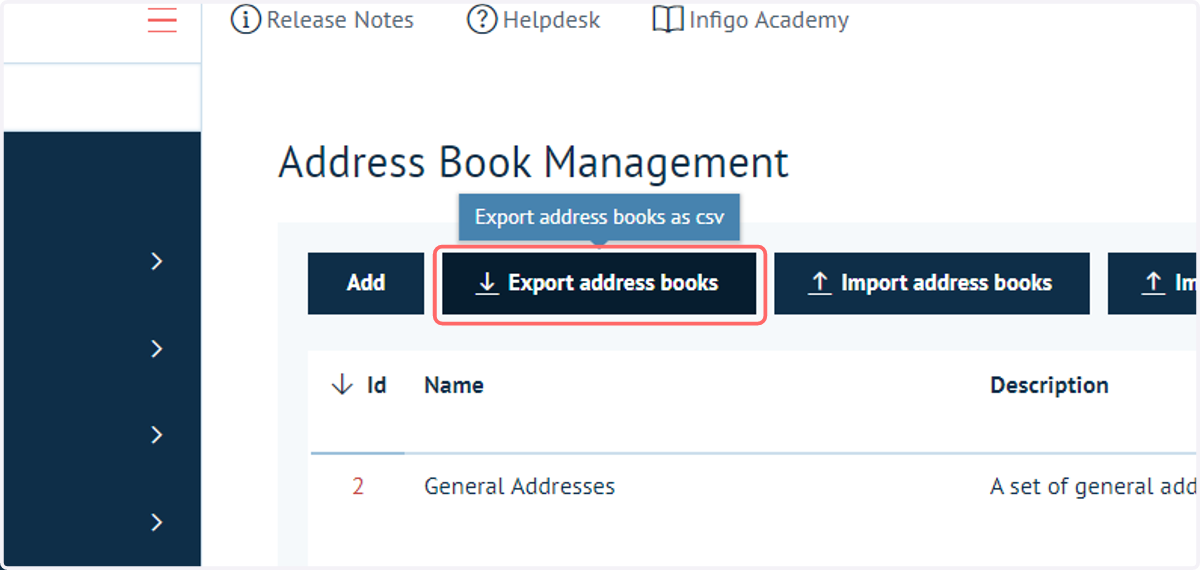
In addition to individual addresses, the list of address books can also be exported.
Navigate to the Address Book Management screen and click Export address books.
15. Address Books CSV
Here, we have an example of the downloaded Address Books CSV.
The downloaded CSV provides information on current address books, but in addition provides you with a CSV template in which you can add further entries then re-import the CSV to Infigo to create additional address books.
In our example, additional rows have been added detailing additional books, ready to re-import into Infigo.

16. Addresses CSV
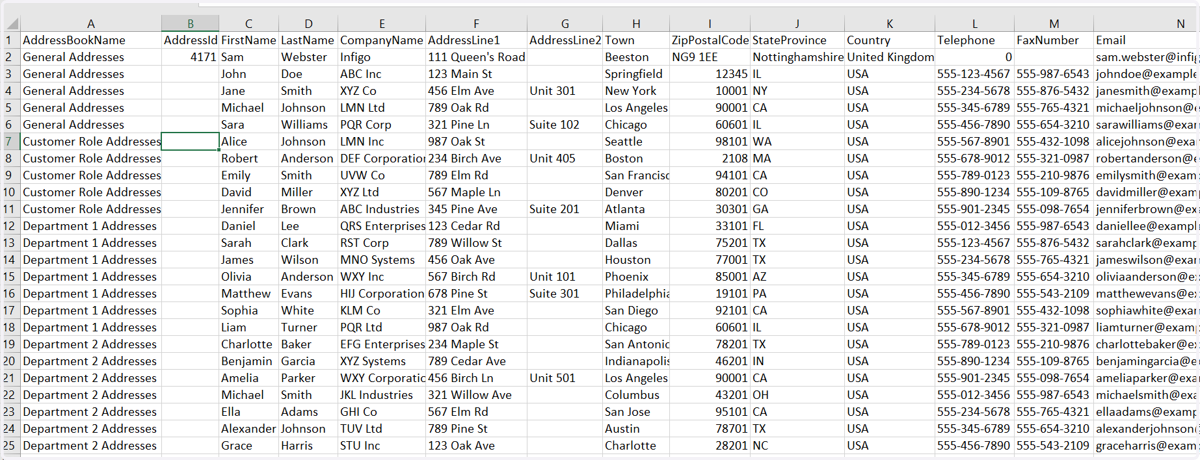
Here, we have an example of the downloaded addresses CSV.
The downloaded CSV provides information on current addresses, but in addition provides you with a CSV template in which you can add further entries then re-import the CSV to Infigo to create additional address books.
In our example, additional rows have been added detailing additional books, ready to re-import into Infigo. The downloaded CSV also contains two identifying columns, ID and AddressBookName. Only one of these is required to add new addresses to the Infigo system. In my example, I have opted to place each individual address using the AddressBookName column. As a result, I have deleted the ID column.
NOTE: Addresses cannot contain "," (comma) symbols within them. The CSV we upload is comma delimited, so having commas within the addresses themselves will skew the input.
17. Click on Import address books
Next, let's import out Address Book CSV in order to create some new address books.
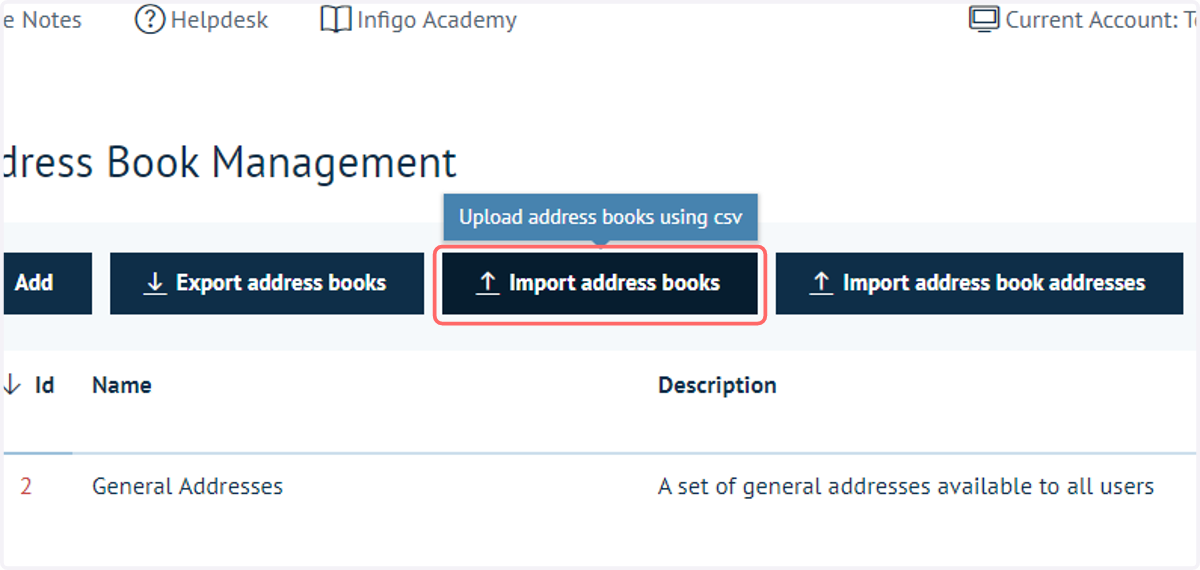
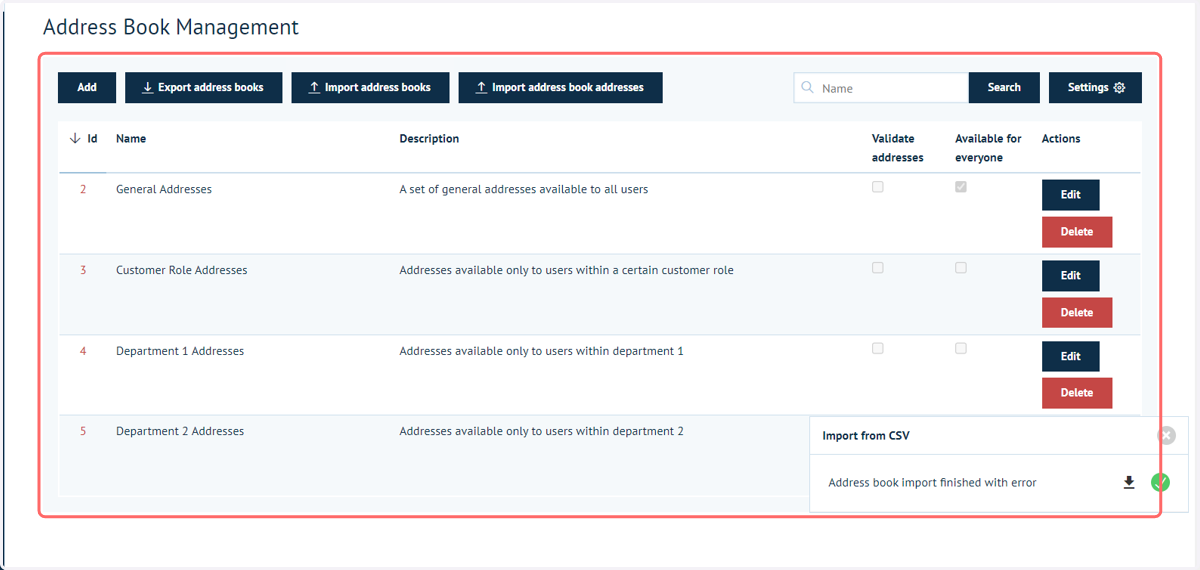
18. Select the CSV file and upload
New address books will be available.
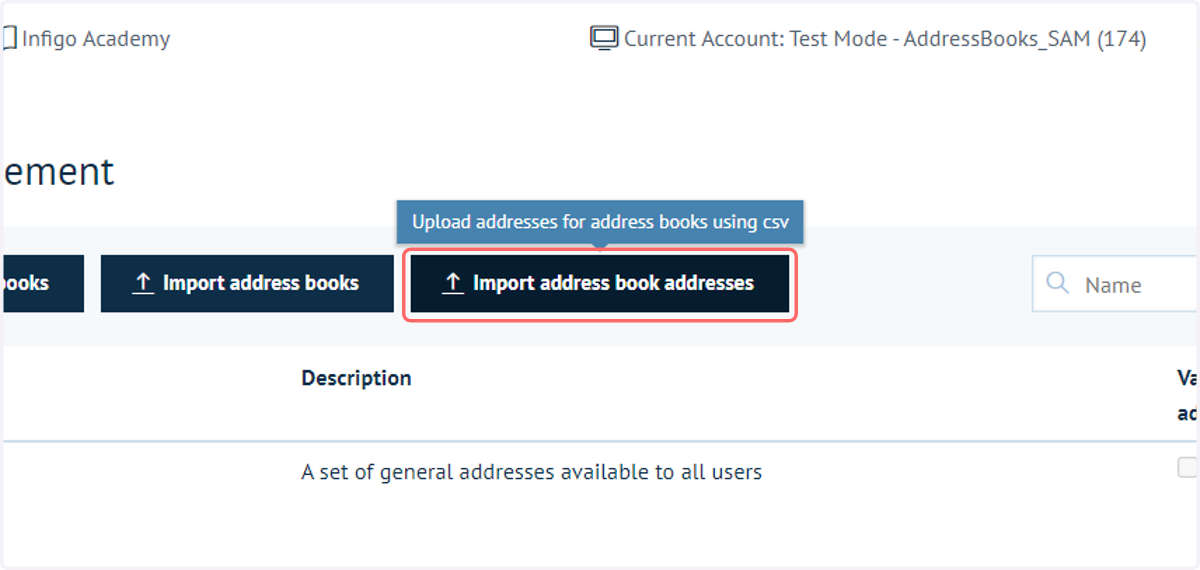
19. Click on Import address book addresses
Still on the Address Books Screen, click to import individual addresses.
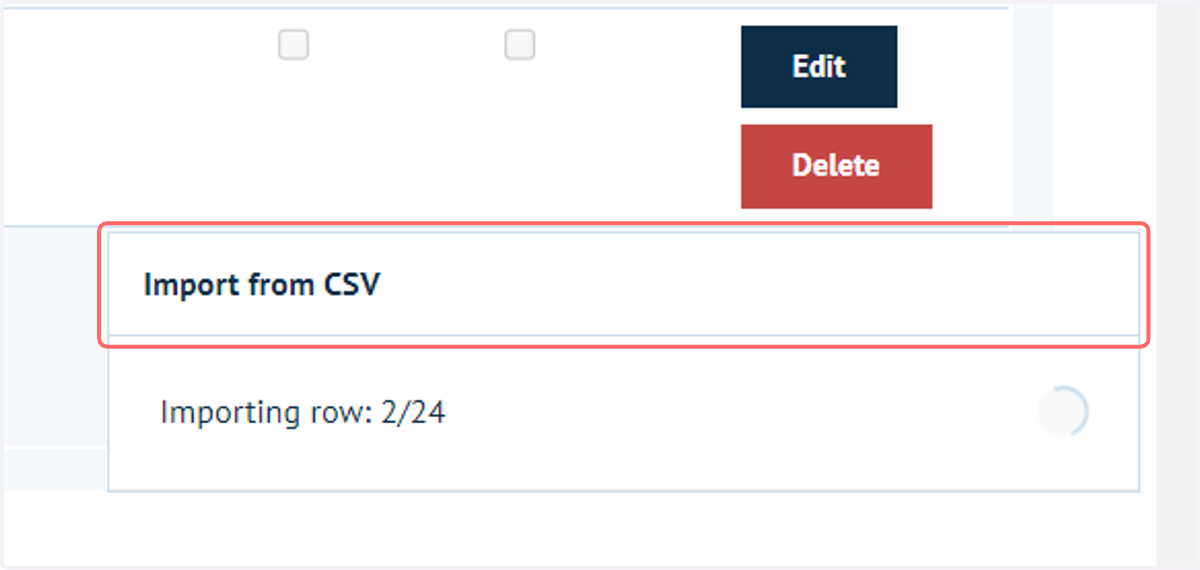
20. Informational pop ups
Feedback will be provided by the Infigo system when importing both address books and addresses.
If any failures occur, an additional CSV will automatically be downloaded, providing additional details on the failed elements of the import.
21. Viewing addresses
Once the import completes, addresses will now be available within the address book.
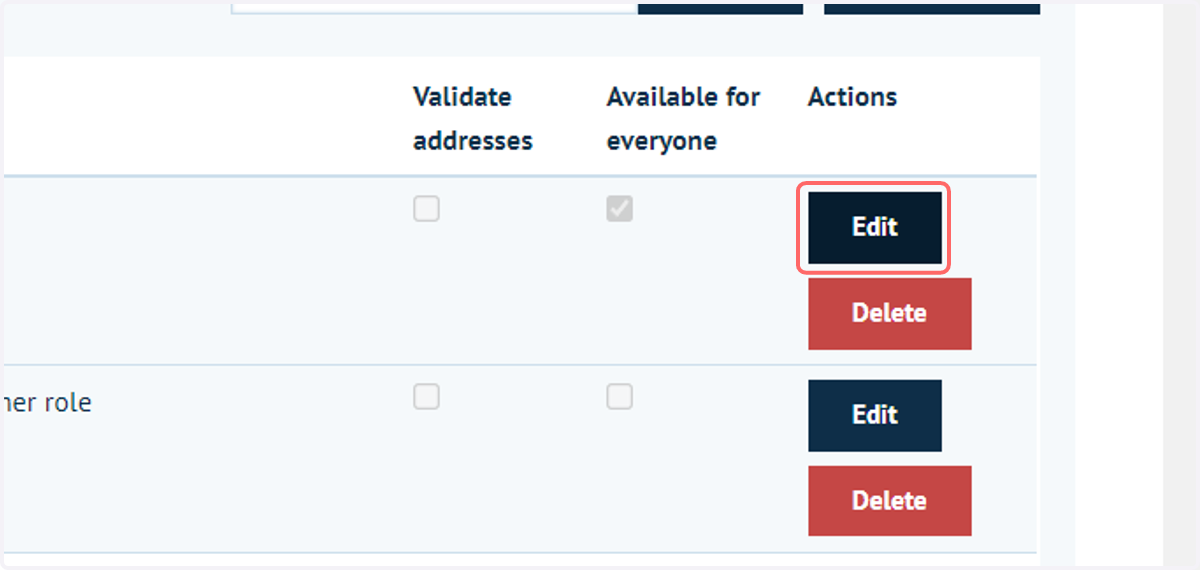
Click Edit on an address book to view its details.
22. Click on Address list
23. Addresses available