Attaching Inventory Items to Your Catalog
How to link your consumables to your services
Prospyr - Catalog
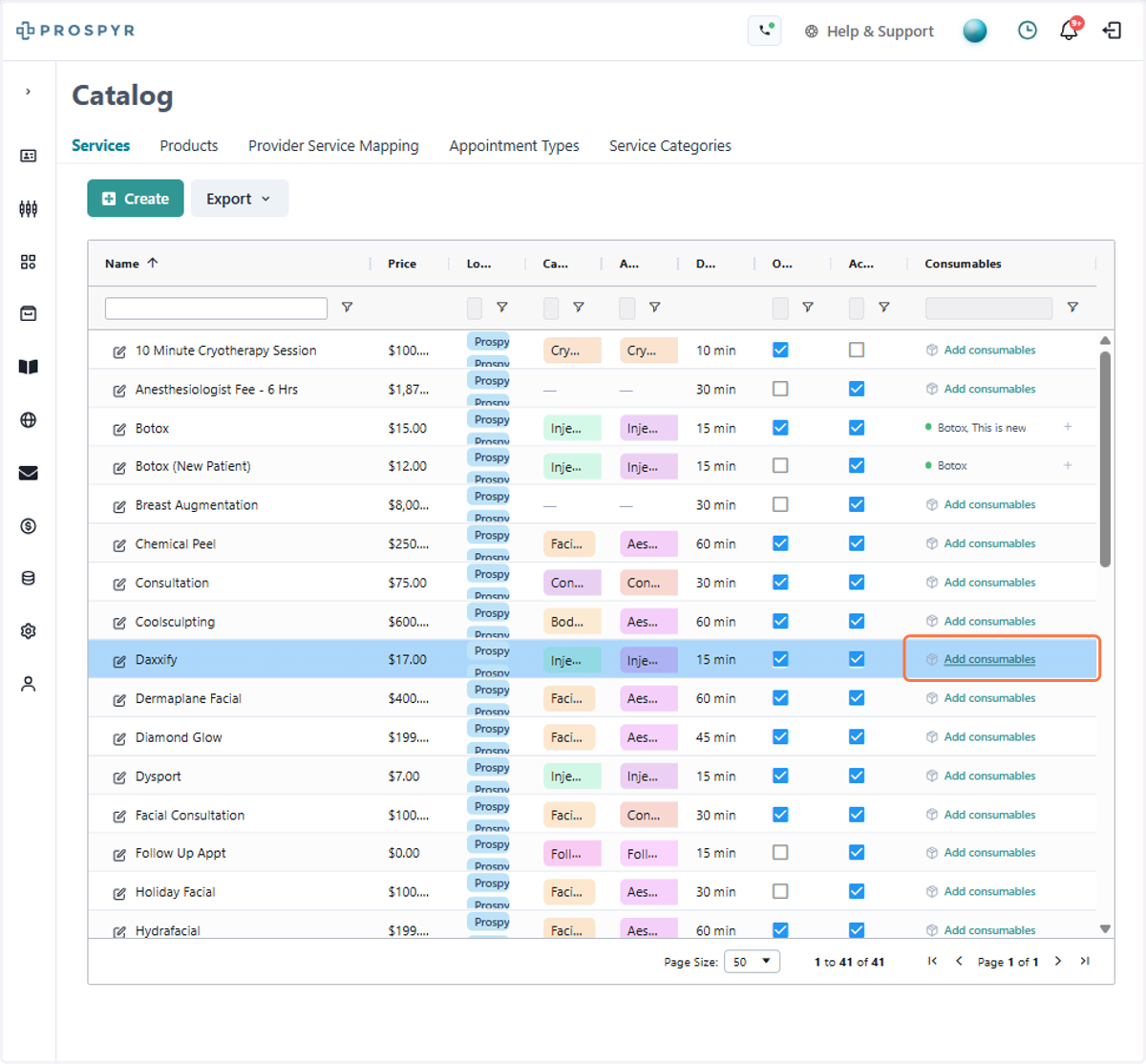
1. From the catalog, click add consumables on to the applicable service
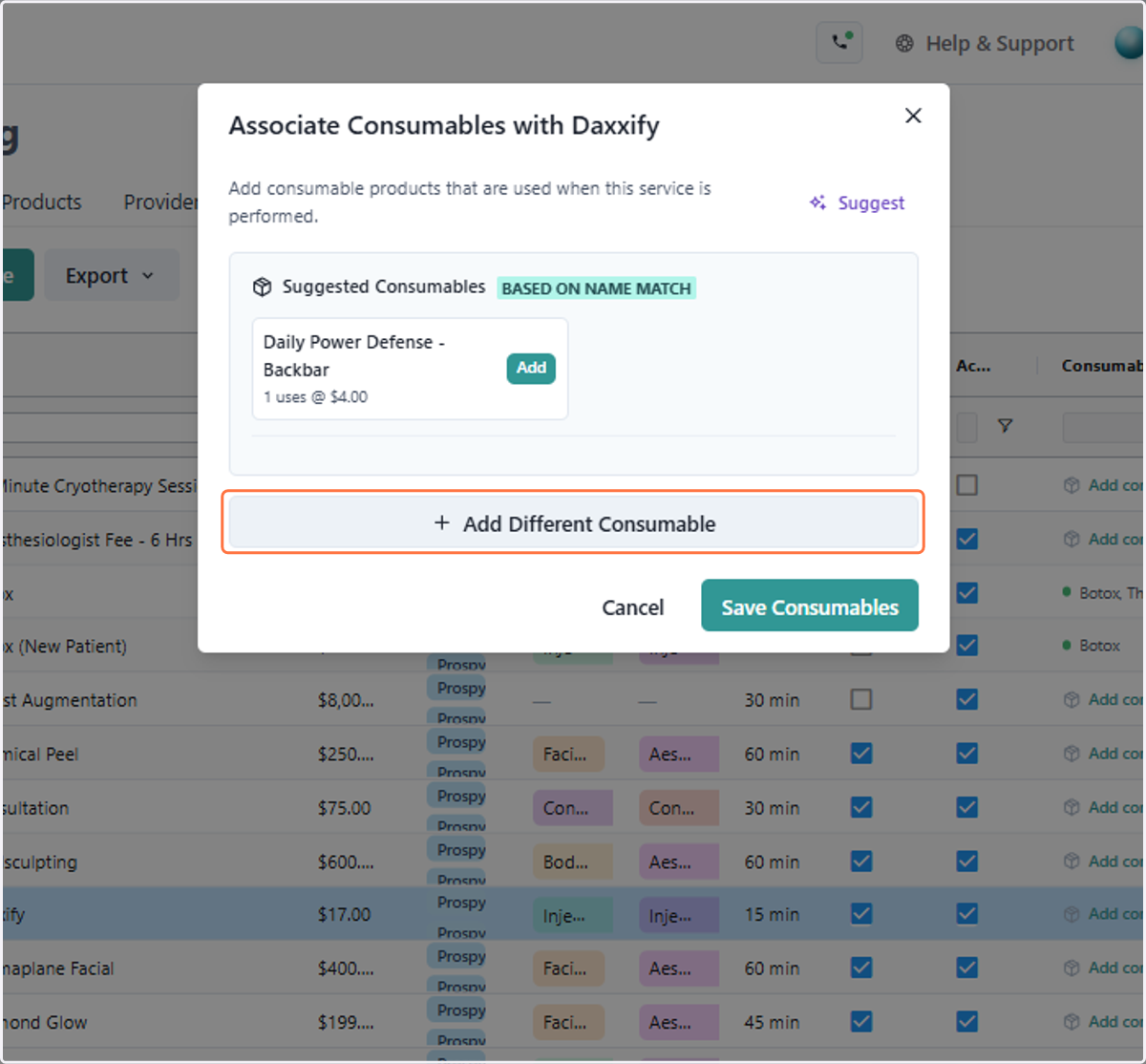
2. Click Add on the suggested consumable, or click add different consumable if you don't see the right option
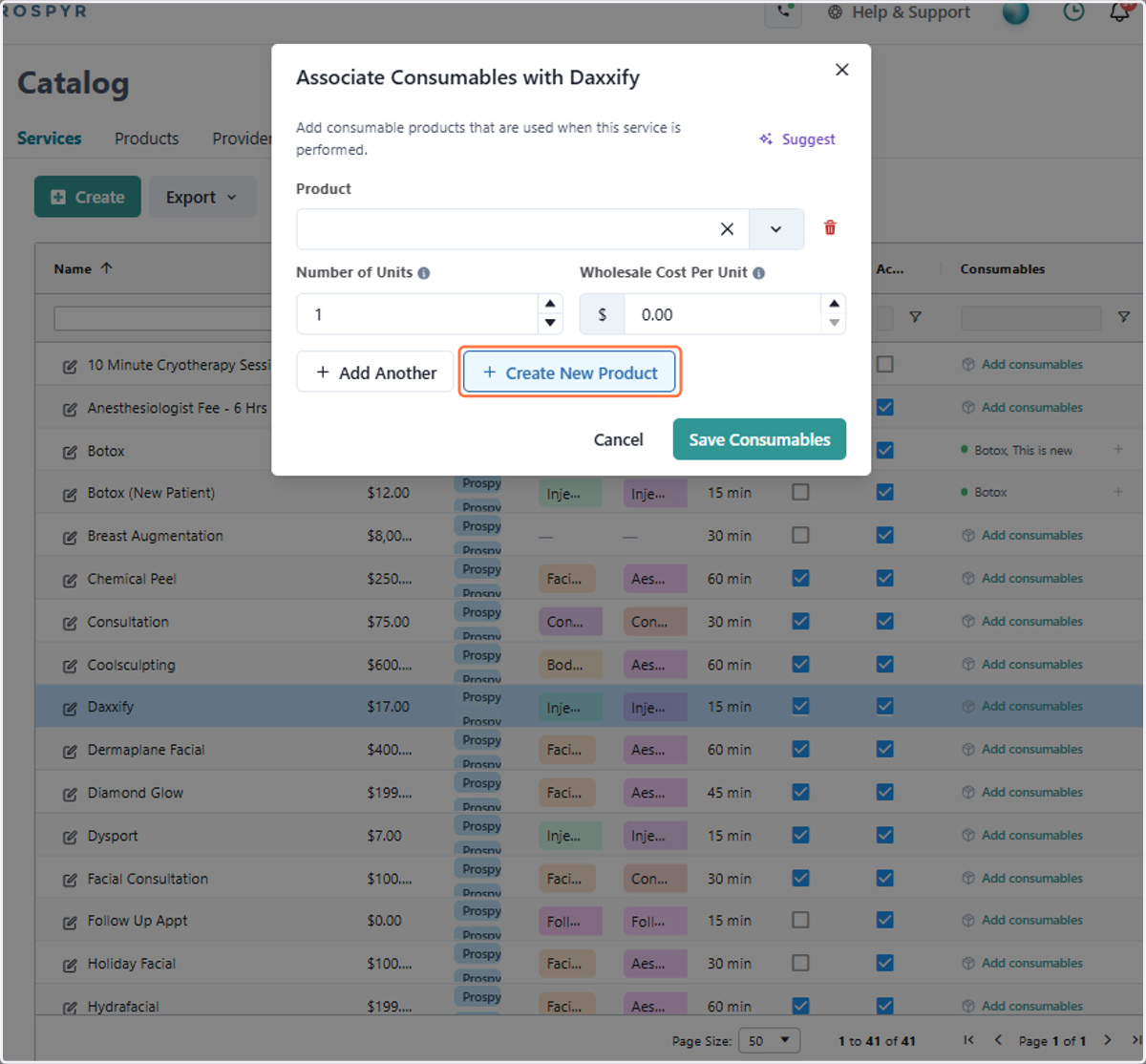
3. Here you can search for an existing product on the product line, or if it doesn't exist yet just click Create New Product
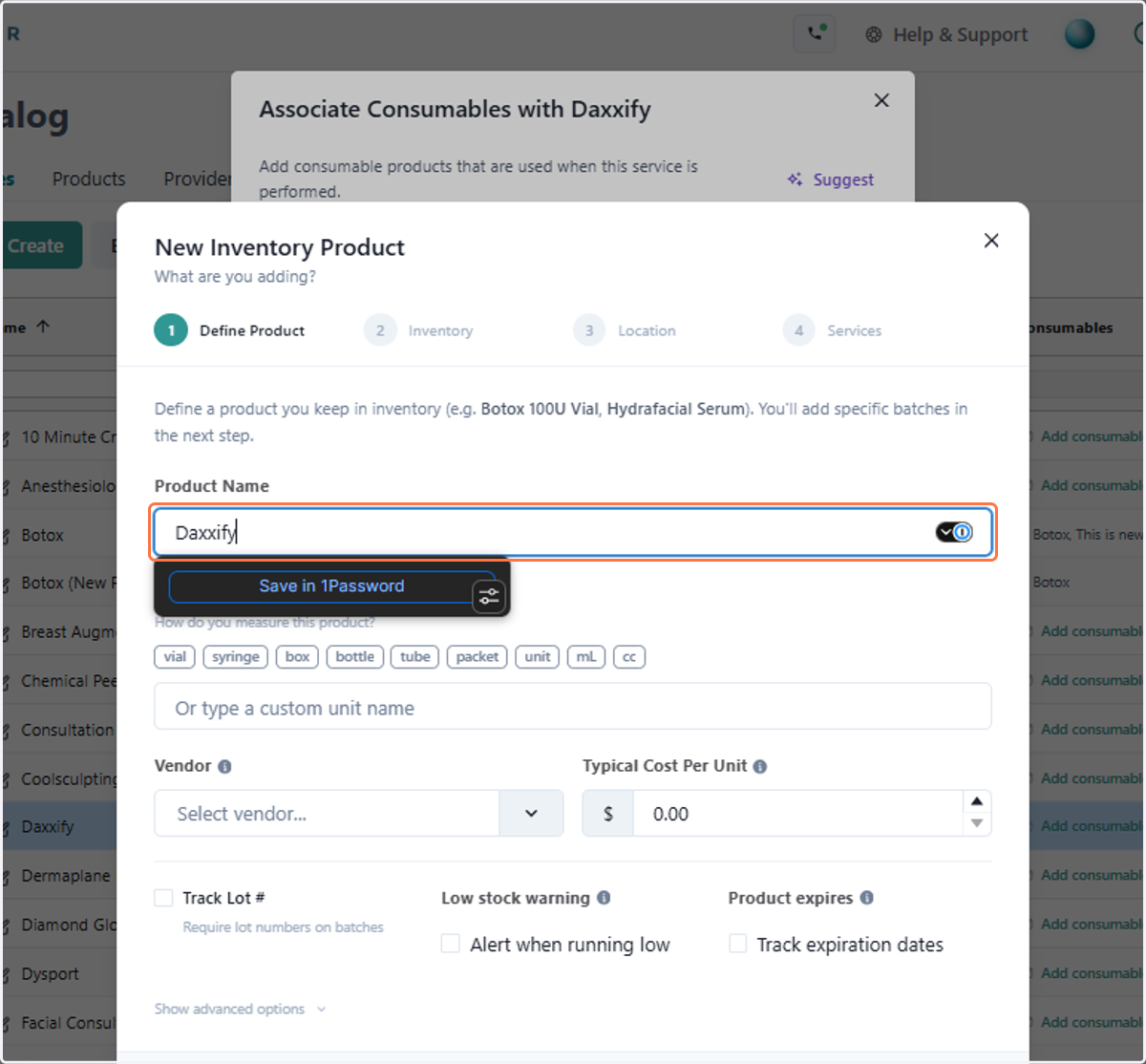
4. Type Product Name
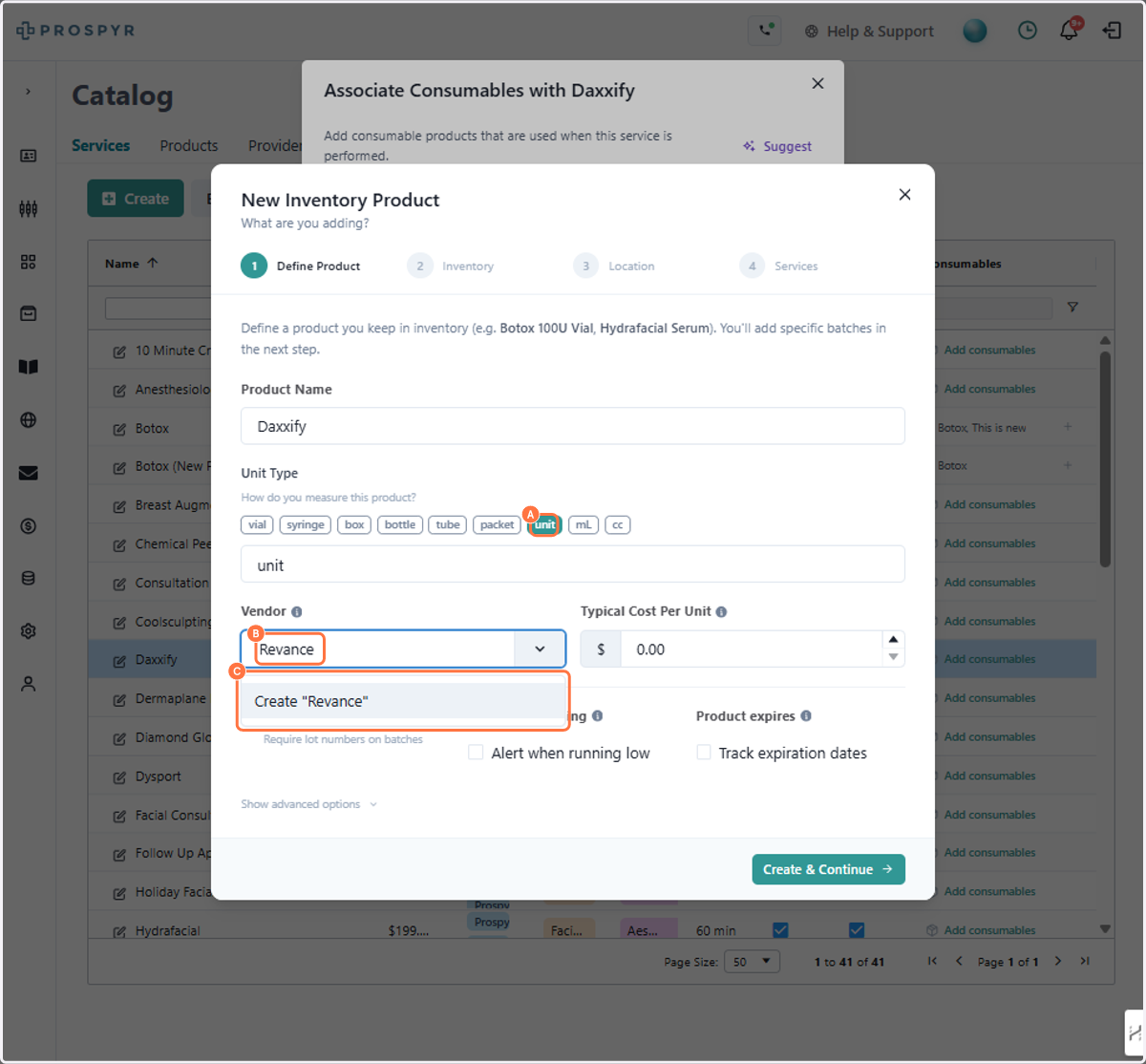
5. A. Select unit type
5. B. Type Vendor name
5. C. If it's a new vendor, click Create
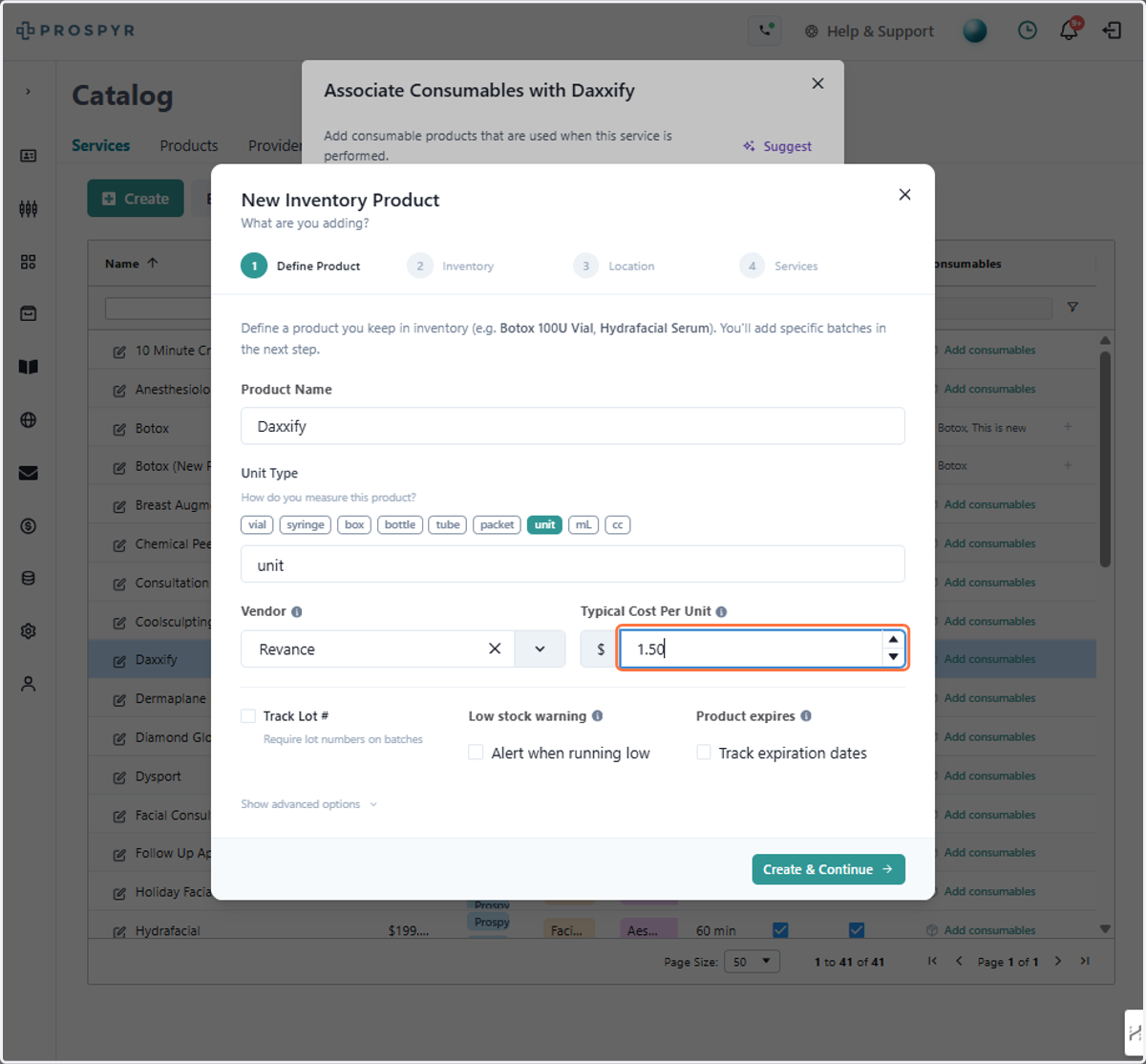
6. Type Typical Cost Per Unit
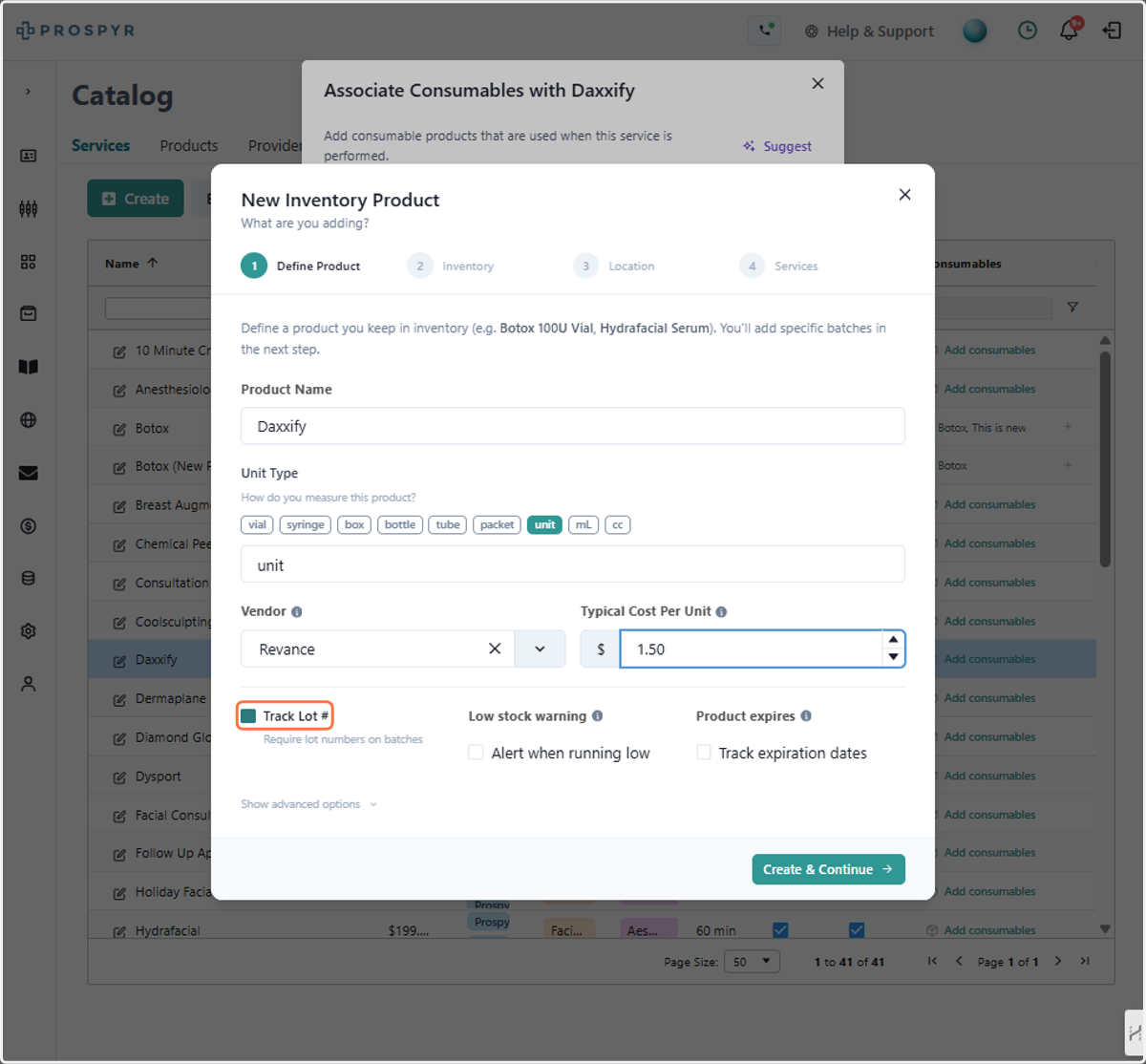
7. A. Select Track Lot # if this is a product that has lot numbers
You can also select Low Stock Warning if you'd like to be warned when you are running low
8. If you'd like to track expiration dates, click Track Expiration Dates
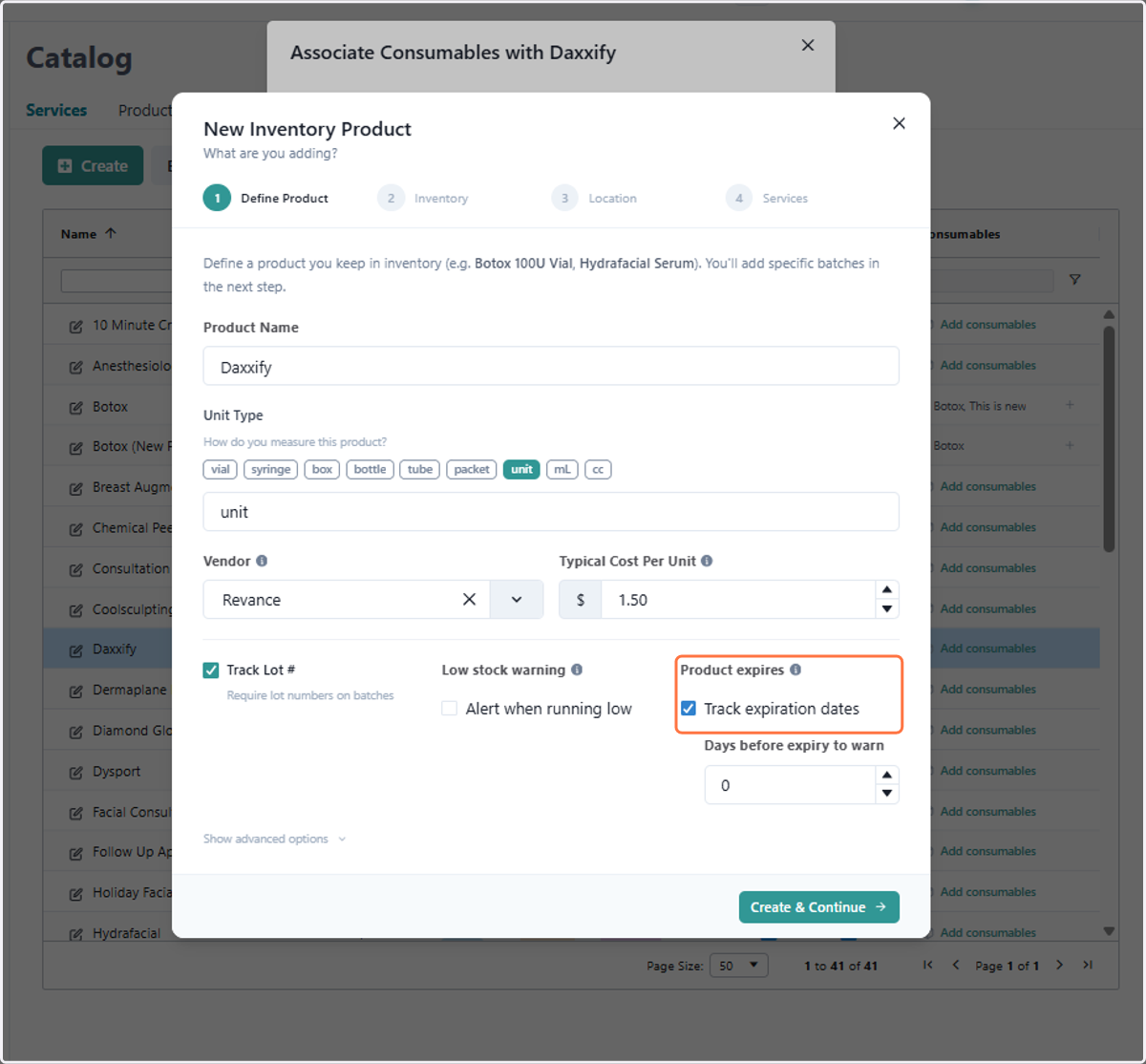
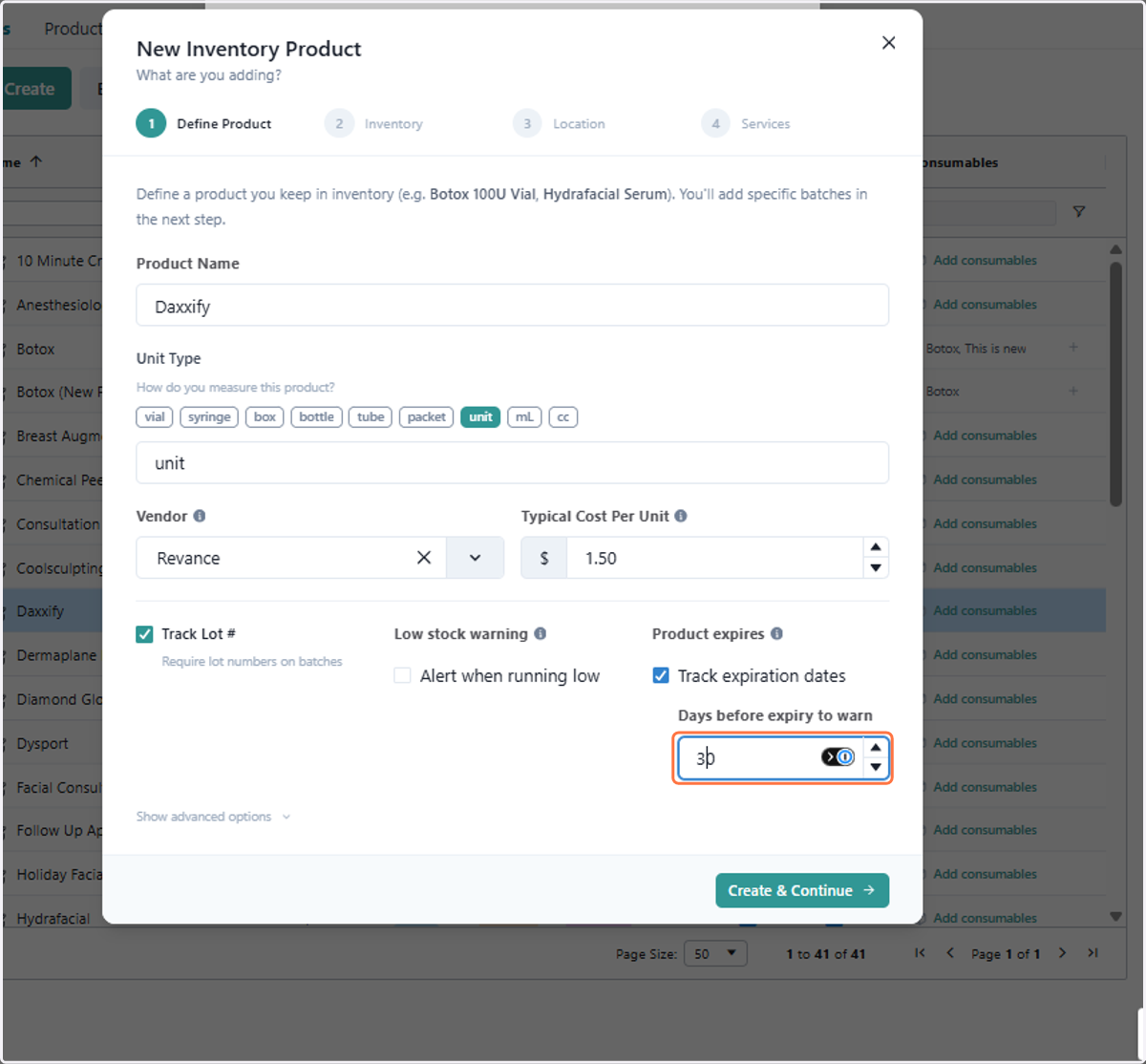
9. Type Days before expiry to warn
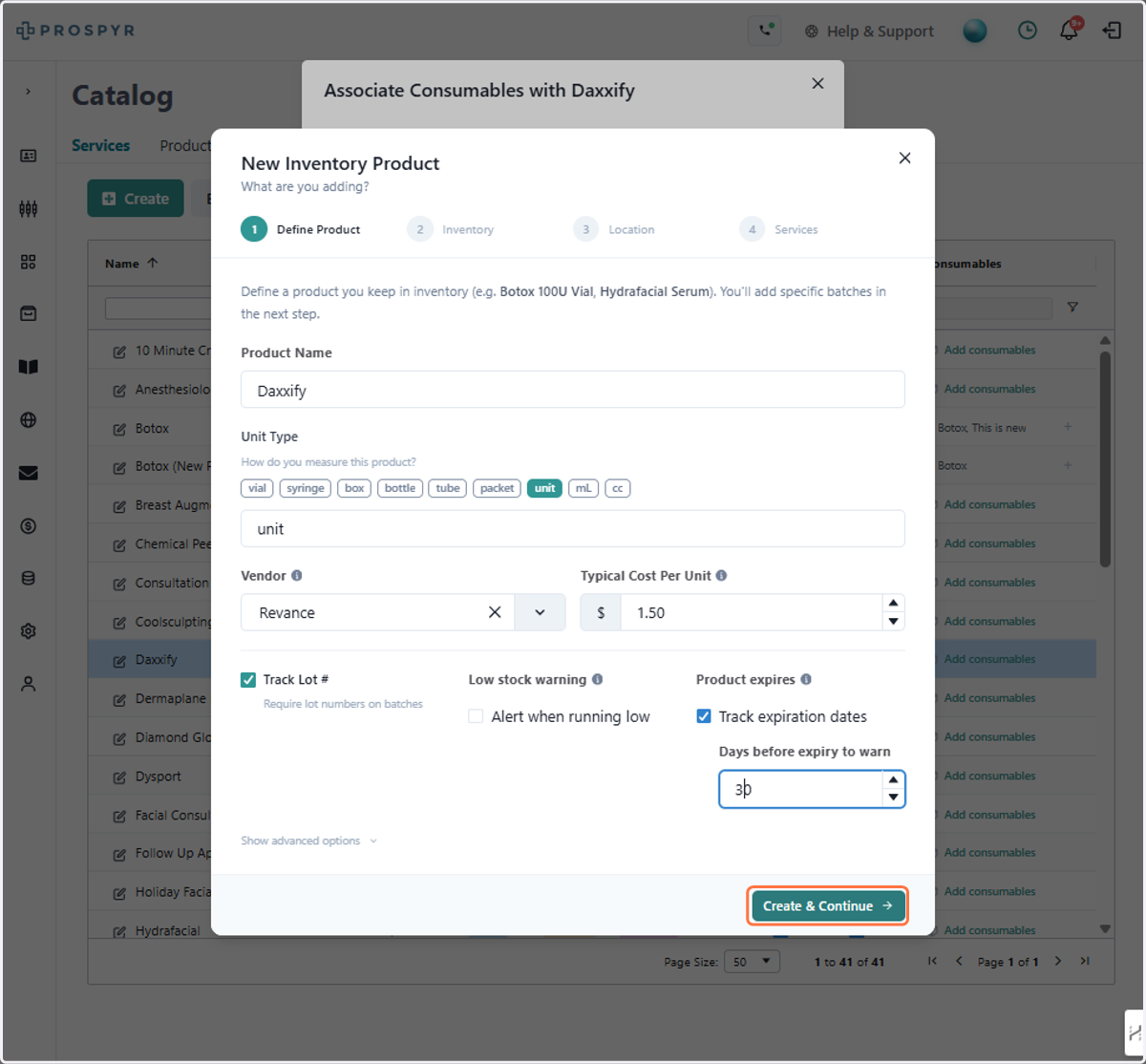
10. Click on Create & Continue
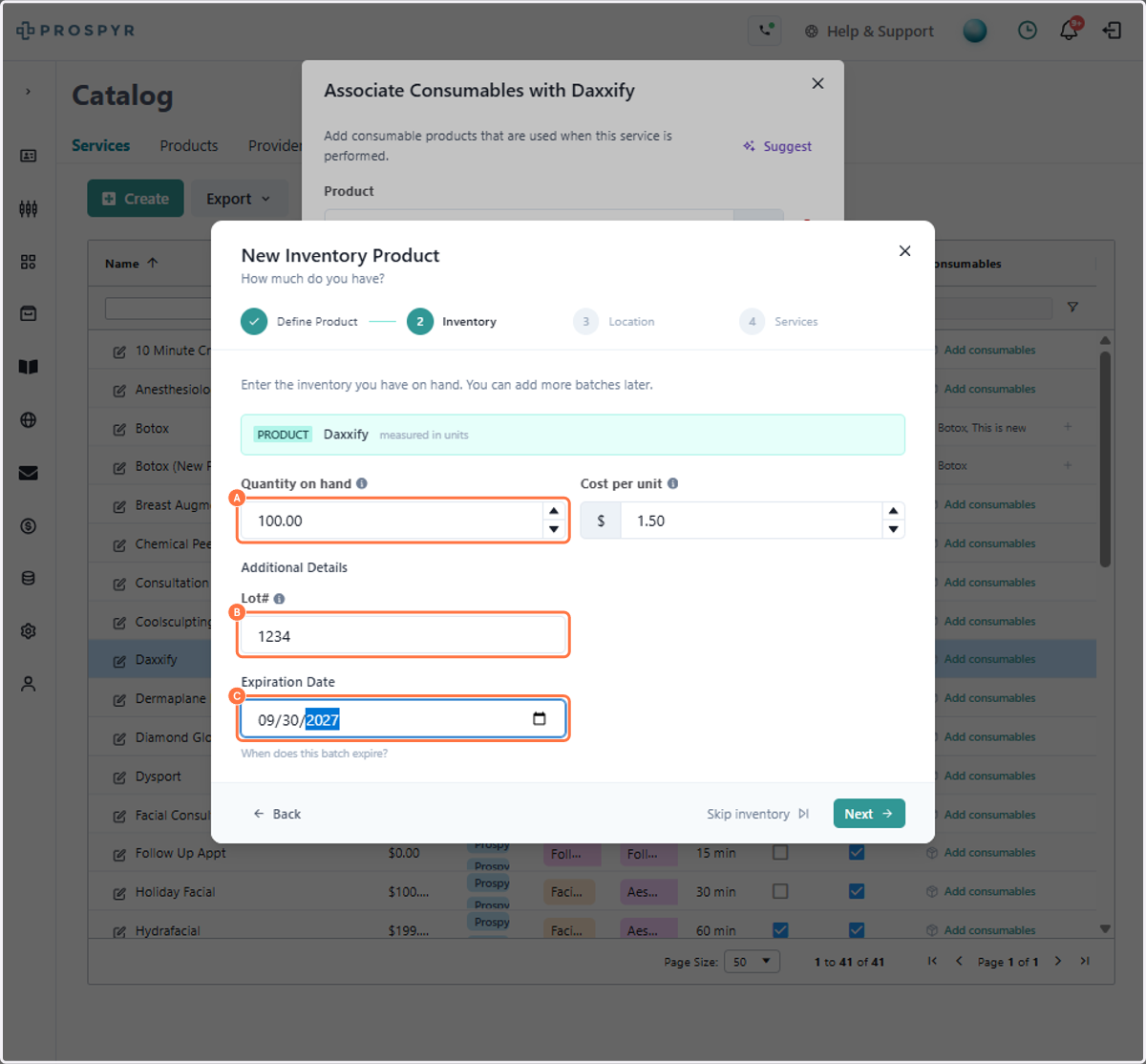
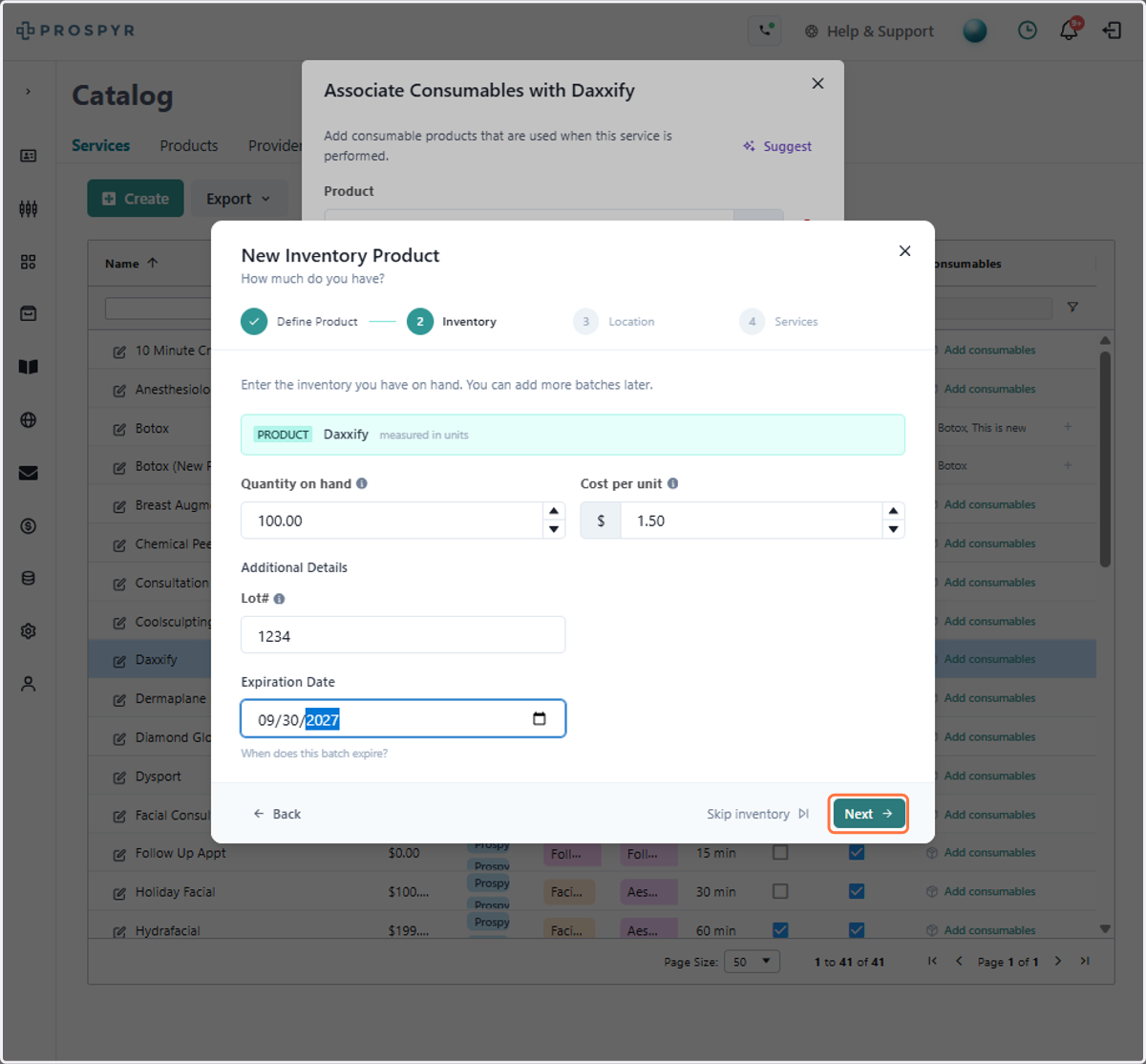
11. A. Type Quantity on hand
11. B. Type Lot#
11. C. Type Expiration Date
You can also click skip inventory if you don't have any inventory on hand to add right now
12. Click on Next
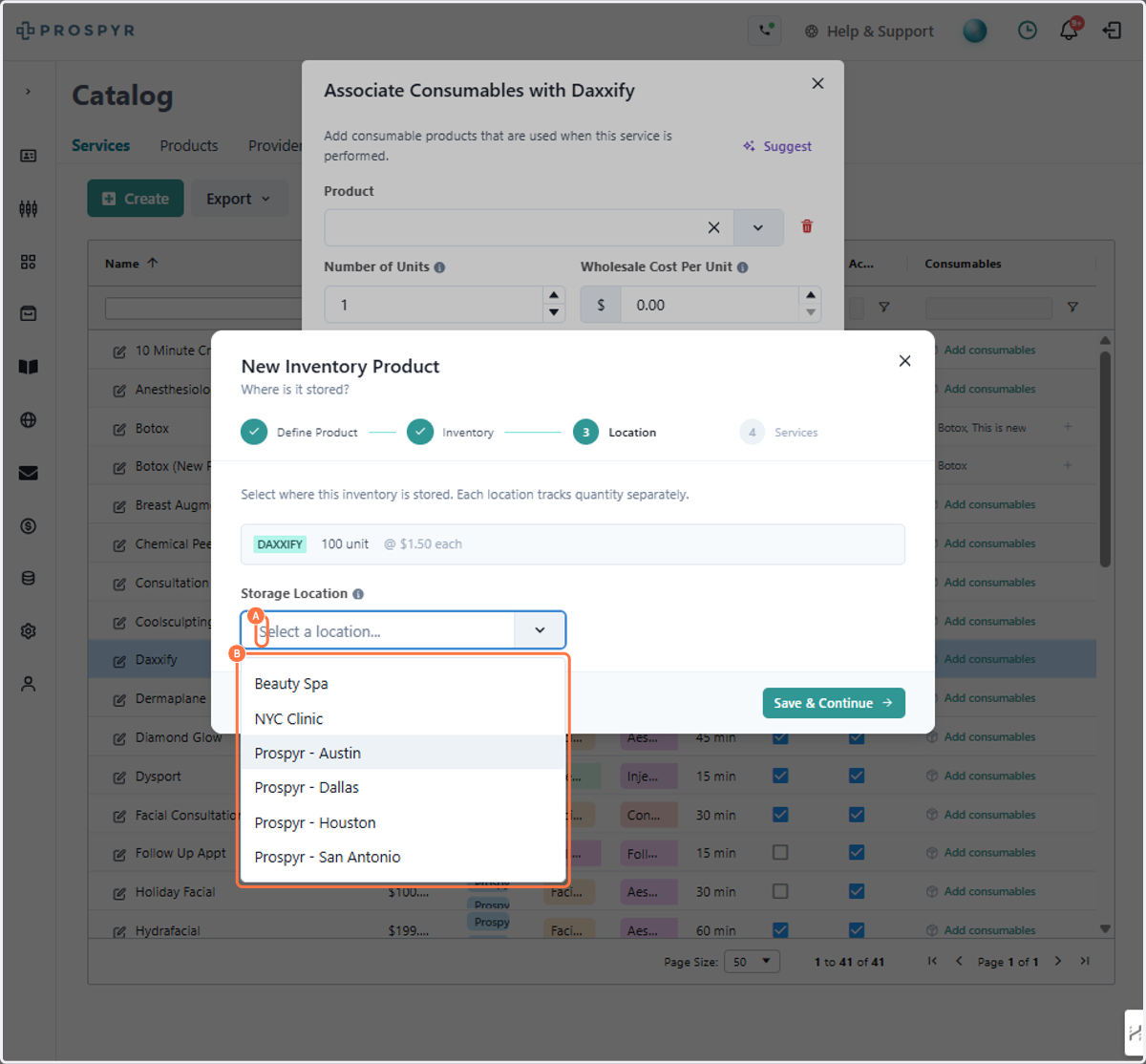
13. A. Click on Select a location...
13. B. Select which location the inventory is available at
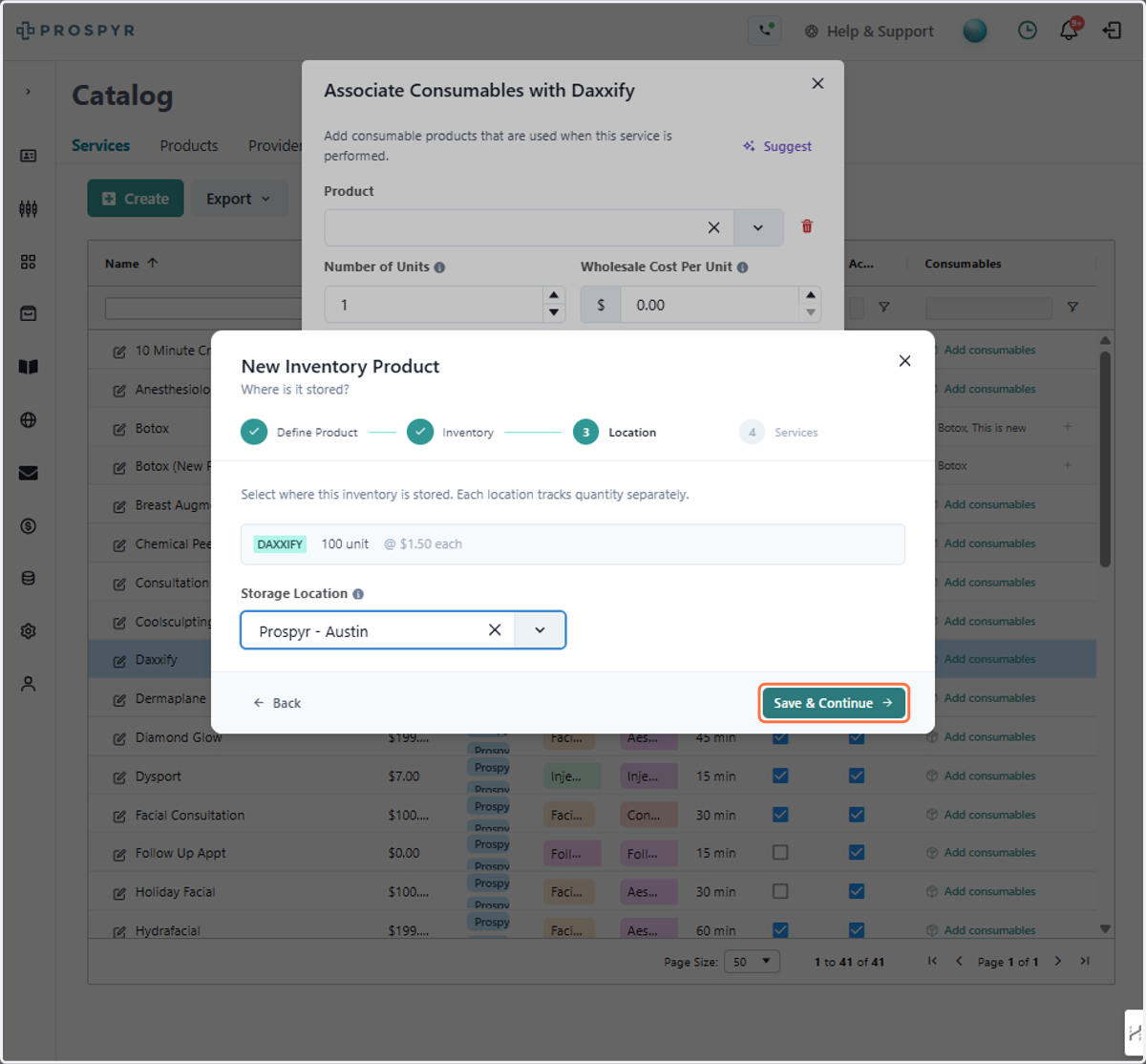
14. Click on Save & Continue
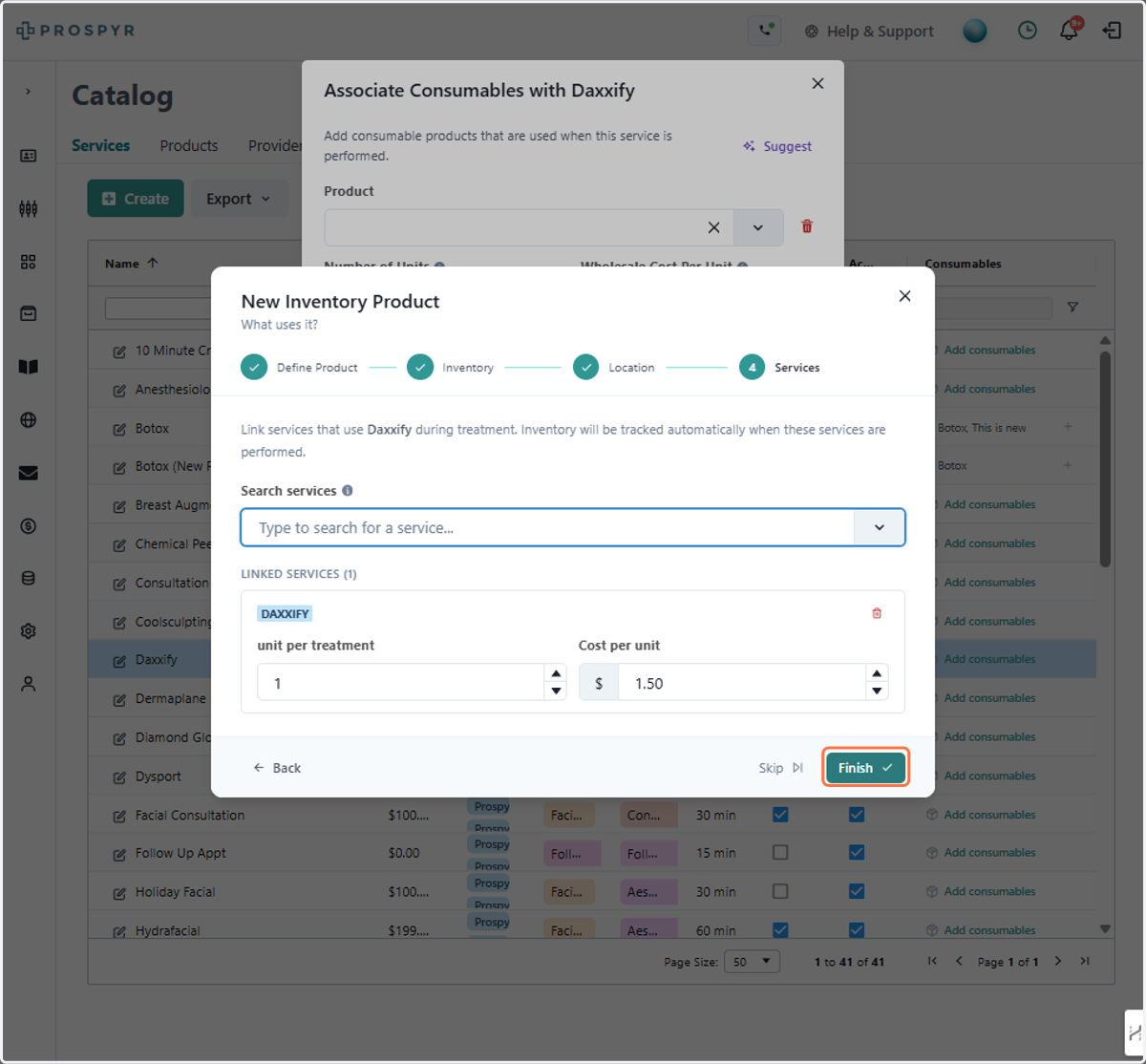
15. Click on Finish
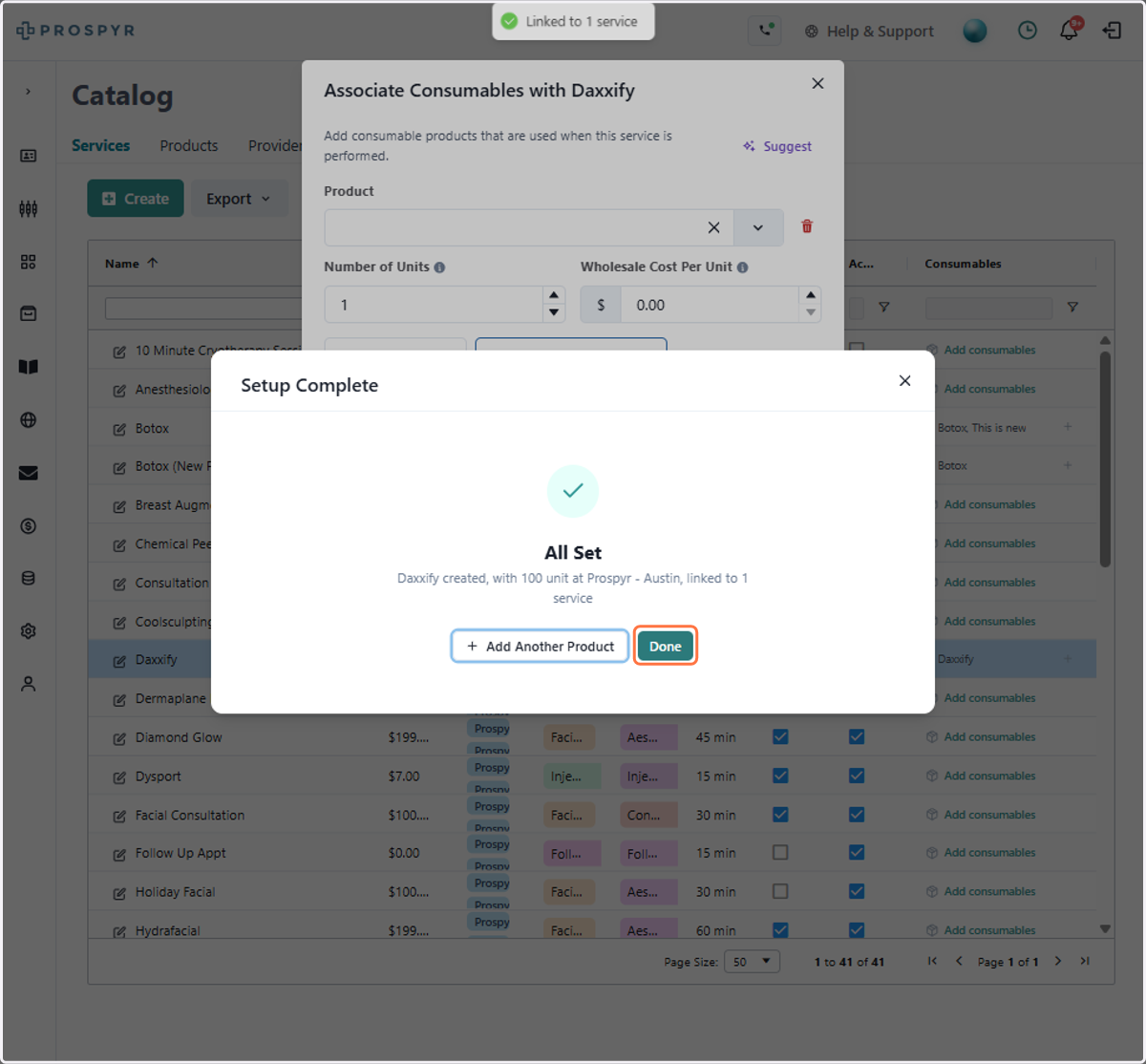
16. Click on Done
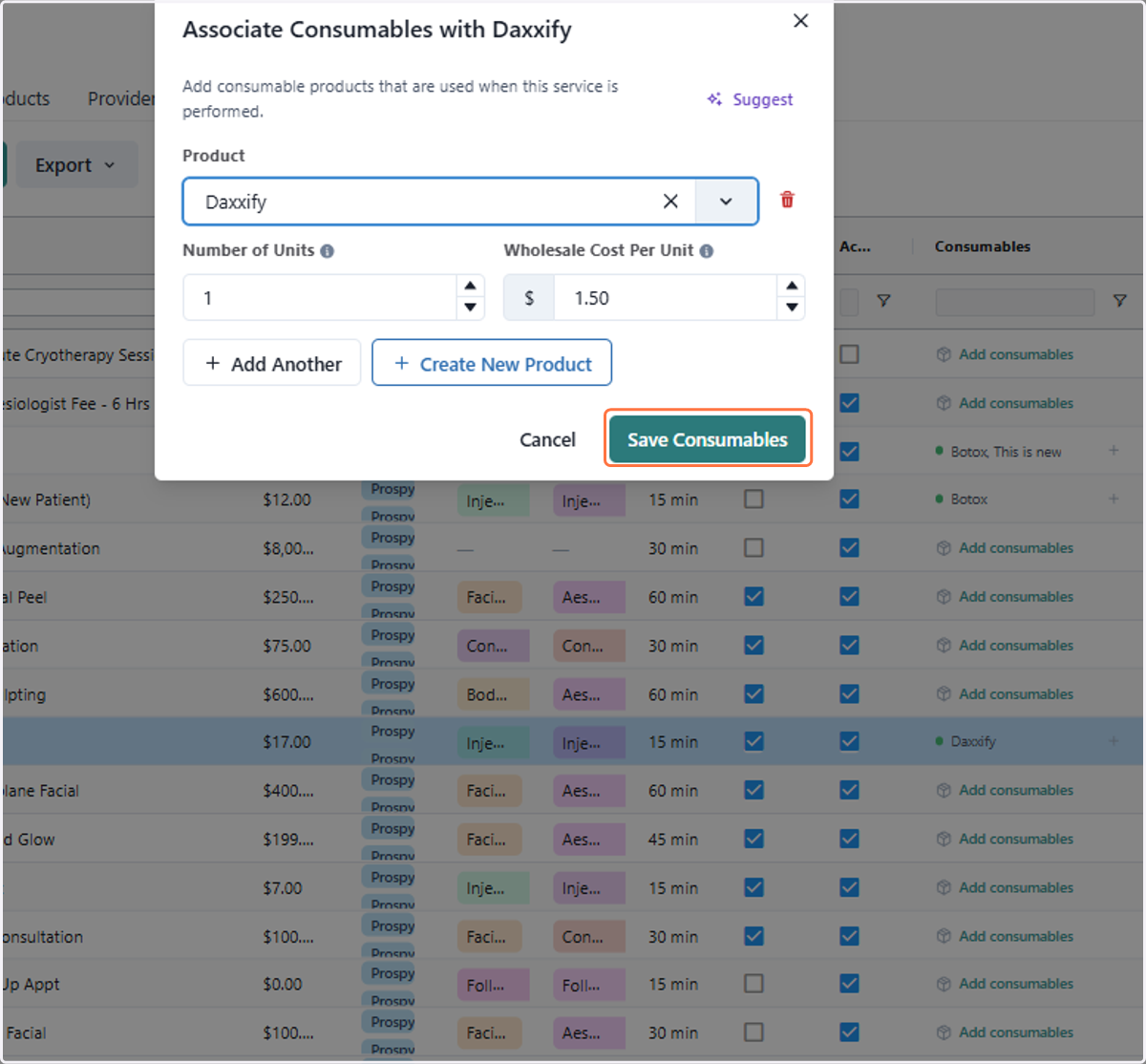
17. A. Type y
17. B. Select the product
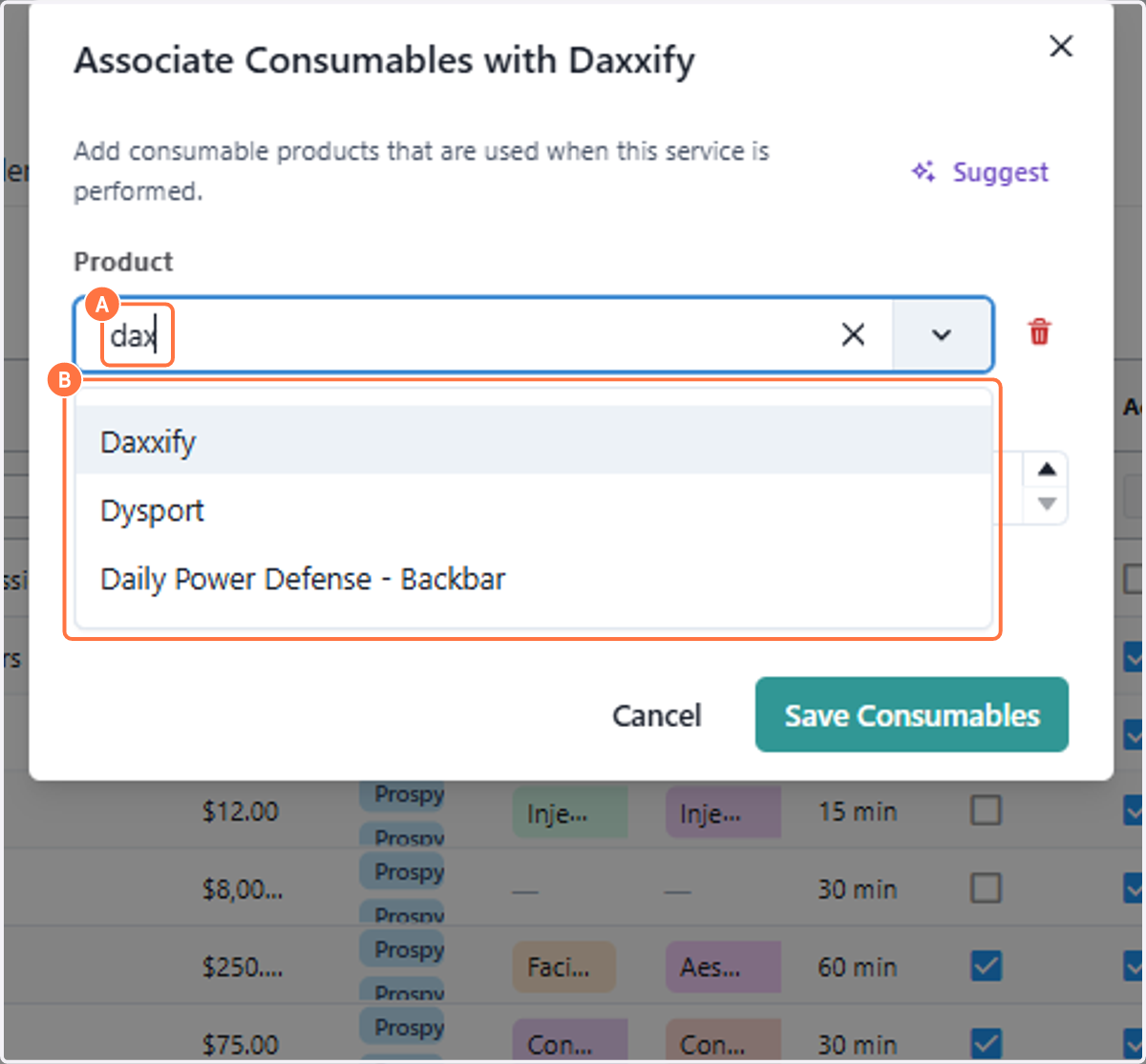
18. Click on Save Consumables